Linux Shell
&
Shell Script
netman<netman@study-area.org>
Part I
Command Line
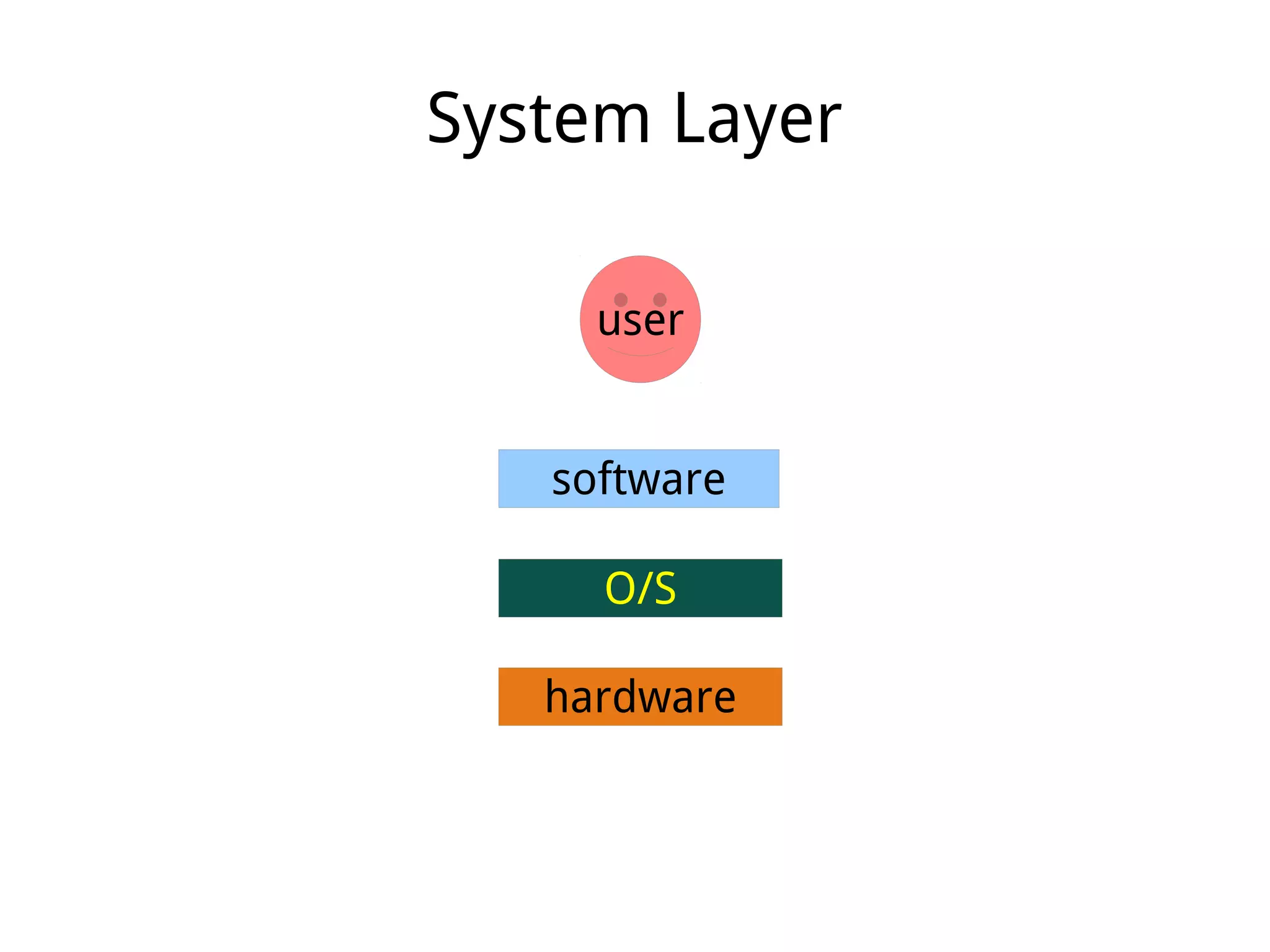
System Layer
O/S
hardware
software
user
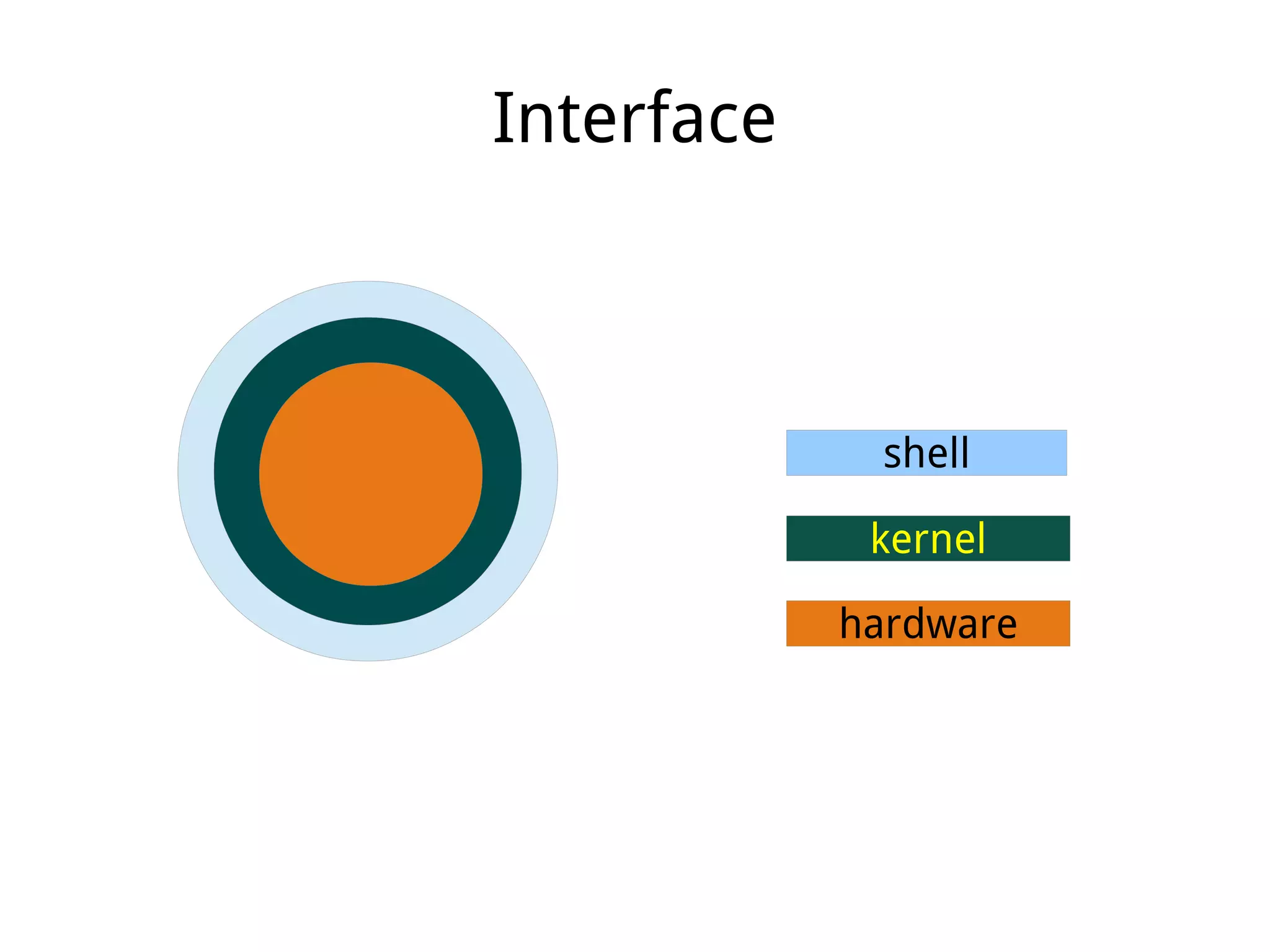
Interface
kernel
hardware
shell
Shell Definition
● Command interpreter:
● Issue commands from user to system
● Display command results from system to user
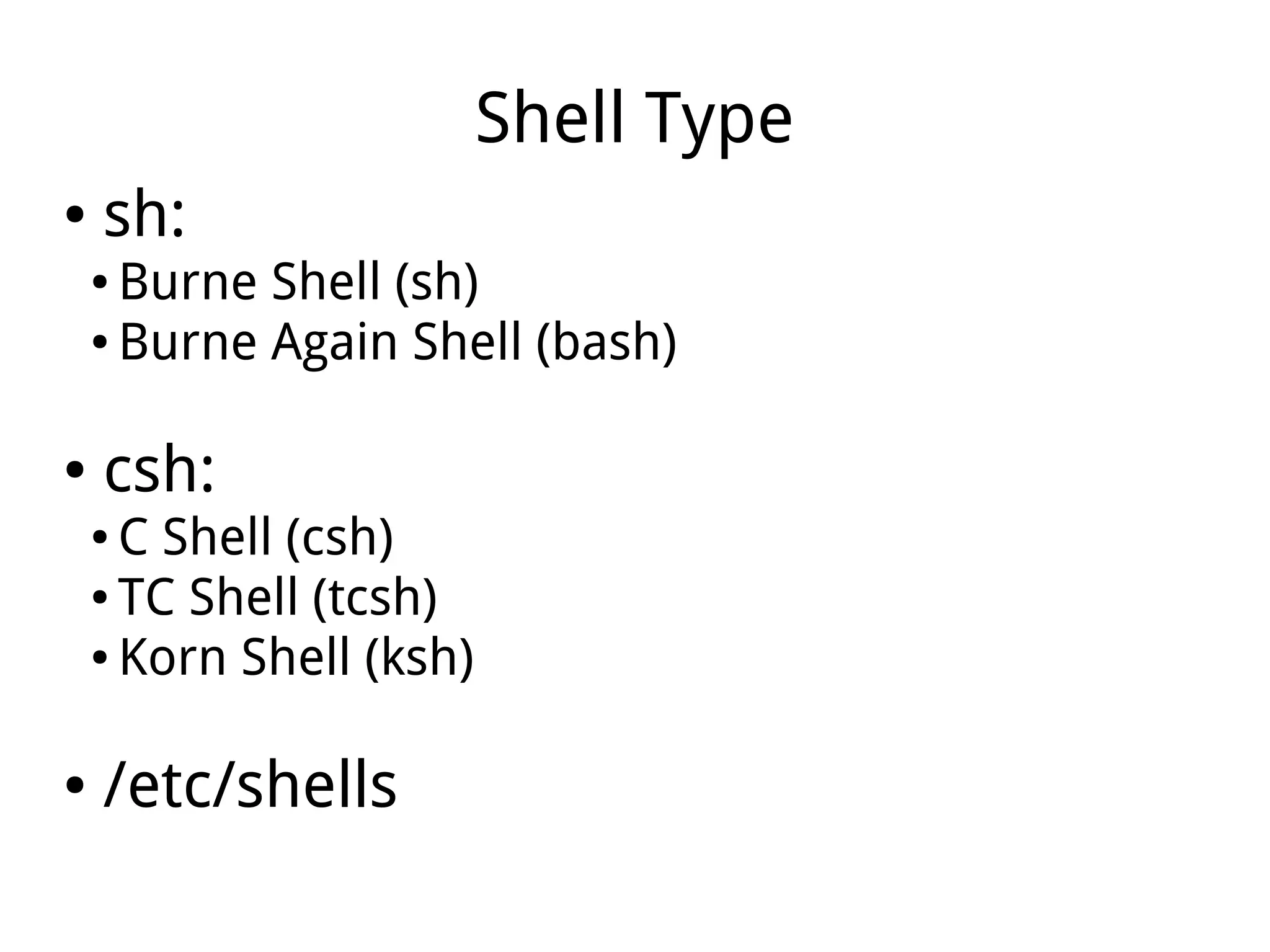
Shell Type
● sh:
● Burne Shell (sh)
● Burne Again Shell (bash)
● csh:
● C Shell (csh)
● TC Shell (tcsh)
● Korn Shell (ksh)
● /etc/shells
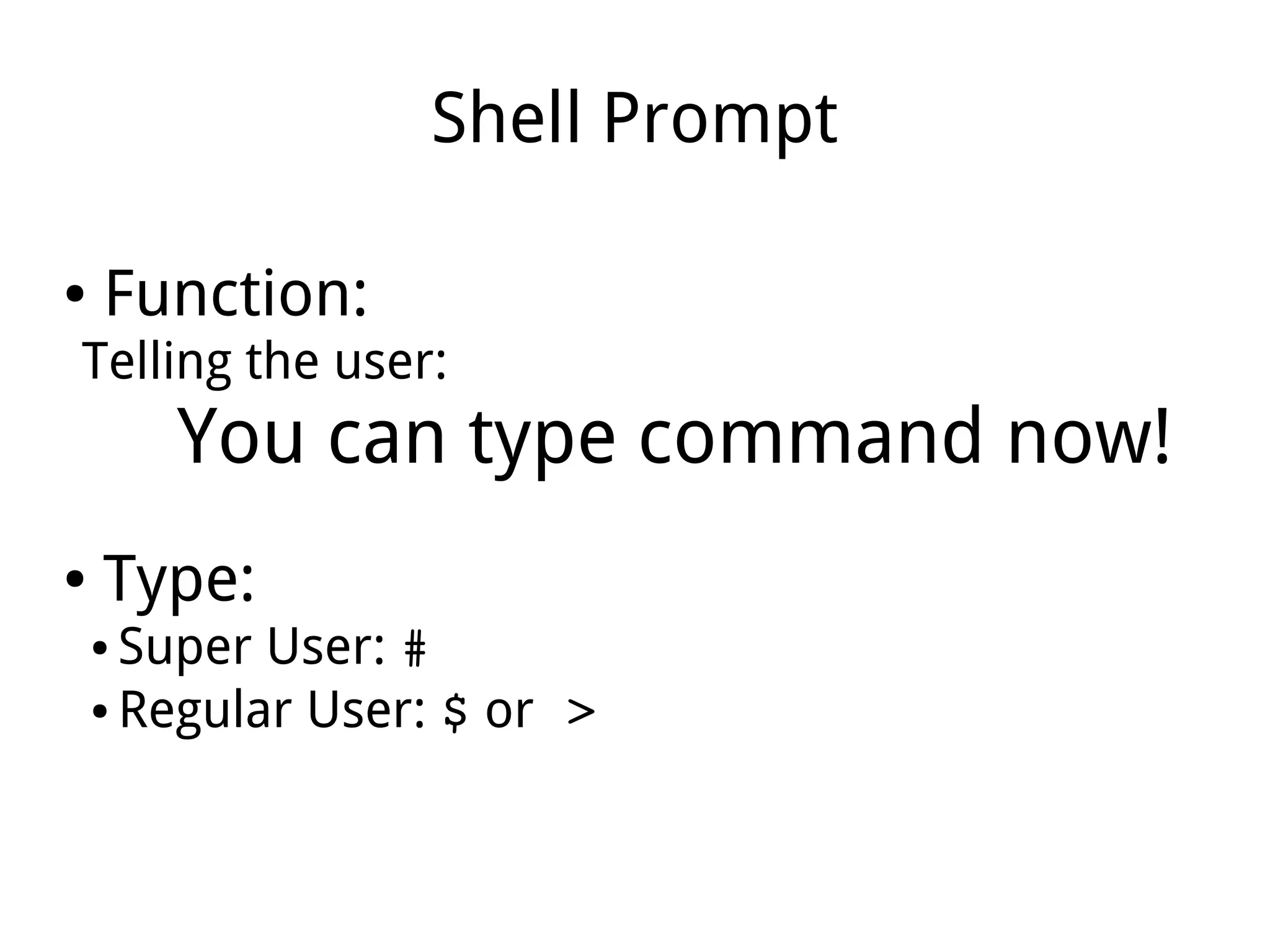
Shell Prompt
● Function:
Telling the user:
You can type command now!
● Type:
● Super User: #
● Regular User: $ or >
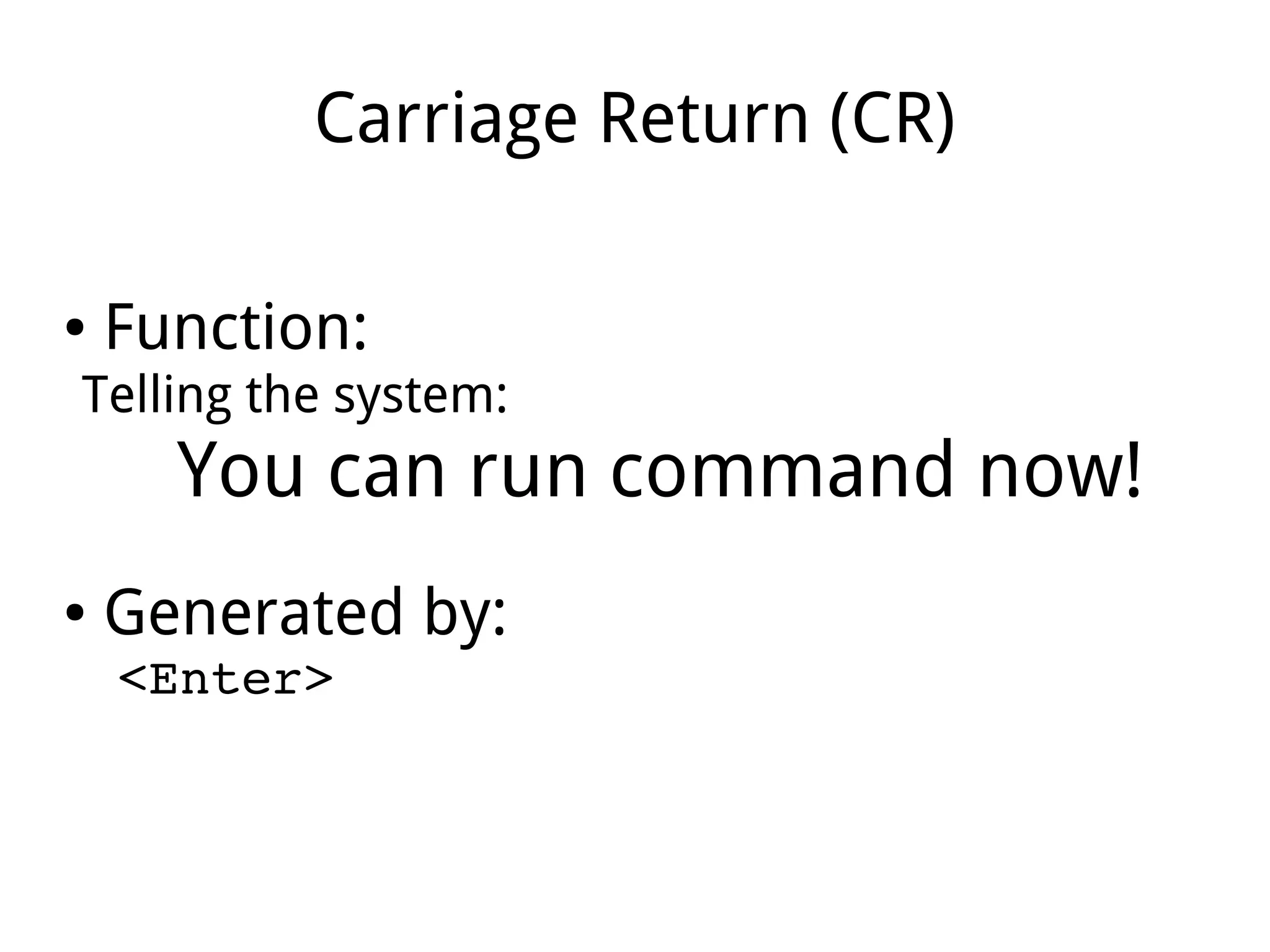
Carriage Return (CR)
● Function:
Telling the system:
You can run command now!
● Generated by:
<Enter>
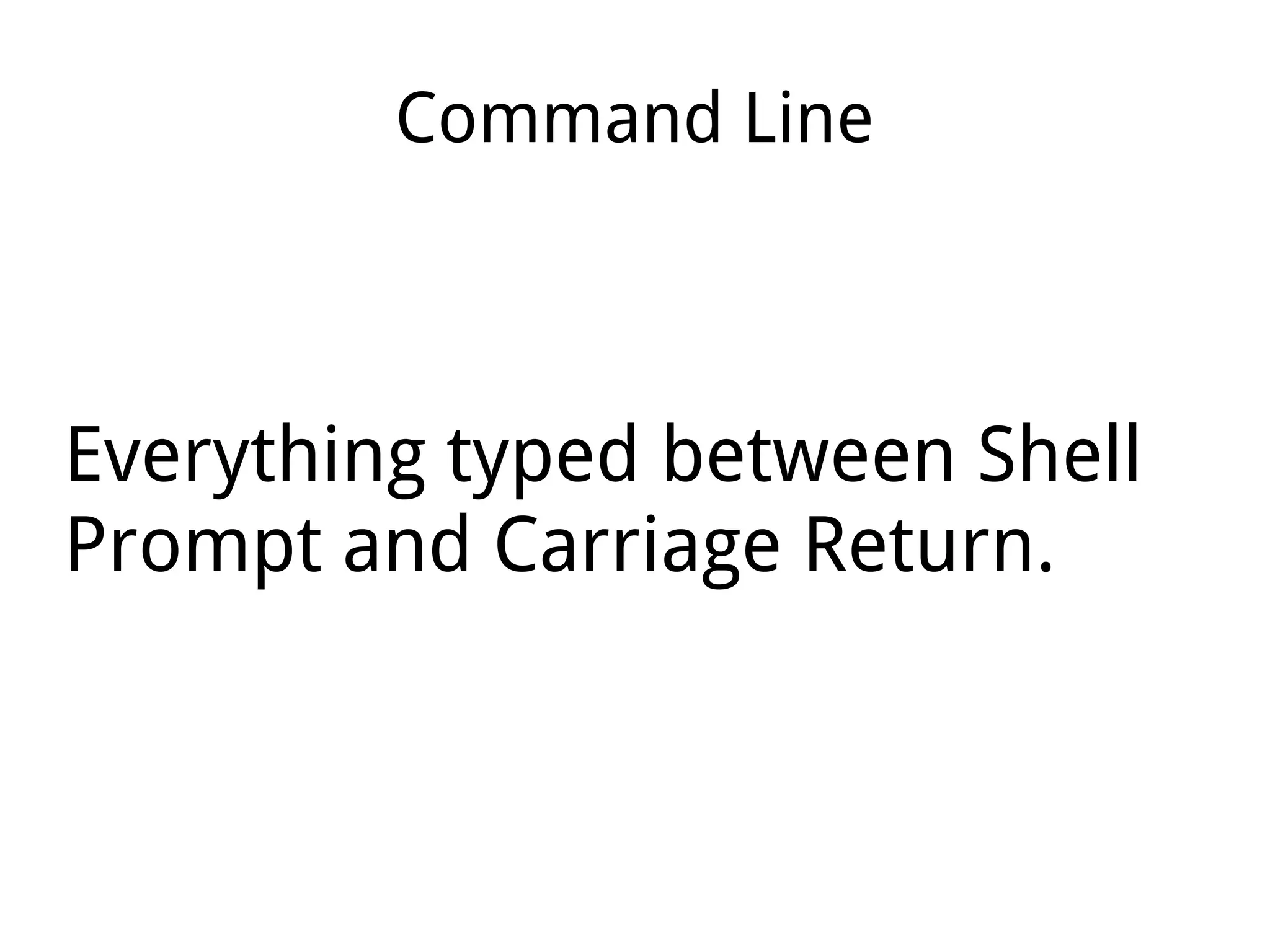
Command Line
Everything typed between Shell
Prompt and Carriage Return.
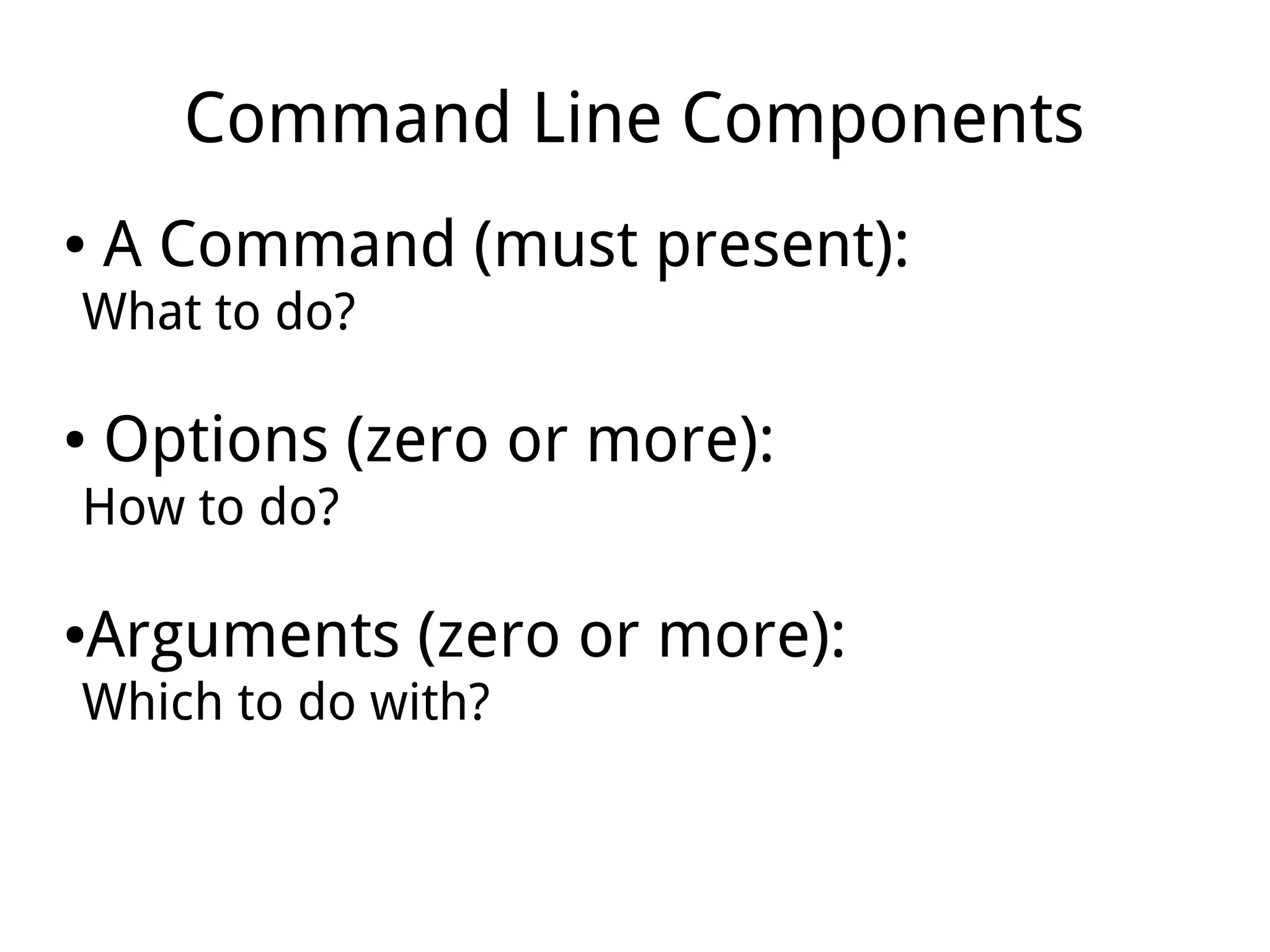
Command Line Components
● A Command (must present):
What to do?
● Options (zero or more):
How to do?
●Arguments (zero or more):
Which to do with?
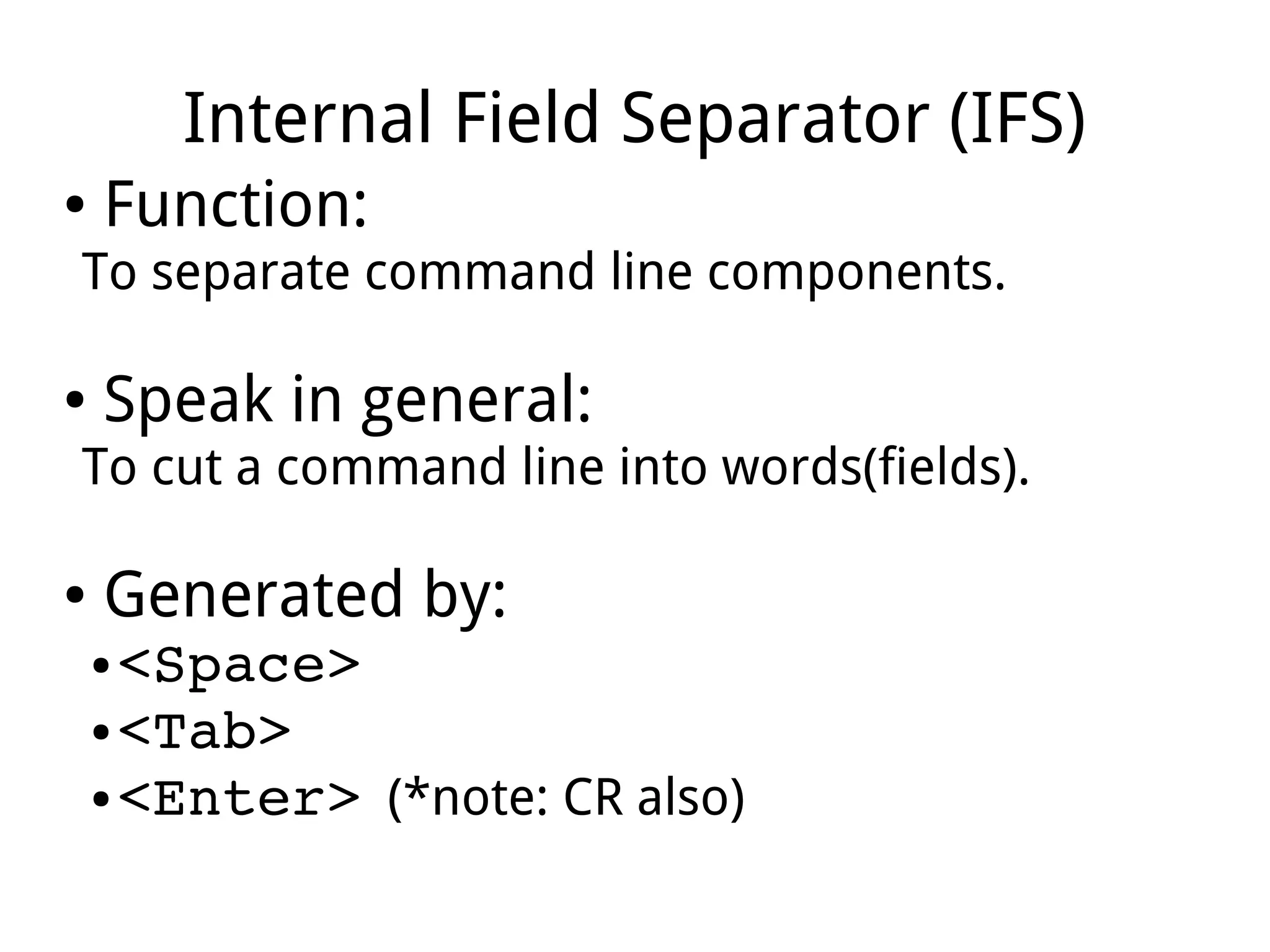
Internal Field Separator (IFS)
● Function:
To separate command line components.
● Speak in general:
To cut a command line into words(fields).
● Generated by:
● <Space>
● <Tab>
● <Enter> (*note: CR also)
A Command Line Format
Command<IFS>[Options...]<IFS>[Arguments...]
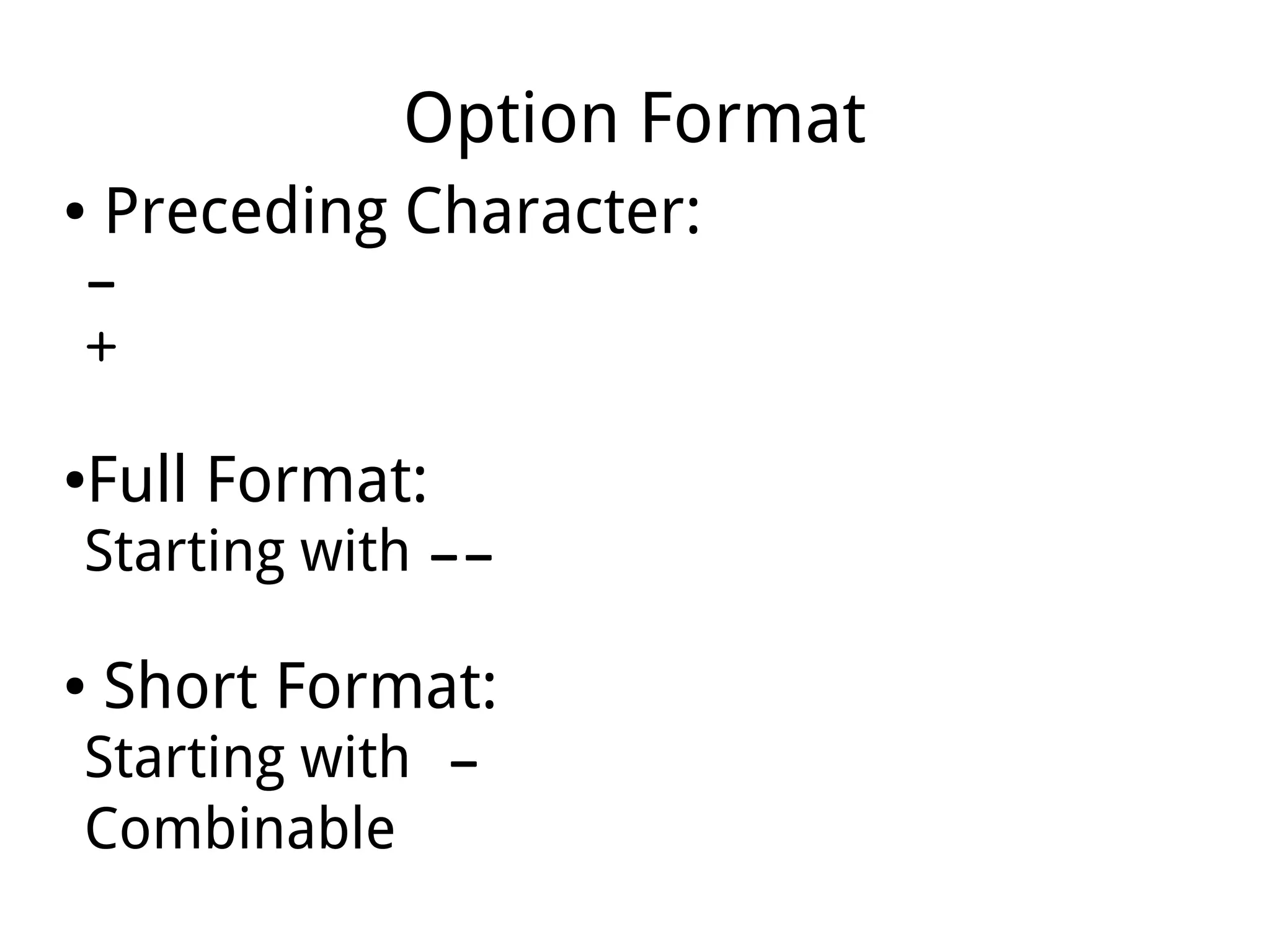
Option Format
● Preceding Character:
­
+
●Full Format:
Starting with ­­
● Short Format:
Starting with ­
Combinable
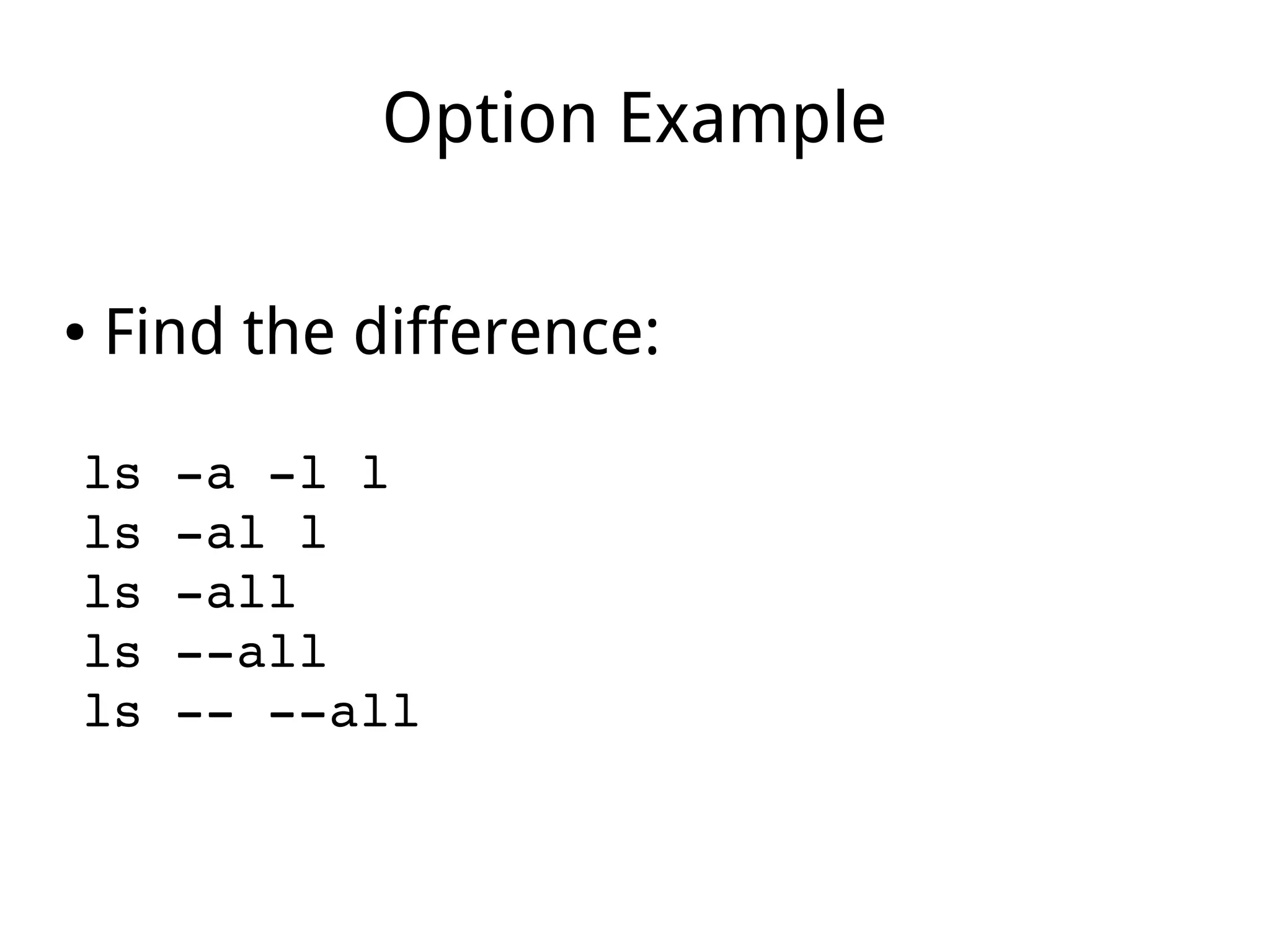
Option Example
● Find the difference:
ls ­a ­l l
ls ­al l
ls ­all
ls ­­all
ls ­­ ­­all
A Simple Command: echo
● Function:
To display all arguments to STDOUT(screen),
plus an ending <newline> character.
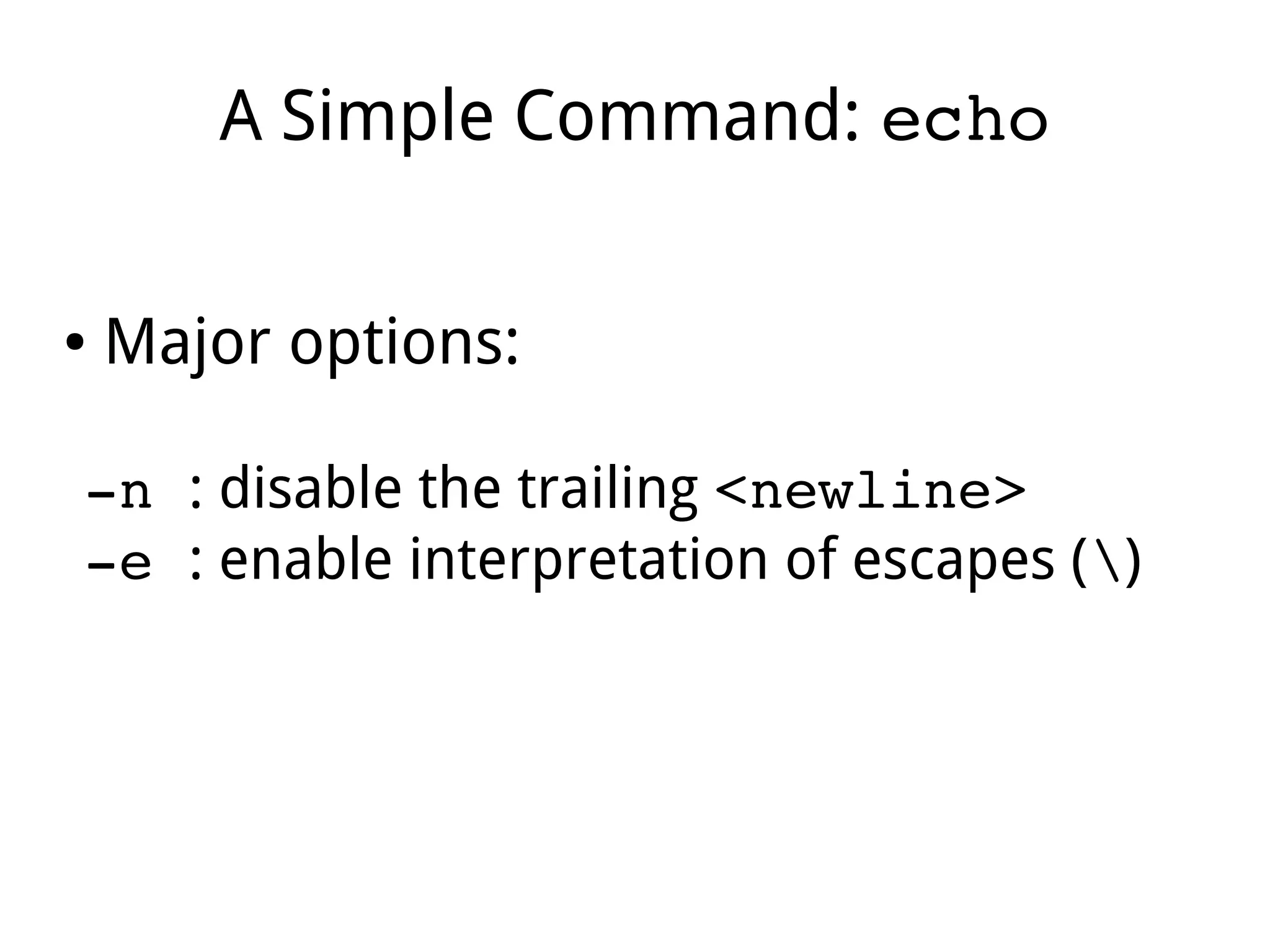
A Simple Command: echo
● Major options:
­n : disable the trailing <newline>
­e : enable interpretation of escapes ()
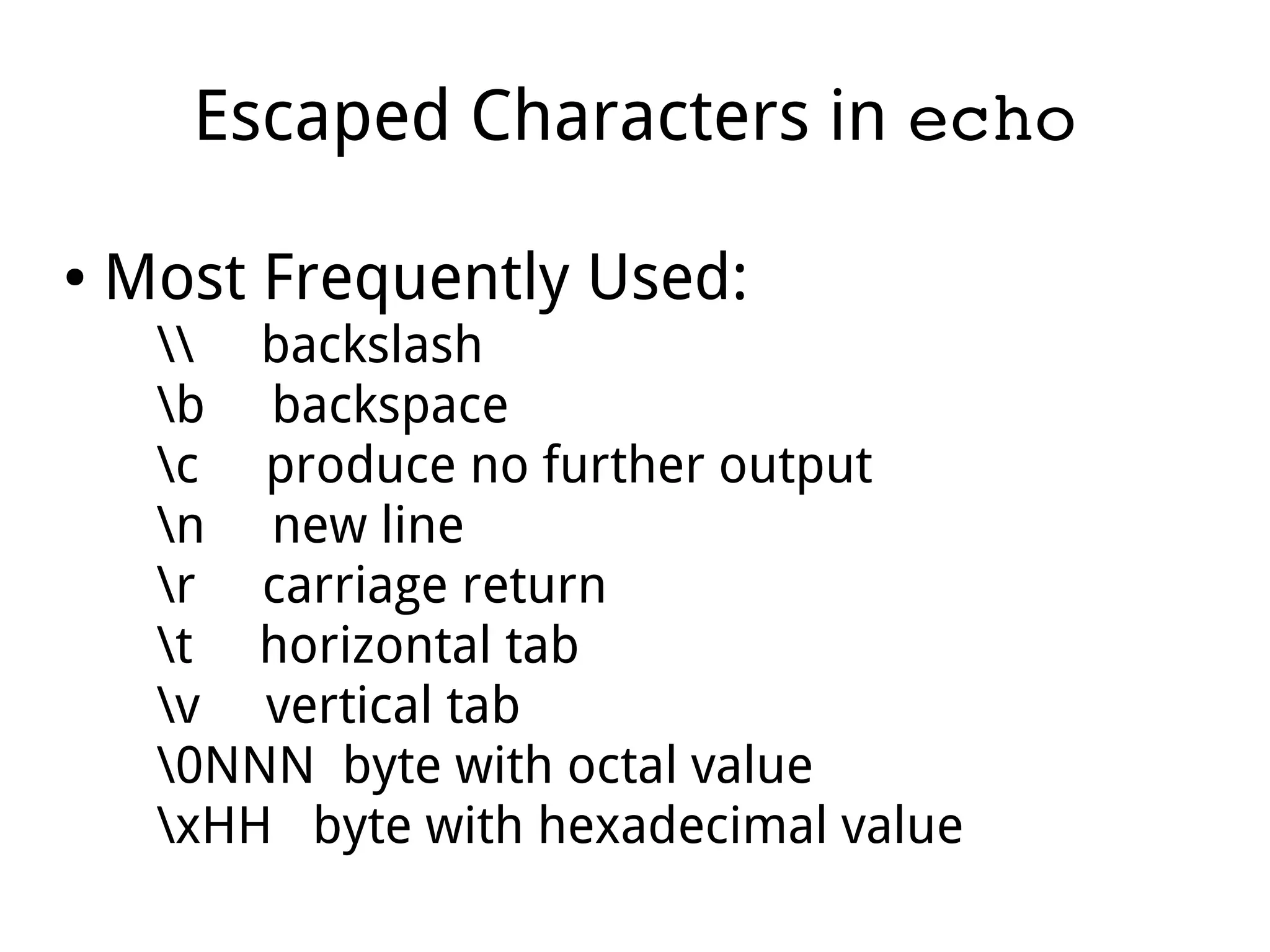
Escaped Characters in echo
● Most Frequently Used:
 backslash
b backspace
c produce no further output
n new line
r carriage return
t horizontal tab
v vertical tab
0NNN byte with octal value
xHH byte with hexadecimal value
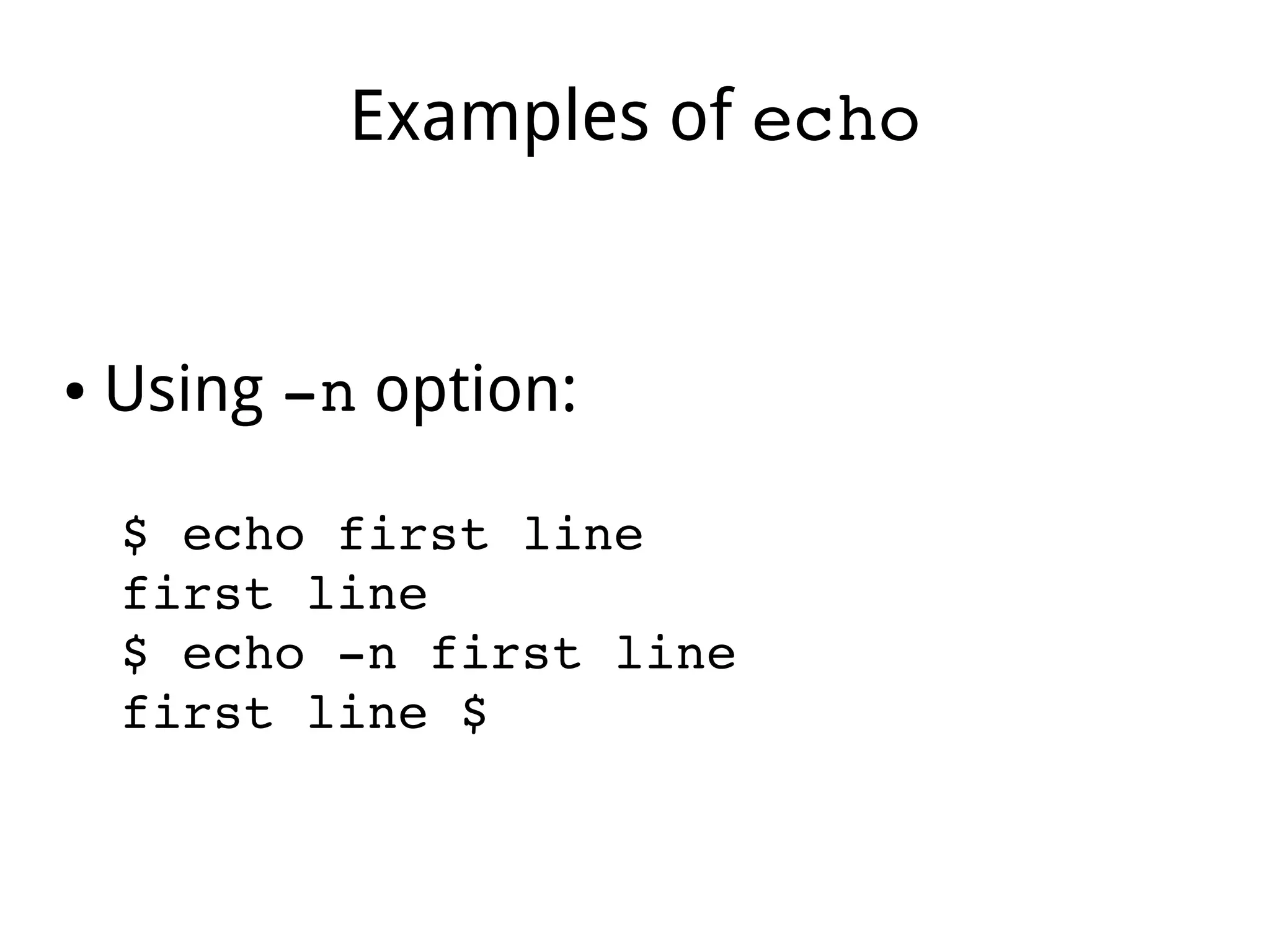
Examples of echo
● Using ­n option:
$ echo first line 
first line 
$ echo ­n first line 
first line $ 
Examples of echo
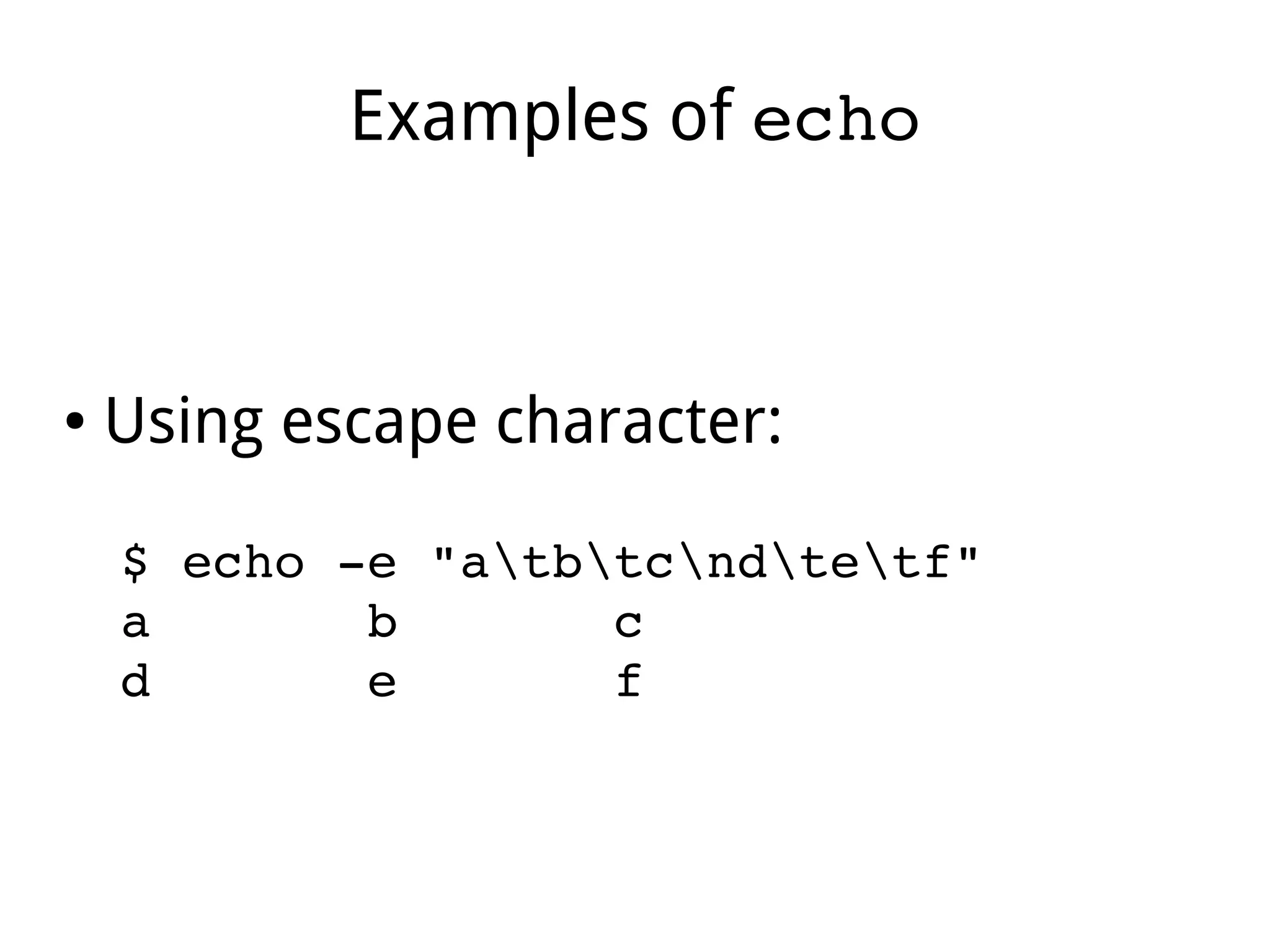
● Using escape character:
$ echo ­e "atbtcndtetf" 
a       b       c 
d       e       f  
Examples of echo
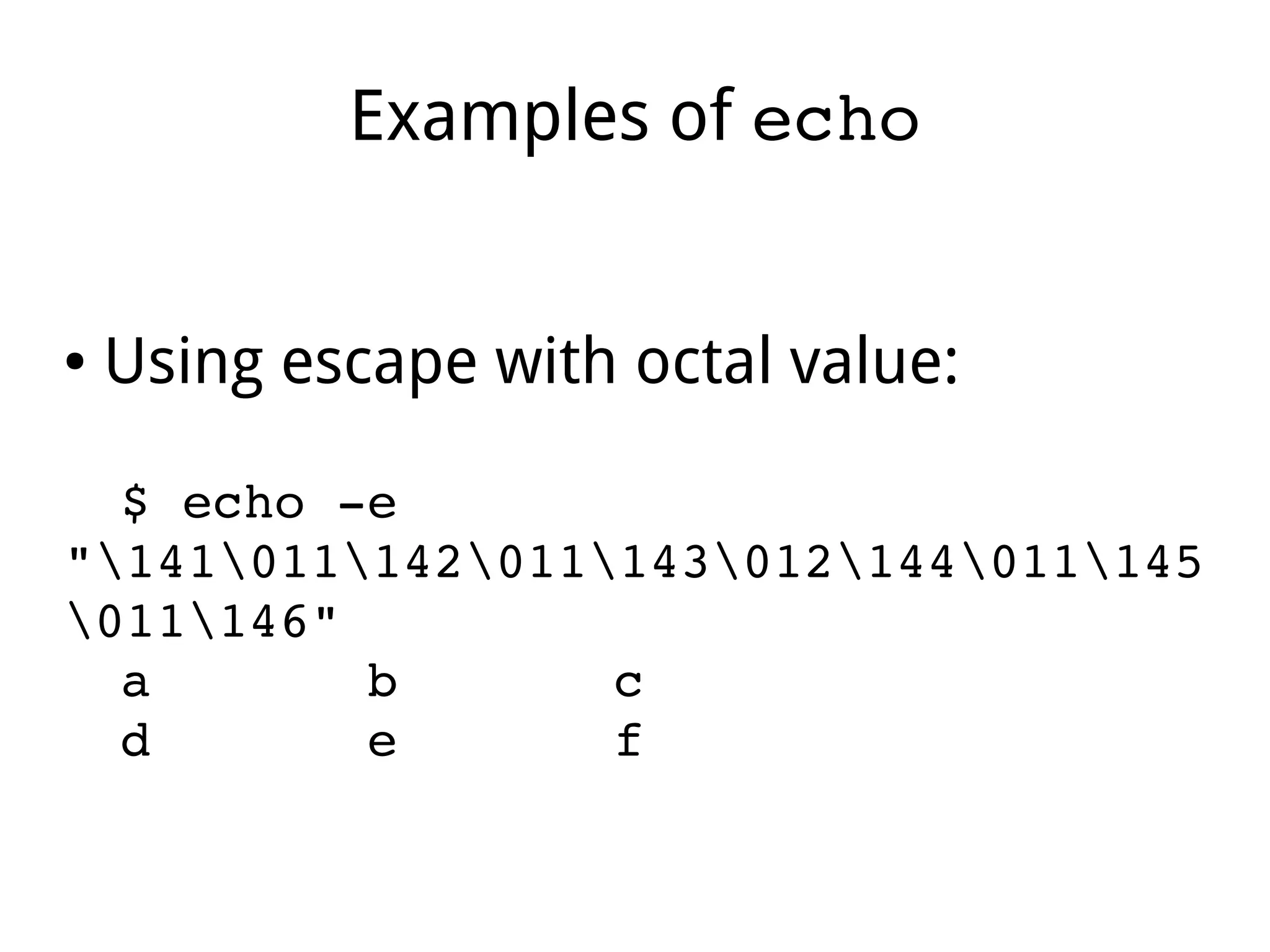
● Using escape with octal value:
$ echo ­e 
"141011142011143012144011145
011146" 
a       b       c 
d       e       f   
Examples of echo
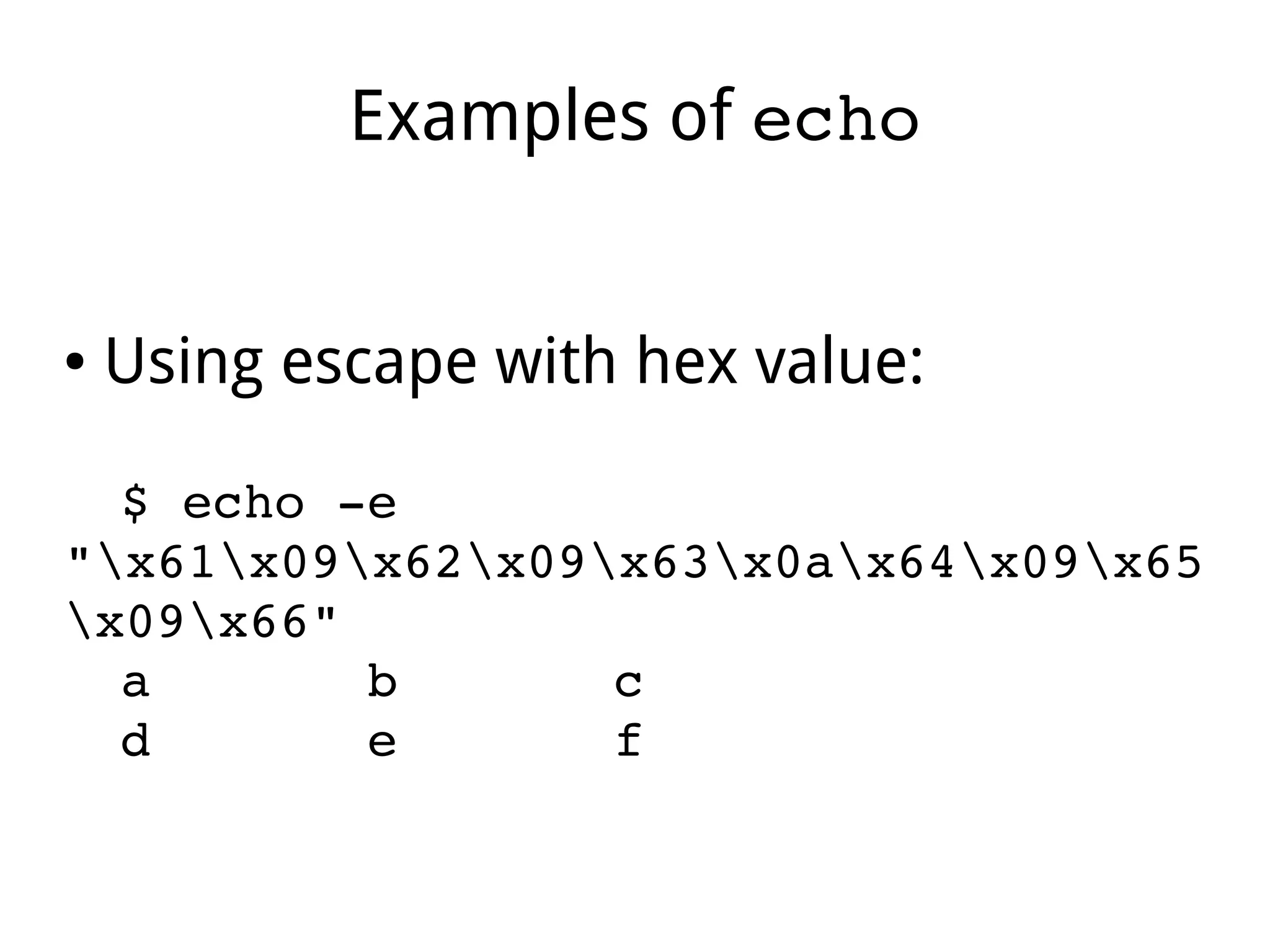
● Using escape with hex value:
$ echo ­e 
"x61x09x62x09x63x0ax64x09x65
x09x66" 
a       b       c 
d       e       f    
Part II
Quoting
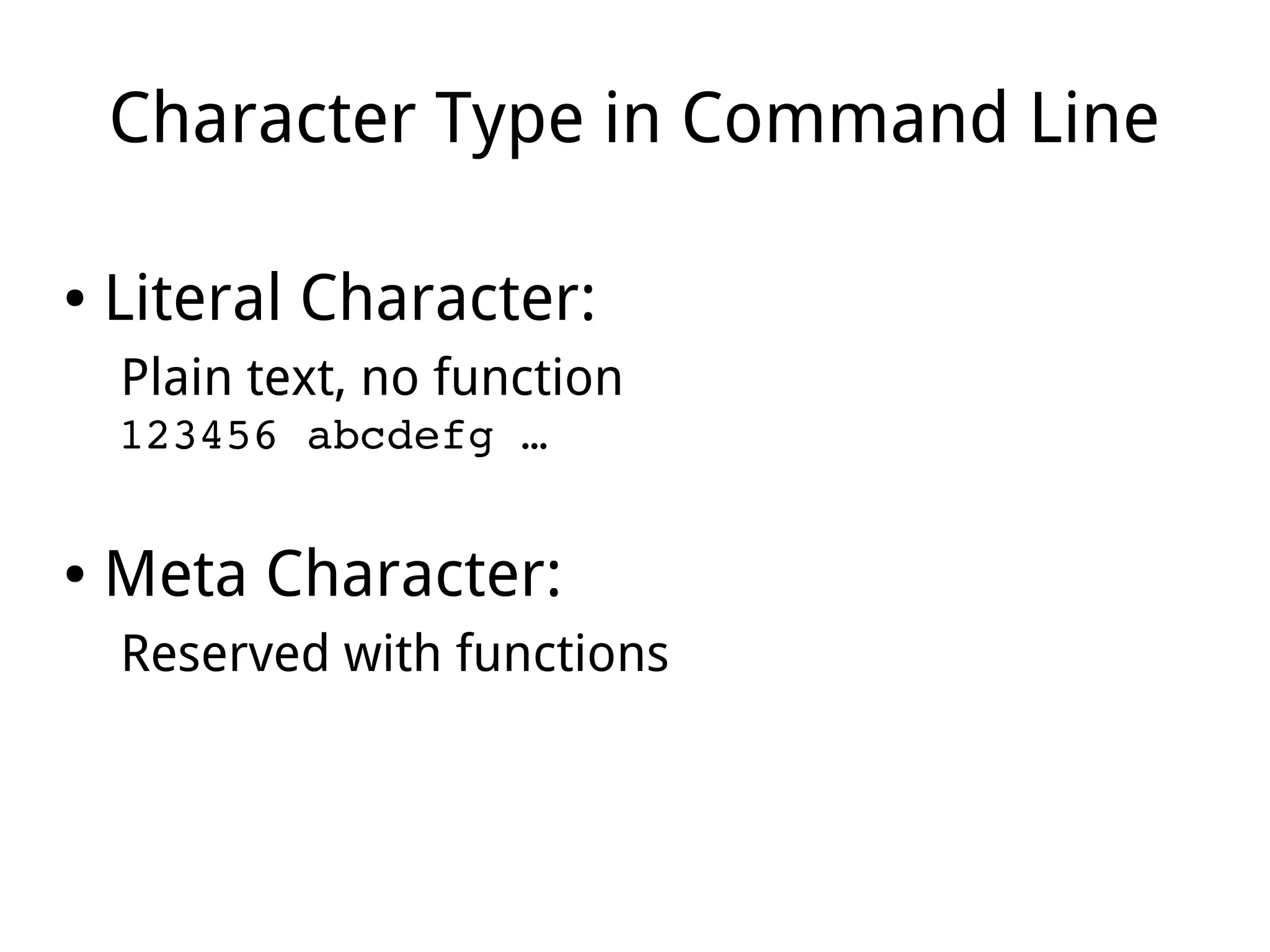
Character Type in Command Line
● Literal Character:
Plain text, no function
123456 abcdefg …
● Meta Character:
Reserved with functions
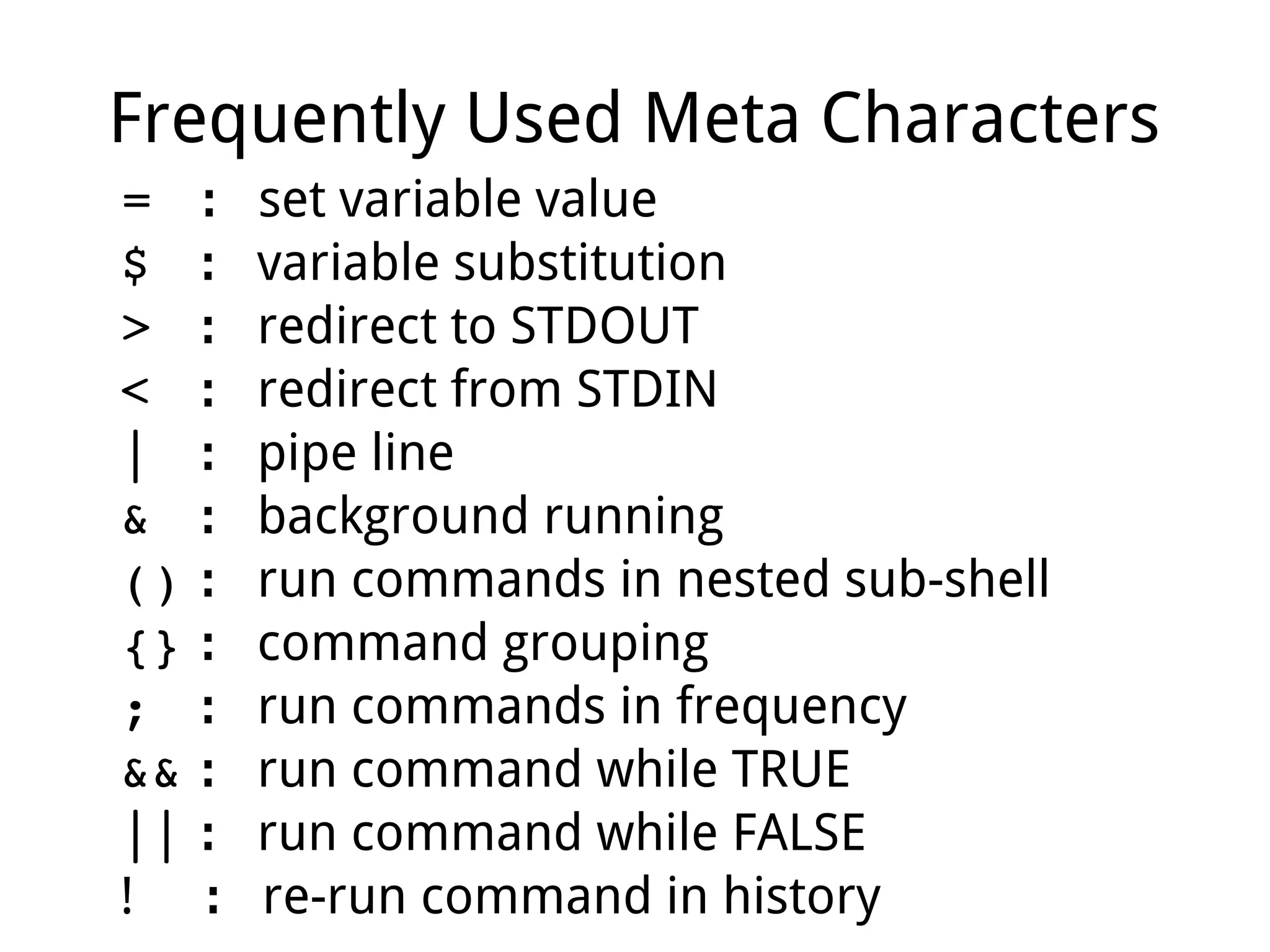
Frequently Used Meta Characters
=  : set variable value
$  : variable substitution
>  : redirect to STDOUT
<  : redirect from STDIN
|  : pipe line
&  : background running
() : run commands in nested sub-shell
{} : command grouping
;  : run commands in frequency
&& : run command while TRUE
|| : run command while FALSE
! : re-run command in history
Quoting Usage
● Purpose:
Disable the functions of Meta Characters.
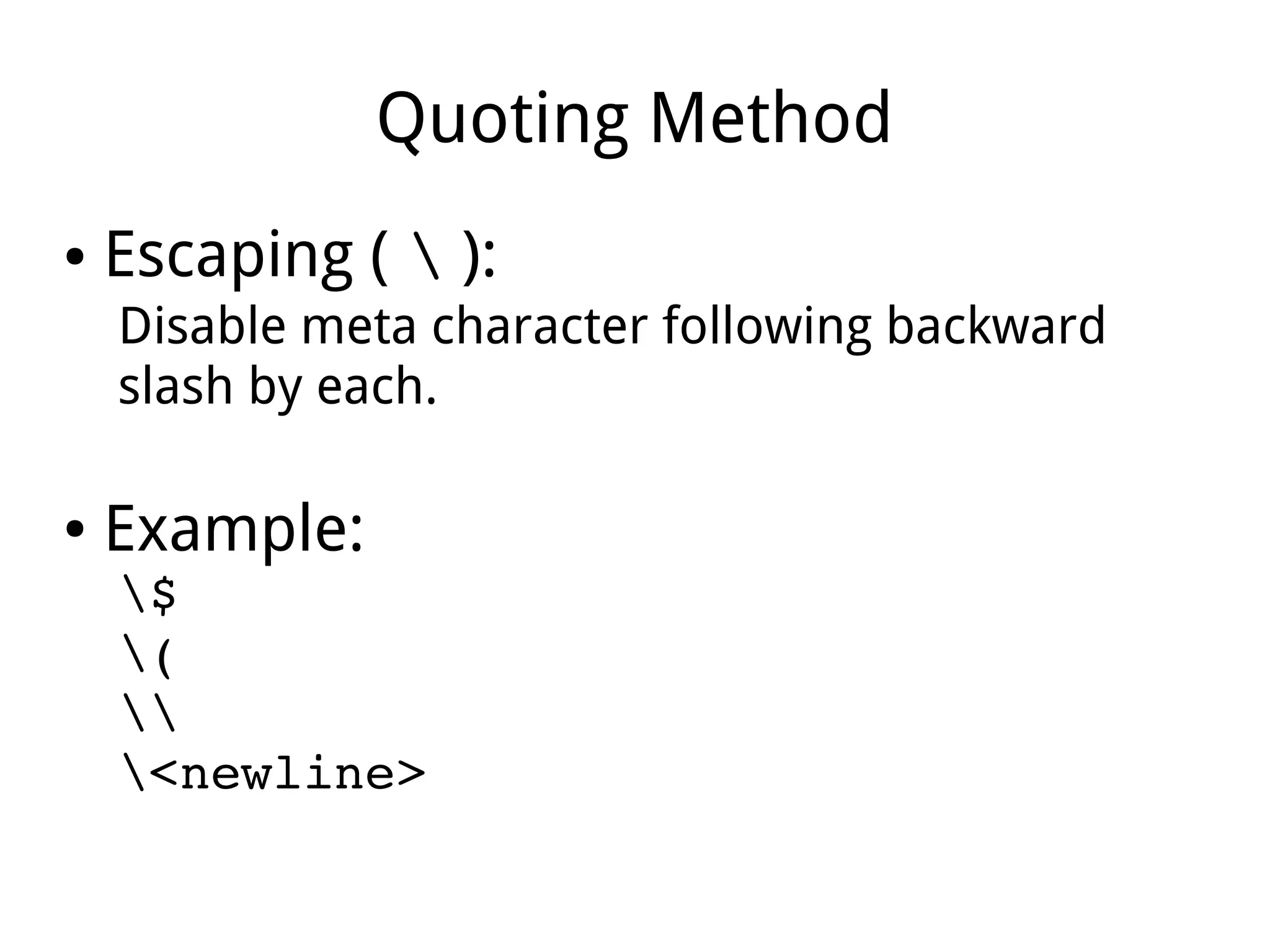
Quoting Method
● Escaping (  ):
Disable meta character following backward
slash by each.
● Example:
$
(

<newline>
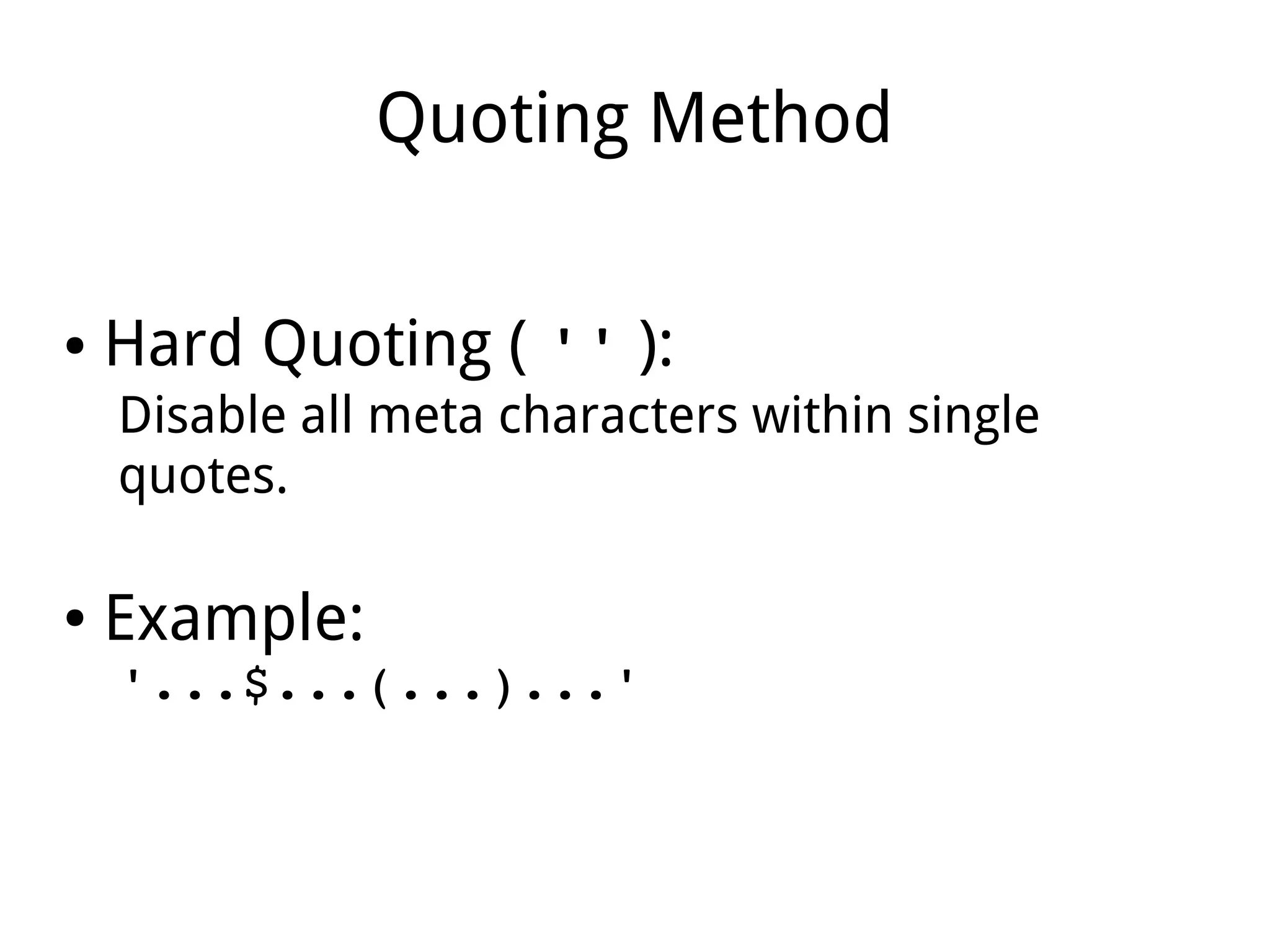
Quoting Method
● Hard Quoting ( '' ):
Disable all meta characters within single
quotes.
● Example:
'...$...(...)...'
Quoting Method
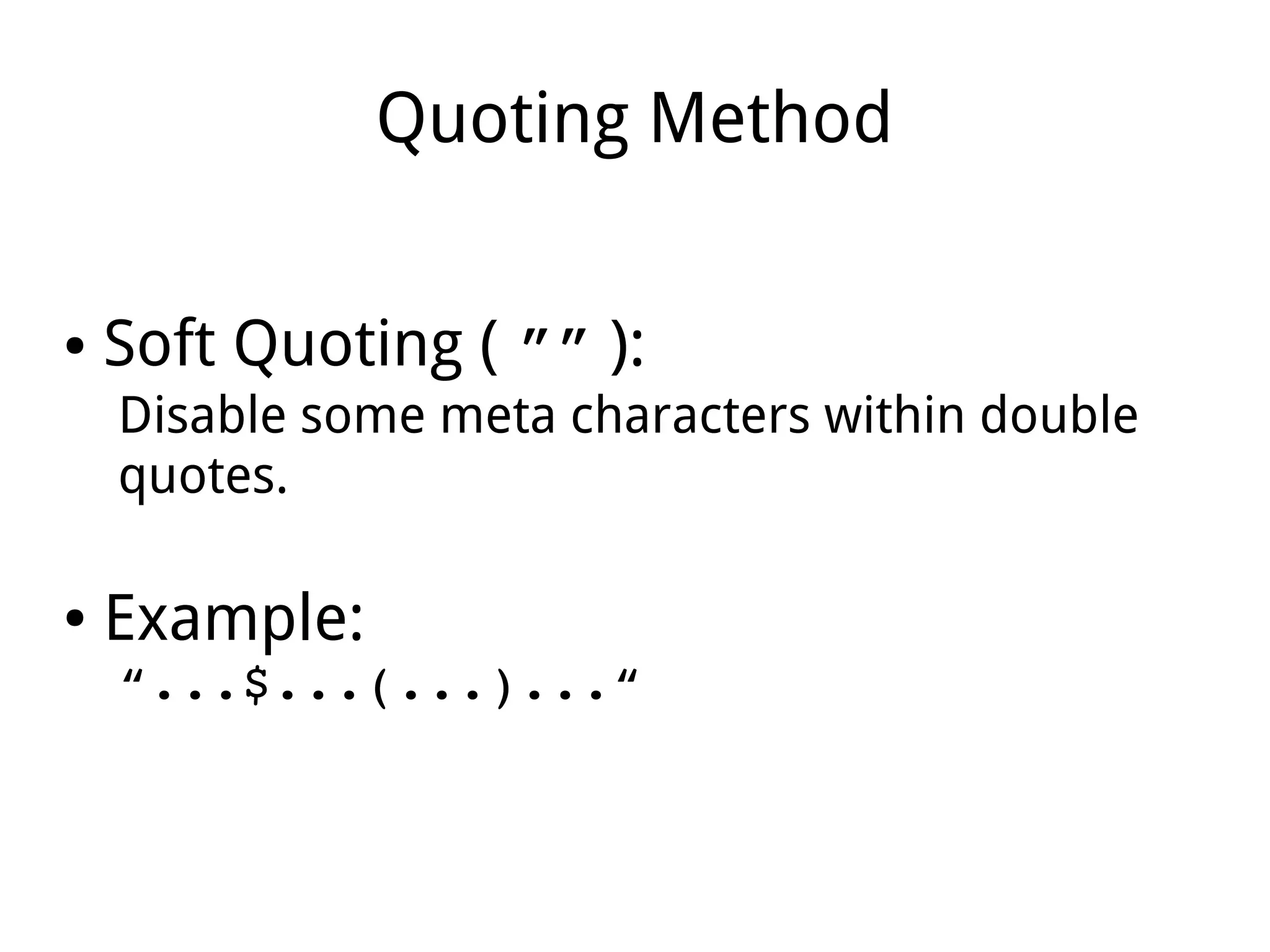
● Soft Quoting ( ”” ):
Disable some meta characters within double
quotes.
● Example:
“...$...(...)...“
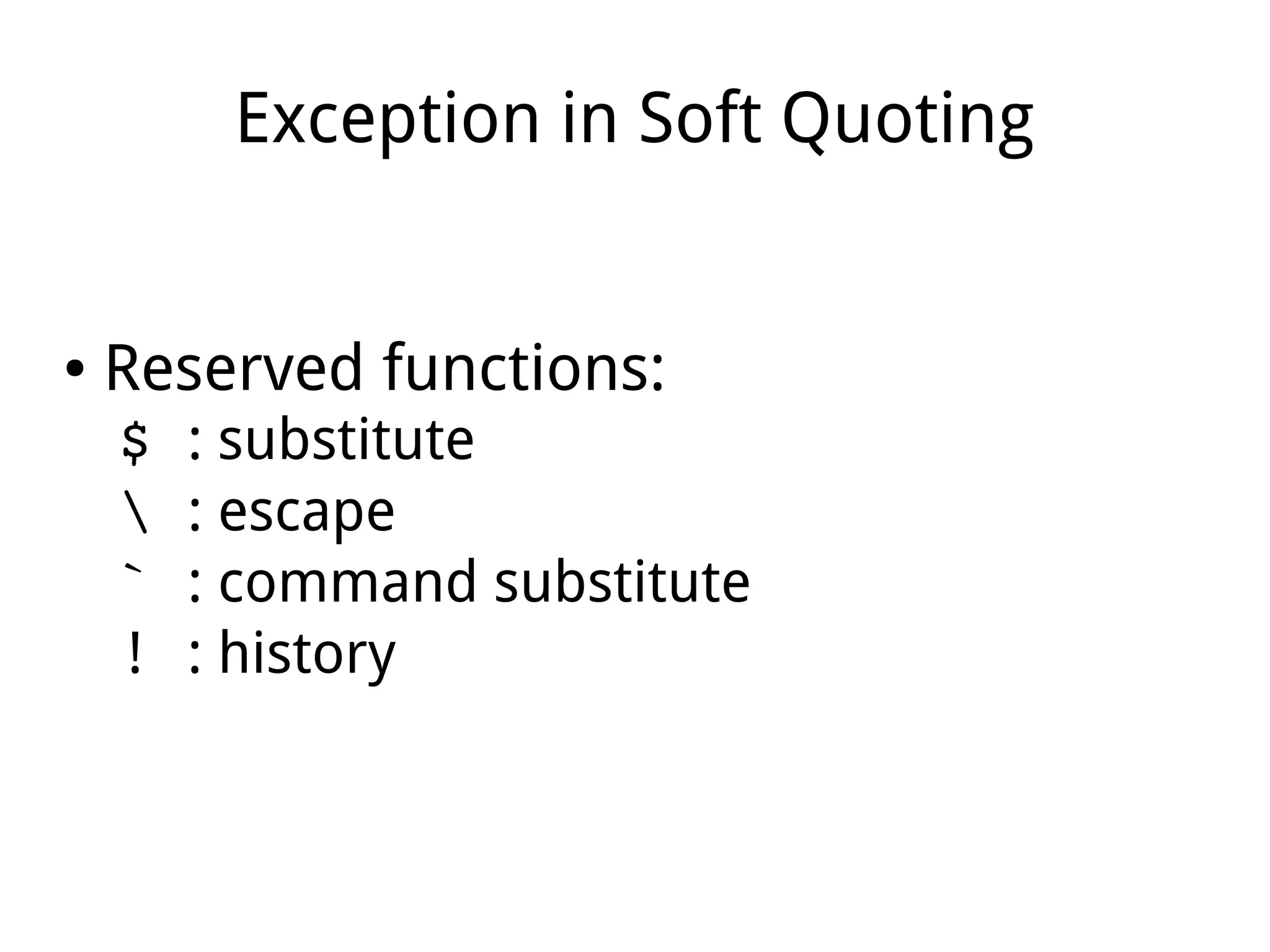
Exception in Soft Quoting
● Reserved functions:
$ : substitute
 : escape
` : command substitute
! : history
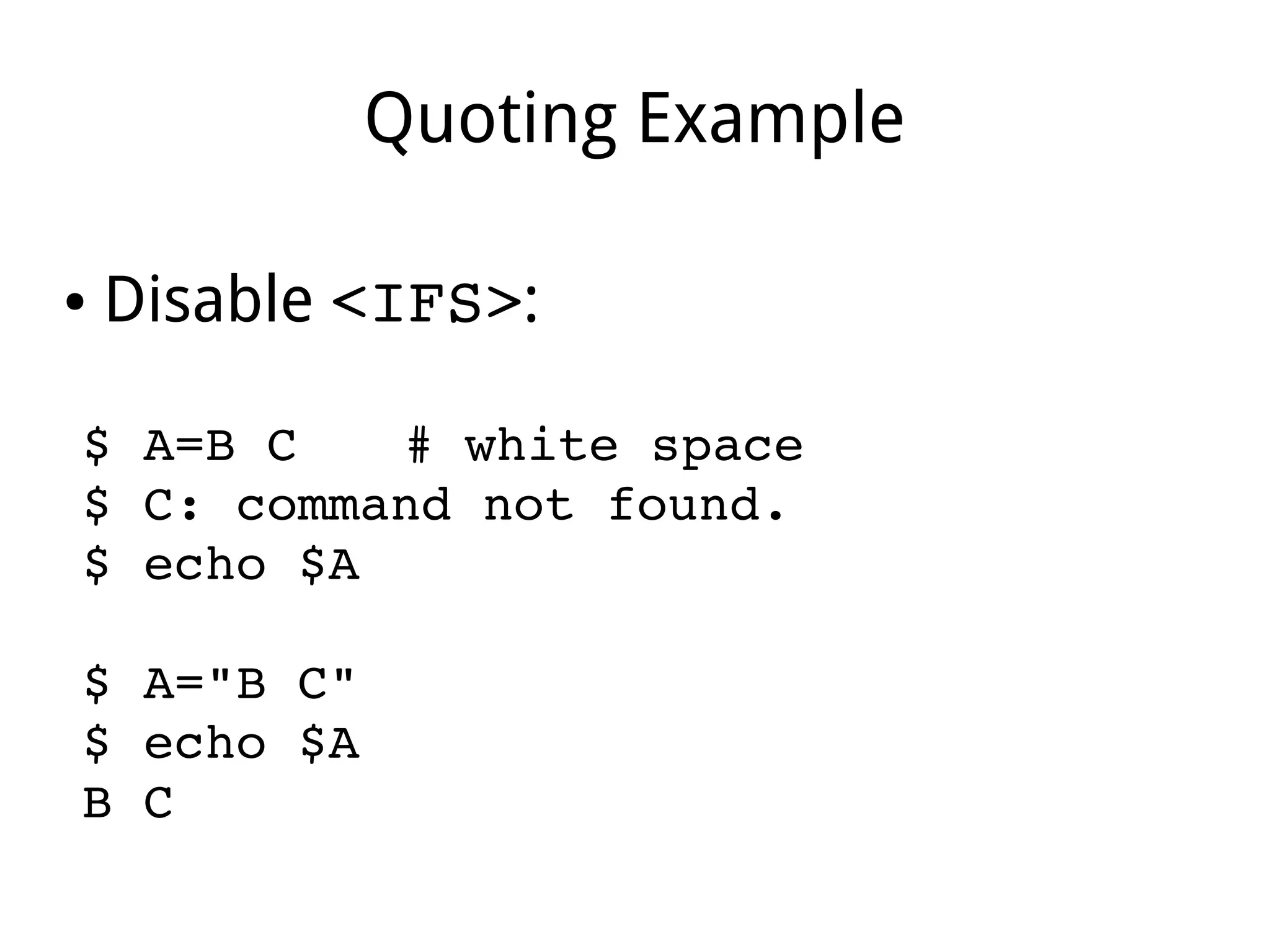
Quoting Example
● Disable <IFS>:
$ A=B C # white space 
$ C: command not found.
$ echo $A
$ A="B C"
$ echo $A
B C 
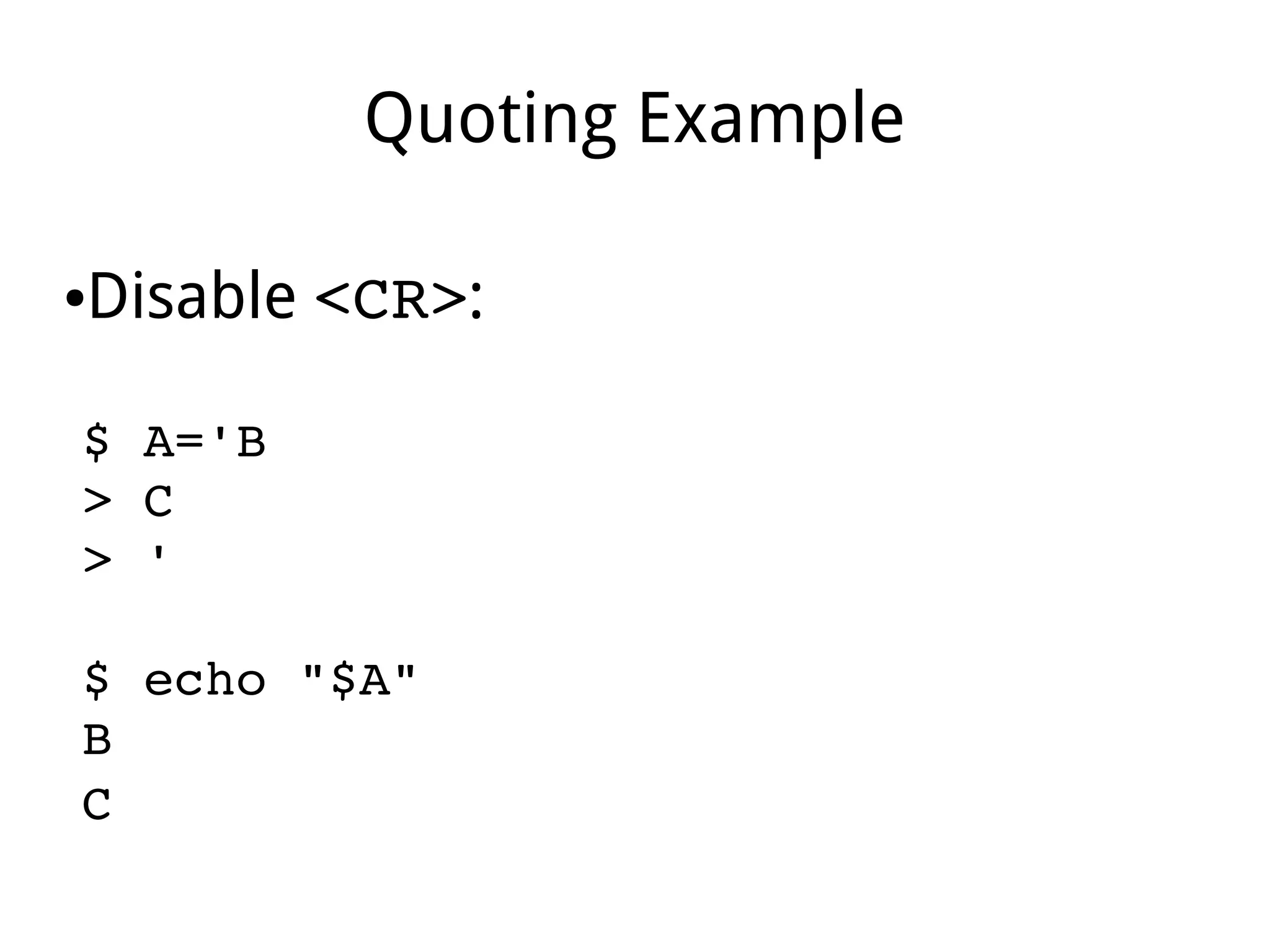
Quoting Example
●Disable <CR>:
$ A='B 
> C
> '
$ echo "$A"
B
C  
Quoting Example
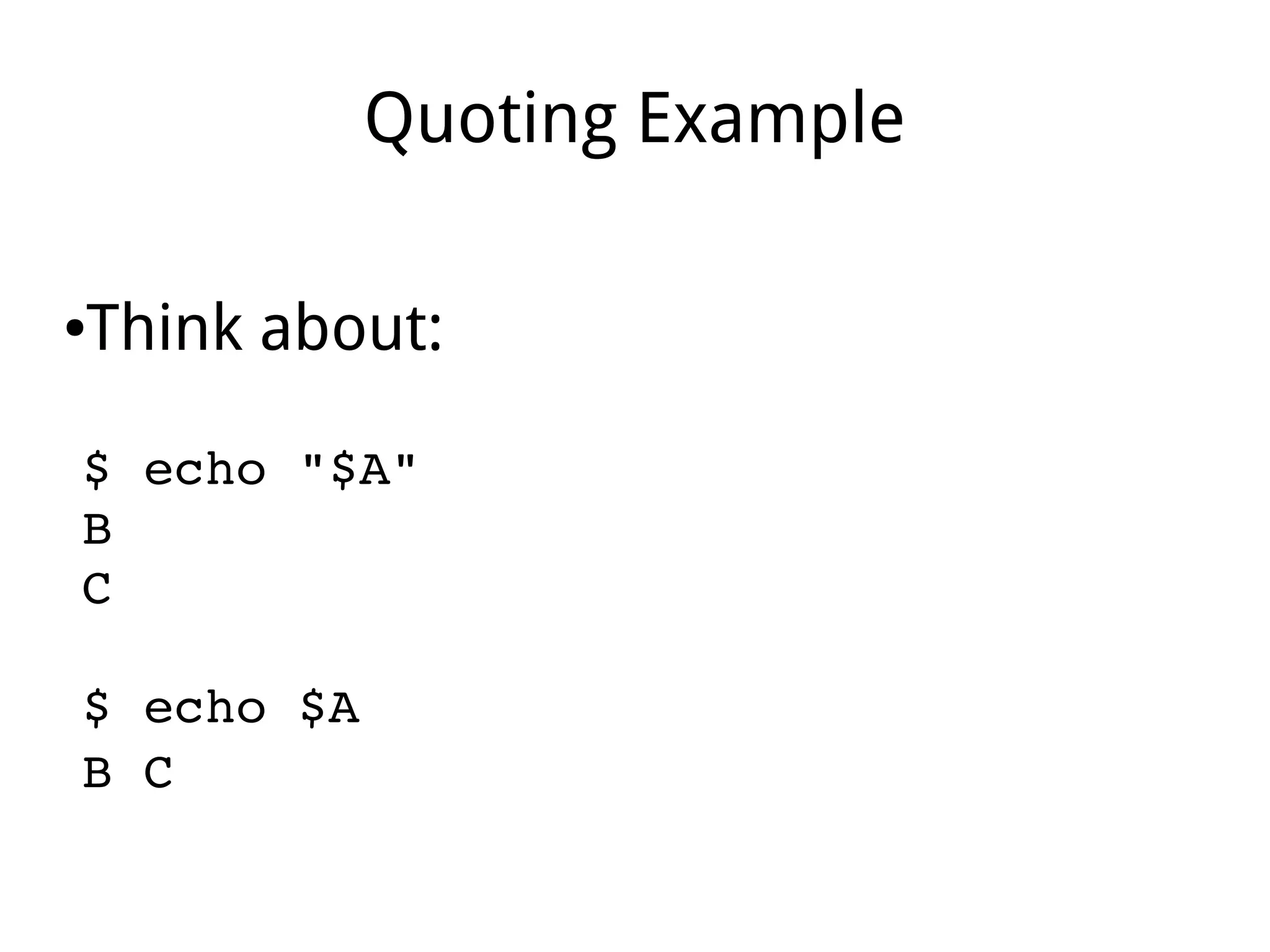
●Think about:
$ echo "$A"
B
C  
$ echo $A
B C 
Quoting Example
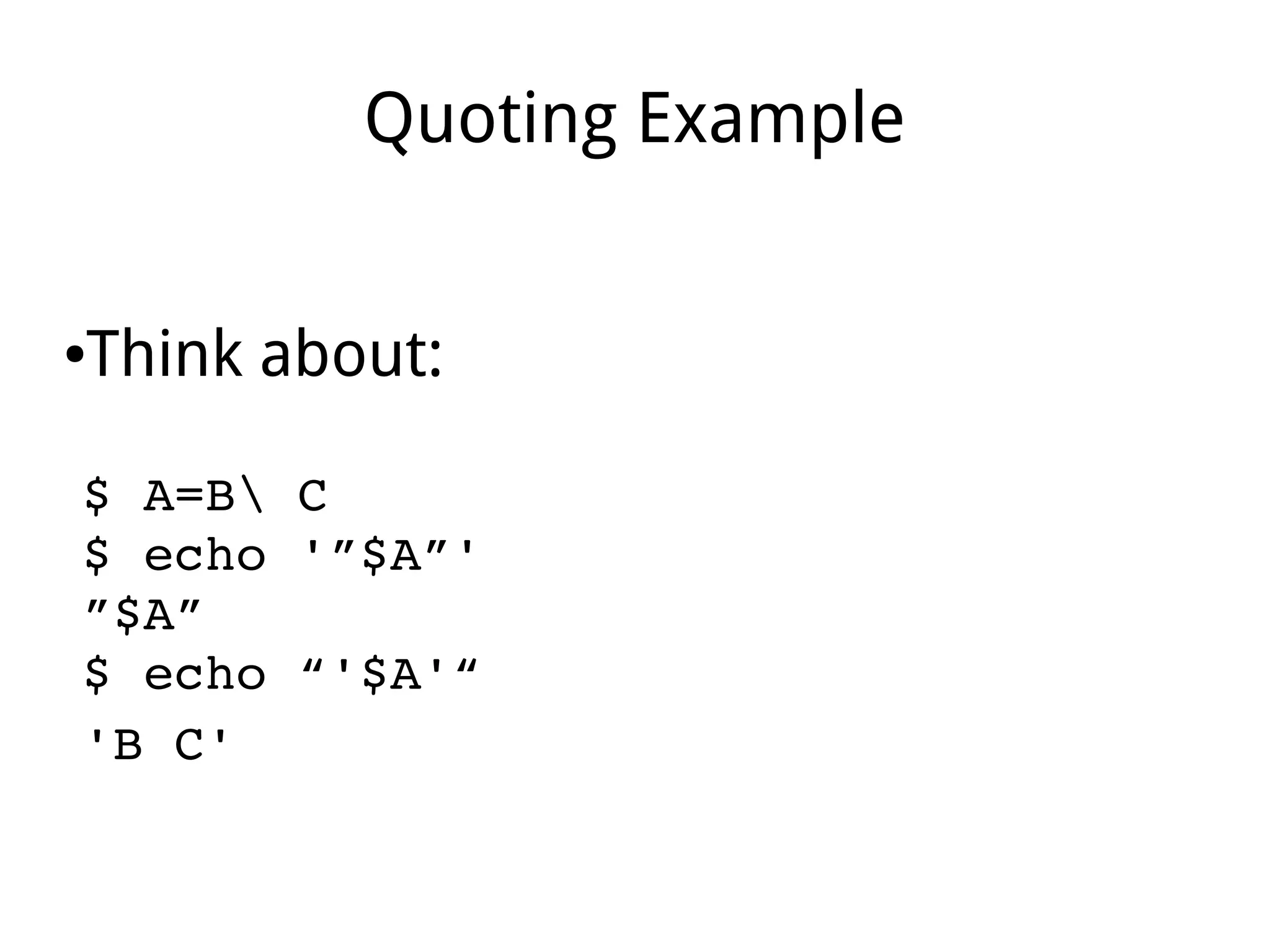
●Think about:
$ A=B C
$ echo '”$A”'
”$A”
$ echo “'$A'“
'B C' 
Quoting Example
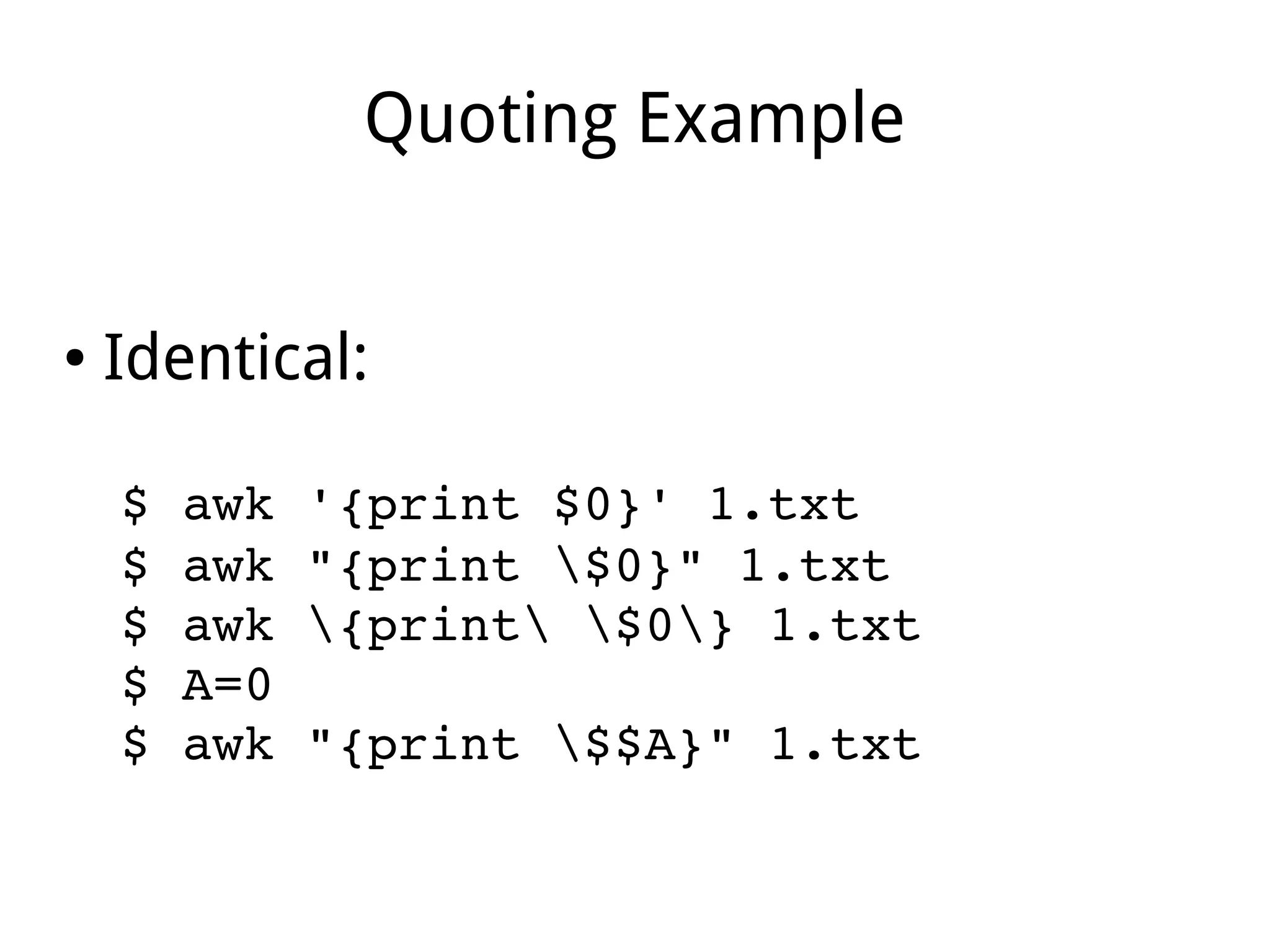
● Identical:
$ awk '{print $0}' 1.txt
$ awk "{print $0}" 1.txt
$ awk {print $0} 1.txt
$ A=0
$ awk "{print $$A}" 1.txt
Part III
Variable
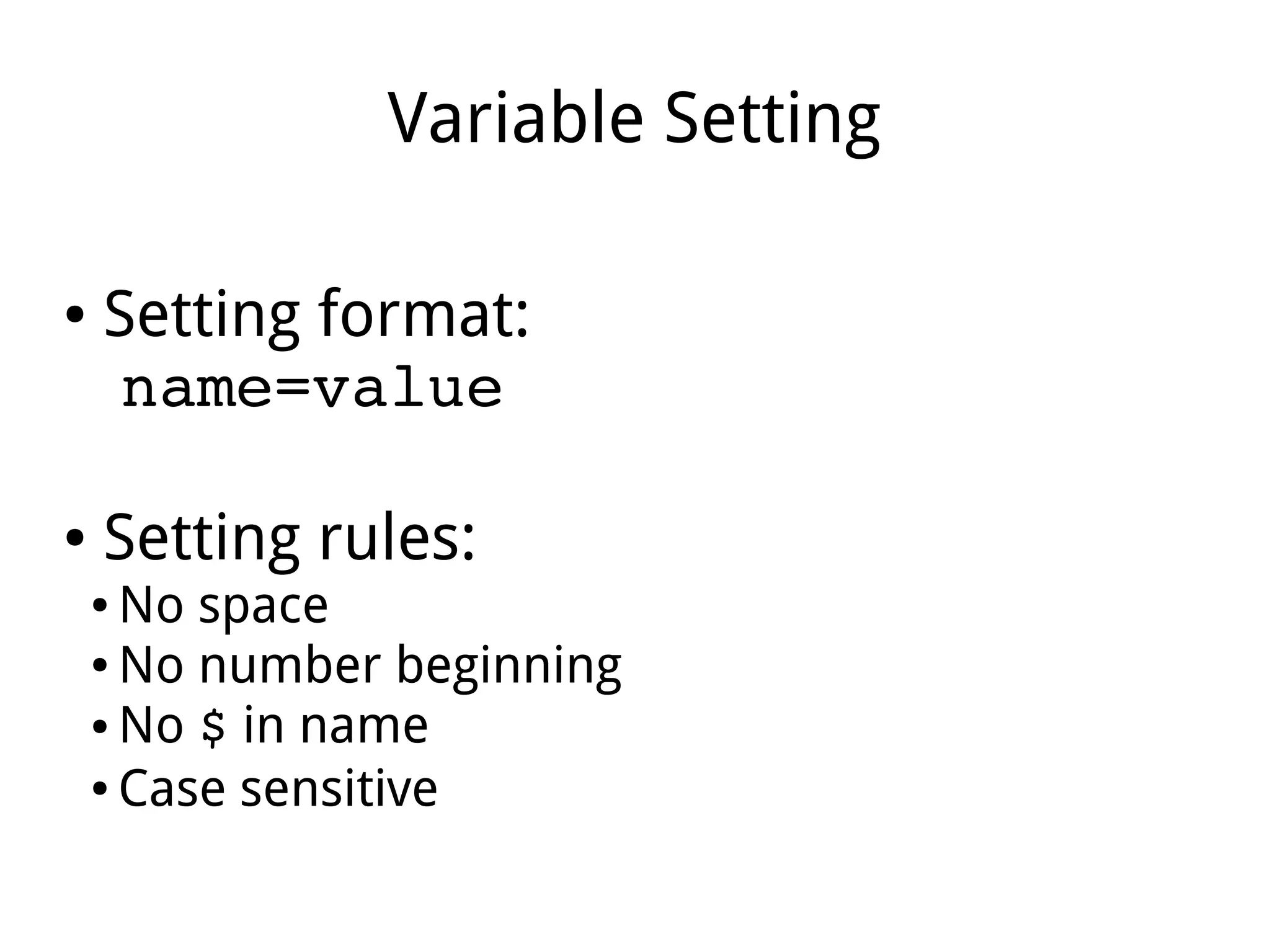
Variable Setting
● Setting format:
name=value
● Setting rules:
● No space
● No number beginning
● No $ in name
● Case sensitive
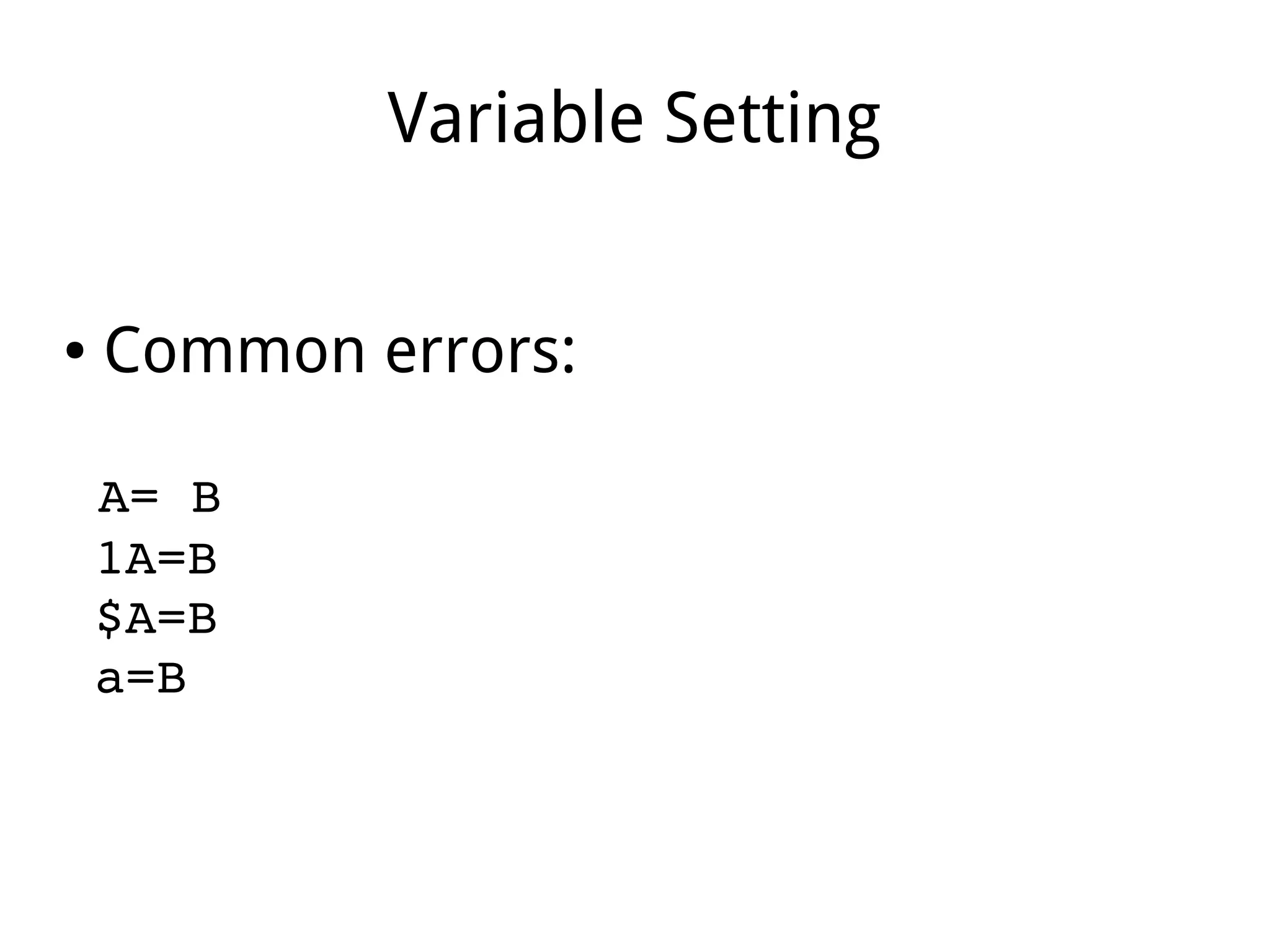
Variable Setting
● Common errors:
 A= B
 1A=B
 $A=B
 a=B
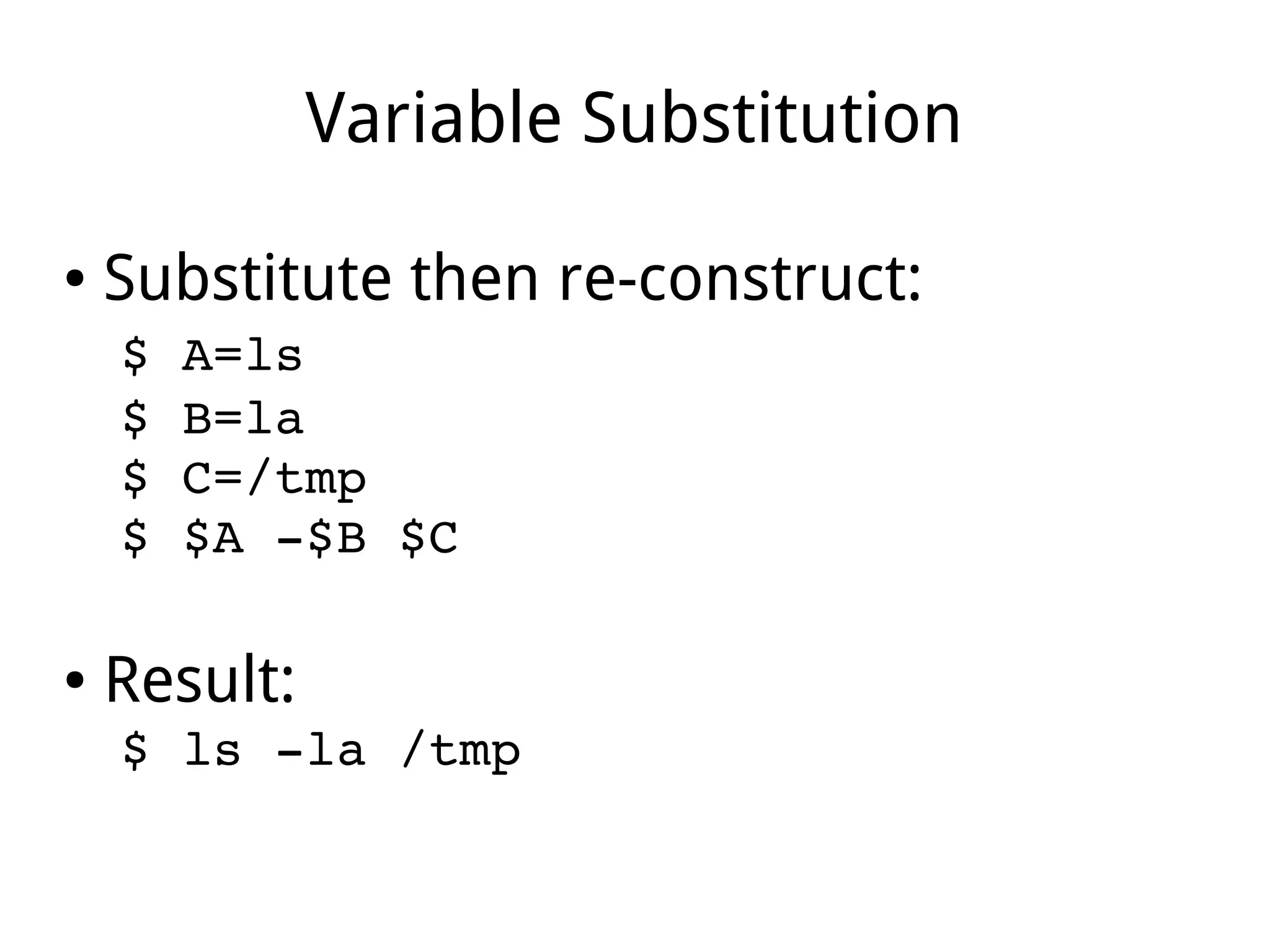
Variable Substitution
● Substitute then re-construct:
$ A=ls 
$ B=la 
$ C=/tmp 
$ $A ­$B $C
● Result:
$ ls ­la /tmp 
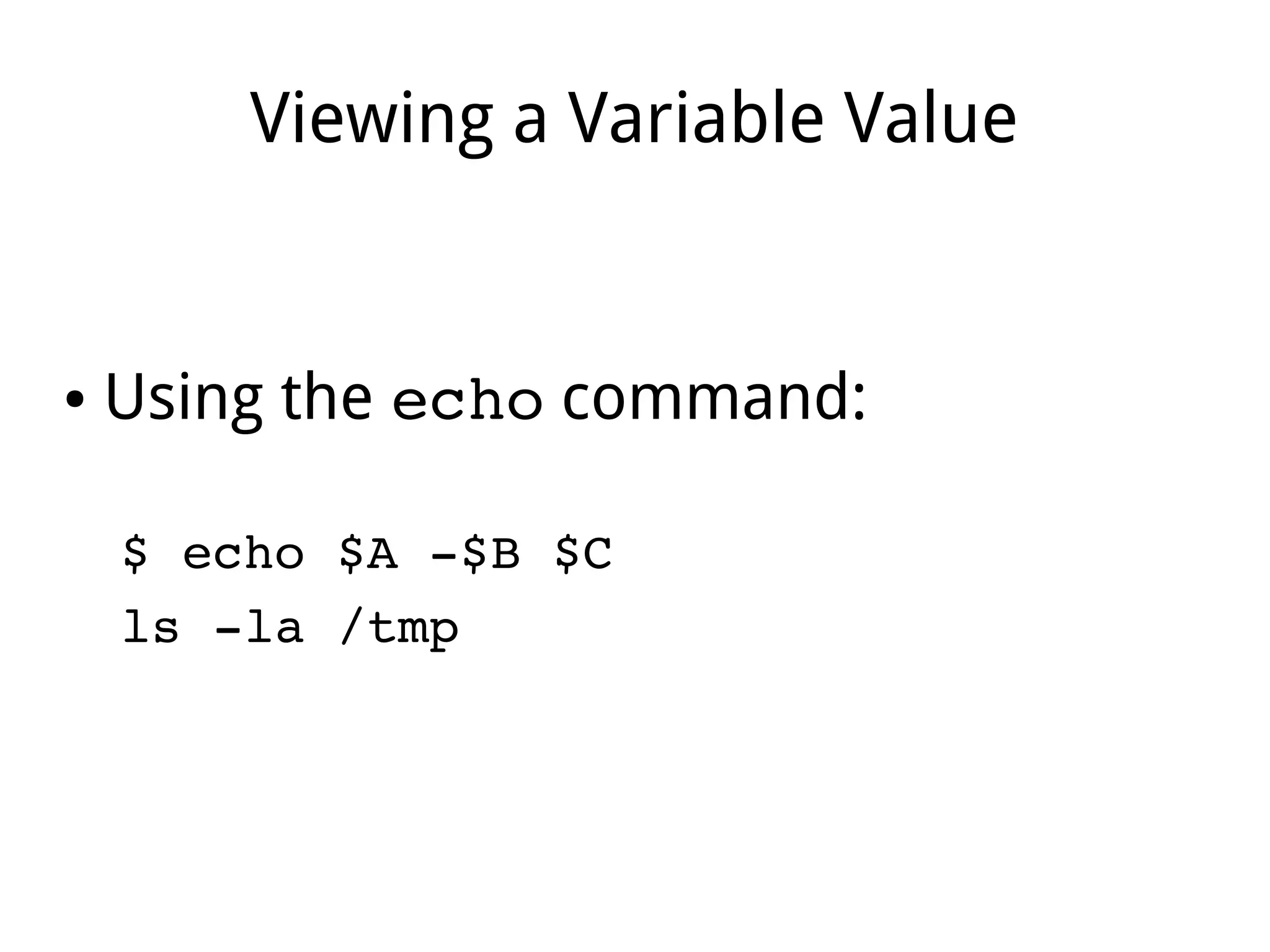
Viewing a Variable Value
● Using the echo command:
$ echo $A ­$B $C
ls ­la /tmp 
Value Expansion
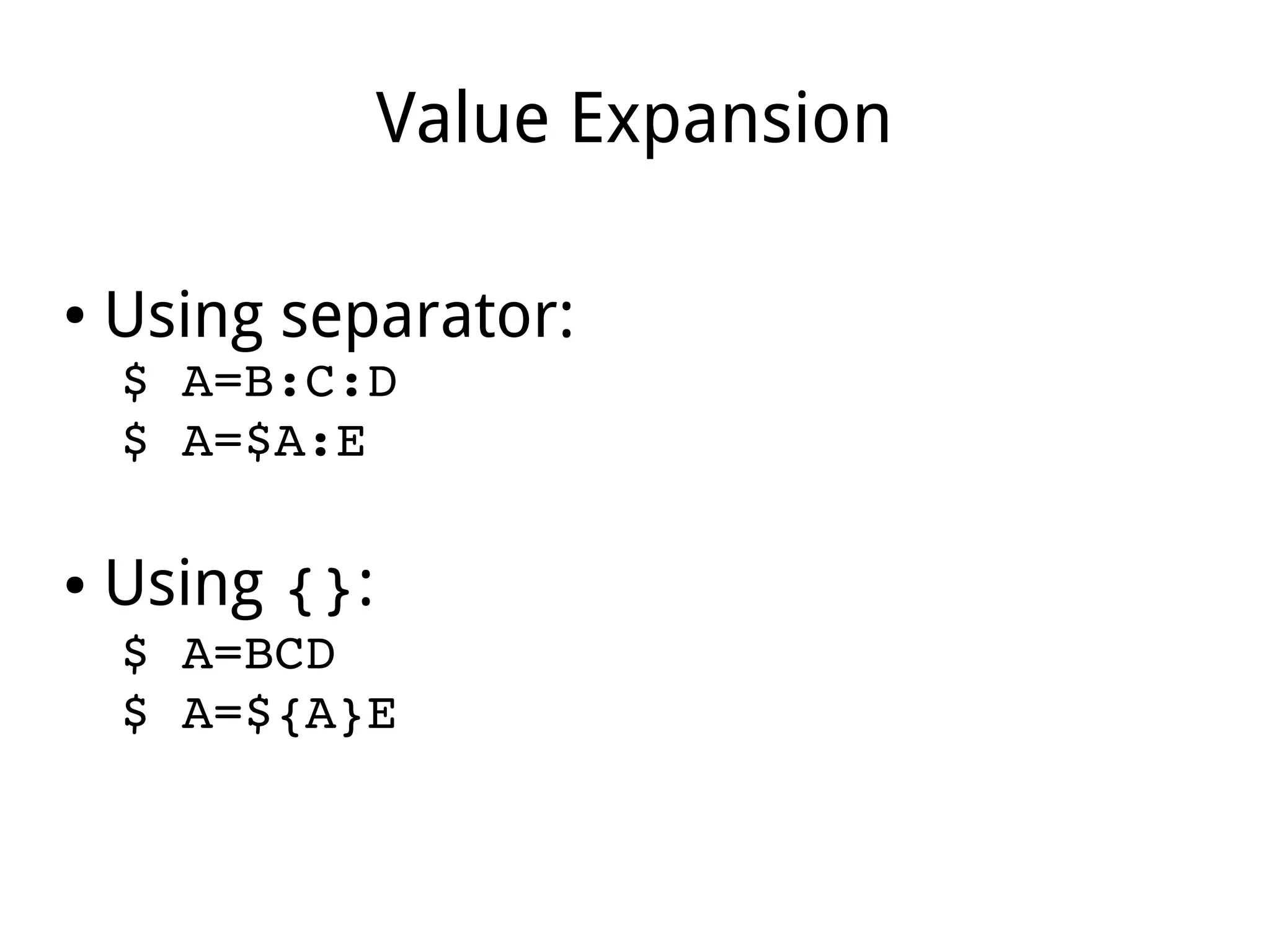
● Using separator:
$ A=B:C:D
$ A=$A:E
● Using {}:
$ A=BCD
$ A=${A}E
The export command
● Purpose:
To set Environment Variable, inheritable in
sub shells.
Variable Exporting Method
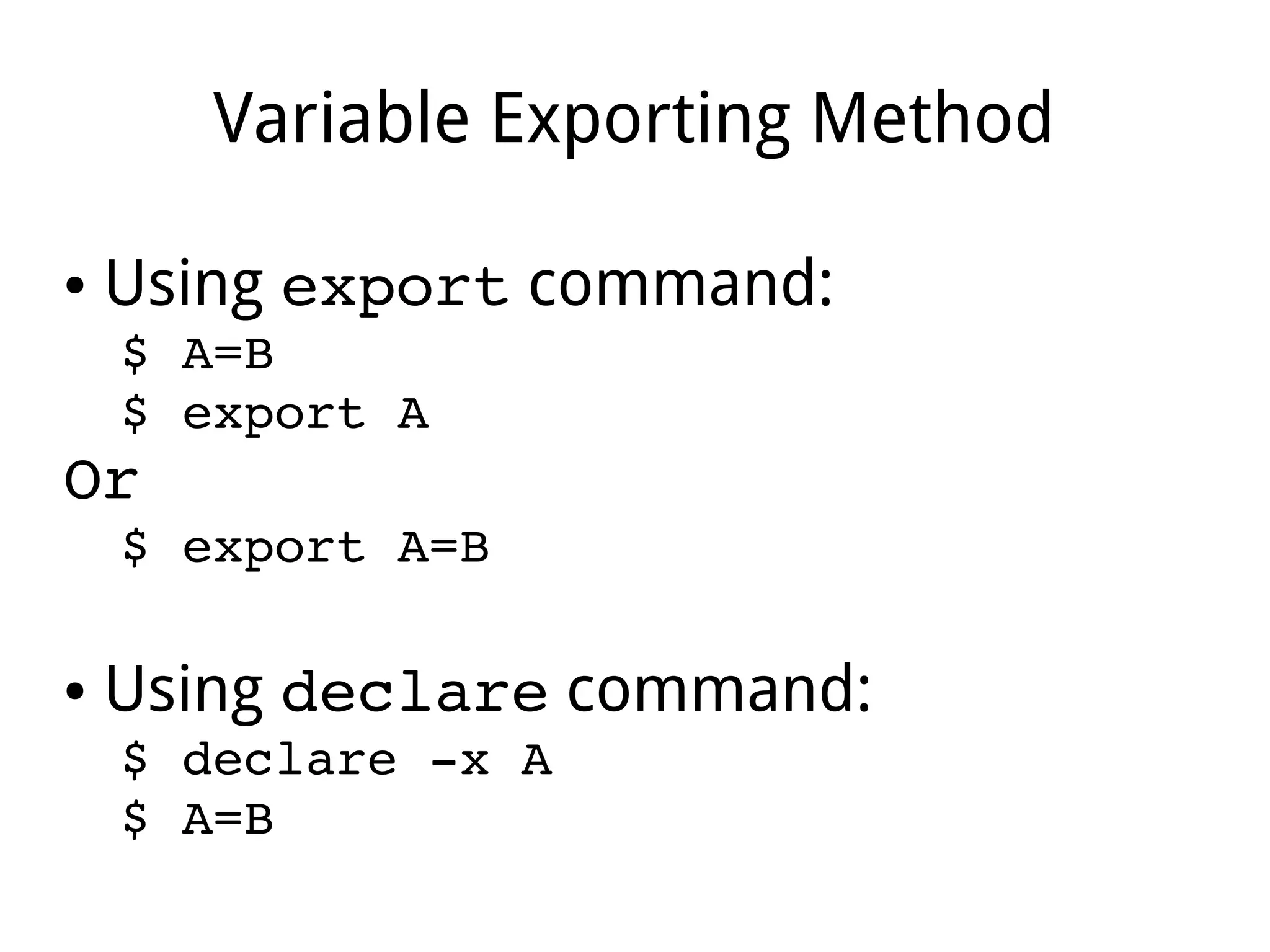
● Using export command:
$ A=B
$ export A
Or
$ export A=B
● Using declare command:
$ declare ­x A
$ A=B
Variable Exportation Effect
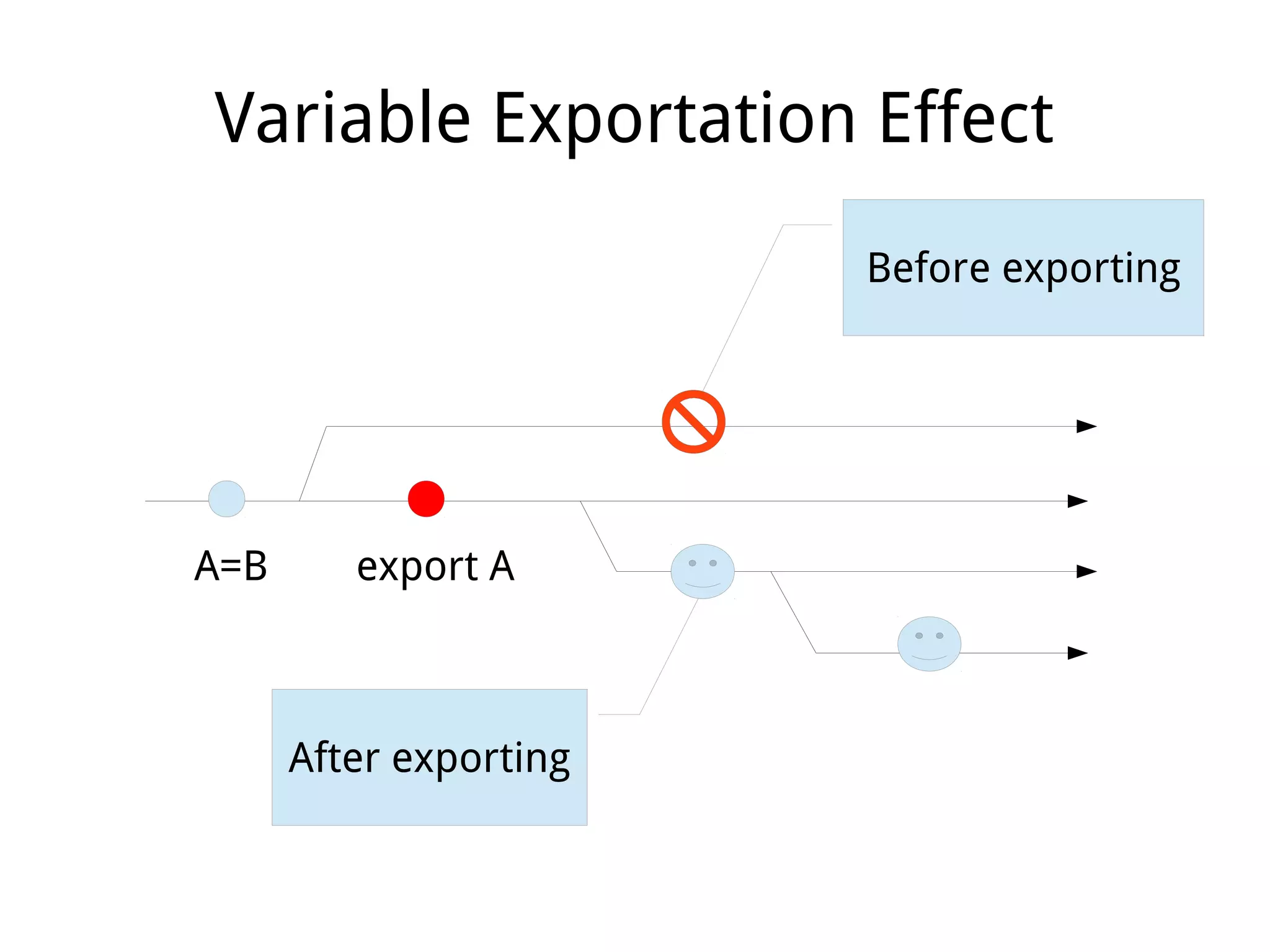
A=B export A
Before exporting
After exporting
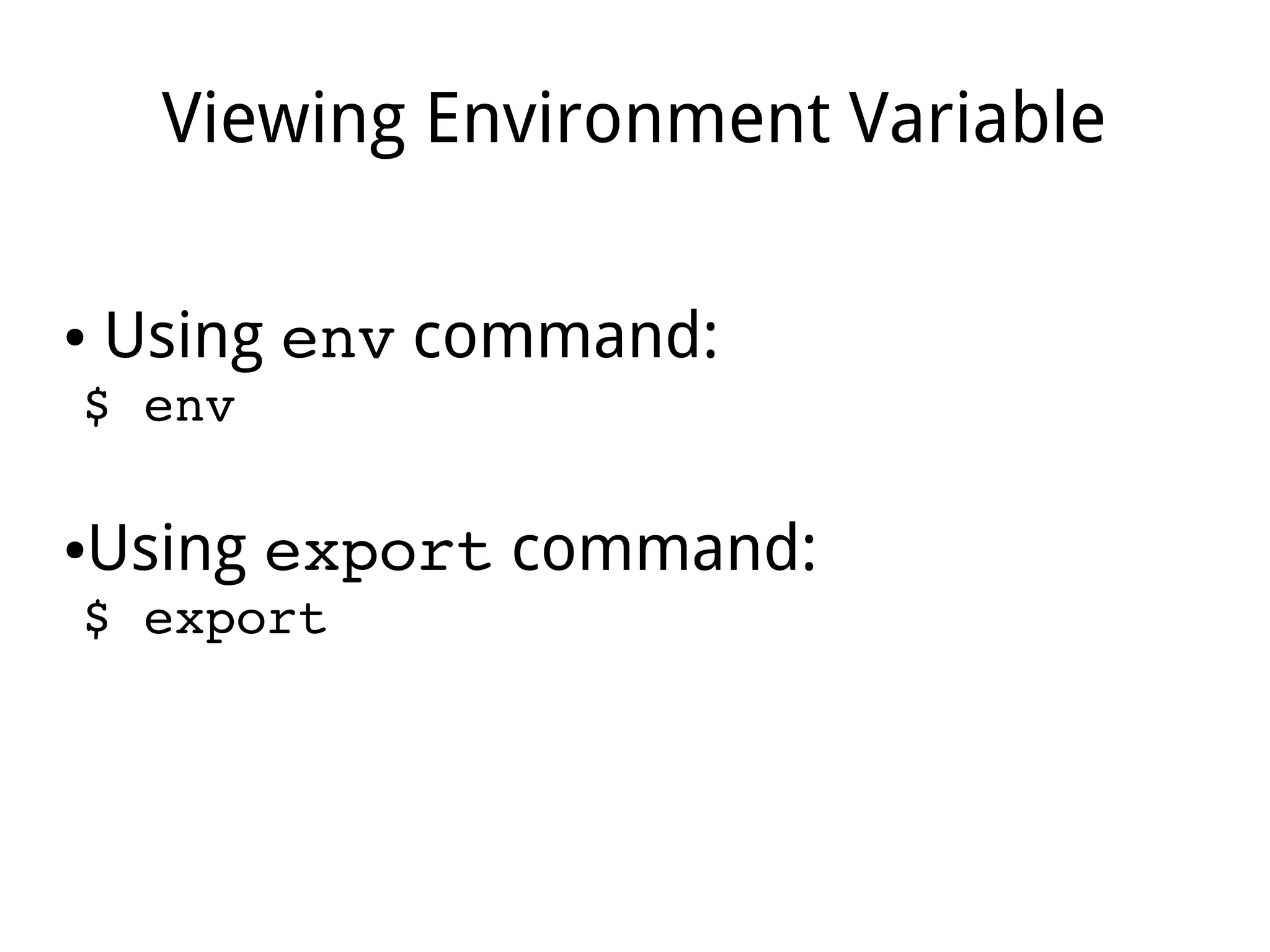
Viewing Environment Variable
● Using env command:
$ env
●Using export command:
$ export
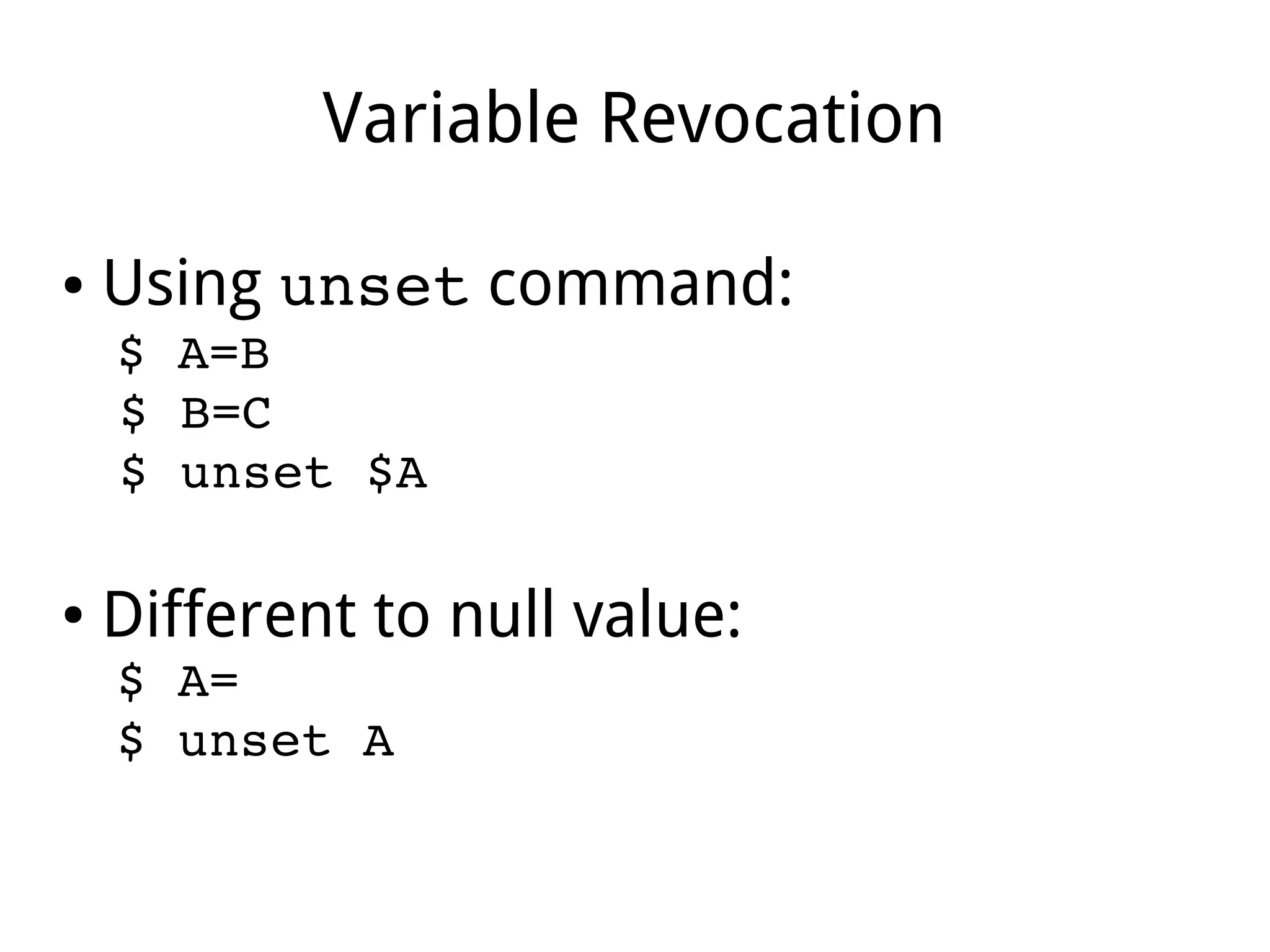
Variable Revocation
● Using unset command:
$ A=B
$ B=C
$ unset $A
● Different to null value:
$ A=
$ unset A
Part IV
Sub Shell
Process Hierarchy
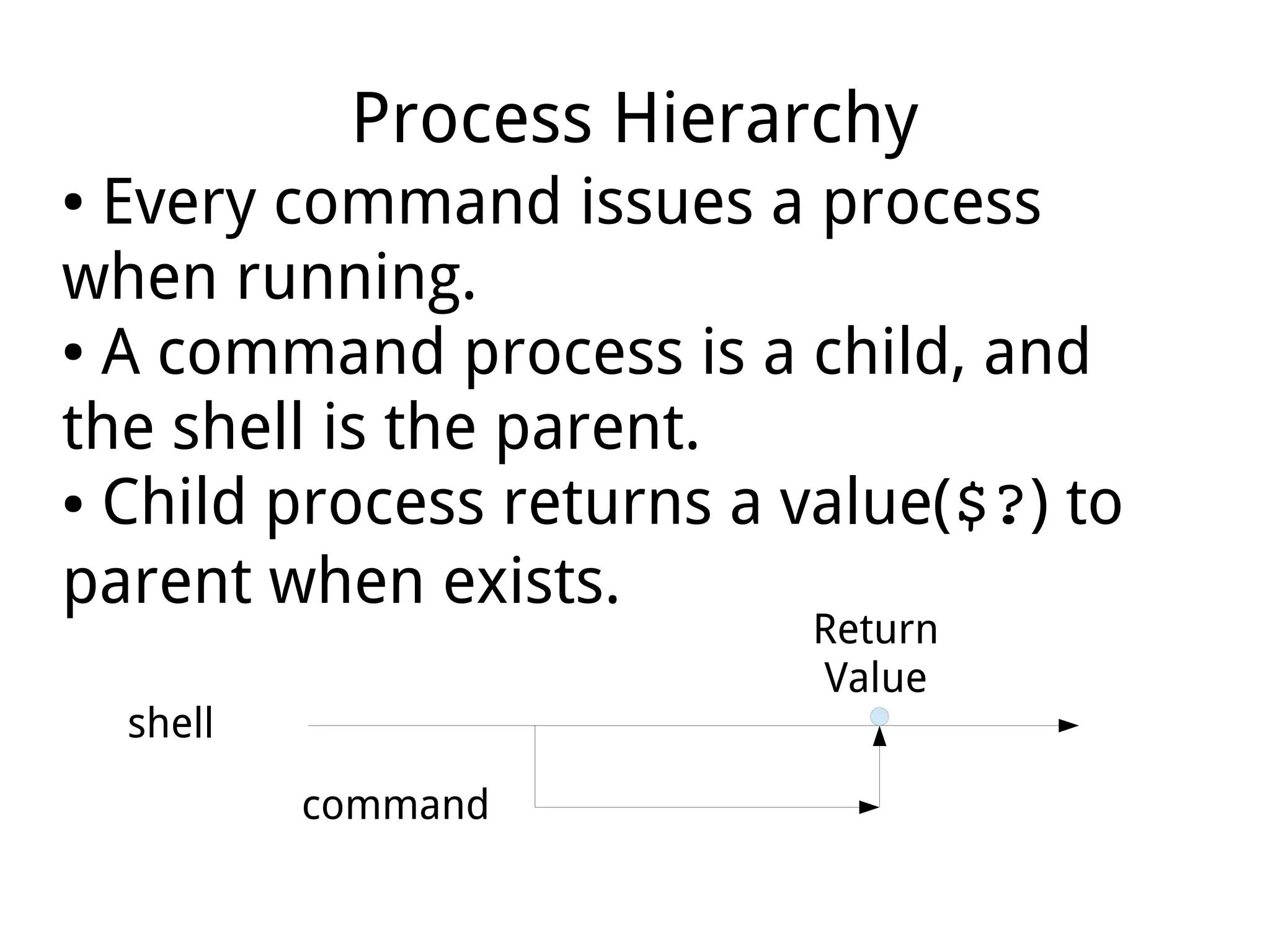
● Every command issues a process
when running.
● A command process is a child, and
the shell is the parent.
● Child process returns a value($?) to
parent when exists.
shell
command
Return
Value
Process Environment
● Child process inherit it's environment
from parent.
● However, any changing of
environment in a child will NEVER
effect the parent!
Shell Script
● Definition:
A serial of command lines defined in a text
file before we running them.
Script Running
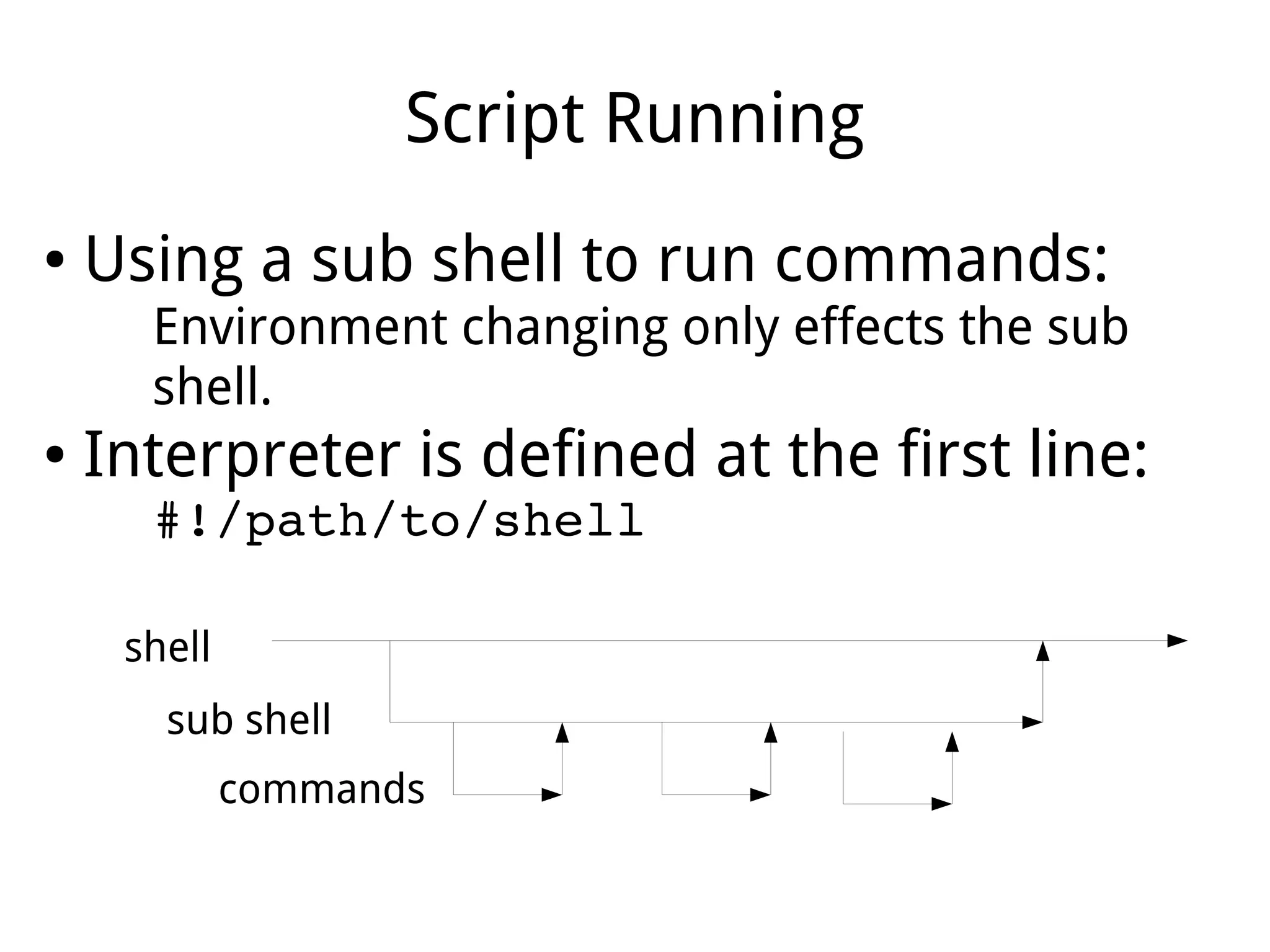
● Using a sub shell to run commands:
Environment changing only effects the sub
shell.
● Interpreter is defined at the first line:
#!/path/to/shell
shell
sub shell
commands
Source Running
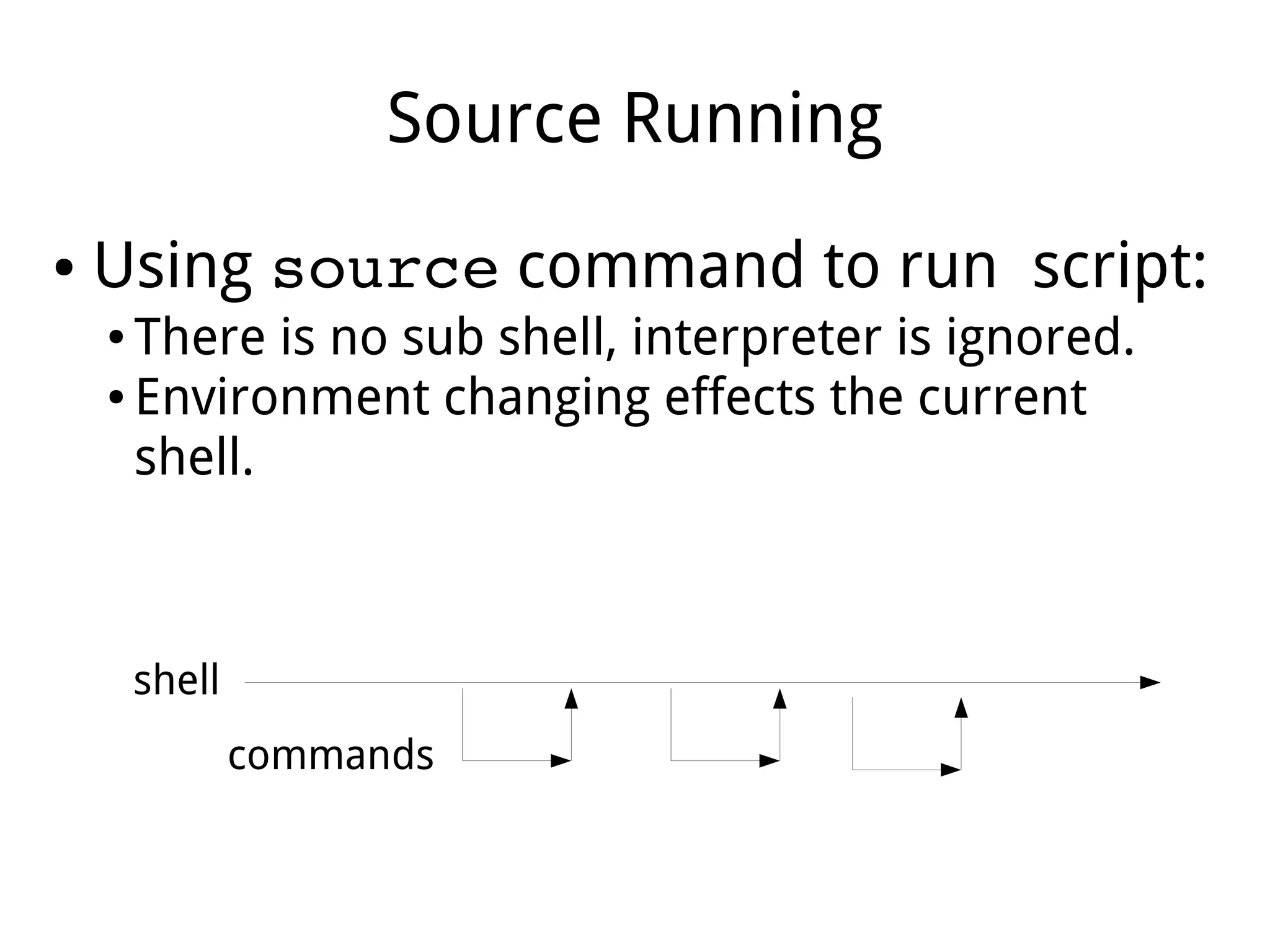
● Using source command to run script:
● There is no sub shell, interpreter is ignored.
● Environment changing effects the current
shell.
shell
commands
Exec Running
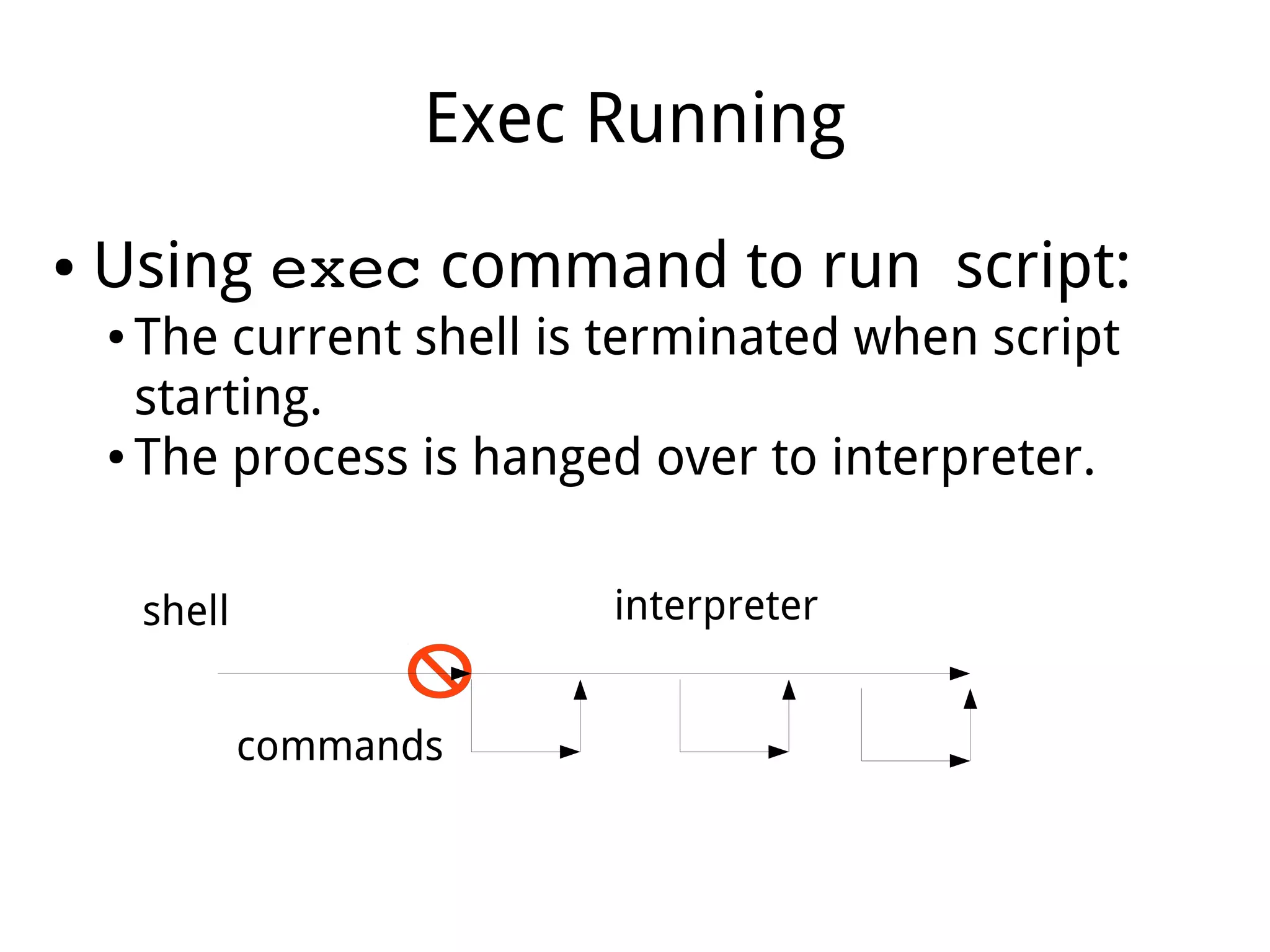
● Using exec command to run script:
● The current shell is terminated when script
starting.
● The process is hanged over to interpreter.
shell
commands
interpreter
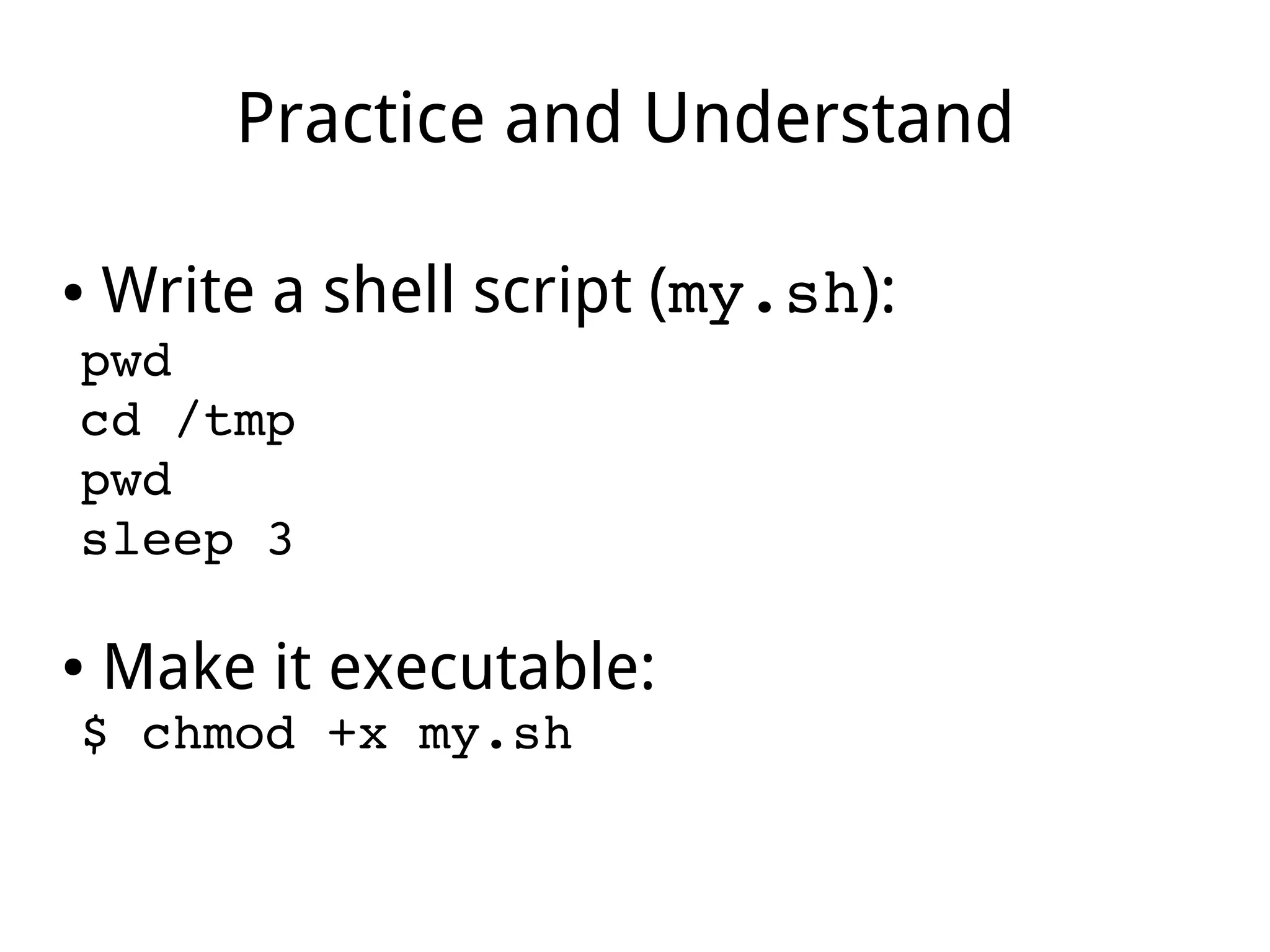
Practice and Understand
● Write a shell script (my.sh):
pwd
cd /tmp
pwd
sleep 3
● Make it executable:
$ chmod +x my.sh
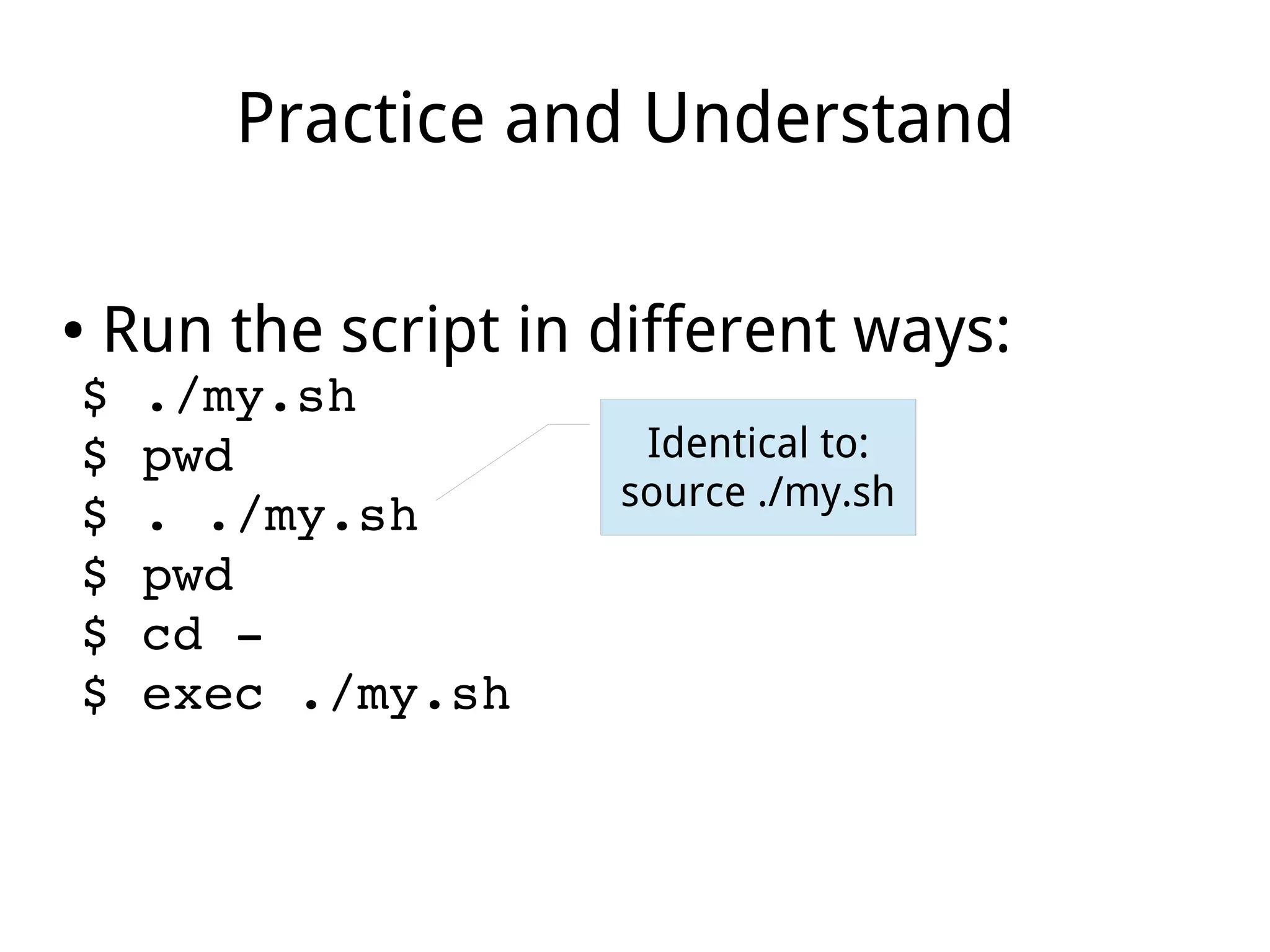
Practice and Understand
● Run the script in different ways:
$ ./my.sh
$ pwd
$ . ./my.sh
$ pwd
$ cd ­
$ exec ./my.sh
Identical to:
source ./my.sh
Part V
Command Grouping
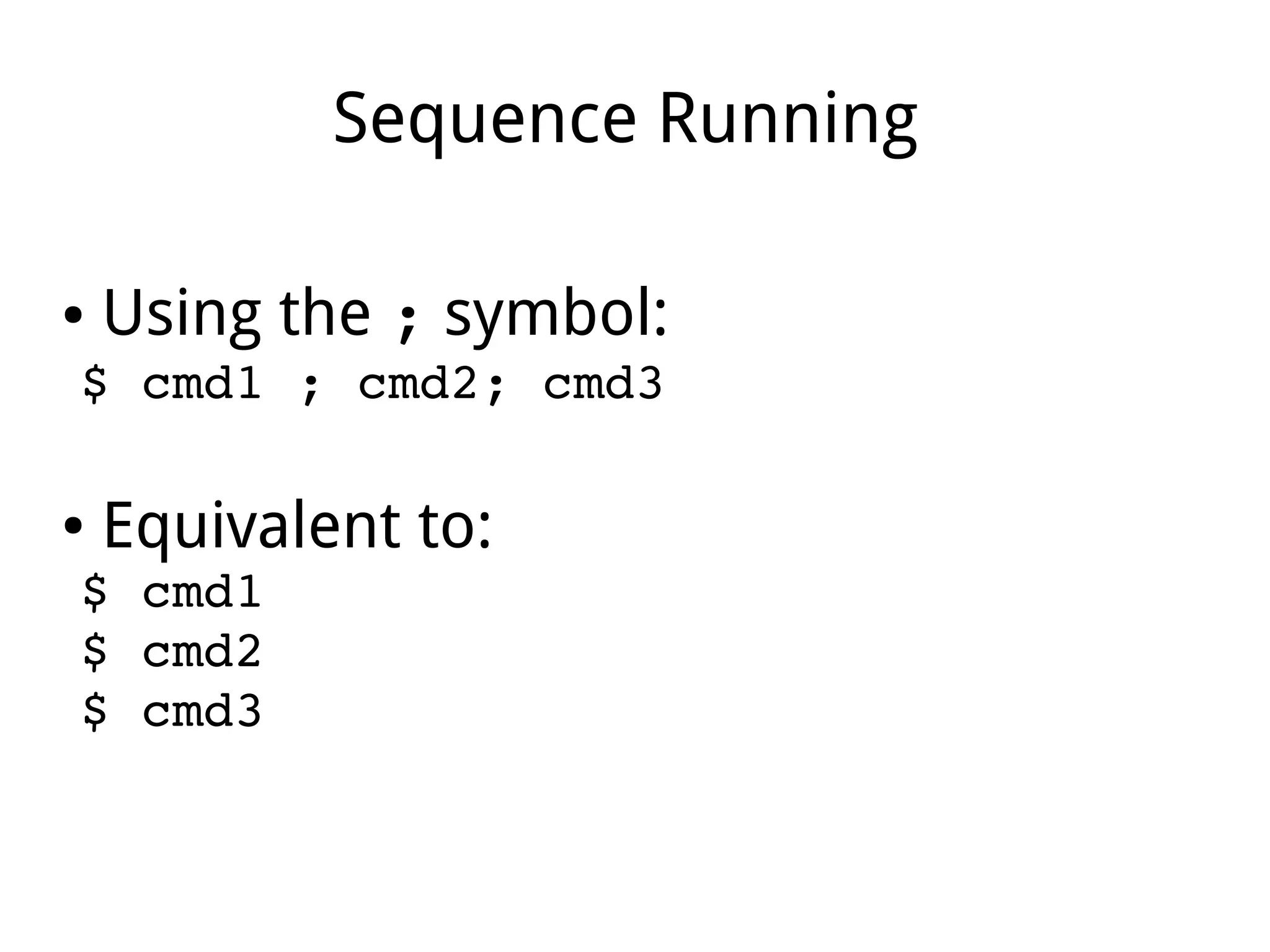
Sequence Running
● Using the ; symbol:
$ cmd1 ; cmd2; cmd3
● Equivalent to:
$ cmd1
$ cmd2
$ cmd3
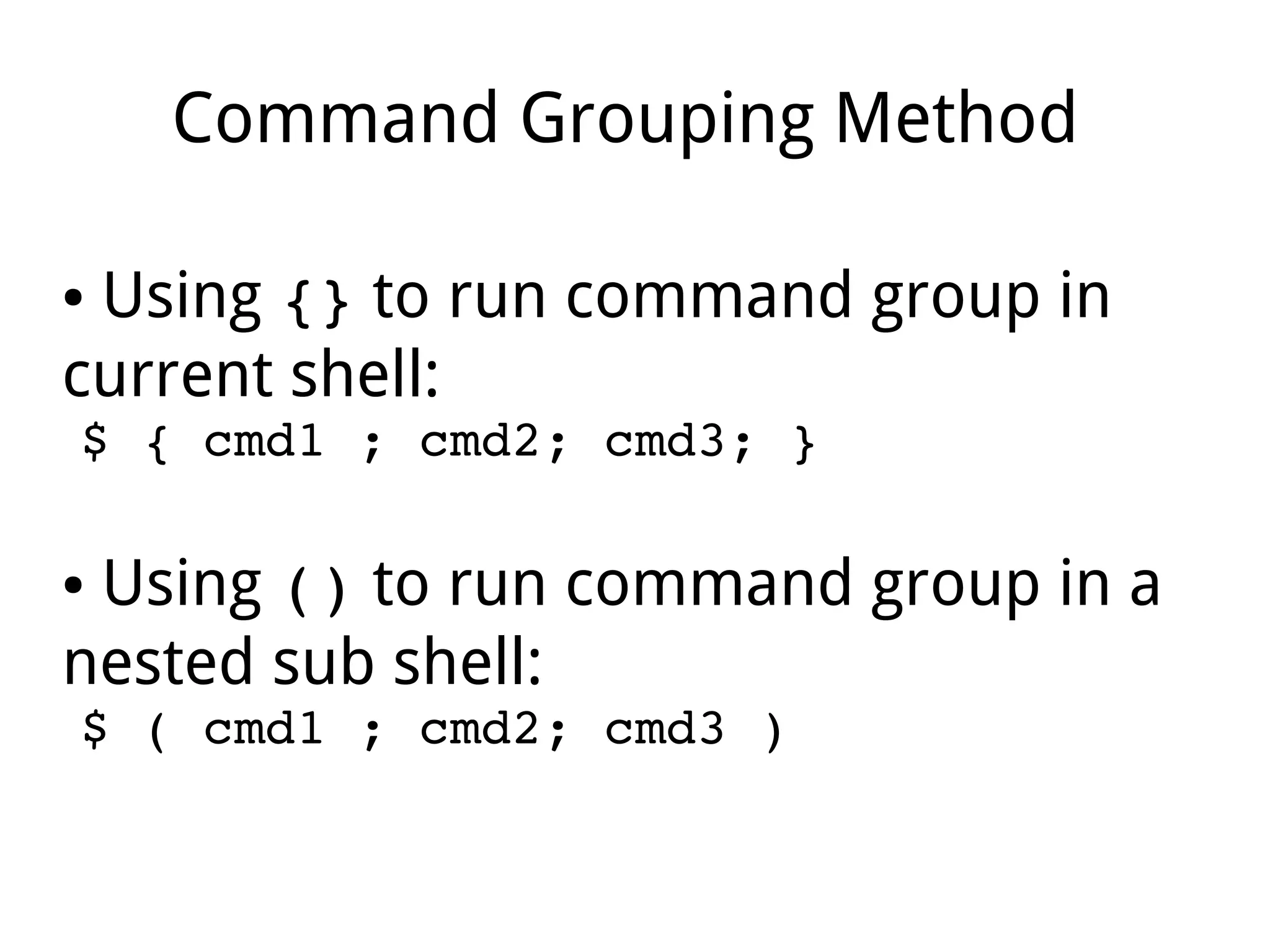
Command Grouping Method
● Using {} to run command group in
current shell:
$ { cmd1 ; cmd2; cmd3; }
● Using () to run command group in a
nested sub shell:
$ ( cmd1 ; cmd2; cmd3 )
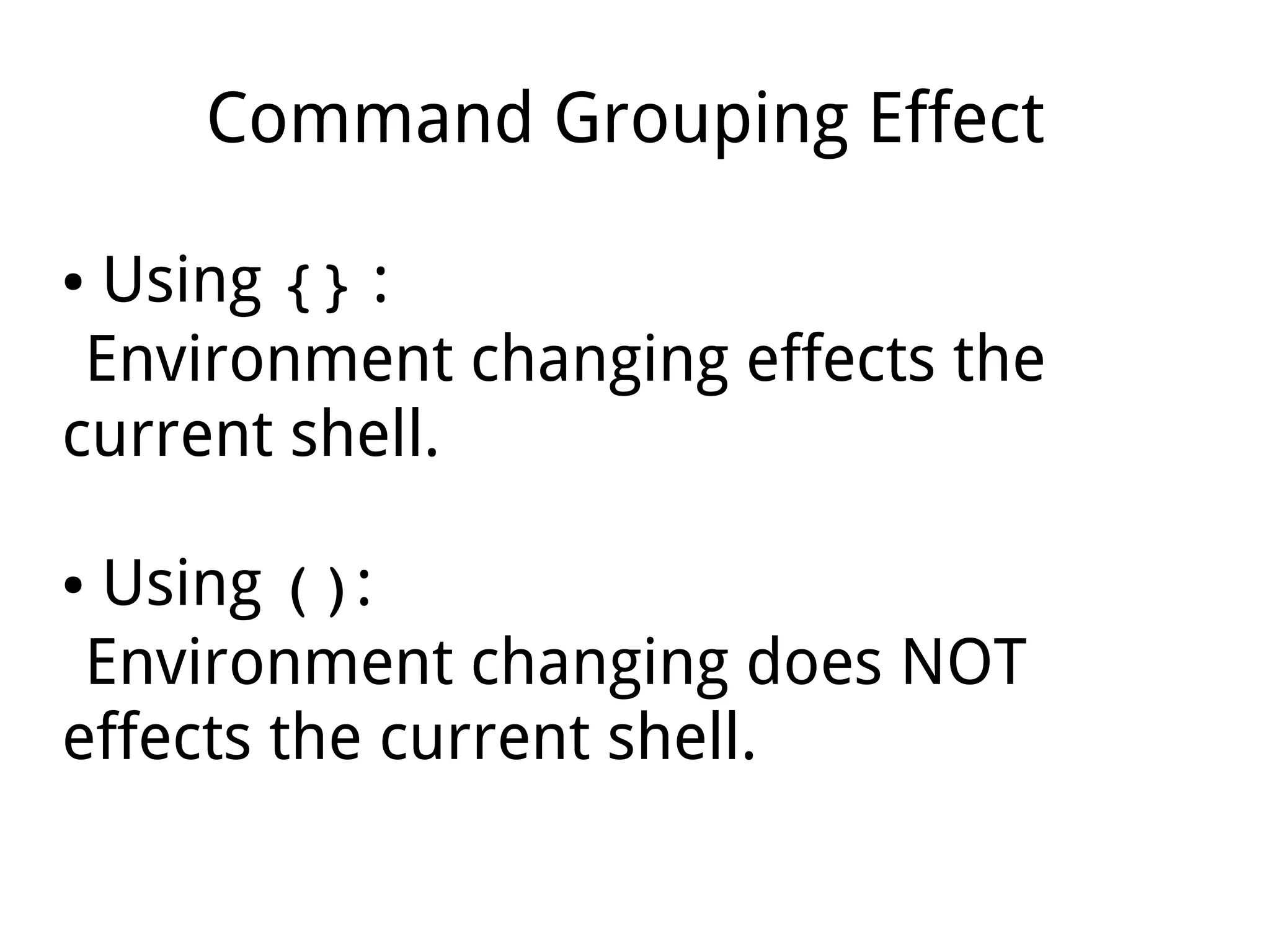
Command Grouping Effect
● Using {} :
Environment changing effects the
current shell.
● Using ():
Environment changing does NOT
effects the current shell.
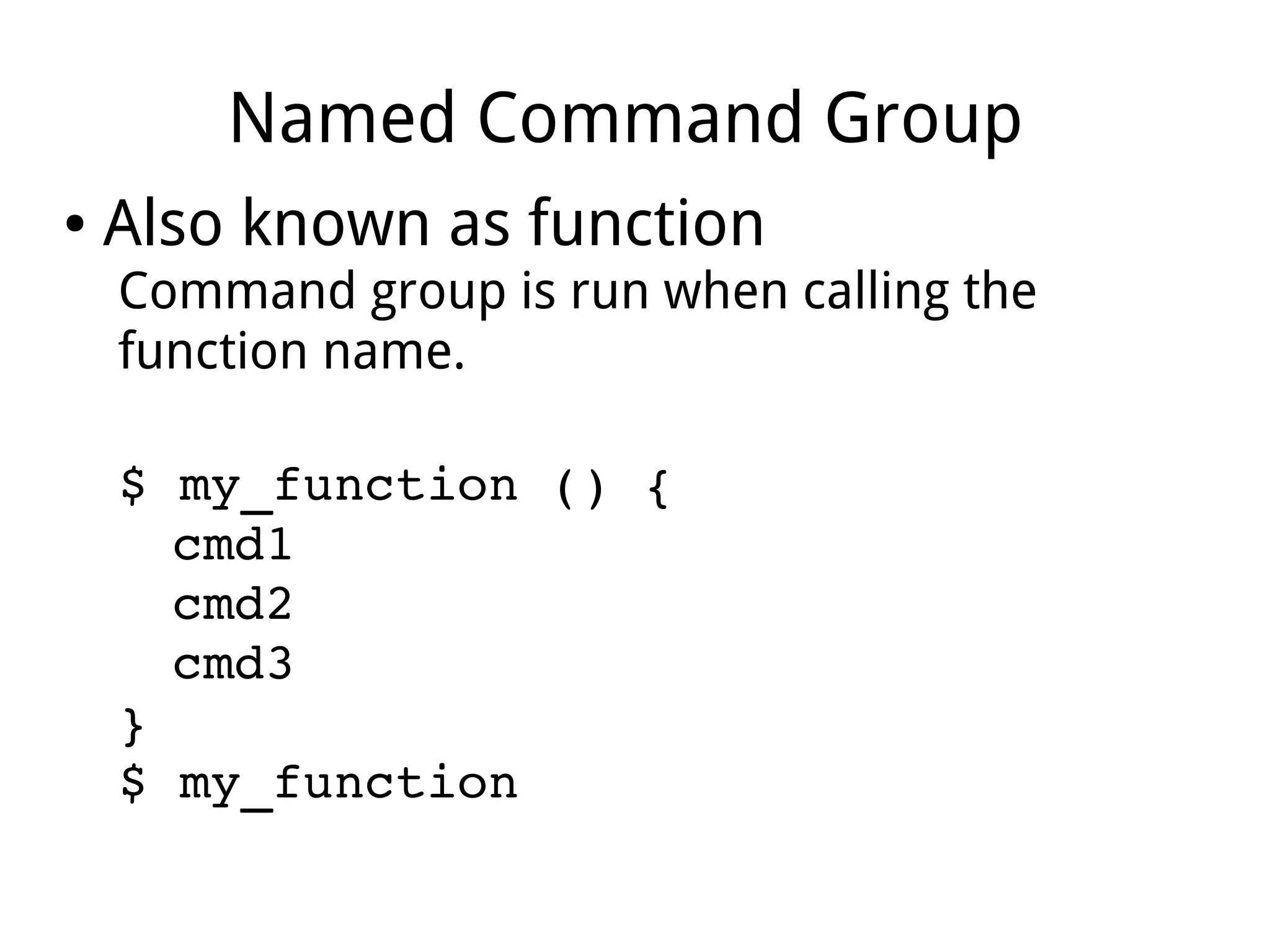
Named Command Group
● Also known as function
Command group is run when calling the
function name.
$ my_function () {
cmd1
cmd2
cmd3
}
$ my_function
Part VI
Shell Features
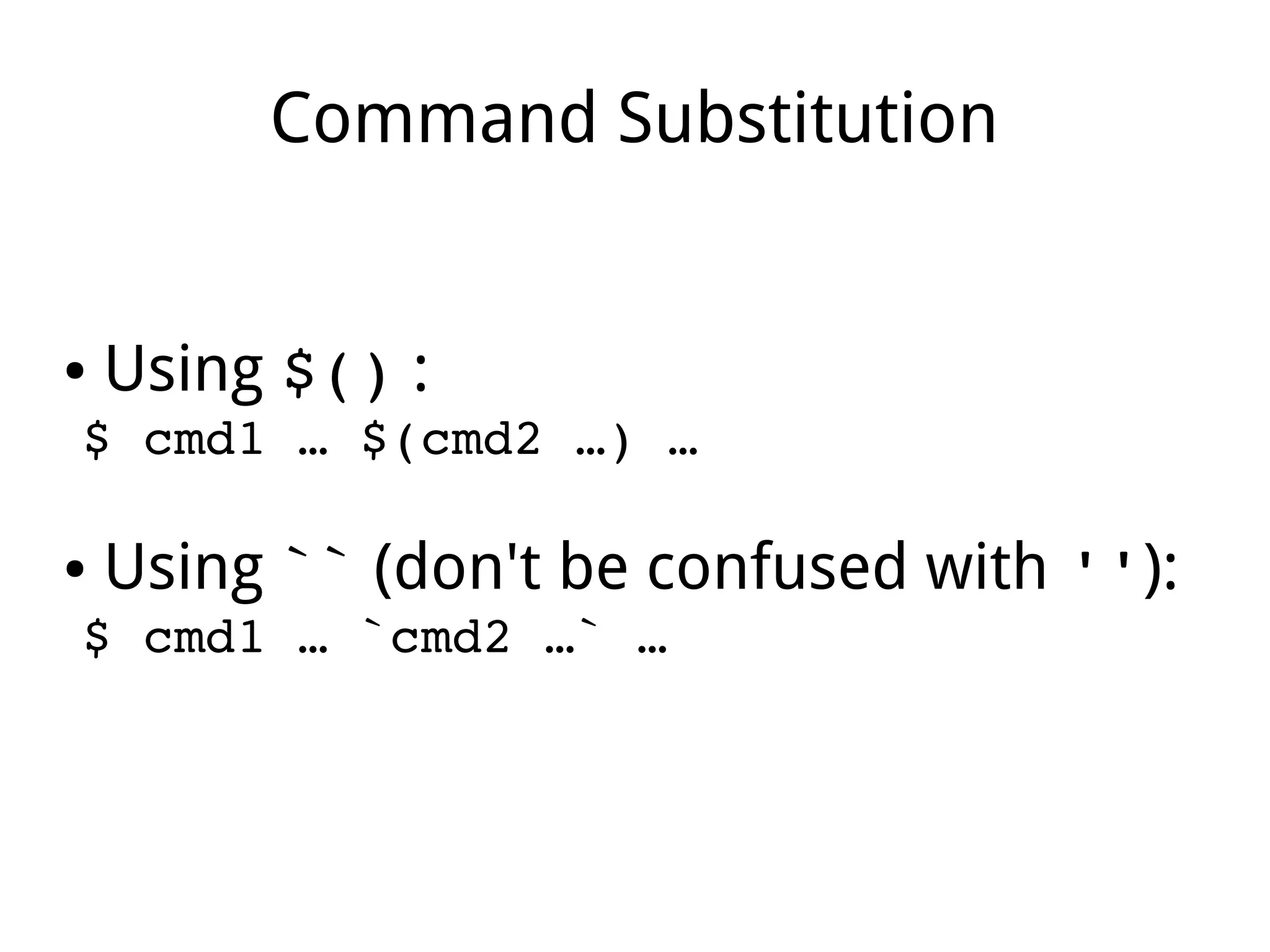
Command Substitution
● Using $() :
$ cmd1 … $(cmd2 …) … 
● Using `` (don't be confused with ''):
$ cmd1 … `cmd2 …` … 
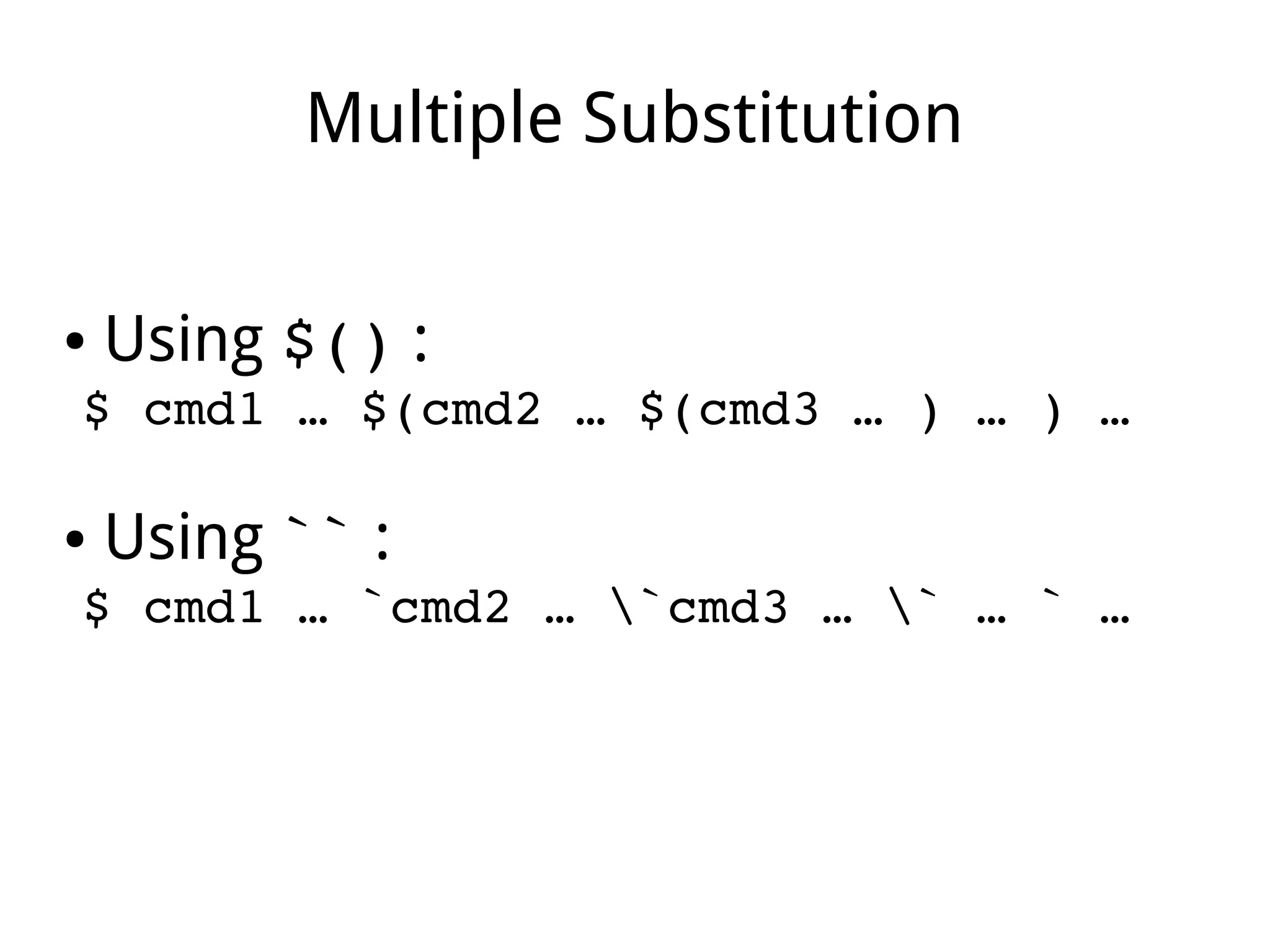
Multiple Substitution
● Using $() :
$ cmd1 … $(cmd2 … $(cmd3 … ) … ) … 
● Using `` :
$ cmd1 … `cmd2 … `cmd3 … ` … ` … 
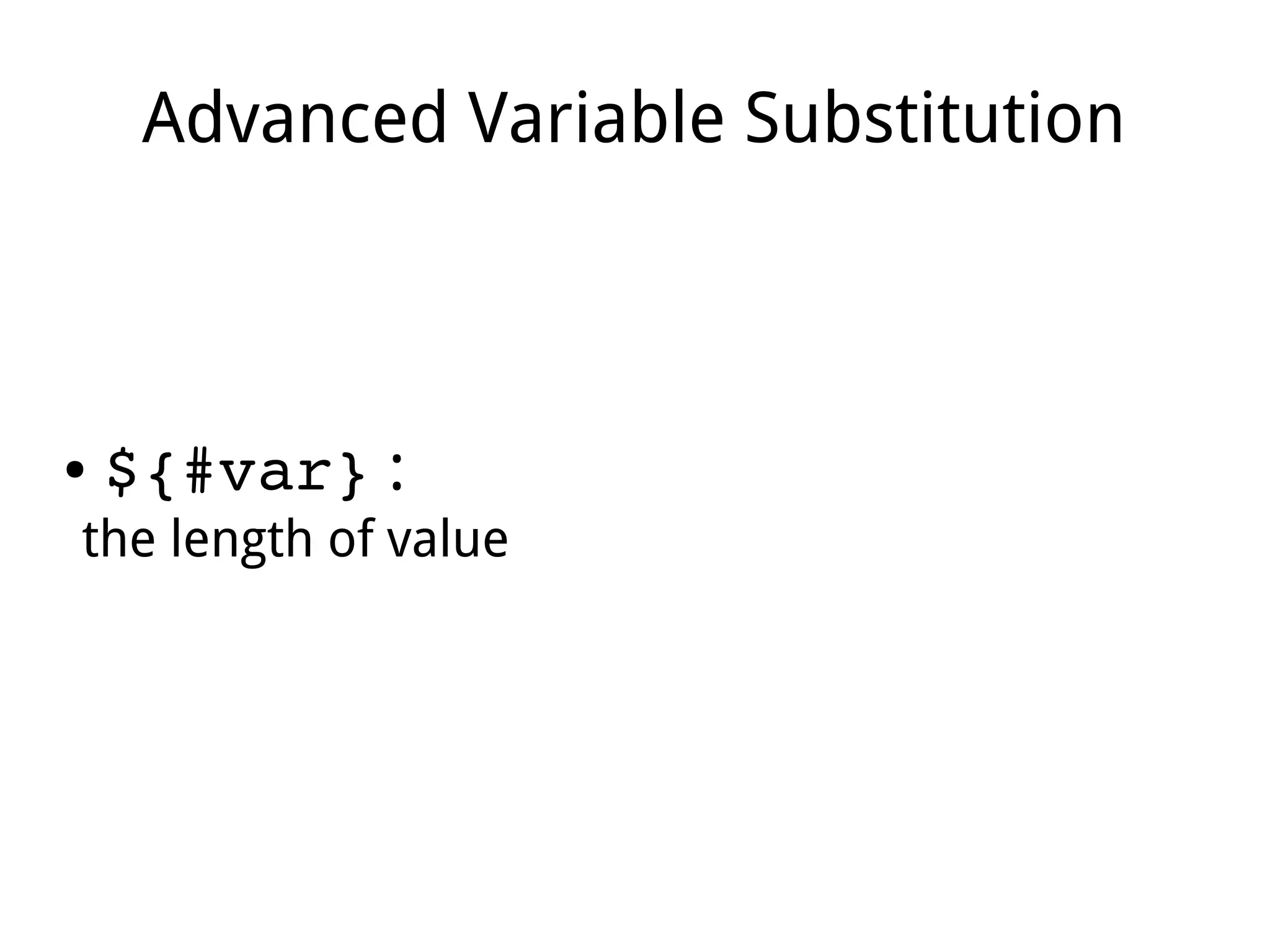
Advanced Variable Substitution
● ${#var} :
the length of value
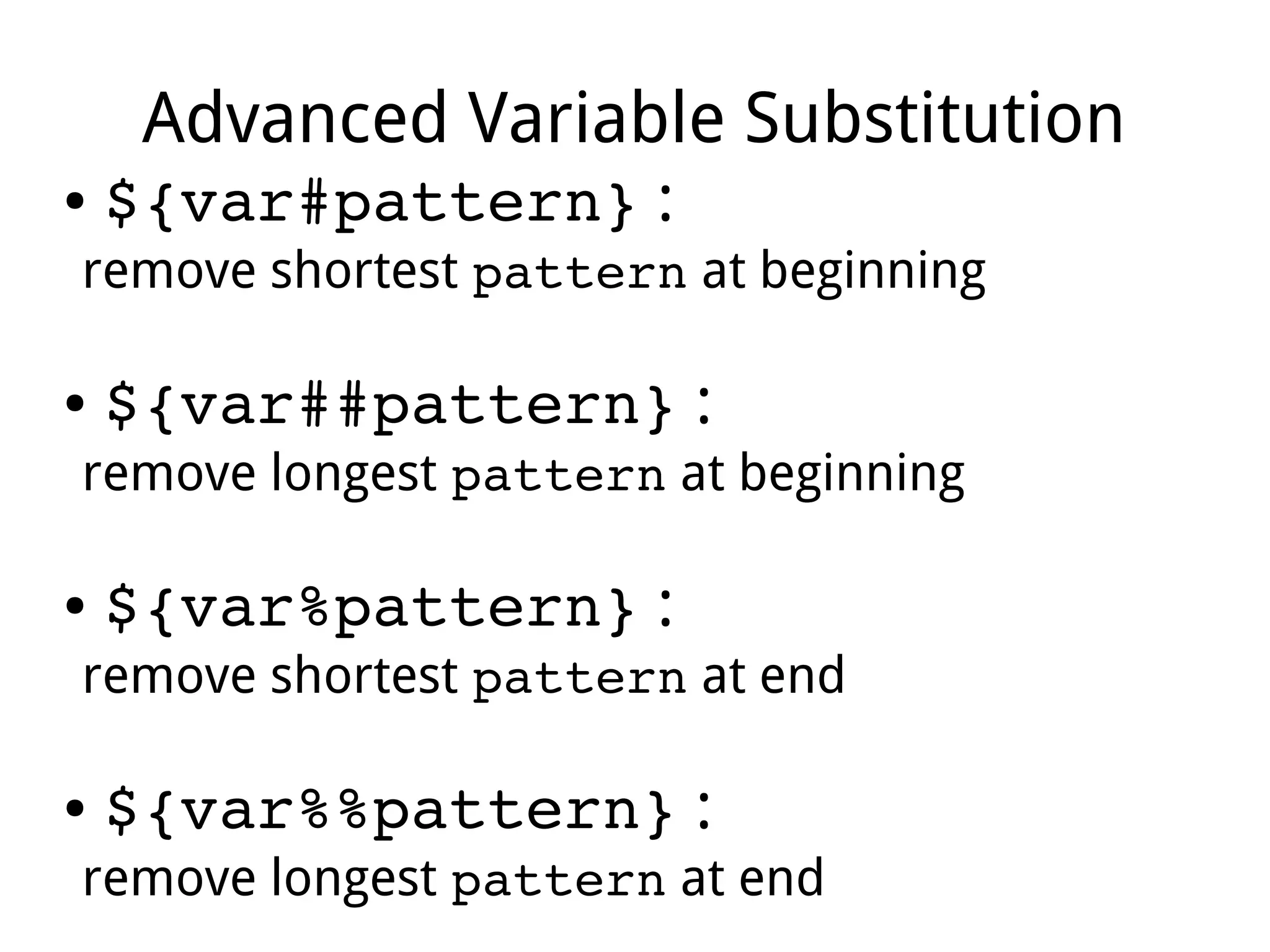
Advanced Variable Substitution
● ${var#pattern} :
remove shortest pattern at beginning
● ${var##pattern} :
remove longest pattern at beginning
● ${var%pattern} :
remove shortest pattern at end
● ${var%%pattern} :
remove longest pattern at end
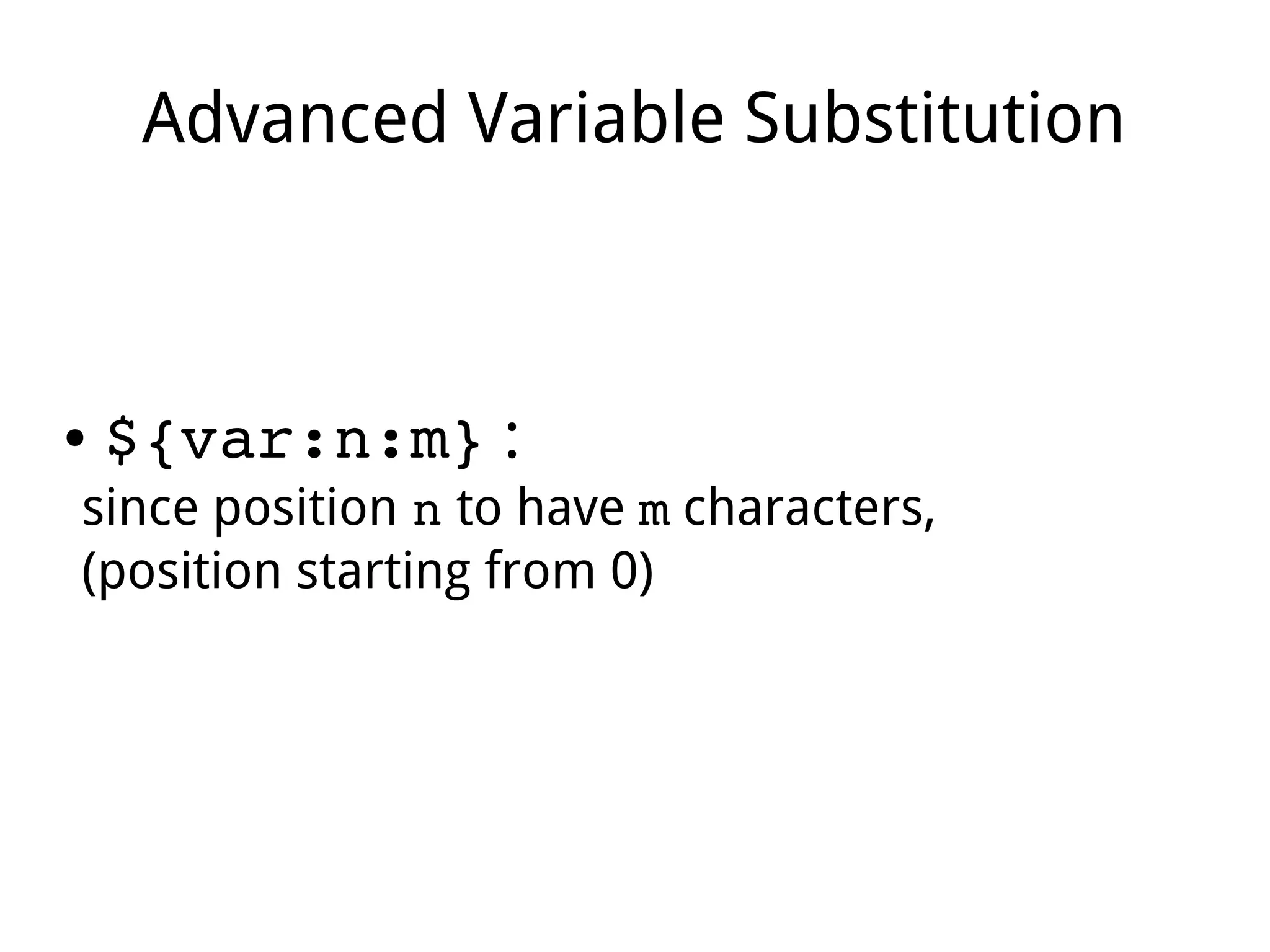
Advanced Variable Substitution
● ${var:n:m} :
since position n to have m characters,
(position starting from 0)
Advanced Variable Substitution
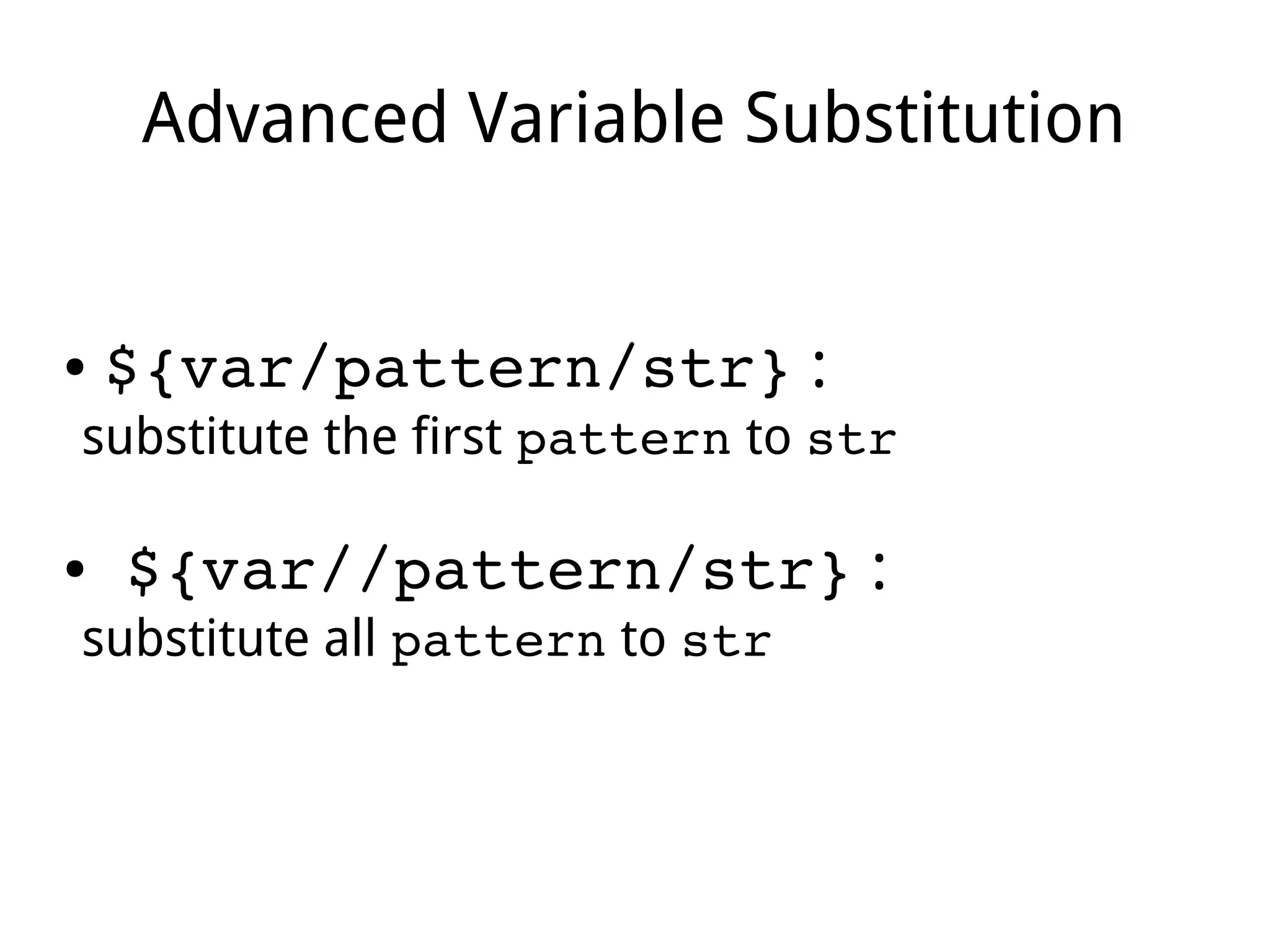
● ${var/pattern/str} :
substitute the first pattern to str
● ${var//pattern/str} :
substitute all pattern to str
Array Setting
● Using ():
array=(value1 value2 value3)
● Position assigning:
array[0]=value1
array[1]=value2
array[2]=value3
Array Substitution
● All values:
${array[@]}
${array[*]}
● Position values:
${array[0]}
${array[1]}
${array[2]}
Array Substitution
● Length of value:
${#array[0]}
● Number of value:
${#array[@]}
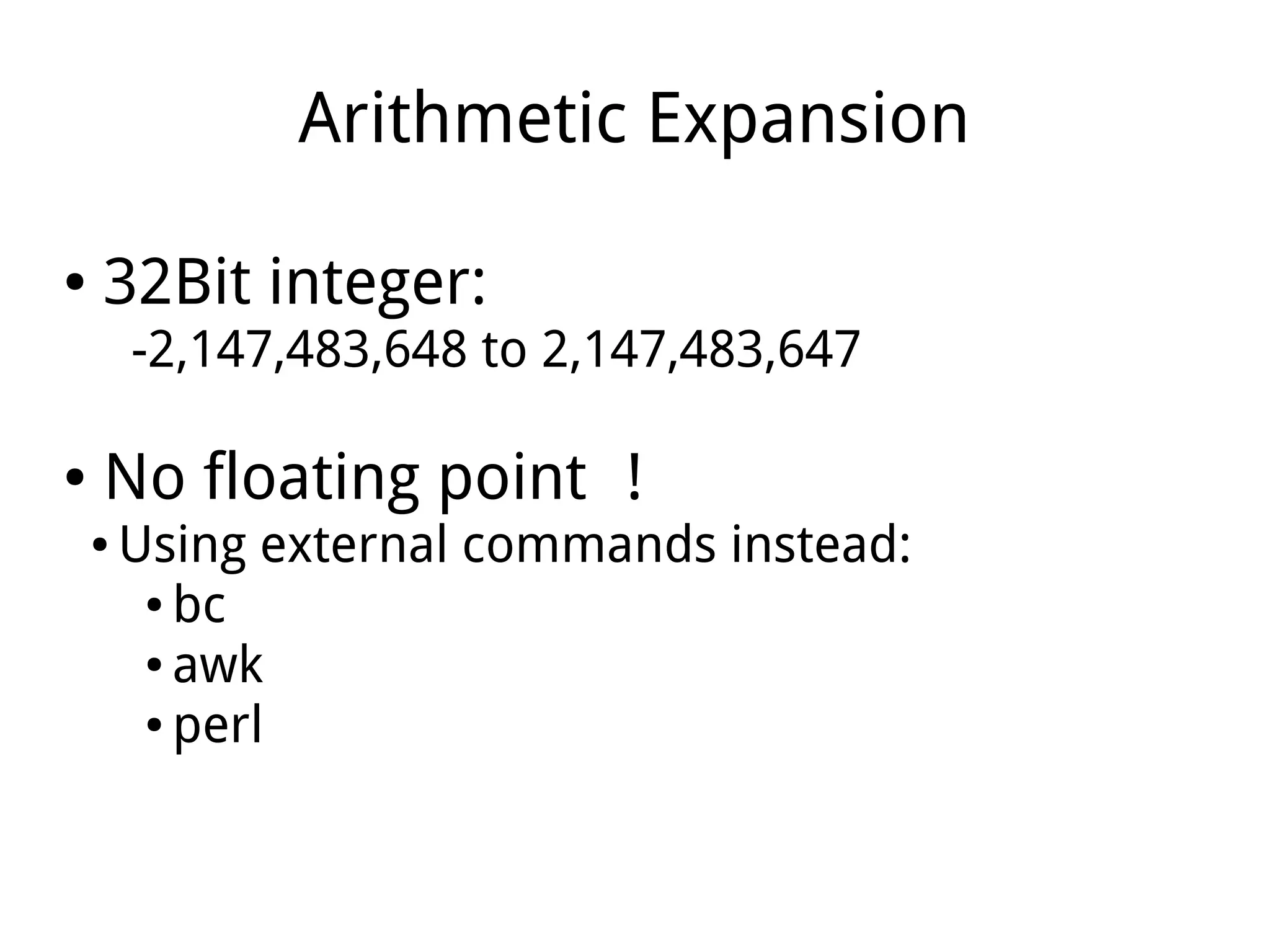
Arithmetic Expansion
● 32Bit integer:
-2,147,483,648 to 2,147,483,647
● No floating point !
● Using external commands instead:
● bc
● awk
● perl
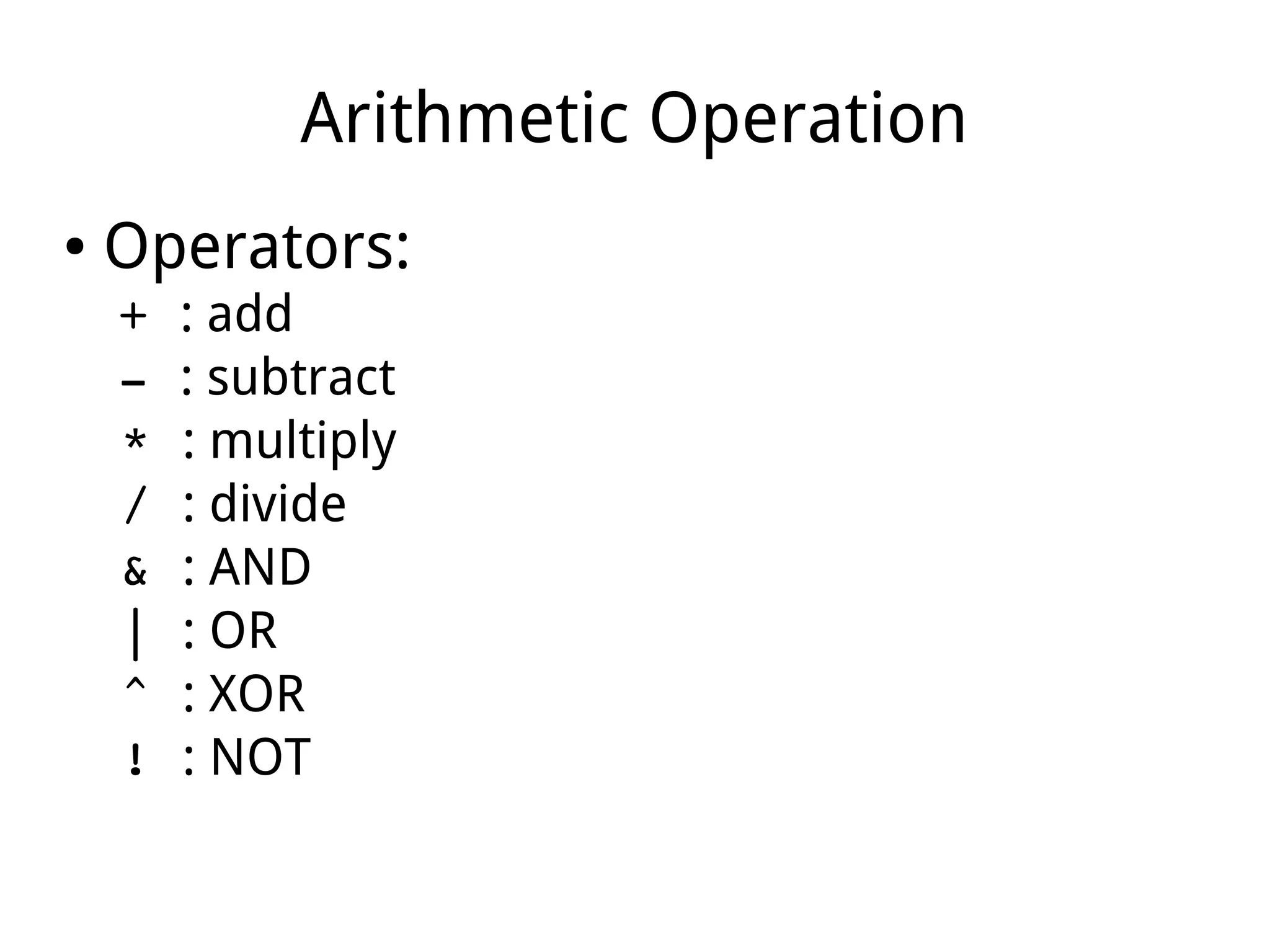
Arithmetic Operation
● Operators:
+ : add
­ : subtract
* : multiply
/ : divide
& : AND
| : OR
^ : XOR
! : NOT
Arithmetic Operation
●Using $(()) or $[]:
$ a=5;b=7;c=2
$ echo $((a+b*c))
19
$ echo $[(a+b)/c]
6
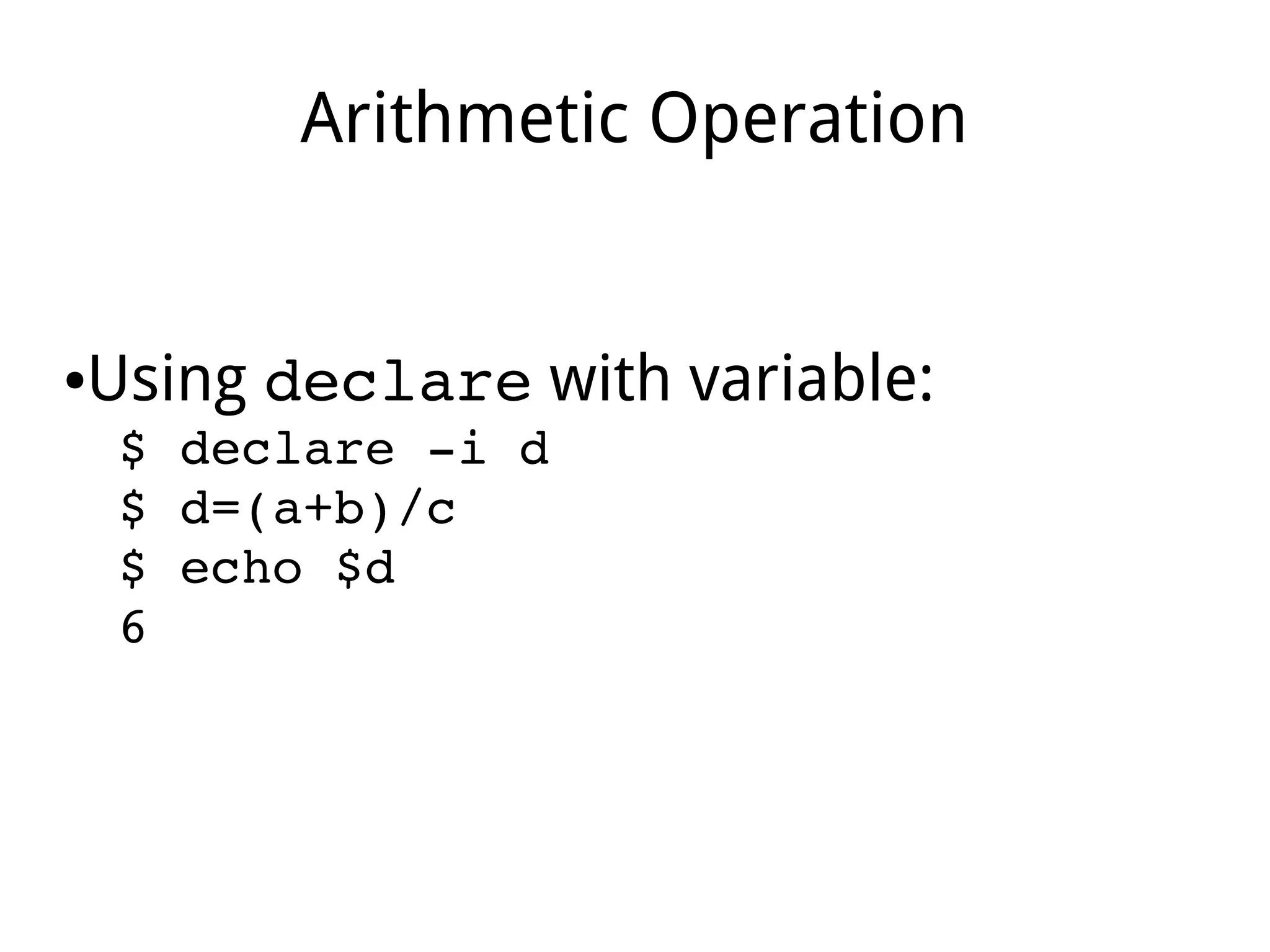
Arithmetic Operation
●Using declare with variable:
$ declare ­i d
$ d=(a+b)/c
$ echo $d
6
Arithmetic Operation
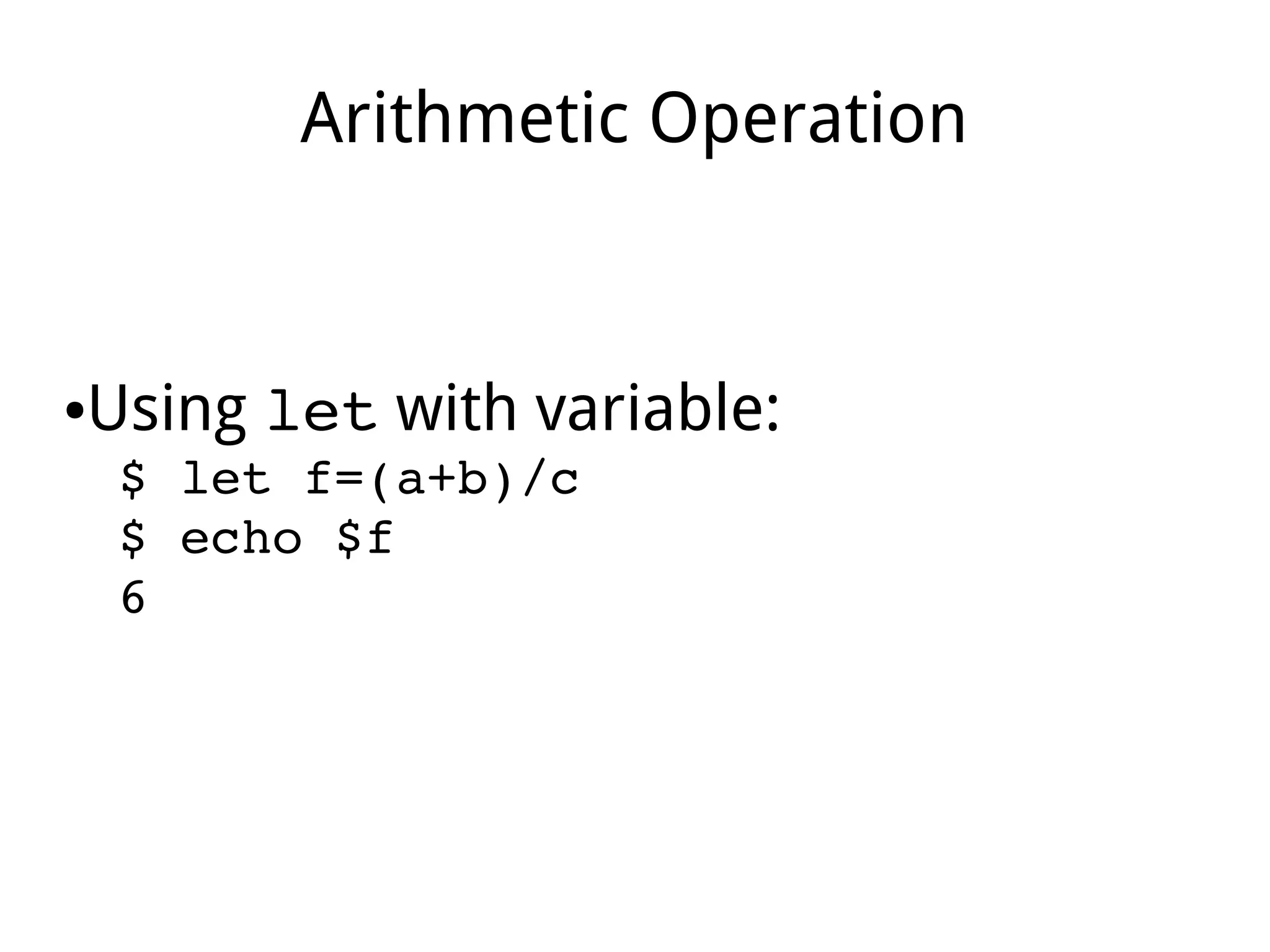
●Using let with variable:
$ let f=(a+b)/c
$ echo $f
6
Arithmetic Operation
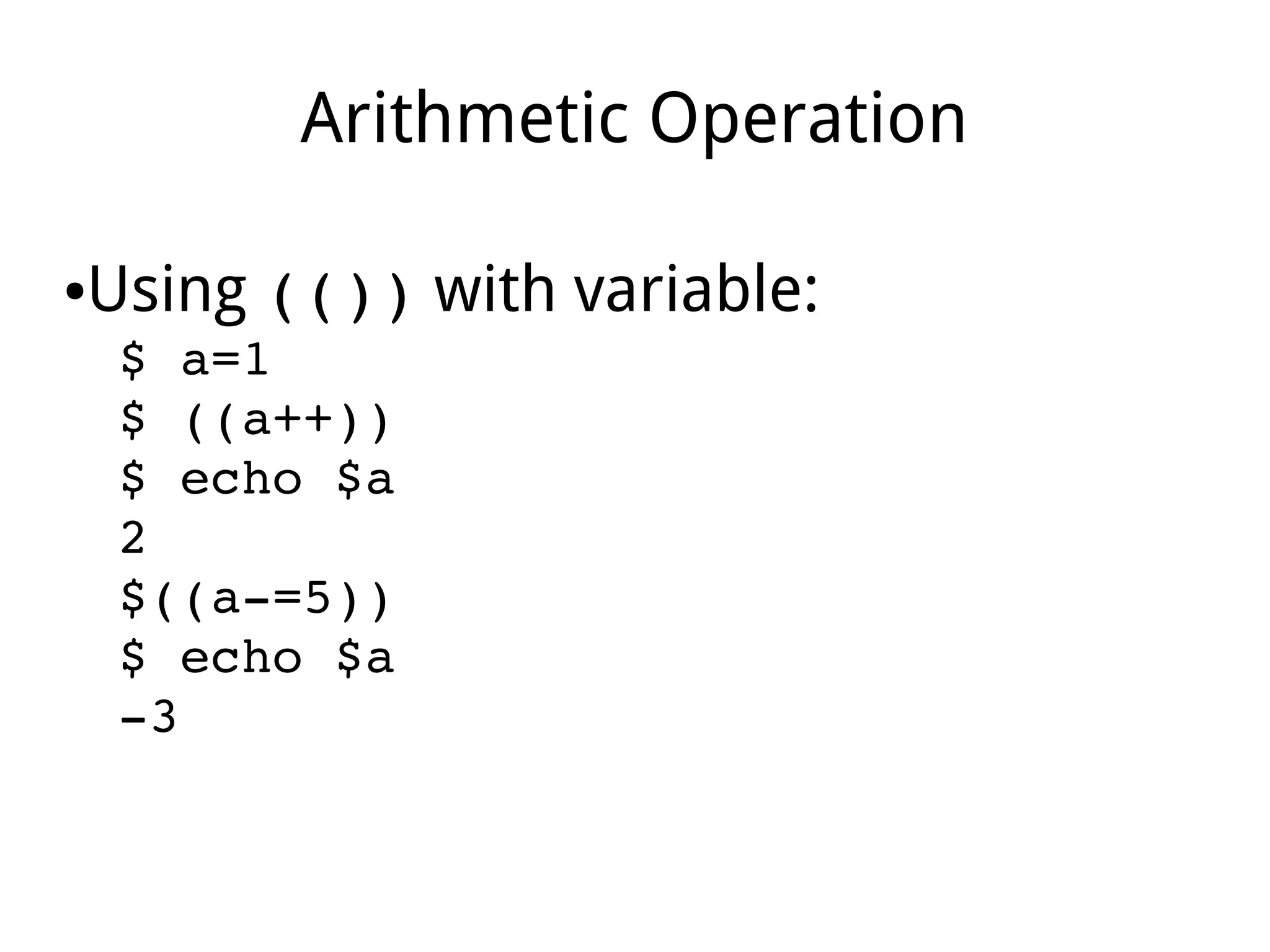
●Using (()) with variable:
$ a=1
$ ((a++))
$ echo $a
2
$((a­=5))
$ echo $a
­3
Part VII
Positional Parameter
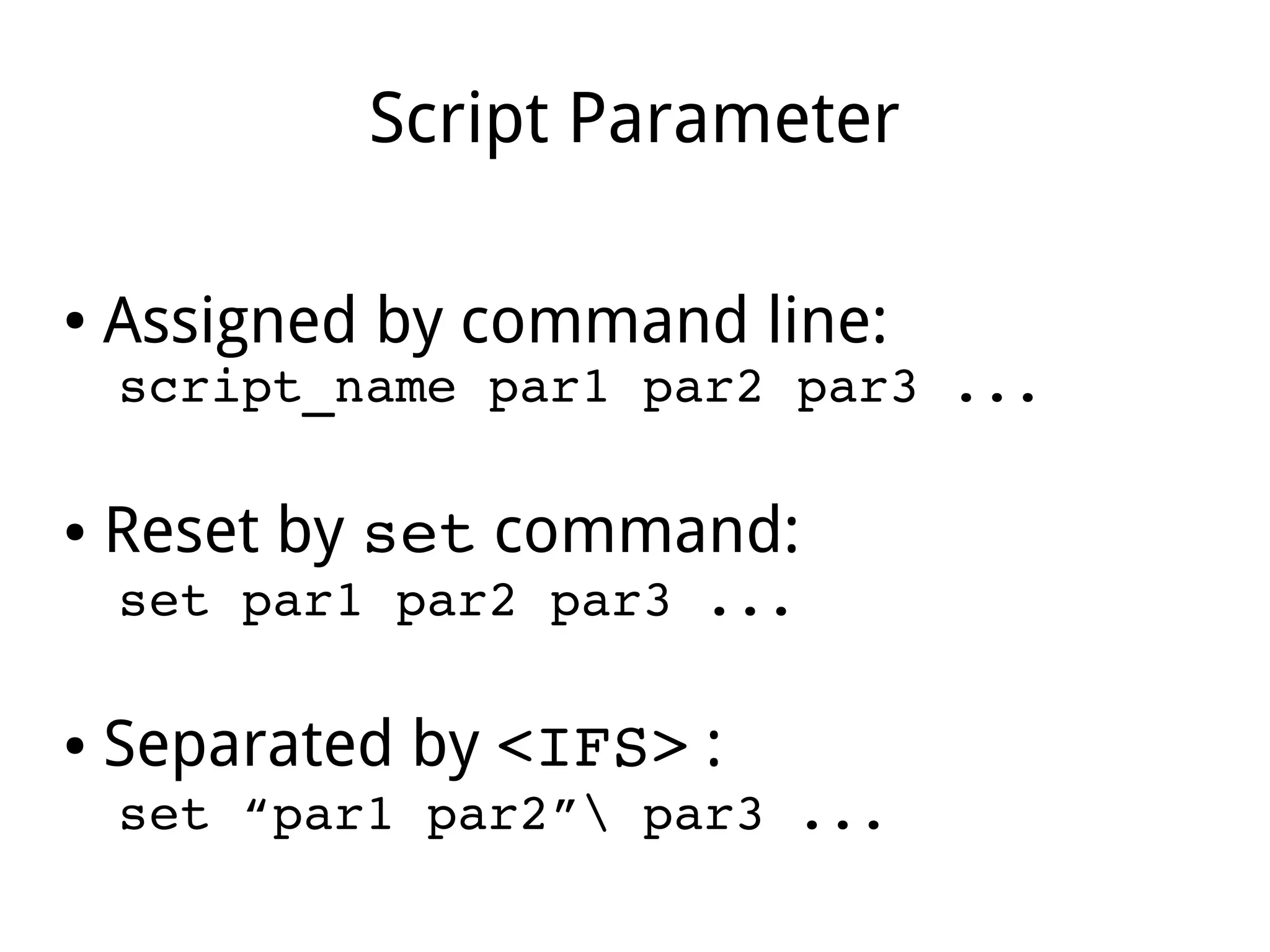
Script Parameter
● Assigned by command line:
script_name par1 par2 par3 ...
● Reset by set command:
set par1 par2 par3 ...
● Separated by <IFS> :
set “par1 par2” par3 ...
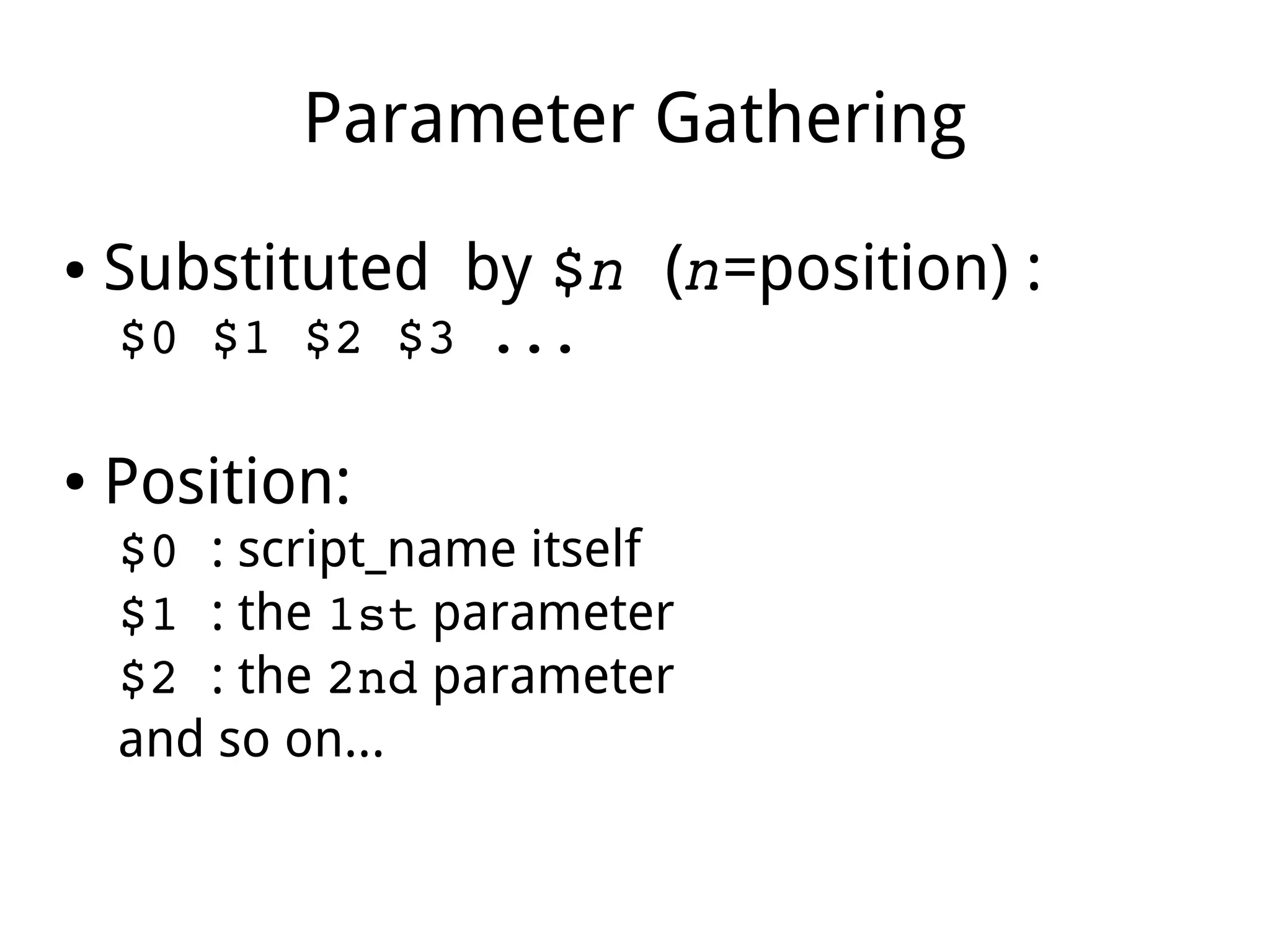
Parameter Gathering
● Substituted by $n (n=position) :
$0 $1 $2 $3 ...
● Position:
$0 : script_name itself
$1 : the 1st parameter
$2 : the 2nd parameter
and so on...
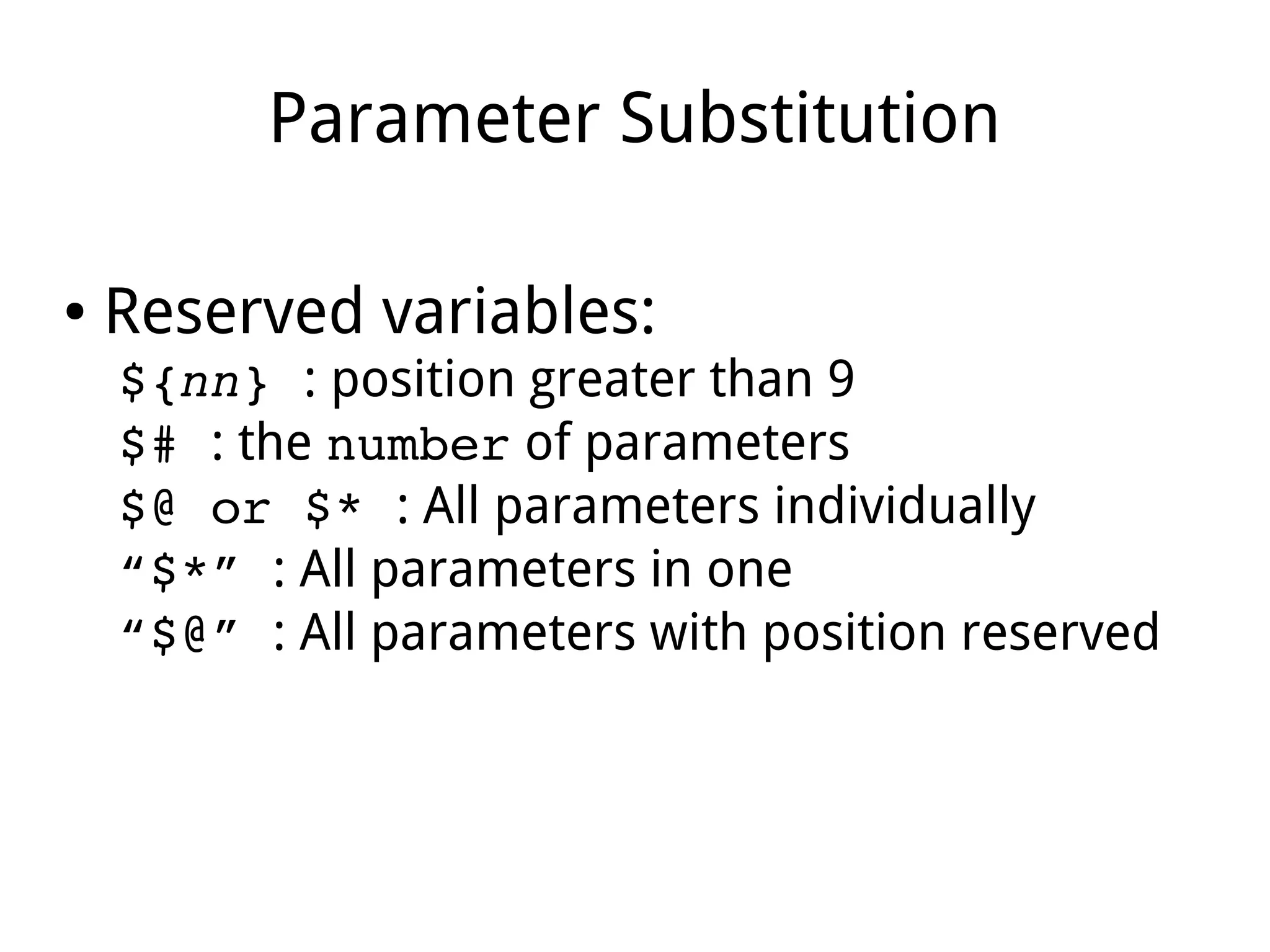
Parameter Substitution
● Reserved variables:
${nn} : position greater than 9
$# : the number of parameters
$@ or $* : All parameters individually
“$*” : All parameters in one
“$@” : All parameters with position reserved
Parameter Shifting
● Using shift [n]
to erase the first n parameters.
Function Parameter
● Function has own position except $0
Part VIII
Data Stream
File Descriptor (FD)
● Processes use File Descriptors to
input or output (I/O) data with system
● Each process has 256 FD
●The first 3 FD are standard
0 : Standard Input (STDIN)
1 : Standard Output (STDOUT)
2 : Standard Error Output (STDERR)
Standard FD
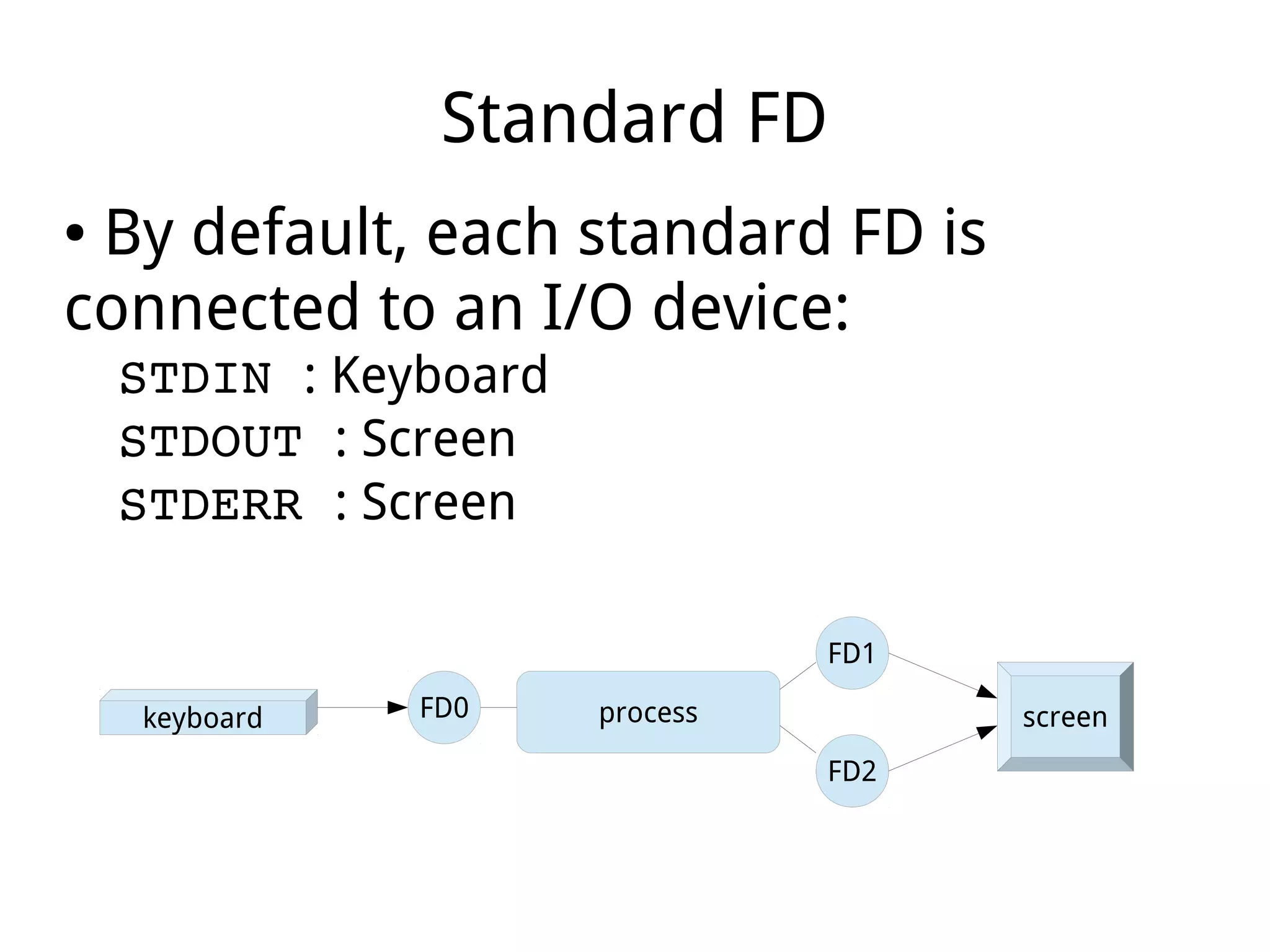
● By default, each standard FD is
connected to an I/O device:
STDIN : Keyboard
STDOUT : Screen
STDERR : Screen
processFD0
FD2
FD1
keyboard screen
IO Redirection
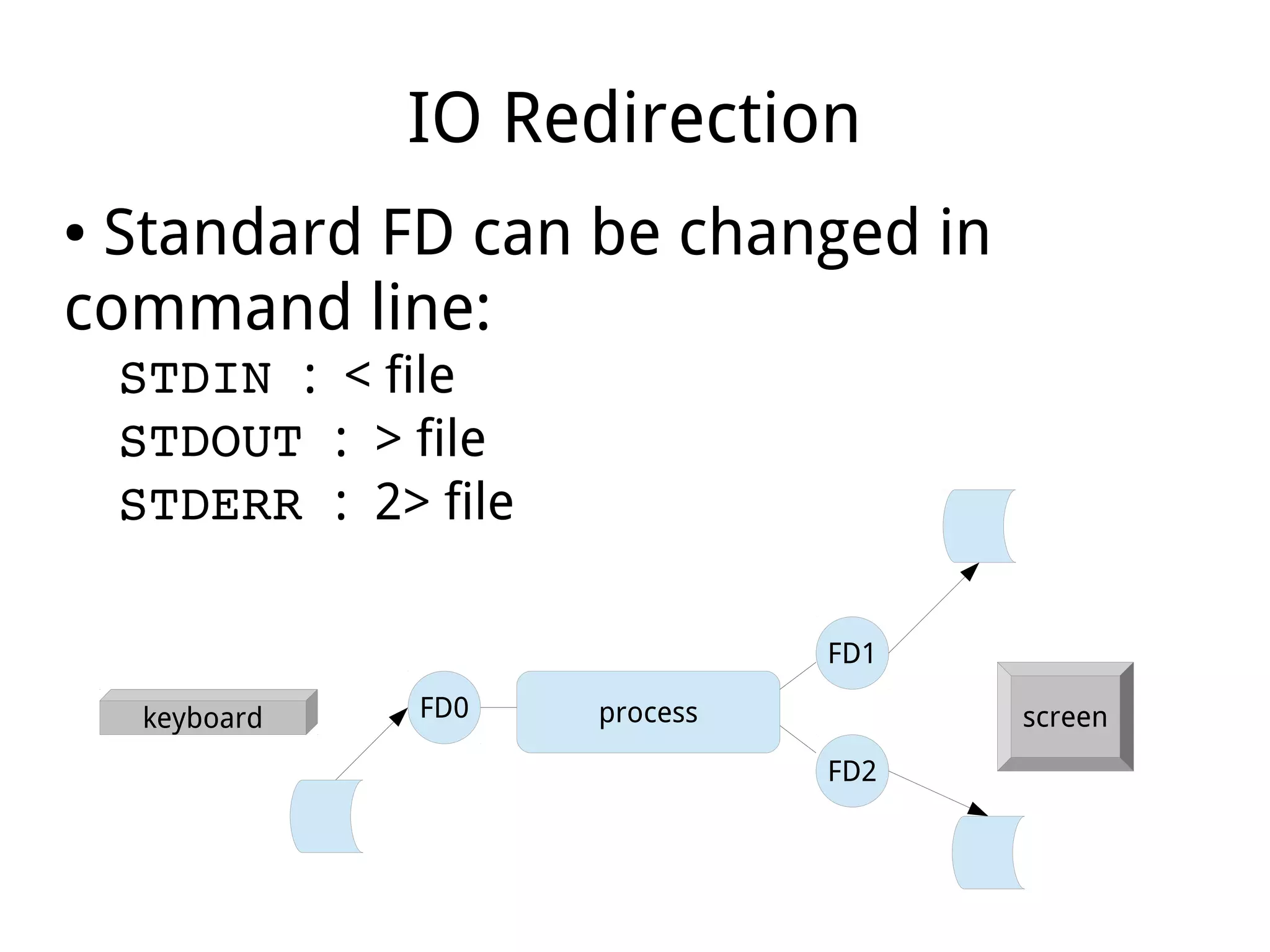
● Standard FD can be changed in
command line:
STDIN : < file
STDOUT : > file
STDERR : 2> file
processFD0
FD2
FD1
keyboard screen
IO Redirection Example
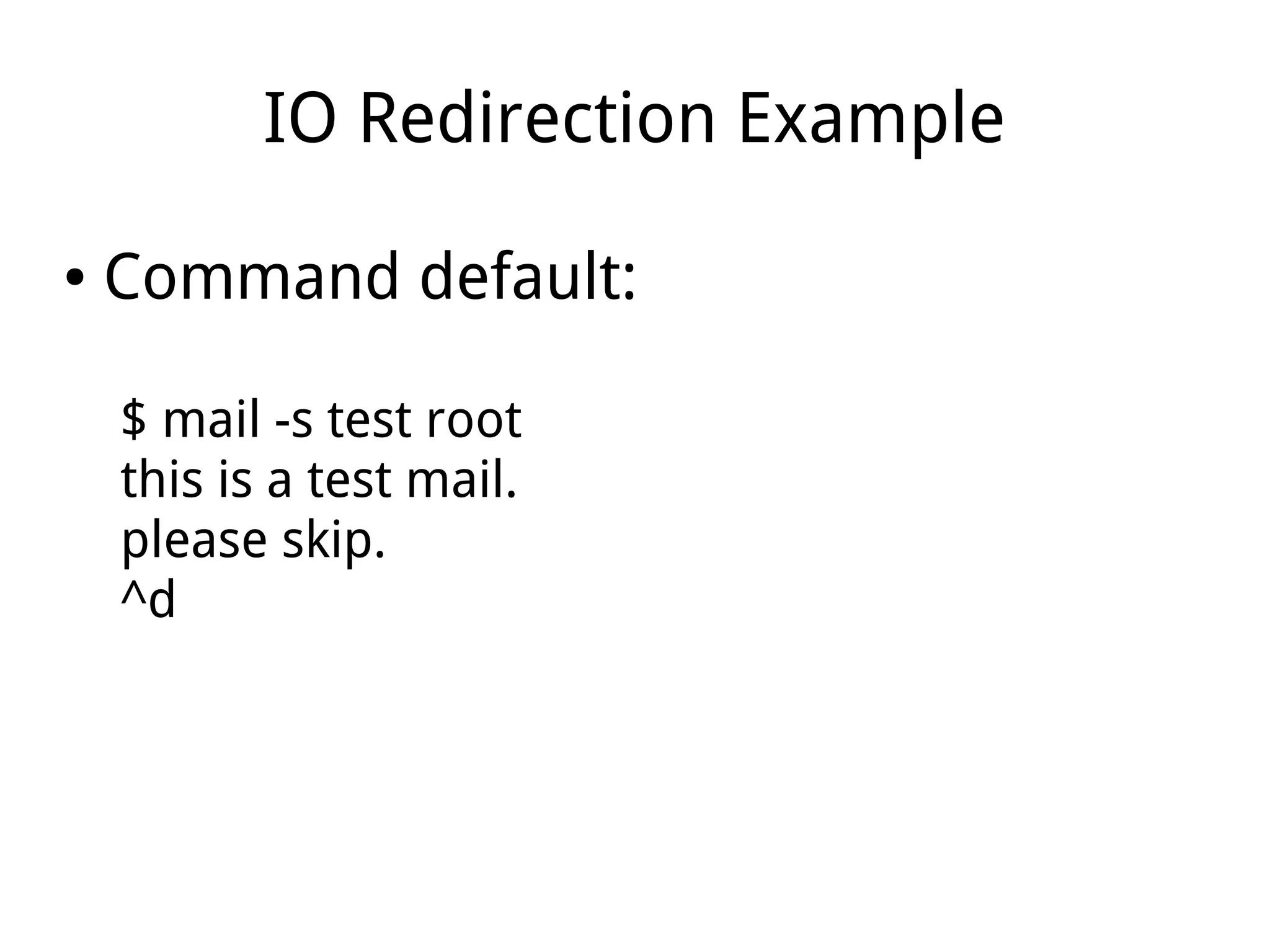
● Command default:
$ mail -s test root
this is a test mail.
please skip.
^d
IO Redirection Example
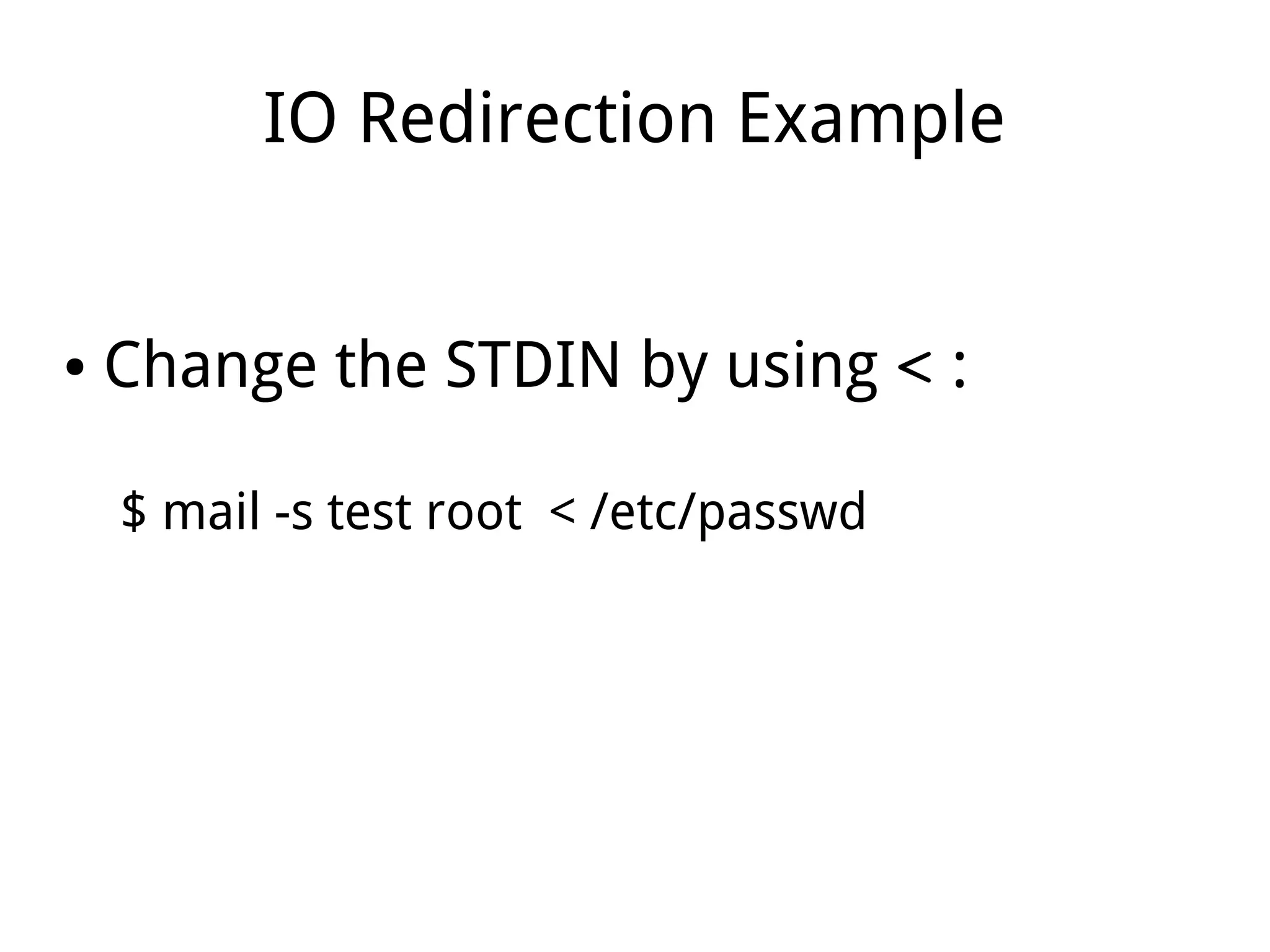
● Change the STDIN by using < :
$ mail -s test root < /etc/passwd
IO Redirection Example
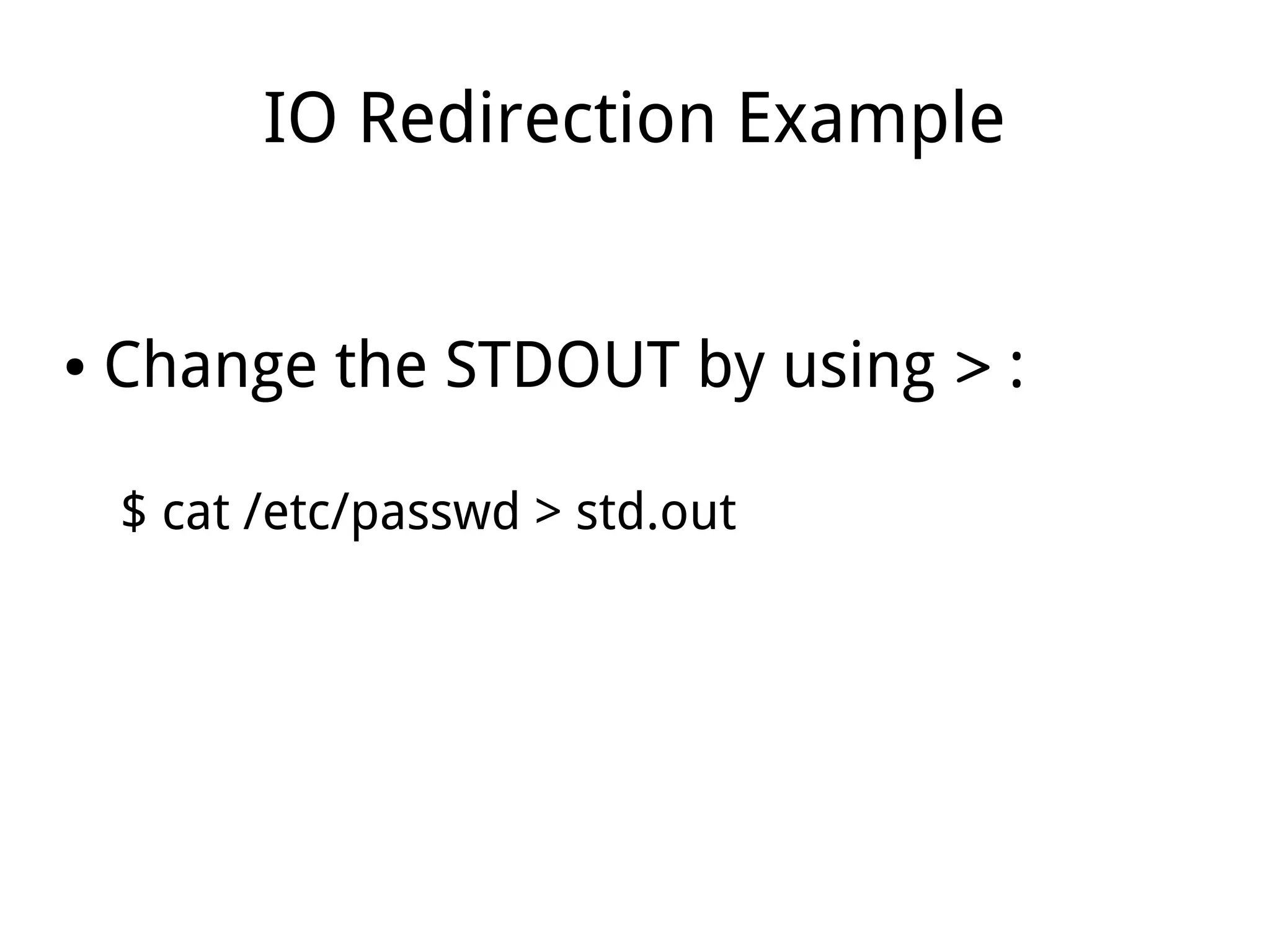
● Change the STDOUT by using > :
$ cat /etc/passwd > std.out
IO Redirection Example
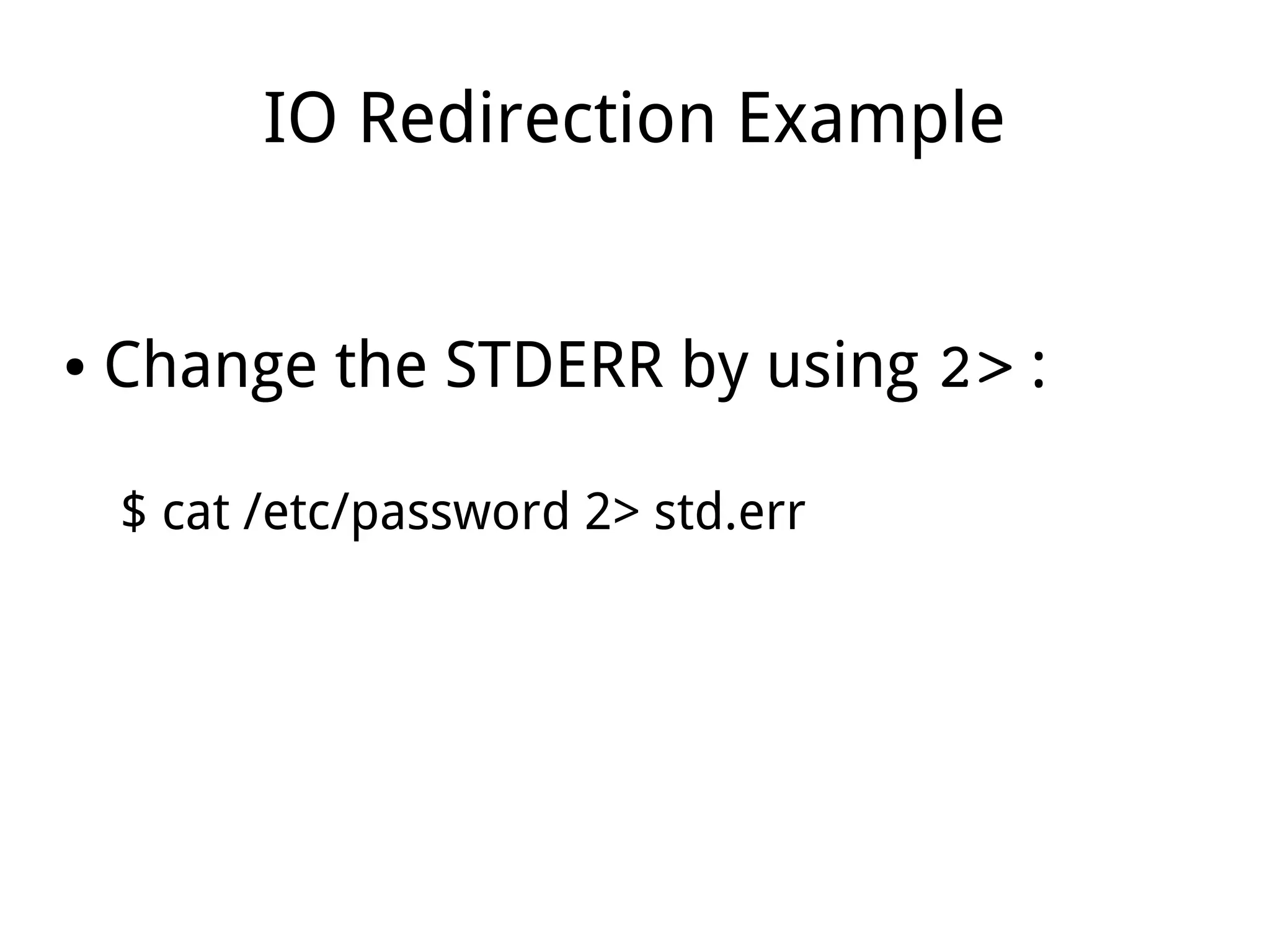
● Change the STDERR by using 2> :
$ cat /etc/password 2> std.err
Device /dev/null
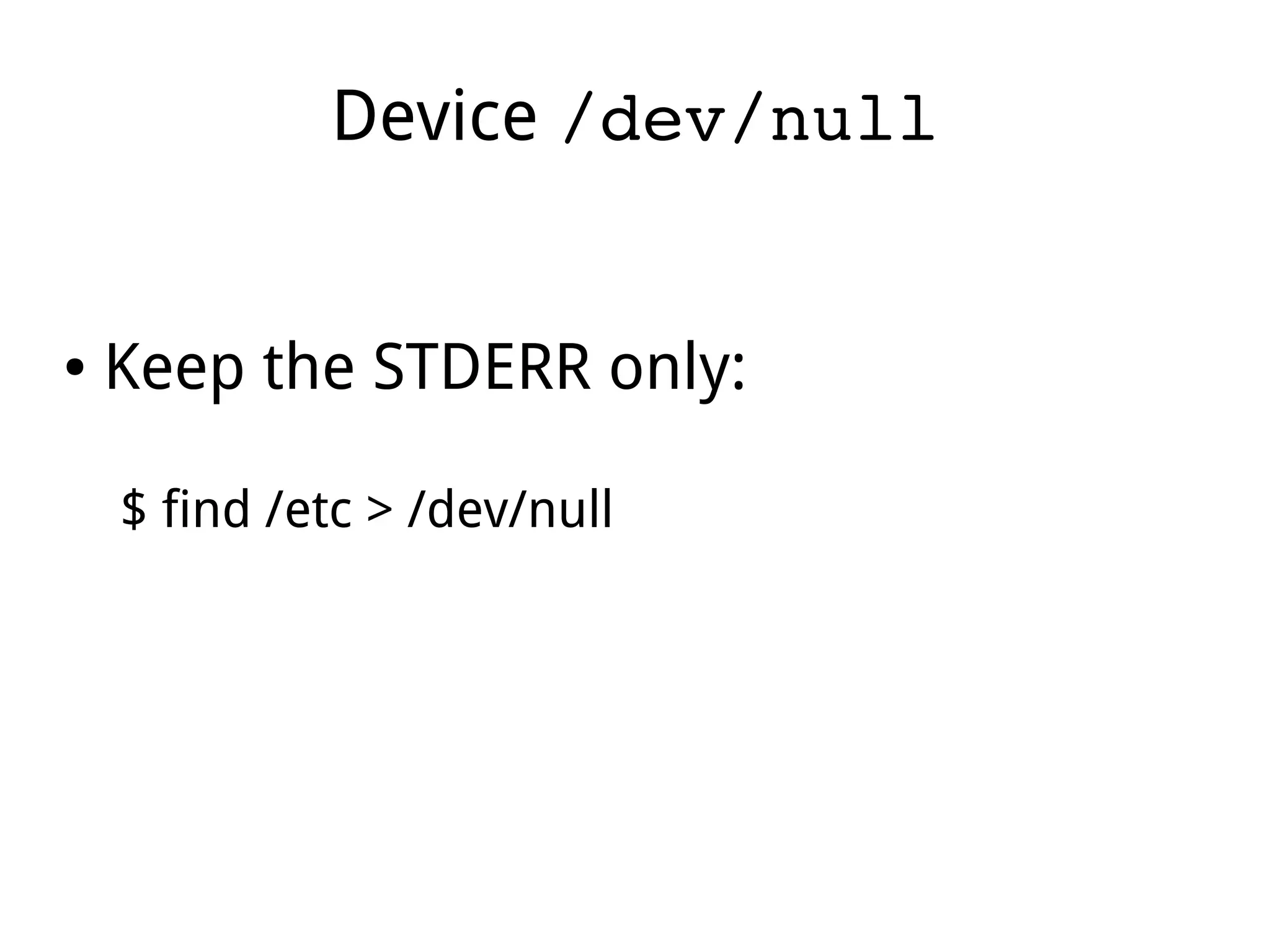
● Keep the STDERR only:
$ find /etc > /dev/null
Output Appending
● Keep the existing content in target
file by using >> :
$ find /etc >/dev/null 2>> std.out
HERE Document
● Multiple line input by using << TAG :
$ mail -s test root << .
this is a test mail.
please skip.
.
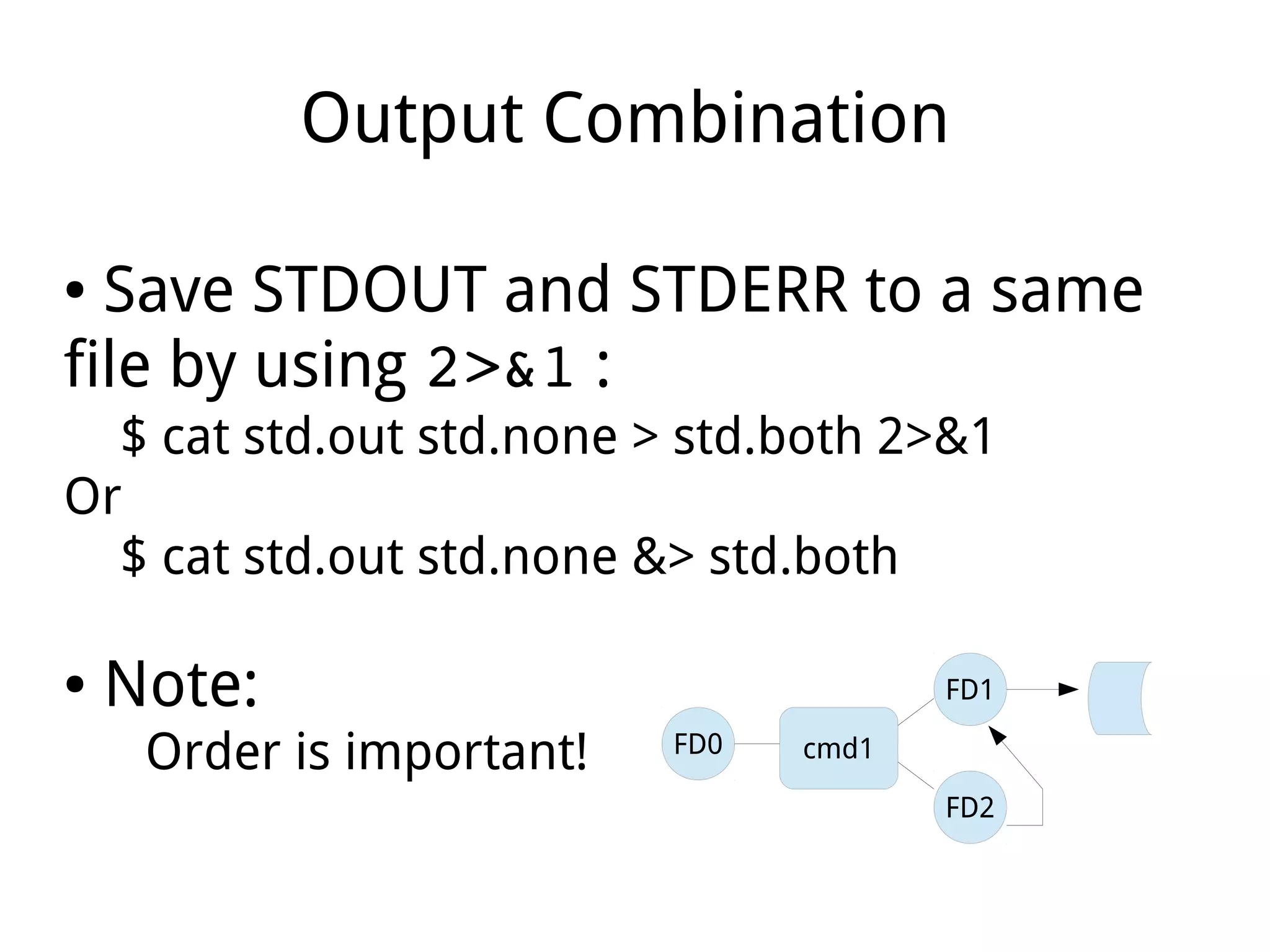
Output Combination
● Save STDOUT and STDERR to a same
file by using 2>&1 :
$ cat std.out std.none > std.both 2>&1
Or
$ cat std.out std.none &> std.both
● Note:
Order is important! cmd1
FD2
FD1
FD0
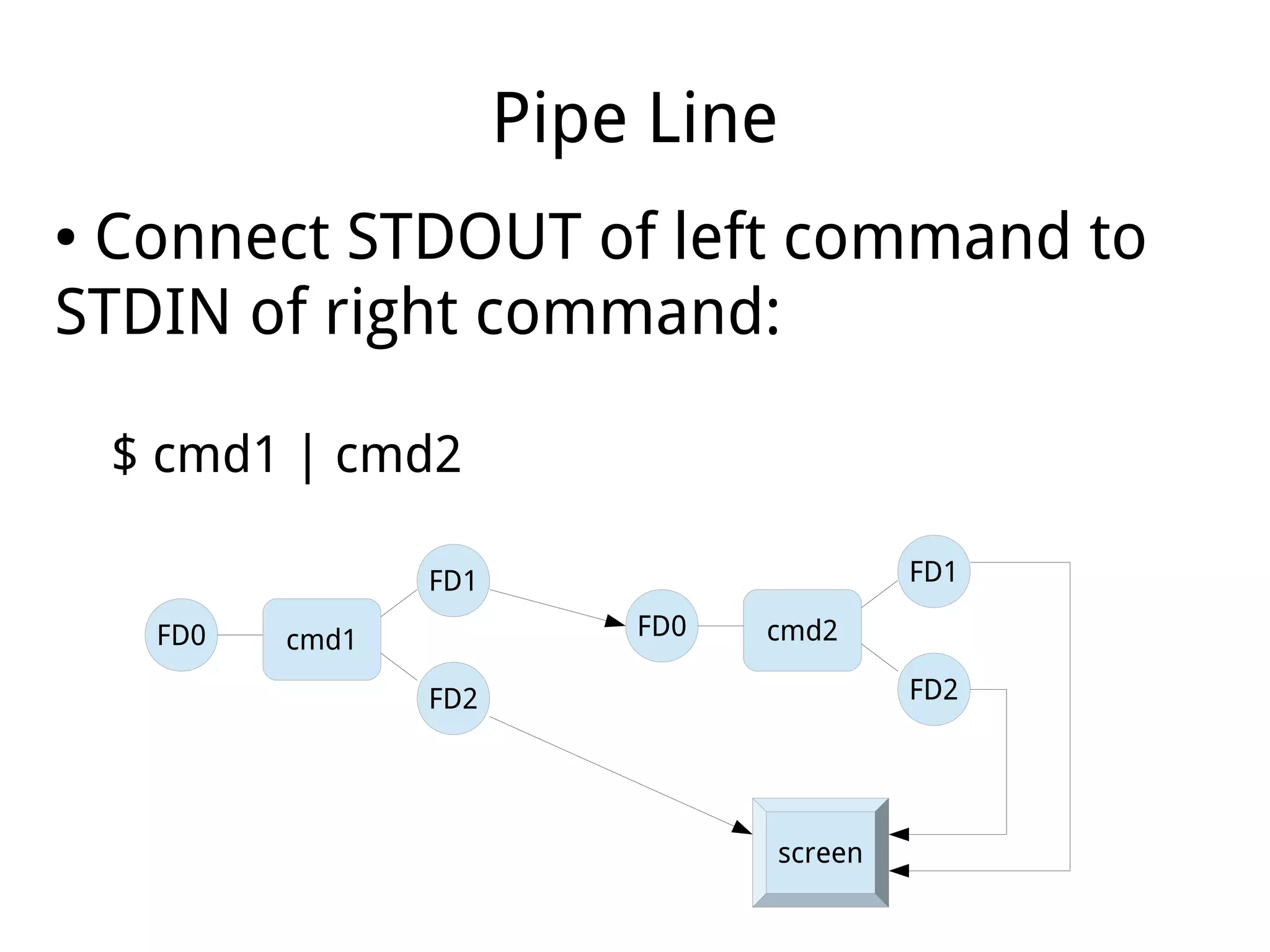
Pipe Line
● Connect STDOUT of left command to
STDIN of right command:
$ cmd1 | cmd2
cmd1
FD2
FD1
FD0
screen
cmd2
FD2
FD1
FD0
Pipe Line
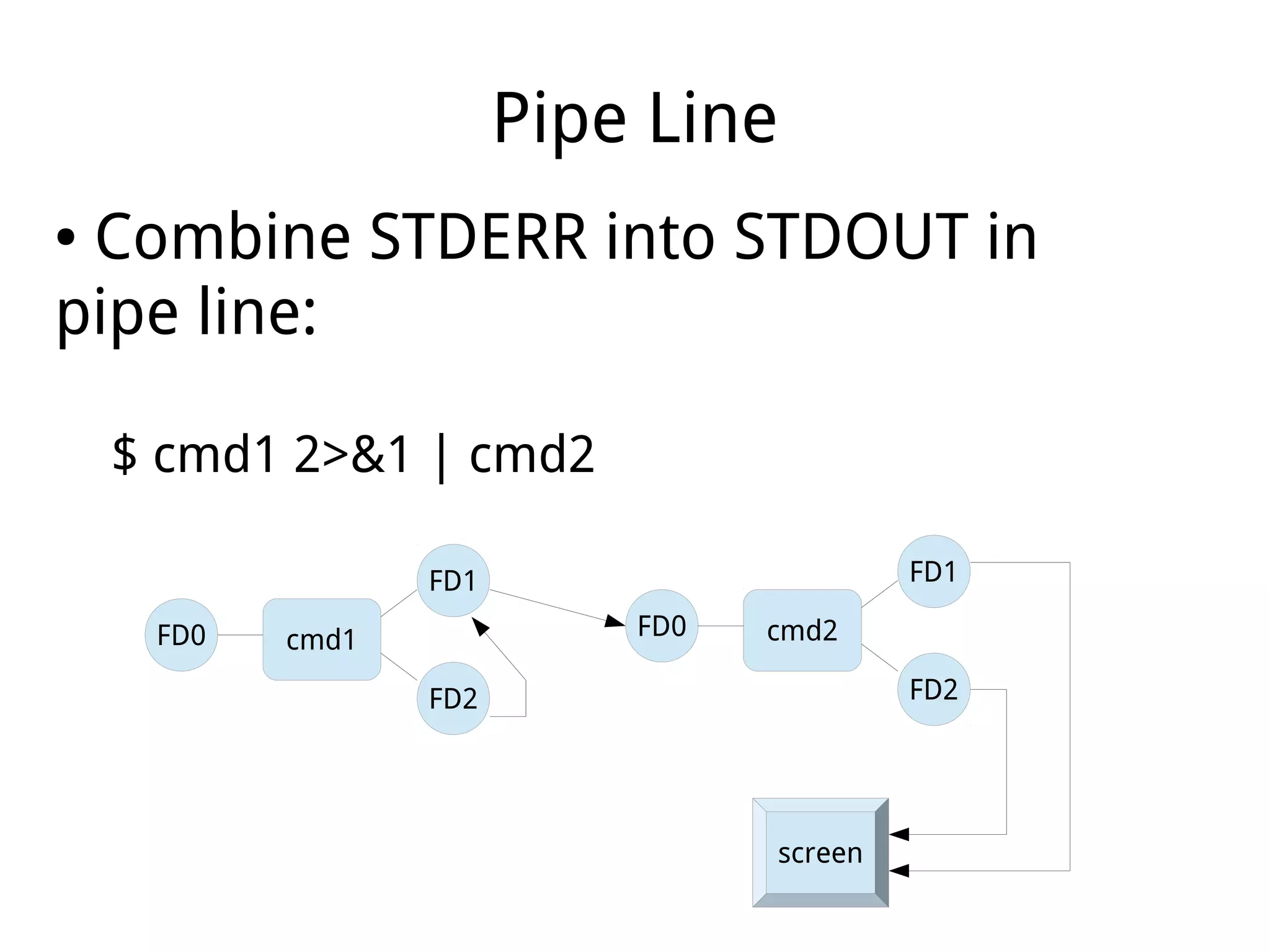
● Combine STDERR into STDOUT in
pipe line:
$ cmd1 2>&1 | cmd2
cmd1
FD2
FD1
FD0
screen
cmd2
FD2
FD1
FD0
Output Splitting
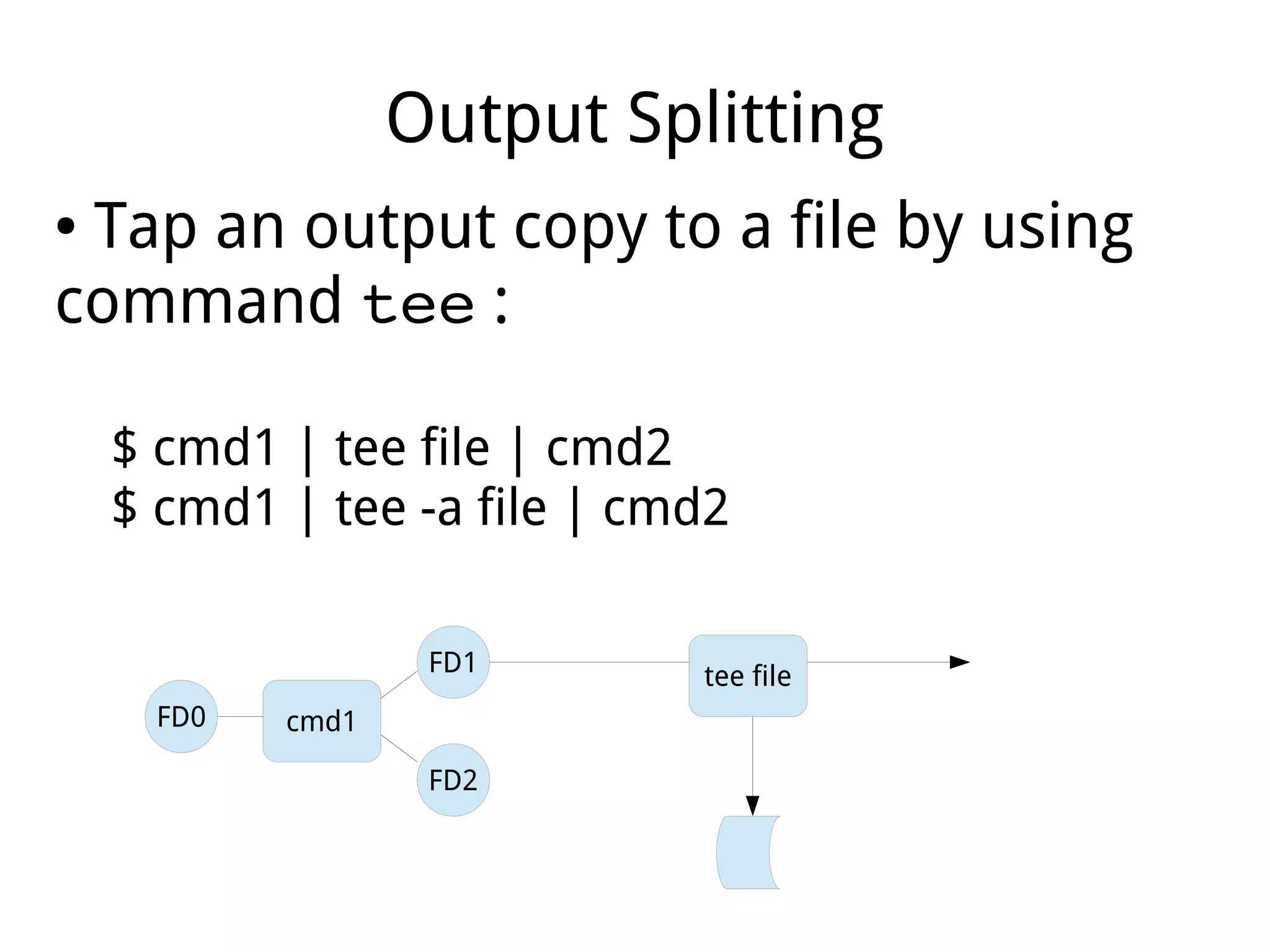
● Tap an output copy to a file by using
command tee :
$ cmd1 | tee file | cmd2
$ cmd1 | tee -a file | cmd2
cmd1
FD2
FD1
FD0
tee file
Xargs
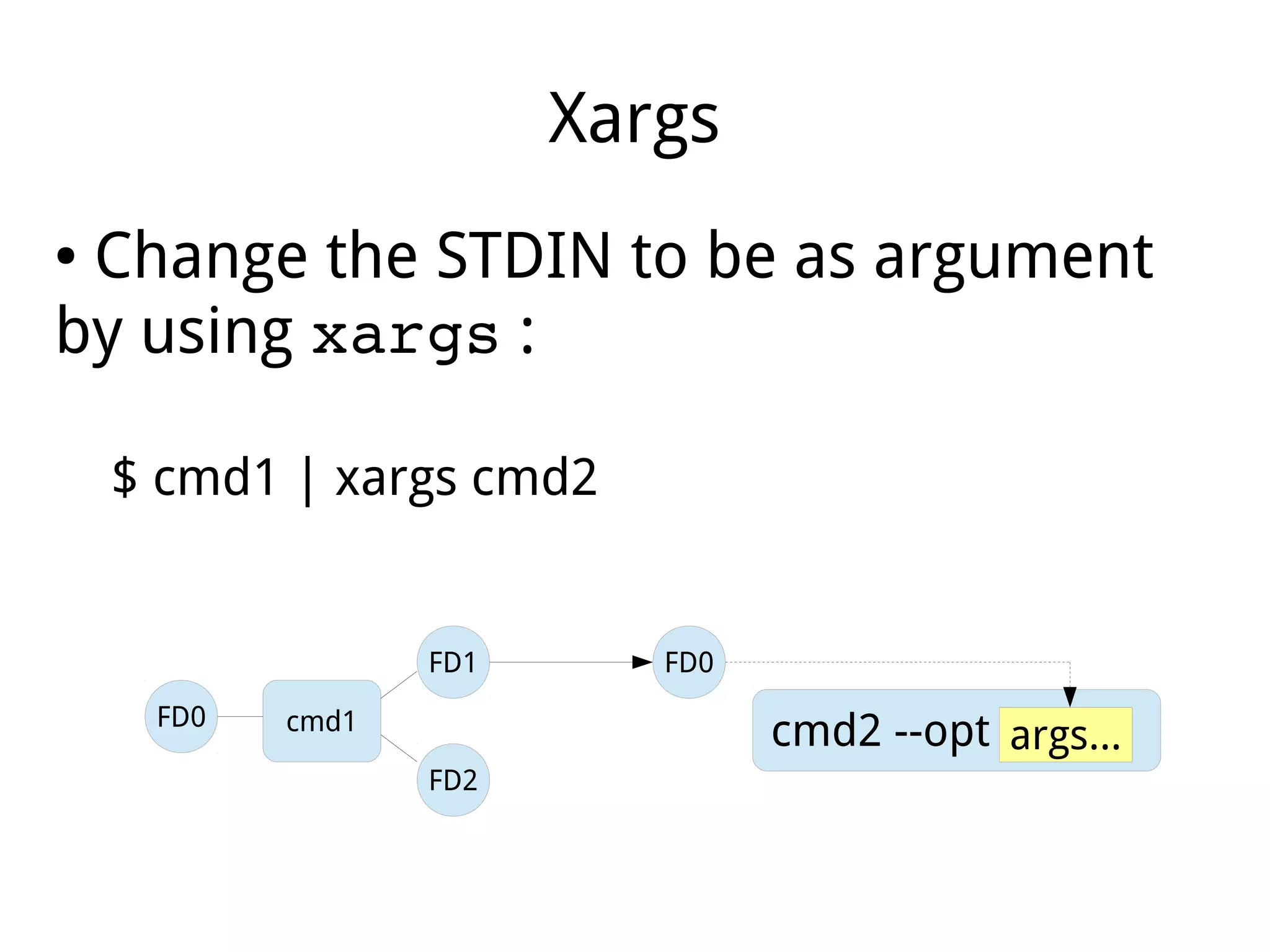
● Change the STDIN to be as argument
by using xargs :
$ cmd1 | xargs cmd2
cmd1
FD2
FD1
FD0
cmd2 --opt args...
FD0
Part IX
Conditional Execution
Return Value (RV)
● Every command has a Return Value
when exists, also called Exist Status.
● Specified by exit in script:
exit [n]
Or, inherited from last command
● Using $? to have RV of last command
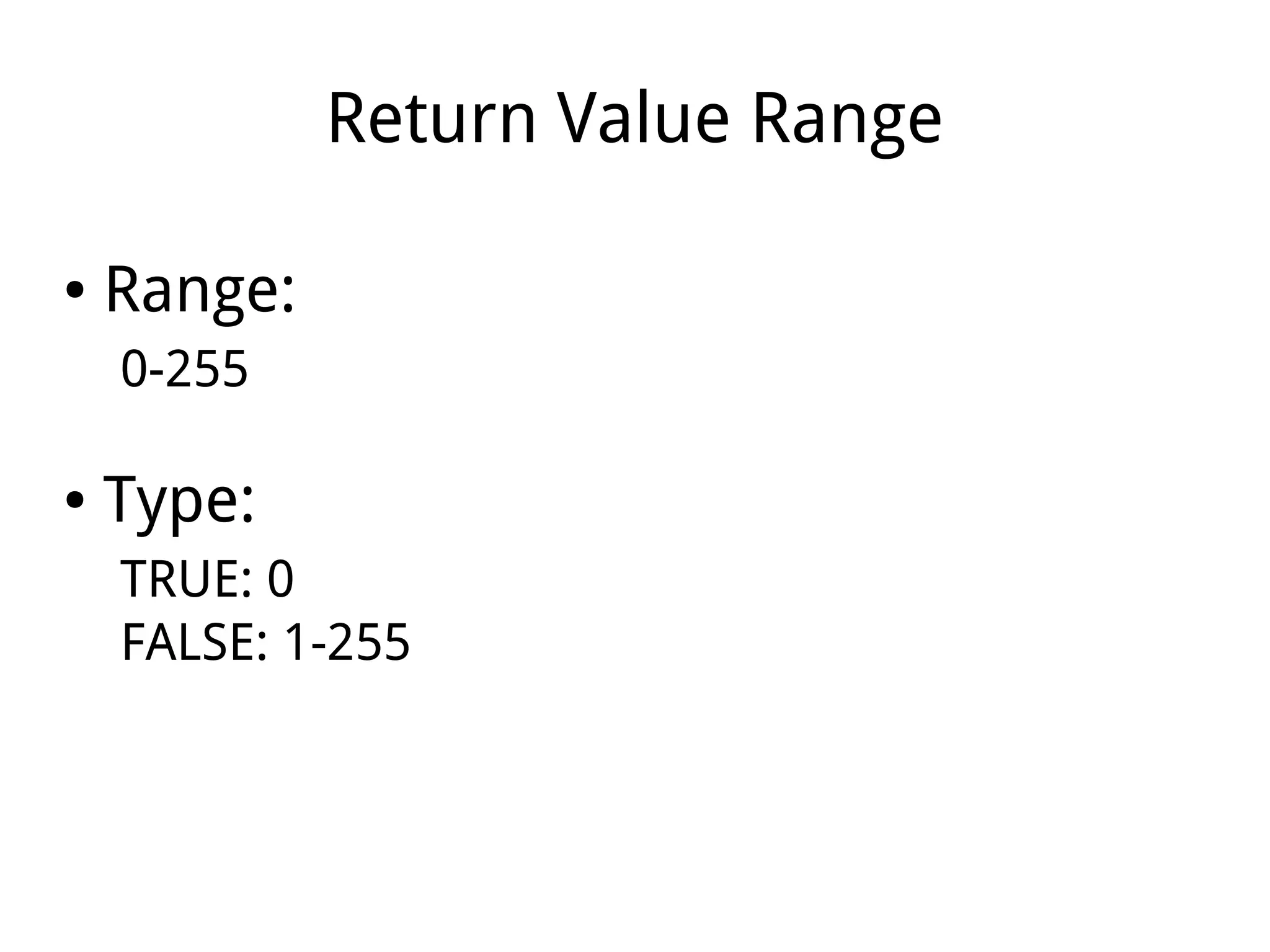
Return Value Range
● Range:
0-255
● Type:
TRUE: 0
FALSE: 1-255
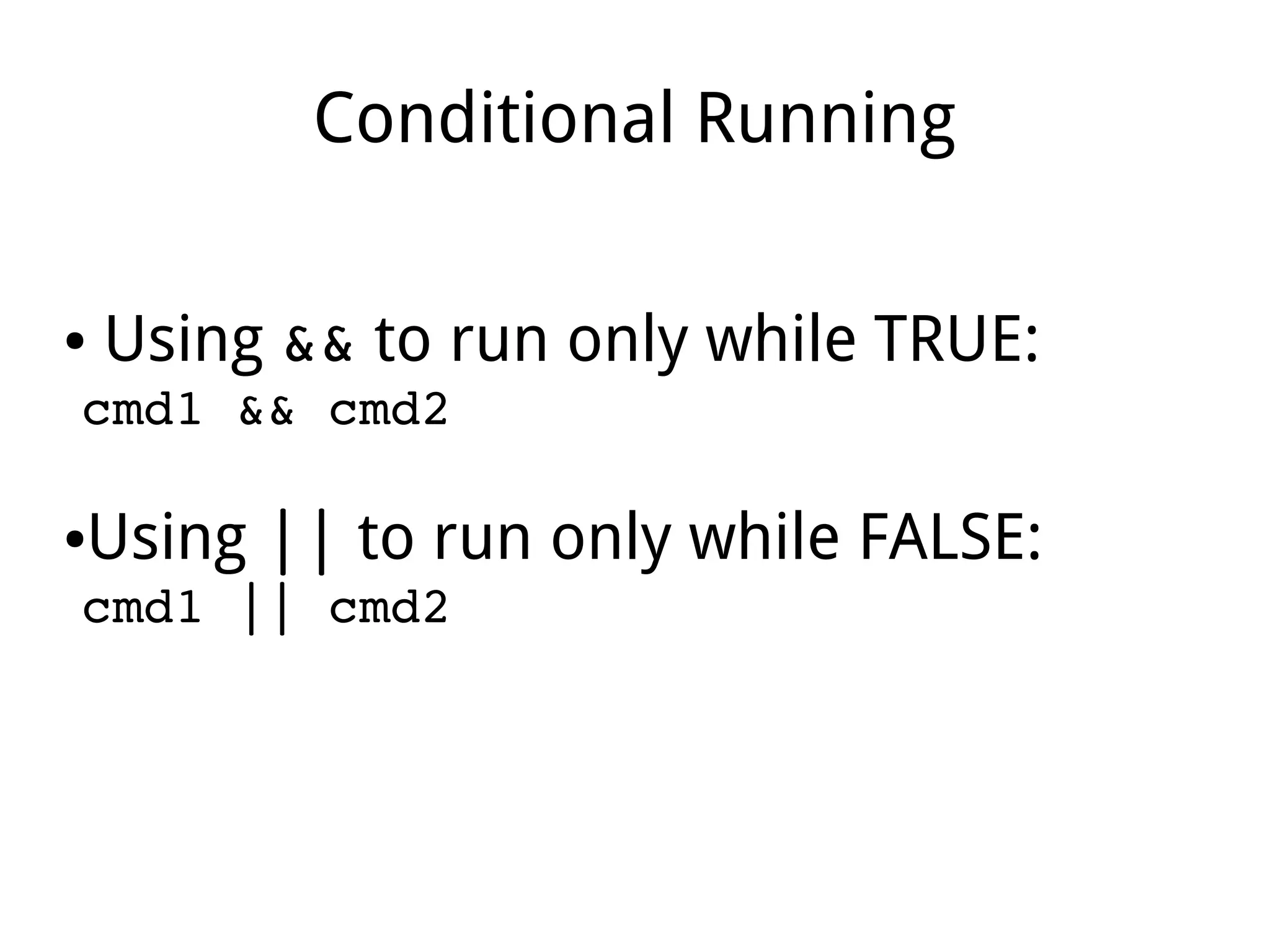
Conditional Running
● Using && to run only while TRUE:
cmd1 && cmd2
●Using || to run only while FALSE:
cmd1 || cmd2
Test Condition
● Using test command to return
TRUE or FALSE accordingly:
test expression
[ expression ]
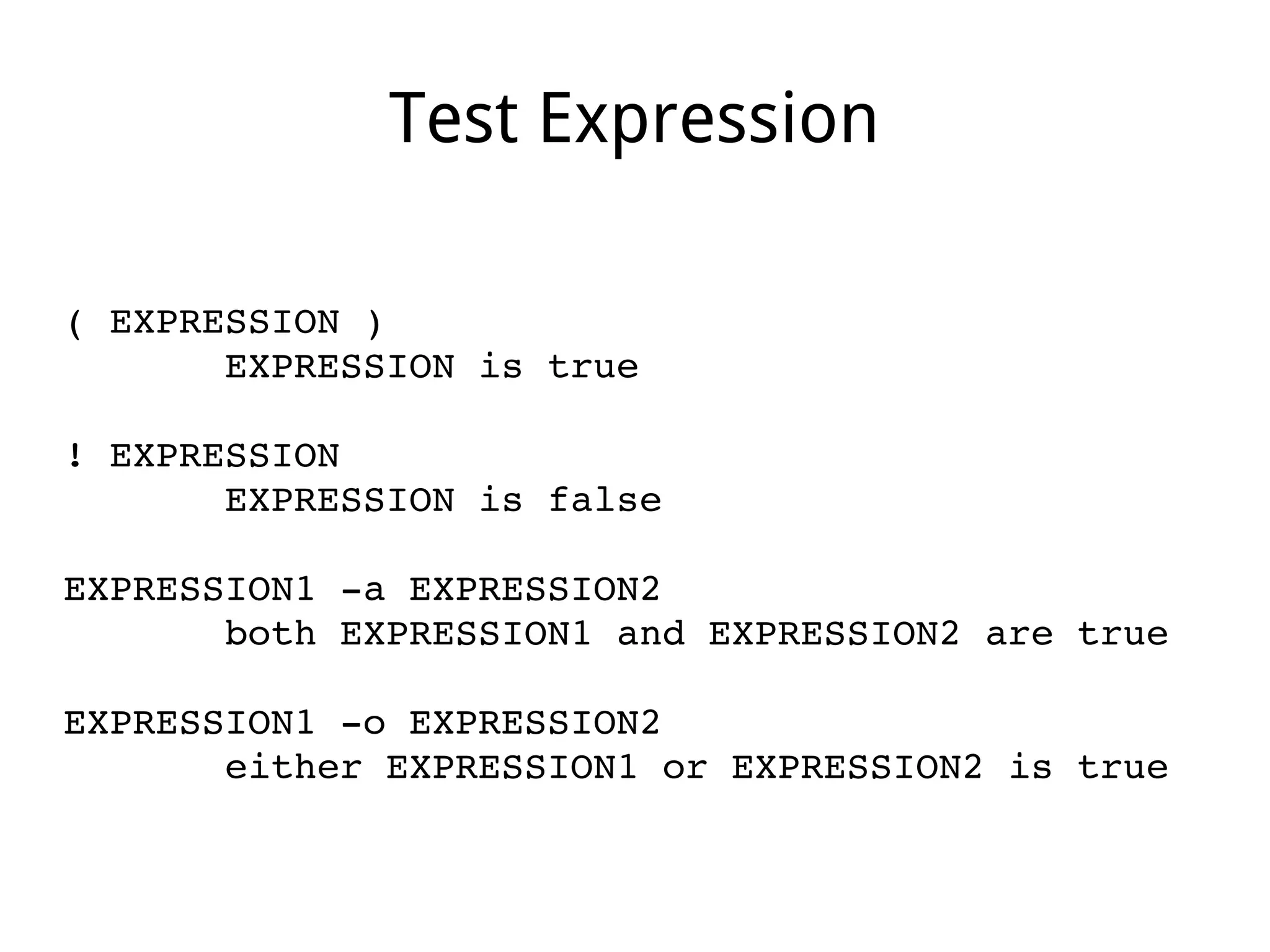
Test Expression
( EXPRESSION )
       EXPRESSION is true
! EXPRESSION
       EXPRESSION is false
EXPRESSION1 ­a EXPRESSION2
       both EXPRESSION1 and EXPRESSION2 are true
EXPRESSION1 ­o EXPRESSION2
       either EXPRESSION1 or EXPRESSION2 is true
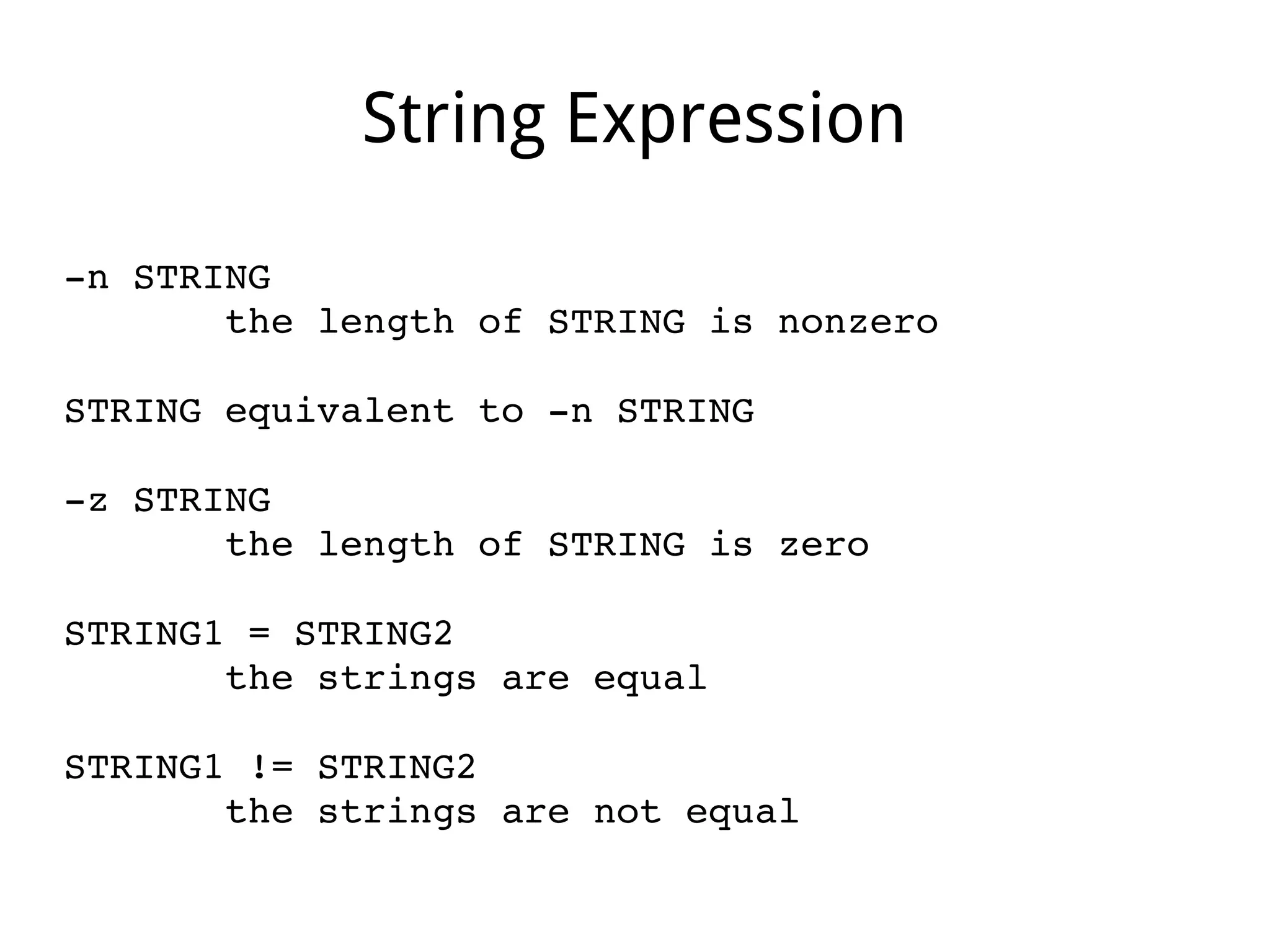
String Expression
­n STRING
       the length of STRING is nonzero
STRING equivalent to ­n STRING
­z STRING
       the length of STRING is zero
STRING1 = STRING2
       the strings are equal
STRING1 != STRING2
       the strings are not equal
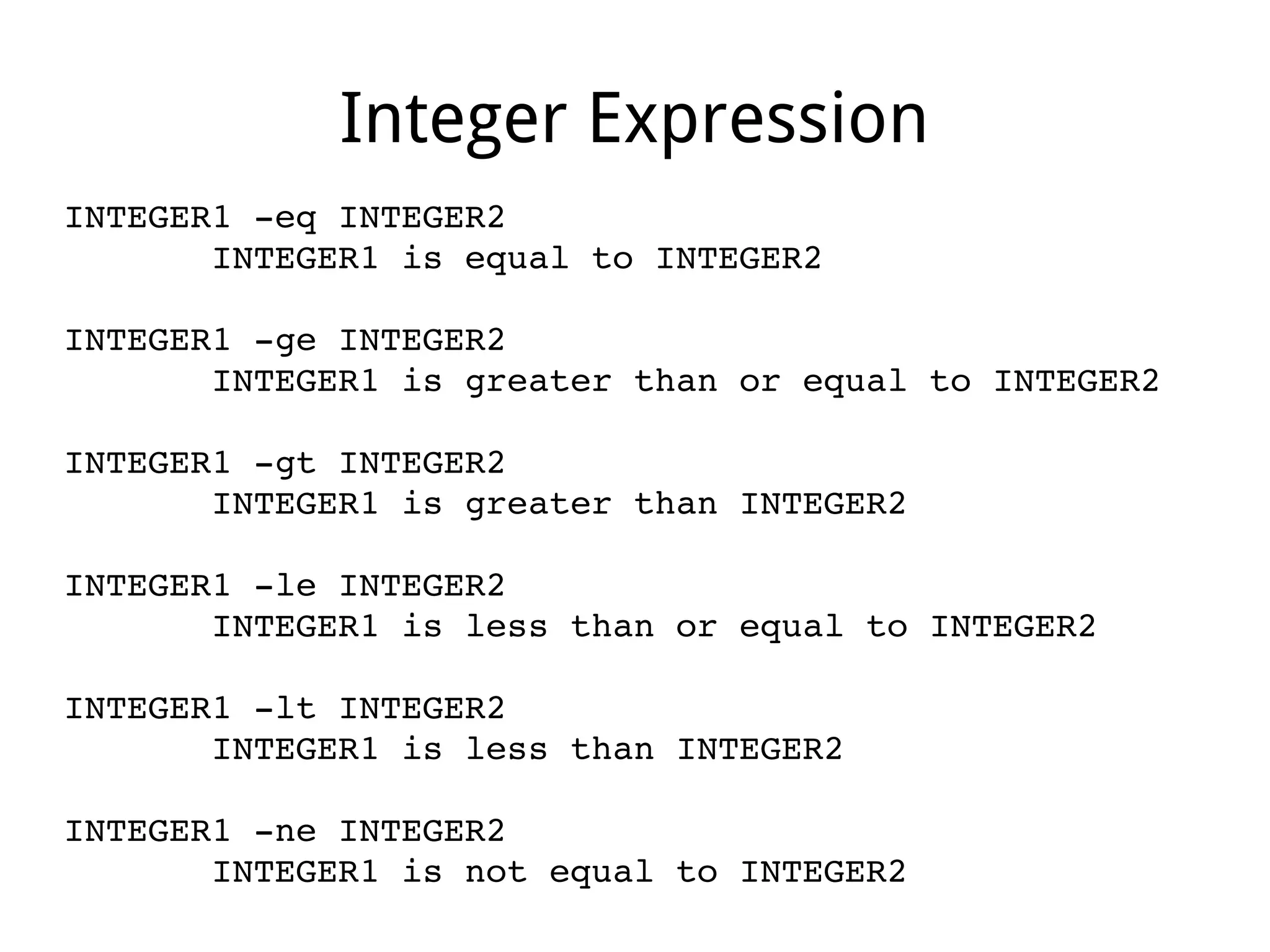
Integer Expression
INTEGER1 ­eq INTEGER2
       INTEGER1 is equal to INTEGER2
INTEGER1 ­ge INTEGER2
       INTEGER1 is greater than or equal to INTEGER2
INTEGER1 ­gt INTEGER2
       INTEGER1 is greater than INTEGER2
INTEGER1 ­le INTEGER2
       INTEGER1 is less than or equal to INTEGER2
INTEGER1 ­lt INTEGER2
       INTEGER1 is less than INTEGER2
INTEGER1 ­ne INTEGER2
       INTEGER1 is not equal to INTEGER2
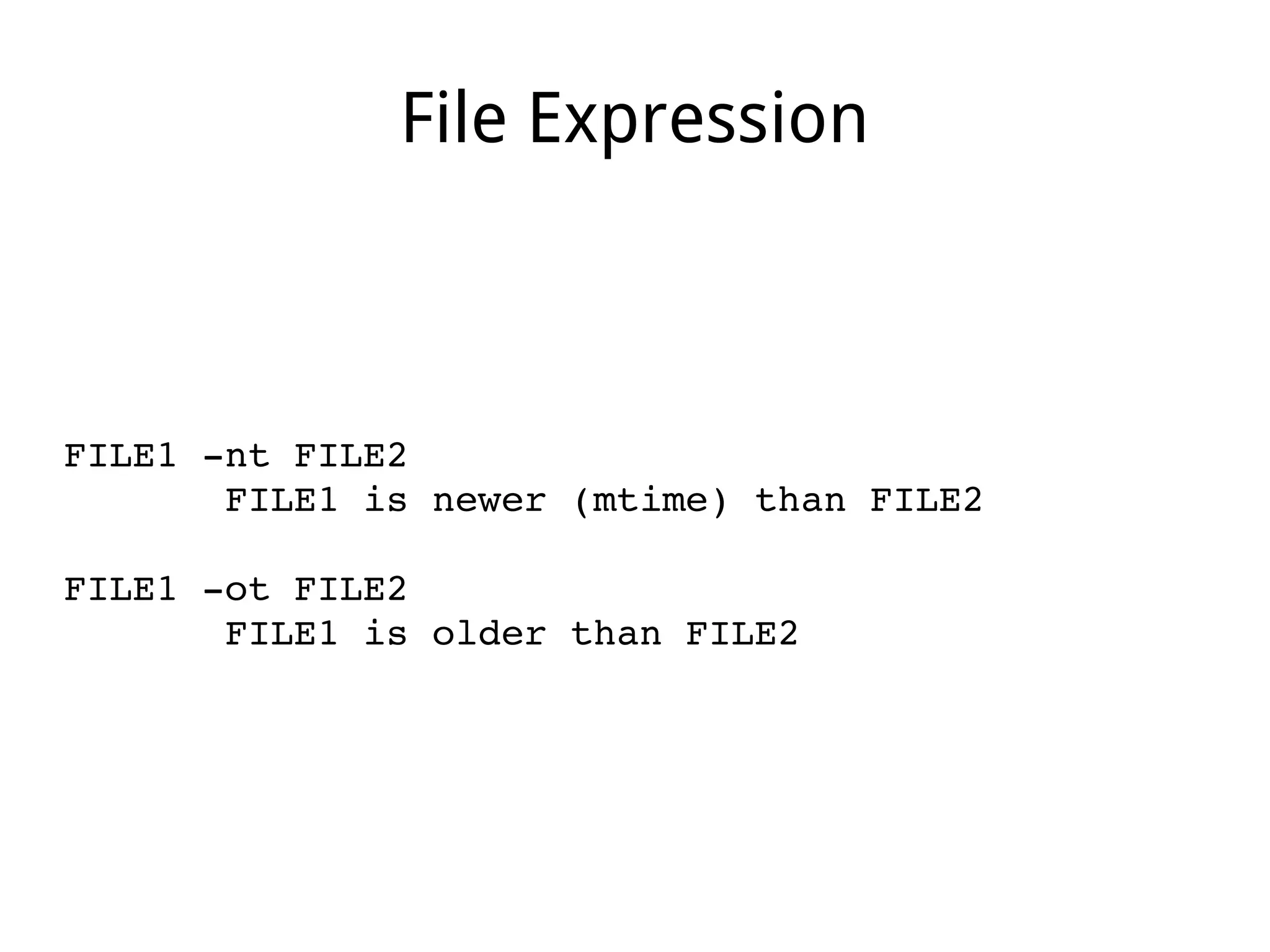
File Expression
FILE1 ­nt FILE2
       FILE1 is newer (mtime) than FILE2
FILE1 ­ot FILE2
       FILE1 is older than FILE2
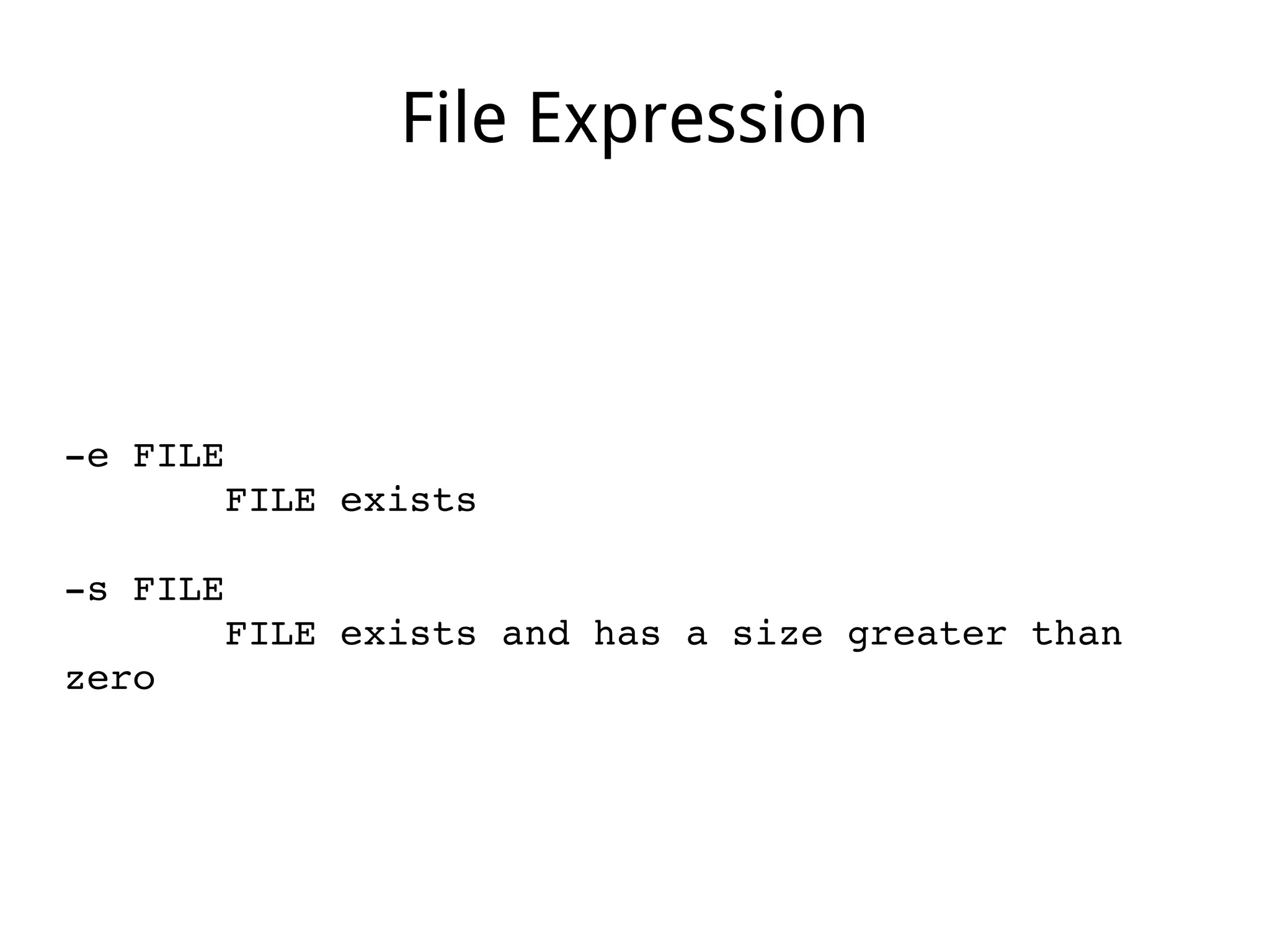
File Expression
­e FILE
       FILE exists
­s FILE
       FILE exists and has a size greater than 
zero
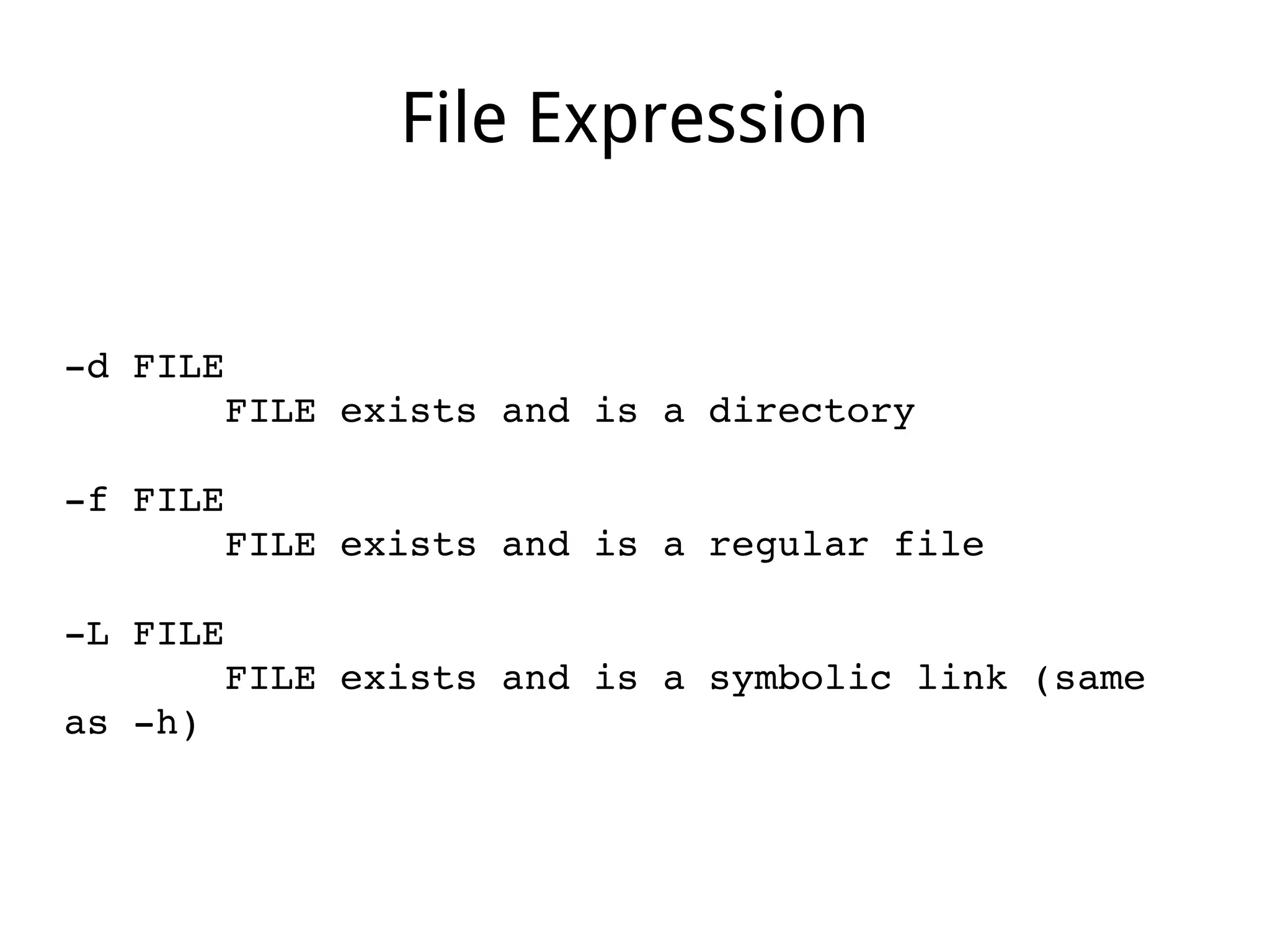
File Expression
­d FILE
       FILE exists and is a directory
­f FILE
       FILE exists and is a regular file
­L FILE
       FILE exists and is a symbolic link (same 
as ­h)
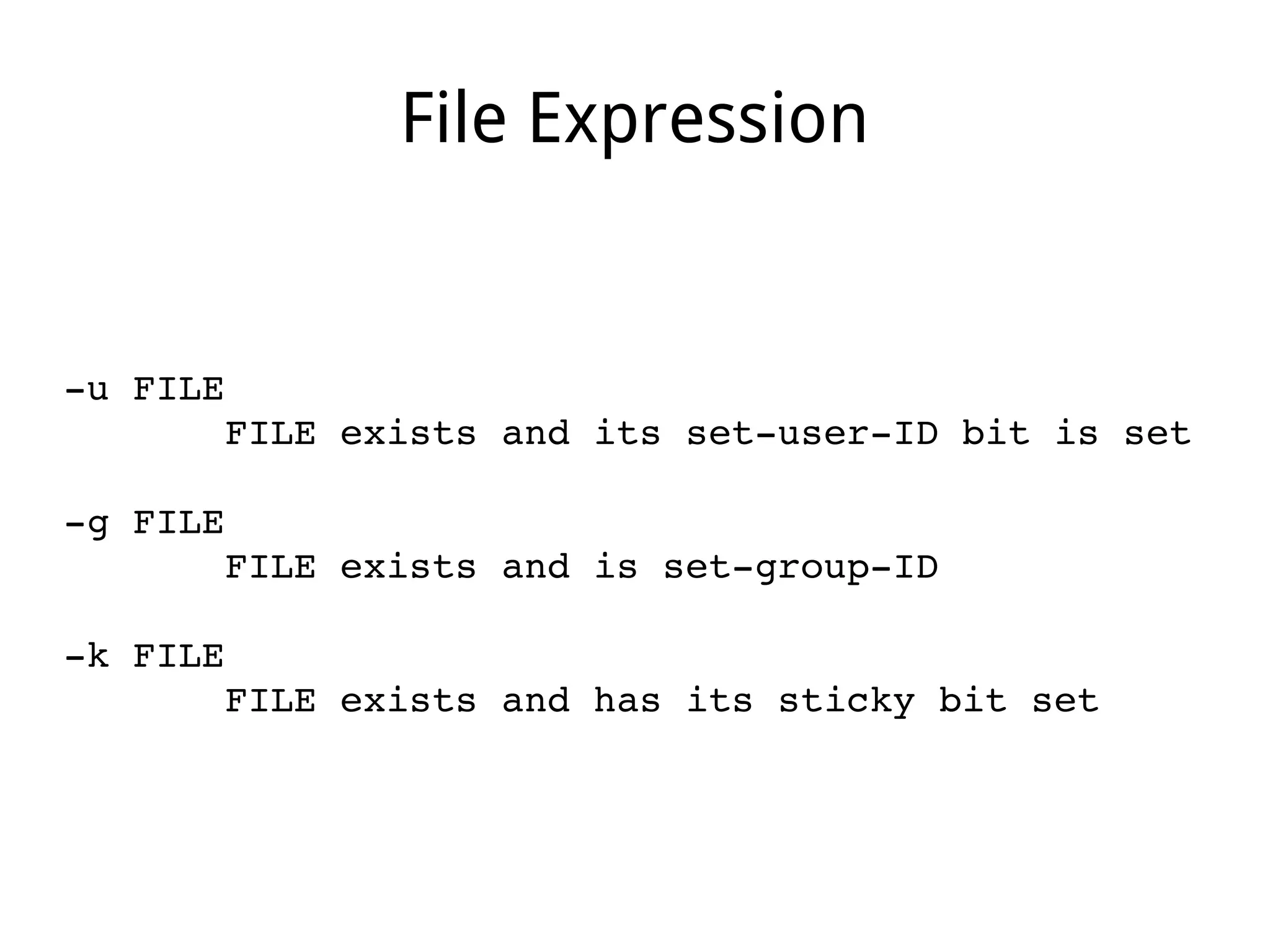
File Expression
­u FILE
       FILE exists and its set­user­ID bit is set
­g FILE
       FILE exists and is set­group­ID
­k FILE
       FILE exists and has its sticky bit set
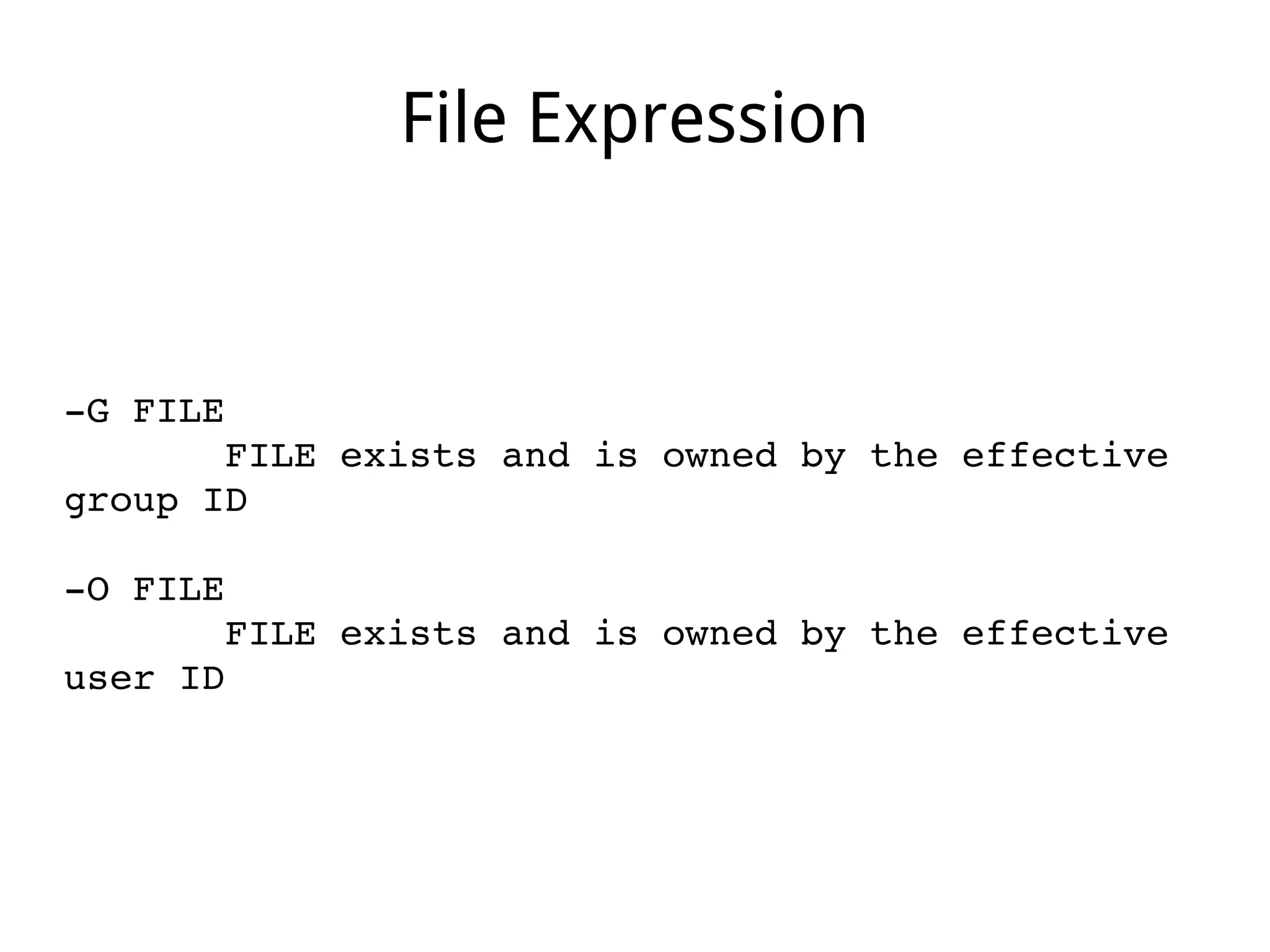
File Expression
­G FILE
       FILE exists and is owned by the effective 
group ID
­O FILE
       FILE exists and is owned by the effective 
user ID
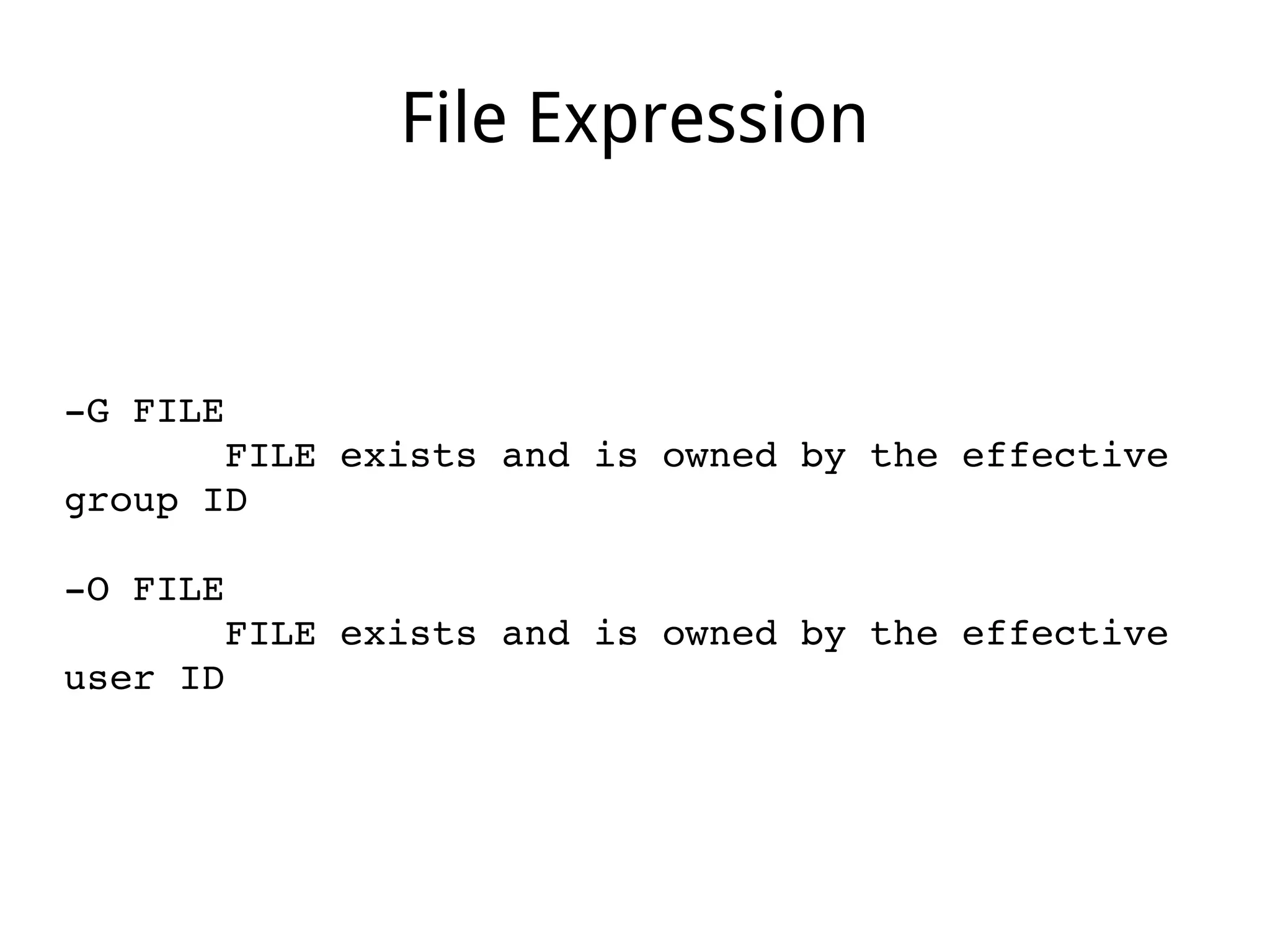
File Expression
­G FILE
       FILE exists and is owned by the effective 
group ID
­O FILE
       FILE exists and is owned by the effective 
user ID
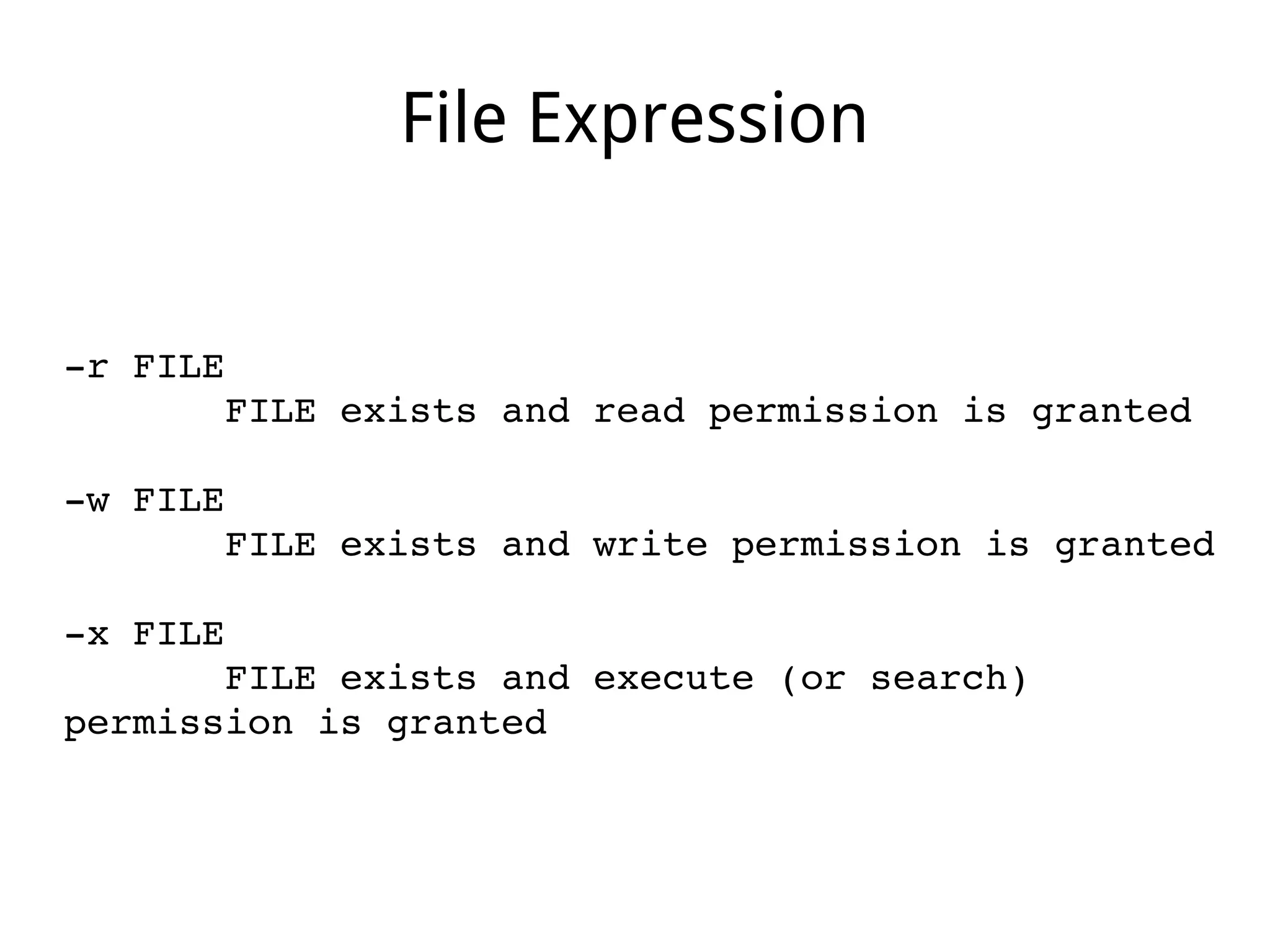
File Expression
­r FILE
       FILE exists and read permission is granted
­w FILE
       FILE exists and write permission is granted
­x FILE
       FILE exists and execute (or search) 
permission is granted
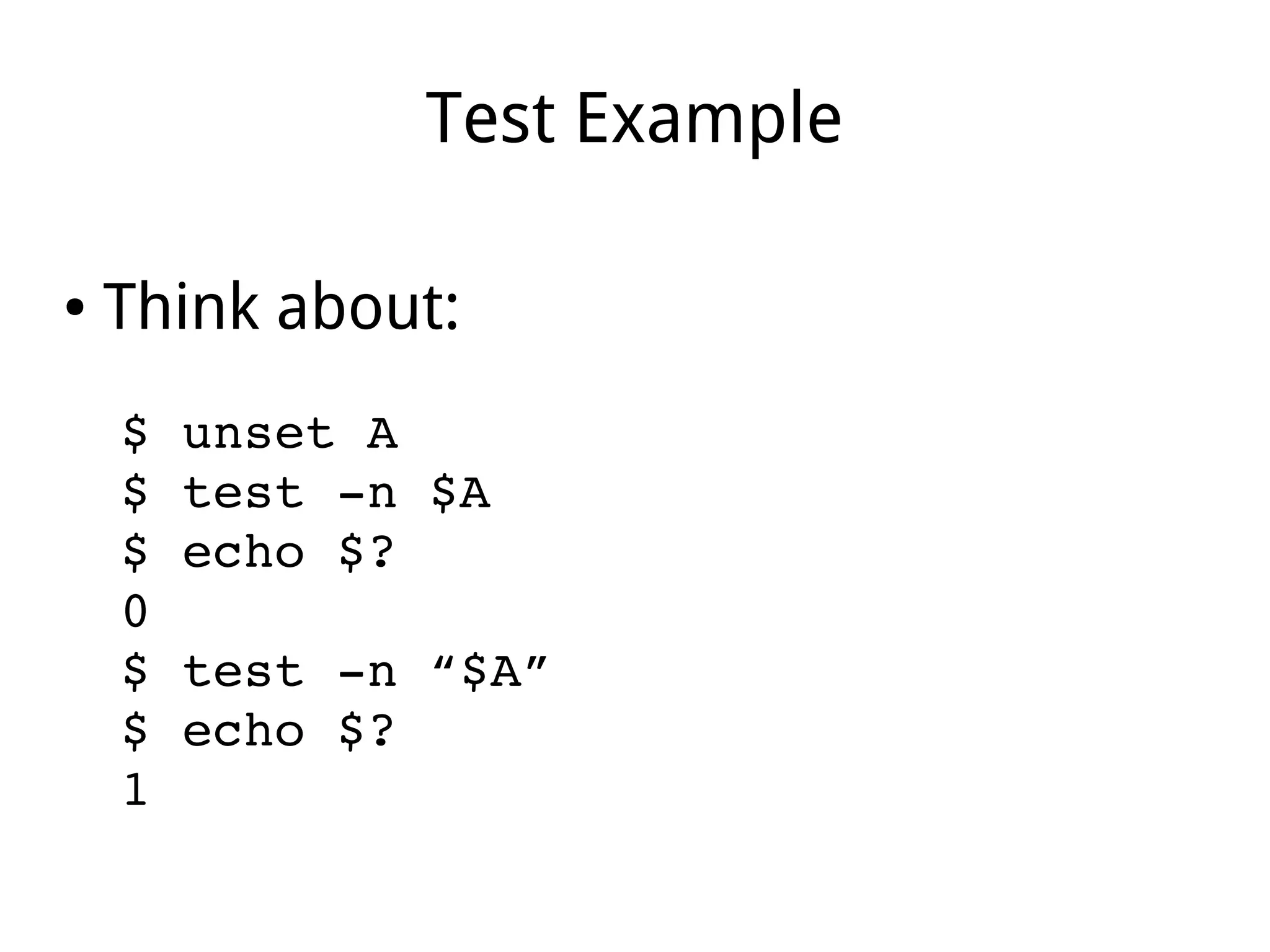
Test Example
● Think about:
$ unset A
$ test ­n $A
$ echo $?
0
$ test ­n “$A”
$ echo $?
1
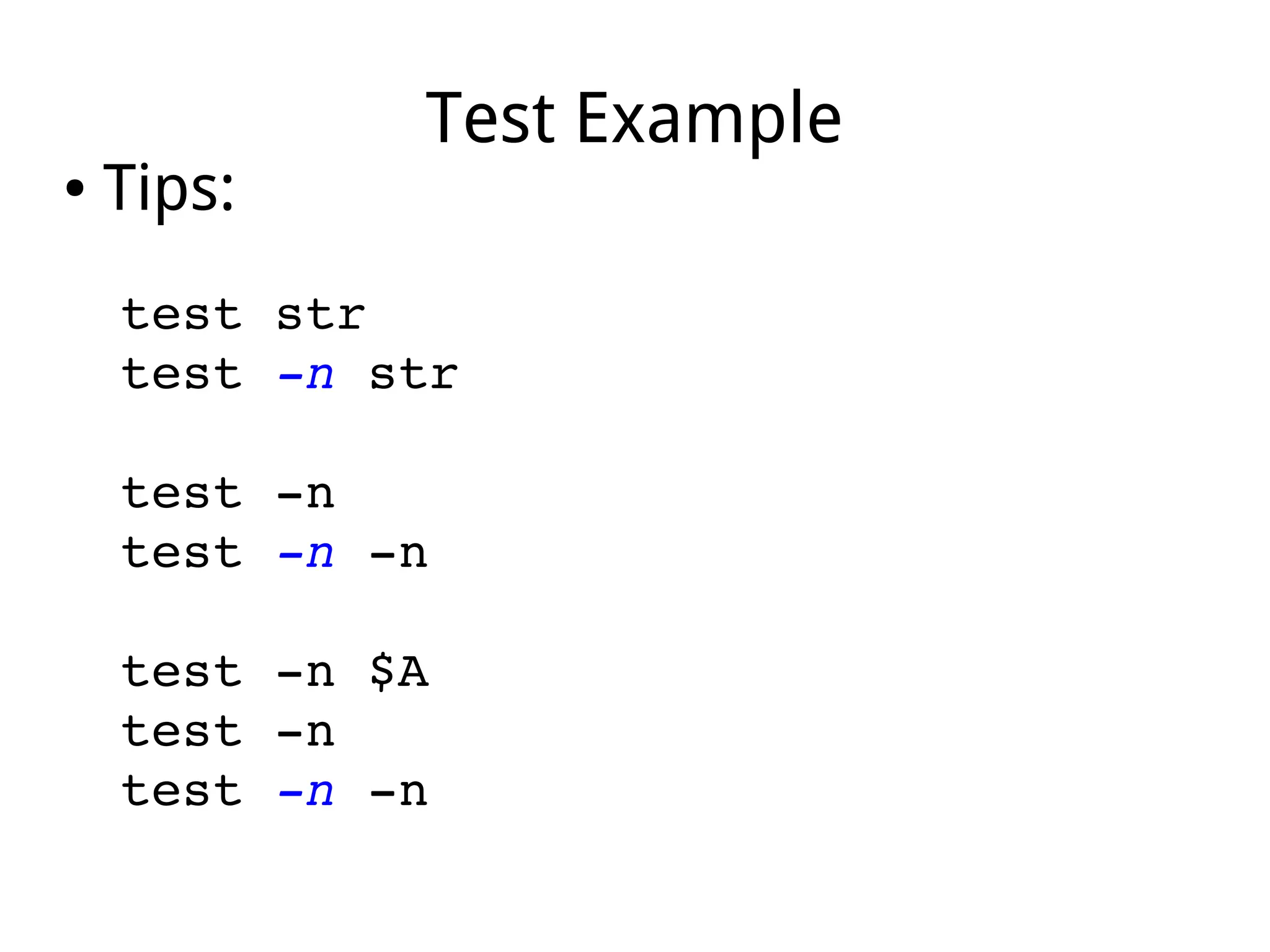
Test Example
● Tips:
test str
test ­n str
test ­n
test ­n ­n
test ­n $A
test ­n
test ­n ­n
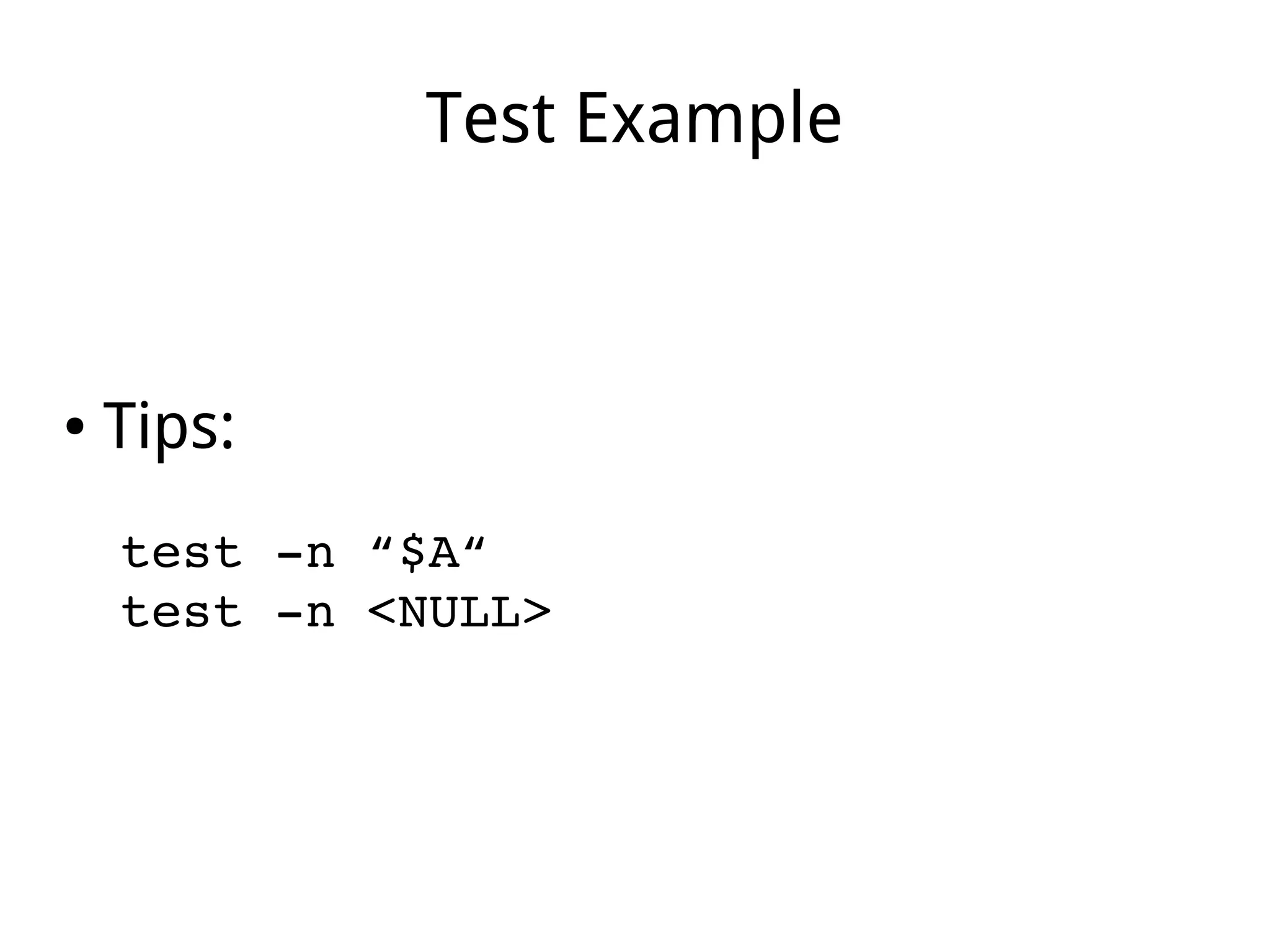
Test Example
● Tips:
test ­n “$A“
test ­n <NULL>
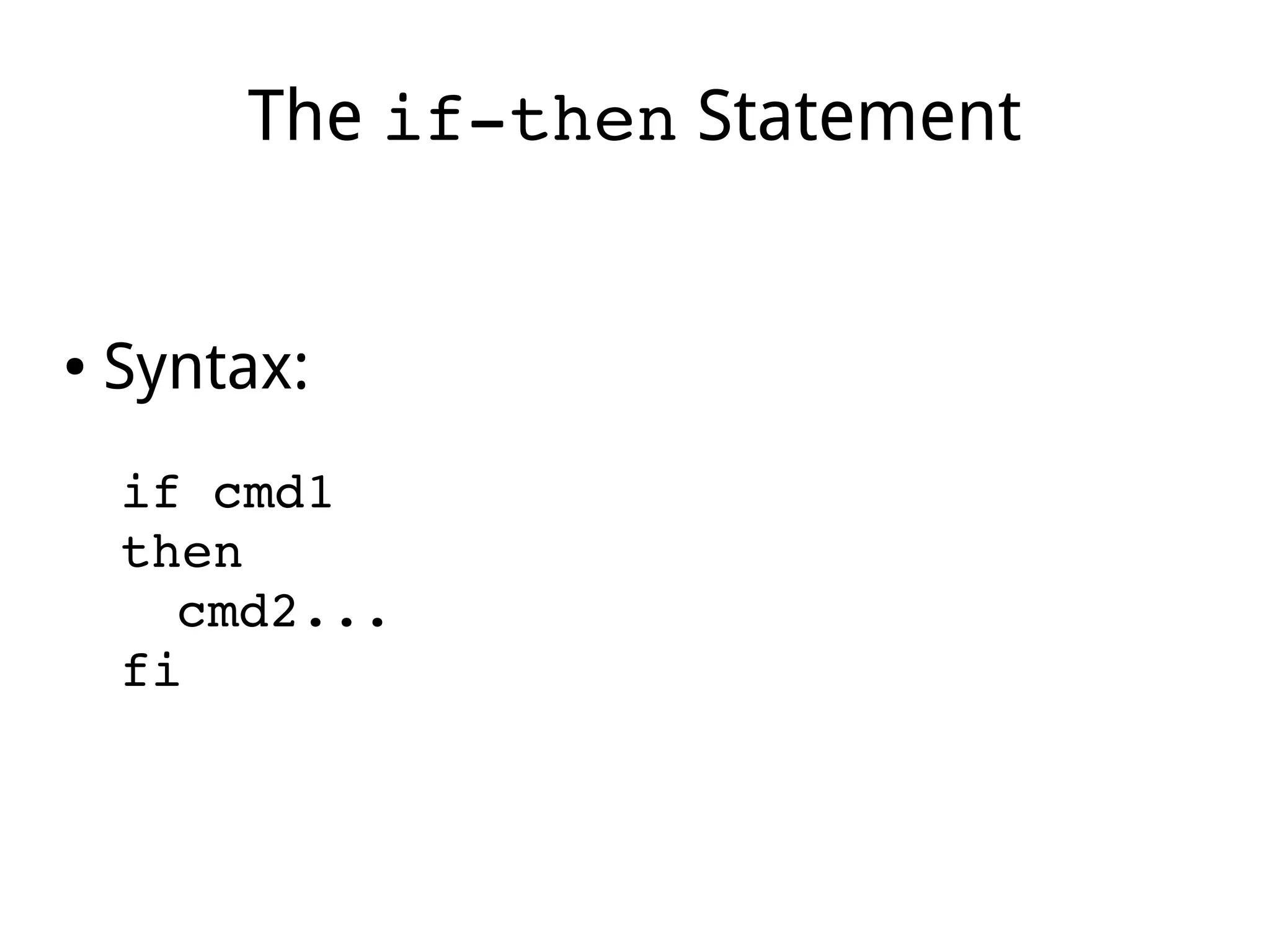
The if­then Statement
● Syntax:
if cmd1 
then
cmd2...
fi
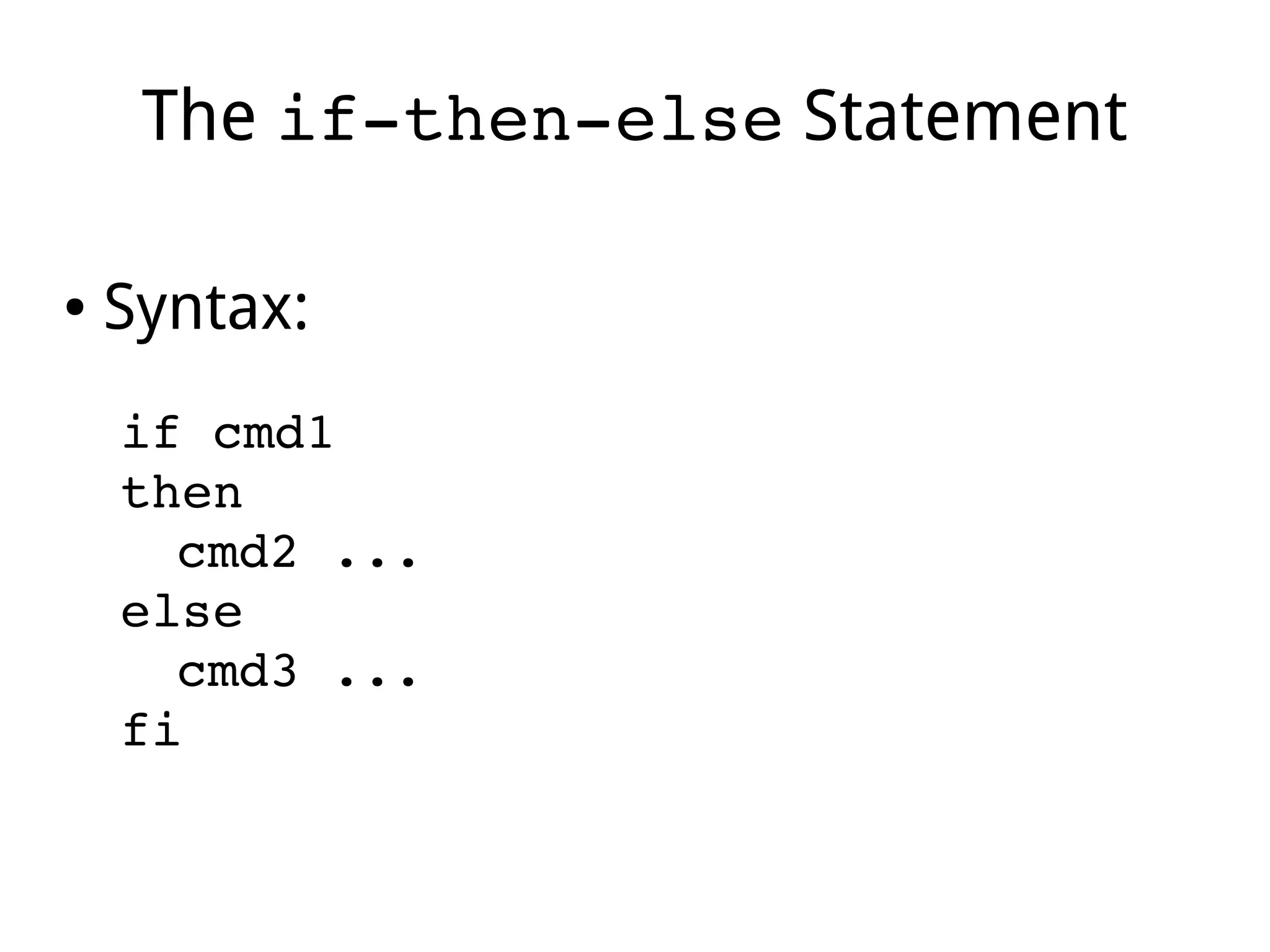
The if­then­else Statement
● Syntax:
if cmd1 
then
cmd2 ...
else
cmd3 ...
fi
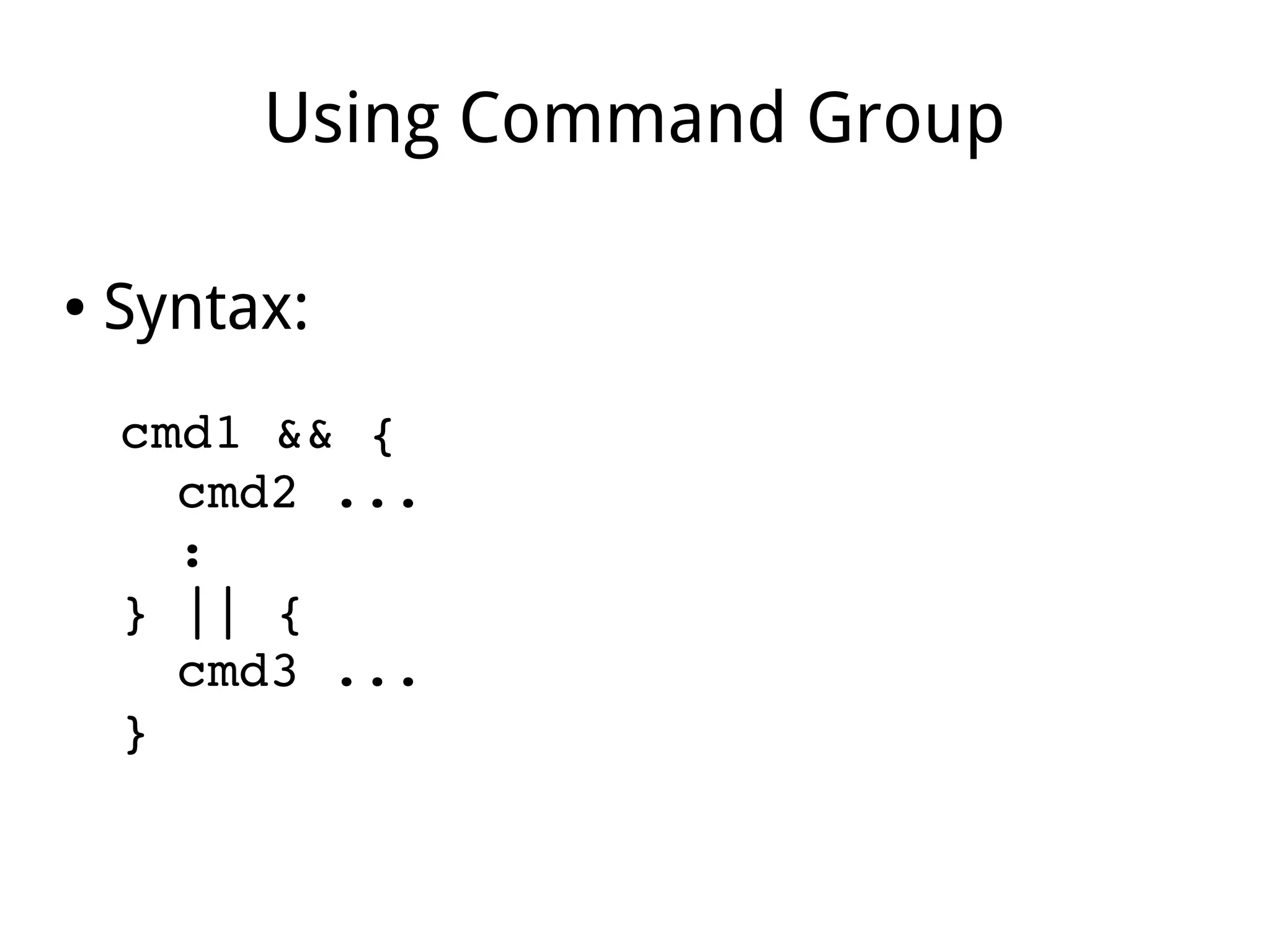
Using Command Group
● Syntax:
cmd1 && {
cmd2 ...
:
} || {
cmd3 ...
}
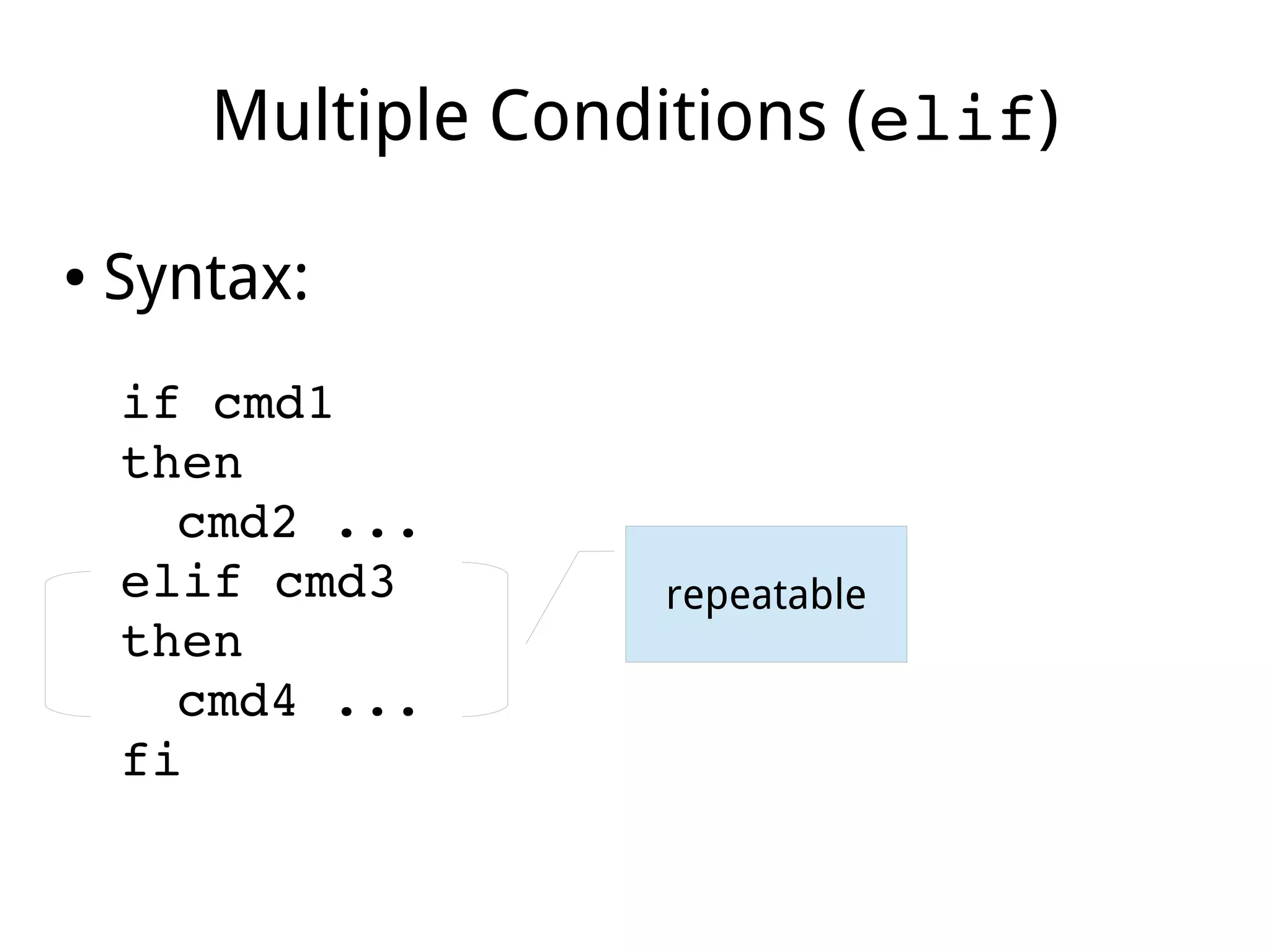
Multiple Conditions (elif)
● Syntax:
if cmd1 
then
cmd2 ...
elif cmd3
then
cmd4 ...
fi
repeatable
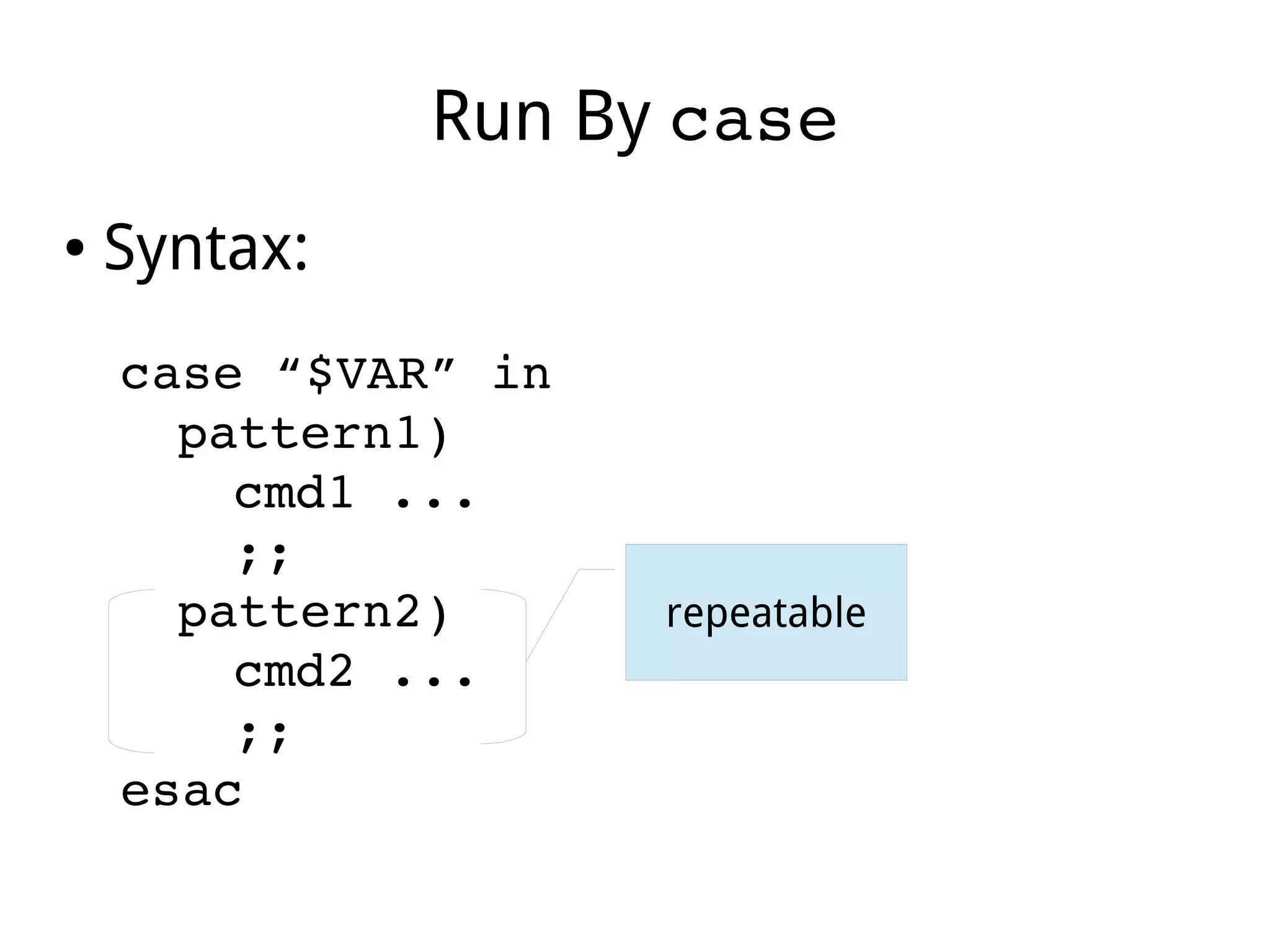
Run By case
● Syntax:
case “$VAR” in
pattern1)
cmd1 ...
;;
pattern2)
cmd2 ...
;;
esac
repeatable
Part X
Looping
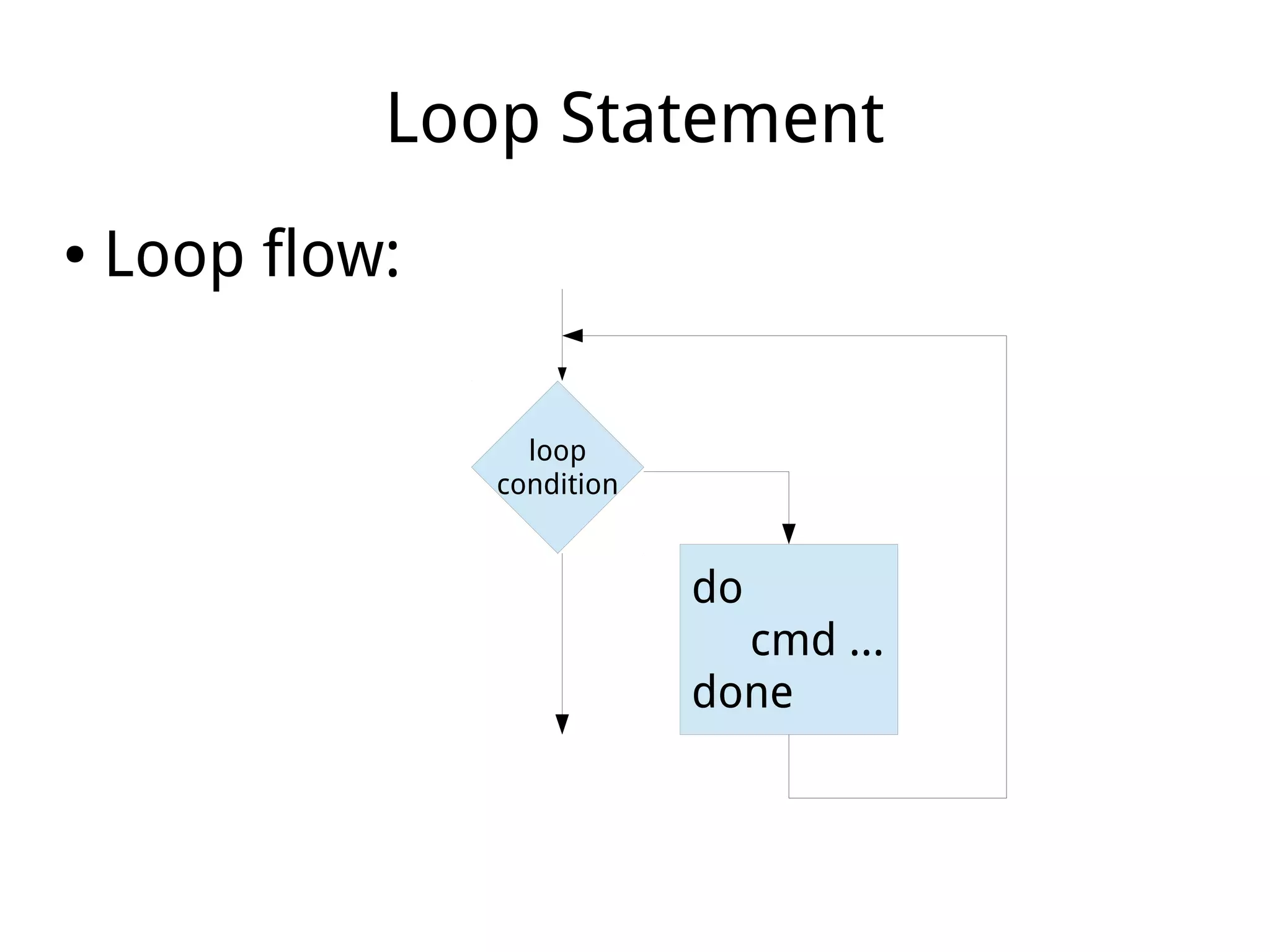
Loop Statement
● Loop flow:
loop
condition
do
cmd ...
done
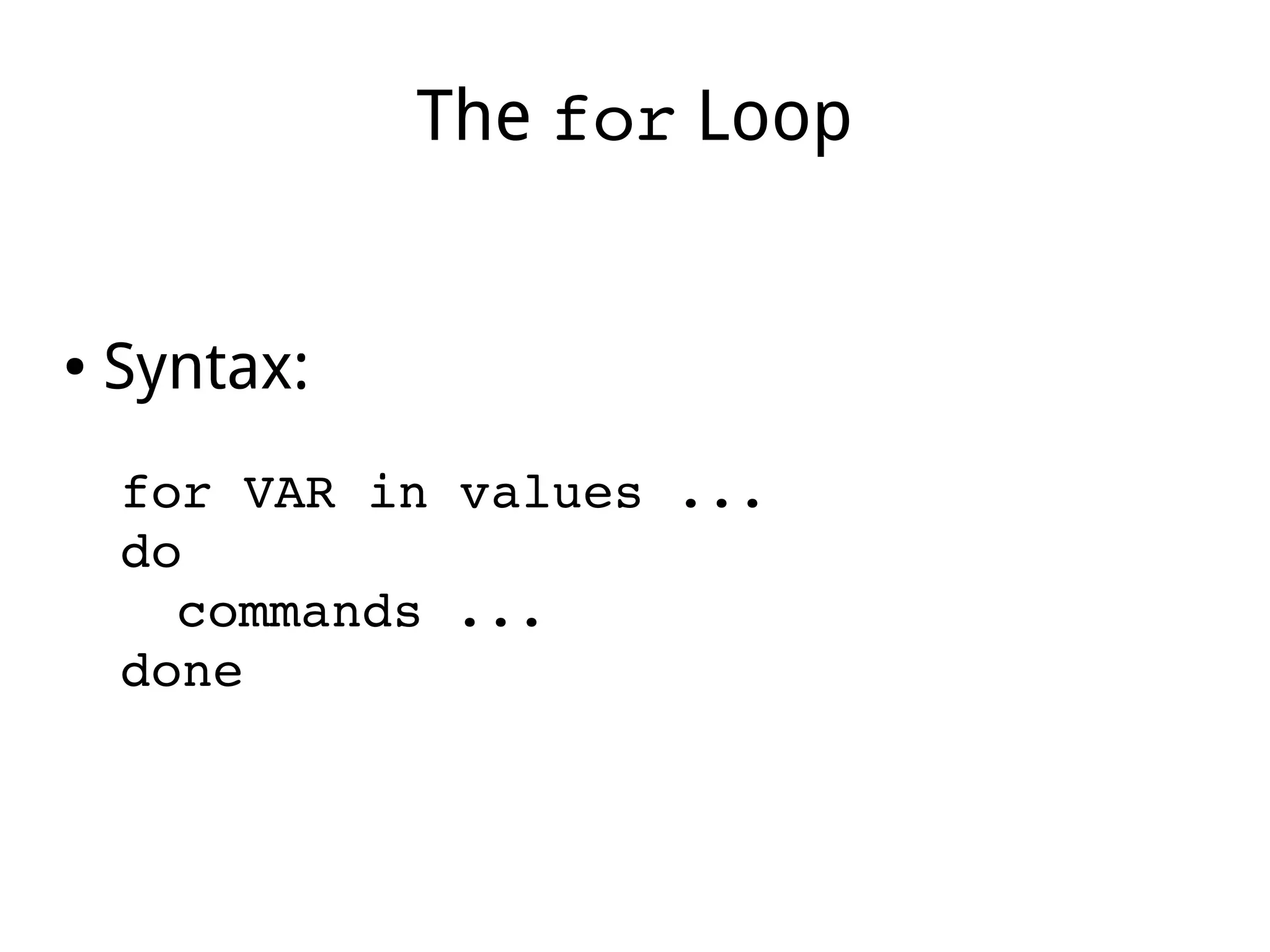
The for Loop
● Syntax:
for VAR in values ...
do
commands ...
done
The for Loop
● Tips:
● A new variable is set when running a for loop
● The value sources are vary.
● The times of loop depends on the number of
value.
● Each value is used once in the do­done
statement in order.
The while Loop
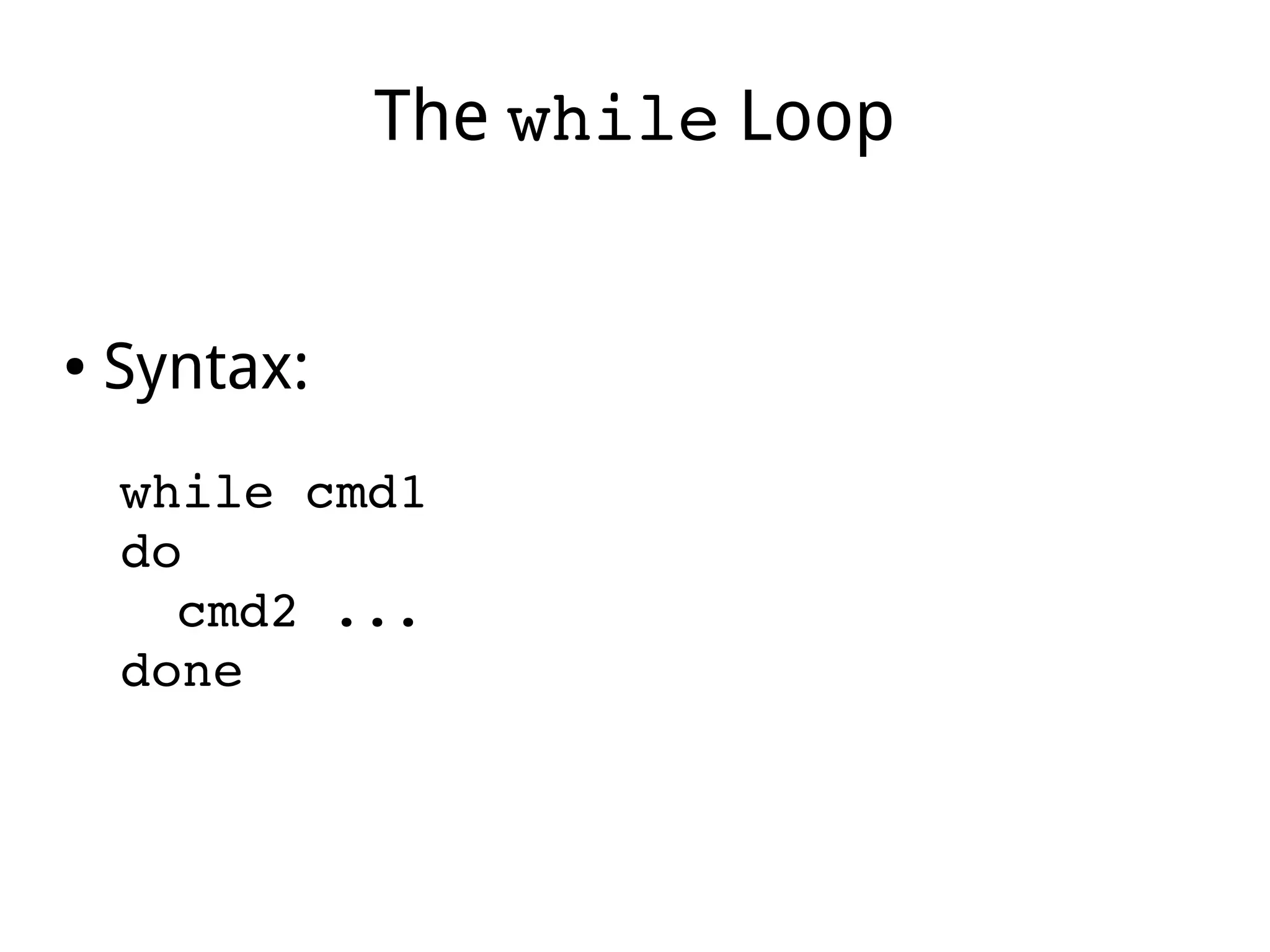
● Syntax:
while cmd1
do
cmd2 ...
done
The while Loop
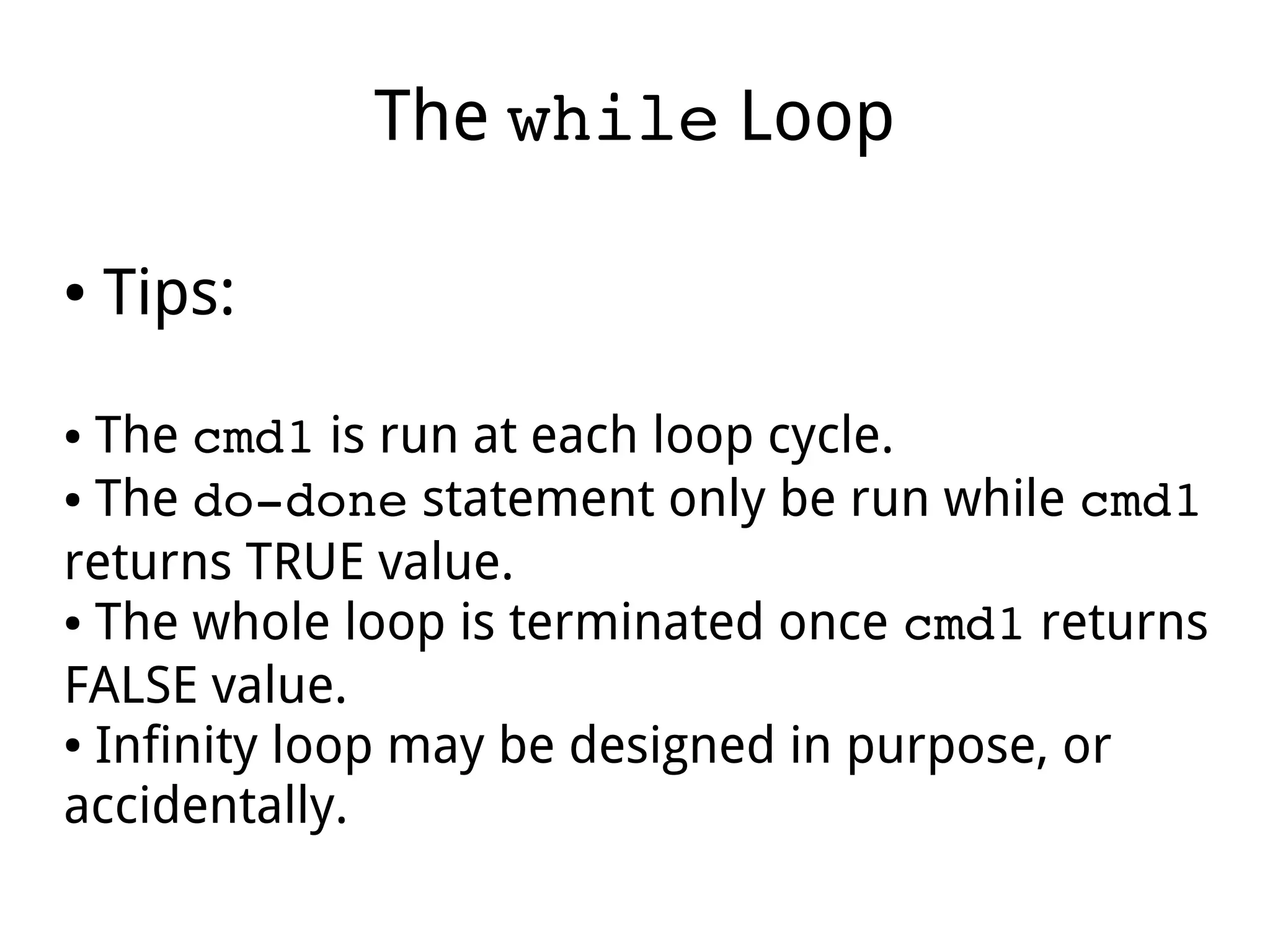
● Tips:
● The cmd1 is run at each loop cycle.
● The do­done statement only be run while cmd1
returns TRUE value.
● The whole loop is terminated once cmd1 returns
FALSE value.
● Infinity loop may be designed in purpose, or
accidentally.
The until Loop
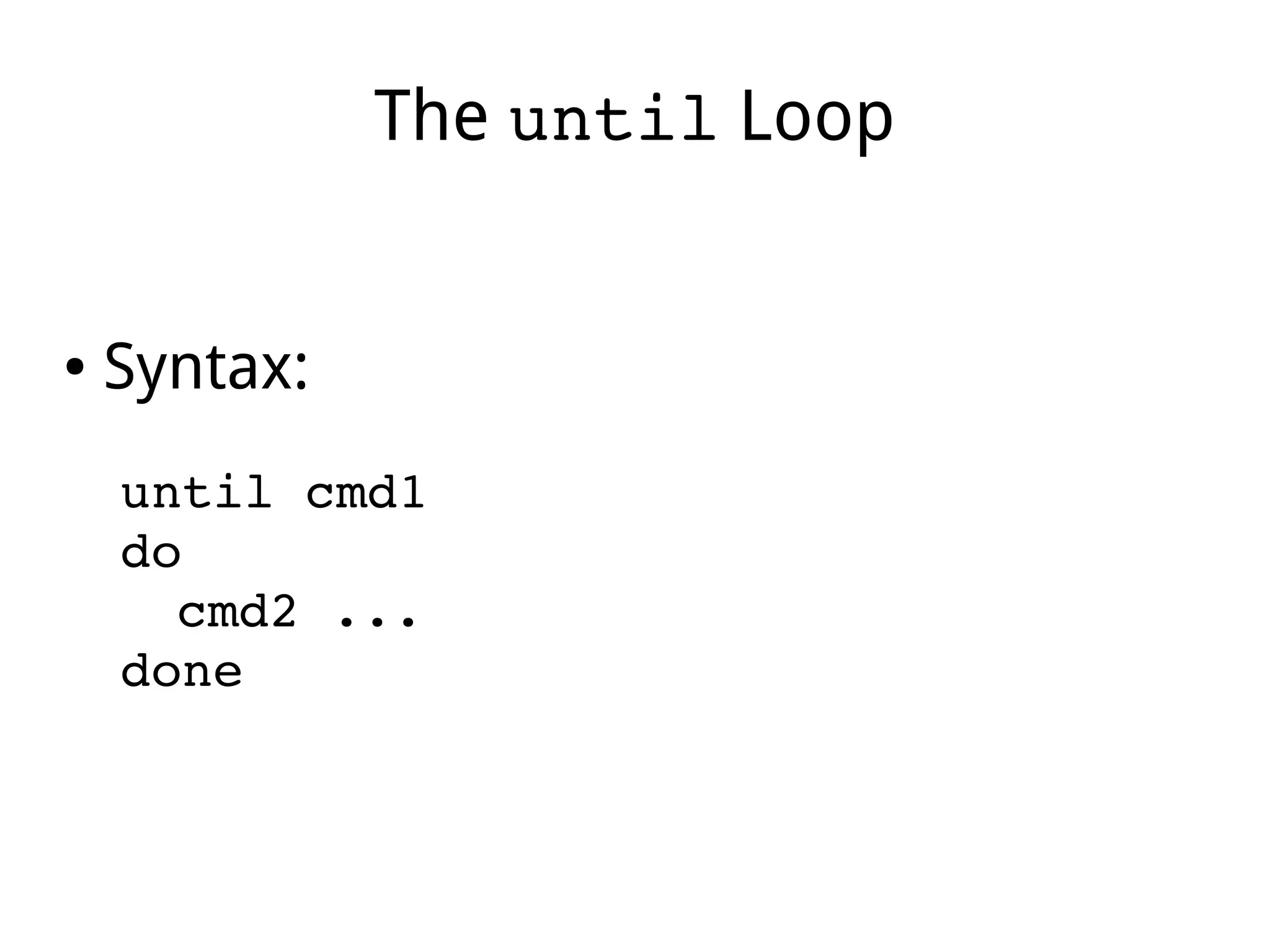
● Syntax:
until cmd1
do
cmd2 ...
done
The until Loop
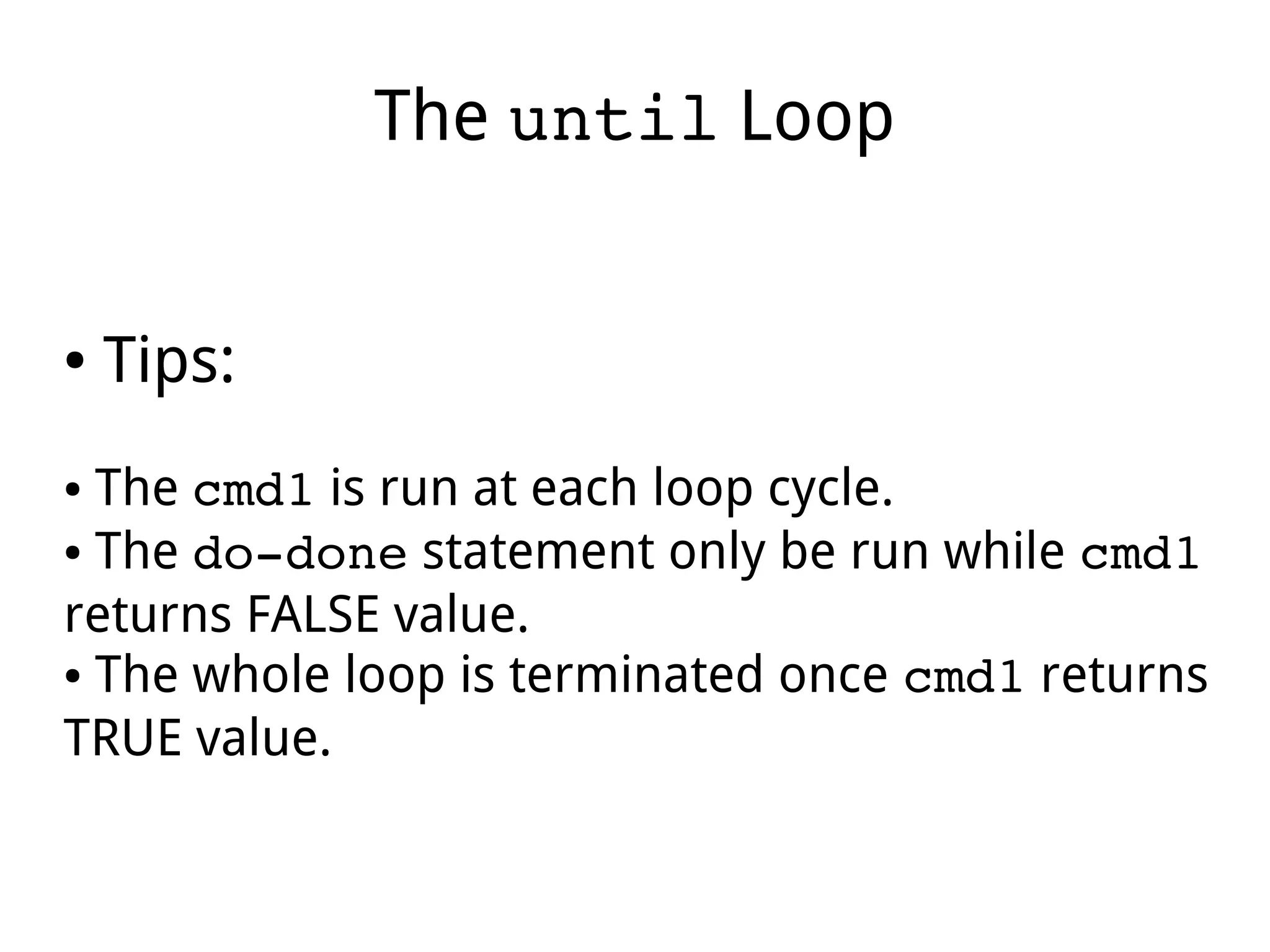
● Tips:
● The cmd1 is run at each loop cycle.
● The do­done statement only be run while cmd1
returns FALSE value.
● The whole loop is terminated once cmd1 returns
TRUE value.
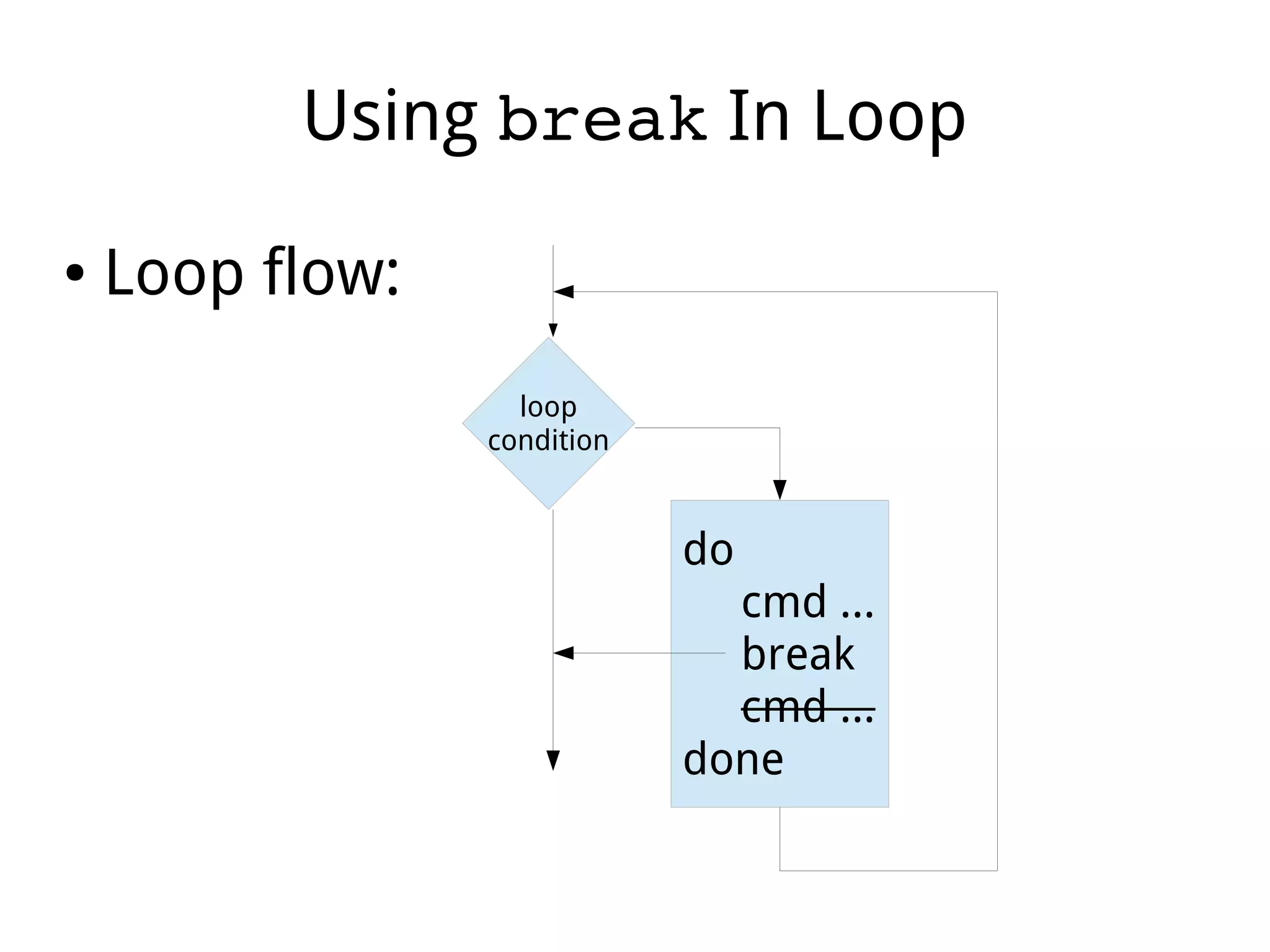
Using break In Loop
● Loop flow:
loop
condition
do
cmd ...
break
cmd ...
done
Using break In Loop
● Tips:
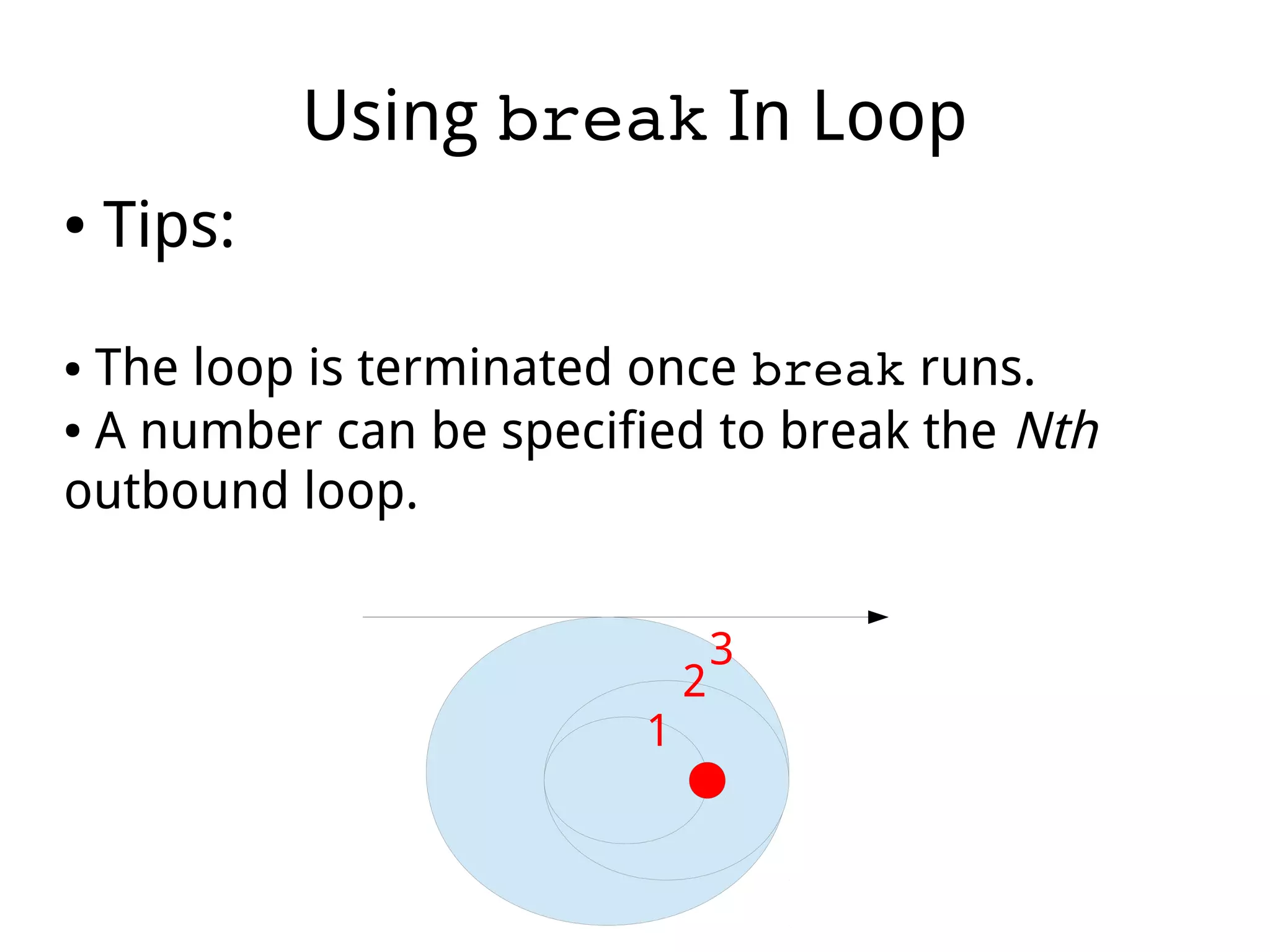
● The loop is terminated once break runs.
● A number can be specified to break the Nth
outbound loop.
1
2
3
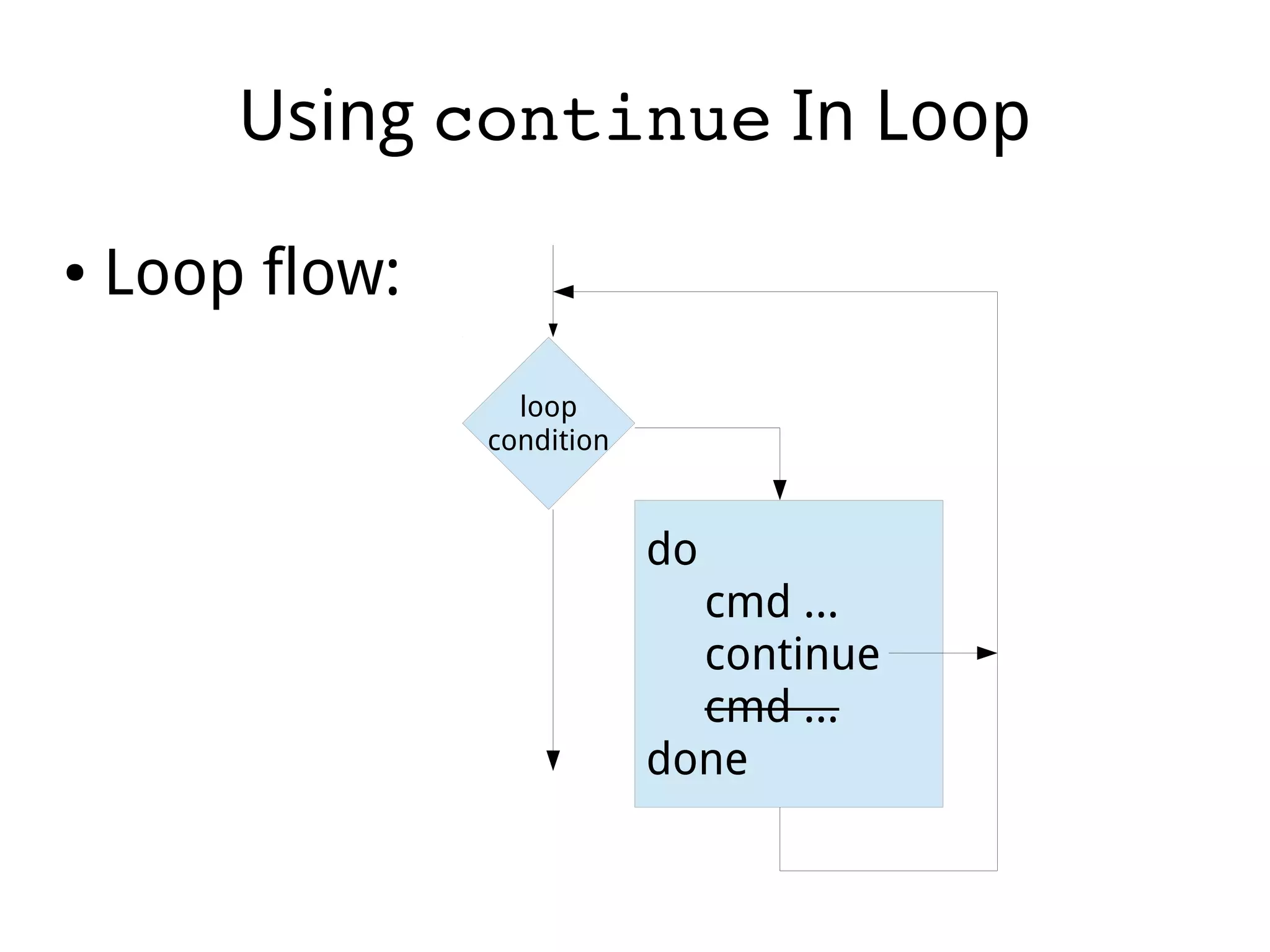
Using continue In Loop
● Loop flow:
loop
condition
do
cmd ...
continue
cmd ...
done
Using continue In Loop
● Tips:
● The remained lines in current loop cycle are
omitted once continue runs, script goes straight
to continue next cycle.
● A number can be specified to continue the Nth
outbound loop.
Using sleep In Loop
● Tips:
● The script is temporally stopped when the
sleep runs.
● A number of second can be specified to stop the
script in how long.
● Useful for periodical jobs with infinity loop.
Plus:
Regular Expression
Regular Expression (RE)
● Tips:
● Processing in line base.
● Meta characters may conflict with shell, mu be
quoted.
● Commonly used in text filtering:
grep, sed, awk, perl, php, etc...
Regular Expression
● Character set:
abc : individual character
(abc) : a set of character
(abc|xyz) : one set of
[abc] : one character of list
[^abc] : one character of non-list
Regular Expression
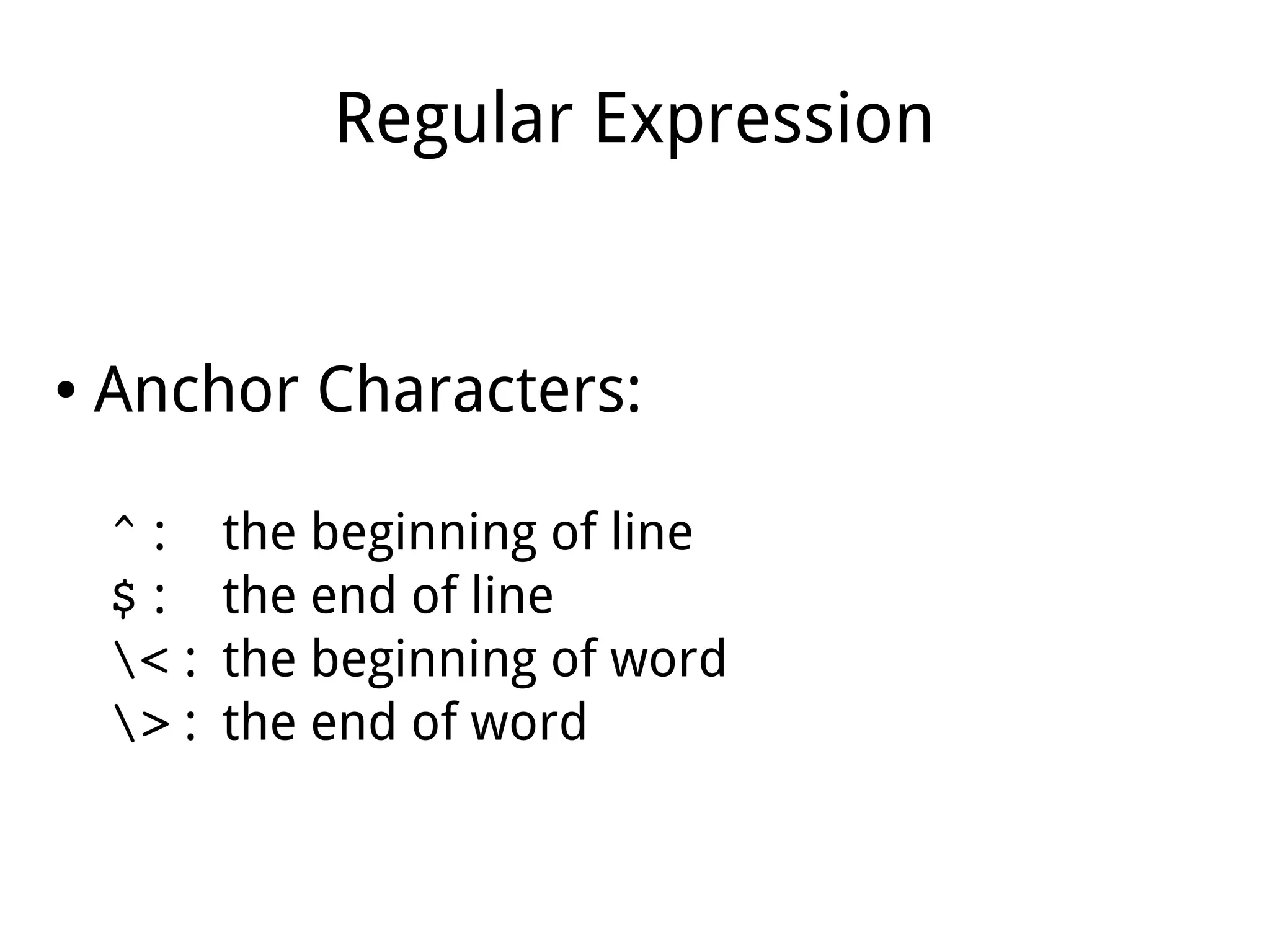
● Anchor Characters:
^ : the beginning of line
$ : the end of line
< : the beginning of word
> : the end of word
Regular Expression
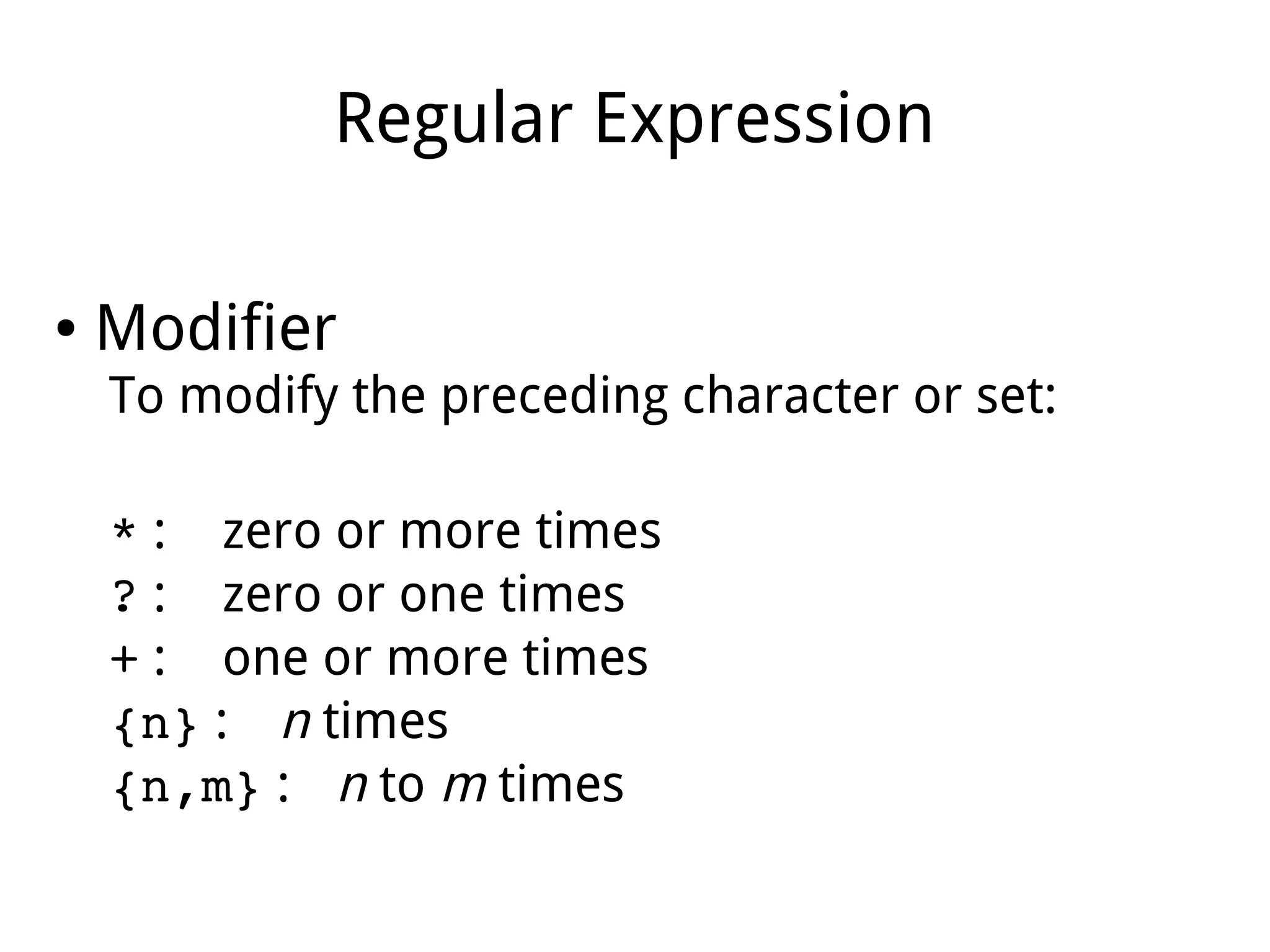
● Modifier
To modify the preceding character or set:
* : zero or more times
? : zero or one times
+ : one or more times
{n} : n times
{n,m} : n to m times
Regular Expression
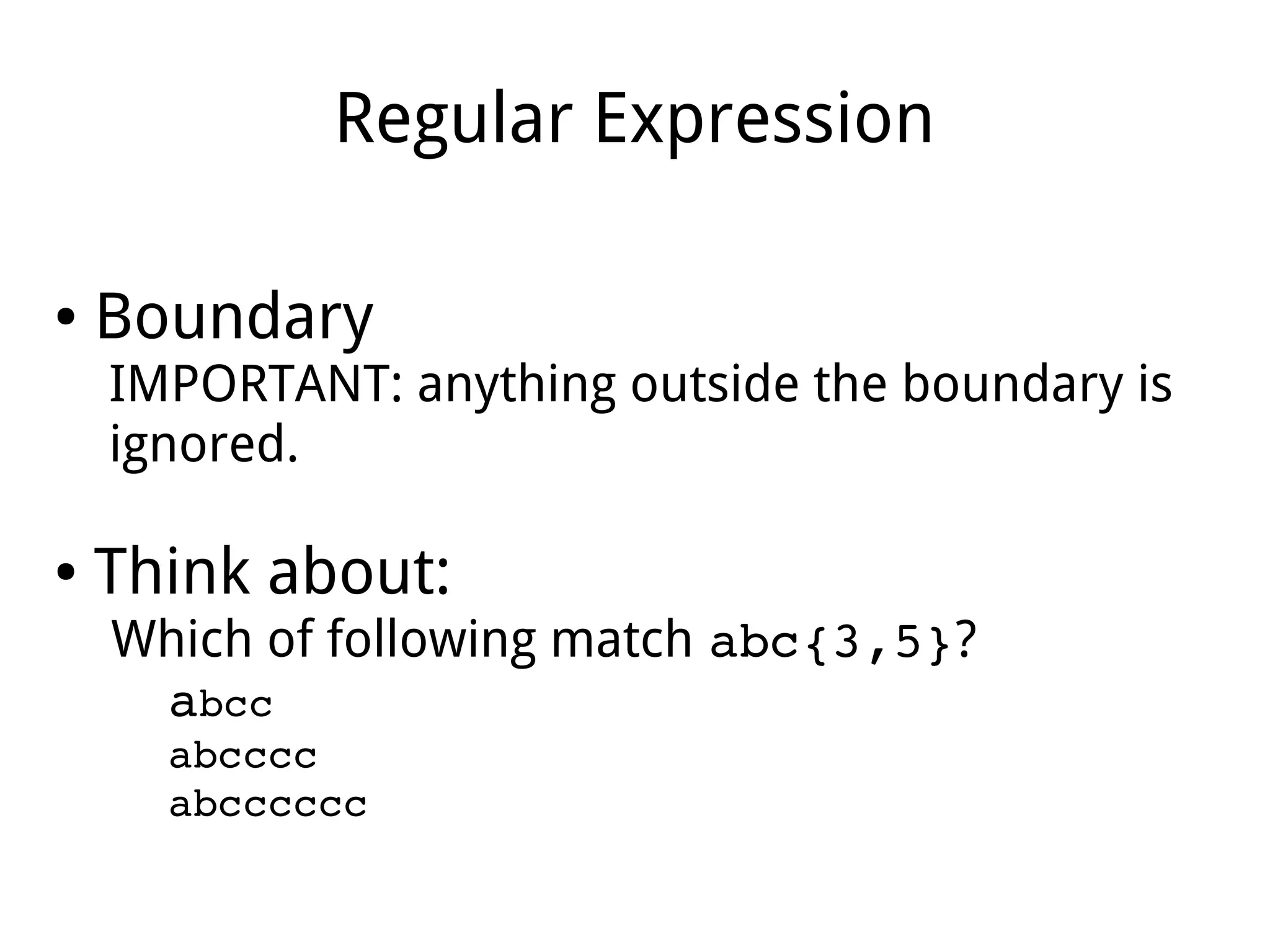
● Boundary
IMPORTANT: anything outside the boundary is
ignored.
● Think about:
Which of following match abc{3,5}?
abcc
abcccc
abcccccc
Regular Expression
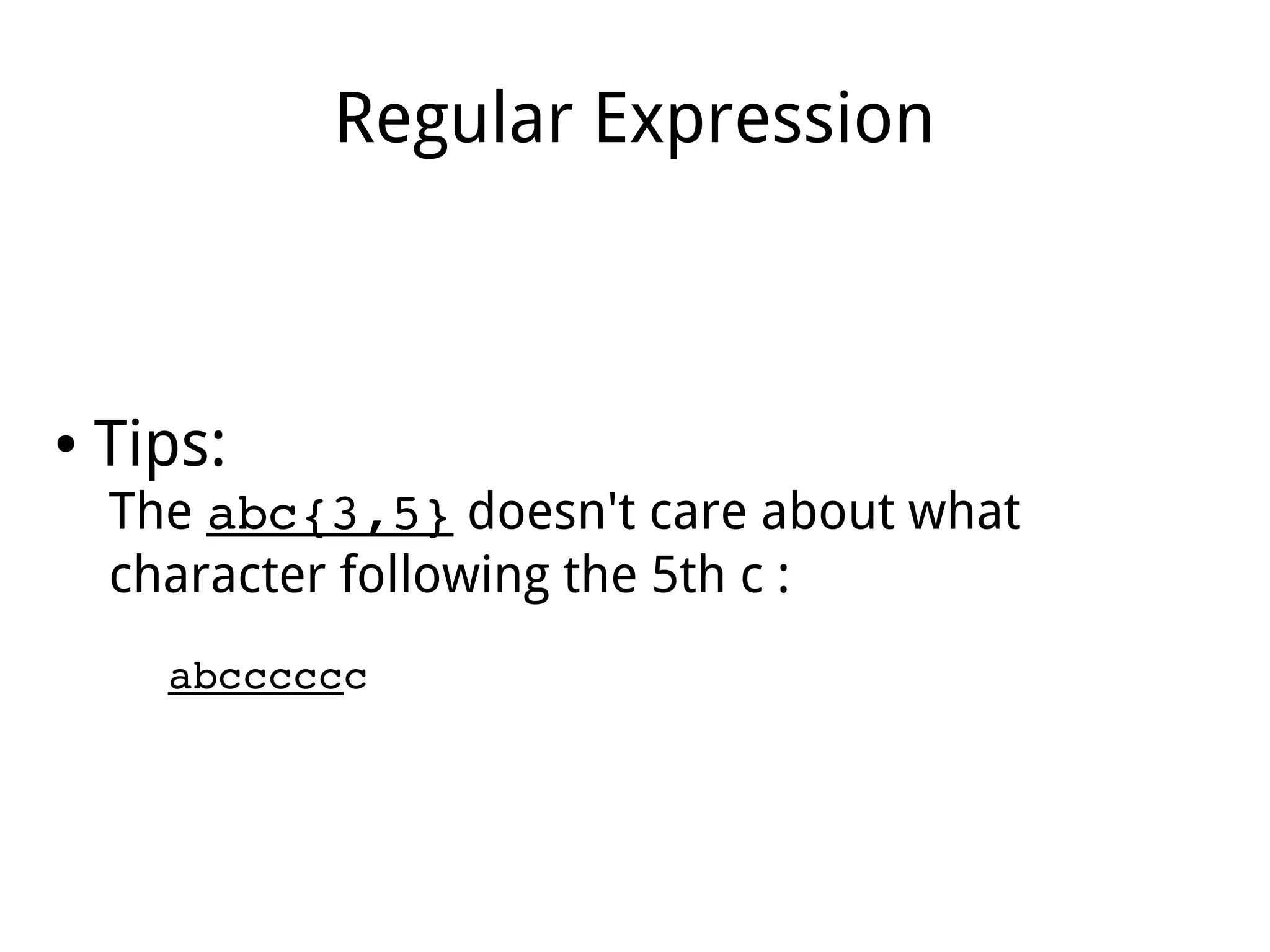
● Tips:
The abc{3,5} doesn't care about what
character following the 5th c :
abcccccc
Regular Expression
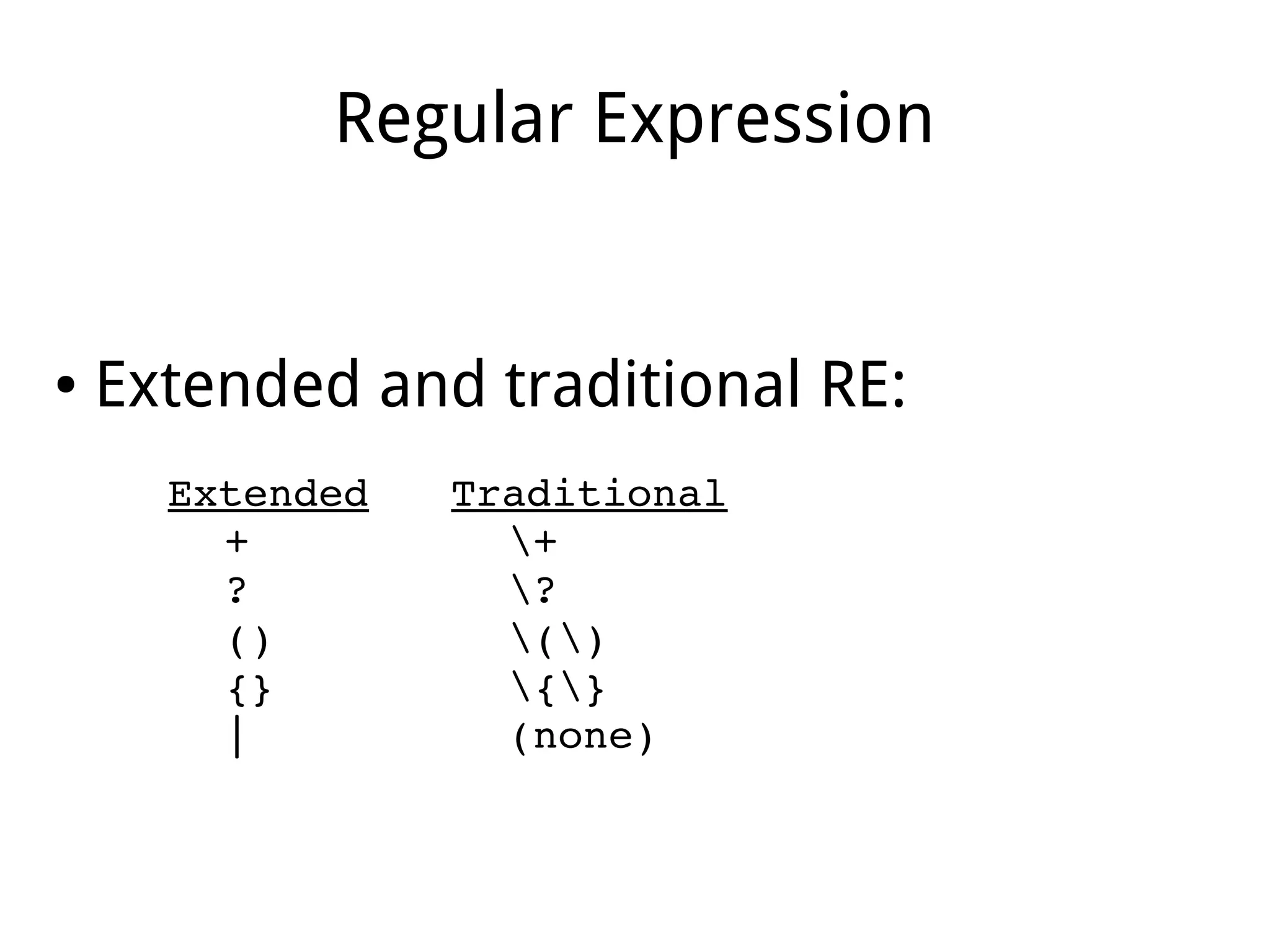
● Extended and traditional RE:
Extended Traditional
+ +
? ?
() ()
{} {}
| (none)
Show Time:
Live Coding
The End

Linux shell