BASH
A quick basic to advance bashing
WHAT BASH?
• It’s not a harsh attack against a person nor even a skill
on an MMORPG!
• BASH means Bourne Again Shell created by Brian Fox
• Most functionalities from SH are available on BASH
SHEBANG/SHABANG
• BASH scripts always starts with “#!/bin/bash”, a hash
followed by an exclamation point called bang
• SHEBANG came from the combination of haSH-BANG
or SHarp-BANG
• SHEBANG tells what interpreter to run, if not specified
it will try to use by default BASH
• Any executable file can be used as an interpreter
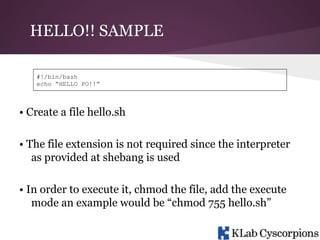
HELLO!! SAMPLE
#!/bin/bash
echo “HELLO PO!!”

• Create a file hello.sh
• The file extension is not required since the interpreter
as provided at shebang is used
• In order to execute it, chmod the file, add the execute
mode an example would be “chmod 755 hello.sh”
HELLO!! SAMPLE
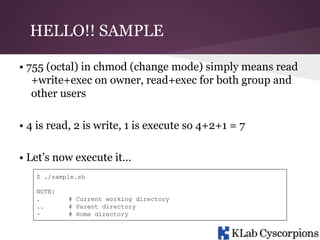
• 755 (octal) in chmod (change mode) simply means read
+write+exec on owner, read+exec for both group and
other users
• 4 is read, 2 is write, 1 is execute so 4+2+1 = 7
• Let’s now execute it…
$ ./sample.sh
NOTE:
.
..
~

# Current working directory
# Parent directory
# Home directory
HELLO!! SAMPLE
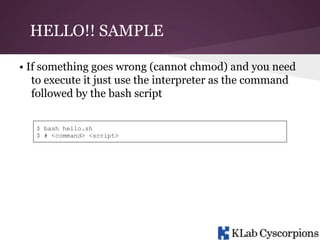
• If something goes wrong (cannot chmod) and you need
to execute it just use the interpreter as the command
followed by the bash script
$ bash hello.sh
$ # <command> <script>
COMMENTS
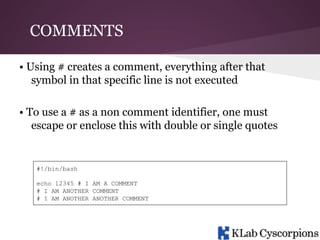
• Using # creates a comment, everything after that
symbol in that specific line is not executed
• To use a # as a non comment identifier, one must
escape or enclose this with double or single quotes

#!/bin/bash
echo 12345 # I AM A COMMENT
# I AM ANOTHER COMMENT
# I AM ANOTHER ANOTHER COMMENT
REDIRECTION - FILE DESCRIPTOR
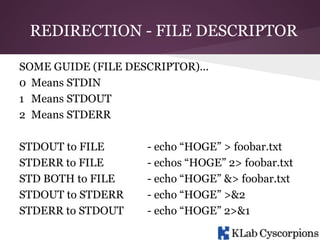
SOME GUIDE (FILE DESCRIPTOR)...
0 Means STDIN
1 Means STDOUT
2 Means STDERR
STDOUT to FILE
STDERR to FILE
STD BOTH to FILE
STDOUT to STDERR
STDERR to STDOUT

- echo “HOGE” > foobar.txt
- echos “HOGE” 2> foobar.txt
- echo “HOGE” &> foobar.txt
- echo “HOGE” >&2
- echo “HOGE” 2>&1
REDIRECTION - FILE DESCRIPTOR
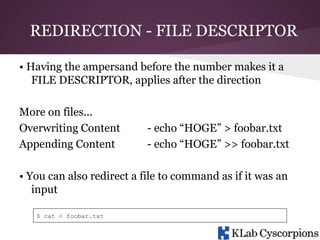
• Having the ampersand before the number makes it a
FILE DESCRIPTOR, applies after the direction
More on files...
Overwriting Content
Appending Content

- echo “HOGE” > foobar.txt
- echo “HOGE” >> foobar.txt

• You can also redirect a file to command as if it was an
input
$ cat < foobar.txt
REDIRECTION - FILE DESCRIPTOR
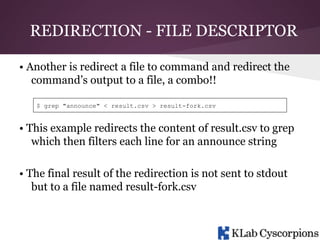
• Another is redirect a file to command and redirect the
command’s output to a file, a combo!!
$ grep "announce" < result.csv > result-fork.csv

• This example redirects the content of result.csv to grep
which then filters each line for an announce string
• The final result of the redirection is not sent to stdout
but to a file named result-fork.csv
REDIRECTION - FILE DESCRIPTOR
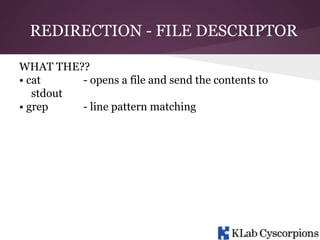
WHAT THE??
• cat
- opens a file and send the contents to
stdout
• grep
- line pattern matching
PIPES
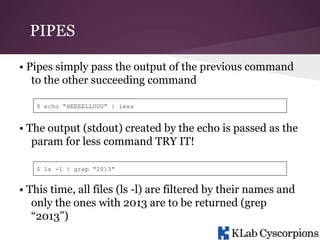
• Pipes simply pass the output of the previous command
to the other succeeding command
$ echo “HEEEELLUUU” | less

• The output (stdout) created by the echo is passed as the
param for less command TRY IT!
$ ls -l | grep “2013”

• This time, all files (ls -l) are filtered by their names and
only the ones with 2013 are to be returned (grep
“2013”)
PIPES
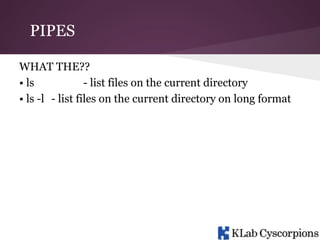
WHAT THE??
• ls
- list files on the current directory
• ls -l - list files on the current directory on long format
VARIABLE
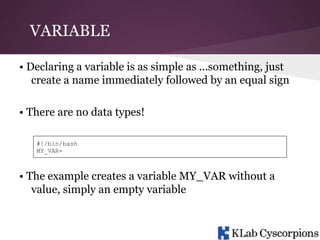
• Declaring a variable is as simple as ...something, just
create a name immediately followed by an equal sign
• There are no data types!
#!/bin/bash
MY_VAR=

• The example creates a variable MY_VAR without a
value, simply an empty variable
VARIABLE
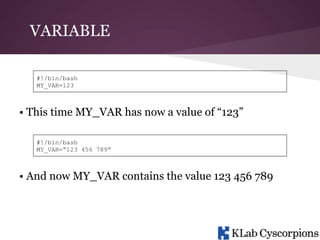
#!/bin/bash
MY_VAR=123

• This time MY_VAR has now a value of “123”
#!/bin/bash
MY_VAR=“123 456 789”

• And now MY_VAR contains the value 123 456 789
VARIABLE
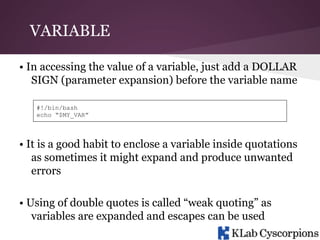
• In accessing the value of a variable, just add a DOLLAR
SIGN (parameter expansion) before the variable name
#!/bin/bash
echo “$MY_VAR”

• It is a good habit to enclose a variable inside quotations
as sometimes it might expand and produce unwanted
errors
• Using of double quotes is called “weak quoting” as
variables are expanded and escapes can be used
VARIABLE
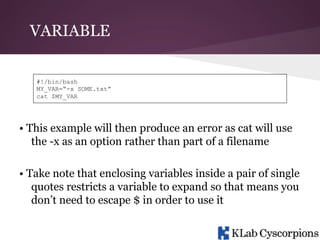
#!/bin/bash
MY_VAR=“-x SOME.txt”
cat $MY_VAR

• This example will then produce an error as cat will use
the -x as an option rather than part of a filename
• Take note that enclosing variables inside a pair of single
quotes restricts a variable to expand so that means you
don’t need to escape $ in order to use it
VARIABLE
• Single quotes preserve special characters and is called
“full quoting” as it literally use the characters without
substitution
LOCAL VARIABLE
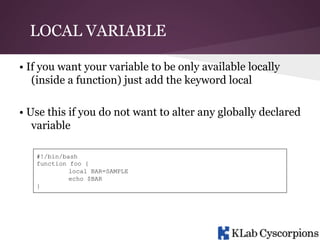
• If you want your variable to be only available locally
(inside a function) just add the keyword local
• Use this if you do not want to alter any globally declared
variable
#!/bin/bash
function foo {
local BAR=SAMPLE
echo $BAR
}
VARIABLE LENGTH
#!/bin/bash
FOO=1234567890
echo ${#FOO}

• In order to return the length of a variable, enclose the
variable name with curly braces (parameter
expansion) and add a # before the variable name
PARAMETER EXPANSION
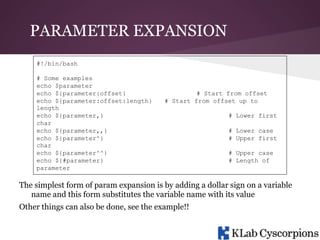
#!/bin/bash
# Some examples
echo $parameter
echo ${parameter:offset}
echo ${parameter:offset:length}
length
echo ${parameter,}
char
echo ${parameter,,}
echo ${parameter^}
char
echo ${parameter^^}
echo ${#parameter}
parameter

# Start from offset
# Start from offset up to
# Lower first
# Lower case
# Upper first
# Upper case
# Length of

The simplest form of param expansion is by adding a dollar sign on a variable
name and this form substitutes the variable name with its value
Other things can also be done, see the example!!
PARAMETER EXPANSION
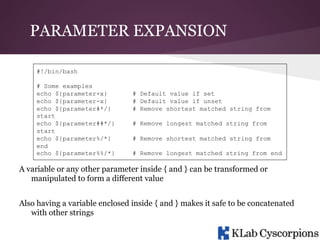
#!/bin/bash
# Some examples
echo ${parameter+x}
echo ${parameter-x}
echo ${parameter#*/}
start
echo ${parameter##*/}
start
echo ${parameter%/*}
end
echo ${parameter%%/*}

# Default value if set
# Default value if unset
# Remove shortest matched string from
# Remove longest matched string from
# Remove shortest matched string from
# Remove longest matched string from end

A variable or any other parameter inside { and } can be transformed or
manipulated to form a different value
Also having a variable enclosed inside { and } makes it safe to be concatenated
with other strings
DELETING A VARIABLE
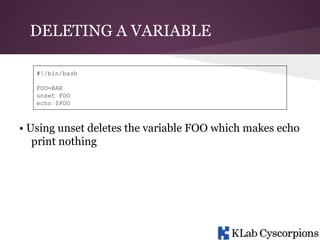
#!/bin/bash
FOO=BAR
unset FOO
echo $FOO

• Using unset deletes the variable FOO which makes echo
print nothing
COMMAND SUBSTITUTION /
SUBSHELL
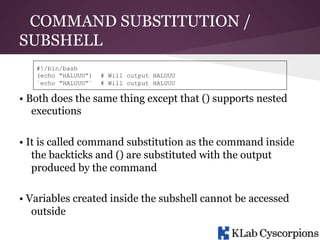
#!/bin/bash
(echo “HALUUU”)
`echo “HALUUU”`

# Will output HALUUU

• Both does the same thing except that () supports nested
executions
• It is called command substitution as the command inside
the backticks and () are substituted with the output
produced by the command
• Variables created inside the subshell cannot be accessed
outside
COMMAND SUBSTITUTION /
SUBSHELL
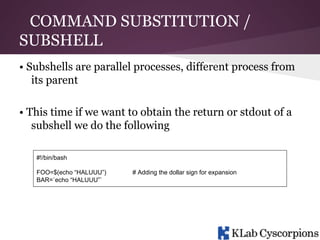
• Subshells are parallel processes, different process from
its parent
• This time if we want to obtain the return or stdout of a
subshell we do the following
#!/bin/bash
FOO=$(echo “HALUUU”)
BAR=`echo “HALUUU”`

# Adding the dollar sign for expansion
CONDITIONS
• Same with the other languages, it does use IF ELIF and
ELSE
• The basic form of this is “if [ expression ] then
statement; else statement; fi” where expression is your
condition and statements are the block of codes that
must be executed upon meeting the condition
if [ expression ] then statement; else statement; fi
CONDITIONS
#!/bin/bash
if [ “1” = “1” ]
then
echo “ONE”
fi

• Notice the space between the expression and the square
brackets, it is strictly required to have that
• This sample checks if 1 is really equal to 1, if true then
echo “ONE”
CONDITIONS
#!/bin/bash
if [ “1” = “1” ]; then
echo “ONE”
fi

• This time notice the use of semicolon in which its
purpose is to separate statements and if you would
want it to be all in one line do this:
if [ “1” = “1” ]; then echo “ONE”; fi # See? ain’t it fabulous!
CONDITIONS
#!/bin/bash
if [ “1” = “1” ]; then
echo “ONE”
else
echo “NONE”
fi

• Now with else part as what we expect will only be
executed only if the expression fails
CONDITIONS
#!/bin/bash
if [ “1” = “1” ]; then
echo “ONE”
elif [ “0” = “0” ]; then
echo “ZERO”
else
echo “NONE”
fi

• Now if you’re about to use multiple related conditions
you may use elif which is almost the same as if though
only comes after if
LOOPING
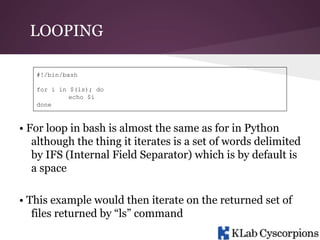
#!/bin/bash
for i in $(ls); do
echo $i
done

• For loop in bash is almost the same as for in Python
although the thing it iterates is a set of words delimited
by IFS (Internal Field Separator) which is by default is
a space
• This example would then iterate on the returned set of
files returned by “ls” command
LOOPING
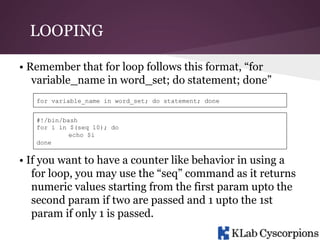
• Remember that for loop follows this format, “for
variable_name in word_set; do statement; done”
for variable_name in word_set; do statement; done
#!/bin/bash
for i in $(seq 10); do
echo $i
done

• If you want to have a counter like behavior in using a
for loop, you may use the “seq” command as it returns
numeric values starting from the first param upto the
second param if two are passed and 1 upto the 1st
param if only 1 is passed.
LOOPING
#!/bin/bash
COUNTER=0
while [ $COUNTER -lt 10 ]; do
let COUNTER+=1
done

• While loop iterates “while” the expression is true, like
the one we used to
LOOPING
#!/bin/bash
COUNTER=10
until [ $COUNTER -lt 1 ]; do
let COUNTER-=1
done

• Until is a bit different as it will execute the loop while
the expression evaluates to false
• The example will loop until COUNTER is less than 1
LOOPING
#!/bin/bash
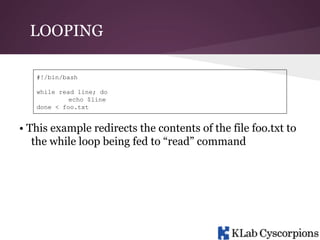
while read line; do
echo $line
done < foo.txt

• This example redirects the contents of the file foo.txt to
the while loop being fed to “read” command
FUNCTIONS
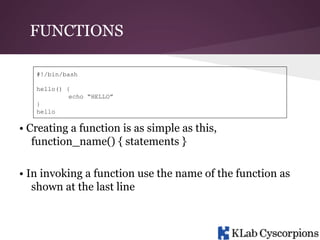
#!/bin/bash
hello() {
echo “HELLO”
}
hello

• Creating a function is as simple as this,
function_name() { statements }
• In invoking a function use the name of the function as
shown at the last line
FUNCTIONS
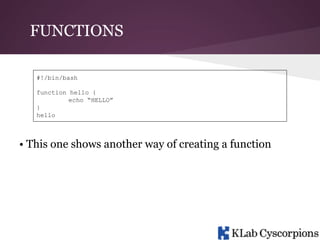
#!/bin/bash
function hello {
echo “HELLO”
}
hello

• This one shows another way of creating a function
FUNCTIONS
#!/bin/bash
is_hello() {
if [ “$1” = “HELLO” ]; then
return 0
else
return 1
fi
}
if is_hello “HELLO”; then
echo “HELLO”
fi

• In returning values, zero means true and the others
means false (false in the way you may use it)
FUNCTIONS
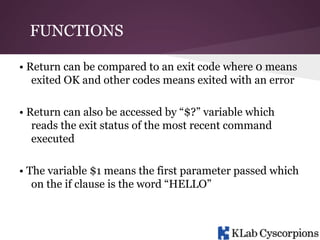
• Return can be compared to an exit code where 0 means
exited OK and other codes means exited with an error
• Return can also be accessed by “$?” variable which
reads the exit status of the most recent command
executed
• The variable $1 means the first parameter passed which
on the if clause is the word “HELLO”
FUNCTIONS
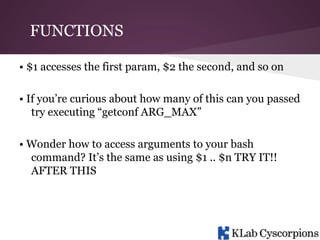
• $1 accesses the first param, $2 the second, and so on
• If you’re curious about how many of this can you passed
try executing “getconf ARG_MAX”
• Wonder how to access arguments to your bash
command? It’s the same as using $1 .. $n TRY IT!!
AFTER THIS
SELECT
#!/bin/bash
OPTIONS=“HELLO QUIT”
select opt in $OPTIONS; do
if [ “$opt” = “QUIT” ]; then
exit
elif [ “$opt” = “HELLO” ]; then
echo “HELLO”
fi
done

• Select behaves like a for loop with a menu like selection
• This example will present a menu containing the
HELLO and QUIT as the options
SELECT
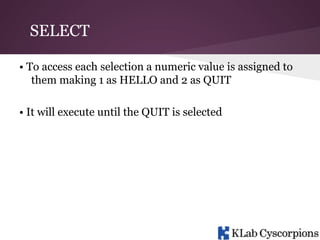
• To access each selection a numeric value is assigned to
them making 1 as HELLO and 2 as QUIT
• It will execute until the QUIT is selected
ARRAYS
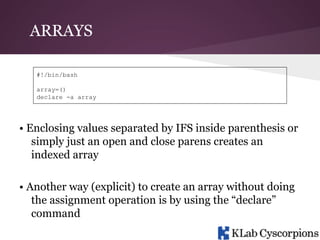
#!/bin/bash
array=()
declare -a array

• Enclosing values separated by IFS inside parenthesis or
simply just an open and close parens creates an
indexed array
• Another way (explicit) to create an array without doing
the assignment operation is by using the “declare”
command
ARRAYS
#!/bin/bash
array[0]=FOO
array[1]=BAR
array[3]=“BAZ BOO”

• Assigning values follows the format
“array_name[index]=value”
• Same as a regular variable, strings should be enclosed it
by quotations
ARRAYS
#!/bin/bash
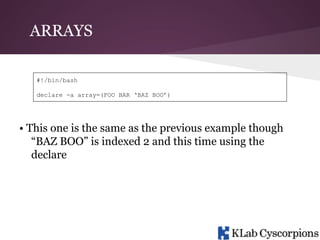
declare -a array=(FOO BAR ‘BAZ BOO’)

• This one is the same as the previous example though
“BAZ BOO” is indexed 2 and this time using the
declare
ARRAYS
#!/bin/bash
echo ${array[@]} # Displays the elements of the array
echo ${array[*]} # Displays also the elements of the array but in one
whole word
echo ${#array[@]} # Displays the length of array
echo ${array[0]} # Access index zero also the same as ${array}
echo ${#array[3]} # Displays the char length of element under index 3

• Arrays like other languages are indexed from 0 to N,
where N is the total count of values - 1
ARRAYS
#!/bin/bash
declare -A array # Create a keyed array
array[FOO]=BAR
echo ${array[FOO]}

• This sample creates a keyed array using the “-A” option
of declare
• Assigning and accessing a value is the same as the
normal usage of array
ARRAYS
#!/bin/bash
BAR=(‘ONE’ ‘TWO’)
BAR=(“${BAR[@]}” “THREE” “FOUR”)
BAZ=(“${BAR[@]}”)
echo ${!BAR[@]}
array

# Create an array
# Add 2 new values
# Pass array
# Echo the keys of

• In order to get all of the keys of an array, use bang !
• Now in order to iterate a keyed array, use the variable $
{!BAR[@]} (like from the example) in the “in” part of a
for loop then make use of the values returned as the
index
HEREDOC
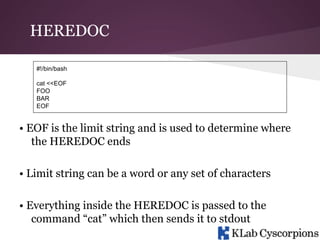
#!/bin/bash
cat <<EOF
FOO
BAR
EOF

• EOF is the limit string and is used to determine where
the HEREDOC ends
• Limit string can be a word or any set of characters
• Everything inside the HEREDOC is passed to the
command “cat” which then sends it to stdout
SHIFTING POSITIONAL
PARAMETERS
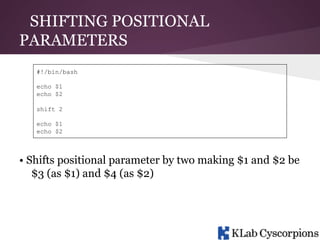
#!/bin/bash
echo $1
echo $2
shift 2
echo $1
echo $2

• Shifts positional parameter by two making $1 and $2 be
$3 (as $1) and $4 (as $2)
EXPORTING VARIABLE TO
SUBPROCESS
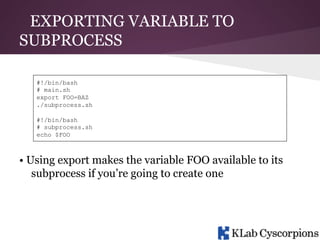
#!/bin/bash
# main.sh
export FOO=BAZ
./subprocess.sh
#!/bin/bash
# subprocess.sh
echo $FOO

• Using export makes the variable FOO available to its
subprocess if you’re going to create one
READING USER INPUT
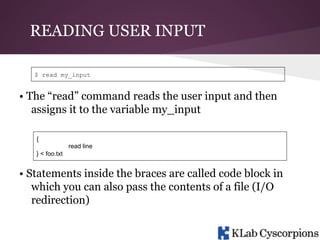
$ read my_input

• The “read” command reads the user input and then
assigns it to the variable my_input
{
read line
} < foo.txt

• Statements inside the braces are called code block in
which you can also pass the contents of a file (I/O
redirection)
INTEGER EXPANSION

echo $(( 1 + 1 )) # Echoes 2
echo $[ 1 + 1 ] # Echoes 2
SUM=$(( 1 + 1 ))

• Line 1 and 2 does the same thing, evaluate an
arithmetic expression same as the “command”
• Line 3 shows how to assign the result of the arithmetic
expression
BRACE EXPANSION
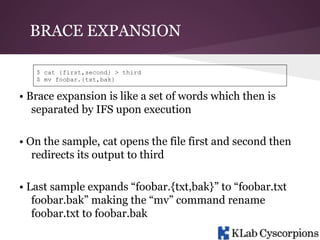
$ cat {first,second} > third
$ mv foobar.{txt,bak}

• Brace expansion is like a set of words which then is
separated by IFS upon execution
• On the sample, cat opens the file first and second then
redirects its output to third
• Last sample expands “foobar.{txt,bak}” to “foobar.txt
foobar.bak” making the “mv” command rename
foobar.txt to foobar.bak
EXTENDED BRACE EXPANSION
$ echo {1..10}

• This kind of expansion is like seq though separated by
IFS and provides support for other ASCII characters
(ASCII sequence) like {a..z}
TERNARY OPERATION
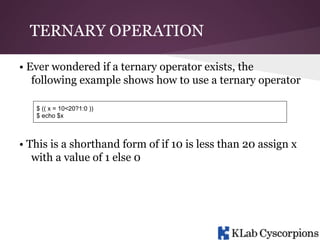
• Ever wondered if a ternary operator exists, the
following example shows how to use a ternary operator
$ (( x = 10<20?1:0 ))
$ echo $x

• This is a shorthand form of if 10 is less than 20 assign x
with a value of 1 else 0
MANUAL
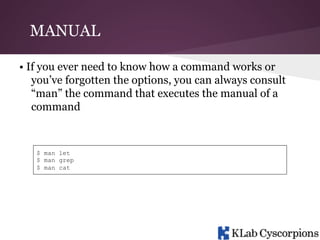
• If you ever need to know how a command works or
you’ve forgotten the options, you can always consult
“man” the command that executes the manual of a
command

$ man let
$ man grep
$ man cat
MISC

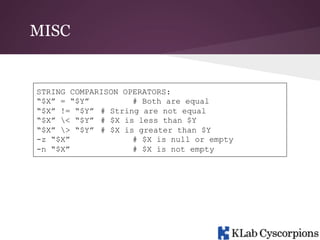
STRING COMPARISON OPERATORS:
“$X” = “$Y”
# Both are equal
“$X” != “$Y” # String are not equal
“$X” < “$Y” # $X is less than $Y
“$X” > “$Y” # $X is greater than $Y
-z “$X”
# $X is null or empty
-n “$X”
# $X is not empty
MISC

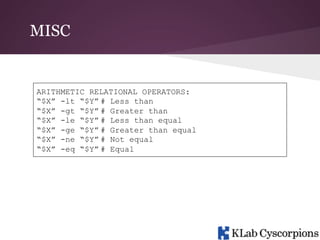
ARITHMETIC RELATIONAL OPERATORS:
“$X” -lt “$Y” # Less than
“$X” -gt “$Y” # Greater than
“$X” -le “$Y” # Less than equal
“$X” -ge “$Y” # Greater than equal
“$X” -ne “$Y” # Not equal
“$X” -eq “$Y” # Equal
MISC

SOME TEST OPERATORS:
-e
# is file exist
-f
# is regular file
-s
# is not zero size
-d
# is directory
-z
# is null or zero length
-n
# is not null
-h
# is symbolic link
SAMPLE:
if [ -d “/path/to/directory” ]; then
echo “HELUUU”
fi
MISC

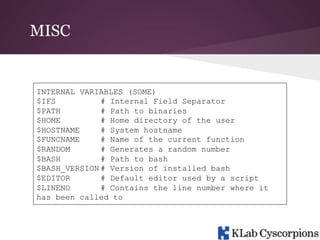
INTERNAL VARIABLES (SOME)
$IFS
# Internal Field Separator
$PATH
# Path to binaries
$HOME
# Home directory of the user
$HOSTNAME
# System hostname
$FUNCNAME
# Name of the current function
$RANDOM
# Generates a random number
$BASH
# Path to bash
$BASH_VERSION # Version of installed bash
$EDITOR
# Default editor used by a script
$LINENO
# Contains the line number where it
has been called to
MISC
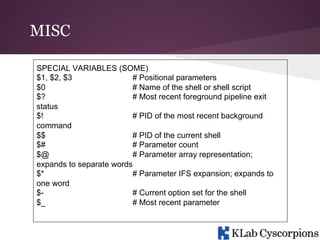
SPECIAL VARIABLES (SOME)
$1, $2, $3
# Positional parameters
$0
# Name of the shell or shell script
$?
# Most recent foreground pipeline exit
status
$!
# PID of the most recent background
command
$$
# PID of the current shell
$#
# Parameter count
$@
# Parameter array representation;
expands to separate words
$*
# Parameter IFS expansion; expands to
one word
$# Current option set for the shell
$_
# Most recent parameter
REFERENCES
http://javarevisited.blogspot.com/2011/06/special-bash-parameters-in-script-linux.html
http://tldp.org/HOWTO/Bash-Prog-Intro-HOWTO.html
http://www.tldp.org/LDP/abs/html/index.html
http://www.tldp.org/LDP/Bash-Beginners-Guide/html/
http://www.gnu.org/software/bash/manual/html_node/Shell-ParameterExpansion.html
http://www.thegeekstuff.com/2010/05/unix-background-job/

Bash

  • 1.
    BASH A quick basicto advance bashing
  • 2.
    WHAT BASH? • It’snot a harsh attack against a person nor even a skill on an MMORPG! • BASH means Bourne Again Shell created by Brian Fox • Most functionalities from SH are available on BASH
  • 3.
    SHEBANG/SHABANG • BASH scriptsalways starts with “#!/bin/bash”, a hash followed by an exclamation point called bang • SHEBANG came from the combination of haSH-BANG or SHarp-BANG • SHEBANG tells what interpreter to run, if not specified it will try to use by default BASH • Any executable file can be used as an interpreter
  • 4.
    HELLO!! SAMPLE #!/bin/bash echo “HELLOPO!!” • Create a file hello.sh • The file extension is not required since the interpreter as provided at shebang is used • In order to execute it, chmod the file, add the execute mode an example would be “chmod 755 hello.sh”
  • 5.
    HELLO!! SAMPLE • 755(octal) in chmod (change mode) simply means read +write+exec on owner, read+exec for both group and other users • 4 is read, 2 is write, 1 is execute so 4+2+1 = 7 • Let’s now execute it… $ ./sample.sh NOTE: . .. ~ # Current working directory # Parent directory # Home directory
  • 6.
    HELLO!! SAMPLE • Ifsomething goes wrong (cannot chmod) and you need to execute it just use the interpreter as the command followed by the bash script $ bash hello.sh $ # <command> <script>
  • 7.
    COMMENTS • Using #creates a comment, everything after that symbol in that specific line is not executed • To use a # as a non comment identifier, one must escape or enclose this with double or single quotes #!/bin/bash echo 12345 # I AM A COMMENT # I AM ANOTHER COMMENT # I AM ANOTHER ANOTHER COMMENT
  • 8.
    REDIRECTION - FILEDESCRIPTOR SOME GUIDE (FILE DESCRIPTOR)... 0 Means STDIN 1 Means STDOUT 2 Means STDERR STDOUT to FILE STDERR to FILE STD BOTH to FILE STDOUT to STDERR STDERR to STDOUT - echo “HOGE” > foobar.txt - echos “HOGE” 2> foobar.txt - echo “HOGE” &> foobar.txt - echo “HOGE” >&2 - echo “HOGE” 2>&1
  • 9.
    REDIRECTION - FILEDESCRIPTOR • Having the ampersand before the number makes it a FILE DESCRIPTOR, applies after the direction More on files... Overwriting Content Appending Content - echo “HOGE” > foobar.txt - echo “HOGE” >> foobar.txt • You can also redirect a file to command as if it was an input $ cat < foobar.txt
  • 10.
    REDIRECTION - FILEDESCRIPTOR • Another is redirect a file to command and redirect the command’s output to a file, a combo!! $ grep "announce" < result.csv > result-fork.csv • This example redirects the content of result.csv to grep which then filters each line for an announce string • The final result of the redirection is not sent to stdout but to a file named result-fork.csv
  • 11.
    REDIRECTION - FILEDESCRIPTOR WHAT THE?? • cat - opens a file and send the contents to stdout • grep - line pattern matching
  • 12.
    PIPES • Pipes simplypass the output of the previous command to the other succeeding command $ echo “HEEEELLUUU” | less • The output (stdout) created by the echo is passed as the param for less command TRY IT! $ ls -l | grep “2013” • This time, all files (ls -l) are filtered by their names and only the ones with 2013 are to be returned (grep “2013”)
  • 13.
    PIPES WHAT THE?? • ls -list files on the current directory • ls -l - list files on the current directory on long format
  • 14.
    VARIABLE • Declaring avariable is as simple as ...something, just create a name immediately followed by an equal sign • There are no data types! #!/bin/bash MY_VAR= • The example creates a variable MY_VAR without a value, simply an empty variable
  • 15.
    VARIABLE #!/bin/bash MY_VAR=123 • This timeMY_VAR has now a value of “123” #!/bin/bash MY_VAR=“123 456 789” • And now MY_VAR contains the value 123 456 789
  • 16.
    VARIABLE • In accessingthe value of a variable, just add a DOLLAR SIGN (parameter expansion) before the variable name #!/bin/bash echo “$MY_VAR” • It is a good habit to enclose a variable inside quotations as sometimes it might expand and produce unwanted errors • Using of double quotes is called “weak quoting” as variables are expanded and escapes can be used
  • 17.
    VARIABLE #!/bin/bash MY_VAR=“-x SOME.txt” cat $MY_VAR •This example will then produce an error as cat will use the -x as an option rather than part of a filename • Take note that enclosing variables inside a pair of single quotes restricts a variable to expand so that means you don’t need to escape $ in order to use it
  • 18.
    VARIABLE • Single quotespreserve special characters and is called “full quoting” as it literally use the characters without substitution
  • 19.
    LOCAL VARIABLE • Ifyou want your variable to be only available locally (inside a function) just add the keyword local • Use this if you do not want to alter any globally declared variable #!/bin/bash function foo { local BAR=SAMPLE echo $BAR }
  • 20.
    VARIABLE LENGTH #!/bin/bash FOO=1234567890 echo ${#FOO} •In order to return the length of a variable, enclose the variable name with curly braces (parameter expansion) and add a # before the variable name
  • 21.
    PARAMETER EXPANSION #!/bin/bash # Someexamples echo $parameter echo ${parameter:offset} echo ${parameter:offset:length} length echo ${parameter,} char echo ${parameter,,} echo ${parameter^} char echo ${parameter^^} echo ${#parameter} parameter # Start from offset # Start from offset up to # Lower first # Lower case # Upper first # Upper case # Length of The simplest form of param expansion is by adding a dollar sign on a variable name and this form substitutes the variable name with its value Other things can also be done, see the example!!
  • 22.
    PARAMETER EXPANSION #!/bin/bash # Someexamples echo ${parameter+x} echo ${parameter-x} echo ${parameter#*/} start echo ${parameter##*/} start echo ${parameter%/*} end echo ${parameter%%/*} # Default value if set # Default value if unset # Remove shortest matched string from # Remove longest matched string from # Remove shortest matched string from # Remove longest matched string from end A variable or any other parameter inside { and } can be transformed or manipulated to form a different value Also having a variable enclosed inside { and } makes it safe to be concatenated with other strings
  • 23.
    DELETING A VARIABLE #!/bin/bash FOO=BAR unsetFOO echo $FOO • Using unset deletes the variable FOO which makes echo print nothing
  • 24.
    COMMAND SUBSTITUTION / SUBSHELL #!/bin/bash (echo“HALUUU”) `echo “HALUUU”` # Will output HALUUU # Will output HALUUU • Both does the same thing except that () supports nested executions • It is called command substitution as the command inside the backticks and () are substituted with the output produced by the command • Variables created inside the subshell cannot be accessed outside
  • 25.
    COMMAND SUBSTITUTION / SUBSHELL •Subshells are parallel processes, different process from its parent • This time if we want to obtain the return or stdout of a subshell we do the following #!/bin/bash FOO=$(echo “HALUUU”) BAR=`echo “HALUUU”` # Adding the dollar sign for expansion
  • 26.
    CONDITIONS • Same withthe other languages, it does use IF ELIF and ELSE • The basic form of this is “if [ expression ] then statement; else statement; fi” where expression is your condition and statements are the block of codes that must be executed upon meeting the condition if [ expression ] then statement; else statement; fi
  • 27.
    CONDITIONS #!/bin/bash if [ “1”= “1” ] then echo “ONE” fi • Notice the space between the expression and the square brackets, it is strictly required to have that • This sample checks if 1 is really equal to 1, if true then echo “ONE”
  • 28.
    CONDITIONS #!/bin/bash if [ “1”= “1” ]; then echo “ONE” fi • This time notice the use of semicolon in which its purpose is to separate statements and if you would want it to be all in one line do this: if [ “1” = “1” ]; then echo “ONE”; fi # See? ain’t it fabulous!
  • 29.
    CONDITIONS #!/bin/bash if [ “1”= “1” ]; then echo “ONE” else echo “NONE” fi • Now with else part as what we expect will only be executed only if the expression fails
  • 30.
    CONDITIONS #!/bin/bash if [ “1”= “1” ]; then echo “ONE” elif [ “0” = “0” ]; then echo “ZERO” else echo “NONE” fi • Now if you’re about to use multiple related conditions you may use elif which is almost the same as if though only comes after if
  • 31.
    LOOPING #!/bin/bash for i in$(ls); do echo $i done • For loop in bash is almost the same as for in Python although the thing it iterates is a set of words delimited by IFS (Internal Field Separator) which is by default is a space • This example would then iterate on the returned set of files returned by “ls” command
  • 32.
    LOOPING • Remember thatfor loop follows this format, “for variable_name in word_set; do statement; done” for variable_name in word_set; do statement; done #!/bin/bash for i in $(seq 10); do echo $i done • If you want to have a counter like behavior in using a for loop, you may use the “seq” command as it returns numeric values starting from the first param upto the second param if two are passed and 1 upto the 1st param if only 1 is passed.
  • 33.
    LOOPING #!/bin/bash COUNTER=0 while [ $COUNTER-lt 10 ]; do let COUNTER+=1 done • While loop iterates “while” the expression is true, like the one we used to
  • 34.
    LOOPING #!/bin/bash COUNTER=10 until [ $COUNTER-lt 1 ]; do let COUNTER-=1 done • Until is a bit different as it will execute the loop while the expression evaluates to false • The example will loop until COUNTER is less than 1
  • 35.
    LOOPING #!/bin/bash while read line;do echo $line done < foo.txt • This example redirects the contents of the file foo.txt to the while loop being fed to “read” command
  • 36.
    FUNCTIONS #!/bin/bash hello() { echo “HELLO” } hello •Creating a function is as simple as this, function_name() { statements } • In invoking a function use the name of the function as shown at the last line
  • 37.
    FUNCTIONS #!/bin/bash function hello { echo“HELLO” } hello • This one shows another way of creating a function
  • 38.
    FUNCTIONS #!/bin/bash is_hello() { if [“$1” = “HELLO” ]; then return 0 else return 1 fi } if is_hello “HELLO”; then echo “HELLO” fi • In returning values, zero means true and the others means false (false in the way you may use it)
  • 39.
    FUNCTIONS • Return canbe compared to an exit code where 0 means exited OK and other codes means exited with an error • Return can also be accessed by “$?” variable which reads the exit status of the most recent command executed • The variable $1 means the first parameter passed which on the if clause is the word “HELLO”
  • 40.
    FUNCTIONS • $1 accessesthe first param, $2 the second, and so on • If you’re curious about how many of this can you passed try executing “getconf ARG_MAX” • Wonder how to access arguments to your bash command? It’s the same as using $1 .. $n TRY IT!! AFTER THIS
  • 41.
    SELECT #!/bin/bash OPTIONS=“HELLO QUIT” select optin $OPTIONS; do if [ “$opt” = “QUIT” ]; then exit elif [ “$opt” = “HELLO” ]; then echo “HELLO” fi done • Select behaves like a for loop with a menu like selection • This example will present a menu containing the HELLO and QUIT as the options
  • 42.
    SELECT • To accesseach selection a numeric value is assigned to them making 1 as HELLO and 2 as QUIT • It will execute until the QUIT is selected
  • 43.
    ARRAYS #!/bin/bash array=() declare -a array •Enclosing values separated by IFS inside parenthesis or simply just an open and close parens creates an indexed array • Another way (explicit) to create an array without doing the assignment operation is by using the “declare” command
  • 44.
    ARRAYS #!/bin/bash array[0]=FOO array[1]=BAR array[3]=“BAZ BOO” • Assigningvalues follows the format “array_name[index]=value” • Same as a regular variable, strings should be enclosed it by quotations
  • 45.
    ARRAYS #!/bin/bash declare -a array=(FOOBAR ‘BAZ BOO’) • This one is the same as the previous example though “BAZ BOO” is indexed 2 and this time using the declare
  • 46.
    ARRAYS #!/bin/bash echo ${array[@]} #Displays the elements of the array echo ${array[*]} # Displays also the elements of the array but in one whole word echo ${#array[@]} # Displays the length of array echo ${array[0]} # Access index zero also the same as ${array} echo ${#array[3]} # Displays the char length of element under index 3 • Arrays like other languages are indexed from 0 to N, where N is the total count of values - 1
  • 47.
    ARRAYS #!/bin/bash declare -A array# Create a keyed array array[FOO]=BAR echo ${array[FOO]} • This sample creates a keyed array using the “-A” option of declare • Assigning and accessing a value is the same as the normal usage of array
  • 48.
    ARRAYS #!/bin/bash BAR=(‘ONE’ ‘TWO’) BAR=(“${BAR[@]}” “THREE”“FOUR”) BAZ=(“${BAR[@]}”) echo ${!BAR[@]} array # Create an array # Add 2 new values # Pass array # Echo the keys of • In order to get all of the keys of an array, use bang ! • Now in order to iterate a keyed array, use the variable $ {!BAR[@]} (like from the example) in the “in” part of a for loop then make use of the values returned as the index
  • 49.
    HEREDOC #!/bin/bash cat <<EOF FOO BAR EOF • EOFis the limit string and is used to determine where the HEREDOC ends • Limit string can be a word or any set of characters • Everything inside the HEREDOC is passed to the command “cat” which then sends it to stdout
  • 50.
    SHIFTING POSITIONAL PARAMETERS #!/bin/bash echo $1 echo$2 shift 2 echo $1 echo $2 • Shifts positional parameter by two making $1 and $2 be $3 (as $1) and $4 (as $2)
  • 51.
    EXPORTING VARIABLE TO SUBPROCESS #!/bin/bash #main.sh export FOO=BAZ ./subprocess.sh #!/bin/bash # subprocess.sh echo $FOO • Using export makes the variable FOO available to its subprocess if you’re going to create one
  • 52.
    READING USER INPUT $read my_input • The “read” command reads the user input and then assigns it to the variable my_input { read line } < foo.txt • Statements inside the braces are called code block in which you can also pass the contents of a file (I/O redirection)
  • 53.
    INTEGER EXPANSION echo $((1 + 1 )) # Echoes 2 echo $[ 1 + 1 ] # Echoes 2 SUM=$(( 1 + 1 )) • Line 1 and 2 does the same thing, evaluate an arithmetic expression same as the “command” • Line 3 shows how to assign the result of the arithmetic expression
  • 54.
    BRACE EXPANSION $ cat{first,second} > third $ mv foobar.{txt,bak} • Brace expansion is like a set of words which then is separated by IFS upon execution • On the sample, cat opens the file first and second then redirects its output to third • Last sample expands “foobar.{txt,bak}” to “foobar.txt foobar.bak” making the “mv” command rename foobar.txt to foobar.bak
  • 55.
    EXTENDED BRACE EXPANSION $echo {1..10} • This kind of expansion is like seq though separated by IFS and provides support for other ASCII characters (ASCII sequence) like {a..z}
  • 56.
    TERNARY OPERATION • Everwondered if a ternary operator exists, the following example shows how to use a ternary operator $ (( x = 10<20?1:0 )) $ echo $x • This is a shorthand form of if 10 is less than 20 assign x with a value of 1 else 0
  • 57.
    MANUAL • If youever need to know how a command works or you’ve forgotten the options, you can always consult “man” the command that executes the manual of a command $ man let $ man grep $ man cat
  • 58.
    MISC STRING COMPARISON OPERATORS: “$X”= “$Y” # Both are equal “$X” != “$Y” # String are not equal “$X” < “$Y” # $X is less than $Y “$X” > “$Y” # $X is greater than $Y -z “$X” # $X is null or empty -n “$X” # $X is not empty
  • 59.
    MISC ARITHMETIC RELATIONAL OPERATORS: “$X”-lt “$Y” # Less than “$X” -gt “$Y” # Greater than “$X” -le “$Y” # Less than equal “$X” -ge “$Y” # Greater than equal “$X” -ne “$Y” # Not equal “$X” -eq “$Y” # Equal
  • 60.
    MISC SOME TEST OPERATORS: -e #is file exist -f # is regular file -s # is not zero size -d # is directory -z # is null or zero length -n # is not null -h # is symbolic link SAMPLE: if [ -d “/path/to/directory” ]; then echo “HELUUU” fi
  • 61.
    MISC INTERNAL VARIABLES (SOME) $IFS #Internal Field Separator $PATH # Path to binaries $HOME # Home directory of the user $HOSTNAME # System hostname $FUNCNAME # Name of the current function $RANDOM # Generates a random number $BASH # Path to bash $BASH_VERSION # Version of installed bash $EDITOR # Default editor used by a script $LINENO # Contains the line number where it has been called to
  • 62.
    MISC SPECIAL VARIABLES (SOME) $1,$2, $3 # Positional parameters $0 # Name of the shell or shell script $? # Most recent foreground pipeline exit status $! # PID of the most recent background command $$ # PID of the current shell $# # Parameter count $@ # Parameter array representation; expands to separate words $* # Parameter IFS expansion; expands to one word $# Current option set for the shell $_ # Most recent parameter
  • 63.