1. 音 什 需要 莓派?響爲 麼 樹
2. 莓派解 器硬樹 碼 體
3. 莓派音 播放樹 樂 軟體
4. Volumio 安 定裝與設
4.1. 解決 NFS Umount 問題
4.2. 用啟 HDMI 形界面圖
4.3. 解 中文字型決
4.4. 控 幕組裝觸 螢
4.5. 整解析度調
5. 用 控 幕功能啟 觸 熒
5.1. 用啓 soft-keyboard
6. 外 控 定紅 線遙 設
6.1. 安裝 lircd
6.2. 外 按紅 線 鈕錄製
6.3. 行按 命令執 鈕
7. 防止 定被設 蓋寫
8. 息關閉啟動訊
9. KODI 安軟體 裝(Optional: 而定視時間 )
4. http://volumio.local
4.1. 解決 NFS Umount 問題
cp /etc/systemd/system/multi-user.target.wants/wireless.service
/etc/systemd/system
### to edit /etc/systemd/system/wireless.service
### - append ' remote-fs.target' at the end of the line 'Before='
systemctl disable wireless.service
systemctl enable wireless.service
4.2. 用啟 HDMI 形界面圖
apt-get update
apt-get install vim
apt-get install x11-xserver-utils xinit xorg xbindkeys
apt-get install midori
apt-get install matchbox
xbindkeys --defaults > /root/.xbindkeysrc
vi /root/startx.sh
#!/bin/bash
xset -dpms &
xset s off &
xset s noblank &
matchbox-window-manager -use_titlebar no -use_cursor yes &
xbindkeys &
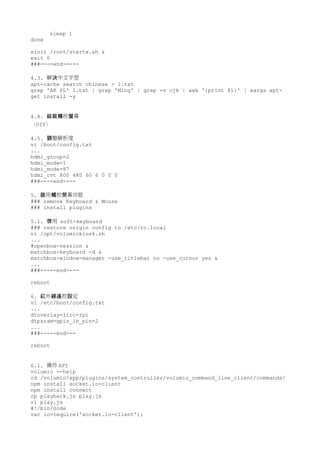
until netstat -nap | grep -q '127.0.0.1:3000'; do
sleep 1
done
midori -p -e Fullscreen -a http://localhost:3000
###-----end----
chmod +x /root/startx.sh
vi /etc/rc.local
until [ "$_IP" ]; do
_IP=$(hostname -I)
sleep 1
done
xinit /root/startx.sh &
exit 0
###----end-----
4.3. 解 中文字型決
apt-cache search chinese > 1.txt
grep 'AR PL' 1.txt | grep 'Ming' | grep -v cjk | awk '{print $1}' | xargs apt-
get install -y
4.4. 控 幕組裝觸 螢
(DIY)
4.5. 整解析度調
vi /boot/config.txt
...
hdmi_group=2
hdmi_mode=1
hdmi_mode=87
hdmi_cvt 800 480 60 6 0 0 0
###----end----
5. 用 控 幕功能啟 觸 熒
### remove Keyboard & Mouse
### install plugins
5.1. 用啓 soft-keyboard
### restore origin config to /etc/rc.local
vi /opt/volumiokiosk.sh
...
#openbox-session &
matchbox-keyboard -d &
matchbox-window-manager -use_titlebar no -use_cursor yes &
...
###-----end----
reboot
6. 外 控 定紅 線遙 設
vi /etc/boot/config.txt
...
dtoverlay=lirc-rpi
dtparam=gpio_in_pin=2
...
###-----end---
reboot
6.1. 操作 API
volumio --help
cd /volumio/app/plugins/system_controller/volumio_command_line_client/commands/
npm install socket.io-client
npm install connect
cp playback.js play.js
vi play.js
#!/bin/node
var io=require('socket.io-client');
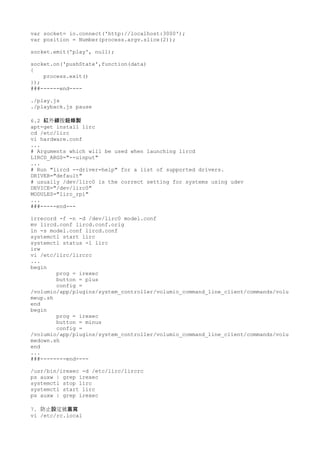
var socket= io.connect('http://localhost:3000');
var position = Number(process.argv.slice(2));
socket.emit('play', null);
socket.on('pushState',function(data)
{
process.exit()
});
###------end----
./play.js
./playback.js pause
6.2 外 按紅 線 鈕錄製
apt-get install lirc
cd /etc/lirc
vi hardware.conf
...
# Arguments which will be used when launching lircd
LIRCD_ARGS="--uinput"
...
# Run "lircd --driver=help" for a list of supported drivers.
DRIVER="default"
# usually /dev/lirc0 is the correct setting for systems using udev
DEVICE="/dev/lirc0"
MODULES="lirc_rpi"
...
###-----end---
irrecord -f -n -d /dev/lirc0 model.conf
mv lircd.conf lircd.conf.orig
ln -s model.conf lircd.conf
systemctl start lirc
systemctl status -l lirc
irw
vi /etc/lirc/lircrc
...
begin
prog = irexec
button = plus
config =
/volumio/app/plugins/system_controller/volumio_command_line_client/commands/volu
meup.sh
end
begin
prog = irexec
button = minus
config =
/volumio/app/plugins/system_controller/volumio_command_line_client/commands/volu
medown.sh
end
...
###--------end----
/usr/bin/irexec -d /etc/lirc/lircrc
ps auxw | grep irexec
systemctl stop lirc
systemctl start lirc
ps auxw | grep irexec
7. 防止 定被設 蓋寫
vi /etc/rc.local
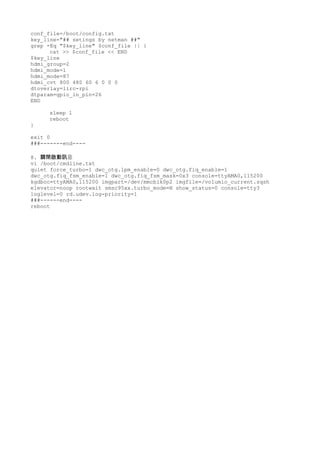
conf_file=/boot/config.txt
key_line="## setings by netman ##"
grep -Eq "$key_line" $conf_file || {
cat >> $conf_file << END
$key_line
hdmi_group=2
hdmi_mode=1
hdmi_mode=87
hdmi_cvt 800 480 60 6 0 0 0
dtoverlay=lirc-rpi
dtparam=gpio_in_pin=26
END
sleep 1
reboot
}
exit 0
###-------end----
8. 息關閉啟動訊
vi /boot/cmdline.txt
quiet force_turbo=1 dwc_otg.lpm_enable=0 dwc_otg.fiq_enable=1
dwc_otg.fiq_fsm_enable=1 dwc_otg.fiq_fsm_mask=0x3 console=ttyAMA0,115200
kgdboc=ttyAMA0,115200 imgpart=/dev/mmcblk0p2 imgfile=/volumio_current.sqsh
elevator=noop rootwait smsc95xx.turbo_mode=N show_status=0 console=tty3
loglevel=0 rd.udev.log-priority=1
###------end----
reboot

rpi_audio configuration steps

  • 1.
    1. 音 什需要 莓派?響爲 麼 樹 2. 莓派解 器硬樹 碼 體 3. 莓派音 播放樹 樂 軟體 4. Volumio 安 定裝與設 4.1. 解決 NFS Umount 問題 4.2. 用啟 HDMI 形界面圖 4.3. 解 中文字型決 4.4. 控 幕組裝觸 螢 4.5. 整解析度調 5. 用 控 幕功能啟 觸 熒 5.1. 用啓 soft-keyboard 6. 外 控 定紅 線遙 設 6.1. 安裝 lircd 6.2. 外 按紅 線 鈕錄製 6.3. 行按 命令執 鈕 7. 防止 定被設 蓋寫 8. 息關閉啟動訊 9. KODI 安軟體 裝(Optional: 而定視時間 ) 4. http://volumio.local 4.1. 解決 NFS Umount 問題 cp /etc/systemd/system/multi-user.target.wants/wireless.service /etc/systemd/system ### to edit /etc/systemd/system/wireless.service ### - append ' remote-fs.target' at the end of the line 'Before=' systemctl disable wireless.service systemctl enable wireless.service 4.2. 用啟 HDMI 形界面圖 apt-get update apt-get install vim apt-get install x11-xserver-utils xinit xorg xbindkeys apt-get install midori apt-get install matchbox xbindkeys --defaults > /root/.xbindkeysrc vi /root/startx.sh #!/bin/bash xset -dpms & xset s off & xset s noblank & matchbox-window-manager -use_titlebar no -use_cursor yes & xbindkeys & until netstat -nap | grep -q '127.0.0.1:3000'; do sleep 1 done midori -p -e Fullscreen -a http://localhost:3000 ###-----end---- chmod +x /root/startx.sh vi /etc/rc.local until [ "$_IP" ]; do _IP=$(hostname -I)
  • 2.
    sleep 1 done xinit /root/startx.sh& exit 0 ###----end----- 4.3. 解 中文字型決 apt-cache search chinese > 1.txt grep 'AR PL' 1.txt | grep 'Ming' | grep -v cjk | awk '{print $1}' | xargs apt- get install -y 4.4. 控 幕組裝觸 螢 (DIY) 4.5. 整解析度調 vi /boot/config.txt ... hdmi_group=2 hdmi_mode=1 hdmi_mode=87 hdmi_cvt 800 480 60 6 0 0 0 ###----end---- 5. 用 控 幕功能啟 觸 熒 ### remove Keyboard & Mouse ### install plugins 5.1. 用啓 soft-keyboard ### restore origin config to /etc/rc.local vi /opt/volumiokiosk.sh ... #openbox-session & matchbox-keyboard -d & matchbox-window-manager -use_titlebar no -use_cursor yes & ... ###-----end---- reboot 6. 外 控 定紅 線遙 設 vi /etc/boot/config.txt ... dtoverlay=lirc-rpi dtparam=gpio_in_pin=2 ... ###-----end--- reboot 6.1. 操作 API volumio --help cd /volumio/app/plugins/system_controller/volumio_command_line_client/commands/ npm install socket.io-client npm install connect cp playback.js play.js vi play.js #!/bin/node var io=require('socket.io-client');
  • 3.
    var socket= io.connect('http://localhost:3000'); varposition = Number(process.argv.slice(2)); socket.emit('play', null); socket.on('pushState',function(data) { process.exit() }); ###------end---- ./play.js ./playback.js pause 6.2 外 按紅 線 鈕錄製 apt-get install lirc cd /etc/lirc vi hardware.conf ... # Arguments which will be used when launching lircd LIRCD_ARGS="--uinput" ... # Run "lircd --driver=help" for a list of supported drivers. DRIVER="default" # usually /dev/lirc0 is the correct setting for systems using udev DEVICE="/dev/lirc0" MODULES="lirc_rpi" ... ###-----end--- irrecord -f -n -d /dev/lirc0 model.conf mv lircd.conf lircd.conf.orig ln -s model.conf lircd.conf systemctl start lirc systemctl status -l lirc irw vi /etc/lirc/lircrc ... begin prog = irexec button = plus config = /volumio/app/plugins/system_controller/volumio_command_line_client/commands/volu meup.sh end begin prog = irexec button = minus config = /volumio/app/plugins/system_controller/volumio_command_line_client/commands/volu medown.sh end ... ###--------end---- /usr/bin/irexec -d /etc/lirc/lircrc ps auxw | grep irexec systemctl stop lirc systemctl start lirc ps auxw | grep irexec 7. 防止 定被設 蓋寫 vi /etc/rc.local
  • 4.
    conf_file=/boot/config.txt key_line="## setings bynetman ##" grep -Eq "$key_line" $conf_file || { cat >> $conf_file << END $key_line hdmi_group=2 hdmi_mode=1 hdmi_mode=87 hdmi_cvt 800 480 60 6 0 0 0 dtoverlay=lirc-rpi dtparam=gpio_in_pin=26 END sleep 1 reboot } exit 0 ###-------end---- 8. 息關閉啟動訊 vi /boot/cmdline.txt quiet force_turbo=1 dwc_otg.lpm_enable=0 dwc_otg.fiq_enable=1 dwc_otg.fiq_fsm_enable=1 dwc_otg.fiq_fsm_mask=0x3 console=ttyAMA0,115200 kgdboc=ttyAMA0,115200 imgpart=/dev/mmcblk0p2 imgfile=/volumio_current.sqsh elevator=noop rootwait smsc95xx.turbo_mode=N show_status=0 console=tty3 loglevel=0 rd.udev.log-priority=1 ###------end---- reboot