Formula
• Formulas are equations that perform
  calculations in your worksheet.
• A formula consists of the following:
  Starts with an equal sign
  Functions
  References
  Operators
  Constants
Example 1: =C5 * 3
Example 1: =C5 * SUM(E5:E9)
Functions
• Functions are predefined formula. Functions consist of the
  following:
 Name – Every function is identified by a unique name.
 Arguments – Functions are specific values that a function
  requires. Arguments can be number, text, logical values such
  as TRUE or FALSE, Cell references, constants etc.
 Category – Functions belong to a category. Some of the
  categories are:
   Financial
   Mathematical & trigonometry
   Statistical
   Logical etc…
 Tooltip – are guidelines on how to use a function. They
  appear when a user types in the function name.
Functions
Example:
 Click on formula tab and click on cell D57.
 Type in the following formula
=SUM(D21:D56)
 Click on cell D58 and type in the following formula
=COUNTA(D21:D56)
 Click on cell D59 and type in the following formula
=MAX(D21:D56)
 Click on cell D59 and type in the following formula
=MIN(D21:D56)
 Click on cell D61 and type in the following formula
=AVERAGE(D21:D56)
References
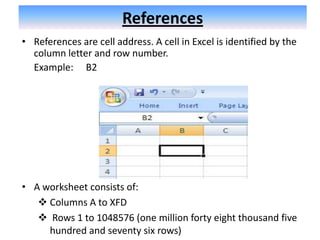
• References are cell address. A cell in Excel is identified by the
  column letter and row number.
  Example: B2


• A worksheet consists of:
    Columns A to XFD
    Rows 1 to 1048576 (one million forty eight thousand five
     hundred and seventy six rows)
References
           To refer to                 Use
All cells in row 5               5:5
All cells in column H            H:H
All cells in row 5 to 7          5:7
All cells in column H and J      H:j
References
• References can be broadly classified into 3 categories:
    Relative references
    Absolute references
    Mixed references
Example:
 Open exercises excel folder
 Click on formula tab
 Copy paste numbers into internet and newspaper column
 Copy paste numbers into TV and magazine column
 Type in following formula in Total column =SUM(F5:G5)
 Copy and paste the formulas to other cells in the column.
This is relative cell referencing.
References
 On cell F2 type in Commission
 On cell G2 type in .08
 Add a new column after the Total column and name it Total +
  Commission
 Type the following formula in cell I5
         =(H5*$G$2)+H5
 Copy the formula to other cells.
This is absolute cell referencing
References
 Using Names in formula
• Names are labels that can be used in Excel. Names are used to
  make it easy for users to refer to cell references.
• Names are managed (created, edited, deleted) using the Name
  Manager.
• Example:
 Click on Advanced formatting tab.
 Select cells E2:E37.
 Click on Formula tab > Defined Names (subgroup) > Click on Name
  Manager icon. A dialog box opens.
 Click on New button. A dialog box opens.
 Type in Radio in the name field and click OK.
 Close dialog box.
 Click on formula worksheet tab.
 Click on cell I18 and type in the following formula =SUM(RADIO)
 Note the formula adds the revenue column from the other sheet.
Operators
• Operators identify the type of operation to be performed.
• Operators can be categorized into four groups:
   Arithmetic Operator :
       +, -, *, / (division), % (percent), ^ (caret)
   Comparison operator
        = , >, < (greater than), >= (greater than or
        equal to), <= (less than or equal to), <> (not
        equal)
   Text Concatenation operator
       & (ampersand)
   Reference operators                        Space

       : (reference operator), , (union), (intersection)
Operators
• Use of comma:                         =SUM(B5:B15,D5:D15)
• Use of intersection operator:         =(B7:D7 C6:C8)
Operator precedence
1)   Brackets
2)   :
3)   Single space
4)   ,
5)   -
6)   %
7)   ^
8)   * and /
9)   + and –
10) &
11) = < > <= >= <>

Compute the following value:      2^4/2-4*3+15

Formula

  • 1.
    Formula • Formulas areequations that perform calculations in your worksheet. • A formula consists of the following: Starts with an equal sign Functions References Operators Constants Example 1: =C5 * 3 Example 1: =C5 * SUM(E5:E9)
  • 2.
    Functions • Functions arepredefined formula. Functions consist of the following:  Name – Every function is identified by a unique name.  Arguments – Functions are specific values that a function requires. Arguments can be number, text, logical values such as TRUE or FALSE, Cell references, constants etc.  Category – Functions belong to a category. Some of the categories are: Financial Mathematical & trigonometry Statistical Logical etc…  Tooltip – are guidelines on how to use a function. They appear when a user types in the function name.
  • 3.
    Functions Example:  Click onformula tab and click on cell D57.  Type in the following formula =SUM(D21:D56)  Click on cell D58 and type in the following formula =COUNTA(D21:D56)  Click on cell D59 and type in the following formula =MAX(D21:D56)  Click on cell D59 and type in the following formula =MIN(D21:D56)  Click on cell D61 and type in the following formula =AVERAGE(D21:D56)
  • 4.
    References • References arecell address. A cell in Excel is identified by the column letter and row number. Example: B2 • A worksheet consists of:  Columns A to XFD  Rows 1 to 1048576 (one million forty eight thousand five hundred and seventy six rows)
  • 5.
    References To refer to Use All cells in row 5 5:5 All cells in column H H:H All cells in row 5 to 7 5:7 All cells in column H and J H:j
  • 6.
    References • References canbe broadly classified into 3 categories:  Relative references  Absolute references  Mixed references Example:  Open exercises excel folder  Click on formula tab  Copy paste numbers into internet and newspaper column  Copy paste numbers into TV and magazine column  Type in following formula in Total column =SUM(F5:G5)  Copy and paste the formulas to other cells in the column. This is relative cell referencing.
  • 7.
    References  On cellF2 type in Commission  On cell G2 type in .08  Add a new column after the Total column and name it Total + Commission  Type the following formula in cell I5 =(H5*$G$2)+H5  Copy the formula to other cells. This is absolute cell referencing
  • 8.
    References  Using Namesin formula • Names are labels that can be used in Excel. Names are used to make it easy for users to refer to cell references. • Names are managed (created, edited, deleted) using the Name Manager. • Example:  Click on Advanced formatting tab.  Select cells E2:E37.  Click on Formula tab > Defined Names (subgroup) > Click on Name Manager icon. A dialog box opens.  Click on New button. A dialog box opens.  Type in Radio in the name field and click OK.  Close dialog box.  Click on formula worksheet tab.  Click on cell I18 and type in the following formula =SUM(RADIO)  Note the formula adds the revenue column from the other sheet.
  • 9.
    Operators • Operators identifythe type of operation to be performed. • Operators can be categorized into four groups: Arithmetic Operator : +, -, *, / (division), % (percent), ^ (caret) Comparison operator  = , >, < (greater than), >= (greater than or equal to), <= (less than or equal to), <> (not equal) Text Concatenation operator & (ampersand) Reference operators Space : (reference operator), , (union), (intersection)
  • 10.
    Operators • Use ofcomma: =SUM(B5:B15,D5:D15) • Use of intersection operator: =(B7:D7 C6:C8) Operator precedence 1) Brackets 2) : 3) Single space 4) , 5) - 6) % 7) ^ 8) * and / 9) + and – 10) & 11) = < > <= >= <> Compute the following value: 2^4/2-4*3+15