Managing User AccountsLesson 11
A user is someone who uses a computer. A user account defines what a user can do using Windows XP. In Windows XP, there are three types of user accounts.Administrator account. The administrator can do everything with the computer and can go anything he or she desires - essentially giving them control over the entire computer, including other accounts. The administrator account can never be disabled or deleted.Standard account. Users with standard accounts can install programs and hardware, change pictures and related personal data, and create, change, or remove his or her password. 
Guest account.The guest account doesn't require a password, can't add or remove programs from the computer, and is disabled by default. This account type is great for kids or students. 
2Guevarra Institute of Technology
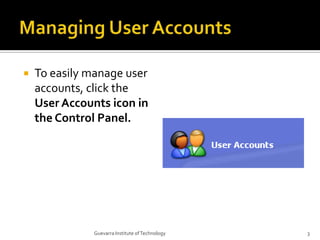
Managing User AccountsTo easily manage user accounts, click the User Accounts icon in the Control Panel.3Guevarra Institute of Technology
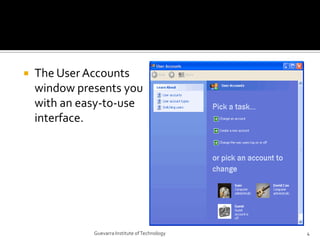
The User Accounts window presents you with an easy-to-use interface.4Guevarra Institute of Technology
Creating a New AccountYou can create new user accounts as needed, giving others access to your computer (without sharing your password).5Guevarra Institute of Technology
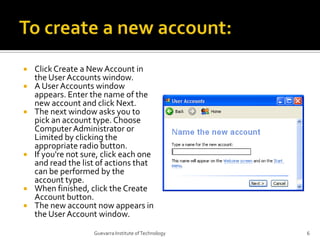
To create a new account:Click Create a New Account in the User Accounts window.A User Accounts window appears. Enter the name of the new account and click Next.The next window asks you to pick an account type. Choose Computer Administrator or Limited by clicking the appropriate radio button.If you're not sure, click each one and read the list of actions that can be performed by the account type.When finished, click the Create Account button.The new account now appears in the User Account window.6Guevarra Institute of Technology
Changing An AccountAny account can be easily edited or changed from the User Accounts window.7Guevarra Institute of Technology
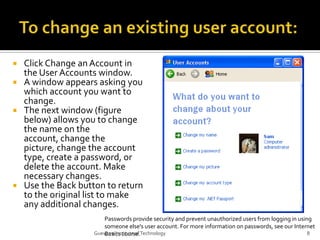
To change an existing user account:Click Change an Account in the User Accounts window.A window appears asking you which account you want to change.The next window (figure below) allows you to change the name on the account, change the picture, change the account type, create a password, or delete the account. Make necessary changes.Use the Back button to return to the original list to make any additional changes.Passwords provide security and prevent unauthorized users from logging in using someone else's user account. For more information on passwords, see our Internet Basics course.8Guevarra Institute of Technology
Changing User Log on/Log off ProceduresYou can also select the way users log on and log off.9Guevarra Institute of Technology
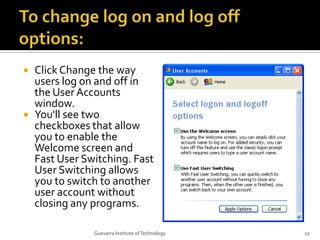
To change log on and log off options:Click Change the way users log on and off in the User Accounts window.You'll see two checkboxes that allow you to enable the Welcome screen and Fast User Switching. Fast User Switching allows you to switch to another user account without closing any programs.10Guevarra Institute of Technology
ChallengeOpen the Control Panel.Click the User Accounts link.Change the picture associated with your user account.Familiarize yourself with the concepts explained in this lesson.11Guevarra Institute of Technology

Lesson 11 Managing User Accounts

  • 1.
  • 2.
    A user issomeone who uses a computer. A user account defines what a user can do using Windows XP. In Windows XP, there are three types of user accounts.Administrator account. The administrator can do everything with the computer and can go anything he or she desires - essentially giving them control over the entire computer, including other accounts. The administrator account can never be disabled or deleted.Standard account. Users with standard accounts can install programs and hardware, change pictures and related personal data, and create, change, or remove his or her password. 
Guest account.The guest account doesn't require a password, can't add or remove programs from the computer, and is disabled by default. This account type is great for kids or students. 
2Guevarra Institute of Technology
  • 3.
    Managing User AccountsToeasily manage user accounts, click the User Accounts icon in the Control Panel.3Guevarra Institute of Technology
  • 4.
    The User Accountswindow presents you with an easy-to-use interface.4Guevarra Institute of Technology
  • 5.
    Creating a NewAccountYou can create new user accounts as needed, giving others access to your computer (without sharing your password).5Guevarra Institute of Technology
  • 6.
    To create anew account:Click Create a New Account in the User Accounts window.A User Accounts window appears. Enter the name of the new account and click Next.The next window asks you to pick an account type. Choose Computer Administrator or Limited by clicking the appropriate radio button.If you're not sure, click each one and read the list of actions that can be performed by the account type.When finished, click the Create Account button.The new account now appears in the User Account window.6Guevarra Institute of Technology
  • 7.
    Changing An AccountAnyaccount can be easily edited or changed from the User Accounts window.7Guevarra Institute of Technology
  • 8.
    To change anexisting user account:Click Change an Account in the User Accounts window.A window appears asking you which account you want to change.The next window (figure below) allows you to change the name on the account, change the picture, change the account type, create a password, or delete the account. Make necessary changes.Use the Back button to return to the original list to make any additional changes.Passwords provide security and prevent unauthorized users from logging in using someone else's user account. For more information on passwords, see our Internet Basics course.8Guevarra Institute of Technology
  • 9.
    Changing User Logon/Log off ProceduresYou can also select the way users log on and log off.9Guevarra Institute of Technology
  • 10.
    To change logon and log off options:Click Change the way users log on and off in the User Accounts window.You'll see two checkboxes that allow you to enable the Welcome screen and Fast User Switching. Fast User Switching allows you to switch to another user account without closing any programs.10Guevarra Institute of Technology
  • 11.
    ChallengeOpen the ControlPanel.Click the User Accounts link.Change the picture associated with your user account.Familiarize yourself with the concepts explained in this lesson.11Guevarra Institute of Technology