1
Mary Help college
Department of Information Technology
Unit of Competency: Protect Application System or
Software
Learning Material for Extension
Academic Year 2006 EC
Protect Application System or Software for Extension class by Shambel
D
Protect Application System or Software for Extension class by Shambel D
2
LO1 : Ensure user accounts are controlled
 Modifying default user settings to ensure that they conform
to security policy
 Modifying Previously created user settings to ensure they
conform to updated security policy
 Ensure legal notices displayed at logon are appropriate
 Using Appropriate utilities to check strength of passwords
and consider tightening rules for password complexity
 Monitoring e-mails to uncover breaches in compliance with
legislation
 Accessing information services to identify security gaps
and take appropriate action using hardware and software
or patches
3
Protect Application System or Software for Extension class by Shambel
D
Introduction to user accounts
What is user account?
- User account is a feature in Windows that can help to
prevent unauthorized changes to your computer.
- User account contains users unique credentials and
enables a user to log on to the computer to access
resources on the computer.
- Every person who regularly uses the computer should
have user account.
4
Protect Application System or Software for Extension class by Shambel
D
- UAC ask you for permission or an administrator password
before performing actions that could potentially affect
your computer's operation or that change settings that
affect other users.
- When you see a user account message
- read it carefully, and then make sure the name of the action or
program that's about to start is one that you intended to start.
5
Protect Application System or Software for Extension class by Shambel
D
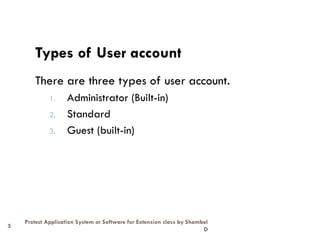
Types of User account
There are three types of user account.
1. Administrator (Built-in)
2. Standard
3. Guest (built-in)
6
Protect Application System or Software for Extension class by Shambel
D
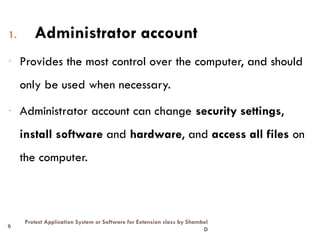
1. Administrator account
- Provides the most control over the computer, and should
only be used when necessary.
- Administrator account can change security settings,
install software and hardware, and access all files on
the computer.
7
Protect Application System or Software for Extension class by Shambel
D
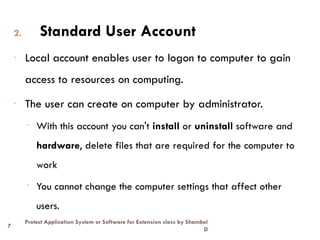
2. Standard User Account
- Local account enables user to logon to computer to gain
access to resources on computing.
- The user can create on computer by administrator.
- With this account you can't install or uninstall software and
hardware, delete files that are required for the computer to
work
- You cannot change the computer settings that affect other
users.
Protect Application System or Software for Extension class by Shambel D
8
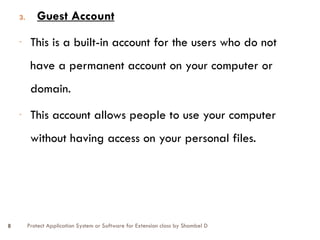
3. Guest Account
- This is a built-in account for the users who do not
have a permanent account on your computer or
domain.
- This account allows people to use your computer
without having access on your personal files.
Protect Application System or Software for Extension class by Shambel D
9
- People using the guest account cannot install software or
hardware, change settings, or create a password on the computer.
NB:
Þ User account can helps to prevent malicious software (malware)
and spyware from installing or making changes to your computer
without permission.
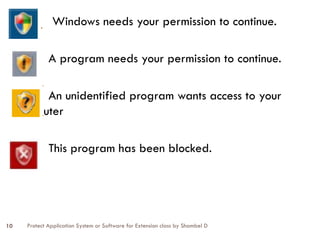
Þ When your permission or password is needed to complete a task,
user account will alert you with one of the following messages
Protect Application System or Software for Extension class by Shambel D
10
Windows needs your permission to continue.
A program needs your permission to continue.
An unidentified program wants access to your
computer
This program has been blocked.
Protect Application System or Software for Extension class by Shambel D
11
Creating user account in windows xp
There are three Methods of creating User account to
secure computers.
1. Using Control panel
2. Using Manager from my compute
3. Using Run command
Start Run Type (lusrmgr.msc) press-Enter key
NB: Built-in user accounts never be modified and deleted from your
computer.
Protect Application System or Software for Extension class by Shambel D
12
Rules for Creating User Account
- User account Name must be unique when you create
user account.
- Local user account name must be unique when you
create local user account on the computer.
- User logon name can contain up to 20 uppercase and
lowercase characters except special characters like
“/ []:,;!=+*?<>”
Protect Application System or Software for Extension class by Shambel D
13
Creating user account
- If you have large number of users with your computer:
- Use the first name and last initial, and additional letters
from last name to accommodate duplicate names.
- Identify temporary employees by their user accounts by
prefixing the user account with a T and a dash.
- Example: T-AbebeK,
Protect Application System or Software for Extension class by Shambel D
14
Password Guideline
- To protect access to a computer every user account
should have complex password.
- This helps to protect unauthorized individuals logging on
to your computer.
Consider the following to assign password
↔ Always assign complex password for administrator
account to prevent unauthorized access to the account.
Protect Application System or Software for Extension class by Shambel D
15
Determine whether you or user will control the passwords.
Assign unique password for the user account and prevent
users from changing password.
Educate users about the importance of using complex
password that are hard to guess.
Protect Application System or Software for Extension class by Shambel D
16
apply the following rules when creating and
maintaining their passwords:
Do:
 Use a password with mixed-case alphabetic characters,
numbers, and symbols.
 Use a mnemonic device that is easy to remember but
hard to decipher. An example is IL2ccSitW (I love to
cross-country ski in the winter)
 Change passwords every 30 to 90 days.
 Use a password that is at least eight or more characters
(never use less than six).
Protect Application System or Software for Extension class by Shambel D
17
Do NOT:
 Write your password down.
 Reuse old passwords.
 Share passwords with anyone.
 Allow group accounts with a common password.
 Use any of the following as your password:
• Your login name.
• Your first, middle, last name or nickname.
• The names of your family members.
• License plate or driver's license numbers, phone numbers, social security
numbers, makes of cars or street names.
Protect Application System or Software for Extension class by Shambel D
18
• A single number or letter in a series (111111, aaaaaa, etc.)
• Consecutive numbers or letters (123456, abcdef, etc.)
• "Keyboard progression" passwords (qwertyui, lkjhgfds, etc.)
• Numbers at the beginning or end of passwords.
• A word from any dictionary in any language.
• Fictional characters (especially fantasy or sci-fi characters, i.e., Luke Skywalker)
• Names of computers or computer systems.
• Any user name in any form, such as capitalized, doubled, reversed, etc.
• Slang words, obscenities, technical terms, jargon, university slogans (Go
Longhorns, Giggem Aggies, etc.)
Protect Application System or Software for Extension class by Shambel D
19
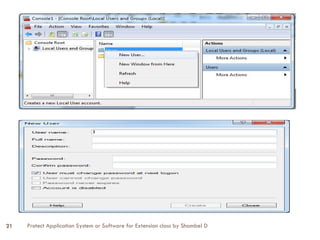
How to create user account on your computer?
We can create local user accounts, which give people access to your
computer but don't give them access to the domain. Only system
administrators can create domain user accounts.
1. Open Microsoft Management Console by clicking the Start button ,
typing mmc into the search box, and then pressing Enter.‌If you're
prompted for an administrator password or confirmation, type the
password or provide confirmation.
2. In the left pane of Microsoft Management Console, click Local Users
and Groups. If you don't see Local Users and Groups
If you don't see Local Users and Groups, it's probably because that
snap-in hasn't been added to Microsoft Management Console. Follow
these steps to install it:
Protect Application System or Software for Extension class by Shambel D
20
a. In Microsoft Management Console, click the File menu, and then
click Add/Remove Snap-in.
b. Click Local Users and Groups, and then click Add.
c. Click Local computer, click Finish, and then click OK.
3. Click the Users folder.
4. Click Action, and then click New User.
5. Type the appropriate information in the dialog box, and then click
Create.
6. When you are finished creating user accounts, click Close.
Protect Application System or Software for Extension class by Shambel D
21
Protect Application System or Software for Extension class by Shambel D
22
Create strong passwords
A strong password is an important protection to help you have
safer online transactions. Here are some steps to create a
strong password.
– Length- Make your passwords at least eight (8) long.
– Complexity- Include a combination of at least three (3)
upper and/or lowercase letters, punctuation, symbols, and
numerals.
– Variation- Change your passwords often.
– Variety- Don't use the same password for everything
Protect Application System or Software for Extension class by Shambel D
23
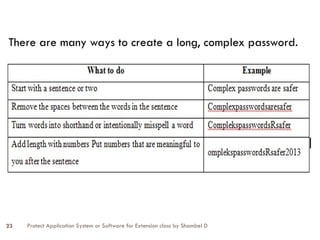
There are many ways to create a long, complex password.
Protect Application System or Software for Extension class by Shambel D 24
LO2: DESTRUCTIVE SOFTWARE
Protect Application System or Software for Extension class by Shambel D
25
LO2: Destructive Software
Defining and identifying common types of destructive software
 selecting and installing virus protection compatible with the
operating system in use Advanced systems of protection are
described in order to understand further options
 installing software updates on a regular basis
 Configuring software security settings to prevent destructive
software from infecting computer
running and/or scheduling virus protection software on a
regular basis
 reporting Detected destructive software to appropriate person
and remove the destructive software
Protect Application System or Software for Extension class by Shambel D
26
Destructive Software
Destructive software:-
- It is any software that the user did not authorize to
be loaded or software that collects data about a
user without their permission.
- The following is a list of terminology commonly used
to describe the various types of malicious software:
Protect Application System or Software for Extension class by Shambel D
27
Types of Destructive Software
 Virus
 Worm
 Logic bomb
 Trojan (Trojan Horse)
 Trapdoor
 Spyware
 Malware
 Rootkits
Protect Application System or Software for Extension class by Shambel D
28
Types of Destructive Software(Virus)
- A virus is a computer program that executes when an infected program is
executed.
- only executable files can be infected.
- On MS-DOS systems, these files usually have the extensions .EXE, .COM, .BAT
or .SYS will be affected.
- A virus infects other programs with copies of itself. It has the ability to clone
itself, so that it can multiply, constantly seeking new host environments.
- Viruses can infect any computer, from a small laptop to a multi-million dollar
mainframe.
Protect Application System or Software for Extension class by Shambel D
29
Types of Destructive Software(Virus)
Þ Viruses enter computer systems from an external
software source.
Þ Viruses can become destructive as soon as they
enter a system, or they can be programmed to lie
dormant until activated by a trigger
Þ This trigger may be a predetermined date or time.
Protect Application System or Software for Extension class by Shambel D
30
Types of Destructive Software(Virus)
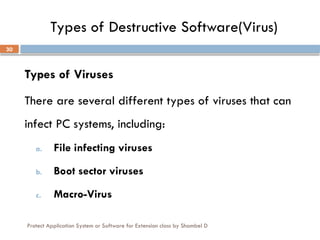
Types of Viruses
There are several different types of viruses that can
infect PC systems, including:
a. File infecting viruses
b. Boot sector viruses
c. Macro-Virus
Protect Application System or Software for Extension class by Shambel D
31
Types of Destructive Software (Virus)
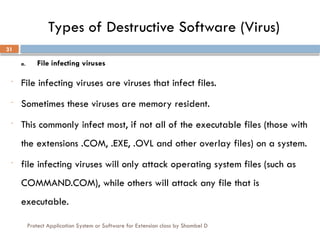
a. File infecting viruses
- File infecting viruses are viruses that infect files.
- Sometimes these viruses are memory resident.
- This commonly infect most, if not all of the executable files (those with
the extensions .COM, .EXE, .OVL and other overlay files) on a system.
- file infecting viruses will only attack operating system files (such as
COMMAND.COM), while others will attack any file that is
executable.
Protect Application System or Software for Extension class by Shambel D
32
Types of Destructive Software (Virus)
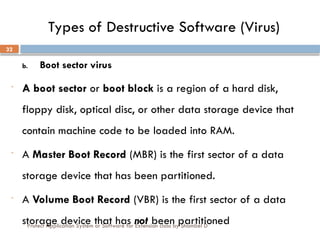
b. Boot sector virus
- A boot sector or boot block is a region of a hard disk,
floppy disk, optical disc, or other data storage device that
contain machine code to be loaded into RAM.
- A Master Boot Record (MBR) is the first sector of a data
storage device that has been partitioned.
- A Volume Boot Record (VBR) is the first sector of a data
storage device that has not been partitioned
Protect Application System or Software for Extension class by Shambel D
33
Types of Destructive Software (Virus)
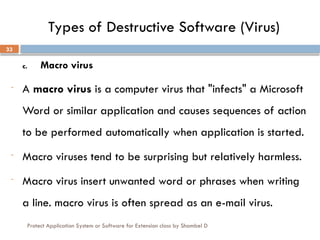
c. Macro virus
- A macro virus is a computer virus that "infects" a Microsoft
Word or similar application and causes sequences of action
to be performed automatically when application is started.
- Macro viruses tend to be surprising but relatively harmless.
- Macro virus insert unwanted word or phrases when writing
a line. macro virus is often spread as an e-mail virus.
Protect Application System or Software for Extension class by Shambel D
34
Types of Destructive Software (Non-Virus)
Destructive Non-Virus Programs
Destructive non-virus program includes;
- Worms
- Trojan Horses
- Logic Bombs
- As well as being potentially destructive by themselves, each can also be used
as a vehicle to propagate any virus.
- Worm- a worm is a self-replicating virus that does not alter files but duplicates
itself.
Protect Application System or Software for Extension class by Shambel D
35
Types of Destructive Software (Non-Virus)
Trojan (Trojan horse):-
- A Trojan Horse is a destructive program that has been disguised
(or concealed in) an innocuous piece of software.
- worm and virus programs may be concealed within a Trojan Horse.
- When Greek warriors concealed themselves in an attractive
wooden horse and left it outside the gates of the besieged city of
Troy, the Trojans assumed it was a friendly peace offering and
took it in.
Protect Application System or Software for Extension class by Shambel D
36
Types of Destructive Software (Non-Virus)
Logic bombs:-
- Logic bomb is similar to Trojan Horse but it include a timing device so it will
go off at a particular date and time.
- Logic bombs are usually timed to do maximum damage.
- That means the logic bomb is a favored device for revenge by disgruntled
former employees who can set it to activate after they have left the company.
- One common trigger occurs when the dismissed employee’s name is deleted
from payroll records
Protect Application System or Software for Extension class by Shambel D
37
Types of Destructive Software
Destructive virus program or software are:
- Malicious software is any software that the user did
not authorize to be loaded or software that collects
data about a user without their permission.
a. Trapdoor d. Phishing
b. spyware e. Rootkits
c. Malware
Protect Application System or Software for Extension class by Shambel D
38
Types of Destructive Software
Spyware:-
- Spyware is any technology that aids in gathering information about a
person or organization without their knowledge.
- Spyware is programming code that secretly gather information about
the user and relay it to advertisers or other interested parties.
- Trapdoor- is a method of gaining access to some one’s system other
than by the normal procedure (e.g. gaining access without having to
supply a password).
Protect Application System or Software for Extension class by Shambel D
39
Types of Destructive Software
- Hackers who successfully penetrate a system may insert trapdoors
to allow them entry at a later date.
Malware:-
- Malware (for "malicious software") is any program or file that is
harmful to a computer user.
- malware includes computer viruses, worms, Trojan horses, and
also Spyware and programming that gathers information about
a computer user without permission.
Protect Application System or Software for Extension class by Shambel D
40
Types of Destructive Software
Phishing:-
- A phish is a disguised email sent with the intent of
obtaining privileged information.
- Phishing is widely used for identity and data theft.
- phishing work in a business setting like, workers asked to
click on a link or go to a specific website to update his
user name and password or risk suspension.
Protect Application System or Software for Extension class by Shambel D
41
Types of Destructive Software
Rootkits:-
- Rootkits are a set of software tools used by an
intruder to gain and maintain access to a computer
system without the user's knowledge.
- These tools conceal covert running processes, files
and system data making them difficult to detect.
Protect Application System or Software for Extension class by Shambel D
42
How Viruses Affect (and Infect) Your System
How Viruses Spread
- A user brings a game to work that his child downloaded from a local
computer.
- Software purchased from a retailer in shrink wrap is infected because the
store
- Instructor distributes disks to students so they can complete a class
assignment.
- Friend gives you a disk so you can try out a new graphics program.
Protect Application System or Software for Extension class by Shambel D
43
How Viruses Affect (and Infect) Your System
Three examples are:
 Field service technicians;
 Salespeople who run demonstration programs on your
system; and
 Outside auditors who use their disks in your system (or,
in some cases, connect their notebook computers
directly to your network).
Protect Application System or Software for Extension class by Shambel D
44
How Viruses Affect (and Infect) Your System
System Components That Can Be Affected
Any target for a virus infection must have two characteristics:
 It must be an executable file.
 It must be stored on a write-enabled disk.
The simple act of write-protecting floppy disks by covering
the notch in 51/2” disks or opening the hole in 31/4” disks
can prevent many virus infections.
Protect Application System or Software for Extension class by Shambel D
45
How Viruses Affect (and Infect) Your System
What Should You Do to Protect Your System?
There are some procedures that apply to any organization to
protect system. Any good virus defense system must include:
 An ongoing training and education program for users
 Systematic use of anti-virus software
 A record-keeping system to identify ongoing weak points
in the system.
Protect Application System or Software for Extension class by Shambel D 46
HOW TO SECURE
OUR COMPUTER?
Protect Application System or Software for Extension class by Shambel D
47
Security procedures
Consider the following factors when designing
appropriate security:
1. The number and density of personal computers
2. The extent to which computers are interconnected
3. The number of locations where computers are used
4. The pace of operations
5. On-line real-time operations
Protect Application System or Software for Extension class by Shambel D
48
How to secure your computer
Computer security is everyone’s responsibility.
Our goal is to make safe computing easier for
everyone.
Protect Application System or Software for Extension class by Shambel D
49
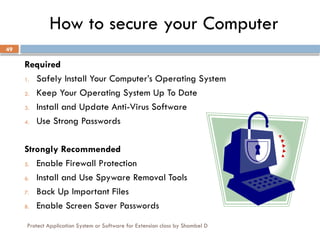
How to secure your Computer
Required
1. Safely Install Your Computer’s Operating System
2. Keep Your Operating System Up To Date
3. Install and Update Anti-Virus Software
4. Use Strong Passwords
Strongly Recommended
5. Enable Firewall Protection
6. Install and Use Spyware Removal Tools
7. Back Up Important Files
8. Enable Screen Saver Passwords
Protect Application System or Software for Extension class by Shambel D
50
1. Safely Installing Windows on Camputers
1. Disconnect the computer from the network.
2. Run the installation and skip the network setup.
3. Install and configure a personal firewall.
If you use the Windows Operating System, take critical
steps to install. Which prevent your computer from being
attacked or infected as soon as it is on the network.
Protect Application System or Software for Extension class by Shambel D
51
2. Update your Operating System
Most security issues are related to vulnerabilities in the
Operating System. As faults are discovered, software
companies release patches and updates to protect you
from security holes.
 Recent versions of Windows and Macintosh computers have automatic
software updates.
 Configure your computer to automatically download the latest patches
and updates.
 Instructions to set up automatic updates are on the Safe Computing
Website.
Protect Application System or Software for Extension class by Shambel D
52
3. Install and Update Anti-virus Software
If your computer is connected to the Internet or
you share files with anyone, you need anti-virus
software.
How to Get Anti-virus software
 On Campus
 Faculty and staff can contact their local computer support.
 Home Use
 Purchase commercial anti-virus software.
 Free Windows version for home use by Avast. (www.avast.com)
Keep the virus definitions up to date.
Protect Application System or Software for Extension class by Shambel D
53
 Set Your Computer Password - Do not leave it blank
 Password Tips
 Never share your password.
 Never write your password down.
 Change your password periodically.
4. Set Strong Passwords
The easiest way to break into your computer is a weak or blank
password. If your computer is compromised it can be used to attack
other computers on campus or around the world.
Protect Application System or Software for Extension class by Shambel D
54
Set strong Passwords (Cont.)
 Creating a Strong Password
 Passwords should be 7 characters or longer. The longer the
better.
 Passwords should contain at least one alpha character (a-z).
 Passwords should contain at least one non-alpha character.
 Do not choose passwords that contain personal information,
like pet’s or children’s names.
 Do not choose a word that is in the dictionary. These are the
easiest to crack.
 Try using a pass phrase.
For example, Hpatp0a = “Harry Potter and the Prisoner of
Azkaban”.
Protect Application System or Software for Extension class by Shambel D
55
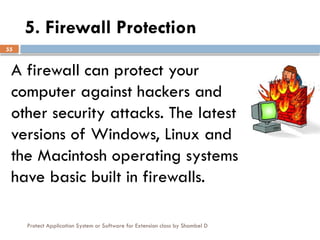
5. Firewall Protection
A firewall can protect your
computer against hackers and
other security attacks. The latest
versions of Windows, Linux and
the Macintosh operating systems
have basic built in firewalls.
Protect Application System or Software for Extension class by Shambel D
56
Firewall protection (cont.)
 Enable Your Firewall Protection
 Windows XP Service Pack 2, Macintosh OS X (v. 10.2 and
later), and Linux have built in firewall software.
 Instructions are available on the Safe Computing Web Site
 Commercial Firewall Software
 If you have an older Operating System or want a more
robust firewall, consider purchasing a commercial version.
 Free Firewall Software for Windows
 Zone Alarm Firewall for Windows is available for free for
individual home use on your personal computer.
Protect Application System or Software for Extension class by Shambel D
57
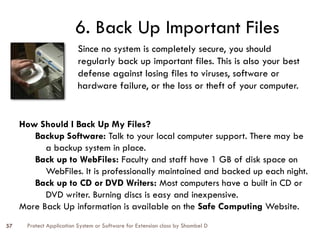
6. Back Up Important Files
Since no system is completely secure, you should
regularly back up important files. This is also your best
defense against losing files to viruses, software or
hardware failure, or the loss or theft of your computer.
How Should I Back Up My Files?
Backup Software: Talk to your local computer support. There may be
a backup system in place.
Back up to WebFiles: Faculty and staff have 1 GB of disk space on
WebFiles. It is professionally maintained and backed up each night.
Back up to CD or DVD Writers: Most computers have a built in CD or
DVD writer. Burning discs is easy and inexpensive.
More Back Up information is available on the Safe Computing Website.
Protect Application System or Software for Extension class by Shambel D
58
7. Set a Screen Saver Password
 Windows XP and Vista allow you to set a screen saver
password. This will lock your screen when you are
away, requiring you to enter your system password to
access the computer.
 Macintosh OS X and Linux also have screen saver
password capability.
 See the Safe Computing Website for instructions.
When you are away from your computer, lock the screen or
set a screen saver password. This will prevent someone from
using your computer when you are away from your desk.
Protect Application System or Software for Extension class by Shambel D
59
Email Safety Tips
1. Do not open unexpected attachments.
2. Use Spam Filters
3. Beware of Spoof Emails or Phishing.
4. Don’t send sensitive data in email.
5. Avoid clicking on links in the body of an email message.
While these links may not be a phishing attempt, they may not go
to the site you intend. Unless you are completely comfortable that
the email is legitimate, it is best to copy and paste the link or type
it in directly in your browser.
Protect Application System or Software for Extension class by Shambel D
60
5 Tips to Manage Email Attachments
1. Do not open an attachment unless you are expecting it AND you know
who it is from.
2. If you receive an attachment from someone you don’t know, delete it
immediately without opening it.
3. Use anti-virus software and keep it updated.
4. If you need to send an attachment, contact the recipient and let him
know you are sending it.
5. Use spam filters to block unsolicited email. Many viruses are sent as
spam.
Most common email viruses are spread through email attachments.
Attachments are files that are sent along with the message. If an
attachment has a virus it is usually spread when you double-click or
open the file. You can minimize the risk of getting a virus from an
attachment by following a few simple rules.
Protect Application System or Software for Extension class by Shambel D
61
Managing Spam Email
Setting up spam filters on NACS MailBox Services.
1. Go to My Email Options at www.nacs.uci.edu/email/options and
login with your UCInetID and password.
2. Click on the Spam Filtering tab.
3. Select the type of filtering you prefer, default or strict. Click the
Submit button.
4. Click the Logout tab.
If you receive your email from another server on campus, you may
have spam filtering as well. Check with your local computer
support.
Spam is often more of an annoyance than a security risk.
However many email viruses are sent as spam and can be
caught by spam filters. If you use NACS MailBox Services,
you can use a simple Web tool to set up spam filters.
Protect Application System or Software for Extension class by Shambel D
62
Spoof Email (Phishing)
6 Ways to Recognize Phishing
1. Generic Greeting
For example, “Dear Customer”.
2. Sense of urgency.
May include an urgent warning requiring immediate action.
3. Account status threat.
May include a warning that your account will be terminated unless you reply.
4. Forged email address.
The sender’s email address may be forged, even if it looks legitimate.
5. Forged links to Web sites.
There is often a link to a Website to “fix” the problem. These are usually
forged.
6. Requests for personal information.
Asking for login and password info, either in email or via the link.
Phishing emails are an attempt by thieves to trap you into exposing
personal and financial information, for their profit. They use clever
techniques to induce a sense of urgency on your part so that you don't
stop to think about whether they are legitimate or not.
Protect Application System or Software for Extension class by Shambel D
63
Don’t Send Sensitive Data in Email
The Risks of Sending Sensitive Data in Email
1. Sending email is insecure.
2. You are storing sensitive data on your computer.
3. You no longer control the sensitive data.
4. The sensitive data may be sent to others without your
knowledge.
Alternatives to Sending Sensitive Data in Email
 Faculty, Staff, and Grade Students can use their WebFiles
account. You can then share the information by using permissions
or tickets.
Protect Application System or Software for Extension class by Shambel D
64
1. Only share your screen name with people you trust.
2. Only communicate with people in your contact or buddy list.
3. Never provide personal information in an IM conversation.
4. Never open pictures, download files or click on links sent
via Instant Messages unless you are expecting it and you can
verify who it is from.
5. Do not set your IM client to automatically login on a shared
computer. This will allow others to communicate on your
behalf.
Instant Message (IM) Safety Tips
Virus infections are increasing by clicking on links in IM.
Protect Application System or Software for Extension class by Shambel D
65
Mobile security
Physical Security
 Lock your notebook computer in a safe location when not in use.
 Buy and use a notebook security cable.
Wireless Precautions
WiFi networks are a shared network that makes it easier for others to eavesdrop
on your communication.
 Secure Web Browsing
 Use secure, encrypted sessions.
 Secure Internet Transactions
 Use UCI’s VPN to encrypt your network traffic.
 Always use a Personal Firewall when on an untrusted network
(hotel, conference, etc.)
 Set the firewall to deny ALL incoming connections.
 Never store Sensitive Data on mobile devices unless absolutely necessary.
Mobile computing offers the freedom of using your notebook computer or other
mobile device in many remote locations. With this freedom also comes greater
responsibility to keep the computer and information secure.
Protect Application System or Software for Extension class by Shambel D
66
Keeping your data safe
What is Sensitive Data?
 Sensitive data is personal information that is restricted by law or
University policy.
 It includes an individual’s first name or first initial and last name in
combination with any of the following.
 Social Security Number
 Driver’s license ID number.
 Financial account information, such as a credit card number.
Do you store sensitive data?
1. Only store sensitive data on your computer if absolutely
necessary.
2. Report any sensitive data stored on your computer to
your Electronic Security Coordinator.
3. Use encryption to secure sensitive data stored on your computer.
4. Remove the data as soon as you no longer need it.
More information can be found on the Safe Computing Website.

protect Application-Extension Class_044932.pptx

  • 1.
    1 Mary Help college Departmentof Information Technology Unit of Competency: Protect Application System or Software Learning Material for Extension Academic Year 2006 EC Protect Application System or Software for Extension class by Shambel D
  • 2.
    Protect Application Systemor Software for Extension class by Shambel D 2 LO1 : Ensure user accounts are controlled  Modifying default user settings to ensure that they conform to security policy  Modifying Previously created user settings to ensure they conform to updated security policy  Ensure legal notices displayed at logon are appropriate  Using Appropriate utilities to check strength of passwords and consider tightening rules for password complexity  Monitoring e-mails to uncover breaches in compliance with legislation  Accessing information services to identify security gaps and take appropriate action using hardware and software or patches
  • 3.
    3 Protect Application Systemor Software for Extension class by Shambel D Introduction to user accounts What is user account? - User account is a feature in Windows that can help to prevent unauthorized changes to your computer. - User account contains users unique credentials and enables a user to log on to the computer to access resources on the computer. - Every person who regularly uses the computer should have user account.
  • 4.
    4 Protect Application Systemor Software for Extension class by Shambel D - UAC ask you for permission or an administrator password before performing actions that could potentially affect your computer's operation or that change settings that affect other users. - When you see a user account message - read it carefully, and then make sure the name of the action or program that's about to start is one that you intended to start.
  • 5.
    5 Protect Application Systemor Software for Extension class by Shambel D Types of User account There are three types of user account. 1. Administrator (Built-in) 2. Standard 3. Guest (built-in)
  • 6.
    6 Protect Application Systemor Software for Extension class by Shambel D 1. Administrator account - Provides the most control over the computer, and should only be used when necessary. - Administrator account can change security settings, install software and hardware, and access all files on the computer.
  • 7.
    7 Protect Application Systemor Software for Extension class by Shambel D 2. Standard User Account - Local account enables user to logon to computer to gain access to resources on computing. - The user can create on computer by administrator. - With this account you can't install or uninstall software and hardware, delete files that are required for the computer to work - You cannot change the computer settings that affect other users.
  • 8.
    Protect Application Systemor Software for Extension class by Shambel D 8 3. Guest Account - This is a built-in account for the users who do not have a permanent account on your computer or domain. - This account allows people to use your computer without having access on your personal files.
  • 9.
    Protect Application Systemor Software for Extension class by Shambel D 9 - People using the guest account cannot install software or hardware, change settings, or create a password on the computer. NB: Þ User account can helps to prevent malicious software (malware) and spyware from installing or making changes to your computer without permission. Þ When your permission or password is needed to complete a task, user account will alert you with one of the following messages
  • 10.
    Protect Application Systemor Software for Extension class by Shambel D 10 Windows needs your permission to continue. A program needs your permission to continue. An unidentified program wants access to your computer This program has been blocked.
  • 11.
    Protect Application Systemor Software for Extension class by Shambel D 11 Creating user account in windows xp There are three Methods of creating User account to secure computers. 1. Using Control panel 2. Using Manager from my compute 3. Using Run command Start Run Type (lusrmgr.msc) press-Enter key NB: Built-in user accounts never be modified and deleted from your computer.
  • 12.
    Protect Application Systemor Software for Extension class by Shambel D 12 Rules for Creating User Account - User account Name must be unique when you create user account. - Local user account name must be unique when you create local user account on the computer. - User logon name can contain up to 20 uppercase and lowercase characters except special characters like “/ []:,;!=+*?<>”
  • 13.
    Protect Application Systemor Software for Extension class by Shambel D 13 Creating user account - If you have large number of users with your computer: - Use the first name and last initial, and additional letters from last name to accommodate duplicate names. - Identify temporary employees by their user accounts by prefixing the user account with a T and a dash. - Example: T-AbebeK,
  • 14.
    Protect Application Systemor Software for Extension class by Shambel D 14 Password Guideline - To protect access to a computer every user account should have complex password. - This helps to protect unauthorized individuals logging on to your computer. Consider the following to assign password ↔ Always assign complex password for administrator account to prevent unauthorized access to the account.
  • 15.
    Protect Application Systemor Software for Extension class by Shambel D 15 Determine whether you or user will control the passwords. Assign unique password for the user account and prevent users from changing password. Educate users about the importance of using complex password that are hard to guess.
  • 16.
    Protect Application Systemor Software for Extension class by Shambel D 16 apply the following rules when creating and maintaining their passwords: Do:  Use a password with mixed-case alphabetic characters, numbers, and symbols.  Use a mnemonic device that is easy to remember but hard to decipher. An example is IL2ccSitW (I love to cross-country ski in the winter)  Change passwords every 30 to 90 days.  Use a password that is at least eight or more characters (never use less than six).
  • 17.
    Protect Application Systemor Software for Extension class by Shambel D 17 Do NOT:  Write your password down.  Reuse old passwords.  Share passwords with anyone.  Allow group accounts with a common password.  Use any of the following as your password: • Your login name. • Your first, middle, last name or nickname. • The names of your family members. • License plate or driver's license numbers, phone numbers, social security numbers, makes of cars or street names.
  • 18.
    Protect Application Systemor Software for Extension class by Shambel D 18 • A single number or letter in a series (111111, aaaaaa, etc.) • Consecutive numbers or letters (123456, abcdef, etc.) • "Keyboard progression" passwords (qwertyui, lkjhgfds, etc.) • Numbers at the beginning or end of passwords. • A word from any dictionary in any language. • Fictional characters (especially fantasy or sci-fi characters, i.e., Luke Skywalker) • Names of computers or computer systems. • Any user name in any form, such as capitalized, doubled, reversed, etc. • Slang words, obscenities, technical terms, jargon, university slogans (Go Longhorns, Giggem Aggies, etc.)
  • 19.
    Protect Application Systemor Software for Extension class by Shambel D 19 How to create user account on your computer? We can create local user accounts, which give people access to your computer but don't give them access to the domain. Only system administrators can create domain user accounts. 1. Open Microsoft Management Console by clicking the Start button , typing mmc into the search box, and then pressing Enter.‌If you're prompted for an administrator password or confirmation, type the password or provide confirmation. 2. In the left pane of Microsoft Management Console, click Local Users and Groups. If you don't see Local Users and Groups If you don't see Local Users and Groups, it's probably because that snap-in hasn't been added to Microsoft Management Console. Follow these steps to install it:
  • 20.
    Protect Application Systemor Software for Extension class by Shambel D 20 a. In Microsoft Management Console, click the File menu, and then click Add/Remove Snap-in. b. Click Local Users and Groups, and then click Add. c. Click Local computer, click Finish, and then click OK. 3. Click the Users folder. 4. Click Action, and then click New User. 5. Type the appropriate information in the dialog box, and then click Create. 6. When you are finished creating user accounts, click Close.
  • 21.
    Protect Application Systemor Software for Extension class by Shambel D 21
  • 22.
    Protect Application Systemor Software for Extension class by Shambel D 22 Create strong passwords A strong password is an important protection to help you have safer online transactions. Here are some steps to create a strong password. – Length- Make your passwords at least eight (8) long. – Complexity- Include a combination of at least three (3) upper and/or lowercase letters, punctuation, symbols, and numerals. – Variation- Change your passwords often. – Variety- Don't use the same password for everything
  • 23.
    Protect Application Systemor Software for Extension class by Shambel D 23 There are many ways to create a long, complex password.
  • 24.
    Protect Application Systemor Software for Extension class by Shambel D 24 LO2: DESTRUCTIVE SOFTWARE
  • 25.
    Protect Application Systemor Software for Extension class by Shambel D 25 LO2: Destructive Software Defining and identifying common types of destructive software  selecting and installing virus protection compatible with the operating system in use Advanced systems of protection are described in order to understand further options  installing software updates on a regular basis  Configuring software security settings to prevent destructive software from infecting computer running and/or scheduling virus protection software on a regular basis  reporting Detected destructive software to appropriate person and remove the destructive software
  • 26.
    Protect Application Systemor Software for Extension class by Shambel D 26 Destructive Software Destructive software:- - It is any software that the user did not authorize to be loaded or software that collects data about a user without their permission. - The following is a list of terminology commonly used to describe the various types of malicious software:
  • 27.
    Protect Application Systemor Software for Extension class by Shambel D 27 Types of Destructive Software  Virus  Worm  Logic bomb  Trojan (Trojan Horse)  Trapdoor  Spyware  Malware  Rootkits
  • 28.
    Protect Application Systemor Software for Extension class by Shambel D 28 Types of Destructive Software(Virus) - A virus is a computer program that executes when an infected program is executed. - only executable files can be infected. - On MS-DOS systems, these files usually have the extensions .EXE, .COM, .BAT or .SYS will be affected. - A virus infects other programs with copies of itself. It has the ability to clone itself, so that it can multiply, constantly seeking new host environments. - Viruses can infect any computer, from a small laptop to a multi-million dollar mainframe.
  • 29.
    Protect Application Systemor Software for Extension class by Shambel D 29 Types of Destructive Software(Virus) Þ Viruses enter computer systems from an external software source. Þ Viruses can become destructive as soon as they enter a system, or they can be programmed to lie dormant until activated by a trigger Þ This trigger may be a predetermined date or time.
  • 30.
    Protect Application Systemor Software for Extension class by Shambel D 30 Types of Destructive Software(Virus) Types of Viruses There are several different types of viruses that can infect PC systems, including: a. File infecting viruses b. Boot sector viruses c. Macro-Virus
  • 31.
    Protect Application Systemor Software for Extension class by Shambel D 31 Types of Destructive Software (Virus) a. File infecting viruses - File infecting viruses are viruses that infect files. - Sometimes these viruses are memory resident. - This commonly infect most, if not all of the executable files (those with the extensions .COM, .EXE, .OVL and other overlay files) on a system. - file infecting viruses will only attack operating system files (such as COMMAND.COM), while others will attack any file that is executable.
  • 32.
    Protect Application Systemor Software for Extension class by Shambel D 32 Types of Destructive Software (Virus) b. Boot sector virus - A boot sector or boot block is a region of a hard disk, floppy disk, optical disc, or other data storage device that contain machine code to be loaded into RAM. - A Master Boot Record (MBR) is the first sector of a data storage device that has been partitioned. - A Volume Boot Record (VBR) is the first sector of a data storage device that has not been partitioned
  • 33.
    Protect Application Systemor Software for Extension class by Shambel D 33 Types of Destructive Software (Virus) c. Macro virus - A macro virus is a computer virus that "infects" a Microsoft Word or similar application and causes sequences of action to be performed automatically when application is started. - Macro viruses tend to be surprising but relatively harmless. - Macro virus insert unwanted word or phrases when writing a line. macro virus is often spread as an e-mail virus.
  • 34.
    Protect Application Systemor Software for Extension class by Shambel D 34 Types of Destructive Software (Non-Virus) Destructive Non-Virus Programs Destructive non-virus program includes; - Worms - Trojan Horses - Logic Bombs - As well as being potentially destructive by themselves, each can also be used as a vehicle to propagate any virus. - Worm- a worm is a self-replicating virus that does not alter files but duplicates itself.
  • 35.
    Protect Application Systemor Software for Extension class by Shambel D 35 Types of Destructive Software (Non-Virus) Trojan (Trojan horse):- - A Trojan Horse is a destructive program that has been disguised (or concealed in) an innocuous piece of software. - worm and virus programs may be concealed within a Trojan Horse. - When Greek warriors concealed themselves in an attractive wooden horse and left it outside the gates of the besieged city of Troy, the Trojans assumed it was a friendly peace offering and took it in.
  • 36.
    Protect Application Systemor Software for Extension class by Shambel D 36 Types of Destructive Software (Non-Virus) Logic bombs:- - Logic bomb is similar to Trojan Horse but it include a timing device so it will go off at a particular date and time. - Logic bombs are usually timed to do maximum damage. - That means the logic bomb is a favored device for revenge by disgruntled former employees who can set it to activate after they have left the company. - One common trigger occurs when the dismissed employee’s name is deleted from payroll records
  • 37.
    Protect Application Systemor Software for Extension class by Shambel D 37 Types of Destructive Software Destructive virus program or software are: - Malicious software is any software that the user did not authorize to be loaded or software that collects data about a user without their permission. a. Trapdoor d. Phishing b. spyware e. Rootkits c. Malware
  • 38.
    Protect Application Systemor Software for Extension class by Shambel D 38 Types of Destructive Software Spyware:- - Spyware is any technology that aids in gathering information about a person or organization without their knowledge. - Spyware is programming code that secretly gather information about the user and relay it to advertisers or other interested parties. - Trapdoor- is a method of gaining access to some one’s system other than by the normal procedure (e.g. gaining access without having to supply a password).
  • 39.
    Protect Application Systemor Software for Extension class by Shambel D 39 Types of Destructive Software - Hackers who successfully penetrate a system may insert trapdoors to allow them entry at a later date. Malware:- - Malware (for "malicious software") is any program or file that is harmful to a computer user. - malware includes computer viruses, worms, Trojan horses, and also Spyware and programming that gathers information about a computer user without permission.
  • 40.
    Protect Application Systemor Software for Extension class by Shambel D 40 Types of Destructive Software Phishing:- - A phish is a disguised email sent with the intent of obtaining privileged information. - Phishing is widely used for identity and data theft. - phishing work in a business setting like, workers asked to click on a link or go to a specific website to update his user name and password or risk suspension.
  • 41.
    Protect Application Systemor Software for Extension class by Shambel D 41 Types of Destructive Software Rootkits:- - Rootkits are a set of software tools used by an intruder to gain and maintain access to a computer system without the user's knowledge. - These tools conceal covert running processes, files and system data making them difficult to detect.
  • 42.
    Protect Application Systemor Software for Extension class by Shambel D 42 How Viruses Affect (and Infect) Your System How Viruses Affect (and Infect) Your System How Viruses Spread - A user brings a game to work that his child downloaded from a local computer. - Software purchased from a retailer in shrink wrap is infected because the store - Instructor distributes disks to students so they can complete a class assignment. - Friend gives you a disk so you can try out a new graphics program.
  • 43.
    Protect Application Systemor Software for Extension class by Shambel D 43 How Viruses Affect (and Infect) Your System Three examples are:  Field service technicians;  Salespeople who run demonstration programs on your system; and  Outside auditors who use their disks in your system (or, in some cases, connect their notebook computers directly to your network).
  • 44.
    Protect Application Systemor Software for Extension class by Shambel D 44 How Viruses Affect (and Infect) Your System System Components That Can Be Affected Any target for a virus infection must have two characteristics:  It must be an executable file.  It must be stored on a write-enabled disk. The simple act of write-protecting floppy disks by covering the notch in 51/2” disks or opening the hole in 31/4” disks can prevent many virus infections.
  • 45.
    Protect Application Systemor Software for Extension class by Shambel D 45 How Viruses Affect (and Infect) Your System What Should You Do to Protect Your System? There are some procedures that apply to any organization to protect system. Any good virus defense system must include:  An ongoing training and education program for users  Systematic use of anti-virus software  A record-keeping system to identify ongoing weak points in the system.
  • 46.
    Protect Application Systemor Software for Extension class by Shambel D 46 HOW TO SECURE OUR COMPUTER?
  • 47.
    Protect Application Systemor Software for Extension class by Shambel D 47 Security procedures Consider the following factors when designing appropriate security: 1. The number and density of personal computers 2. The extent to which computers are interconnected 3. The number of locations where computers are used 4. The pace of operations 5. On-line real-time operations
  • 48.
    Protect Application Systemor Software for Extension class by Shambel D 48 How to secure your computer Computer security is everyone’s responsibility. Our goal is to make safe computing easier for everyone.
  • 49.
    Protect Application Systemor Software for Extension class by Shambel D 49 How to secure your Computer Required 1. Safely Install Your Computer’s Operating System 2. Keep Your Operating System Up To Date 3. Install and Update Anti-Virus Software 4. Use Strong Passwords Strongly Recommended 5. Enable Firewall Protection 6. Install and Use Spyware Removal Tools 7. Back Up Important Files 8. Enable Screen Saver Passwords
  • 50.
    Protect Application Systemor Software for Extension class by Shambel D 50 1. Safely Installing Windows on Camputers 1. Disconnect the computer from the network. 2. Run the installation and skip the network setup. 3. Install and configure a personal firewall. If you use the Windows Operating System, take critical steps to install. Which prevent your computer from being attacked or infected as soon as it is on the network.
  • 51.
    Protect Application Systemor Software for Extension class by Shambel D 51 2. Update your Operating System Most security issues are related to vulnerabilities in the Operating System. As faults are discovered, software companies release patches and updates to protect you from security holes.  Recent versions of Windows and Macintosh computers have automatic software updates.  Configure your computer to automatically download the latest patches and updates.  Instructions to set up automatic updates are on the Safe Computing Website.
  • 52.
    Protect Application Systemor Software for Extension class by Shambel D 52 3. Install and Update Anti-virus Software If your computer is connected to the Internet or you share files with anyone, you need anti-virus software. How to Get Anti-virus software  On Campus  Faculty and staff can contact their local computer support.  Home Use  Purchase commercial anti-virus software.  Free Windows version for home use by Avast. (www.avast.com) Keep the virus definitions up to date.
  • 53.
    Protect Application Systemor Software for Extension class by Shambel D 53  Set Your Computer Password - Do not leave it blank  Password Tips  Never share your password.  Never write your password down.  Change your password periodically. 4. Set Strong Passwords The easiest way to break into your computer is a weak or blank password. If your computer is compromised it can be used to attack other computers on campus or around the world.
  • 54.
    Protect Application Systemor Software for Extension class by Shambel D 54 Set strong Passwords (Cont.)  Creating a Strong Password  Passwords should be 7 characters or longer. The longer the better.  Passwords should contain at least one alpha character (a-z).  Passwords should contain at least one non-alpha character.  Do not choose passwords that contain personal information, like pet’s or children’s names.  Do not choose a word that is in the dictionary. These are the easiest to crack.  Try using a pass phrase. For example, Hpatp0a = “Harry Potter and the Prisoner of Azkaban”.
  • 55.
    Protect Application Systemor Software for Extension class by Shambel D 55 5. Firewall Protection A firewall can protect your computer against hackers and other security attacks. The latest versions of Windows, Linux and the Macintosh operating systems have basic built in firewalls.
  • 56.
    Protect Application Systemor Software for Extension class by Shambel D 56 Firewall protection (cont.)  Enable Your Firewall Protection  Windows XP Service Pack 2, Macintosh OS X (v. 10.2 and later), and Linux have built in firewall software.  Instructions are available on the Safe Computing Web Site  Commercial Firewall Software  If you have an older Operating System or want a more robust firewall, consider purchasing a commercial version.  Free Firewall Software for Windows  Zone Alarm Firewall for Windows is available for free for individual home use on your personal computer.
  • 57.
    Protect Application Systemor Software for Extension class by Shambel D 57 6. Back Up Important Files Since no system is completely secure, you should regularly back up important files. This is also your best defense against losing files to viruses, software or hardware failure, or the loss or theft of your computer. How Should I Back Up My Files? Backup Software: Talk to your local computer support. There may be a backup system in place. Back up to WebFiles: Faculty and staff have 1 GB of disk space on WebFiles. It is professionally maintained and backed up each night. Back up to CD or DVD Writers: Most computers have a built in CD or DVD writer. Burning discs is easy and inexpensive. More Back Up information is available on the Safe Computing Website.
  • 58.
    Protect Application Systemor Software for Extension class by Shambel D 58 7. Set a Screen Saver Password  Windows XP and Vista allow you to set a screen saver password. This will lock your screen when you are away, requiring you to enter your system password to access the computer.  Macintosh OS X and Linux also have screen saver password capability.  See the Safe Computing Website for instructions. When you are away from your computer, lock the screen or set a screen saver password. This will prevent someone from using your computer when you are away from your desk.
  • 59.
    Protect Application Systemor Software for Extension class by Shambel D 59 Email Safety Tips 1. Do not open unexpected attachments. 2. Use Spam Filters 3. Beware of Spoof Emails or Phishing. 4. Don’t send sensitive data in email. 5. Avoid clicking on links in the body of an email message. While these links may not be a phishing attempt, they may not go to the site you intend. Unless you are completely comfortable that the email is legitimate, it is best to copy and paste the link or type it in directly in your browser.
  • 60.
    Protect Application Systemor Software for Extension class by Shambel D 60 5 Tips to Manage Email Attachments 1. Do not open an attachment unless you are expecting it AND you know who it is from. 2. If you receive an attachment from someone you don’t know, delete it immediately without opening it. 3. Use anti-virus software and keep it updated. 4. If you need to send an attachment, contact the recipient and let him know you are sending it. 5. Use spam filters to block unsolicited email. Many viruses are sent as spam. Most common email viruses are spread through email attachments. Attachments are files that are sent along with the message. If an attachment has a virus it is usually spread when you double-click or open the file. You can minimize the risk of getting a virus from an attachment by following a few simple rules.
  • 61.
    Protect Application Systemor Software for Extension class by Shambel D 61 Managing Spam Email Setting up spam filters on NACS MailBox Services. 1. Go to My Email Options at www.nacs.uci.edu/email/options and login with your UCInetID and password. 2. Click on the Spam Filtering tab. 3. Select the type of filtering you prefer, default or strict. Click the Submit button. 4. Click the Logout tab. If you receive your email from another server on campus, you may have spam filtering as well. Check with your local computer support. Spam is often more of an annoyance than a security risk. However many email viruses are sent as spam and can be caught by spam filters. If you use NACS MailBox Services, you can use a simple Web tool to set up spam filters.
  • 62.
    Protect Application Systemor Software for Extension class by Shambel D 62 Spoof Email (Phishing) 6 Ways to Recognize Phishing 1. Generic Greeting For example, “Dear Customer”. 2. Sense of urgency. May include an urgent warning requiring immediate action. 3. Account status threat. May include a warning that your account will be terminated unless you reply. 4. Forged email address. The sender’s email address may be forged, even if it looks legitimate. 5. Forged links to Web sites. There is often a link to a Website to “fix” the problem. These are usually forged. 6. Requests for personal information. Asking for login and password info, either in email or via the link. Phishing emails are an attempt by thieves to trap you into exposing personal and financial information, for their profit. They use clever techniques to induce a sense of urgency on your part so that you don't stop to think about whether they are legitimate or not.
  • 63.
    Protect Application Systemor Software for Extension class by Shambel D 63 Don’t Send Sensitive Data in Email The Risks of Sending Sensitive Data in Email 1. Sending email is insecure. 2. You are storing sensitive data on your computer. 3. You no longer control the sensitive data. 4. The sensitive data may be sent to others without your knowledge. Alternatives to Sending Sensitive Data in Email  Faculty, Staff, and Grade Students can use their WebFiles account. You can then share the information by using permissions or tickets.
  • 64.
    Protect Application Systemor Software for Extension class by Shambel D 64 1. Only share your screen name with people you trust. 2. Only communicate with people in your contact or buddy list. 3. Never provide personal information in an IM conversation. 4. Never open pictures, download files or click on links sent via Instant Messages unless you are expecting it and you can verify who it is from. 5. Do not set your IM client to automatically login on a shared computer. This will allow others to communicate on your behalf. Instant Message (IM) Safety Tips Virus infections are increasing by clicking on links in IM.
  • 65.
    Protect Application Systemor Software for Extension class by Shambel D 65 Mobile security Physical Security  Lock your notebook computer in a safe location when not in use.  Buy and use a notebook security cable. Wireless Precautions WiFi networks are a shared network that makes it easier for others to eavesdrop on your communication.  Secure Web Browsing  Use secure, encrypted sessions.  Secure Internet Transactions  Use UCI’s VPN to encrypt your network traffic.  Always use a Personal Firewall when on an untrusted network (hotel, conference, etc.)  Set the firewall to deny ALL incoming connections.  Never store Sensitive Data on mobile devices unless absolutely necessary. Mobile computing offers the freedom of using your notebook computer or other mobile device in many remote locations. With this freedom also comes greater responsibility to keep the computer and information secure.
  • 66.
    Protect Application Systemor Software for Extension class by Shambel D 66 Keeping your data safe What is Sensitive Data?  Sensitive data is personal information that is restricted by law or University policy.  It includes an individual’s first name or first initial and last name in combination with any of the following.  Social Security Number  Driver’s license ID number.  Financial account information, such as a credit card number. Do you store sensitive data? 1. Only store sensitive data on your computer if absolutely necessary. 2. Report any sensitive data stored on your computer to your Electronic Security Coordinator. 3. Use encryption to secure sensitive data stored on your computer. 4. Remove the data as soon as you no longer need it. More information can be found on the Safe Computing Website.