Ultrasound machine knobology Copyright © 2010 Academy of Veterinary Imaging
Ultrasound machine knobology… In other words, what the heck do all of those knobs and buttons do, and how can adjusting them affect image quality?!?!
Image optimization Presets, depth, frequency, auto-optimize, focal points, gain/TGC Features Archiving, transducers, SRI, compounding, harmonics, 3-D, LOGIQView, Doppler GE ultrasound
GE ultrasound LOGIQ 7 LOGIQ Book Go to: Image optimization: Presets Depth Frequency Auto-optimize Focal points Gain/TGC LOGIQ e LOGIQ 5 Archiving Transducers SRI CrossXBeam Harmonics 3-D LOGIQView % affected GE features: LOGIQ P5 In this presentation, click on the Home button as pictured here to return to this page
Image optimization Image quality is comprised of many things During an ultrasound exam, the ultrasound machine settings should be changed as needed to optimize image quality Understanding just a few of the knobs can accomplish this for most scans L7 L5 LB Le P5
Presets Settings can be saved as presets Viewed in Application or Preset screen Different presets for different transducers/structures/patient species/sizes The more ‘complicated’ machine settings are saved in presets, so these do not need to be adjusted during every scan L7 L5 LB P5 Le
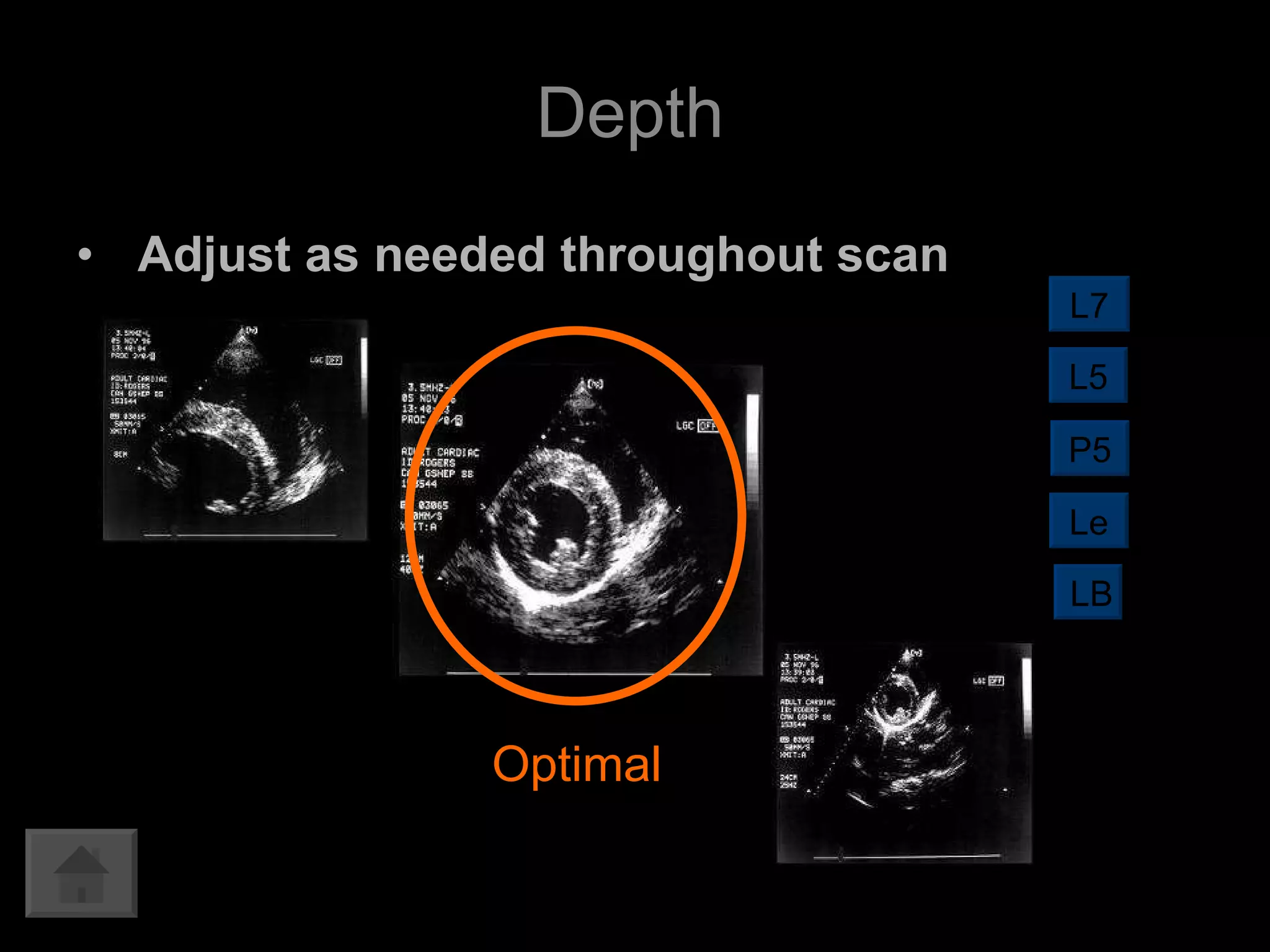
Adjust as needed throughout scan  Depth Optimal L7 L5 LB P5 Le
Frequency High frequency Better resolution Less depth Lower frequency Lower resolution  Better for depth L7 L5 LB P5 Le
‘ Personal preference’ button. Adds more contrast…Whites are whiter, blacks are blacker Try on or off.  Chose the setting that looks better to you.  Auto optimize must be deselected then reselected for every new structure imaged. Auto optimize L7 L5 LB P5 Le
Focal points Improved resolution is seen where the focal points are. Place focal points at the region of interest. L7 L5 LB P5 Le
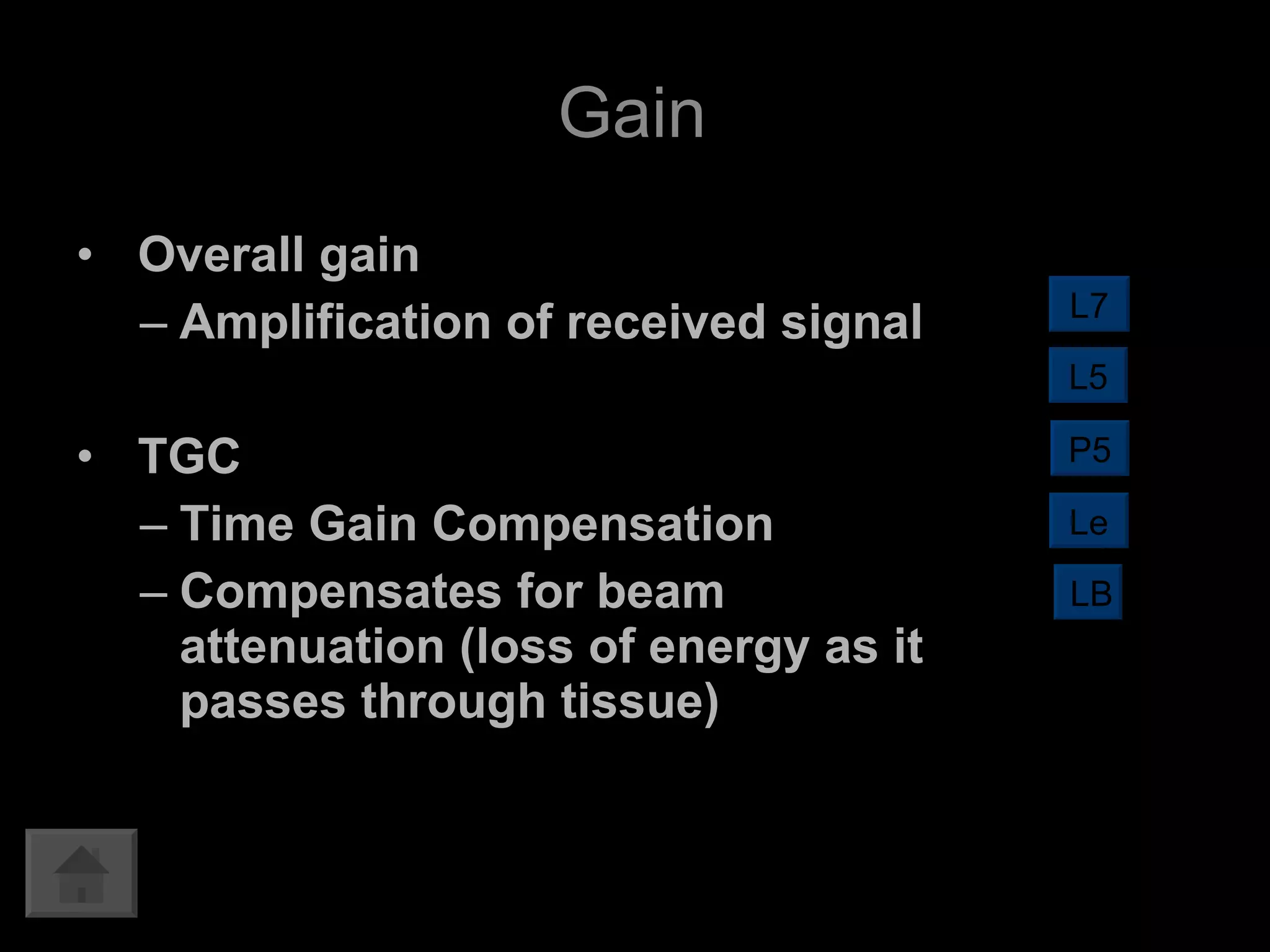
Overall gain Amplification of received signal TGC Time Gain Compensation Compensates for beam attenuation (loss of energy as it passes through tissue) Gain L7 L5 LB P5 Le
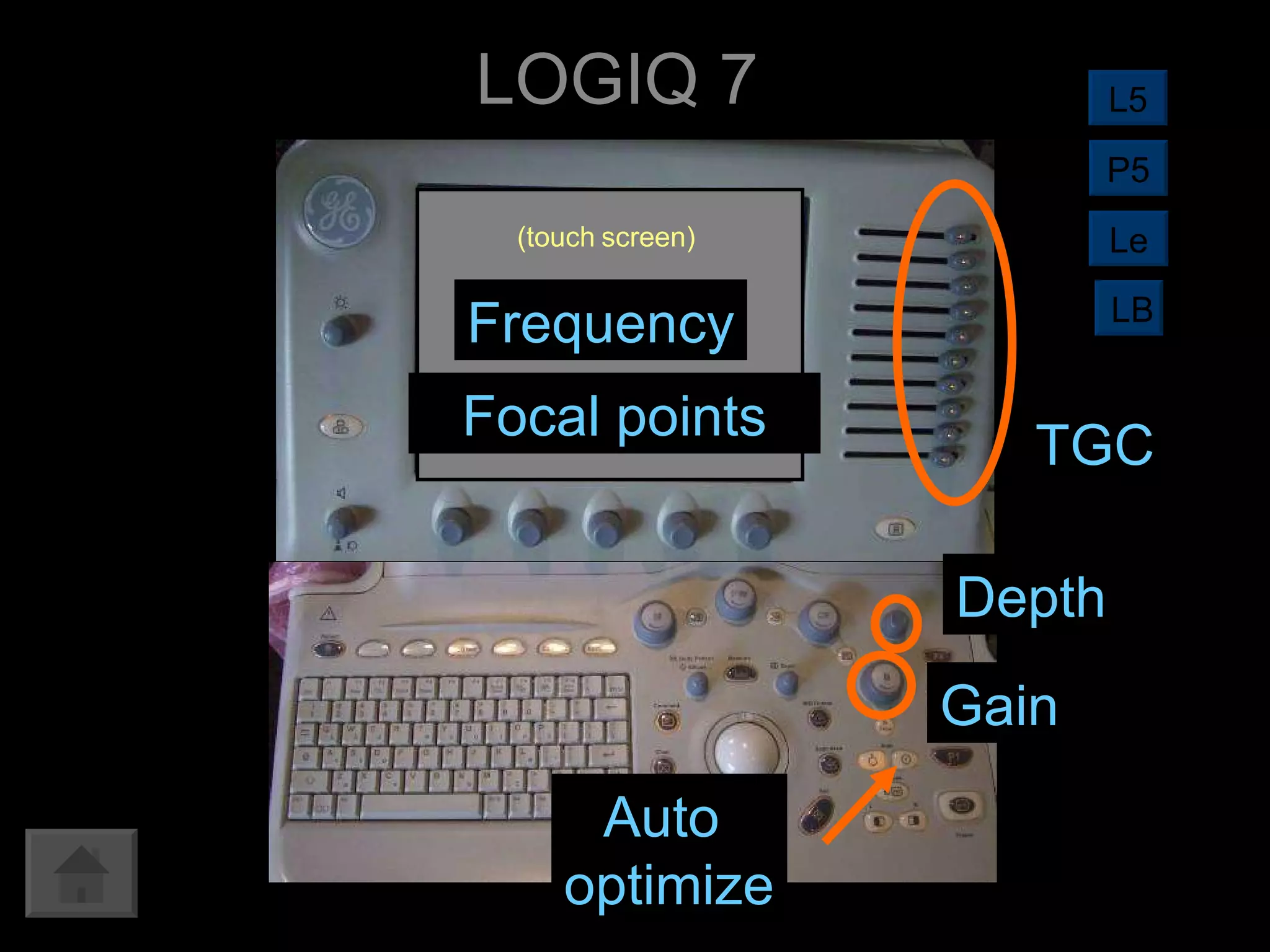
LOGIQ 7 TGC Auto  optimize Gain Depth Frequency Focal points (touch   screen) L5 LB Le P5
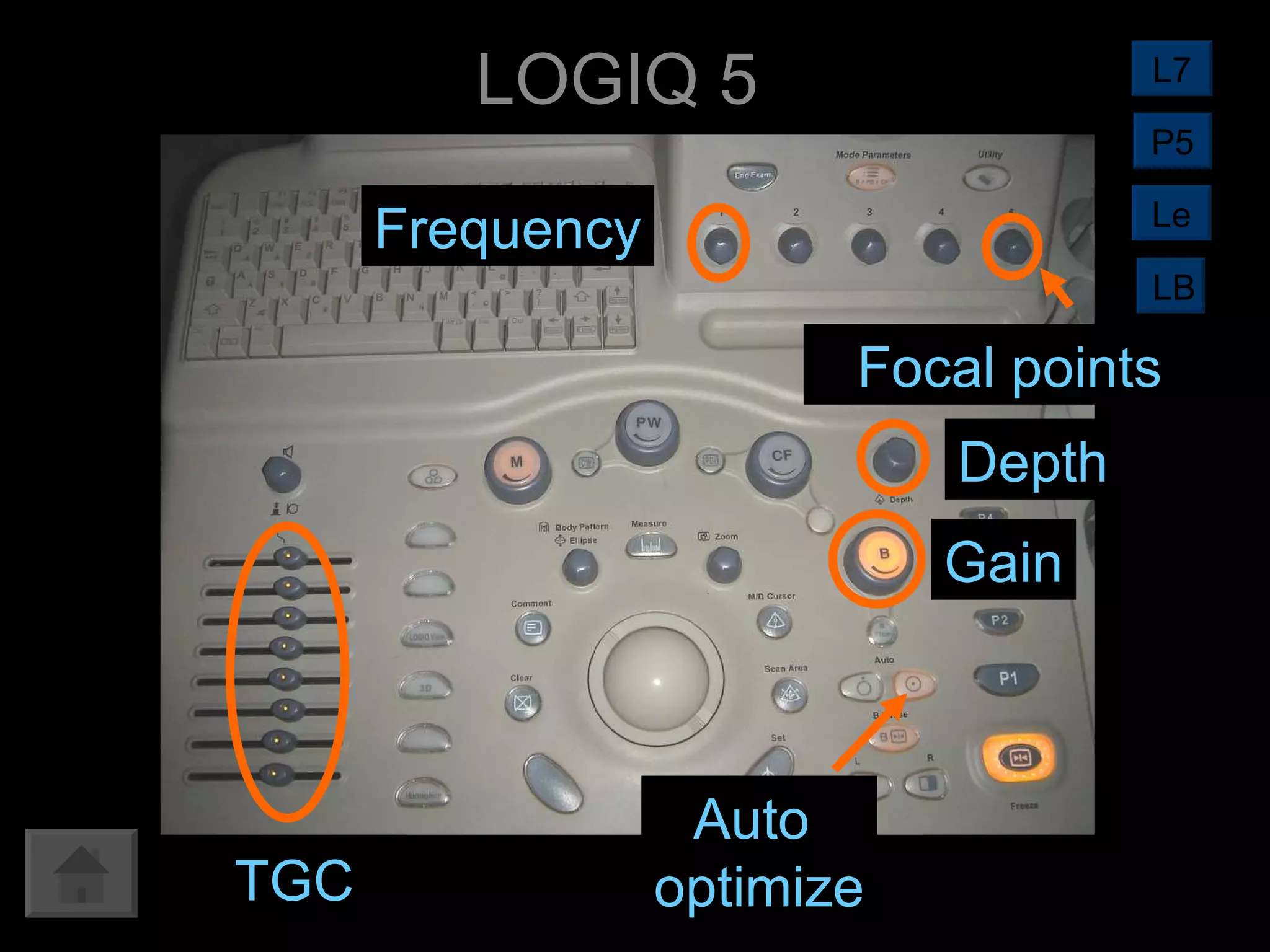
LOGIQ 5 TGC Auto  optimize Gain Depth Focal points Frequency L7 LB Le P5
LOGIQ P5 Auto optimize Gain Depth TGC Focal  points Frequency L7 L5 LB Le
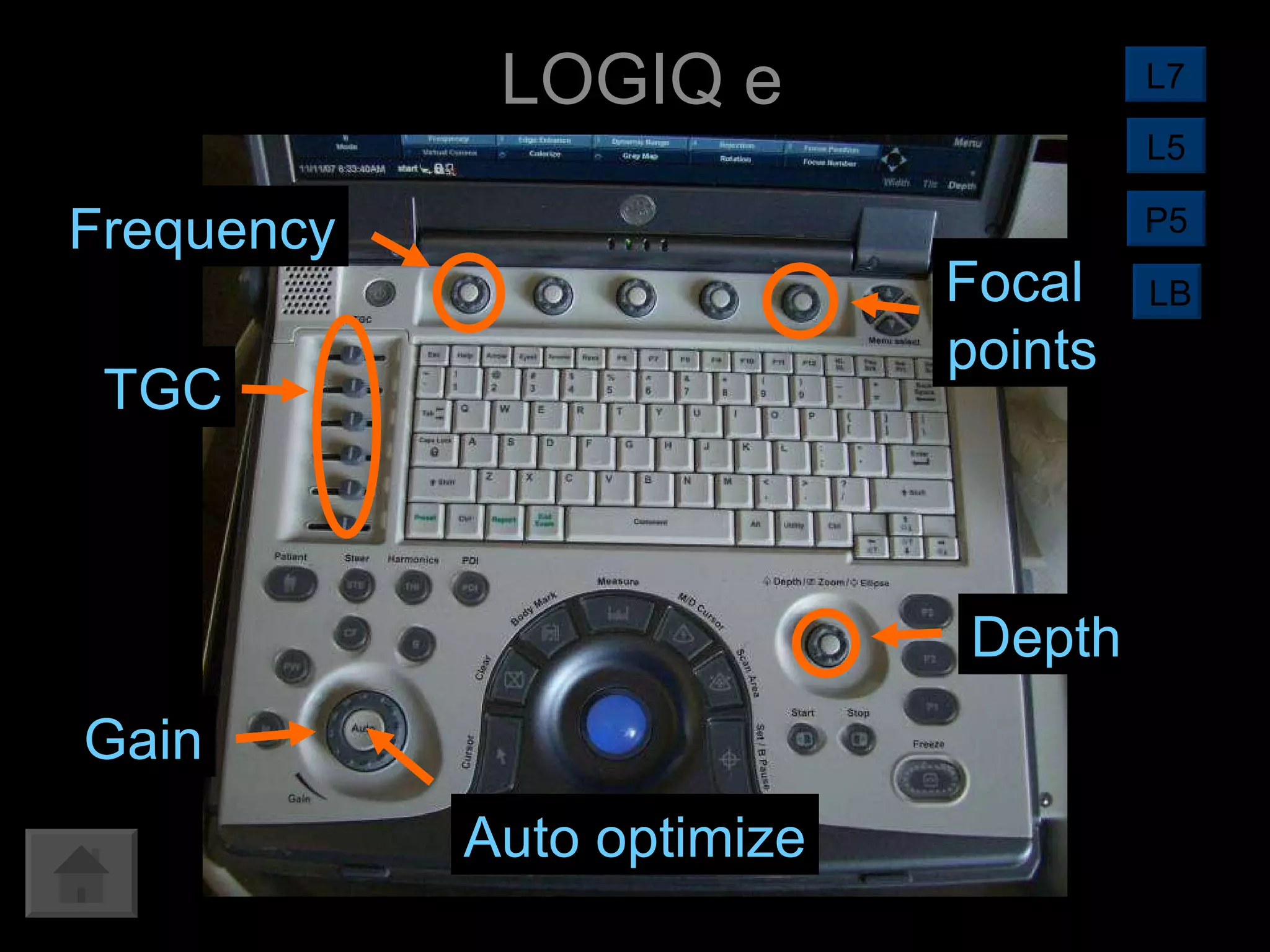
LOGIQ e Auto optimize Gain Depth TGC Focal  points Frequency L7 L5 LB P5
LOGIQ Book Auto optimize Gain Depth TGC Focal  points Frequency (toggle) L7 L5 Le P5
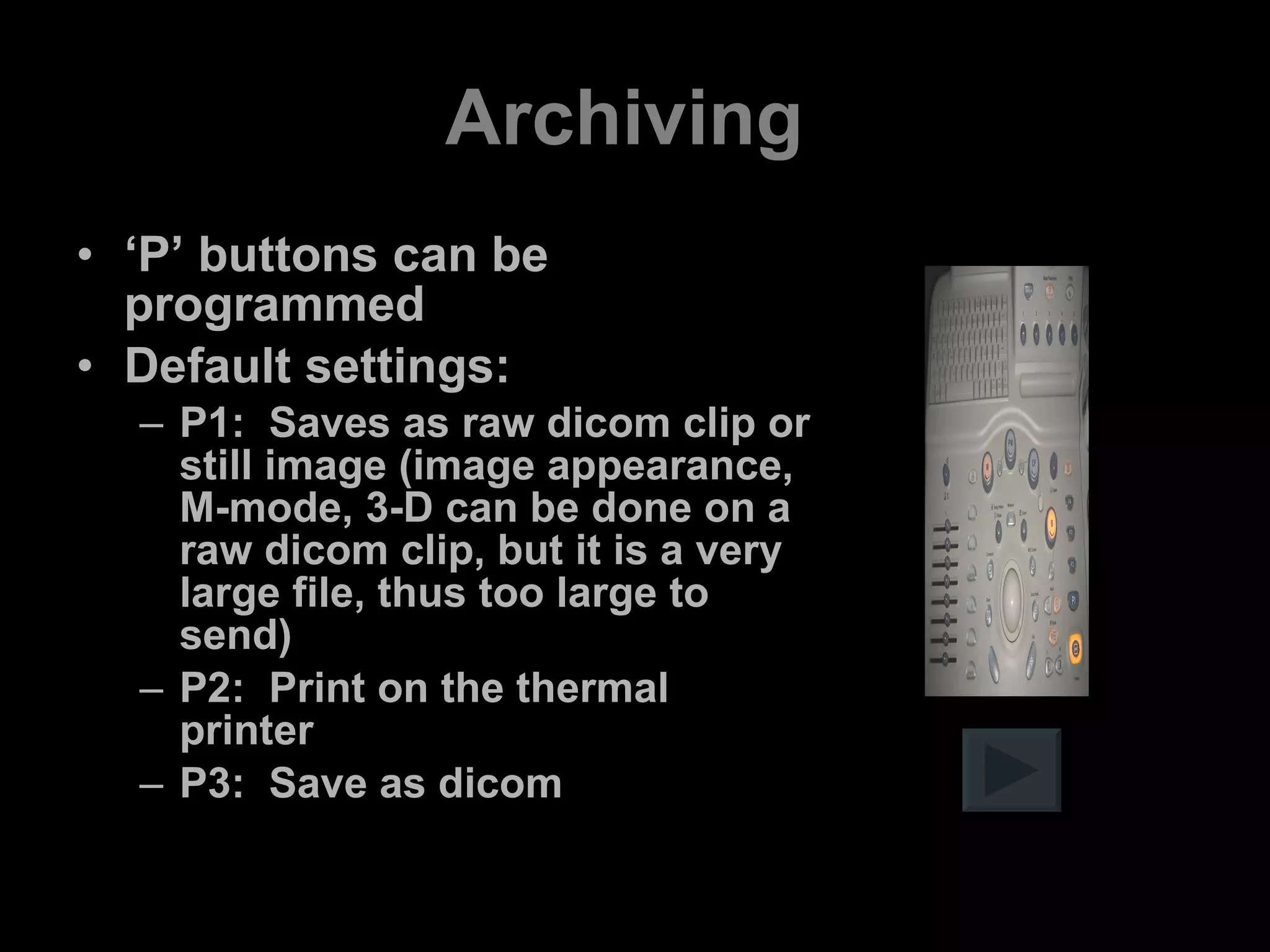
Archiving  ‘ P’ buttons can be programmed Default settings: P1:  Saves as raw dicom clip or still image (image appearance, M-mode, 3-D can be done on a raw dicom clip, but it is a very large file, thus too large to send) P2:  Print on the thermal printer P3:  Save as dicom
Archiving  Images can be transferred to a CD or USB flash drive.  Depending on GE model, media must be formatted first Press Utilities button  Select Connectivity, then removable media To eject media after saving images, press F3 Select the media to eject, then finalize
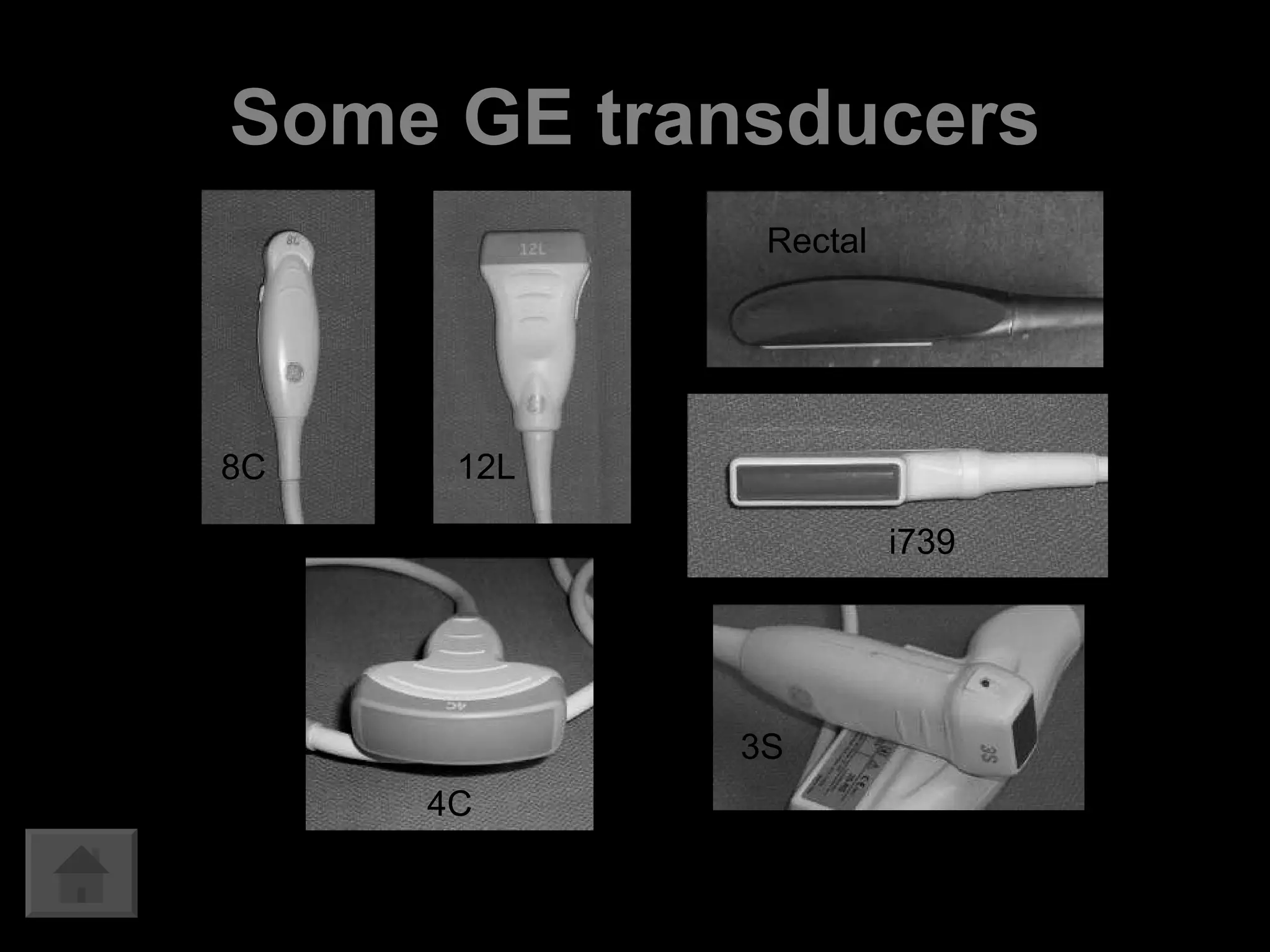
Some GE transducers 8C 12L 4C 3S Rectal i739
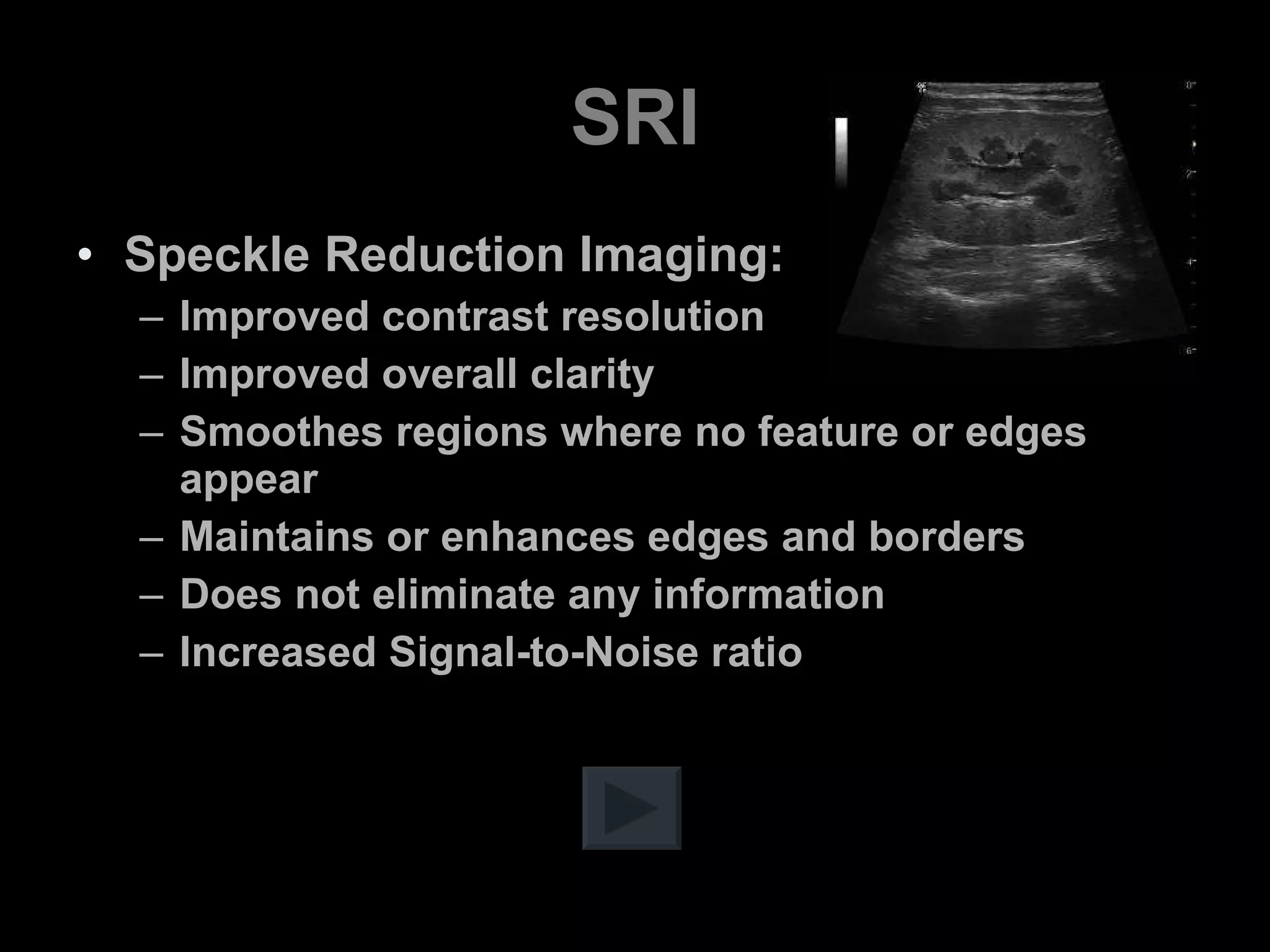
SRI Speckle Reduction Imaging: Improved contrast resolution Improved overall clarity Smoothes regions where no feature or edges appear Maintains or enhances edges and borders Does not eliminate any information Increased Signal-to-Noise ratio
SRI Always is on in the LOGIQ e Can adjust to have different levels in the LOGIQ 7 and LOGIQ P5 Level is set within the preset (Application) settings
Spatial compounding CrossXBeam  = GE’s spatial compounding Available on the LOGIQ e and LOGIQ P5 Interrogates tissue at multiple angles Introduces new tissue info Averages out speckle SRI and CrossXBeam together can have complimentary and additive effects
CrossXBeam Perpendicular angle of insonation generates higher signal Images generated with compounding have more angles that are perpendicular to structures CrossXBeam OFF CrossXBeam ON
CrossXBeam Improved border definition Improved contrast resolution Reduced angle dependence  Reduced speckle and noise Increased visualization of biopsy needles Can reduce helpful artifact  Can reduce frame rate LOGIQ e LOGIQ P5
CrossXBeam:  P5 Press L and R buttons simultaneously to see side-by-side display of CrossXBeam on and CrossXBeam off Press X Beam to turn on
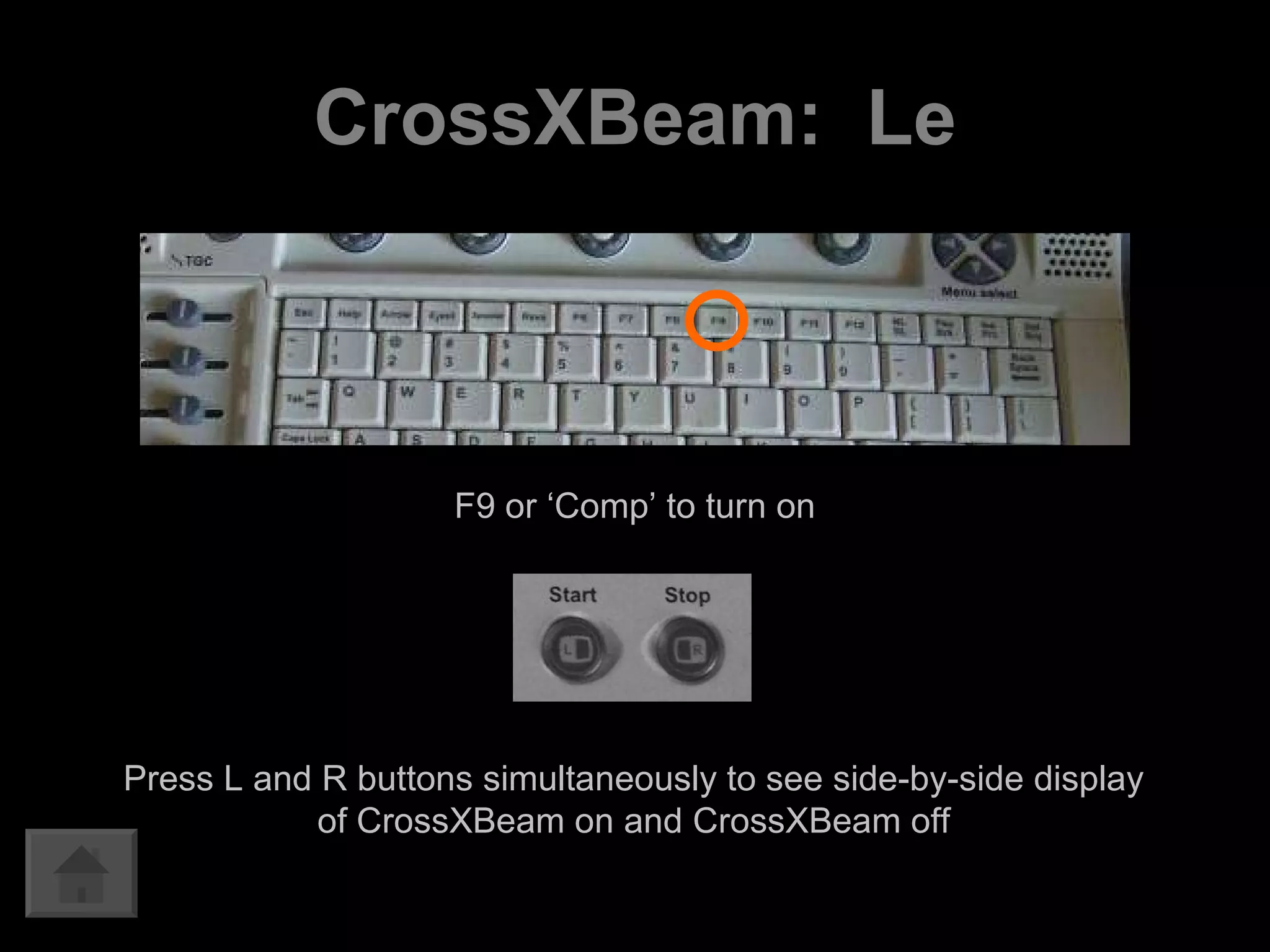
CrossXBeam:  Le F9 or ‘Comp’ to turn on Press L and R buttons simultaneously to see side-by-side display of CrossXBeam on and CrossXBeam off
Harmonics (THI) Display is from echos of a frequency different from the transmitted frequency (i.e. 2x transmitted frequency) Reduced artifact Improved axial and lateral resolution Better margin definition and increased contrast
Harmonics (THI) Press L and R buttons simultaneously to see side-by-side display of harmonics on and harmonics off Press THI or Harmonics button to turn on
3-D Volume imaging Volume vs. area affected can be assessed Appears more ‘life-like’ Infinite viewing planes May approximate CT or MRI imaging Scan parallel* or sweep (fan) Angle of imaging less operator dependent LOGIQ e LOGIQ P5
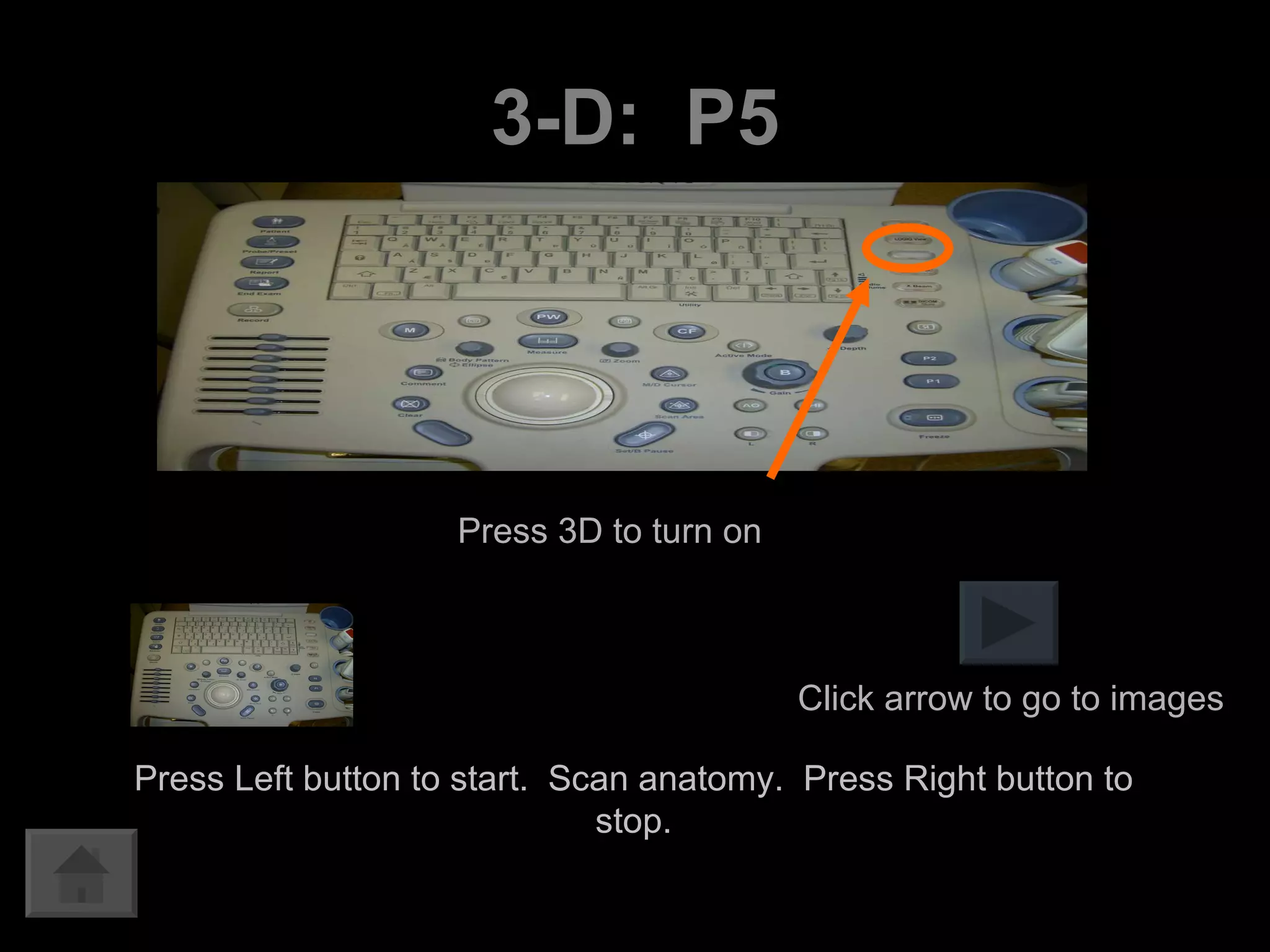
3-D:  P5 Press Left button to start.  Scan anatomy.  Press Right button to stop. Press 3D to turn on Click arrow to go to images
3-D:  Le Press F7 to turn on Press Left button to start.  Scan anatomy.  Press Right button to stop. Click arrow to go to images
3-D Use set button to alternate hand and rotate tools Drag image to corner
3-D Rotate image Use set button to alternate hand and rotate tools
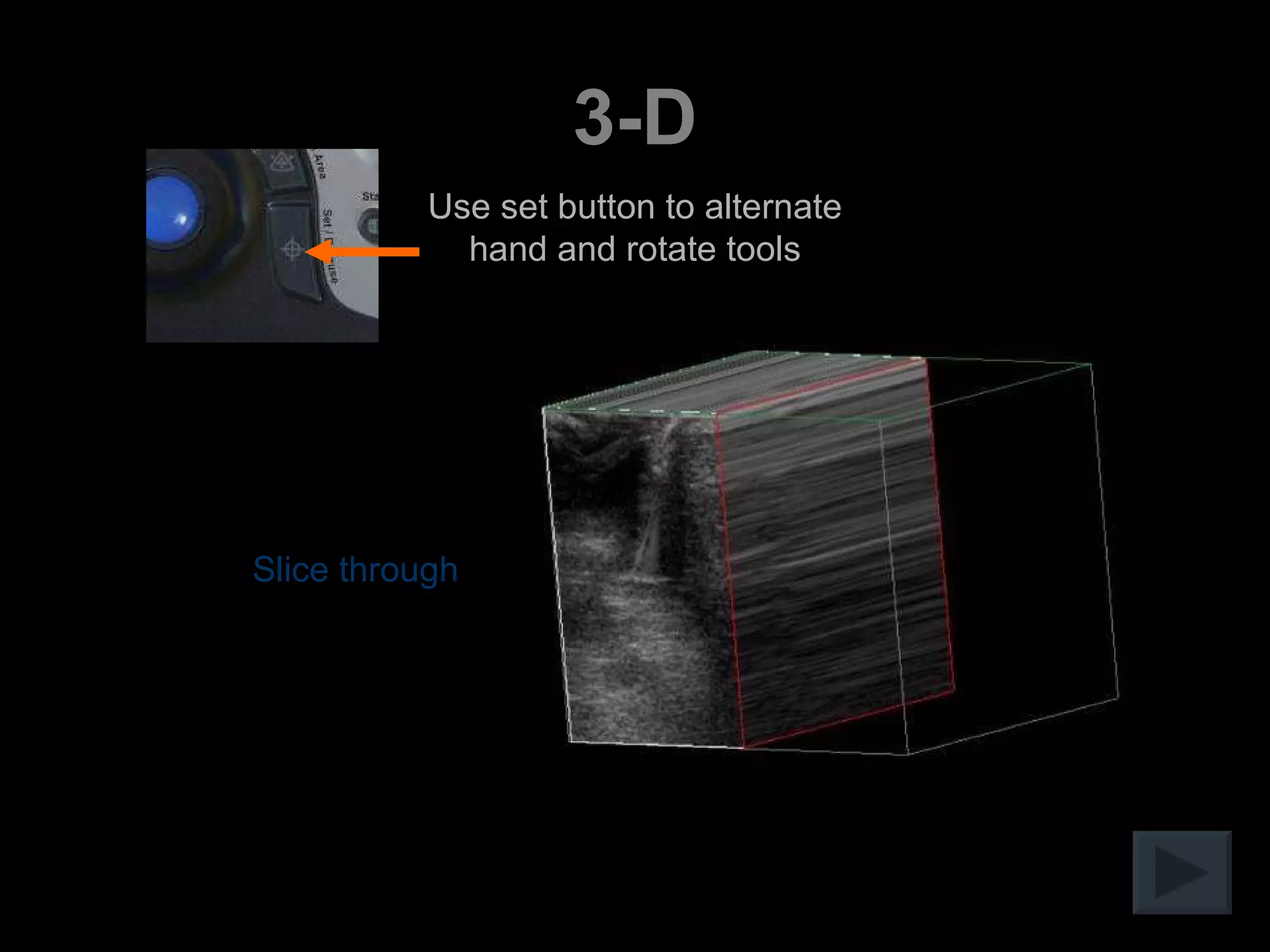
3-D Slice through Use set button to alternate hand and rotate tools
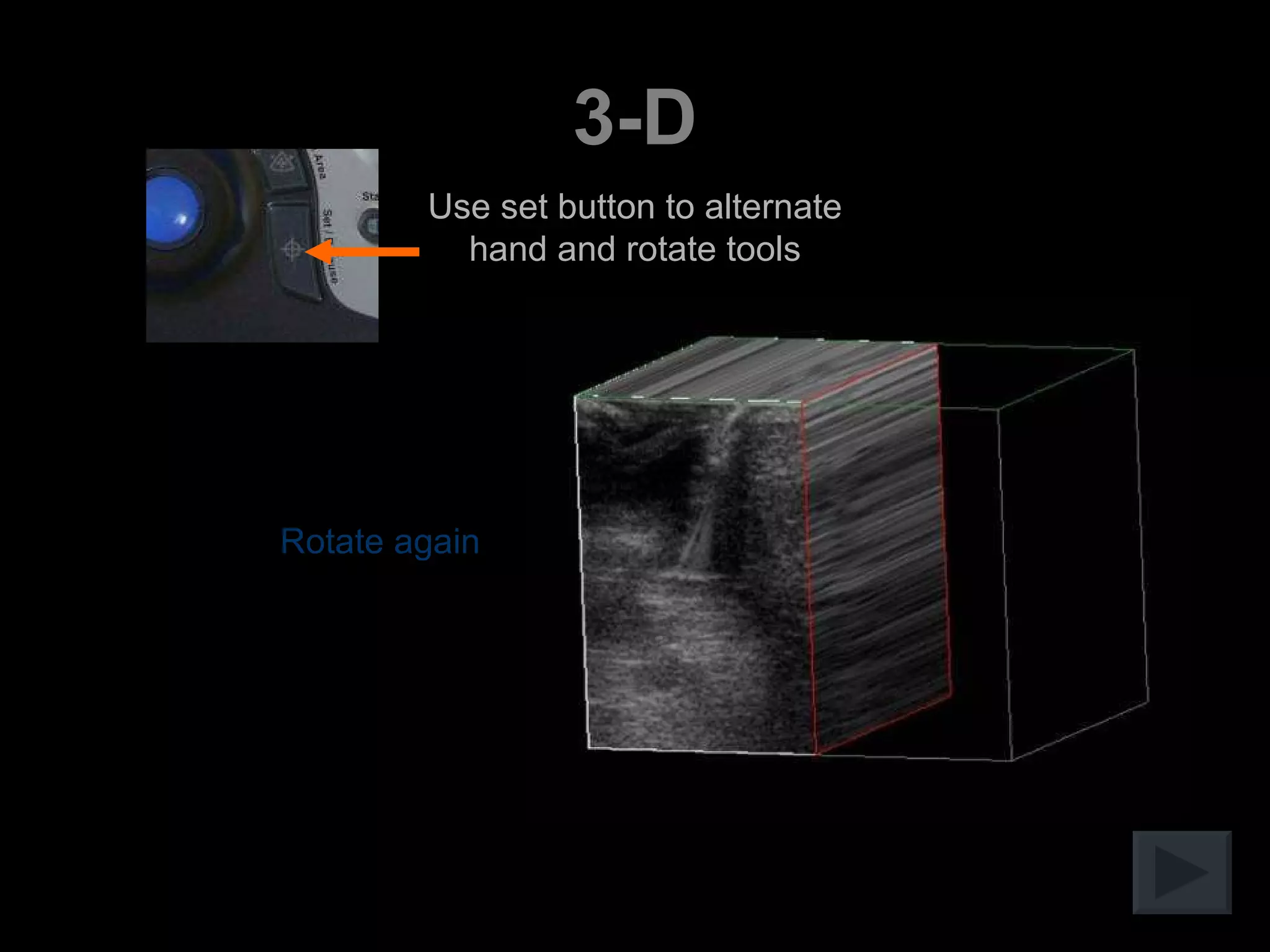
3-D Rotate again Use set button to alternate hand and rotate tools
3-D Slice through another plane Use set button to alternate hand and rotate tools
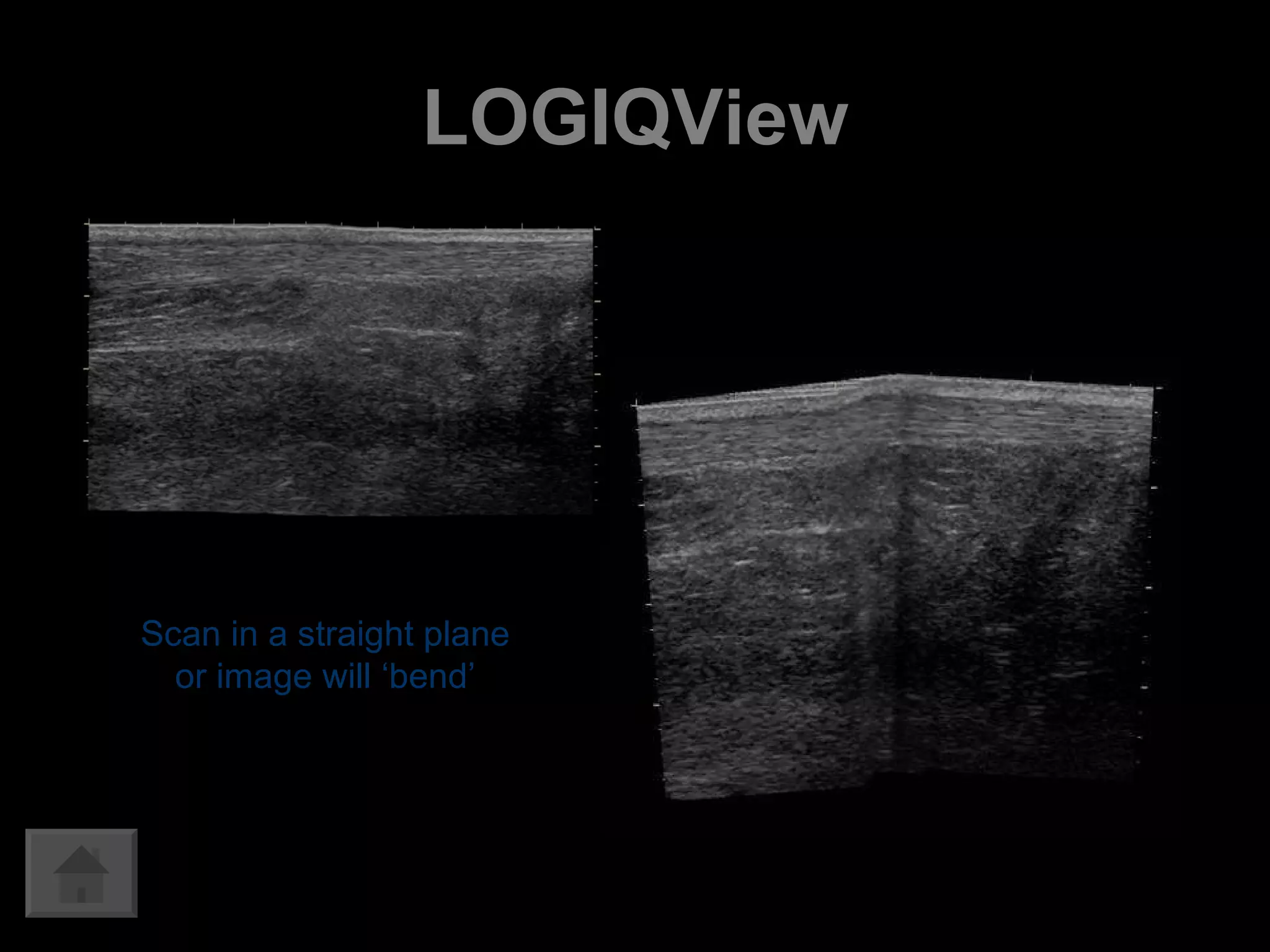
LOGIQView Extended field of view Better demonstration of anatomical relationships Ability to measure large structures LOGIQ e LOGIQ P5
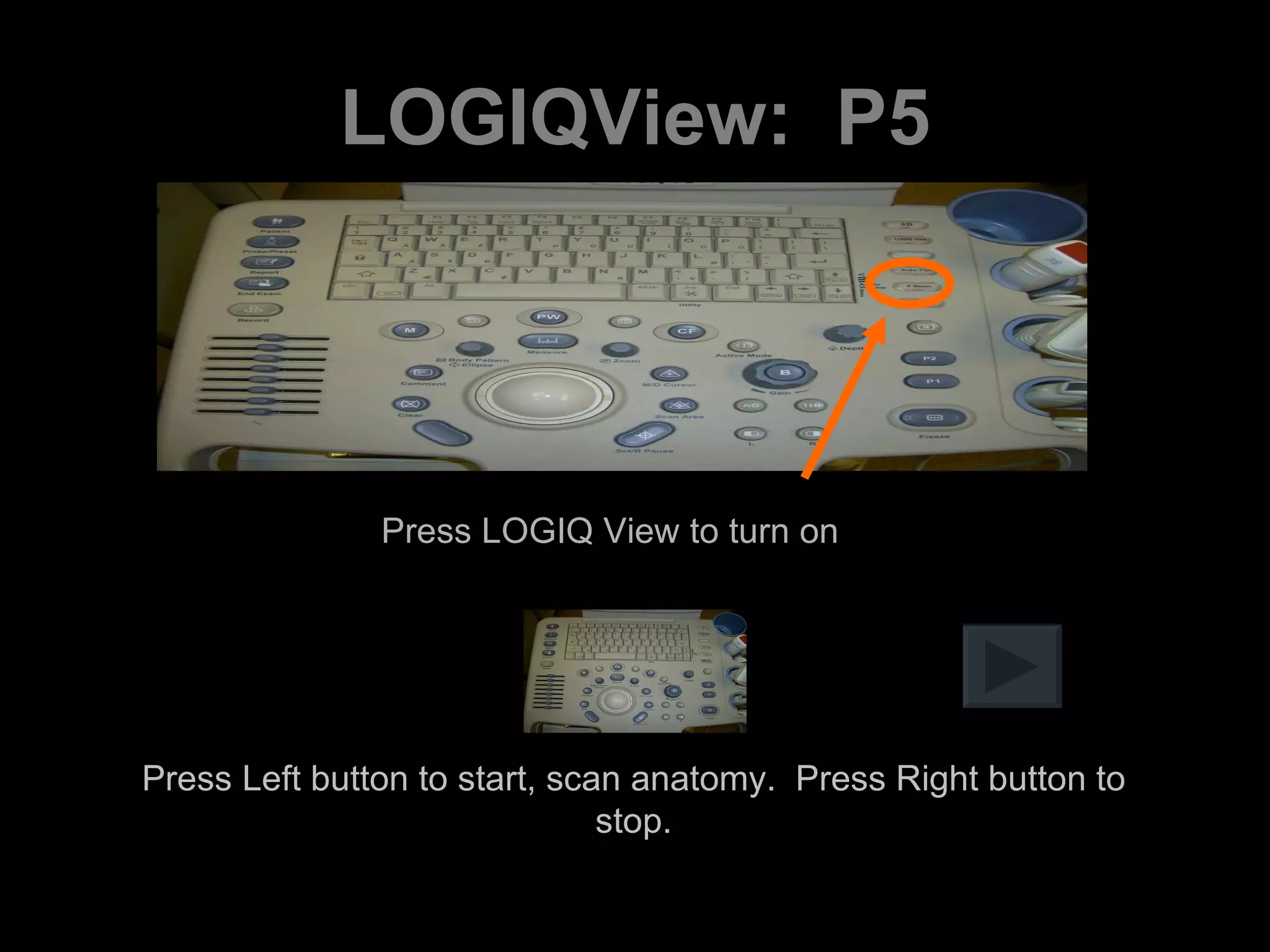
LOGIQView:  P5 Press LOGIQ View to turn on Press Left button to start, scan anatomy.  Press Right button to stop.
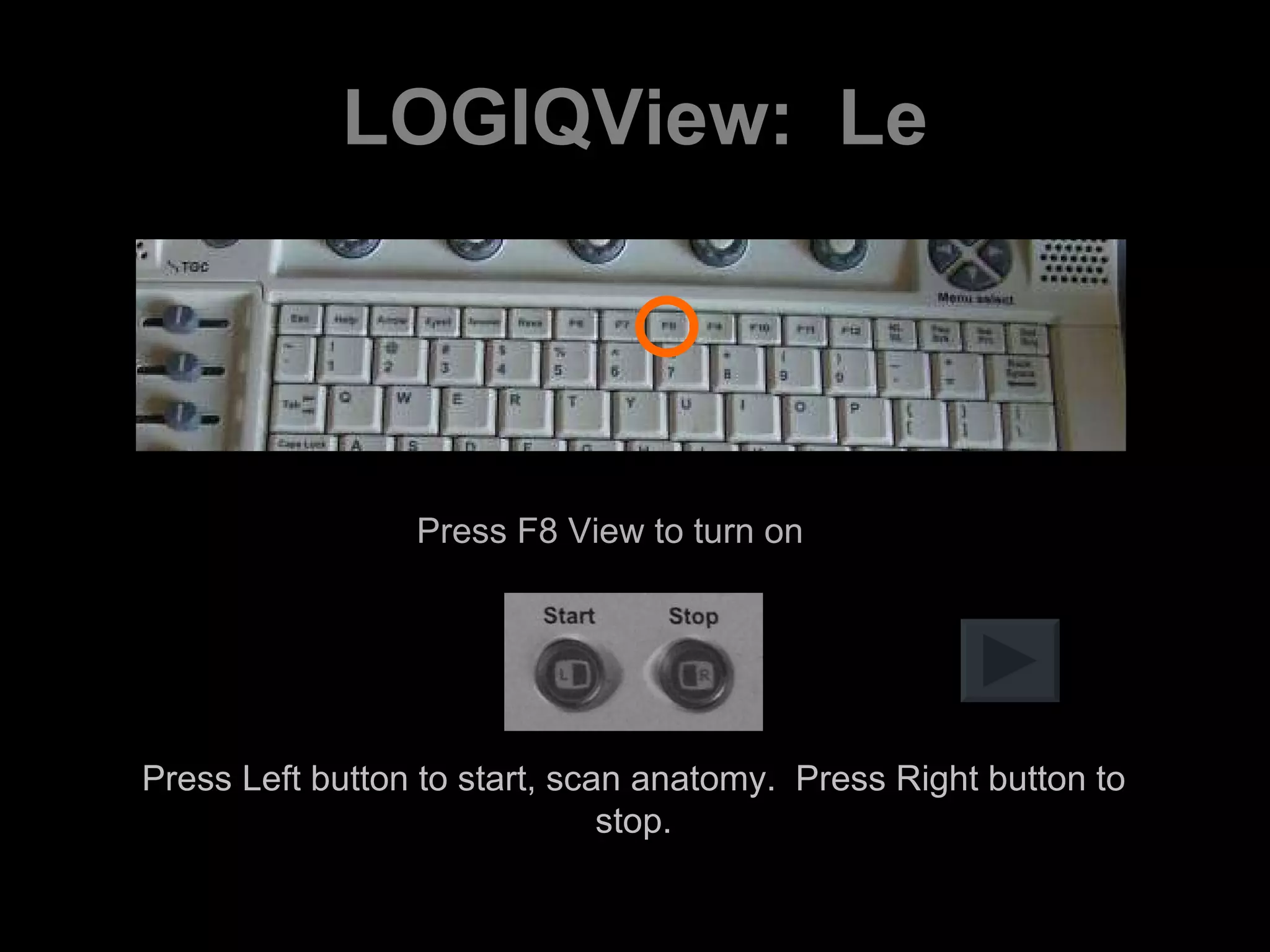
LOGIQView:  Le Press F8 View to turn on Press Left button to start, scan anatomy.  Press Right button to stop.
LOGIQView Scan in a straight plane or image will ‘bend’
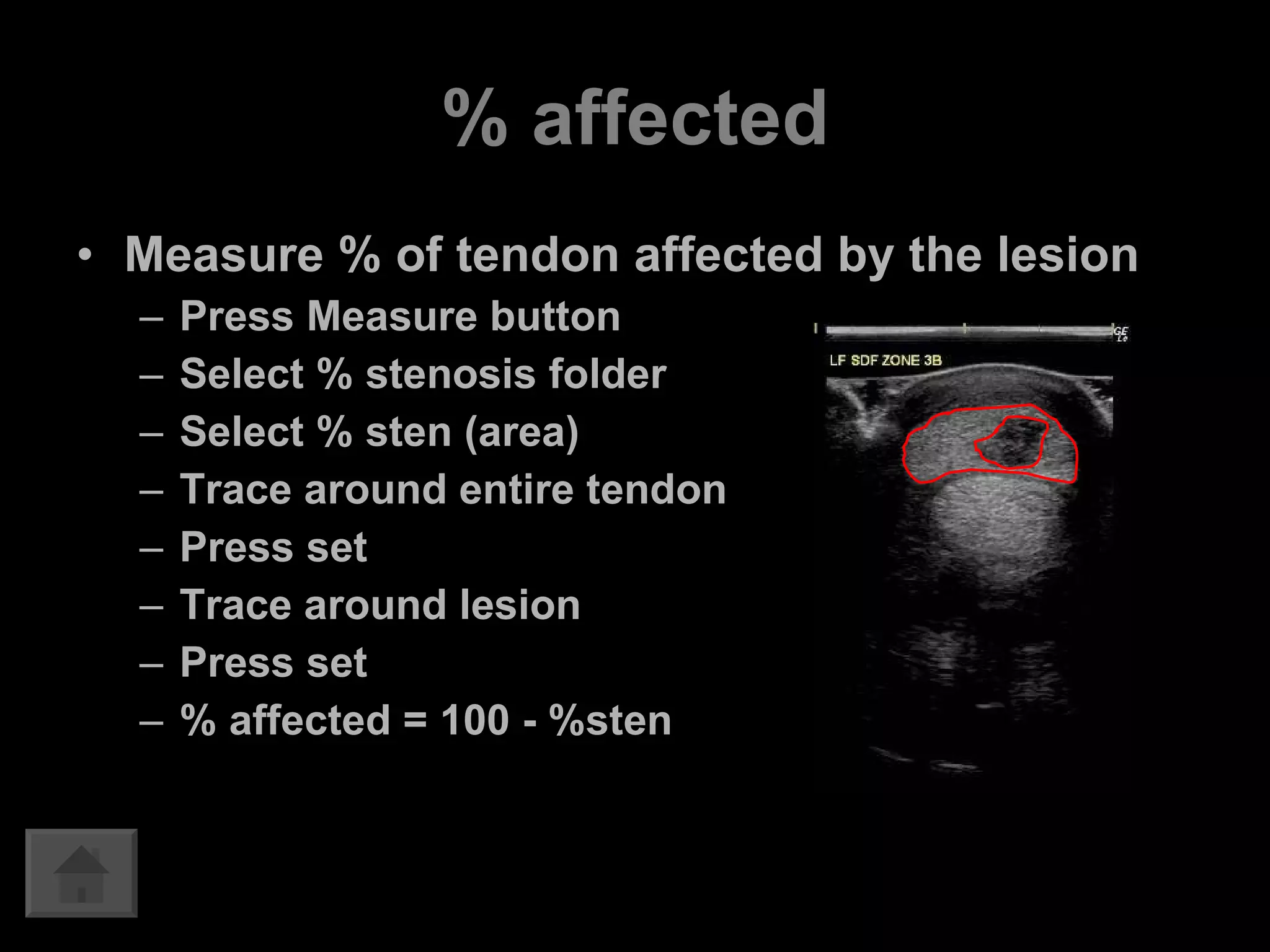
% affected Measure % of tendon affected by the lesion Press Measure button Select % stenosis folder Select % sten (area) Trace around entire tendon Press set Trace around lesion Press set % affected = 100 - %sten

Knobology 01 2010 (1)

  • 1.
    Ultrasound machine knobologyCopyright © 2010 Academy of Veterinary Imaging
  • 2.
    Ultrasound machine knobology…In other words, what the heck do all of those knobs and buttons do, and how can adjusting them affect image quality?!?!
  • 3.
    Image optimization Presets,depth, frequency, auto-optimize, focal points, gain/TGC Features Archiving, transducers, SRI, compounding, harmonics, 3-D, LOGIQView, Doppler GE ultrasound
  • 4.
    GE ultrasound LOGIQ7 LOGIQ Book Go to: Image optimization: Presets Depth Frequency Auto-optimize Focal points Gain/TGC LOGIQ e LOGIQ 5 Archiving Transducers SRI CrossXBeam Harmonics 3-D LOGIQView % affected GE features: LOGIQ P5 In this presentation, click on the Home button as pictured here to return to this page
  • 5.
    Image optimization Imagequality is comprised of many things During an ultrasound exam, the ultrasound machine settings should be changed as needed to optimize image quality Understanding just a few of the knobs can accomplish this for most scans L7 L5 LB Le P5
  • 6.
    Presets Settings canbe saved as presets Viewed in Application or Preset screen Different presets for different transducers/structures/patient species/sizes The more ‘complicated’ machine settings are saved in presets, so these do not need to be adjusted during every scan L7 L5 LB P5 Le
  • 7.
    Adjust as neededthroughout scan Depth Optimal L7 L5 LB P5 Le
  • 8.
    Frequency High frequencyBetter resolution Less depth Lower frequency Lower resolution Better for depth L7 L5 LB P5 Le
  • 9.
    ‘ Personal preference’button. Adds more contrast…Whites are whiter, blacks are blacker Try on or off. Chose the setting that looks better to you. Auto optimize must be deselected then reselected for every new structure imaged. Auto optimize L7 L5 LB P5 Le
  • 10.
    Focal points Improvedresolution is seen where the focal points are. Place focal points at the region of interest. L7 L5 LB P5 Le
  • 11.
    Overall gain Amplificationof received signal TGC Time Gain Compensation Compensates for beam attenuation (loss of energy as it passes through tissue) Gain L7 L5 LB P5 Le
  • 12.
    LOGIQ 7 TGCAuto optimize Gain Depth Frequency Focal points (touch screen) L5 LB Le P5
  • 13.
    LOGIQ 5 TGCAuto optimize Gain Depth Focal points Frequency L7 LB Le P5
  • 14.
    LOGIQ P5 Autooptimize Gain Depth TGC Focal points Frequency L7 L5 LB Le
  • 15.
    LOGIQ e Autooptimize Gain Depth TGC Focal points Frequency L7 L5 LB P5
  • 16.
    LOGIQ Book Autooptimize Gain Depth TGC Focal points Frequency (toggle) L7 L5 Le P5
  • 17.
    Archiving ‘P’ buttons can be programmed Default settings: P1: Saves as raw dicom clip or still image (image appearance, M-mode, 3-D can be done on a raw dicom clip, but it is a very large file, thus too large to send) P2: Print on the thermal printer P3: Save as dicom
  • 18.
    Archiving Imagescan be transferred to a CD or USB flash drive. Depending on GE model, media must be formatted first Press Utilities button Select Connectivity, then removable media To eject media after saving images, press F3 Select the media to eject, then finalize
  • 19.
    Some GE transducers8C 12L 4C 3S Rectal i739
  • 20.
    SRI Speckle ReductionImaging: Improved contrast resolution Improved overall clarity Smoothes regions where no feature or edges appear Maintains or enhances edges and borders Does not eliminate any information Increased Signal-to-Noise ratio
  • 21.
    SRI Always ison in the LOGIQ e Can adjust to have different levels in the LOGIQ 7 and LOGIQ P5 Level is set within the preset (Application) settings
  • 22.
    Spatial compounding CrossXBeam = GE’s spatial compounding Available on the LOGIQ e and LOGIQ P5 Interrogates tissue at multiple angles Introduces new tissue info Averages out speckle SRI and CrossXBeam together can have complimentary and additive effects
  • 23.
    CrossXBeam Perpendicular angleof insonation generates higher signal Images generated with compounding have more angles that are perpendicular to structures CrossXBeam OFF CrossXBeam ON
  • 24.
    CrossXBeam Improved borderdefinition Improved contrast resolution Reduced angle dependence Reduced speckle and noise Increased visualization of biopsy needles Can reduce helpful artifact Can reduce frame rate LOGIQ e LOGIQ P5
  • 25.
    CrossXBeam: P5Press L and R buttons simultaneously to see side-by-side display of CrossXBeam on and CrossXBeam off Press X Beam to turn on
  • 26.
    CrossXBeam: LeF9 or ‘Comp’ to turn on Press L and R buttons simultaneously to see side-by-side display of CrossXBeam on and CrossXBeam off
  • 27.
    Harmonics (THI) Displayis from echos of a frequency different from the transmitted frequency (i.e. 2x transmitted frequency) Reduced artifact Improved axial and lateral resolution Better margin definition and increased contrast
  • 28.
    Harmonics (THI) PressL and R buttons simultaneously to see side-by-side display of harmonics on and harmonics off Press THI or Harmonics button to turn on
  • 29.
    3-D Volume imagingVolume vs. area affected can be assessed Appears more ‘life-like’ Infinite viewing planes May approximate CT or MRI imaging Scan parallel* or sweep (fan) Angle of imaging less operator dependent LOGIQ e LOGIQ P5
  • 30.
    3-D: P5Press Left button to start. Scan anatomy. Press Right button to stop. Press 3D to turn on Click arrow to go to images
  • 31.
    3-D: LePress F7 to turn on Press Left button to start. Scan anatomy. Press Right button to stop. Click arrow to go to images
  • 32.
    3-D Use setbutton to alternate hand and rotate tools Drag image to corner
  • 33.
    3-D Rotate imageUse set button to alternate hand and rotate tools
  • 34.
    3-D Slice throughUse set button to alternate hand and rotate tools
  • 35.
    3-D Rotate againUse set button to alternate hand and rotate tools
  • 36.
    3-D Slice throughanother plane Use set button to alternate hand and rotate tools
  • 37.
    LOGIQView Extended fieldof view Better demonstration of anatomical relationships Ability to measure large structures LOGIQ e LOGIQ P5
  • 38.
    LOGIQView: P5Press LOGIQ View to turn on Press Left button to start, scan anatomy. Press Right button to stop.
  • 39.
    LOGIQView: LePress F8 View to turn on Press Left button to start, scan anatomy. Press Right button to stop.
  • 40.
    LOGIQView Scan ina straight plane or image will ‘bend’
  • 41.
    % affected Measure% of tendon affected by the lesion Press Measure button Select % stenosis folder Select % sten (area) Trace around entire tendon Press set Trace around lesion Press set % affected = 100 - %sten

Editor's Notes

  • #23 Borders are similar for each steering angle, noise and speckle position change for each frame; successive frames average out noise and smooth borders