HTML
We’ll learn …
• What HTML is
• What tags are
• What a basic web page look like
• What 3 HTML tags are required
• What HTML comments look like
• How to title your web page
• How to format the text on your web page
• How to create headings on your web page
• How to add pictures to your page
HTML
• Hyper Text Markup Language
– Markup your text document
– The markup is the tag
– Hyper text means you can jump from place to
place
• Programming language of the internet
TAGS
• Look like this: < >
• Come in pairs (every begin tag must have an
end tag)
– <html> </html> PAIRS
• TAGS do not show up on a web page
• There are 3 REQUIRED TAGS
– 1. <html> </html> ONLY ONE
– 2. <head> </head> ONLY ONE (maybe put a title in
here)
– 3. <body> </body> ONLY ONE (stuff that shows up)
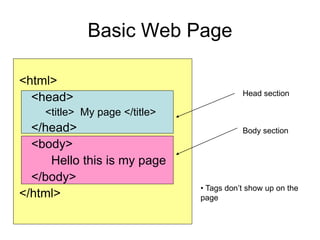
Basic Web Page
<html>
<head>
<title> My page </title>
</head>
<body>
Hello this is my page
</body>
</html>
Head section
Body section
• Tags don’t show up on the
page
Comments
• Explains what your code does, who wrote
it, when written.
• Can have them anywhere in your code
<!-- Here is my comment -- >
<!-- Written by Jill Hubbard, Sept 2009 -->
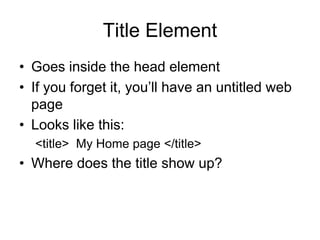
Title Element
• Goes inside the head element
• If you forget it, you’ll have an untitled web
page
• Looks like this:
<title> My Home page </title>
• Where does the title show up?
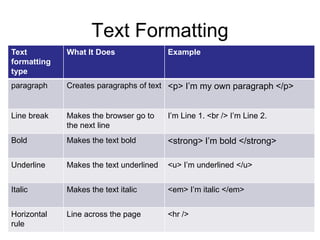
Text Formatting
Text
formatting
type
What It Does Example
paragraph Creates paragraphs of text <p> I’m my own paragraph </p>
Line break Makes the browser go to
the next line
I’m Line 1. <br /> I’m Line 2.
Bold Makes the text bold <strong> I’m bold </strong>
Underline Makes the text underlined <u> I’m underlined </u>
Italic Makes the text italic <em> I’m italic </em>
Horizontal
rule
Line across the page <hr />
Headings
• Creates different sections for your page
• <h#> </h#> replace # with an actual
number (1-6)
• 1 is the BIGGEST, 6 is the smallest
heading
• <h1> My heading </h1>
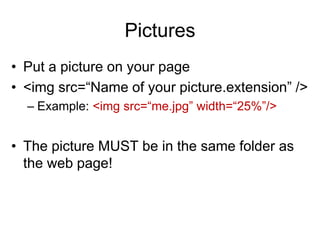
Pictures
• Put a picture on your page
• <img src=“Name of your picture.extension” />
– Example: <img src=“me.jpg” width=“25%”/>
• The picture MUST be in the same folder as
the web page!
Let’s Use this stuff- Getting Started!
• Create a new folder called “Kite Webpage” on your student drive in
your DIT folder
• Open up Notepad++ and save the file to your Kite Webpage folder.
Name It: Kites.html
• Add all the required tags (What are they again?)

HTML Lesson 1

  • 1.
  • 2.
    We’ll learn … •What HTML is • What tags are • What a basic web page look like • What 3 HTML tags are required • What HTML comments look like • How to title your web page • How to format the text on your web page • How to create headings on your web page • How to add pictures to your page
  • 3.
    HTML • Hyper TextMarkup Language – Markup your text document – The markup is the tag – Hyper text means you can jump from place to place • Programming language of the internet
  • 4.
    TAGS • Look likethis: < > • Come in pairs (every begin tag must have an end tag) – <html> </html> PAIRS • TAGS do not show up on a web page • There are 3 REQUIRED TAGS – 1. <html> </html> ONLY ONE – 2. <head> </head> ONLY ONE (maybe put a title in here) – 3. <body> </body> ONLY ONE (stuff that shows up)
  • 5.
    Basic Web Page <html> <head> <title>My page </title> </head> <body> Hello this is my page </body> </html> Head section Body section • Tags don’t show up on the page
  • 6.
    Comments • Explains whatyour code does, who wrote it, when written. • Can have them anywhere in your code <!-- Here is my comment -- > <!-- Written by Jill Hubbard, Sept 2009 -->
  • 7.
    Title Element • Goesinside the head element • If you forget it, you’ll have an untitled web page • Looks like this: <title> My Home page </title> • Where does the title show up?
  • 8.
    Text Formatting Text formatting type What ItDoes Example paragraph Creates paragraphs of text <p> I’m my own paragraph </p> Line break Makes the browser go to the next line I’m Line 1. <br /> I’m Line 2. Bold Makes the text bold <strong> I’m bold </strong> Underline Makes the text underlined <u> I’m underlined </u> Italic Makes the text italic <em> I’m italic </em> Horizontal rule Line across the page <hr />
  • 9.
    Headings • Creates differentsections for your page • <h#> </h#> replace # with an actual number (1-6) • 1 is the BIGGEST, 6 is the smallest heading • <h1> My heading </h1>
  • 10.
    Pictures • Put apicture on your page • <img src=“Name of your picture.extension” /> – Example: <img src=“me.jpg” width=“25%”/> • The picture MUST be in the same folder as the web page!
  • 11.
    Let’s Use thisstuff- Getting Started! • Create a new folder called “Kite Webpage” on your student drive in your DIT folder • Open up Notepad++ and save the file to your Kite Webpage folder. Name It: Kites.html • Add all the required tags (What are they again?)