A Ready Reference Instructional Guide
 JSTOR works with the academic community in order to connect
students and faculty with vital content, and is available for
independent researchers
 Founded in 1995, JSTOR is a digital library which provides access to
millions of academic journal articles, books, and primary sources.
 While predominantly subscription based, JSTOR has made some of
their older public domain content freely available.
 JSTOR provides numerous fee options based on your institution’s
type and classification as well as the content you want access to.
 Individual research subscriptions are also available.
1
 24/7 access, both on-site and
remotely
 Allows publishers to
contribute their content
 DRM-free content for easy
PDF downloads
 Enhanced research tools such
as Text Analyzer
 Text mining support
 Usage reporting
 Digital preservation through
Portico
 JSTOR Labs which aims to
create useful tools for
researchers, teachers and
students
2
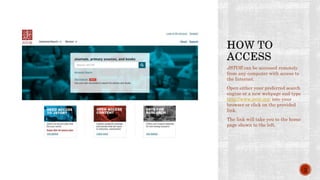
JSTOR can be accessed remotely
from any computer with access to
the Internet.
Open either your preferred search
engine or a new webpage and type
http://www.jstor.org/ into your
browser or click on the provided
link.
The link will take you to the home
page shown to the left.
3
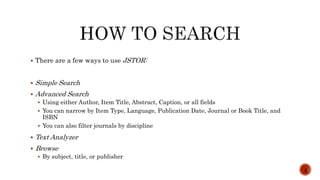
 There are a few ways to use JSTOR:
 Simple Search
 Advanced Search
 Using either Author, Item Title, Abstract, Caption, or all fields
 You can narrow by Item Type, Language, Publication Date, Journal or Book Title, and
ISBN
 You can also filter journals by discipline
 Text Analyzer
 Browse
 By subject, title, or publisher
4
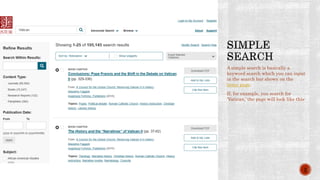
A simple search is basically a
keyword search which you can input
in the search bar shown on the
home page.
If, for example, you search for
‘Vatican,’ the page will look like this:
5
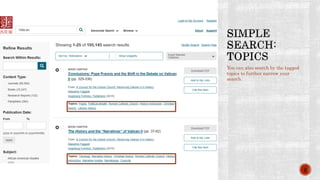
You can also search by the tagged
topics to further narrow your
search.
6
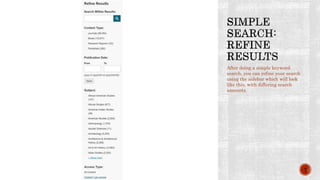
After doing a simple keyword
search, you can refine your search
using the sidebar which will look
like this, with differing search
amounts.
7
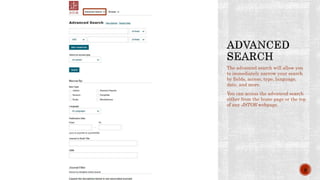
The advanced search will allow you
to immediately narrow your search
by fields, access, type, language,
date, and more.
You can access the advanced search
either from the home page or the top
of any JSTOR webpage.
8
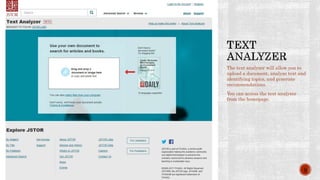
The text analyzer will allow you to
upload a document, analyze text and
identifying topics, and generate
recommendations.
You can access the text analyzer
from the homepage.
9
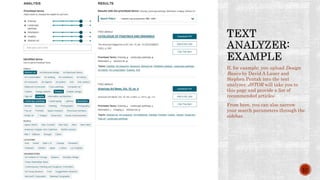
If, for example, you upload Design
Basics by David A Lauer and
Stephen Pentak into the text
analyzer, JSTOR will take you to
this page and provide a list of
recommended articles:
From here, you can also narrow
your search parameters through the
sidebar.
10
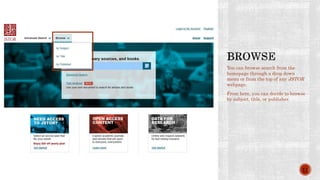
You can browse search from the
homepage through a drop down
menu or from the top of any JSTOR
webpage.
From here, you can decide to browse
by subject, title, or publisher.
11
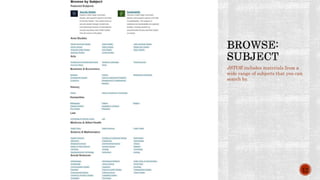
JSTOR includes materials from a
wide range of subjects that you can
search by.
12
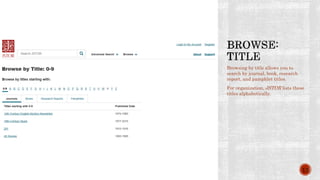
Browsing by title allows you to
search by journal, book, research
report, and pamphlet titles.
For organization, JSTOR lists these
titles alphabetically.
13
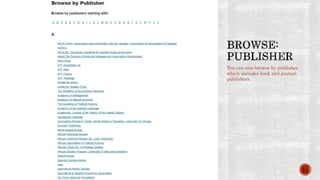
You can also browse by publisher
which includes book and journal
publishers.
14
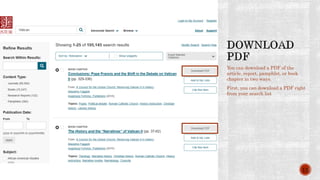
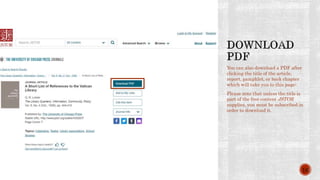
You can download a PDF of the
article, report, pamphlet, or book
chapter in two ways.
First, you can download a PDF right
from your search list
15
You can also download a PDF after
clicking the title of the article,
report, pamphlet, or book chapter
which will take you to this page:
Please note that unless the title is
part of the free content JSTOR
supplies, you must be subscribed in
order to download it.
16
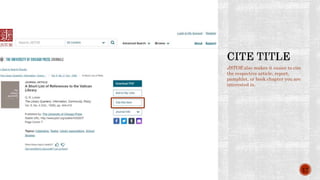
JSTOR also makes it easier to cite
the respective article, report,
pamphlet, or book chapter you are
interested in.
17
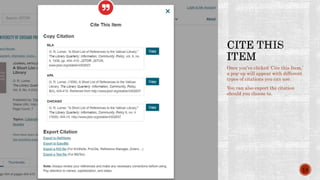
Once you’ve clicked ‘Cite this Item,’
a pop-up will appear with different
types of citations you can use.
You can also export the citation
should you choose to.
18
“JSTOR.” Ithaka Harbors, Inc. (2018). Accessed April
2018. http://www.jstor.org/.
19
If you have any questions about this resource or if something
has been left unclear, please feel free to contact me and it will be
my pleasure to assist you.
Ariel A. Medoff
4.30.2018
20

JSTOR: Instructional Presentation

  • 1.
    A Ready ReferenceInstructional Guide
  • 2.
     JSTOR workswith the academic community in order to connect students and faculty with vital content, and is available for independent researchers  Founded in 1995, JSTOR is a digital library which provides access to millions of academic journal articles, books, and primary sources.  While predominantly subscription based, JSTOR has made some of their older public domain content freely available.  JSTOR provides numerous fee options based on your institution’s type and classification as well as the content you want access to.  Individual research subscriptions are also available. 1
  • 3.
     24/7 access,both on-site and remotely  Allows publishers to contribute their content  DRM-free content for easy PDF downloads  Enhanced research tools such as Text Analyzer  Text mining support  Usage reporting  Digital preservation through Portico  JSTOR Labs which aims to create useful tools for researchers, teachers and students 2
  • 4.
    JSTOR can beaccessed remotely from any computer with access to the Internet. Open either your preferred search engine or a new webpage and type http://www.jstor.org/ into your browser or click on the provided link. The link will take you to the home page shown to the left. 3
  • 5.
     There area few ways to use JSTOR:  Simple Search  Advanced Search  Using either Author, Item Title, Abstract, Caption, or all fields  You can narrow by Item Type, Language, Publication Date, Journal or Book Title, and ISBN  You can also filter journals by discipline  Text Analyzer  Browse  By subject, title, or publisher 4
  • 6.
    A simple searchis basically a keyword search which you can input in the search bar shown on the home page. If, for example, you search for ‘Vatican,’ the page will look like this: 5
  • 7.
    You can alsosearch by the tagged topics to further narrow your search. 6
  • 8.
    After doing asimple keyword search, you can refine your search using the sidebar which will look like this, with differing search amounts. 7
  • 9.
    The advanced searchwill allow you to immediately narrow your search by fields, access, type, language, date, and more. You can access the advanced search either from the home page or the top of any JSTOR webpage. 8
  • 10.
    The text analyzerwill allow you to upload a document, analyze text and identifying topics, and generate recommendations. You can access the text analyzer from the homepage. 9
  • 11.
    If, for example,you upload Design Basics by David A Lauer and Stephen Pentak into the text analyzer, JSTOR will take you to this page and provide a list of recommended articles: From here, you can also narrow your search parameters through the sidebar. 10
  • 12.
    You can browsesearch from the homepage through a drop down menu or from the top of any JSTOR webpage. From here, you can decide to browse by subject, title, or publisher. 11
  • 13.
    JSTOR includes materialsfrom a wide range of subjects that you can search by. 12
  • 14.
    Browsing by titleallows you to search by journal, book, research report, and pamphlet titles. For organization, JSTOR lists these titles alphabetically. 13
  • 15.
    You can alsobrowse by publisher which includes book and journal publishers. 14
  • 16.
    You can downloada PDF of the article, report, pamphlet, or book chapter in two ways. First, you can download a PDF right from your search list 15
  • 17.
    You can alsodownload a PDF after clicking the title of the article, report, pamphlet, or book chapter which will take you to this page: Please note that unless the title is part of the free content JSTOR supplies, you must be subscribed in order to download it. 16
  • 18.
    JSTOR also makesit easier to cite the respective article, report, pamphlet, or book chapter you are interested in. 17
  • 19.
    Once you’ve clicked‘Cite this Item,’ a pop-up will appear with different types of citations you can use. You can also export the citation should you choose to. 18
  • 20.
    “JSTOR.” Ithaka Harbors,Inc. (2018). Accessed April 2018. http://www.jstor.org/. 19
  • 21.
    If you haveany questions about this resource or if something has been left unclear, please feel free to contact me and it will be my pleasure to assist you. Ariel A. Medoff 4.30.2018 20