

322432 WEB DESIGN TECHNOLOGY 
by Yaowaluck Promdee, Sumonta Kasemvilas 
jQuery Mobile 
1
WHAT’S JQUERY MOBLIE? 
2 
http://gdj.gdj.netdna-cdn.com/wp-content/uploads/2011/12/jquery-mobile-framework1.jpg
WHAT IS JQUERY MOBILE? 
3 
jQuery Mobile is a touch-optimized web 
framework for creating mobile web applications. 
jQuery Mobile works on all popular smartphones 
and tablets 
jQuery Mobile is built on top of the jQuery library, which 
makes it easy to learn if you already know jQuery. 
It uses HTML5, CSS3, JavaScript and AJAX to accomplish 
its work for laying out pages with minimal scripting.
JQUERY 
MOBILE INSTALL 
4 
Adding jQuery Mobile to Your Web Pages 
There are two ways to add jQuery Mobile to your 
web site. You can: 
 Link to a jQuery Mobile library stored at a CDN 
(recommended) 
 Link to a jQuery Mobile library stored at your 
computer
GETTING STARTED 
5 
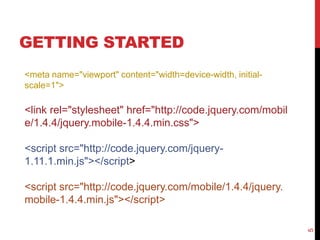
<meta name="viewport" content="width=device-width, initial-scale= 
1"> 
<link rel="stylesheet" href="http://code.jquery.com/mobil 
e/1.4.4/jquery.mobile-1.4.4.min.css"> 
<script src="http://code.jquery.com/jquery- 
1.11.1.min.js"></script> 
<script src="http://code.jquery.com/mobile/1.4.4/jquery. 
mobile-1.4.4.min.js"></script>
JQUERY CSS CLASSES 
6 
 Global Classes 
 Button Classes 
 Icon Classes 
 Theme Classes 
 Grid Classes 
http://www.w3schools.com/jquerymobile/jquerymobile_ref_css.asp
EXAMPLE1 
7 
<div data-role="page" id="pageone"> 
<div data-role="header"> 
<h1>Welcome To My Homepage</h1> 
</div> 
<div data-role="main" class="ui-content"> 
<p>Welcome!</p> 
</div> 
<div data-role="footer"> 
<h1>Footer Text</h1> 
</div> 
</div>
JQUERY MOBILE 
BUTTON 
<input type="button" value="Button"> 
<button class="ui-btn">Button</button> 
<a href="#anylink" class="ui-btn">Button</a> 
8
EXAMPLE2 
9 
<div data-role="main" class="ui-content"> 
<p>Normal / Default button:</p> 
<a href="#pagetwo" class="ui-btn">Go to Page Two</a> 
<p>Inline button:</p> 
<a href="#pagetwo" class="ui-btn ui-btn-inline">Go to Page Two</a> </div> 
<div data-role="footer"> <h1>Footer Text</h1> </div></div> 
<div data-role="page" id="pagetwo"> 
<div data-role="header"> <h1>Welcome To My Homepage</h1></div> 
<div data-role="main" class="ui-content"><p>Inline buttons (will appear side 
by side as long as the screen lets it):</p> 
<a href="#pageone" class="ui-btn ui-btn-inline">Go to Page One</a> 
<a href="#pageone" class="ui-btn ui-btn-inline">Go to Page One</a> </div>
10 
EXAMPLE2(CONT.)
EXAMPLE 3 (TRY TO DO IT) 
11 
<h1>Welcome To My Homepage</h1> 
<div data-role="navbar"> 
<ul> 
<li><a href="#">Home</a></li> 
<li><a href="#">Page Two</a></li> 
<li><a href="#">Search</a></li> 
</ul> 
</div>
12
EXAMPLE 
13

jQuery Mobile

  • 1.
    322432 WEB DESIGNTECHNOLOGY by Yaowaluck Promdee, Sumonta Kasemvilas jQuery Mobile 1
  • 2.
    WHAT’S JQUERY MOBLIE? 2 http://gdj.gdj.netdna-cdn.com/wp-content/uploads/2011/12/jquery-mobile-framework1.jpg
  • 3.
    WHAT IS JQUERYMOBILE? 3 jQuery Mobile is a touch-optimized web framework for creating mobile web applications. jQuery Mobile works on all popular smartphones and tablets jQuery Mobile is built on top of the jQuery library, which makes it easy to learn if you already know jQuery. It uses HTML5, CSS3, JavaScript and AJAX to accomplish its work for laying out pages with minimal scripting.
  • 4.
    JQUERY MOBILE INSTALL 4 Adding jQuery Mobile to Your Web Pages There are two ways to add jQuery Mobile to your web site. You can:  Link to a jQuery Mobile library stored at a CDN (recommended)  Link to a jQuery Mobile library stored at your computer
  • 5.
    GETTING STARTED 5 <meta name="viewport" content="width=device-width, initial-scale= 1"> <link rel="stylesheet" href="http://code.jquery.com/mobil e/1.4.4/jquery.mobile-1.4.4.min.css"> <script src="http://code.jquery.com/jquery- 1.11.1.min.js"></script> <script src="http://code.jquery.com/mobile/1.4.4/jquery. mobile-1.4.4.min.js"></script>
  • 6.
    JQUERY CSS CLASSES 6  Global Classes  Button Classes  Icon Classes  Theme Classes  Grid Classes http://www.w3schools.com/jquerymobile/jquerymobile_ref_css.asp
  • 7.
    EXAMPLE1 7 <divdata-role="page" id="pageone"> <div data-role="header"> <h1>Welcome To My Homepage</h1> </div> <div data-role="main" class="ui-content"> <p>Welcome!</p> </div> <div data-role="footer"> <h1>Footer Text</h1> </div> </div>
  • 8.
    JQUERY MOBILE BUTTON <input type="button" value="Button"> <button class="ui-btn">Button</button> <a href="#anylink" class="ui-btn">Button</a> 8
  • 9.
    EXAMPLE2 9 <divdata-role="main" class="ui-content"> <p>Normal / Default button:</p> <a href="#pagetwo" class="ui-btn">Go to Page Two</a> <p>Inline button:</p> <a href="#pagetwo" class="ui-btn ui-btn-inline">Go to Page Two</a> </div> <div data-role="footer"> <h1>Footer Text</h1> </div></div> <div data-role="page" id="pagetwo"> <div data-role="header"> <h1>Welcome To My Homepage</h1></div> <div data-role="main" class="ui-content"><p>Inline buttons (will appear side by side as long as the screen lets it):</p> <a href="#pageone" class="ui-btn ui-btn-inline">Go to Page One</a> <a href="#pageone" class="ui-btn ui-btn-inline">Go to Page One</a> <a href="#pageone" class="ui-btn ui-btn-inline">Go to Page One</a> </div>
  • 10.
  • 11.
    EXAMPLE 3 (TRYTO DO IT) 11 <h1>Welcome To My Homepage</h1> <div data-role="navbar"> <ul> <li><a href="#">Home</a></li> <li><a href="#">Page Two</a></li> <li><a href="#">Search</a></li> </ul> </div>
  • 12.
  • 13.

Editor's Notes

  • #3 jQuery Mobile is a framework for creating mobile web applications. jQuery Mobile works on all popular smartphones and tablets. jQuery Mobile uses HTML5 & CSS3 for laying out pages with minimal scripting.
  • #4 http://www.w3schools.com/jquerymobile/jquerymobile_intro.asp
  • #8 <!DOCTYPE html> <html> <head> <!-- Include meta tag to ensure proper rendering and touch zooming --> <meta name="viewport" content="width=device-width, initial-scale=1"> <!-- Include jQuery Mobile stylesheets --> <link rel="stylesheet" href="http://code.jquery.com/mobile/1.4.4/jquery.mobile-1.4.4.min.css"> <!-- Include the jQuery library --> <script src="http://code.jquery.com/jquery-1.11.1.min.js"></script> <!-- Include the jQuery Mobile library --> <script src="http://code.jquery.com/mobile/1.4.4/jquery.mobile-1.4.4.min.js"></script> </head> <body> <div data-role="page" id="pageone"> <div data-role="header"> <h1>Welcome To My Homepage</h1> </div> <div data-role="main" class="ui-content"> <p>Welcome!</p> </div> <div data-role="footer"> <h1>Footer Text</h1> </div> </div> </body> </html>
  • #10 <!DOCTYPE html> <html> <head> <meta name="viewport" content="width=device-width, initial-scale=1"> <link rel="stylesheet" href="http://code.jquery.com/mobile/1.4.4/jquery.mobile-1.4.4.min.css"> <script src="http://code.jquery.com/jquery-1.11.1.min.js"></script> <script src="http://code.jquery.com/mobile/1.4.4/jquery.mobile-1.4.4.min.js"></script> </head> <body> <div data-role="main" class="ui-content"> <p>Normal / Default button:</p> <a href="#pagetwo" class="ui-btn">Go to Page Two</a> <p>Inline button:</p> <a href="#pagetwo" class="ui-btn ui-btn-inline">Go to Page Two</a> </div> <div data-role="footer"> <h1>Footer Text</h1> </div> </div> <div data-role="page" id="pagetwo"> <div data-role="header"> <h1>Welcome To My Homepage</h1> </div> <div data-role="main" class="ui-content"> <p>Inline buttons (will appear side by side as long as the screen lets it):</p> <a href="#pageone" class="ui-btn ui-btn-inline">Go to Page One</a> <a href="#pageone" class="ui-btn ui-btn-inline">Go to Page One</a> <a href="#pageone" class="ui-btn ui-btn-inline">Go to Page One</a> </div> </body> </html>
  • #11 The data-role="page" is the page displayed in the browser The data-role="header" creates a toolbar at the top of the page (often used for title or search buttons) The data-role="main" defines the content of the page, like text, images, buttons, forms, etc. The "ui-content" class adds extra padding and margin inside the page content The data-role="footer" creates a toolbar at the bottom of the page Inside these containers, you can add any HTML elements - paragraphs, images, headings, lists, etc.
  • #12 By default, links inside a navigation bar will automatically turn into a button (no need for class="ui-btn" or data-role="button"). The buttons are, by default, as wide as its content. Use an unordered list to divide the buttons equally: 1 button takes 100% of the width, 2 buttons share 50% each, 3 buttons 33,3%, etc. However, if you specify more than 5 buttons in the navbar, it will wrap to multiple lines (see "More Examples" below). <!DOCTYPE html> <html> <head> <meta name="viewport" content="width=device-width, initial-scale=1"> <link rel="stylesheet" href="http://code.jquery.com/mobile/1.4.4/jquery.mobile-1.4.4.min.css"> <script src="http://code.jquery.com/jquery-1.11.1.min.js"></script> <script src="http://code.jquery.com/mobile/1.4.4/jquery.mobile-1.4.4.min.js"></script> </head> <body> <div data-role="page" id="pageone"> <div data-role="header"> <h1>Welcome To My Homepage</h1> <div data-role="navbar"> <ul> <li><a href="#">Home</a></li> <li><a href="#">Page Two</a></li> <li><a href="#">Search</a></li> </ul> </div> </div> <div data-role="main" class="ui-content"> <p>My Content..</p> </div> <div data-role="footer"> <h1>My Footer</h1> </div> </div> </body> </html>