











jqmdesigner.appspot.com
What is jQuery Mobile?
jQuery + Mobile
jQuery Mobile
=
So simple, we all know it!
But, What is jQuery Mobile? Can we eat it?
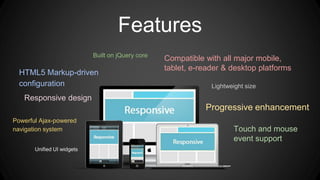
Features
Powerful Ajax-powered
navigation system
HTML5 Markup-driven
configuration
Built on jQuery core
Responsive design
Progressive enhancement
Touch and mouse
event support
Lightweight size
Compatible with all major mobile,
tablet, e-reader & desktop platforms
Unified UI widgets
However, I heard that jQuery Mobile is fat
jQuery Mobile Version 1.4.3
Significantly improved performance than ever
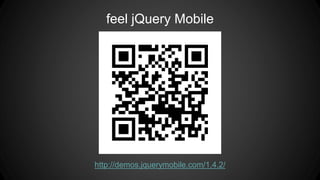
feel jQuery Mobile
http://demos.jquerymobile.com/1.4.2/
Let’s Learn jQuery Mobile!
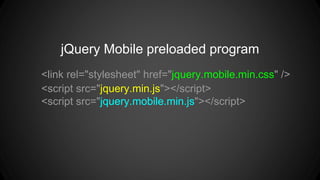
<link rel="stylesheet" href="jquery.mobile.min.css" />
<script src="jquery.min.js"></script>
<script src="jquery.mobile.min.js"></script>
jQuery Mobile preloaded program
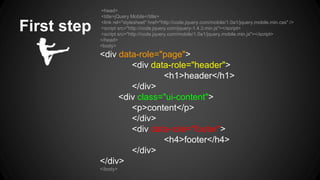
<head>
<title>jQuery Mobile</title>
<link rel="stylesheet" href="http://code.jquery.com/mobile/1.0a1/jquery.mobile.min.css" />
<script src="http://code.jquery.com/jquery-1.4.3.min.js"></script>
<script src="http://code.jquery.com/mobile/1.0a1/jquery.mobile.min.js"></script>
</head>
<body>
<div data-role="page">
<div data-role="header">
<h1>header</h1>
</div>
<div class="ui-content">
<p>content</p>
</div>
<div data-role="footer">
<h4>footer</h4>
</div>
</div>
</body>
First step
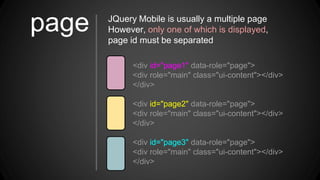
<div id="page1" data-role="page">
<div role="main" class="ui-content"></div>
</div>
<div id="page2" data-role="page">
<div role="main" class="ui-content"></div>
</div>
<div id="page3" data-role="page">
<div role="main" class="ui-content"></div>
</div>
JQuery Mobile is usually a multiple page
However, only one of which is displayed,
page id must be separated
page
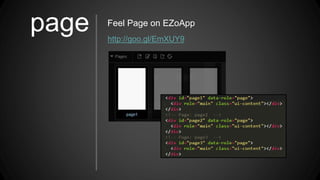
page Feel Page on EZoApp
http://goo.gl/EmXUY9
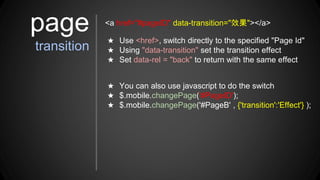
ā˜… Use <href>, switch directly to the specified "Page Id"
ā˜… Using "data-transition" set the transition effect
ā˜… Set data-rel = "back" to return with the same effect
page
transition
<a href="#pageID" data-transition="ꕈꞜ"></a>
ā˜… You can also use javascript to do the switch
ā˜… $.mobile.changePage('#PageID');
ā˜… $.mobile.changePage('#PageB' , {'transition':'Effect'} );
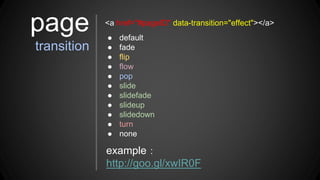
ā— default
ā— fade
ā— flip
ā— flow
ā— pop
ā— slide
ā— slidefade
ā— slideup
ā— slidedown
ā— turn
ā— none
<a href="#pageID" data-transition="effect"></a>
example:
http://goo.gl/xwIR0F
page
transition
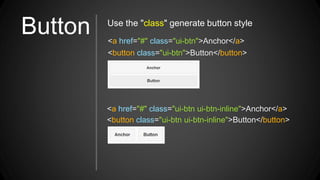
Button <a href="#" class="ui-btn">Anchor</a>
<button class="ui-btn">Button</button>
Use the "class" generate button style
<a href="#" class="ui-btn ui-btn-inline">Anchor</a>
<button class="ui-btn ui-btn-inline">Button</button>
Button
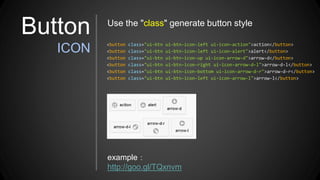
ICON <button class="ui-btn ui-btn-icon-left ui-icon-action">action</button>
<button class="ui-btn ui-btn-icon-left ui-icon-alert">alert</button>
<button class="ui-btn ui-btn-icon-up ui-icon-arrow-d">arrow-d</button>
<button class="ui-btn ui-btn-icon-right ui-icon-arrow-d-l">arrow-d-l</button>
<button class="ui-btn ui-btn-icon-bottom ui-icon-arrow-d-r">arrow-d-r</button>
<button class="ui-btn ui-btn-icon-left ui-icon-arrow-l">arrow-l</button>
example:
http://goo.gl/TQxnvm
Use the "class" generate button style
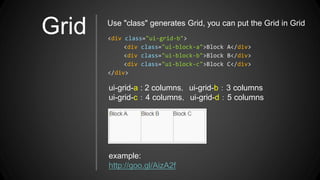
Grid <div class="ui-grid-b">
<div class="ui-block-a">Block A</div>
<div class="ui-block-b">Block B</div>
<div class="ui-block-c">Block C</div>
</div>
Use "class" generates Grid, you can put the Grid in Grid
ui-grid-a : 2 columns,ui-grid-b:3 columns
ui-grid-c:4 columns,ui-grid-d:5 columns
example:
http://goo.gl/AizA2f
Input
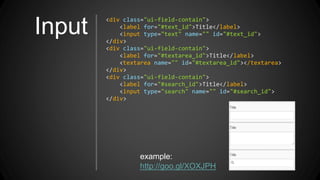
<div class="ui-field-contain">
<label for="#text_id">Title</label>
<input type="text" name="" id="#text_id">
</div>
<div class="ui-field-contain">
<label for="#textarea_id">Title</label>
<textarea name="" id="#textarea_id"></textarea>
</div>
<div class="ui-field-contain">
<label for="#search_id">Title</label>
<input type="search" name="" id="#search_id">
</div>
example:
http://goo.gl/XOXJPH
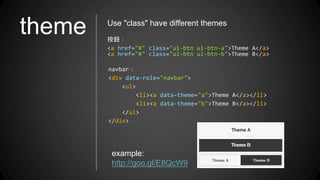
theme Use "class" have different themes
ęŒ‰éˆ•ļ¼š
<a href="#" class="ui-btn ui-btn-a">Theme A</a>
<a href="#" class="ui-btn ui-btn-b">Theme B</a>
navbar:
<div data-role="navbar">
<ul>
<li><a data-theme="a">Theme A</a></li>
<li><a data-theme="b">Theme B</a></li>
</ul>
</div>
example:
http://goo.gl/E8QcW9
Some examples of the above,
we see that "class" is very important
You must think
Of course !
The second is also very important: data attribute
2
What is data attribute?
The data-* attributes is used to store custom data private to
the page or application.
The data-* attributes gives us the ability to embed custom
data attributes on all HTML elements.
jQuery Mobile data attribute
http://api.jquerymobile.com/data-attribute/
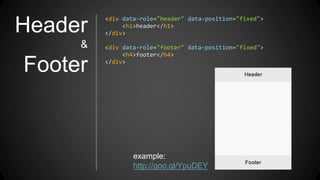
Header
&
Footer
<div data-role="header" data-position="fixed">
<h1>header</h1>
</div>
<div data-role="footer" data-position="fixed">
<h4>footer</h4>
</div>
example:
http://goo.gl/YpuDEY
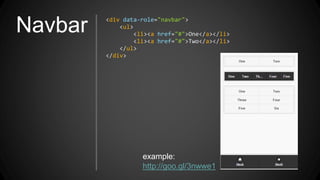
Navbar <div data-role="navbar">
<ul>
<li><a href="#">One</a></li>
<li><a href="#">Two</a></li>
</ul>
</div>
example:
http://goo.gl/3nwwe1
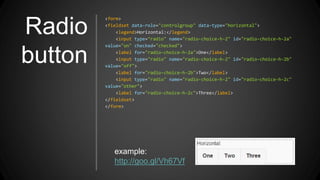
Radio
button
<form>
<fieldset data-role="controlgroup" data-type="horizontal">
<legend>Horizontal:</legend>
<input type="radio" name="radio-choice-h-2" id="radio-choice-h-2a"
value="on" checked="checked">
<label for="radio-choice-h-2a">One</label>
<input type="radio" name="radio-choice-h-2" id="radio-choice-h-2b"
value="off">
<label for="radio-choice-h-2b">Two</label>
<input type="radio" name="radio-choice-h-2" id="radio-choice-h-2c"
value="other">
<label for="radio-choice-h-2c">Three</label>
</fieldset>
</form>
example:
http://goo.gl/Vh67Vf
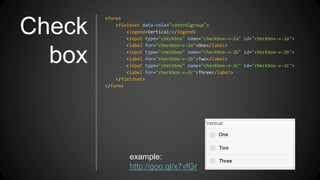
Check
box
<form>
<fieldset data-role="controlgroup">
<legend>Vertical:</legend>
<input type="checkbox" name="checkbox-v-2a" id="checkbox-v-2a">
<label for="checkbox-v-2a">One</label>
<input type="checkbox" name="checkbox-v-2b" id="checkbox-v-2b">
<label for="checkbox-v-2b">Two</label>
<input type="checkbox" name="checkbox-v-2c" id="checkbox-v-2c">
<label for="checkbox-v-2c">Three</label>
</fieldset>
</form>
example:
http://goo.gl/x7vfGr
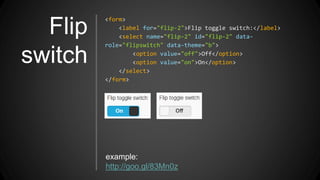
Flip
switch
<form>
<label for="flip-2">Flip toggle switch:</label>
<select name="flip-2" id="flip-2" data-
role="flipswitch" data-theme="b">
<option value="off">Off</option>
<option value="on">On</option>
</select>
</form>
example:
http://goo.gl/83Mn0z
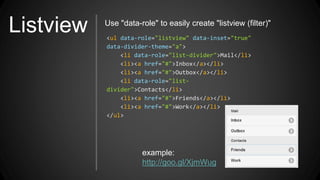
Listview <ul data-role="listview" data-inset="true"
data-divider-theme="a">
<li data-role="list-divider">Mail</li>
<li><a href="#">Inbox</a></li>
<li><a href="#">Outbox</a></li>
<li data-role="list-
divider">Contacts</li>
<li><a href="#">Friends</a></li>
<li><a href="#">Work</a></li>
</ul>
Use "data-role" to easily create "listview (filter)"
example:
http://goo.gl/XjmWug
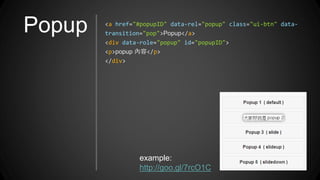
Popup <a href="#popupID" data-rel="popup" class="ui-btn" data-
transition="pop">Popup</a>
<div data-role="popup" id="popupID">
<p>popup 內容</p>
</div>
example:
http://goo.gl/7rcO1C
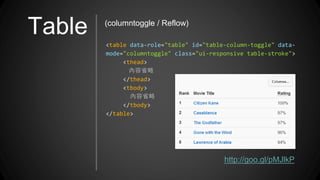
Table
<table data-role="table" id="table-column-toggle" data-
mode="columntoggle" class="ui-responsive table-stroke">
<thead>
å…§å®¹ēœē•„
</thead>
<tbody>
å…§å®¹ēœē•„
</tbody>
</table>
http://goo.gl/pMJlkP
(columntoggle / Reflow)
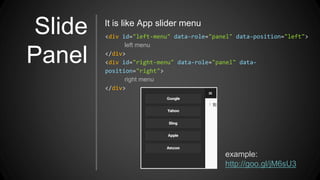
Slide
Panel
<div id="left-menu" data-role="panel" data-position="left">
left menu
</div>
<div id="right-menu" data-role="panel" data-
position="right">
right menu
</div>
It is like App slider menu
example:
http://goo.gl/jM6sU3
How to make "jQuery Mobile" work?
How ?
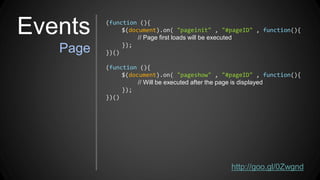
Events
Page
(function (){
$(document).on( "pageinit" , "#pageID" , function(){
// Page first loads will be executed
});
})()
(function (){
$(document).on( "pageshow" , "#pageID" , function(){
// Will be executed after the page is displayed
});
})()
http://goo.gl/0Zwgnd
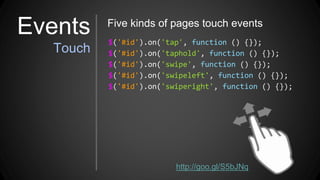
$('#id').on('tap', function () {});
$('#id').on('taphold', function () {});
$('#id').on('swipe', function () {});
$('#id').on('swipeleft', function () {});
$('#id').on('swiperight', function () {});
Five kinds of pages touch events
http://goo.gl/S5bJNq
Events
Touch
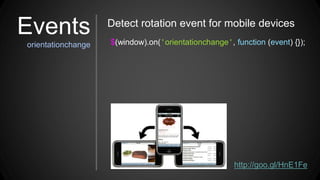
$(window).on('orientationchange', function (event) {});
Detect rotation event for mobile devices
http://goo.gl/HnE1Fe
Events
orientationchange
After a series of presentations
Everyone should understand a little jQuery Mobile
right?
? ? ? ? ?
Let's look at some examples of jQuery Mobile
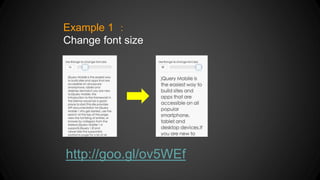
Example 1 :
Change font size
http://goo.gl/ov5WEf
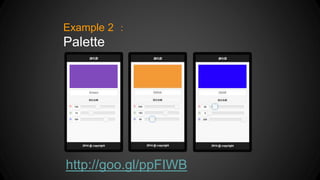
http://goo.gl/ppFIWB
Example 2 :
Palette
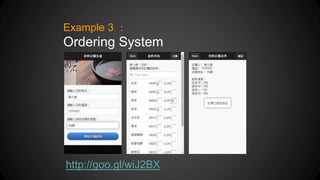
http://goo.gl/wiJ2BX
Example 3 :
Ordering System
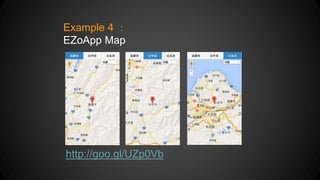
Example 4 :
EZoApp Map
http://goo.gl/UZp0Vb
The above is a basic introduction to jQuery Mobile
If you are interested, you can learn more on the official website
http://jquerymobile.com/
Or use EZoApp
http://jqmdesigner.appspot.com/
Thank you

jQuery Mobile Introduction ( demo on EZoapp )

  • 1.
  • 2.
    What is jQueryMobile?
  • 3.
  • 4.
    So simple, weall know it!
  • 5.
    But, What isjQuery Mobile? Can we eat it?
  • 6.
    Features Powerful Ajax-powered navigation system HTML5Markup-driven configuration Built on jQuery core Responsive design Progressive enhancement Touch and mouse event support Lightweight size Compatible with all major mobile, tablet, e-reader & desktop platforms Unified UI widgets
  • 7.
    However, I heardthat jQuery Mobile is fat
  • 8.
    jQuery Mobile Version1.4.3 Significantly improved performance than ever
  • 9.
  • 10.
  • 11.
    <link rel="stylesheet" href="jquery.mobile.min.css"/> <script src="jquery.min.js"></script> <script src="jquery.mobile.min.js"></script> jQuery Mobile preloaded program
  • 12.
    <head> <title>jQuery Mobile</title> <link rel="stylesheet"href="http://code.jquery.com/mobile/1.0a1/jquery.mobile.min.css" /> <script src="http://code.jquery.com/jquery-1.4.3.min.js"></script> <script src="http://code.jquery.com/mobile/1.0a1/jquery.mobile.min.js"></script> </head> <body> <div data-role="page"> <div data-role="header"> <h1>header</h1> </div> <div class="ui-content"> <p>content</p> </div> <div data-role="footer"> <h4>footer</h4> </div> </div> </body> First step
  • 13.
    <div id="page1" data-role="page"> <divrole="main" class="ui-content"></div> </div> <div id="page2" data-role="page"> <div role="main" class="ui-content"></div> </div> <div id="page3" data-role="page"> <div role="main" class="ui-content"></div> </div> JQuery Mobile is usually a multiple page However, only one of which is displayed, page id must be separated page
  • 14.
    page Feel Pageon EZoApp http://goo.gl/EmXUY9
  • 15.
    ā˜… Use <href>,switch directly to the specified "Page Id" ā˜… Using "data-transition" set the transition effect ā˜… Set data-rel = "back" to return with the same effect page transition <a href="#pageID" data-transition="ꕈꞜ"></a> ā˜… You can also use javascript to do the switch ā˜… $.mobile.changePage('#PageID'); ā˜… $.mobile.changePage('#PageB' , {'transition':'Effect'} );
  • 16.
    ā— default ā— fade ā—flip ā— flow ā— pop ā— slide ā— slidefade ā— slideup ā— slidedown ā— turn ā— none <a href="#pageID" data-transition="effect"></a> example: http://goo.gl/xwIR0F page transition
  • 17.
    Button <a href="#"class="ui-btn">Anchor</a> <button class="ui-btn">Button</button> Use the "class" generate button style <a href="#" class="ui-btn ui-btn-inline">Anchor</a> <button class="ui-btn ui-btn-inline">Button</button>
  • 18.
    Button ICON <button class="ui-btnui-btn-icon-left ui-icon-action">action</button> <button class="ui-btn ui-btn-icon-left ui-icon-alert">alert</button> <button class="ui-btn ui-btn-icon-up ui-icon-arrow-d">arrow-d</button> <button class="ui-btn ui-btn-icon-right ui-icon-arrow-d-l">arrow-d-l</button> <button class="ui-btn ui-btn-icon-bottom ui-icon-arrow-d-r">arrow-d-r</button> <button class="ui-btn ui-btn-icon-left ui-icon-arrow-l">arrow-l</button> example: http://goo.gl/TQxnvm Use the "class" generate button style
  • 19.
    Grid <div class="ui-grid-b"> <divclass="ui-block-a">Block A</div> <div class="ui-block-b">Block B</div> <div class="ui-block-c">Block C</div> </div> Use "class" generates Grid, you can put the Grid in Grid ui-grid-a : 2 columns,ui-grid-b:3 columns ui-grid-c:4 columns,ui-grid-d:5 columns example: http://goo.gl/AizA2f
  • 20.
    Input <div class="ui-field-contain"> <label for="#text_id">Title</label> <inputtype="text" name="" id="#text_id"> </div> <div class="ui-field-contain"> <label for="#textarea_id">Title</label> <textarea name="" id="#textarea_id"></textarea> </div> <div class="ui-field-contain"> <label for="#search_id">Title</label> <input type="search" name="" id="#search_id"> </div> example: http://goo.gl/XOXJPH
  • 21.
    theme Use "class"have different themes ęŒ‰éˆ•ļ¼š <a href="#" class="ui-btn ui-btn-a">Theme A</a> <a href="#" class="ui-btn ui-btn-b">Theme B</a> navbar: <div data-role="navbar"> <ul> <li><a data-theme="a">Theme A</a></li> <li><a data-theme="b">Theme B</a></li> </ul> </div> example: http://goo.gl/E8QcW9
  • 22.
    Some examples ofthe above, we see that "class" is very important
  • 23.
  • 24.
    Of course ! Thesecond is also very important: data attribute 2
  • 25.
    What is dataattribute?
  • 26.
    The data-* attributesis used to store custom data private to the page or application. The data-* attributes gives us the ability to embed custom data attributes on all HTML elements. jQuery Mobile data attribute http://api.jquerymobile.com/data-attribute/
  • 27.
    Header & Footer <div data-role="header" data-position="fixed"> <h1>header</h1> </div> <divdata-role="footer" data-position="fixed"> <h4>footer</h4> </div> example: http://goo.gl/YpuDEY
  • 28.
    Navbar <div data-role="navbar"> <ul> <li><ahref="#">One</a></li> <li><a href="#">Two</a></li> </ul> </div> example: http://goo.gl/3nwwe1
  • 29.
    Radio button <form> <fieldset data-role="controlgroup" data-type="horizontal"> <legend>Horizontal:</legend> <inputtype="radio" name="radio-choice-h-2" id="radio-choice-h-2a" value="on" checked="checked"> <label for="radio-choice-h-2a">One</label> <input type="radio" name="radio-choice-h-2" id="radio-choice-h-2b" value="off"> <label for="radio-choice-h-2b">Two</label> <input type="radio" name="radio-choice-h-2" id="radio-choice-h-2c" value="other"> <label for="radio-choice-h-2c">Three</label> </fieldset> </form> example: http://goo.gl/Vh67Vf
  • 30.
    Check box <form> <fieldset data-role="controlgroup"> <legend>Vertical:</legend> <input type="checkbox"name="checkbox-v-2a" id="checkbox-v-2a"> <label for="checkbox-v-2a">One</label> <input type="checkbox" name="checkbox-v-2b" id="checkbox-v-2b"> <label for="checkbox-v-2b">Two</label> <input type="checkbox" name="checkbox-v-2c" id="checkbox-v-2c"> <label for="checkbox-v-2c">Three</label> </fieldset> </form> example: http://goo.gl/x7vfGr
  • 31.
    Flip switch <form> <label for="flip-2">Flip toggleswitch:</label> <select name="flip-2" id="flip-2" data- role="flipswitch" data-theme="b"> <option value="off">Off</option> <option value="on">On</option> </select> </form> example: http://goo.gl/83Mn0z
  • 32.
    Listview <ul data-role="listview"data-inset="true" data-divider-theme="a"> <li data-role="list-divider">Mail</li> <li><a href="#">Inbox</a></li> <li><a href="#">Outbox</a></li> <li data-role="list- divider">Contacts</li> <li><a href="#">Friends</a></li> <li><a href="#">Work</a></li> </ul> Use "data-role" to easily create "listview (filter)" example: http://goo.gl/XjmWug
  • 33.
    Popup <a href="#popupID"data-rel="popup" class="ui-btn" data- transition="pop">Popup</a> <div data-role="popup" id="popupID"> <p>popup 內容</p> </div> example: http://goo.gl/7rcO1C
  • 34.
    Table <table data-role="table" id="table-column-toggle"data- mode="columntoggle" class="ui-responsive table-stroke"> <thead> å…§å®¹ēœē•„ </thead> <tbody> å…§å®¹ēœē•„ </tbody> </table> http://goo.gl/pMJlkP (columntoggle / Reflow)
  • 35.
    Slide Panel <div id="left-menu" data-role="panel"data-position="left"> left menu </div> <div id="right-menu" data-role="panel" data- position="right"> right menu </div> It is like App slider menu example: http://goo.gl/jM6sU3
  • 36.
    How to make"jQuery Mobile" work? How ?
  • 37.
    Events Page (function (){ $(document).on( "pageinit", "#pageID" , function(){ // Page first loads will be executed }); })() (function (){ $(document).on( "pageshow" , "#pageID" , function(){ // Will be executed after the page is displayed }); })() http://goo.gl/0Zwgnd
  • 38.
    $('#id').on('tap', function (){}); $('#id').on('taphold', function () {}); $('#id').on('swipe', function () {}); $('#id').on('swipeleft', function () {}); $('#id').on('swiperight', function () {}); Five kinds of pages touch events http://goo.gl/S5bJNq Events Touch
  • 39.
    $(window).on('orientationchange', function (event){}); Detect rotation event for mobile devices http://goo.gl/HnE1Fe Events orientationchange
  • 40.
    After a seriesof presentations Everyone should understand a little jQuery Mobile right? ? ? ? ? ?
  • 41.
    Let's look atsome examples of jQuery Mobile
  • 42.
    Example 1 : Changefont size http://goo.gl/ov5WEf
  • 43.
  • 44.
  • 45.
    Example 4 : EZoAppMap http://goo.gl/UZp0Vb
  • 46.
    The above isa basic introduction to jQuery Mobile If you are interested, you can learn more on the official website http://jquerymobile.com/
  • 47.
  • 48.