Introduction to


                  ejlp12@gmail.com - Dec2012
jQuery Mobile


      Touch-Optimized Web Framework for
            Smartphones & Tablets

A unified, HTML5-based user interface system for all popular mobile device platforms, built
                   on the rock-solid jQuery and jQuery UI foundation.


           If you know basic HTML, you can start building mobile sites right away.
By using hybrid mobile application tool such as Apache Cordova/Cordova then you can create
                             native installable mobile application.
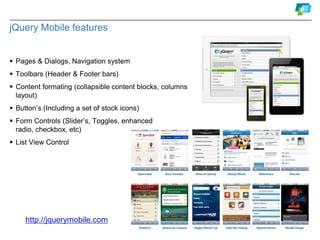
jQuery Mobile features


 Pages & Dialogs, Navigation system
 Toolbars (Header & Footer bars)
 Content formating (collapsible content blocks, columns
  layout)
 Button’s (Including a set of stock icons)
 Form Controls (Slider’s, Toggles, enhanced radio,
  checkbox, etc)
 List View Control


     http://jquerymobile.com
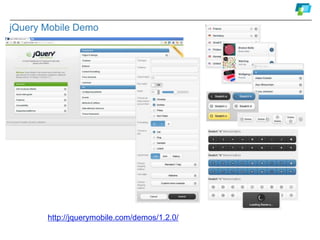
jQuery Mobile Demo


       http://jquerymobile.com/demos/1.2.0/
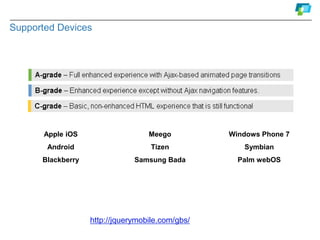
Supported Devices


       Apple iOS                   Meego          Windows Phone 7
       Android                      Tizen            Symbian
      Blackberry               Samsung Bada         Palm webOS


                   http://jquerymobile.com/gbs/
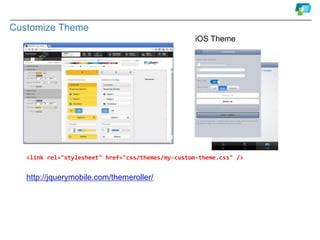
Customize Theme
                                                    iOS Theme


   <link rel="stylesheet" href="css/themes/my-custom-theme.css" />


   http://jquerymobile.com/themeroller/
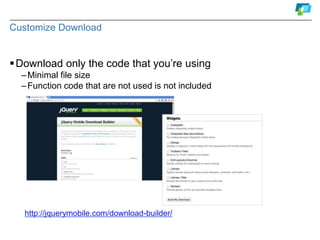
Customize Download


 Download only the code that you’re using
  – Minimal file size
  – Function code that are not used is not included


   http://jquerymobile.com/download-builder/
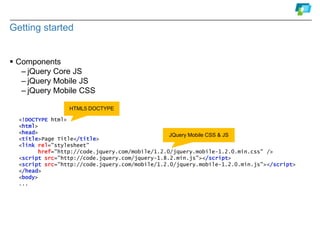
Getting started


 Components
   – jQuery Core JS
   – jQuery Mobile JS
   – jQuery Mobile CSS

                  HTML5 DOCTYPE

  <!DOCTYPE html>
  <html>                     Making widht fit to the screen
  <head>
  <title>Page Title</title>
                                                                         JQuery Mobile CSS & JS
  <meta name="viewport" content="width=device-width, initial-scale=1">
  <link rel="stylesheet"
        href="http://code.jquery.com/mobile/1.2.0/jquery.mobile-1.2.0.min.css" />
  <script src="http://code.jquery.com/jquery-1.8.2.min.js"></script>
  <script src="http://code.jquery.com/mobile/1.2.0/jquery.mobile-1.2.0.min.js"></script>
  </head>
  <body>
  ...
  </body>
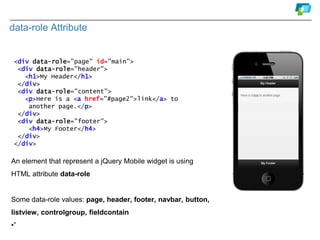
data-role Attribute
 <body>
 <div data-role="page" id="main">
  <div data-role="header">
    <h1>My Header</h1>
  </div>
  <div data-role="content">
    <p>Here is a <a href="#page2">link</a> to
     another page.</p>
  </div>
  <div data-role="footer">
     <h4>My Footer</h4>
  </div>
 </div>
 </body>


 An element that represent a jQuery Mobile widget is using HTML
 attribute data-role


 Immediate children of a "page" are divs with data-roles of "header",
 "content", and "footer".
Page navigation
 <body>
 <div data-role="page" id="foo">
  <div data-role="header"> <h1>First</h1> </div>
  <div data-role="content"> <p>I'm first Page</p>
  <p><a href="#bar">Link to second page</a></p>
 </div>

 <div data-role="page" id=“bar">
   <div data-role="header“ data-add-back-btn="true">
    <h1>Second</h1></div>
  <div data-role="content"> <p>I'm second Page</p>
  <p><a href="#foo">Link to first page</a></p>
 </div>
 </body>


  Page is basically a div identified by data-role="page" and   id

  Link to page is using element a (anchor) with id name of page div as a value of href
   attribute.

  Back button in the header can be automatically added by adding data-add-back-btn="true“
  Another button in the header can be added using anchor tag inside header div e.g. <a
  href="index.html" data-icon="check">Save</a>
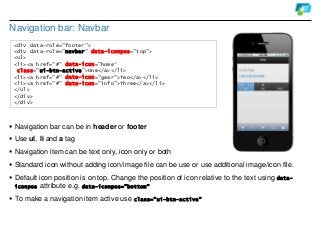
Navigation bar: Navbar
 <div data-role="footer">
 <div data-role="navbar" data-iconpos="top">
 <ul>
 <li><a href="#" data-icon="home“
  class="ui-btn-active">One</a></li>
 <li><a href="#" data-icon="gear">Two</a></li>
 <li><a href="#" data-icon="info">Three</a></li>
 </ul>
 </div>
 </div>


 Navigation bar can be in header or footer
 Use ul, li and a tag
 Navigation item can be text only, icon only or both
 Standard icon without adding icon/image file can be use or use additional image/icon file.
 Default icon position is on top. Change the position of icon relative to the text using   data-
  iconpos attribute e.g. data-iconpos="bottom"

 To make a navigation item active use class="ui-btn-active"
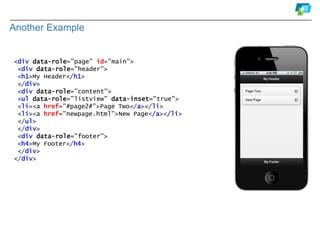
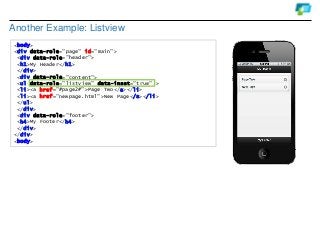
Another Example: Listview
<body>
<div data-role="page" id="main">
 <div data-role="header">
 <h1>My Header</h1>
 </div>
 <div data-role="content">
 <ul data-role="listview" data-inset="true" >
 <li><a href="#page2#">Page Two</a></li>
 <li><a href="newpage.html">New Page</a></li>
 </ul>
 </div>
 <div data-role="footer">
 <h4>My Footer</h4>
 </div>
</div>
<body>
Find out more on

 http://jquerymobile.com

  Application Gallery

http://www.jqmgallery.com

Introduction to jQuery Mobile

  • 1.
    Introduction to ejlp12@gmail.com - Dec2012
  • 2.
    jQuery Mobile Touch-Optimized Web Framework for Smartphones & Tablets A unified, HTML5-based user interface system for all popular mobile device platforms, built on the rock-solid jQuery and jQuery UI foundation. If you know basic HTML, you can start building mobile sites right away. By using hybrid mobile application tool such as Apache Cordova/Cordova then you can create native installable mobile application.
  • 3.
    jQuery Mobile features Pages & Dialogs, Navigation system  Toolbars (Header & Footer bars)  Content formating (collapsible content blocks, columns layout)  Button’s (Including a set of stock icons)  Form Controls (Slider’s, Toggles, enhanced radio, checkbox, etc)  List View Control http://jquerymobile.com
  • 4.
    jQuery Mobile Demo http://jquerymobile.com/demos/1.2.0/
  • 5.
    Supported Devices Apple iOS Meego Windows Phone 7 Android Tizen Symbian Blackberry Samsung Bada Palm webOS http://jquerymobile.com/gbs/
  • 6.
    Customize Theme iOS Theme <link rel="stylesheet" href="css/themes/my-custom-theme.css" /> http://jquerymobile.com/themeroller/
  • 7.
    Customize Download  Downloadonly the code that you’re using – Minimal file size – Function code that are not used is not included http://jquerymobile.com/download-builder/
  • 8.
    Getting started  Components – jQuery Core JS – jQuery Mobile JS – jQuery Mobile CSS HTML5 DOCTYPE <!DOCTYPE html> <html> Making widht fit to the screen <head> <title>Page Title</title> JQuery Mobile CSS & JS <meta name="viewport" content="width=device-width, initial-scale=1"> <link rel="stylesheet" href="http://code.jquery.com/mobile/1.2.0/jquery.mobile-1.2.0.min.css" /> <script src="http://code.jquery.com/jquery-1.8.2.min.js"></script> <script src="http://code.jquery.com/mobile/1.2.0/jquery.mobile-1.2.0.min.js"></script> </head> <body> ... </body>
  • 9.
    data-role Attribute <body> <div data-role="page" id="main"> <div data-role="header"> <h1>My Header</h1> </div> <div data-role="content"> <p>Here is a <a href="#page2">link</a> to another page.</p> </div> <div data-role="footer"> <h4>My Footer</h4> </div> </div> </body> An element that represent a jQuery Mobile widget is using HTML attribute data-role Immediate children of a "page" are divs with data-roles of "header", "content", and "footer".
  • 10.
    Page navigation <body> <div data-role="page" id="foo"> <div data-role="header"> <h1>First</h1> </div> <div data-role="content"> <p>I'm first Page</p> <p><a href="#bar">Link to second page</a></p> </div> <div data-role="page" id=“bar"> <div data-role="header“ data-add-back-btn="true"> <h1>Second</h1></div> <div data-role="content"> <p>I'm second Page</p> <p><a href="#foo">Link to first page</a></p> </div> </body>  Page is basically a div identified by data-role="page" and id  Link to page is using element a (anchor) with id name of page div as a value of href attribute. Back button in the header can be automatically added by adding data-add-back-btn="true“  Another button in the header can be added using anchor tag inside header div e.g. <a href="index.html" data-icon="check">Save</a>
  • 11.
    Navigation bar: Navbar <div data-role="footer"> <div data-role="navbar" data-iconpos="top"> <ul> <li><a href="#" data-icon="home“ class="ui-btn-active">One</a></li> <li><a href="#" data-icon="gear">Two</a></li> <li><a href="#" data-icon="info">Three</a></li> </ul> </div> </div>  Navigation bar can be in header or footer  Use ul, li and a tag  Navigation item can be text only, icon only or both  Standard icon without adding icon/image file can be use or use additional image/icon file.  Default icon position is on top. Change the position of icon relative to the text using data- iconpos attribute e.g. data-iconpos="bottom"  To make a navigation item active use class="ui-btn-active"
  • 12.
    Another Example: Listview <body> <divdata-role="page" id="main"> <div data-role="header"> <h1>My Header</h1> </div> <div data-role="content"> <ul data-role="listview" data-inset="true" > <li><a href="#page2#">Page Two</a></li> <li><a href="newpage.html">New Page</a></li> </ul> </div> <div data-role="footer"> <h4>My Footer</h4> </div> </div> <body>
  • 13.
    Find out moreon http://jquerymobile.com Application Gallery http://www.jqmgallery.com