By KHUSHBU
 
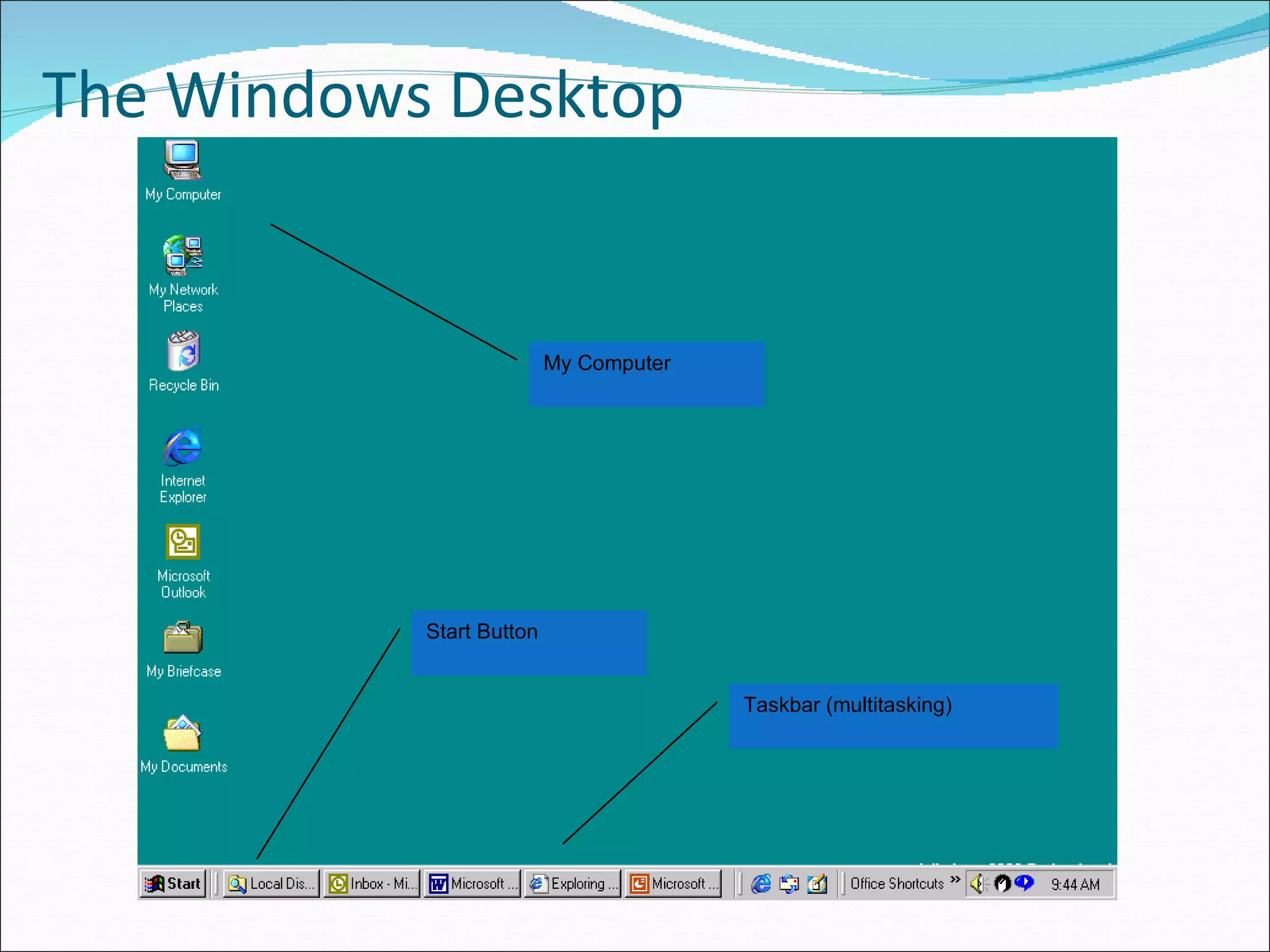
The Windows Desktop Start Button Taskbar (multitasking) My Computer
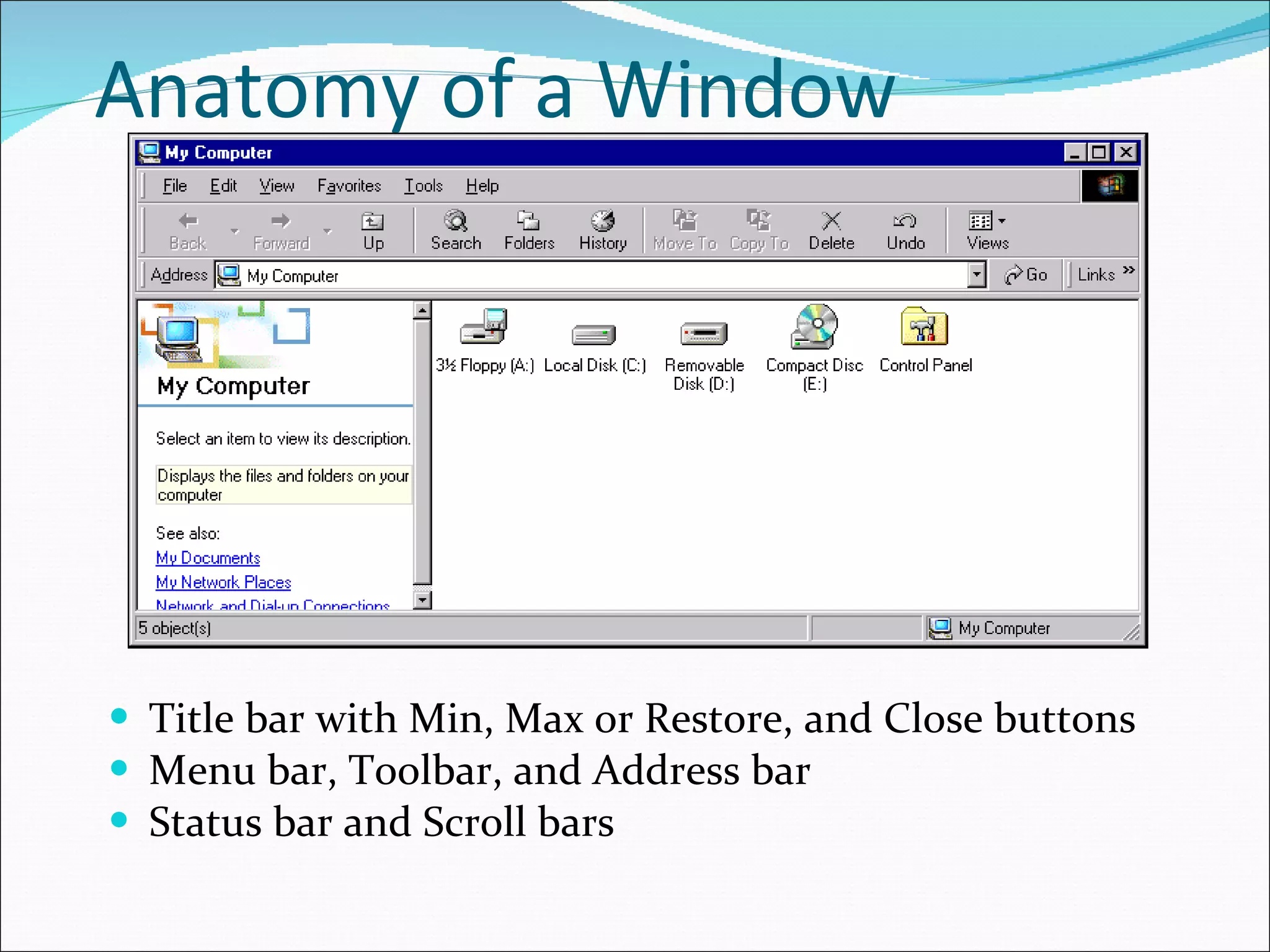
Anatomy of a Window Title bar with Min, Max or Restore, and Close buttons Menu bar, Toolbar, and Address bar Status bar and Scroll bars
The Devices on a System Drive A is always a floppy disk Drive B is a second floppy disk (obsolete) Drive C is always a fixed disk Drives D, E, are variable CD ROM Zip drive or removable media Network drives
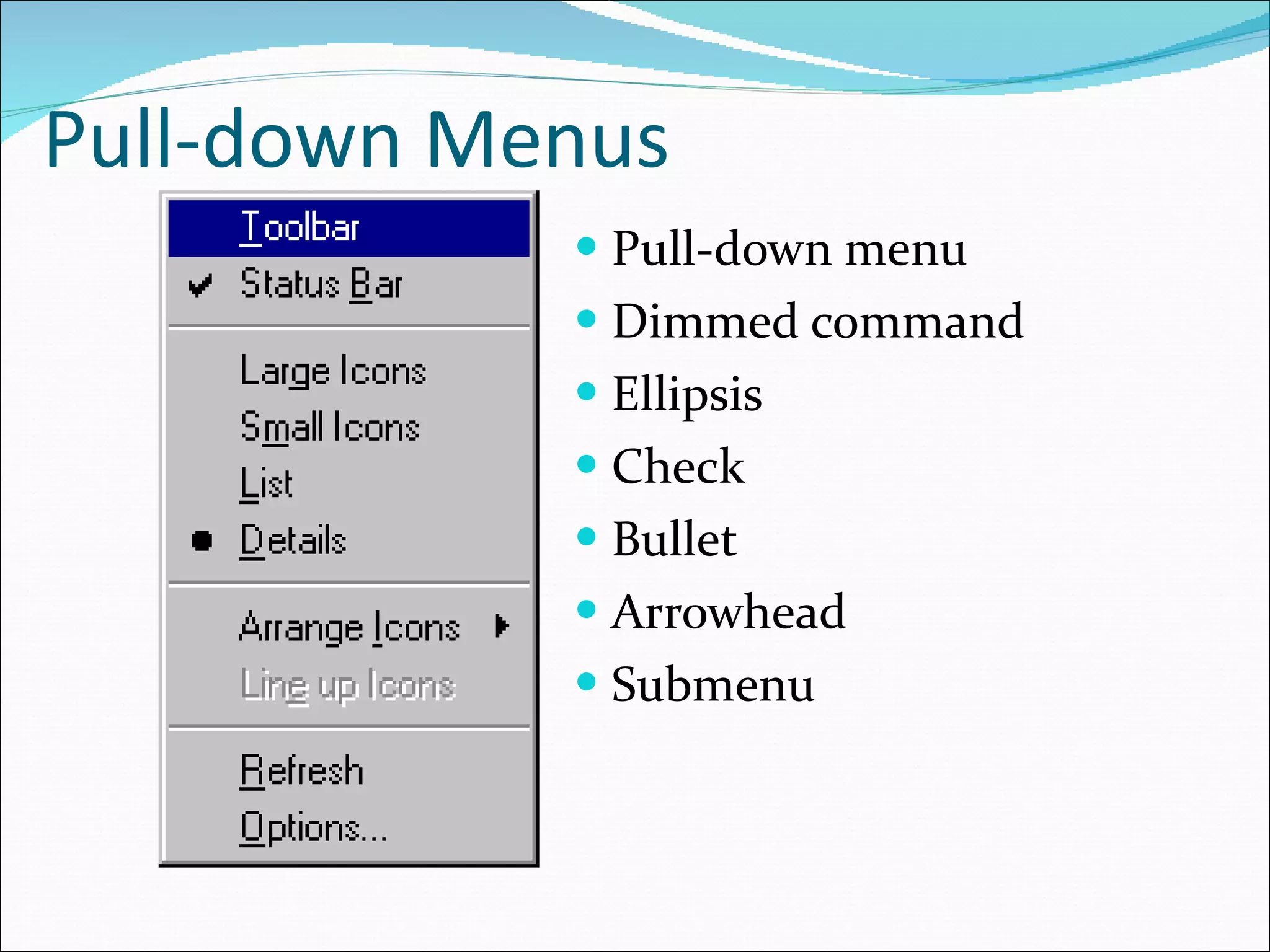
Pull-down Menus Pull-down menu Dimmed command Ellipsis Check Bullet Arrowhead Submenu
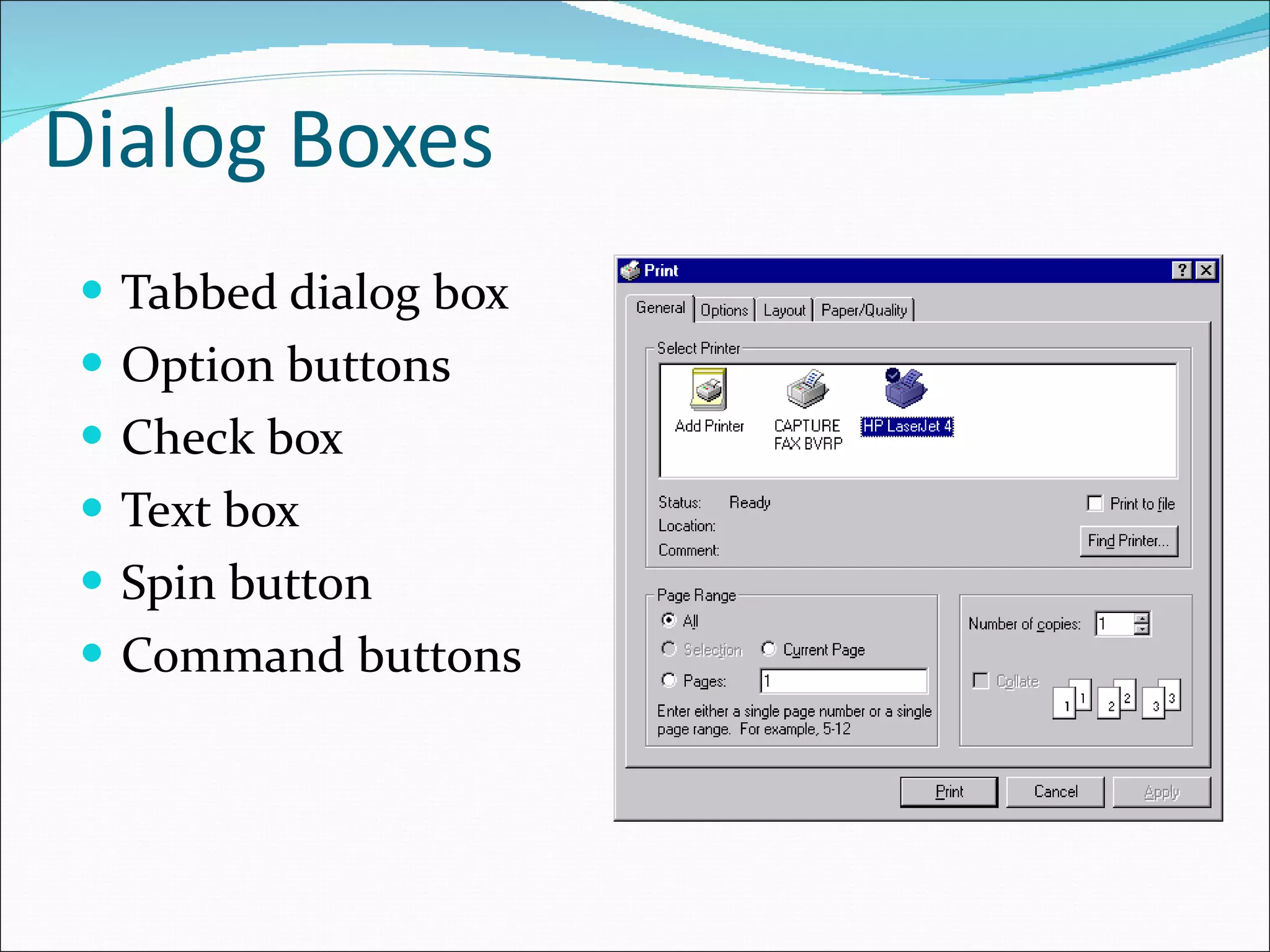
Dialog Boxes Tabbed dialog box Option buttons Check box Text box Spin button Command buttons
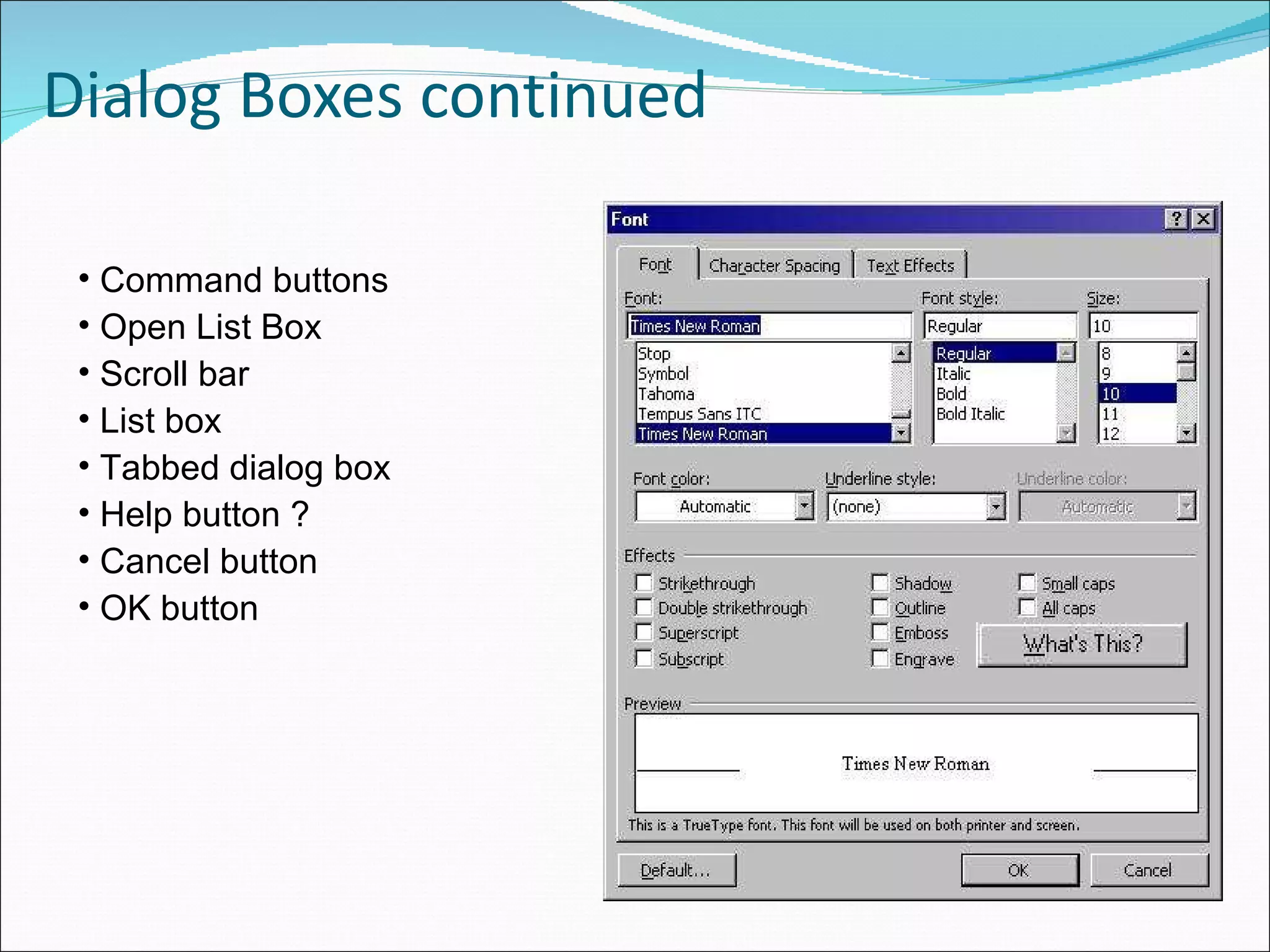
Dialog Boxes continued Command buttons Open List Box Scroll bar List box Tabbed dialog box Help button ? Cancel button OK button
Moving and Sizing a Window To Move a Window Click and drag the title bar To Size a Window Click and drag a corner to change the length and width in proportion with one another Click and drag a border to change just the length or the width
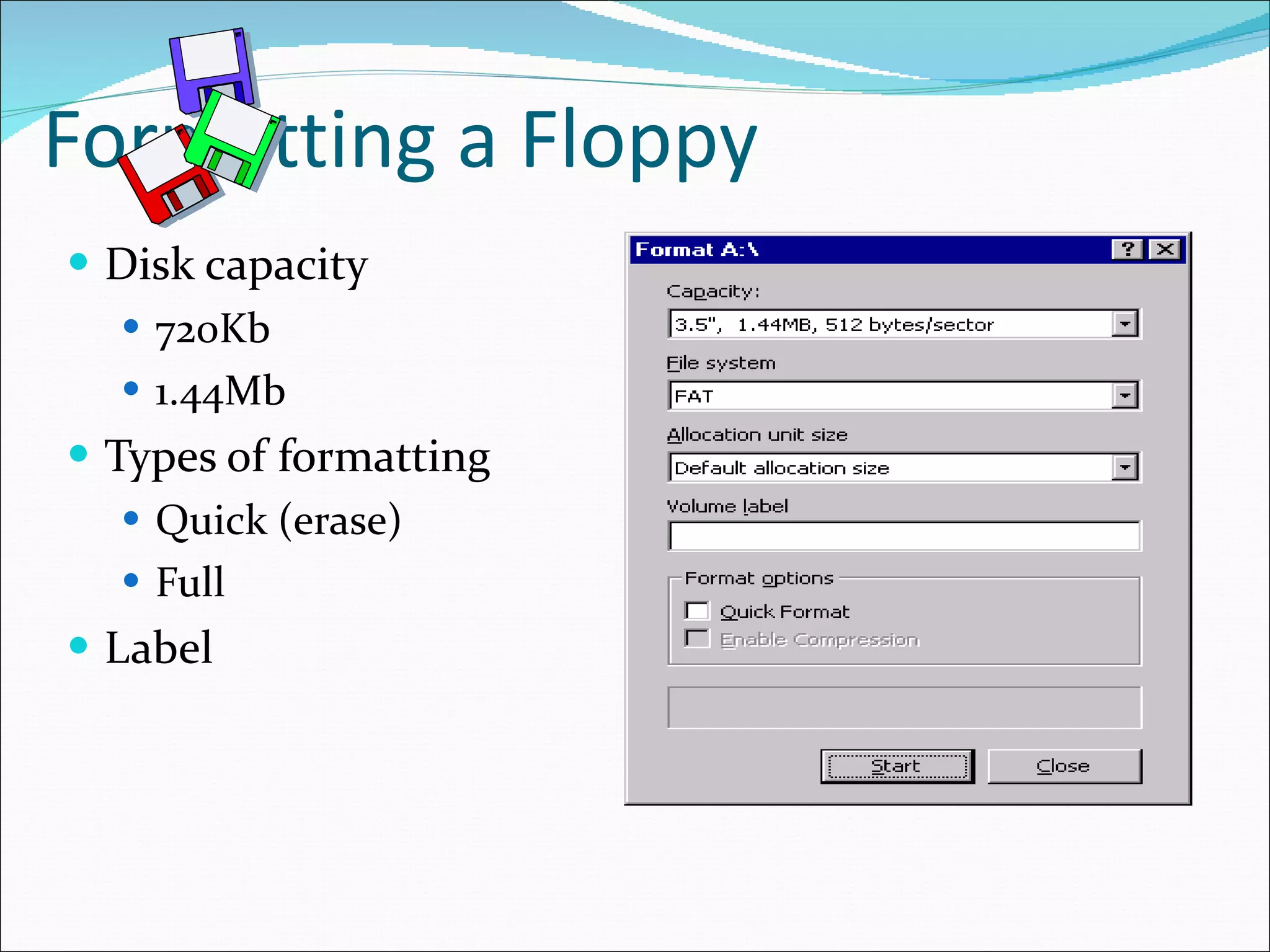
Formatting a Floppy Disk capacity 720Kb 1.44Mb Types of formatting Quick (erase) Full Label
File Management My Computer Simpler and less sophisticated Can result in multiple open windows at one time Windows Explorer Hierarchical view on left Contents of the selected folder on the right Multiple views available for both Small icons, Large icons, List, and Details view
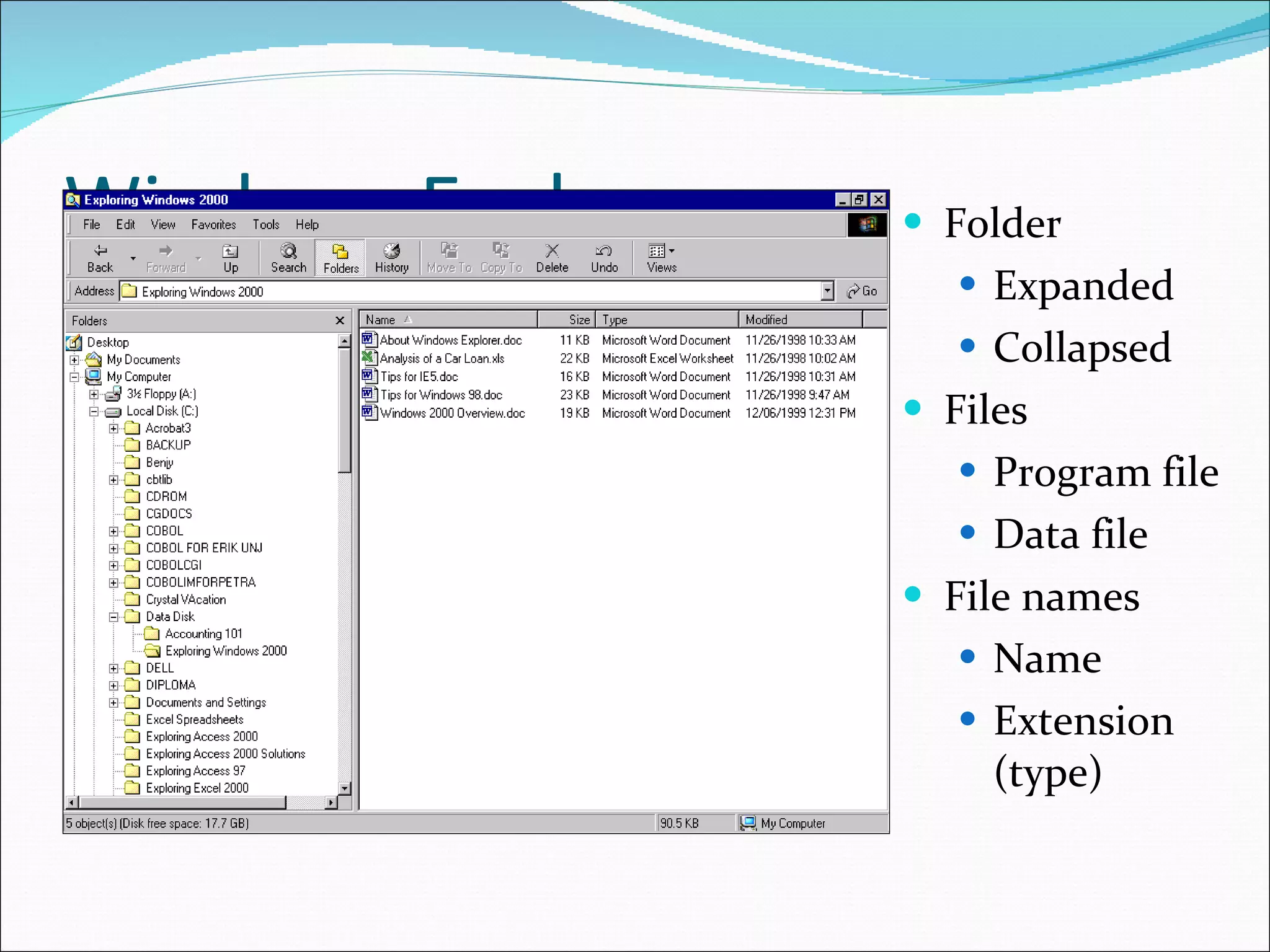
Windows Explorer Folder Expanded Collapsed Files Program file Data file File names Name Extension (type)
Moving and Copying Files Moving Files Click and drag to a different folder on the same drive Cut and Paste Shortcut Menu Copying Files Click and drag from one drive to another Copy and Paste Shortcut Menu
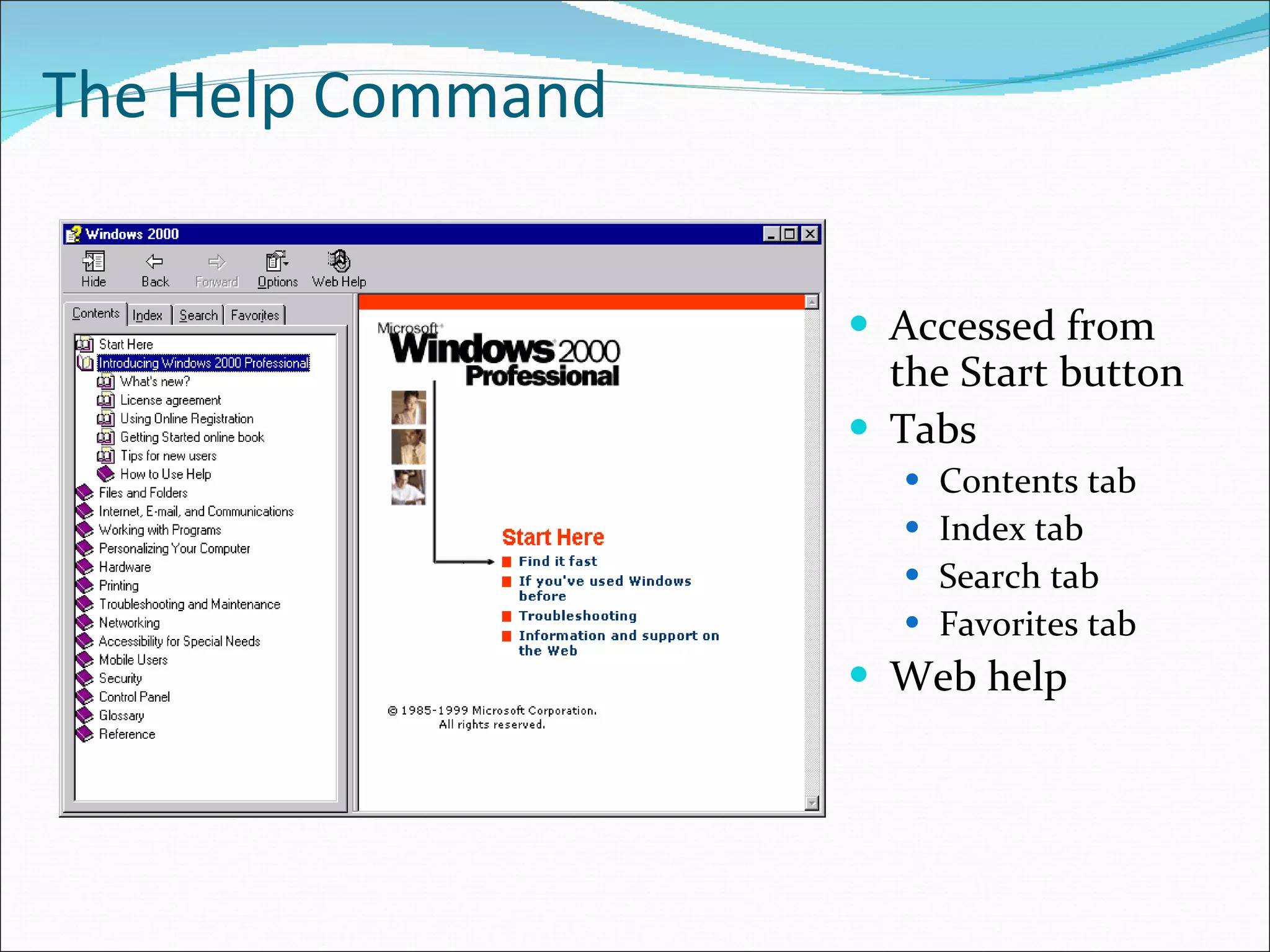
The Help Command Accessed from the Start button Tabs Contents tab Index tab Search tab Favorites tab Web help

Introduction to windows

  • 1.
  • 2.
  • 3.
    The Windows DesktopStart Button Taskbar (multitasking) My Computer
  • 4.
    Anatomy of aWindow Title bar with Min, Max or Restore, and Close buttons Menu bar, Toolbar, and Address bar Status bar and Scroll bars
  • 5.
    The Devices ona System Drive A is always a floppy disk Drive B is a second floppy disk (obsolete) Drive C is always a fixed disk Drives D, E, are variable CD ROM Zip drive or removable media Network drives
  • 6.
    Pull-down Menus Pull-downmenu Dimmed command Ellipsis Check Bullet Arrowhead Submenu
  • 7.
    Dialog Boxes Tabbeddialog box Option buttons Check box Text box Spin button Command buttons
  • 8.
    Dialog Boxes continuedCommand buttons Open List Box Scroll bar List box Tabbed dialog box Help button ? Cancel button OK button
  • 9.
    Moving and Sizinga Window To Move a Window Click and drag the title bar To Size a Window Click and drag a corner to change the length and width in proportion with one another Click and drag a border to change just the length or the width
  • 10.
    Formatting a FloppyDisk capacity 720Kb 1.44Mb Types of formatting Quick (erase) Full Label
  • 11.
    File Management MyComputer Simpler and less sophisticated Can result in multiple open windows at one time Windows Explorer Hierarchical view on left Contents of the selected folder on the right Multiple views available for both Small icons, Large icons, List, and Details view
  • 12.
    Windows Explorer FolderExpanded Collapsed Files Program file Data file File names Name Extension (type)
  • 13.
    Moving and CopyingFiles Moving Files Click and drag to a different folder on the same drive Cut and Paste Shortcut Menu Copying Files Click and drag from one drive to another Copy and Paste Shortcut Menu
  • 14.
    The Help CommandAccessed from the Start button Tabs Contents tab Index tab Search tab Favorites tab Web help