GOVIND SATI
Outlook
 Introduction to MATLAB
 What is MATLAB
 MATLAB Use
 Features of MATLAB
 Toolboxes
 MATLAB System
 Applied MATLAB
 industrial MATLAB
 MATLAB Learning Platform
 MATLAB Environment
 Type of Files in MATLAB
 MATLAB Commands
 Data Types in MATLAB
 MATLAB Array
 Application of MATLAB
 MATLAB Plotting
 Linear Algebra
 Symbolic Mathematics
 Polynomial Functions
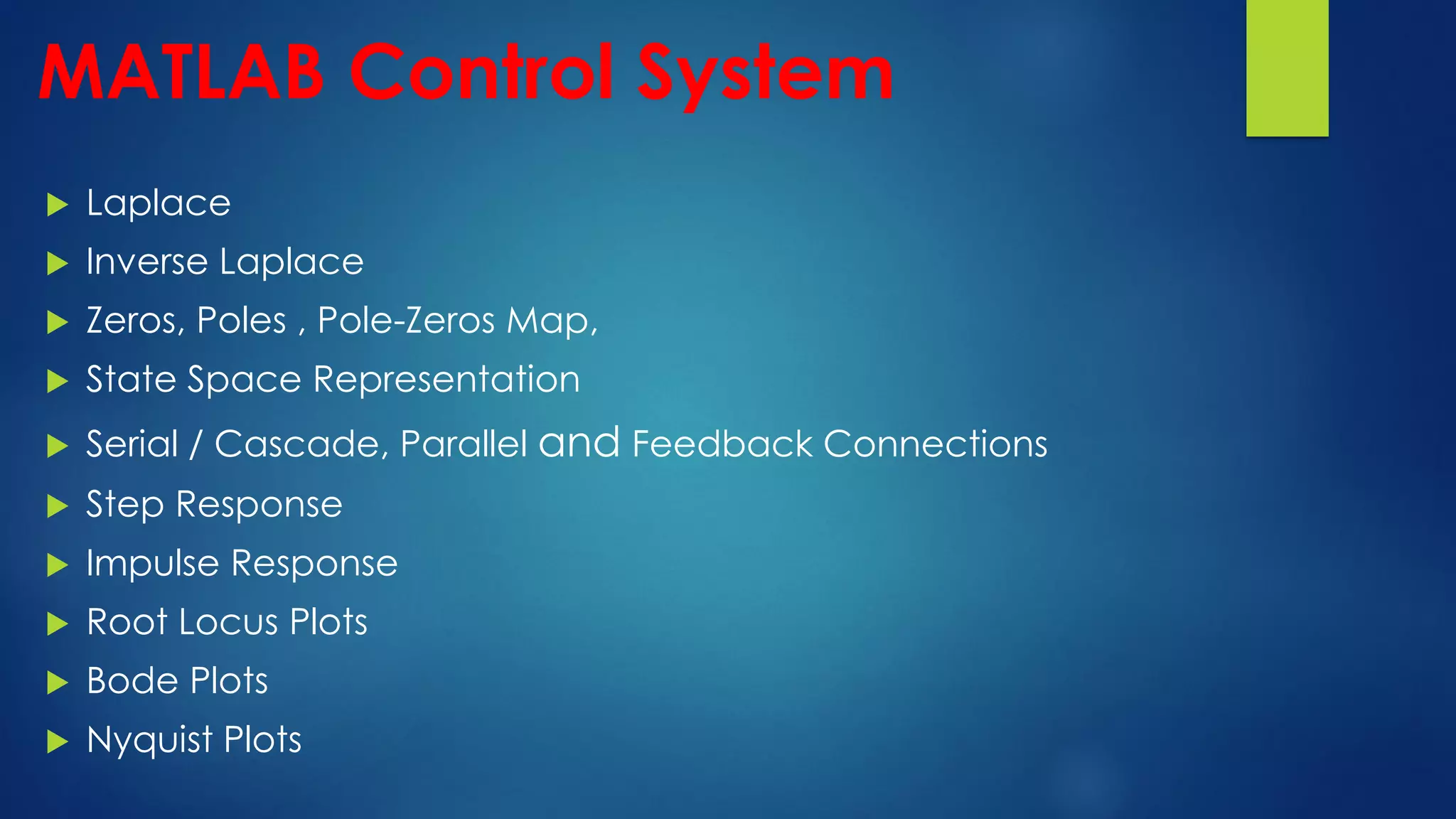
 MATLAB Control System
 MATLAB Application in DSP
 Digital Filter Design
 MATLAB Simulink
Introduction to MATLAB
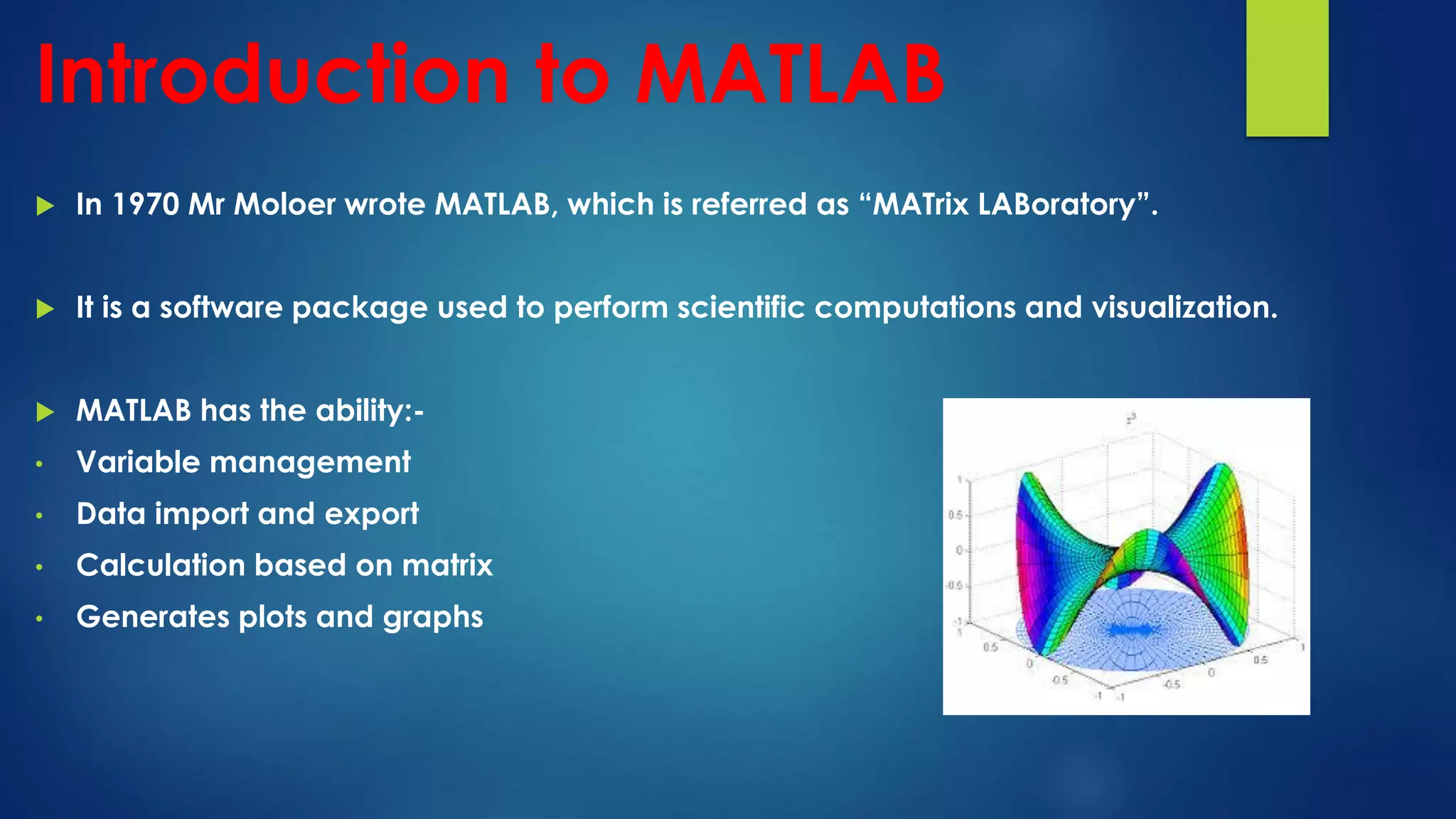
 In 1970 Mr Moloer wrote MATLAB, which is referred as “MATrix LABoratory”.
 It is a software package used to perform scientific computations and visualization.
 MATLAB has the ability:-
• Variable management
• Data import and export
• Calculation based on matrix
• Generates plots and graphs
What is MATLAB
 MATLAB is a software package for high – performance mathematical
computation, visualization, and programming environment.
 MATLAB is a fourth generation programming language which provide
 numerical computing environment,
 data visualization,
 data analysis and
 algorithm development feature.
 MATLAB stands for Matrix Laboratory.
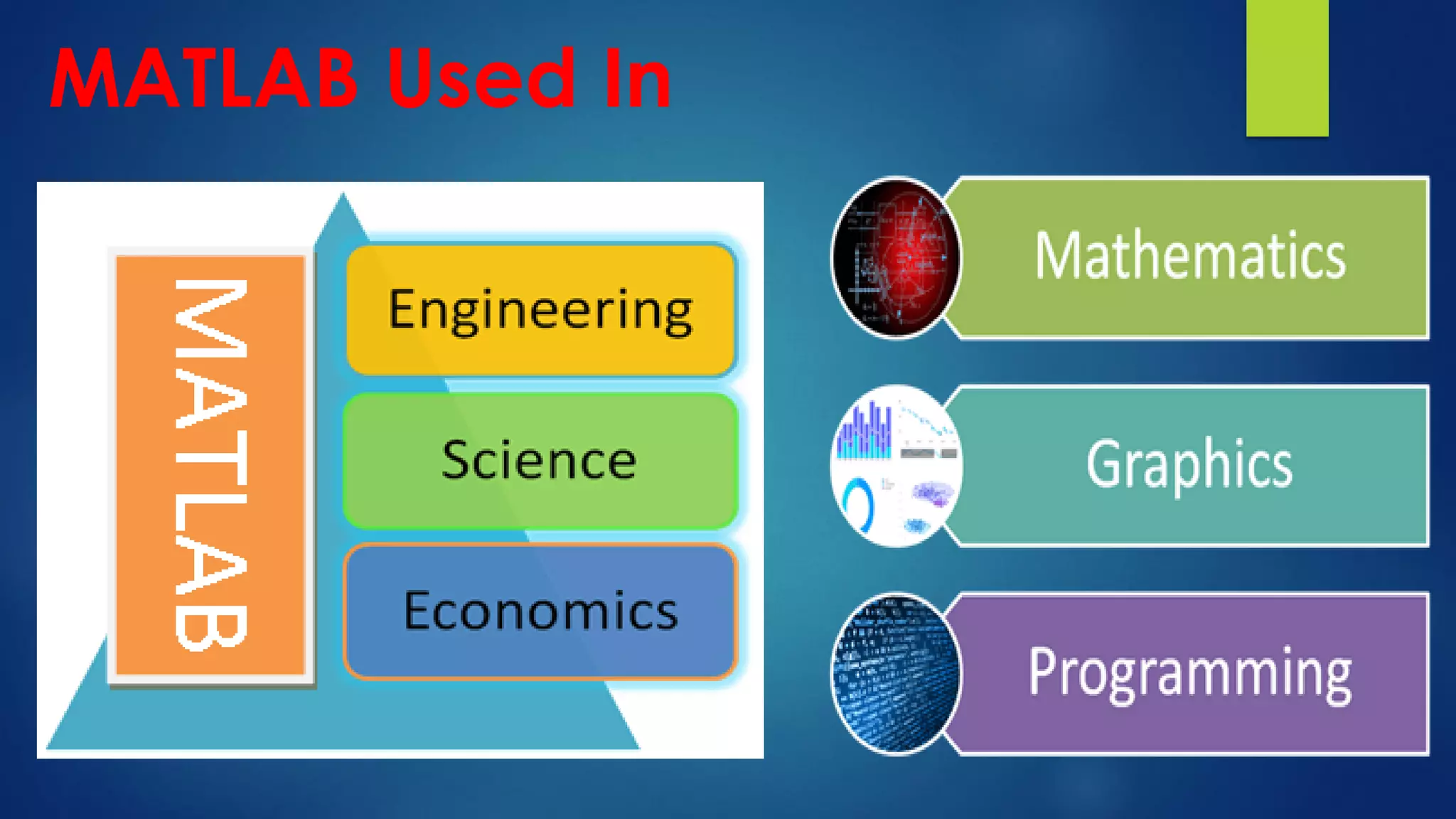
MATLAB Used In
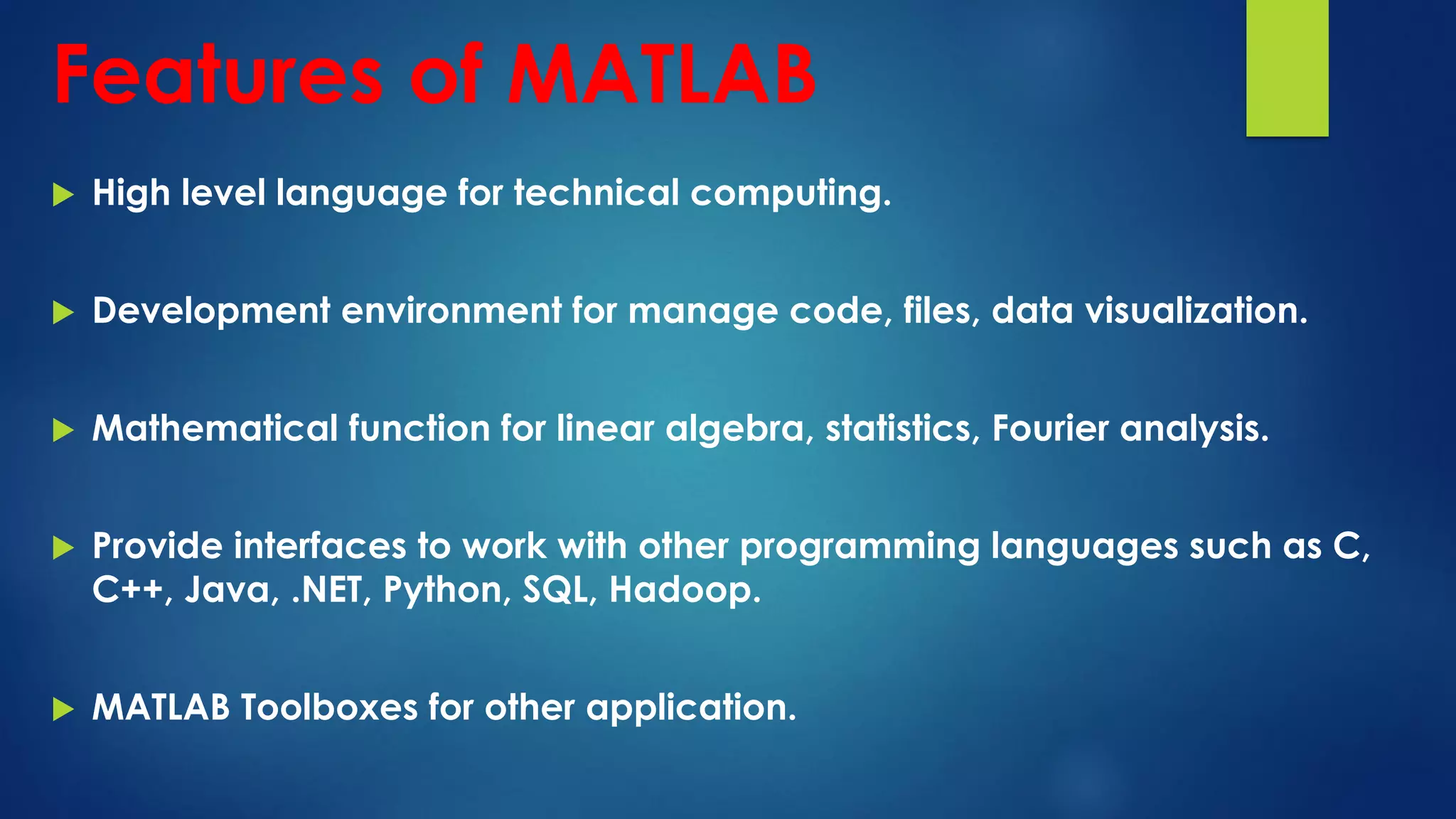
Features of MATLAB
 High level language for technical computing.
 Development environment for manage code, files, data visualization.
 Mathematical function for linear algebra, statistics, Fourier analysis.
 Provide interfaces to work with other programming languages such as C,
C++, Java, .NET, Python, SQL, Hadoop.
 MATLAB Toolboxes for other application.
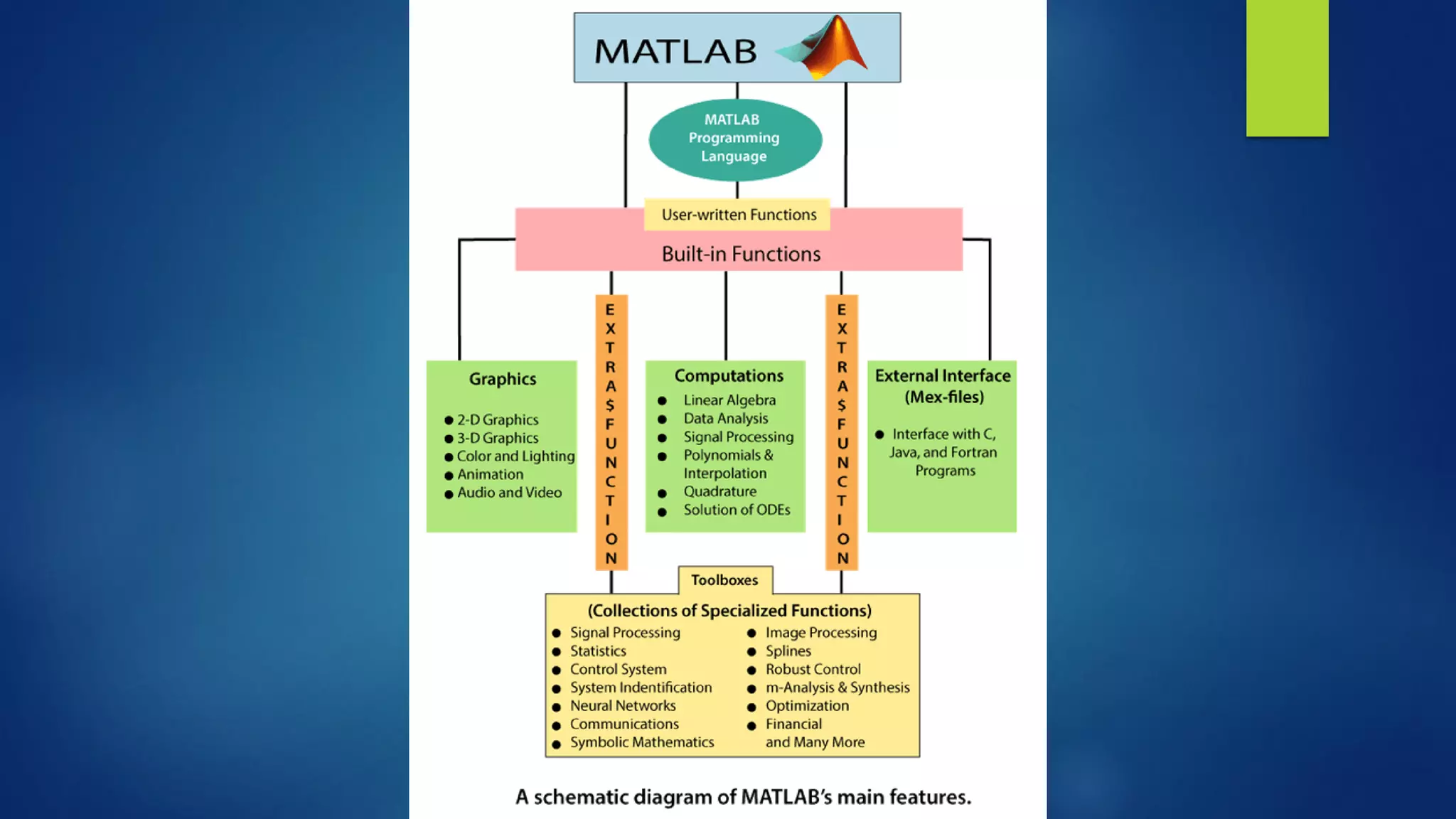
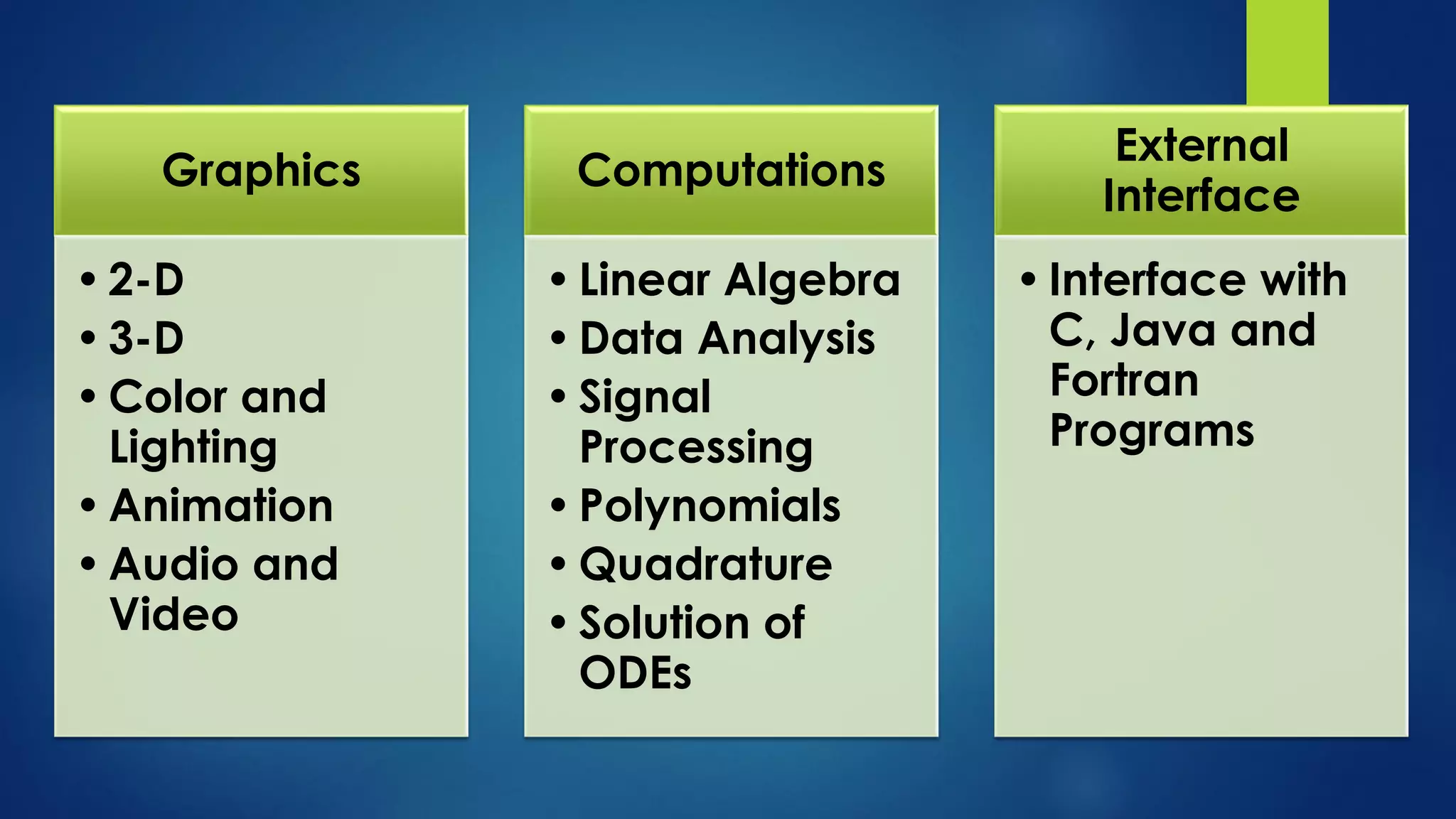
Graphics
•2-D
•3-D
•Color and
Lighting
•Animation
•Audio and
Video
Computations
•Linear Algebra
•Data Analysis
•Signal
Processing
•Polynomials
•Quadrature
•Solution of
ODEs
External
Interface
•Interface with
C, Java and
Fortran
Programs
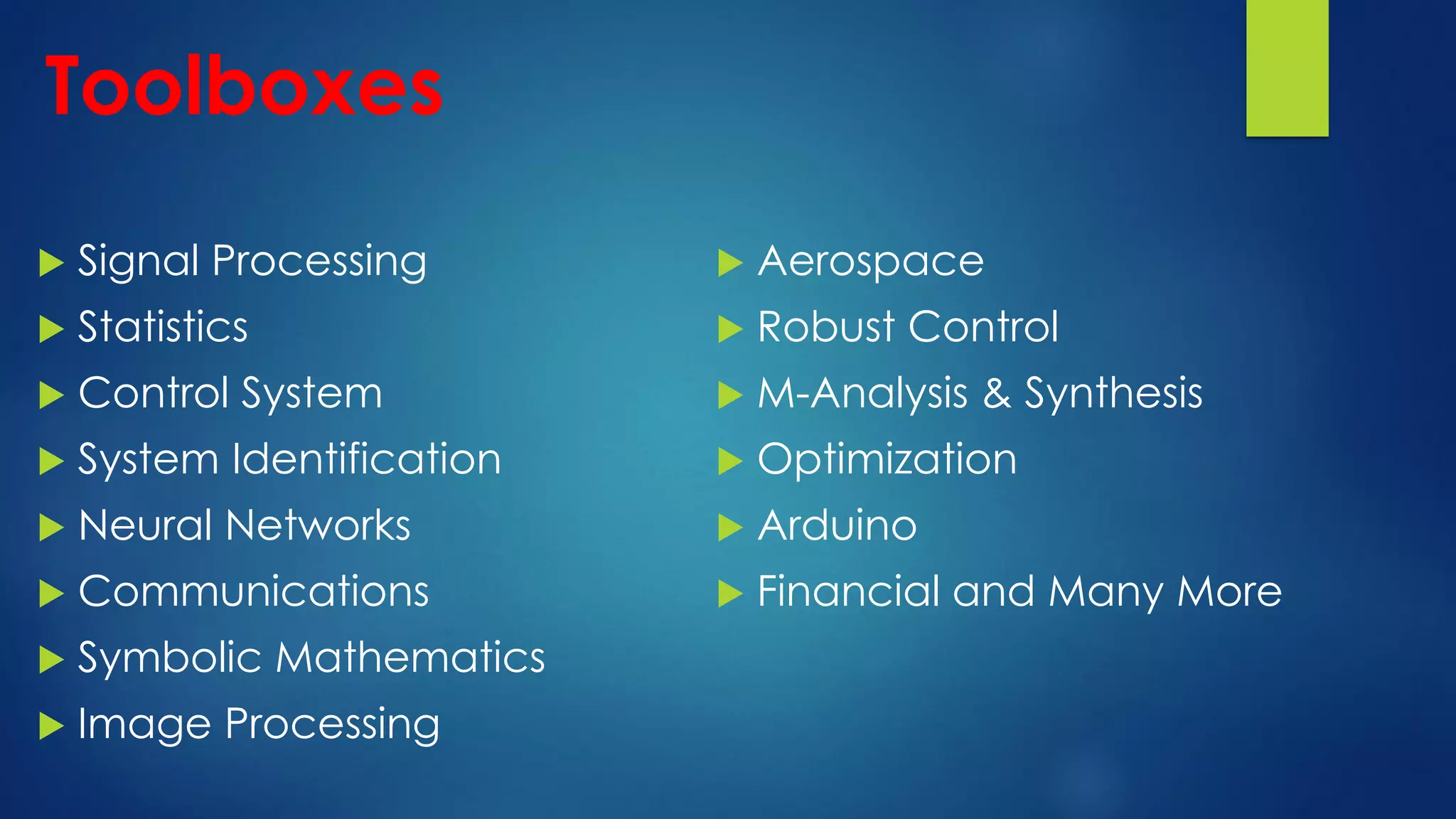
Toolboxes
 Signal Processing
 Statistics
 Control System
 System Identification
 Neural Networks
 Communications
 Symbolic Mathematics
 Image Processing
 Aerospace
 Robust Control
 M-Analysis & Synthesis
 Optimization
 Arduino
 Financial and Many More
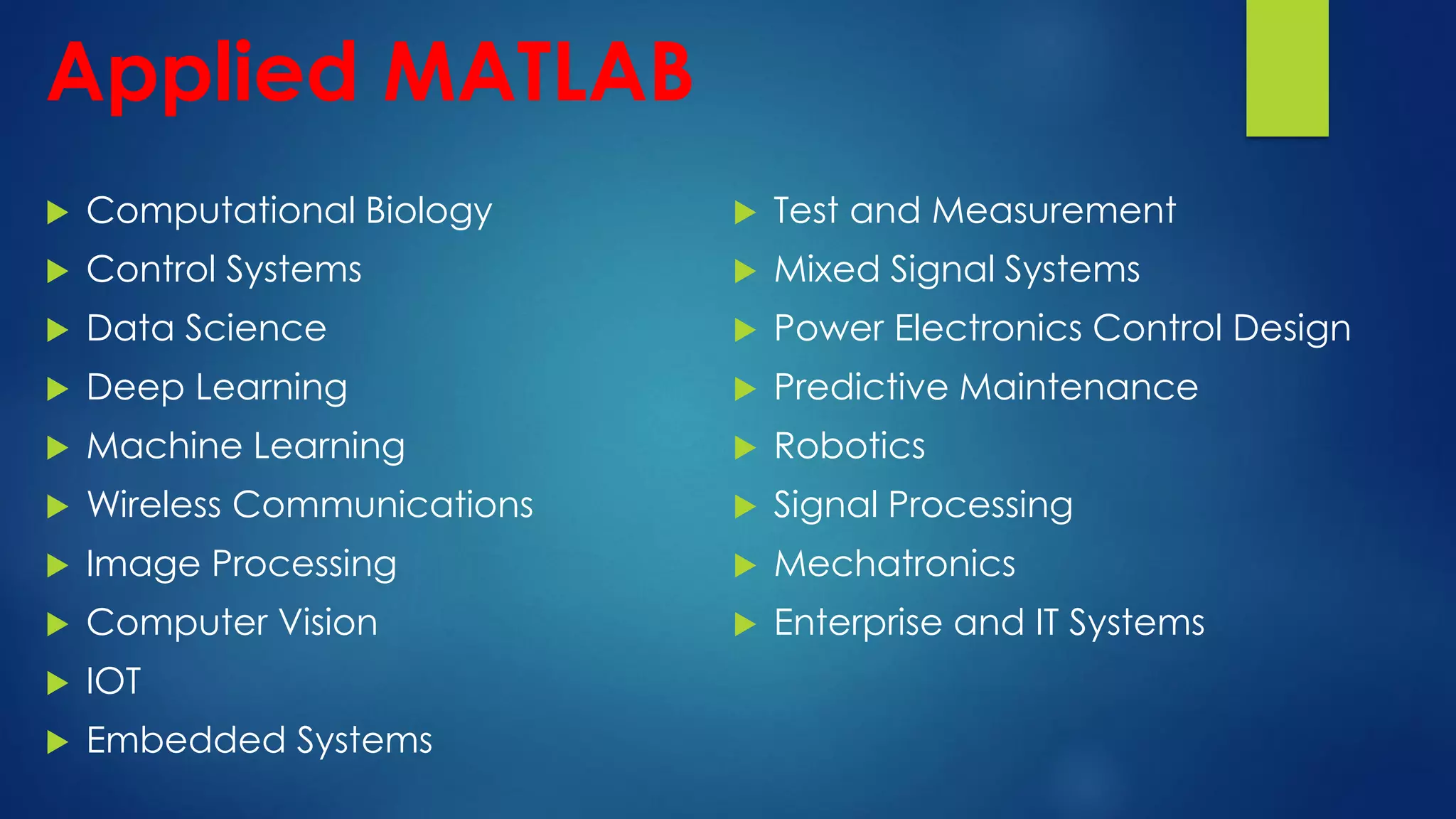
Applied MATLAB
 Computational Biology
 Control Systems
 Data Science
 Deep Learning
 Machine Learning
 Wireless Communications
 Image Processing
 Computer Vision
 IOT
 Embedded Systems
 Test and Measurement
 Mixed Signal Systems
 Power Electronics Control Design
 Predictive Maintenance
 Robotics
 Signal Processing
 Mechatronics
 Enterprise and IT Systems
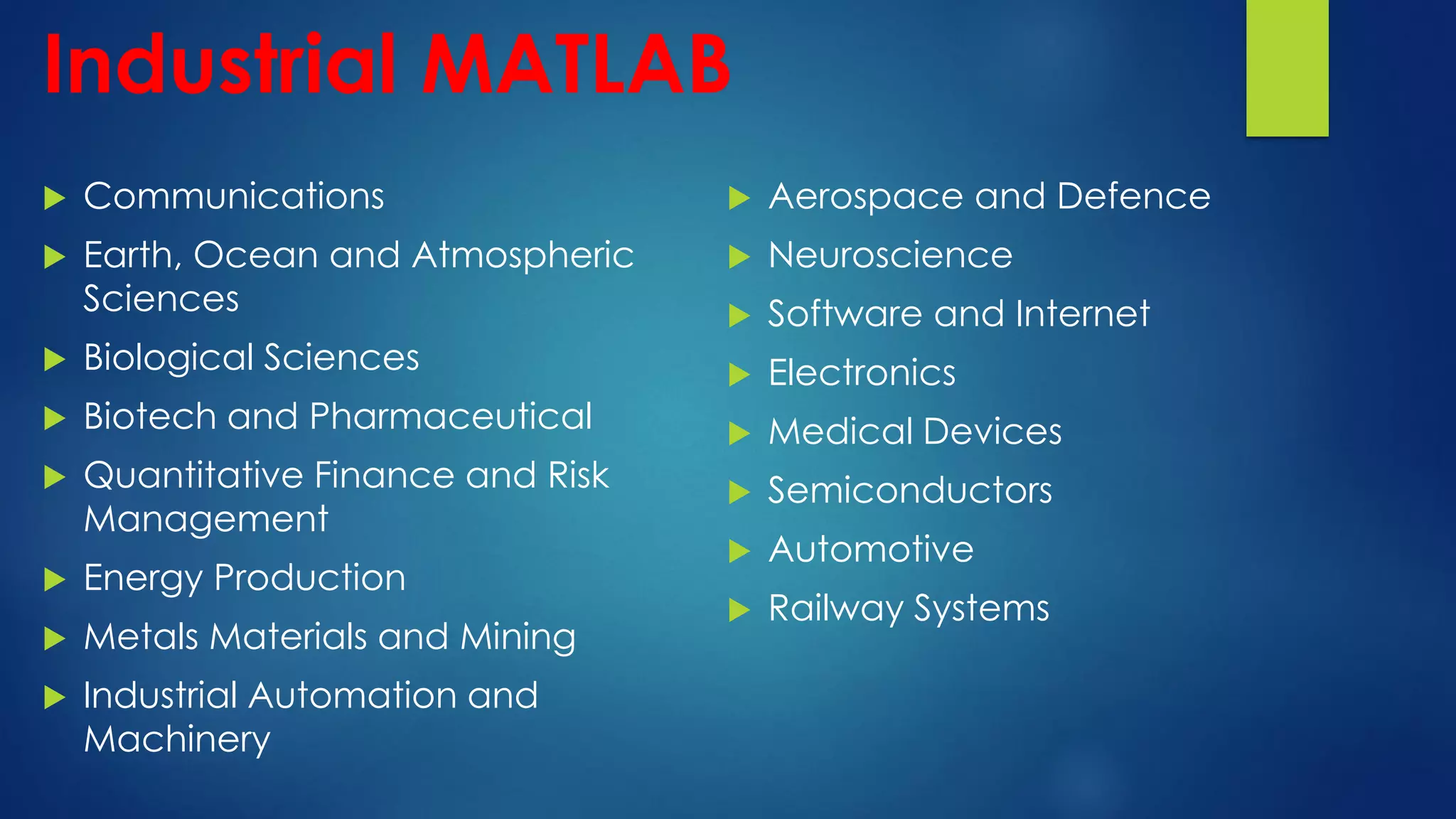
Industrial MATLAB
 Communications
 Earth, Ocean and Atmospheric
Sciences
 Biological Sciences
 Biotech and Pharmaceutical
 Quantitative Finance and Risk
Management
 Energy Production
 Metals Materials and Mining
 Industrial Automation and
Machinery
 Aerospace and Defence
 Neuroscience
 Software and Internet
 Electronics
 Medical Devices
 Semiconductors
 Automotive
 Railway Systems
MATLAB Learning Platform
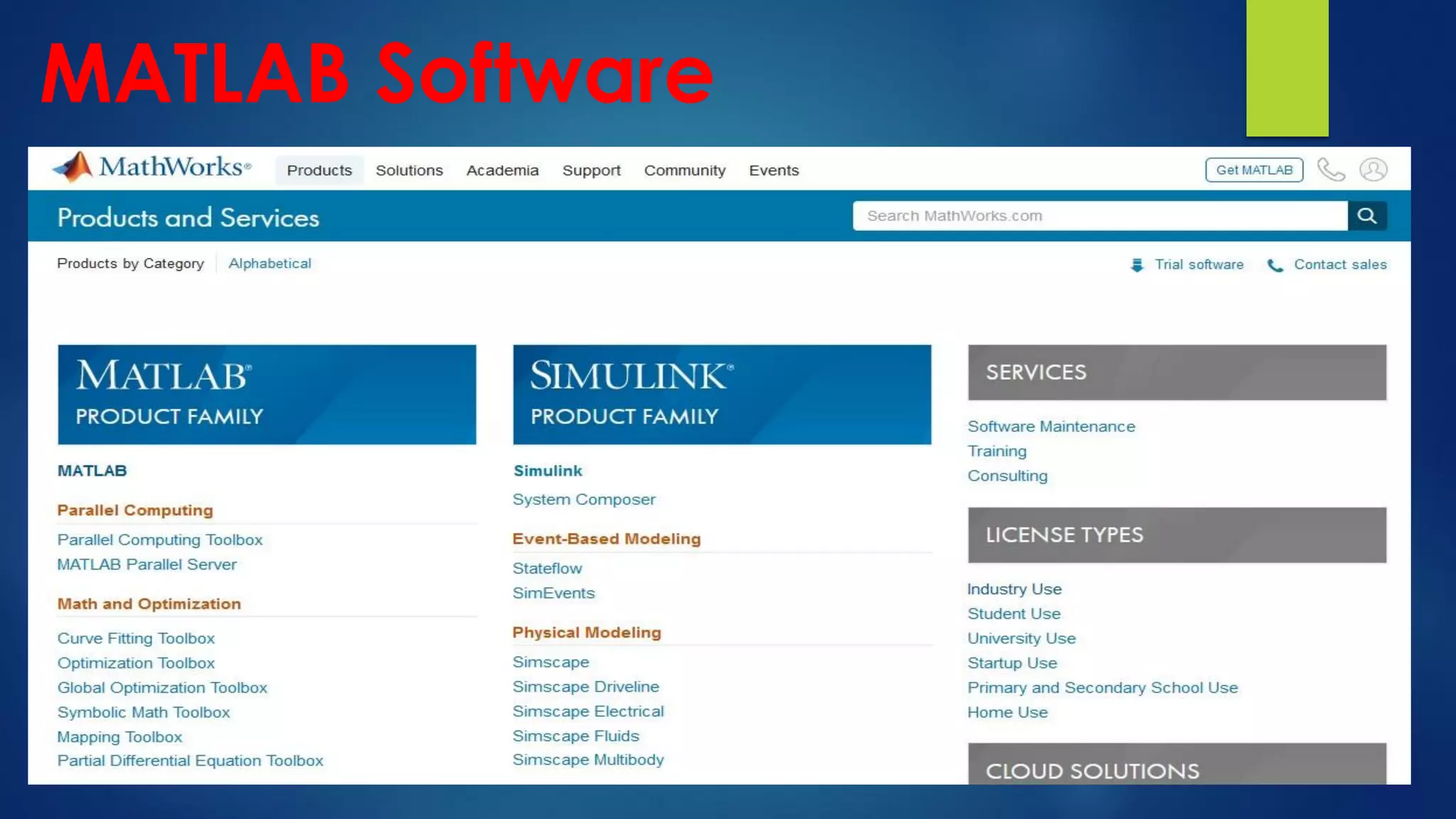
 MATLAB Software
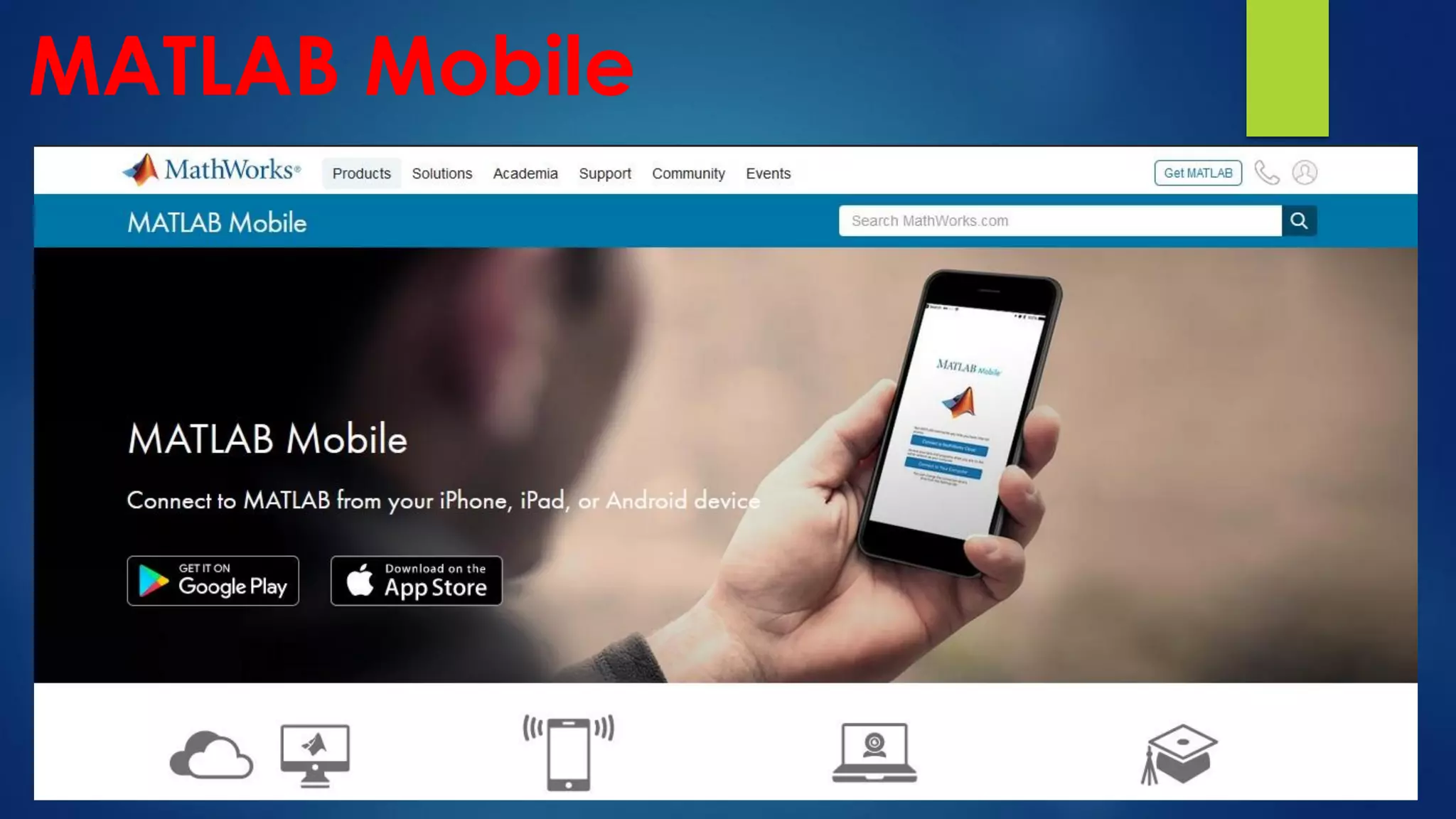
 MATLAB Mobile
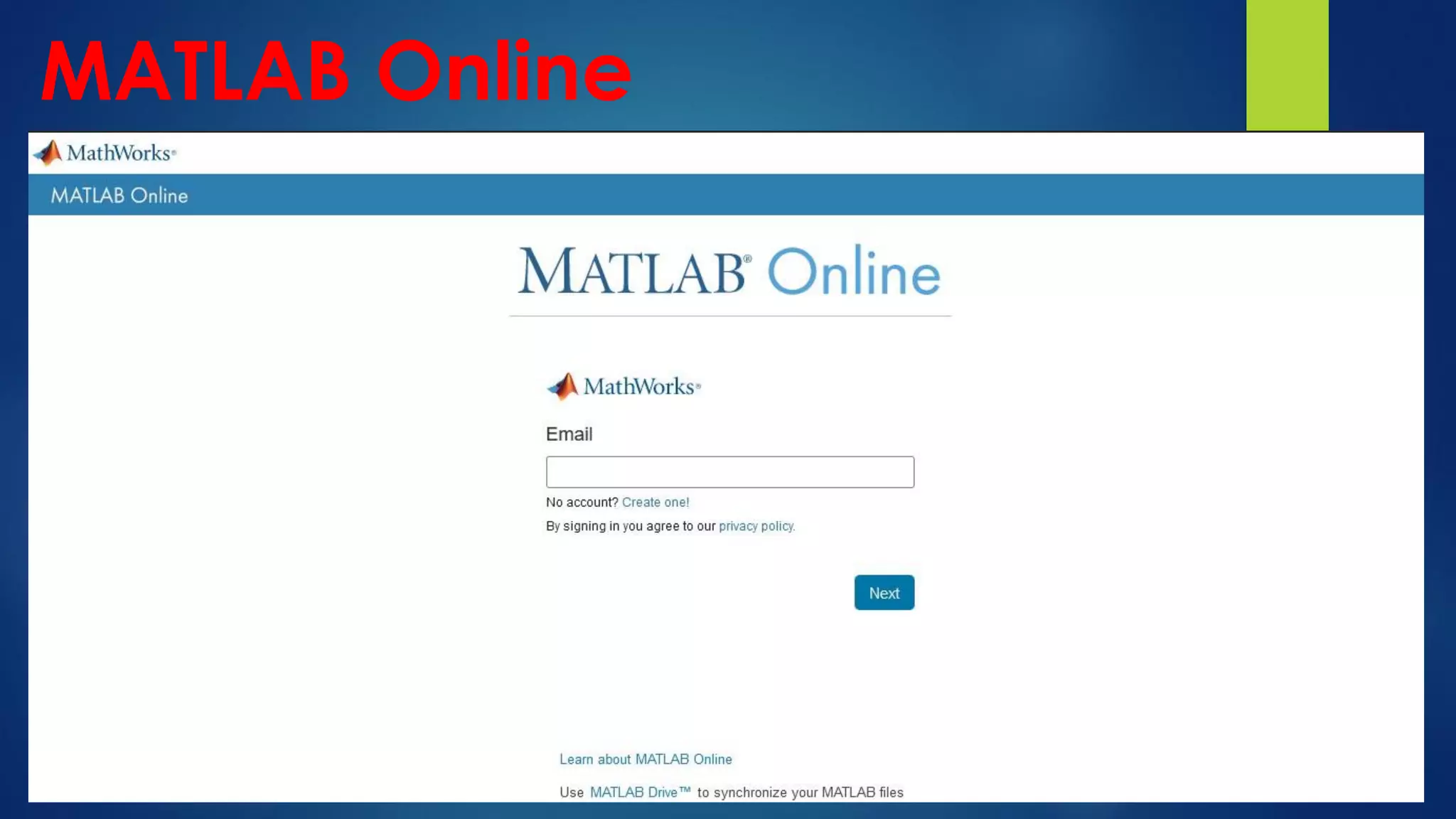
 MATLAB Online
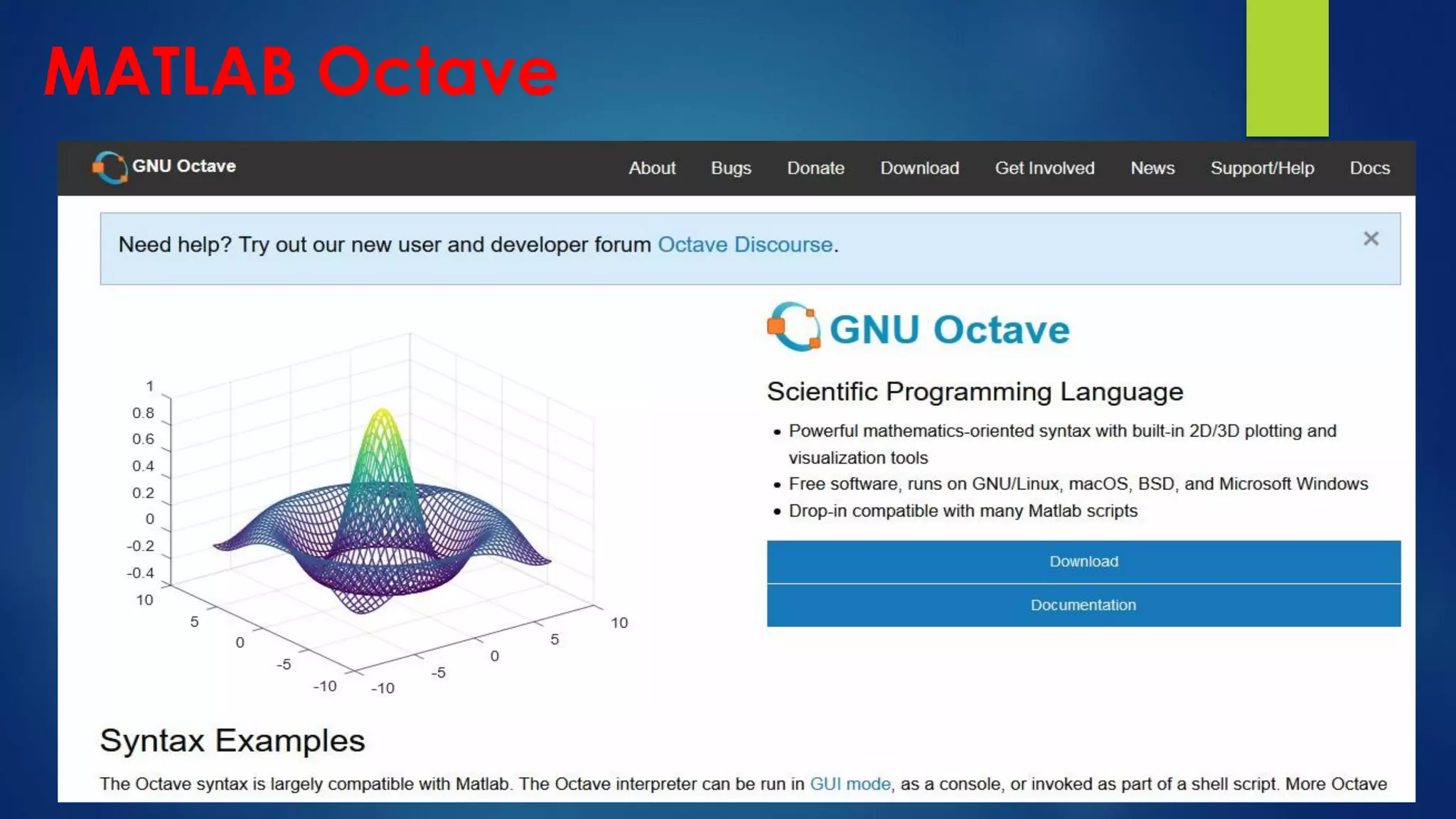
 Octave Offline
 Octave Online
MATLAB Software
MATLAB Mobile
MATLAB Online
MATLAB Octave
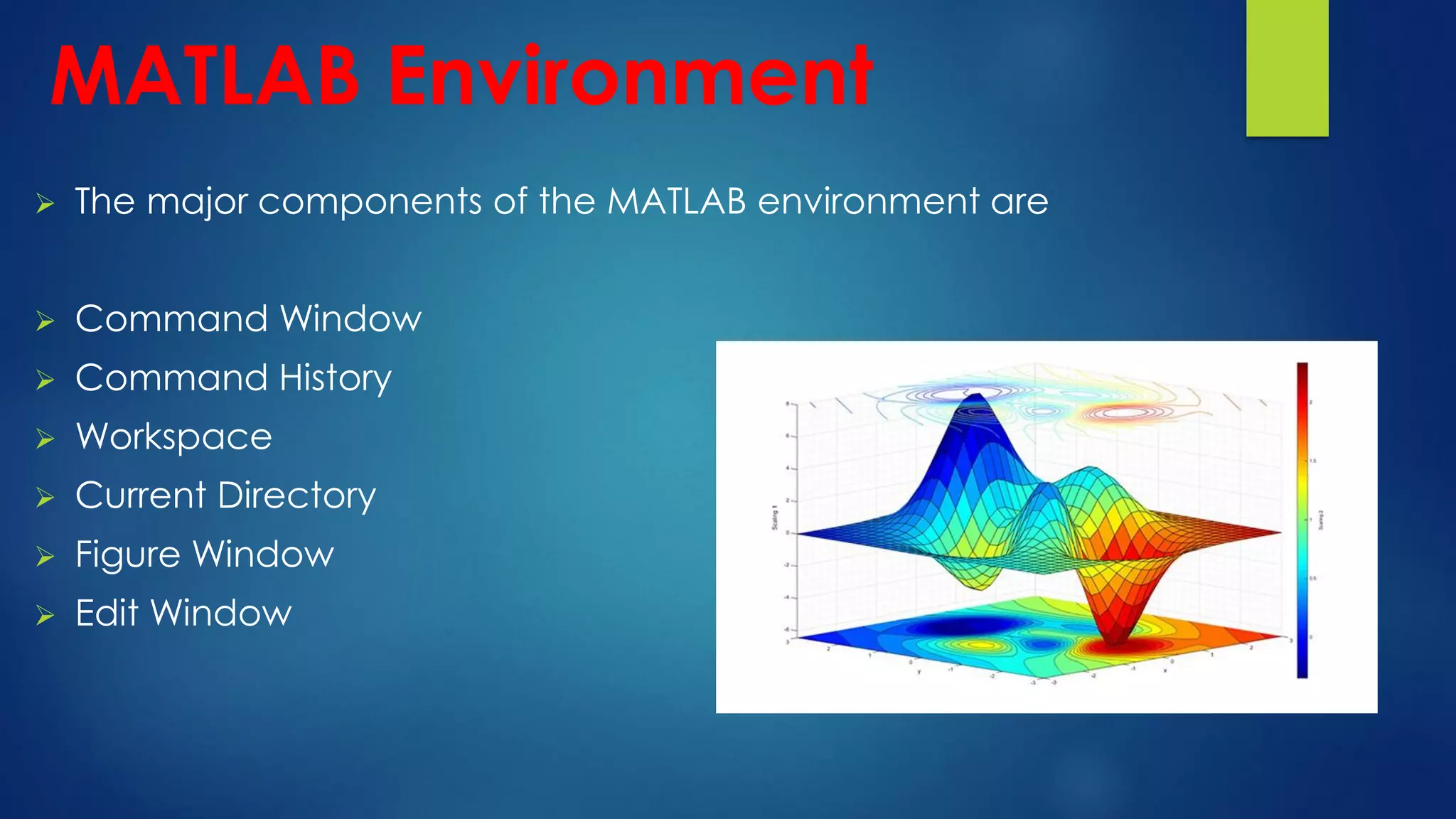
MATLAB Environment
 The major components of the MATLAB environment are
 Command Window
 Command History
 Workspace
 Current Directory
 Figure Window
 Edit Window
Types of Files in MATLAB
 There are three different types of files in the MATLAB:
1. M- files, 2. MAT-files, 3.MEX-files
1. M-files
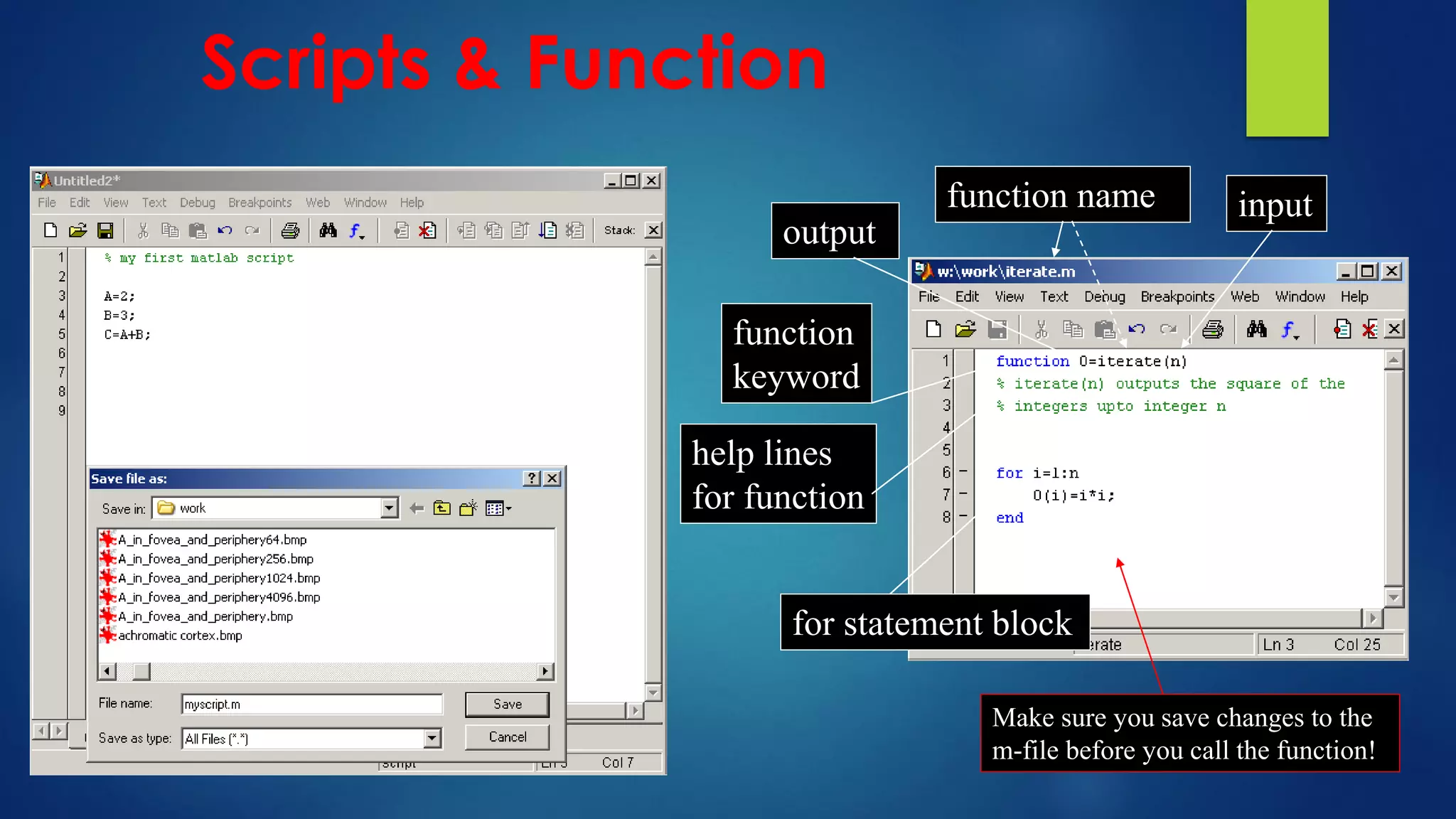
M-files are standard ASCII text files, with a (.m) extension to the filename. Any program written
in a MATLAB editor is saved as M-files. These files are further classified as
 Script Files
An M-file with a set of valid MATLAB commands is called a script.
 Function Files
An M-files which begins with a functions definition line is called a function file. If a file does not
begin with function definition line, it becomes a script file.
output
input
function name
for statement block
function
keyword
help lines
for function
Make sure you save changes to the
m-file before you call the function!
Scripts & Function
 2. MAT-file
MAT-files are binary data-files, with an (.mat) extension to the filename. These are created
by MATLAB when data is saved using save command. The save command saves data form
the current MATLAB workspace into a disk file.
save <filename>
To load the data saved in the MAT-file, the load command is used.
load <filename>
 3. MEX – file
 MEX-file is MATLAB callable FORTRAN and C program, with a (.mex) extension. This
feature allows the user to integrate the code written in FORTRAN and C language into
the programs developed using MATLAB.
Useful MATLAB Commands
 clc- Clears Screen
 clf- Clears Figure Window
 clear all – Clears the variables in the workspace
 clear xyz – Clears the variables specified in the command
 Ctrl-c – Stops execution of function/command being run currently
 quit / exit - quit MATLAB
 real(x) – Real part of given complex number
 imag(x) – Imaginary part of complex number
 factorial – Gives factorial of a number
 log – Gives natural logarithm
 sqrt – Square root of a number
Data Types in MATLAB
 MATLAB provides a user-friendly notation for input and output data. Following are some
data types in MATLAB.
1. Integers :- 1, 2, 3, and -1, -2, -3.
2. Floating:- 3.14159, 2.1456
3. Complex:- 3+4i, 4+2i
4. Constant:- there are several pre-defined constants in MATLAB. Pi, Inf, -Inf, i,j.
5. Text String
6. Vectors
7. Matrices
8. Boolean
9. Arrays
MATLAB Array
 An array is a collection of data values organized into rows and columns.
 When the array has only one dimension (either a row or a column), it is known as a vector.
 While a two or more dimensional array is known as a matrix.
A = [1 2 3 4 5] %A is a vector
B = [1 2 3; 4 5 6; 7 8 9] % B is a matrix
C = ‘Hello’ % C is a string array
Operators
 MATLAB operators can be classified mainly onto three categories:
1. Arithmetic Operators
(like addition, multiplication, division etc.)
2. Relational Operators
(like less than, not equal to, equal to etc.)
3. Logical Operators
(like AND, OR, NOT etc.)
Scalars:-
 A scalars is a (1x1) matrix containing a single element only.
 A scalar does not need any square brackets
P = 10
Vectors:-
 Vectors are two type 1)- Row vector and 2) Column vector
 All the elements of a row vector are separated by blank space or commas and are
enclosed in square brackets.
 All the elements of a column are separated by semicolon.
Q = [1,2,3] / [1 2 3] – row
P = [1; 2; 3] - column
Vectors and Matrices
Creating Special Matrices
 ones
A = ones(2,4) % creates a 2x4 matrix
A = ones(3) % creates a 3x3 matrix
 zeros
B = zeros(3) % creates a 3x3 matrix
 eye
C = eye(3) % creates a 3x3 matrix
 rand / randn
D = rand(2,4) % creates a 2x4 matrix
 magic
E = magic(3) % creates a 3x3 matrix
Arithmetic Operations on Matrix
 A + B is valid if A and B are matrices of the same size.
 A-B is valid if A and B are matrices of the same size.
 A*B is valid if number of columns of A is equal to number of rows of B.
 A/B is valid if A and B are of the same size and it is equal to AB^-1 for same
size square matrix A and B.
 A^2 is valid if A is square and it equals A*A.
 A^p effectively multiplies matrix A itself (p-1) times.
 If a matrix equation is given by Ax = B, then the command x = AB will give
x = A^-1*B.
Arithmetic Operations on Arrays
 Arithmetic Operations on arrays are done on elements-by-elements basis.
 (+) = addition
 (-) = subtraction
 (.*) = element-by-element multiplication
 (./) = element-by-element right division
 (.^) = element-by-element power
 (.) = element-by-element left division
MATLAB Plotting
 Plotting is a graphical representation of a data set that shows a
relationship between two or more variables.
 MATLAB plots play an essential role in the field of mathematics,
science, engineering, technology and finance for statistics and
data analysis.
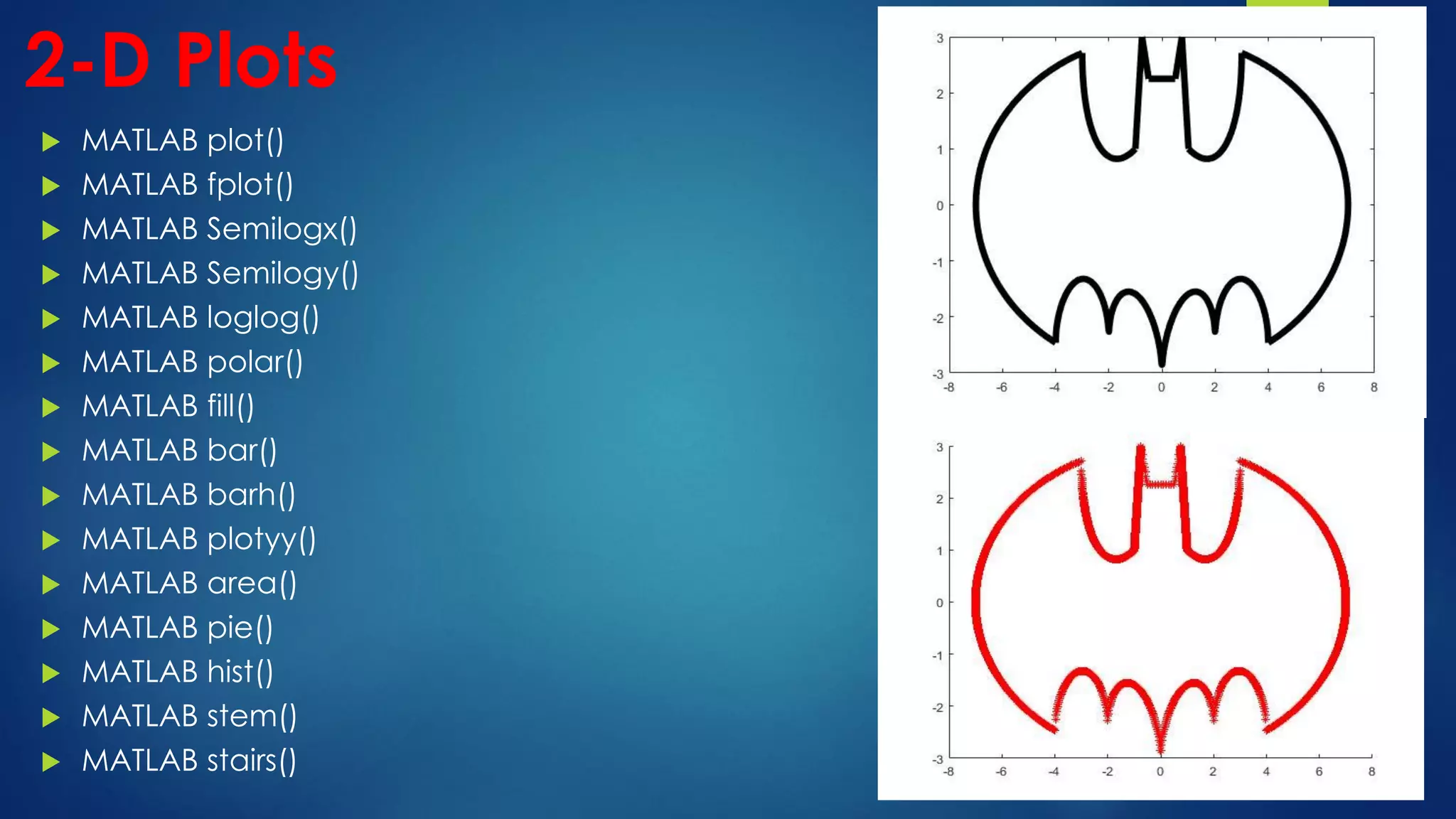
 There are several functions available in MATLAB to create 2-D
and 3-D plots.
2-D Plots
 MATLAB plot()
 MATLAB fplot()
 MATLAB Semilogx()
 MATLAB Semilogy()
 MATLAB loglog()
 MATLAB polar()
 MATLAB fill()
 MATLAB bar()
 MATLAB barh()
 MATLAB plotyy()
 MATLAB area()
 MATLAB pie()
 MATLAB hist()
 MATLAB stem()
 MATLAB stairs()
2-D
 MATLAB provides plotting capability with polar coordinates:
polar(theta, r)
 Example
r=2sin5t,0≤t≤2π
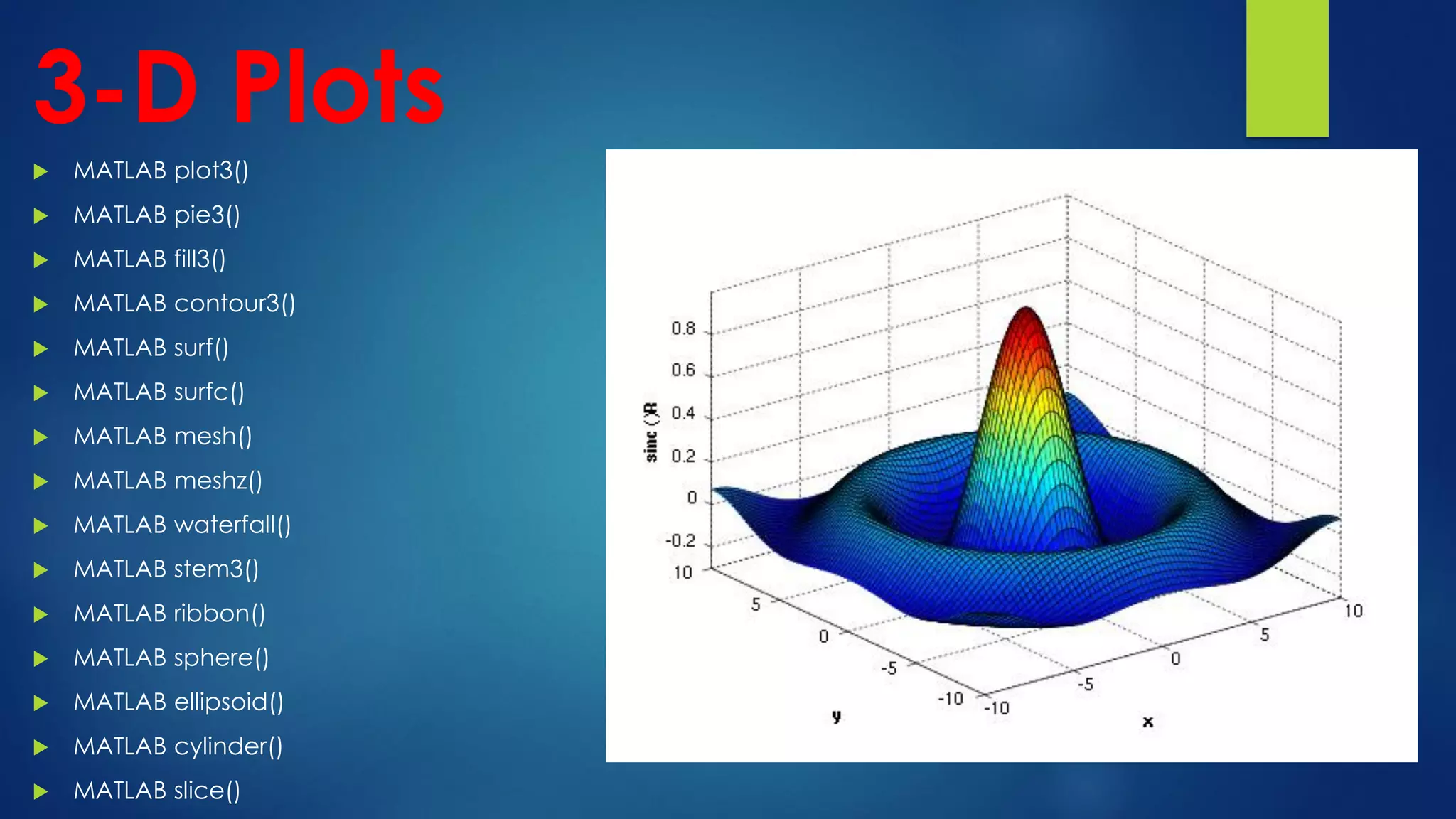
3-D Plots
 MATLAB plot3()
 MATLAB pie3()
 MATLAB fill3()
 MATLAB contour3()
 MATLAB surf()
 MATLAB surfc()
 MATLAB mesh()
 MATLAB meshz()
 MATLAB waterfall()
 MATLAB stem3()
 MATLAB ribbon()
 MATLAB sphere()
 MATLAB ellipsoid()
 MATLAB cylinder()
 MATLAB slice()
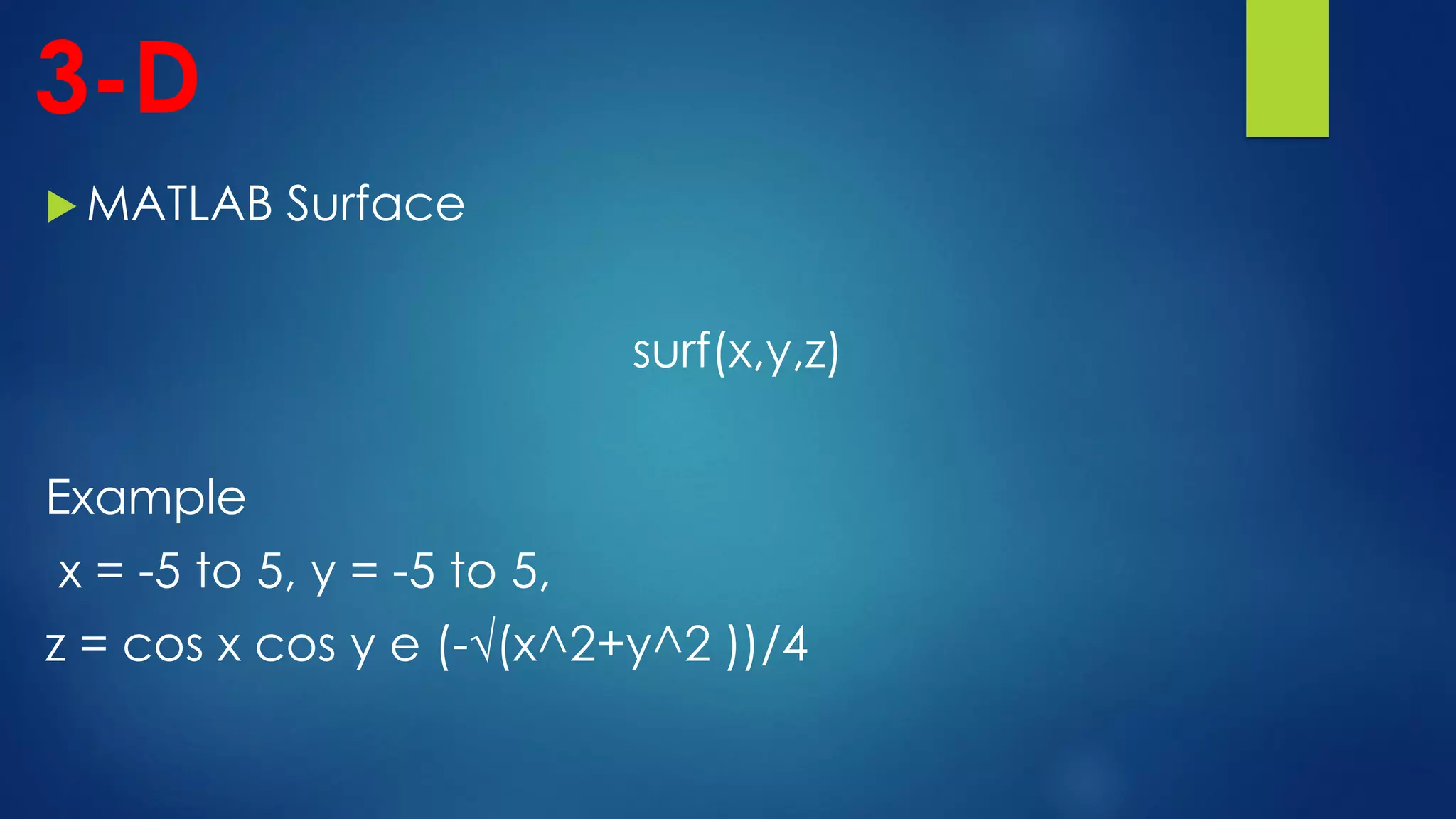
3-D
 MATLAB Surface
surf(x,y,z)
Example
x = -5 to 5, y = -5 to 5,
z = cos x cos y e (-√(x^2+y^2 ))/4
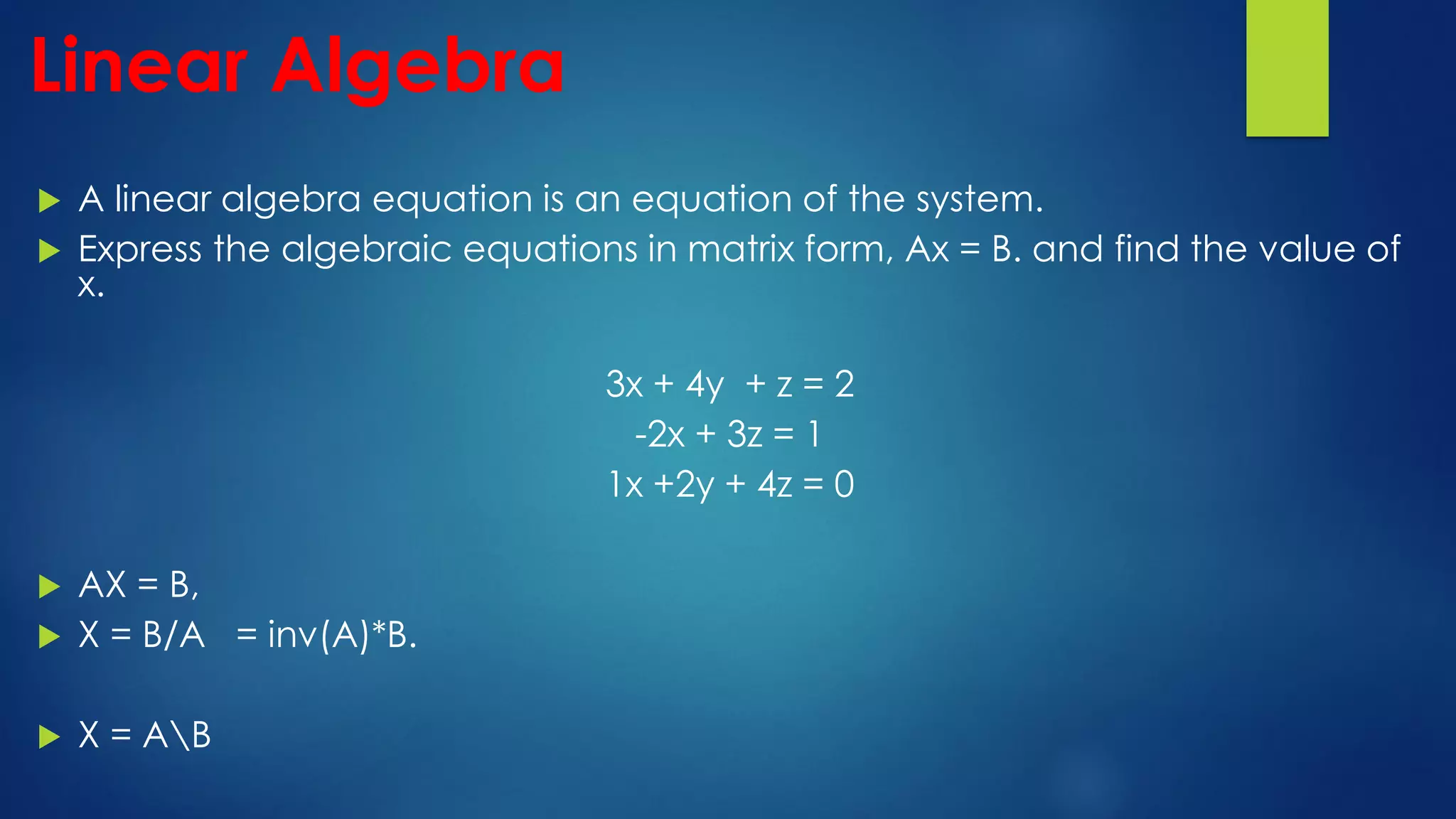
Linear Algebra
 A linear algebra equation is an equation of the system.
 Express the algebraic equations in matrix form, Ax = B. and find the value of
x.
3x + 4y + z = 2
-2x + 3z = 1
1x +2y + 4z = 0
 AX = B,
 X = B/A = inv(A)*B.
 X = AB
MATLAB Polynomial
 Polynomial Evaluation
 Roots of Polynomial
 Polynomial Addition
 Polynomial Subtraction
 Polynomial Multiplication
 Polynomial Division
 Polynomial Differentiation
 Polynomial Integration
Polynomial Functions
 MATLAB performs polynomial operations.
P(x) = x4 + 7x3 - 5x + 9
 Solution of this equation at 1, 9, 19 ,21 etc.
P = [1 7 0 -5 9]
x = 1
polycal(P,x)
 Laplace
 Inverse Laplace
 Zeros, Poles , Pole-Zeros Map,
 State Space Representation
 Serial / Cascade, Parallel and Feedback Connections
 Step Response
 Impulse Response
 Root Locus Plots
 Bode Plots
 Nyquist Plots
MATLAB Control System
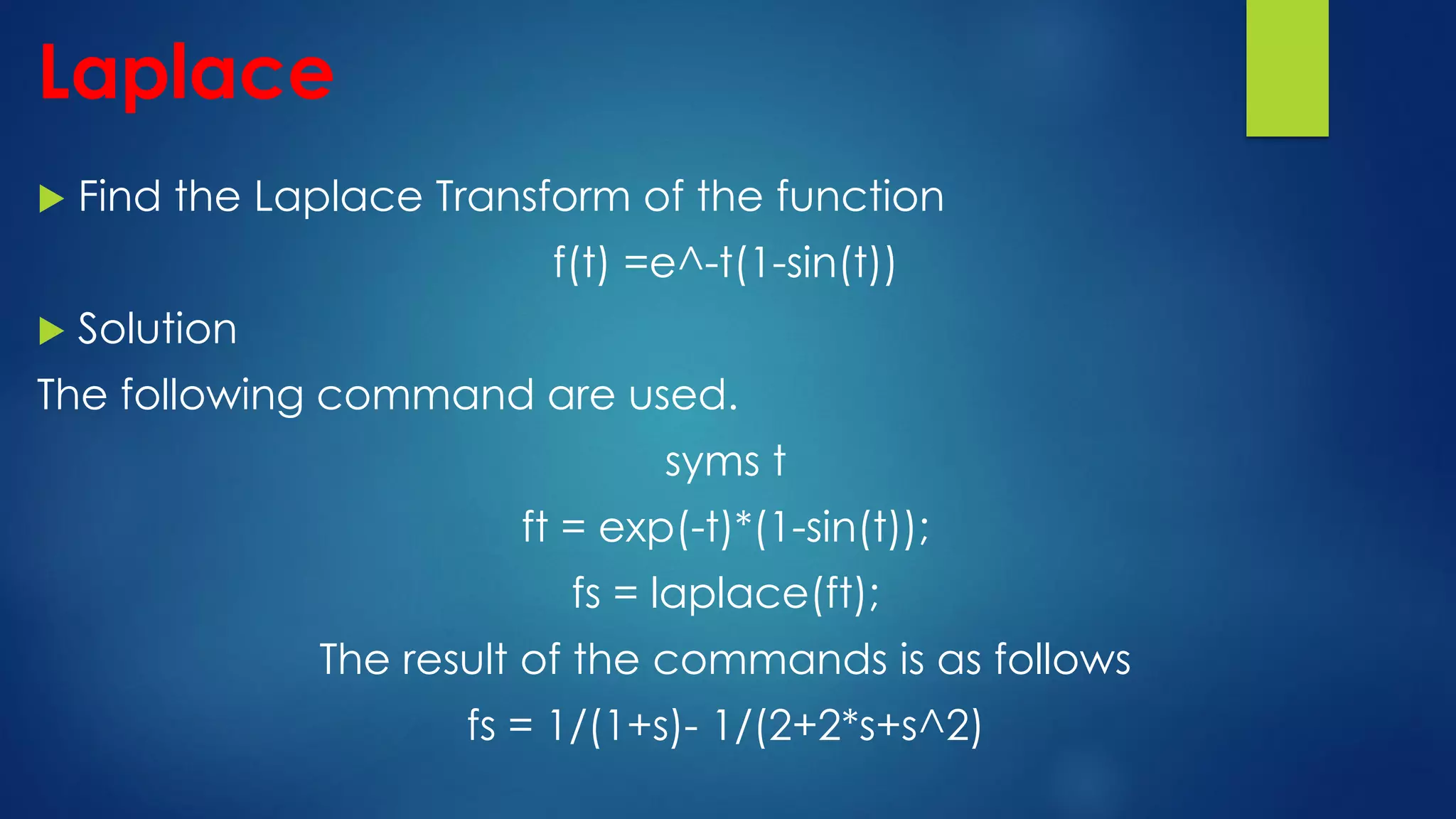
Laplace
 Find the Laplace Transform of the function
f(t) =e^-t(1-sin(t))
 Solution
The following command are used.
syms t
ft = exp(-t)*(1-sin(t));
fs = laplace(ft);
The result of the commands is as follows
fs = 1/(1+s)- 1/(2+2*s+s^2)
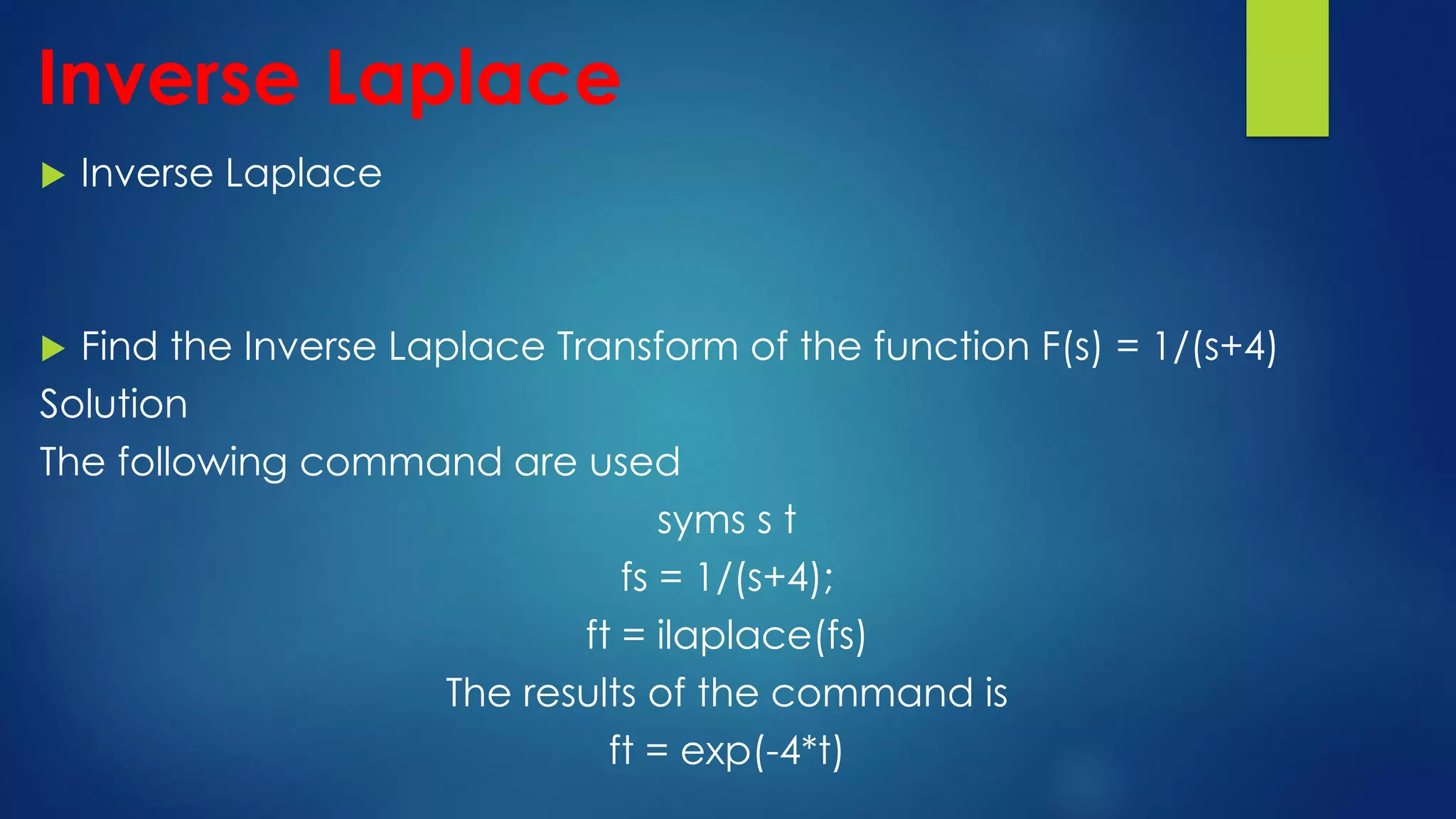
 Inverse Laplace
 Find the Inverse Laplace Transform of the function F(s) = 1/(s+4)
Solution
The following command are used
syms s t
fs = 1/(s+4);
ft = ilaplace(fs)
The results of the command is
ft = exp(-4*t)
Inverse Laplace
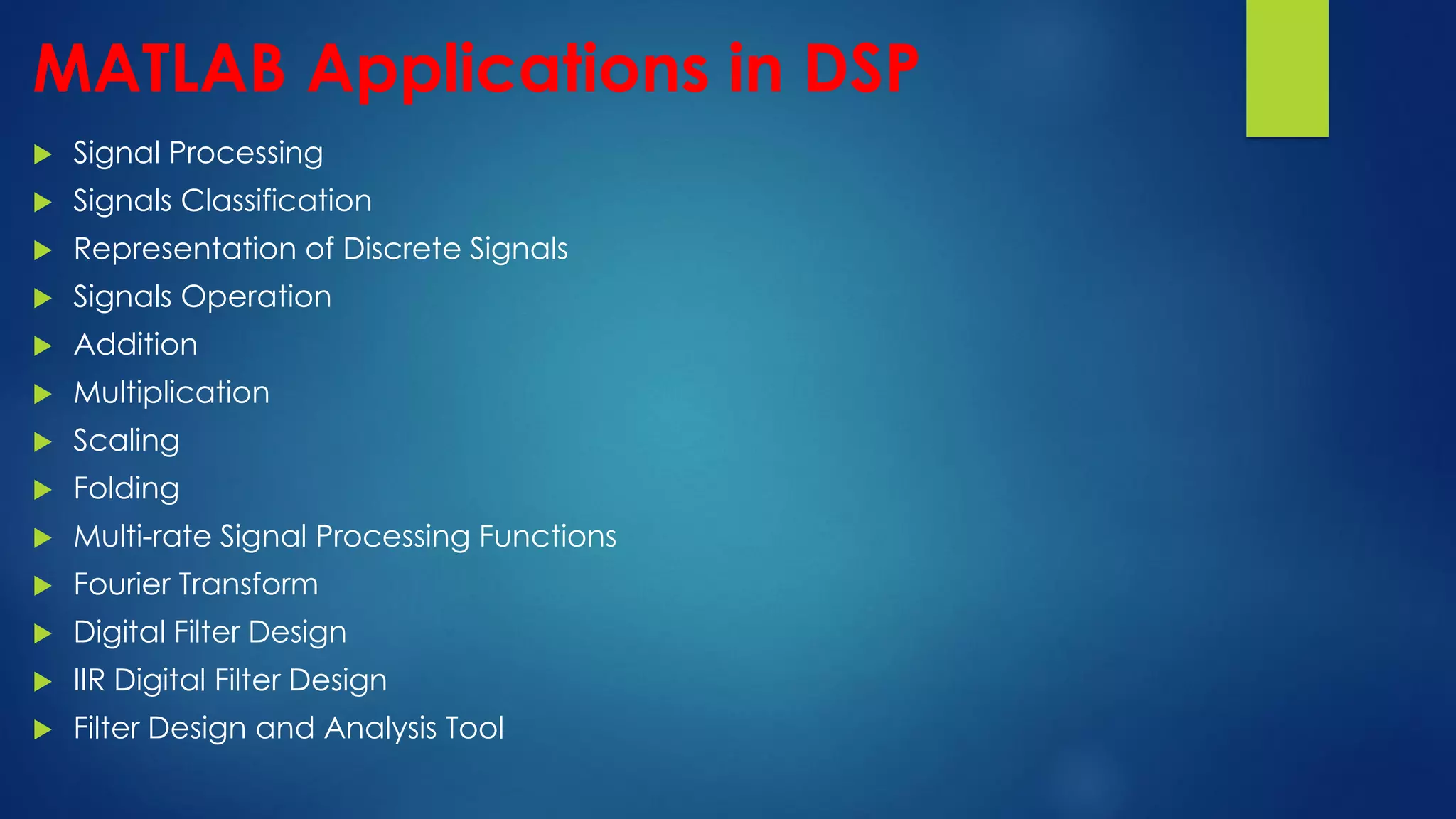
MATLAB Applications in DSP
 Signal Processing
 Signals Classification
 Representation of Discrete Signals
 Signals Operation
 Addition
 Multiplication
 Scaling
 Folding
 Multi-rate Signal Processing Functions
 Fourier Transform
 Digital Filter Design
 IIR Digital Filter Design
 Filter Design and Analysis Tool
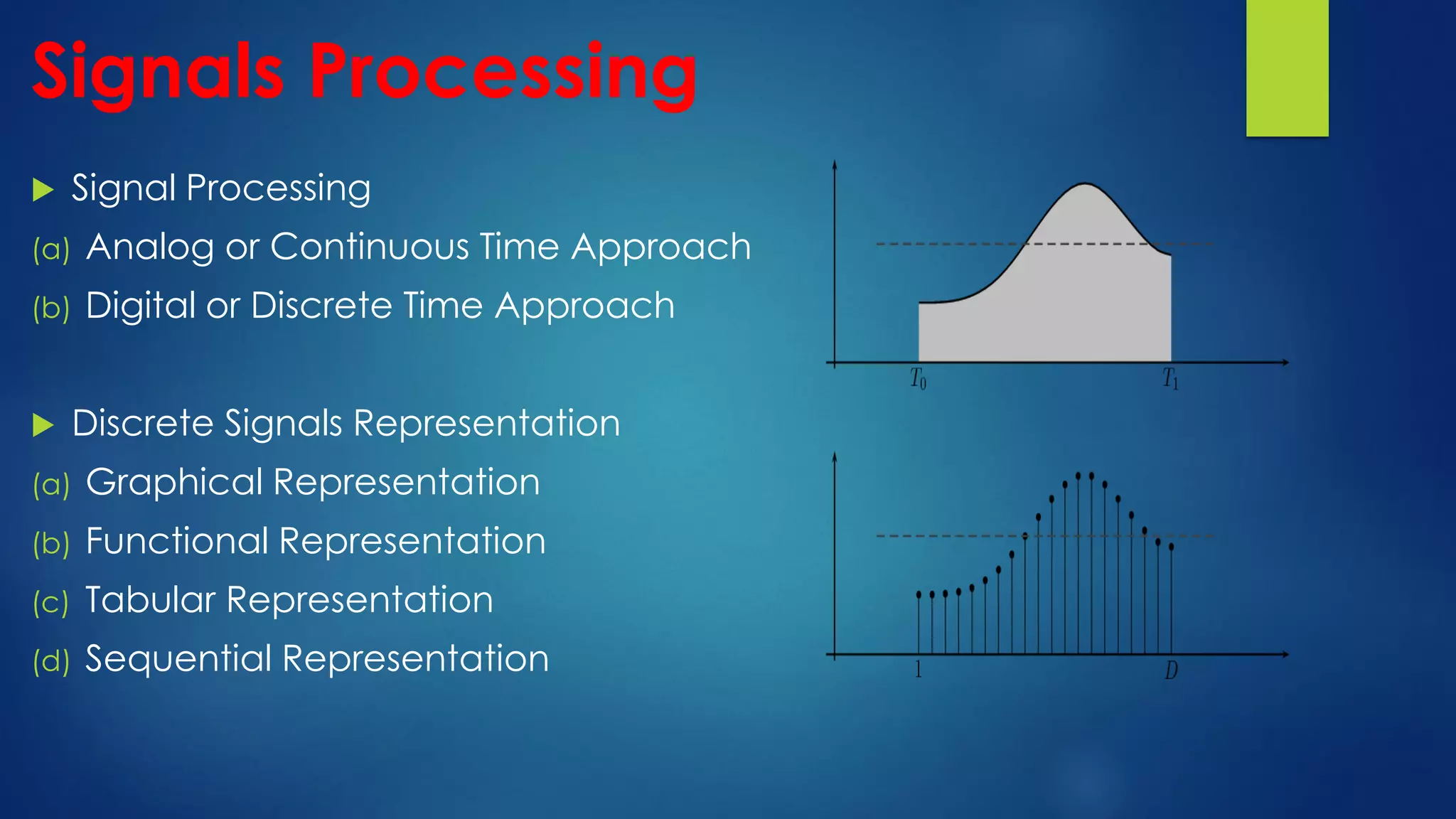
Signals Processing
 Signal Processing
(a) Analog or Continuous Time Approach
(b) Digital or Discrete Time Approach
 Discrete Signals Representation
(a) Graphical Representation
(b) Functional Representation
(c) Tabular Representation
(d) Sequential Representation
Graphical Representation
 A signal can be graphically represented using stem command
in MATLAB.
 The syntax is given as:
stem(x)
stem(t,x)
stem(t,x, ‘fill’)
stem(t,x, ‘fill’, ‘----’ )
stem(t,x, ‘marker’)
 Plot the sine wave in discrete signal form.
𝑡 = −𝜋 𝑡𝑜 𝜋, 𝑦 = sin(𝑡)
Solution:-
t = linspace(-pi, pi, 10);
y = sin(t);
stem(t, y)
Using other command
t = linspace(-pi, pi, 10);
y = sin(t);
stem(t, y, ‘fill’, ‘--’);
title(‘plot of sine wave’);
xlabel(‘discrete time’);
ylabel(‘sine wave amplitude’);
Digital Filter Design
 The digital filters can be classified as:
Finite-duration impulse response (FIR) filter
Infinite-duration impulse response (IIR) filter
IIR Digital Filter Design
The different types of IIR digital filters are:
 Butterworth filter
 Chebyshev Type I filter
 Chebyshev Type II filter
 Elliptic filter
Filter Design and Analysis Tool
 The Different types of responses that can be viewed are listed
below.
 Magnitude response
 Phase response
 Group delay
 Phase delay
 Impulse response
 Step response
 Pole-zero plot
 Zero-phase plot
MATLAB Simulink
 Simulink Modeling
 Wireless Communication
 Power Electronics Control Design
 Control Systems
 Signal Processing
 Robotics
 Advanced Driver Assistance Systems
 Image Processing and Computer Vision
 Etc.
Introduction to MATLAB

Introduction to MATLAB

  • 1.
  • 2.
    Outlook  Introduction toMATLAB  What is MATLAB  MATLAB Use  Features of MATLAB  Toolboxes  MATLAB System  Applied MATLAB  industrial MATLAB  MATLAB Learning Platform  MATLAB Environment  Type of Files in MATLAB  MATLAB Commands  Data Types in MATLAB  MATLAB Array  Application of MATLAB  MATLAB Plotting  Linear Algebra  Symbolic Mathematics  Polynomial Functions  MATLAB Control System  MATLAB Application in DSP  Digital Filter Design  MATLAB Simulink
  • 3.
    Introduction to MATLAB In 1970 Mr Moloer wrote MATLAB, which is referred as “MATrix LABoratory”.  It is a software package used to perform scientific computations and visualization.  MATLAB has the ability:- • Variable management • Data import and export • Calculation based on matrix • Generates plots and graphs
  • 4.
    What is MATLAB MATLAB is a software package for high – performance mathematical computation, visualization, and programming environment.  MATLAB is a fourth generation programming language which provide  numerical computing environment,  data visualization,  data analysis and  algorithm development feature.  MATLAB stands for Matrix Laboratory.
  • 5.
  • 6.
    Features of MATLAB High level language for technical computing.  Development environment for manage code, files, data visualization.  Mathematical function for linear algebra, statistics, Fourier analysis.  Provide interfaces to work with other programming languages such as C, C++, Java, .NET, Python, SQL, Hadoop.  MATLAB Toolboxes for other application.
  • 8.
    Graphics •2-D •3-D •Color and Lighting •Animation •Audio and Video Computations •LinearAlgebra •Data Analysis •Signal Processing •Polynomials •Quadrature •Solution of ODEs External Interface •Interface with C, Java and Fortran Programs
  • 9.
    Toolboxes  Signal Processing Statistics  Control System  System Identification  Neural Networks  Communications  Symbolic Mathematics  Image Processing  Aerospace  Robust Control  M-Analysis & Synthesis  Optimization  Arduino  Financial and Many More
  • 10.
    Applied MATLAB  ComputationalBiology  Control Systems  Data Science  Deep Learning  Machine Learning  Wireless Communications  Image Processing  Computer Vision  IOT  Embedded Systems  Test and Measurement  Mixed Signal Systems  Power Electronics Control Design  Predictive Maintenance  Robotics  Signal Processing  Mechatronics  Enterprise and IT Systems
  • 11.
    Industrial MATLAB  Communications Earth, Ocean and Atmospheric Sciences  Biological Sciences  Biotech and Pharmaceutical  Quantitative Finance and Risk Management  Energy Production  Metals Materials and Mining  Industrial Automation and Machinery  Aerospace and Defence  Neuroscience  Software and Internet  Electronics  Medical Devices  Semiconductors  Automotive  Railway Systems
  • 12.
    MATLAB Learning Platform MATLAB Software  MATLAB Mobile  MATLAB Online  Octave Offline  Octave Online
  • 13.
  • 14.
  • 15.
  • 16.
  • 17.
    MATLAB Environment  Themajor components of the MATLAB environment are  Command Window  Command History  Workspace  Current Directory  Figure Window  Edit Window
  • 18.
    Types of Filesin MATLAB  There are three different types of files in the MATLAB: 1. M- files, 2. MAT-files, 3.MEX-files 1. M-files M-files are standard ASCII text files, with a (.m) extension to the filename. Any program written in a MATLAB editor is saved as M-files. These files are further classified as  Script Files An M-file with a set of valid MATLAB commands is called a script.  Function Files An M-files which begins with a functions definition line is called a function file. If a file does not begin with function definition line, it becomes a script file.
  • 19.
    output input function name for statementblock function keyword help lines for function Make sure you save changes to the m-file before you call the function! Scripts & Function
  • 20.
     2. MAT-file MAT-filesare binary data-files, with an (.mat) extension to the filename. These are created by MATLAB when data is saved using save command. The save command saves data form the current MATLAB workspace into a disk file. save <filename> To load the data saved in the MAT-file, the load command is used. load <filename>  3. MEX – file  MEX-file is MATLAB callable FORTRAN and C program, with a (.mex) extension. This feature allows the user to integrate the code written in FORTRAN and C language into the programs developed using MATLAB.
  • 21.
    Useful MATLAB Commands clc- Clears Screen  clf- Clears Figure Window  clear all – Clears the variables in the workspace  clear xyz – Clears the variables specified in the command  Ctrl-c – Stops execution of function/command being run currently  quit / exit - quit MATLAB  real(x) – Real part of given complex number  imag(x) – Imaginary part of complex number  factorial – Gives factorial of a number  log – Gives natural logarithm  sqrt – Square root of a number
  • 22.
    Data Types inMATLAB  MATLAB provides a user-friendly notation for input and output data. Following are some data types in MATLAB. 1. Integers :- 1, 2, 3, and -1, -2, -3. 2. Floating:- 3.14159, 2.1456 3. Complex:- 3+4i, 4+2i 4. Constant:- there are several pre-defined constants in MATLAB. Pi, Inf, -Inf, i,j. 5. Text String 6. Vectors 7. Matrices 8. Boolean 9. Arrays
  • 23.
    MATLAB Array  Anarray is a collection of data values organized into rows and columns.  When the array has only one dimension (either a row or a column), it is known as a vector.  While a two or more dimensional array is known as a matrix. A = [1 2 3 4 5] %A is a vector B = [1 2 3; 4 5 6; 7 8 9] % B is a matrix C = ‘Hello’ % C is a string array
  • 24.
    Operators  MATLAB operatorscan be classified mainly onto three categories: 1. Arithmetic Operators (like addition, multiplication, division etc.) 2. Relational Operators (like less than, not equal to, equal to etc.) 3. Logical Operators (like AND, OR, NOT etc.)
  • 25.
    Scalars:-  A scalarsis a (1x1) matrix containing a single element only.  A scalar does not need any square brackets P = 10 Vectors:-  Vectors are two type 1)- Row vector and 2) Column vector  All the elements of a row vector are separated by blank space or commas and are enclosed in square brackets.  All the elements of a column are separated by semicolon. Q = [1,2,3] / [1 2 3] – row P = [1; 2; 3] - column Vectors and Matrices
  • 26.
    Creating Special Matrices ones A = ones(2,4) % creates a 2x4 matrix A = ones(3) % creates a 3x3 matrix  zeros B = zeros(3) % creates a 3x3 matrix  eye C = eye(3) % creates a 3x3 matrix  rand / randn D = rand(2,4) % creates a 2x4 matrix  magic E = magic(3) % creates a 3x3 matrix
  • 27.
    Arithmetic Operations onMatrix  A + B is valid if A and B are matrices of the same size.  A-B is valid if A and B are matrices of the same size.  A*B is valid if number of columns of A is equal to number of rows of B.  A/B is valid if A and B are of the same size and it is equal to AB^-1 for same size square matrix A and B.  A^2 is valid if A is square and it equals A*A.  A^p effectively multiplies matrix A itself (p-1) times.  If a matrix equation is given by Ax = B, then the command x = AB will give x = A^-1*B.
  • 28.
    Arithmetic Operations onArrays  Arithmetic Operations on arrays are done on elements-by-elements basis.  (+) = addition  (-) = subtraction  (.*) = element-by-element multiplication  (./) = element-by-element right division  (.^) = element-by-element power  (.) = element-by-element left division
  • 29.
    MATLAB Plotting  Plottingis a graphical representation of a data set that shows a relationship between two or more variables.  MATLAB plots play an essential role in the field of mathematics, science, engineering, technology and finance for statistics and data analysis.  There are several functions available in MATLAB to create 2-D and 3-D plots.
  • 30.
    2-D Plots  MATLABplot()  MATLAB fplot()  MATLAB Semilogx()  MATLAB Semilogy()  MATLAB loglog()  MATLAB polar()  MATLAB fill()  MATLAB bar()  MATLAB barh()  MATLAB plotyy()  MATLAB area()  MATLAB pie()  MATLAB hist()  MATLAB stem()  MATLAB stairs()
  • 31.
    2-D  MATLAB providesplotting capability with polar coordinates: polar(theta, r)  Example r=2sin5t,0≤t≤2π
  • 32.
    3-D Plots  MATLABplot3()  MATLAB pie3()  MATLAB fill3()  MATLAB contour3()  MATLAB surf()  MATLAB surfc()  MATLAB mesh()  MATLAB meshz()  MATLAB waterfall()  MATLAB stem3()  MATLAB ribbon()  MATLAB sphere()  MATLAB ellipsoid()  MATLAB cylinder()  MATLAB slice()
  • 33.
    3-D  MATLAB Surface surf(x,y,z) Example x= -5 to 5, y = -5 to 5, z = cos x cos y e (-√(x^2+y^2 ))/4
  • 34.
    Linear Algebra  Alinear algebra equation is an equation of the system.  Express the algebraic equations in matrix form, Ax = B. and find the value of x. 3x + 4y + z = 2 -2x + 3z = 1 1x +2y + 4z = 0  AX = B,  X = B/A = inv(A)*B.  X = AB
  • 35.
    MATLAB Polynomial  PolynomialEvaluation  Roots of Polynomial  Polynomial Addition  Polynomial Subtraction  Polynomial Multiplication  Polynomial Division  Polynomial Differentiation  Polynomial Integration
  • 36.
    Polynomial Functions  MATLABperforms polynomial operations. P(x) = x4 + 7x3 - 5x + 9  Solution of this equation at 1, 9, 19 ,21 etc. P = [1 7 0 -5 9] x = 1 polycal(P,x)
  • 37.
     Laplace  InverseLaplace  Zeros, Poles , Pole-Zeros Map,  State Space Representation  Serial / Cascade, Parallel and Feedback Connections  Step Response  Impulse Response  Root Locus Plots  Bode Plots  Nyquist Plots MATLAB Control System
  • 38.
    Laplace  Find theLaplace Transform of the function f(t) =e^-t(1-sin(t))  Solution The following command are used. syms t ft = exp(-t)*(1-sin(t)); fs = laplace(ft); The result of the commands is as follows fs = 1/(1+s)- 1/(2+2*s+s^2)
  • 39.
     Inverse Laplace Find the Inverse Laplace Transform of the function F(s) = 1/(s+4) Solution The following command are used syms s t fs = 1/(s+4); ft = ilaplace(fs) The results of the command is ft = exp(-4*t) Inverse Laplace
  • 40.
    MATLAB Applications inDSP  Signal Processing  Signals Classification  Representation of Discrete Signals  Signals Operation  Addition  Multiplication  Scaling  Folding  Multi-rate Signal Processing Functions  Fourier Transform  Digital Filter Design  IIR Digital Filter Design  Filter Design and Analysis Tool
  • 41.
    Signals Processing  SignalProcessing (a) Analog or Continuous Time Approach (b) Digital or Discrete Time Approach  Discrete Signals Representation (a) Graphical Representation (b) Functional Representation (c) Tabular Representation (d) Sequential Representation
  • 42.
    Graphical Representation  Asignal can be graphically represented using stem command in MATLAB.  The syntax is given as: stem(x) stem(t,x) stem(t,x, ‘fill’) stem(t,x, ‘fill’, ‘----’ ) stem(t,x, ‘marker’)
  • 43.
     Plot thesine wave in discrete signal form. 𝑡 = −𝜋 𝑡𝑜 𝜋, 𝑦 = sin(𝑡) Solution:- t = linspace(-pi, pi, 10); y = sin(t); stem(t, y) Using other command t = linspace(-pi, pi, 10); y = sin(t); stem(t, y, ‘fill’, ‘--’); title(‘plot of sine wave’); xlabel(‘discrete time’); ylabel(‘sine wave amplitude’);
  • 44.
    Digital Filter Design The digital filters can be classified as: Finite-duration impulse response (FIR) filter Infinite-duration impulse response (IIR) filter IIR Digital Filter Design The different types of IIR digital filters are:  Butterworth filter  Chebyshev Type I filter  Chebyshev Type II filter  Elliptic filter
  • 45.
    Filter Design andAnalysis Tool  The Different types of responses that can be viewed are listed below.  Magnitude response  Phase response  Group delay  Phase delay  Impulse response  Step response  Pole-zero plot  Zero-phase plot
  • 46.
    MATLAB Simulink  SimulinkModeling  Wireless Communication  Power Electronics Control Design  Control Systems  Signal Processing  Robotics  Advanced Driver Assistance Systems  Image Processing and Computer Vision  Etc.