
Part 1Theory & PedagogyIntro to Wikis
What is a Wiki?Foundational Web 2.0 building block A technology created to solve a problemLets anyone -- easily create and edit a website without worrying about versioning, permissions, ownership, HTML, complex formatting, etc. The goal was simple, collaborative creation.Digital Play doughA wiki is a body of ideas that a community is willing to know and maintain.
Video – What’s a Wiki?http://www.youtube.com/watch?v=-dnL00TdmLY
Video – Blogs v. Wikis
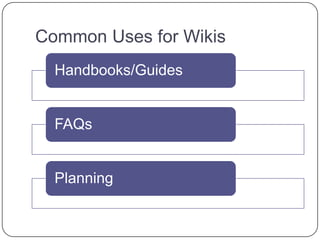
Common Uses for Wikis
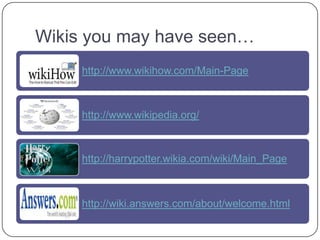
Wikis you may have seen…
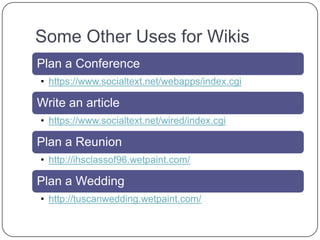
Some Other Uses for Wikis
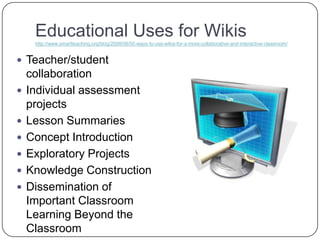
Educational Uses for Wikishttp://www.smartteaching.org/blog/2008/08/50-ways-to-use-wikis-for-a-more-collaborative-and-interactive-classroom/Teacher/student collaborationIndividual assessment projectsLesson SummariesConcept IntroductionExploratory ProjectsKnowledge ConstructionDissemination of Important Classroom Learning Beyond the Classroom
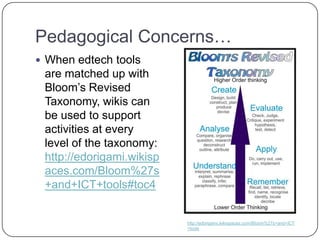
Pedagogical Concerns…When edtech tools are matched up with Bloom’s Revised Taxonomy, wikis can be used to support activities at every level of the taxonomy: http://edorigami.wikispaces.com/Bloom%27s+and+ICT+tools#toc4http://edorigami.wikispaces.com/Bloom%27s+and+ICT+tools
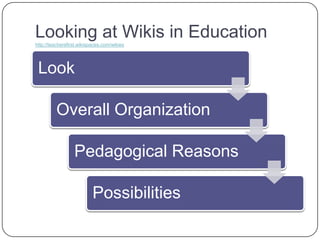
Looking at Wikis in Educationhttp://teachersfirst.wikispaces.com/wikiex
Hands-on timeExploring wikis with LOPPUse your LOPP worksheet to explore these Wikis:http://iclassroom.pbworks.com/
http://wardsworld.pbworks.com/
http://fifthgradeplants.pbworks.com/
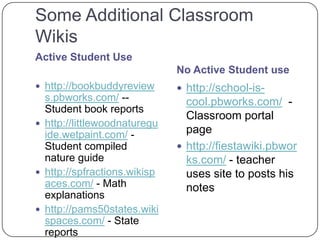
http://grade3responds.pbworks.com/Some Additional Classroom WikisActive Student Use	No Active Student usehttp://bookbuddyreviews.pbworks.com/ --  Student book reports http://littlewoodnatureguide.wetpaint.com/ - Student compiled nature guidehttp://spfractions.wikispaces.com/ - Math explanationshttp://pams50states.wikispaces.com/ - State reportshttp://school-is-cool.pbworks.com/  - Classroom portal pagehttp://fiestawiki.pbworks.com/ - teacher uses site to posts his notes
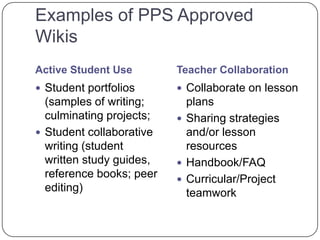
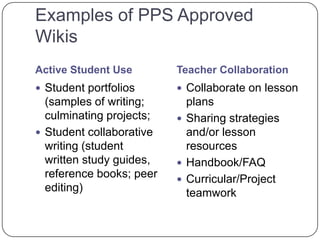
Examples of PPS Approved Wikis Active Student UseTeacher CollaborationStudent portfolios (samples of writing; culminating projects; Student collaborative writing (student written study guides, reference books; peer editing)Collaborate on lesson plansSharing strategies and/or lesson resourcesHandbook/FAQ Curricular/Project teamwork
Hands-on timeMapping your WikiTalk to a neighbor about what you might use your wiki for.
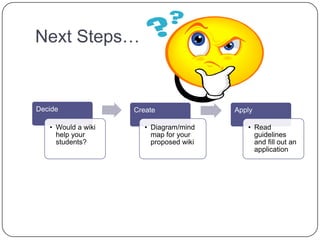
Use Inspiration or Kidspiration to diagram what your wiki structure might look like.Next Steps…
Part 2Setting Up Your WikiIntro to Wikis
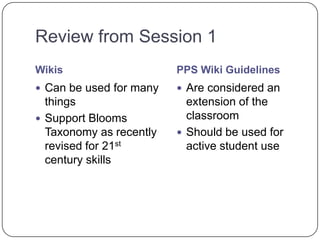
Review from Session 1WikisPPS Wiki GuidelinesCan be used for many things Support Blooms Taxonomy as recently revised for 21st century skillsAre considered an extension of the classroomShould be used for active student use
Examples of PPS Approved Wikis Active Student UseTeacher CollaborationStudent portfolios (samples of writing; culminating projects; Student collaborative writing (student written study guides, reference books; peer editing)Collaborate on lesson plansSharing strategies and/or lesson resourcesHandbook/FAQ Curricular/Project teamwork
Hands-on timeCreating your wiki
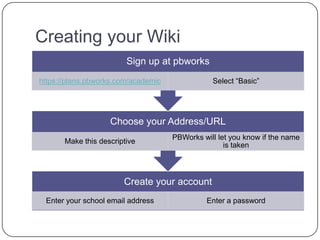
Creating your Wiki
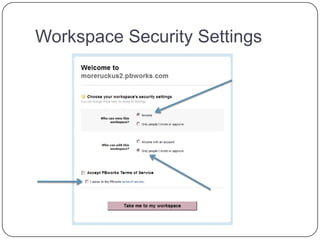
Workspace Security Settings
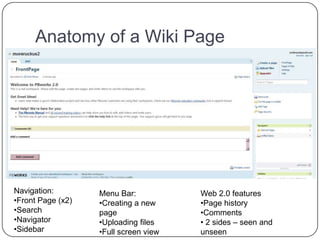
Anatomy of a Wiki PageNavigation:Front Page (x2)
Search
Navigator
SidebarMenu Bar:Creating a new page
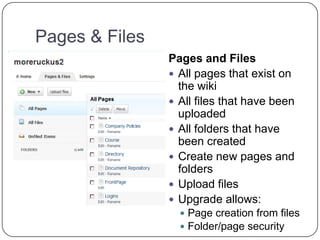
Uploading files
Full screen view Web 2.0 featuresPage history
Comments
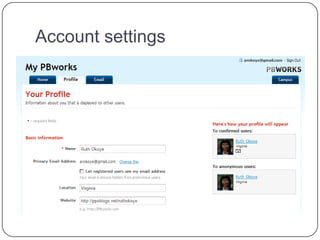
 2 sides – seen and unseenAccount settings
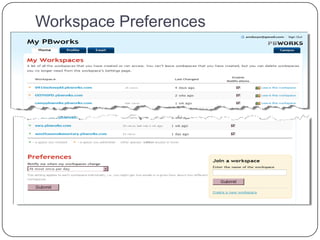
Workspace Preferences
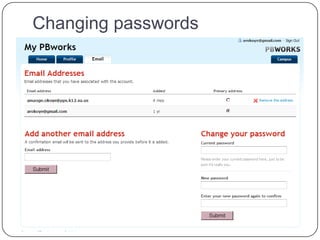
Changing passwords
Wiki SettingsColors – change the color of your pagesLogo (*) – upload a logo for your pageBackup (*) – create a backup copy of your wiki
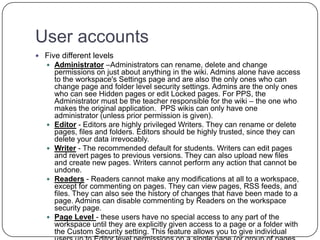
User accountsFive different levelsAdministrator –Administrators can rename, delete and change permissions on just about anything in the wiki. Admins alone have access to the workspace's Settings page and are also the only ones who can change page and folder level security settings. Admins are the only ones who can see Hidden pages or edit Locked pages. For PPS, the Administrator must be the teacher responsible for the wiki – the one who makes the original application.  PPS wikis can only have one administrator (unless prior permission is given). Editor - Editors are highly privileged Writers. They can rename or delete pages, files and folders. Editors should be highly trusted, since they can delete your data irrevocably. Writer - The recommended default for students. Writers can edit pages and revert pages to previous versions. They can also upload new files and create new pages. Writers cannot perform any action that cannot be undone. Readers - Readers cannot make any modifications at all to a workspace, except for commenting on pages. They can view pages, RSS feeds, and files. They can also see the history of changes that have been made to a page. Admins can disable commenting by Readers on the workspace security page. Page Level - these users have no special access to any part of the workspace until they are explicitly given access to a page or a folder with the Custom Security setting. This feature allows you to give individual users up to Editor level permissions on a single page (or group of pages in a folder) without giving them access to any other part of the workspace. This feature is only available once you have an upgraded wiki.
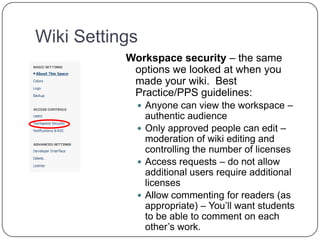
Wiki SettingsWorkspace security – the same options we looked at when you made your wiki.  Best Practice/PPS guidelines:Anyone can view the workspace – authentic audienceOnly approved people can edit – moderation of wiki editing and controlling the number of licensesAccess requests – do not allow additional users require additional licensesAllow commenting for readers (as appropriate) – You’ll want students to be able to comment on each other’s work.
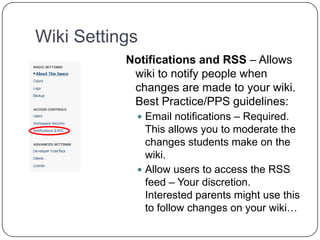
Wiki SettingsNotifications and RSS – Allows wiki to notify people when changes are made to your wiki.  Best Practice/PPS guidelines:Email notifications – Required. This allows you to moderate the changes students make on the wiki.Allow users to access the RSS feed – Your discretion. Interested parents might use this to follow changes on your wiki…
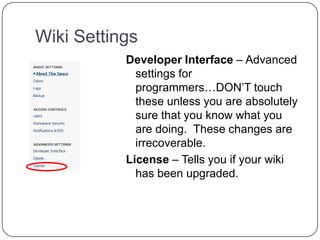
Wiki SettingsDeveloper Interface – Advanced settings for programmers…DON’T touch these unless you are absolutely sure that you know what you are doing.  These changes are irrecoverable. License – Tells you if your wiki has been upgraded.

Intro to wikis

  • 1.
    Part 1Theory &PedagogyIntro to Wikis
  • 2.
    What is aWiki?Foundational Web 2.0 building block A technology created to solve a problemLets anyone -- easily create and edit a website without worrying about versioning, permissions, ownership, HTML, complex formatting, etc. The goal was simple, collaborative creation.Digital Play doughA wiki is a body of ideas that a community is willing to know and maintain.
  • 3.
    Video – What’sa Wiki?http://www.youtube.com/watch?v=-dnL00TdmLY
  • 4.
  • 5.
  • 6.
    Wikis you mayhave seen…
  • 7.
  • 8.
    Educational Uses forWikishttp://www.smartteaching.org/blog/2008/08/50-ways-to-use-wikis-for-a-more-collaborative-and-interactive-classroom/Teacher/student collaborationIndividual assessment projectsLesson SummariesConcept IntroductionExploratory ProjectsKnowledge ConstructionDissemination of Important Classroom Learning Beyond the Classroom
  • 9.
    Pedagogical Concerns…When edtechtools are matched up with Bloom’s Revised Taxonomy, wikis can be used to support activities at every level of the taxonomy: http://edorigami.wikispaces.com/Bloom%27s+and+ICT+tools#toc4http://edorigami.wikispaces.com/Bloom%27s+and+ICT+tools
  • 10.
    Looking at Wikisin Educationhttp://teachersfirst.wikispaces.com/wikiex
  • 11.
    Hands-on timeExploring wikiswith LOPPUse your LOPP worksheet to explore these Wikis:http://iclassroom.pbworks.com/
  • 12.
  • 13.
  • 14.
    http://grade3responds.pbworks.com/Some Additional ClassroomWikisActive Student Use No Active Student usehttp://bookbuddyreviews.pbworks.com/ -- Student book reports http://littlewoodnatureguide.wetpaint.com/ - Student compiled nature guidehttp://spfractions.wikispaces.com/ - Math explanationshttp://pams50states.wikispaces.com/ - State reportshttp://school-is-cool.pbworks.com/ - Classroom portal pagehttp://fiestawiki.pbworks.com/ - teacher uses site to posts his notes
  • 15.
    Examples of PPSApproved Wikis Active Student UseTeacher CollaborationStudent portfolios (samples of writing; culminating projects; Student collaborative writing (student written study guides, reference books; peer editing)Collaborate on lesson plansSharing strategies and/or lesson resourcesHandbook/FAQ Curricular/Project teamwork
  • 16.
    Hands-on timeMapping yourWikiTalk to a neighbor about what you might use your wiki for.
  • 17.
    Use Inspiration orKidspiration to diagram what your wiki structure might look like.Next Steps…
  • 18.
    Part 2Setting UpYour WikiIntro to Wikis
  • 19.
    Review from Session1WikisPPS Wiki GuidelinesCan be used for many things Support Blooms Taxonomy as recently revised for 21st century skillsAre considered an extension of the classroomShould be used for active student use
  • 20.
    Examples of PPSApproved Wikis Active Student UseTeacher CollaborationStudent portfolios (samples of writing; culminating projects; Student collaborative writing (student written study guides, reference books; peer editing)Collaborate on lesson plansSharing strategies and/or lesson resourcesHandbook/FAQ Curricular/Project teamwork
  • 21.
  • 22.
  • 23.
  • 24.
    Anatomy of aWiki PageNavigation:Front Page (x2)
  • 25.
  • 26.
  • 27.
  • 28.
  • 29.
    Full screen viewWeb 2.0 featuresPage history
  • 30.
  • 31.
    2 sides– seen and unseenAccount settings
  • 32.
  • 33.
  • 34.
    Wiki SettingsColors –change the color of your pagesLogo (*) – upload a logo for your pageBackup (*) – create a backup copy of your wiki
  • 35.
    User accountsFive differentlevelsAdministrator –Administrators can rename, delete and change permissions on just about anything in the wiki. Admins alone have access to the workspace's Settings page and are also the only ones who can change page and folder level security settings. Admins are the only ones who can see Hidden pages or edit Locked pages. For PPS, the Administrator must be the teacher responsible for the wiki – the one who makes the original application. PPS wikis can only have one administrator (unless prior permission is given). Editor - Editors are highly privileged Writers. They can rename or delete pages, files and folders. Editors should be highly trusted, since they can delete your data irrevocably. Writer - The recommended default for students. Writers can edit pages and revert pages to previous versions. They can also upload new files and create new pages. Writers cannot perform any action that cannot be undone. Readers - Readers cannot make any modifications at all to a workspace, except for commenting on pages. They can view pages, RSS feeds, and files. They can also see the history of changes that have been made to a page. Admins can disable commenting by Readers on the workspace security page. Page Level - these users have no special access to any part of the workspace until they are explicitly given access to a page or a folder with the Custom Security setting. This feature allows you to give individual users up to Editor level permissions on a single page (or group of pages in a folder) without giving them access to any other part of the workspace. This feature is only available once you have an upgraded wiki.
  • 36.
    Wiki SettingsWorkspace security– the same options we looked at when you made your wiki. Best Practice/PPS guidelines:Anyone can view the workspace – authentic audienceOnly approved people can edit – moderation of wiki editing and controlling the number of licensesAccess requests – do not allow additional users require additional licensesAllow commenting for readers (as appropriate) – You’ll want students to be able to comment on each other’s work.
  • 37.
    Wiki SettingsNotifications andRSS – Allows wiki to notify people when changes are made to your wiki. Best Practice/PPS guidelines:Email notifications – Required. This allows you to moderate the changes students make on the wiki.Allow users to access the RSS feed – Your discretion. Interested parents might use this to follow changes on your wiki…
  • 38.
    Wiki SettingsDeveloper Interface– Advanced settings for programmers…DON’T touch these unless you are absolutely sure that you know what you are doing. These changes are irrecoverable. License – Tells you if your wiki has been upgraded.