Introduction
                                                                       to
                                                                 Mozilla Firefox

Objective
Many people use Internet Explorer to access the internet. However, Mozilla Firefox is
another very popular program that allows you to surf the web. This walkthrough gives
you a basic overview of Firefox and its various features including adding bookmarks,
tabbed browsing, searching the web, and others. You will also learn a bit about why
many people have decided to use Firefox instead of Internet Explorer. This walkthrough
assumes that you are currently using Internet Explorer 8 on Windows XP. However,
Firefox is available on a variety of other operating systems including Mac OS, Linux, and
other versions of Microsoft Windows.


Outline

  Installing Firefox.................................................................................................2
  Copying your settings from another browser..........................................................3
  The Firefox Screen..............................................................................................4
  Searching the web in Firefox................................................................................5
  Adding a bookmark.............................................................................................6
  Tabbed browsing.................................................................................................7
  Viewing previously-viewed pages..........................................................................7
  Why use Firefox?................................................................................................8
  Conclusion.........................................................................................................9


              This walkthrough is licensed under a Creative Commons 3.0 Attribution
              United States license. For more information, visit http://www.creativecommons.org.


                                                                            Introduction to Mozilla Firefox, p.1
Internet Explorer (IE), represented by that familiar blue “E” shown at right, is
the most common program people use to access the internet. However, it's not
the only way. Internet Explorer is just one of many web browsers. Firefox is
another web browser that is becoming increasingly popular, too, for being
faster, easier to use, and more secure than Internet Explorer.

Term: A web browser is a program that allows you to access the various websites and
      resources available on the internet. Internet Explorer is the most common.
      There are many others, however, including Firefox, Chrome, Safari, and Opera.


Installing Firefox
So you've decided that you want to try Firefox and
experience a new way of surfing the internet? Great! The
first thing we have to do, though, is get Firefox onto our
computers. To do this, we need the internet!

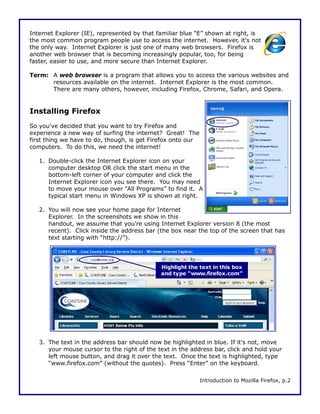
   1. Double-click the Internet Explorer icon on your
      computer desktop OR click the start menu in the
      bottom-left corner of your computer and click the
      Internet Explorer icon you see there. You may need
      to move your mouse over “All Programs” to find it. A
      typical start menu in Windows XP is shown at right.

   2. You will now see your home page for Internet
      Explorer. In the screenshots we show in this
      handout, we assume that you're using Internet Explorer version 8 (the most
      recent). Click inside the address bar (the box near the top of the screen that has
      text starting with “http://”).


                                             Highlight the text in this box
                                             and type “www.firefox.com”


   3. The text in the address bar should now be highlighted in blue. If it's not, move
      your mouse cursor to the right of the text in the address bar, click and hold your
      left mouse button, and drag it over the text. Once the text is highlighted, type
      “www.firefox.com” (without the quotes). Press “Enter” on the keyboard.

                                                             Introduction to Mozilla Firefox, p.2
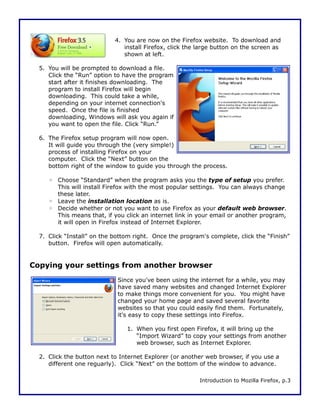
4. You are now on the Firefox website. To download and
                               install Firefox, click the large button on the screen as
                               shown at left.

  5. You will be prompted to download a file.
     Click the “Run” option to have the program
     start after it finishes downloading. The
     program to install Firefox will begin
     downloading. This could take a while,
     depending on your internet connection's
     speed. Once the file is finished
     downloading, Windows will ask you again if
     you want to open the file. Click “Run.”

  6. The Firefox setup program will now open.
     It will guide you through the (very simple!)
     process of installing Firefox on your
     computer. Click the “Next” button on the
     bottom right of the window to guide you through the process.

     ◦ Choose “Standard” when the program asks you the type of setup you prefer.
       This will install Firefox with the most popular settings. You can always change
       these later.
     ◦ Leave the installation location as is.
     ◦ Decide whether or not you want to use Firefox as your default web browser.
       This means that, if you click an internet link in your email or another program,
       it will open in Firefox instead of Internet Explorer.

  7. Click “Install” on the bottom right. Once the program's complete, click the “Finish”
     button. Firefox will open automatically.


Copying your settings from another browser
                             Since you've been using the internet for a while, you may
                             have saved many websites and changed Internet Explorer
                             to make things more convenient for you. You might have
                             changed your home page and saved several favorite
                             websites so that you could easily find them. Fortunately,
                             it's easy to copy these settings into Firefox.

                                1. When you first open Firefox, it will bring up the
                                   “Import Wizard” to copy your settings from another
                                   web browser, such as Internet Explorer.

  2. Click the button next to Internet Explorer (or another web browser, if you use a
     different one reguarly). Click “Next” on the bottom of the window to advance.

                                                          Introduction to Mozilla Firefox, p.3
3. On the next screen, click the option to import your home page from Internet
      Explorer or other browser. Click “Next.”

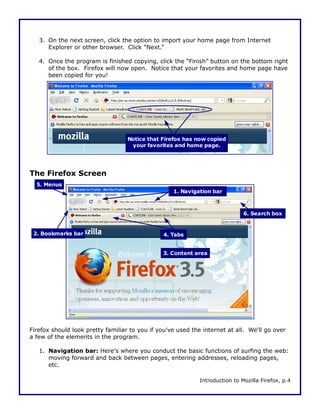
   4. Once the program is finished copying, click the “Finish” button on the bottom right
      of the box. Firefox will now open. Notice that your favorites and home page have
      been copied for you!


                                   Notice that Firefox has now copied
                                    your favorites and home page.


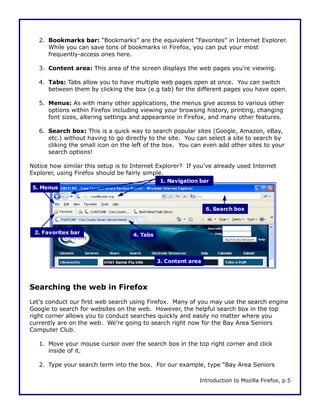
The Firefox Screen
  5. Menus
                                                   1. Navigation bar


                                                                              6. Search box


 2. Bookmarks bar                               4. Tabs


                                                3. Content area


Firefox should look pretty familiar to you if you've used the internet at all. We'll go over
a few of the elements in the program.

   1. Navigation bar: Here's where you conduct the basic functions of surfing the web:
      moving forward and back between pages, entering addresses, reloading pages,
      etc.

                                                             Introduction to Mozilla Firefox, p.4
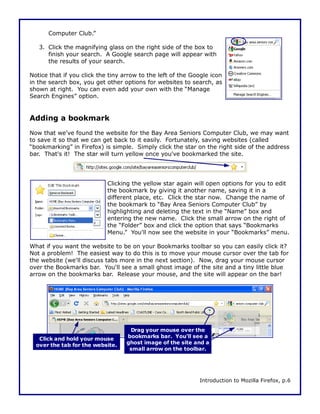
2. Bookmarks bar: “Bookmarks” are the equivalent “Favorites” in Internet Explorer.
      While you can save tons of bookmarks in Firefox, you can put your most
      frequently-access ones here.

   3. Content area: This area of the screen displays the web pages you're viewing.

   4. Tabs: Tabs allow you to have multiple web pages open at once. You can switch
      between them by clicking the box (e.g tab) for the different pages you have open.

   5. Menus: As with many other applications, the menus give access to various other
      options within Firefox including viewing your browsing history, printing, changing
      font sizes, altering settings and appearance in Firefox, and many other features.

   6. Search box: This is a quick way to search popular sites (Google, Amazon, eBay,
      etc.) without having to go directly to the site. You can select a site to search by
      cliking the small icon on the left of the box. You can even add other sites to your
      search options!

Notice how similar this setup is to Internet Explorer? If you've already used Internet
Explorer, using Firefox should be fairly simple.
                                               1. Navigation bar
 5. Menus


                                                                6. Search box


 2. Favorites bar                   4. Tabs


                                              3. Content area


Searching the web in Firefox
Let's conduct our first web search using Firefox. Many of you may use the search engine
Google to search for websites on the web. However, the helpful search box in the top
right corner allows you to conduct searches quickly and easily no matter where you
currently are on the web. We're going to search right now for the Bay Area Seniors
Computer Club.

   1. Move your mouse cursor over the search box in the top right corner and click
      inside of it.

   2. Type your search term into the box. For our example, type “Bay Area Seniors

                                                            Introduction to Mozilla Firefox, p.5
Computer Club.”

   3. Click the magnifying glass on the right side of the box to
      finish your search. A Google search page will appear with
      the results of your search.

Notice that if you click the tiny arrow to the left of the Google icon
in the search box, you get other options for websites to search, as
shown at right. You can even add your own with the “Manage
Search Engines” option.


Adding a bookmark
Now that we've found the website for the Bay Area Seniors Computer Club, we may want
to save it so that we can get back to it easily. Fortunately, saving websites (called
“bookmarking” in Firefox) is simple. Simply click the star on the right side of the address
bar. That's it! The star will turn yellow once you've bookmarked the site.


                            Clicking the yellow star again will open options for you to edit
                            the bookmark by giving it another name, saving it in a
                            different place, etc. Click the star now. Change the name of
                            the bookmark to “Bay Area Seniors Computer Club” by
                            highlighting and deleting the text in the “Name” box and
                            entering the new name. Click the small arrow on the right of
                            the “Folder” box and click the option that says “Bookmarks
                            Menu.” You'll now see the website in your “Bookmarks” menu.

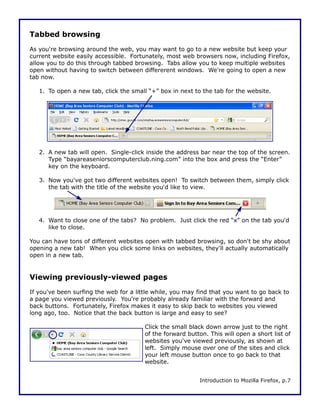
What if you want the website to be on your Bookmarks toolbar so you can easily click it?
Not a problem! The easiest way to do this is to move your mouse cursor over the tab for
the website (we'll discuss tabs more in the next section). Now, drag your mouse cursor
over the Bookmarks bar. You'll see a small ghost image of the site and a tiny little blue
arrow on the bookmarks bar. Release your mouse, and the site will appear on the bar!


                                    Drag your mouse over the
   Click and hold your mouse       bookmarks bar. You'll see a
  over the tab for the website.    ghost image of the site and a
                                    small arrow on the toolbar.


                                                             Introduction to Mozilla Firefox, p.6
Tabbed browsing
As you're browsing around the web, you may want to go to a new website but keep your
current website easily accessible. Fortunately, most web browsers now, including Firefox,
allow you to do this through tabbed browsing. Tabs allow you to keep multiple websites
open without having to switch between differerent windows. We're going to open a new
tab now.

   1. To open a new tab, click the small “+” box in next to the tab for the website.


   2. A new tab will open. Single-click inside the address bar near the top of the screen.
      Type “bayareaseniorscomputerclub.ning.com” into the box and press the “Enter”
      key on the keyboard.

   3. Now you've got two different websites open! To switch between them, simply click
      the tab with the title of the website you'd like to view.


   4. Want to close one of the tabs? No problem. Just click the red “x” on the tab you'd
      like to close.

You can have tons of different websites open with tabbed browsing, so don't be shy about
opening a new tab! When you click some links on websites, they'll actually automatically
open in a new tab.


Viewing previously-viewed pages
If you've been surfing the web for a little while, you may find that you want to go back to
a page you viewed previously. You're probably already familiar with the forward and
back buttons. Fortunately, Firefox makes it easy to skip back to websites you viewed
long ago, too. Notice that the back button is large and easy to see?

                                        Click the small black down arrow just to the right
                                        of the forward button. This will open a short list of
                                        websites you've viewed previously, as shown at
                                        left. Simply mouse over one of the sites and click
                                        your left mouse button once to go back to that
                                        website.


                                                           Introduction to Mozilla Firefox, p.7
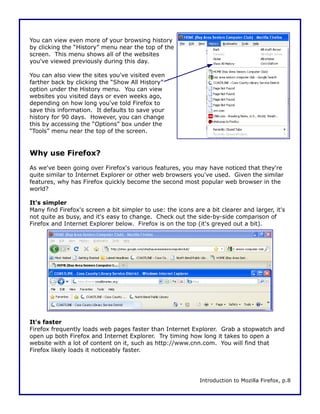
You can view even more of your browsing history
by clicking the “History” menu near the top of the
screen. This menu shows all of the websites
you've viewed previously during this day.

You can also view the sites you've visited even
farther back by clicking the “Show All History”
option under the History menu. You can view
websites you visited days or even weeks ago,
depending on how long you've told Firefox to
save this information. It defaults to save your
history for 90 days. However, you can change
this by accessing the “Options” box under the
“Tools” menu near the top of the screen.


Why use Firefox?
As we've been going over Firefox's various features, you may have noticed that they're
quite similar to Internet Explorer or other web browsers you've used. Given the similar
features, why has Firefox quickly become the second most popular web browser in the
world?

It's simpler
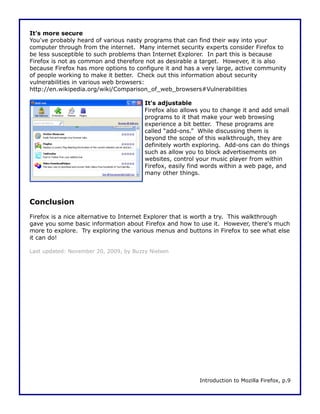
Many find Firefox's screen a bit simpler to use: the icons are a bit clearer and larger, it's
not quite as busy, and it's easy to change. Check out the side-by-side comparison of
Firefox and Internet Explorer below. Firefox is on the top (it's greyed out a bit).


It's faster
Firefox frequently loads web pages faster than Internet Explorer. Grab a stopwatch and
open up both Firefox and Internet Explorer. Try timing how long it takes to open a
website with a lot of content on it, such as http://www.cnn.com. You will find that
Firefox likely loads it noticeably faster.


                                                             Introduction to Mozilla Firefox, p.8
It's more secure
You've probably heard of various nasty programs that can find their way into your
computer through from the internet. Many internet security experts consider Firefox to
be less susceptible to such problems than Internet Explorer. In part this is because
Firefox is not as common and therefore not as desirable a target. However, it is also
because Firefox has more options to configure it and has a very large, active community
of people working to make it better. Check out this information about security
vulnerabilities in various web browsers:
http://en.wikipedia.org/wiki/Comparison_of_web_browsers#Vulnerabilities

                                        It's adjustable
                                        Firefox also allows you to change it and add small
                                        programs to it that make your web browsing
                                        experience a bit better. These programs are
                                        called “add-ons.” While discussing them is
                                        beyond the scope of this walkthrough, they are
                                        definitely worth exploring. Add-ons can do things
                                        such as allow you to block advertisements on
                                        websites, control your music player from within
                                        Firefox, easily find words within a web page, and
                                        many other things.


Conclusion
Firefox is a nice alternative to Internet Explorer that is worth a try. This walkthrough
gave you some basic information about Firefox and how to use it. However, there's much
more to explore. Try exploring the various menus and buttons in Firefox to see what else
it can do!

Last updated: November 20, 2009, by Buzzy Nielsen


                                                           Introduction to Mozilla Firefox, p.9

Intro to Firefox

  • 1.
    Introduction to Mozilla Firefox Objective Many people use Internet Explorer to access the internet. However, Mozilla Firefox is another very popular program that allows you to surf the web. This walkthrough gives you a basic overview of Firefox and its various features including adding bookmarks, tabbed browsing, searching the web, and others. You will also learn a bit about why many people have decided to use Firefox instead of Internet Explorer. This walkthrough assumes that you are currently using Internet Explorer 8 on Windows XP. However, Firefox is available on a variety of other operating systems including Mac OS, Linux, and other versions of Microsoft Windows. Outline Installing Firefox.................................................................................................2 Copying your settings from another browser..........................................................3 The Firefox Screen..............................................................................................4 Searching the web in Firefox................................................................................5 Adding a bookmark.............................................................................................6 Tabbed browsing.................................................................................................7 Viewing previously-viewed pages..........................................................................7 Why use Firefox?................................................................................................8 Conclusion.........................................................................................................9 This walkthrough is licensed under a Creative Commons 3.0 Attribution United States license. For more information, visit http://www.creativecommons.org. Introduction to Mozilla Firefox, p.1
  • 2.
    Internet Explorer (IE),represented by that familiar blue “E” shown at right, is the most common program people use to access the internet. However, it's not the only way. Internet Explorer is just one of many web browsers. Firefox is another web browser that is becoming increasingly popular, too, for being faster, easier to use, and more secure than Internet Explorer. Term: A web browser is a program that allows you to access the various websites and resources available on the internet. Internet Explorer is the most common. There are many others, however, including Firefox, Chrome, Safari, and Opera. Installing Firefox So you've decided that you want to try Firefox and experience a new way of surfing the internet? Great! The first thing we have to do, though, is get Firefox onto our computers. To do this, we need the internet! 1. Double-click the Internet Explorer icon on your computer desktop OR click the start menu in the bottom-left corner of your computer and click the Internet Explorer icon you see there. You may need to move your mouse over “All Programs” to find it. A typical start menu in Windows XP is shown at right. 2. You will now see your home page for Internet Explorer. In the screenshots we show in this handout, we assume that you're using Internet Explorer version 8 (the most recent). Click inside the address bar (the box near the top of the screen that has text starting with “http://”). Highlight the text in this box and type “www.firefox.com” 3. The text in the address bar should now be highlighted in blue. If it's not, move your mouse cursor to the right of the text in the address bar, click and hold your left mouse button, and drag it over the text. Once the text is highlighted, type “www.firefox.com” (without the quotes). Press “Enter” on the keyboard. Introduction to Mozilla Firefox, p.2
  • 3.
    4. You arenow on the Firefox website. To download and install Firefox, click the large button on the screen as shown at left. 5. You will be prompted to download a file. Click the “Run” option to have the program start after it finishes downloading. The program to install Firefox will begin downloading. This could take a while, depending on your internet connection's speed. Once the file is finished downloading, Windows will ask you again if you want to open the file. Click “Run.” 6. The Firefox setup program will now open. It will guide you through the (very simple!) process of installing Firefox on your computer. Click the “Next” button on the bottom right of the window to guide you through the process. ◦ Choose “Standard” when the program asks you the type of setup you prefer. This will install Firefox with the most popular settings. You can always change these later. ◦ Leave the installation location as is. ◦ Decide whether or not you want to use Firefox as your default web browser. This means that, if you click an internet link in your email or another program, it will open in Firefox instead of Internet Explorer. 7. Click “Install” on the bottom right. Once the program's complete, click the “Finish” button. Firefox will open automatically. Copying your settings from another browser Since you've been using the internet for a while, you may have saved many websites and changed Internet Explorer to make things more convenient for you. You might have changed your home page and saved several favorite websites so that you could easily find them. Fortunately, it's easy to copy these settings into Firefox. 1. When you first open Firefox, it will bring up the “Import Wizard” to copy your settings from another web browser, such as Internet Explorer. 2. Click the button next to Internet Explorer (or another web browser, if you use a different one reguarly). Click “Next” on the bottom of the window to advance. Introduction to Mozilla Firefox, p.3
  • 4.
    3. On thenext screen, click the option to import your home page from Internet Explorer or other browser. Click “Next.” 4. Once the program is finished copying, click the “Finish” button on the bottom right of the box. Firefox will now open. Notice that your favorites and home page have been copied for you! Notice that Firefox has now copied your favorites and home page. The Firefox Screen 5. Menus 1. Navigation bar 6. Search box 2. Bookmarks bar 4. Tabs 3. Content area Firefox should look pretty familiar to you if you've used the internet at all. We'll go over a few of the elements in the program. 1. Navigation bar: Here's where you conduct the basic functions of surfing the web: moving forward and back between pages, entering addresses, reloading pages, etc. Introduction to Mozilla Firefox, p.4
  • 5.
    2. Bookmarks bar:“Bookmarks” are the equivalent “Favorites” in Internet Explorer. While you can save tons of bookmarks in Firefox, you can put your most frequently-access ones here. 3. Content area: This area of the screen displays the web pages you're viewing. 4. Tabs: Tabs allow you to have multiple web pages open at once. You can switch between them by clicking the box (e.g tab) for the different pages you have open. 5. Menus: As with many other applications, the menus give access to various other options within Firefox including viewing your browsing history, printing, changing font sizes, altering settings and appearance in Firefox, and many other features. 6. Search box: This is a quick way to search popular sites (Google, Amazon, eBay, etc.) without having to go directly to the site. You can select a site to search by cliking the small icon on the left of the box. You can even add other sites to your search options! Notice how similar this setup is to Internet Explorer? If you've already used Internet Explorer, using Firefox should be fairly simple. 1. Navigation bar 5. Menus 6. Search box 2. Favorites bar 4. Tabs 3. Content area Searching the web in Firefox Let's conduct our first web search using Firefox. Many of you may use the search engine Google to search for websites on the web. However, the helpful search box in the top right corner allows you to conduct searches quickly and easily no matter where you currently are on the web. We're going to search right now for the Bay Area Seniors Computer Club. 1. Move your mouse cursor over the search box in the top right corner and click inside of it. 2. Type your search term into the box. For our example, type “Bay Area Seniors Introduction to Mozilla Firefox, p.5
  • 6.
    Computer Club.” 3. Click the magnifying glass on the right side of the box to finish your search. A Google search page will appear with the results of your search. Notice that if you click the tiny arrow to the left of the Google icon in the search box, you get other options for websites to search, as shown at right. You can even add your own with the “Manage Search Engines” option. Adding a bookmark Now that we've found the website for the Bay Area Seniors Computer Club, we may want to save it so that we can get back to it easily. Fortunately, saving websites (called “bookmarking” in Firefox) is simple. Simply click the star on the right side of the address bar. That's it! The star will turn yellow once you've bookmarked the site. Clicking the yellow star again will open options for you to edit the bookmark by giving it another name, saving it in a different place, etc. Click the star now. Change the name of the bookmark to “Bay Area Seniors Computer Club” by highlighting and deleting the text in the “Name” box and entering the new name. Click the small arrow on the right of the “Folder” box and click the option that says “Bookmarks Menu.” You'll now see the website in your “Bookmarks” menu. What if you want the website to be on your Bookmarks toolbar so you can easily click it? Not a problem! The easiest way to do this is to move your mouse cursor over the tab for the website (we'll discuss tabs more in the next section). Now, drag your mouse cursor over the Bookmarks bar. You'll see a small ghost image of the site and a tiny little blue arrow on the bookmarks bar. Release your mouse, and the site will appear on the bar! Drag your mouse over the Click and hold your mouse bookmarks bar. You'll see a over the tab for the website. ghost image of the site and a small arrow on the toolbar. Introduction to Mozilla Firefox, p.6
  • 7.
    Tabbed browsing As you'rebrowsing around the web, you may want to go to a new website but keep your current website easily accessible. Fortunately, most web browsers now, including Firefox, allow you to do this through tabbed browsing. Tabs allow you to keep multiple websites open without having to switch between differerent windows. We're going to open a new tab now. 1. To open a new tab, click the small “+” box in next to the tab for the website. 2. A new tab will open. Single-click inside the address bar near the top of the screen. Type “bayareaseniorscomputerclub.ning.com” into the box and press the “Enter” key on the keyboard. 3. Now you've got two different websites open! To switch between them, simply click the tab with the title of the website you'd like to view. 4. Want to close one of the tabs? No problem. Just click the red “x” on the tab you'd like to close. You can have tons of different websites open with tabbed browsing, so don't be shy about opening a new tab! When you click some links on websites, they'll actually automatically open in a new tab. Viewing previously-viewed pages If you've been surfing the web for a little while, you may find that you want to go back to a page you viewed previously. You're probably already familiar with the forward and back buttons. Fortunately, Firefox makes it easy to skip back to websites you viewed long ago, too. Notice that the back button is large and easy to see? Click the small black down arrow just to the right of the forward button. This will open a short list of websites you've viewed previously, as shown at left. Simply mouse over one of the sites and click your left mouse button once to go back to that website. Introduction to Mozilla Firefox, p.7
  • 8.
    You can vieweven more of your browsing history by clicking the “History” menu near the top of the screen. This menu shows all of the websites you've viewed previously during this day. You can also view the sites you've visited even farther back by clicking the “Show All History” option under the History menu. You can view websites you visited days or even weeks ago, depending on how long you've told Firefox to save this information. It defaults to save your history for 90 days. However, you can change this by accessing the “Options” box under the “Tools” menu near the top of the screen. Why use Firefox? As we've been going over Firefox's various features, you may have noticed that they're quite similar to Internet Explorer or other web browsers you've used. Given the similar features, why has Firefox quickly become the second most popular web browser in the world? It's simpler Many find Firefox's screen a bit simpler to use: the icons are a bit clearer and larger, it's not quite as busy, and it's easy to change. Check out the side-by-side comparison of Firefox and Internet Explorer below. Firefox is on the top (it's greyed out a bit). It's faster Firefox frequently loads web pages faster than Internet Explorer. Grab a stopwatch and open up both Firefox and Internet Explorer. Try timing how long it takes to open a website with a lot of content on it, such as http://www.cnn.com. You will find that Firefox likely loads it noticeably faster. Introduction to Mozilla Firefox, p.8
  • 9.
    It's more secure You'veprobably heard of various nasty programs that can find their way into your computer through from the internet. Many internet security experts consider Firefox to be less susceptible to such problems than Internet Explorer. In part this is because Firefox is not as common and therefore not as desirable a target. However, it is also because Firefox has more options to configure it and has a very large, active community of people working to make it better. Check out this information about security vulnerabilities in various web browsers: http://en.wikipedia.org/wiki/Comparison_of_web_browsers#Vulnerabilities It's adjustable Firefox also allows you to change it and add small programs to it that make your web browsing experience a bit better. These programs are called “add-ons.” While discussing them is beyond the scope of this walkthrough, they are definitely worth exploring. Add-ons can do things such as allow you to block advertisements on websites, control your music player from within Firefox, easily find words within a web page, and many other things. Conclusion Firefox is a nice alternative to Internet Explorer that is worth a try. This walkthrough gave you some basic information about Firefox and how to use it. However, there's much more to explore. Try exploring the various menus and buttons in Firefox to see what else it can do! Last updated: November 20, 2009, by Buzzy Nielsen Introduction to Mozilla Firefox, p.9