Firefox Extensions A 23 things thing for  Murdoch University
It’s not all about your opinion  of Bill Then again maybe it is
Why use Firefox at all? Tabbed browsing – not the original but one of the best Customisable – Pimp my ride! Follows standards for HTML, CSS etc It’s open source – anyone can design and add to firefox or use the code Better control of your browsing experience Less resource hungry – should be a faster browsing experience
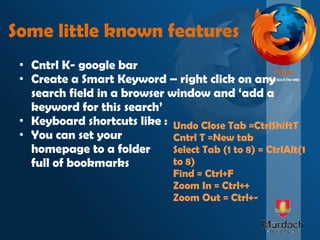
Some little known features Cntrl K- google bar Create a Smart Keyword – right click on any search field in a browser window and ‘add a keyword for this search’ Keyboard shortcuts like : You can set your  homepage to a folder  full of bookmarks Undo Close Tab =CtrlShiftT Cntrl T =New tab Select Tab (1 to 8) = CtrlAlt(1 to 8) Find = Ctrl+F Zoom In = Ctrl++  Zoom Out = Ctrl+-
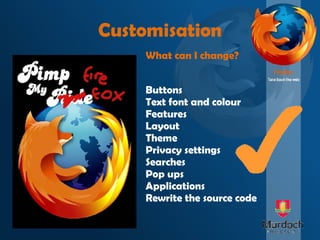
Customisation Buttons Text font and colour Features Layout Theme Privacy settings Searches Pop ups Applications Rewrite the source code What can I change?
Add ons Extensions Three types of addons Plugins Themes Extensions are like extra gadgets for your browser, think extra stuff on a Swiss army knife. Themes are just different ways of making your firefox look the way you want, colours, buttons all yours for the changing helps the browser display specific content like playing multimedia files, programs like java, adobe and shockwave are plugins
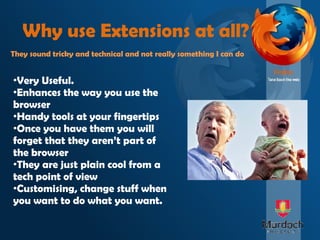
Why use Extensions at all? Very Useful. Enhances the way you use the browser Handy tools at your fingertips Once you have them you will forget that they aren’t part of the browser They are just plain cool from a tech point of view Customising, change stuff when you want to do what you want. They sound tricky and technical and not really something I can do
Extensions At the top of the screen, click on tools, then “addons” select “get add ons” and then click on  “Browse all addons”. Choose a category or use a keyword search to find the extension, when you have the extension click on the green ‘add to firefox box’ and follow the prompts. Restart firefox to make the extension available to you. How? - The Simple version First, check what version of Firefox you are using, click on “help” and “about mozilla firefox” , this will make it easier as some addons only work on particular versions.  Screencast available at : http://screencast.com/t/EoGbeEDU Screencast available at :  http://screencast.com/t/iilupy8Ow
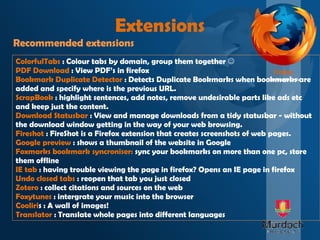
Extensions Recommended extensions ColorfulTabs  : Colour tabs by domain, group them together   PDF Download  : View PDF’s in firefox Bookmark Duplicate Detector  : Detects Duplicate Bookmarks when bookmarks are added and specify where is the previous URL.  ScrapBook  : highlight sentences, add notes, remove undesirable parts like ads etc and keep just the content. Download Statusbar  : View and manage downloads from a tidy statusbar - without the download window getting in the way of your web browsing. Fireshot  : FireShot is a Firefox extension that creates screenshots of web pages.  Google preview  : shows a thumbnail of the website in Google Foxmarks bookmark syncroniser:  sync your bookmarks on more than one pc, store them offline IE tab  : having trouble viewing the page in firefox? Opens an IE page in firefox  Undo closed tabs  : reopen that tab you just closed Zotero  : collect citations and sources on the web Foxytunes  : intergrate your music into the browser Cooliri s : A wall of images! Translator  : Translate whole pages into different languages
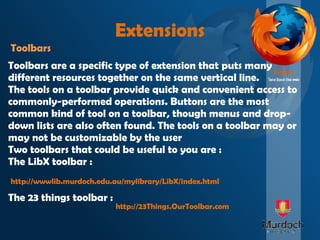
Extensions Toolbars Toolbars are a specific type of extension that puts many different resources together on the same vertical line. The tools on a toolbar provide quick and convenient access to commonly-performed operations. Buttons are the most common kind of tool on a toolbar, though menus and drop-down lists are also often found. The tools on a toolbar may or may not be customizable by the user Two toolbars that could be useful to you are : The LibX toolbar : The 23 things toolbar : http://wwwlib.murdoch.edu.au/mylibrary/LibX/index.html http://23Things.OurToolbar.com
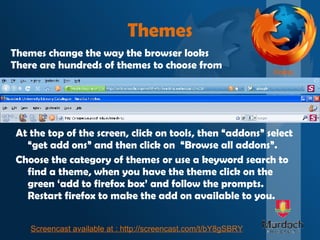
At the top of the screen, click on tools, then “addons” select “get add ons” and then click on  “Browse all addons”. Choose the category of themes or use a keyword search to find a theme, when you have the theme click on the green ‘add to firefox box’ and follow the prompts. Restart firefox to make the add on available to you. Themes Themes change the way the browser looks There are hundreds of themes to choose from Screencast available at :  http://screencast.com/t/bY8gSBRY
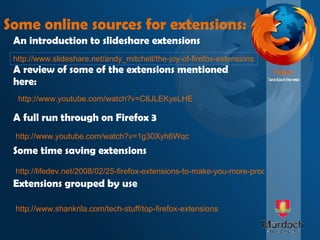
Some online sources for extensions: A review of some of the extensions mentioned here: A full run through on Firefox 3 Some time saving extensions Extensions grouped by use http://www.youtube.com/watch?v=C8JLEKyeLHE http://lifedev.net/2008/02/25-firefox-extensions-to-make-you-more-productive/ http://www.youtube.com/watch?v=1g30Xyh6Wqc http://www.shankrila.com/tech-stuff/top-firefox-extensions http://www.slideshare.net/andy_mitchell/the-joy-of-firefox-extensions An introduction to slideshare extensions

Firefox Extensions

  • 1.
    Firefox Extensions A23 things thing for Murdoch University
  • 2.
    It’s not allabout your opinion of Bill Then again maybe it is
  • 3.
    Why use Firefoxat all? Tabbed browsing – not the original but one of the best Customisable – Pimp my ride! Follows standards for HTML, CSS etc It’s open source – anyone can design and add to firefox or use the code Better control of your browsing experience Less resource hungry – should be a faster browsing experience
  • 4.
    Some little knownfeatures Cntrl K- google bar Create a Smart Keyword – right click on any search field in a browser window and ‘add a keyword for this search’ Keyboard shortcuts like : You can set your homepage to a folder full of bookmarks Undo Close Tab =CtrlShiftT Cntrl T =New tab Select Tab (1 to 8) = CtrlAlt(1 to 8) Find = Ctrl+F Zoom In = Ctrl++ Zoom Out = Ctrl+-
  • 5.
    Customisation Buttons Textfont and colour Features Layout Theme Privacy settings Searches Pop ups Applications Rewrite the source code What can I change?
  • 6.
    Add ons ExtensionsThree types of addons Plugins Themes Extensions are like extra gadgets for your browser, think extra stuff on a Swiss army knife. Themes are just different ways of making your firefox look the way you want, colours, buttons all yours for the changing helps the browser display specific content like playing multimedia files, programs like java, adobe and shockwave are plugins
  • 7.
    Why use Extensionsat all? Very Useful. Enhances the way you use the browser Handy tools at your fingertips Once you have them you will forget that they aren’t part of the browser They are just plain cool from a tech point of view Customising, change stuff when you want to do what you want. They sound tricky and technical and not really something I can do
  • 8.
    Extensions At thetop of the screen, click on tools, then “addons” select “get add ons” and then click on “Browse all addons”. Choose a category or use a keyword search to find the extension, when you have the extension click on the green ‘add to firefox box’ and follow the prompts. Restart firefox to make the extension available to you. How? - The Simple version First, check what version of Firefox you are using, click on “help” and “about mozilla firefox” , this will make it easier as some addons only work on particular versions. Screencast available at : http://screencast.com/t/EoGbeEDU Screencast available at : http://screencast.com/t/iilupy8Ow
  • 9.
    Extensions Recommended extensionsColorfulTabs : Colour tabs by domain, group them together  PDF Download : View PDF’s in firefox Bookmark Duplicate Detector : Detects Duplicate Bookmarks when bookmarks are added and specify where is the previous URL. ScrapBook : highlight sentences, add notes, remove undesirable parts like ads etc and keep just the content. Download Statusbar : View and manage downloads from a tidy statusbar - without the download window getting in the way of your web browsing. Fireshot : FireShot is a Firefox extension that creates screenshots of web pages. Google preview : shows a thumbnail of the website in Google Foxmarks bookmark syncroniser: sync your bookmarks on more than one pc, store them offline IE tab : having trouble viewing the page in firefox? Opens an IE page in firefox Undo closed tabs : reopen that tab you just closed Zotero : collect citations and sources on the web Foxytunes : intergrate your music into the browser Cooliri s : A wall of images! Translator : Translate whole pages into different languages
  • 10.
    Extensions Toolbars Toolbarsare a specific type of extension that puts many different resources together on the same vertical line. The tools on a toolbar provide quick and convenient access to commonly-performed operations. Buttons are the most common kind of tool on a toolbar, though menus and drop-down lists are also often found. The tools on a toolbar may or may not be customizable by the user Two toolbars that could be useful to you are : The LibX toolbar : The 23 things toolbar : http://wwwlib.murdoch.edu.au/mylibrary/LibX/index.html http://23Things.OurToolbar.com
  • 11.
    At the topof the screen, click on tools, then “addons” select “get add ons” and then click on “Browse all addons”. Choose the category of themes or use a keyword search to find a theme, when you have the theme click on the green ‘add to firefox box’ and follow the prompts. Restart firefox to make the add on available to you. Themes Themes change the way the browser looks There are hundreds of themes to choose from Screencast available at : http://screencast.com/t/bY8gSBRY
  • 12.
    Some online sourcesfor extensions: A review of some of the extensions mentioned here: A full run through on Firefox 3 Some time saving extensions Extensions grouped by use http://www.youtube.com/watch?v=C8JLEKyeLHE http://lifedev.net/2008/02/25-firefox-extensions-to-make-you-more-productive/ http://www.youtube.com/watch?v=1g30Xyh6Wqc http://www.shankrila.com/tech-stuff/top-firefox-extensions http://www.slideshare.net/andy_mitchell/the-joy-of-firefox-extensions An introduction to slideshare extensions