Introduction to Computers
History  How we communicate to computers and tell them what we want done
DOS In the old days, in order to tell a computer what to do, people would have to enter in commands in a language called DOS. 1984- Apple developed something revolutionary called GUI – Graphic User Interface. Now, instead of punching in and memorizing code, we just point our mouse and click.
Mouse Tutorial Let’s Practice! http:// www.seniornet.org/howto/mouseexercises/mousepractice.html http://tech.tln.lib.mi.us/tutor/welcome.htm
Key Board Key boards were not always so weird! The first keyboard actually had keys in alphabetical order! The most prevalent keyboard in use today is called the QWERTY Keyboard. Designed in 1868 by Christopher Scholes, the letters were arranged in such an odd fashion so that the typewriter’s typebars wouldn’t get jumbled up when people typed quickly.
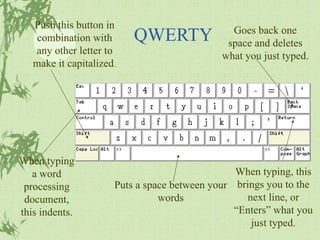
QWERTY Puts a space between your words Push this button in combination with any other letter to make it capitalized . Goes back one space and deletes what you just typed. When typing, this brings you to the next line, or “Enters” what you just typed. When typing a word processing document, this indents.
Desktop Desktop is the term that defines what you see on your screen when Windows first starts up.
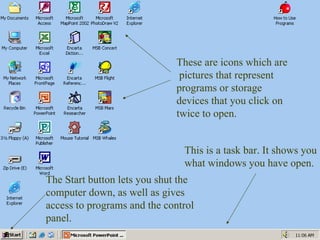
This is a task bar. It shows you what windows you have open.  These are icons which are  pictures that represent programs or storage devices that you click on  twice to open. The Start button lets you shut the computer down, as well as gives access to programs and the control panel.
Windows A reserved section of your computer’s screen which is used to display special information that can be selected and looked at or changed. Area of memory or access to a storage device.
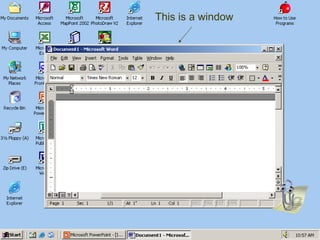
This is a window
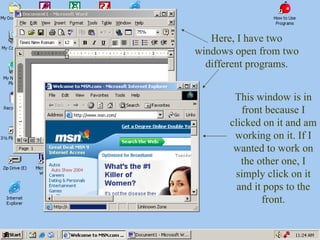
Here, I have two windows open from two different programs. This window is in front because I clicked on it and am working on it. If I wanted to work on the other one, I simply click on it and it pops to the front.
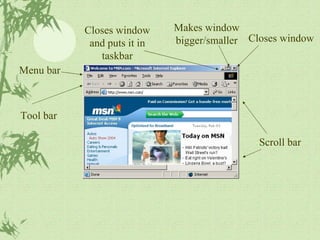
Closes window Scroll bar Makes window bigger/smaller Closes window and puts it in taskbar Tool bar Menu bar

Intro to Computers

  • 1.
  • 2.
    History Howwe communicate to computers and tell them what we want done
  • 3.
    DOS In theold days, in order to tell a computer what to do, people would have to enter in commands in a language called DOS. 1984- Apple developed something revolutionary called GUI – Graphic User Interface. Now, instead of punching in and memorizing code, we just point our mouse and click.
  • 4.
    Mouse Tutorial Let’sPractice! http:// www.seniornet.org/howto/mouseexercises/mousepractice.html http://tech.tln.lib.mi.us/tutor/welcome.htm
  • 5.
    Key Board Keyboards were not always so weird! The first keyboard actually had keys in alphabetical order! The most prevalent keyboard in use today is called the QWERTY Keyboard. Designed in 1868 by Christopher Scholes, the letters were arranged in such an odd fashion so that the typewriter’s typebars wouldn’t get jumbled up when people typed quickly.
  • 6.
    QWERTY Puts aspace between your words Push this button in combination with any other letter to make it capitalized . Goes back one space and deletes what you just typed. When typing, this brings you to the next line, or “Enters” what you just typed. When typing a word processing document, this indents.
  • 7.
    Desktop Desktop isthe term that defines what you see on your screen when Windows first starts up.
  • 8.
    This is atask bar. It shows you what windows you have open. These are icons which are pictures that represent programs or storage devices that you click on twice to open. The Start button lets you shut the computer down, as well as gives access to programs and the control panel.
  • 9.
    Windows A reservedsection of your computer’s screen which is used to display special information that can be selected and looked at or changed. Area of memory or access to a storage device.
  • 10.
    This is awindow
  • 11.
    Here, I havetwo windows open from two different programs. This window is in front because I clicked on it and am working on it. If I wanted to work on the other one, I simply click on it and it pops to the front.
  • 12.
    Closes window Scrollbar Makes window bigger/smaller Closes window and puts it in taskbar Tool bar Menu bar