Integrating  Google Earth Presented by Scott Meisenzahl, TRT Sanders Corner ES, Loudoun County, VA
Session Objectives Introduction and Navigation of Google Earth Create Placemarks and Tours Explore content that is ready to be downloaded from the web
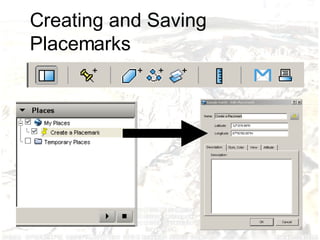
Creating and Saving Placemarks
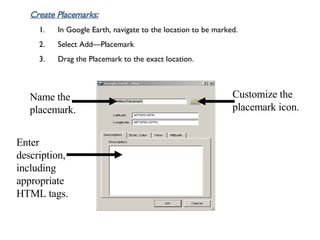
Create Placemarks: In Google Earth, navigate to the location to be marked.  Select Add—Placemark Drag the Placemark to the exact location. Customize the placemark icon. Name the placemark. Enter description, including appropriate HTML tags.
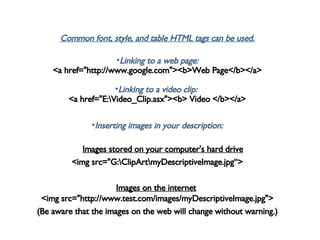
Common font, style, and table HTML tags can be used. Linking to a web page: <a href=&quot;http://www.google.com&quot;><b>Web Page</b></a> Linking to a video clip:  <a href=&quot;E:\Video_Clip.asx&quot;><b> Video </b></a> Inserting images in your description:        Images stored on your computer's hard drive   <img src=&quot;G:\ClipArt\myDescriptiveImage.jpg“> Images on the internet   <img src=&quot;http://www.test.com/images/myDescriptiveImage.jpg&quot;> (Be aware that the images on the web will change without warning.)
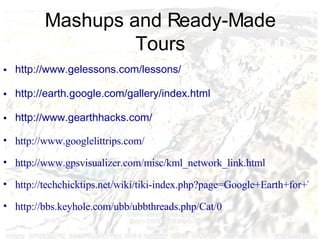
Mashups and Ready-Made Tours http://www. gelessons .com/lessons/   http://earth. google .com/gallery/index.html   http://www. gearthhacks .com/   http://www.googlelittrips.com/ http://www.gpsvisualizer.com/misc/kml_network_link.html http://techchicktips.net/wiki/tiki-index.php?page=Google+Earth+for+Teachers http://bbs.keyhole.com/ubb/ubbthreads.php/Cat/0
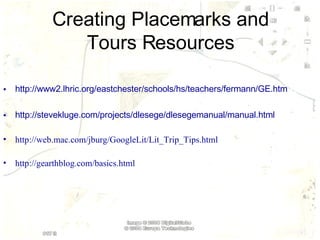
Creating Placemarks and Tours Resources http://www2.lhric.org/eastchester/schools/hs/teachers/fermann/GE.htm   http://stevekluge.com/projects/dlesege/dlesegemanual/manual.html   http://web.mac.com/jburg/GoogleLit/Lit_Trip_Tips.html http://gearthblog.com/basics.html

Integrating Google Earth

  • 1.
    Integrating GoogleEarth Presented by Scott Meisenzahl, TRT Sanders Corner ES, Loudoun County, VA
  • 2.
    Session Objectives Introductionand Navigation of Google Earth Create Placemarks and Tours Explore content that is ready to be downloaded from the web
  • 3.
  • 4.
    Create Placemarks: InGoogle Earth, navigate to the location to be marked. Select Add—Placemark Drag the Placemark to the exact location. Customize the placemark icon. Name the placemark. Enter description, including appropriate HTML tags.
  • 5.
    Common font, style,and table HTML tags can be used. Linking to a web page: <a href=&quot;http://www.google.com&quot;><b>Web Page</b></a> Linking to a video clip: <a href=&quot;E:\Video_Clip.asx&quot;><b> Video </b></a> Inserting images in your description:       Images stored on your computer's hard drive <img src=&quot;G:\ClipArt\myDescriptiveImage.jpg“> Images on the internet <img src=&quot;http://www.test.com/images/myDescriptiveImage.jpg&quot;> (Be aware that the images on the web will change without warning.)
  • 6.
    Mashups and Ready-MadeTours http://www. gelessons .com/lessons/ http://earth. google .com/gallery/index.html http://www. gearthhacks .com/ http://www.googlelittrips.com/ http://www.gpsvisualizer.com/misc/kml_network_link.html http://techchicktips.net/wiki/tiki-index.php?page=Google+Earth+for+Teachers http://bbs.keyhole.com/ubb/ubbthreads.php/Cat/0
  • 7.
    Creating Placemarks andTours Resources http://www2.lhric.org/eastchester/schools/hs/teachers/fermann/GE.htm http://stevekluge.com/projects/dlesege/dlesegemanual/manual.html http://web.mac.com/jburg/GoogleLit/Lit_Trip_Tips.html http://gearthblog.com/basics.html