Installing Cacti on openSUSE Leap
42.1
Getting root access
To get root access, open a terminal and enter the following command:
user $ su -
Password:
After entering a valid password, the prompt should turn red and end with a #.
Preparation
Add the server:monitoring repository. This is needed in order to have access to the Cacti add-
ons.
root # zypper ar
http://download.opensuse.org/repositories/server:/monitoring/openSUSE_Leap_42.1/
server:monitoring
Install MySQL:
root # zypper in mysql-community-server mysql-community-server-client
Install Cacti and Cacti add-ons:
root # zypper in cacti cacti-plugin-autom8 cacti-plugin-boost cacti-plugin-clog cacti-
plugin-cycle cacti-plugin-discovery cacti-plugin-docs cacti-plugin-flowview cacti-plugin-
hostinfo cacti-plugin-loginmod cacti-plugin-mactrack cacti-plugin-monitor cacti-plugin-
npc cacti-plugin-ntop cacti-plugin-realtime cacti-plugin-routerconfigs cacti-plugin-
settings cacti-plugin-ssl cacti-plugin-syslog cacti-plugin-thold cacti-plugin-tools cacti-
plugin-update
Configuration
To get started, the basic services needed:
root # systemctl start mysql
root # systemctl start apache2
root # systemctl start snmpd
And to avoid headaches later, we'll have to automatically start services after a reboot
root # systemctl enable mysql
root # systemctl enable apache2
root # systemctl enable snmpd
We will implement an additional layer of security by removing some vulnerabilities in
MySQL:
root # /usr/bin/mysql_secure_installation
Follows the order of questions:
• Change password for user root;
• Remove user anonymous;
• Disable remote access;
• Remove test database and flush privileges;
• Reload privilege tables.
If you change later the root password of MySQL, use the command:
root # /usr/bin/mysqladmin -u root -h localhost password 'new password'
Apache Configuration
The Cacti files are located in /srv/www/cacti.
We use a VirtualHost to facilitate our work:
cd /etc/apache2/conf.d/
then edit the file cacti.conf, edit line number 33, Replace word “denied” with “granted”
Define the user wwwrun of group www as owner of the Cacti files :
root # chown -R wwwrun:www /srv/www/cacti/
If you want Cacti to bew the default server, edit the file /etc/sysconfig/apache2 and add
CACTI as a server flag:
APACHE_SERVER_FLAGS=“CACTI”
Database Configuration
Now we will create the basis of Cacti and a user:
mysql -p
mysql> create database cacti;
mysql> GRANT ALL ON cacti.* TO cactiuser@localhost IDENTIFIED BY
'cactipasswd';
Cacti Configuration
With Apache2 and MySQL configured, missing only the Cacti configuration file,
/srv/www/cacti/include/config.php
Configuration of /srv/www/cacti/include/config.php:
$database_type = “mysql”;
$database_default = “cacti”;
$database_hostname = “localhost”;
$database_username = “cactiuser”;
$database_password = “cactipasswd”;
$database_port = “3306”;
Executes the script cacti.sql of Cacti, found in /srv/www/cacti/
root # mysql -u root -p -b cacti < /srv/www/cacti/cacti.sql
Now we will start the final configuration by the browser.
In browser
For the browser, go to address http://SERVER/cacti/install. You will see the license. Proceed
Defines a new installation:
Make sure the checklist is ok.
Finished! Now you can monitor your network assets using SNMP quite easily!
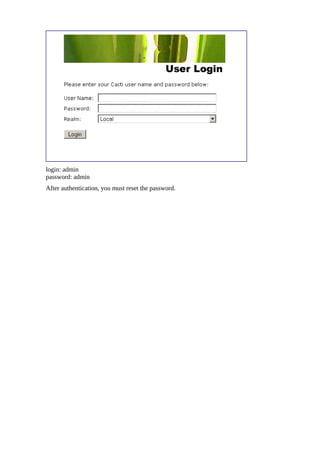
login: admin
password: admin
After authentication, you must reset the password.

Installing Cacti openSUSE Leap 42.1

  • 1.
    Installing Cacti onopenSUSE Leap 42.1 Getting root access To get root access, open a terminal and enter the following command: user $ su - Password: After entering a valid password, the prompt should turn red and end with a #. Preparation Add the server:monitoring repository. This is needed in order to have access to the Cacti add- ons. root # zypper ar http://download.opensuse.org/repositories/server:/monitoring/openSUSE_Leap_42.1/ server:monitoring Install MySQL: root # zypper in mysql-community-server mysql-community-server-client Install Cacti and Cacti add-ons: root # zypper in cacti cacti-plugin-autom8 cacti-plugin-boost cacti-plugin-clog cacti- plugin-cycle cacti-plugin-discovery cacti-plugin-docs cacti-plugin-flowview cacti-plugin- hostinfo cacti-plugin-loginmod cacti-plugin-mactrack cacti-plugin-monitor cacti-plugin- npc cacti-plugin-ntop cacti-plugin-realtime cacti-plugin-routerconfigs cacti-plugin- settings cacti-plugin-ssl cacti-plugin-syslog cacti-plugin-thold cacti-plugin-tools cacti- plugin-update Configuration To get started, the basic services needed: root # systemctl start mysql root # systemctl start apache2 root # systemctl start snmpd And to avoid headaches later, we'll have to automatically start services after a reboot root # systemctl enable mysql root # systemctl enable apache2 root # systemctl enable snmpd We will implement an additional layer of security by removing some vulnerabilities in MySQL: root # /usr/bin/mysql_secure_installation
  • 2.
    Follows the orderof questions: • Change password for user root; • Remove user anonymous; • Disable remote access; • Remove test database and flush privileges; • Reload privilege tables. If you change later the root password of MySQL, use the command: root # /usr/bin/mysqladmin -u root -h localhost password 'new password' Apache Configuration The Cacti files are located in /srv/www/cacti. We use a VirtualHost to facilitate our work: cd /etc/apache2/conf.d/ then edit the file cacti.conf, edit line number 33, Replace word “denied” with “granted” Define the user wwwrun of group www as owner of the Cacti files : root # chown -R wwwrun:www /srv/www/cacti/ If you want Cacti to bew the default server, edit the file /etc/sysconfig/apache2 and add CACTI as a server flag: APACHE_SERVER_FLAGS=“CACTI” Database Configuration Now we will create the basis of Cacti and a user: mysql -p mysql> create database cacti; mysql> GRANT ALL ON cacti.* TO cactiuser@localhost IDENTIFIED BY 'cactipasswd'; Cacti Configuration With Apache2 and MySQL configured, missing only the Cacti configuration file, /srv/www/cacti/include/config.php Configuration of /srv/www/cacti/include/config.php: $database_type = “mysql”; $database_default = “cacti”; $database_hostname = “localhost”;
  • 3.
    $database_username = “cactiuser”; $database_password= “cactipasswd”; $database_port = “3306”; Executes the script cacti.sql of Cacti, found in /srv/www/cacti/ root # mysql -u root -p -b cacti < /srv/www/cacti/cacti.sql Now we will start the final configuration by the browser. In browser For the browser, go to address http://SERVER/cacti/install. You will see the license. Proceed Defines a new installation: Make sure the checklist is ok.
  • 4.
    Finished! Now youcan monitor your network assets using SNMP quite easily!
  • 5.
    login: admin password: admin Afterauthentication, you must reset the password.