IM2044 – Week 10
Dr. Andres Baravalle

1
Lecture content
•
•
•
•

What is accessibility
What is web accessibility
The WCAG initiative
Examples

2
Learning outcomes
• This week we will be working on:
– LO2: Apply appropriate design and
specification standards
– LO4: Effectively evaluate various systems and
make appropriate design decisions

3
What is accessibility
• “Accessibility is a general term used to
describe the degree to which a product,
device, service, or environment is
accessible by as many people as possible”
(Wikipedia)

4
ISO 16071 (2003)
• Accessibility is the “usability of a product,
service, environment or facility by people
with the widest range of capabilities”

5
Accessibility and usability
• Tying in to usability‟s definition (ISO
13407), we can say that:
• "The accessibility of an interface is a
measure of the effectiveness, efficiency
and satisfaction with which people with the
widest range of capabilities can achieve
specified goals in a particular environment
with that interface."
6
Accessibility and usability
• If accessibility and usability are a
measure, you have to be able to establish
their magnitude, relative to a unit of
measurement

7
Accessibility is about multiple
paths (1)
• An accessible artefact must support
multiple paths to achieve the same task
– For example, you (often) can use a mobile
phone through voice recognition or using the
hardware interface

• An interface is accessible to an audience
when there is at least one path which can
be usable by each individual within the set
of intended users
8
Accessibility is about multiple
paths (2)
• To ensure accessibility, interaction paths should
be based on the characteristics of:
– Users
– Interfaces
– Goals

• A vocal interface to a hammer might not
increase its accessibility
• A vocal interface for a computer is likely to be
more useful
9
Web accessibility: introduction
• The World Wide Web was conceived by Tim Berners Lee
in a scientific environment and was intended to be used
to exchange ideas freely among the scientific
community.
• The original form of the HyperText Markup Language
(HTML), the language used to build web pages, provided
structured documentation around headings, paragraphs
and other structures that define the information content
of a textual document.
• Presentation was a secondary concern.

10
Web accessibility: introduction
(2)
• As the internet grew and access to computer
networks widened, people other than scientists
were able to access the Web and new
professional figures, in charge of developing
web pages, emerged.
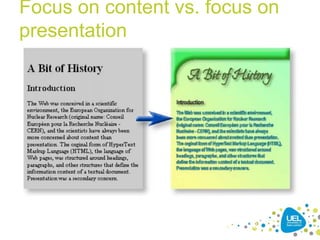
• The focus shifted a little from content towards
presentation: web pages started to be more
appealing and rich with graphics.

11
Focus on content vs. focus on
presentation

12
Improving presentation with
HTML 4.x
• Widespread techniques include:
– Proprietary, non-standard and browser-specific extensions to the
HTML standard, for adding formatting properties (e.g. the tags
<wbr> and <nobr>)
– Using images (with a wider font selection) for rendering text to
replace plain text on the page
– Using images to create graphical elements for presentation,
such as „fancy‟ borders around the page
– Using data tables for page layout structures, often with blank
images to control the white space
– Using plugins or scripting to produce additional effects not
provided by HTML

13
Consequences (some
examples)
• Inconsistencies amongst browsers: due to the use of
proprietary tags, different browsers could be showing the
content quite differently
• Accessibility was strongly affected by the unexpected
use of HTML tags. HTML tags carry a semantic meaning:
<h1> for example, refers to a page heading, and should
not be used just to make text bigger.
• Using tables for layout, or images for borders, was
overloading the tags with functions that they didn‟t
originally have.

14
Disabilities that can affect web
access (non-exaustive list)
• Hearing disabilities (people who are deaf, hard of
hearing, or hearing impaired)
• Visual disabilities (people who are blind, colour-blind or
visually impaired)
• Mobility disabilities (people who are physically disabled
or with impaired motor skills)
• Learning disabilities (such as people with dyslexia).
• It has been estimated that between 15% and 30% of
world population, and almost 10% of internet users,

has some kind of disability
15
That was wrong!
• A series of “magic numbers” - numbers that
appeared by “magic” - were used in the previous
slide
• Never forget to include appropriate references
and support your statements with relevant
quotes
• Thatcher, J., Waddell, C., Henry, S., Swierenga,
S., Urban, M., Burks, M. and Bohman, P. (2003)
Constructing Accessible Websites, Apress,
chapter 1.
16
Why web accessibility is so
important
• As the Web displaces more traditional
information sources and becomes a key
resource for information, commerce,
entertainment, distance learning, job
searching and government services, it
becomes more important that everyone
has access to it.

17
Making the web accessible
• Accessible websites and Web applications, where
people with disabilities can perceive, understand,
navigate, and interact
• Accessible user-agents, such as Web browsers and Web
applications in general (such as rich media players), that
can be used effectively by people with disabilities, and
that work well with assistive technologies that some
people with disabilities use to access the Web
• Accessible Web authoring tools, which support the
production of accessible Web content and websites, and
that can be used effectively by people with disabilities.
18
WCAG guidelines
• The Web Content Accessibility Guidelines
have been compiled by the Web
Accessibility Initiative project (WAI - W3C)
to explain how to make web content
accessible

19
WCAG guidelines: #1
• Provide equivalent alternatives to auditory
and visual content.

20
WCAG guidelines: #2
• Don't rely on color alone

21
WCAG guidelines: #3
• Use markup and style sheets and do so
properly

22
WCAG guidelines: #4
• Clarify natural language usage

23
WCAG guidelines: #5
• Create tables that transform gracefully

24
WCAG guidelines: #6
• Ensure that pages featuring new
technologies transform gracefully

25
WCAG guidelines: #7
• Ensure user control of time-sensitive
content changes

26
WCAG guidelines: #8
• Ensure direct accessibility of embedded
user interfaces

27
WCAG guidelines: #9
• Design for device-independence

28
WCAG guidelines: #10
• Use interim solutions

29
WCAG guidelines: #11
• Use W3C technologies and guidelines

30
WCAG guidelines: #12
• Provide context and orientation
information

31
WCAG guidelines: #13
• Provide clear navigation mechanisms

32
WCAG guidelines: #14
• Ensure that documents are clear and
simple

33
Examples
•
•
•
•

The next examples are for discussion
Which ones are usable?
Which ones are accessbile?
WHY?

34
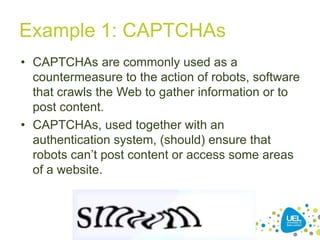
Example 1: CAPTCHAs
• CAPTCHAs are commonly used as a
countermeasure to the action of robots, software
that crawls the Web to gather information or to
post content.
• CAPTCHAs, used together with an
authentication system, (should) ensure that
robots can‟t post content or access some areas
of a website.

35
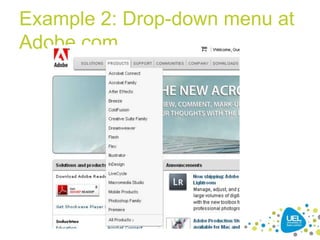
Example 2: Drop-down menu at
Adobe.com

36
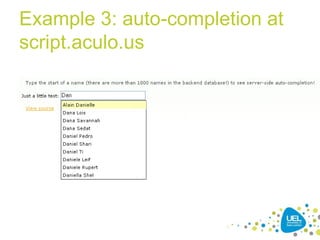
Example 3: auto-completion at
script.aculo.us

37
Example 4: Mojo
• <div dojoType="dijit.layout.BorderContainer" design="sidebar"
liveSplitters="false">
• <div dojoType="dijit.layout.ContentPane" region="leading">
• <div id="feature-menu"> <div class="cp" id="DojoLinkPane"> <div
class="cpContent"> <div
dojoType="dojoc.sandbox.menu.AccordionMenu" id="DojoMenu"
store="navStore" init="Dojo [...]
• (see
http://dojocampus.org/explorer/#Dojox_Image_Lightbox_Grouped)

38
Example 5: script.aculo.us
• <div class="c">
• <div class="example" id="demo-effect-blinddown"
onclick="new Effect.BlindDown(this)"> <div
style="height: 120px;"> <img
src="http://script.aculo.us/images/demo-logo.gif" alt="">
• <span>Click for Effect.BlindDown demo</span> </div>
[...]
• (see
http://wiki.github.com/madrobby/scriptaculous/combinati
on-effects-demo)

39
Testing tools
• The web developer toolbar:
– WCAG test
– No stylesheets
– Hide images
– Validate HTML/CSS

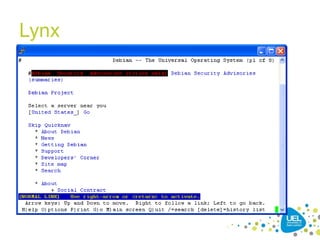
• Lynx!

40
Lynx

41
Readings
• The WCAG (Web Accessibility Initiative) website:
http://www.w3.org/WAI/
• Web Content Accessibility Guidelines 1.0
http://www.w3.org/TR/WCAG10/
• Web Content Accessibility Guidelines
2.0: http://www.w3.org/TR/WCAG20/
• Checklist of Checkpoints for Web Content Accessibility
Guidelines 1.0: http://www.w3.org/TR/WCAG10/fullchecklist.html

42

Accessibility: introduction

  • 1.
    IM2044 – Week10 Dr. Andres Baravalle 1
  • 2.
    Lecture content • • • • What isaccessibility What is web accessibility The WCAG initiative Examples 2
  • 3.
    Learning outcomes • Thisweek we will be working on: – LO2: Apply appropriate design and specification standards – LO4: Effectively evaluate various systems and make appropriate design decisions 3
  • 4.
    What is accessibility •“Accessibility is a general term used to describe the degree to which a product, device, service, or environment is accessible by as many people as possible” (Wikipedia) 4
  • 5.
    ISO 16071 (2003) •Accessibility is the “usability of a product, service, environment or facility by people with the widest range of capabilities” 5
  • 6.
    Accessibility and usability •Tying in to usability‟s definition (ISO 13407), we can say that: • "The accessibility of an interface is a measure of the effectiveness, efficiency and satisfaction with which people with the widest range of capabilities can achieve specified goals in a particular environment with that interface." 6
  • 7.
    Accessibility and usability •If accessibility and usability are a measure, you have to be able to establish their magnitude, relative to a unit of measurement 7
  • 8.
    Accessibility is aboutmultiple paths (1) • An accessible artefact must support multiple paths to achieve the same task – For example, you (often) can use a mobile phone through voice recognition or using the hardware interface • An interface is accessible to an audience when there is at least one path which can be usable by each individual within the set of intended users 8
  • 9.
    Accessibility is aboutmultiple paths (2) • To ensure accessibility, interaction paths should be based on the characteristics of: – Users – Interfaces – Goals • A vocal interface to a hammer might not increase its accessibility • A vocal interface for a computer is likely to be more useful 9
  • 10.
    Web accessibility: introduction •The World Wide Web was conceived by Tim Berners Lee in a scientific environment and was intended to be used to exchange ideas freely among the scientific community. • The original form of the HyperText Markup Language (HTML), the language used to build web pages, provided structured documentation around headings, paragraphs and other structures that define the information content of a textual document. • Presentation was a secondary concern. 10
  • 11.
    Web accessibility: introduction (2) •As the internet grew and access to computer networks widened, people other than scientists were able to access the Web and new professional figures, in charge of developing web pages, emerged. • The focus shifted a little from content towards presentation: web pages started to be more appealing and rich with graphics. 11
  • 12.
    Focus on contentvs. focus on presentation 12
  • 13.
    Improving presentation with HTML4.x • Widespread techniques include: – Proprietary, non-standard and browser-specific extensions to the HTML standard, for adding formatting properties (e.g. the tags <wbr> and <nobr>) – Using images (with a wider font selection) for rendering text to replace plain text on the page – Using images to create graphical elements for presentation, such as „fancy‟ borders around the page – Using data tables for page layout structures, often with blank images to control the white space – Using plugins or scripting to produce additional effects not provided by HTML 13
  • 14.
    Consequences (some examples) • Inconsistenciesamongst browsers: due to the use of proprietary tags, different browsers could be showing the content quite differently • Accessibility was strongly affected by the unexpected use of HTML tags. HTML tags carry a semantic meaning: <h1> for example, refers to a page heading, and should not be used just to make text bigger. • Using tables for layout, or images for borders, was overloading the tags with functions that they didn‟t originally have. 14
  • 15.
    Disabilities that canaffect web access (non-exaustive list) • Hearing disabilities (people who are deaf, hard of hearing, or hearing impaired) • Visual disabilities (people who are blind, colour-blind or visually impaired) • Mobility disabilities (people who are physically disabled or with impaired motor skills) • Learning disabilities (such as people with dyslexia). • It has been estimated that between 15% and 30% of world population, and almost 10% of internet users, has some kind of disability 15
  • 16.
    That was wrong! •A series of “magic numbers” - numbers that appeared by “magic” - were used in the previous slide • Never forget to include appropriate references and support your statements with relevant quotes • Thatcher, J., Waddell, C., Henry, S., Swierenga, S., Urban, M., Burks, M. and Bohman, P. (2003) Constructing Accessible Websites, Apress, chapter 1. 16
  • 17.
    Why web accessibilityis so important • As the Web displaces more traditional information sources and becomes a key resource for information, commerce, entertainment, distance learning, job searching and government services, it becomes more important that everyone has access to it. 17
  • 18.
    Making the webaccessible • Accessible websites and Web applications, where people with disabilities can perceive, understand, navigate, and interact • Accessible user-agents, such as Web browsers and Web applications in general (such as rich media players), that can be used effectively by people with disabilities, and that work well with assistive technologies that some people with disabilities use to access the Web • Accessible Web authoring tools, which support the production of accessible Web content and websites, and that can be used effectively by people with disabilities. 18
  • 19.
    WCAG guidelines • TheWeb Content Accessibility Guidelines have been compiled by the Web Accessibility Initiative project (WAI - W3C) to explain how to make web content accessible 19
  • 20.
    WCAG guidelines: #1 •Provide equivalent alternatives to auditory and visual content. 20
  • 21.
    WCAG guidelines: #2 •Don't rely on color alone 21
  • 22.
    WCAG guidelines: #3 •Use markup and style sheets and do so properly 22
  • 23.
    WCAG guidelines: #4 •Clarify natural language usage 23
  • 24.
    WCAG guidelines: #5 •Create tables that transform gracefully 24
  • 25.
    WCAG guidelines: #6 •Ensure that pages featuring new technologies transform gracefully 25
  • 26.
    WCAG guidelines: #7 •Ensure user control of time-sensitive content changes 26
  • 27.
    WCAG guidelines: #8 •Ensure direct accessibility of embedded user interfaces 27
  • 28.
    WCAG guidelines: #9 •Design for device-independence 28
  • 29.
    WCAG guidelines: #10 •Use interim solutions 29
  • 30.
    WCAG guidelines: #11 •Use W3C technologies and guidelines 30
  • 31.
    WCAG guidelines: #12 •Provide context and orientation information 31
  • 32.
    WCAG guidelines: #13 •Provide clear navigation mechanisms 32
  • 33.
    WCAG guidelines: #14 •Ensure that documents are clear and simple 33
  • 34.
    Examples • • • • The next examplesare for discussion Which ones are usable? Which ones are accessbile? WHY? 34
  • 35.
    Example 1: CAPTCHAs •CAPTCHAs are commonly used as a countermeasure to the action of robots, software that crawls the Web to gather information or to post content. • CAPTCHAs, used together with an authentication system, (should) ensure that robots can‟t post content or access some areas of a website. 35
  • 36.
    Example 2: Drop-downmenu at Adobe.com 36
  • 37.
    Example 3: auto-completionat script.aculo.us 37
  • 38.
    Example 4: Mojo •<div dojoType="dijit.layout.BorderContainer" design="sidebar" liveSplitters="false"> • <div dojoType="dijit.layout.ContentPane" region="leading"> • <div id="feature-menu"> <div class="cp" id="DojoLinkPane"> <div class="cpContent"> <div dojoType="dojoc.sandbox.menu.AccordionMenu" id="DojoMenu" store="navStore" init="Dojo [...] • (see http://dojocampus.org/explorer/#Dojox_Image_Lightbox_Grouped) 38
  • 39.
    Example 5: script.aculo.us •<div class="c"> • <div class="example" id="demo-effect-blinddown" onclick="new Effect.BlindDown(this)"> <div style="height: 120px;"> <img src="http://script.aculo.us/images/demo-logo.gif" alt=""> • <span>Click for Effect.BlindDown demo</span> </div> [...] • (see http://wiki.github.com/madrobby/scriptaculous/combinati on-effects-demo) 39
  • 40.
    Testing tools • Theweb developer toolbar: – WCAG test – No stylesheets – Hide images – Validate HTML/CSS • Lynx! 40
  • 41.
  • 42.
    Readings • The WCAG(Web Accessibility Initiative) website: http://www.w3.org/WAI/ • Web Content Accessibility Guidelines 1.0 http://www.w3.org/TR/WCAG10/ • Web Content Accessibility Guidelines 2.0: http://www.w3.org/TR/WCAG20/ • Checklist of Checkpoints for Web Content Accessibility Guidelines 1.0: http://www.w3.org/TR/WCAG10/fullchecklist.html 42