How To Use
Google Drive
Your drive in the cloud
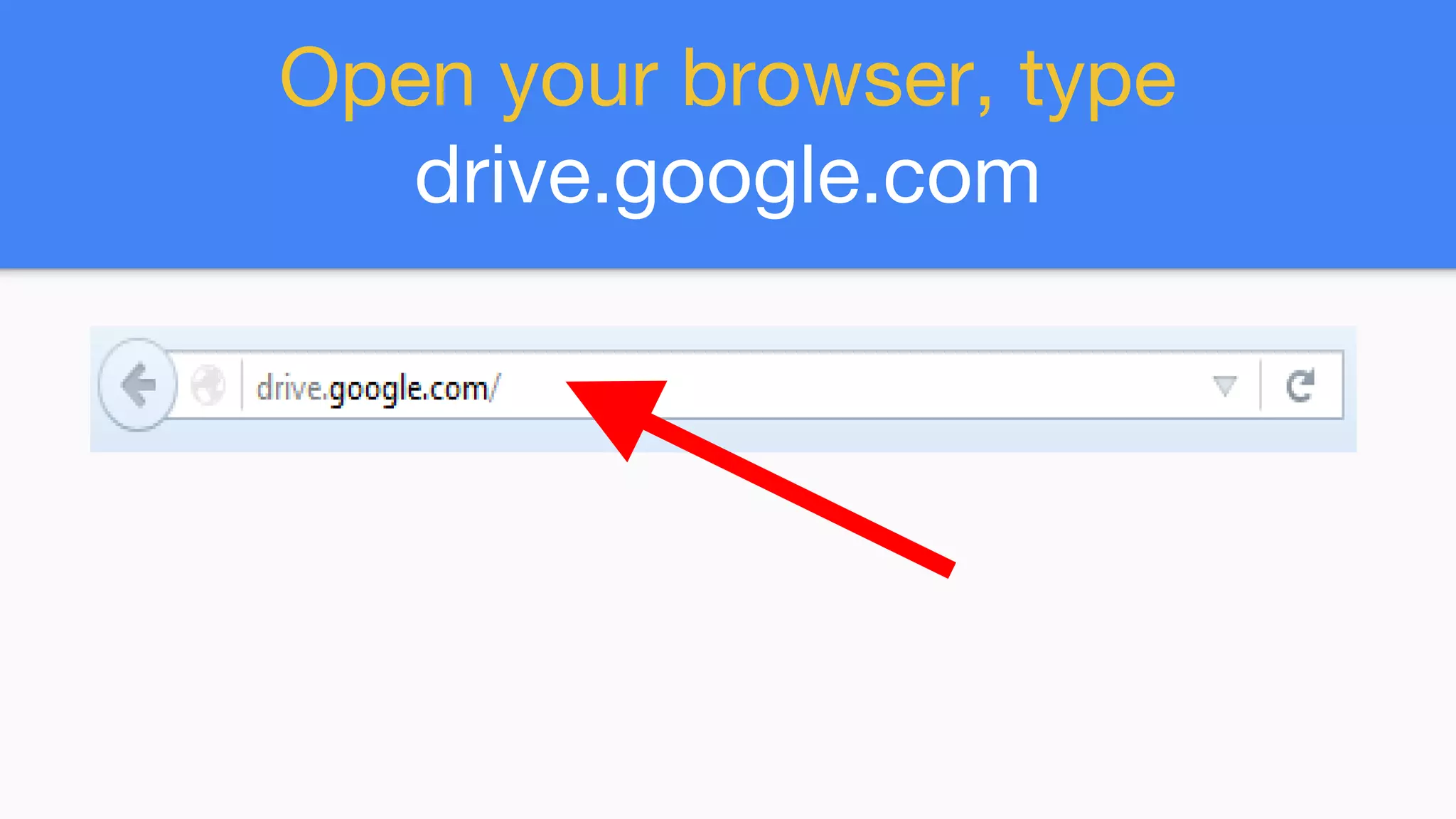
Open your browser, type
drive.google.com
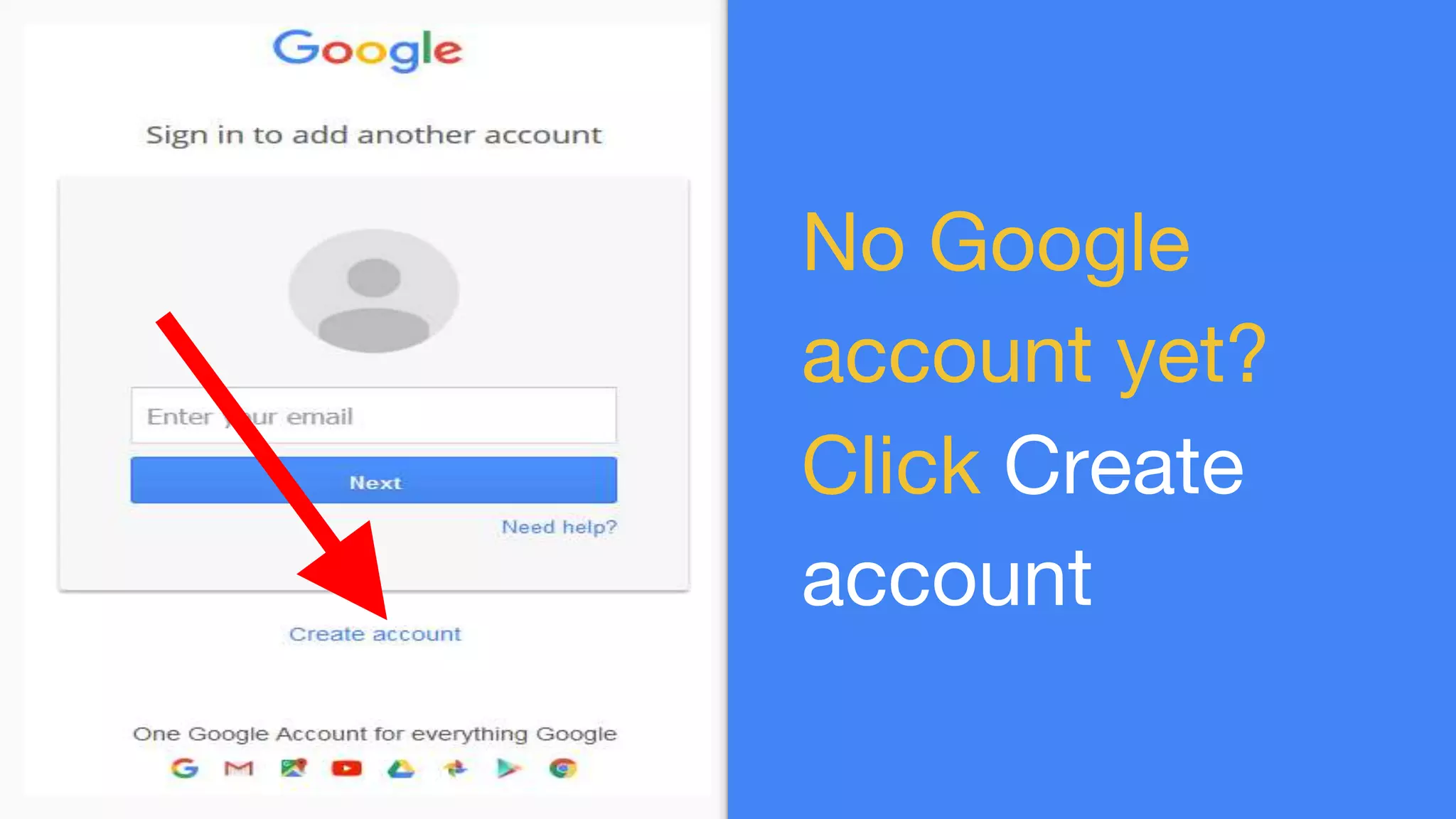
No Google
account yet?
Click Create
account
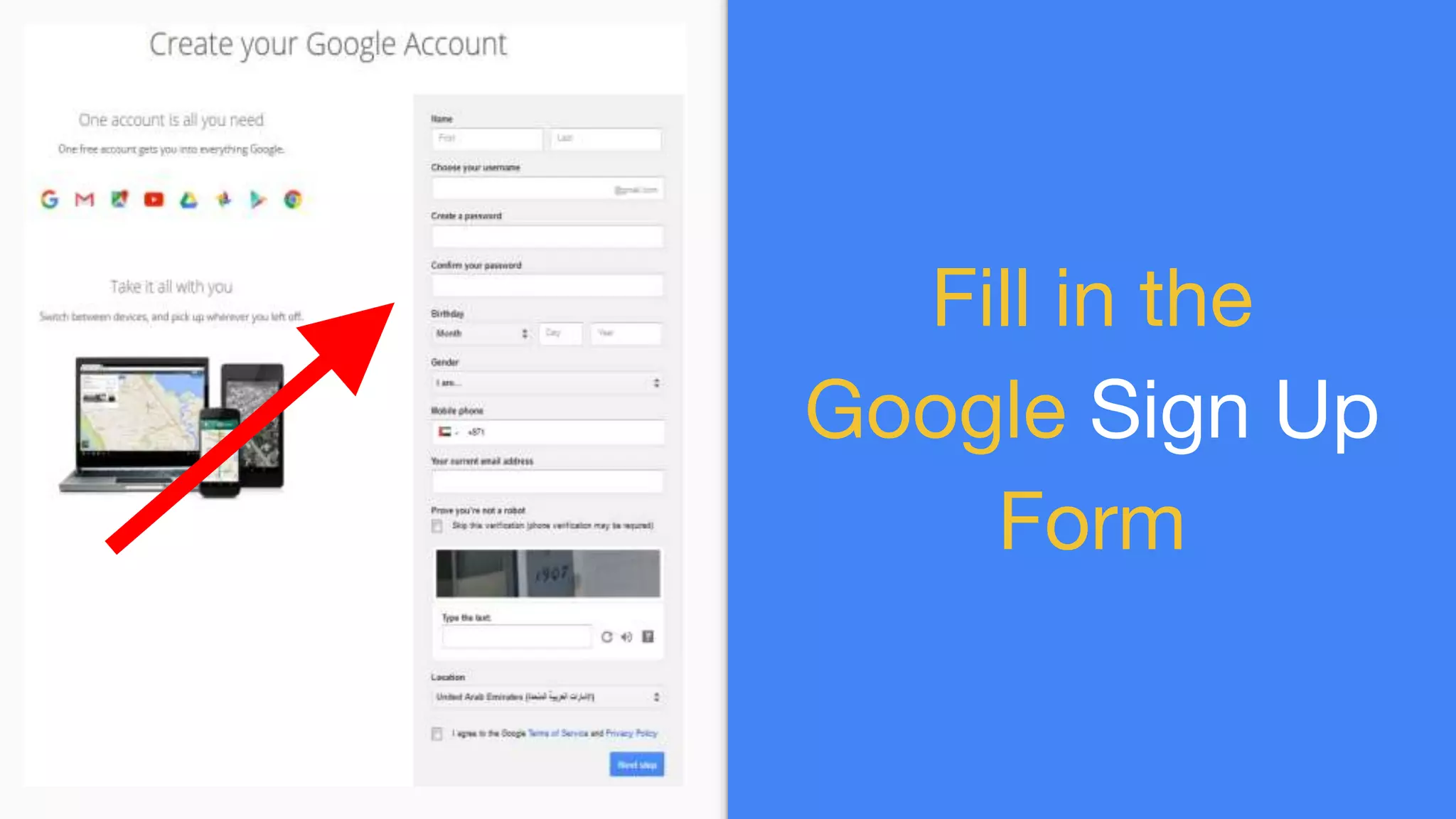
Fill in the
Google Sign Up
Form
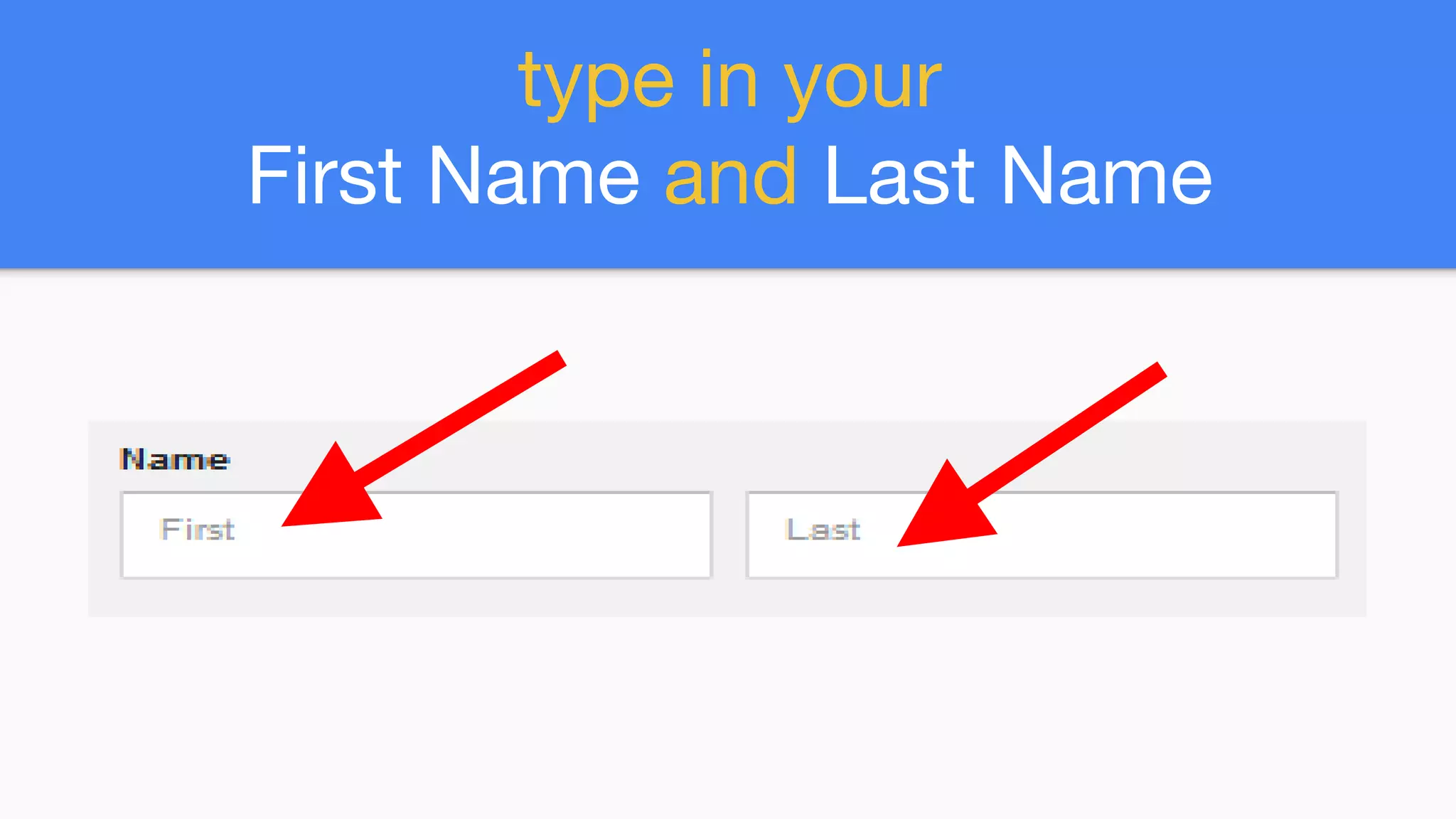
type in your
First Name and Last Name
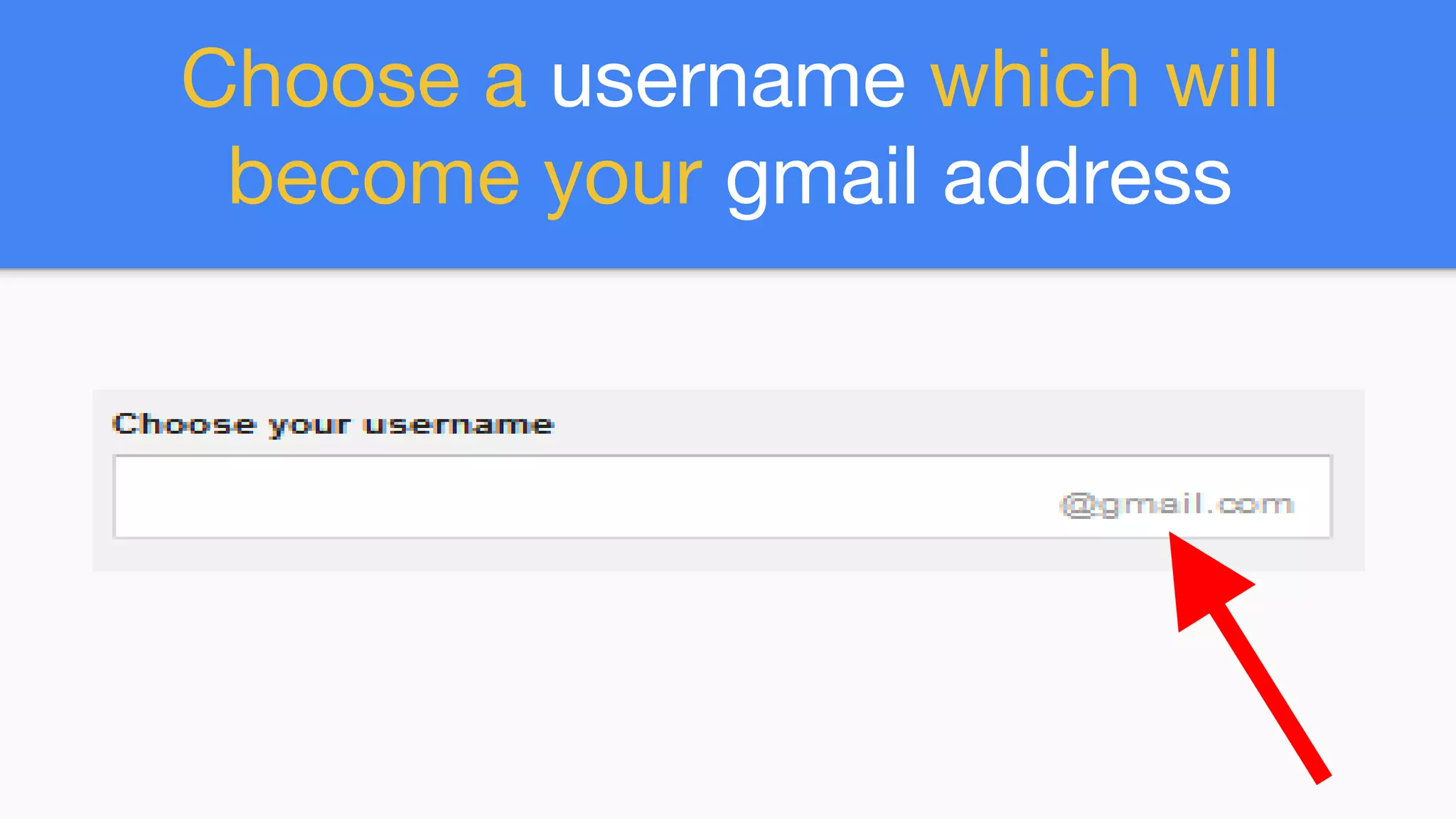
Choose a username which will
become your gmail address
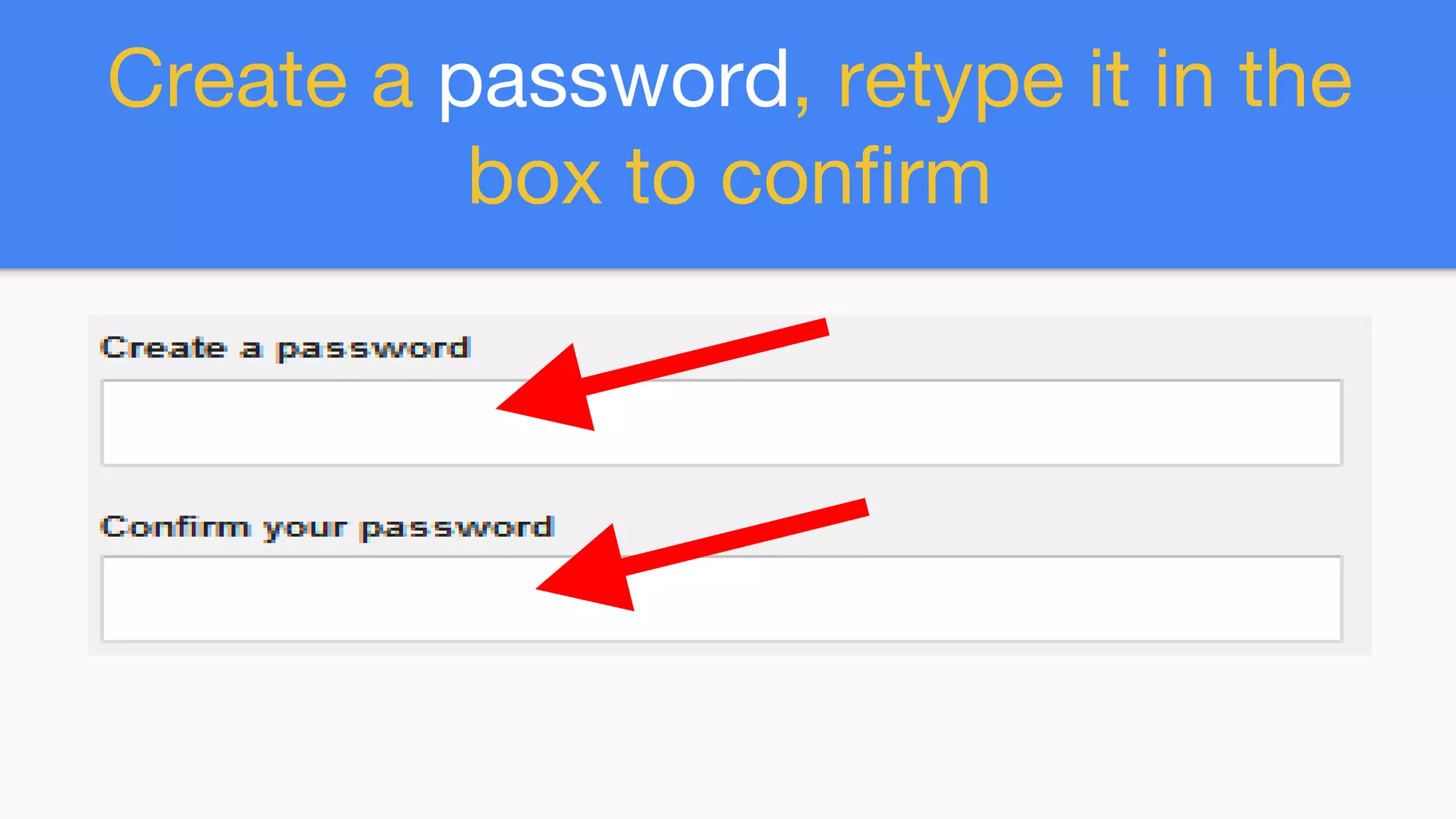
Create a password, retype it in the
box to confirm
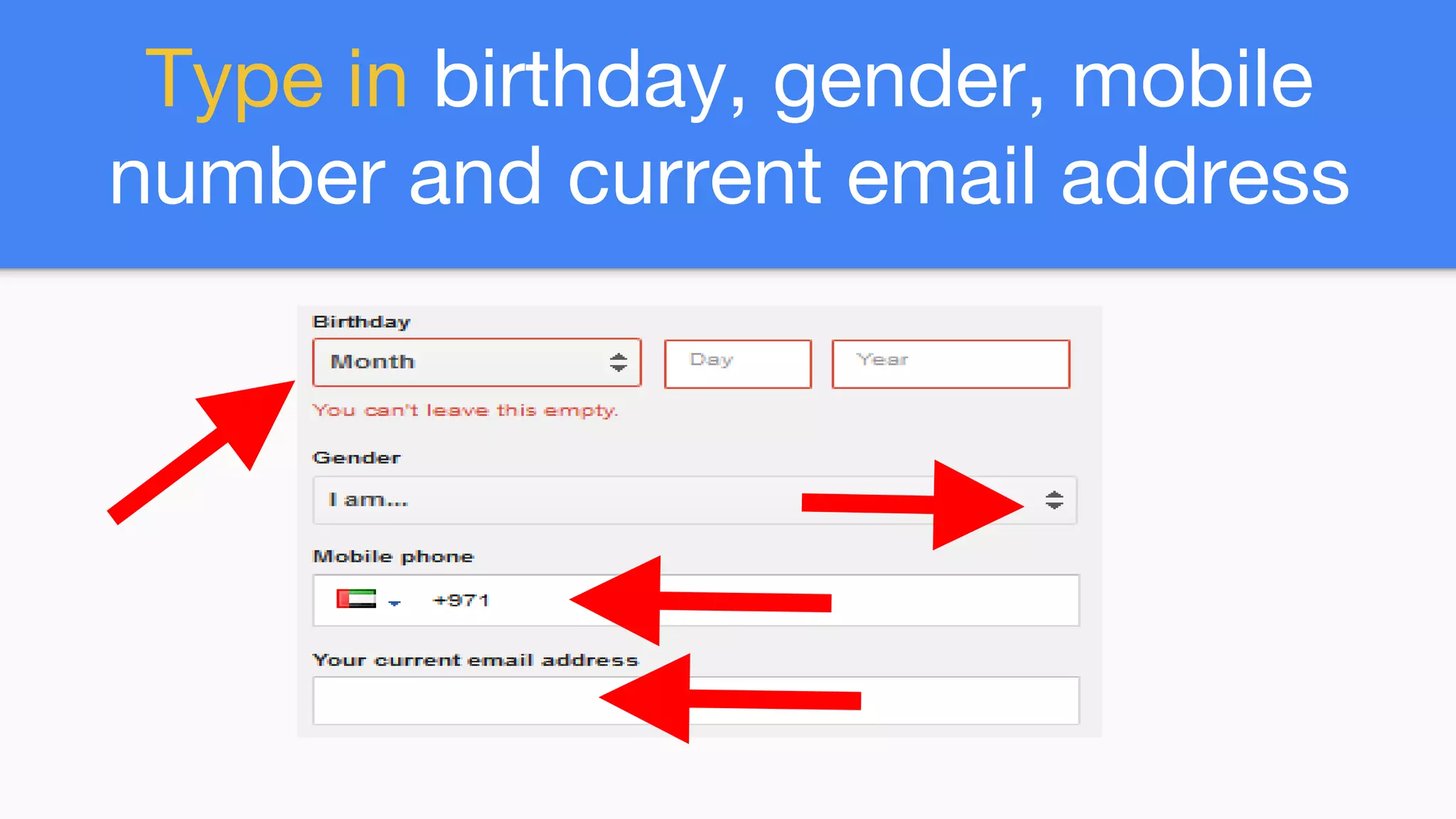
Type in birthday, gender, mobile
number and current email address
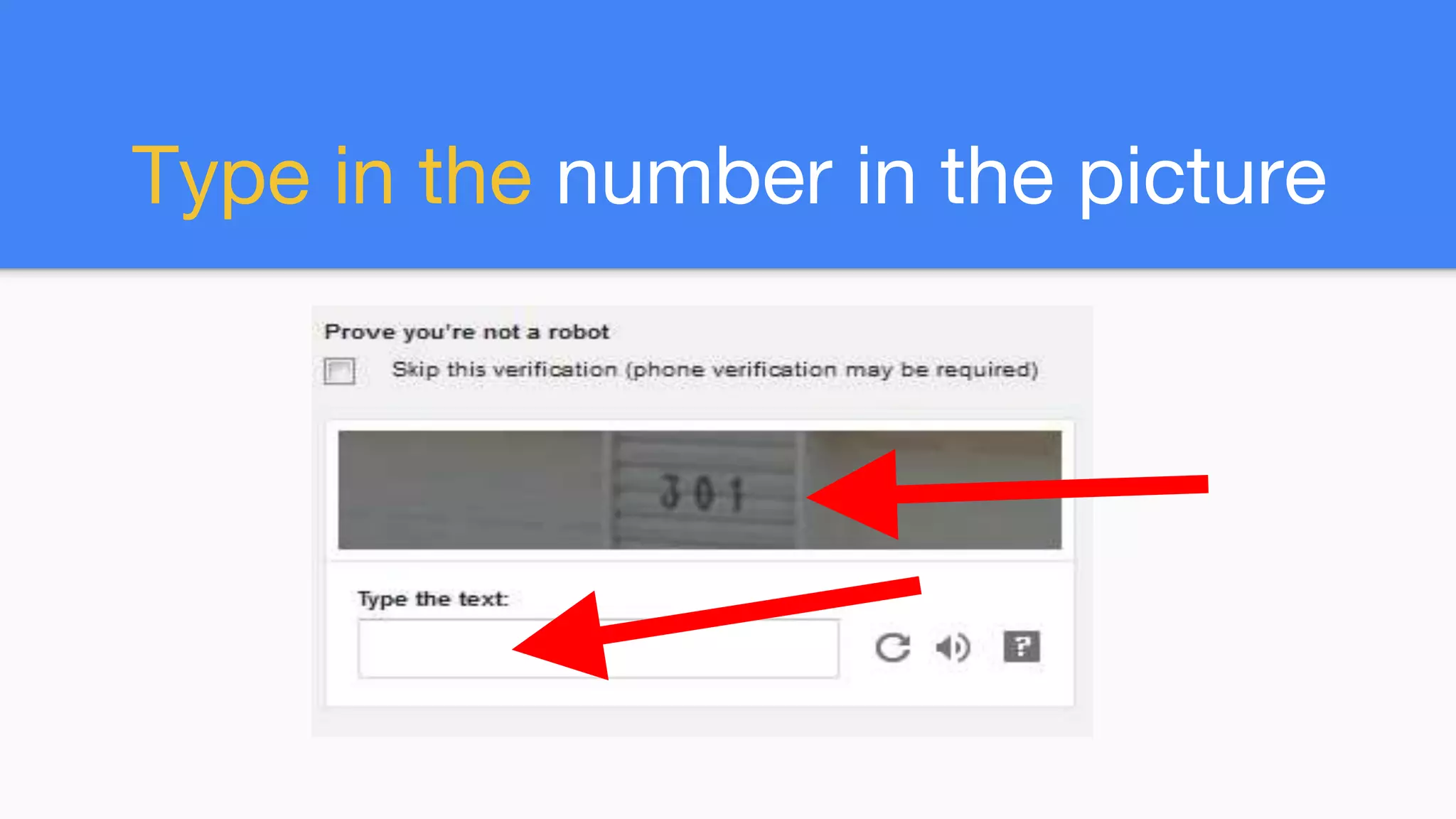
Type in the number in the picture
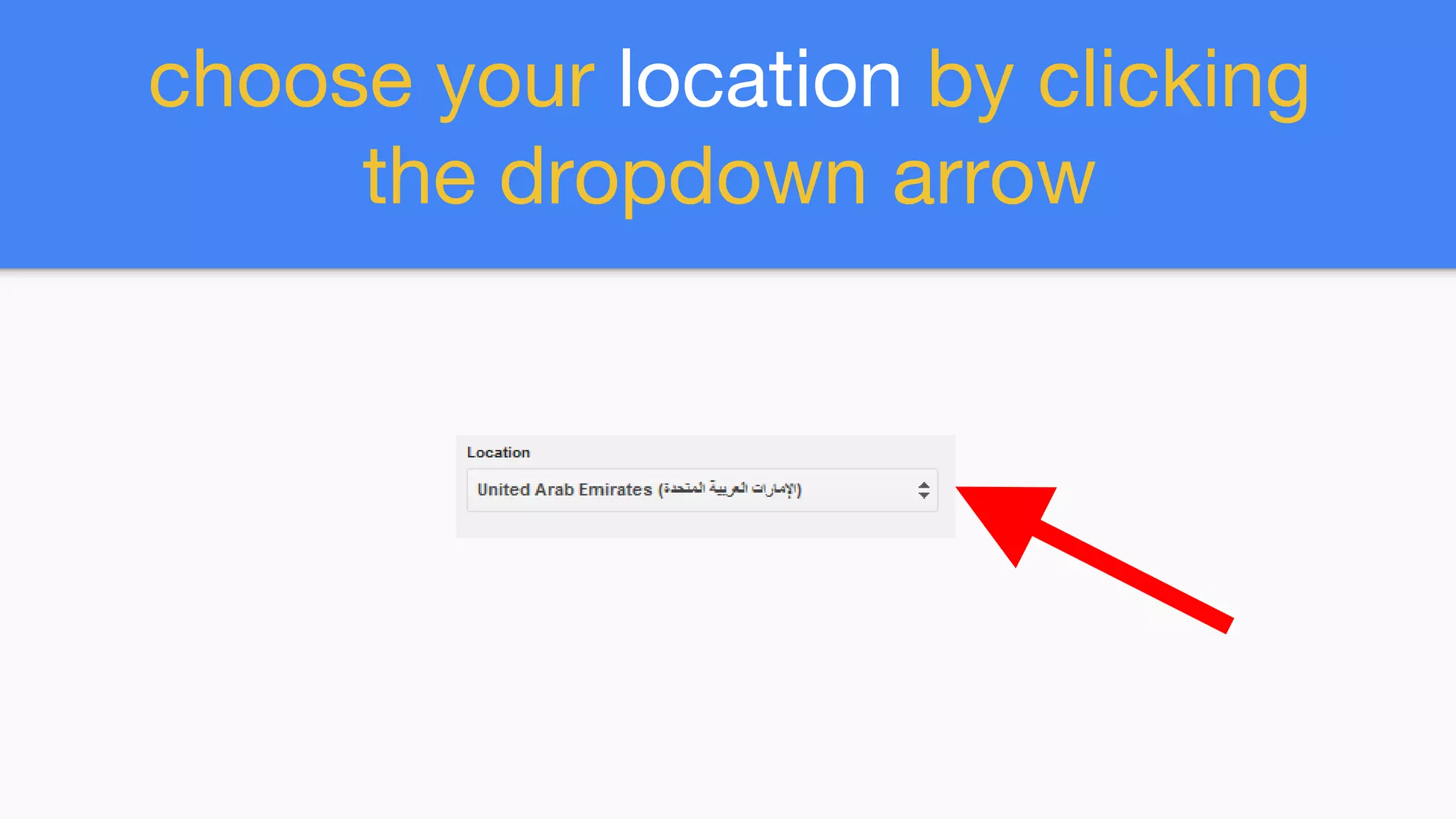
choose your location by clicking
the dropdown arrow
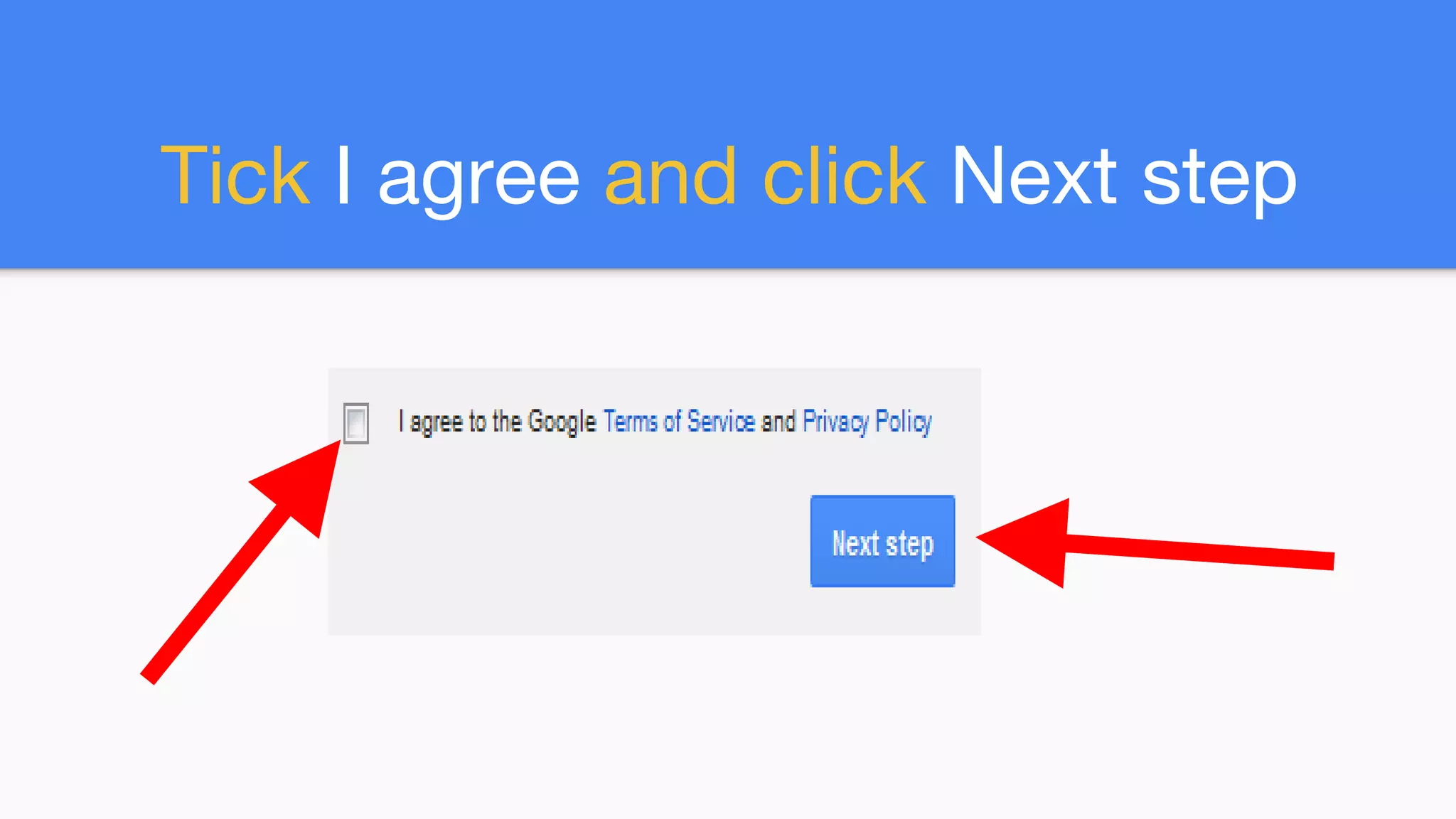
Tick I agree and click Next step
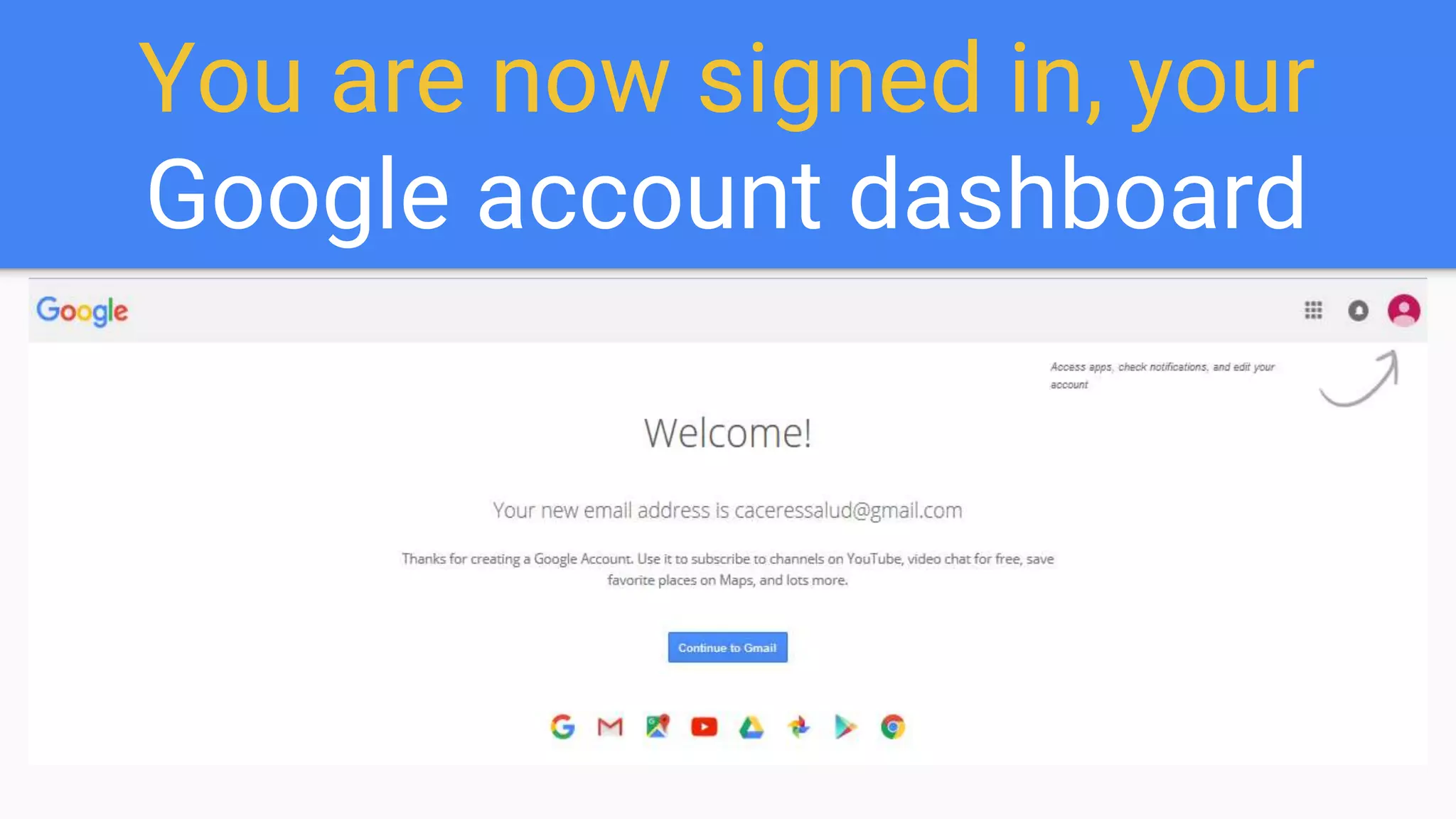
You are now signed in, your
Google account dashboard
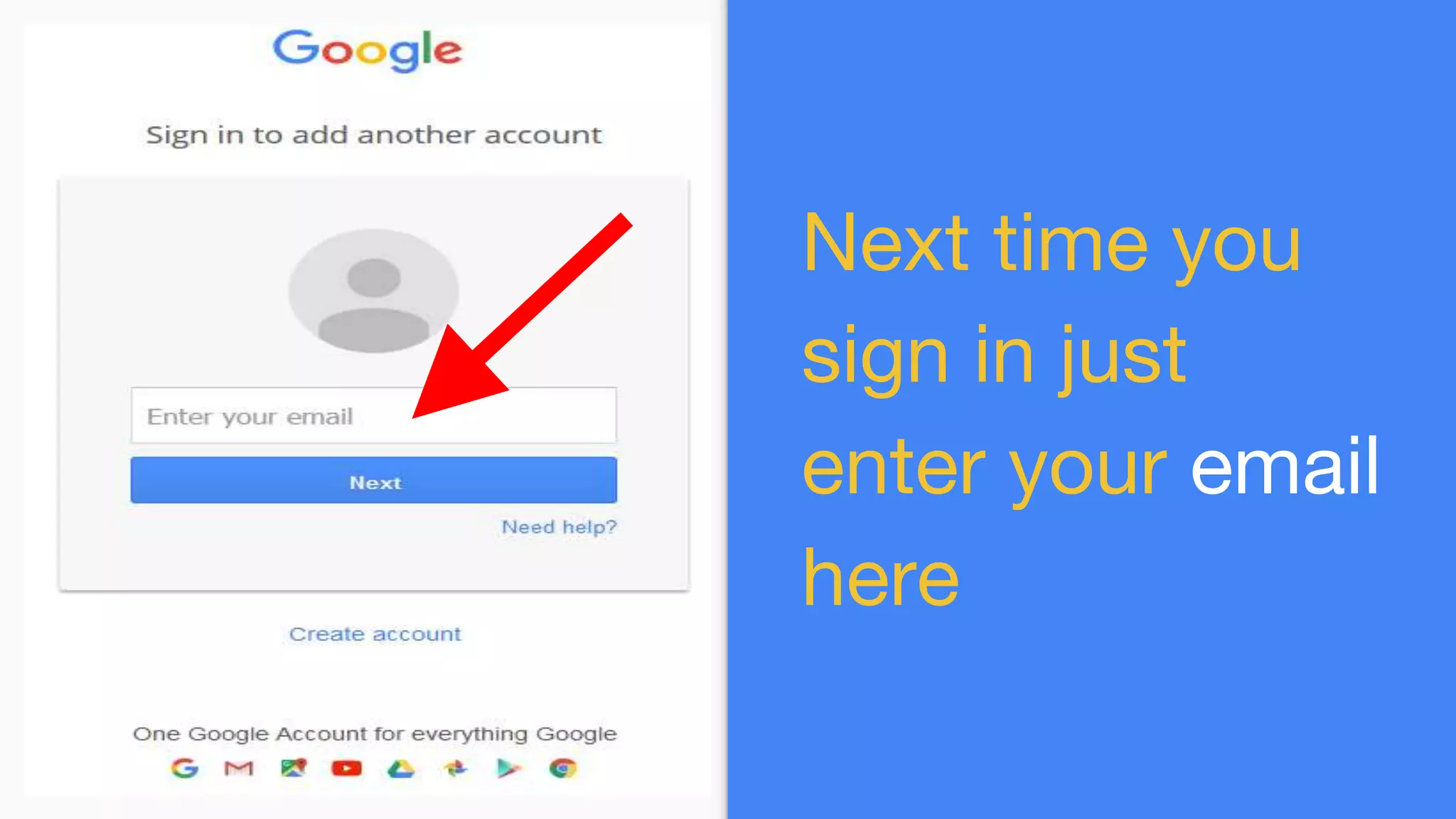
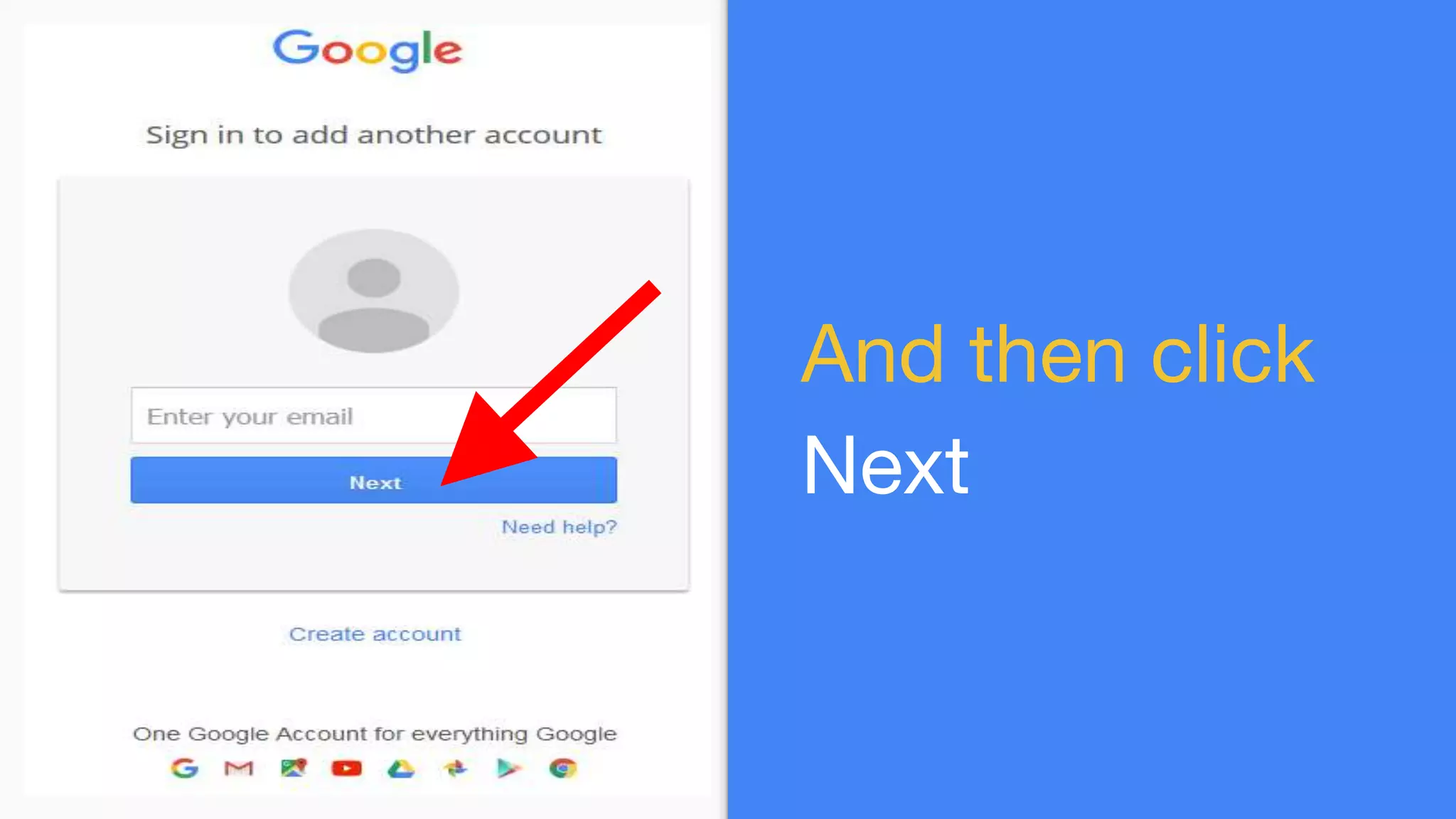
Next time you
sign in just
enter your email
here
And then click
Next
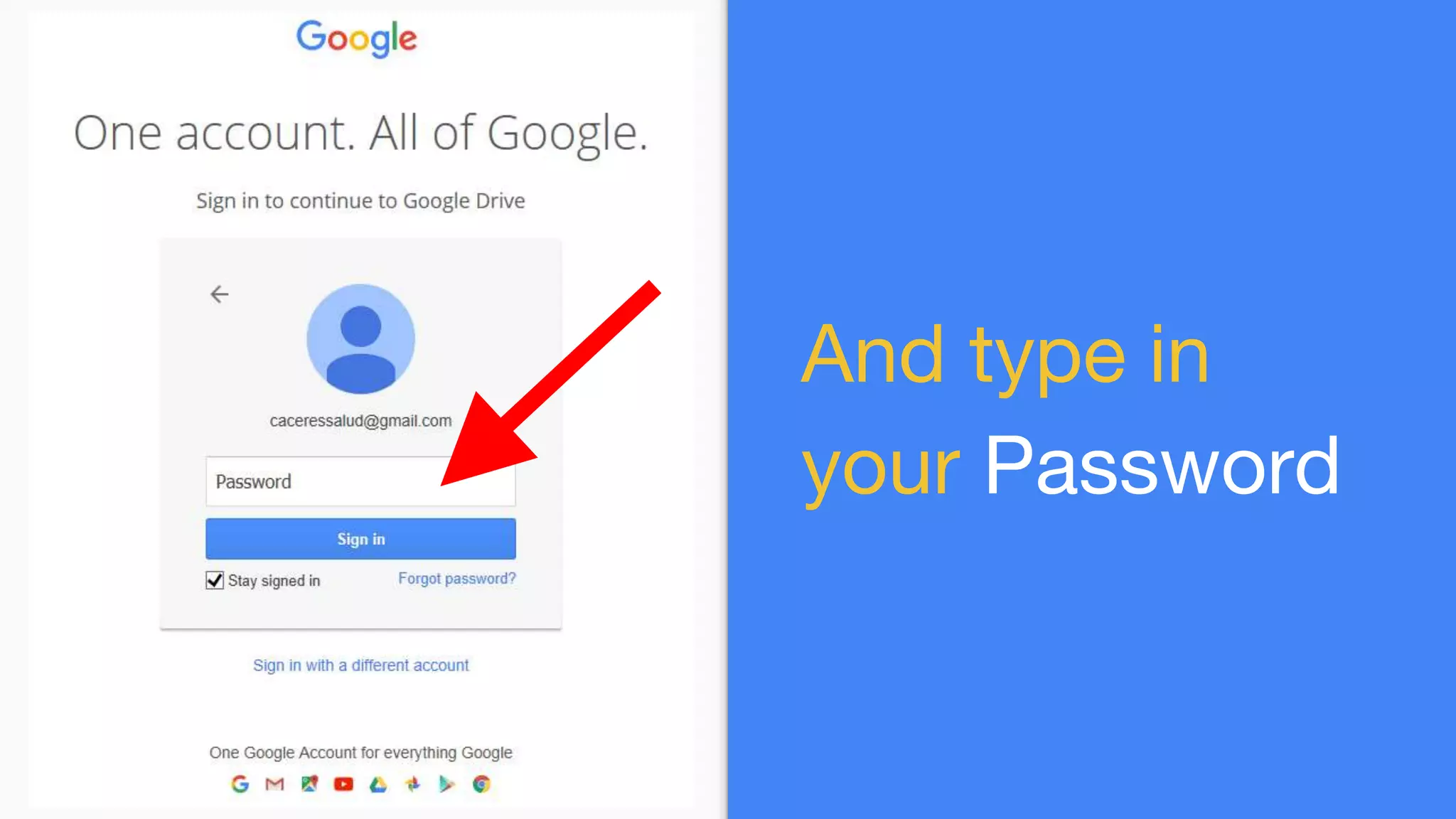
And type in
your Password
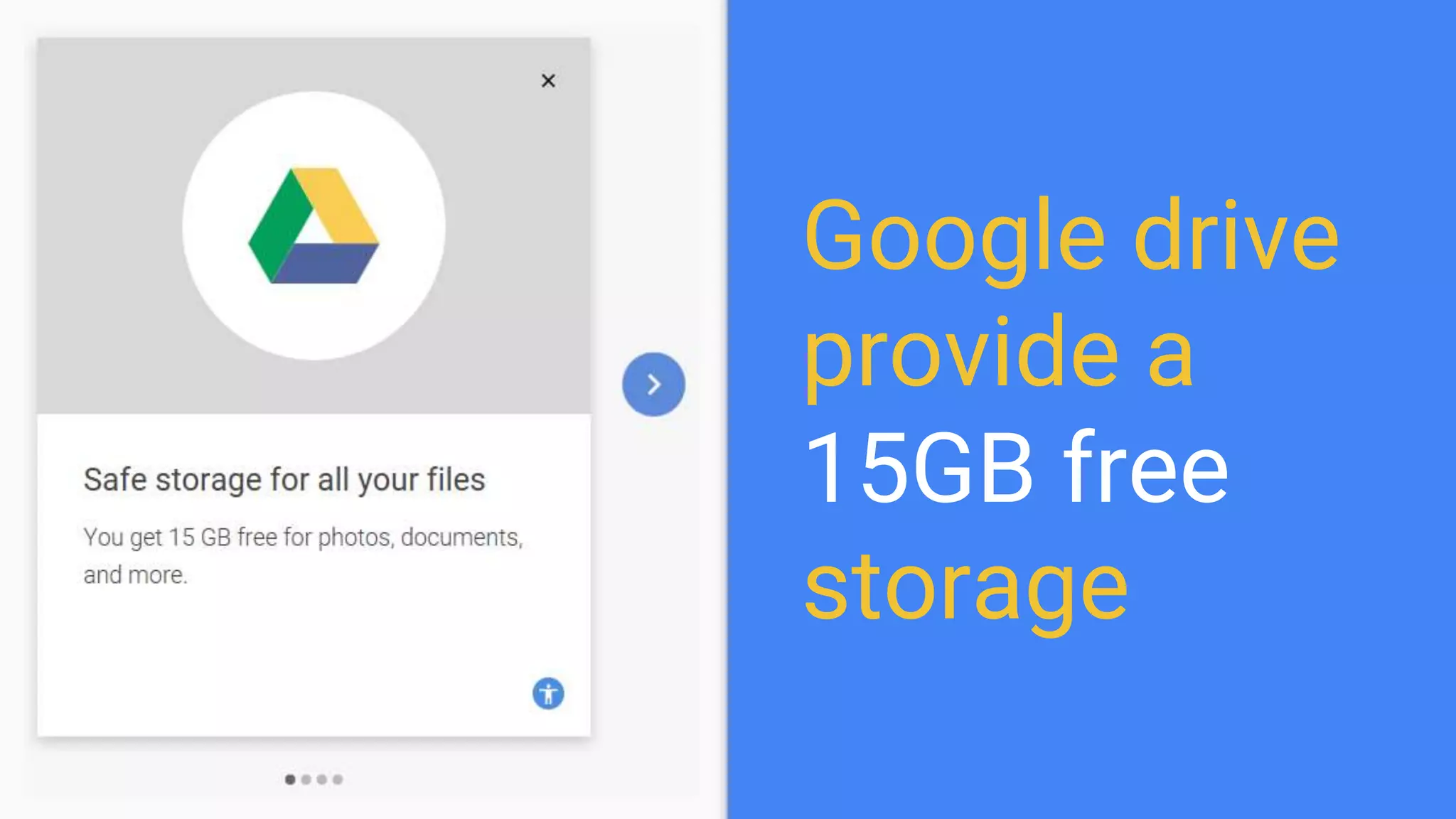
Google drive
provide a
15GB free
storage
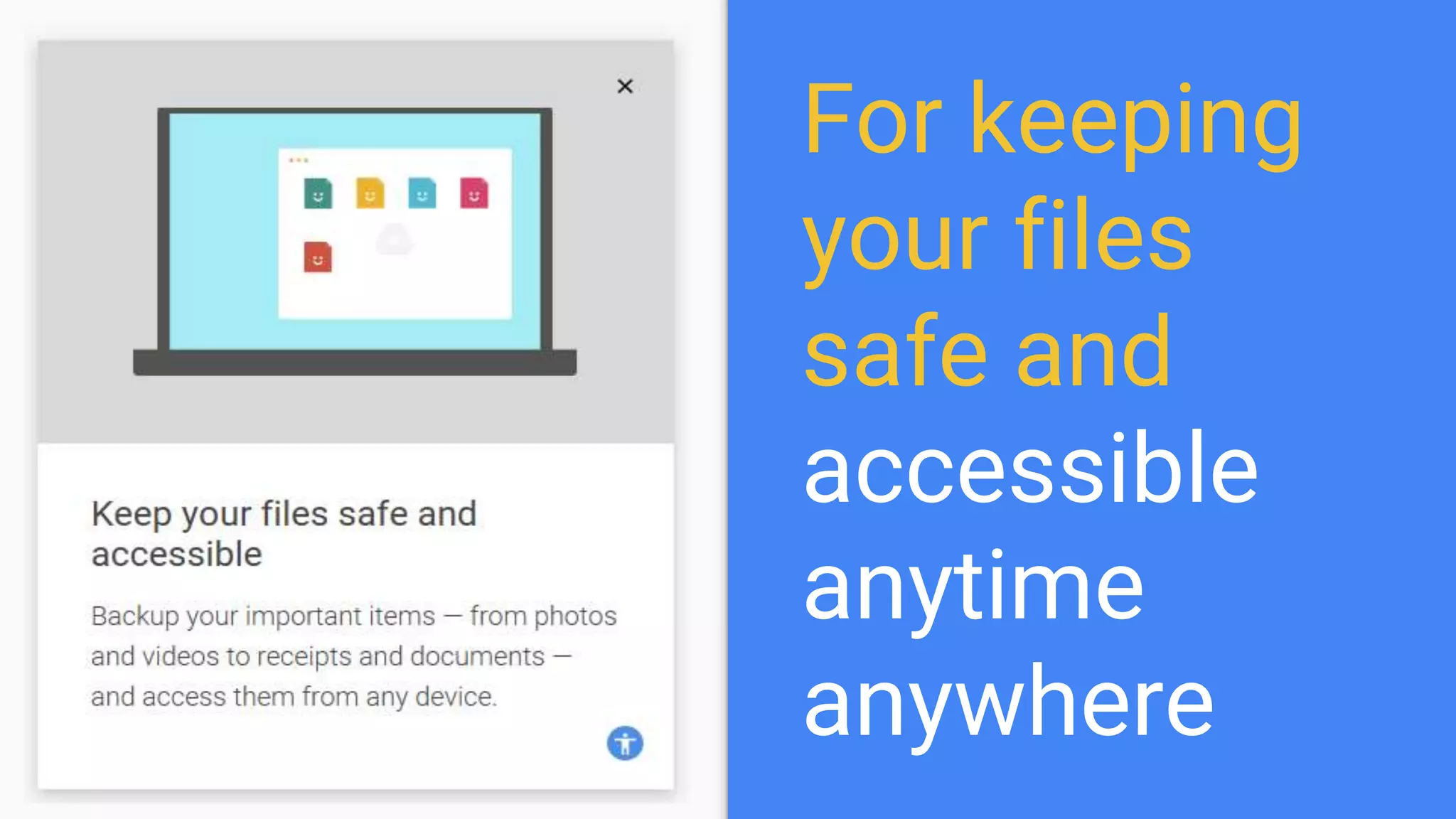
For keeping
your files
safe and
accessible
anytime
anywhere
You can now
organize files
inside your
google drive
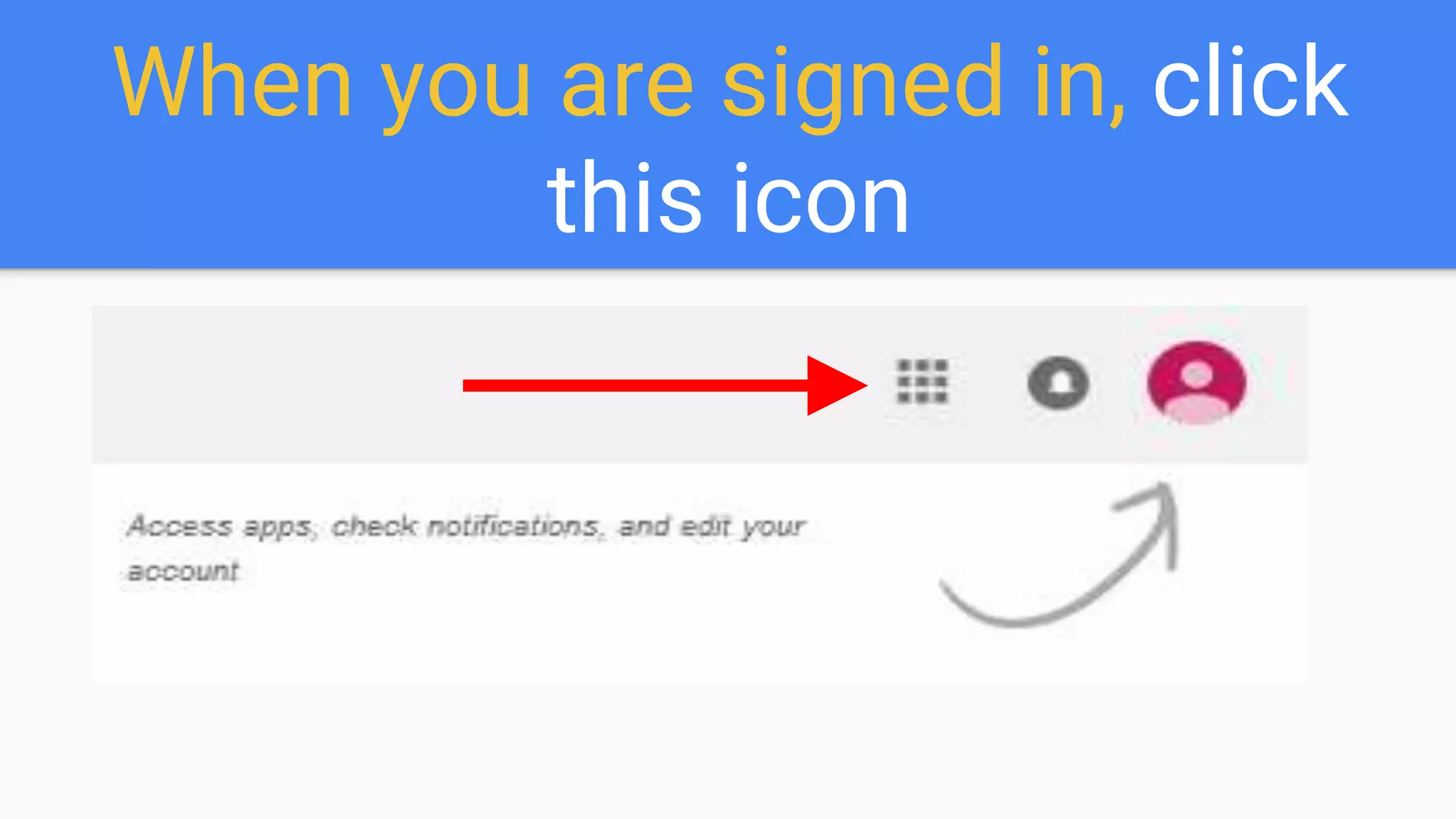
When you are signed in, click
this icon
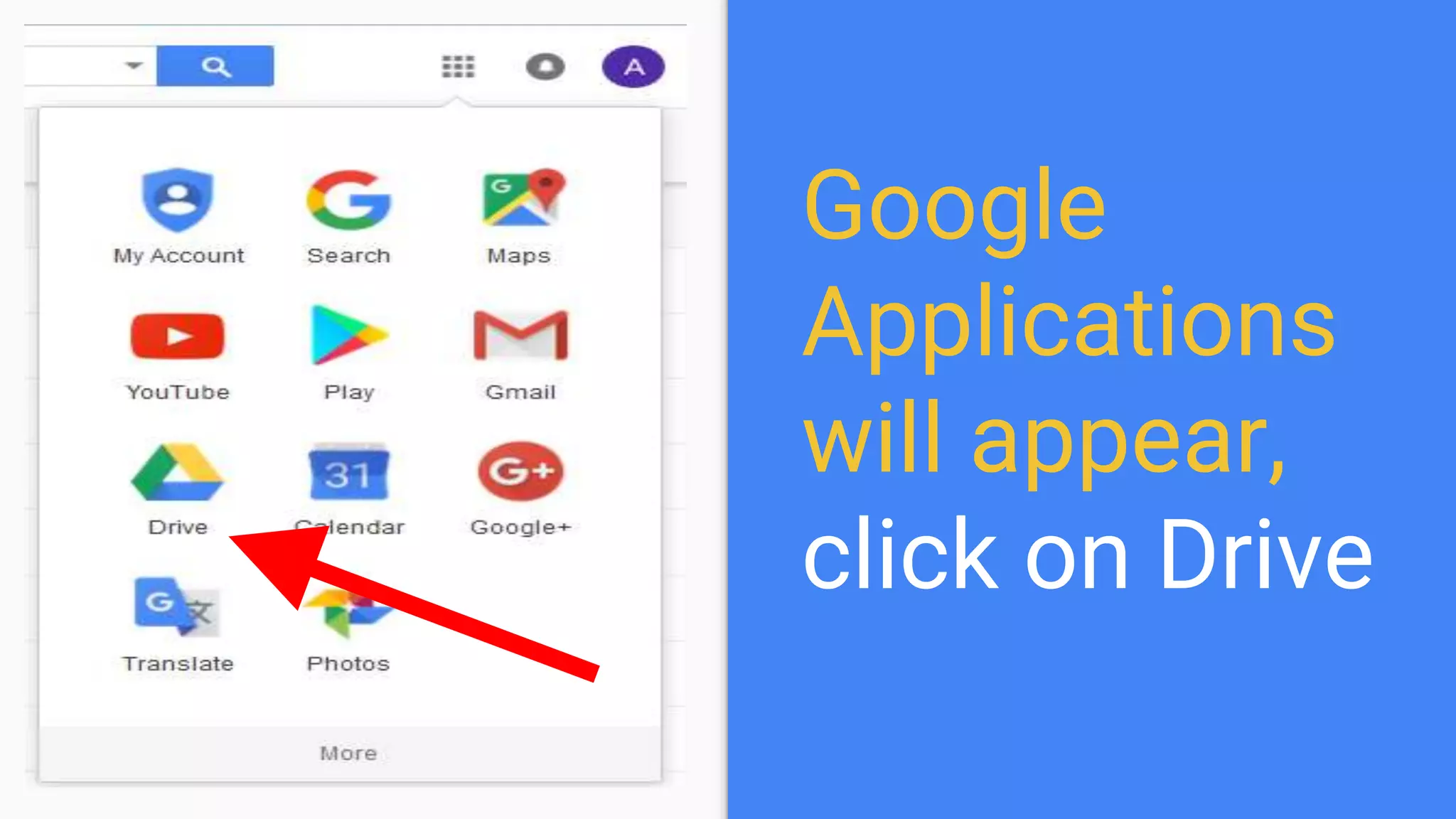
Google
Applications
will appear,
click on Drive
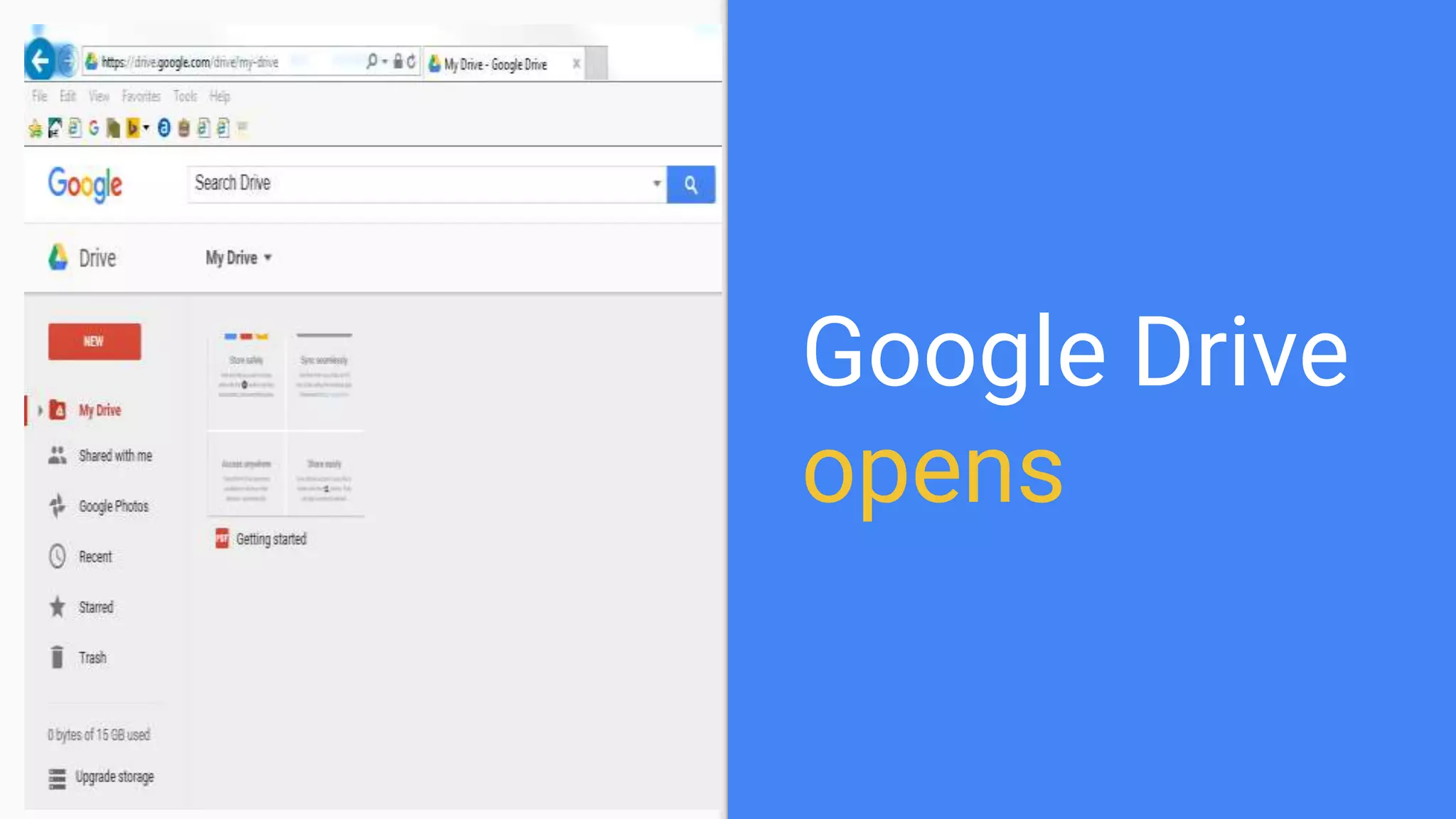
Google Drive
opens
Let’s create a folder inside
Google Drive
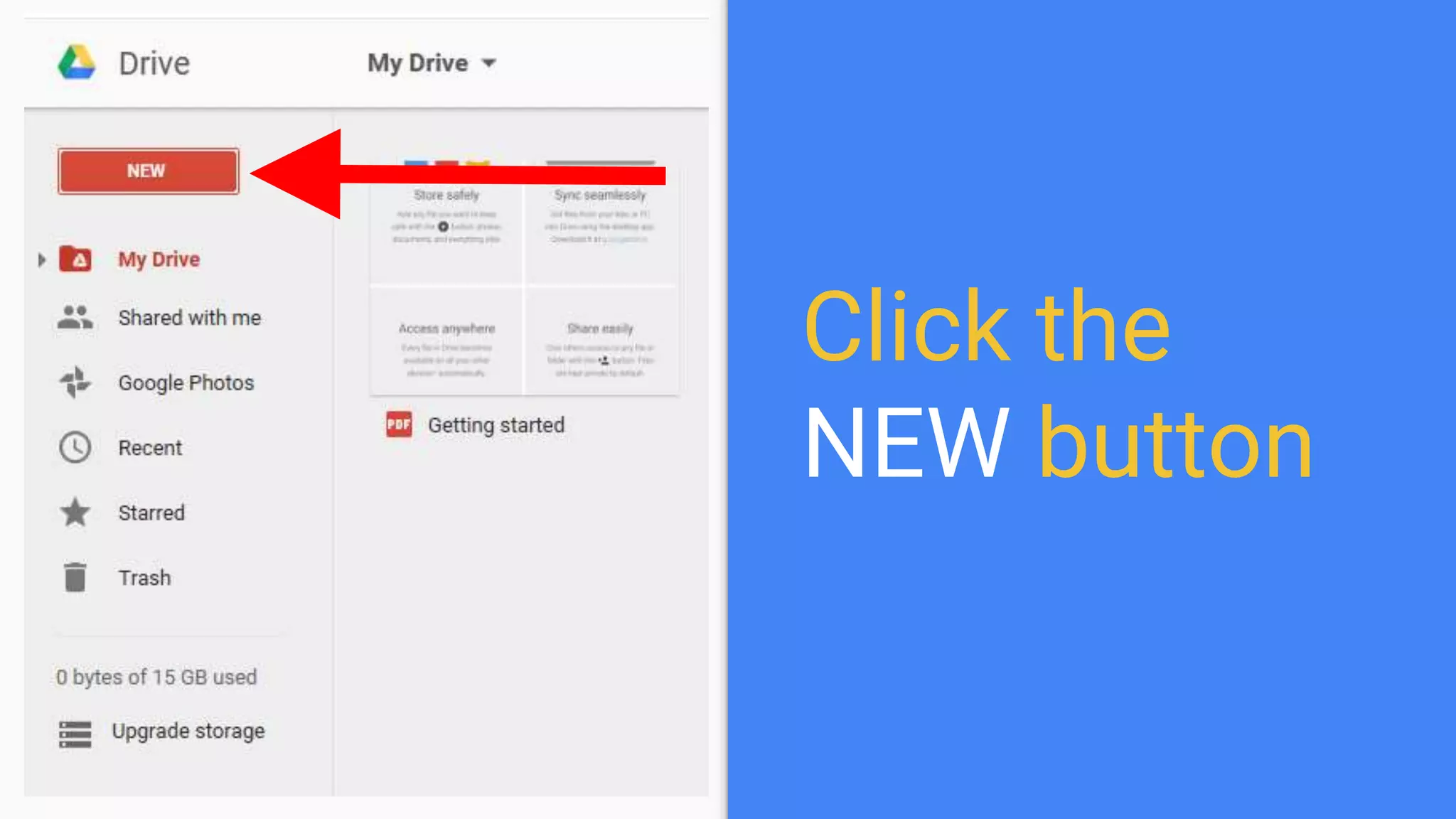
Click the
NEW button
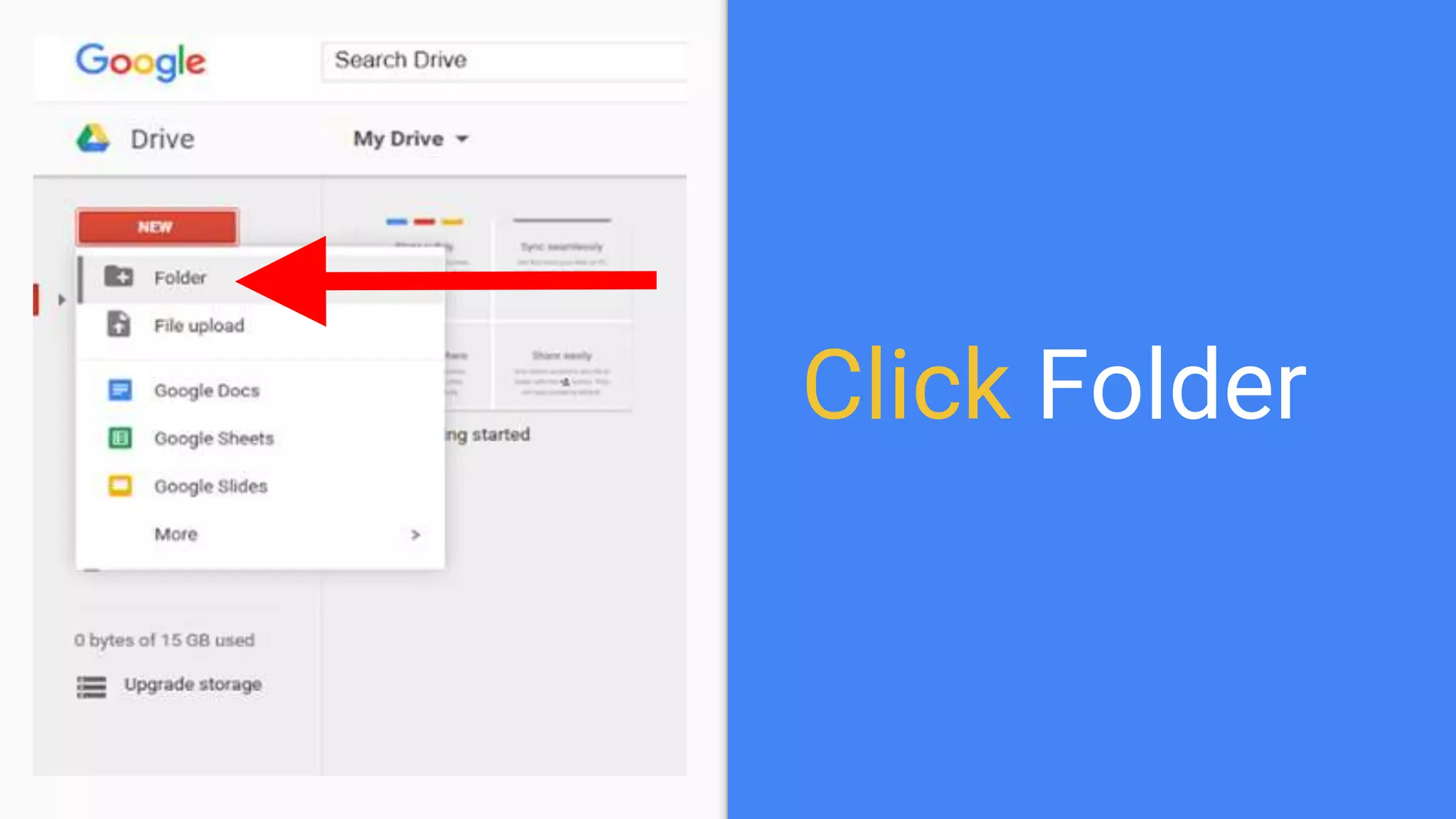
Click Folder
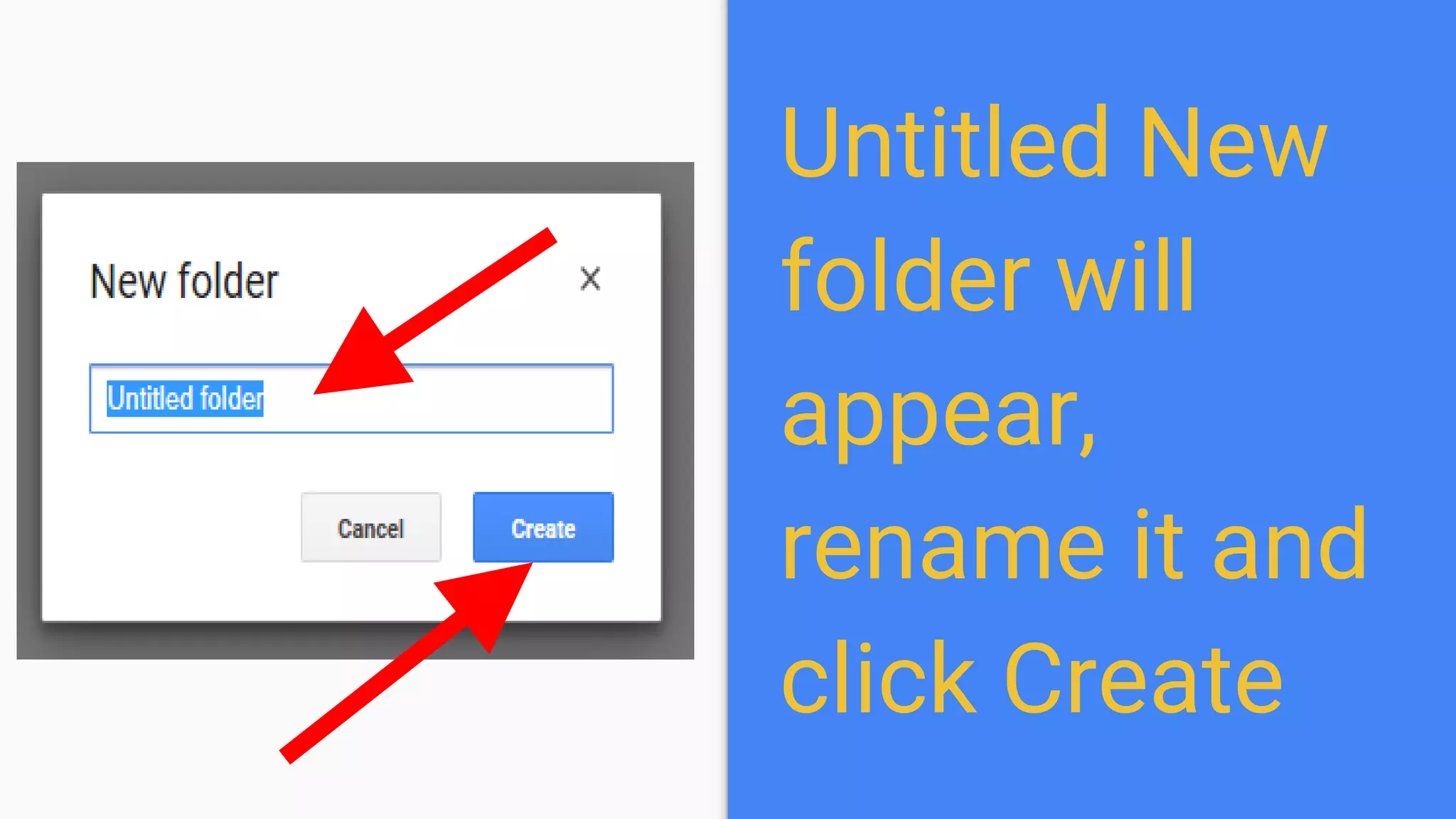
Untitled New
folder will
appear,
rename it and
click Create
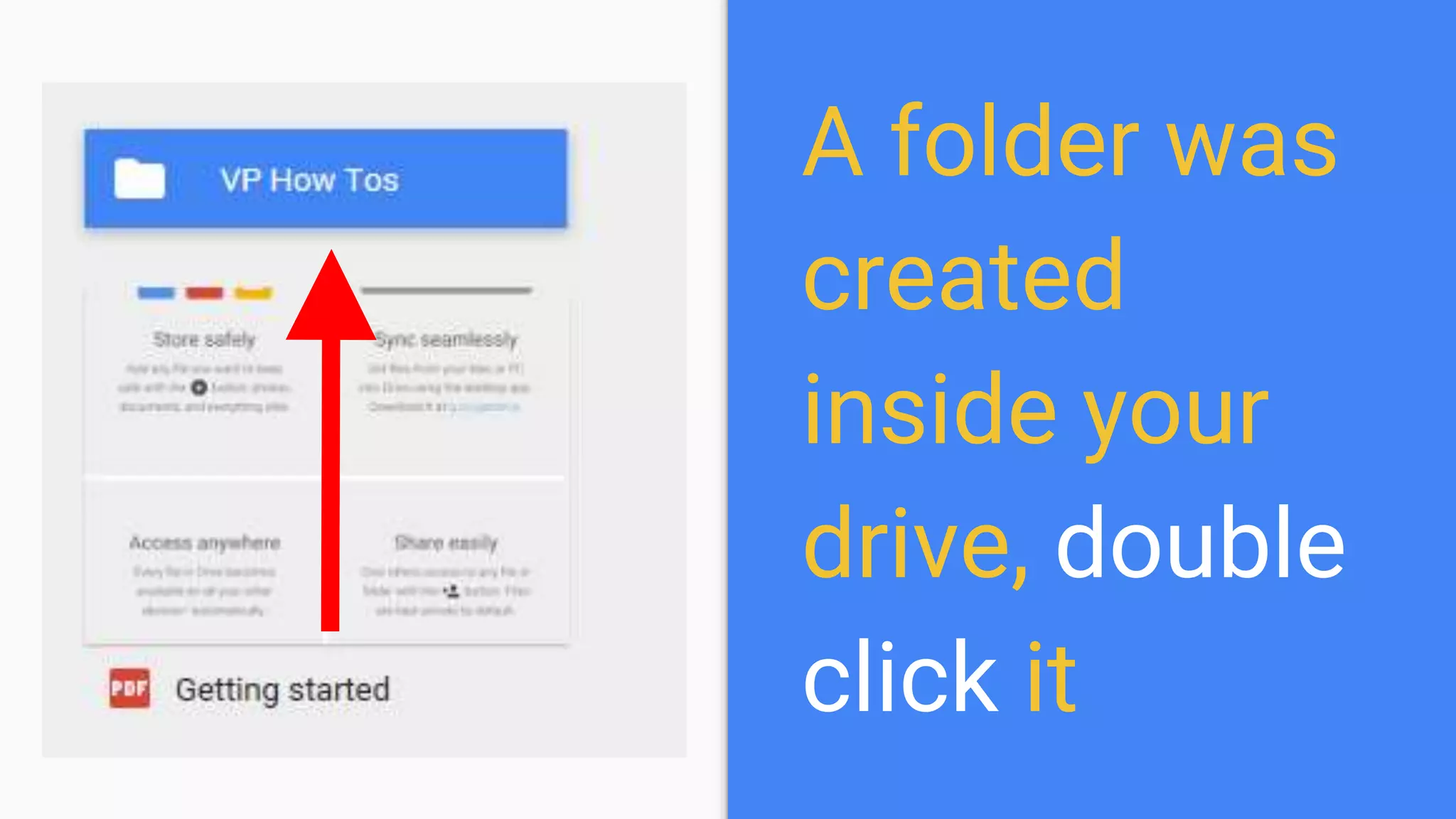
A folder was
created
inside your
drive, double
click it
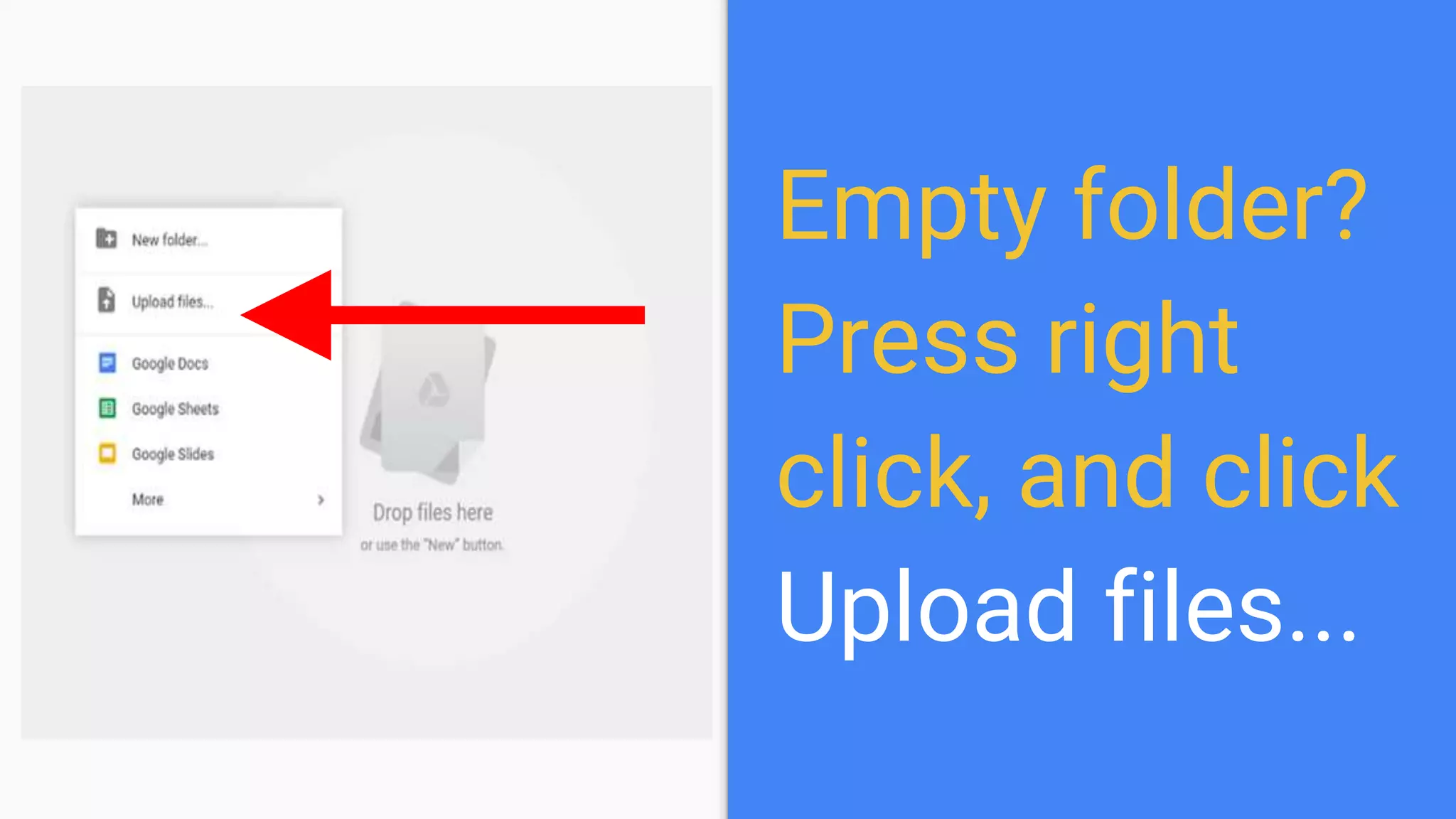
Empty folder?
Press right
click, and click
Upload files...
You can just
drag and drop
files here
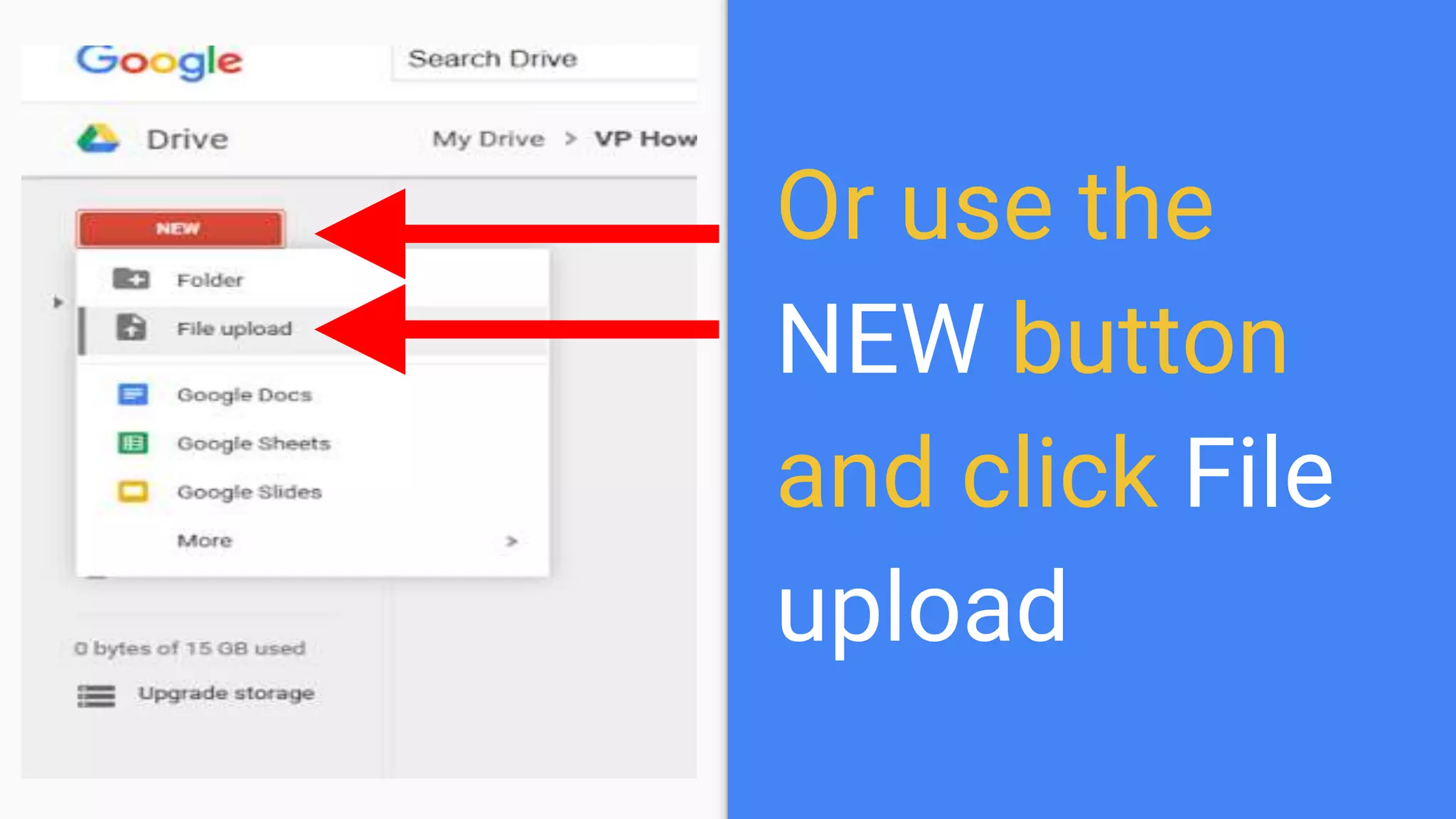
Or use the
NEW button
and click File
upload
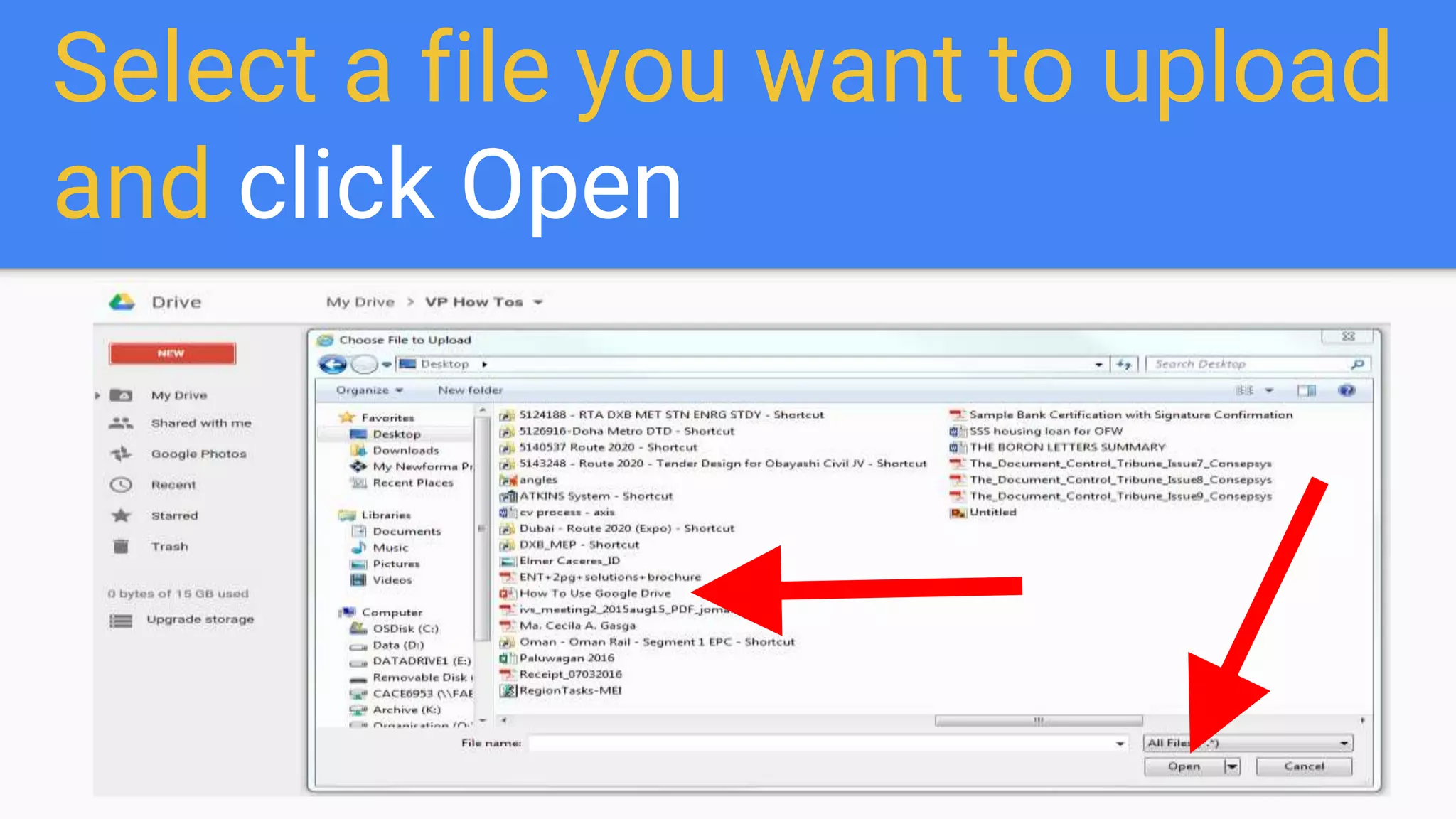
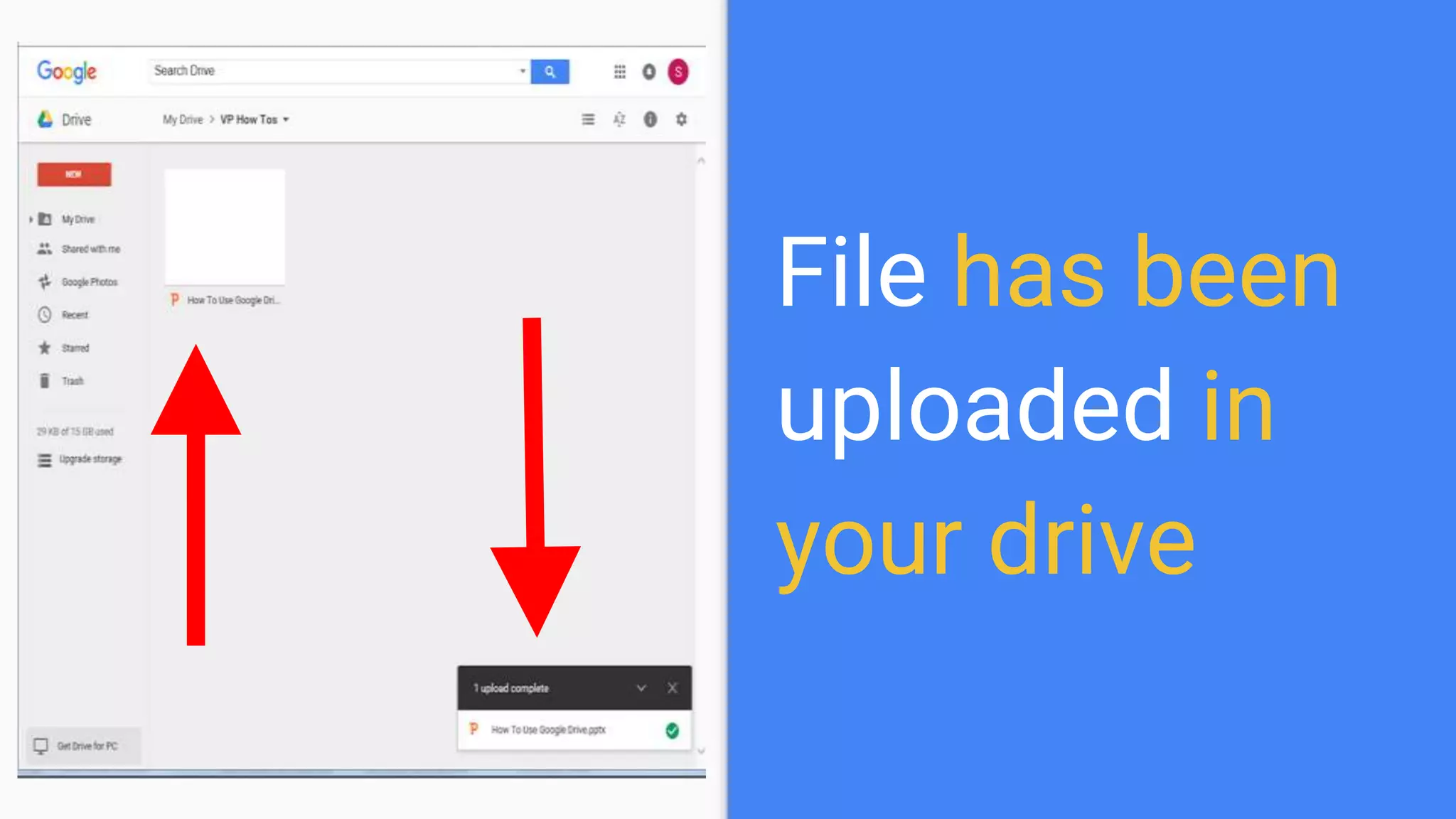
Select a file you want to upload
and click Open
File has been
uploaded in
your drive
Google Drive let you have all files
within reach
everything you create in your
google drive is automatically
saved
and can be accessed across all of
your other devices
such as in your smart phones,
tablet or computer.
Here’s another way to create a
folder in the drive
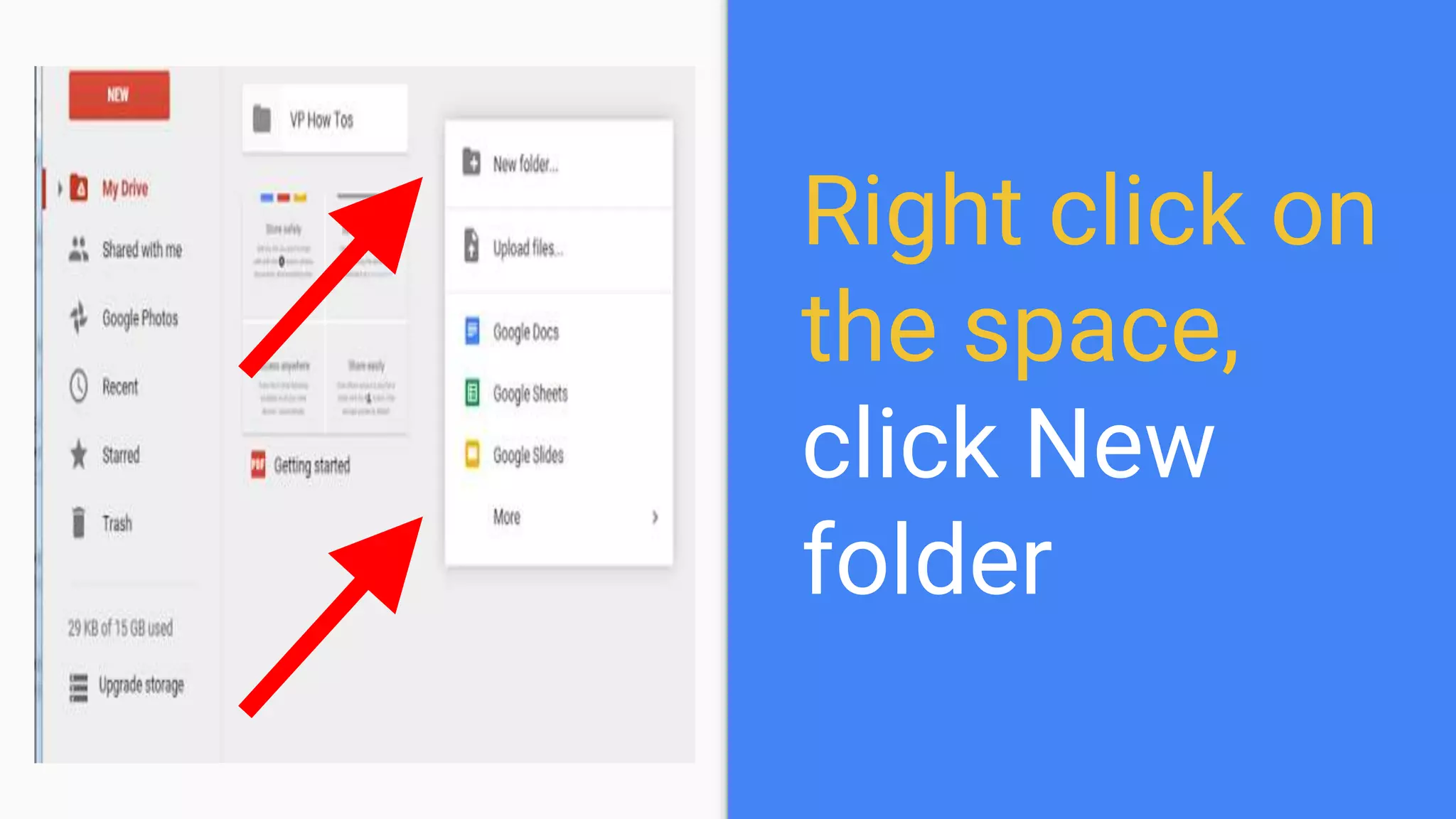
Right click on
the space,
click New
folder
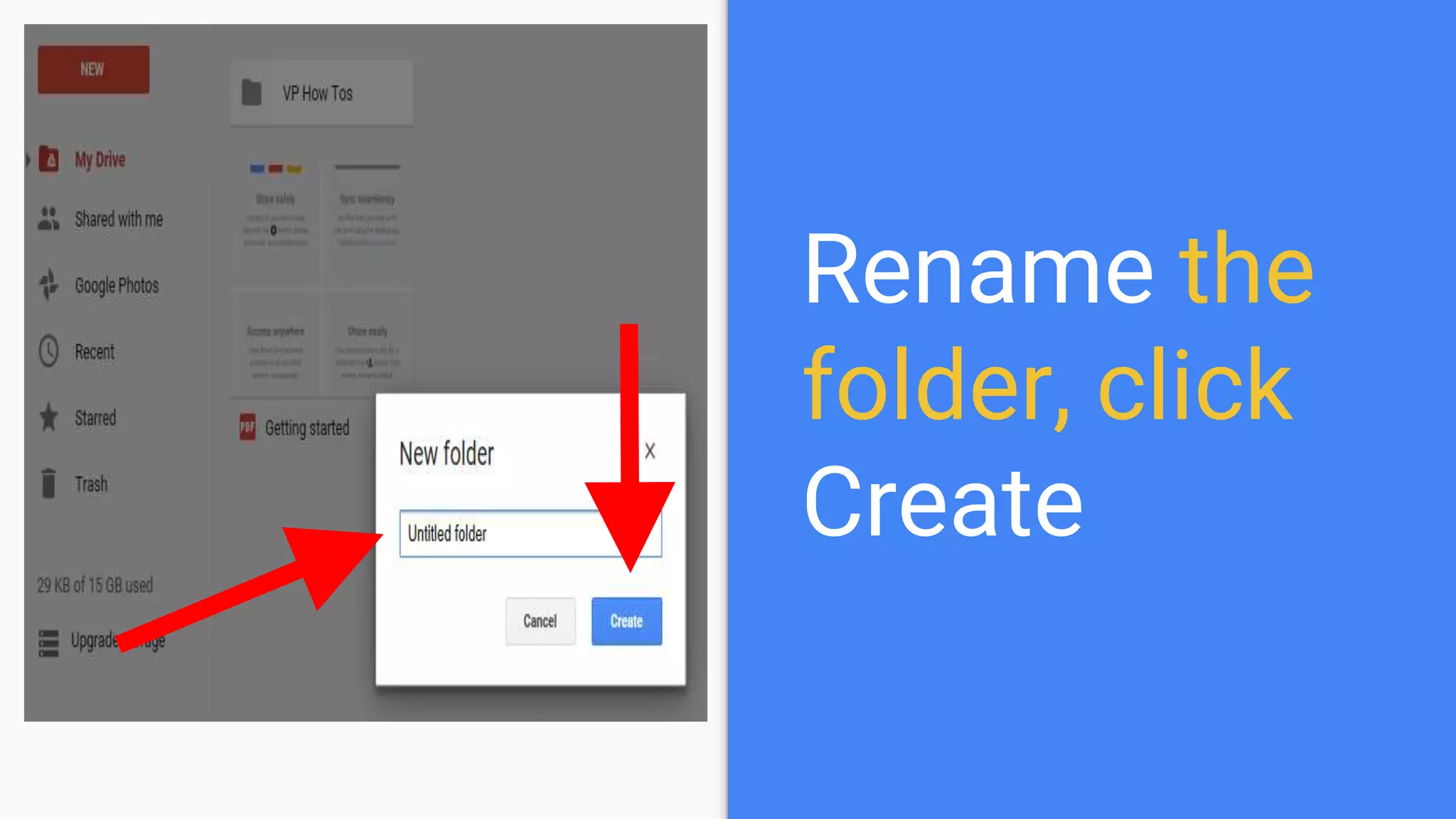
Rename the
folder, click
Create
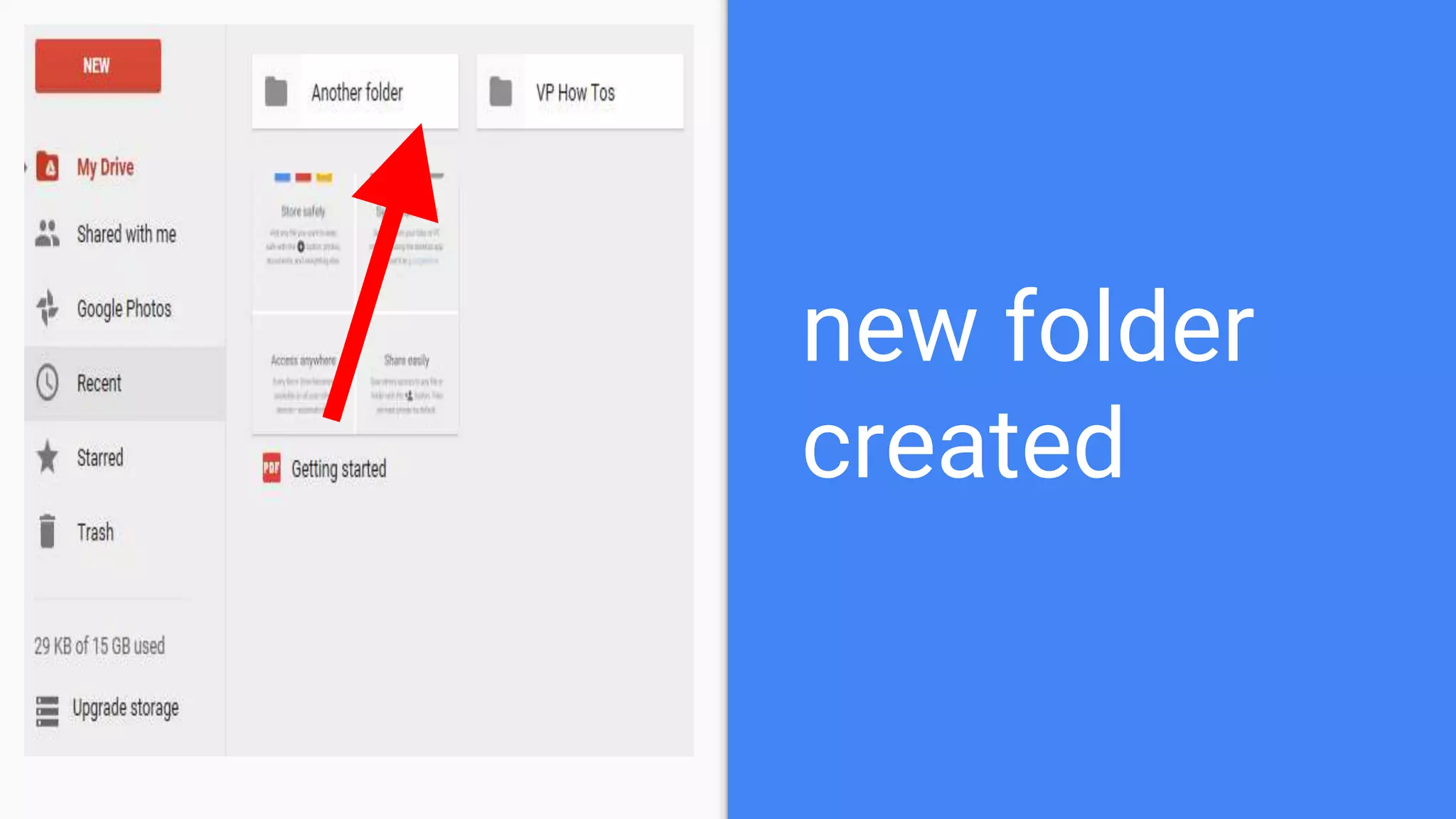
new folder
created
Within Google Drive, you can
create Word Document,
Spreadsheets,
Surveys Forms
and
Slides or Powerpoint for
making beautiful
presentations
To create a word document
inside the folder in gdrive
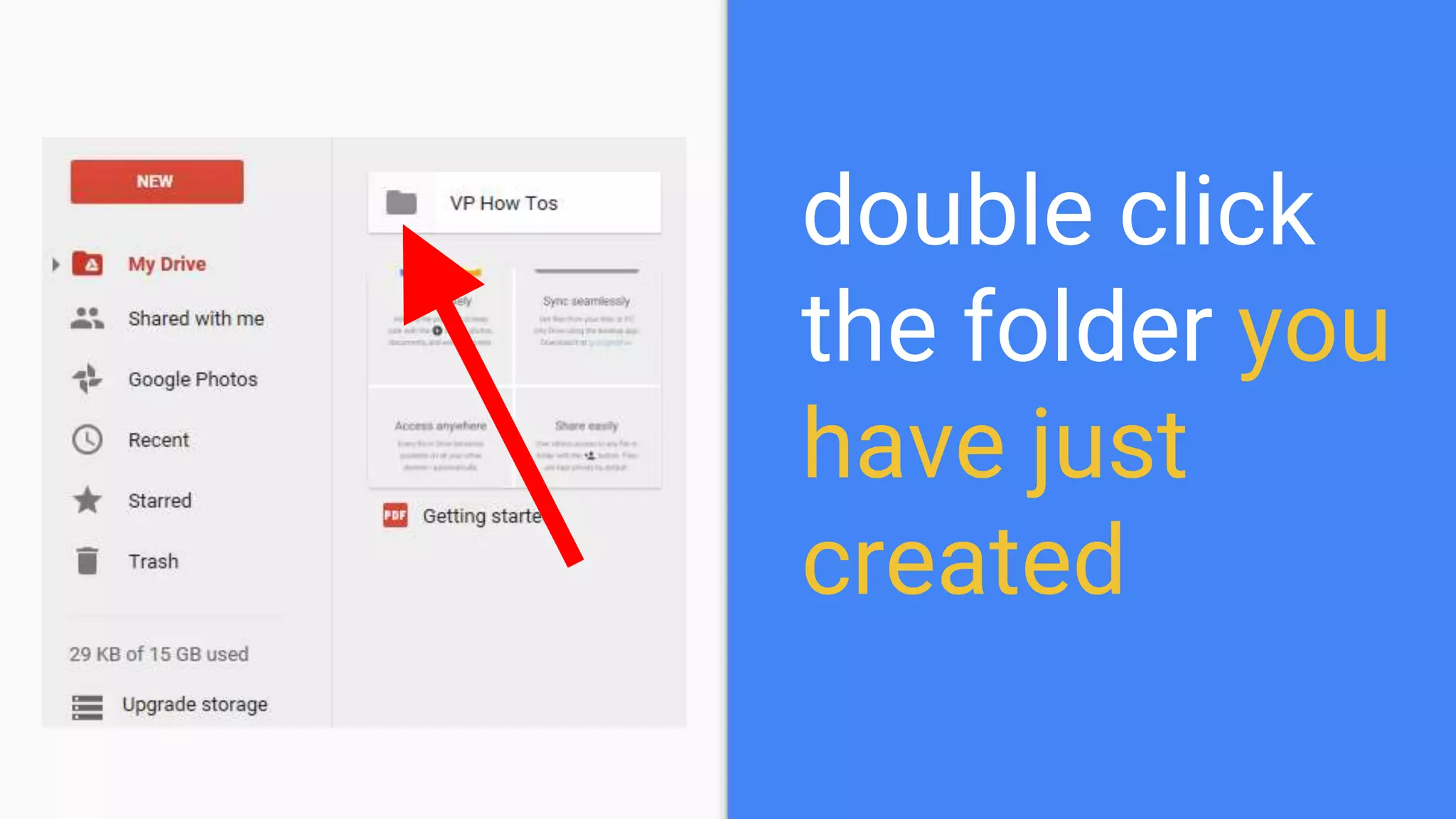
double click
the folder you
have just
created
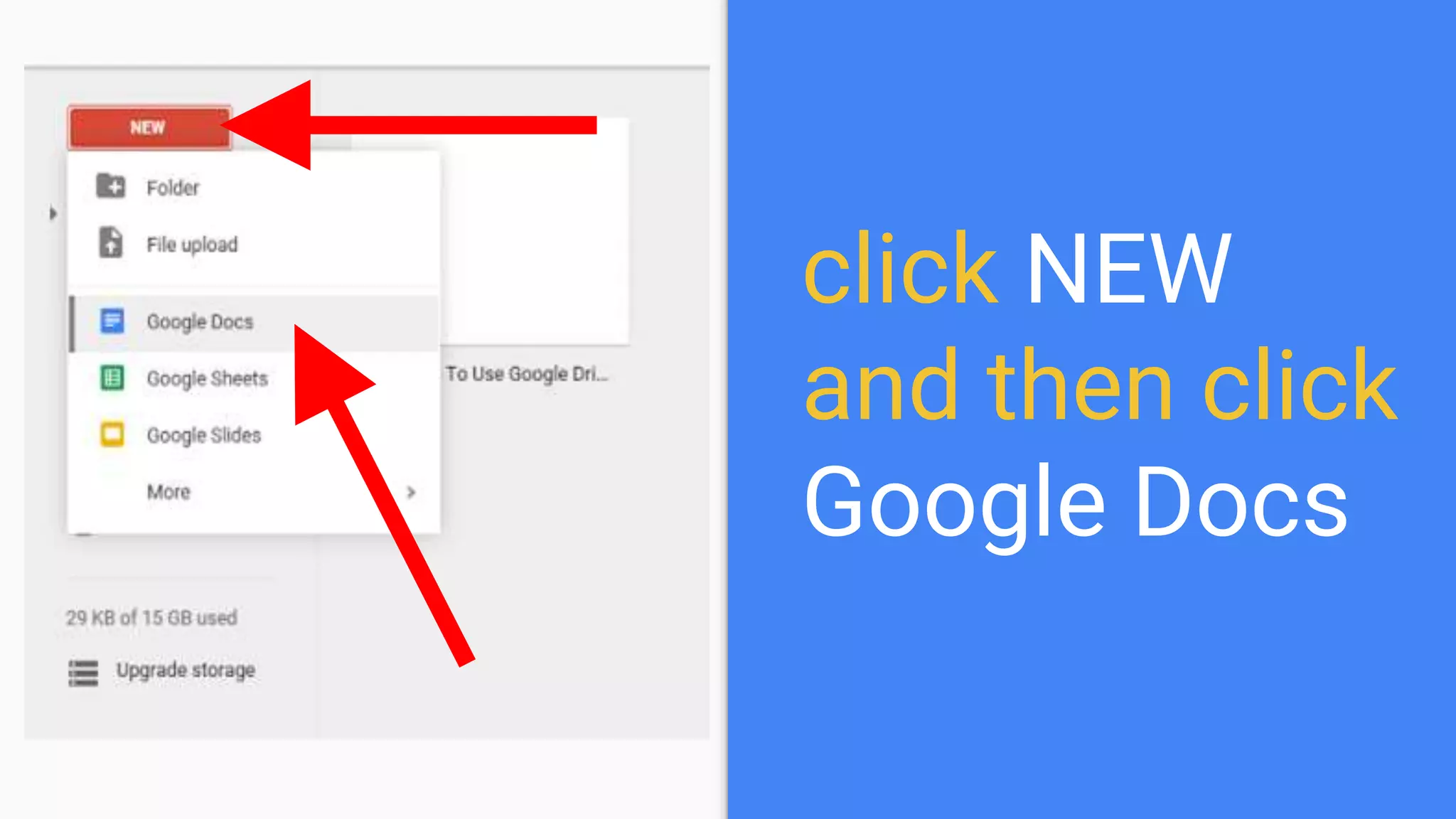
click NEW
and then click
Google Docs
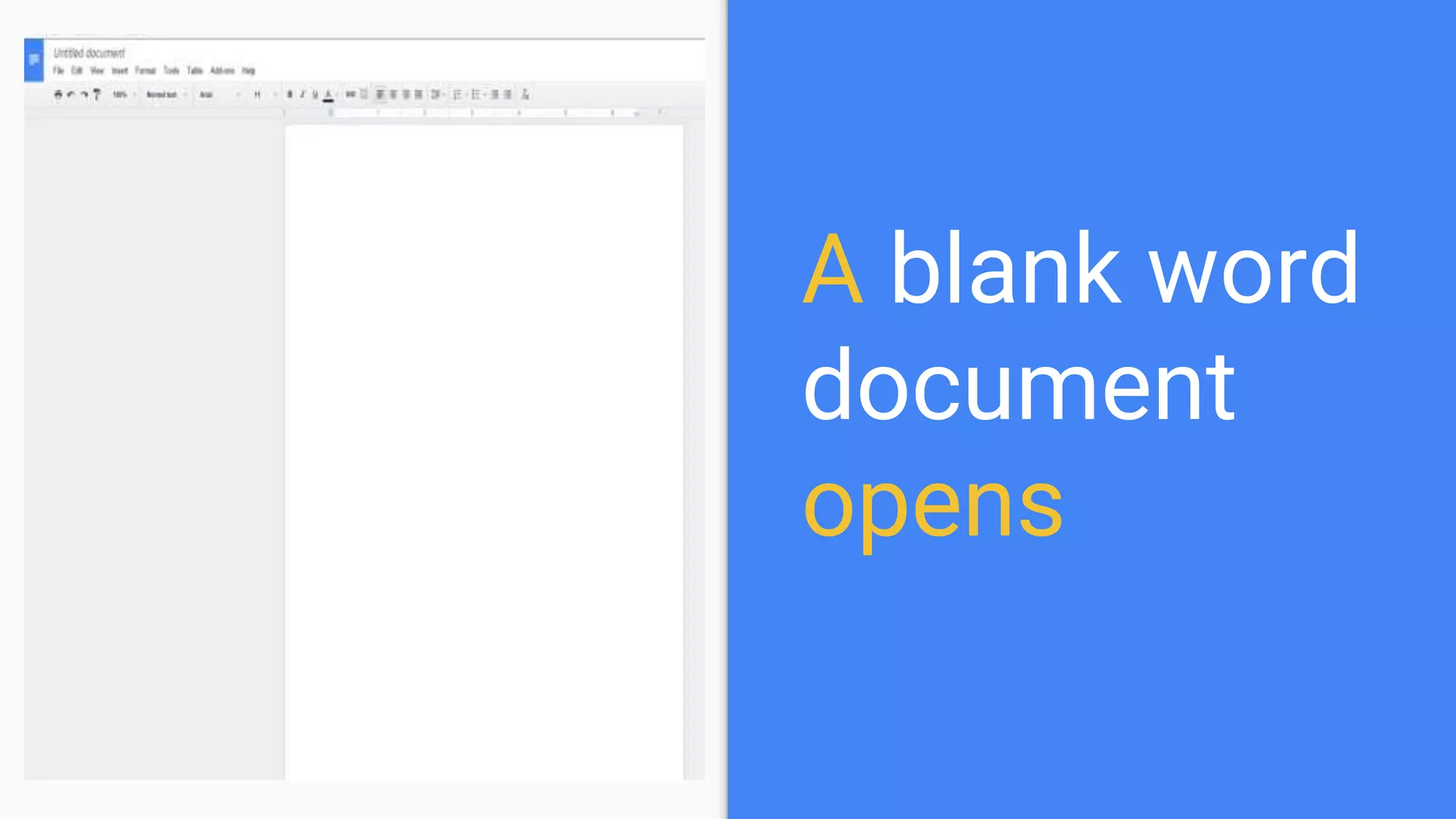
A blank word
document
opens
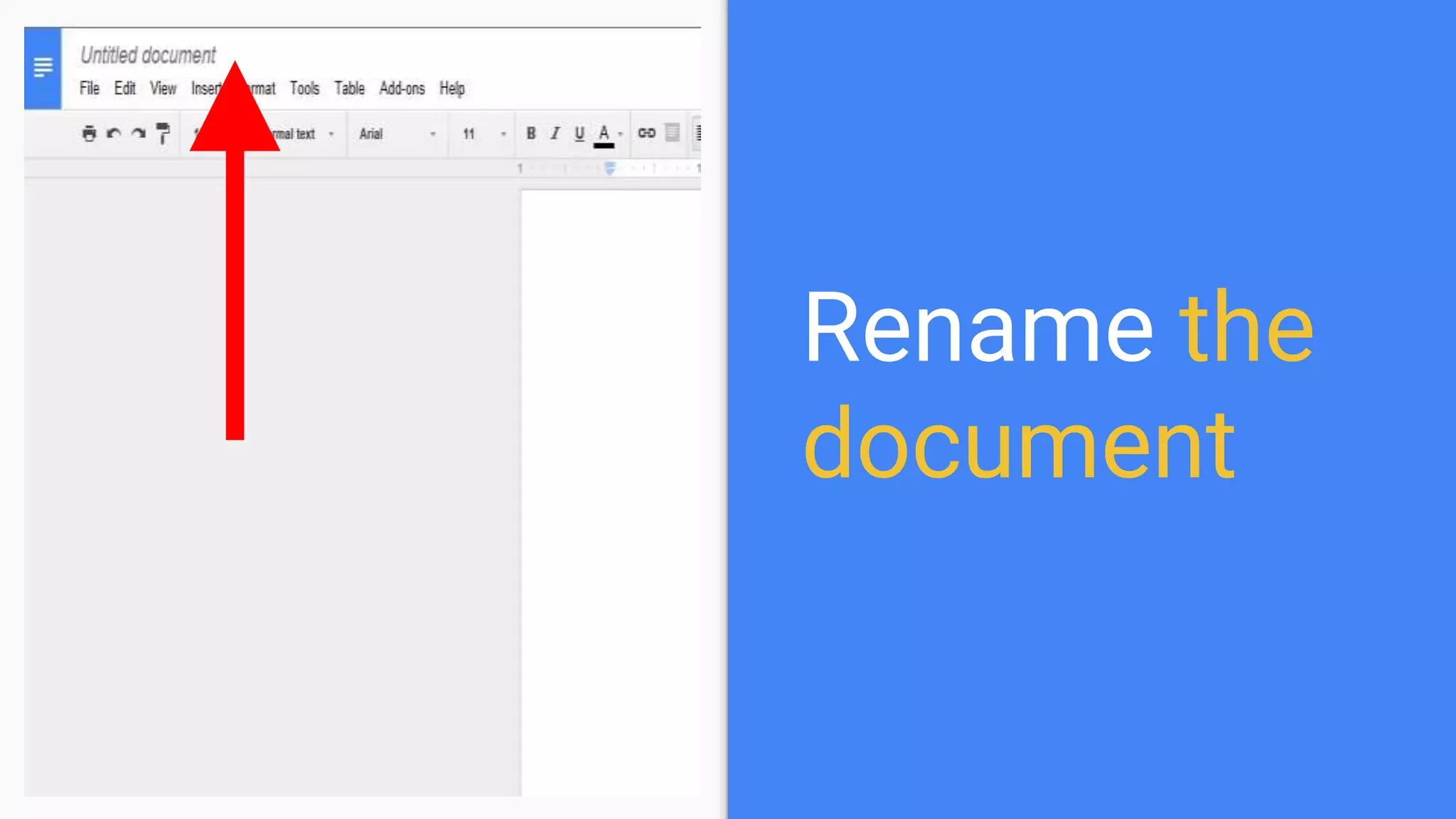
Rename the
document
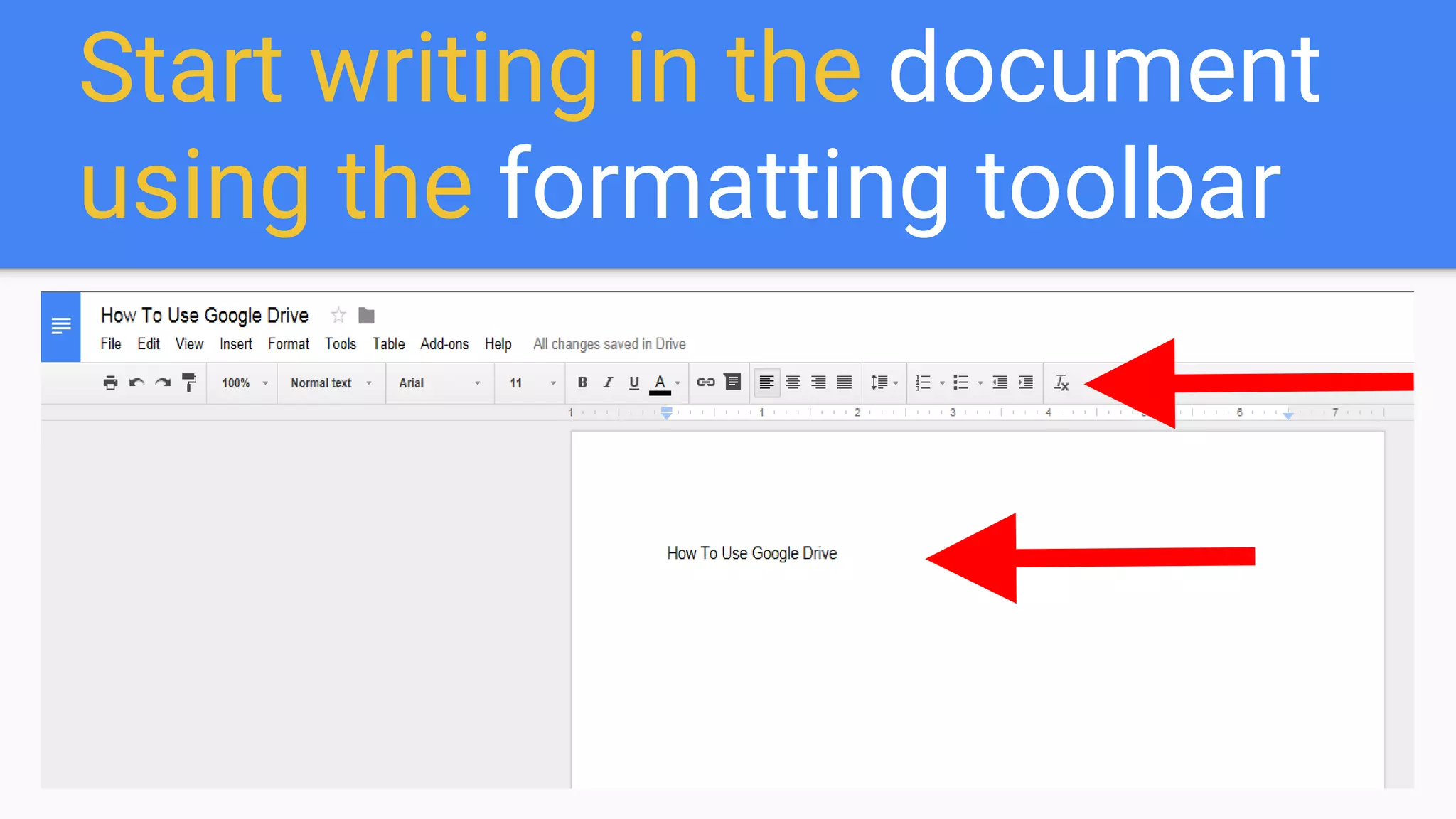
Start writing in the document
using the formatting toolbar
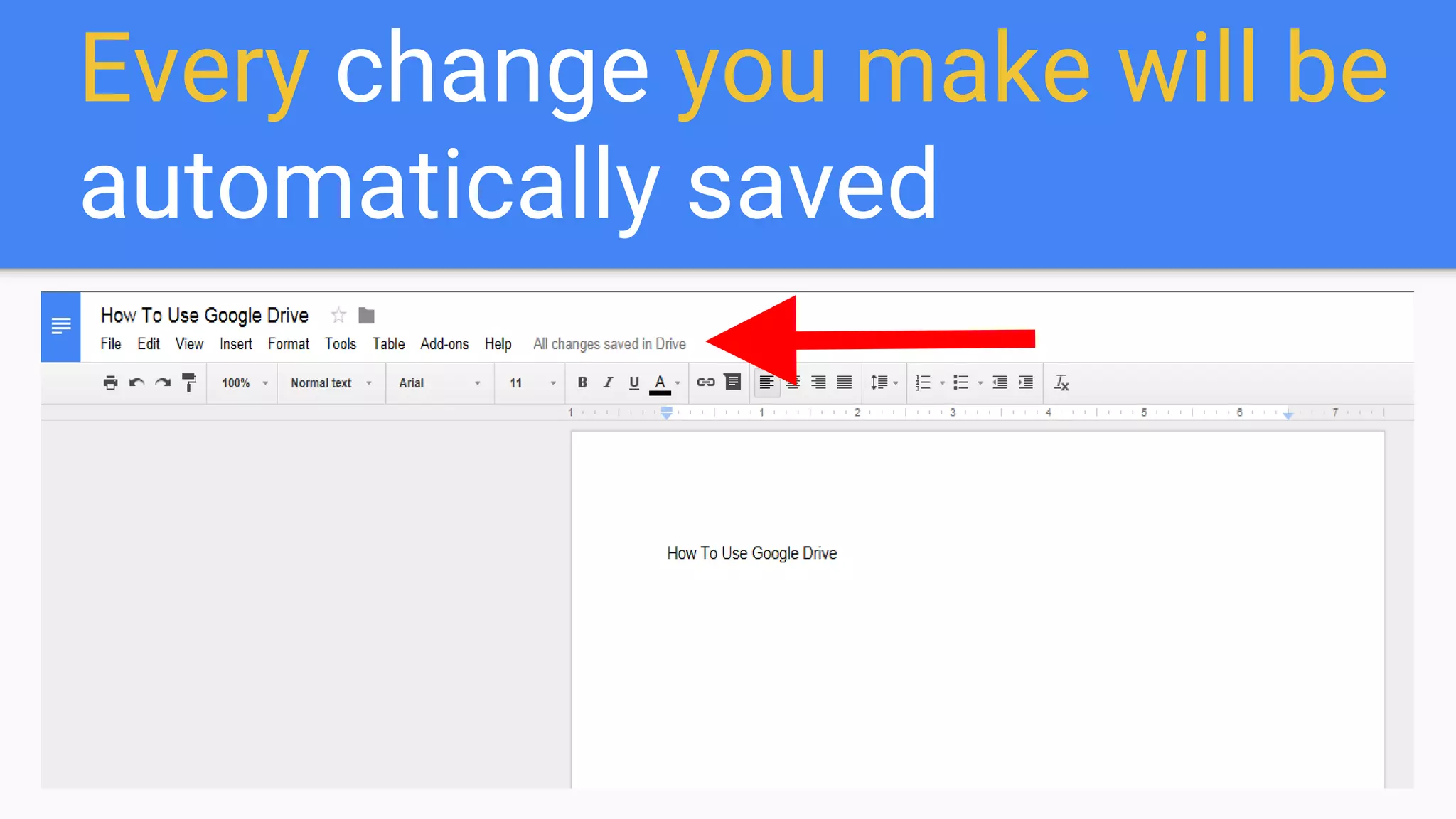
Every change you make will be
automatically saved
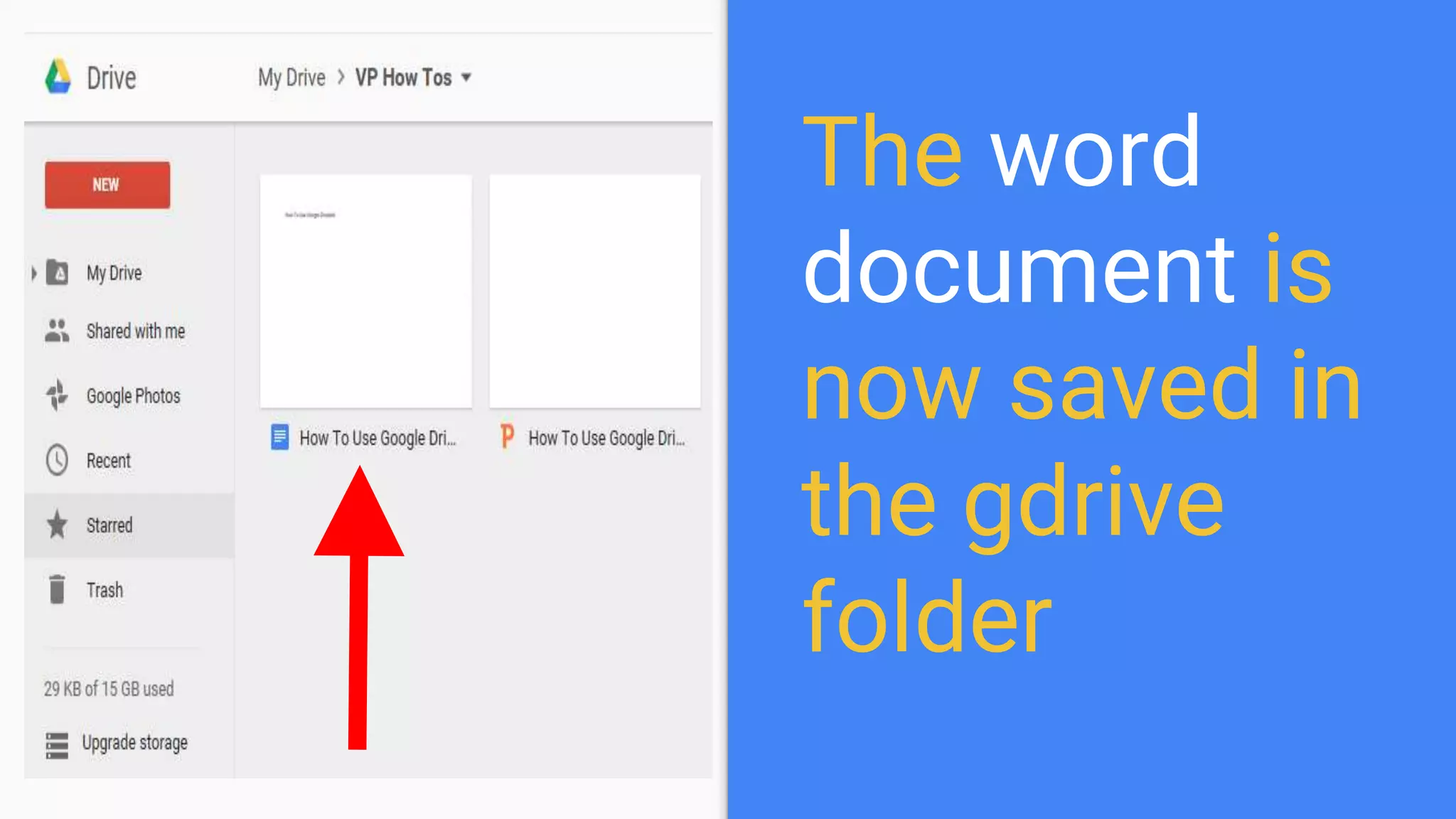
The word
document is
now saved in
the gdrive
folder
You can do the same when
you want to create
A
Spreadsheet
And a
Slide
Let’s create a new google
spreadsheet
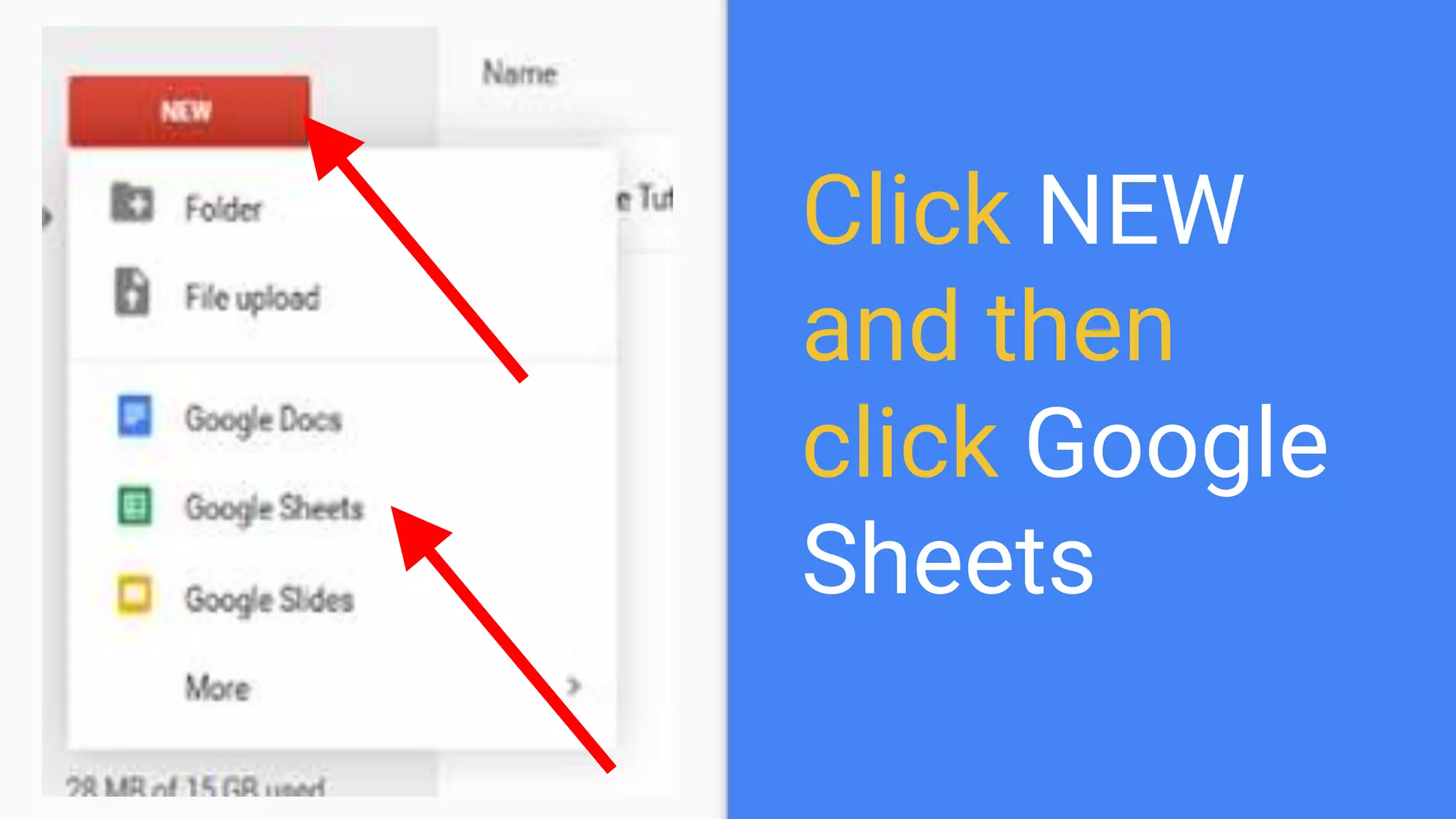
Click NEW
and then
click Google
Sheets
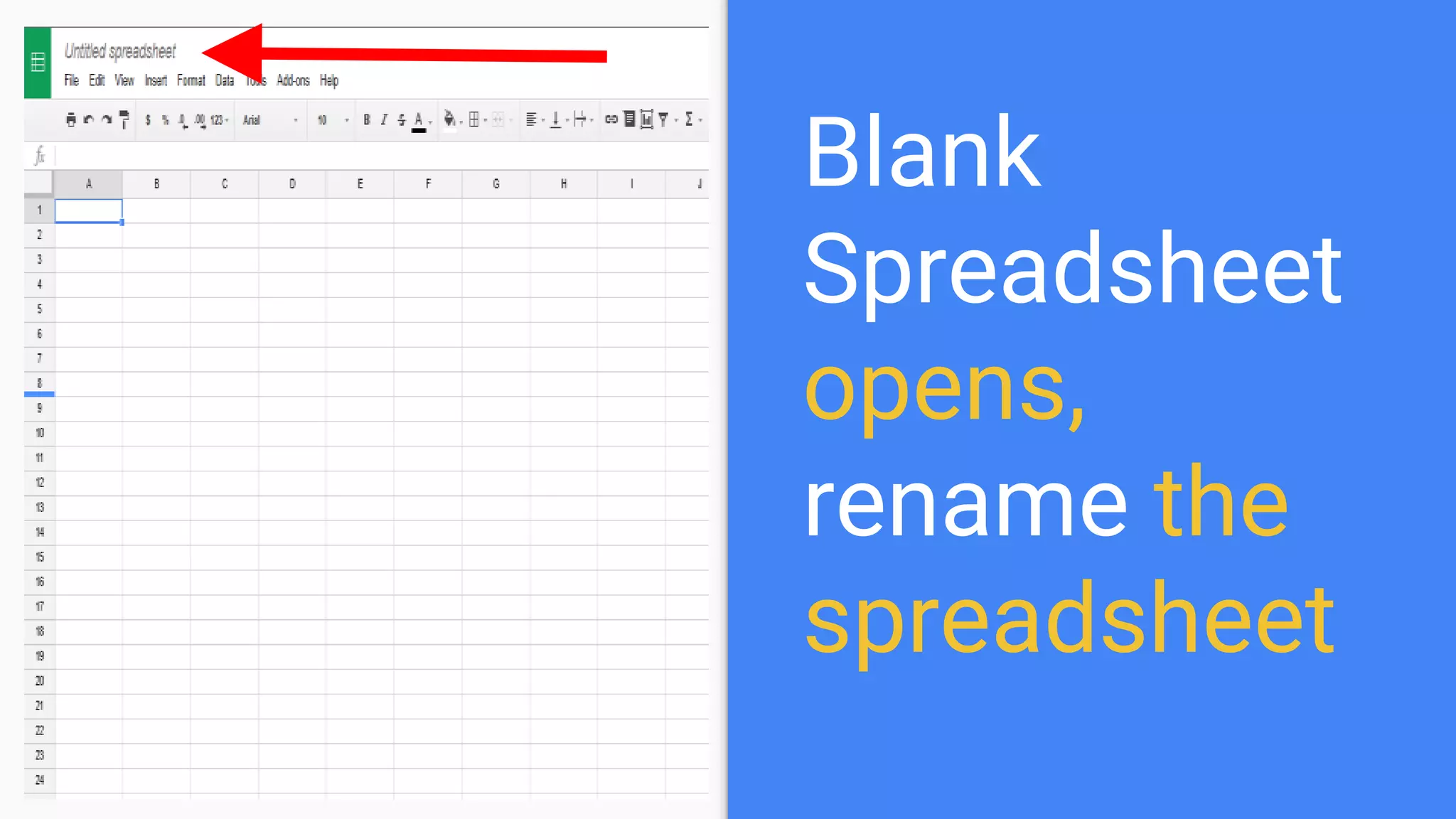
Blank
Spreadsheet
opens,
rename the
spreadsheet
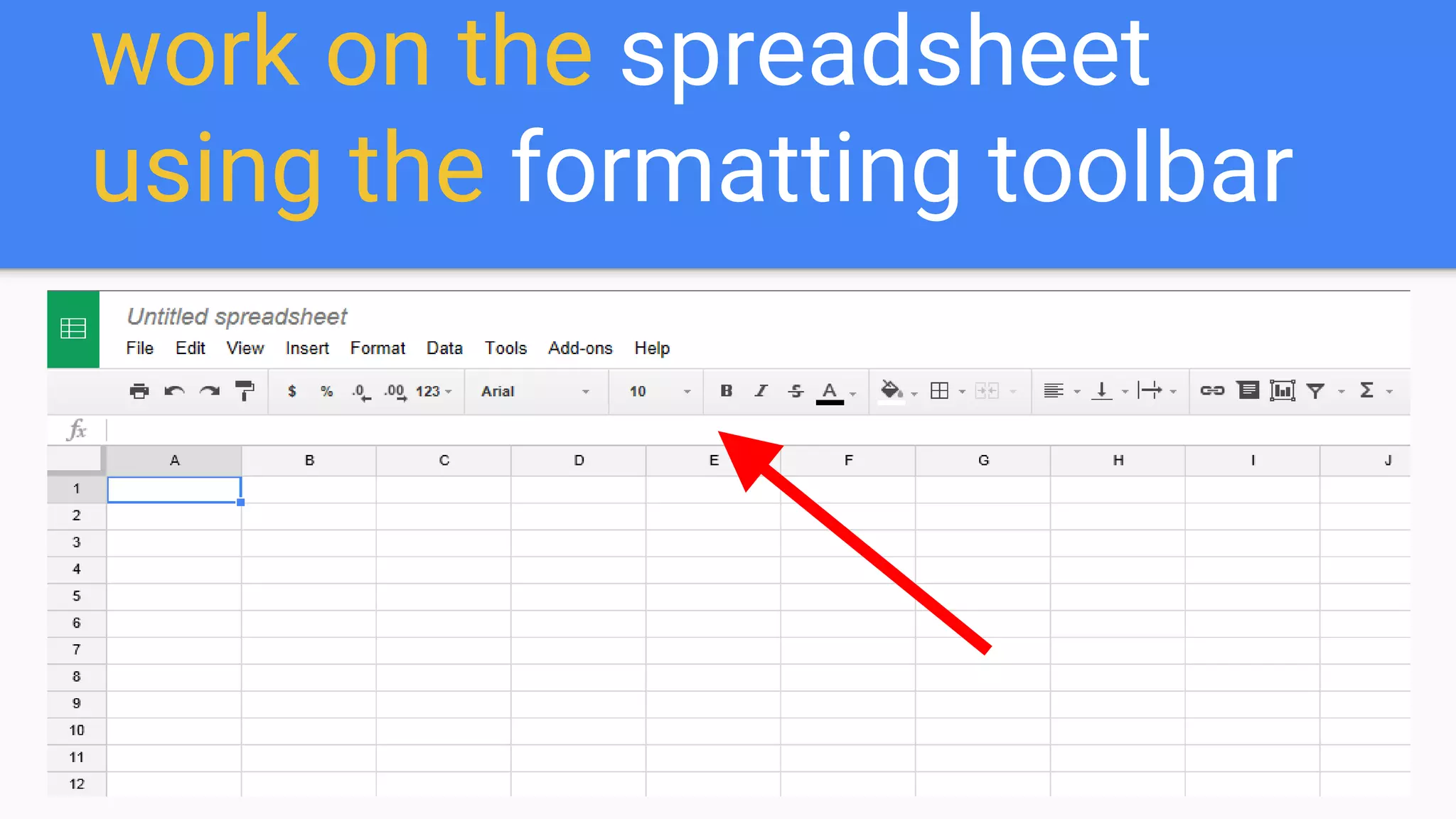
work on the spreadsheet
using the formatting toolbar
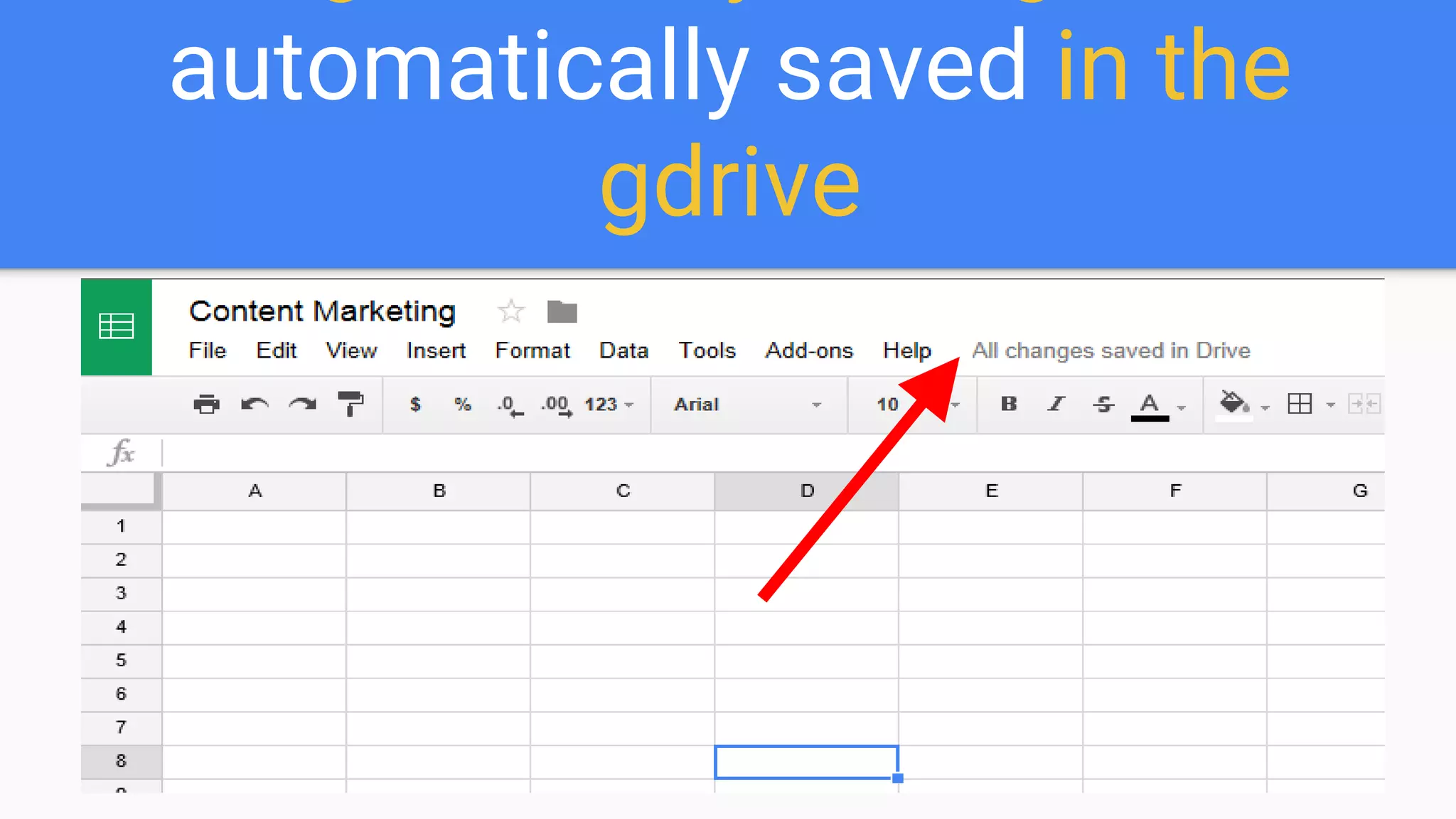
Again, every change is
automatically saved in the
gdrive
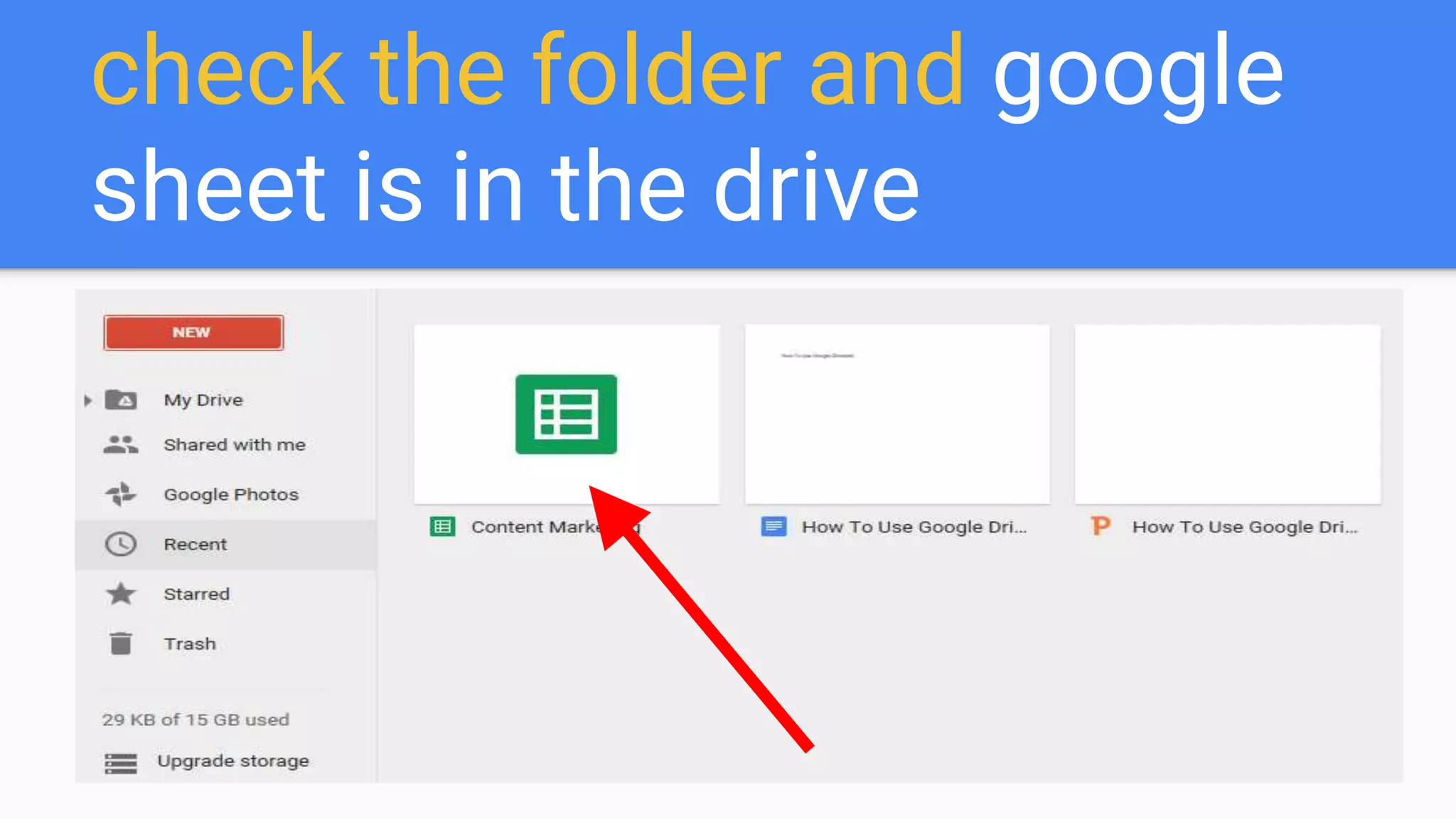
check the folder and google
sheet is in the drive
To make google slide or
powerpoint presentation
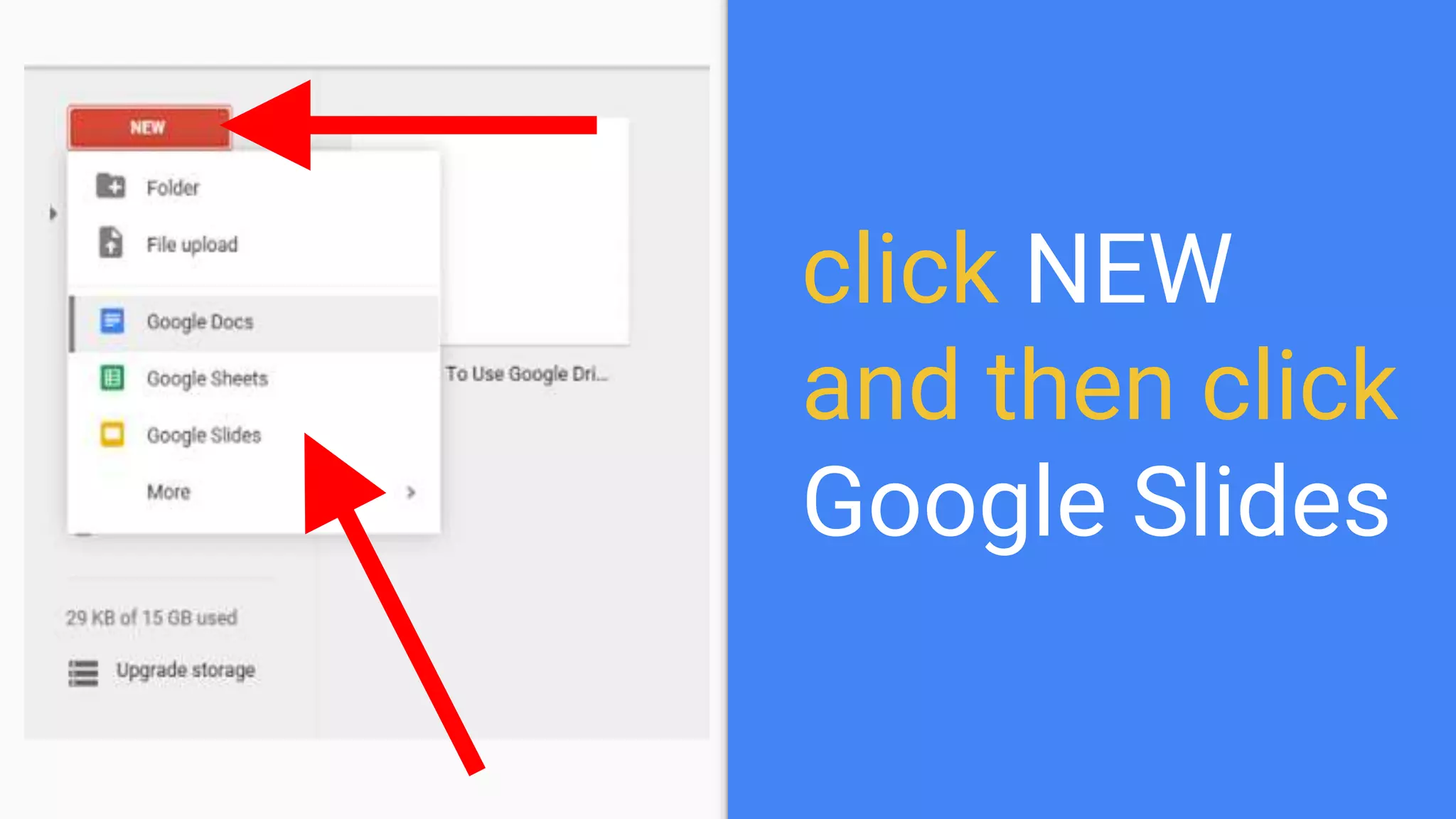
click NEW
and then click
Google Slides
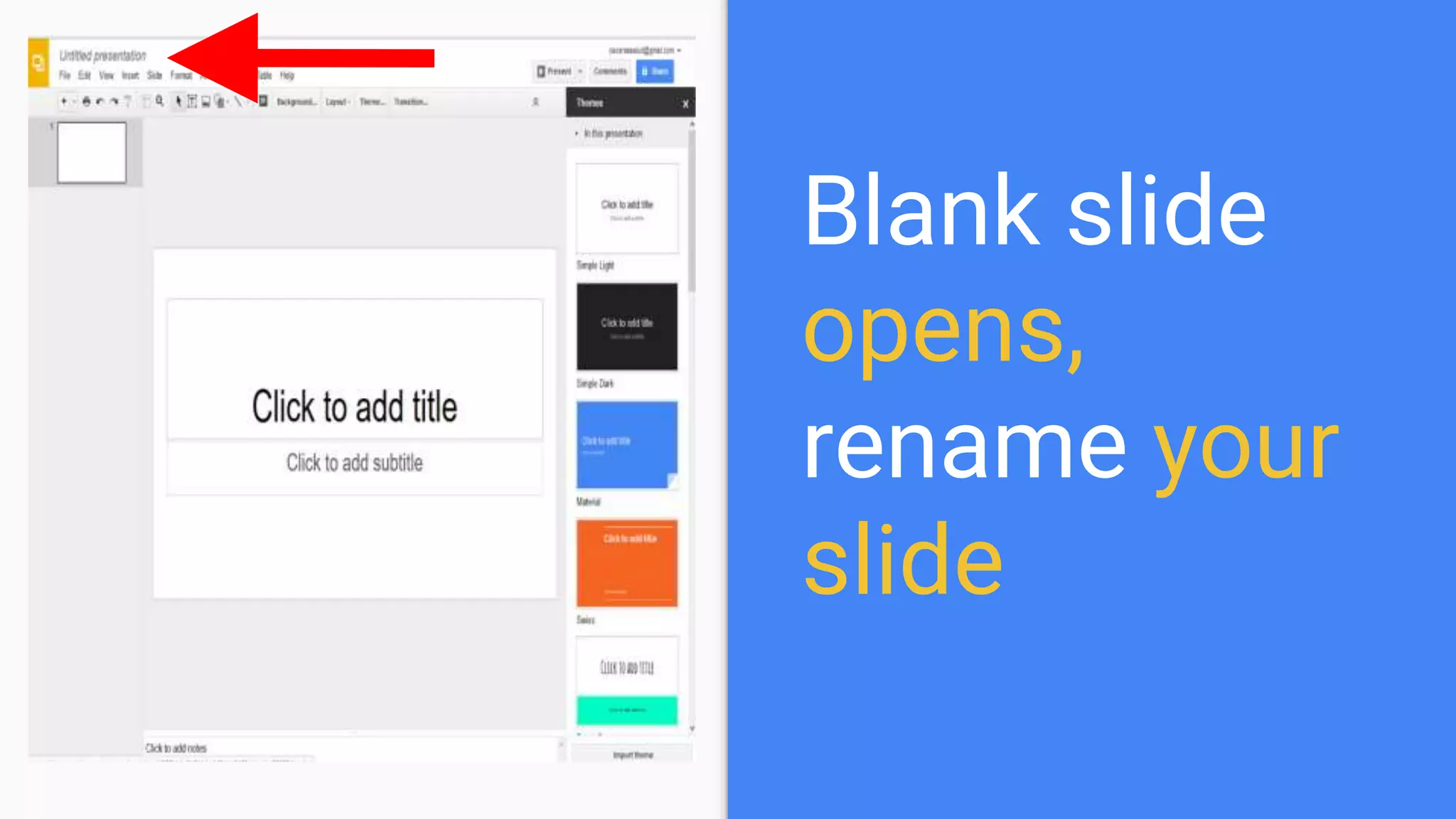
Blank slide
opens,
rename your
slide
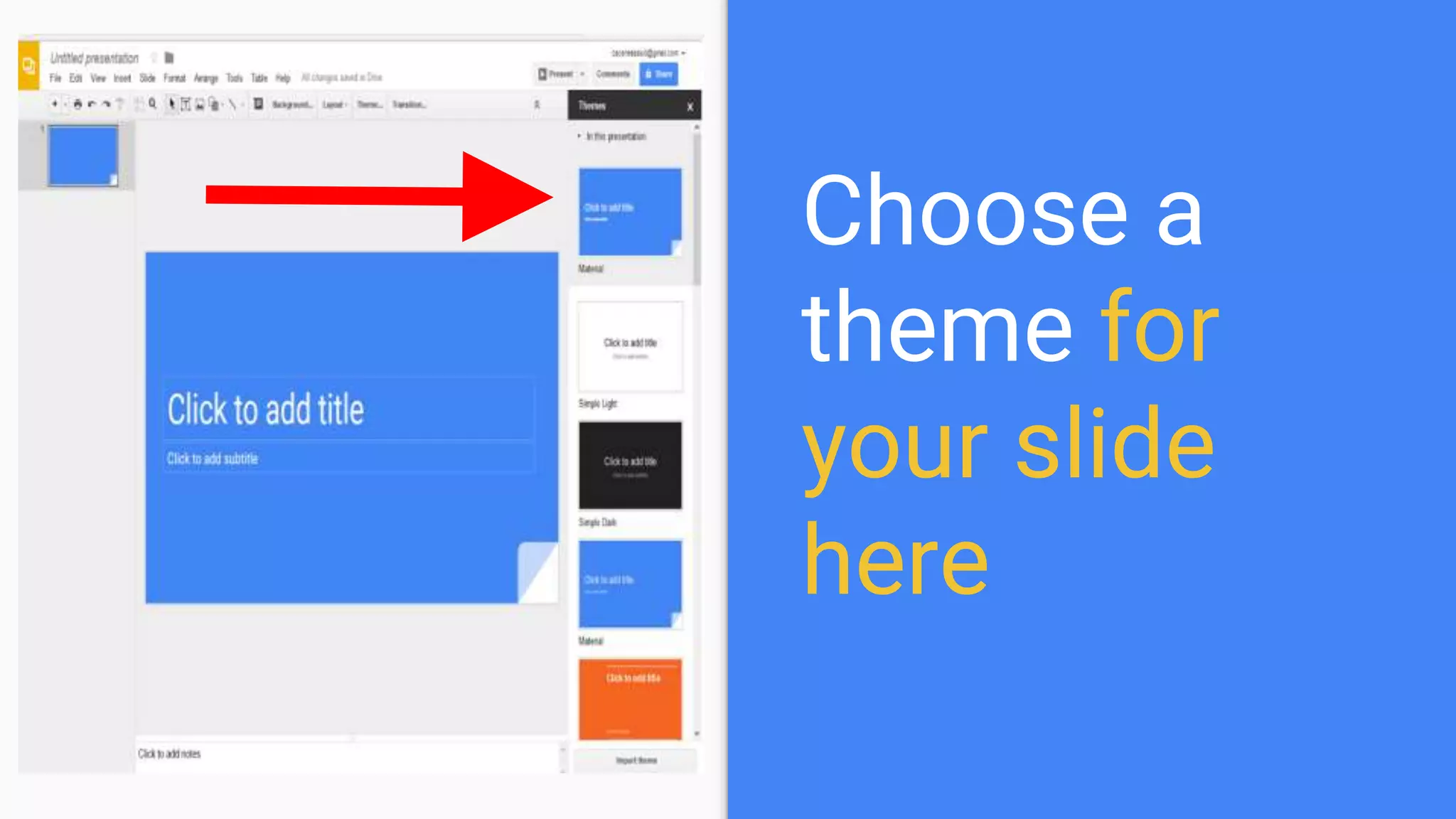
Choose a
theme for
your slide
here
A theme is what your slides
will look like
And start working on your
slides or powerpoint
presentation
Again, all changes are auto-
saved
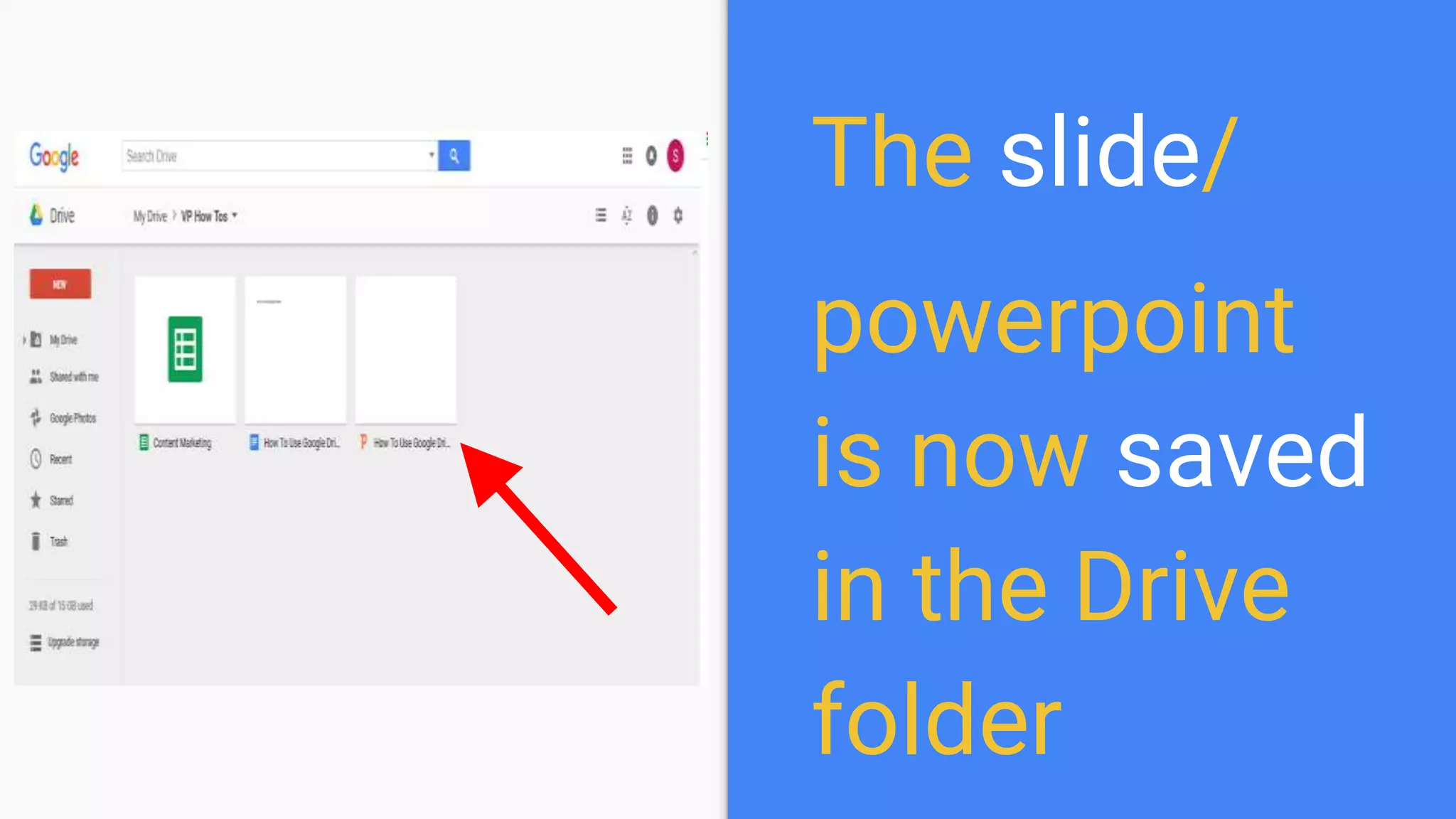
The slide/
powerpoint
is now saved
in the Drive
folder
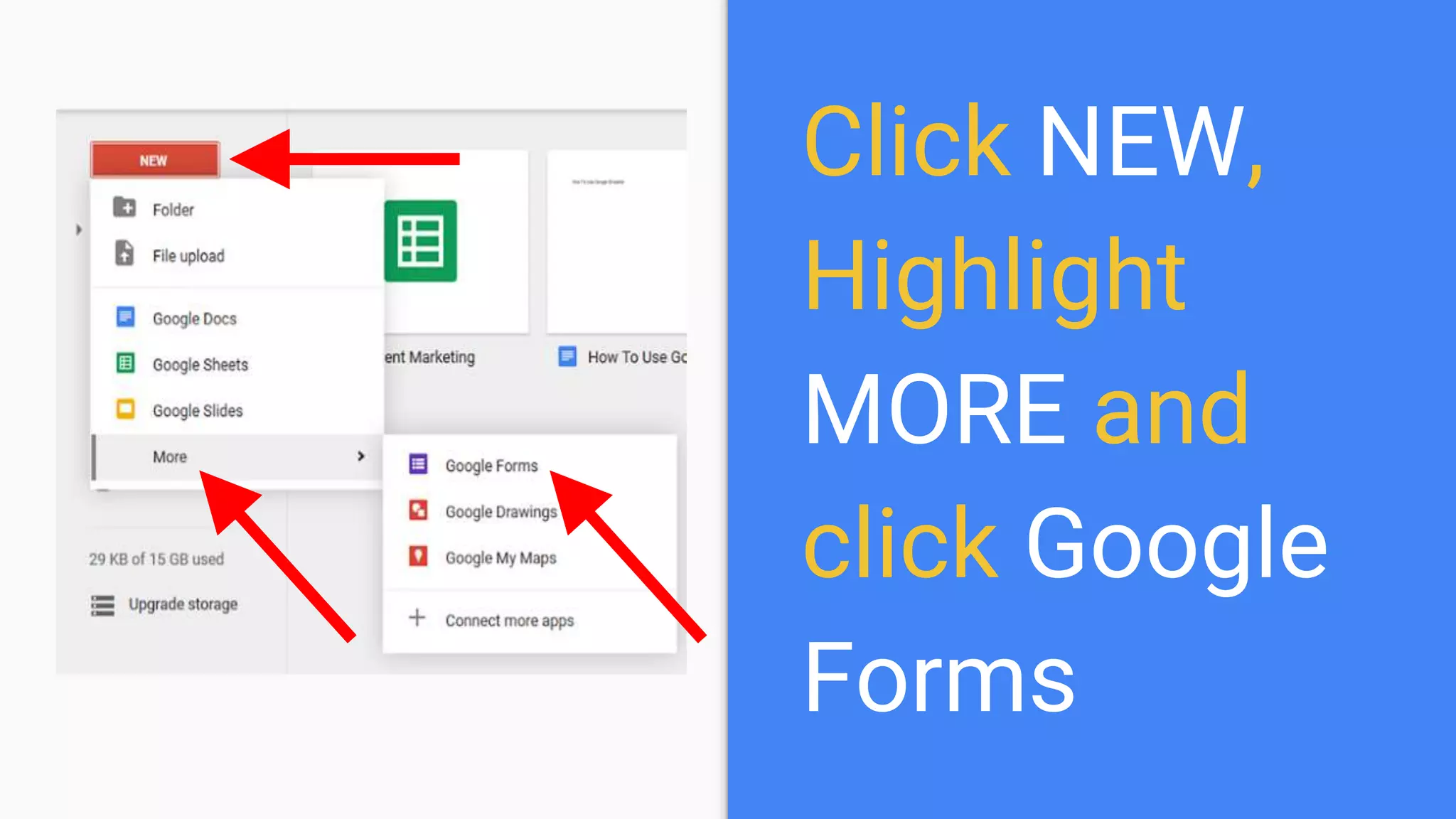
Click NEW,
Highlight
MORE and
click Google
Forms
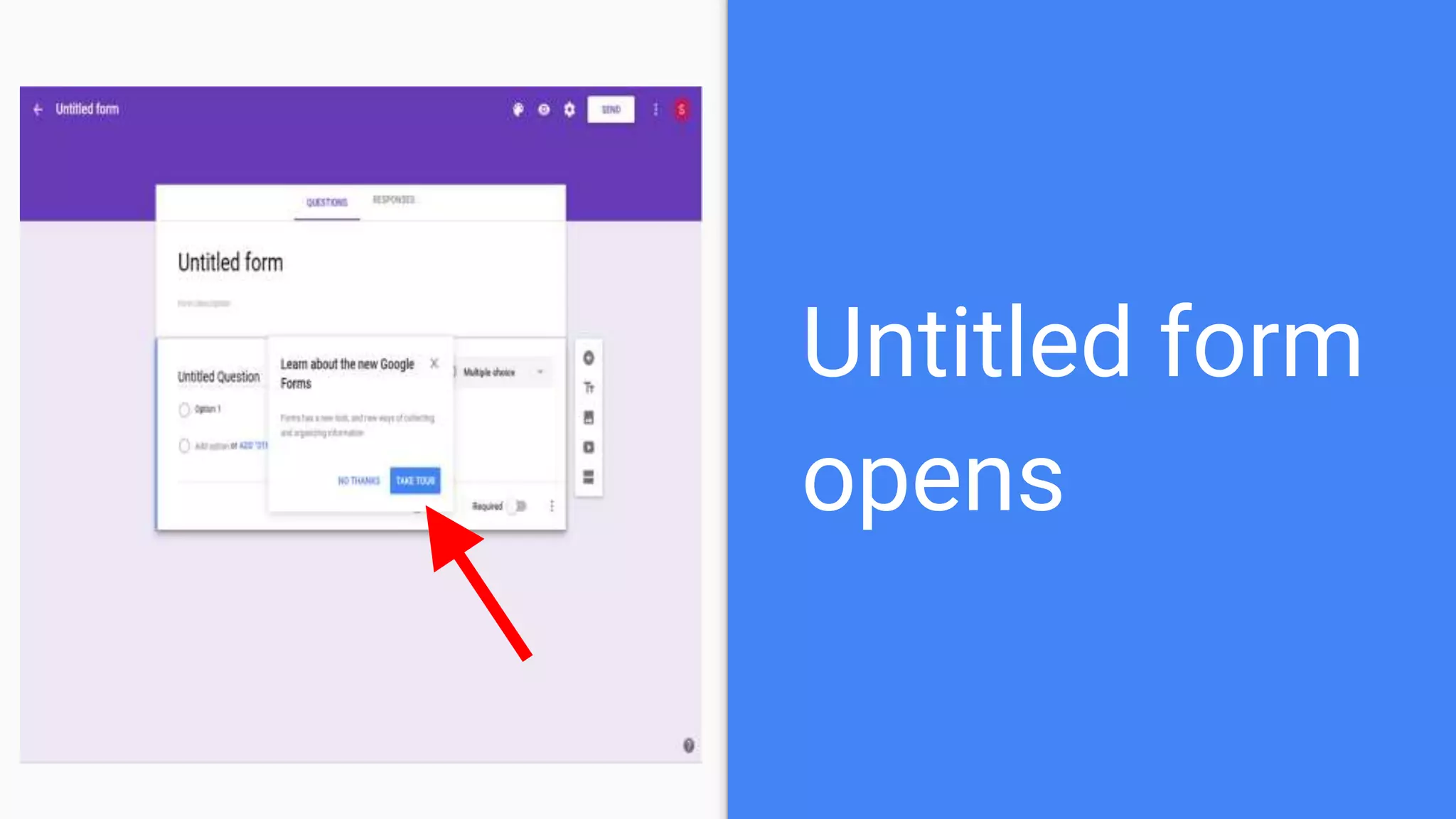
Untitled form
opens
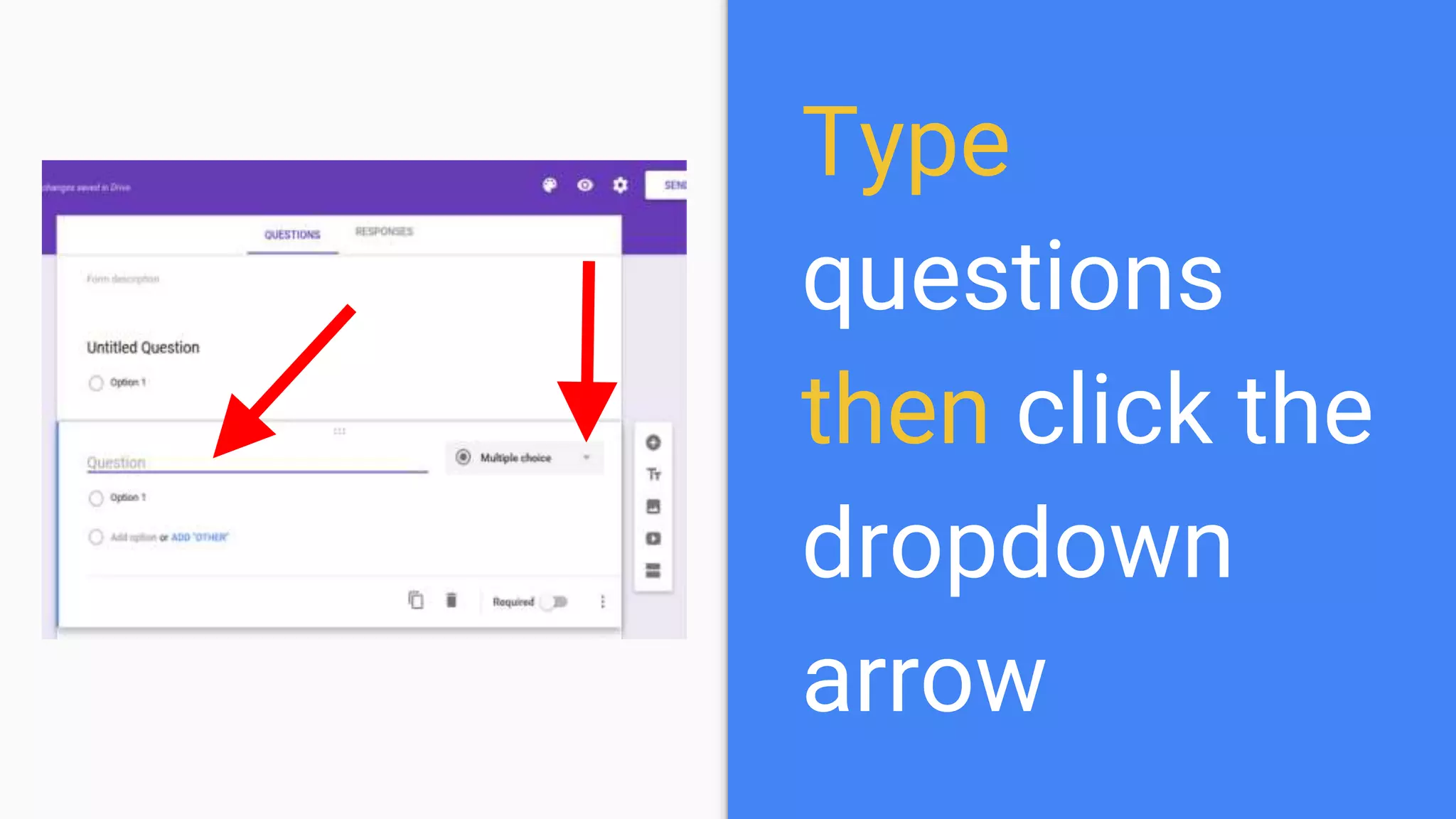
Type
questions
then click the
dropdown
arrow
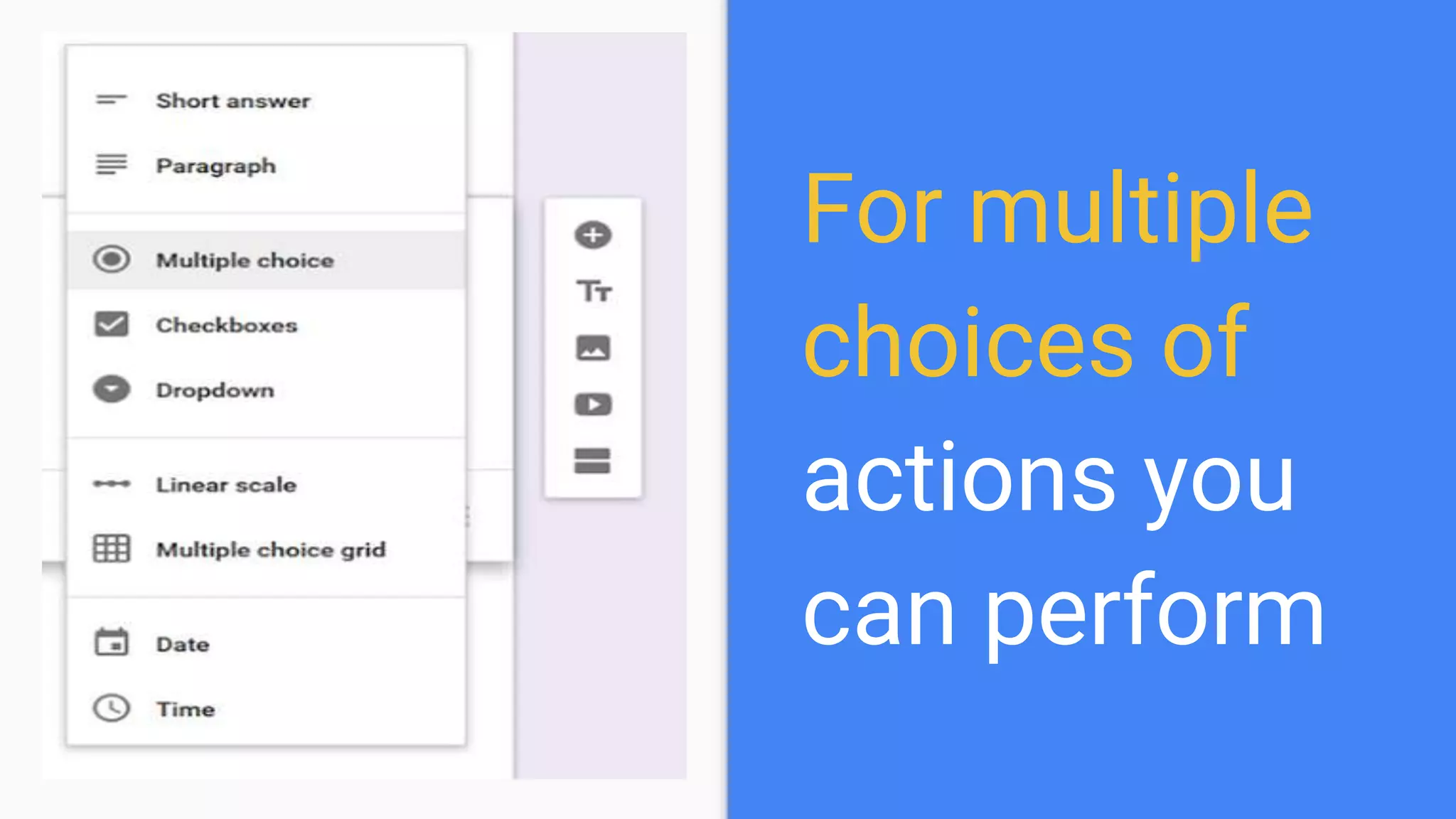
For multiple
choices of
actions you
can perform
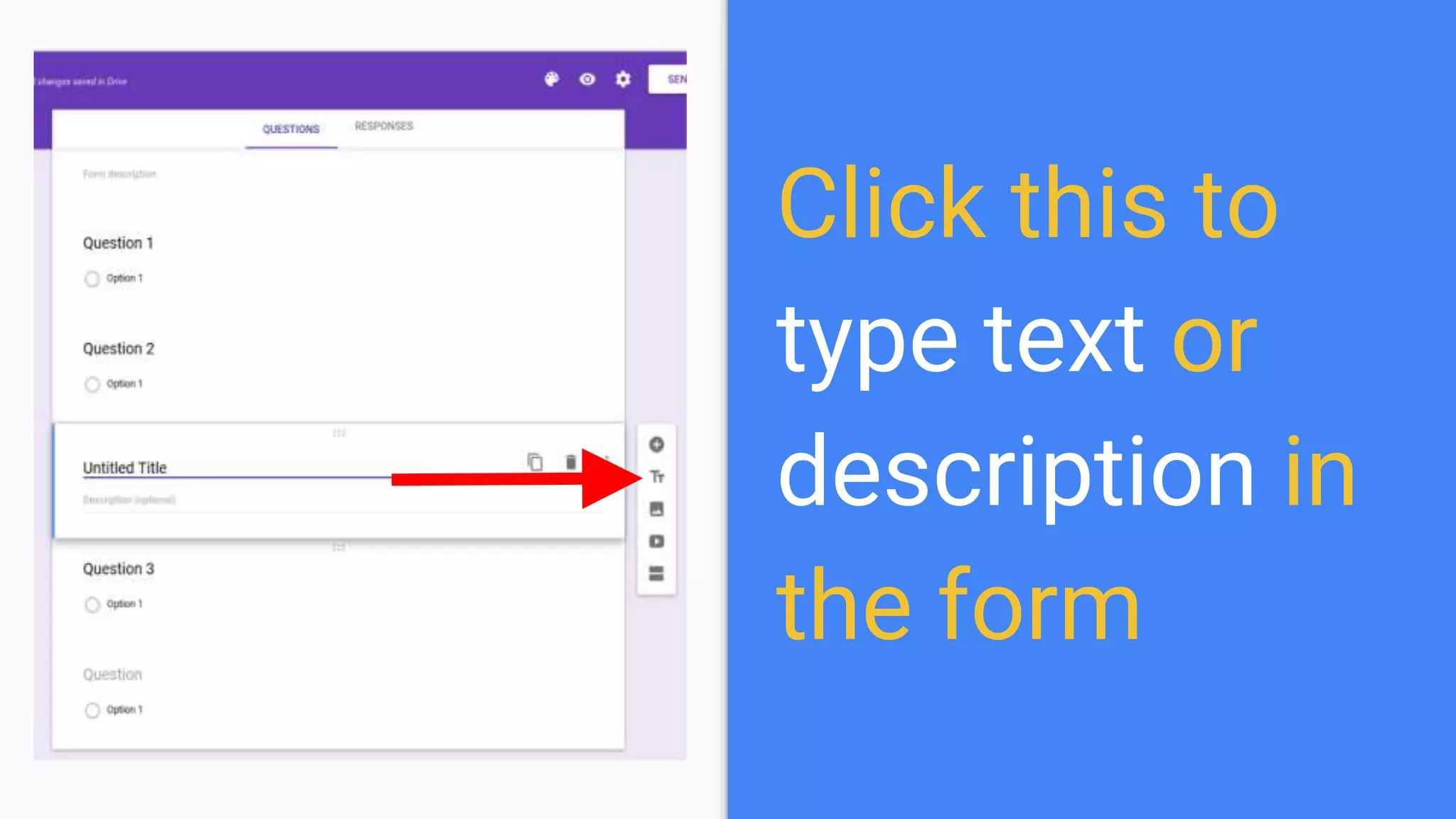
Click this to
type text or
description in
the form
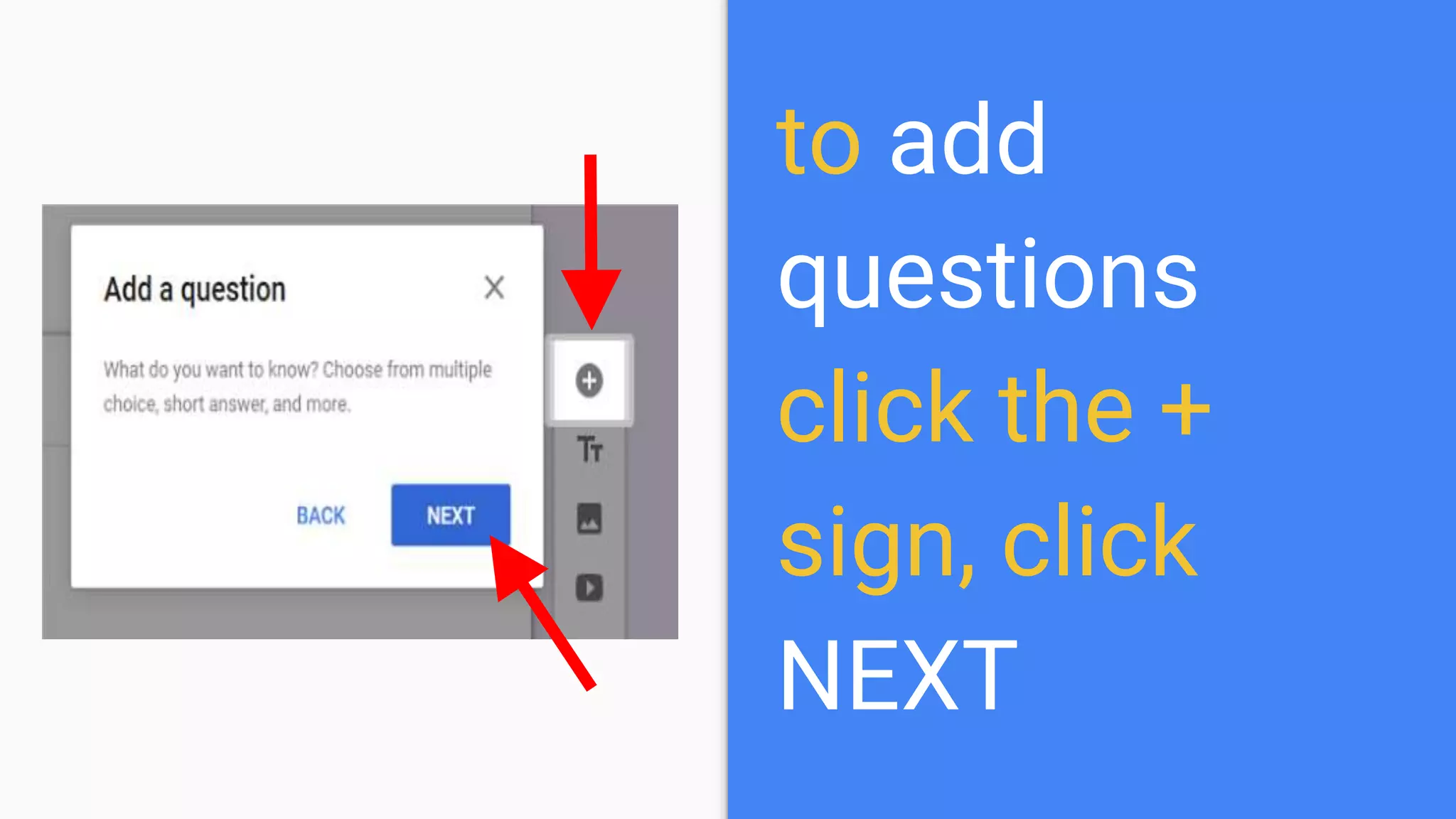
to add
questions
click the +
sign, click
NEXT
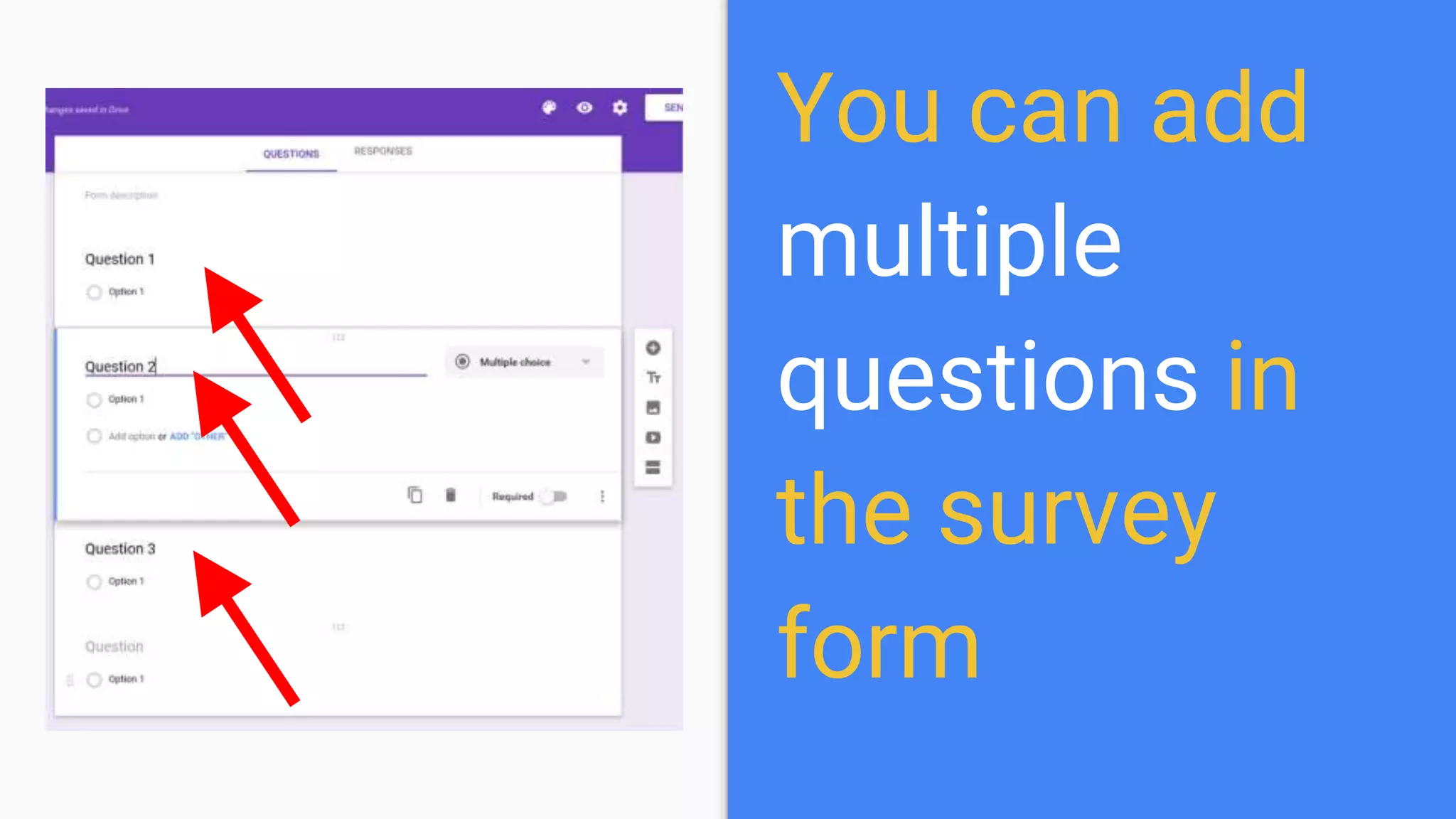
You can add
multiple
questions in
the survey
form
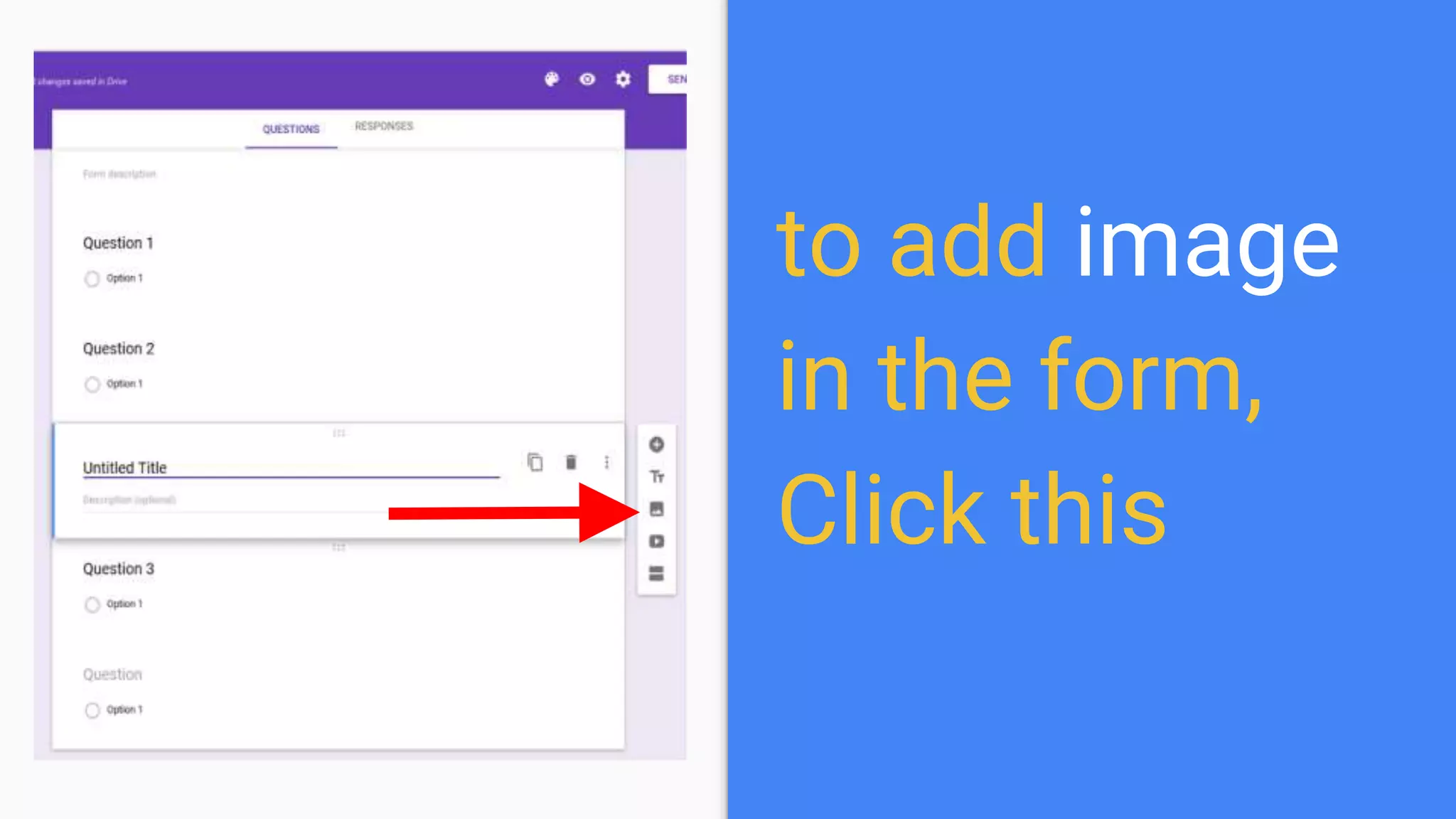
to add image
in the form,
Click this
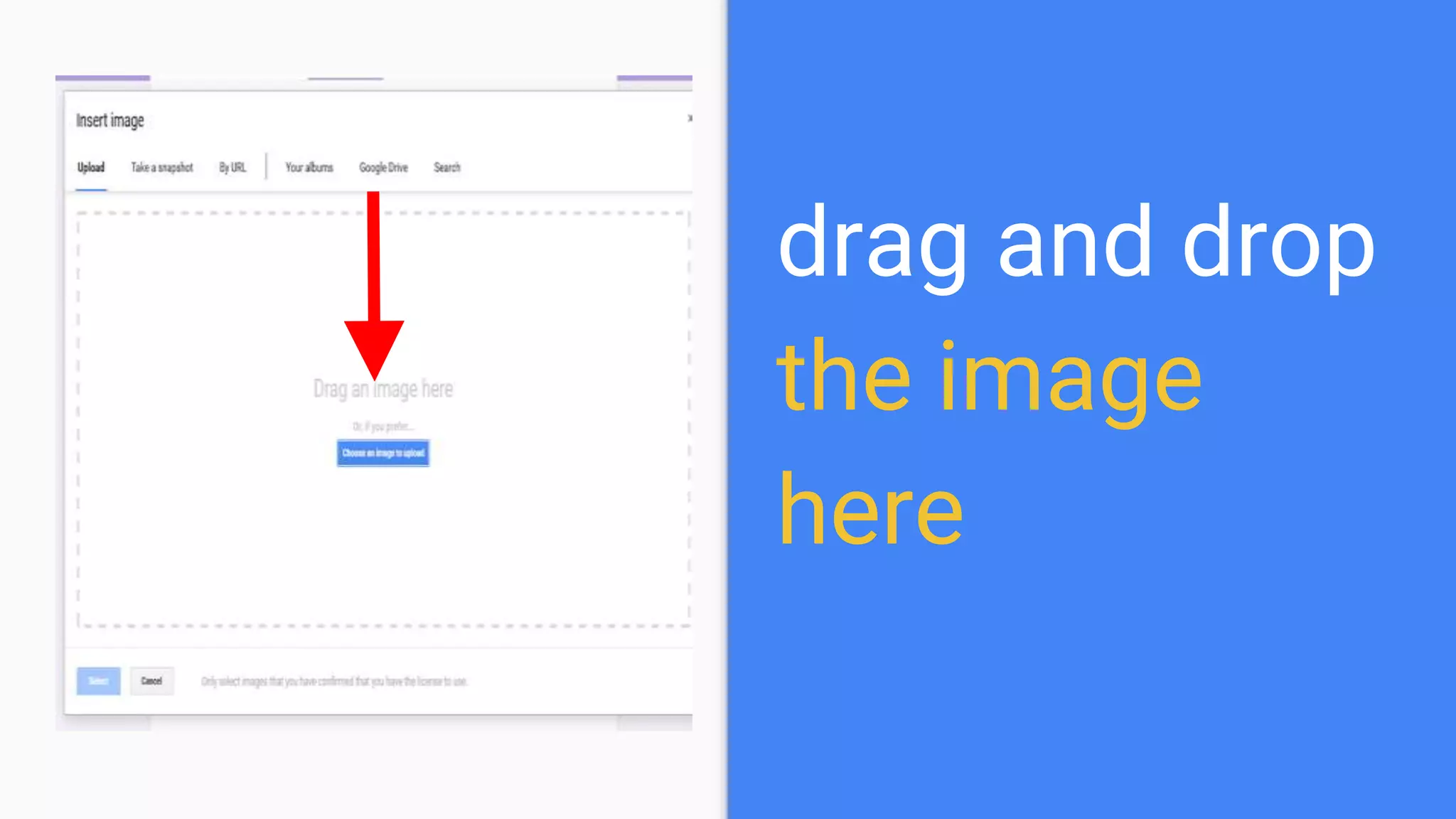
There are several ways to
add an image
drag and drop
the image
here
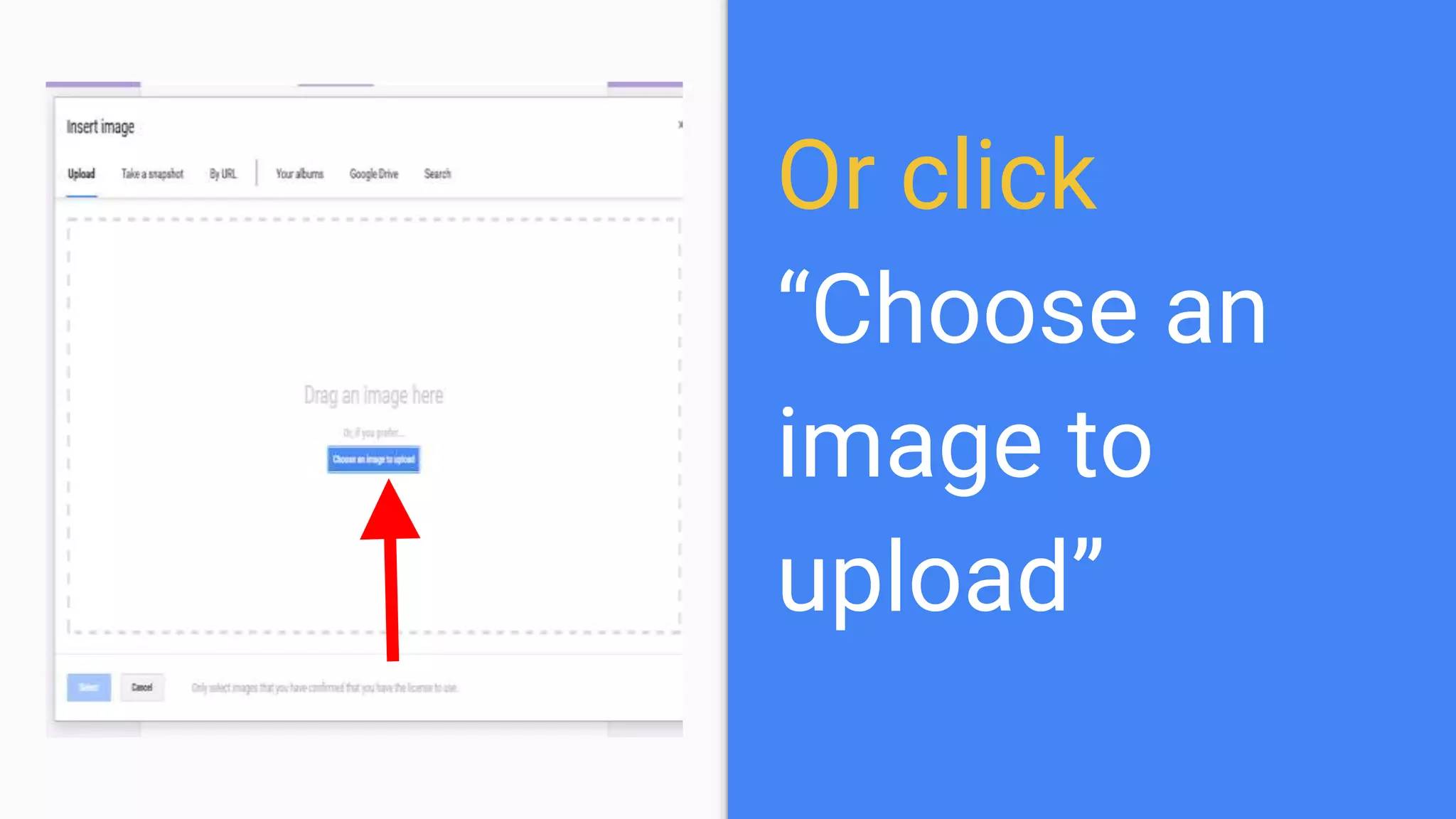
Or click
“Choose an
image to
upload”
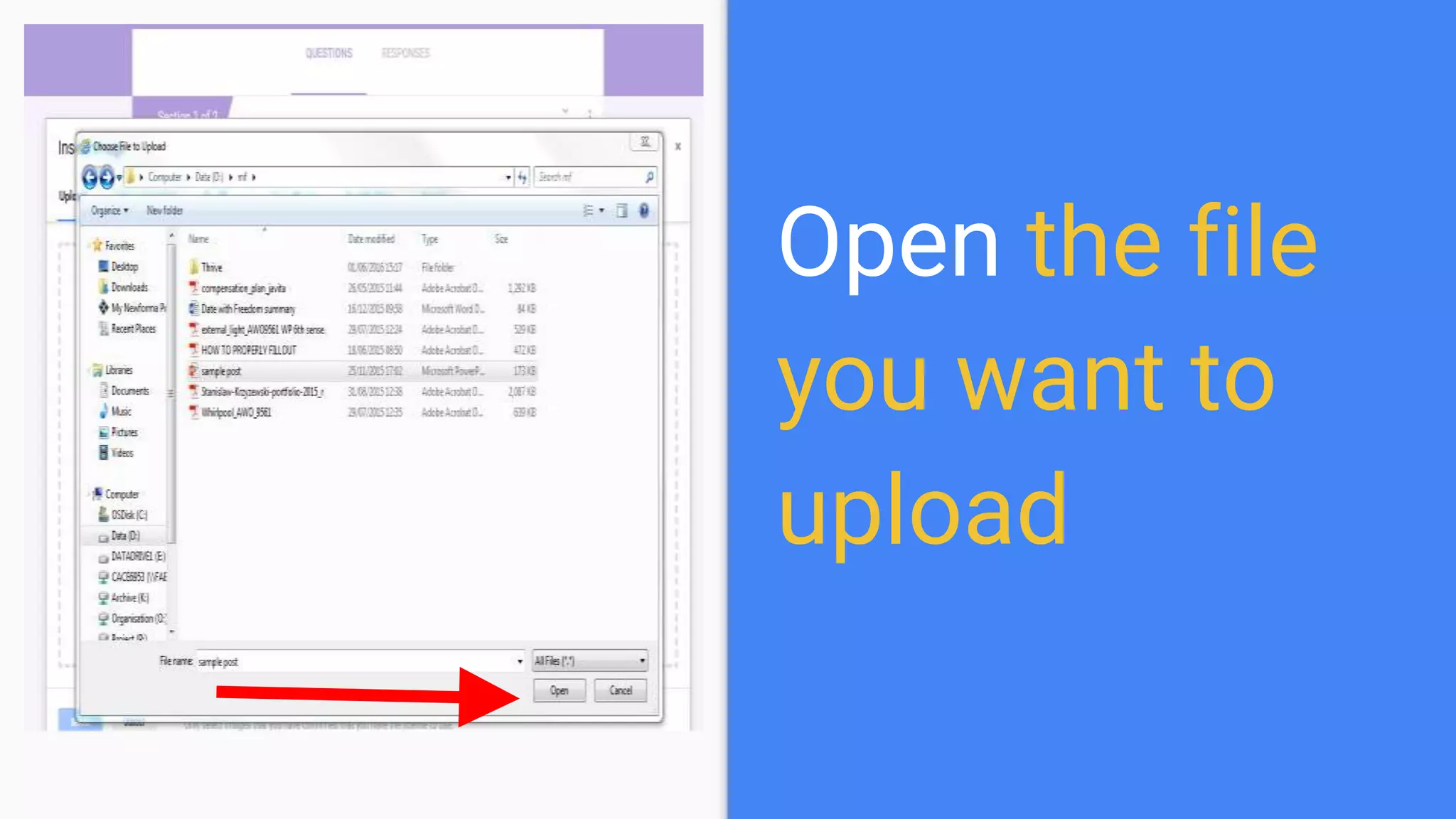
Open the file
you want to
upload
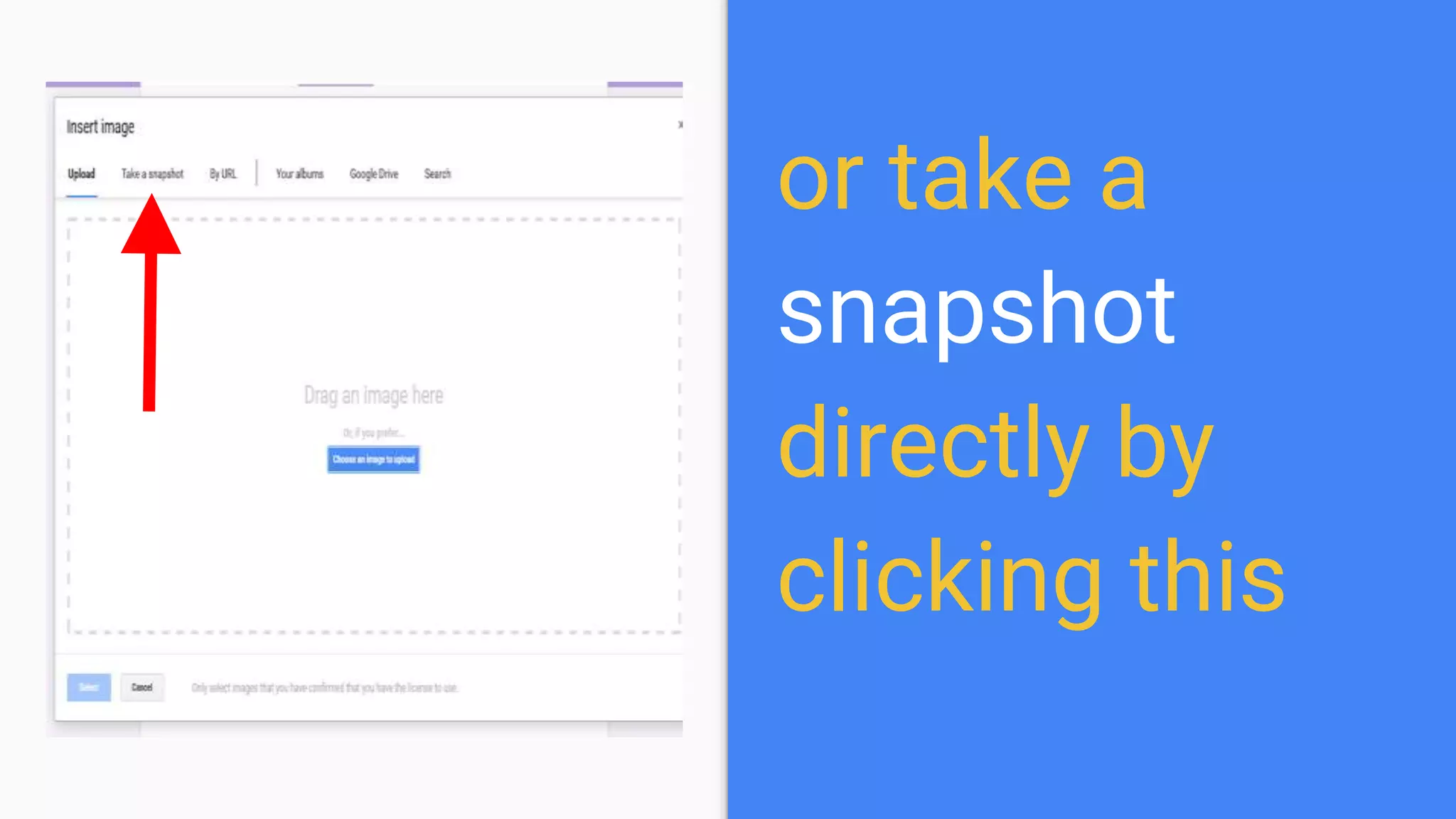
or take a
snapshot
directly by
clicking this
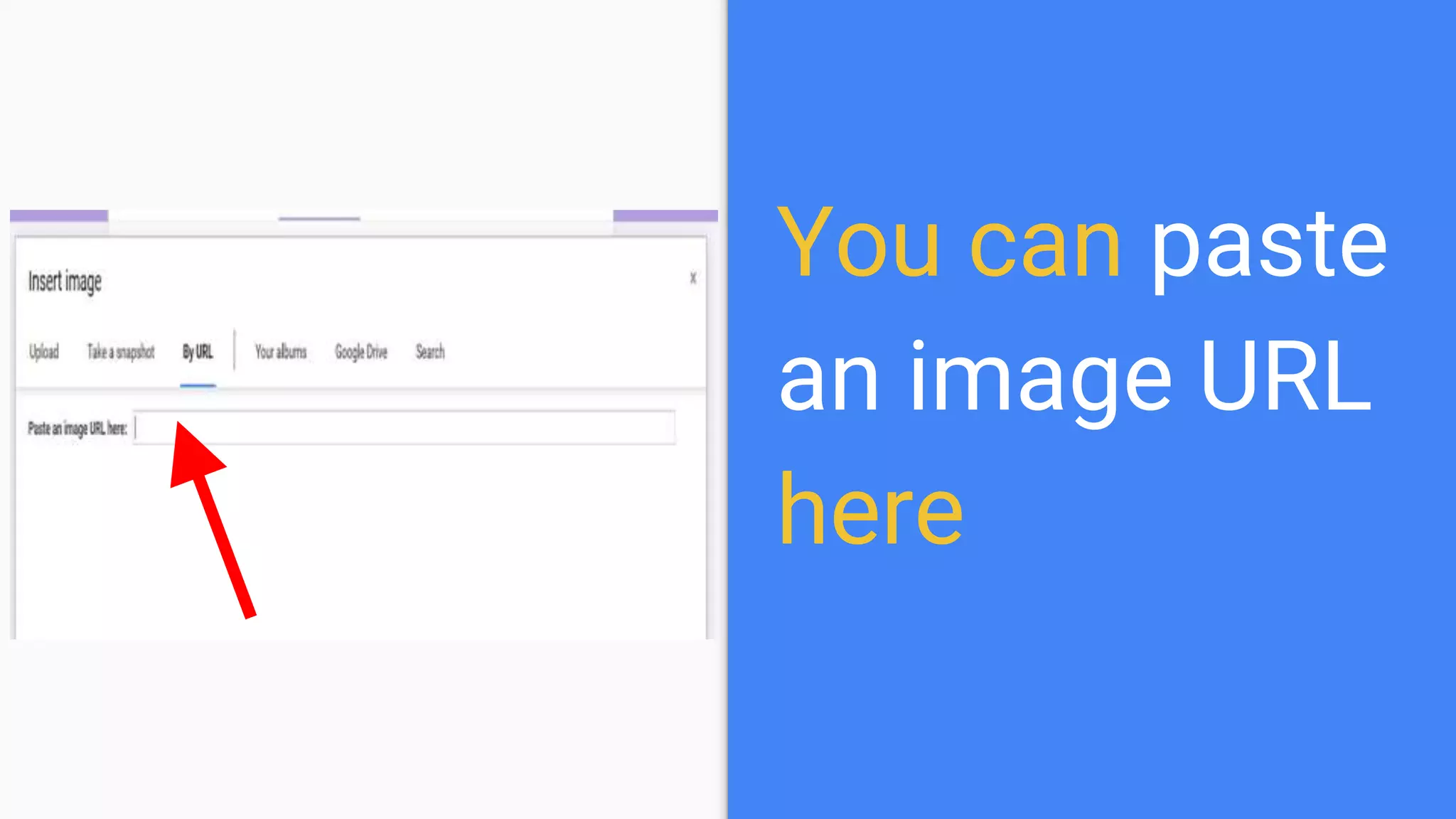
You can paste
an image URL
here
Choose an
image from
your Google
plus album
get an image
direct from
your Google
drive
Or search for
an image in
the internet
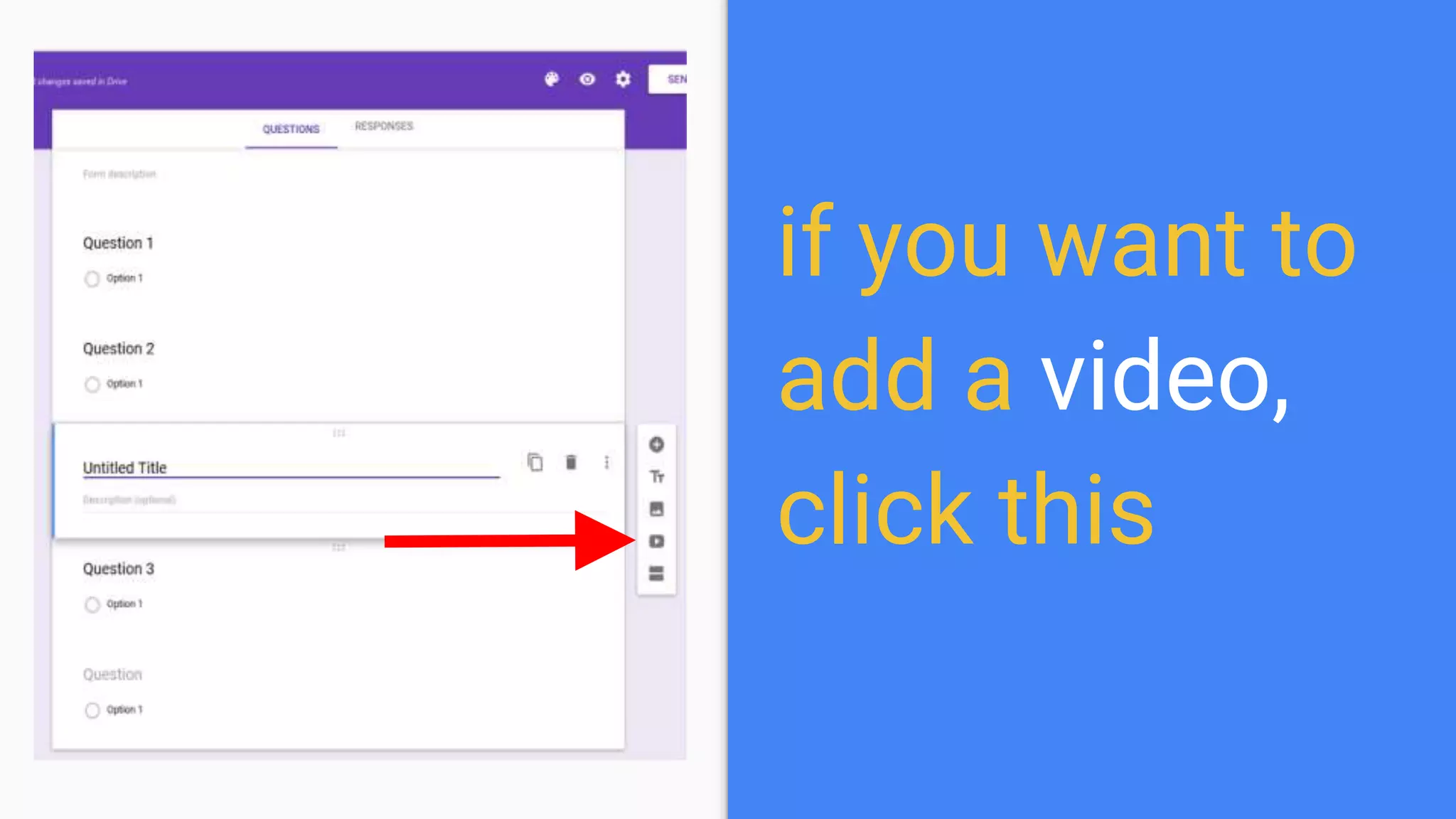
if you want to
add a video,
click this
And choose a video you
want to upload
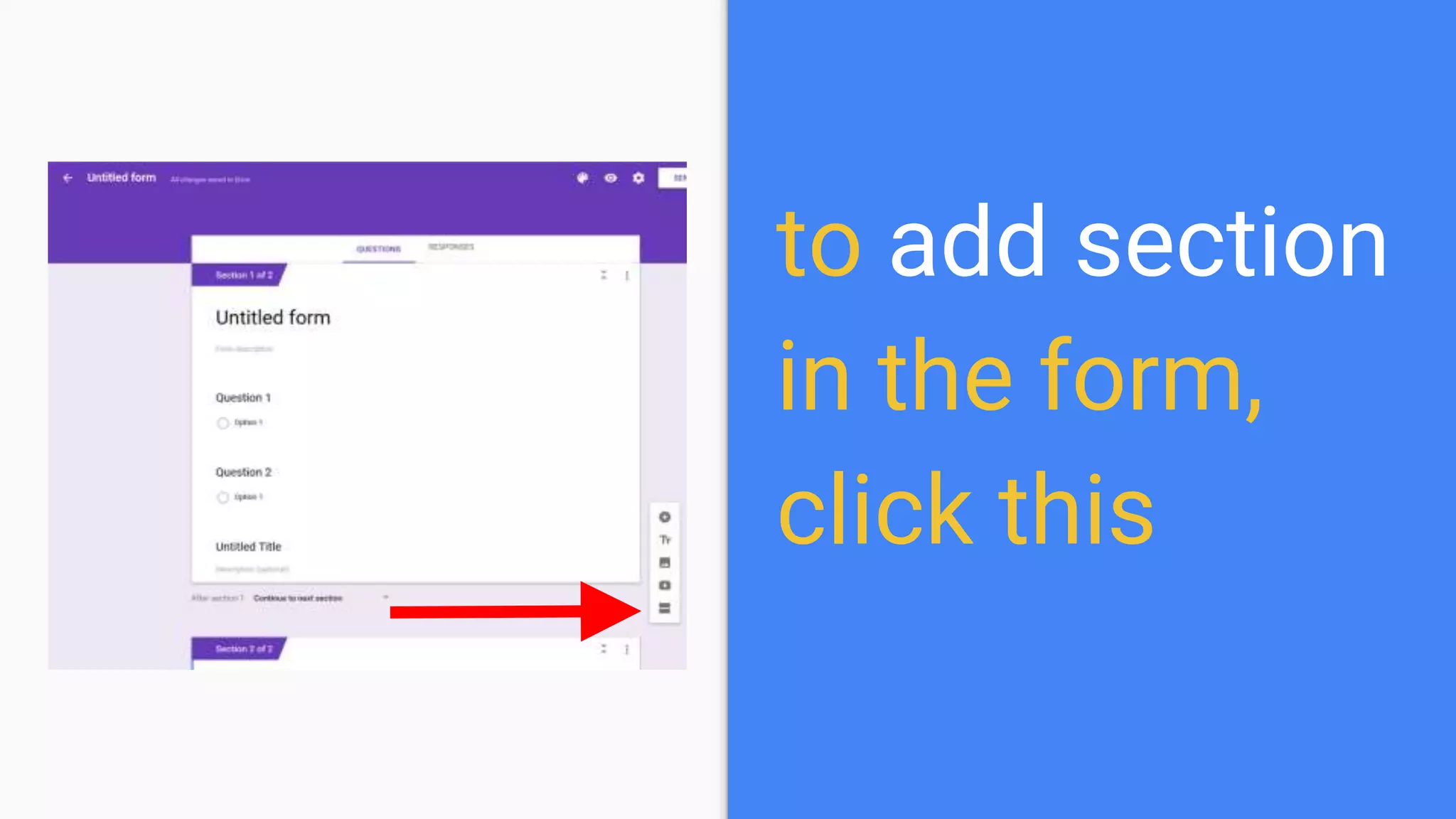
to add section
in the form,
click this
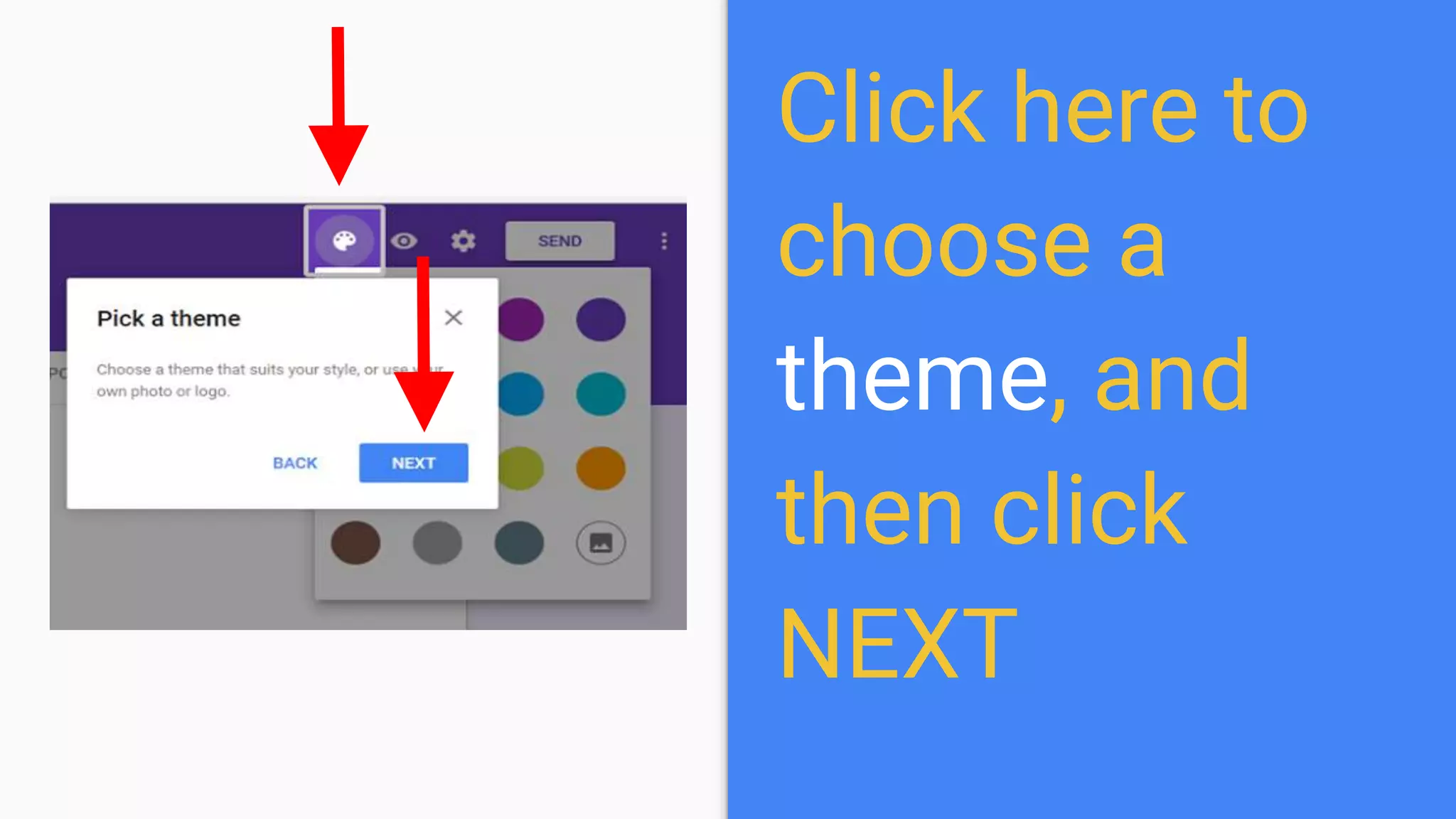
Click here to
choose a
theme, and
then click
NEXT
A theme is how the form will
look like
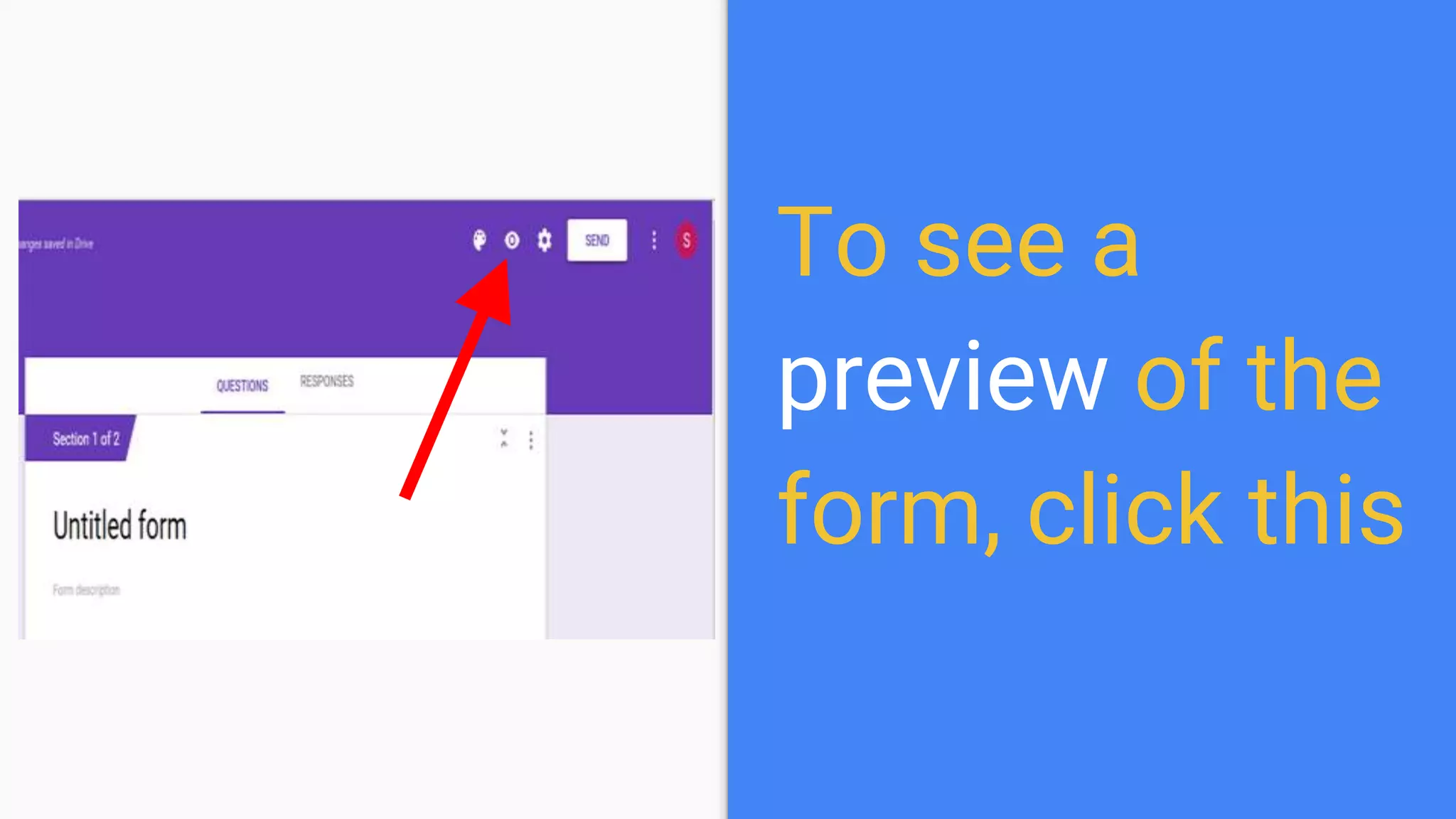
To see a
preview of the
form, click this
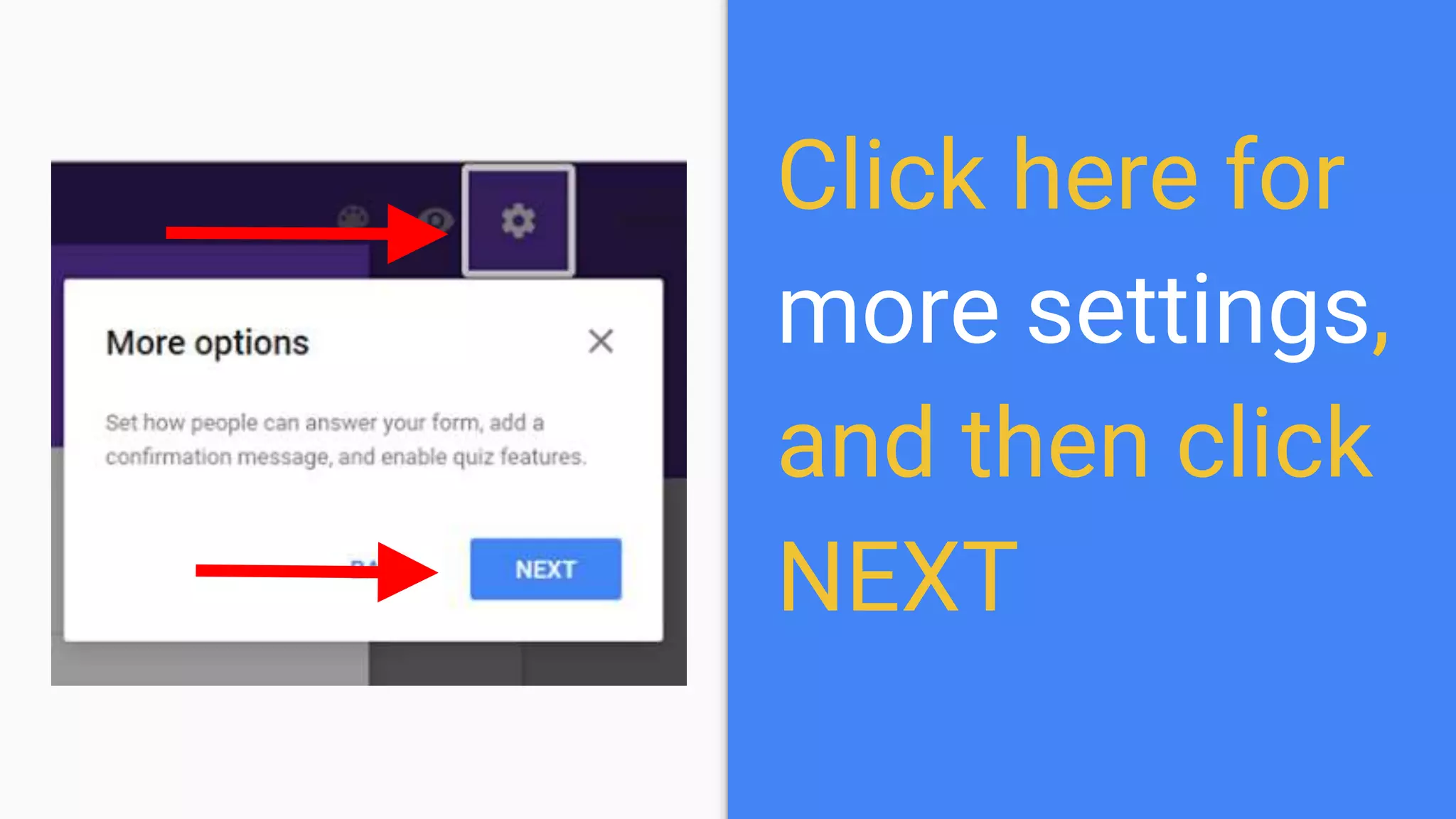
Click here for
more settings,
and then click
NEXT
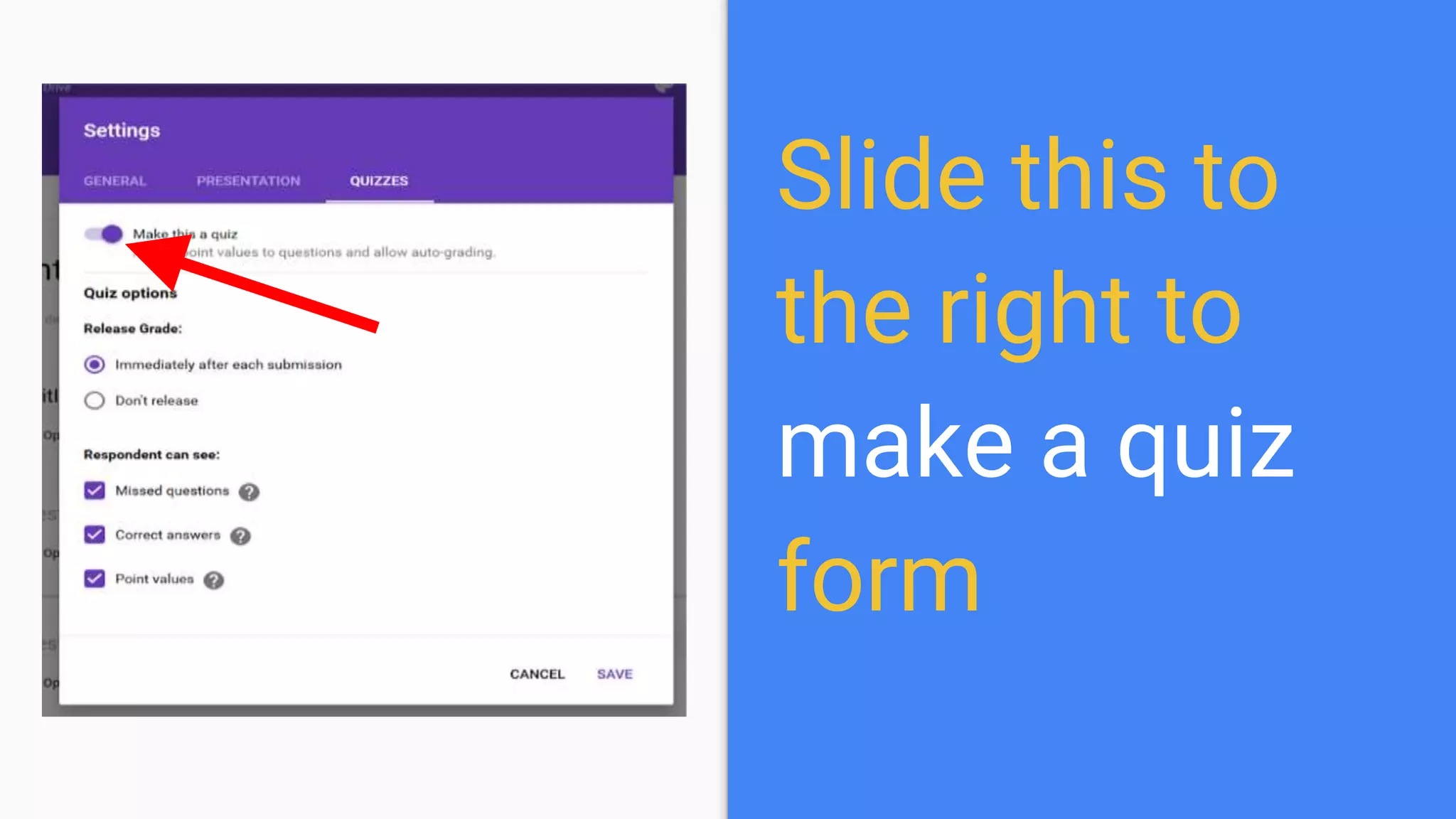
Slide this to
the right to
make a quiz
form
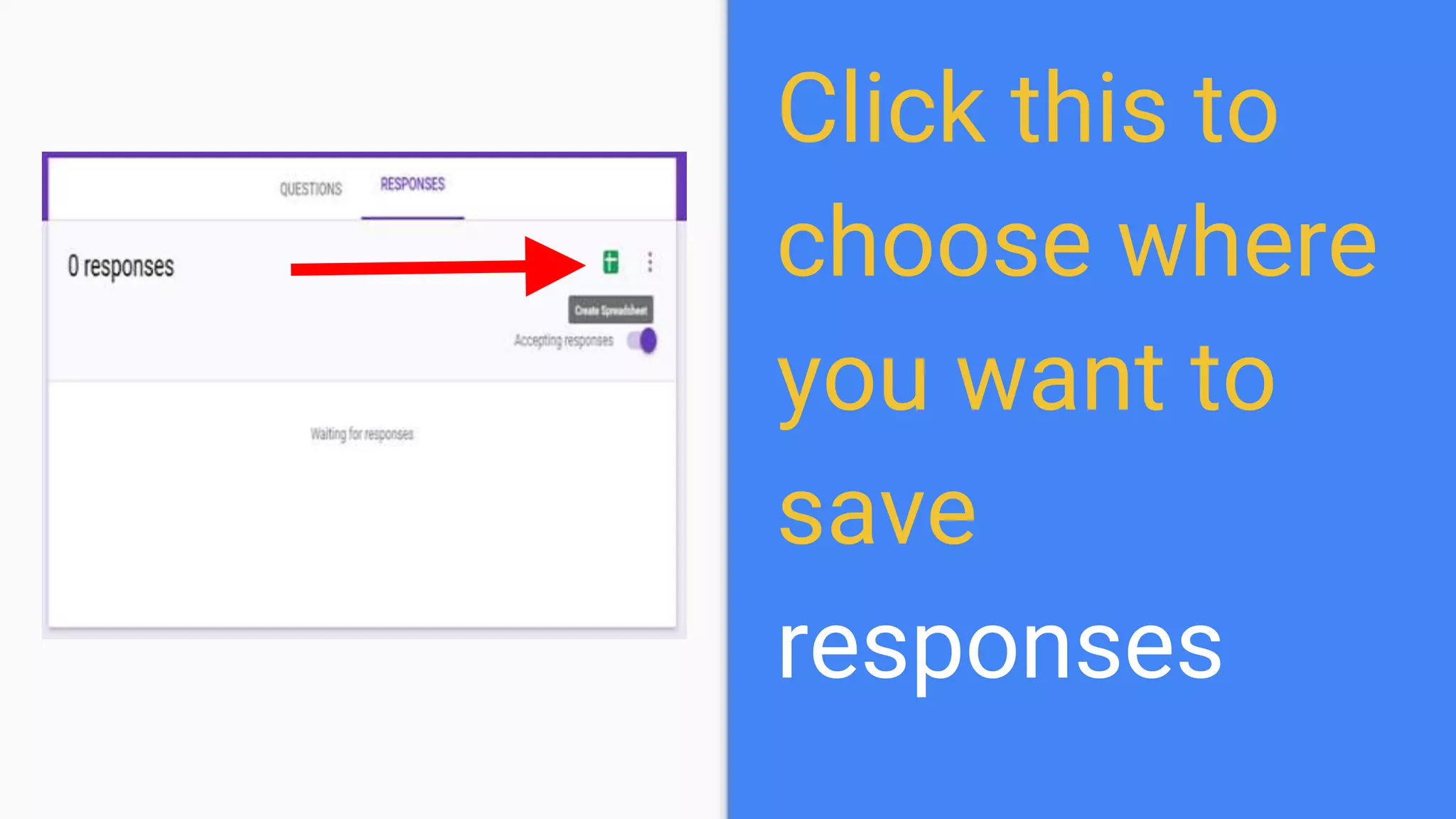
Click this to
choose where
you want to
save
responses
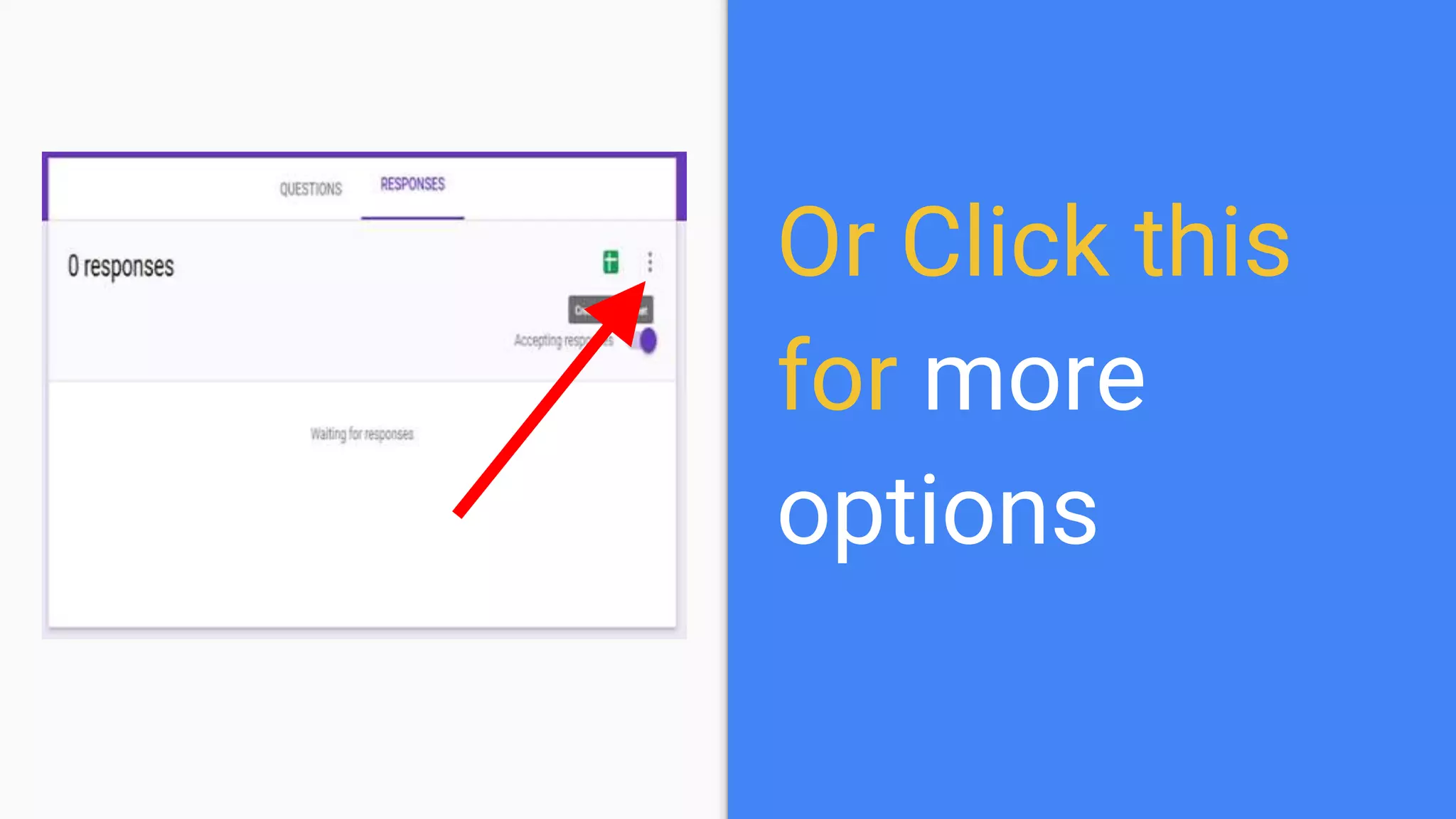
Or Click this
for more
options
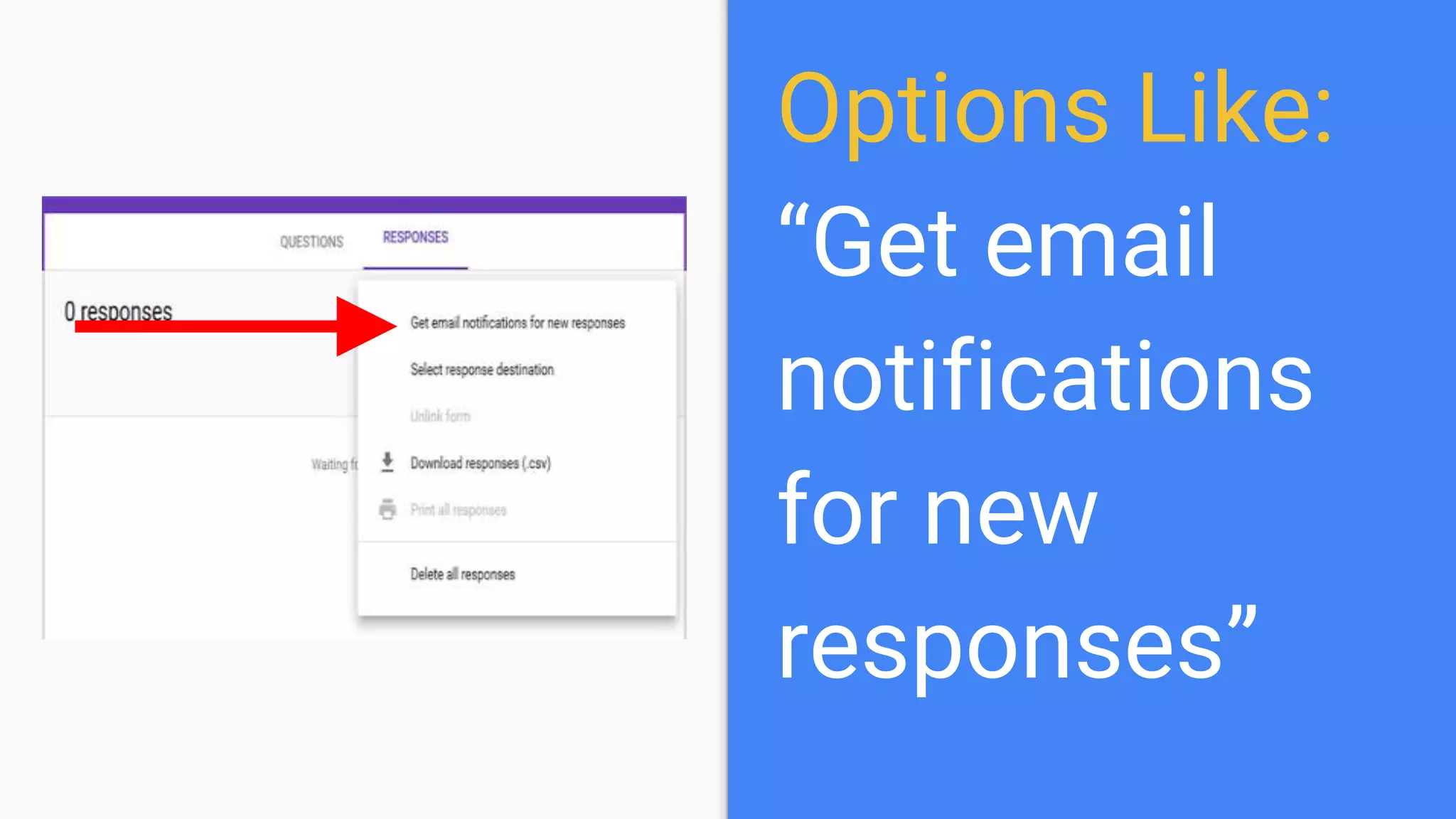
Options Like:
“Get email
notifications
for new
responses”
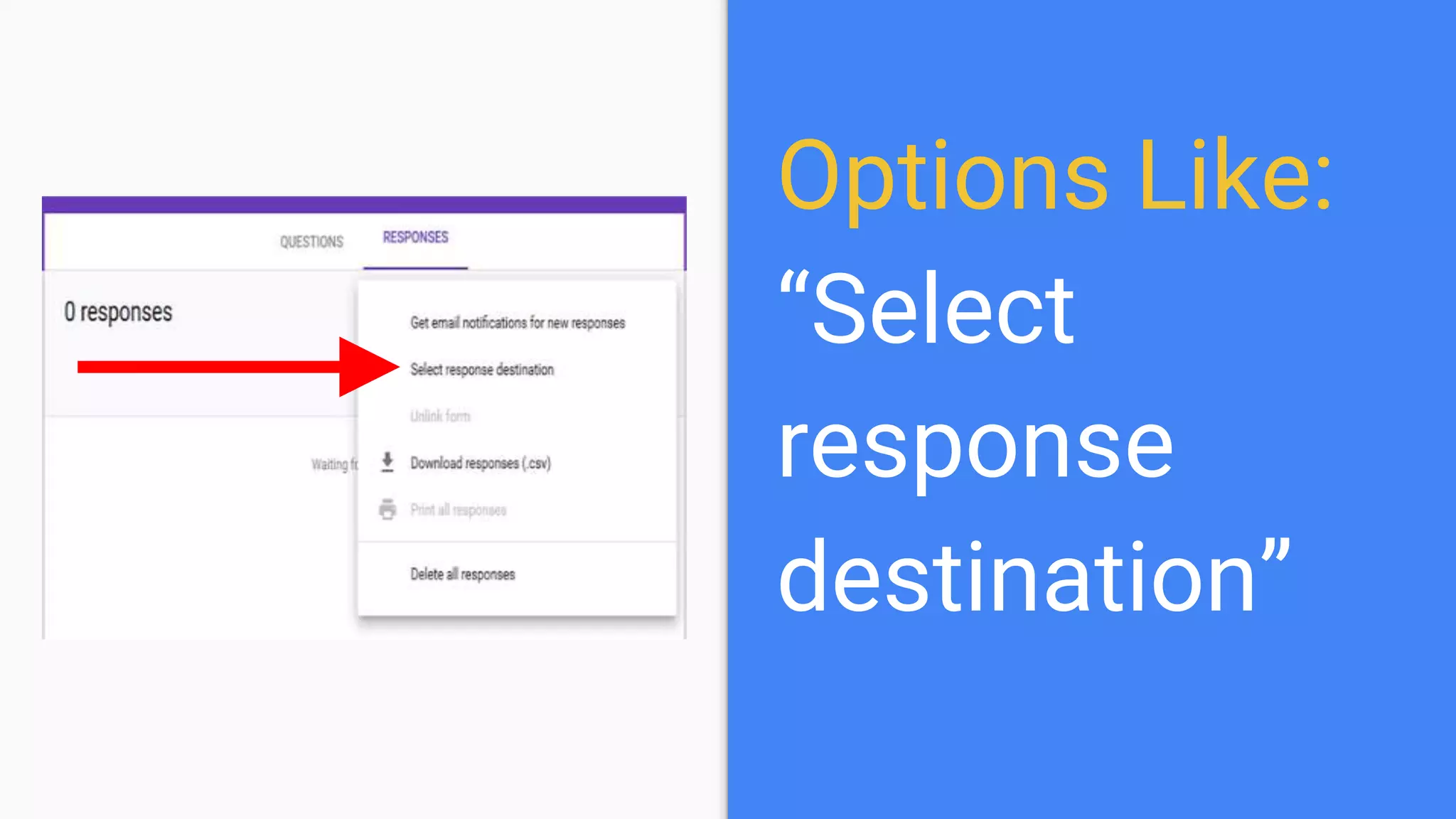
Options Like:
“Select
response
destination”
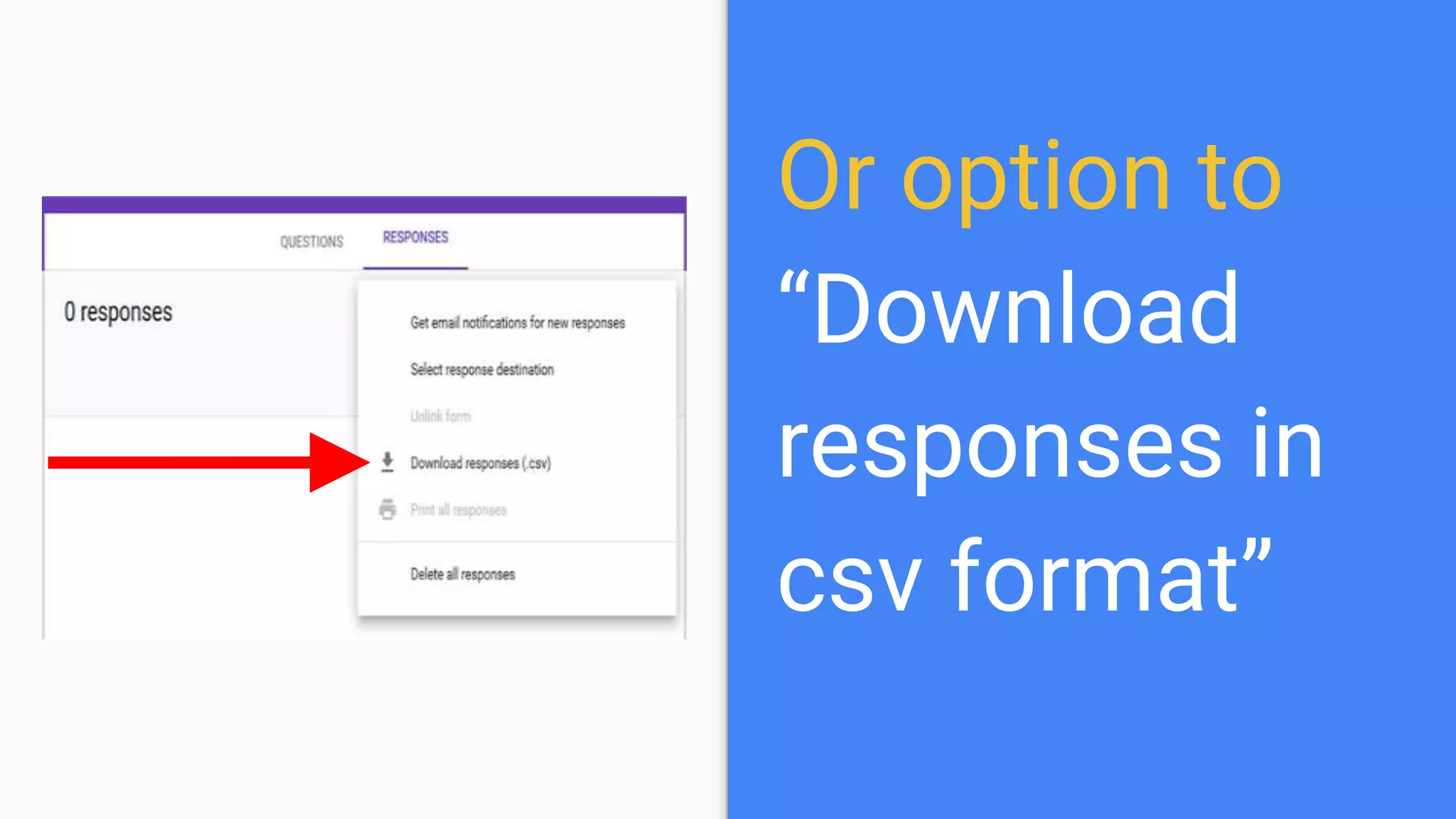
Or option to
“Download
responses in
csv format”
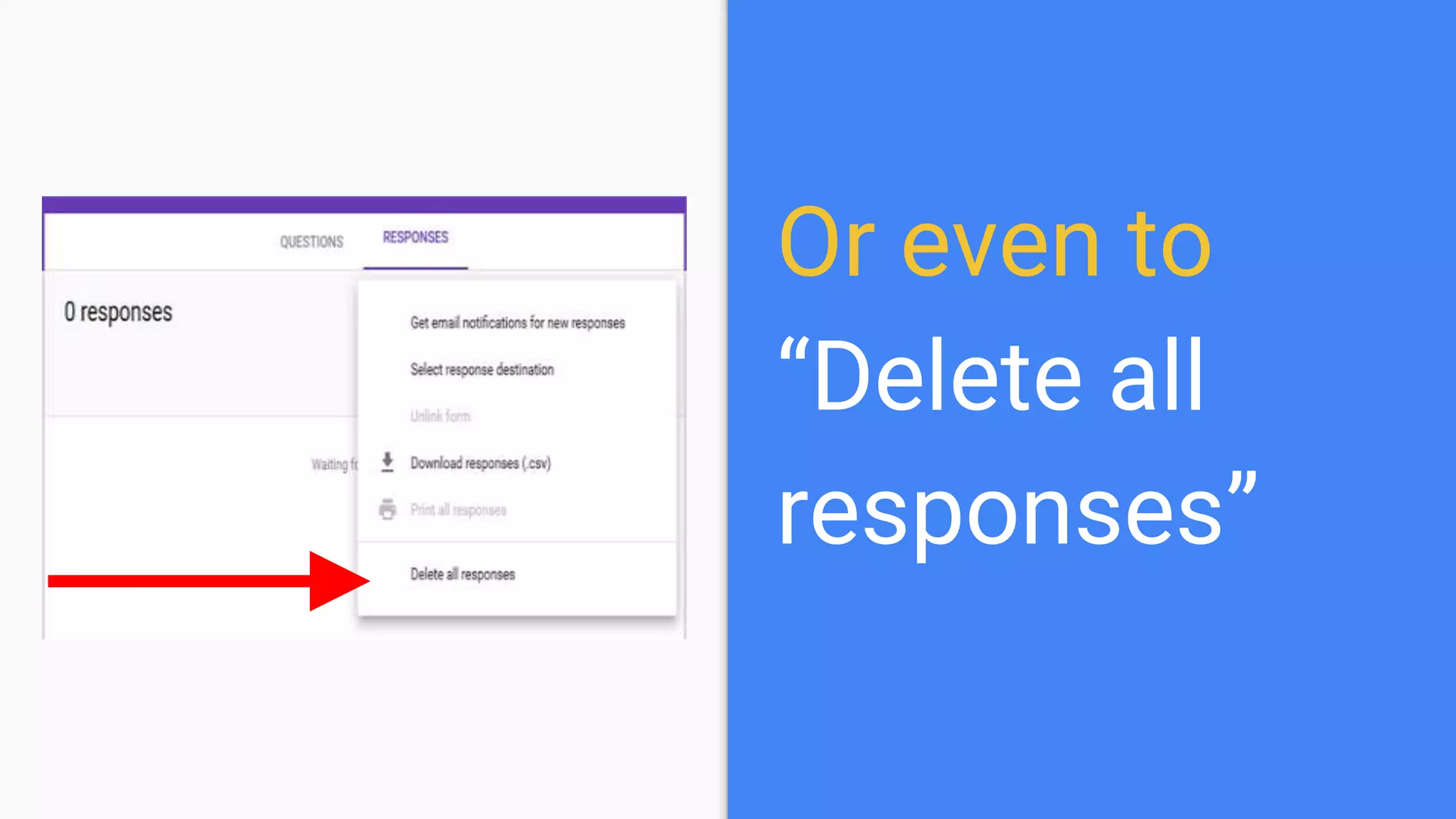
Or even to
“Delete all
responses”
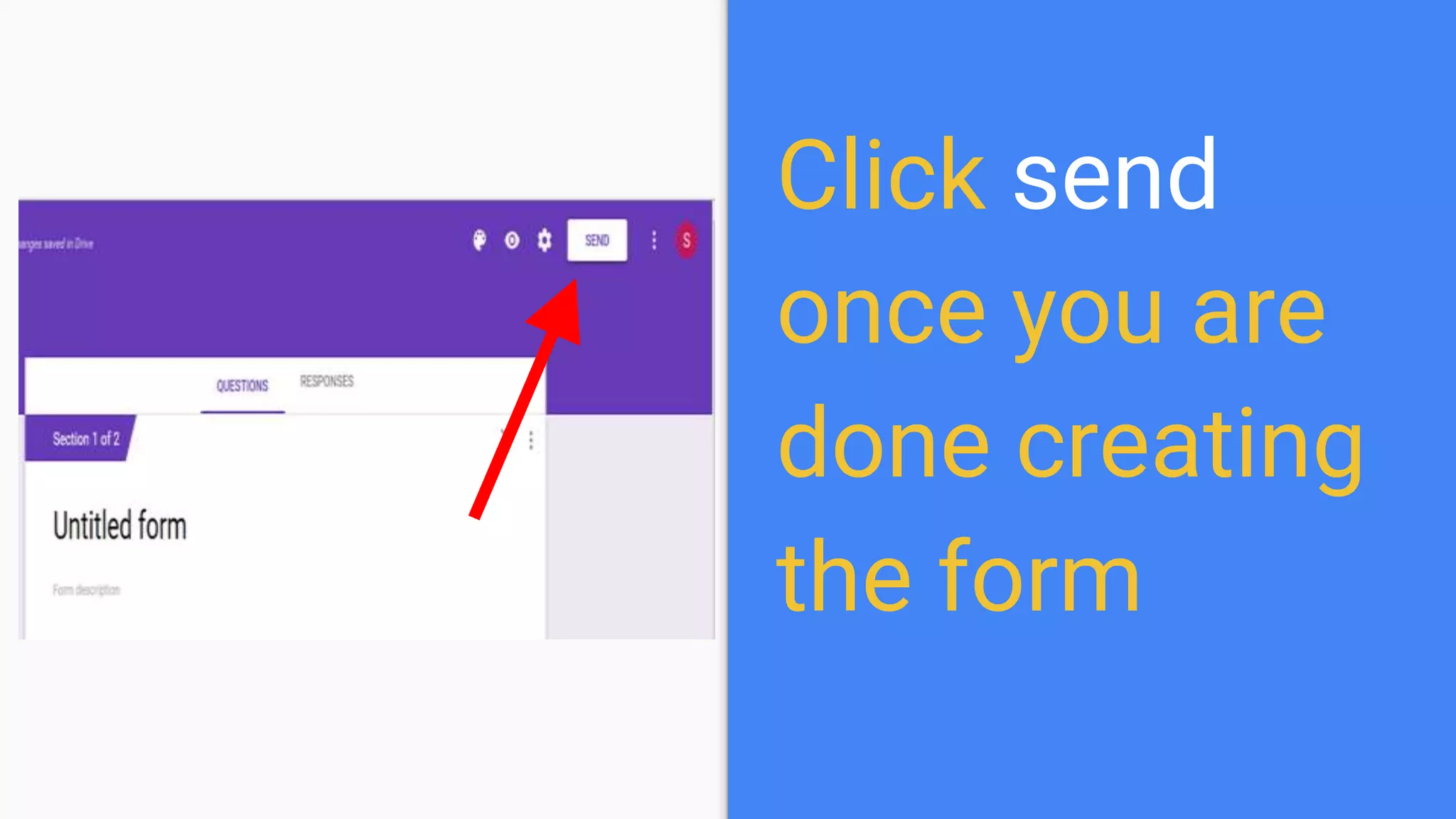
Click send
once you are
done creating
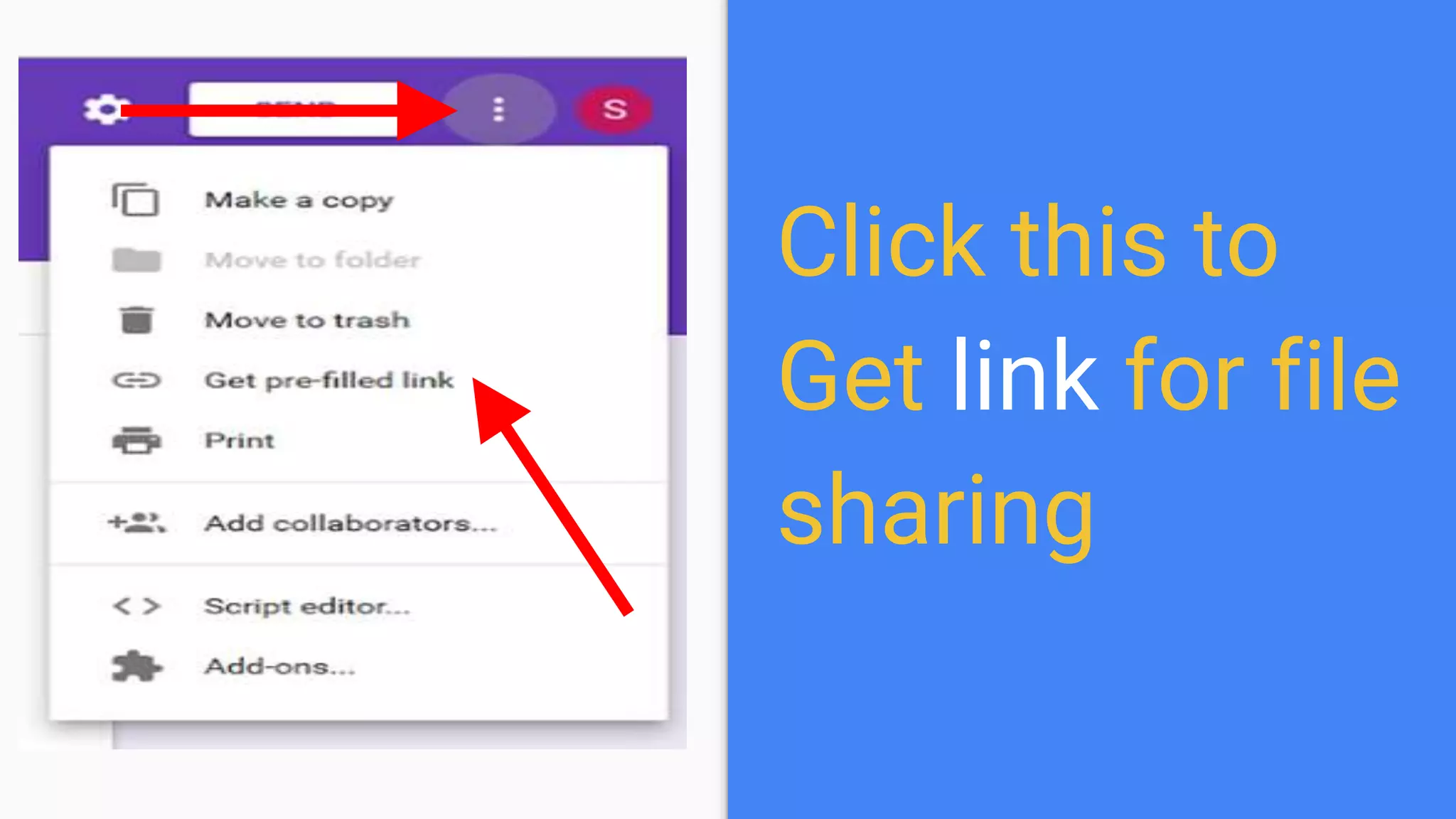
the form
Click this to
Get link for file
sharing
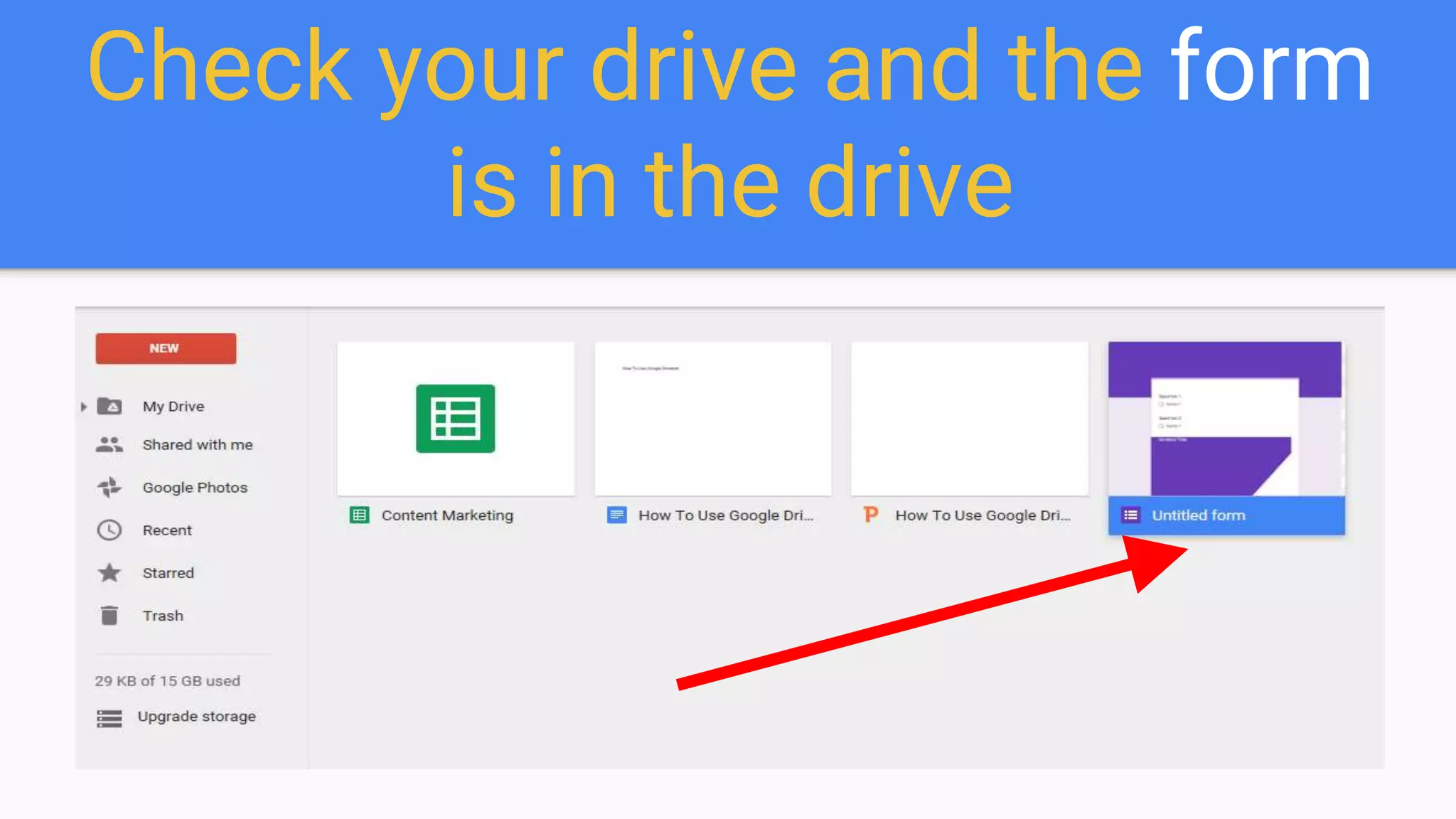
Check your drive and the form
is in the drive
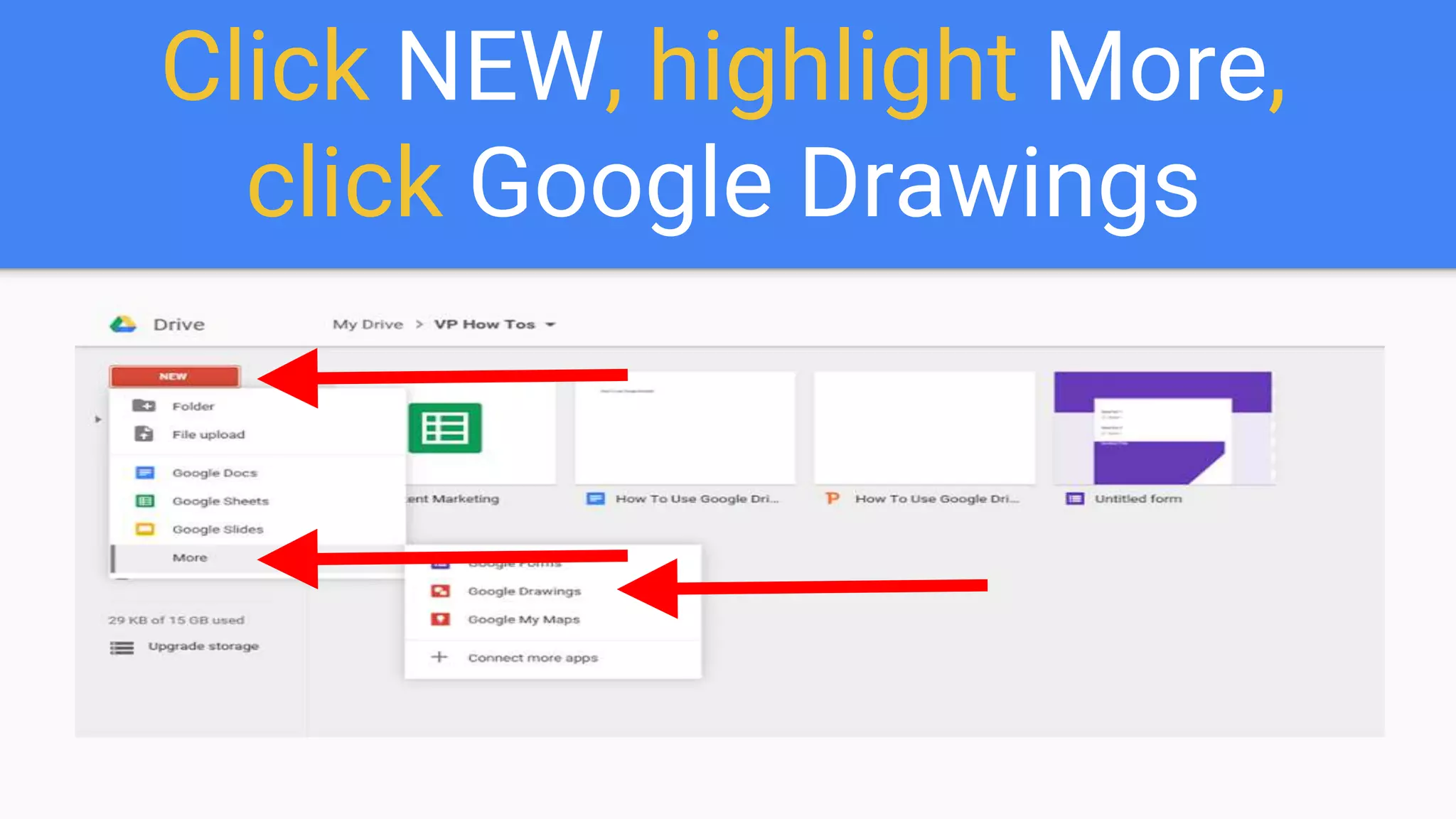
Click NEW, highlight More,
click Google Drawings
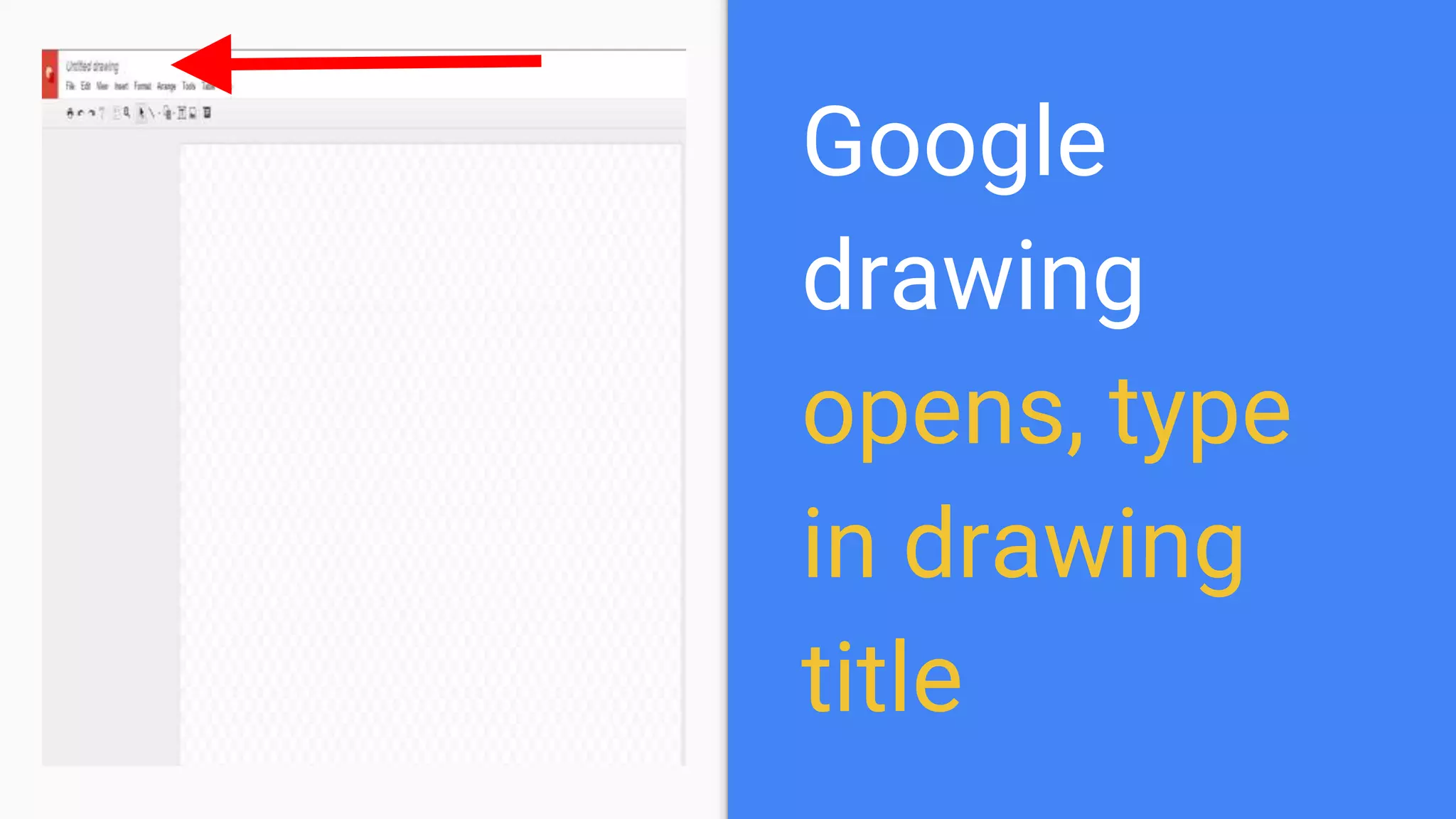
Google
drawing
opens, type
in drawing
title
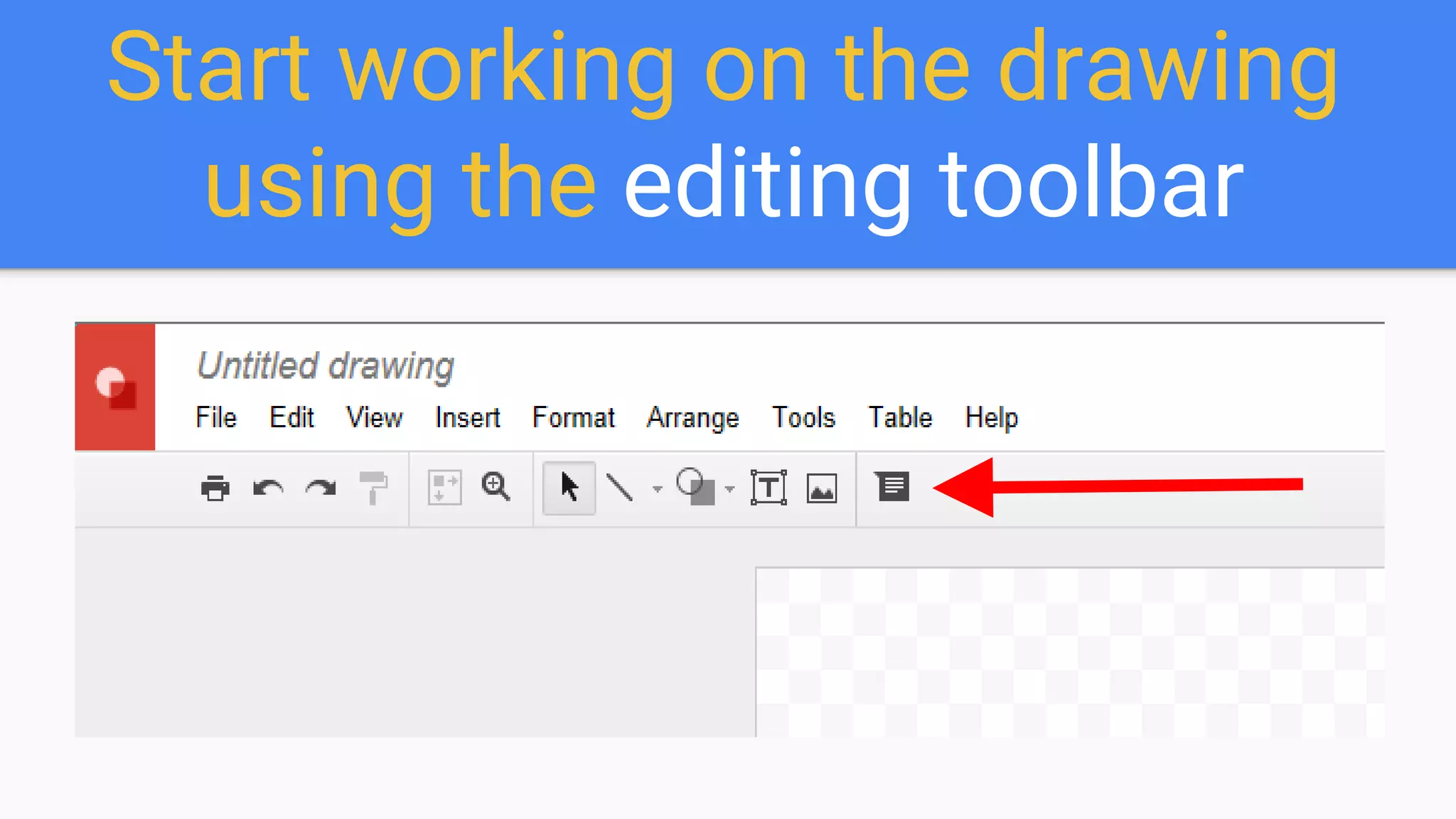
Start working on the drawing
using the editing toolbar
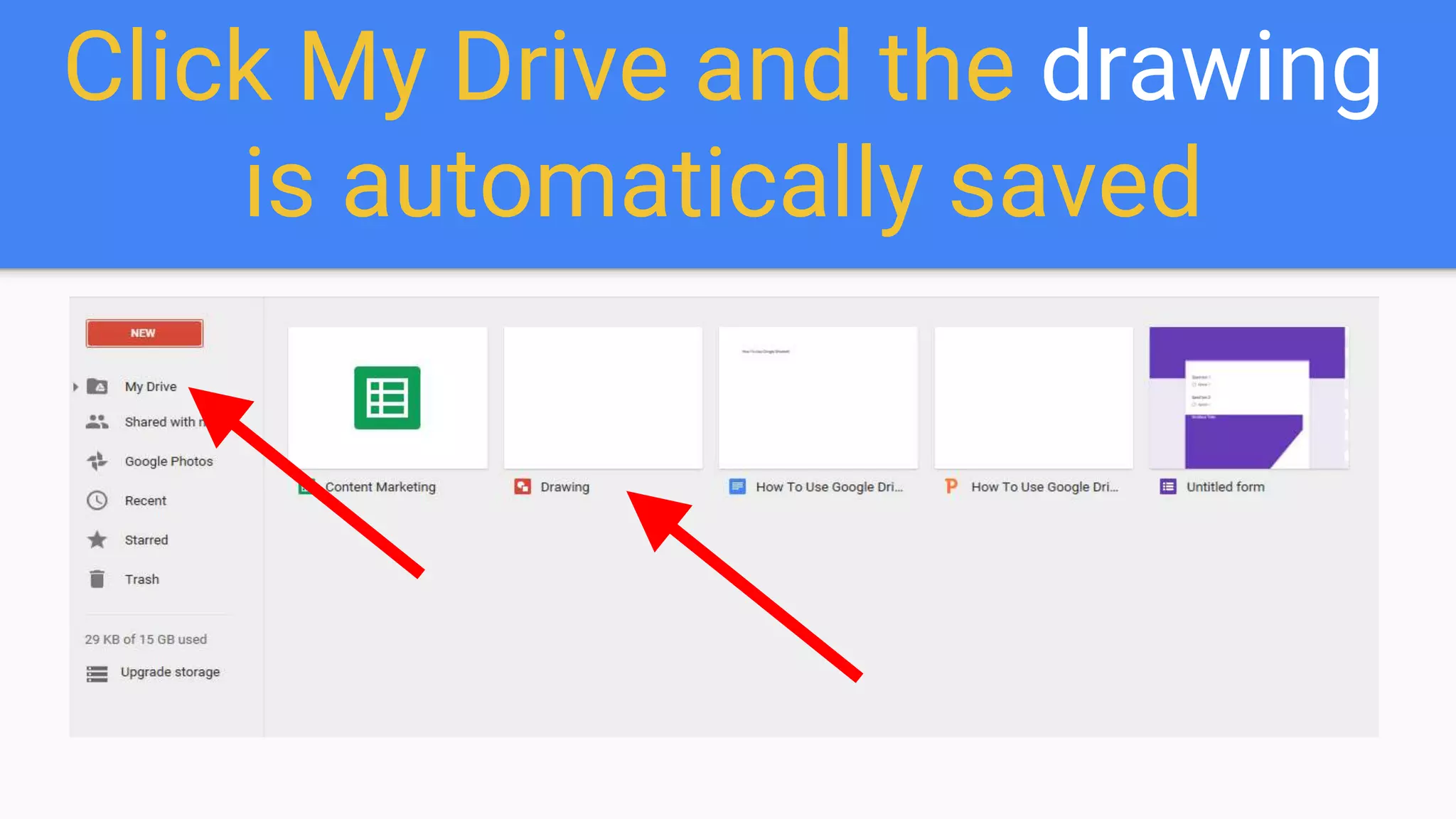
Click My Drive and the drawing
is automatically saved
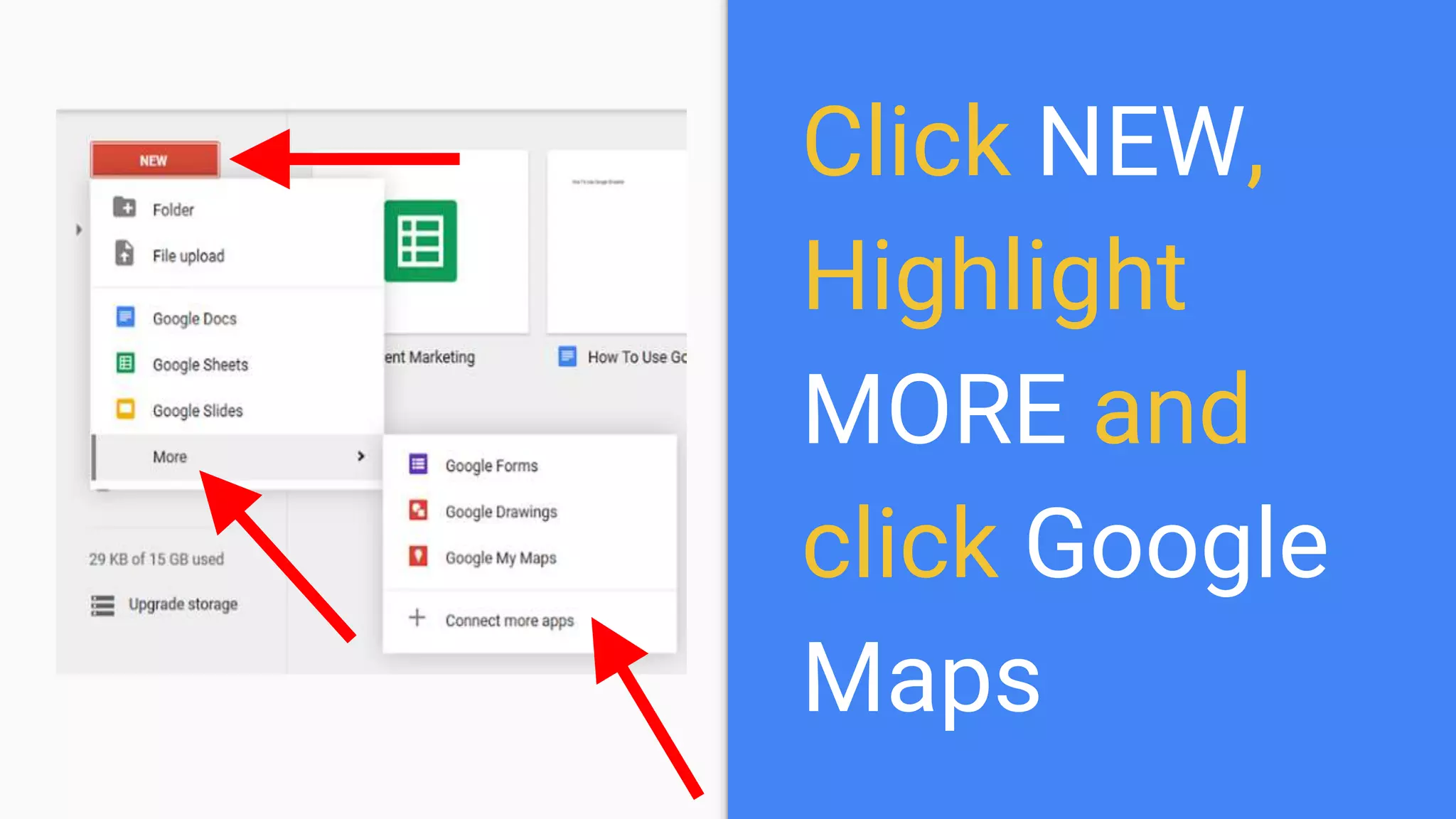
Click NEW,
Highlight
MORE and
click Google
Maps
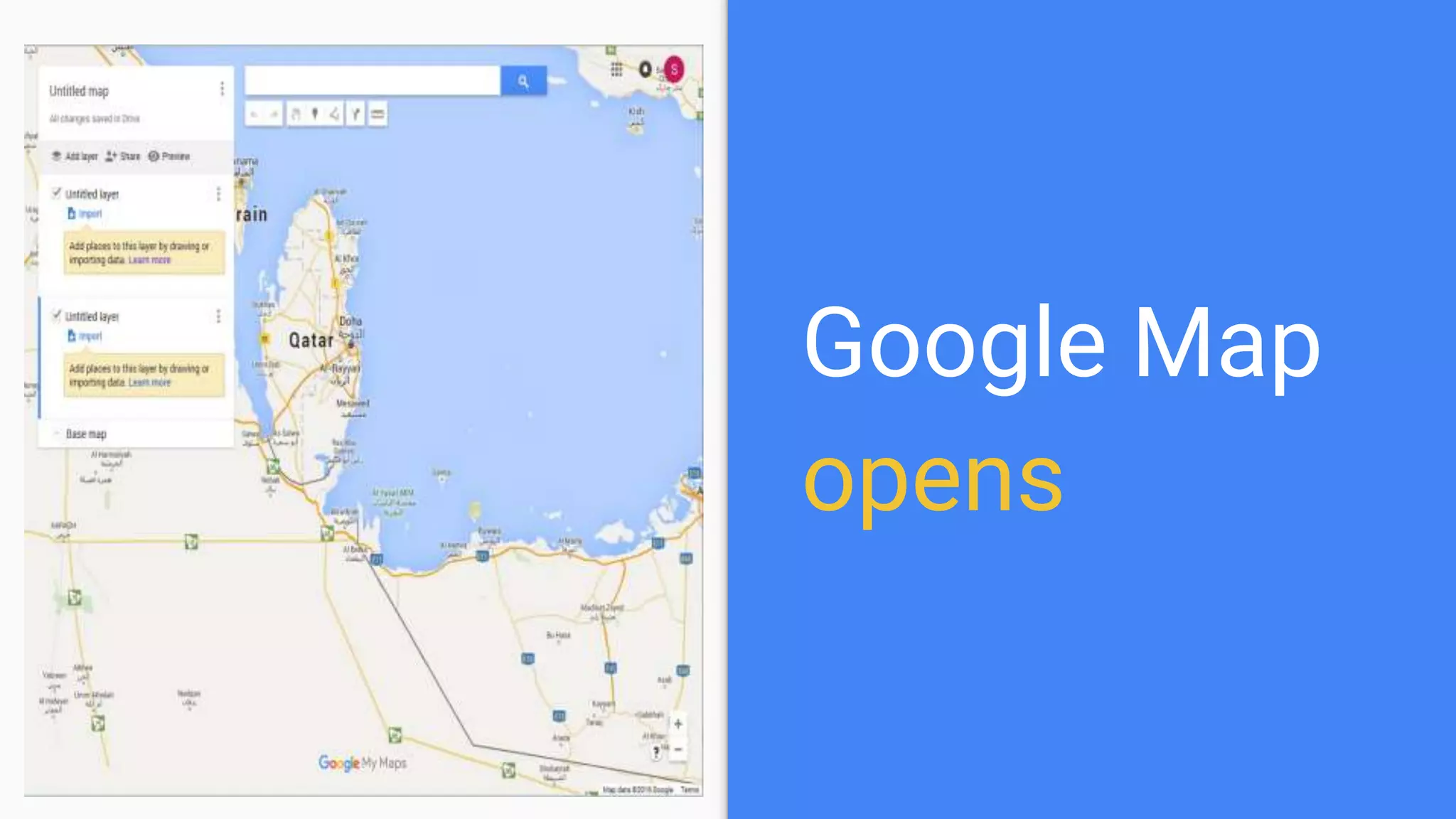
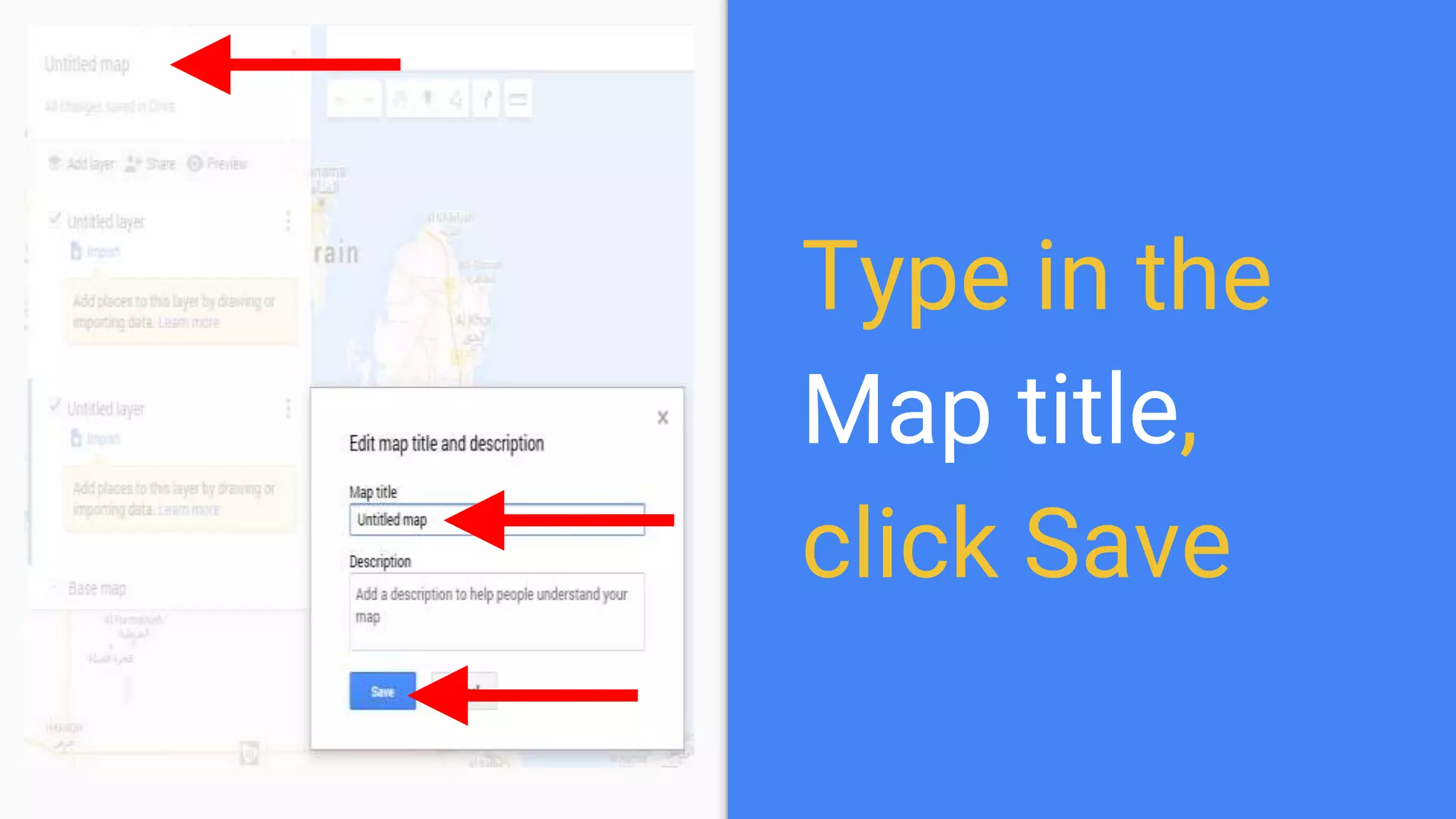
Google Map
opens
Type in the
Map title,
click Save
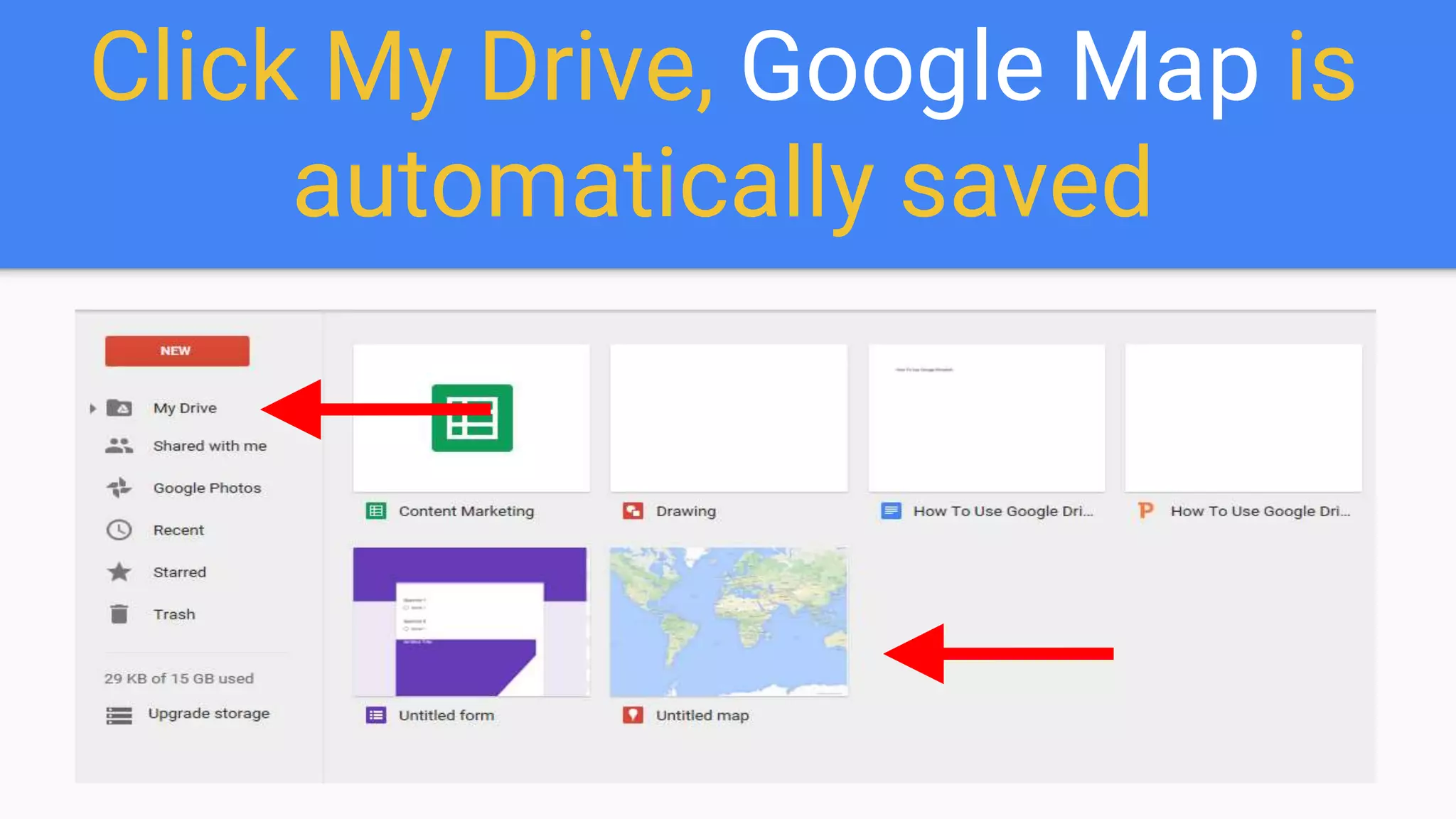
Click My Drive, Google Map is
automatically saved
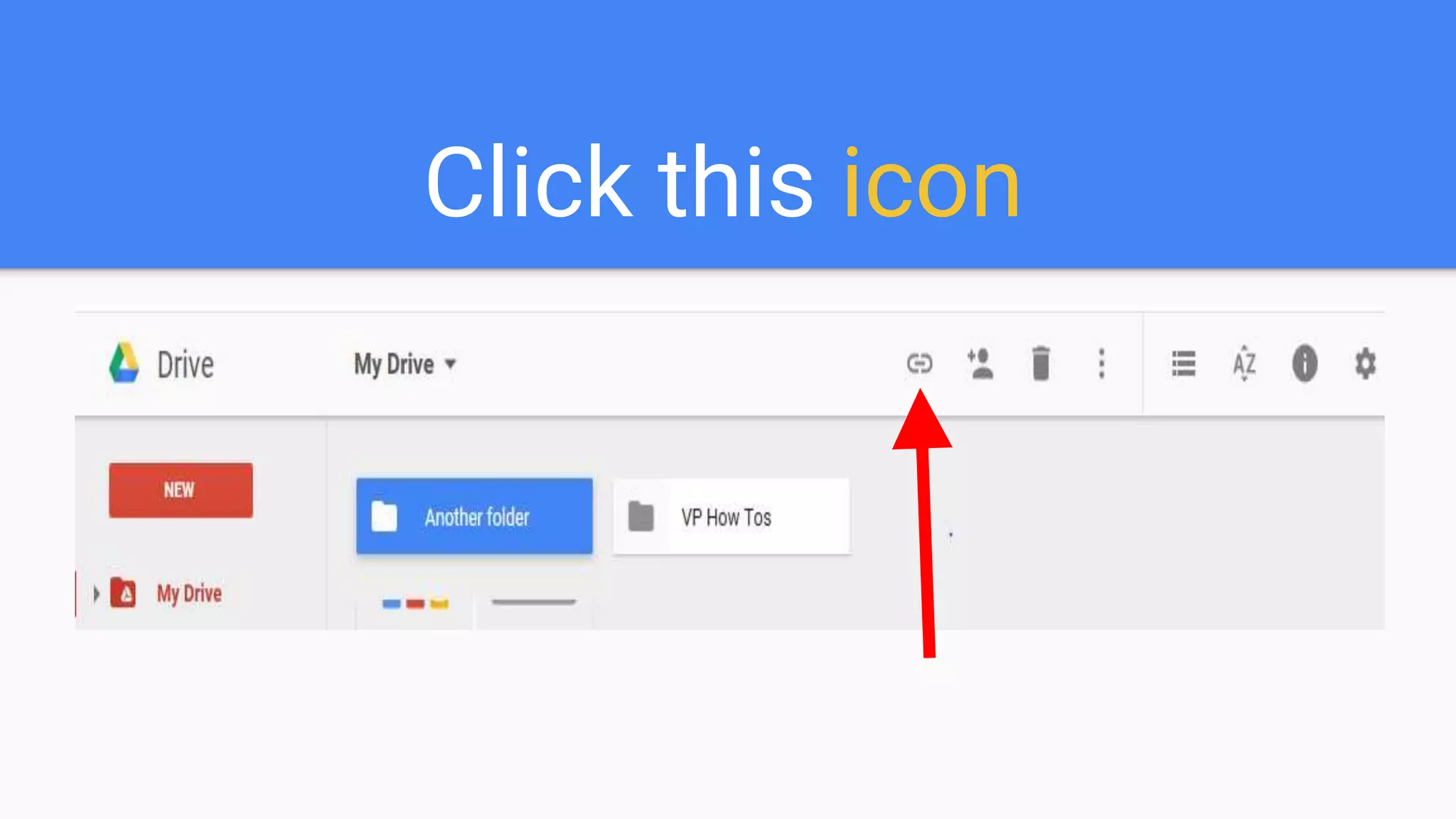
Click this icon
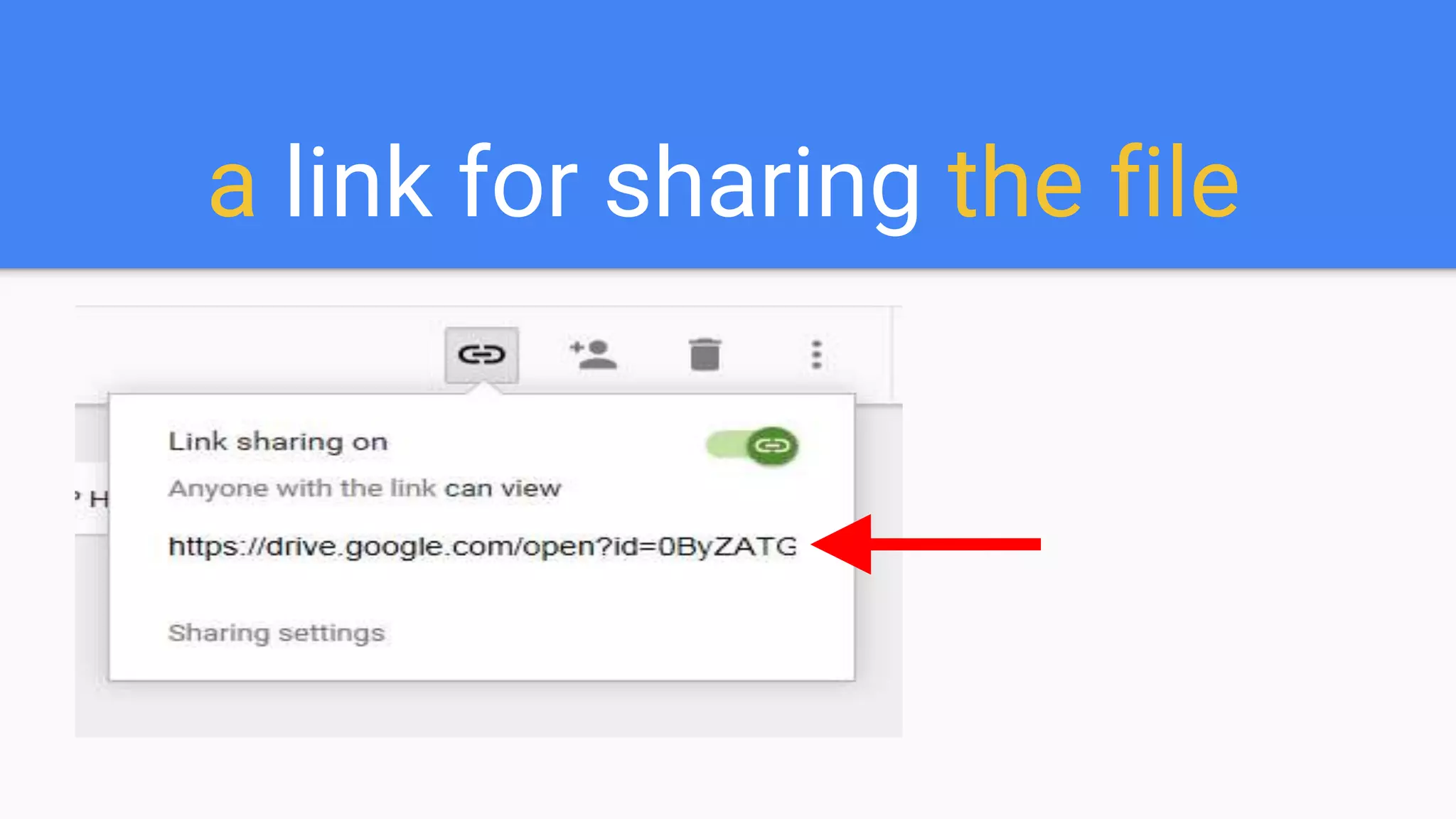
a link for sharing the file
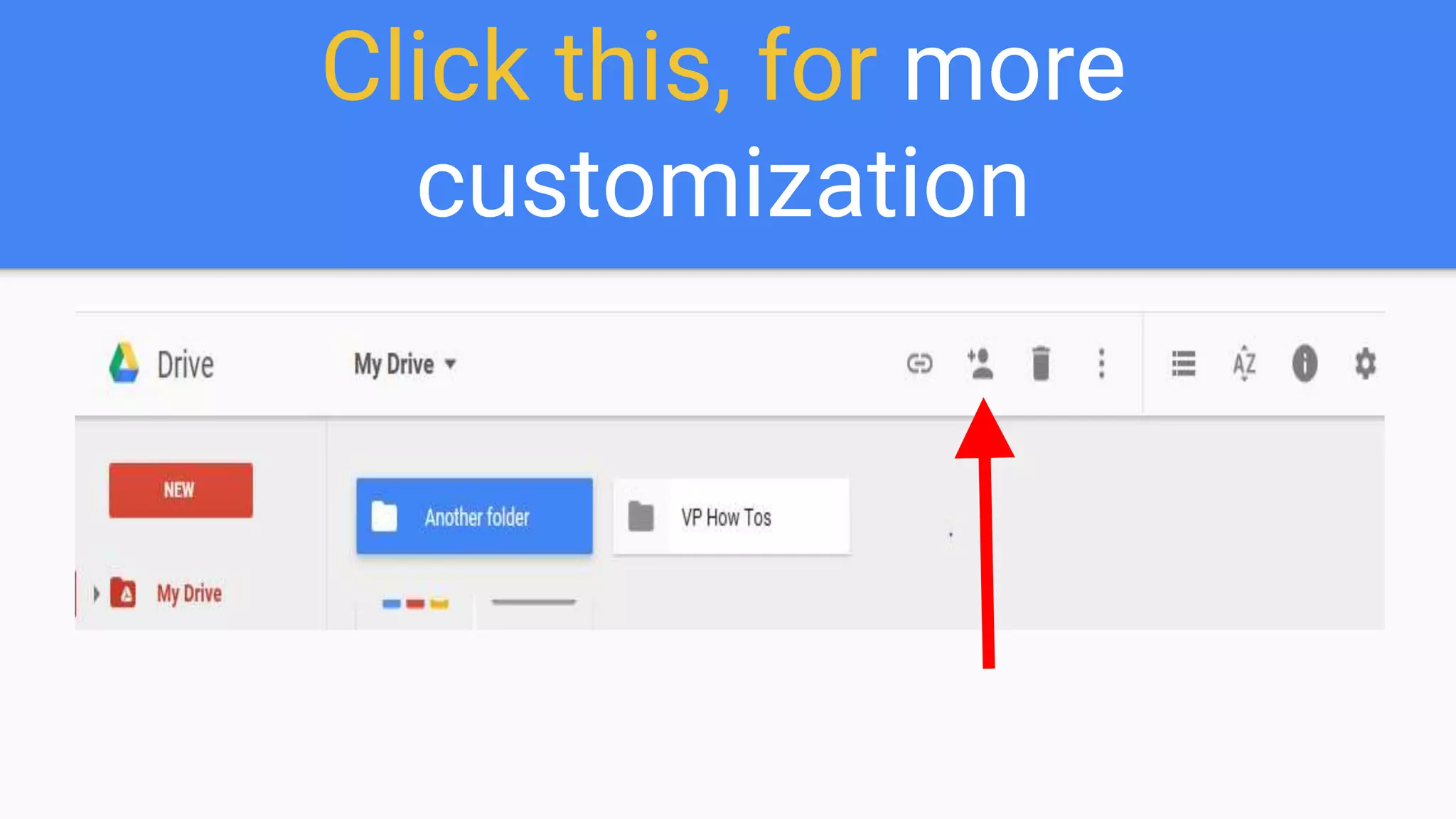
Click this, for more
customization
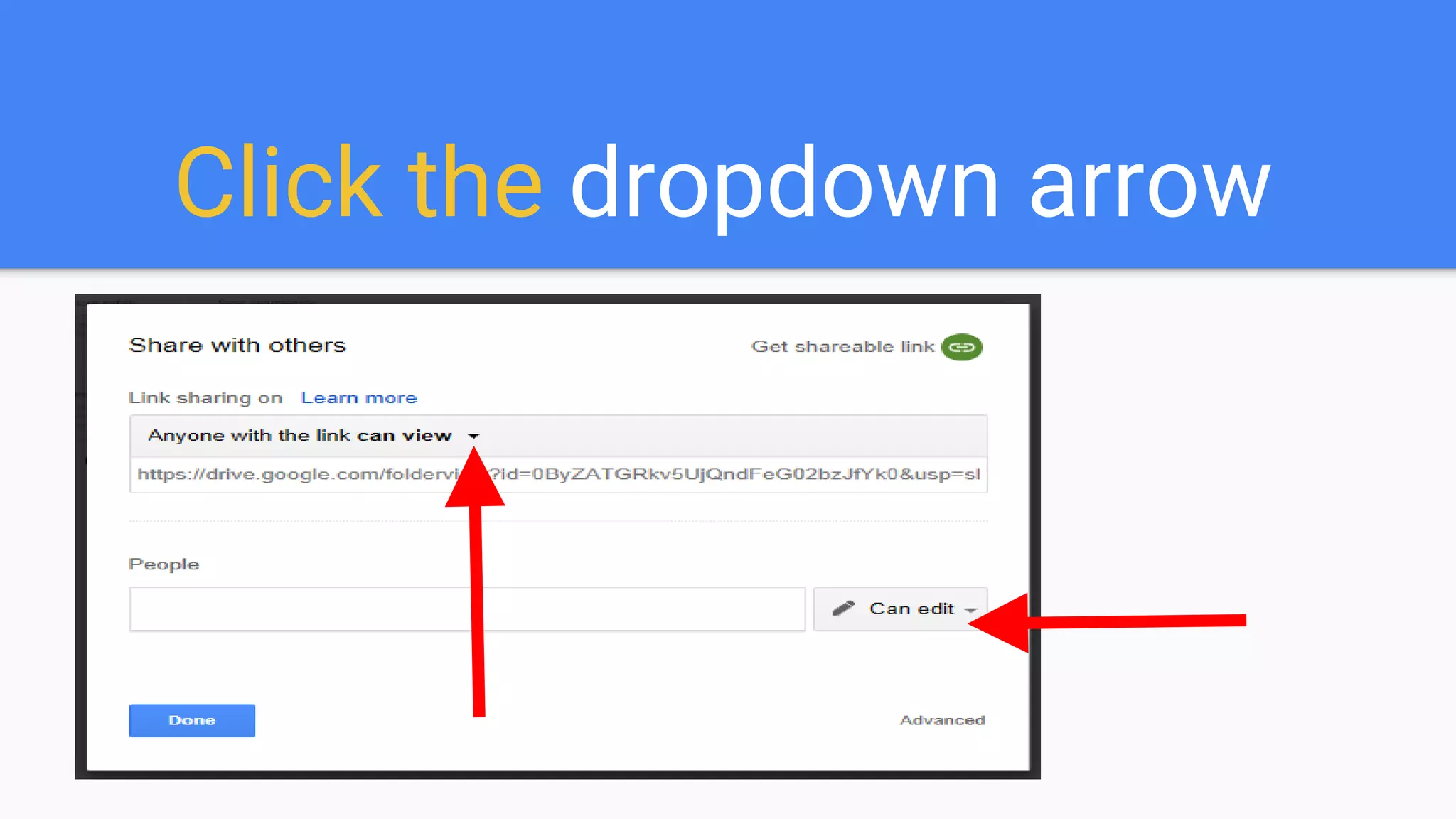
Click the dropdown arrow
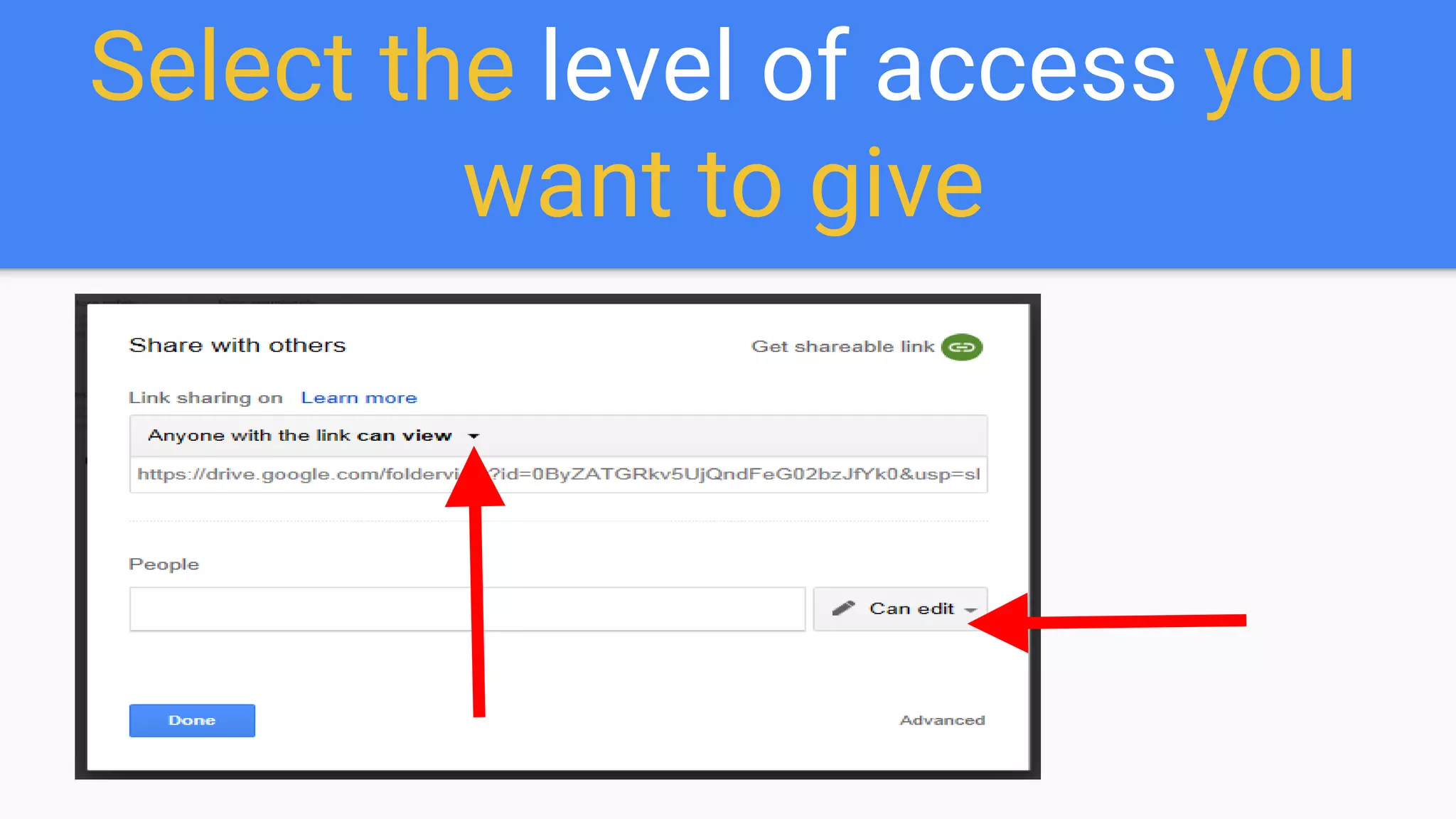
Select the level of access you
want to give
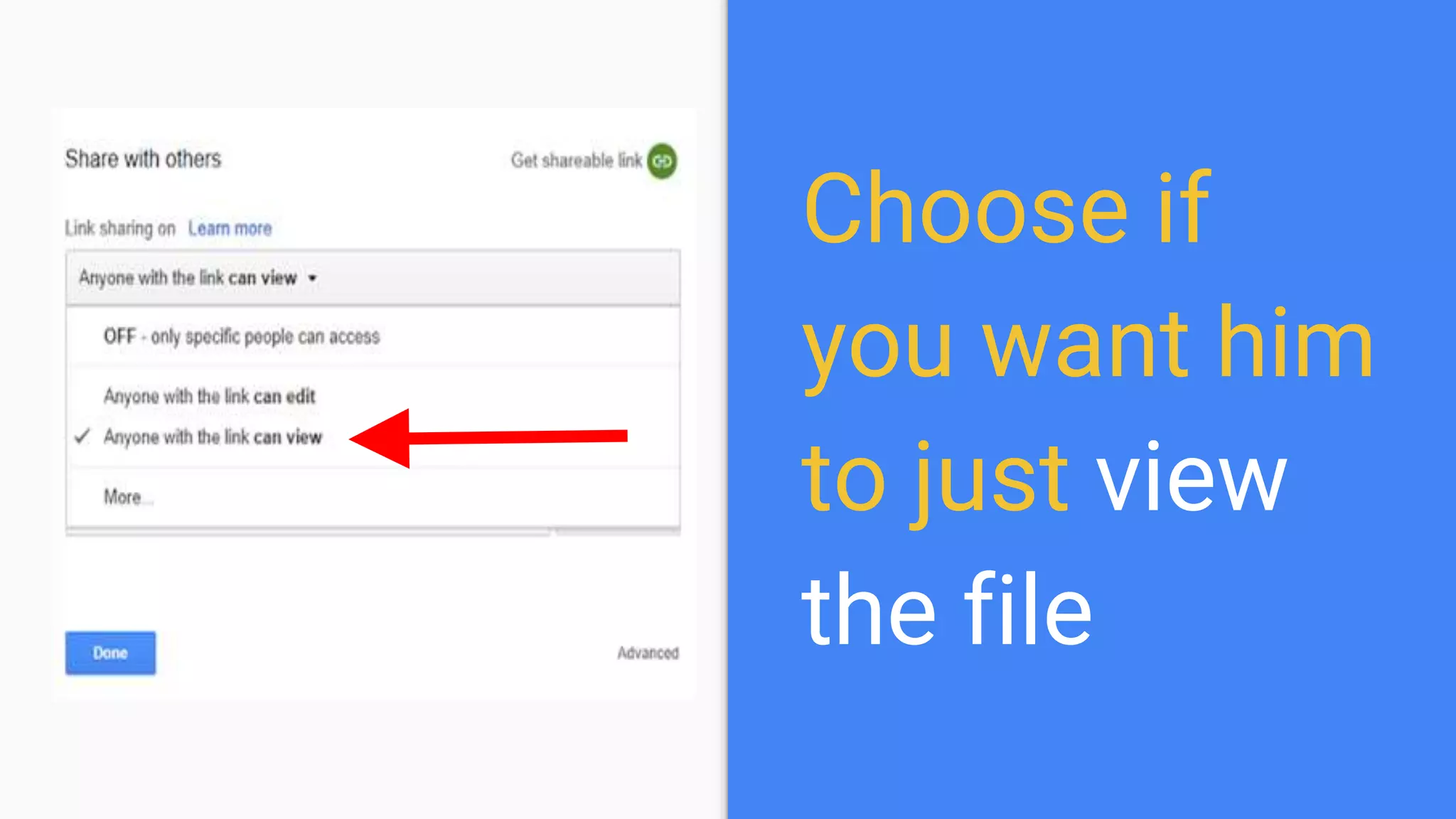
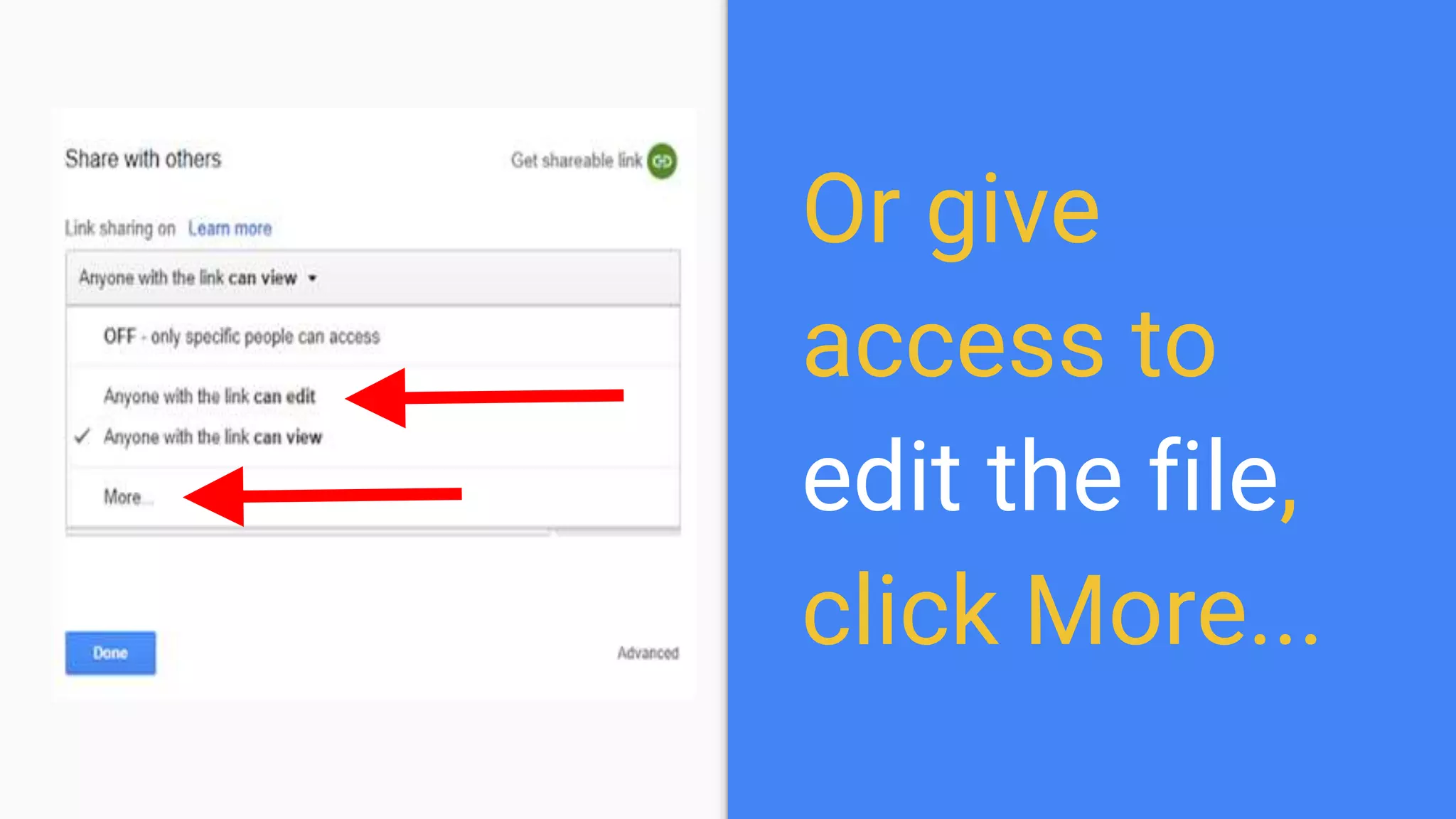
Choose if
you want him
to just view
the file
Or give
access to
edit the file,
click More...
Click Save
once you
have set it
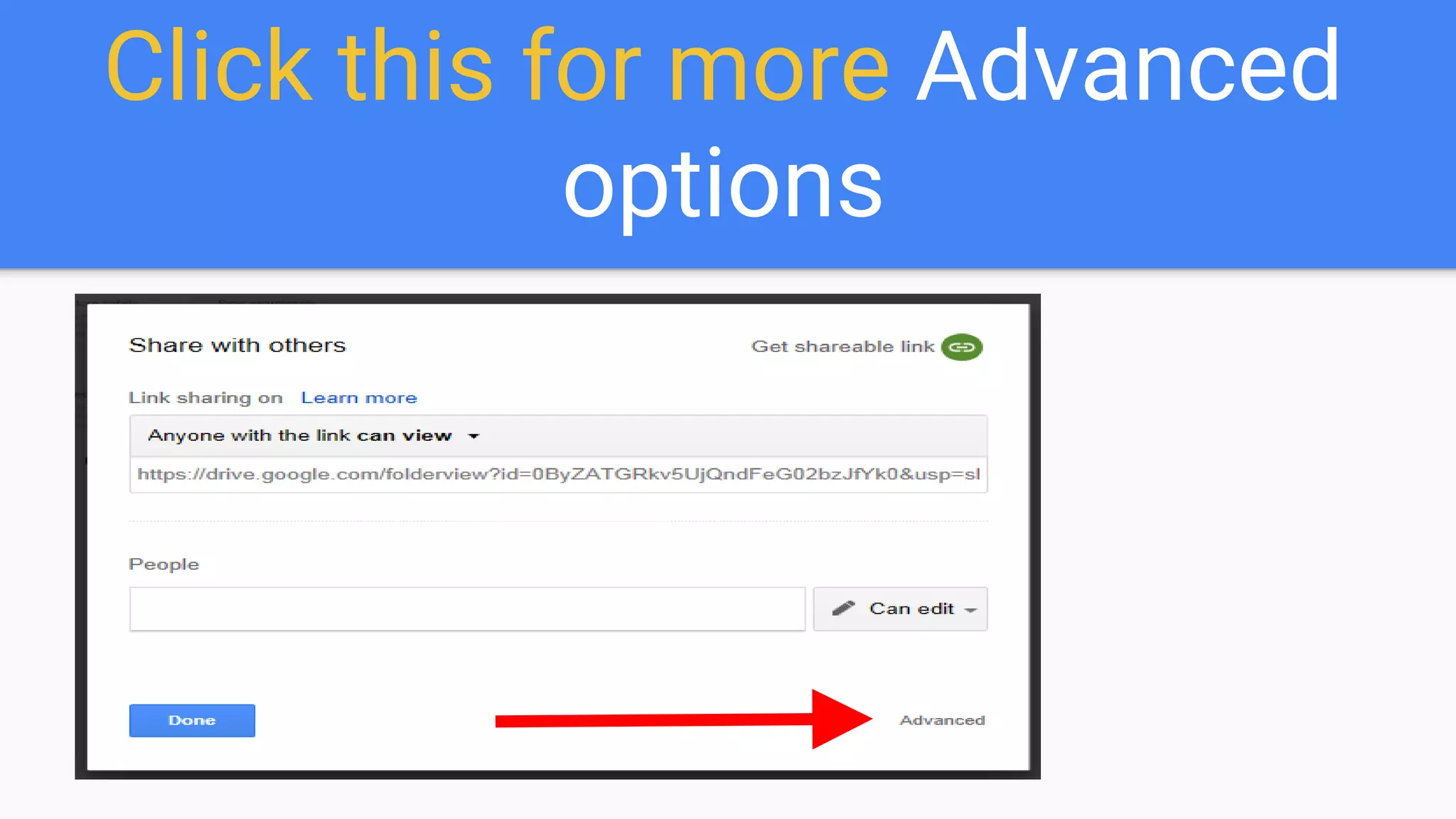
Click this for more Advanced
options
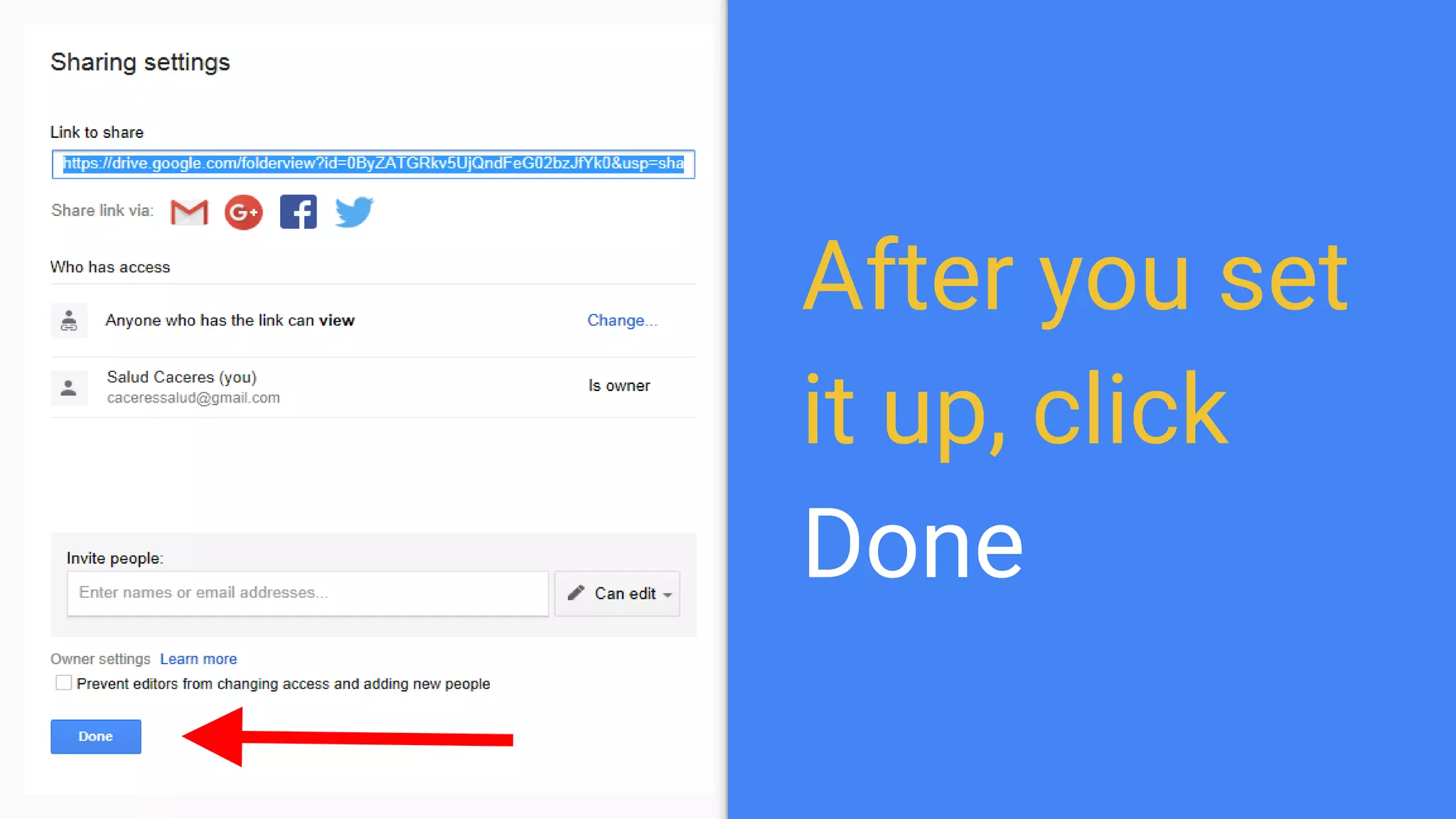
After you set
it up, click
Done
That’s it, enjoy using a 15GB
free online drive
“Three Rules of Work:
Out of clutter find simplicity;
From discord find harmony;
In the middle of difficulty lies
opportunity.” - Albert Einstein

How To Use Google Drive