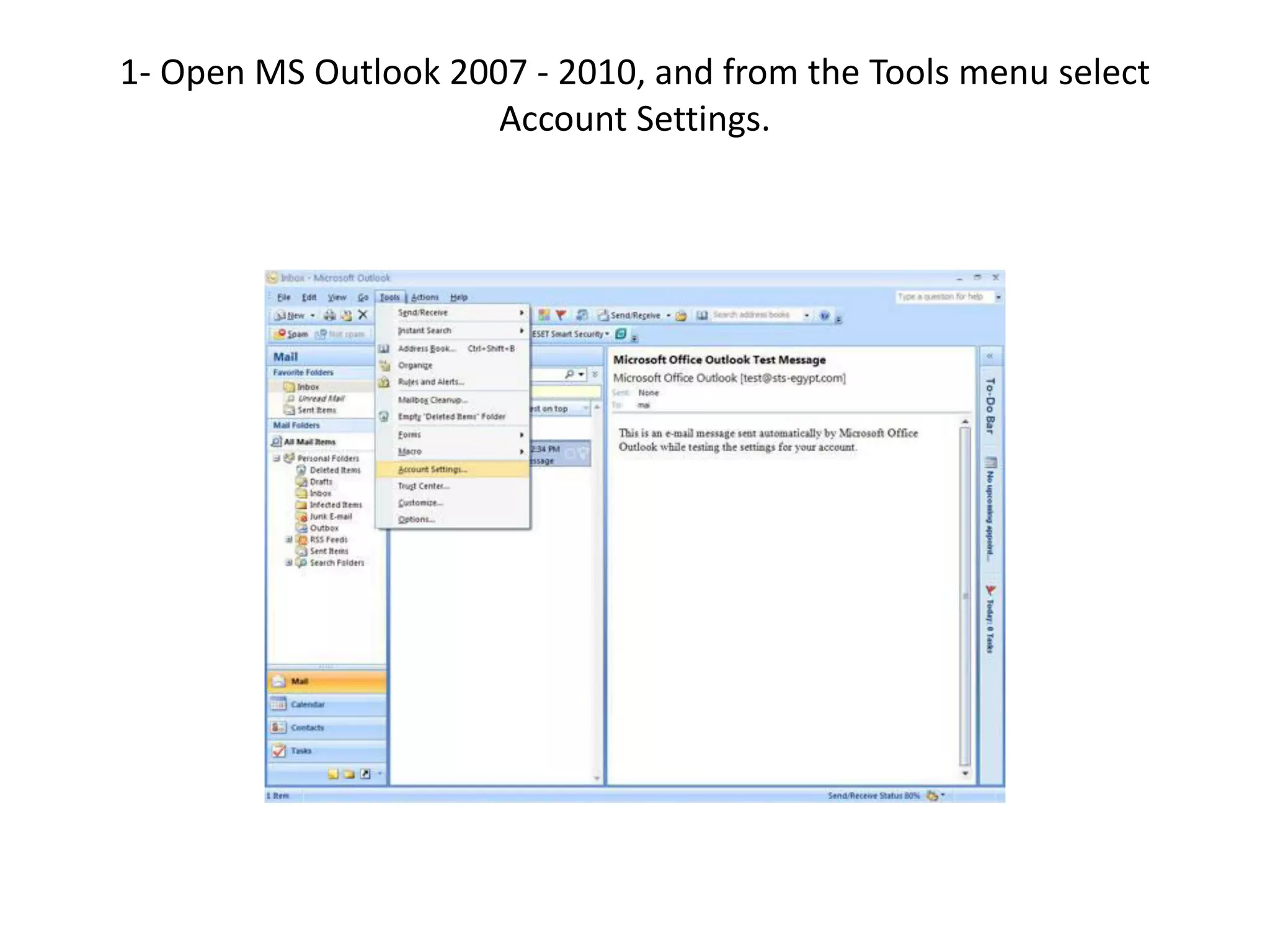
1- Open MS Outlook 2007 - 2010, and from the Tools menu select
Account Settings.
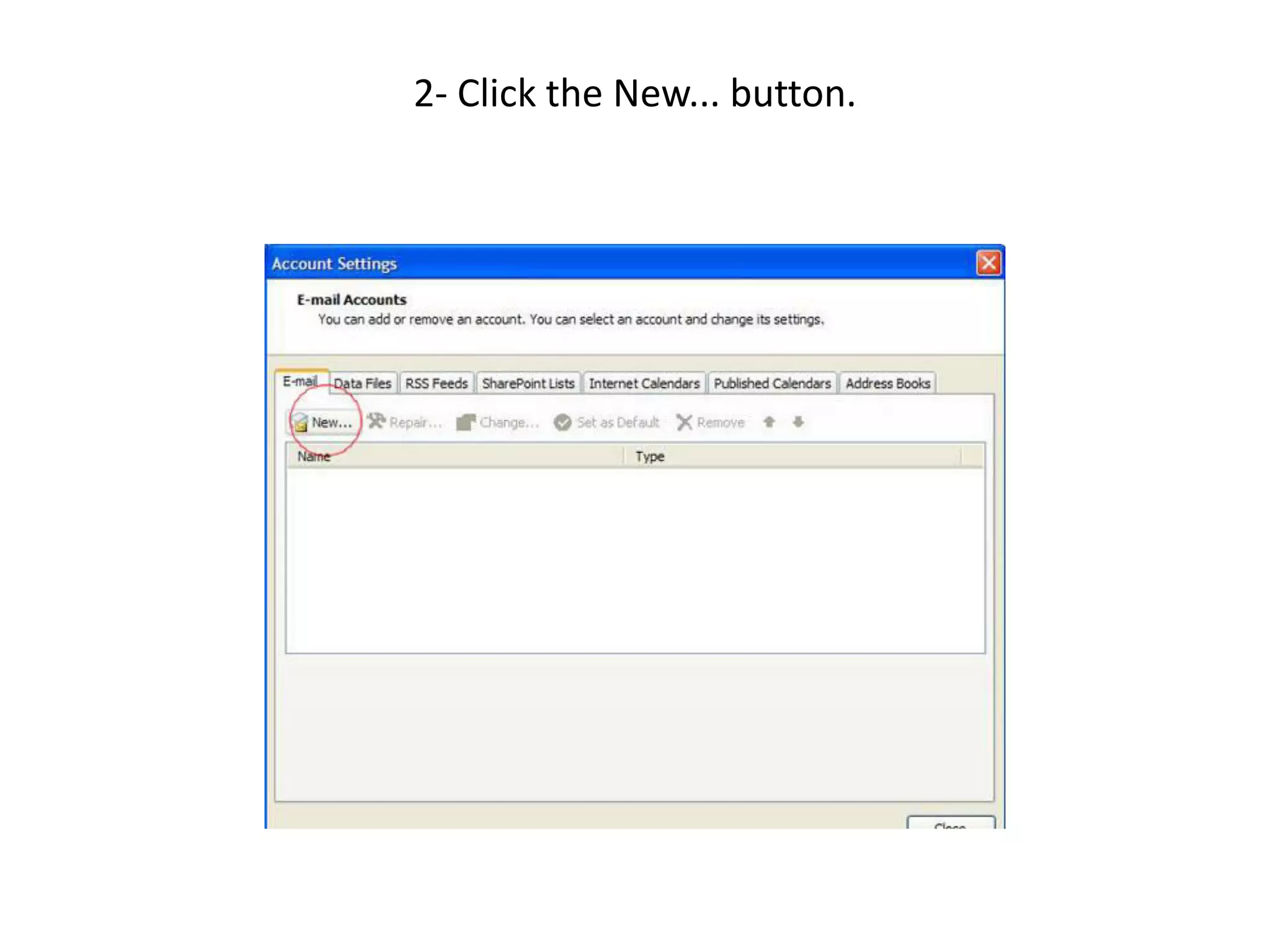
2- Click the New... button.
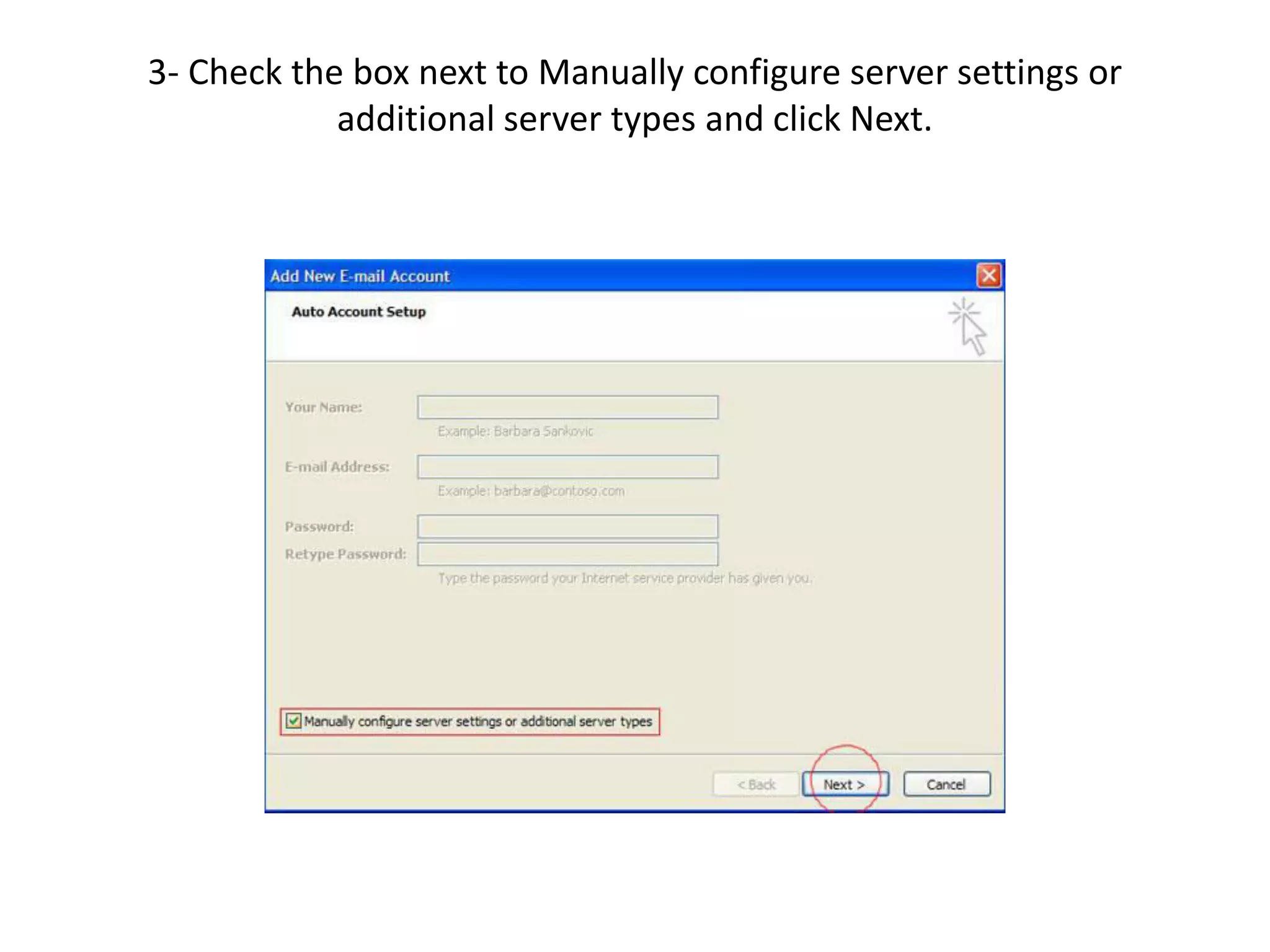
3- Check the box next to Manually configure server settings or
additional server types and click Next.
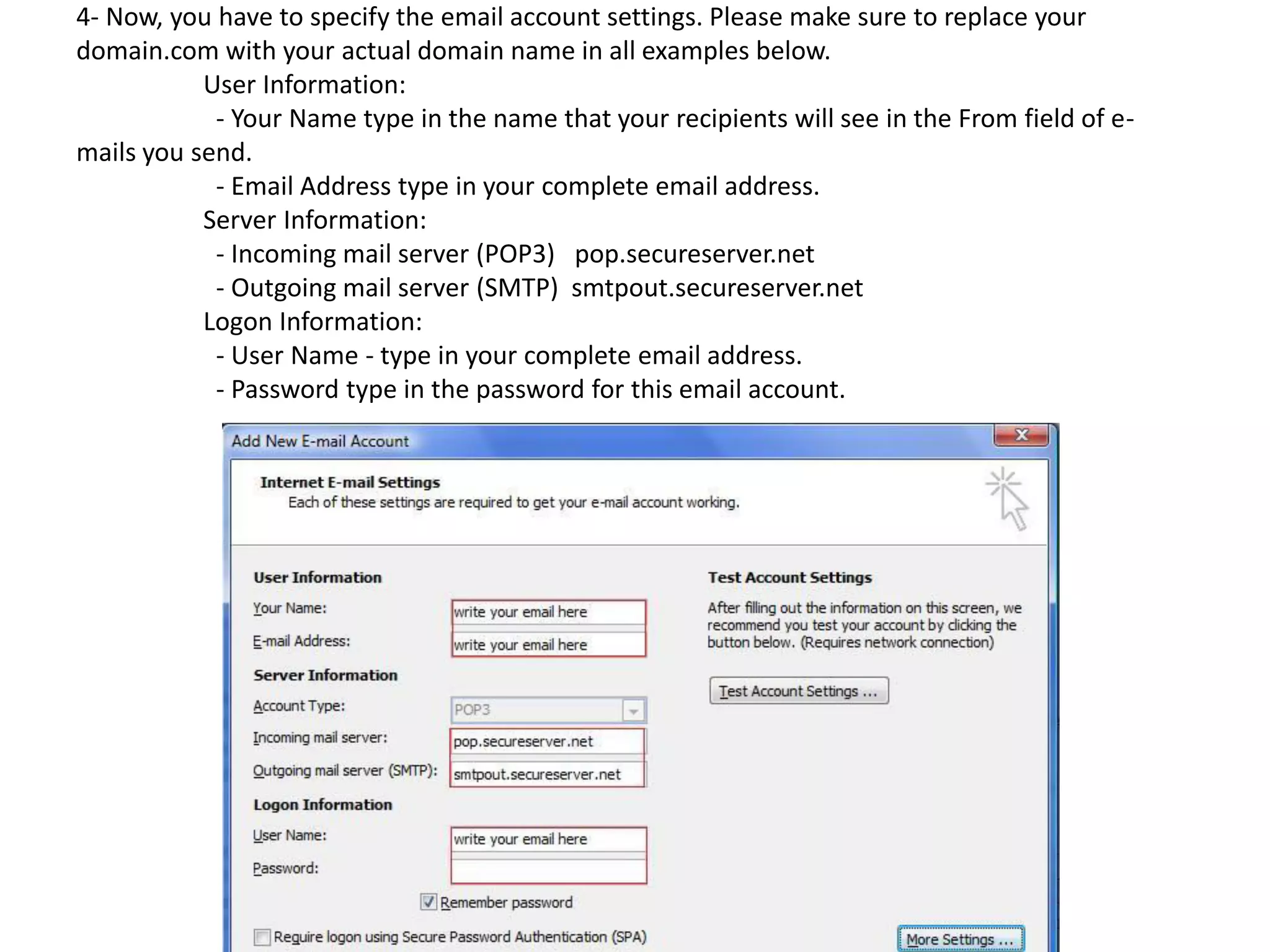
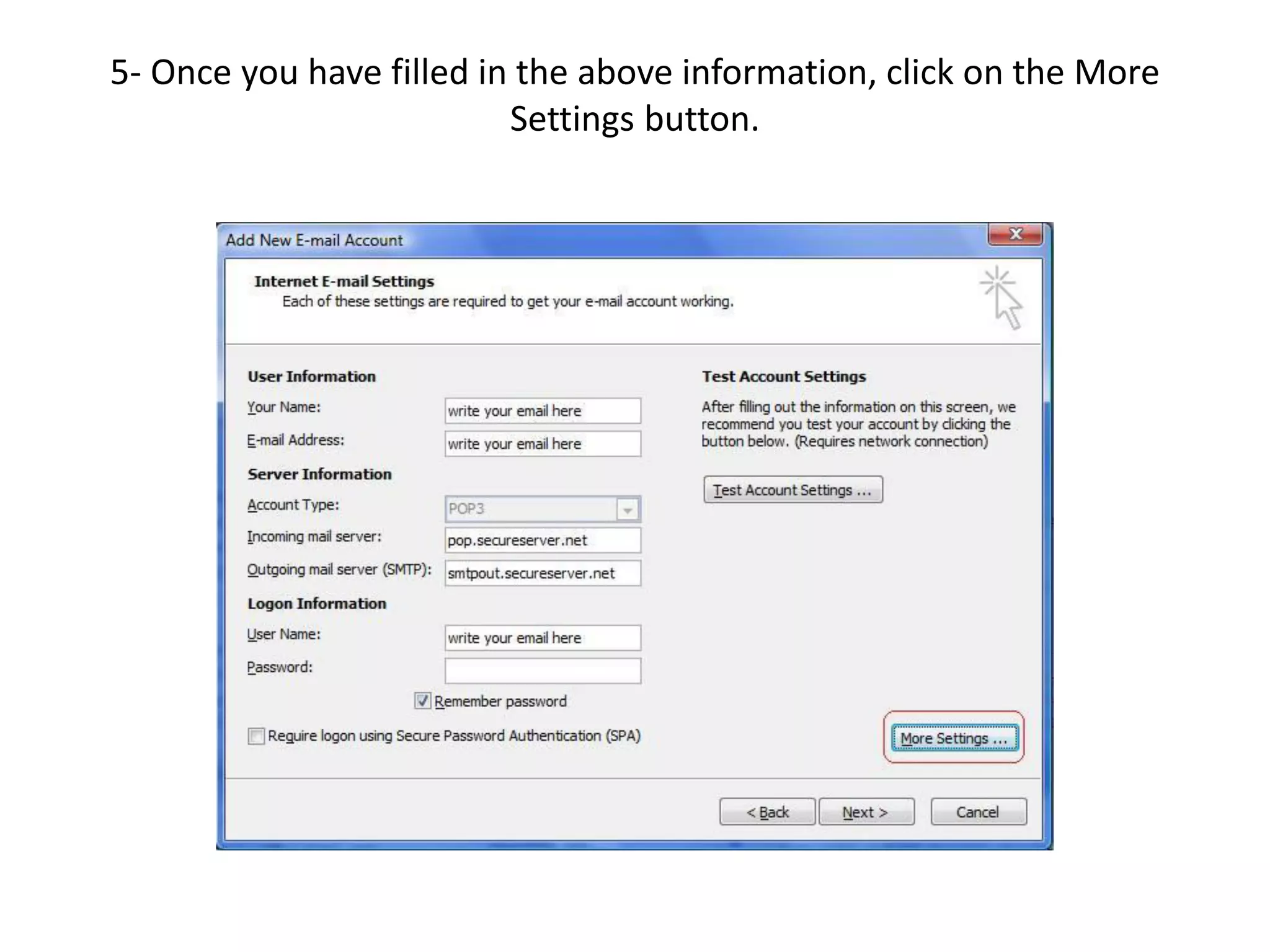
4- Now, you have to specify the email account settings. Please make sure to replace your
domain.com with your actual domain name in all examples below.
User Information:
- Your Name type in the name that your recipients will see in the From field of e-
mails you send.
- Email Address type in your complete email address.
Server Information:
- Incoming mail server (POP3) pop.secureserver.net
- Outgoing mail server (SMTP) smtpout.secureserver.net
Logon Information:
- User Name - type in your complete email address.
- Password type in the password for this email account.
5- Once you have filled in the above information, click on the More
Settings button.
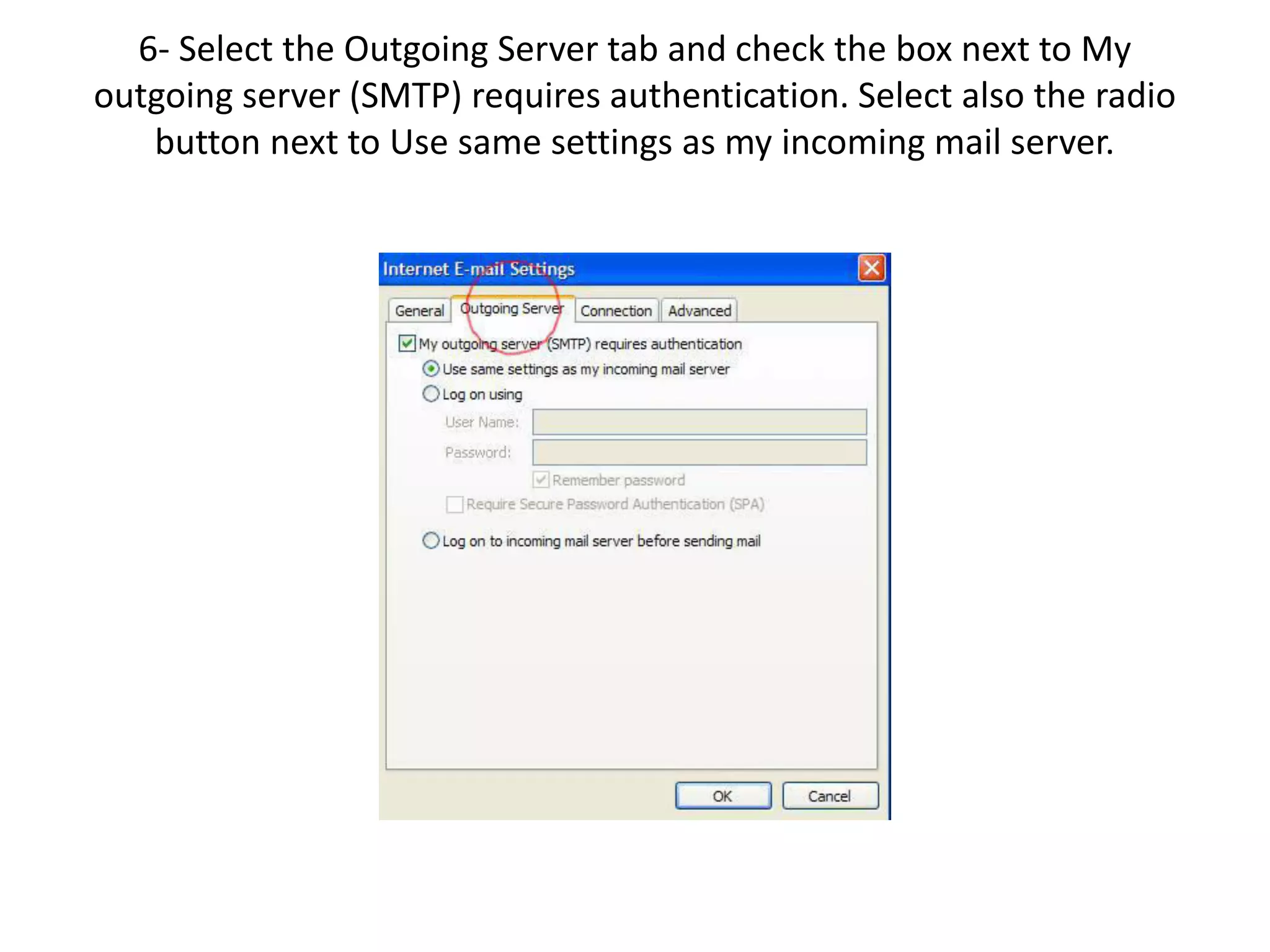
6- Select the Outgoing Server tab and check the box next to My
outgoing server (SMTP) requires authentication. Select also the radio
button next to Use same settings as my incoming mail server.
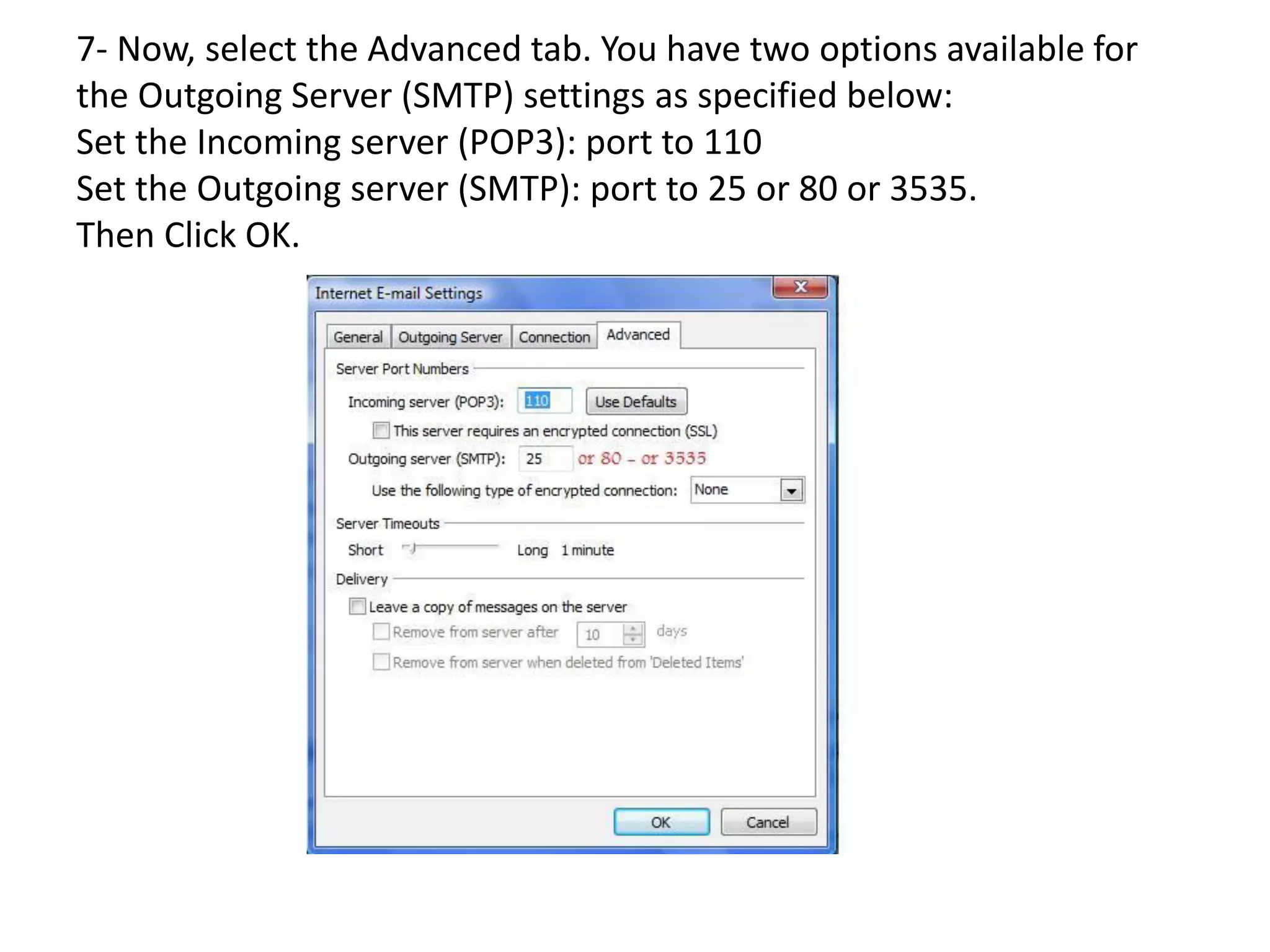
7- Now, select the Advanced tab. You have two options available for
the Outgoing Server (SMTP) settings as specified below:
Set the Incoming server (POP3): port to 110
Set the Outgoing server (SMTP): port to 25 or 80 or 3535.
Then Click OK.
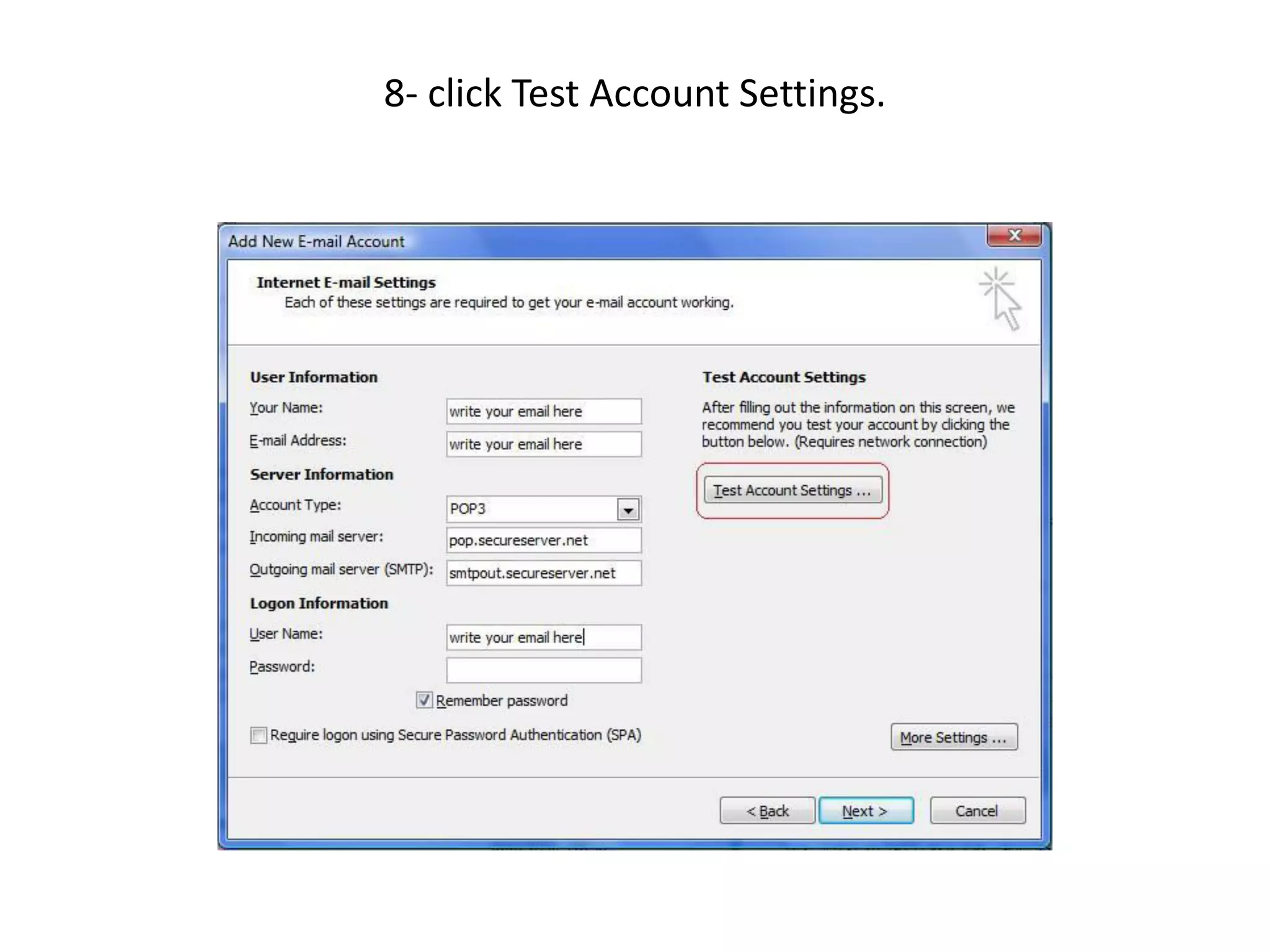
8- click Test Account Settings.
9- Finally, click Next and then - Finish.
NOTE:
If you still have a problem, Please send us print screen snapshots to every step you
follow to configure outlook just like illustrated and a print screen snapshots of the
error that appears to you.

How can I configure my email on Outlook 2007 express Non-SSL

  • 1.
    1- Open MSOutlook 2007 - 2010, and from the Tools menu select Account Settings.
  • 2.
    2- Click theNew... button.
  • 3.
    3- Check thebox next to Manually configure server settings or additional server types and click Next.
  • 4.
    4- Now, youhave to specify the email account settings. Please make sure to replace your domain.com with your actual domain name in all examples below. User Information: - Your Name type in the name that your recipients will see in the From field of e- mails you send. - Email Address type in your complete email address. Server Information: - Incoming mail server (POP3) pop.secureserver.net - Outgoing mail server (SMTP) smtpout.secureserver.net Logon Information: - User Name - type in your complete email address. - Password type in the password for this email account.
  • 5.
    5- Once youhave filled in the above information, click on the More Settings button.
  • 6.
    6- Select theOutgoing Server tab and check the box next to My outgoing server (SMTP) requires authentication. Select also the radio button next to Use same settings as my incoming mail server.
  • 7.
    7- Now, selectthe Advanced tab. You have two options available for the Outgoing Server (SMTP) settings as specified below: Set the Incoming server (POP3): port to 110 Set the Outgoing server (SMTP): port to 25 or 80 or 3535. Then Click OK.
  • 8.
    8- click TestAccount Settings.
  • 9.
    9- Finally, clickNext and then - Finish. NOTE: If you still have a problem, Please send us print screen snapshots to every step you follow to configure outlook just like illustrated and a print screen snapshots of the error that appears to you.