Create a new document
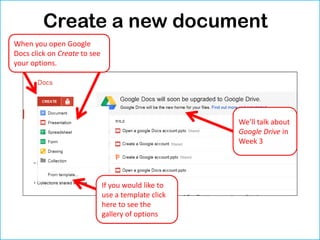
When you open Google
Docs click on Create to see
your options.


                                                     We’ll talk about
                                                     Google Drive in
                                                     Week 3


                              If you would like to
                              use a template click
                              here to see the
                              gallery of options
We’ll start with a word processor


             Click here on
             Document
Just click on
Untitled
Document to
rename your
document
This becomes like any other
word processer with font, font
size, colour, alignment etc.
Collaborators can write
      comments


   This could become a way of
   marking a student’s work.
   These comments can easily be
   removed.
How to share a document


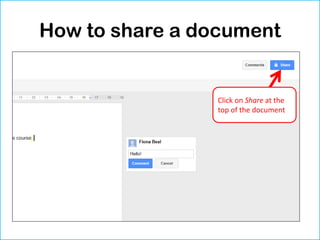
                 Click on Share at the
                 top of the document
Make your choices on the
  window that opens

                        Click on Change to
                        change the settings. At
                        the moment only I can
                        see this document.
                        Click on Change


               If this was just for you
               and your students you
               can add their email
               addresses.
Now you can make
further choices.
Download as a MS Word
     Document!


                If you click on
                File/Download you
                can even add it to
                your Word
                documents!
You can see your revision
        history!
      If you click on
      File/Revision
      History you can see
      all your changes to
      the document. This
      could be useful
      when marking
      students work.
Please explore the menu as
there are so many great option


         Please look through these


           You don’t have to save in
           Google Docs – it does it
           automatically!
You can also import MS Word
        Documents

              If you click on the
              little icon here you
              will see Files. It will
              give you the option
              to upload a File or
              even a folder of
              files
Working with spreadsheets

             I am not going to
             deal with
             Spreadsheets
             because what I
             have said regarding
             Documents can be
             applied here as
             well.
How to create a new Google document

How to create a new Google document

  • 3.
    Create a newdocument When you open Google Docs click on Create to see your options. We’ll talk about Google Drive in Week 3 If you would like to use a template click here to see the gallery of options
  • 4.
    We’ll start witha word processor Click here on Document
  • 5.
    Just click on Untitled Documentto rename your document
  • 6.
    This becomes likeany other word processer with font, font size, colour, alignment etc.
  • 7.
    Collaborators can write comments This could become a way of marking a student’s work. These comments can easily be removed.
  • 8.
    How to sharea document Click on Share at the top of the document
  • 9.
    Make your choiceson the window that opens Click on Change to change the settings. At the moment only I can see this document. Click on Change If this was just for you and your students you can add their email addresses.
  • 10.
    Now you canmake further choices.
  • 11.
    Download as aMS Word Document! If you click on File/Download you can even add it to your Word documents!
  • 12.
    You can seeyour revision history! If you click on File/Revision History you can see all your changes to the document. This could be useful when marking students work.
  • 13.
    Please explore themenu as there are so many great option Please look through these You don’t have to save in Google Docs – it does it automatically!
  • 14.
    You can alsoimport MS Word Documents If you click on the little icon here you will see Files. It will give you the option to upload a File or even a folder of files
  • 16.
    Working with spreadsheets I am not going to deal with Spreadsheets because what I have said regarding Documents can be applied here as well.