Do you always carry your
files everywhere?
Do need to share large
video file online?
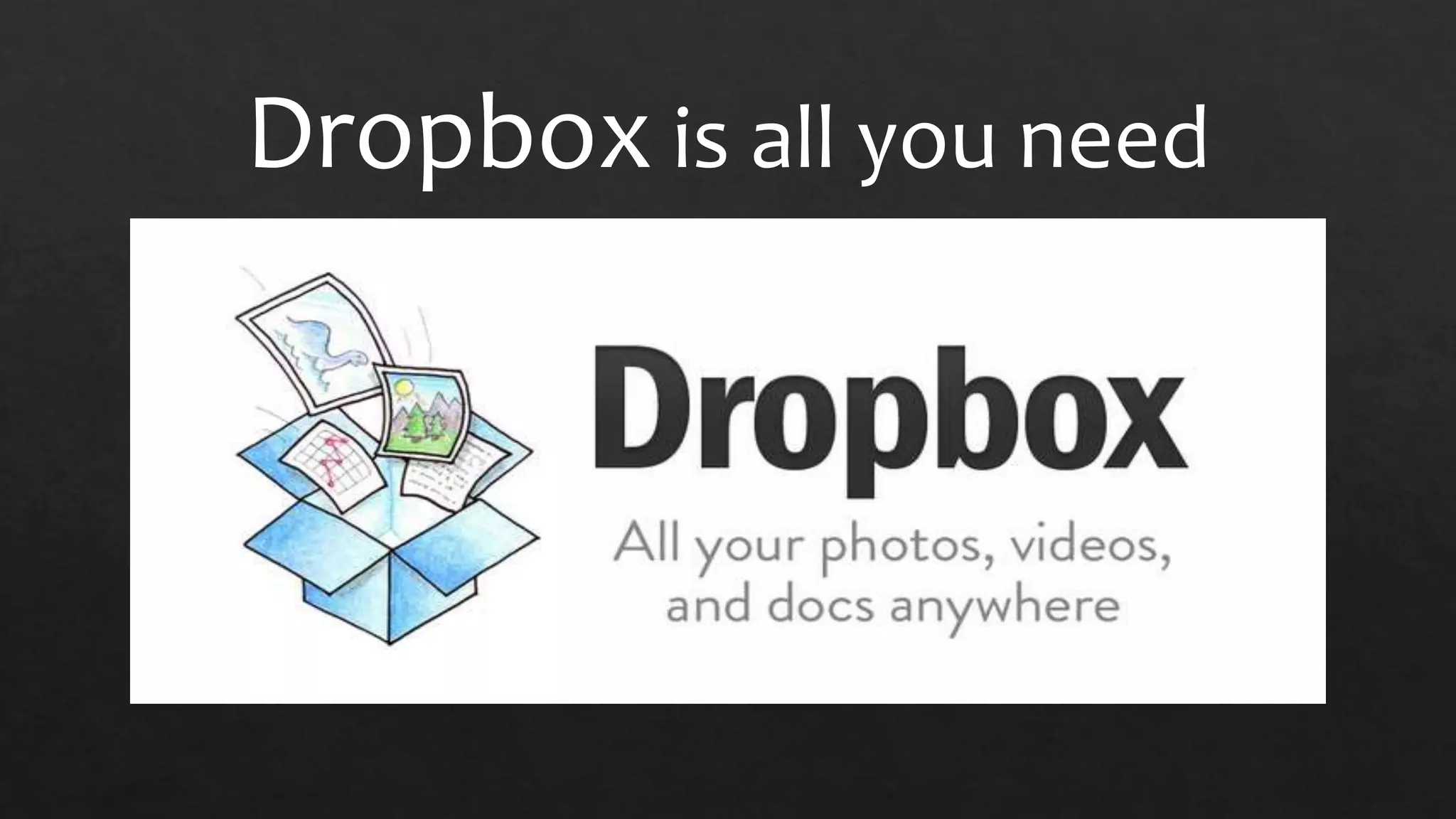
Dropbox is all you need
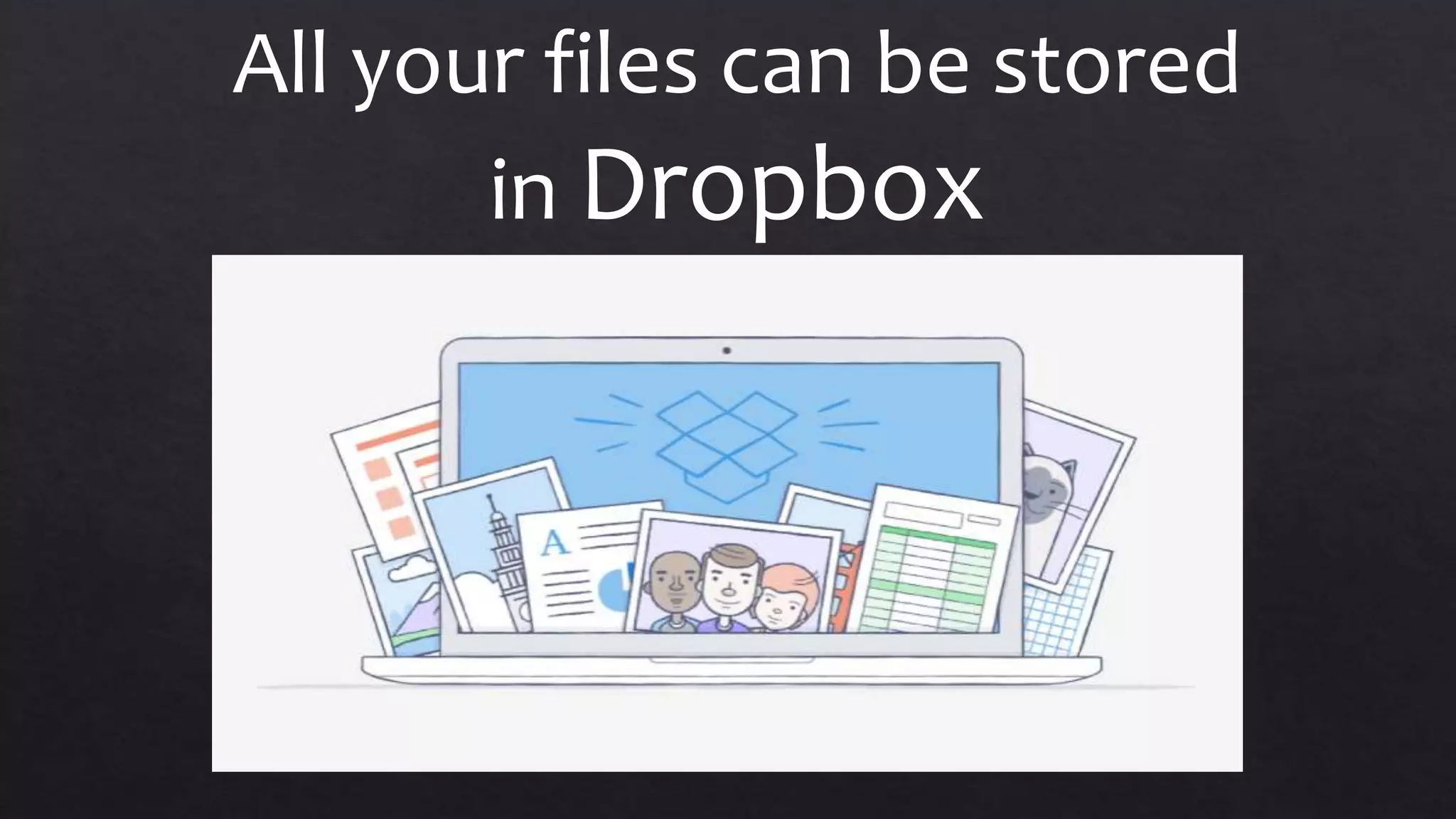
All your files can be stored
in Dropbox
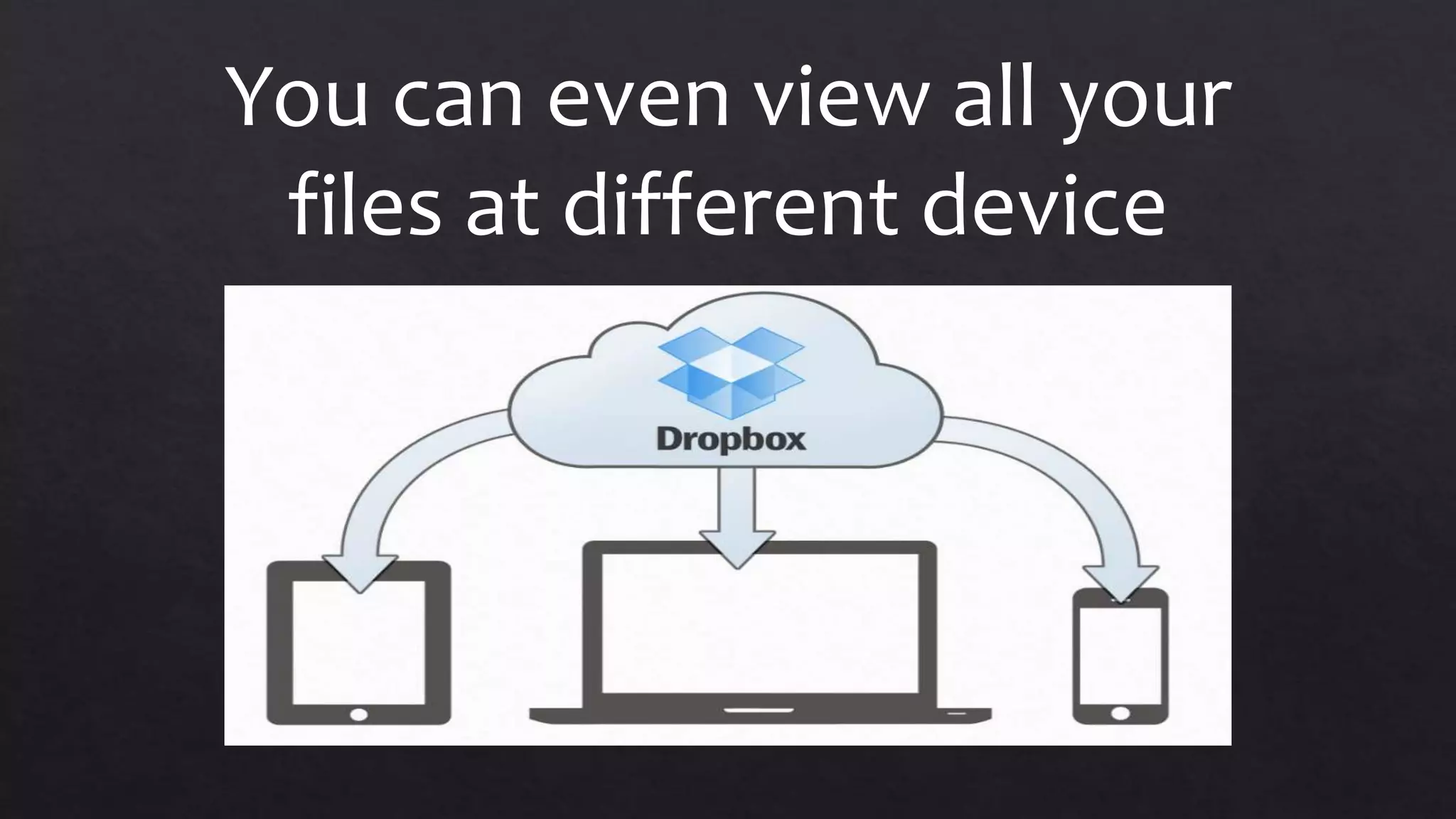
You can even view all your
files at different device
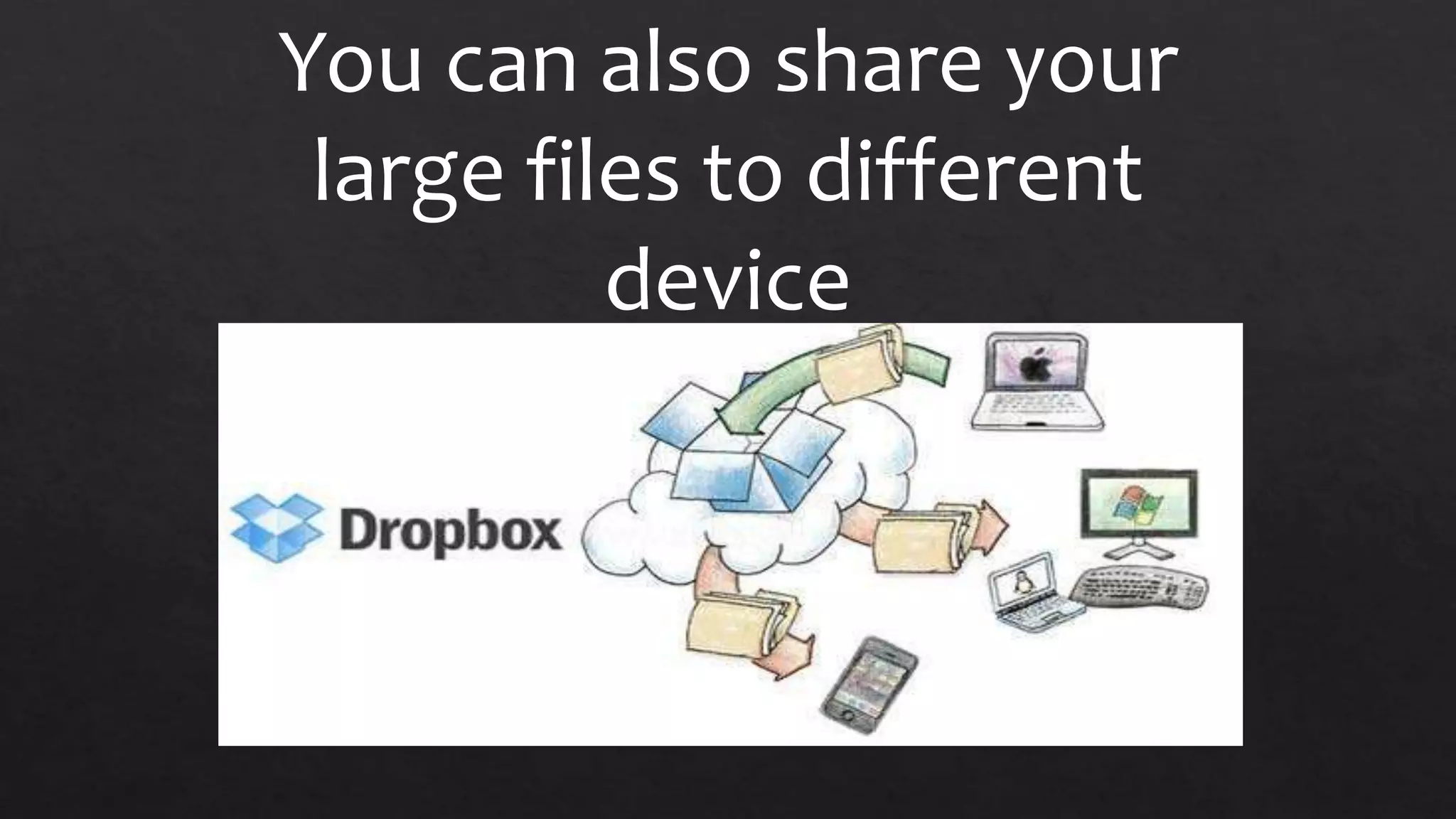
You can also share your
large files to different
device
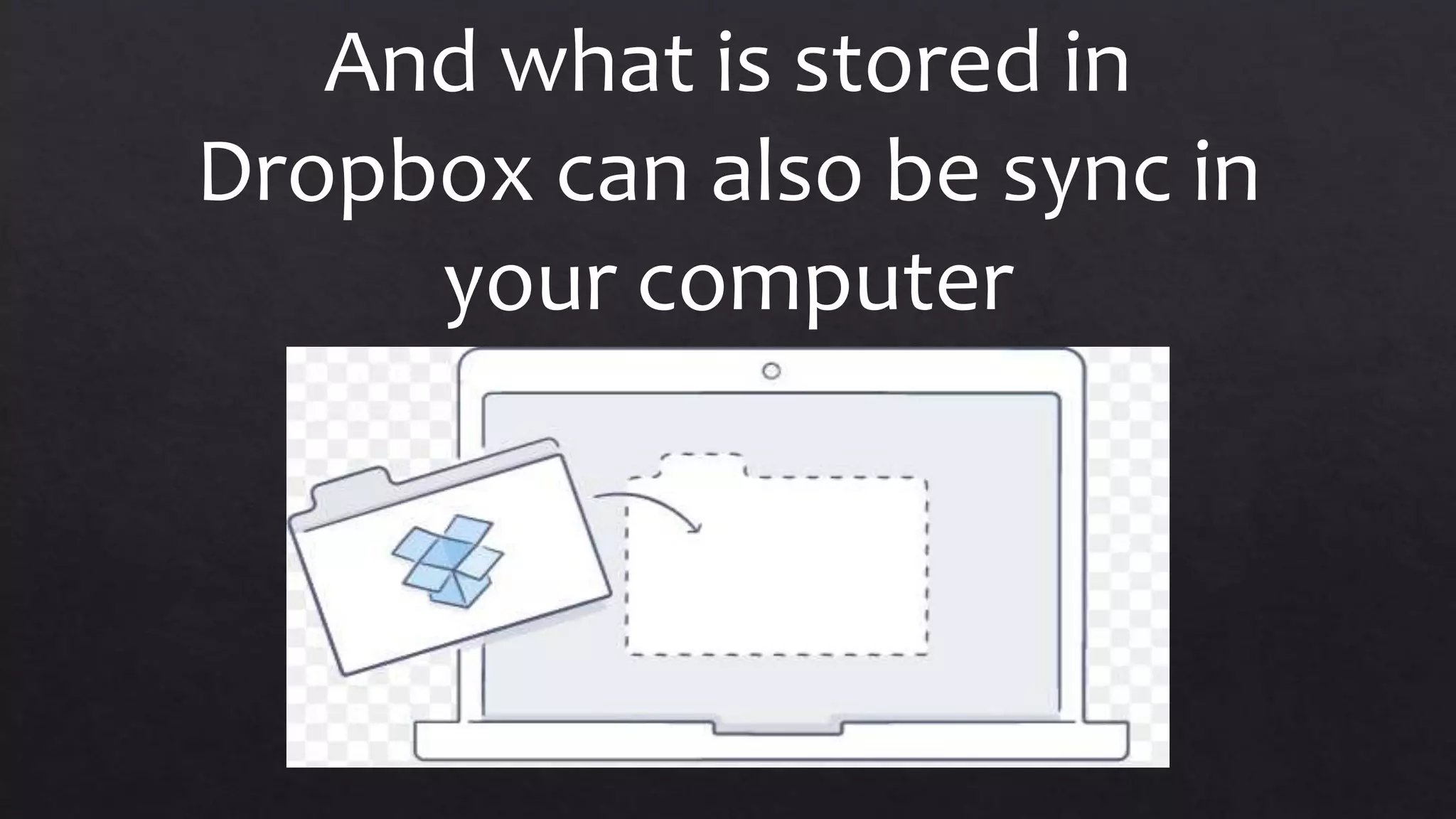
And what is stored in
Dropbox can also be sync in
your computer
Let us now open Dropbox
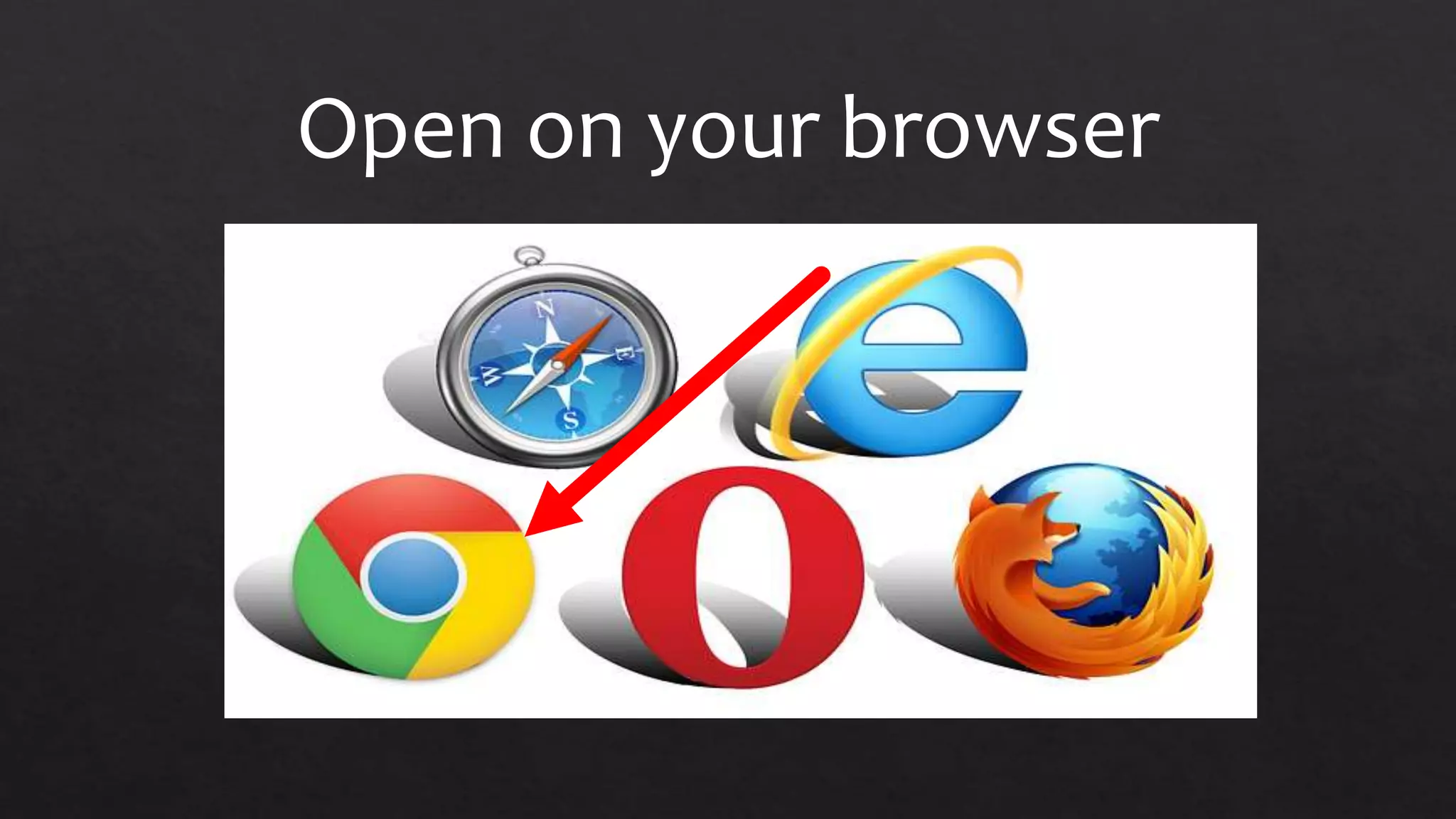
Open on your browser
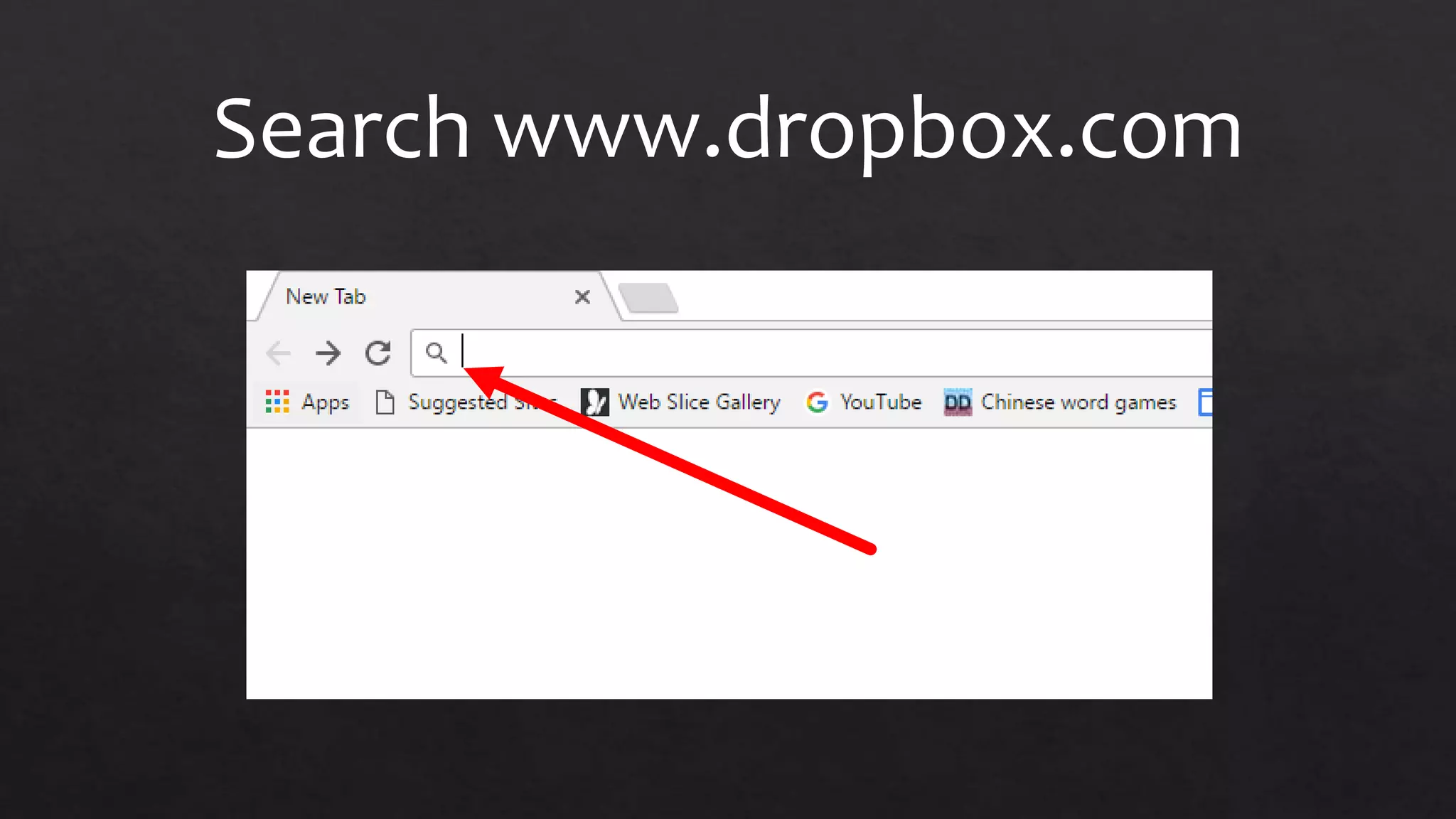
Search www.dropbox.com
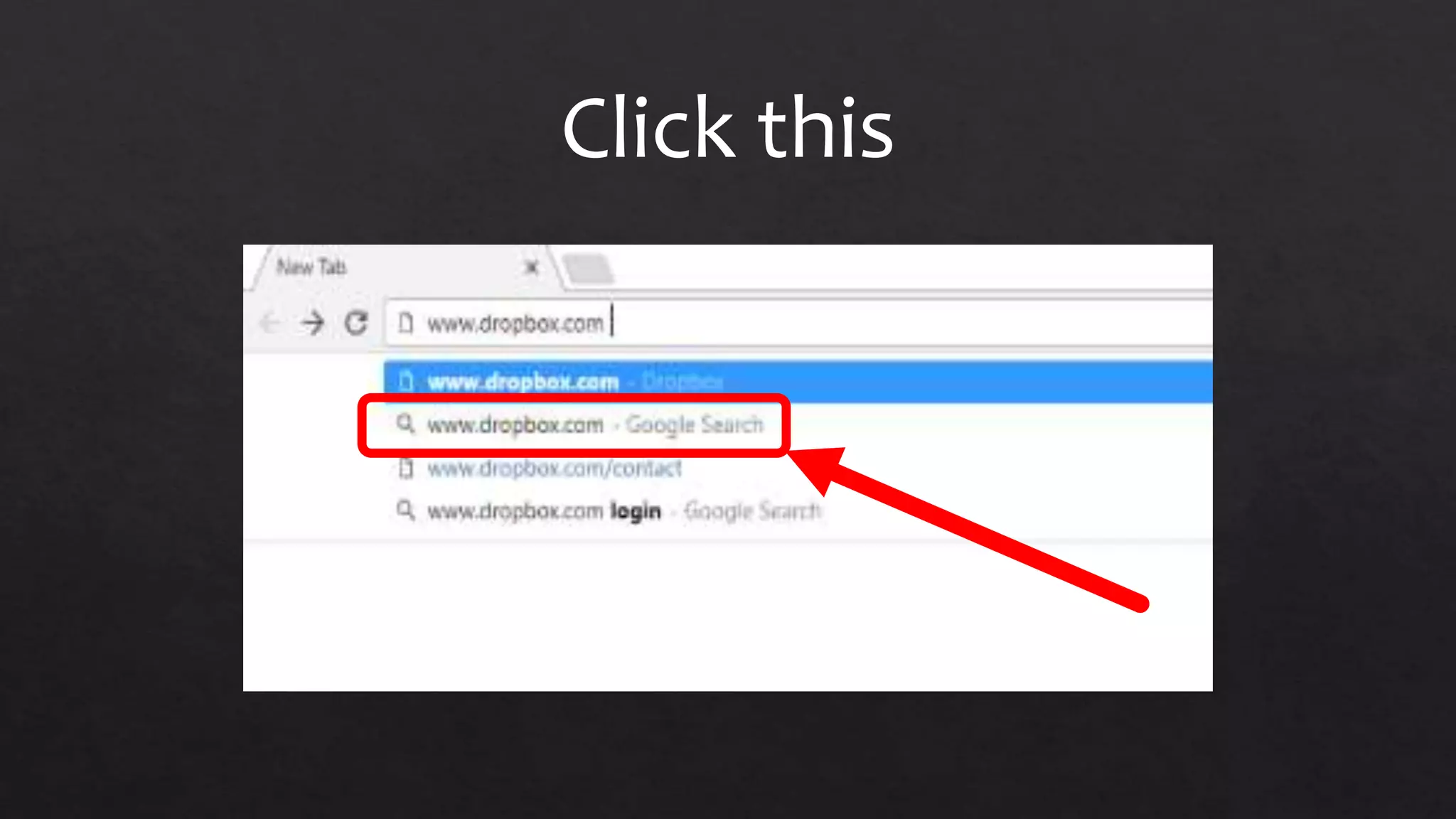
Click this
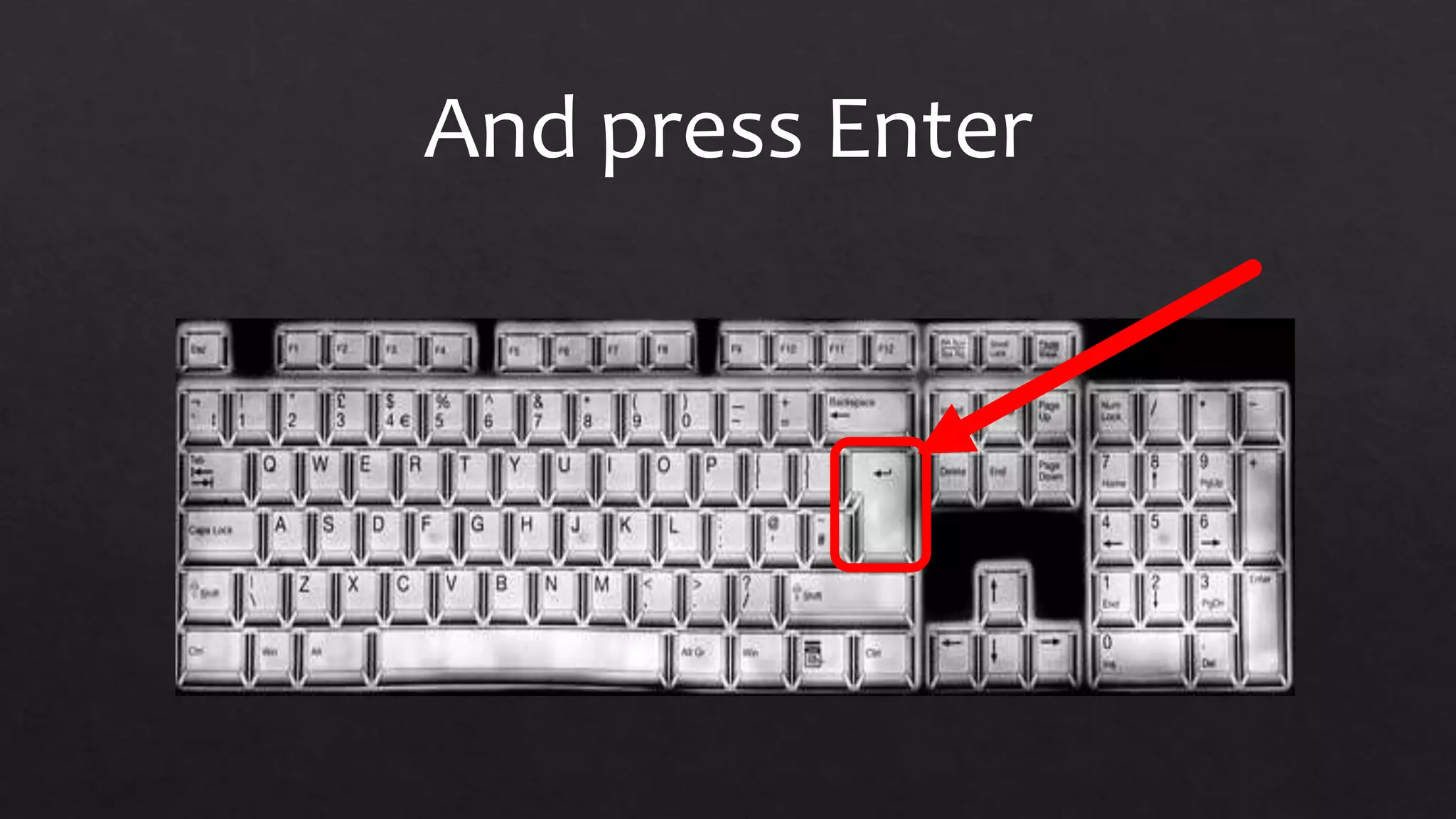
And press Enter
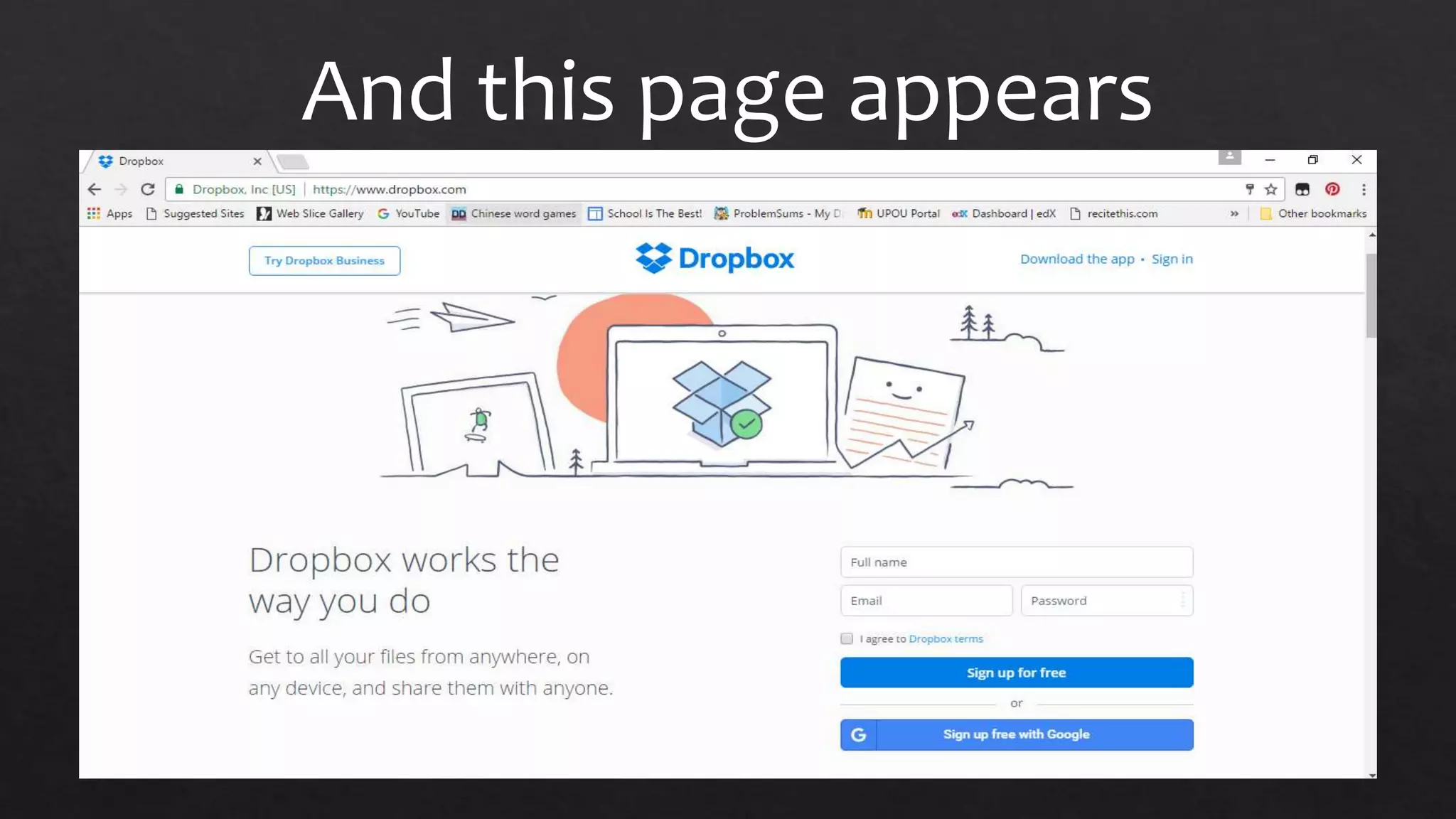
And this page appears
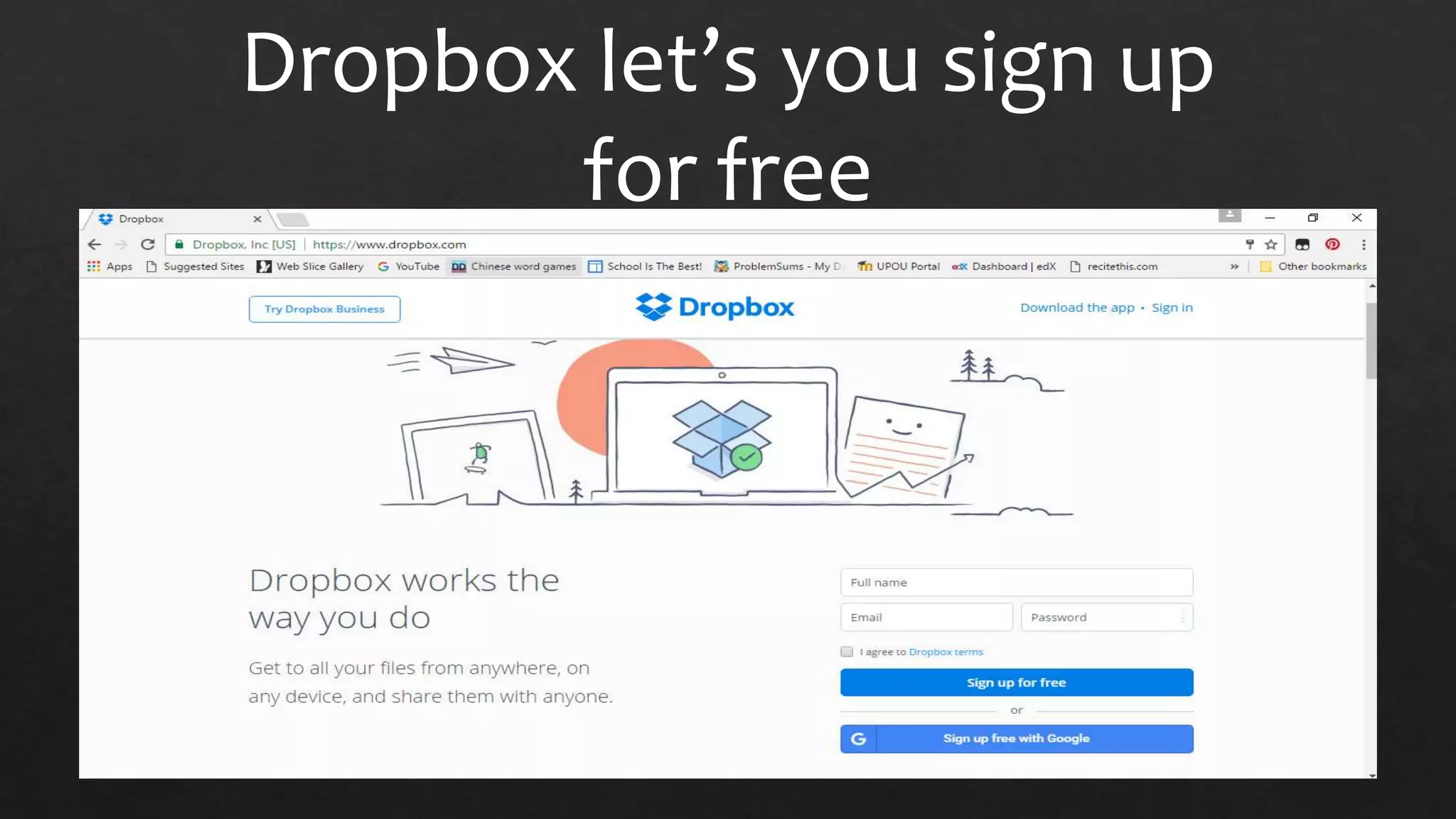
Dropbox let’s you sign up
for free
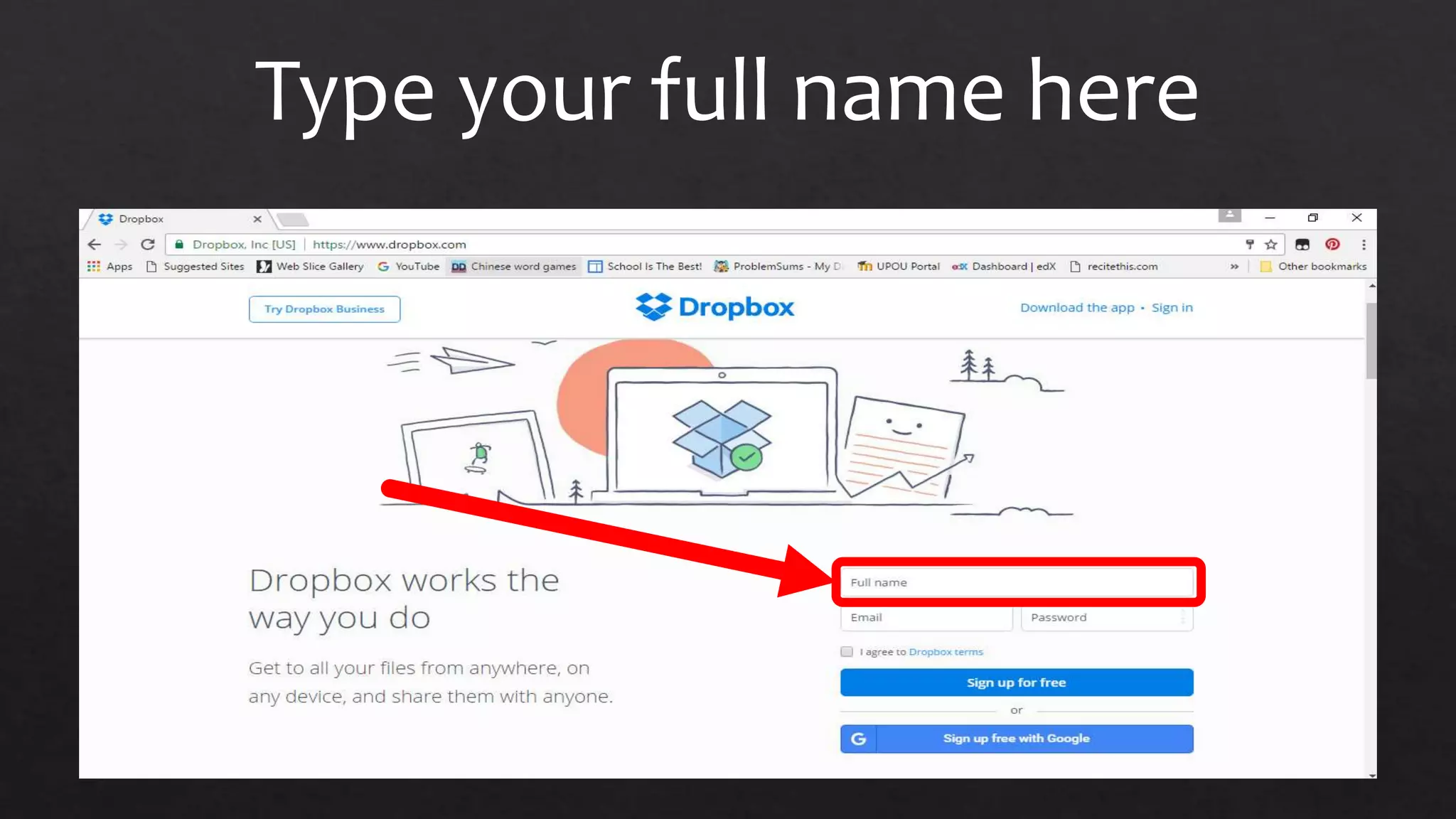
Type your full name here
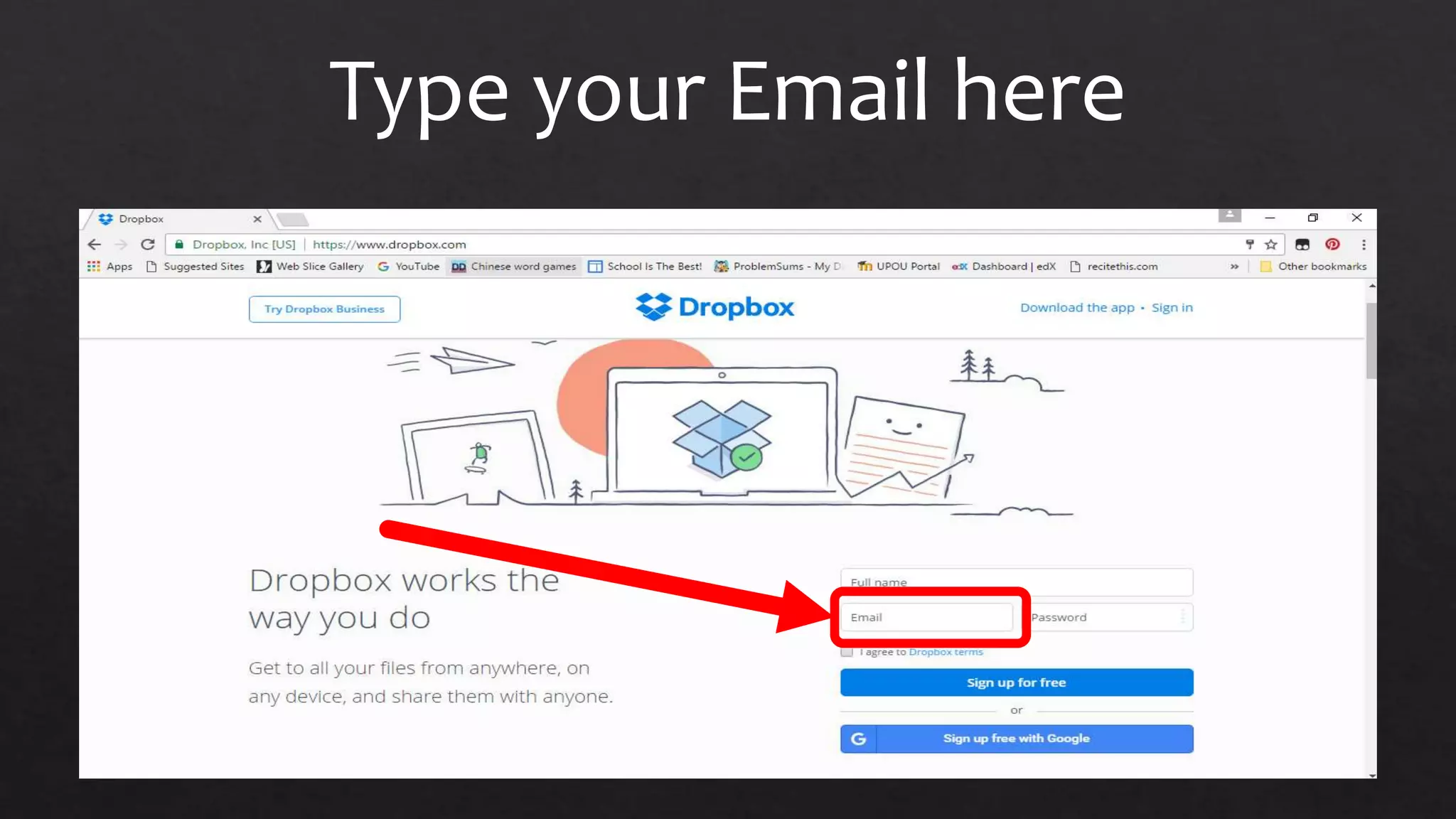
Type your Email here
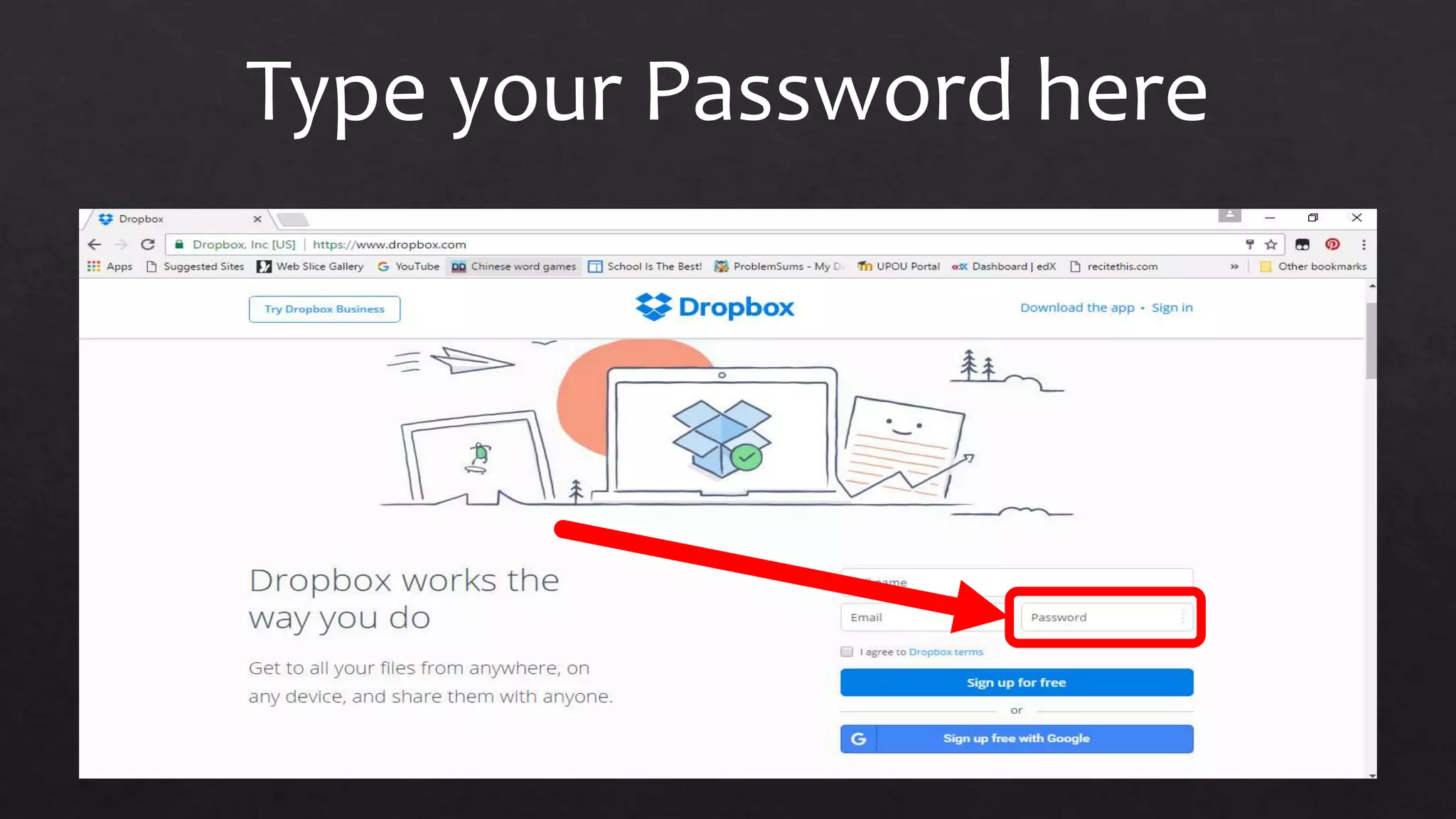
Type your Password here
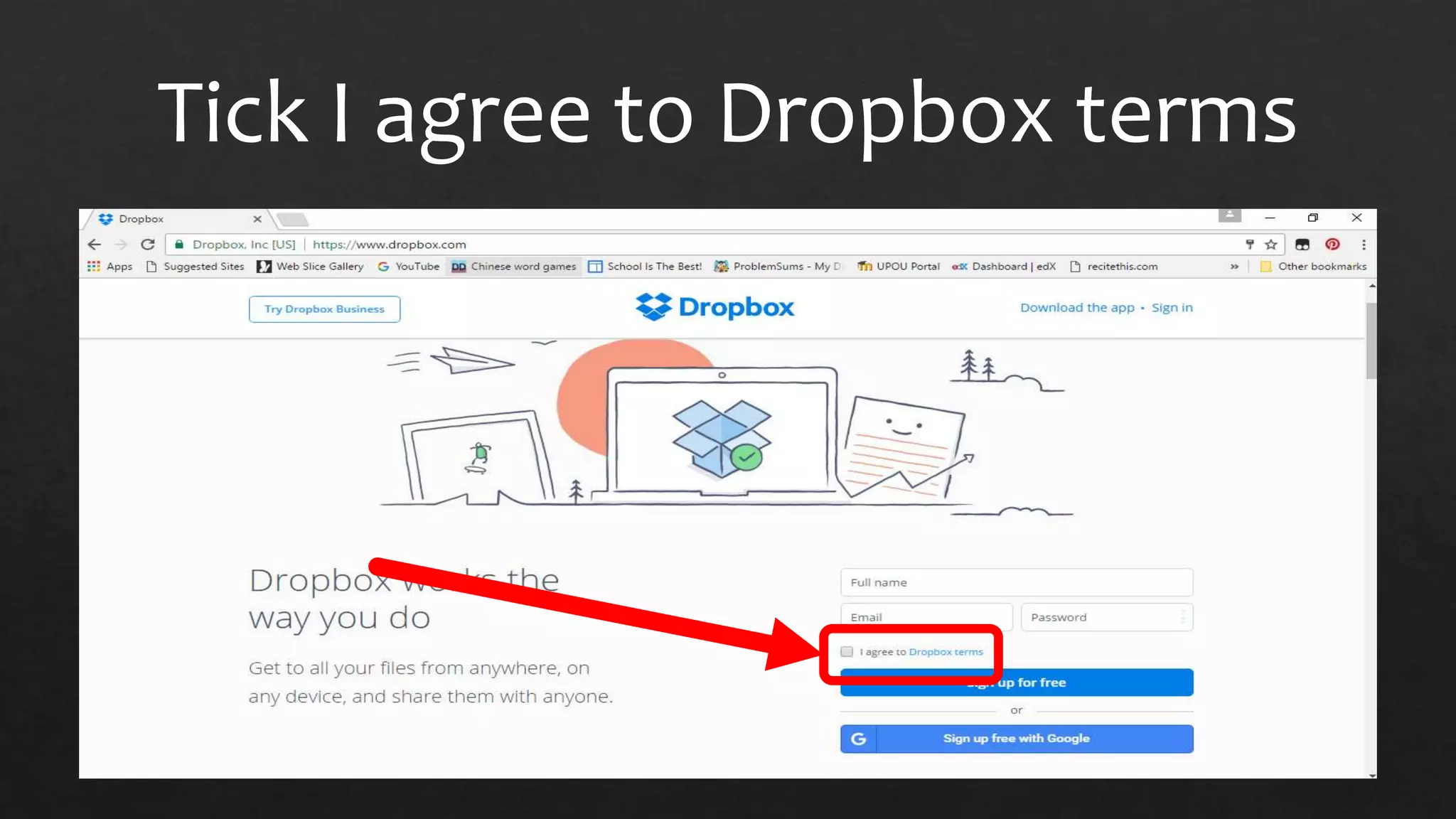
Tick I agree to Dropbox terms
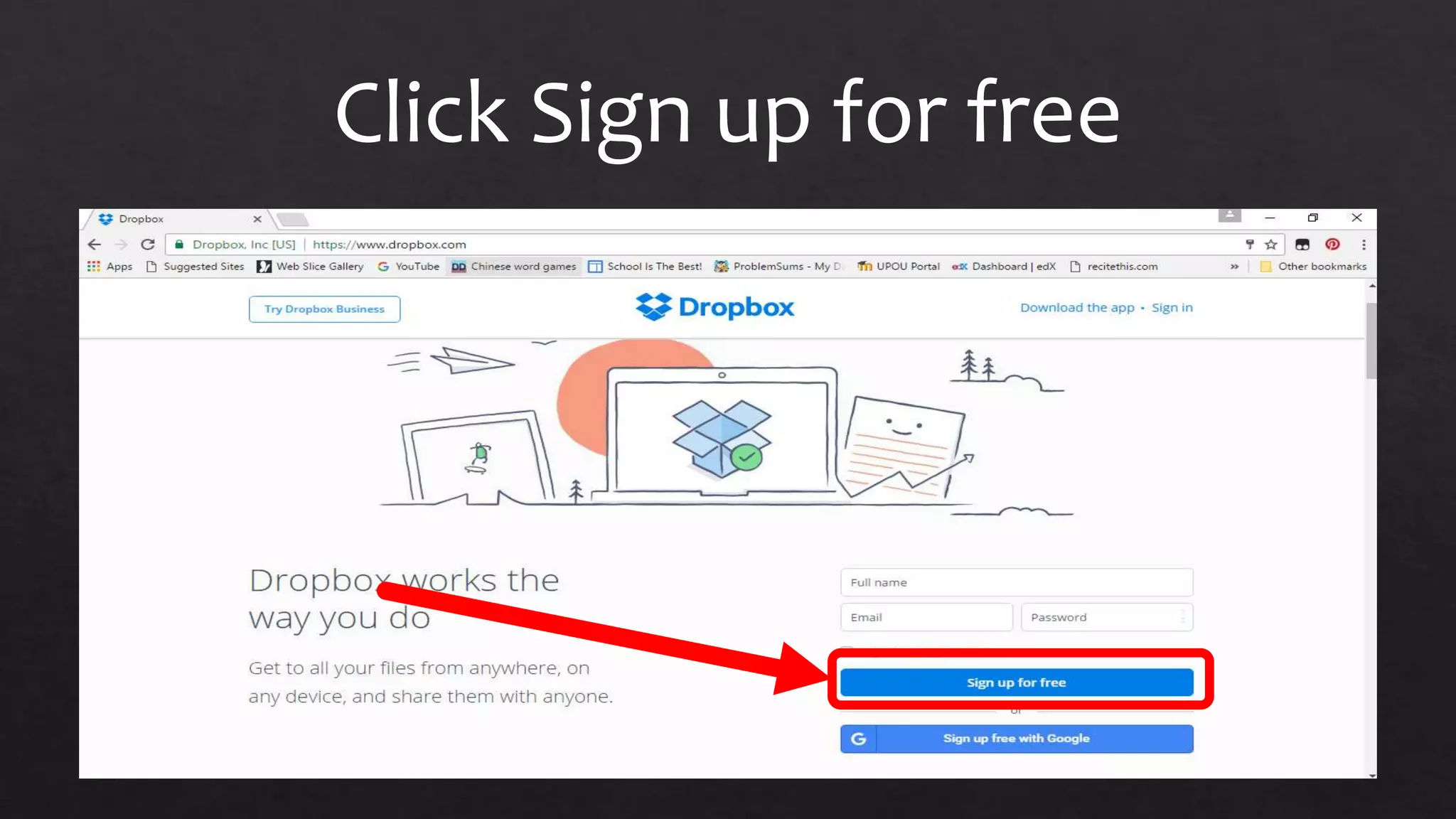
Click Sign up for free
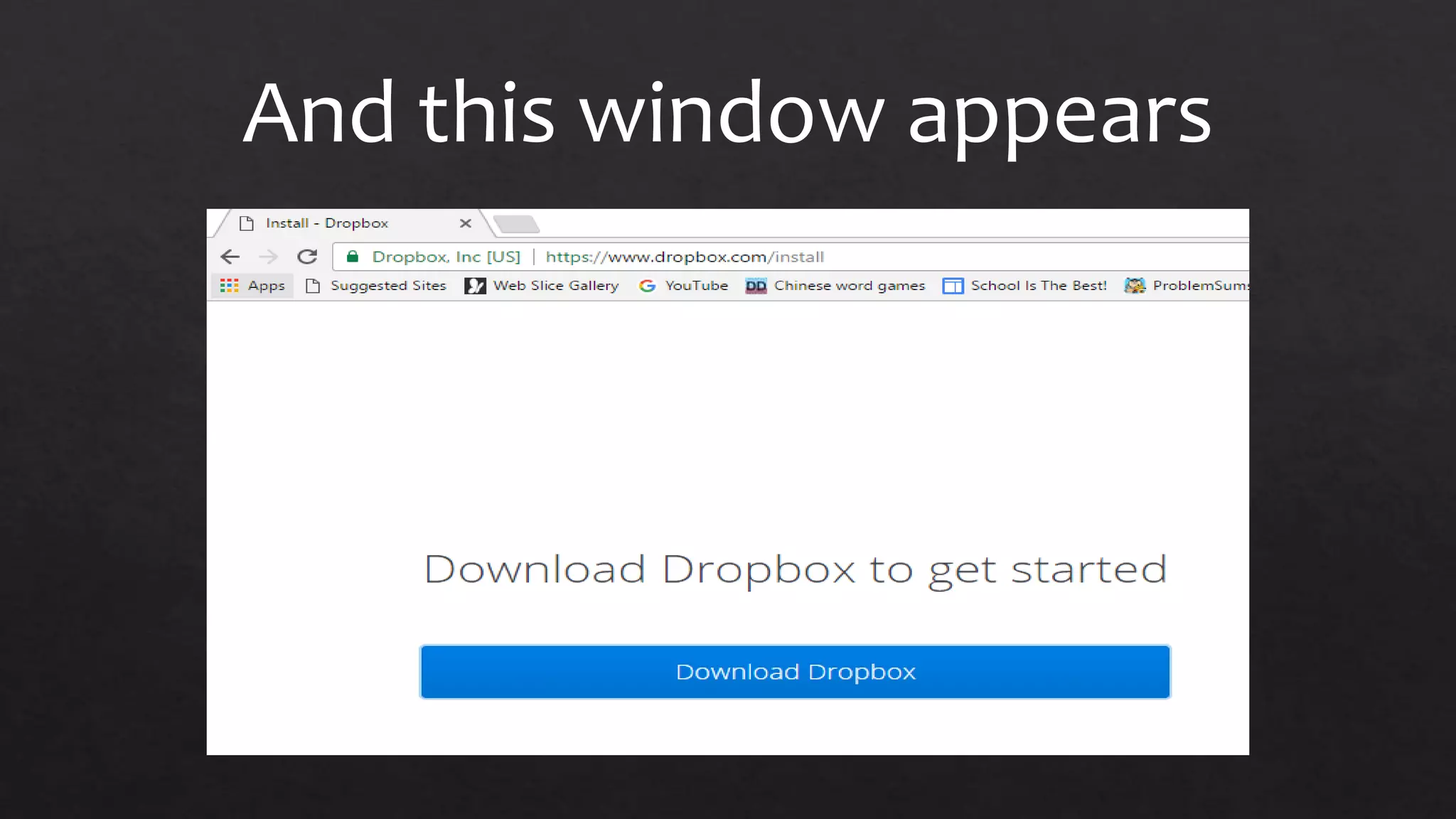
And this window appears
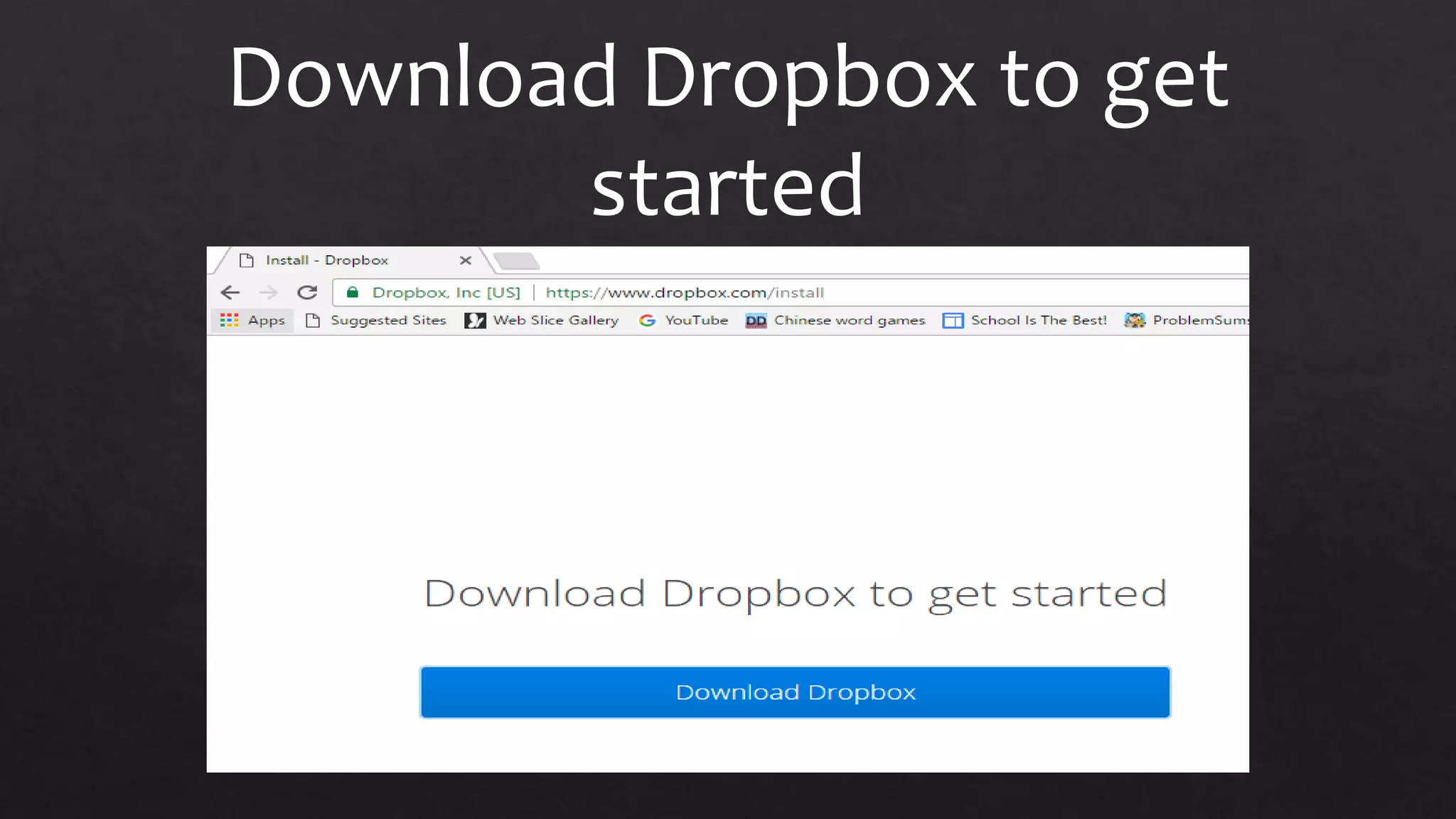
Download Dropbox to get
started
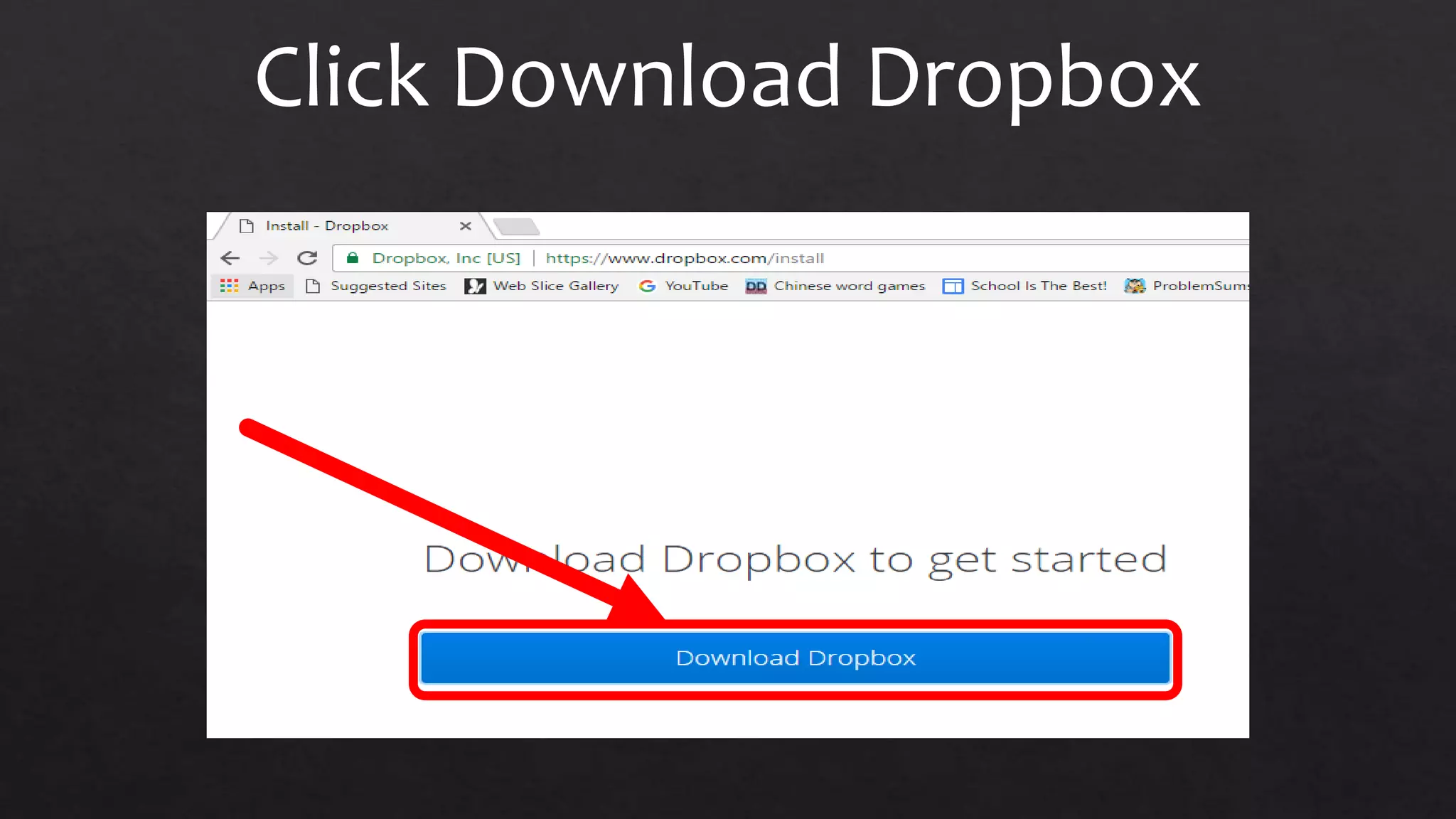
Click Download Dropbox
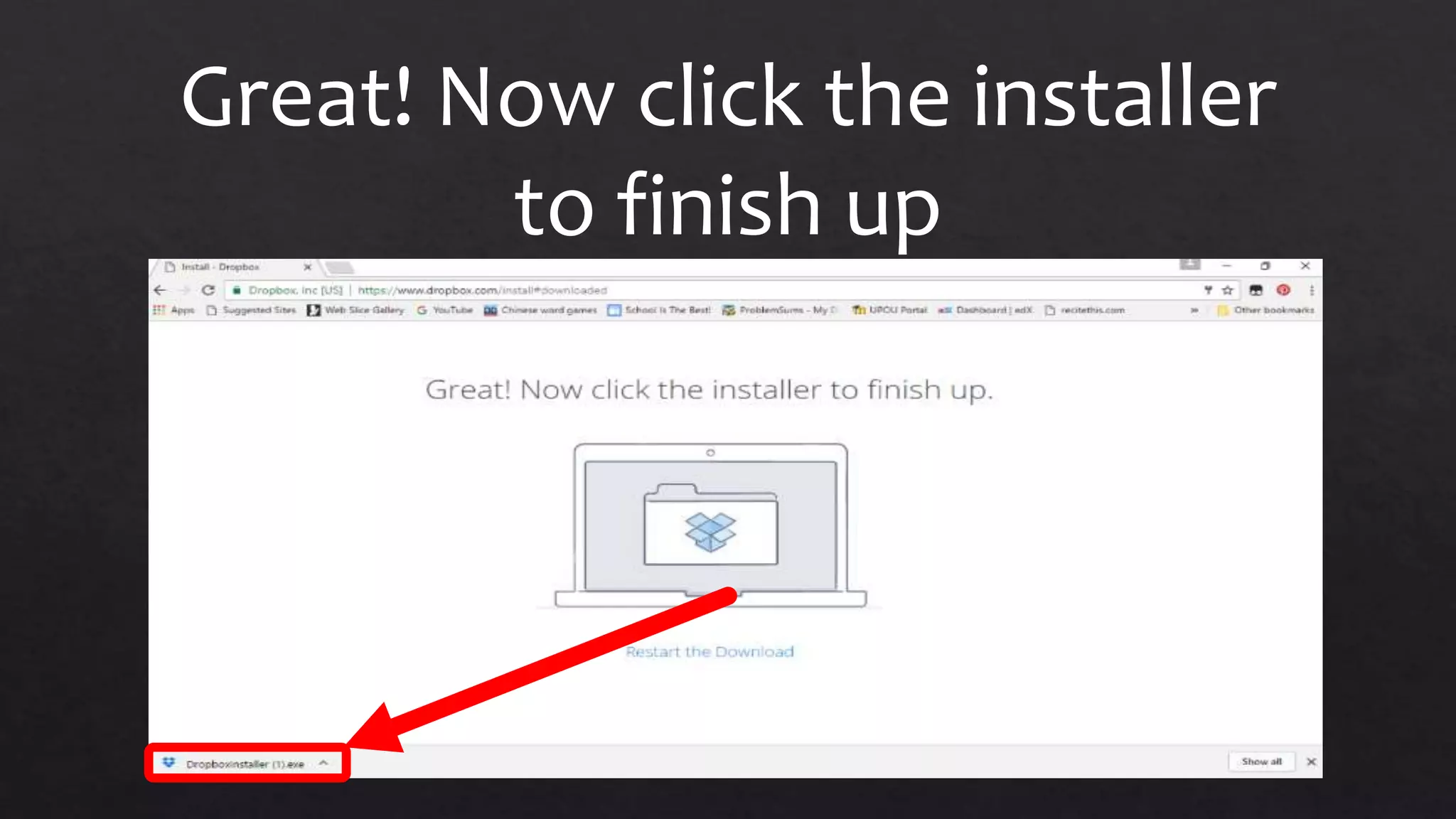
Great! Now click the installer
to finish up
Dropbox Installer is initializing
Connecting to the Internet
Waiting to download Dropbox
Downloading Dropbox
Downloading Dropbox
completed
Initializing Dropbox
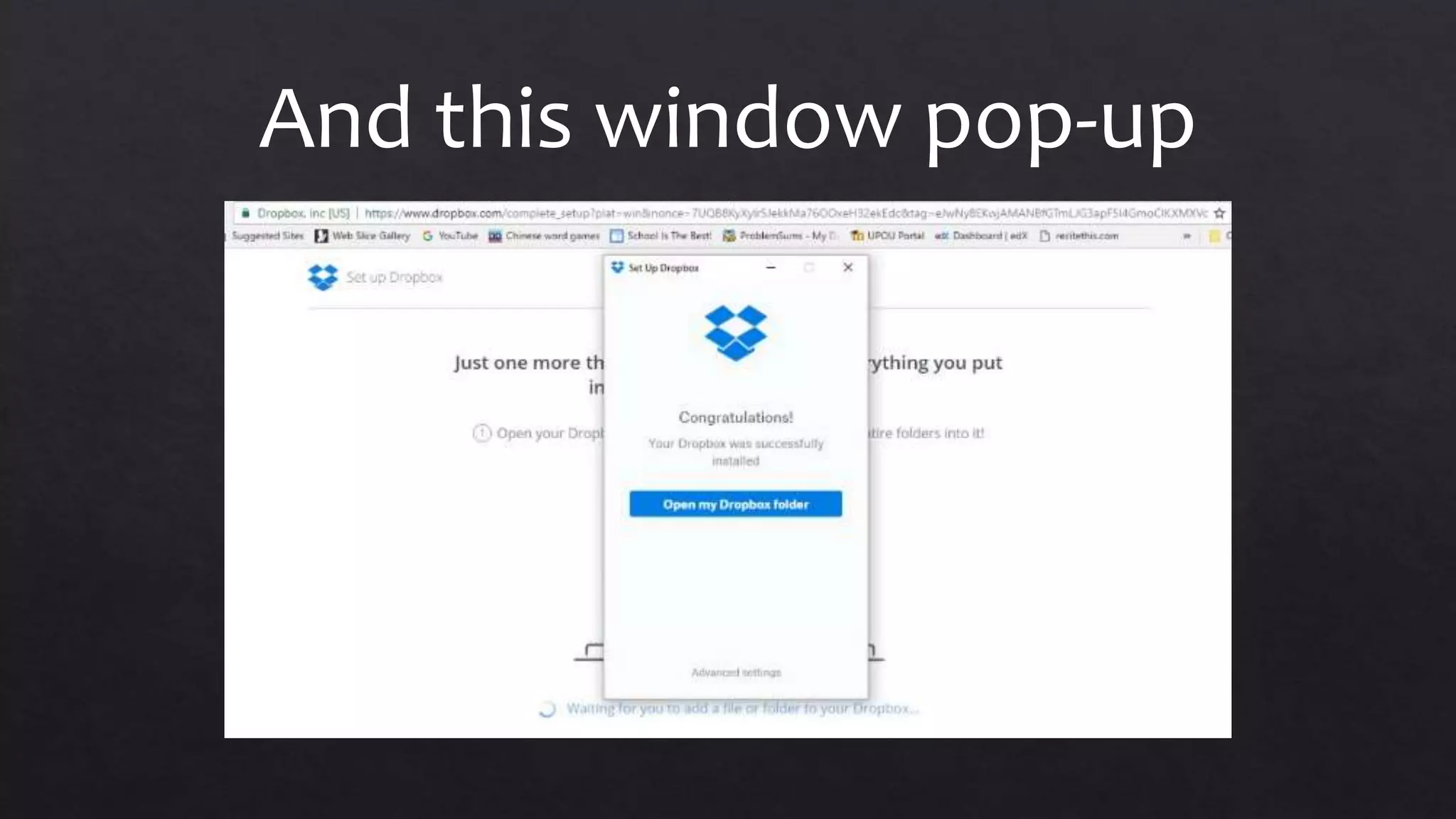
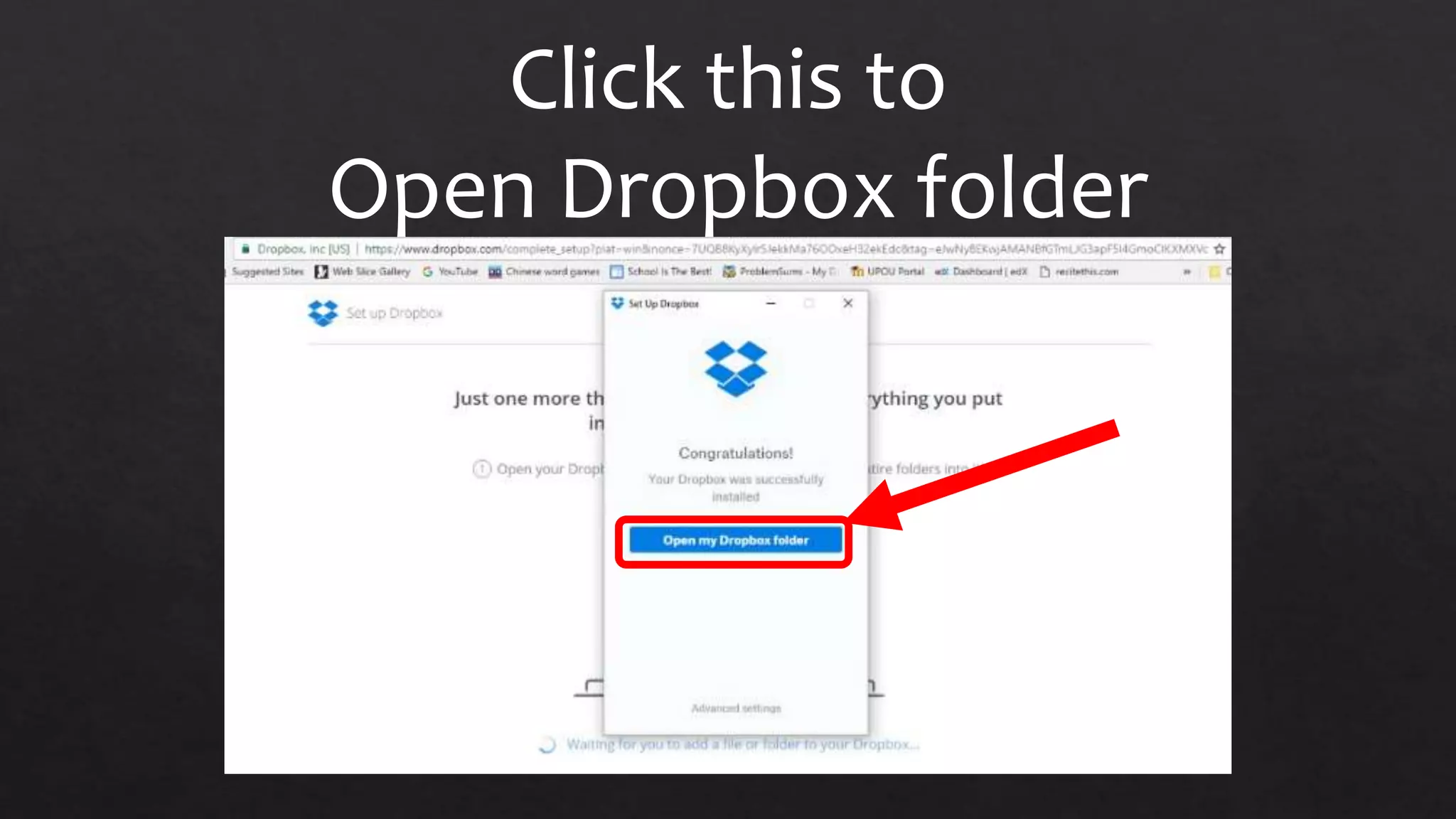
And this window pop-up
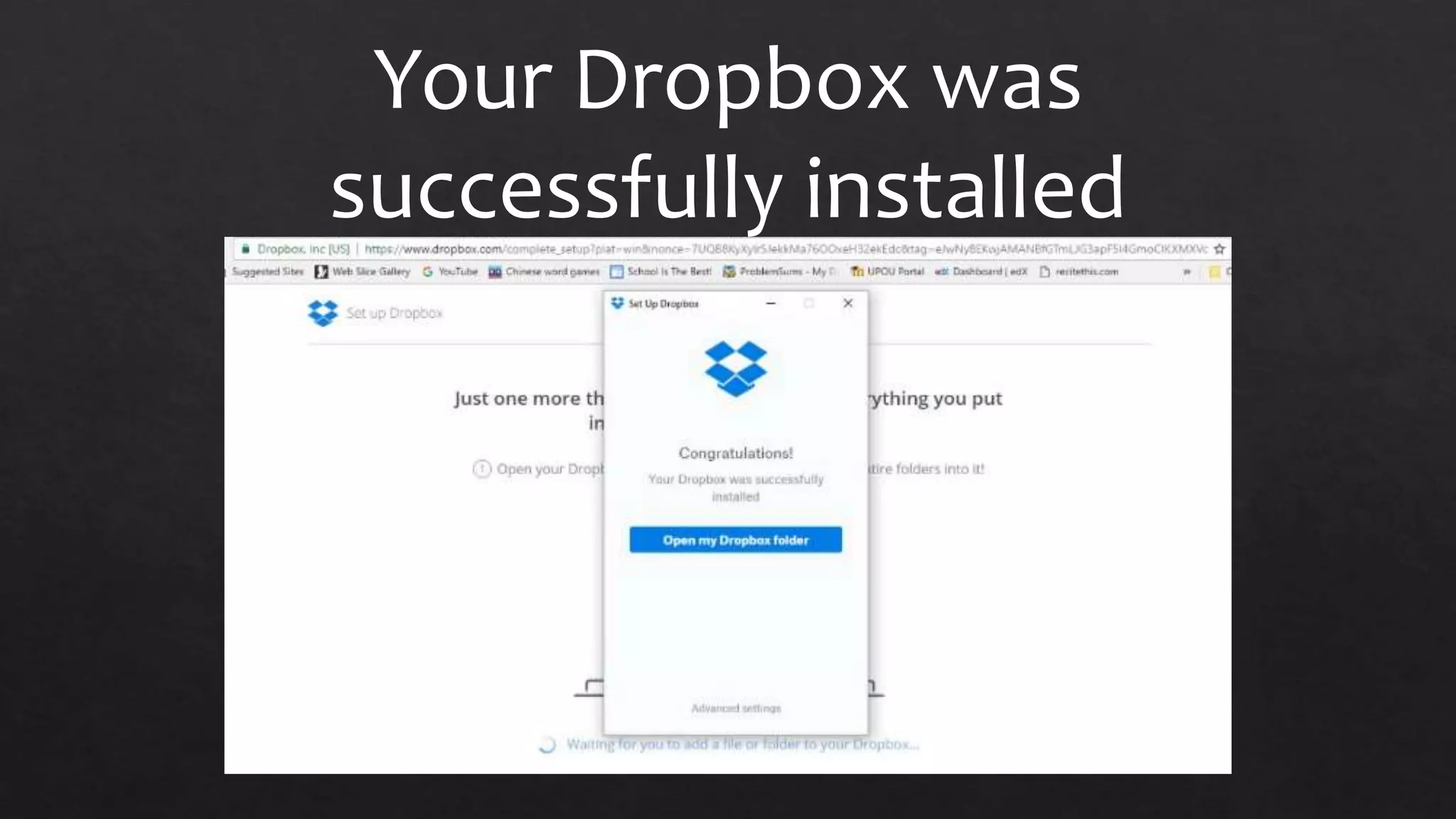
Your Dropbox was
successfully installed
Click this to
Open Dropbox folder
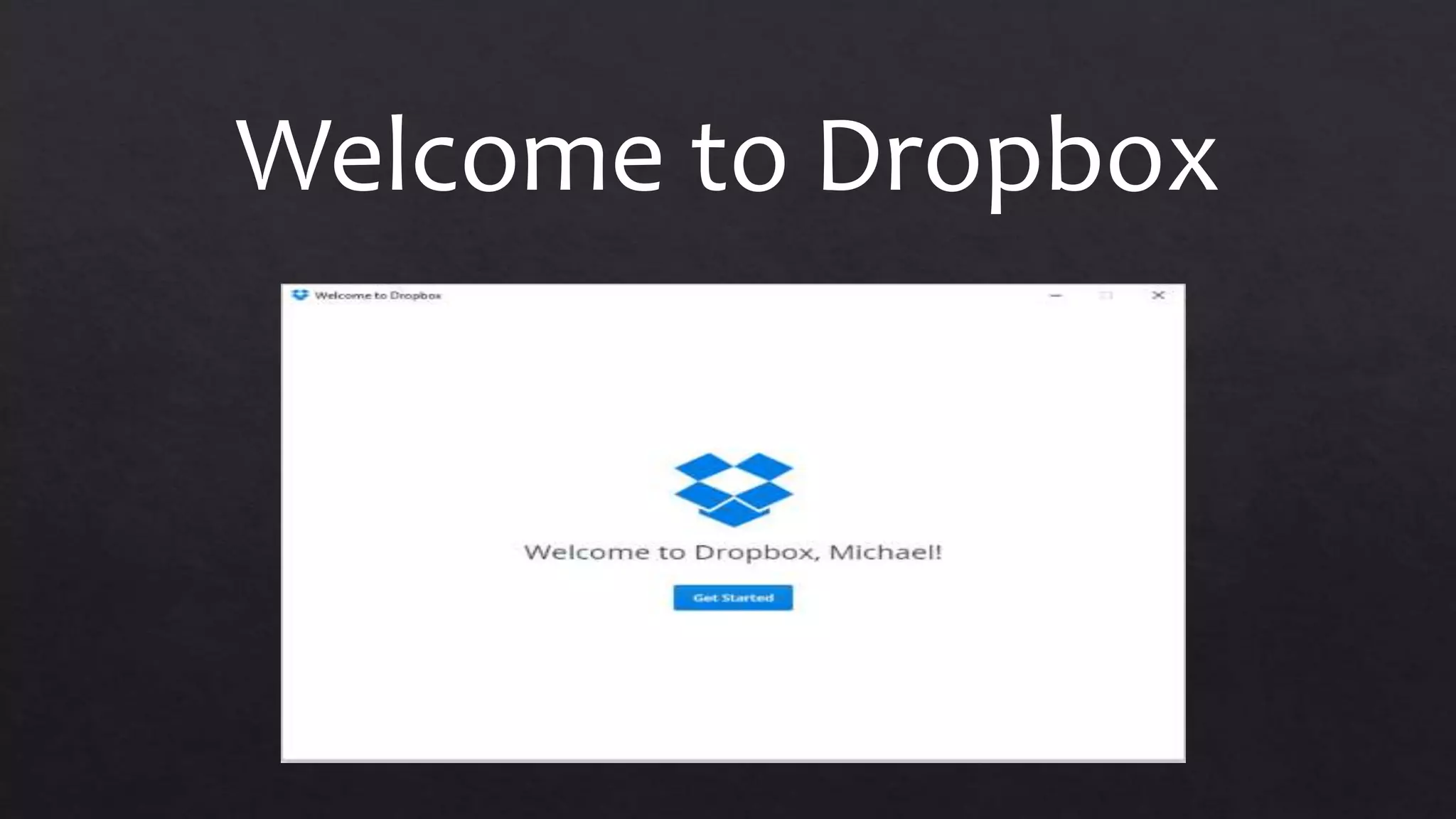
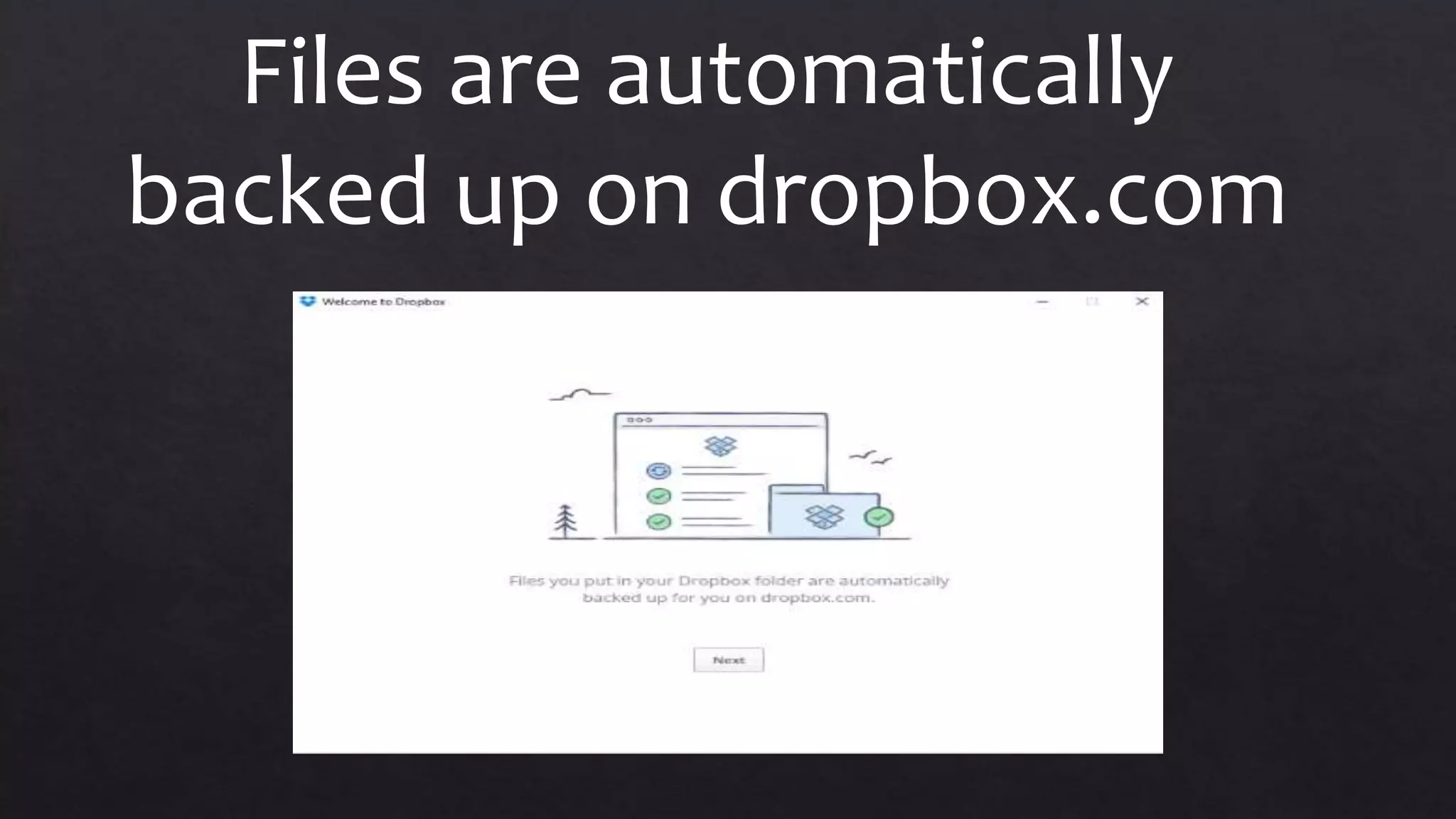
Welcome to Dropbox
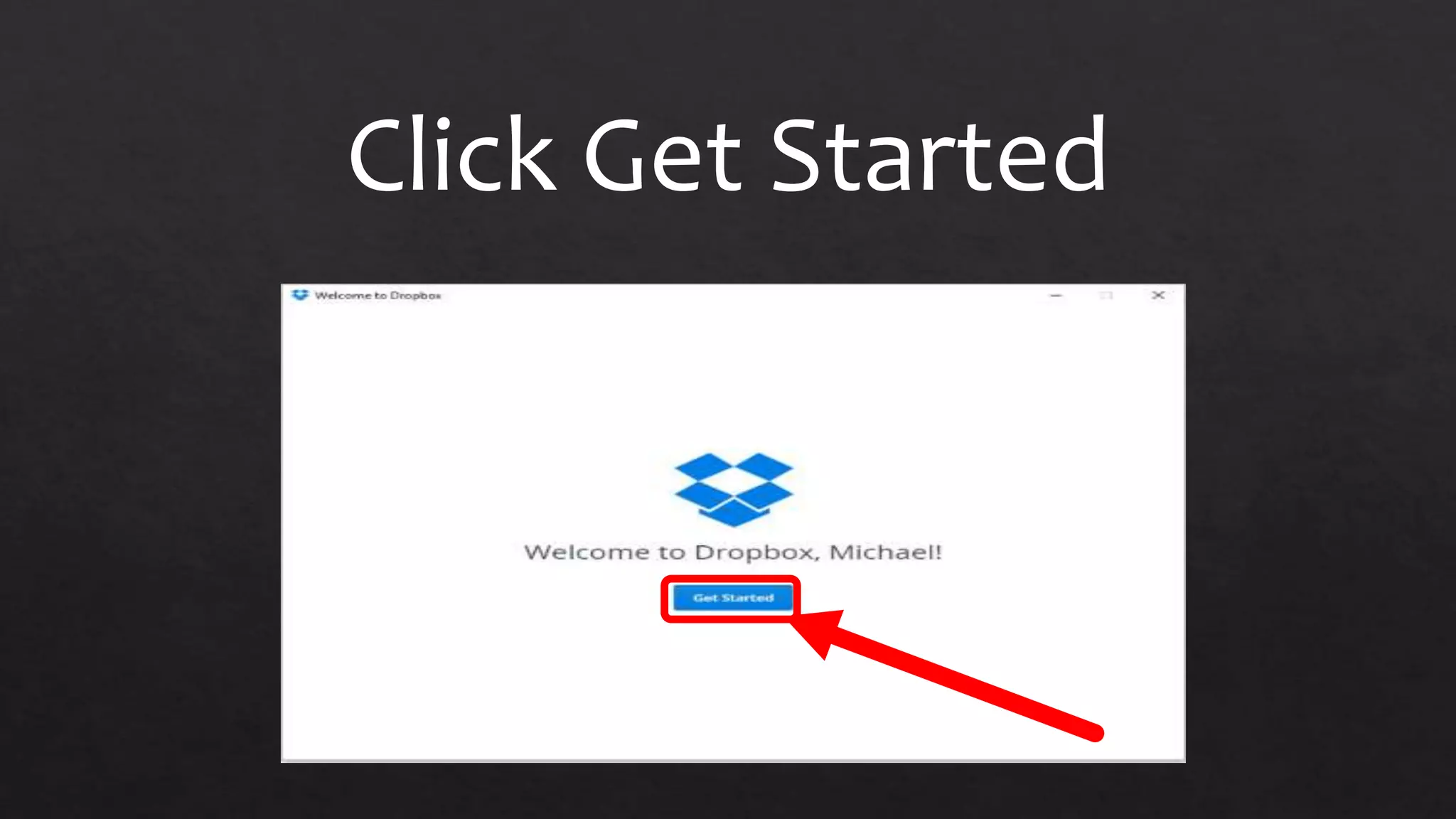
Click Get Started
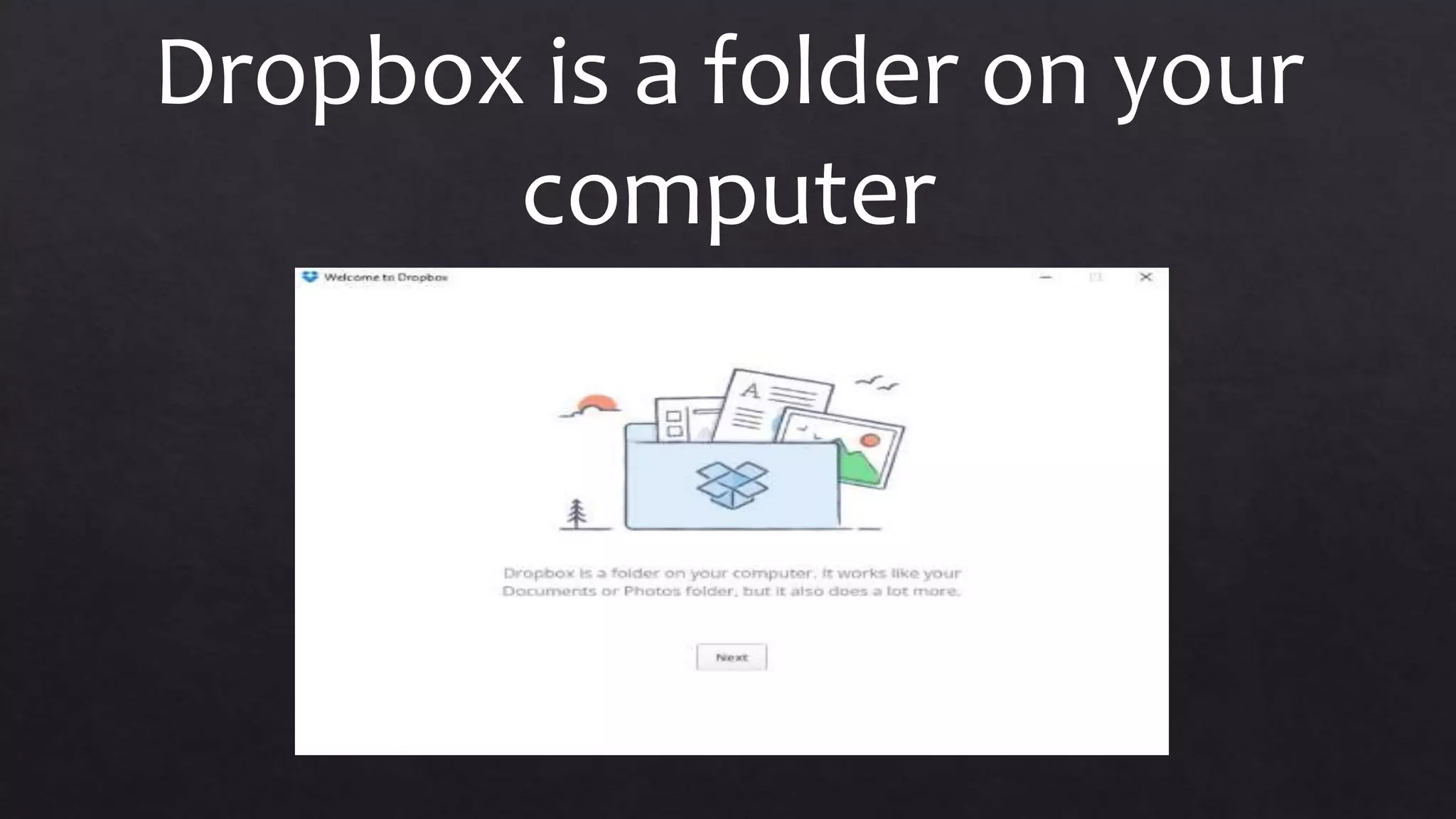
Dropbox is a folder on your
computer
Files are automatically
backed up on dropbox.com
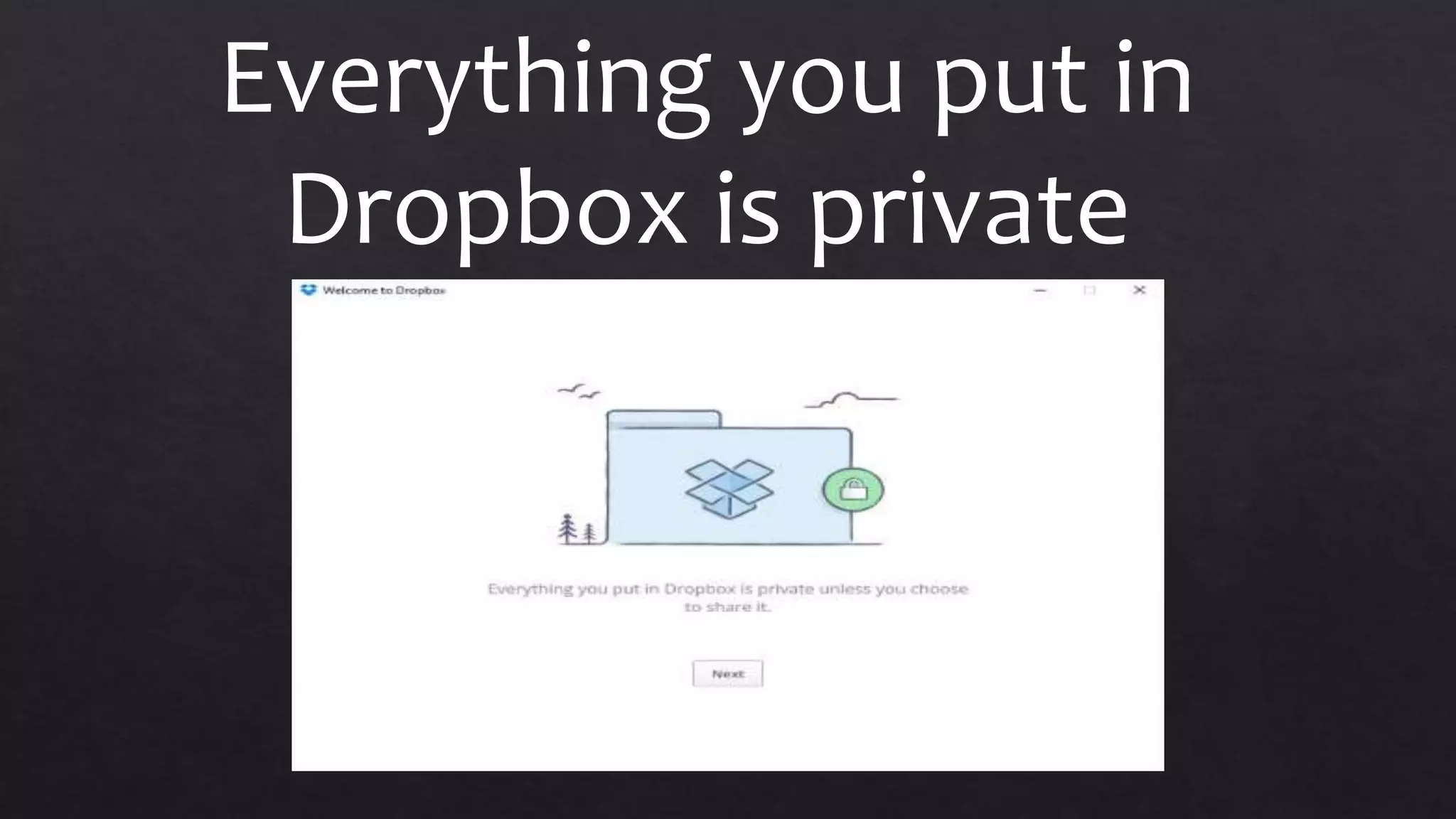
Everything you put in
Dropbox is private
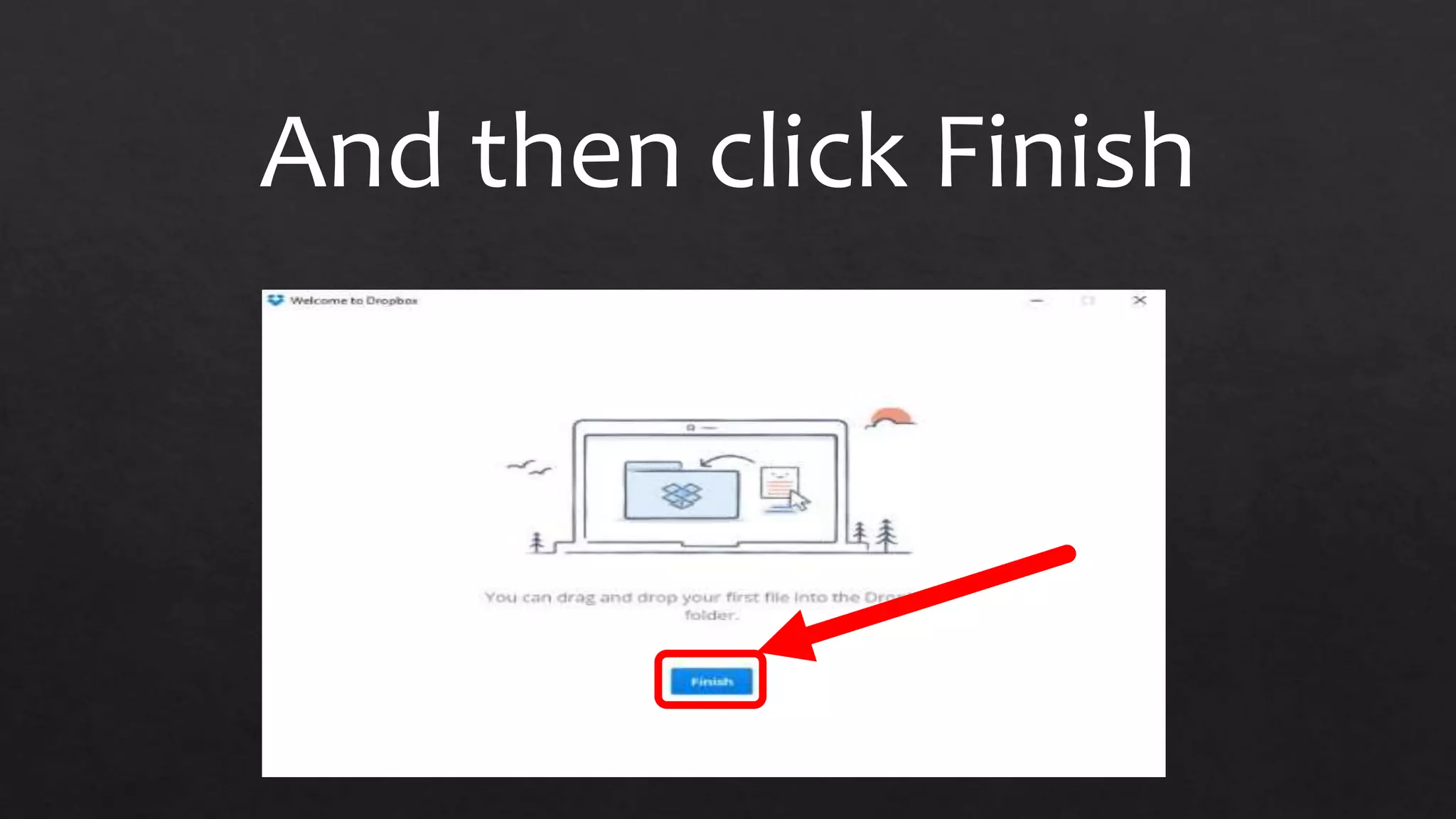
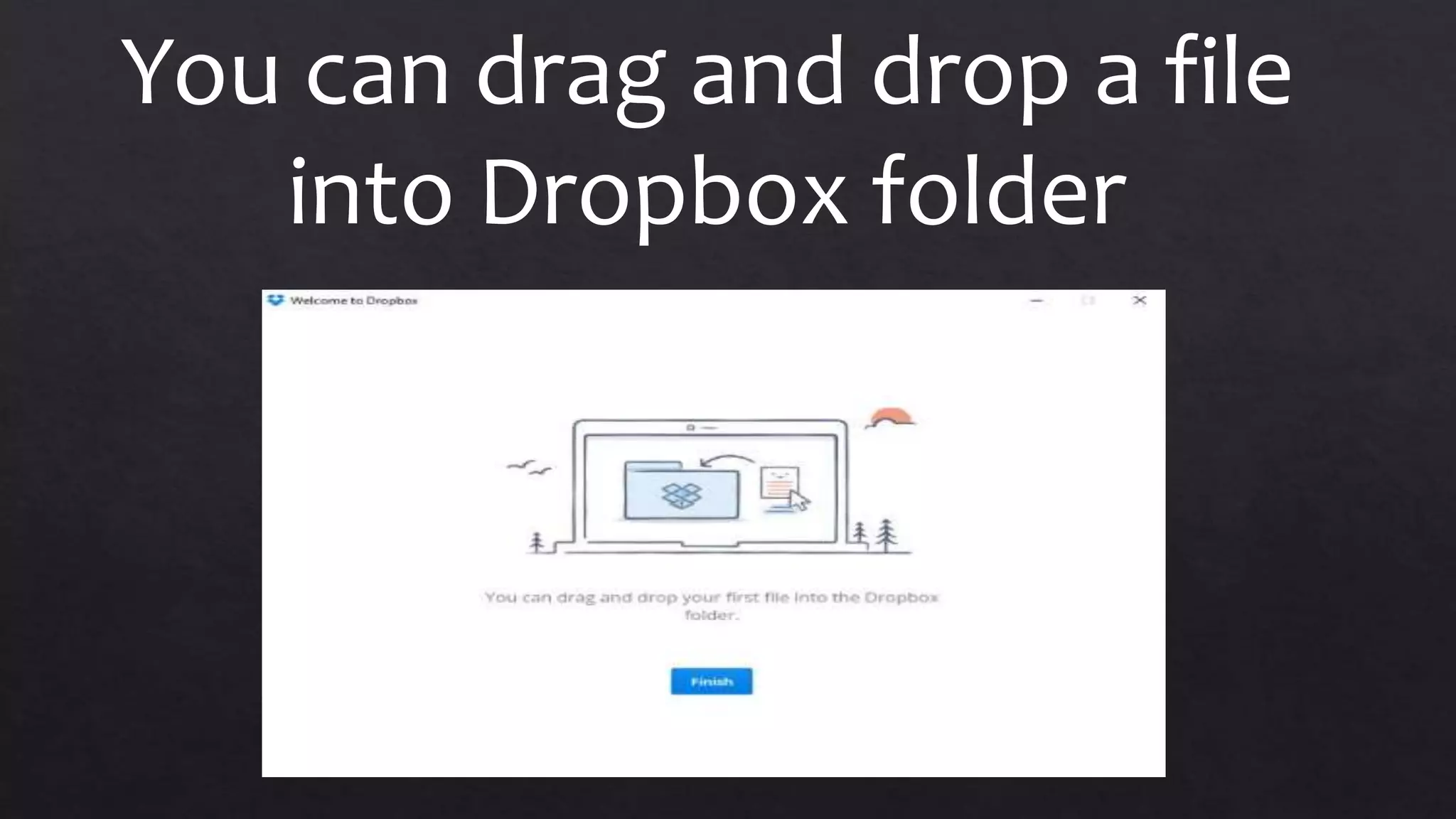
You can drag and drop a file
into Dropbox folder
And then click Finish
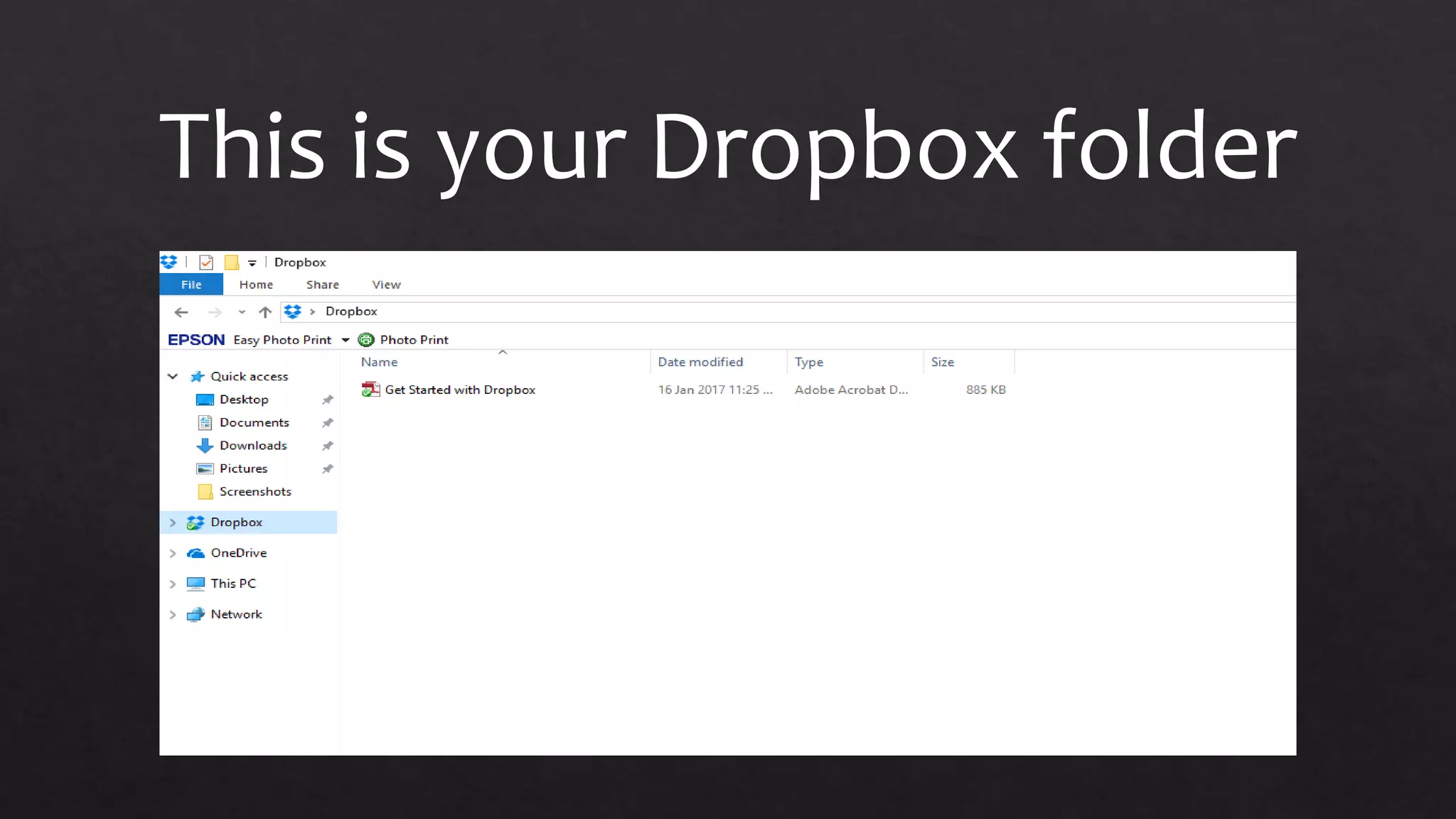
This is your Dropbox folder
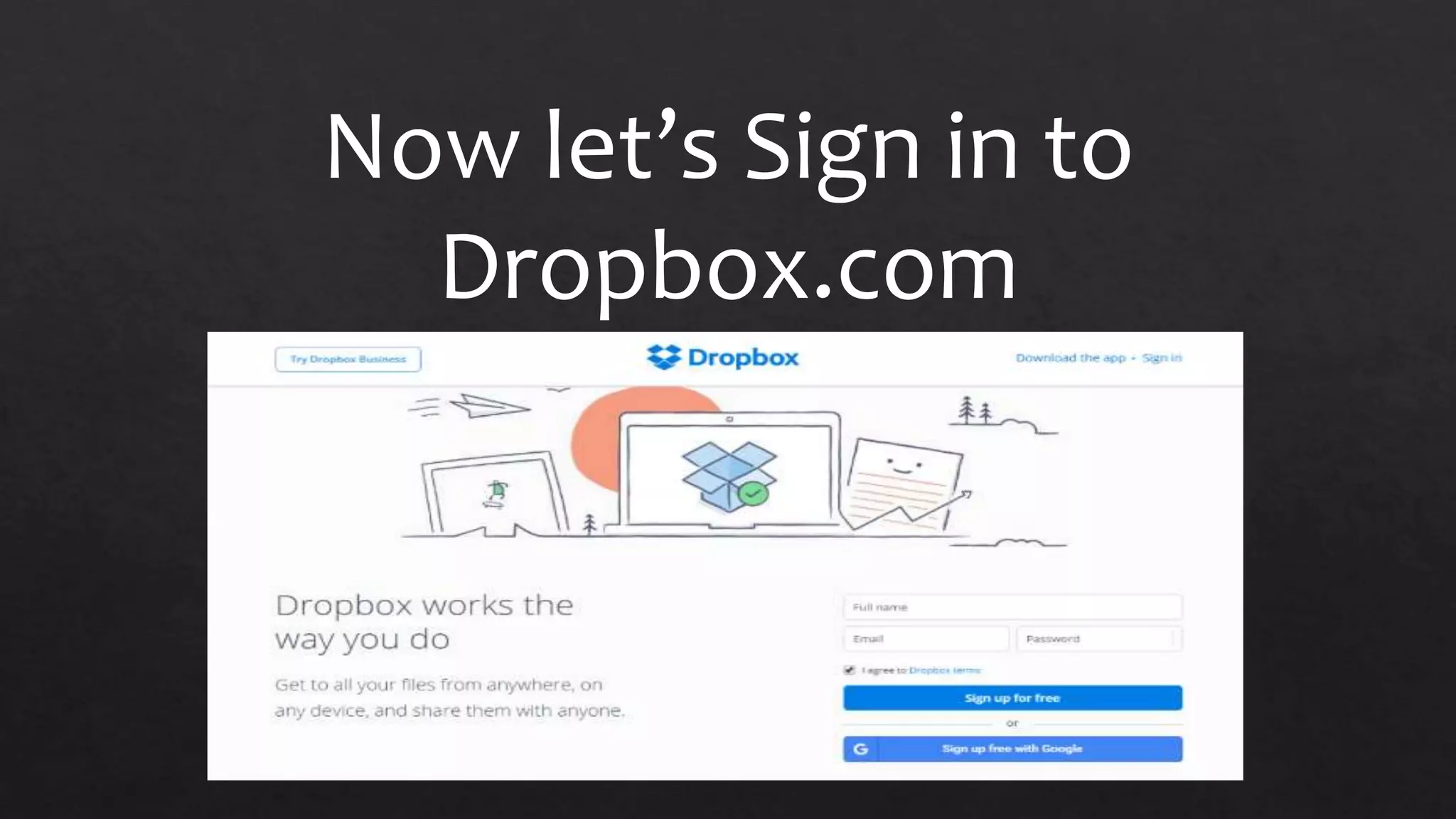
Now let’s Sign in to
Dropbox.com
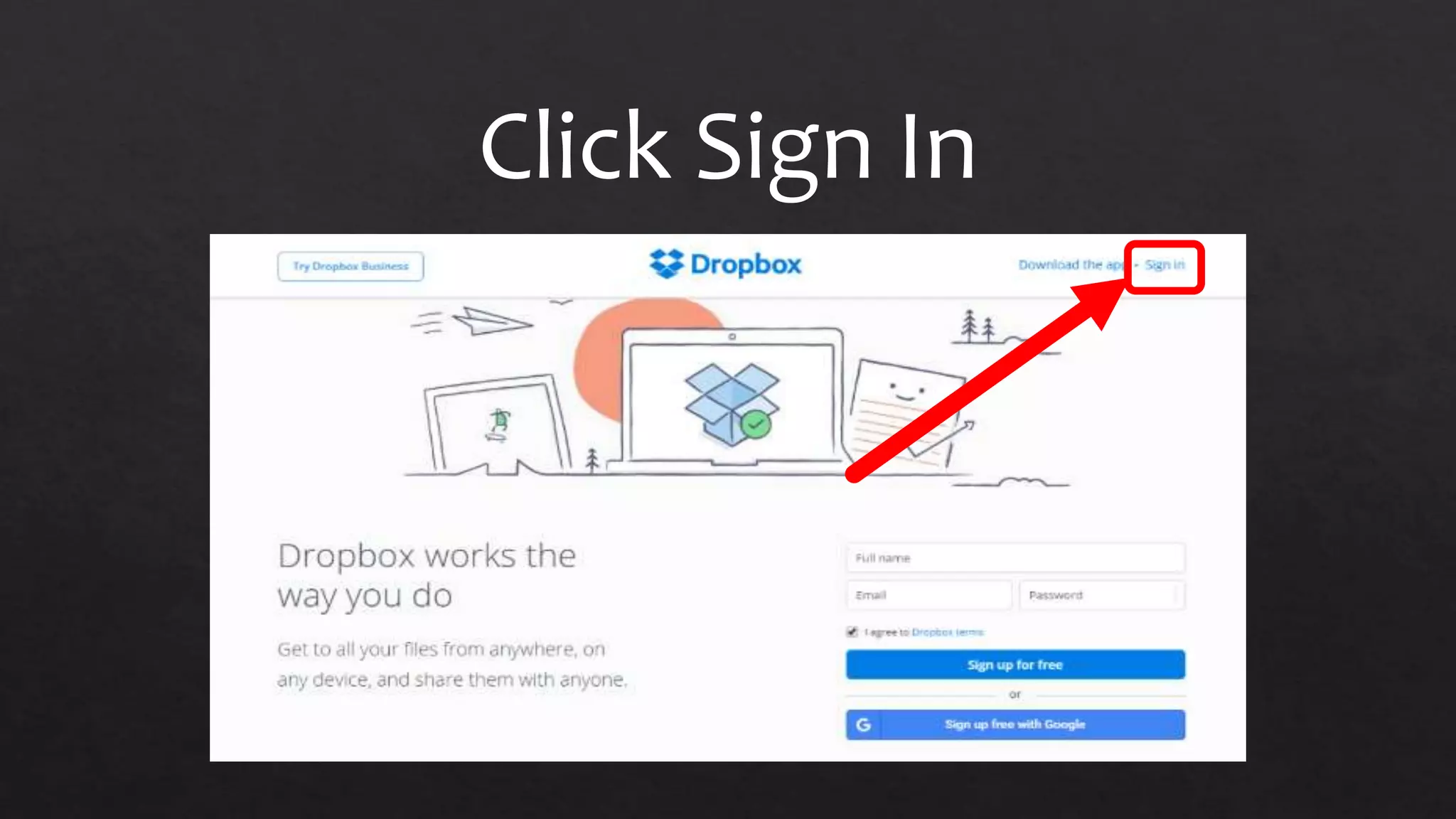
Click Sign In
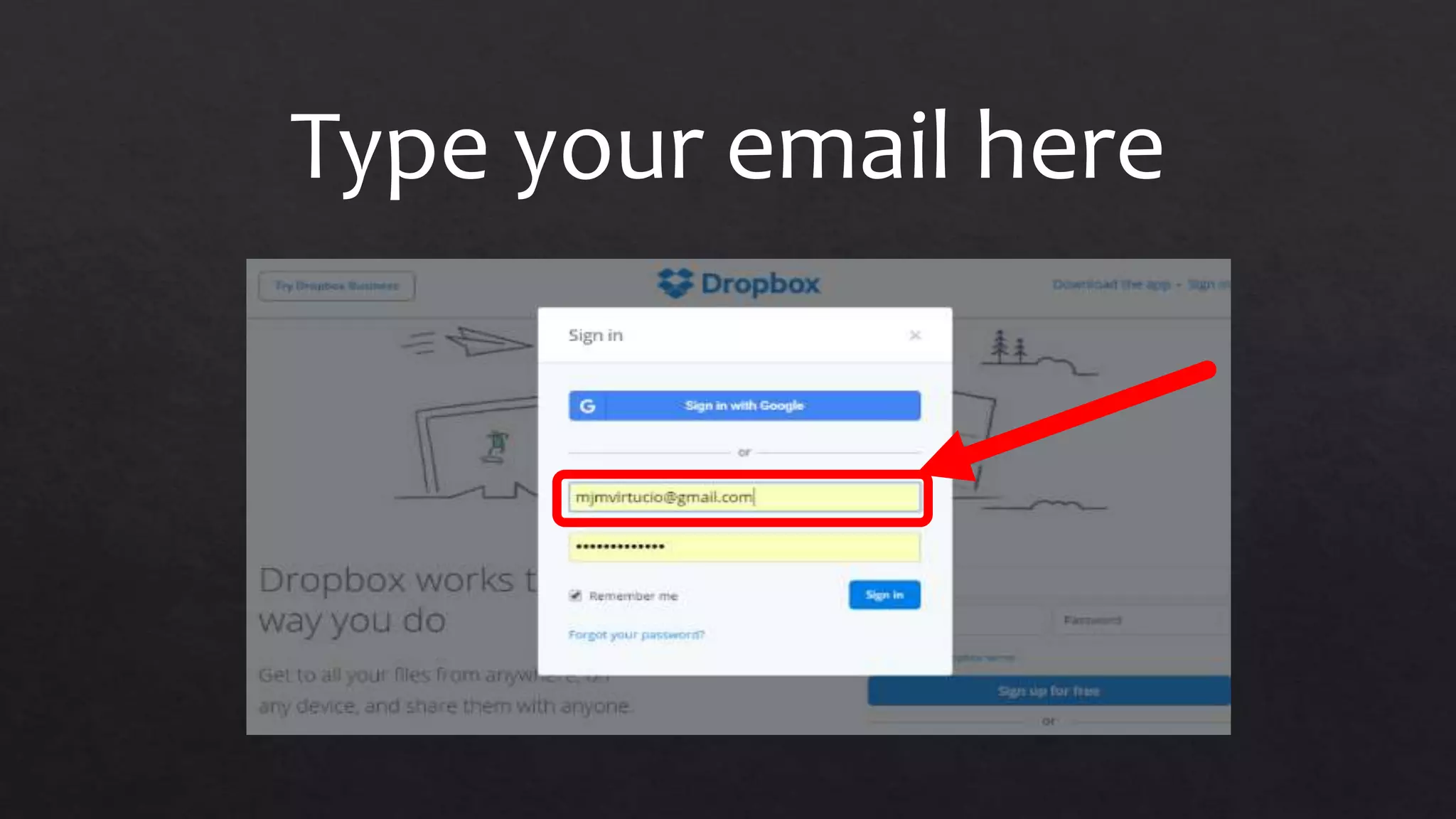
Type your email here
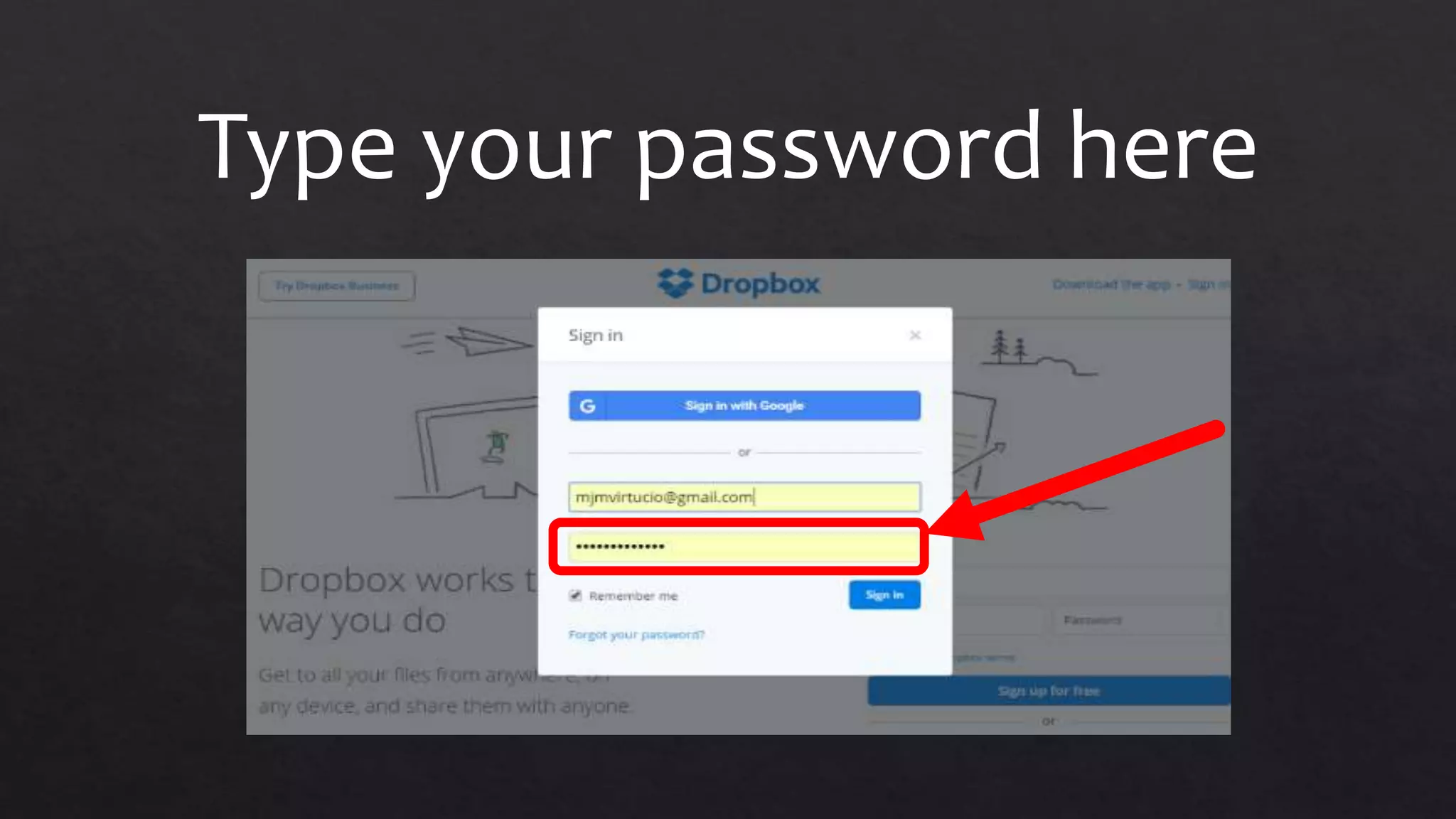
Type your password here
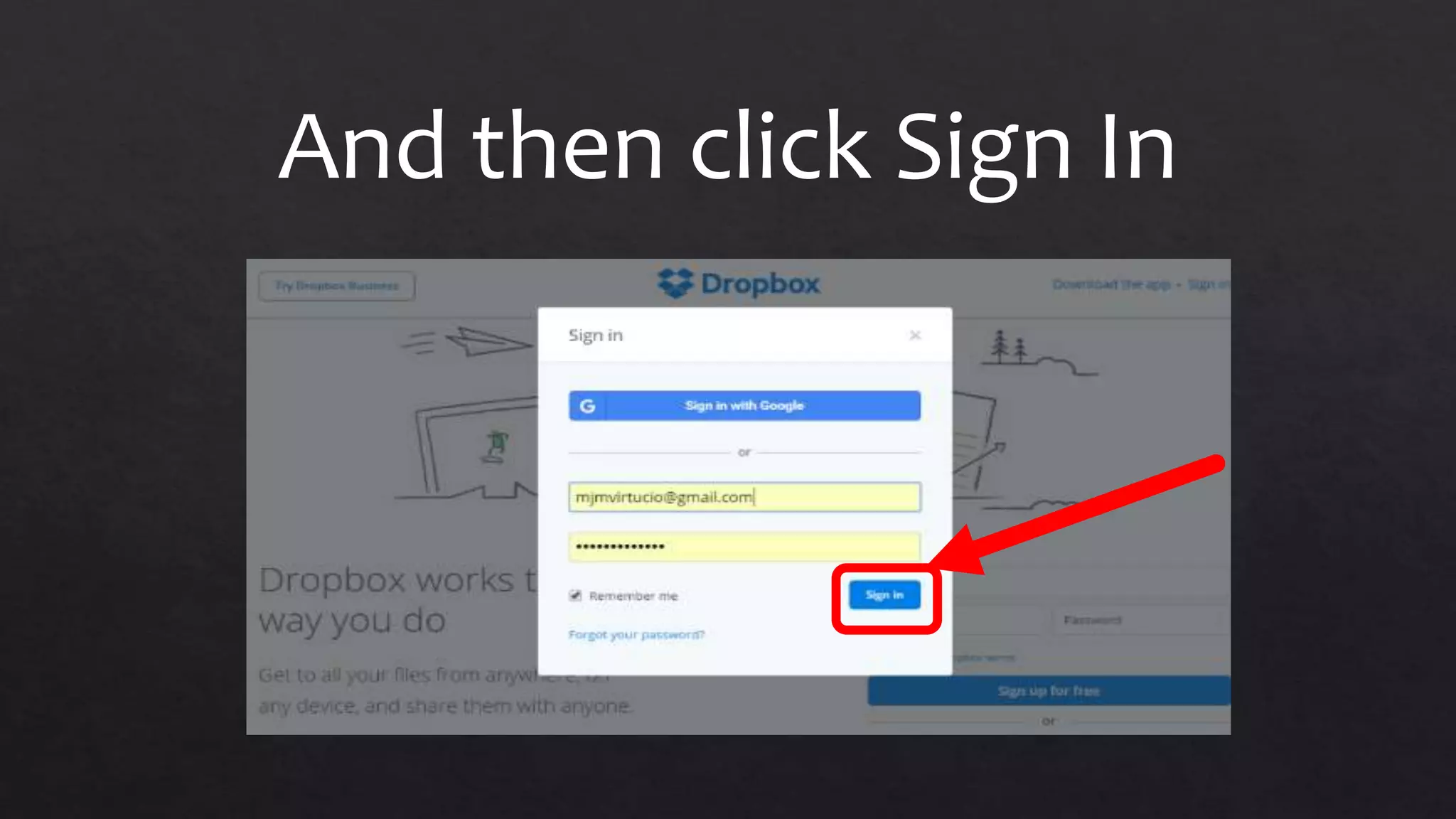
And then click Sign In
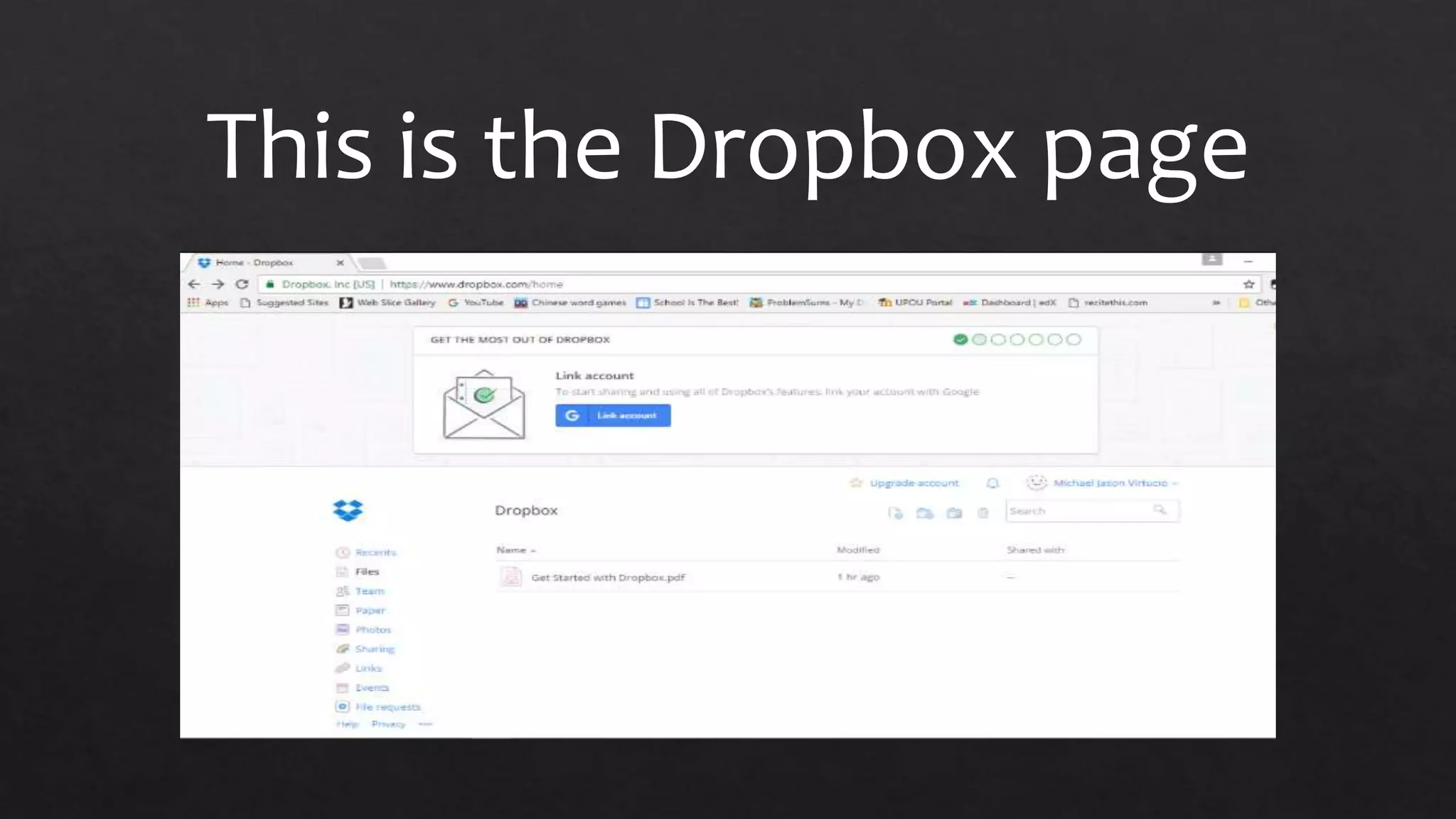
This is the Dropbox page
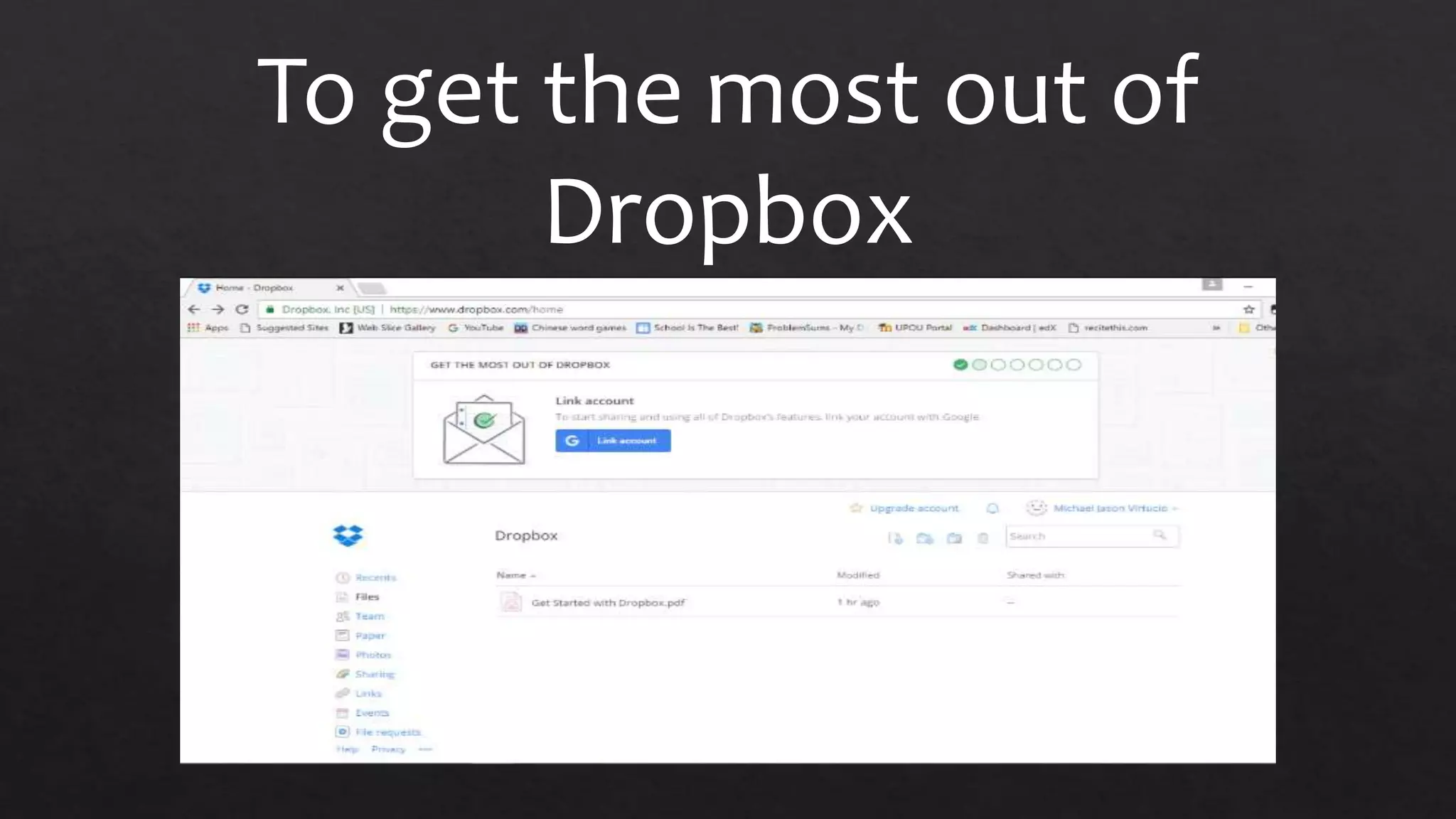
To get the most out of
Dropbox
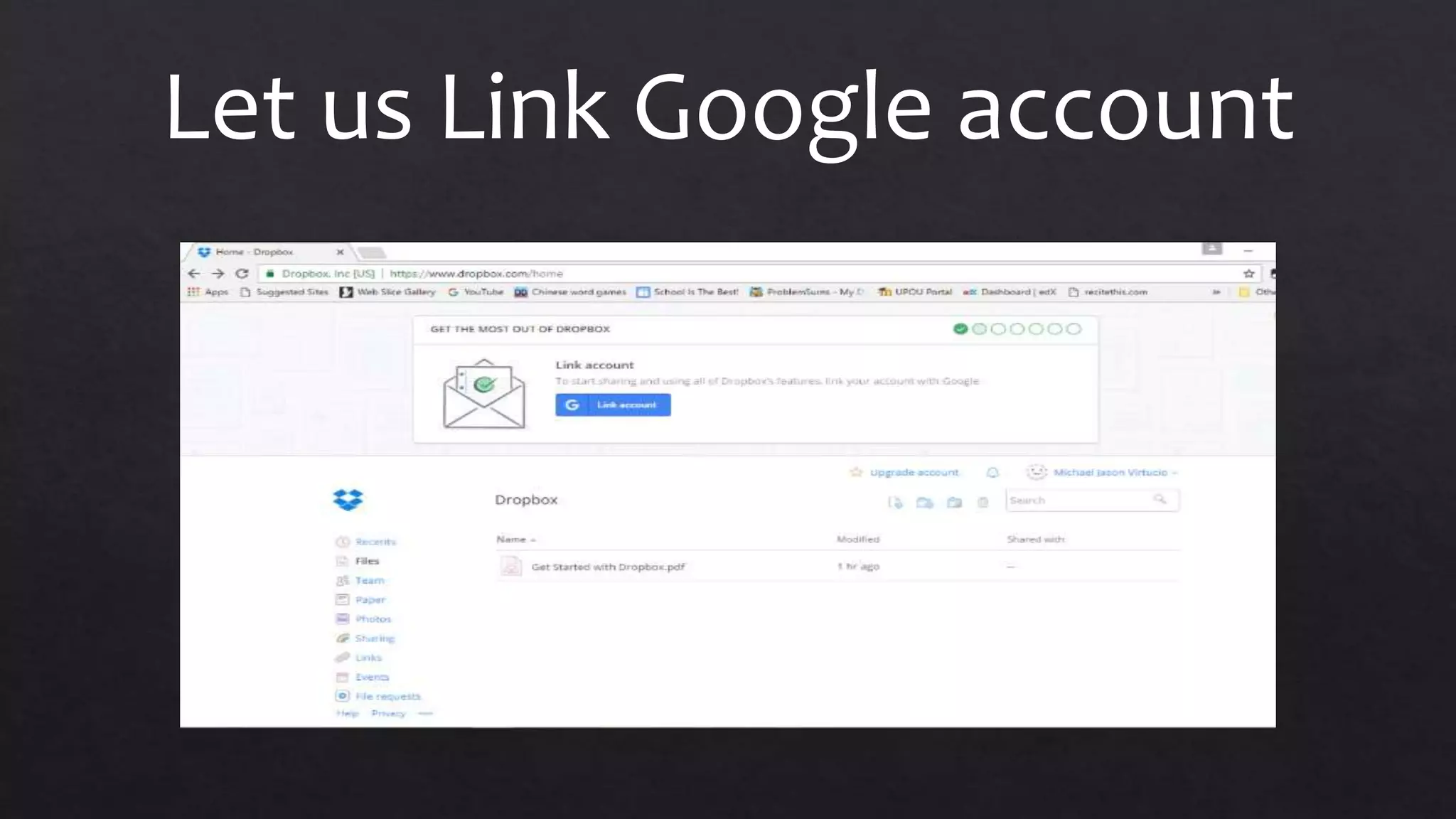
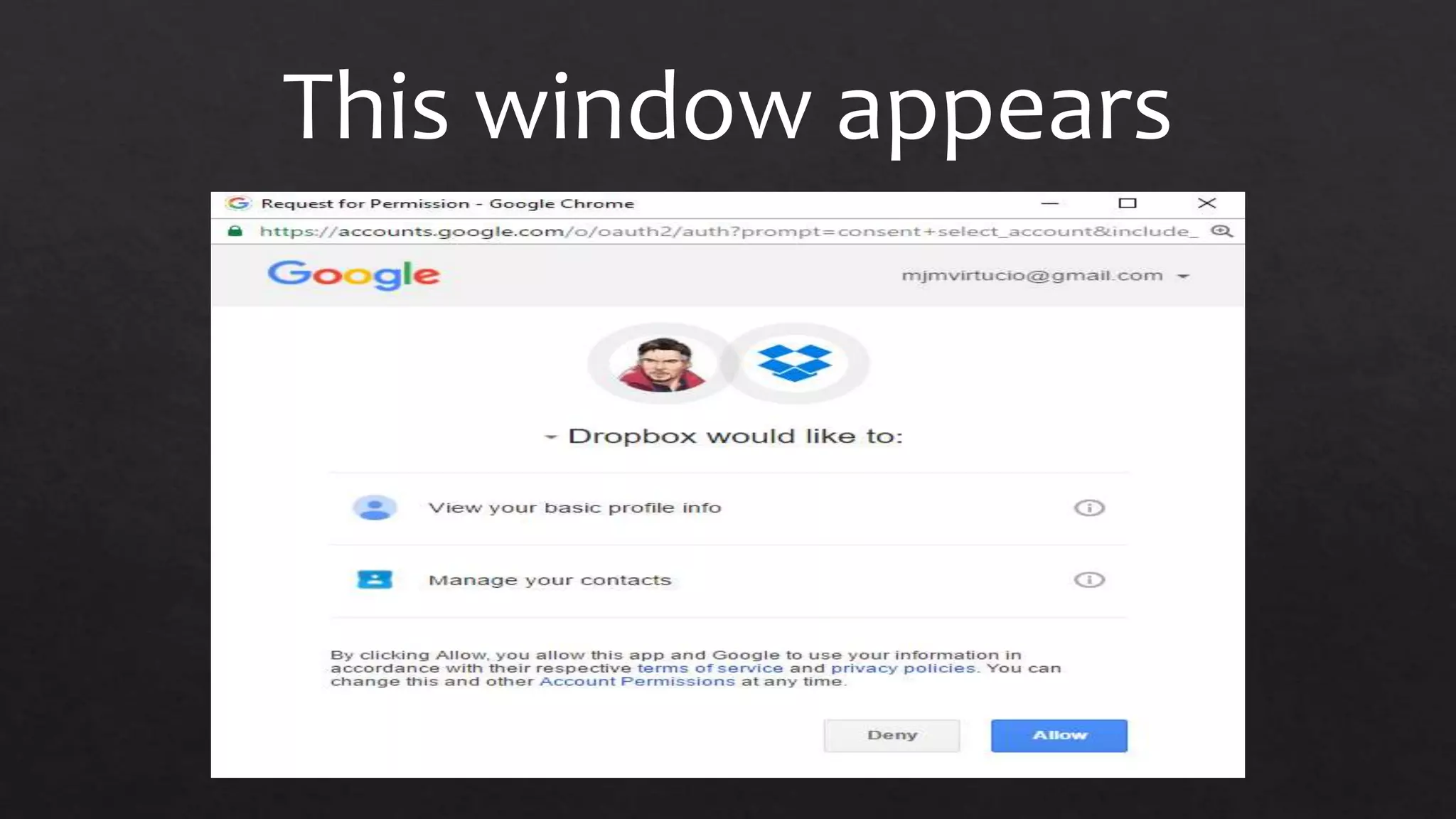
Let us Link Google account
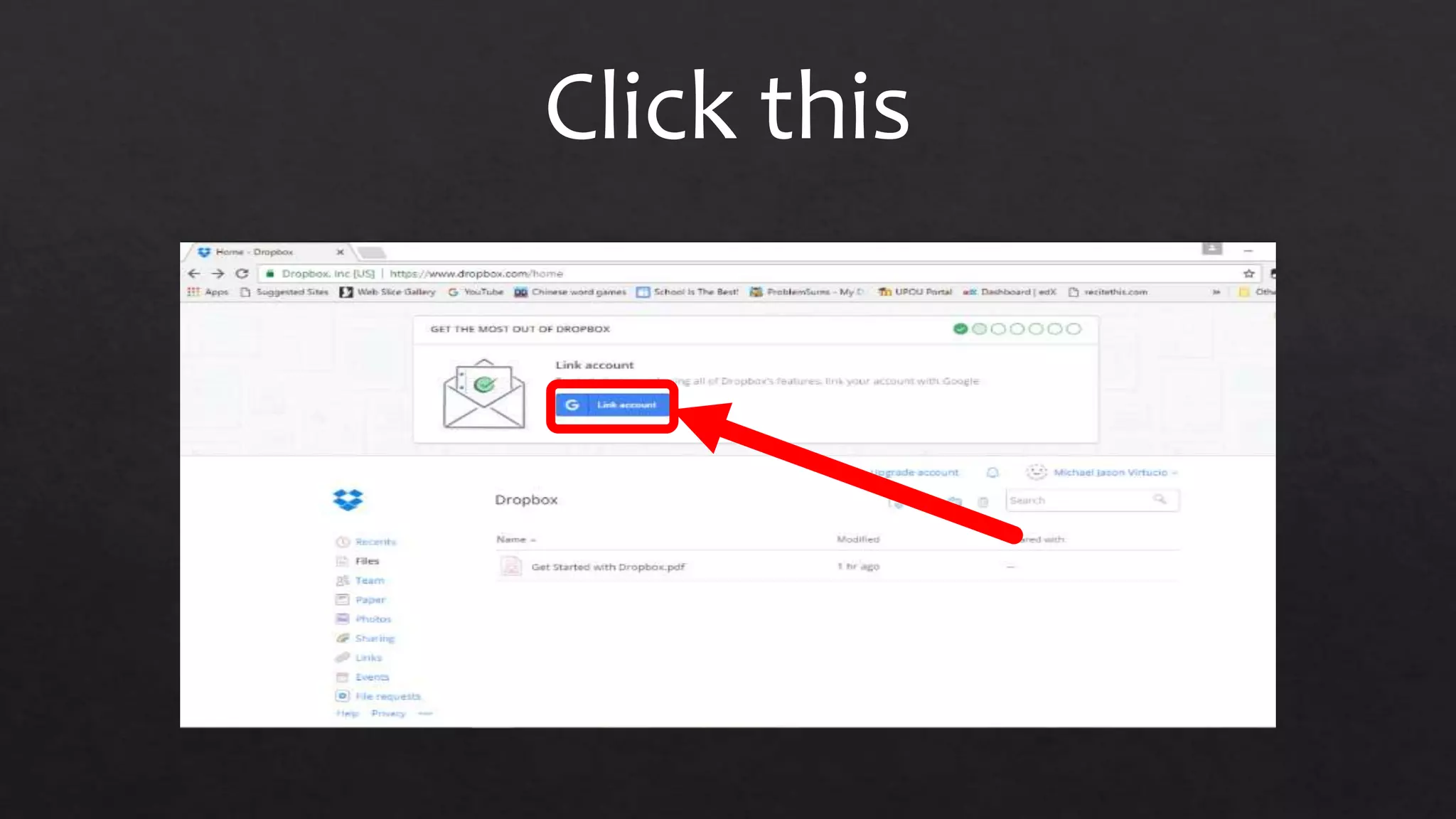
Click this
This window appears
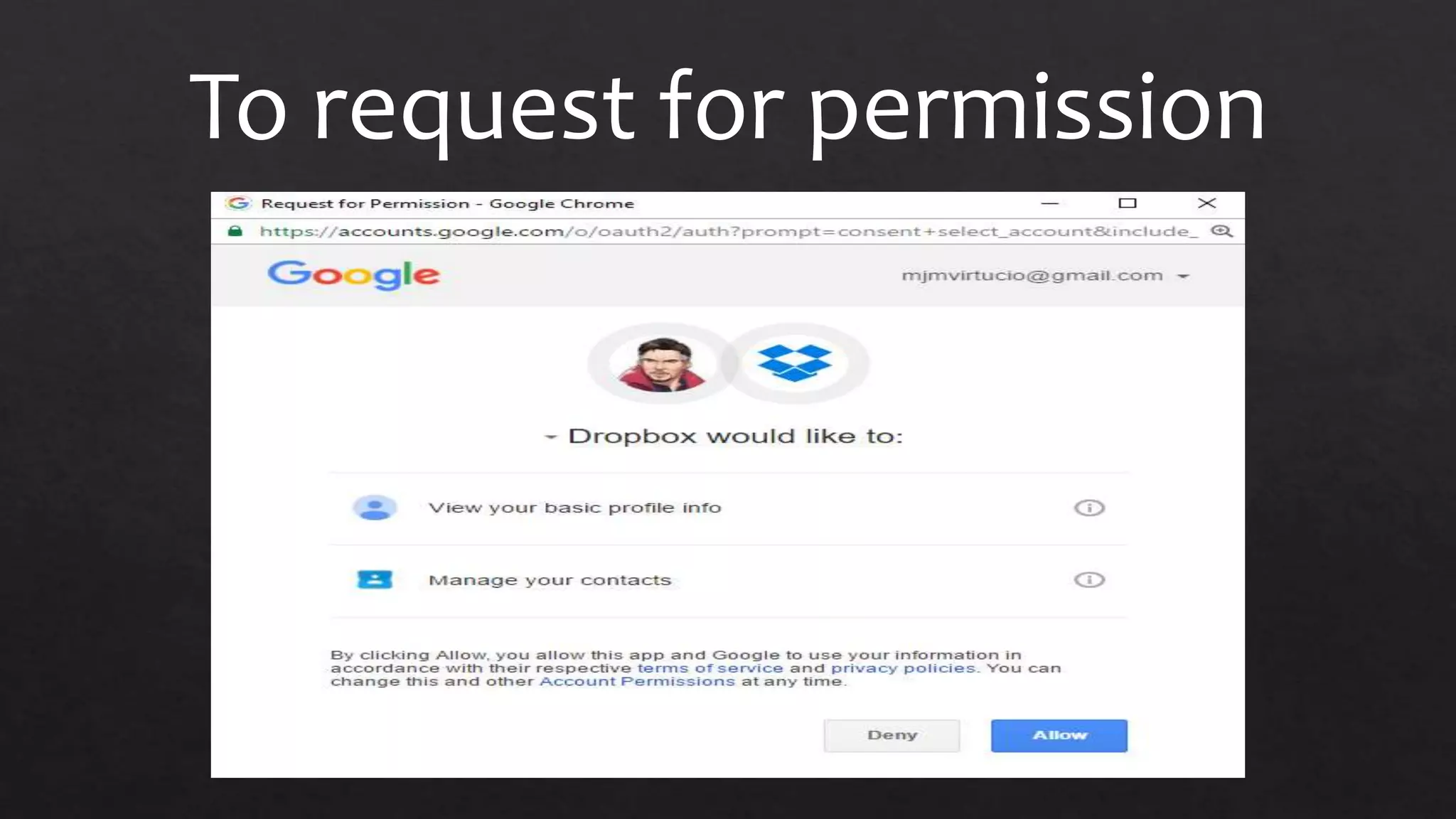
To request for permission
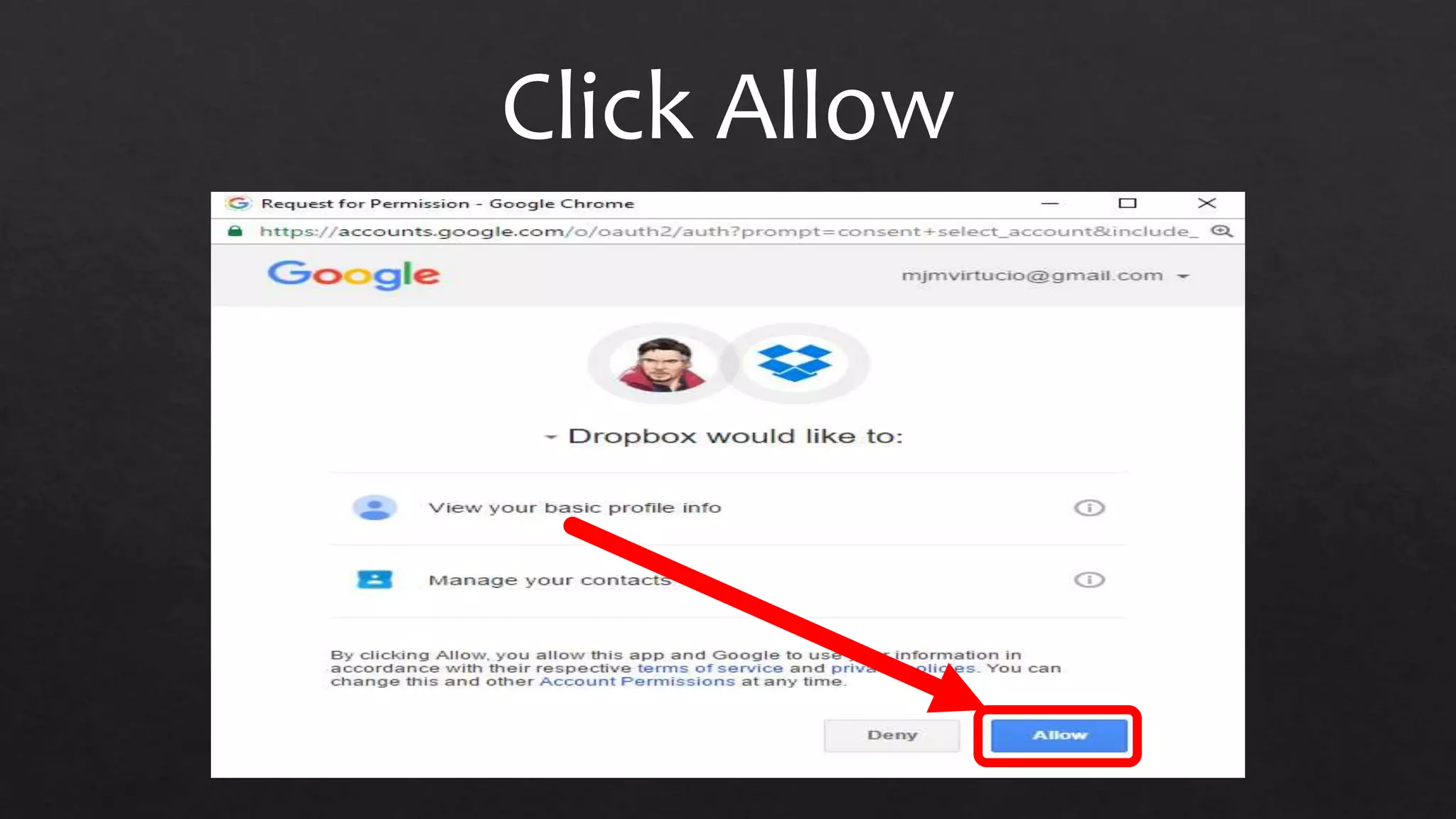
Click Allow
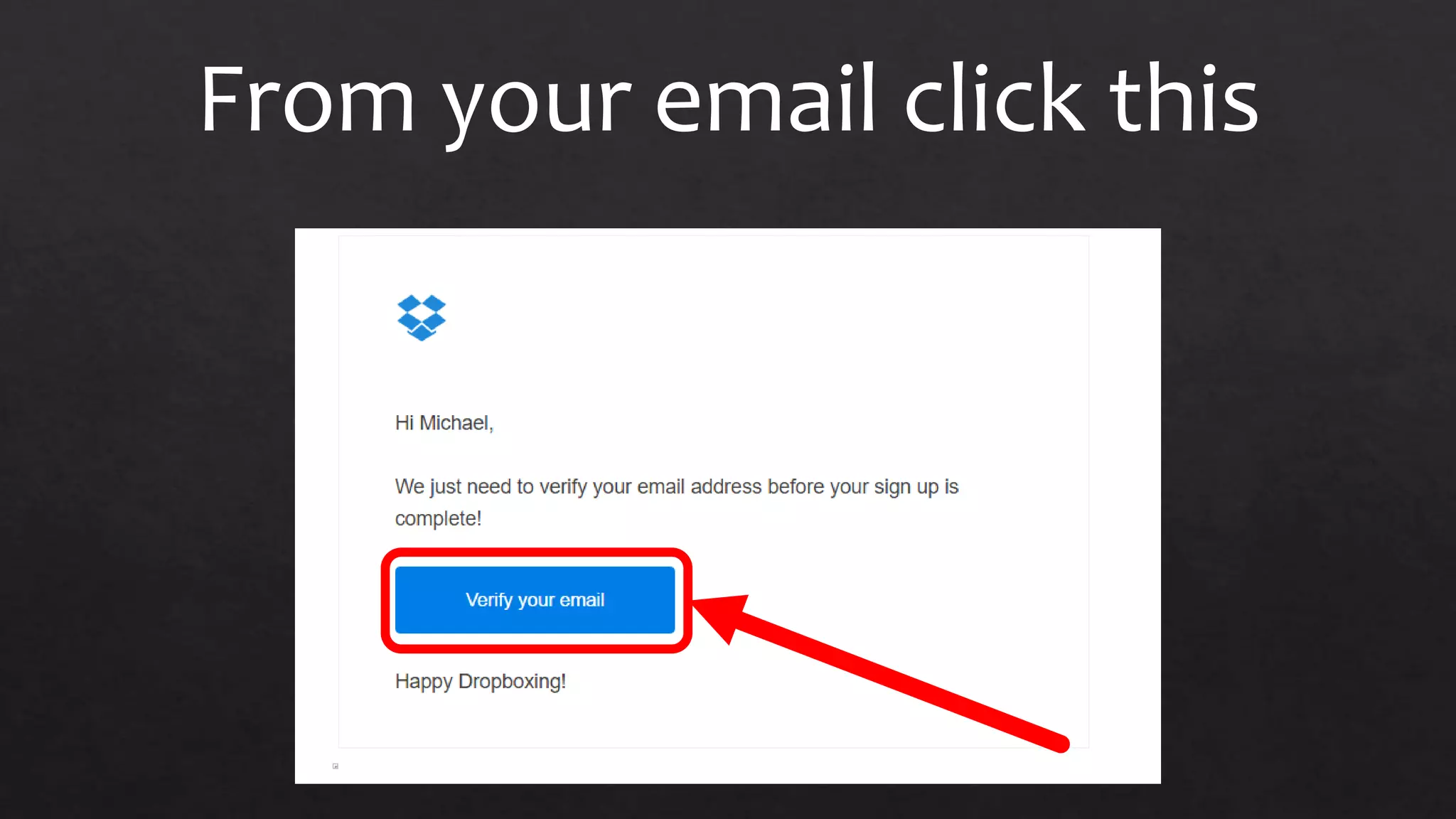
From your email click this
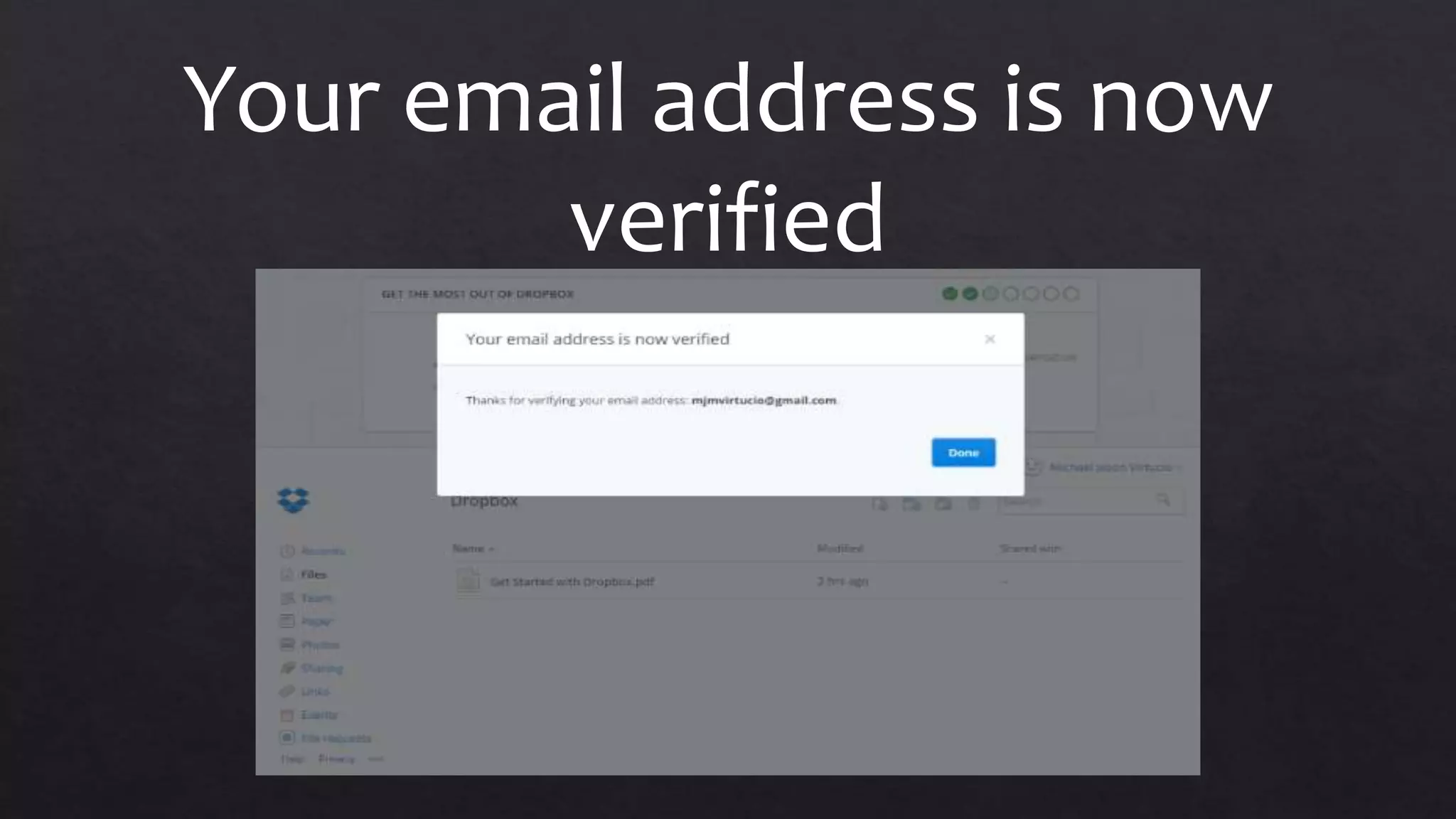
Your email address is now
verified
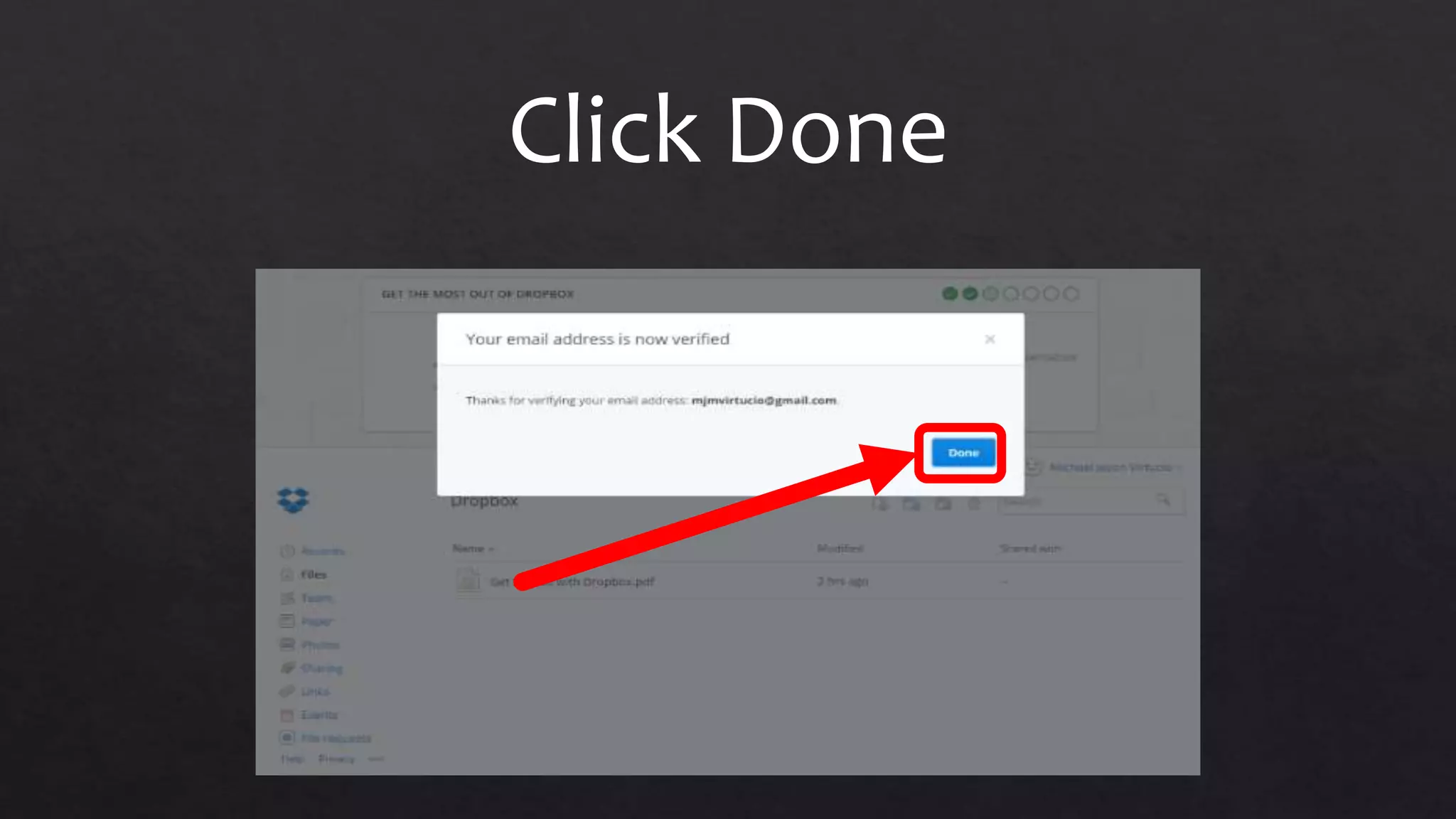
Click Done
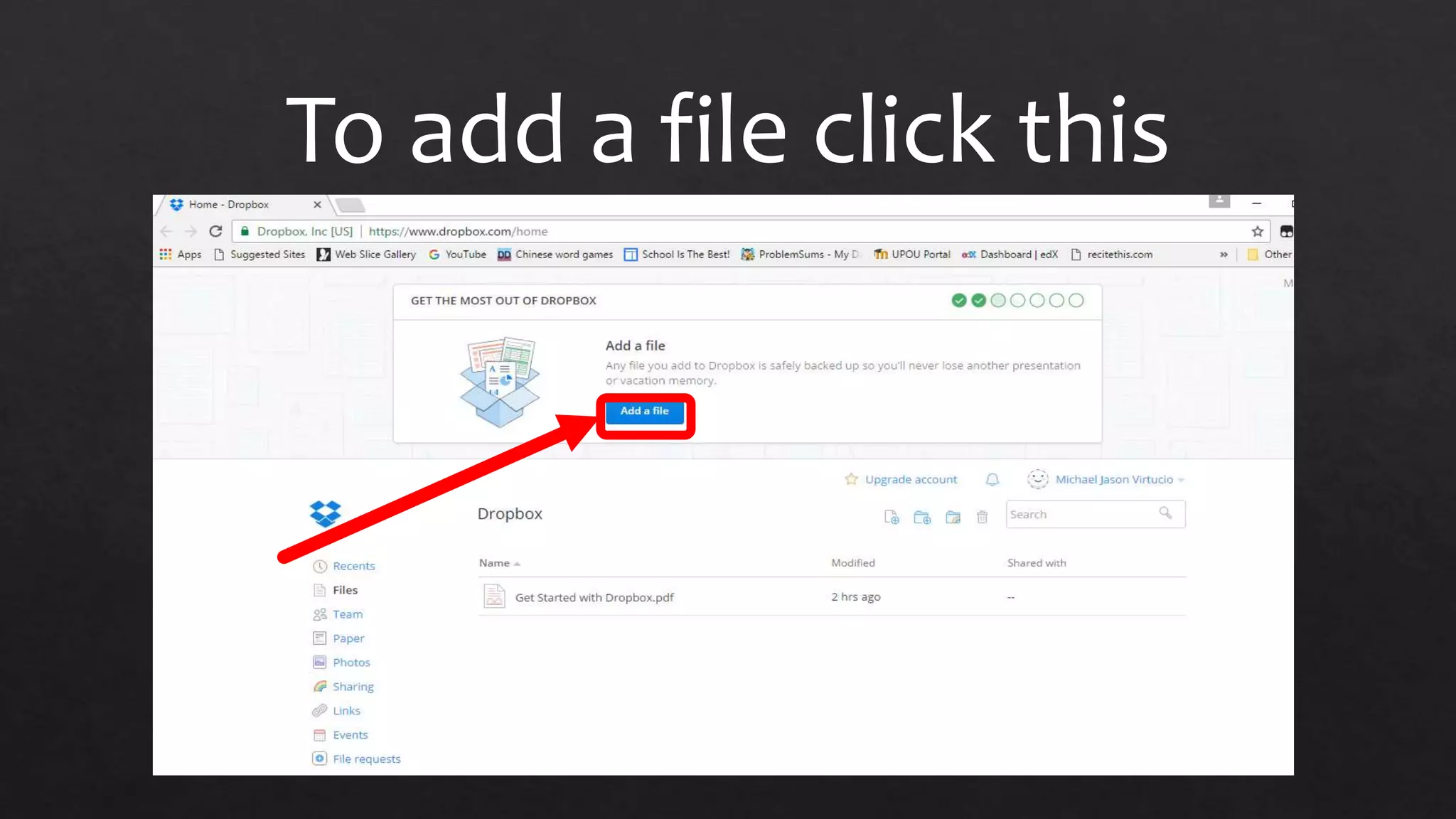
To add a file click this
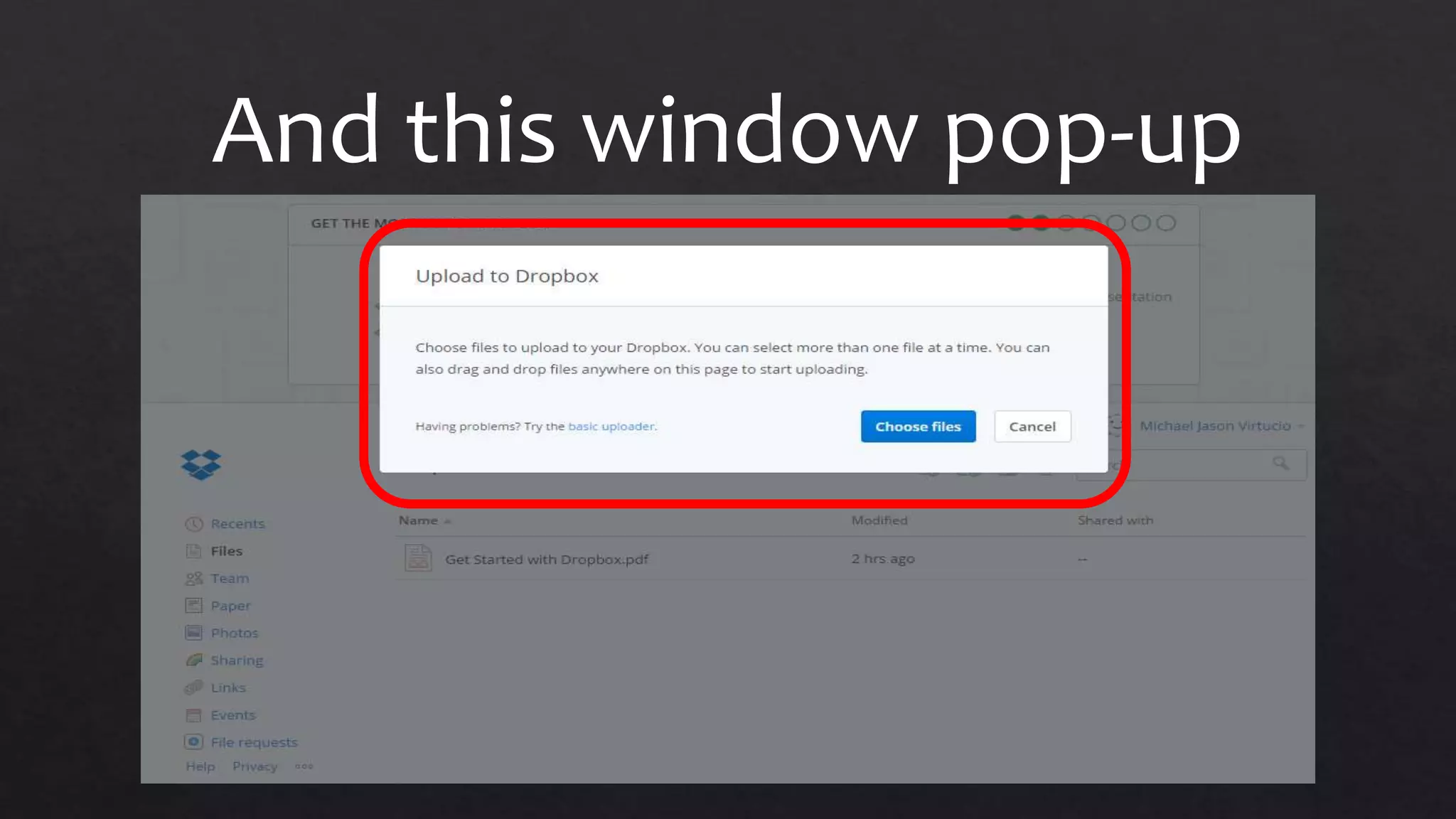
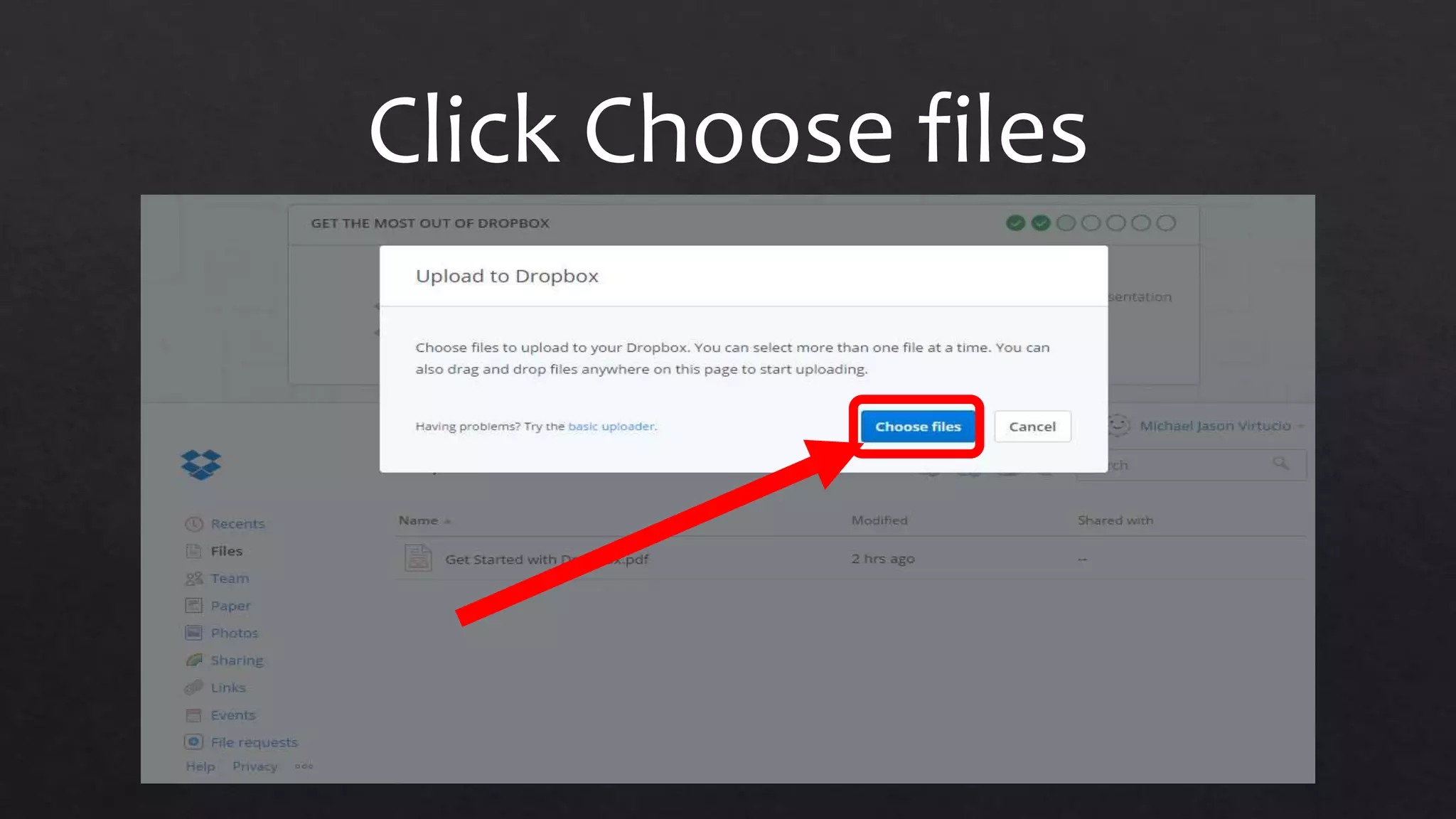
And this window pop-up
Click Choose files
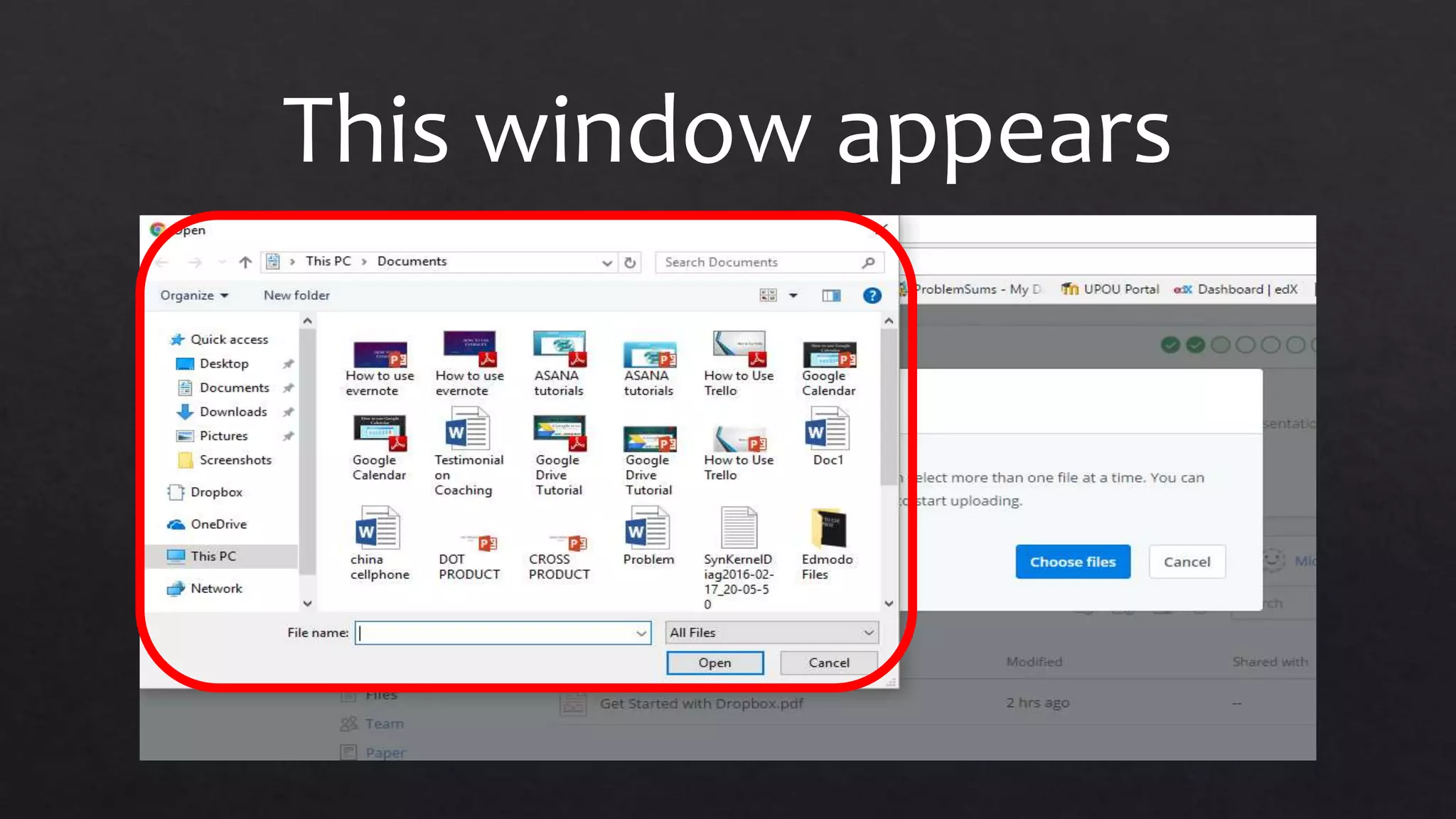
This window appears
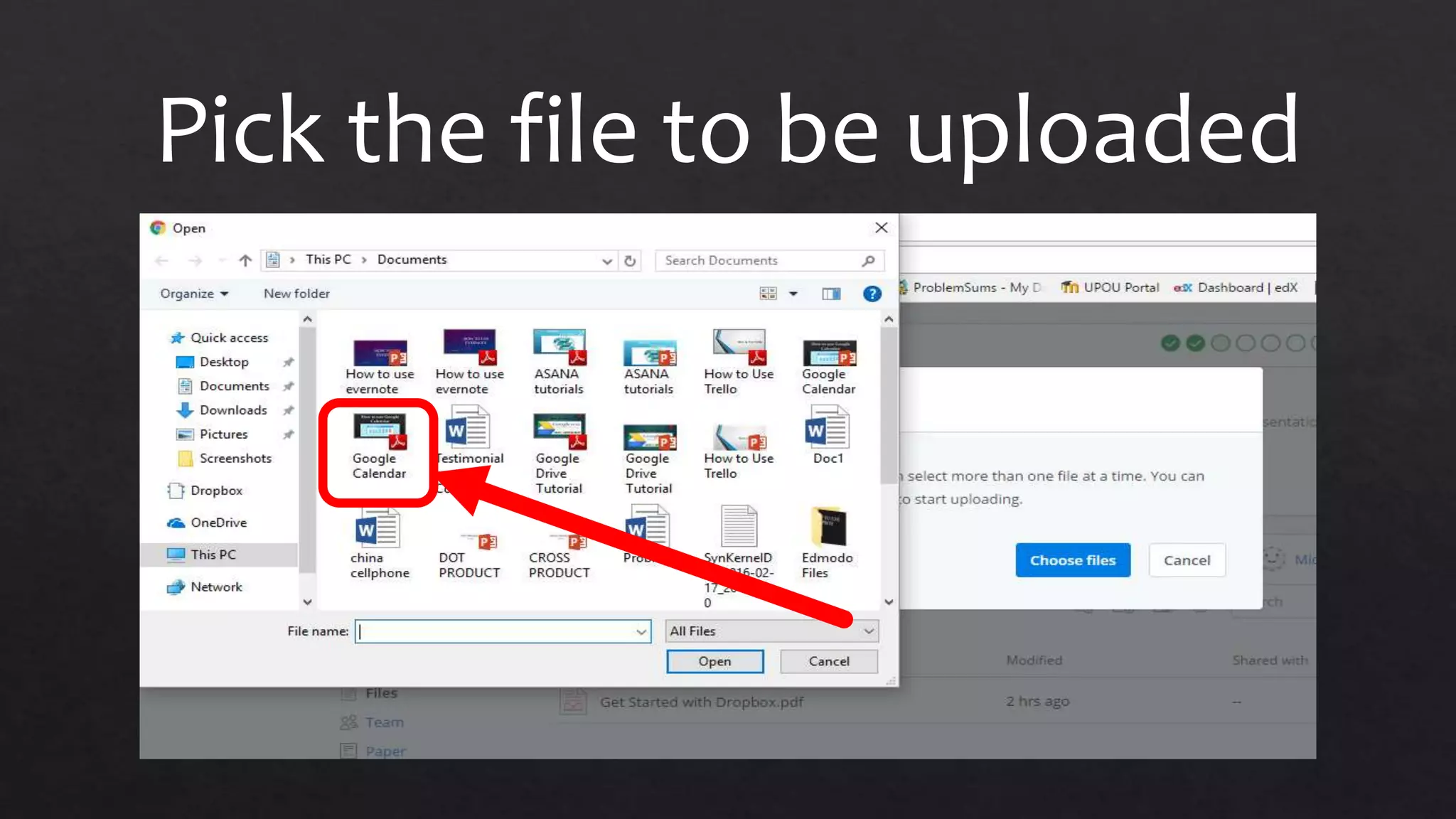
Pick the file to be uploaded
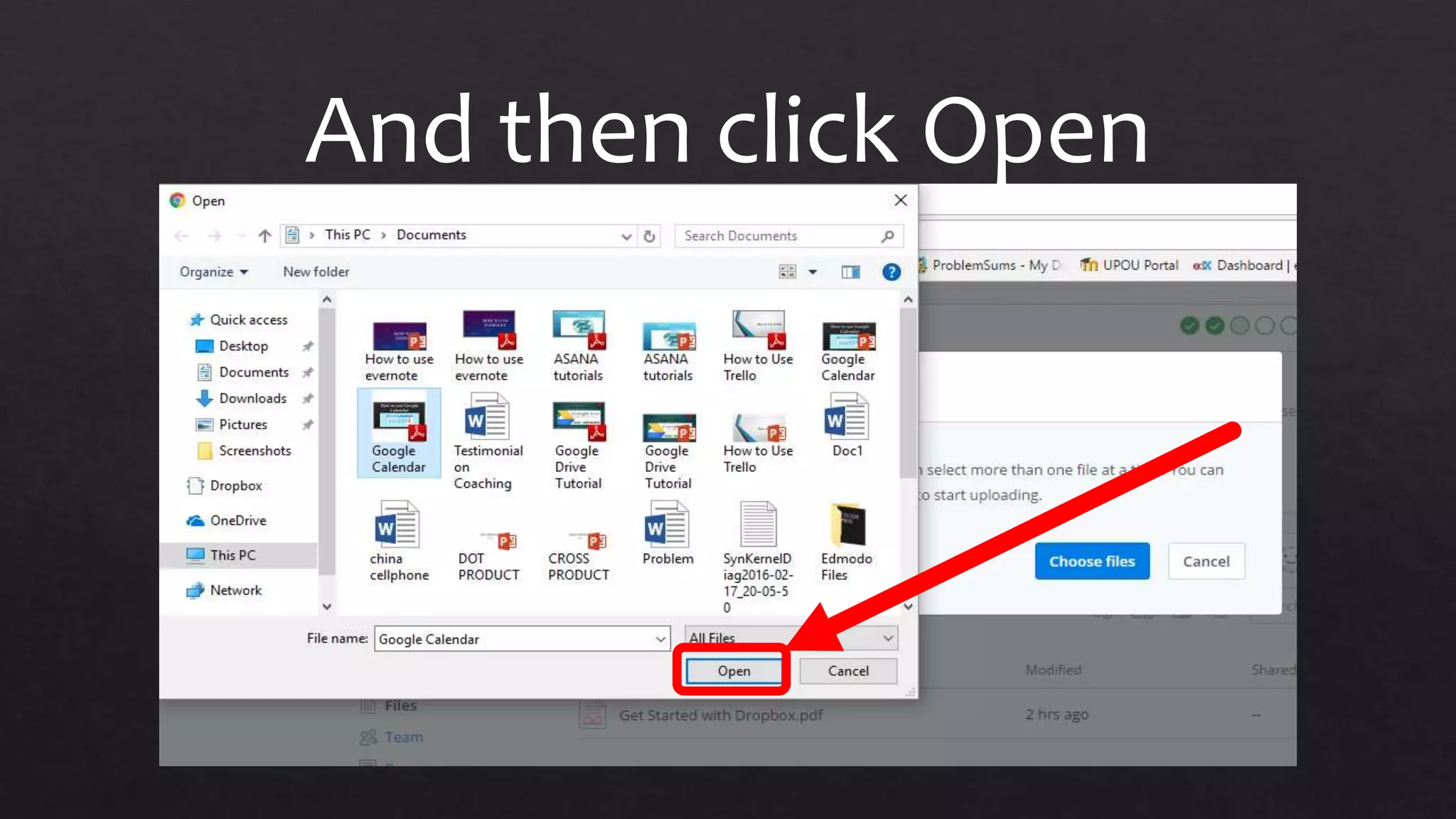
And then click Open
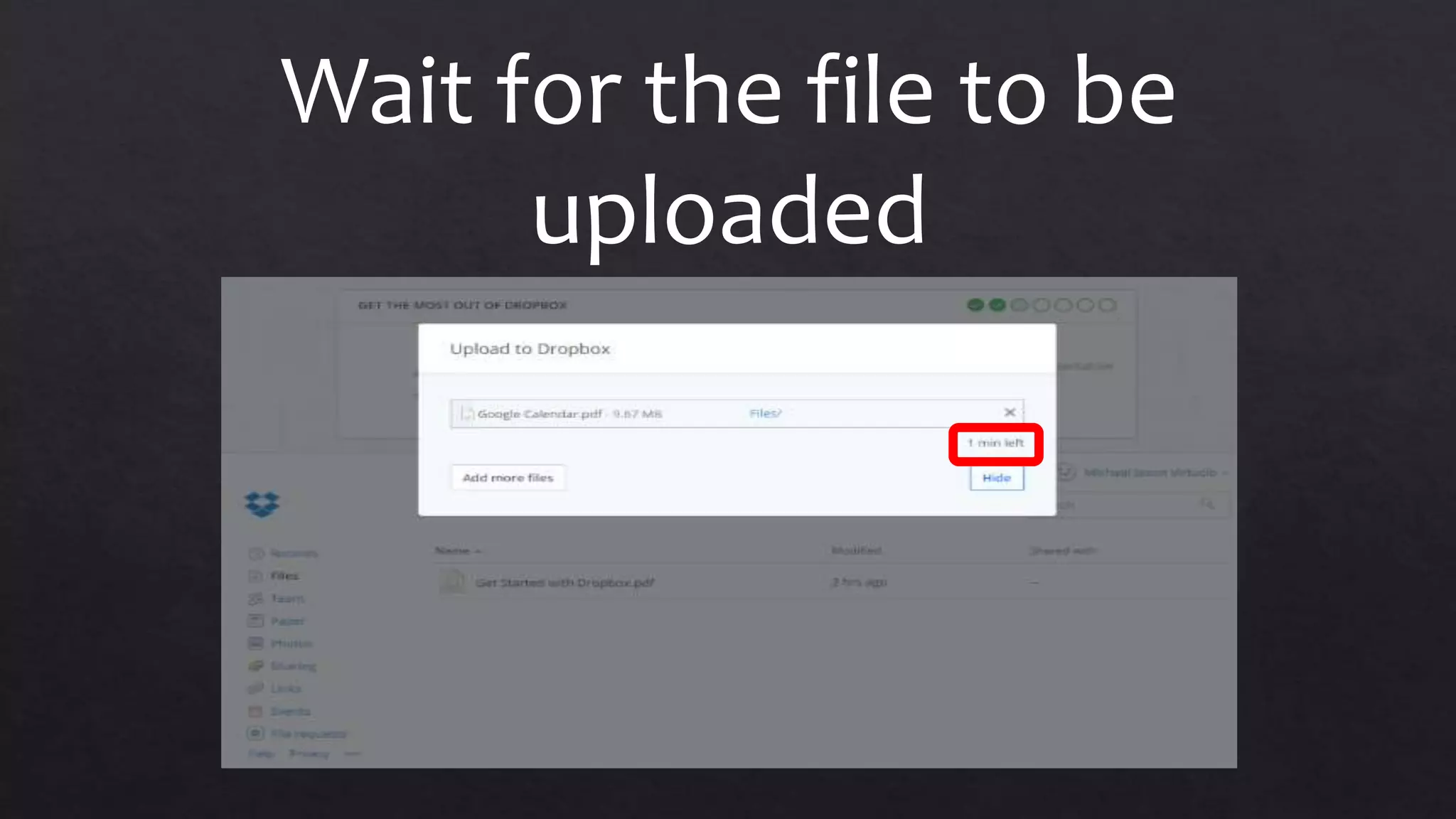
Wait for the file to be
uploaded
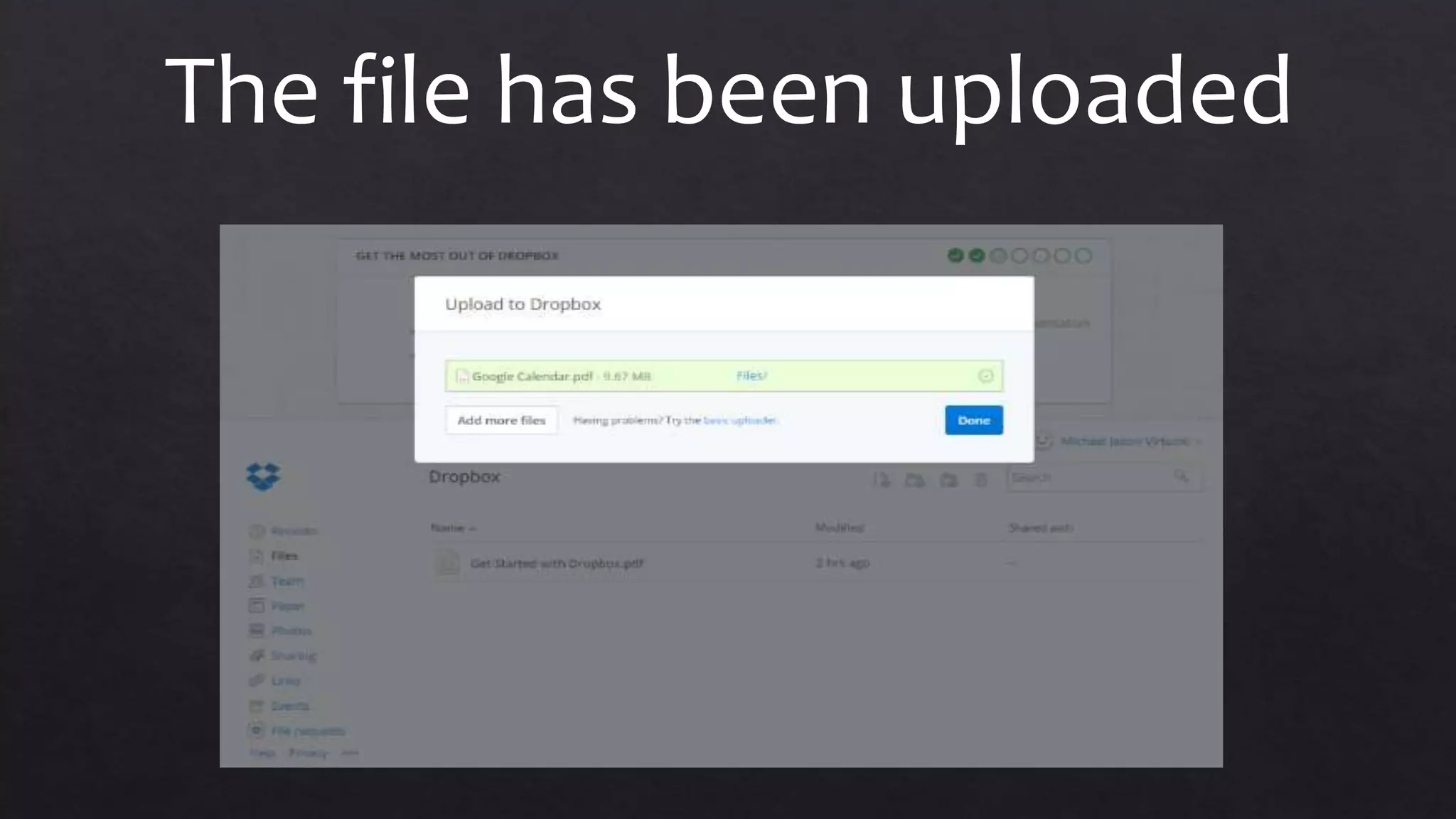
The file has been uploaded
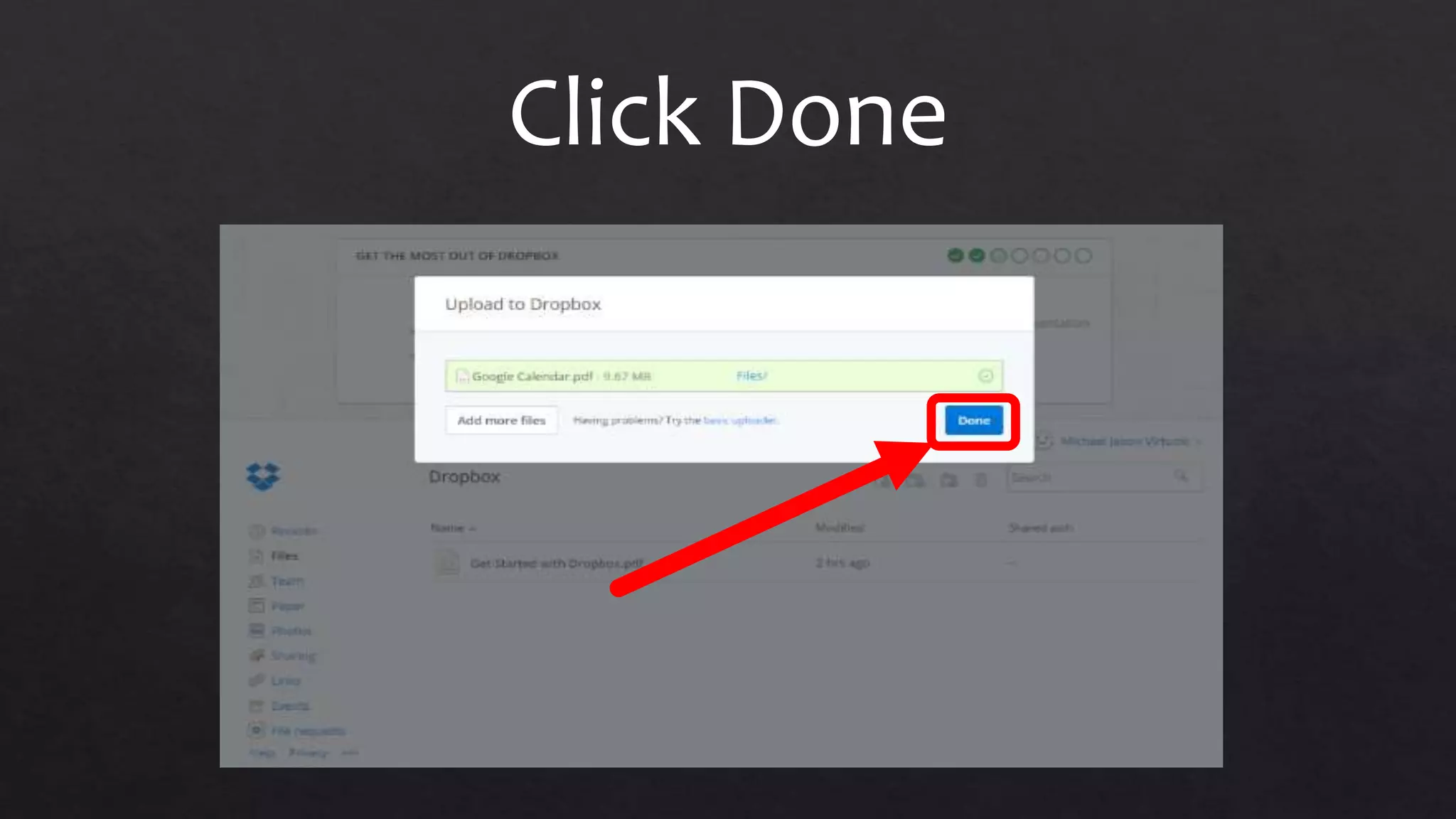
Click Done
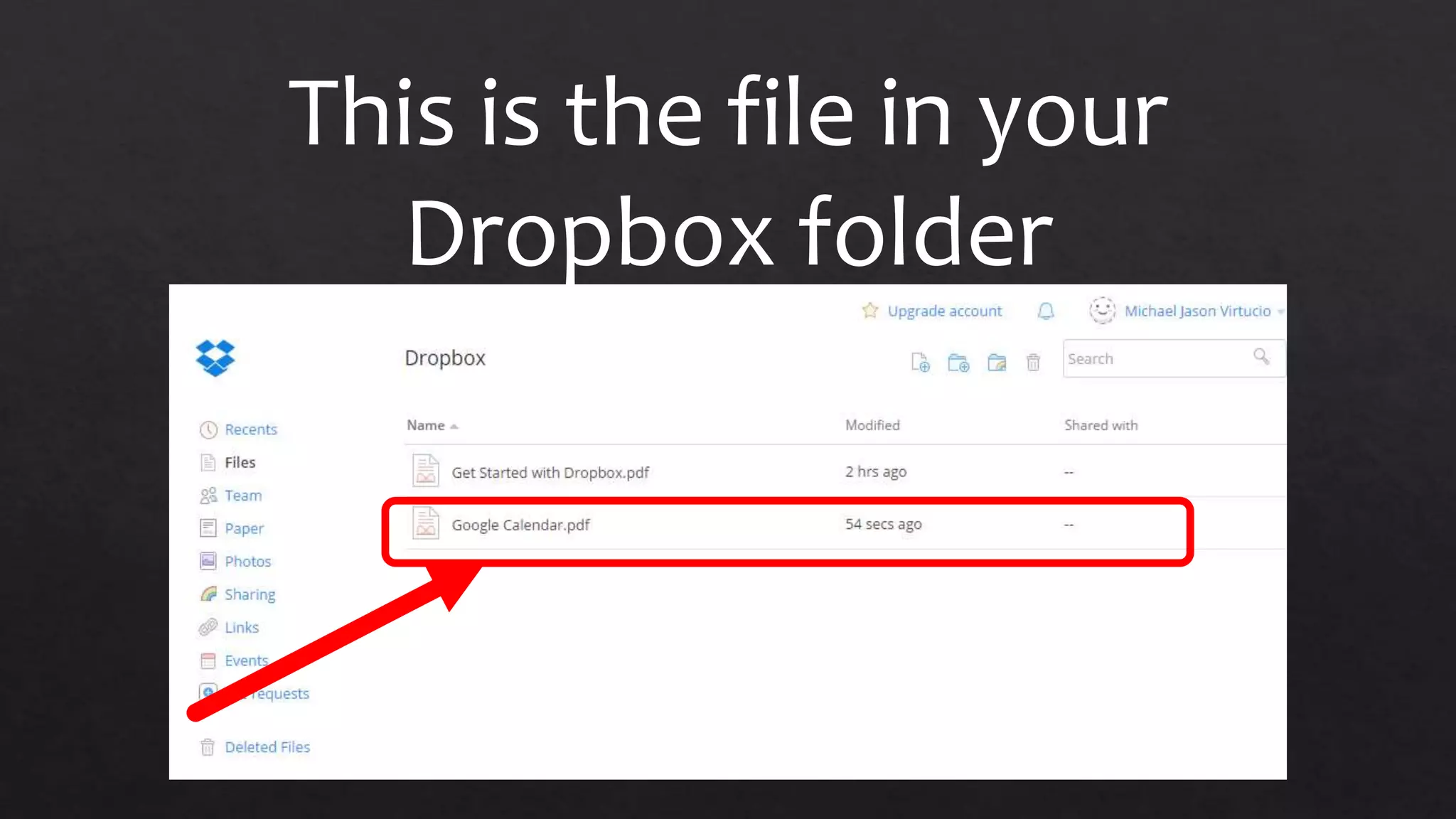
This is the file in your
Dropbox folder
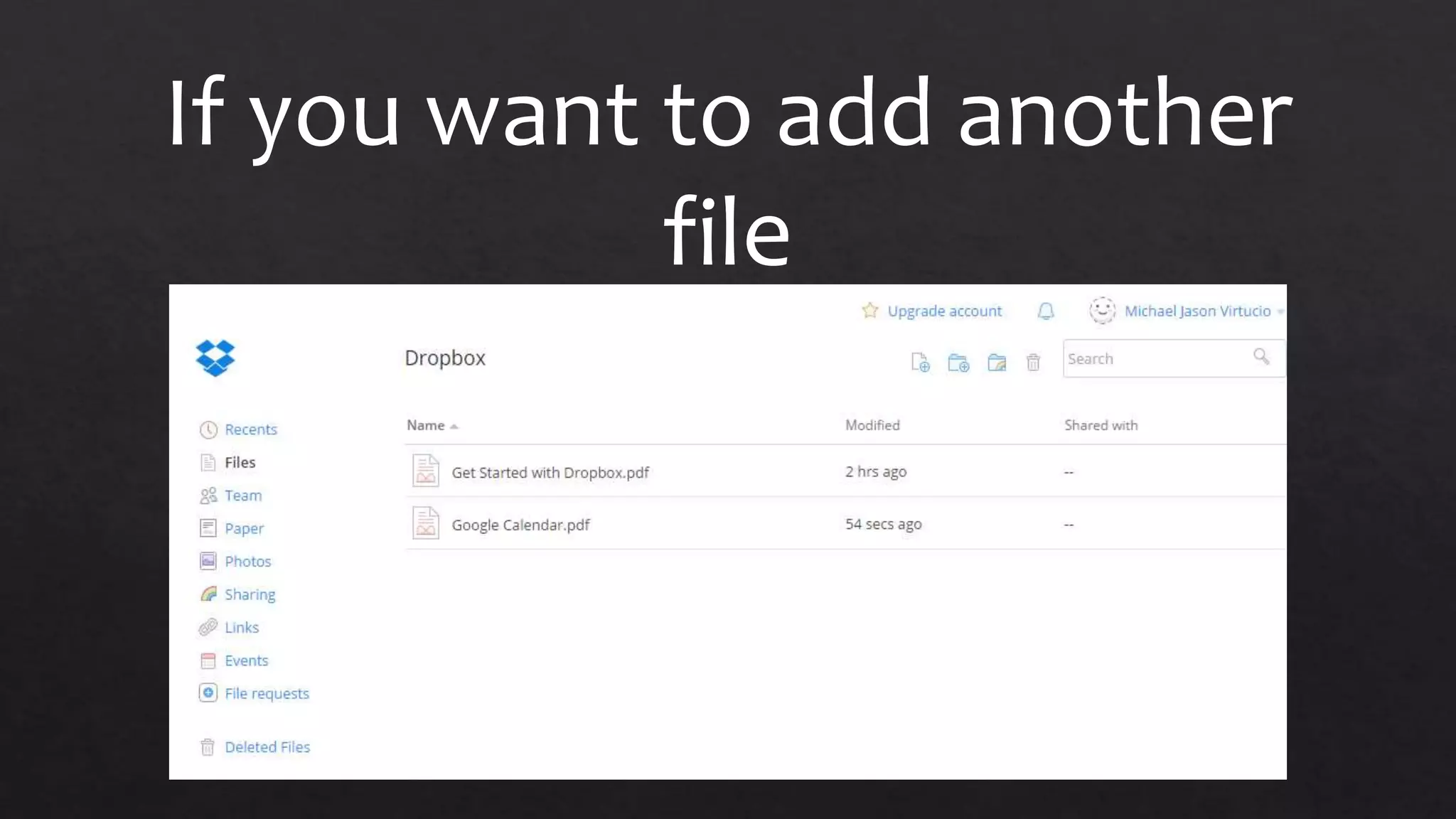
If you want to add another
file
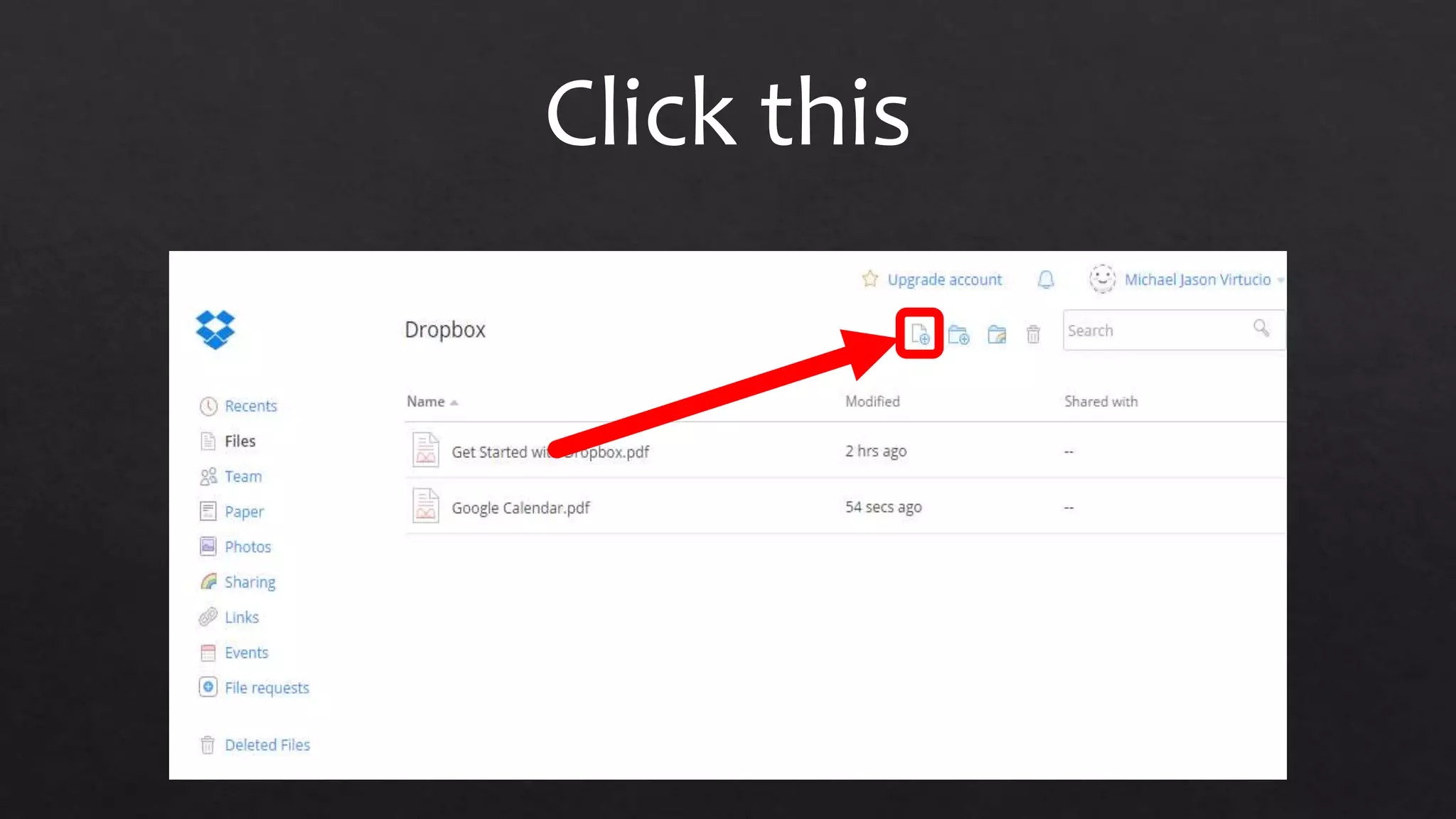
Click this
This window pop-up
To choose a file click this
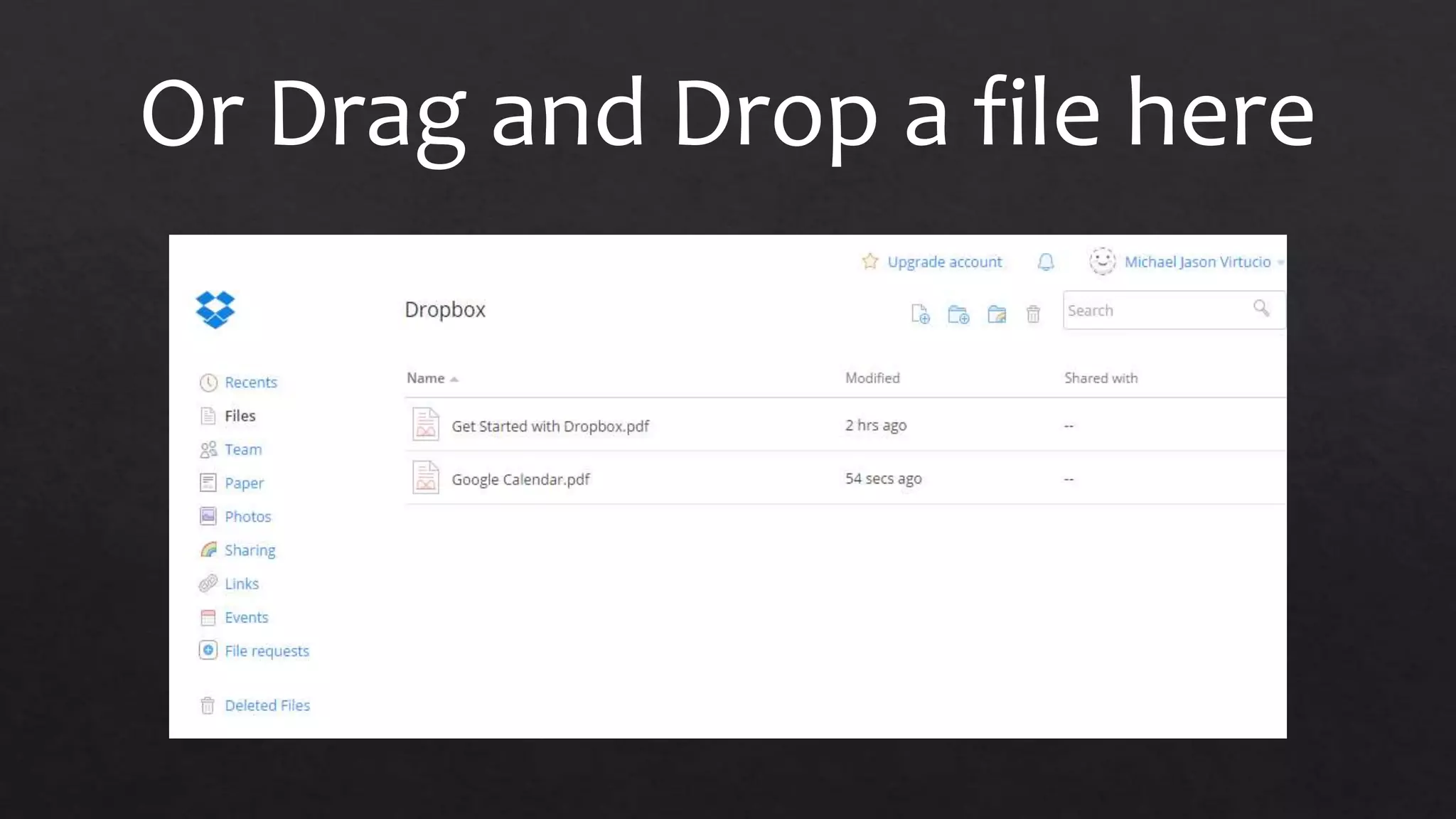
Or Drag and Drop a file here
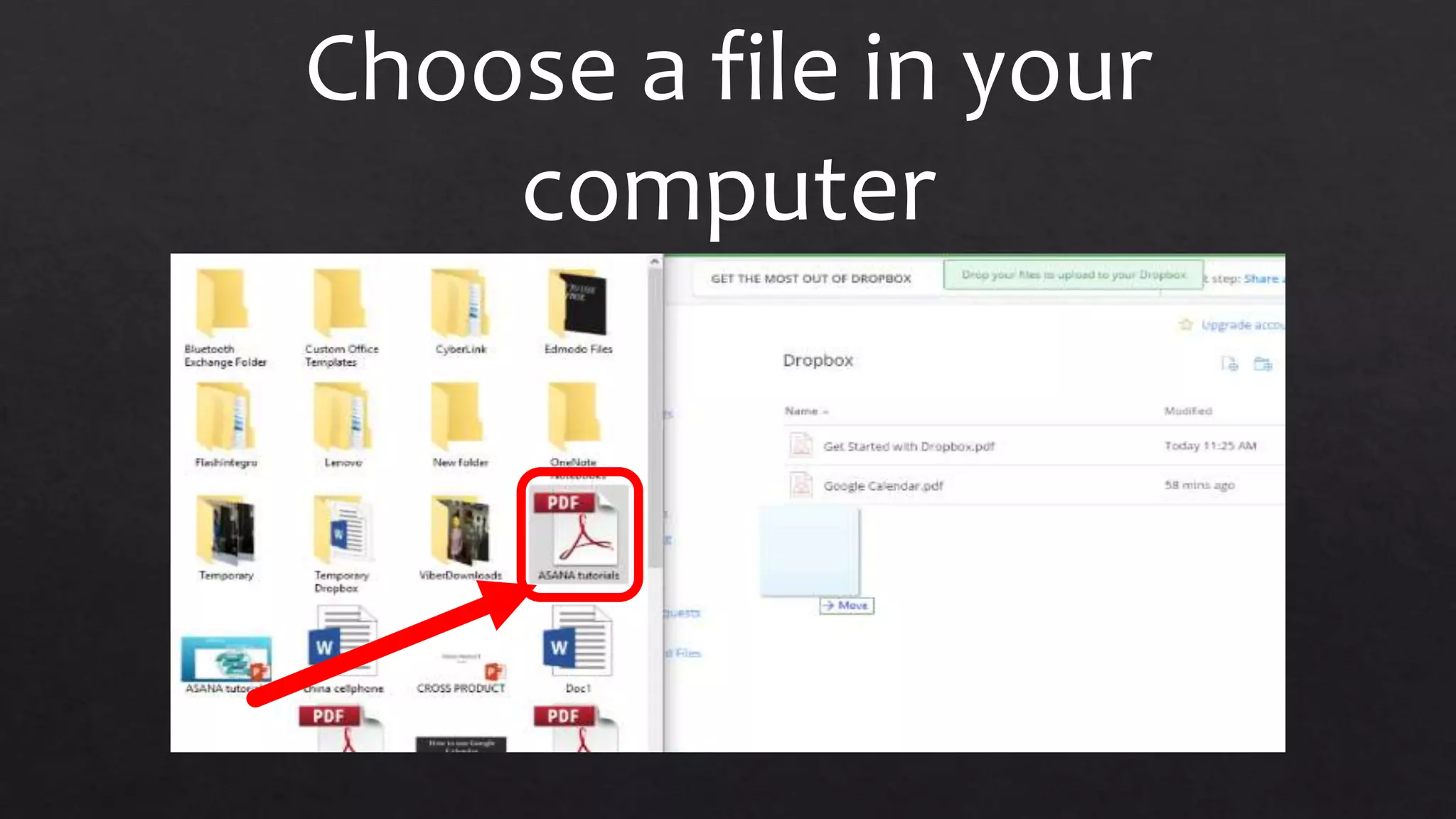
Choose a file in your
computer
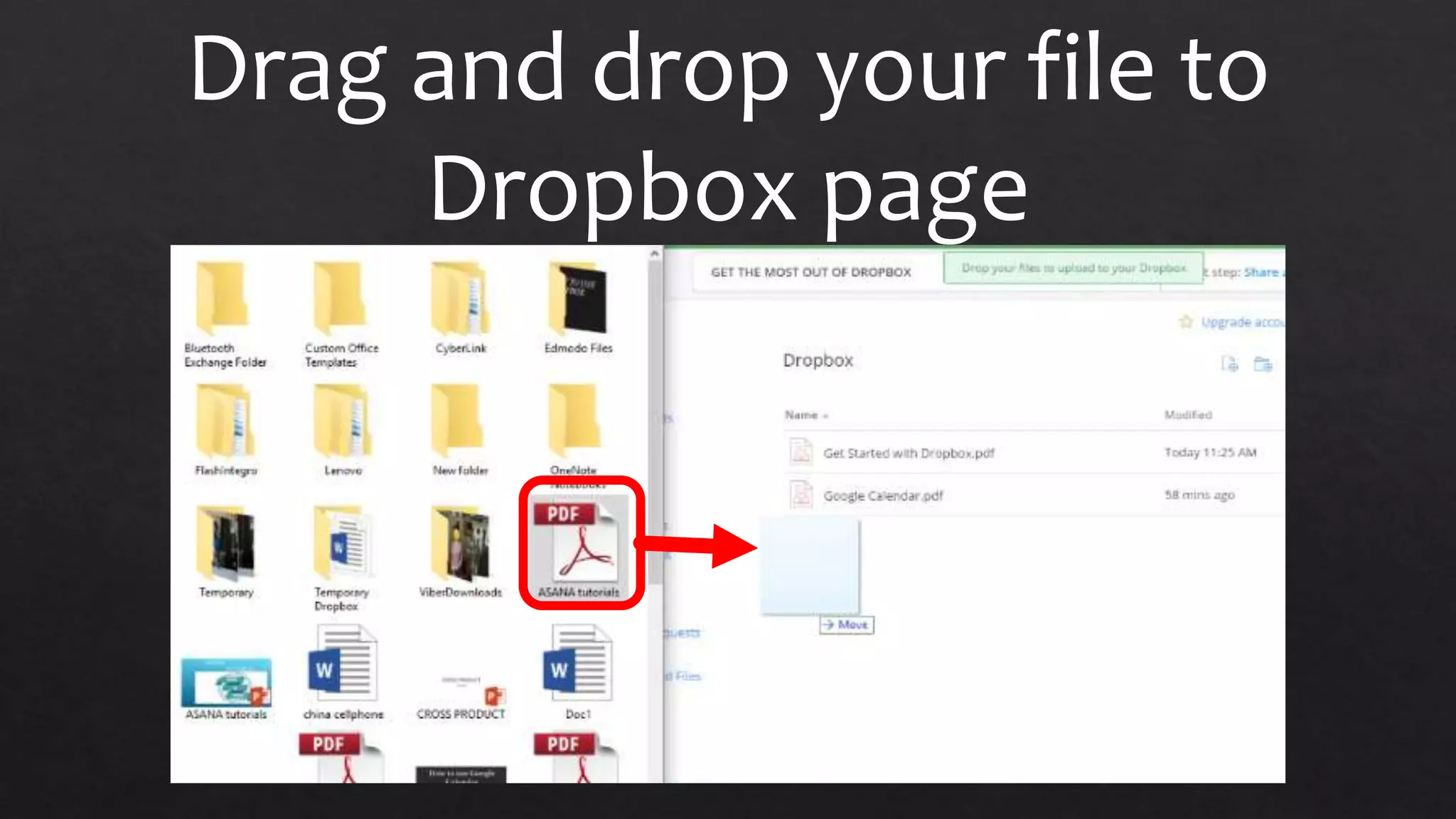
Drag and drop your file to
Dropbox page
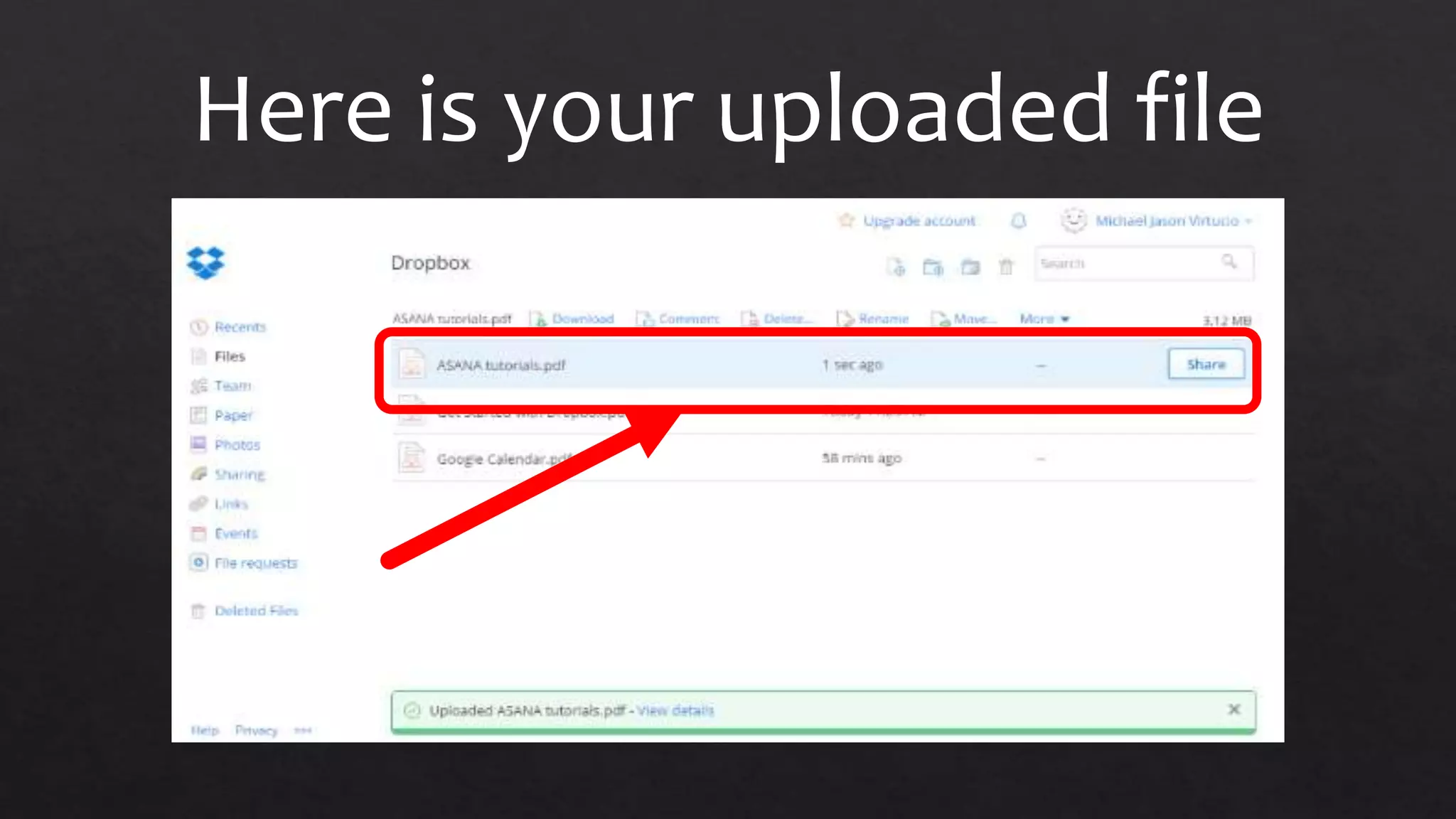
Here is your uploaded file
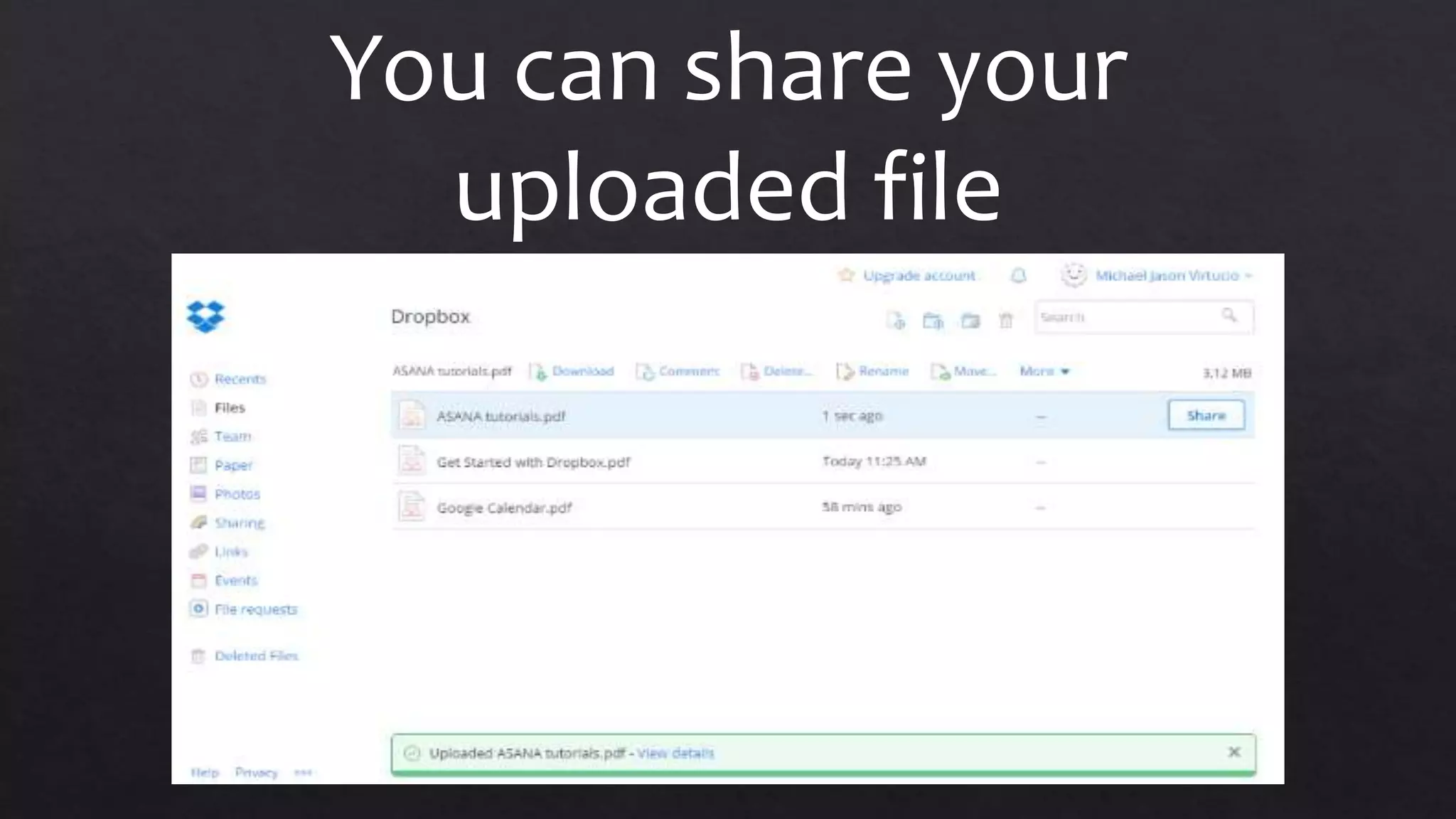
You can share your
uploaded file
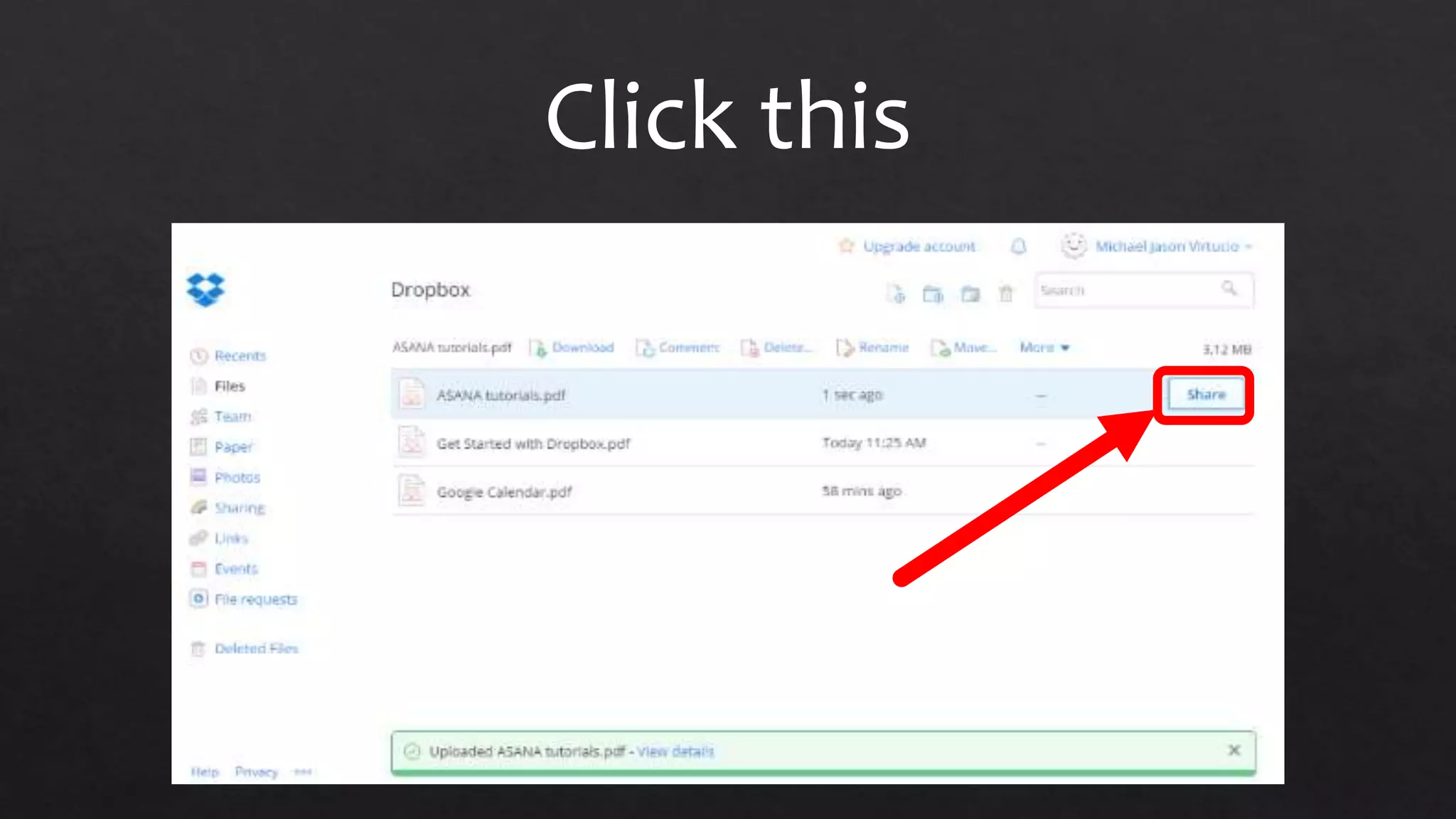
Click this
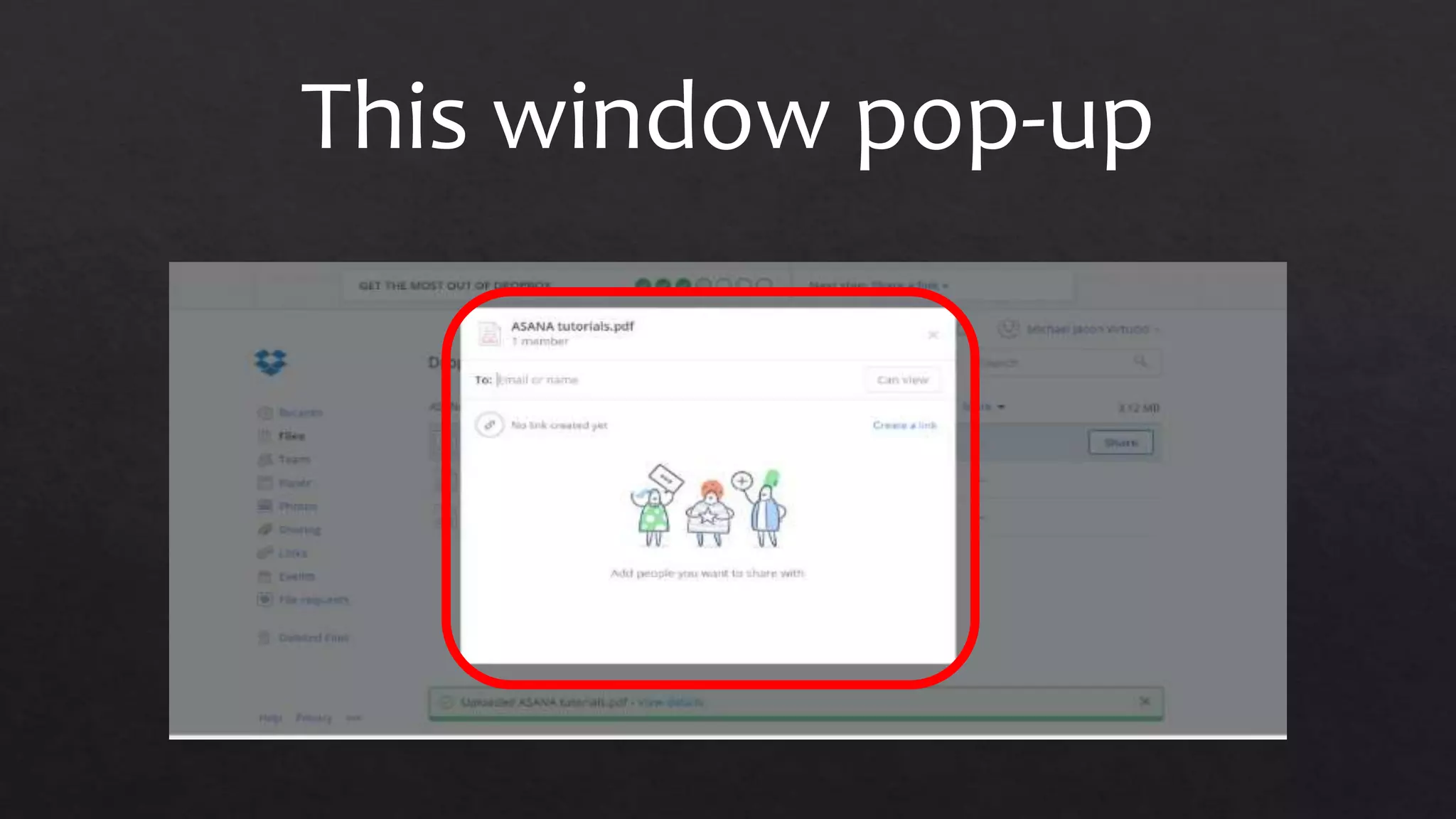
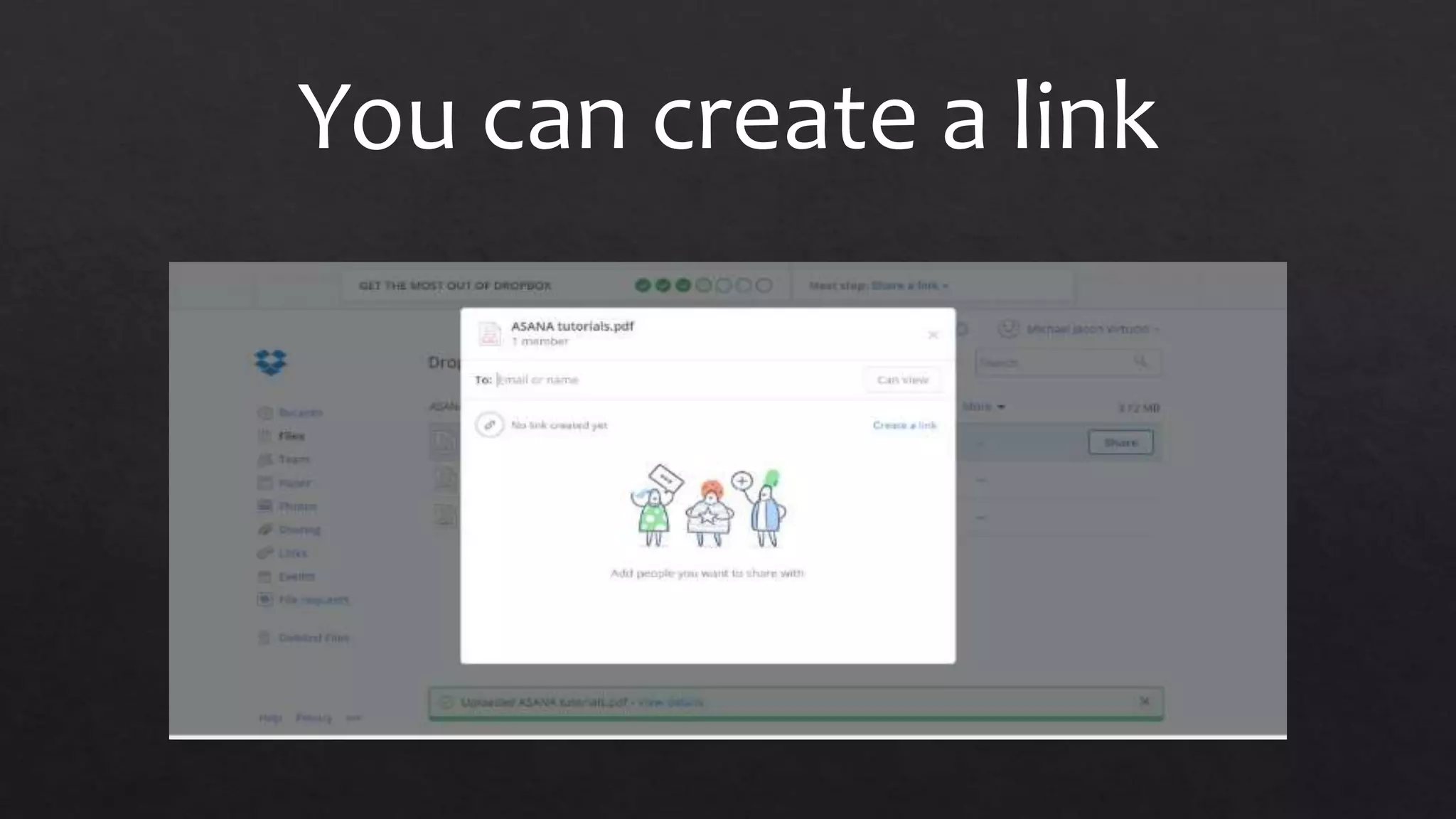
This window pop-up
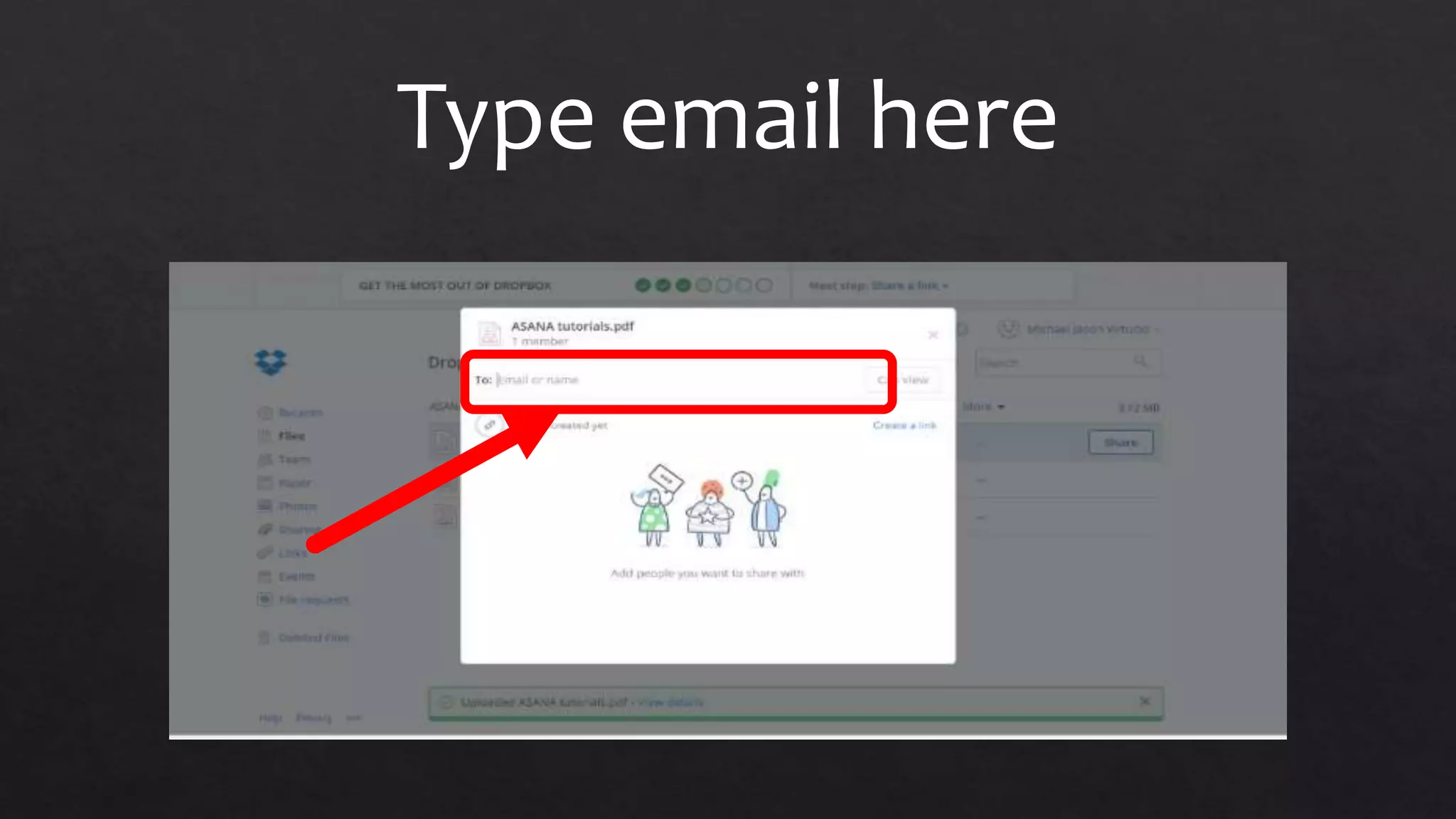
Type email here
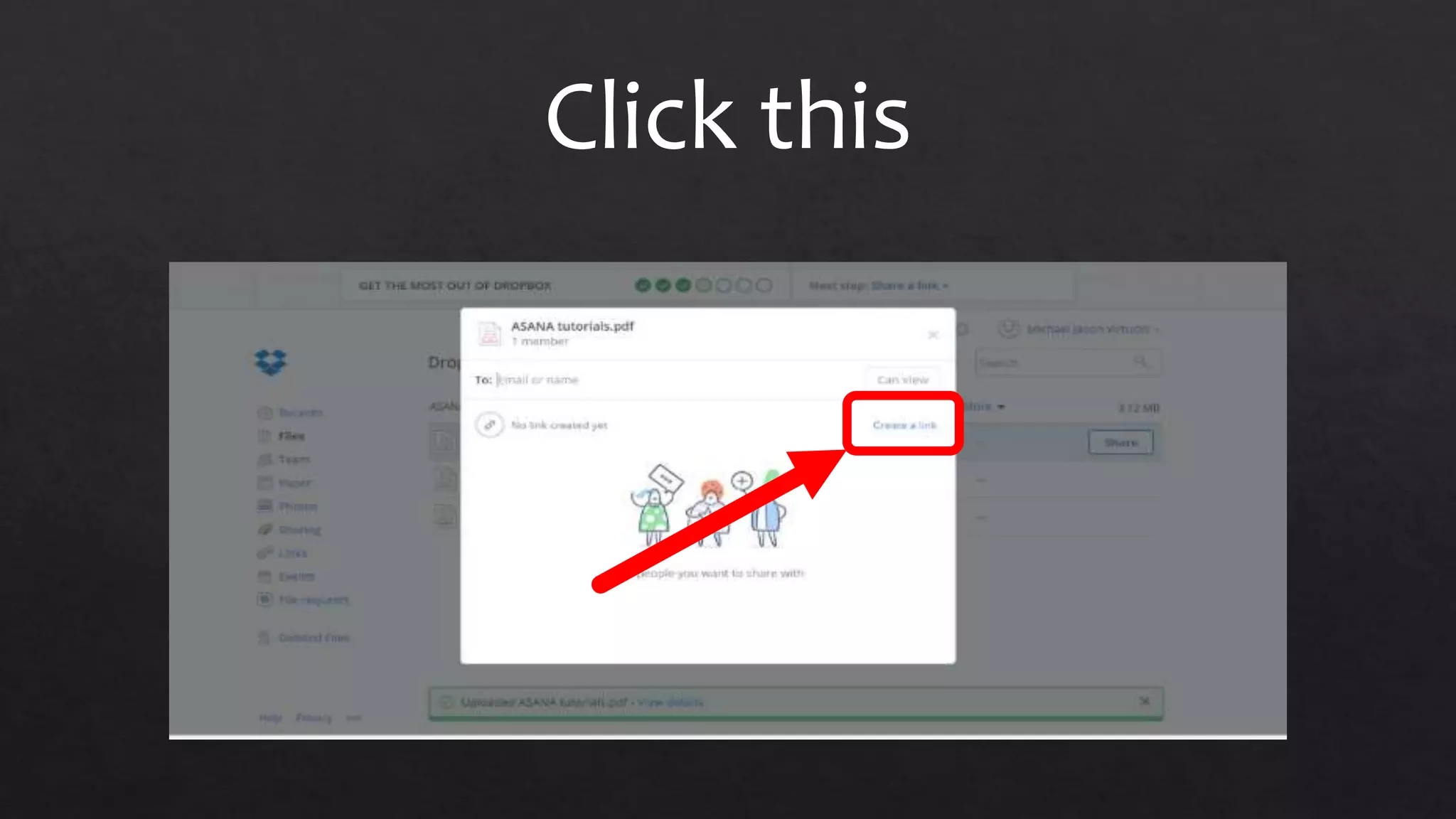
You can create a link
Click this
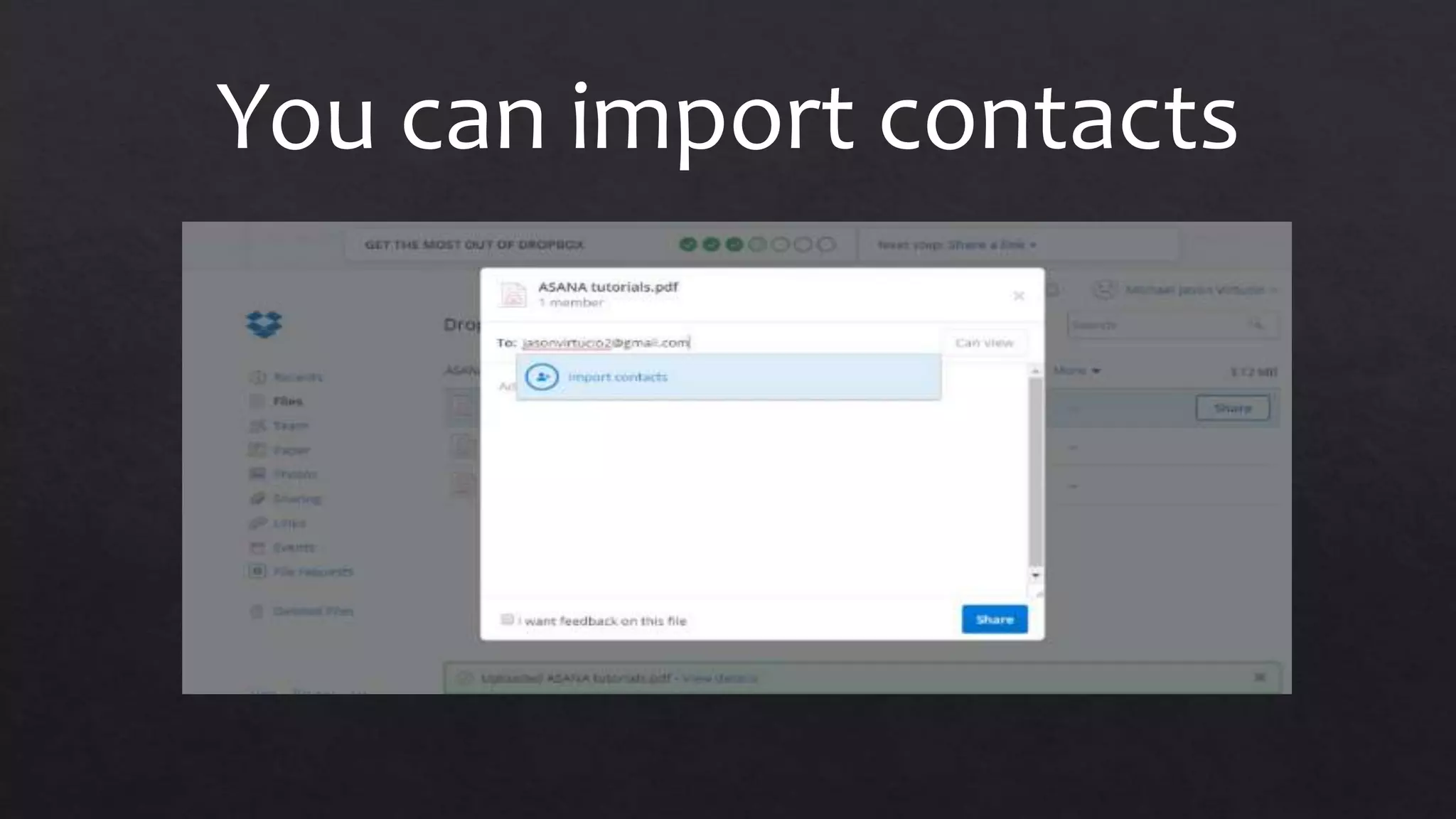
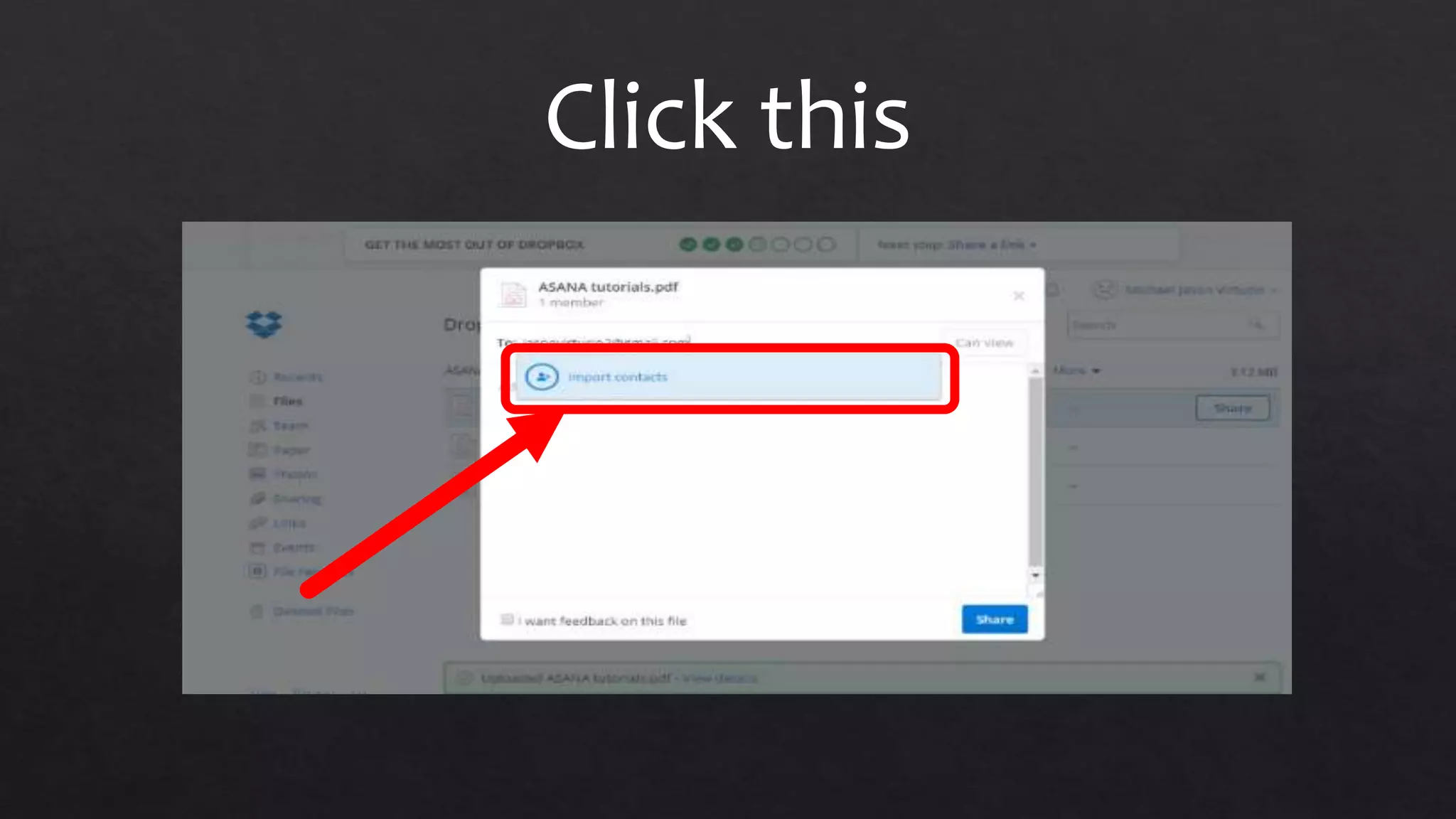
You can import contacts
Click this
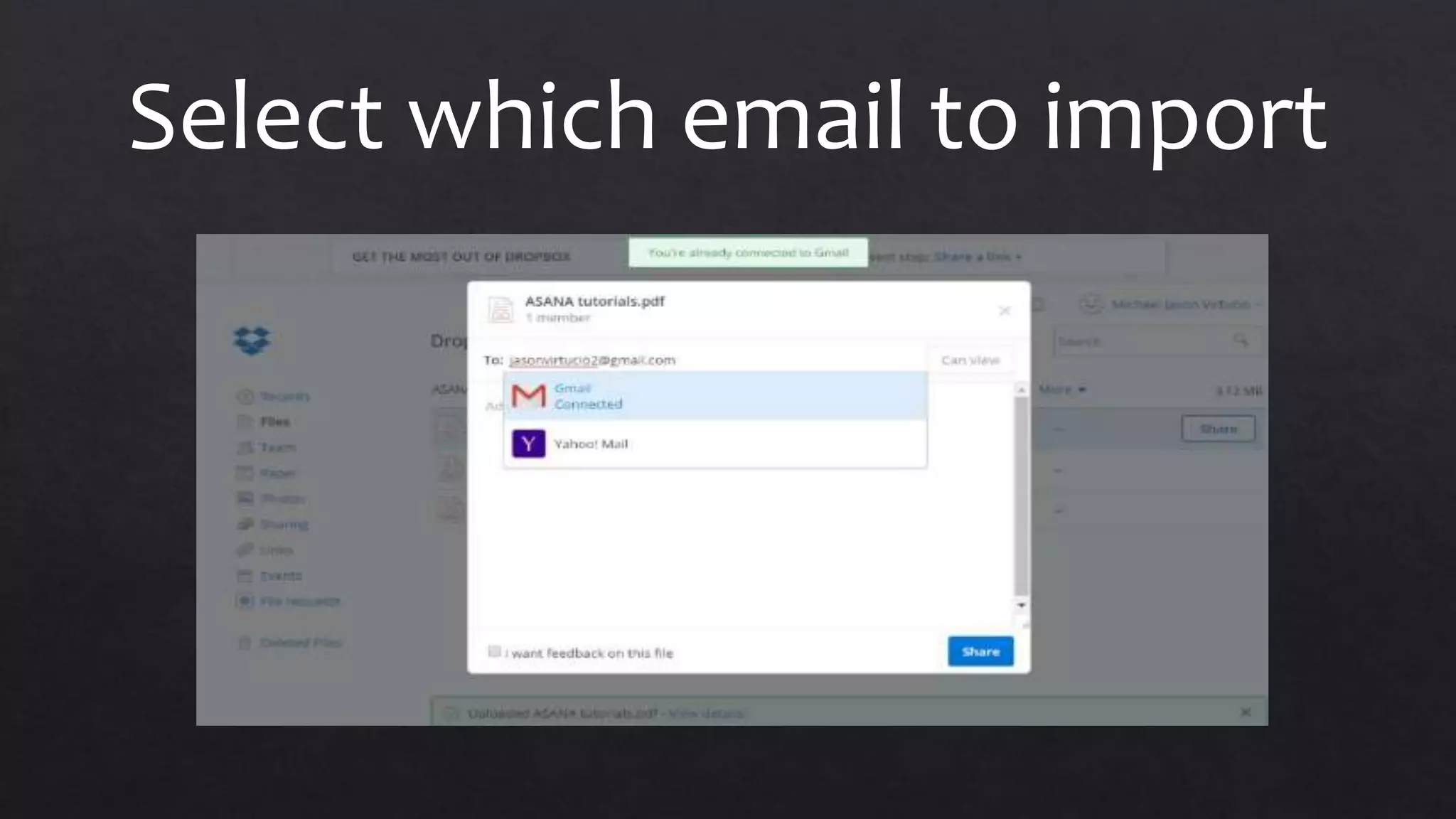
Select which email to import
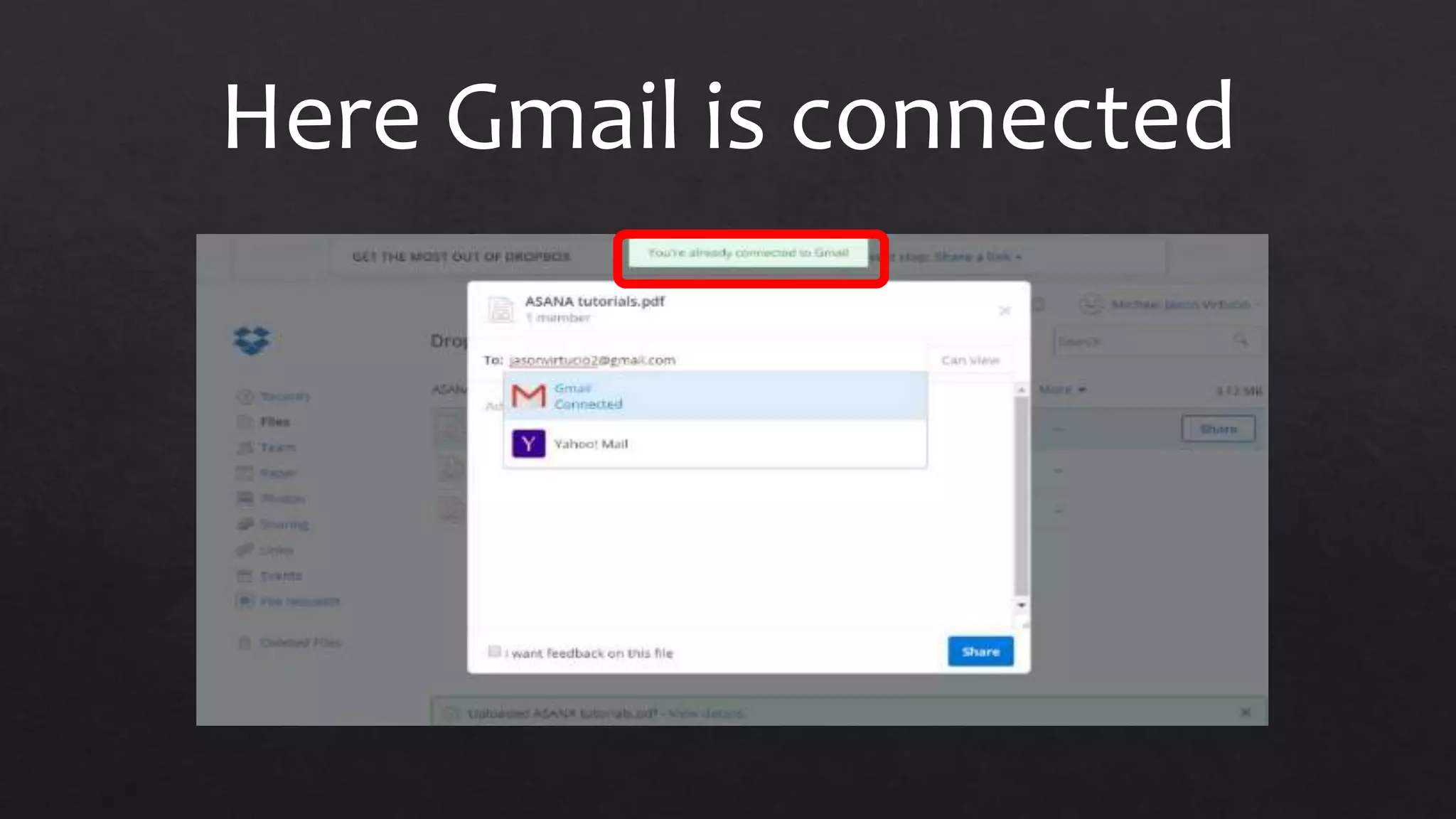
Here Gmail is connected
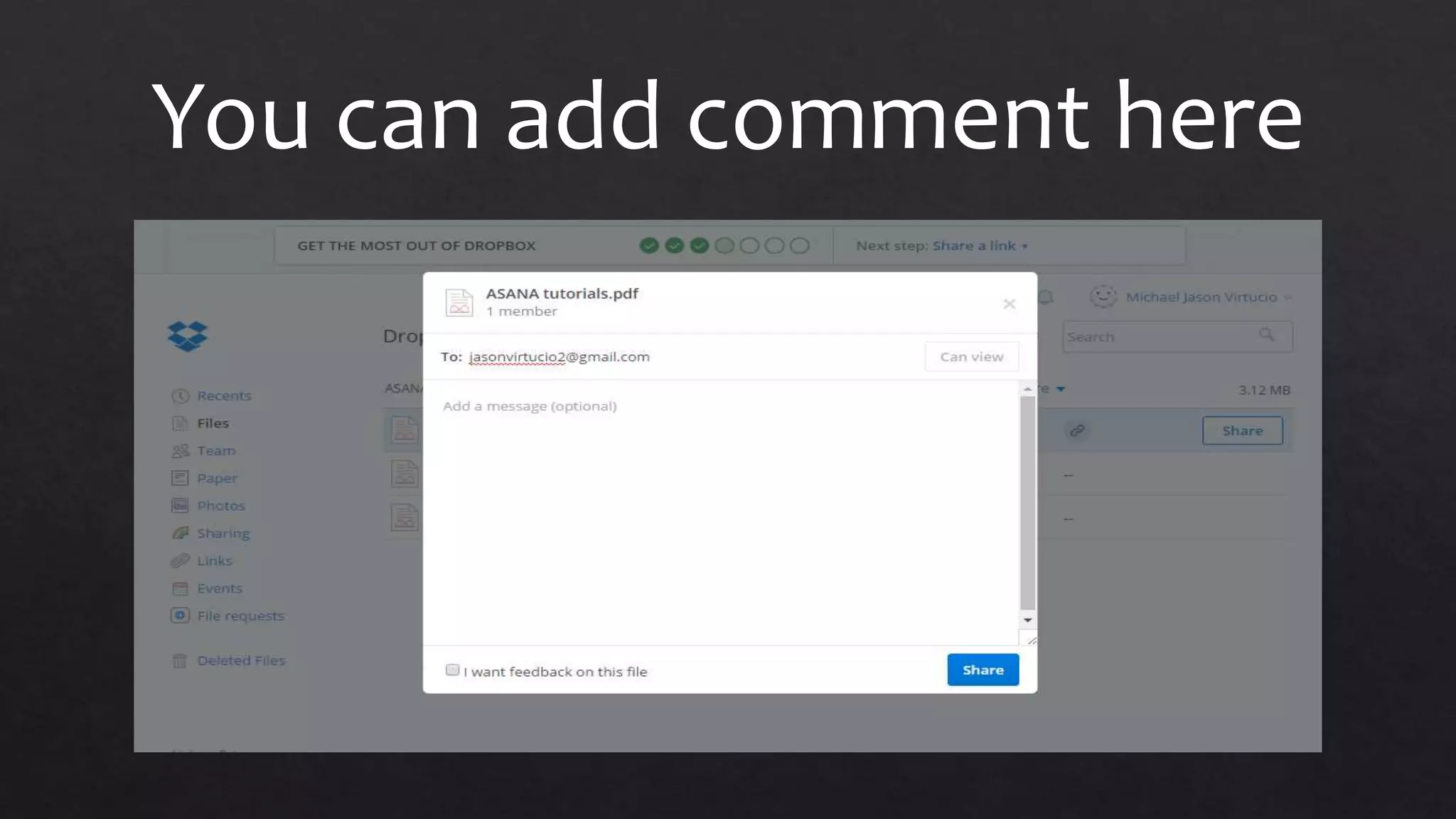
You can add comment here
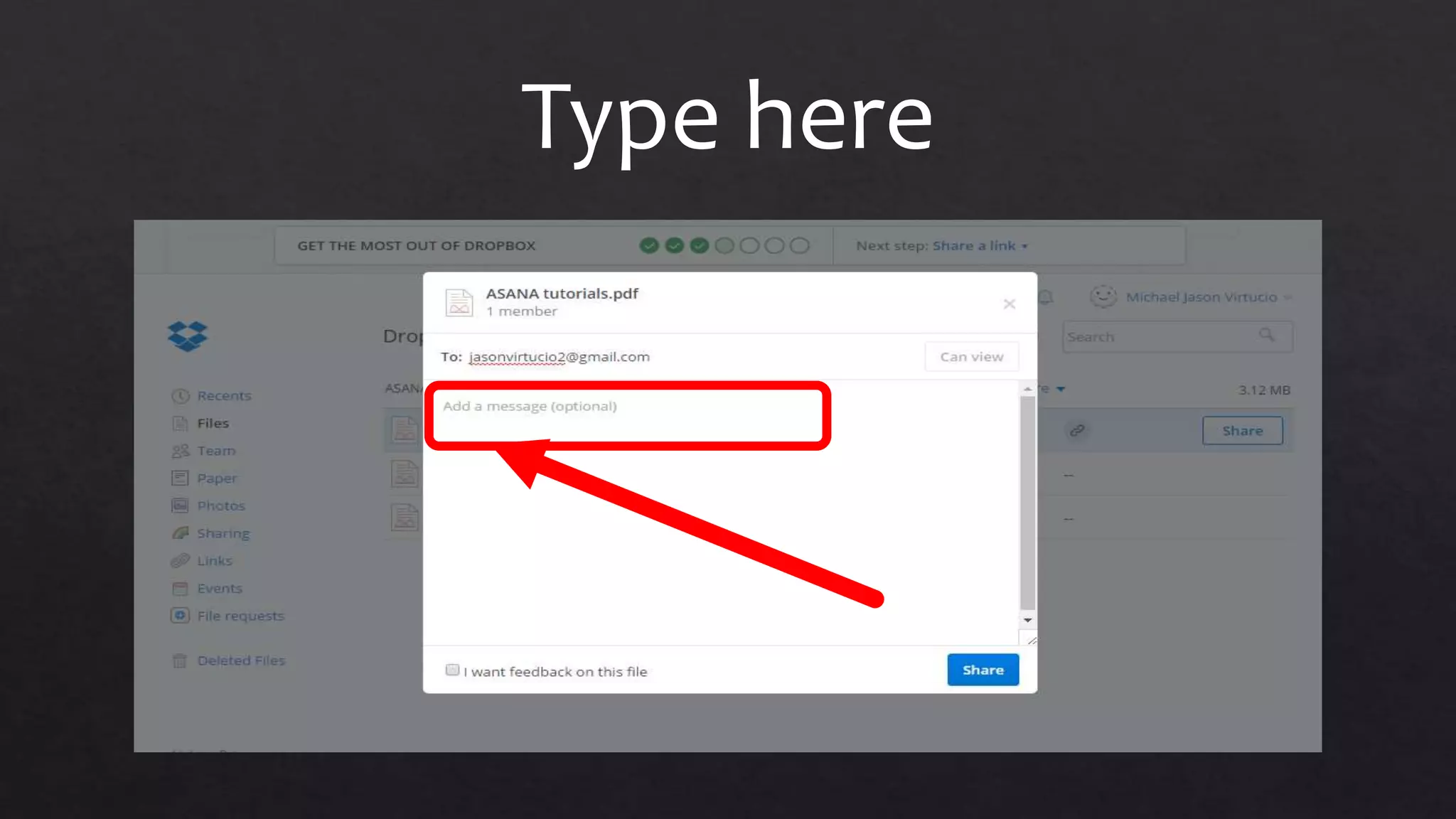
Type here
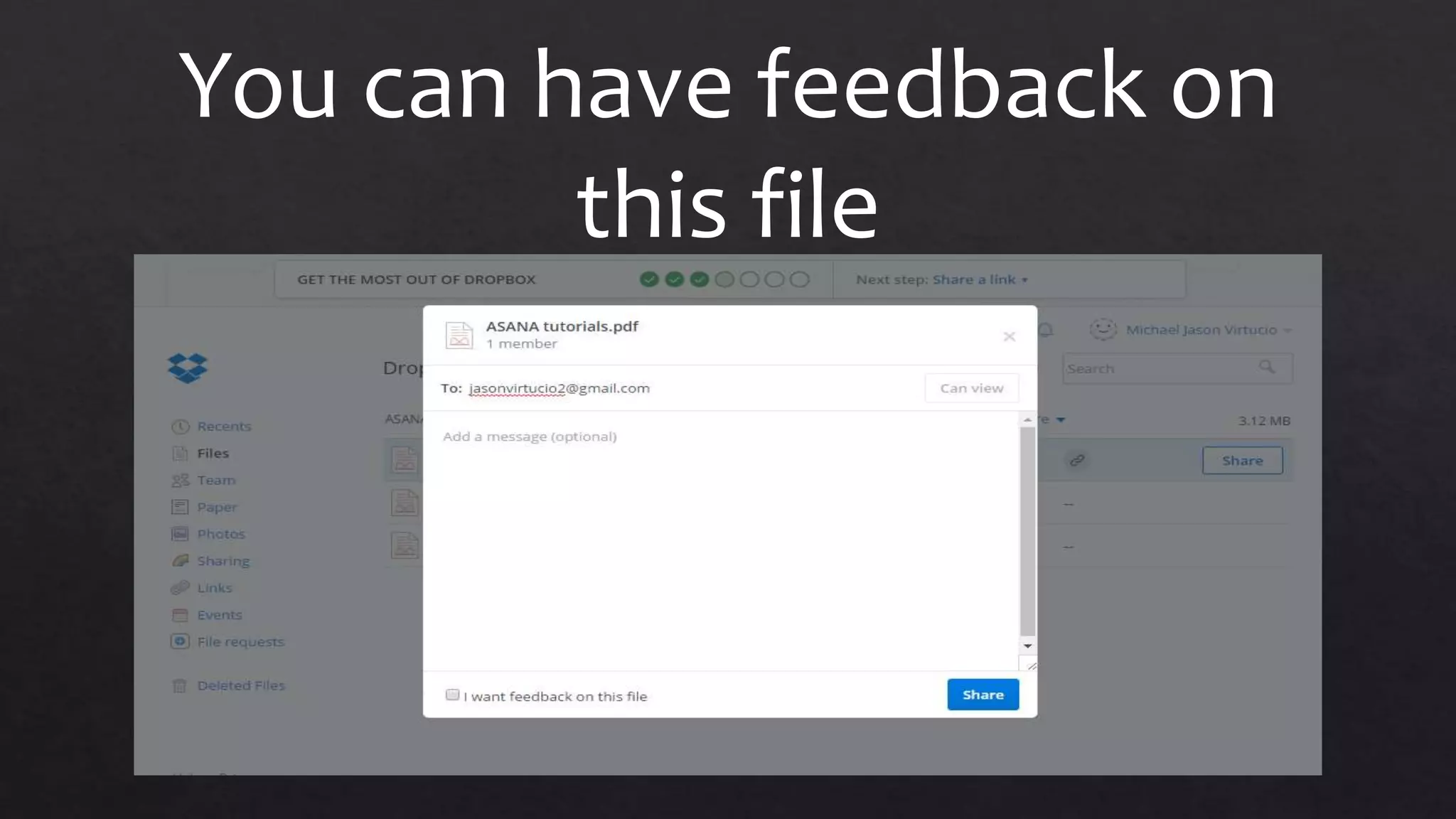
You can have feedback on
this file
Tick this
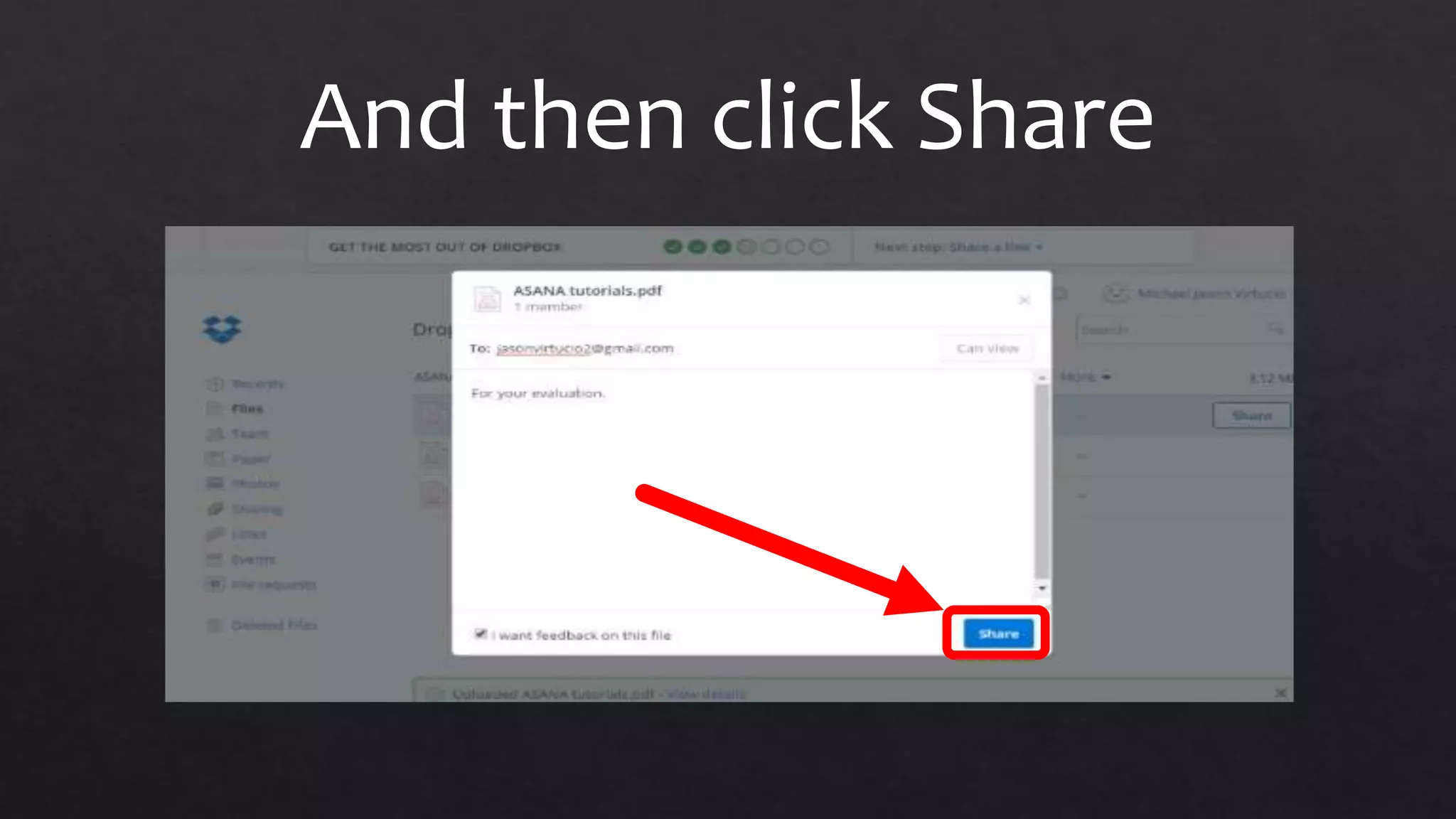
And then click Share
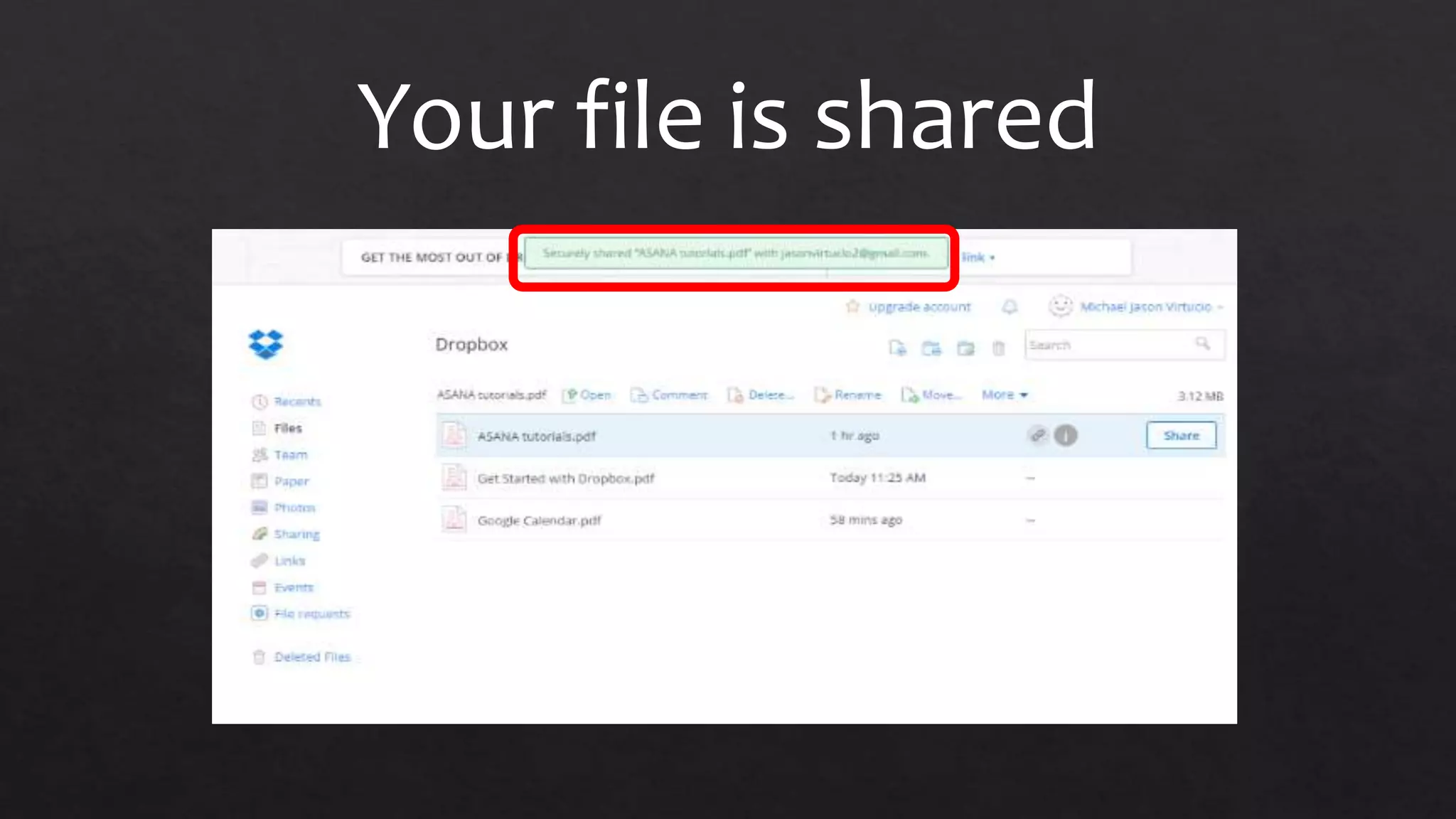
Your file is shared
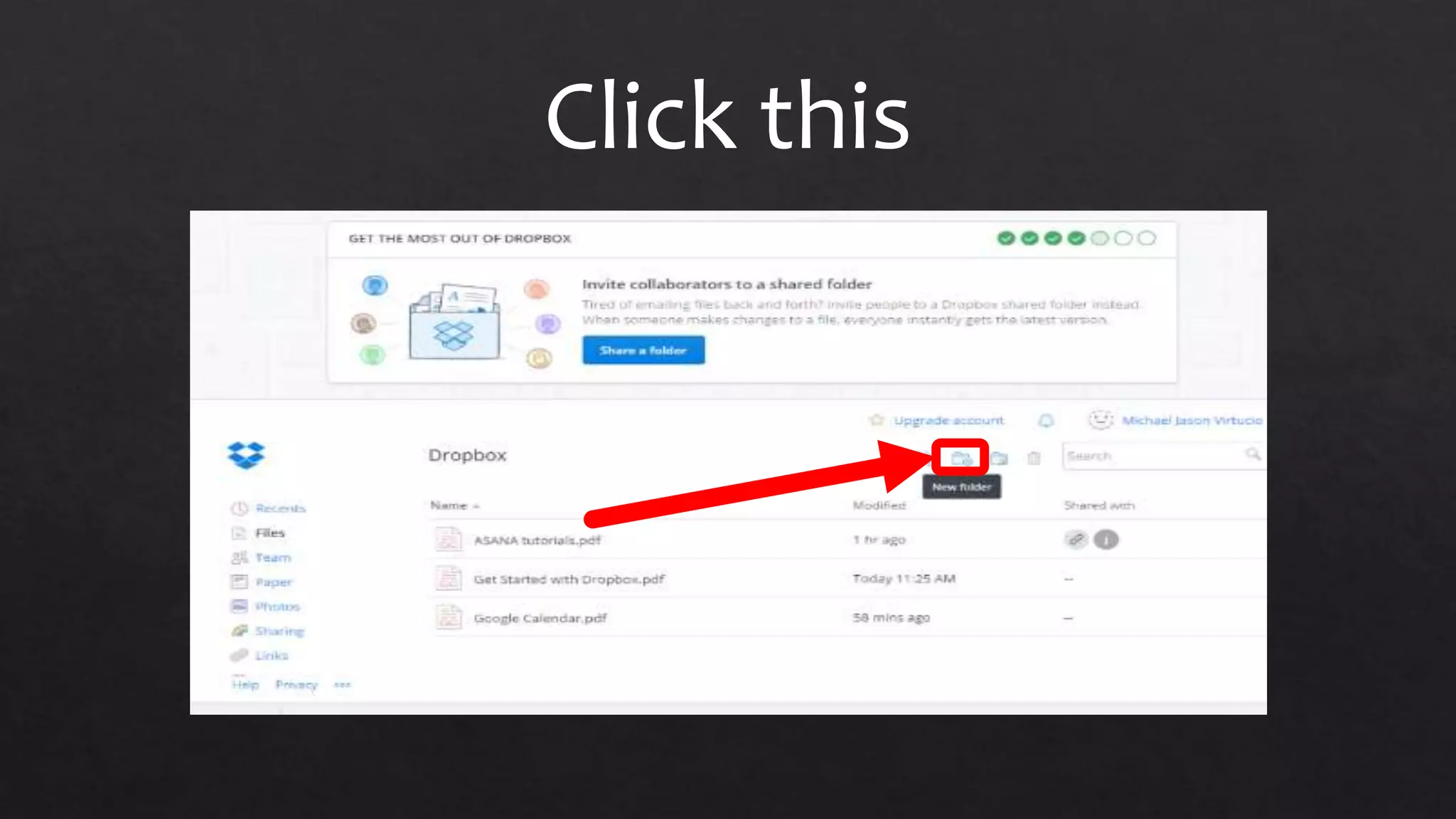
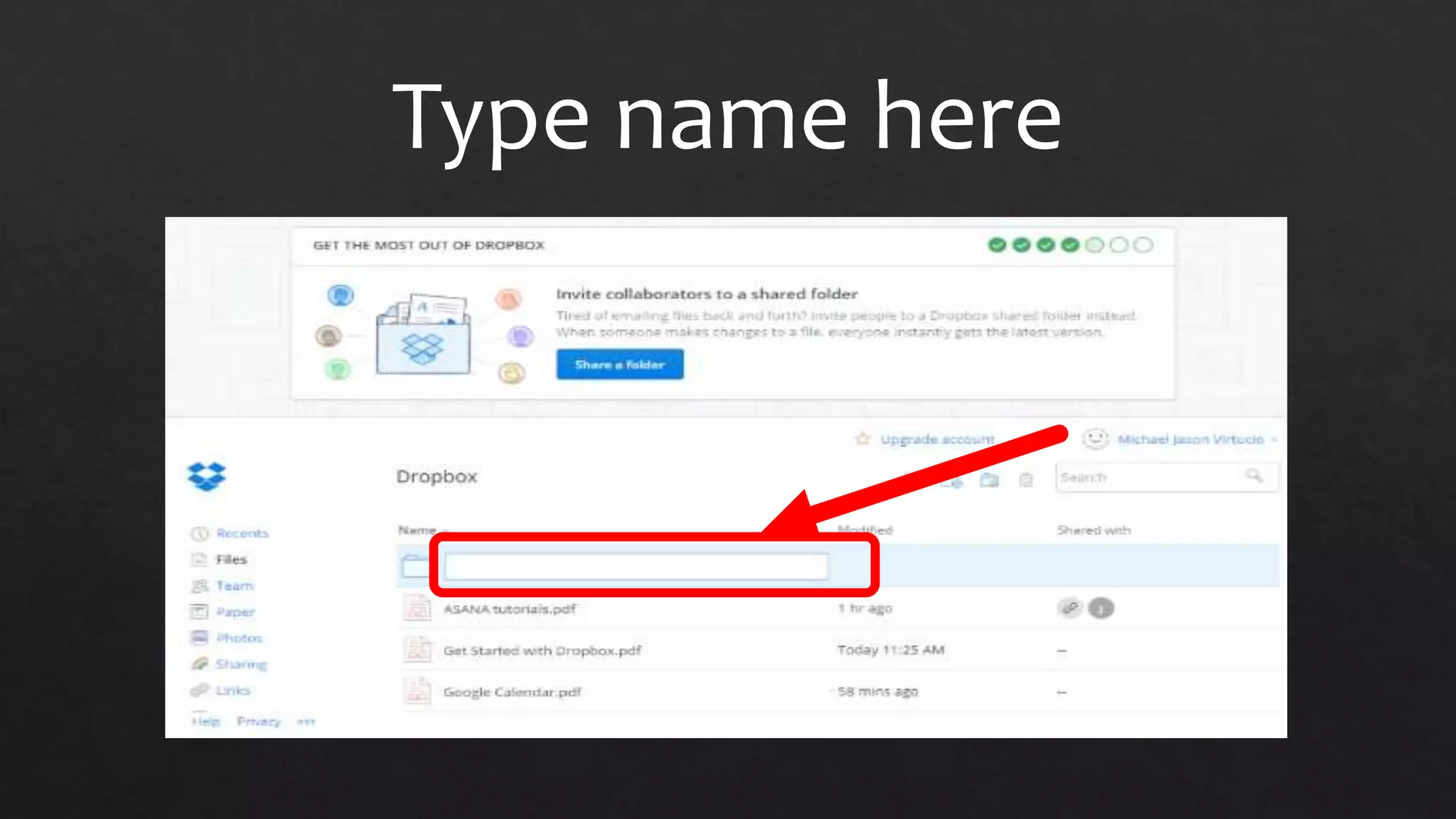
You can create a new folder
Click this
Type name here
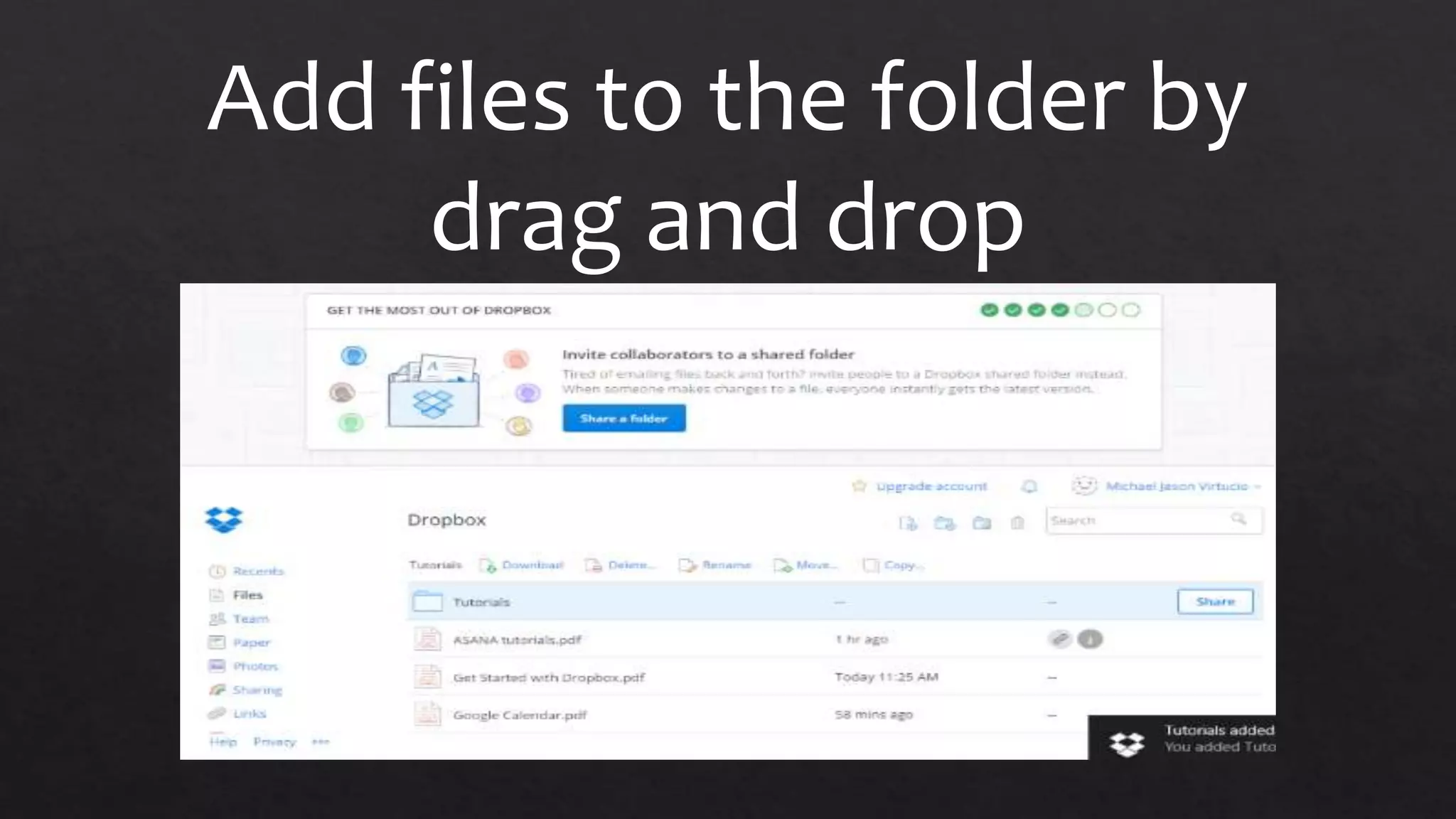
Add files to the folder by
drag and drop
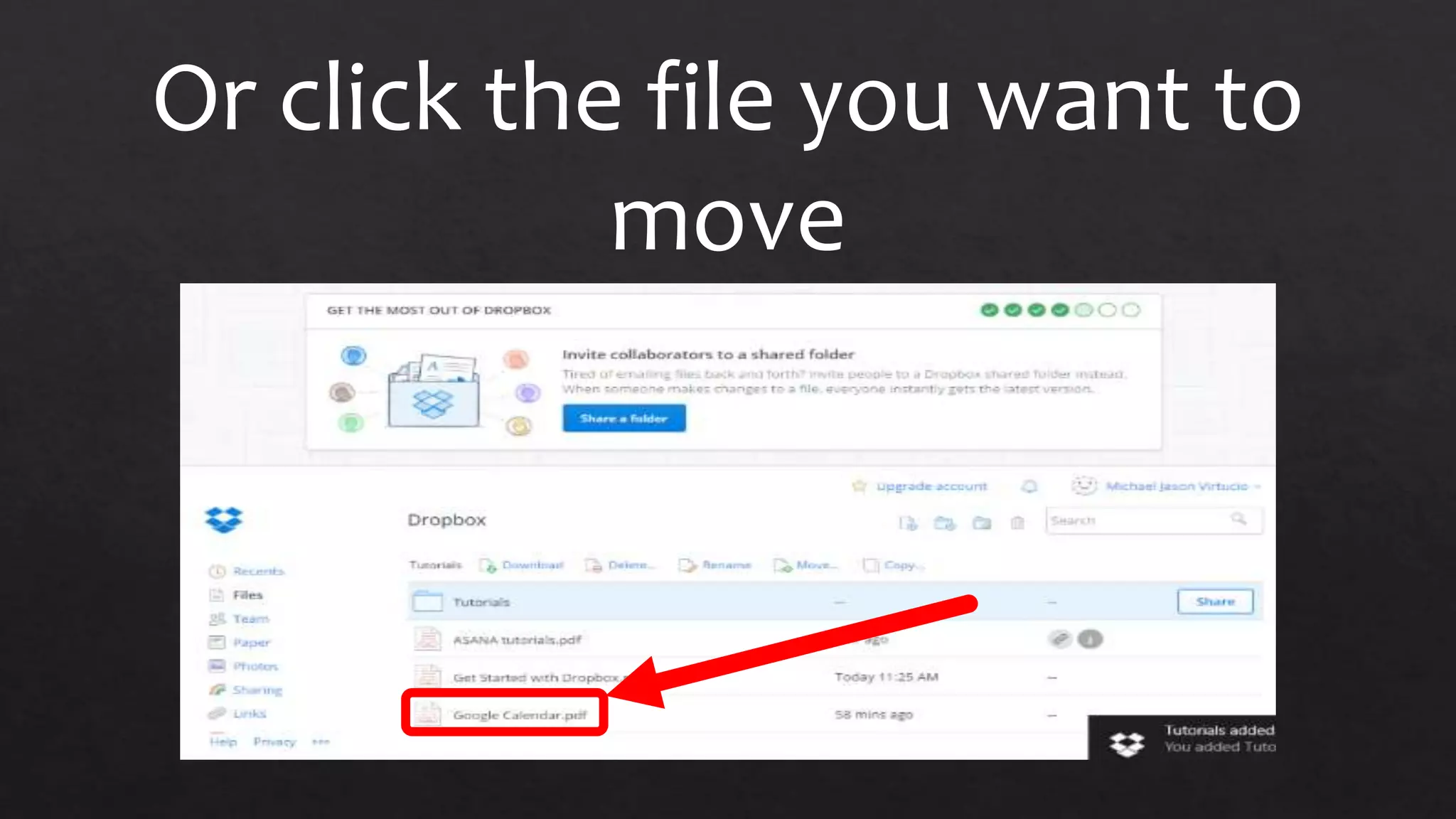
Or click the file you want to
move
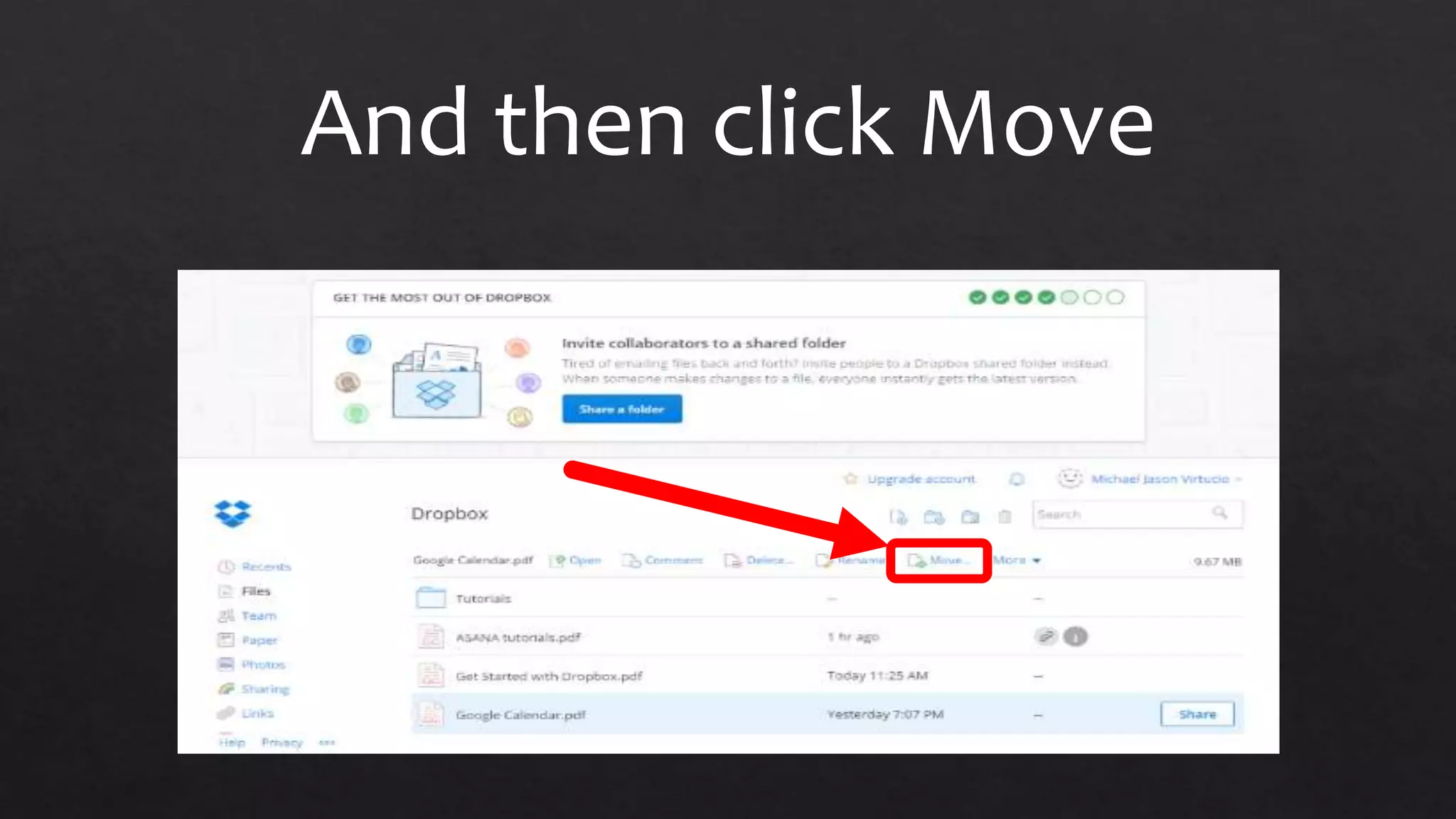
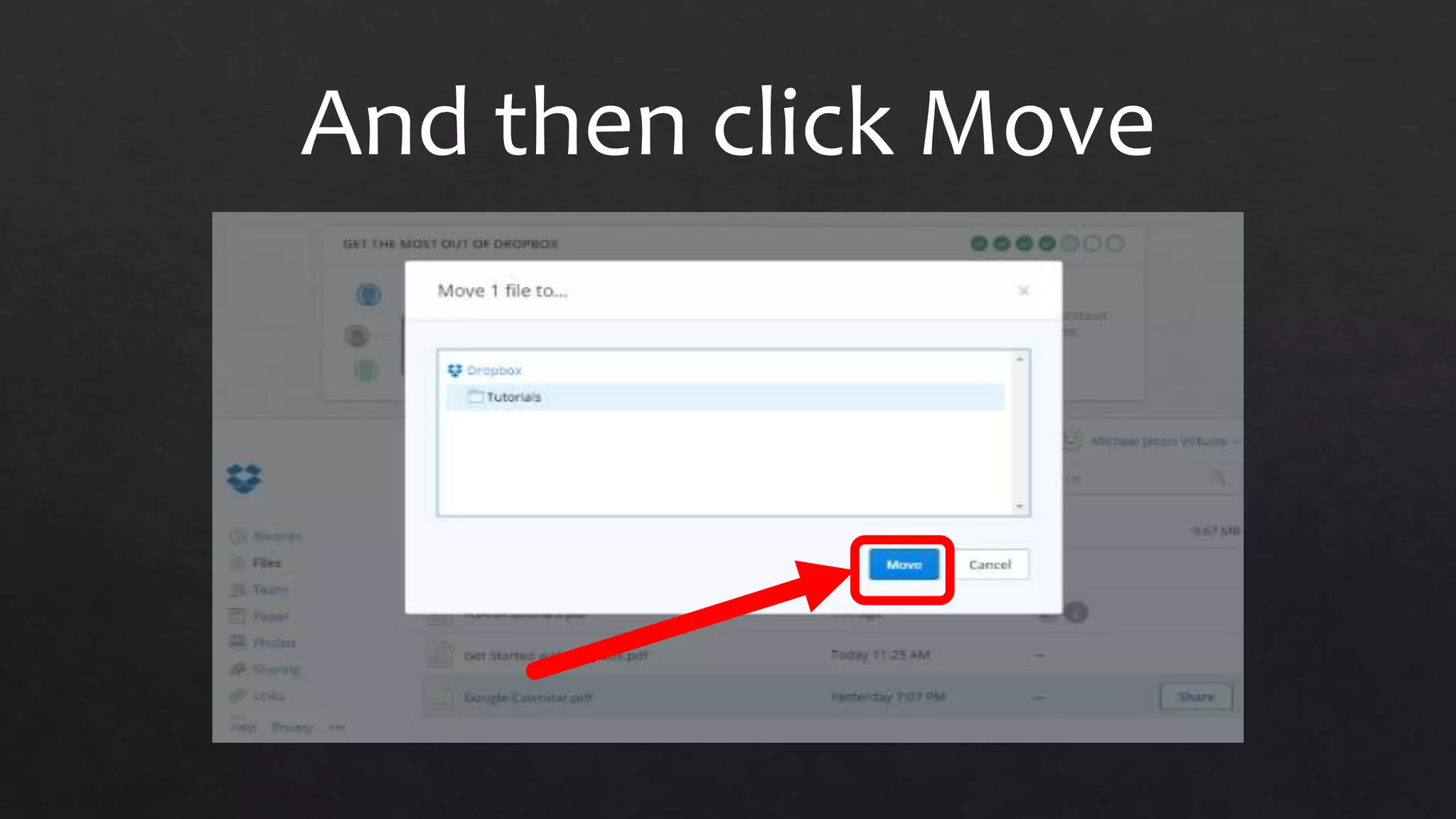
And then click Move
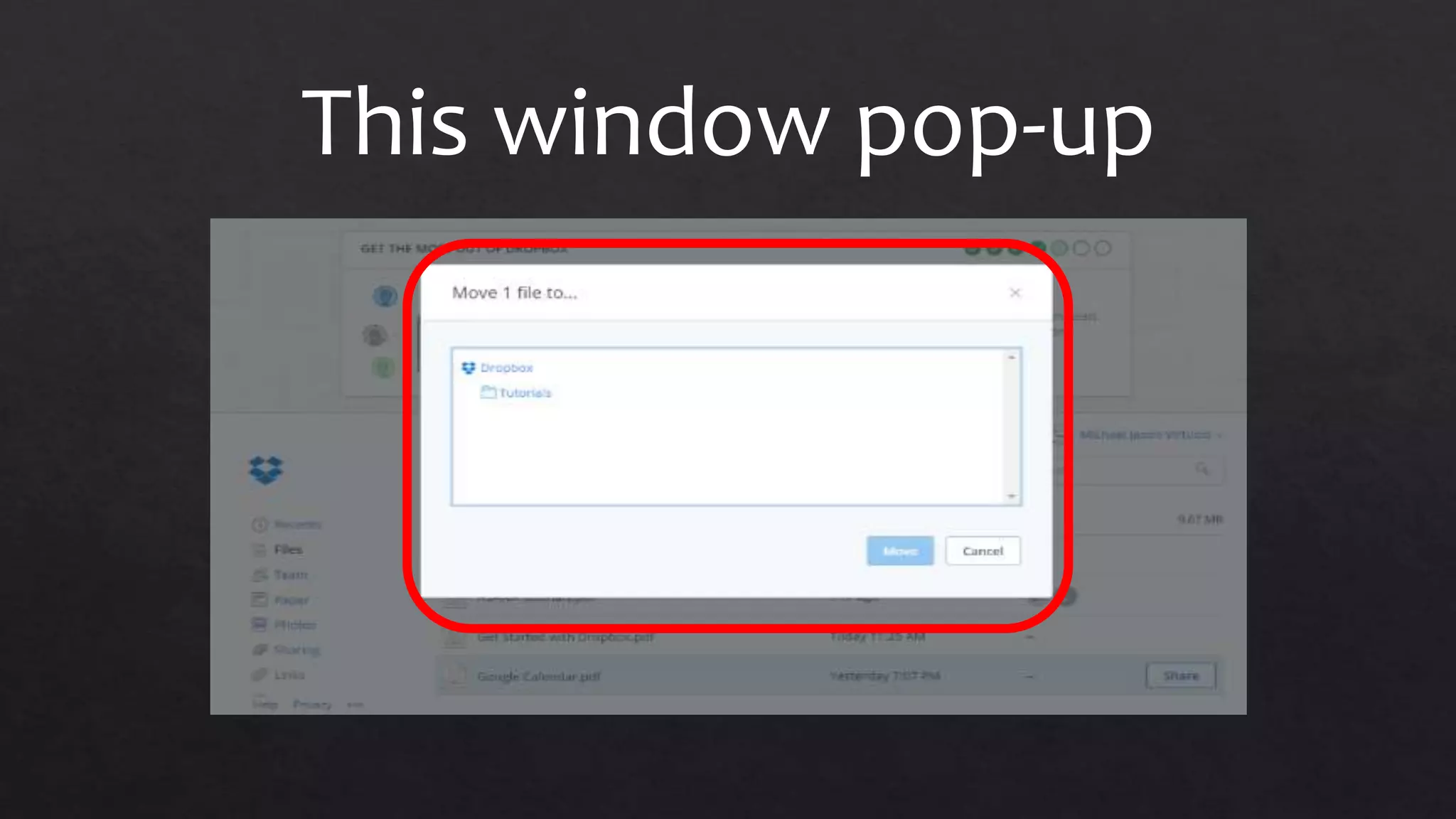
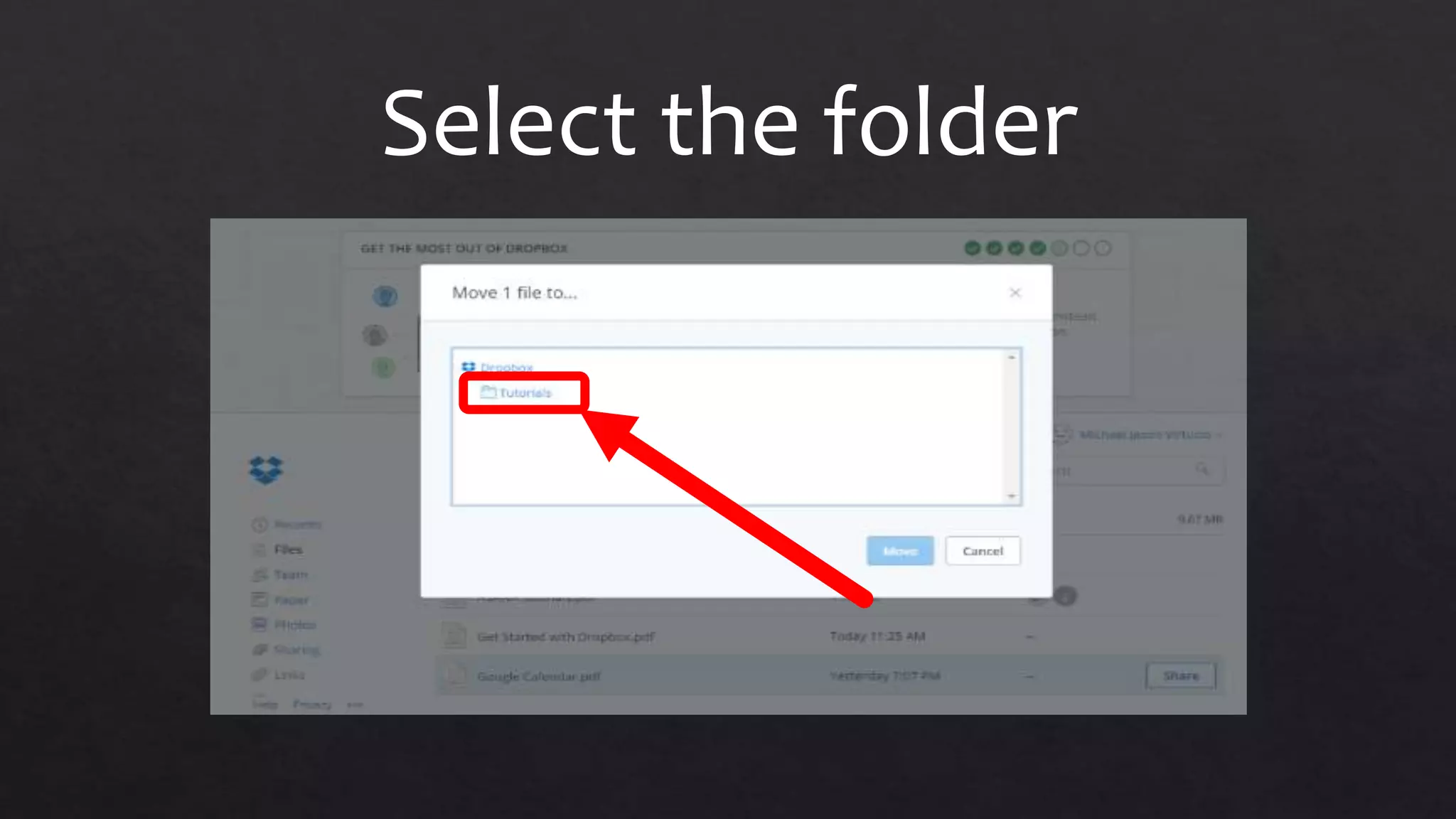
This window pop-up
Select the folder
And then click Move
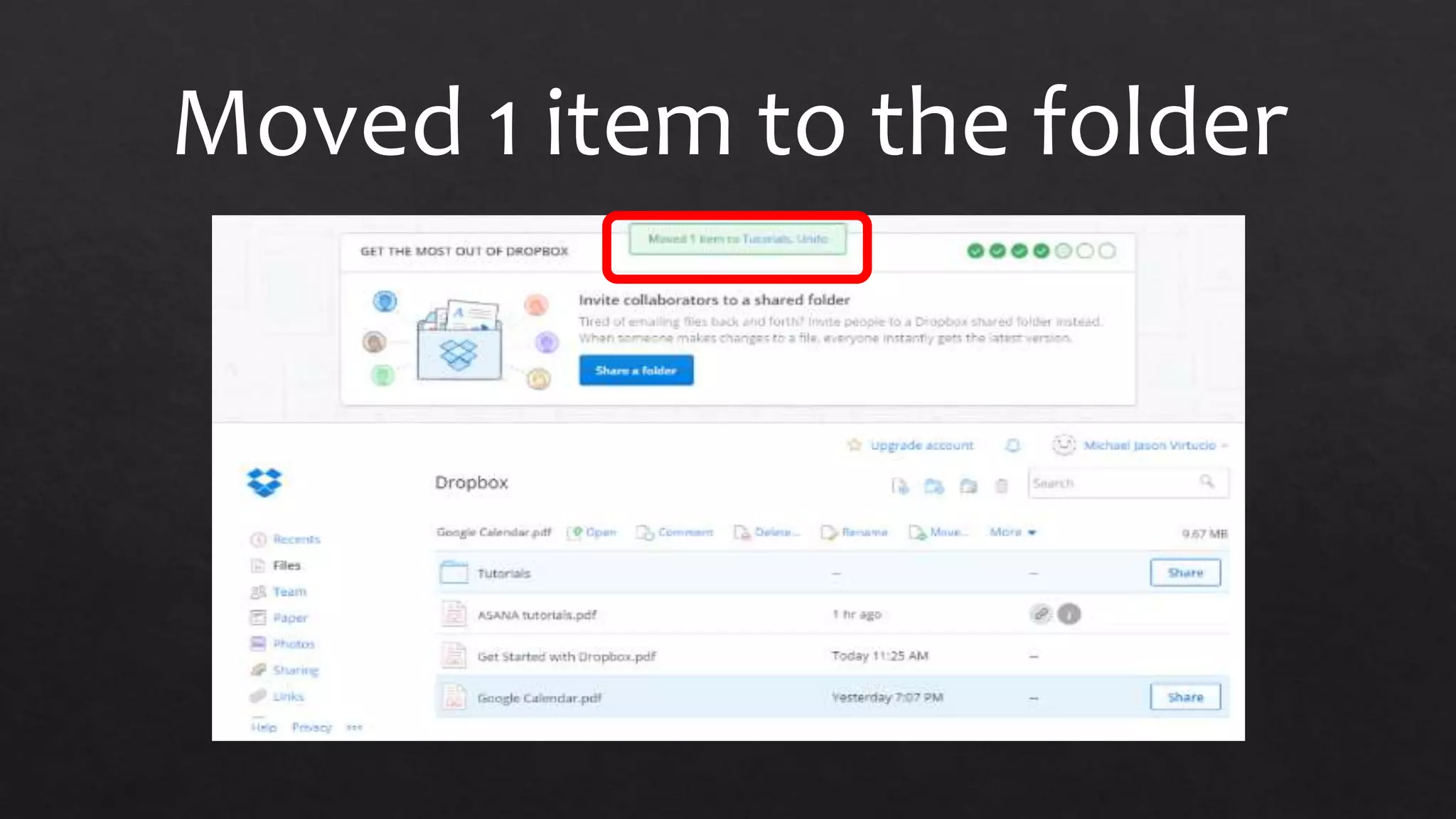
Moved 1 item to the folder
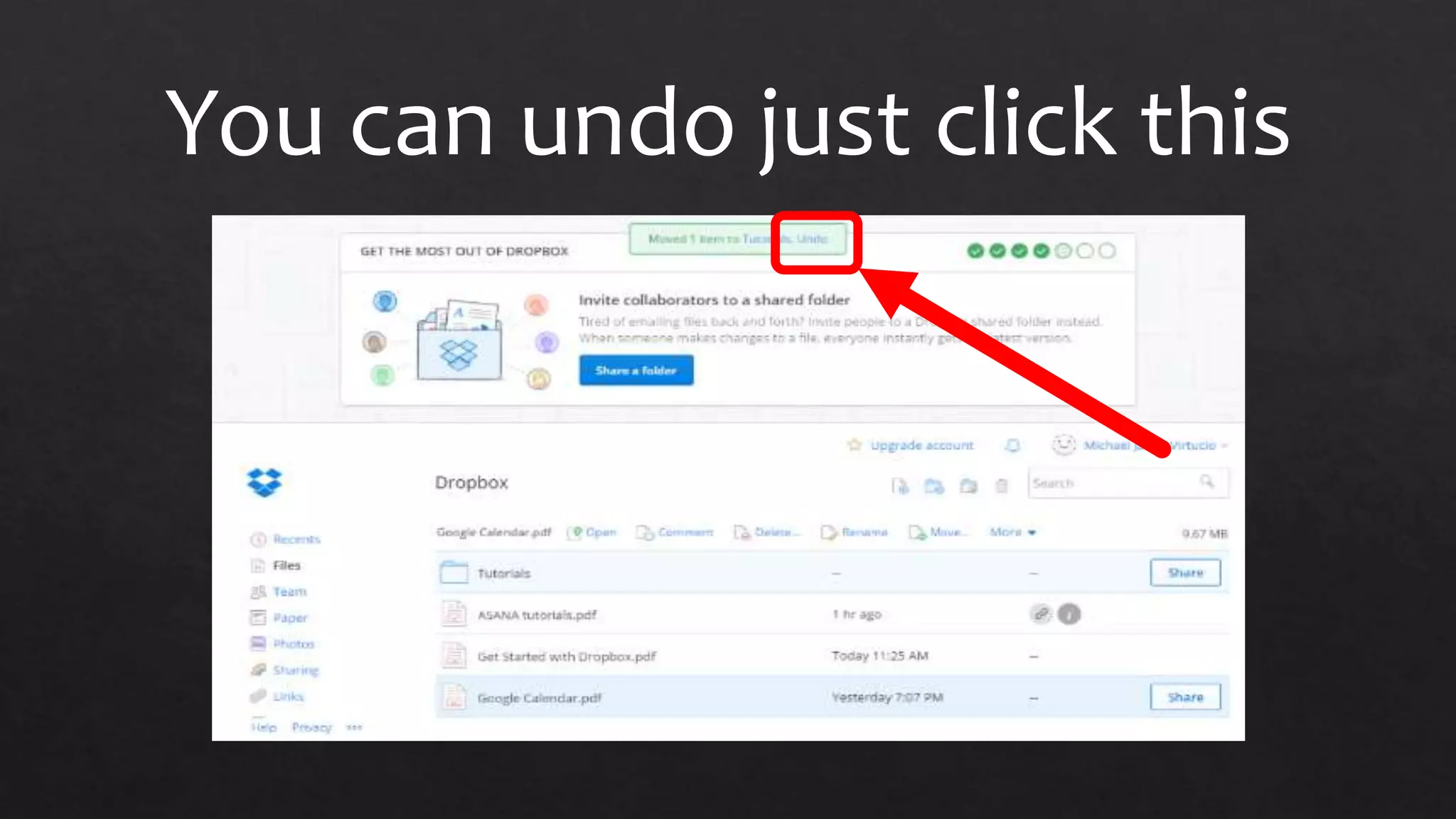
You can undo just click this
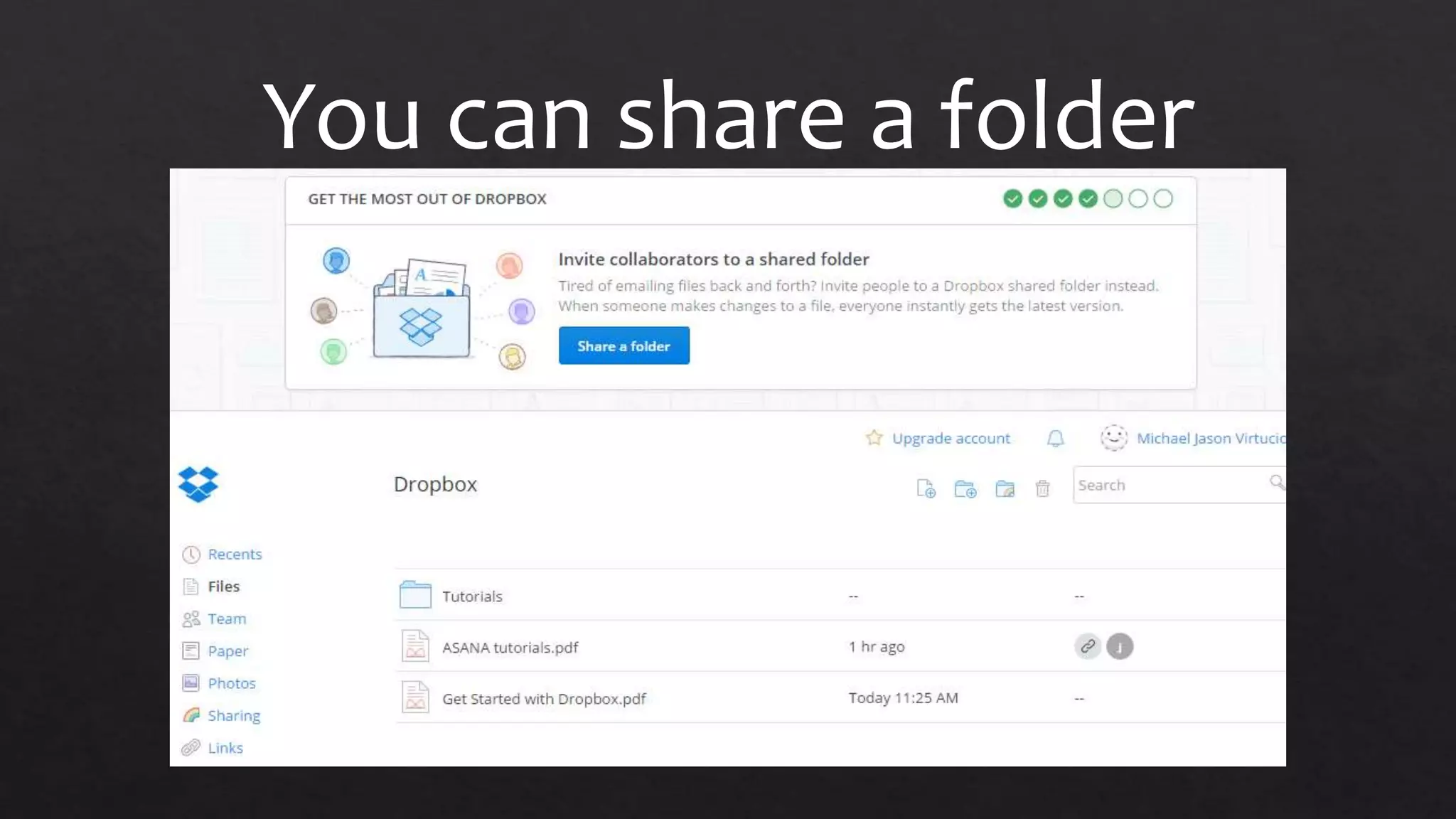
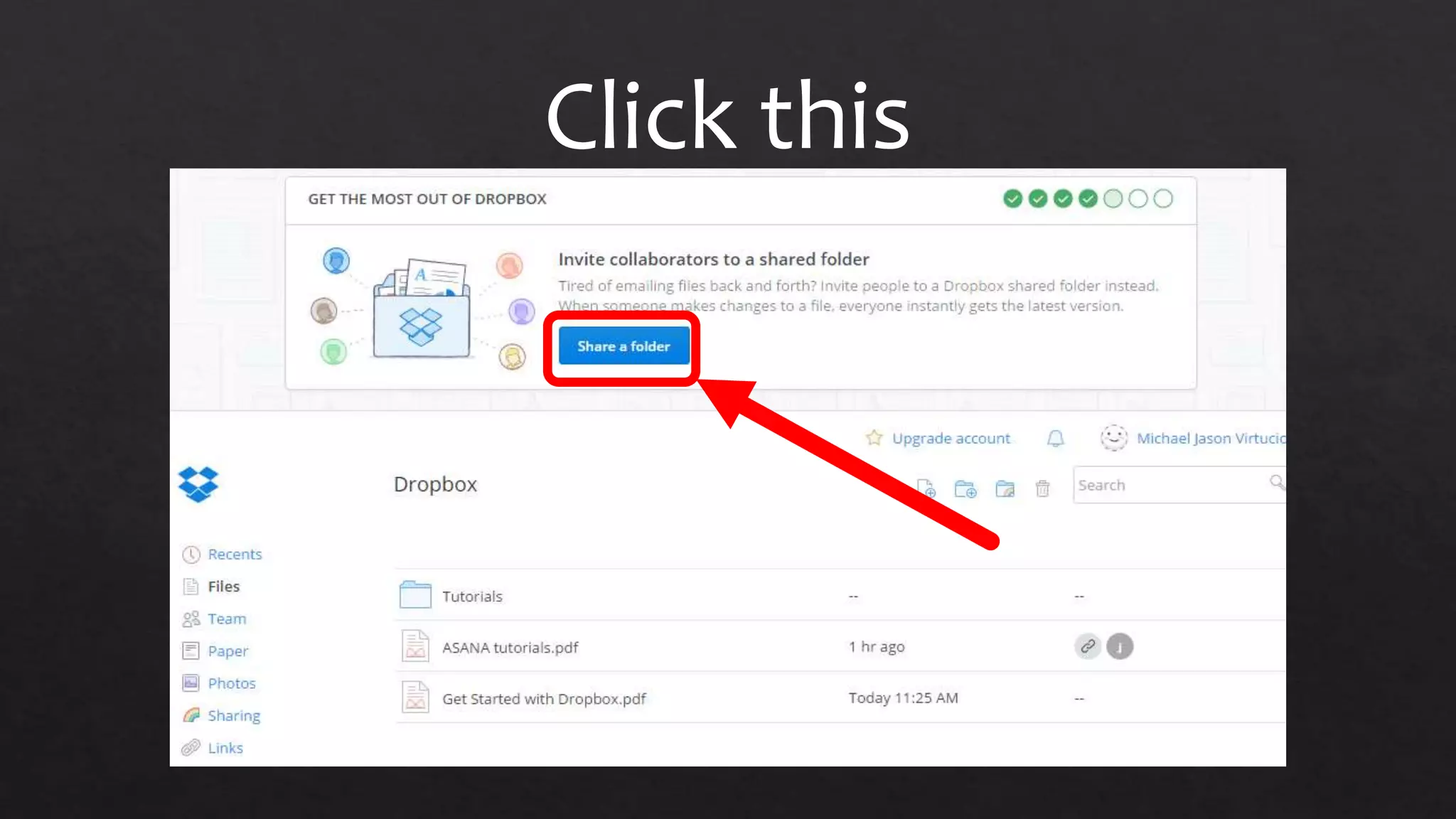
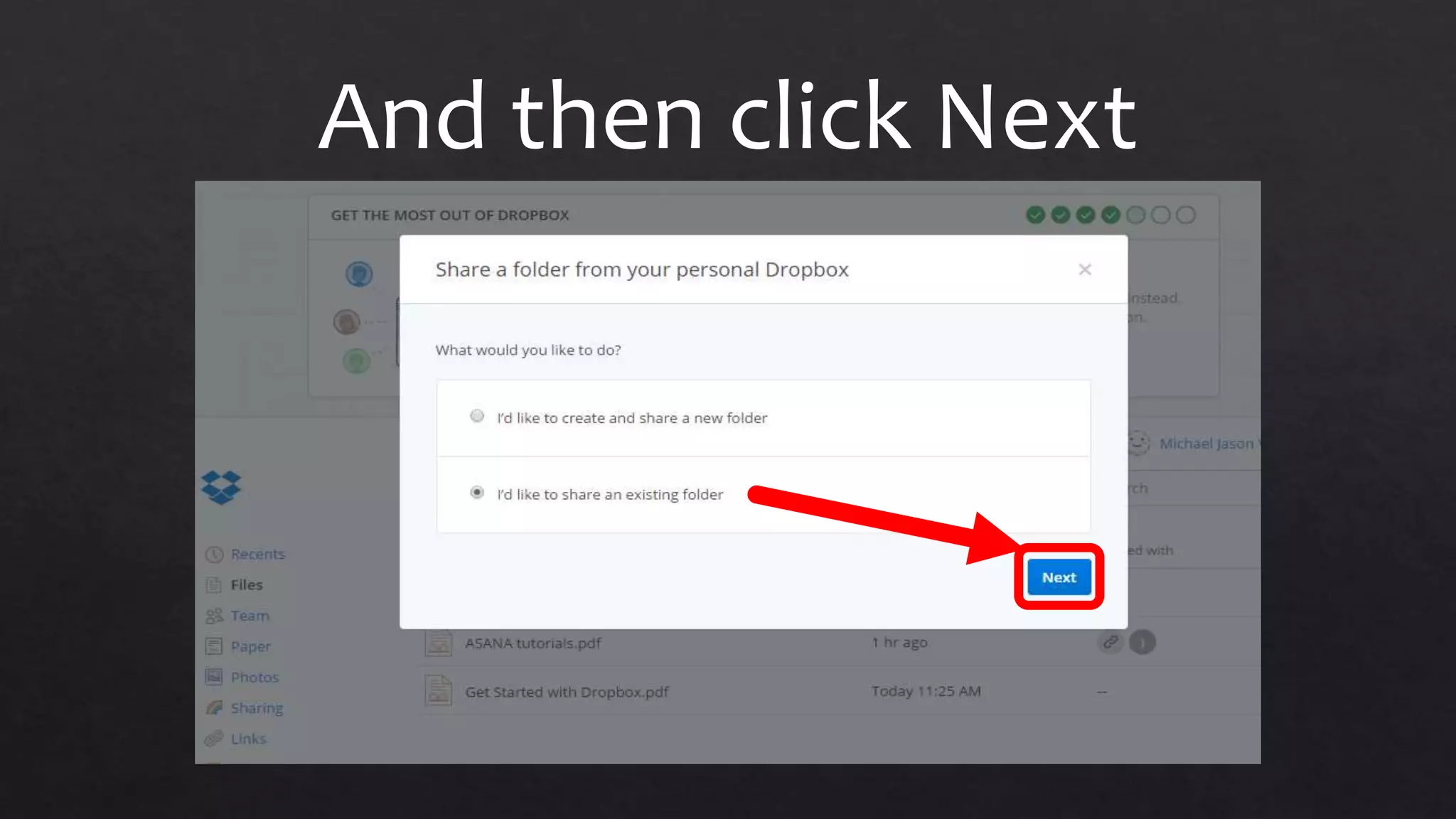
You can share a folder
Click this
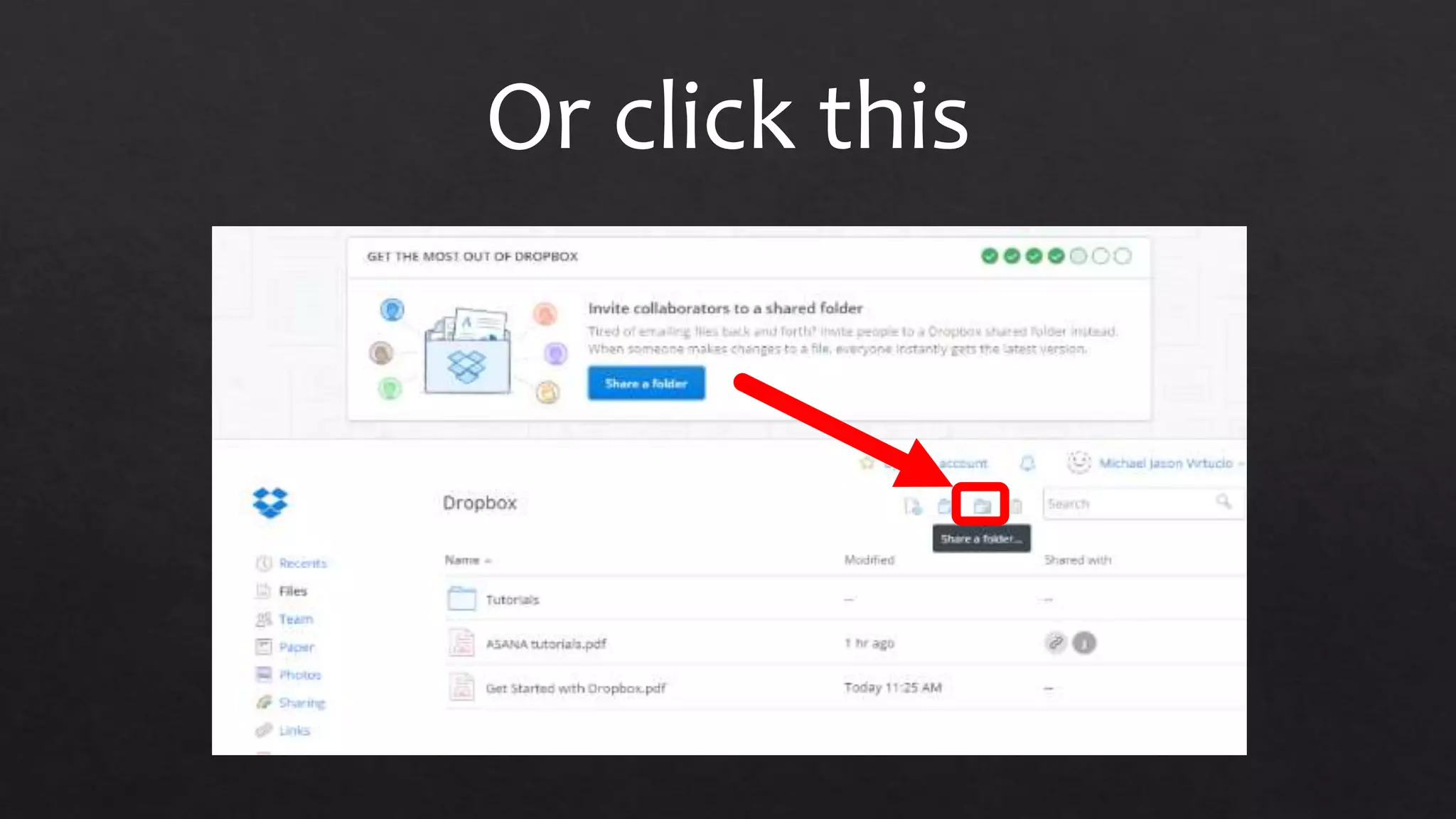
Or click this
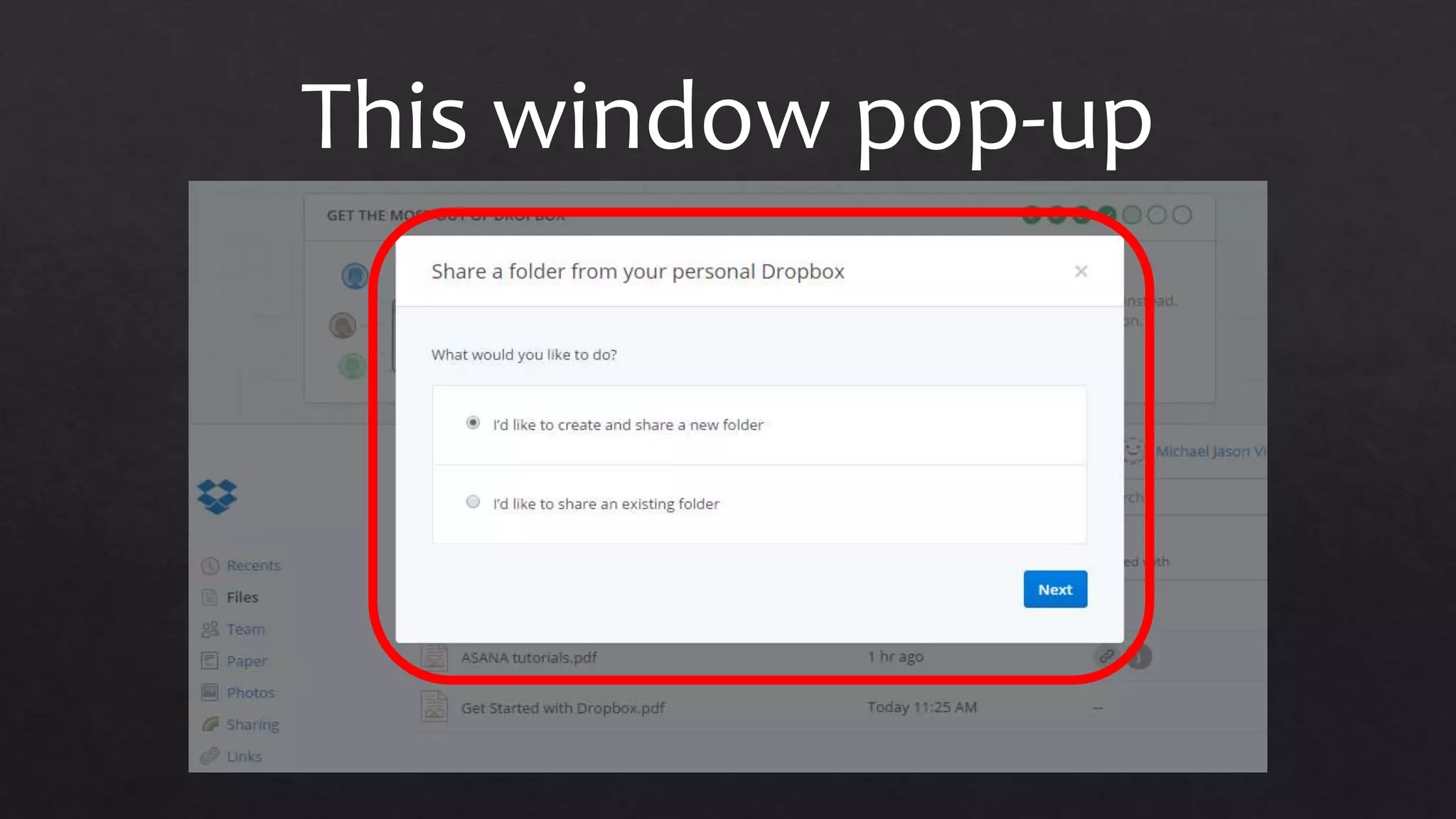
This window pop-up
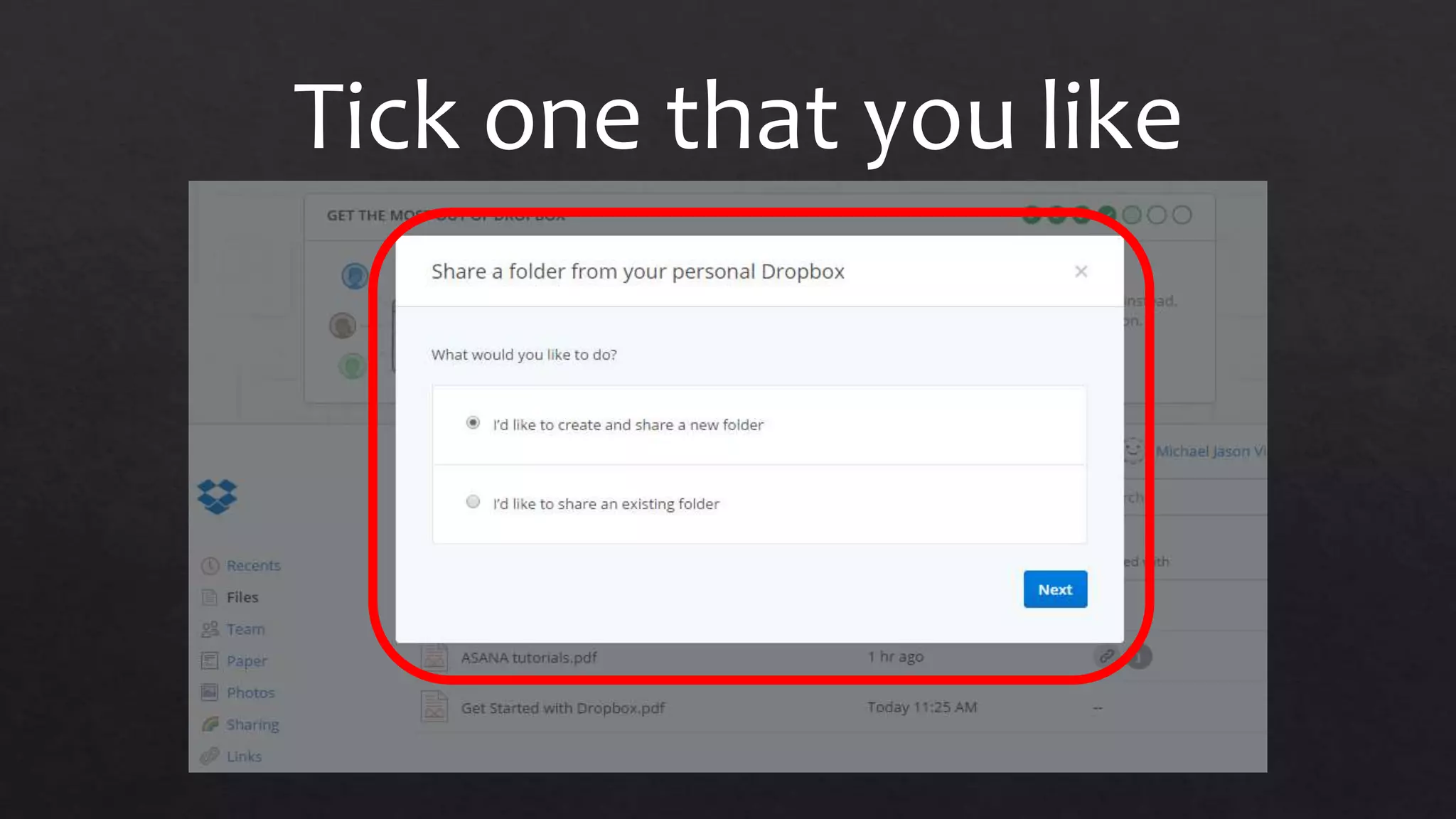
Tick one that you like
And then click Next
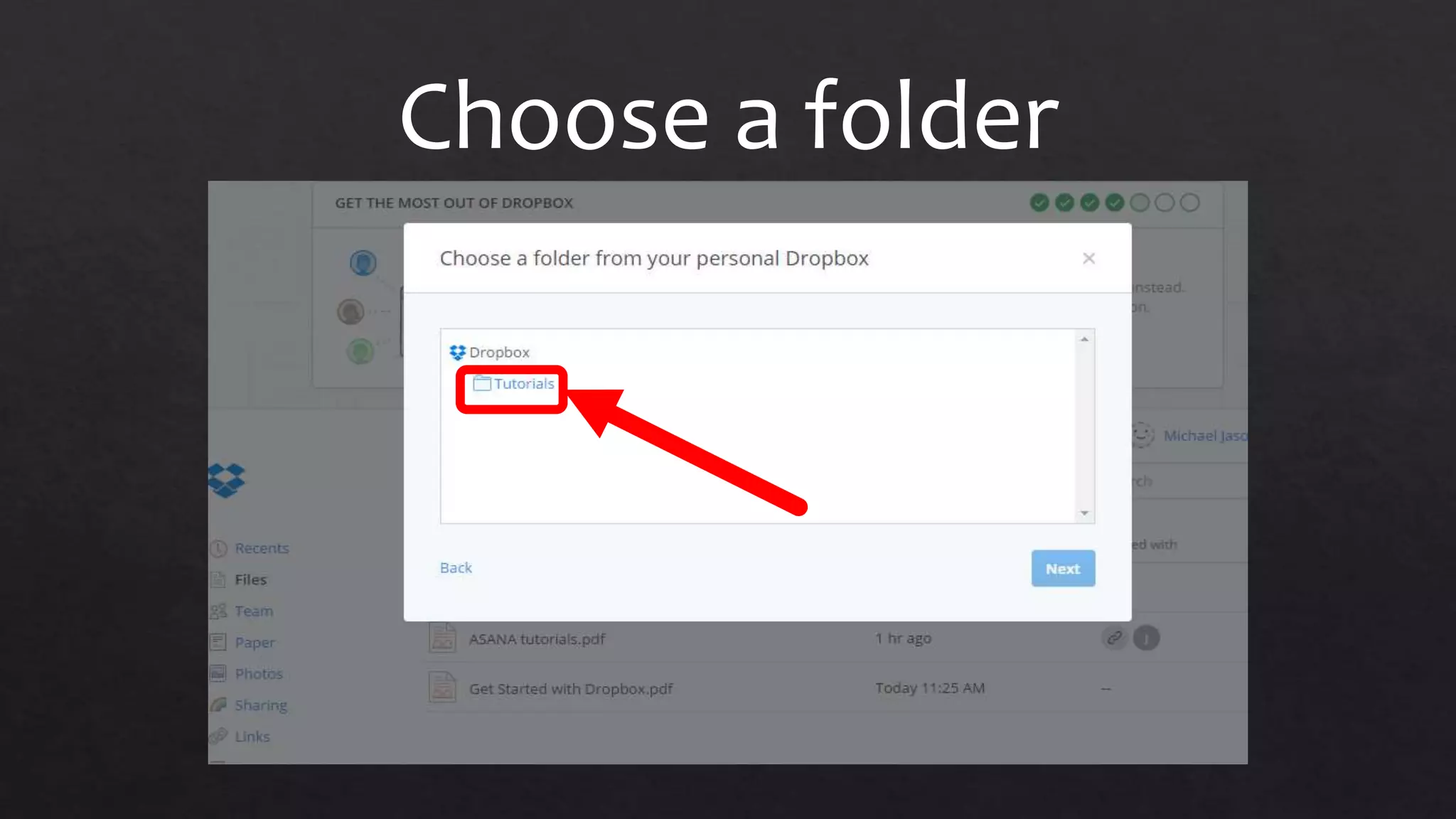
Choose a folder
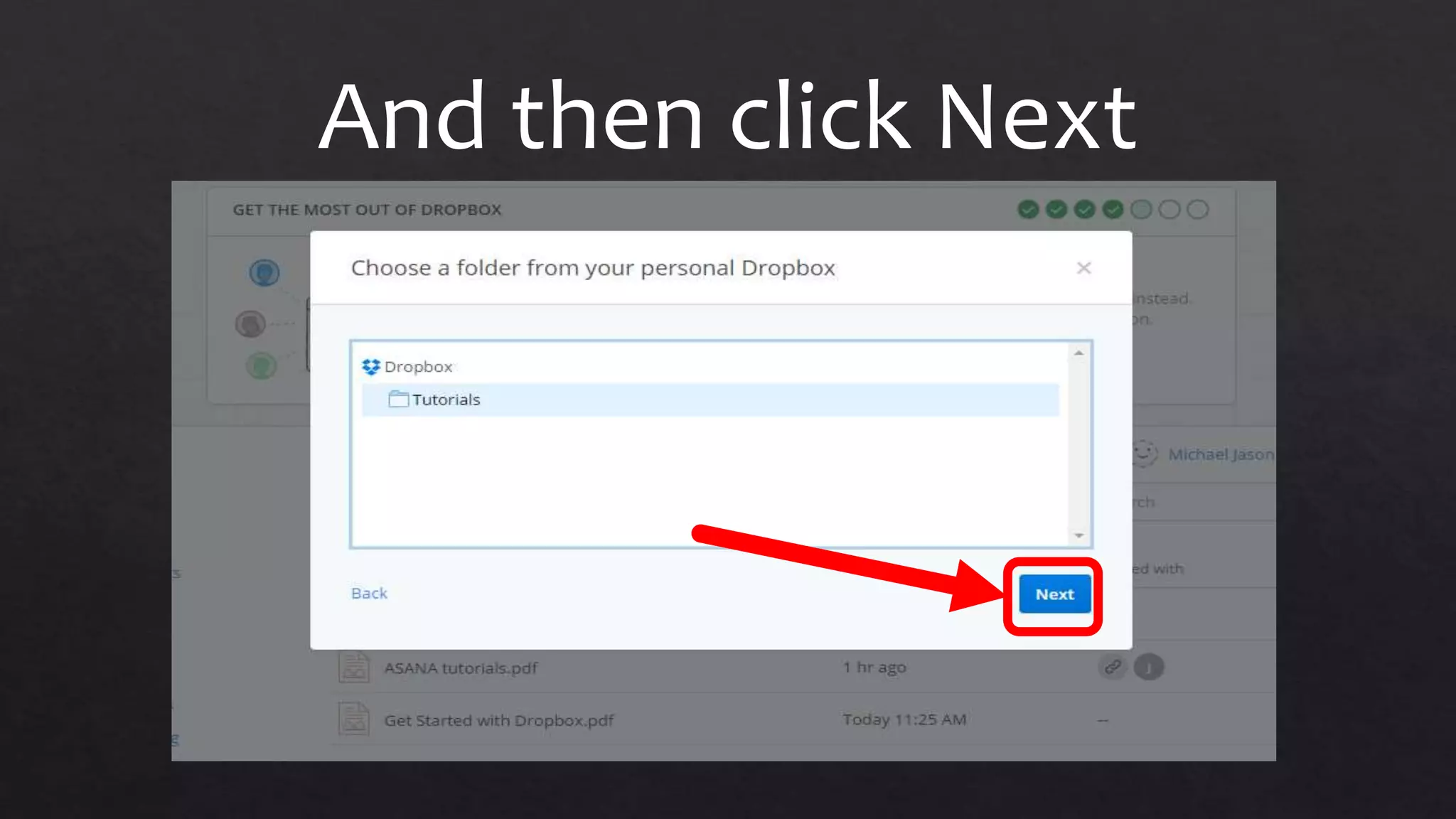
And then click Next
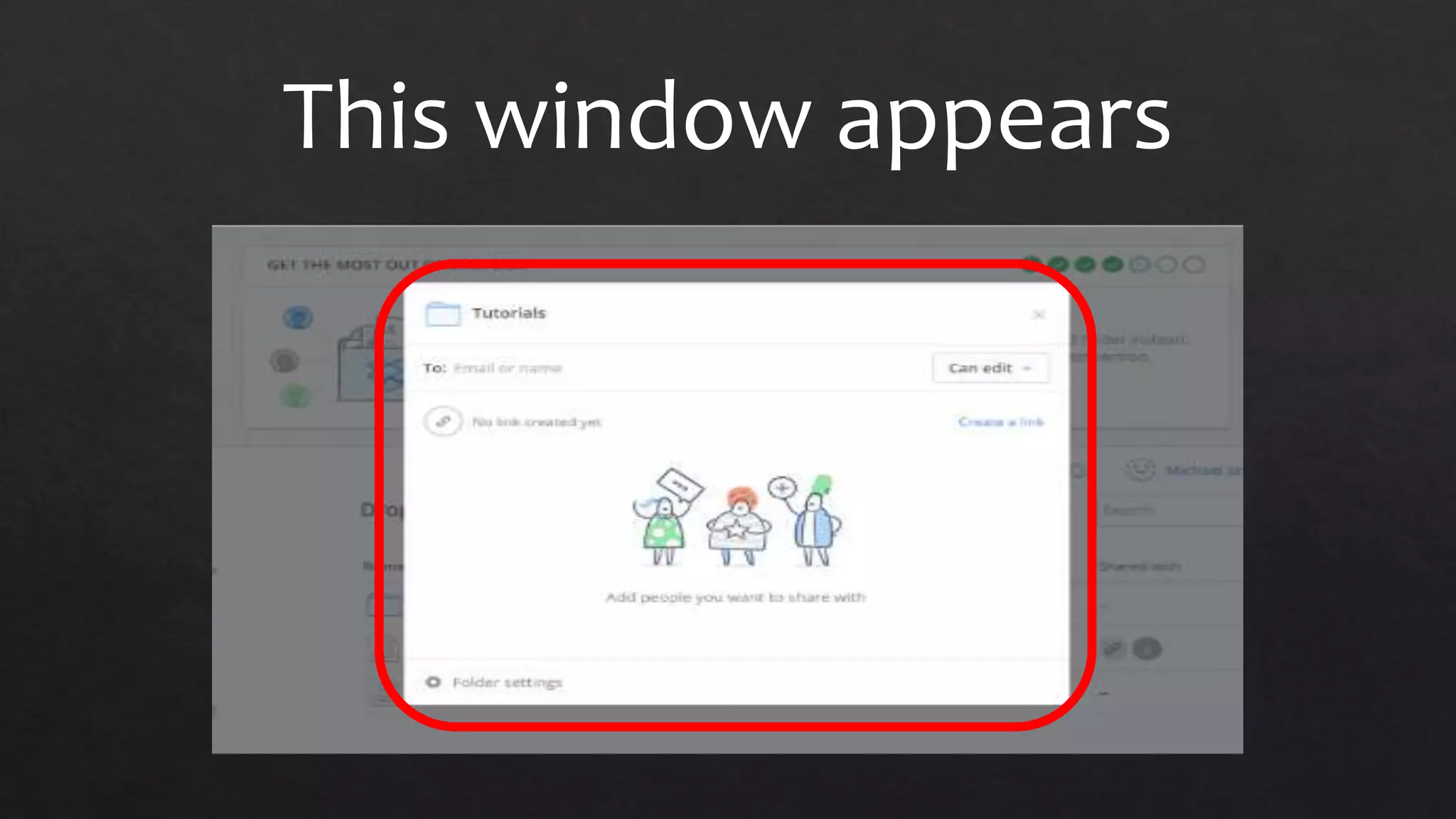
This window appears
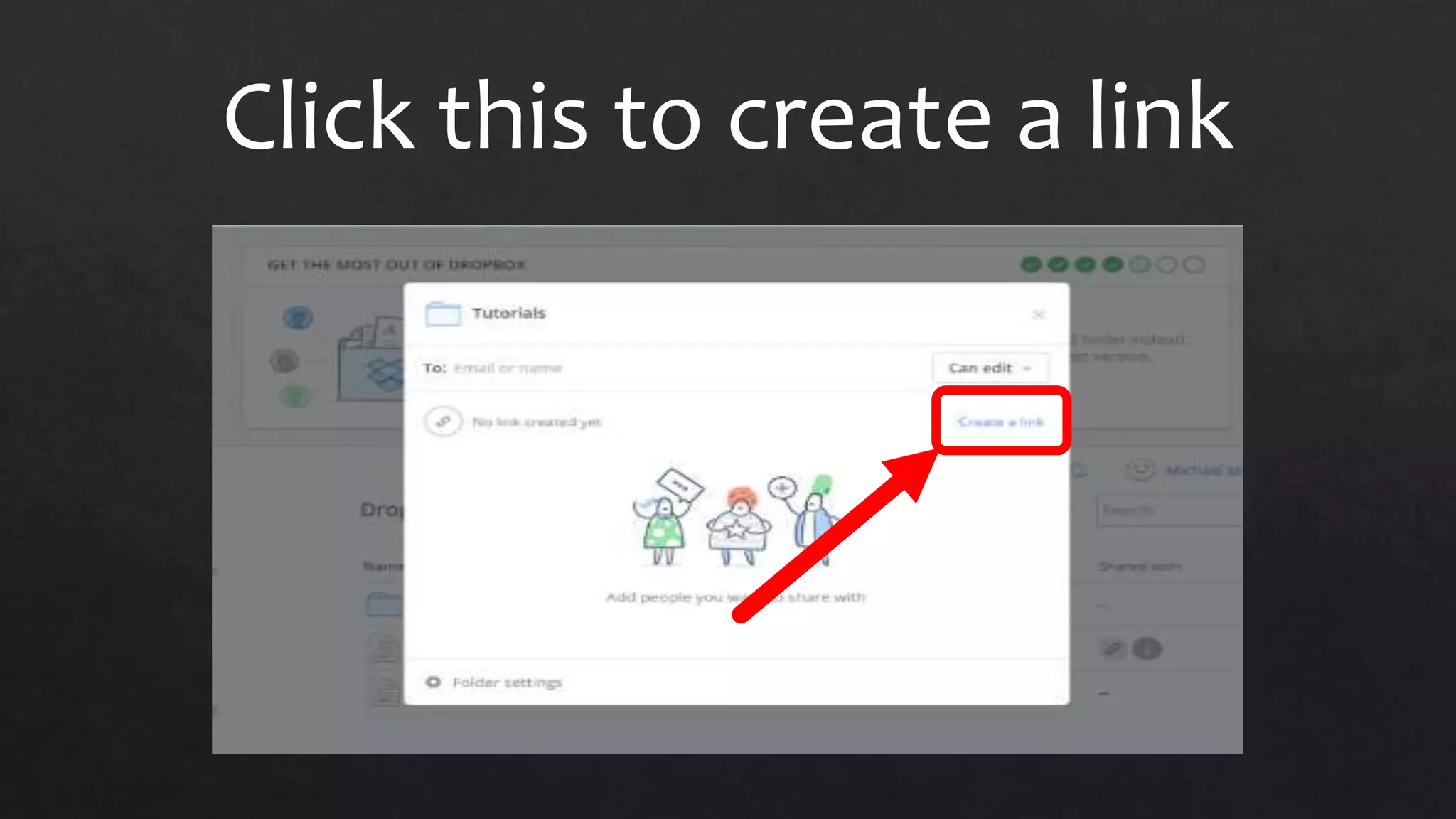
Click this to create a link
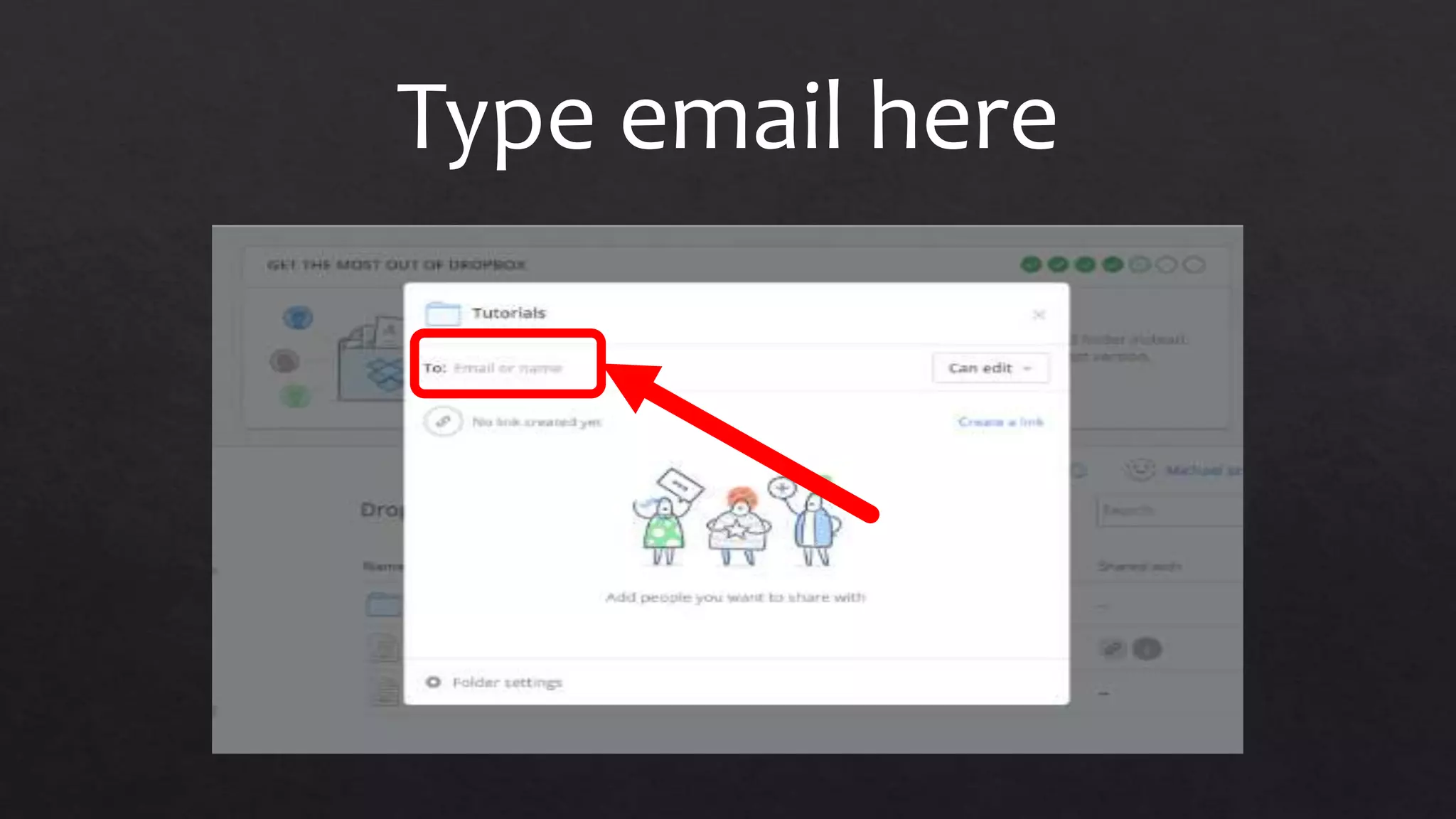
Type email here
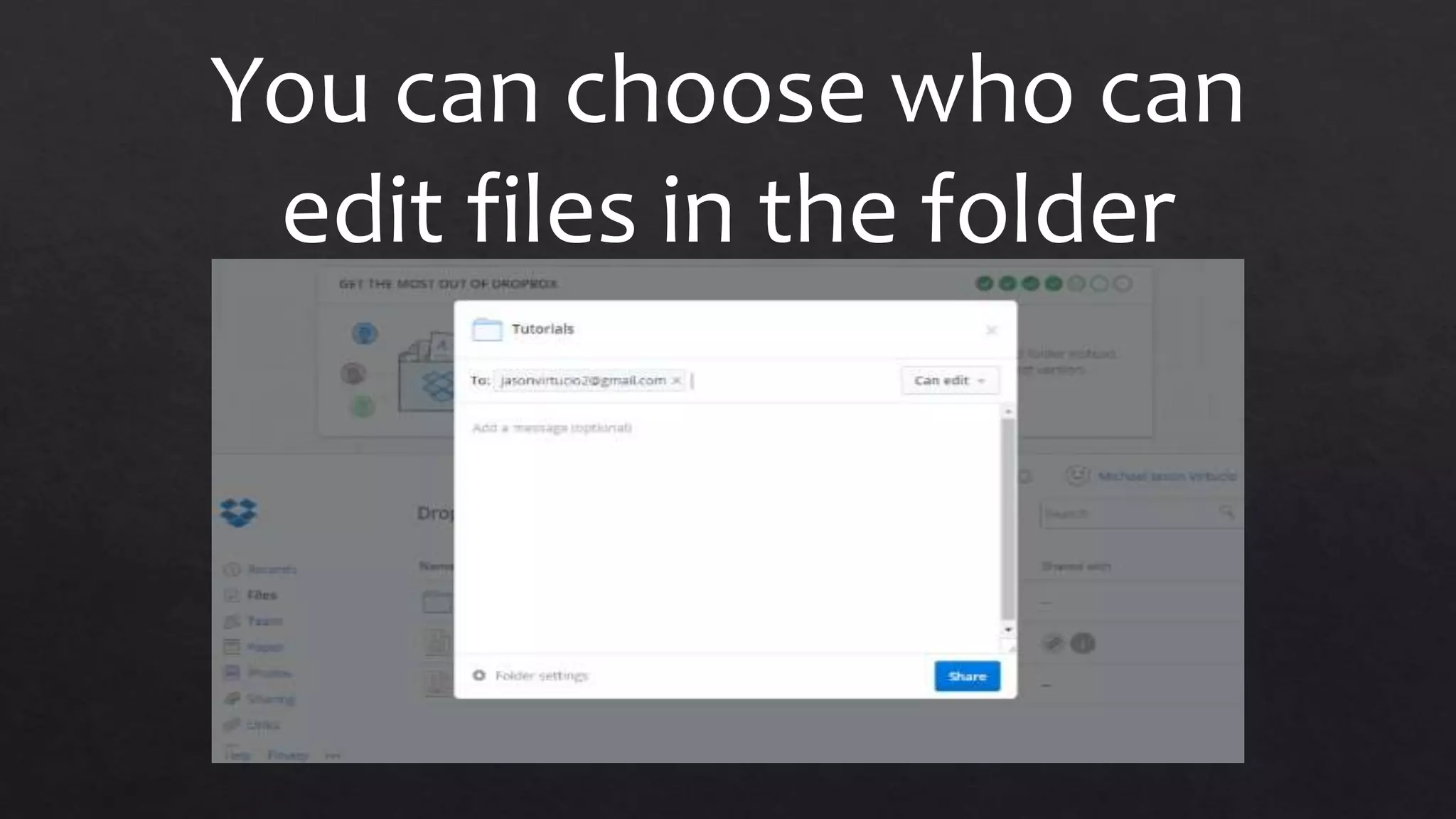
You can choose who can
edit files in the folder
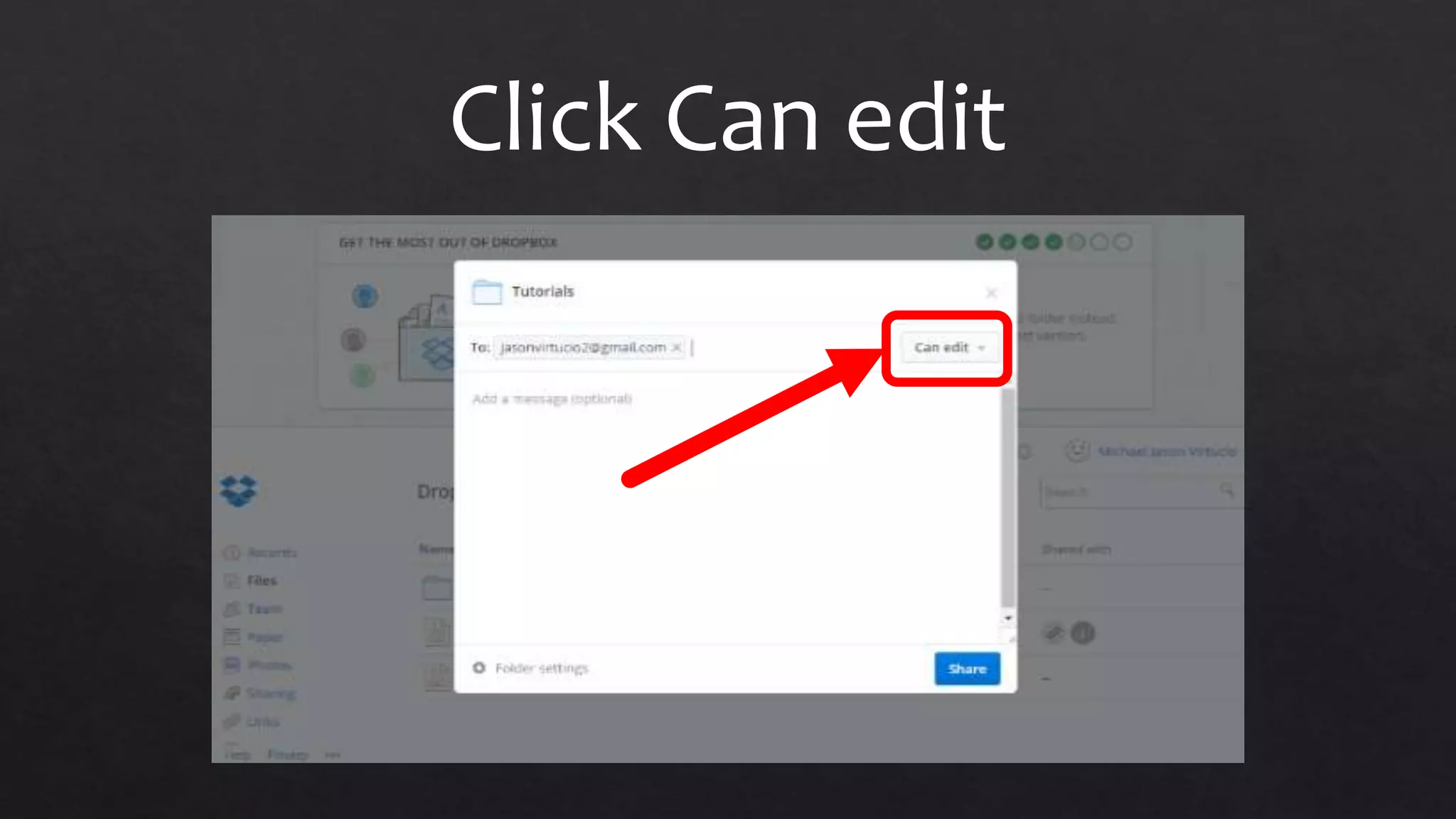
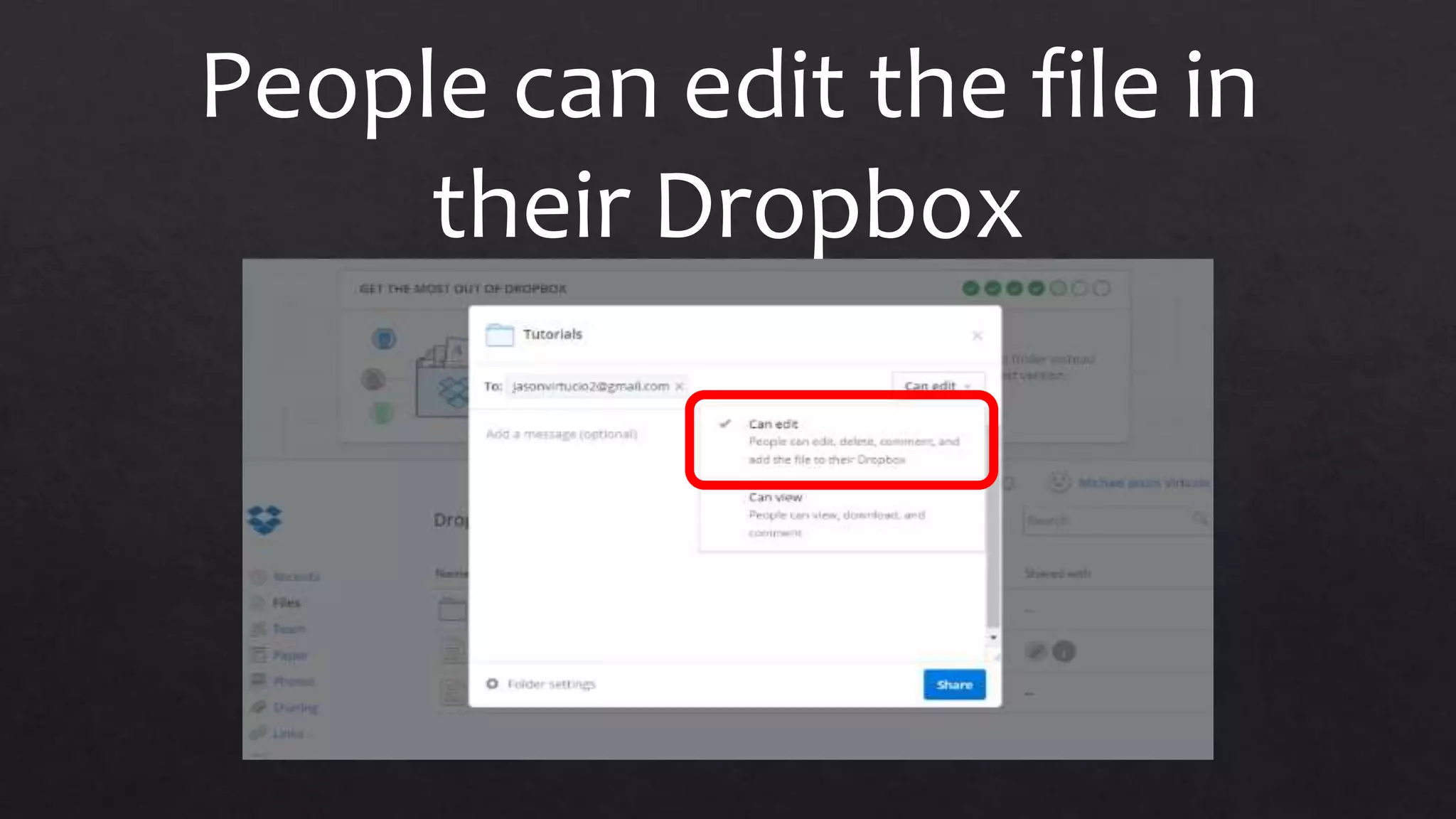
Click Can edit
People can edit the file in
their Dropbox
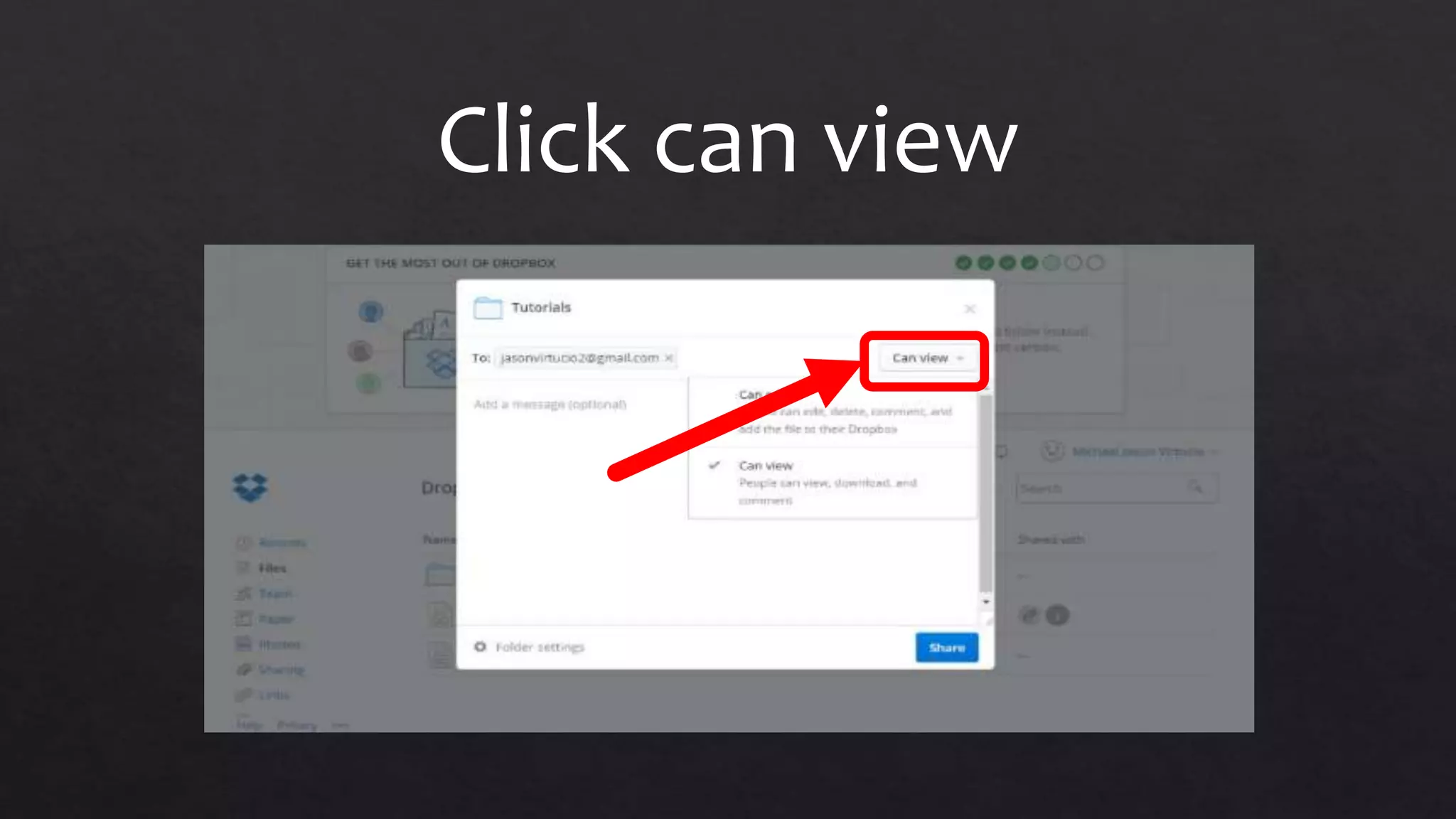
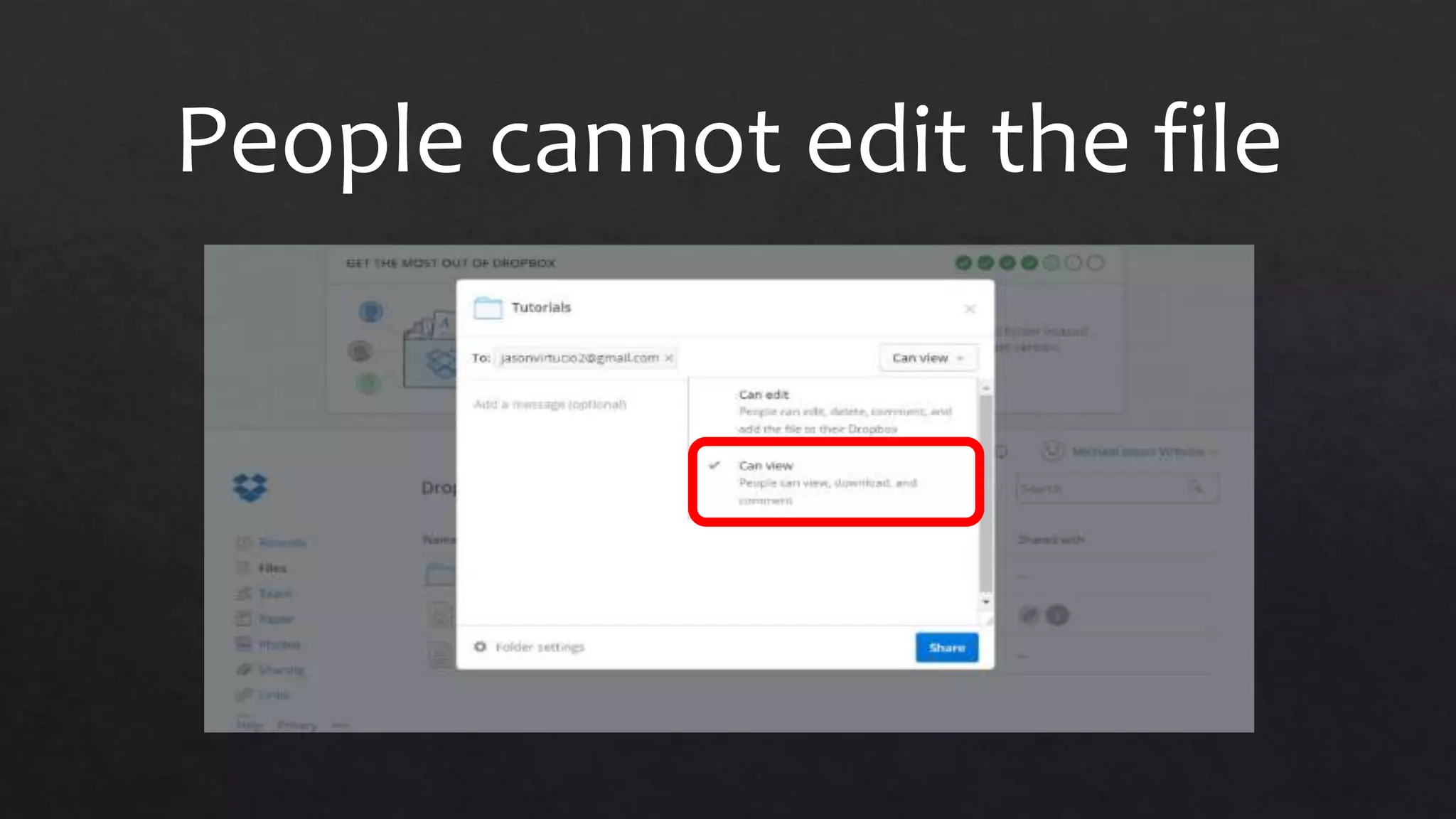
Click can view
People cannot edit the file
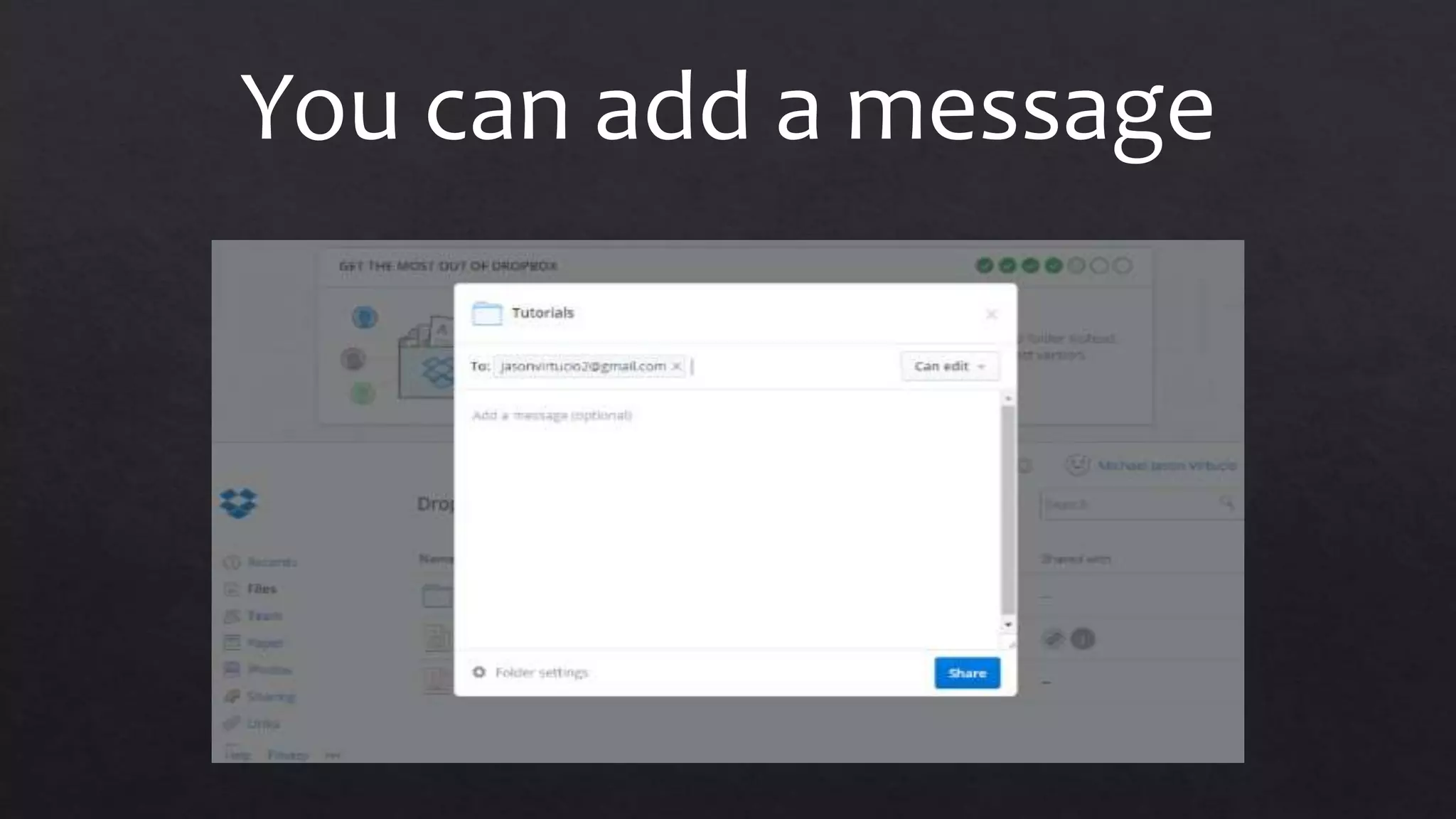
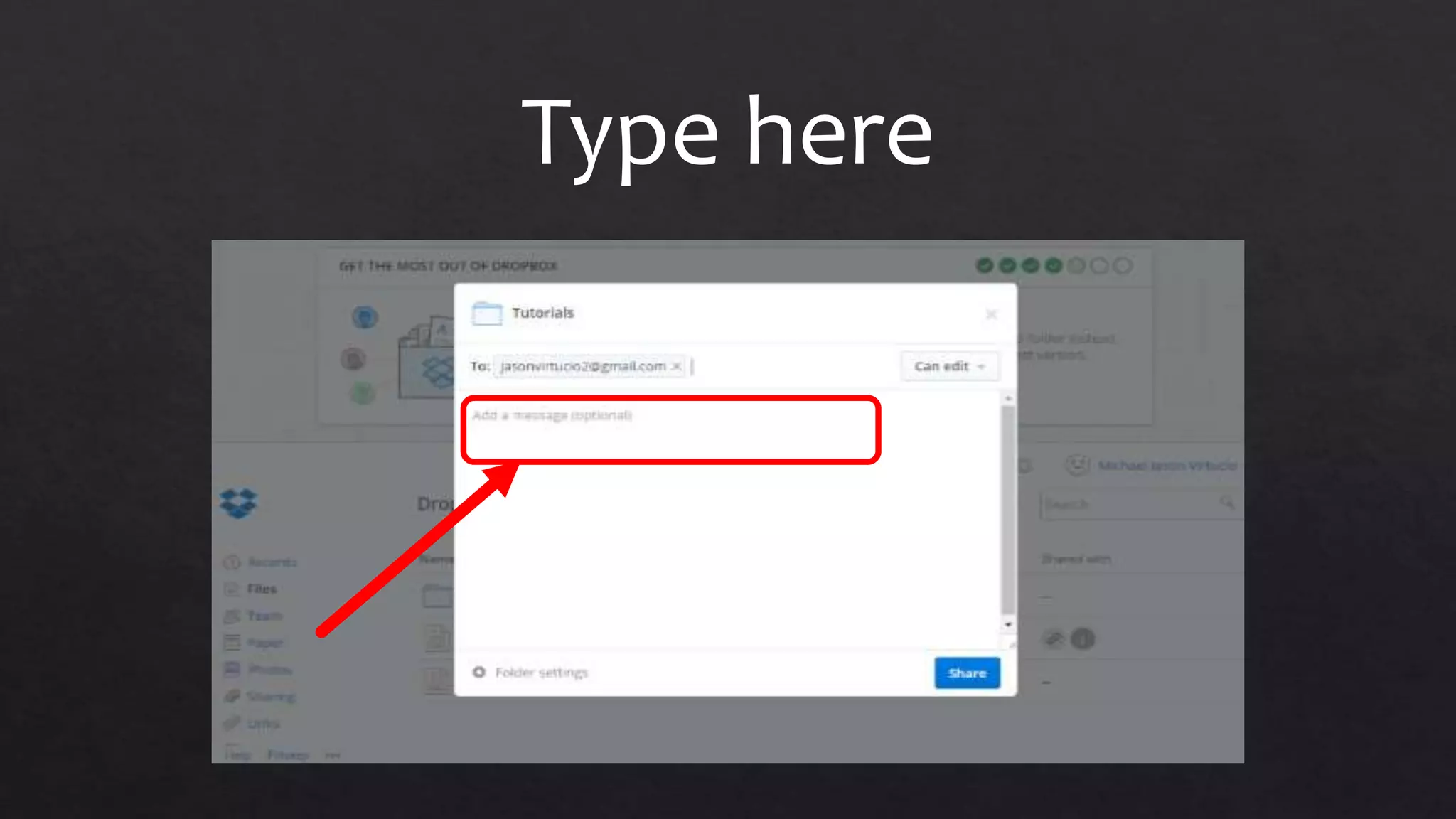
You can add a message
Type here
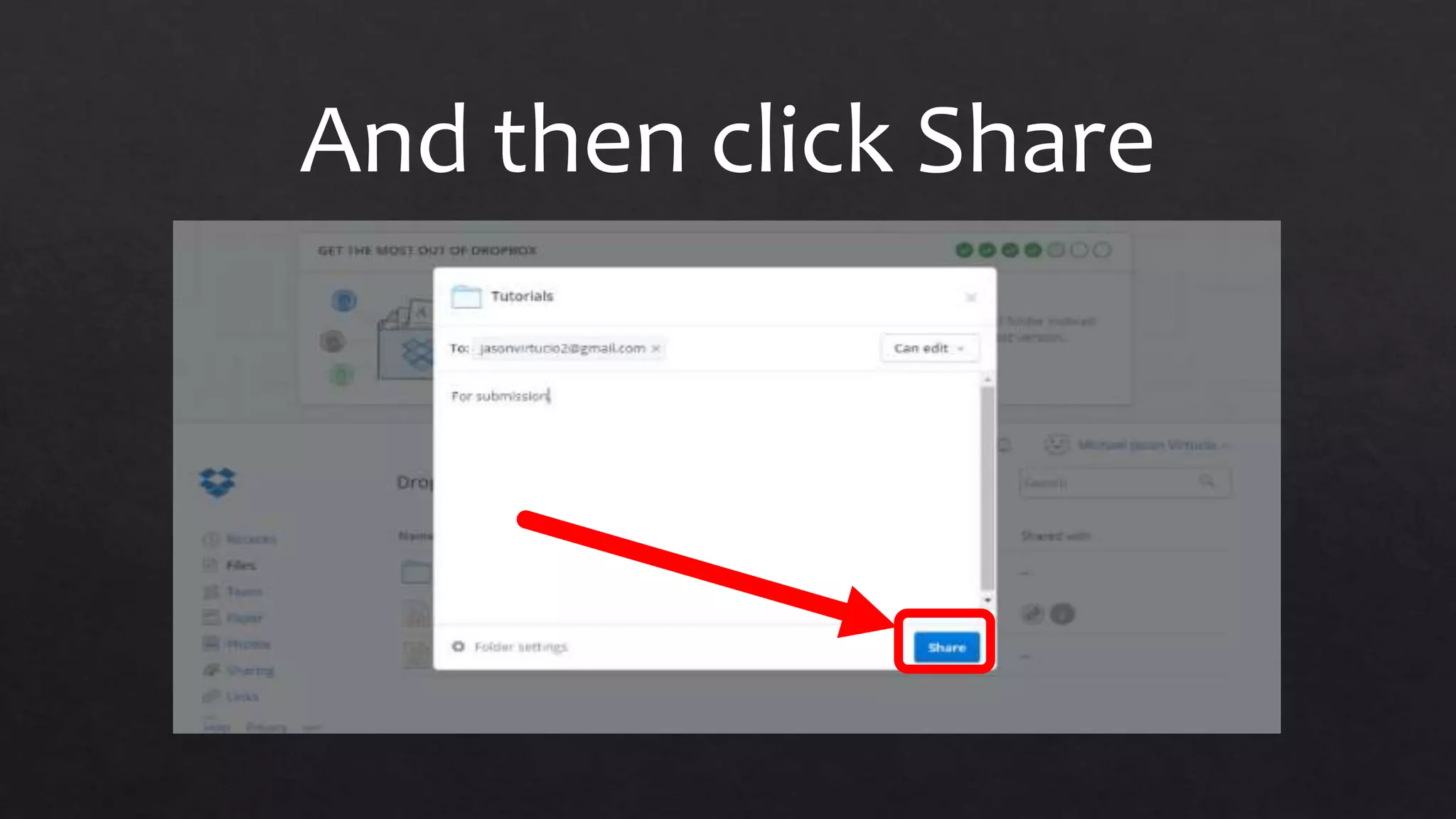
And then click Share
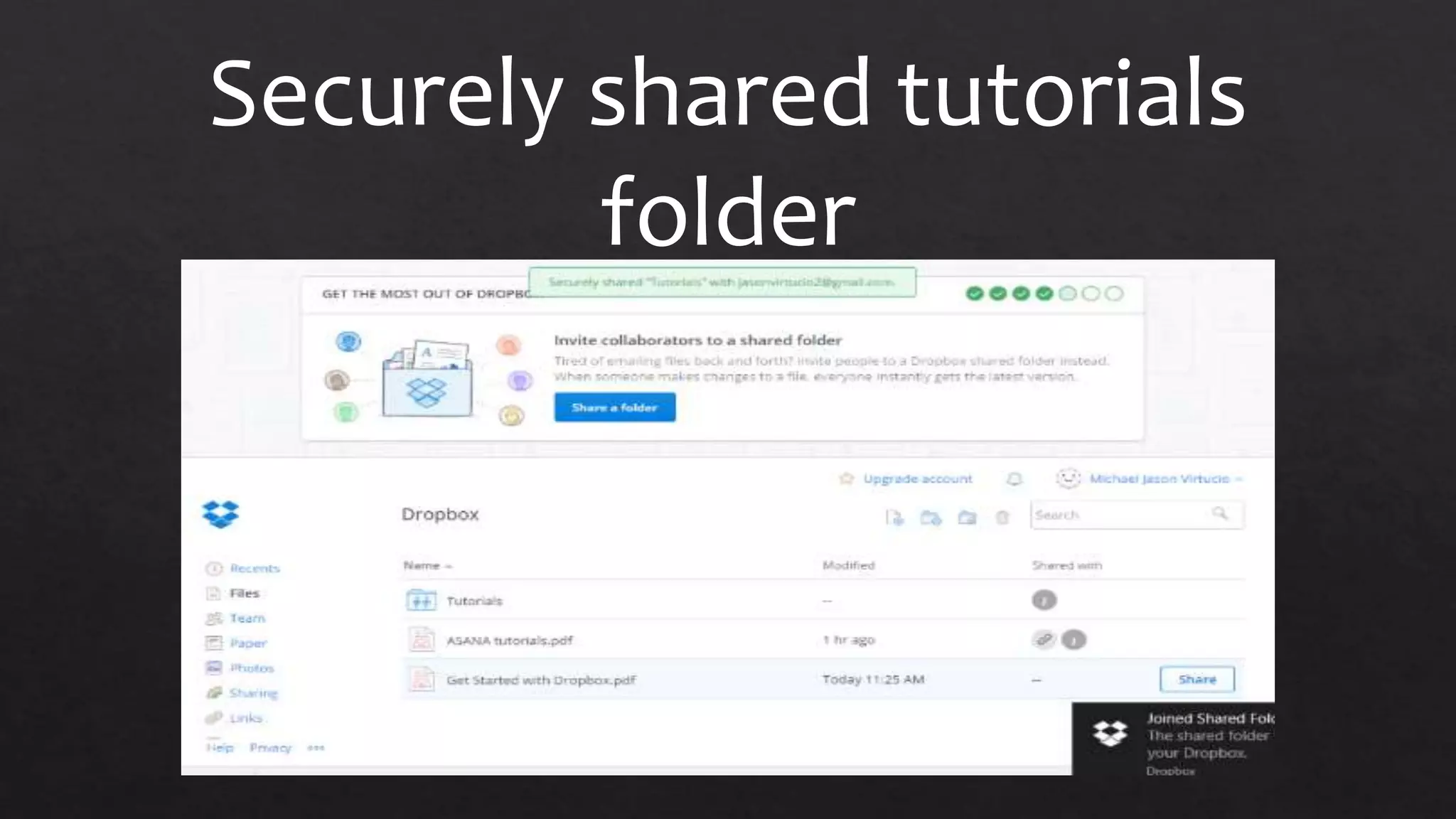
Securely shared tutorials
folder
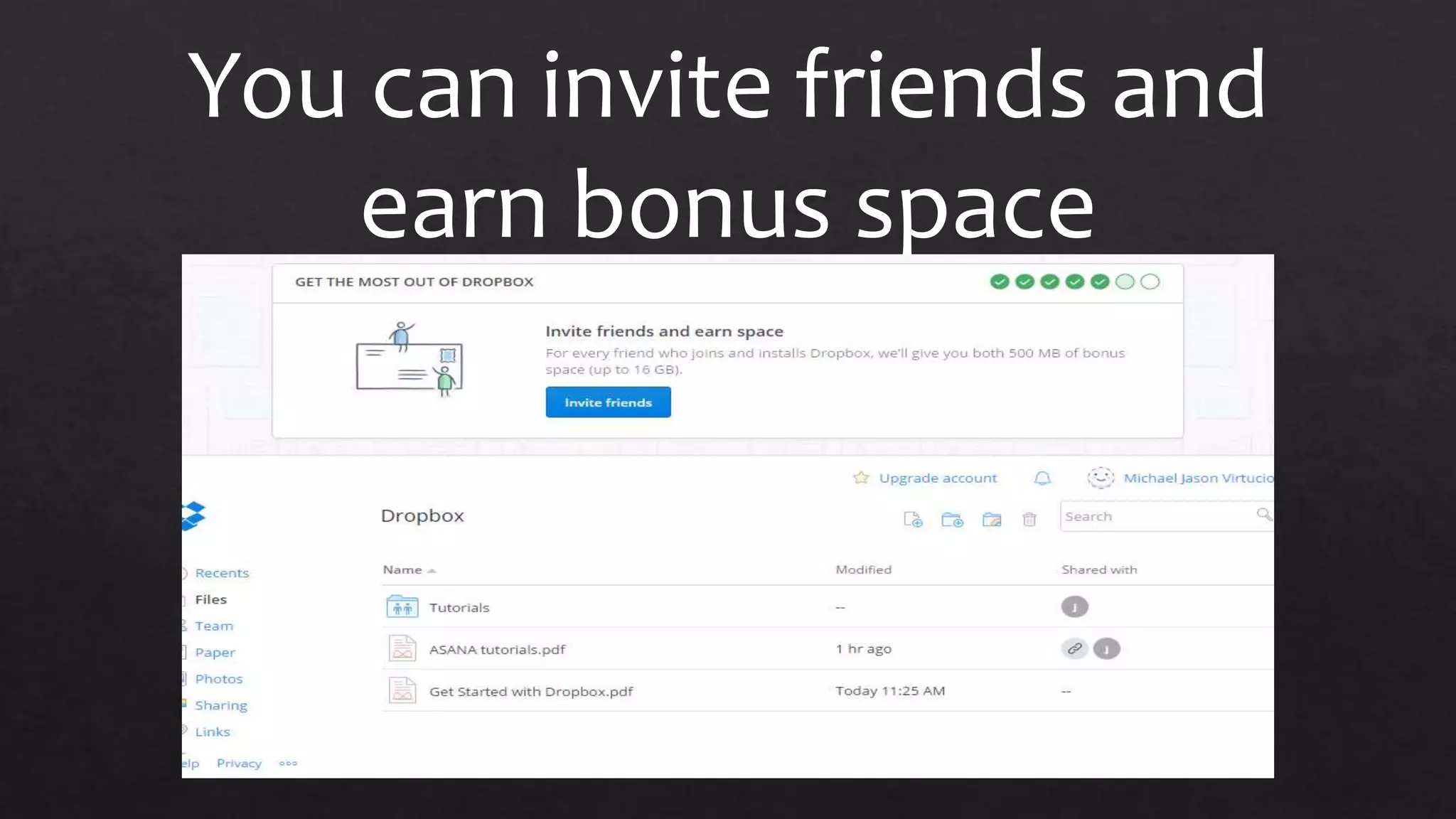
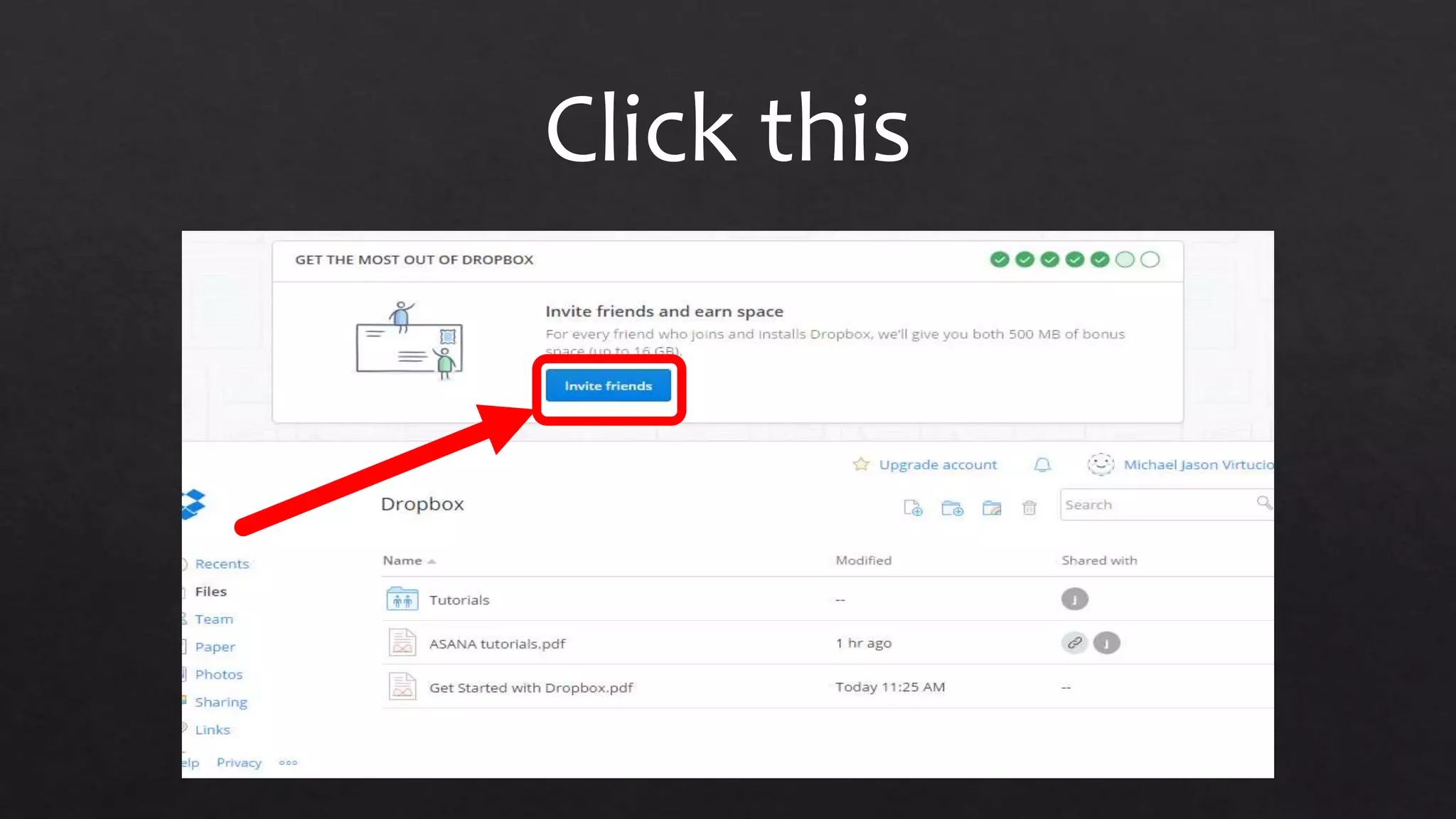
You can invite friends and
earn bonus space
Click this
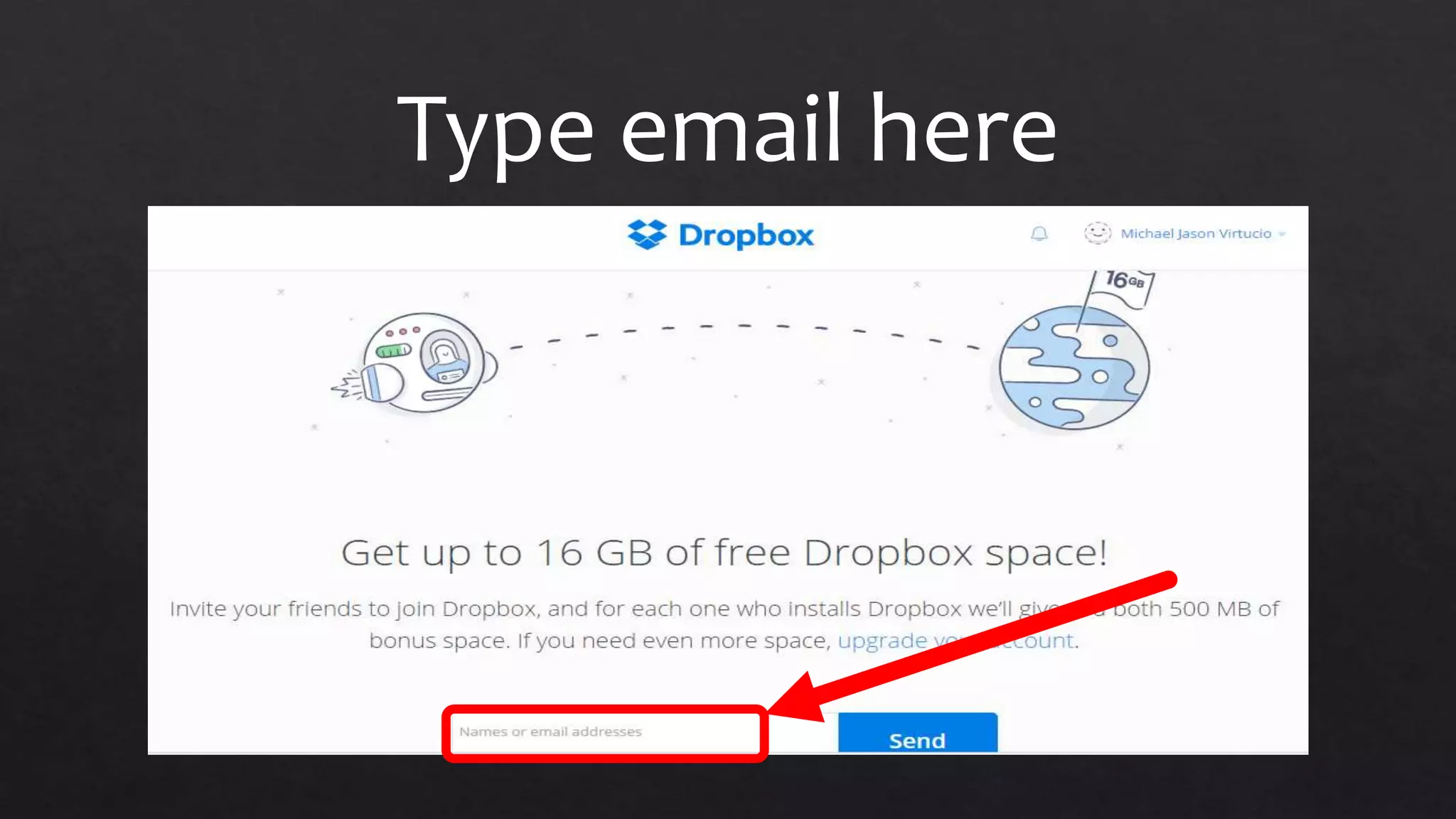
Type email here
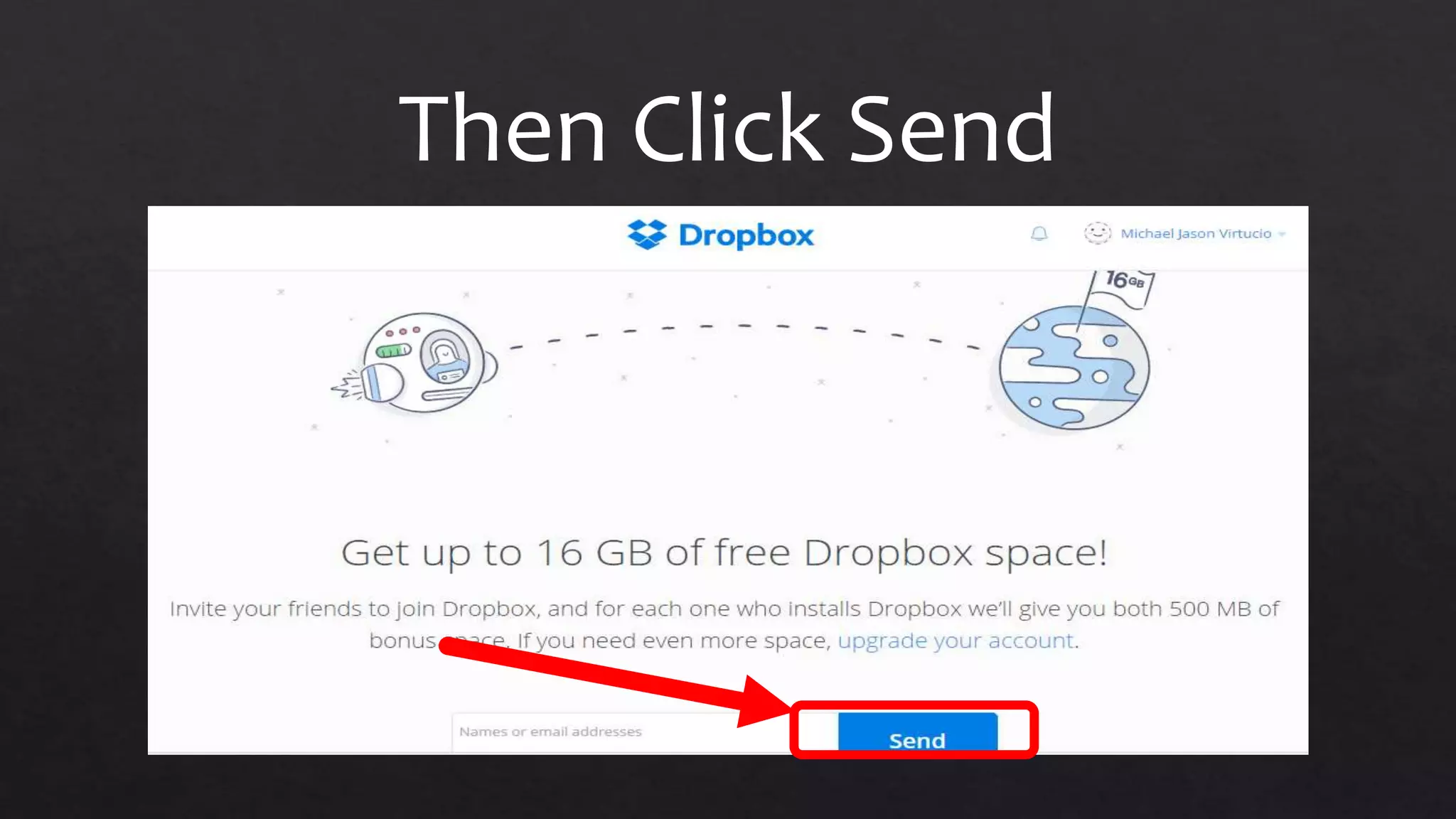
Then Click Send
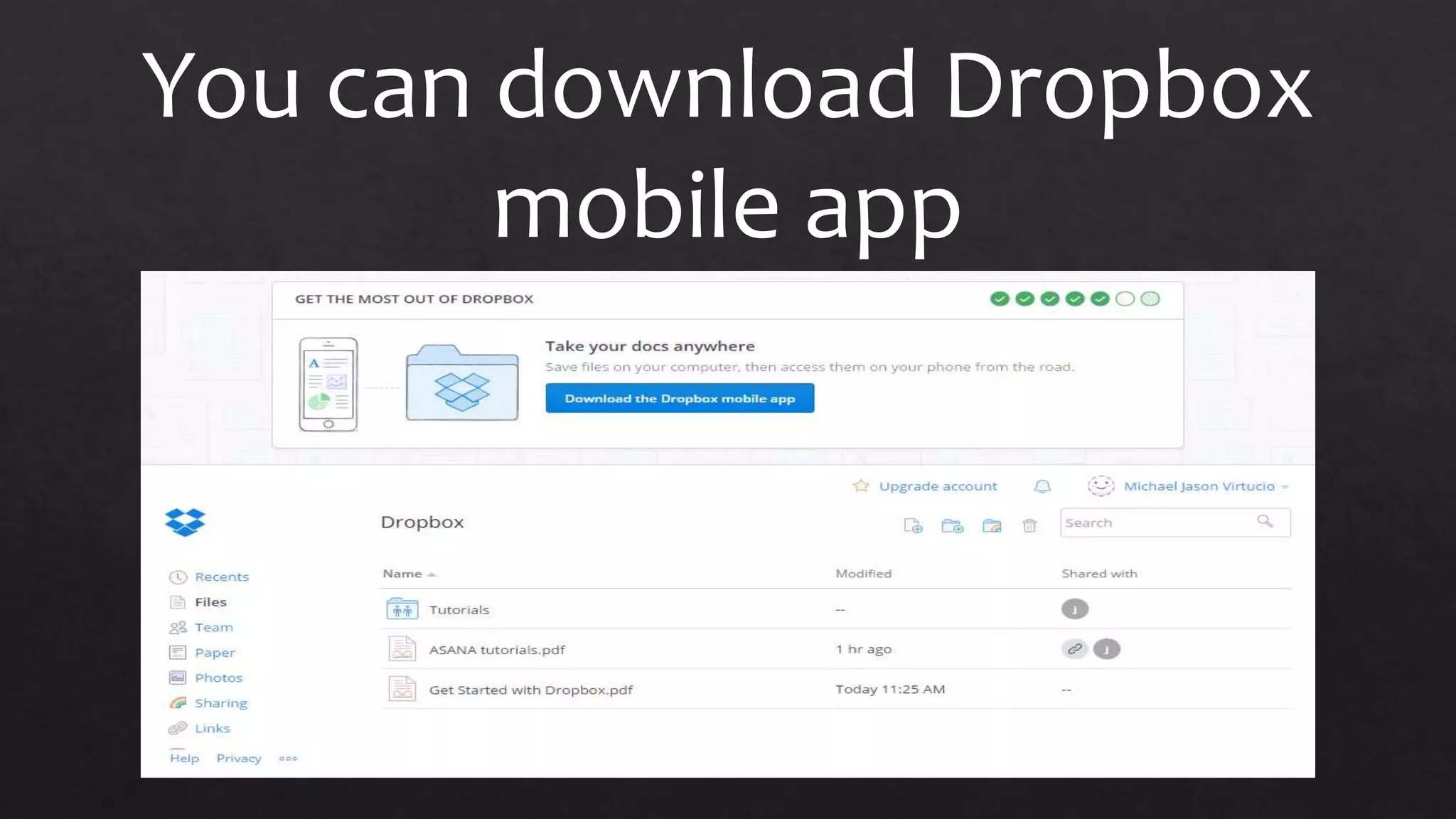
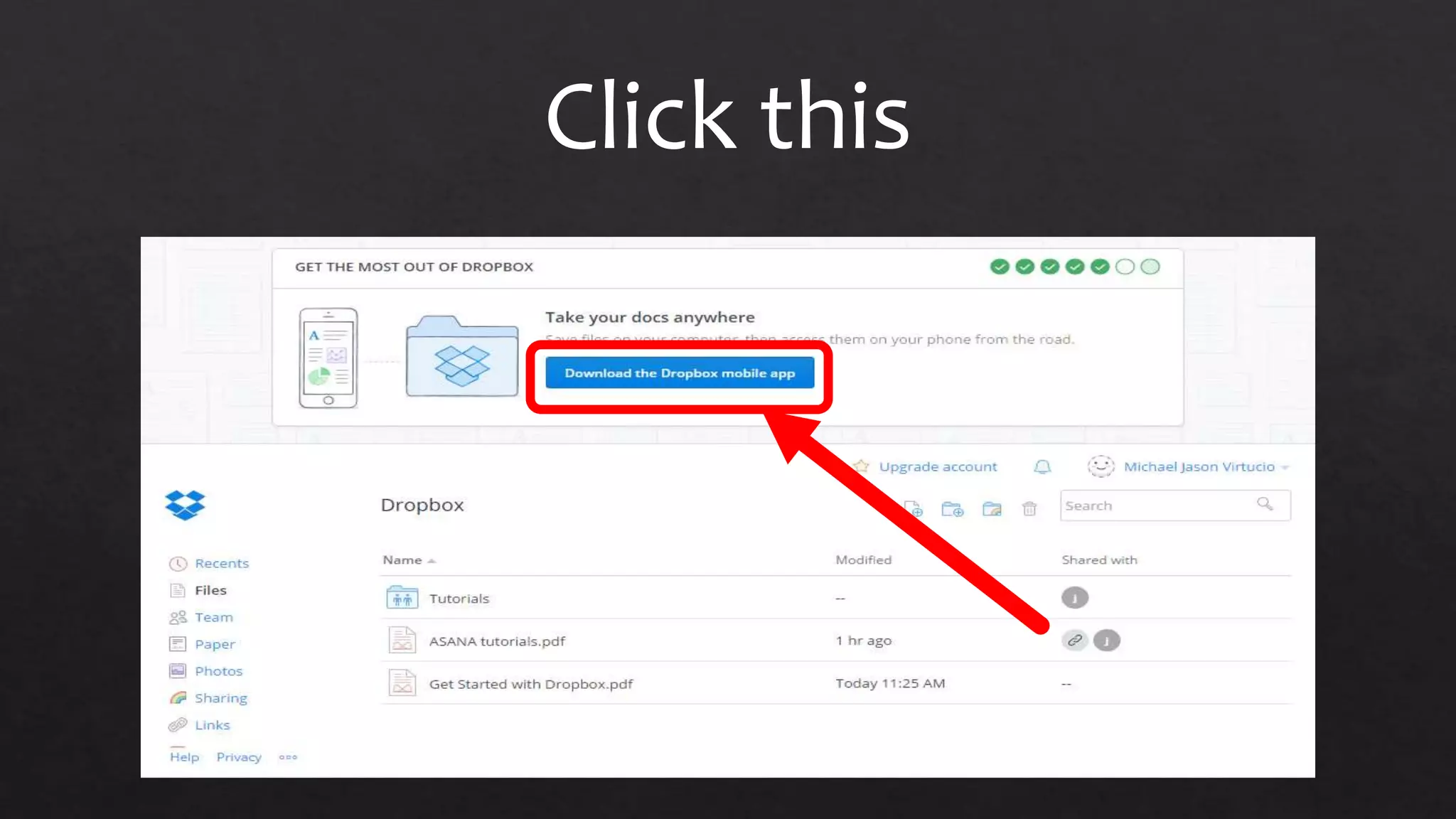
You can download Dropbox
mobile app
Click this
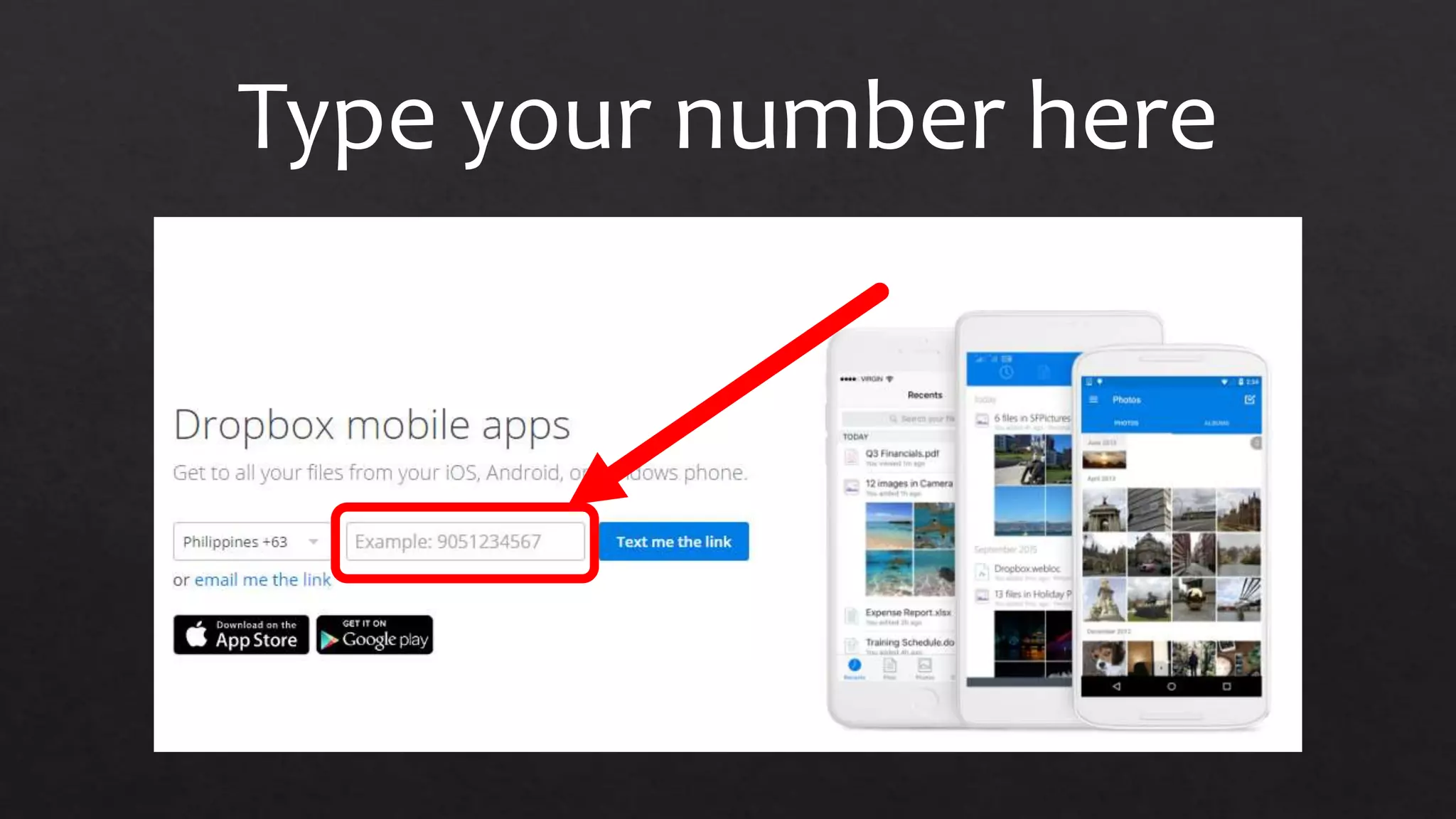
Type your number here
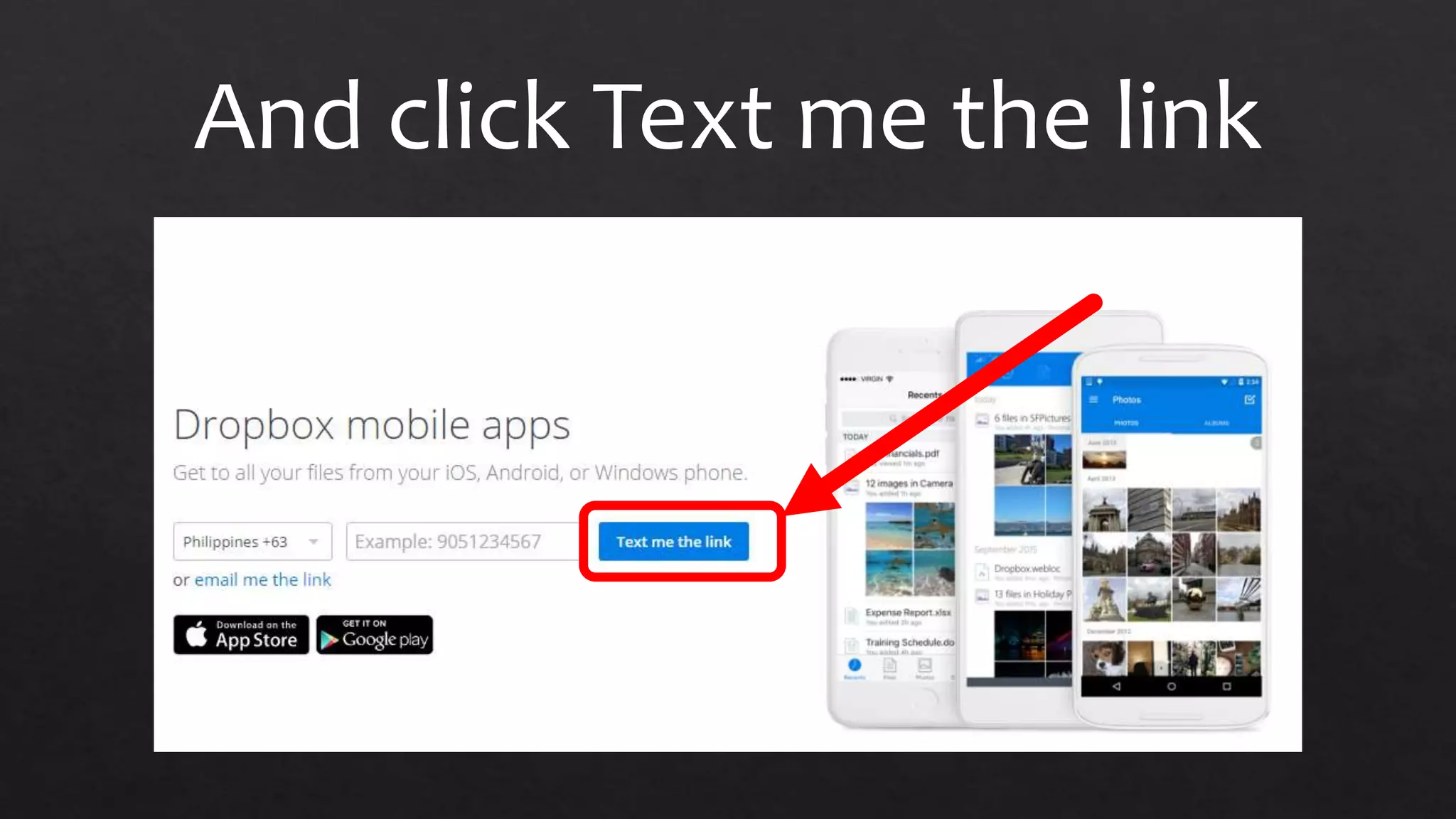
And click Text me the link
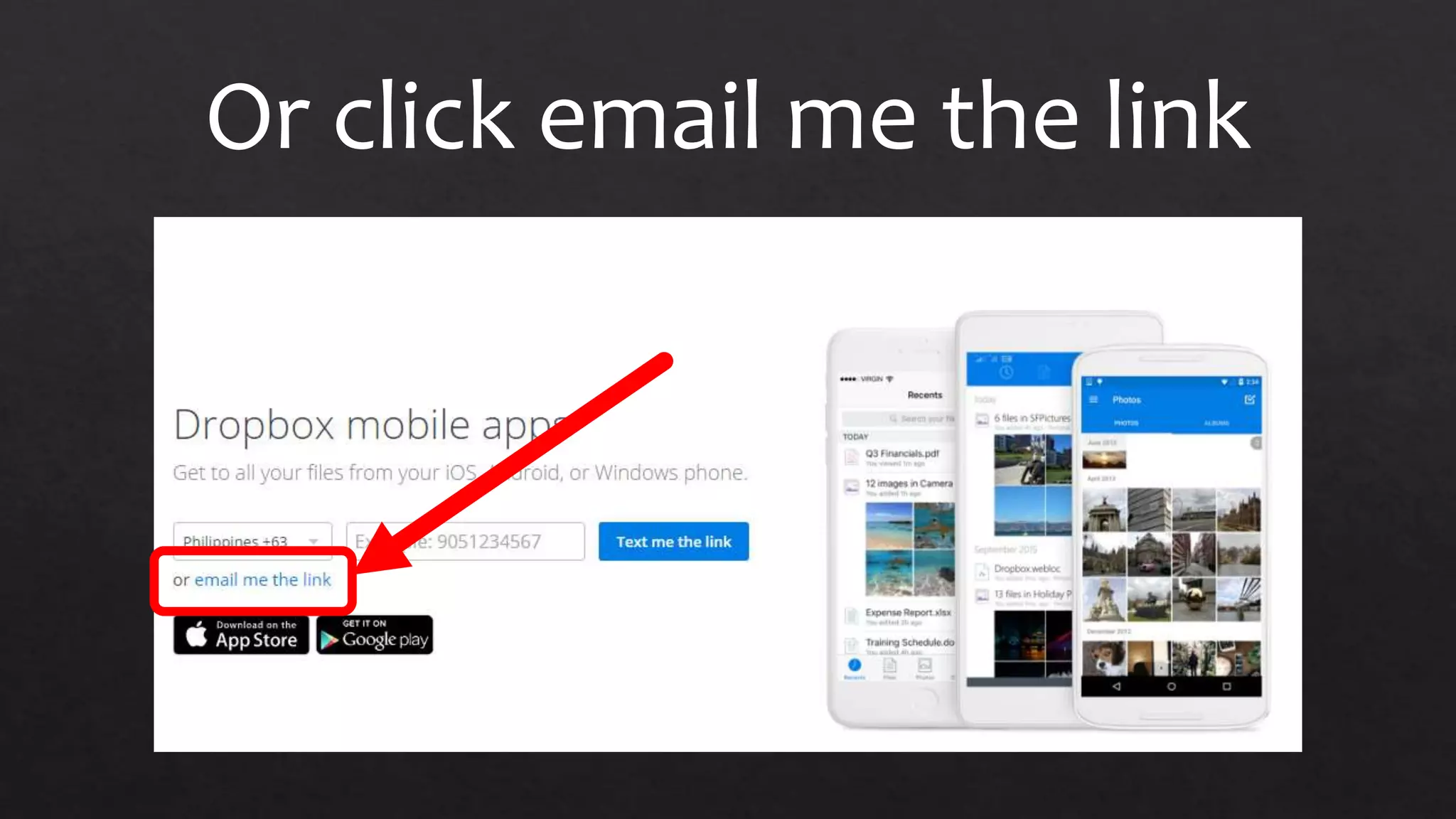
Or click email me the link
A point to ponder
yourmightymike@gmail.com
facebook.com/michaeljasonvirtucio
https://twitter.com/mjmvirtucio

How to use Dropbox