Introduction to Google Docs

         learn.cssd.ab.ca
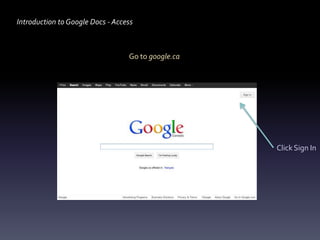
Introduction to Google Docs - Access


                                  Go to google.ca


                                                    Click Sign In
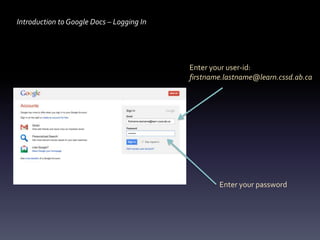
Introduction to Google Docs – Logging In


                                           Enter your user-id:
                                           firstname.lastname@learn.cssd.ab.ca


                                                   Enter your password
Introduction to Google Docs – Logging In


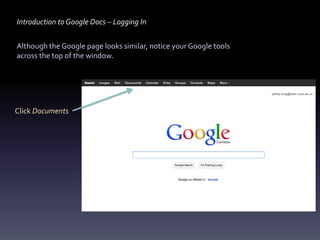
Although the Google page looks similar, notice your Google tools
across the top of the window.


Click Documents
Introduction to Google Docs – Creating a Word Processing Document


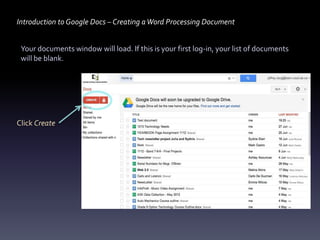
 Your documents window will load. If this is your first log-in, your list of documents
 will be blank.


Click Create
Introduction to Google Docs – Creating a Word Processing Document


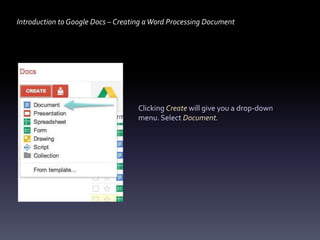
                                    Clicking Create will give you a drop-down
                                    menu. Select Document.
Introduction to Google Docs – Creating a Word Processing Document


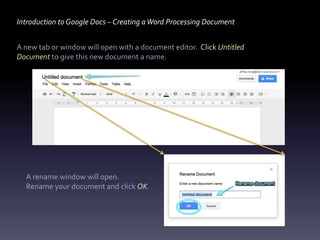
A new tab or window will open with a document editor. Click Untitled
Document to give this new document a name.


  A rename window will open.
  Rename your document and click OK.
Introduction to Google Docs – Creating a Word Processing Document


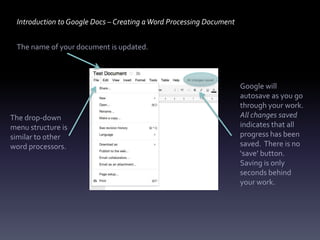
 The name of your document is updated.


                                                                     Google will
                                                                     autosave as you go
                                                                     through your work.
The drop-down                                                        All changes saved
menu structure is                                                    indicates that all
similar to other                                                     progress has been
word processors.                                                     saved. There is no
                                                                     ‘save’ button.
                                                                     Saving is only
                                                                     seconds behind
                                                                     your work.
Introduction to Google Docs – Sharing a Word Processing Document


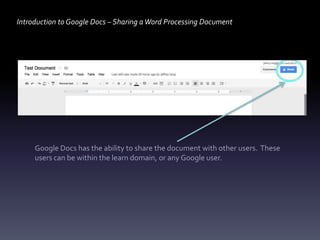
     Google Docs has the ability to share the document with other users. These
     users can be within the learn domain, or any Google user.
Introduction to Google Docs – Sharing Document Documents


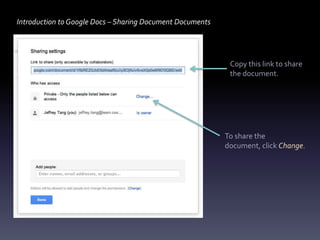
                                                            Copy this link to share
                                                            the document.


                                                           To share the
                                                           document, click Change.
Introduction to Google Docs – Sharing Documents


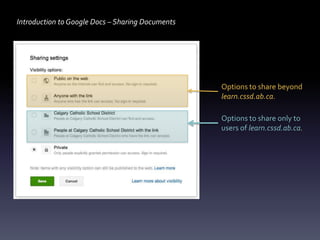
                                                  Options to share beyond
                                                  learn.cssd.ab.ca.

                                                  Options to share only to
                                                  users of learn.cssd.ab.ca.
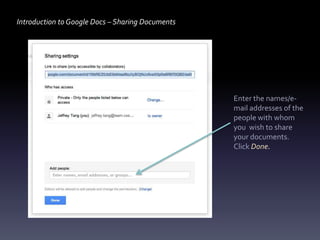
Introduction to Google Docs – Sharing Documents


                                                  Enter the names/e-
                                                  mail addresses of the
                                                  people with whom
                                                  you wish to share
                                                  your documents.
                                                  Click Done.

Customizing your Homepage

  • 1.
    Introduction to GoogleDocs learn.cssd.ab.ca
  • 2.
    Introduction to GoogleDocs - Access Go to google.ca Click Sign In
  • 3.
    Introduction to GoogleDocs – Logging In Enter your user-id: firstname.lastname@learn.cssd.ab.ca Enter your password
  • 4.
    Introduction to GoogleDocs – Logging In Although the Google page looks similar, notice your Google tools across the top of the window. Click Documents
  • 5.
    Introduction to GoogleDocs – Creating a Word Processing Document Your documents window will load. If this is your first log-in, your list of documents will be blank. Click Create
  • 6.
    Introduction to GoogleDocs – Creating a Word Processing Document Clicking Create will give you a drop-down menu. Select Document.
  • 7.
    Introduction to GoogleDocs – Creating a Word Processing Document A new tab or window will open with a document editor. Click Untitled Document to give this new document a name. A rename window will open. Rename your document and click OK.
  • 8.
    Introduction to GoogleDocs – Creating a Word Processing Document The name of your document is updated. Google will autosave as you go through your work. The drop-down All changes saved menu structure is indicates that all similar to other progress has been word processors. saved. There is no ‘save’ button. Saving is only seconds behind your work.
  • 9.
    Introduction to GoogleDocs – Sharing a Word Processing Document Google Docs has the ability to share the document with other users. These users can be within the learn domain, or any Google user.
  • 10.
    Introduction to GoogleDocs – Sharing Document Documents Copy this link to share the document. To share the document, click Change.
  • 11.
    Introduction to GoogleDocs – Sharing Documents Options to share beyond learn.cssd.ab.ca. Options to share only to users of learn.cssd.ab.ca.
  • 12.
    Introduction to GoogleDocs – Sharing Documents Enter the names/e- mail addresses of the people with whom you wish to share your documents. Click Done.