How to create a Google Site
by Fiona Beal
A. What is a Google site?
A Google Sites is a structured wiki- and web
page-creation tool offered by Google.
Google Sites is one of the best website creation
software for teachers. It is an ideal platform to
host a class website. It is great for collaborative
projects – one can embed videos, audio,
presentations, and images that students can use
when working on their projects and
assignments.
B. What does a Google site
look like?
https://goo.gl/gcPfo1
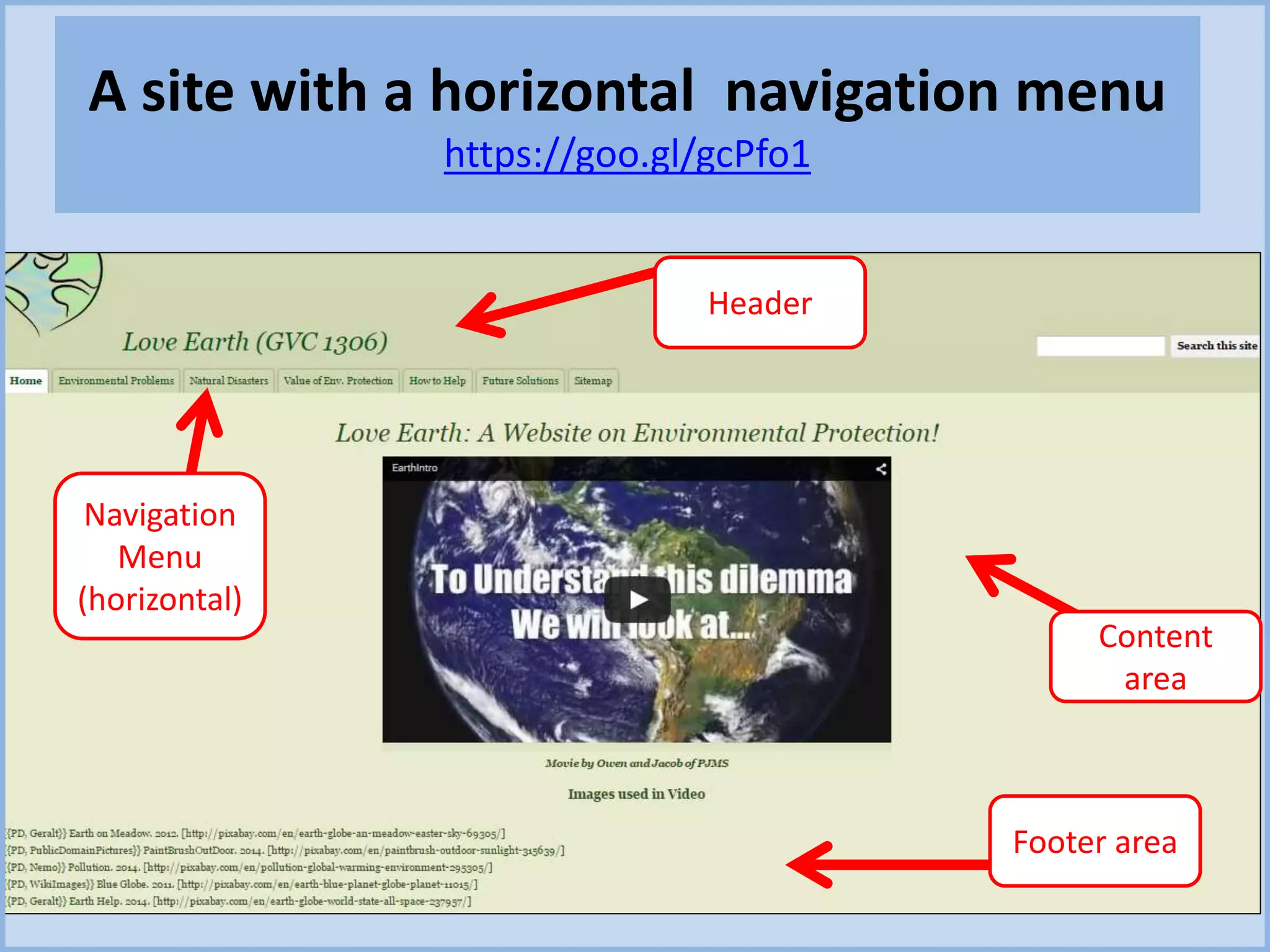
Four elements of a Google site page
1. The Header section appears at the top of each page and
can contain text, graphics or both.
2. The Navigation Menu contains links to all the pages in the
site, or at least the main sections. Navigation menus can
be horizontal across the top of the page, or in
a vertical menu on the left or right of the page.
3. The Content area on each page is where you find all the
information. The content area stretches from the header
to the footer, and can contain text, images, video, links,
etc. On a Google Site, the content area can be in a number
of layout styles, with columns or other sections.
4. The Footer area is at the bottom of each page and usually
contains copyright and contact information.
A site with a horizontal navigation menu
https://goo.gl/gcPfo1
Header
Navigation
Menu
(horizontal)
Content
area
Footer area
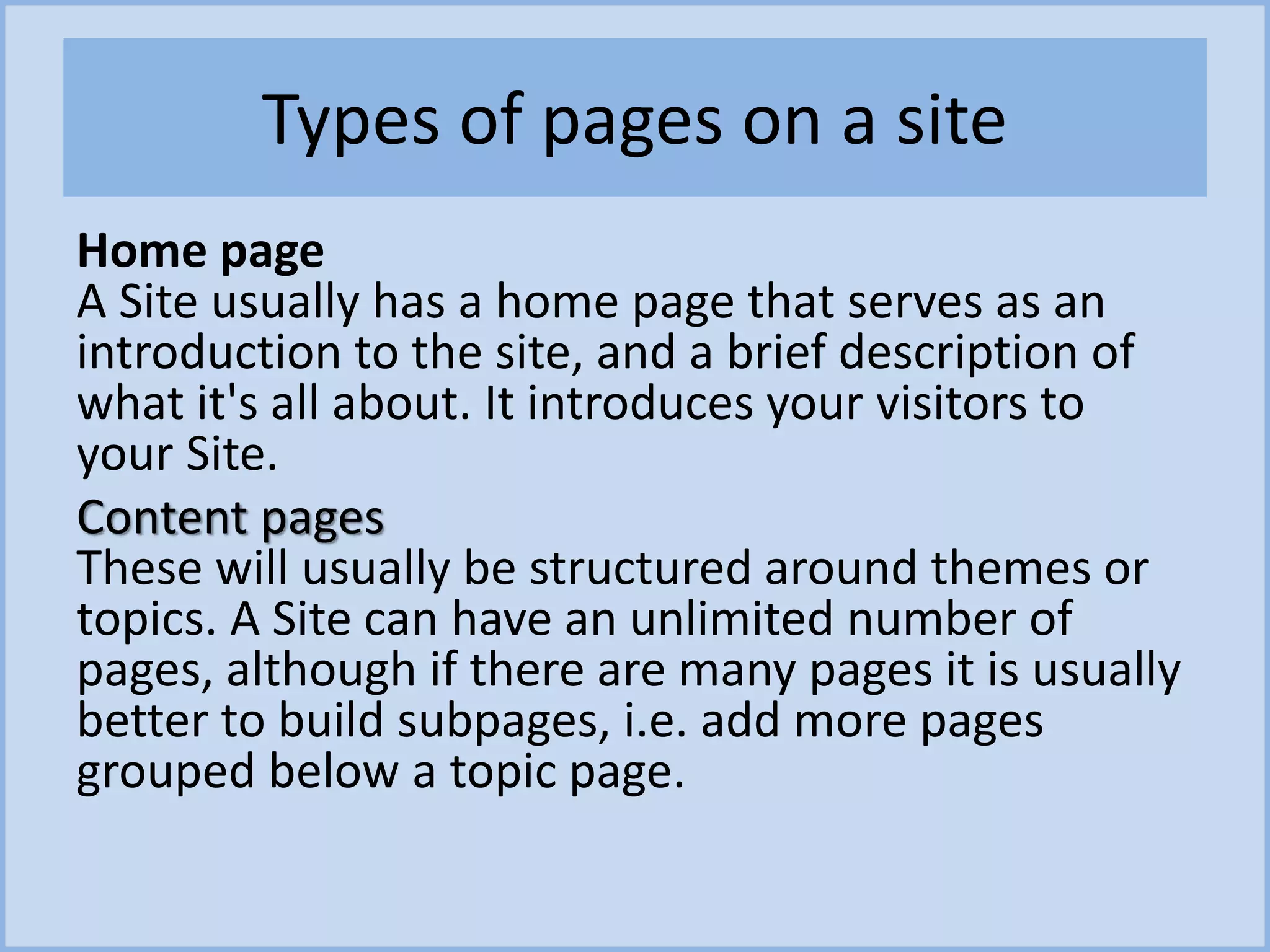
Types of pages on a site
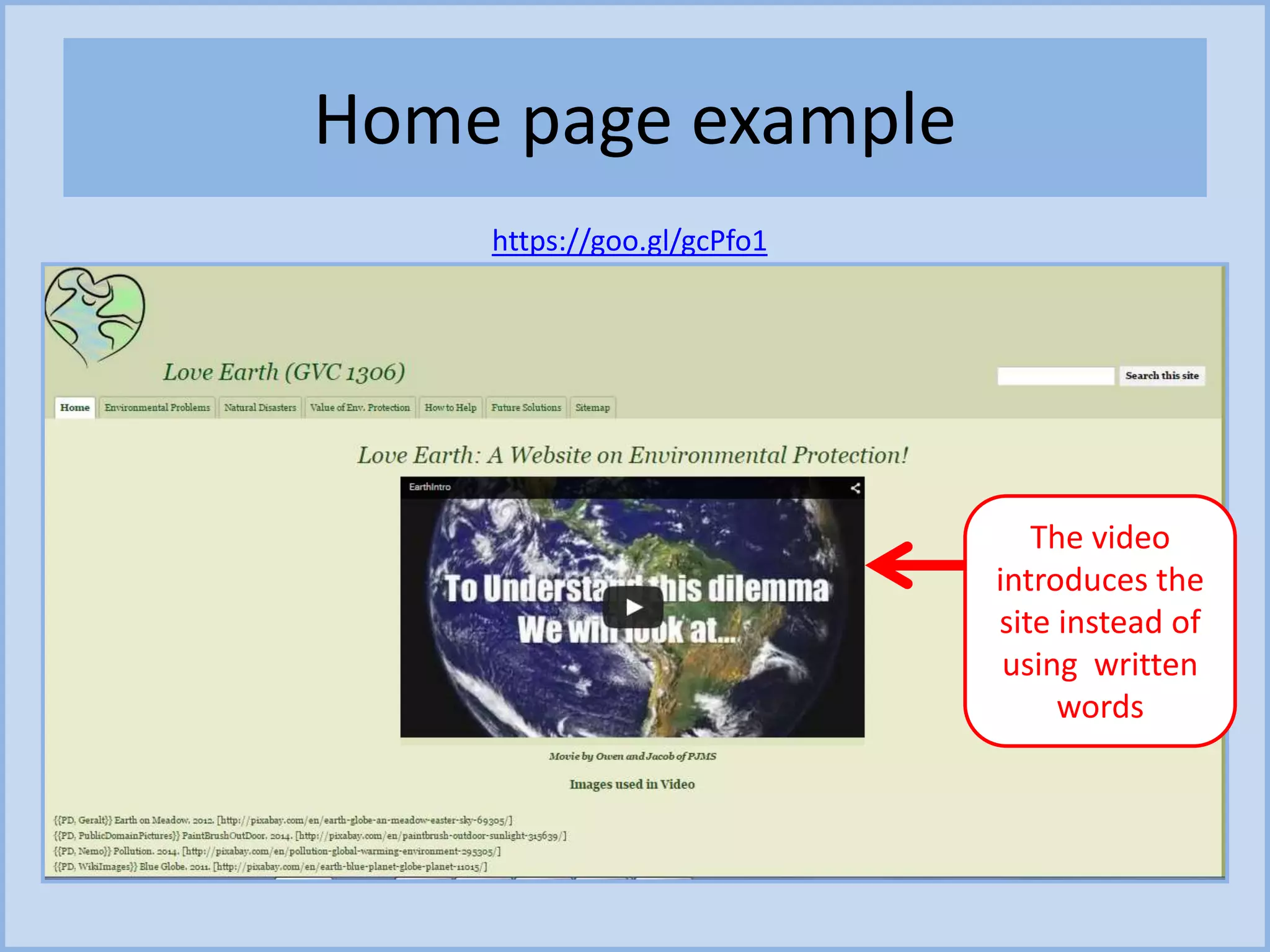
Home page
A Site usually has a home page that serves as an
introduction to the site, and a brief description of
what it's all about. It introduces your visitors to
your Site.
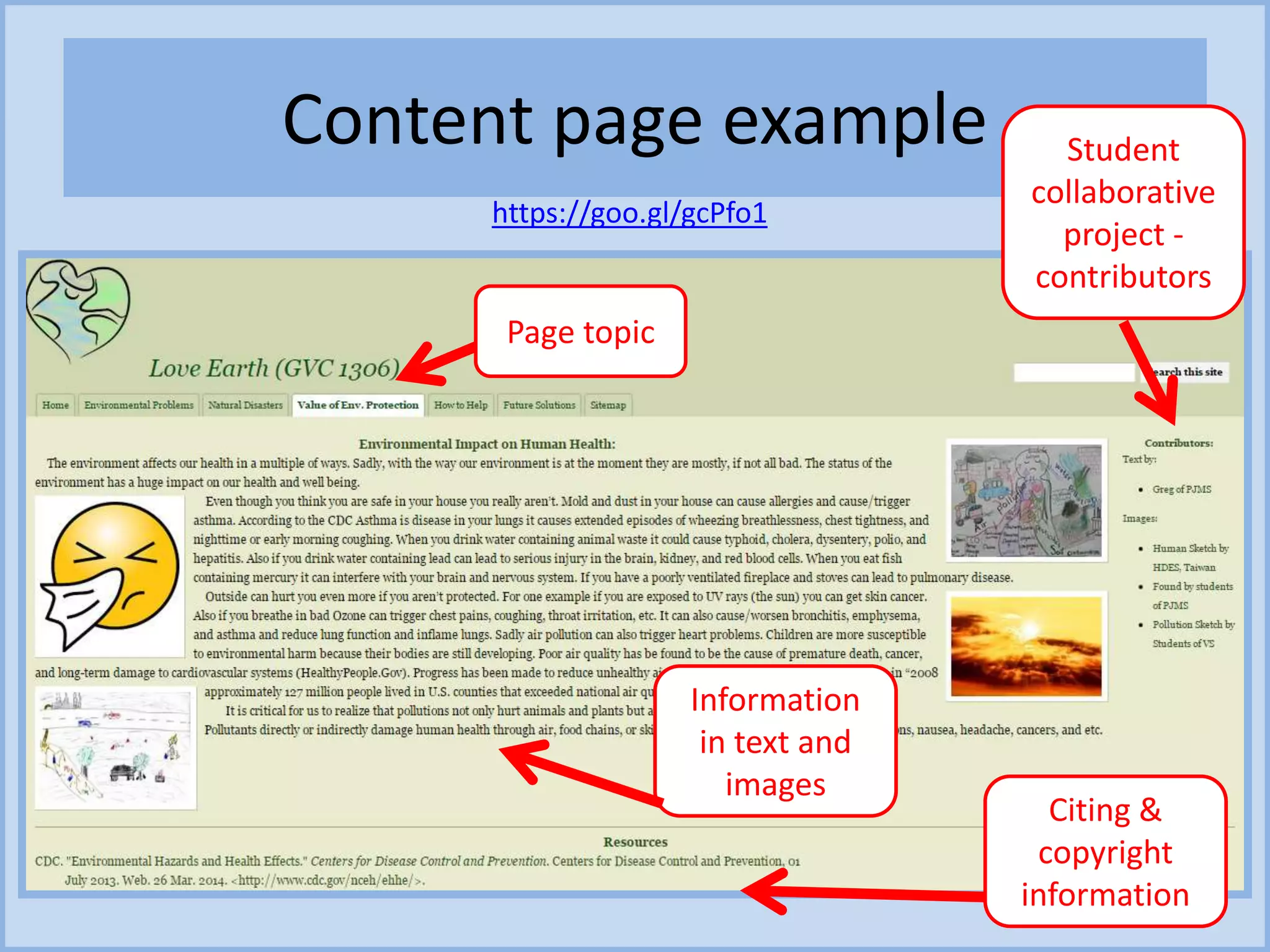
Content pages
These will usually be structured around themes or
topics. A Site can have an unlimited number of
pages, although if there are many pages it is usually
better to build subpages, i.e. add more pages
grouped below a topic page.
Home page example
https://goo.gl/gcPfo1
The video
introduces the
site instead of
using written
words
Content page example
https://goo.gl/gcPfo1
Information
in text and
images
Page topic
Citing &
copyright
information
Student
collaborative
project -
contributors
Terminology
Site: a website on the Interent
Home page: Landing page that introduces the site
Navigation menu bar: A bar that organises the links to
the information
Content page: A page containing information on a topic
Footer: Bottom area of a page for citing sources of
information
Header: appears at the top of each page and can
contain text, graphics or both.
Layout: the way the page can be designed
C. Let’s create a Google site
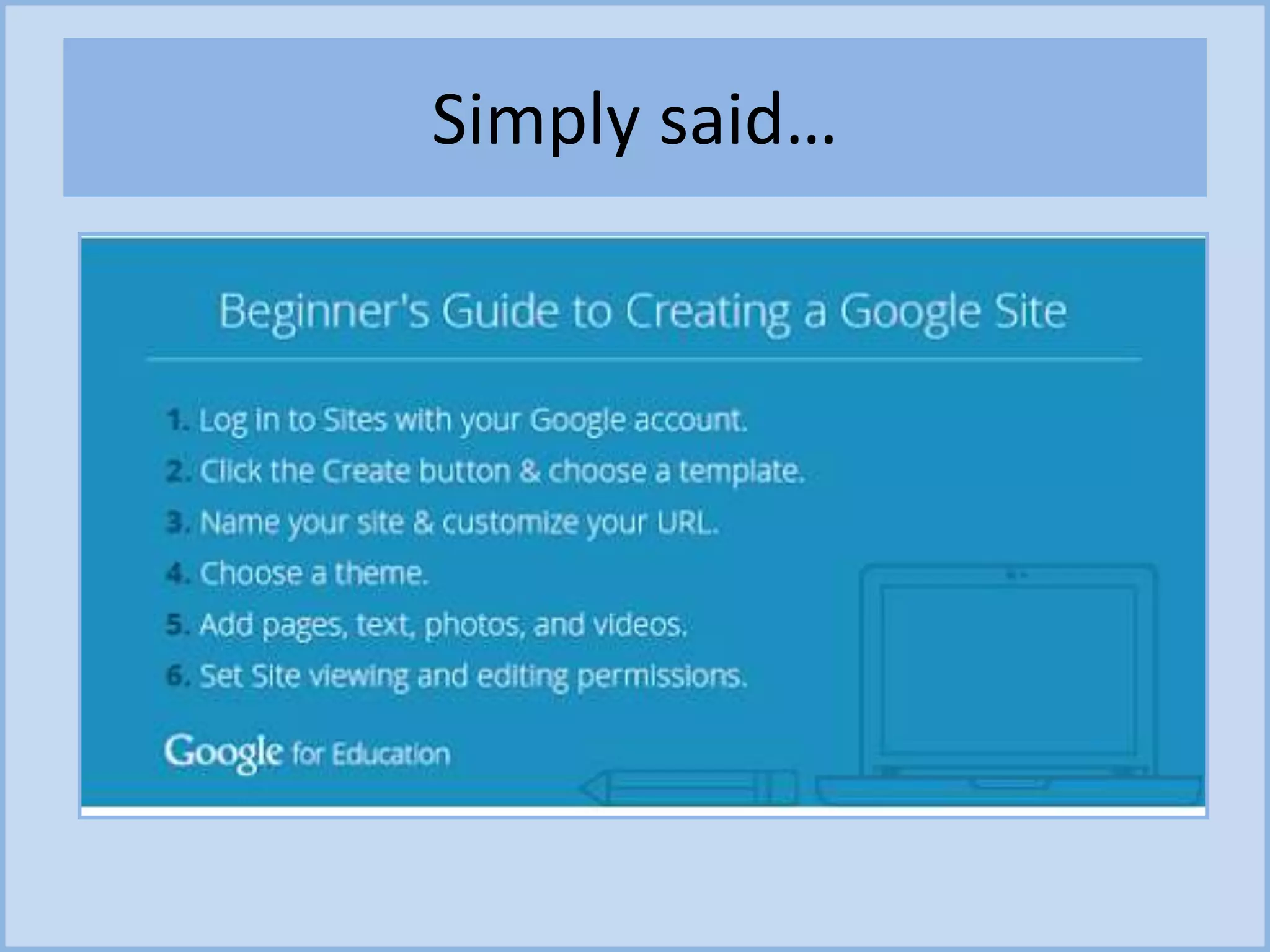
Simply said…
Let's create a Site – here are
the steps:
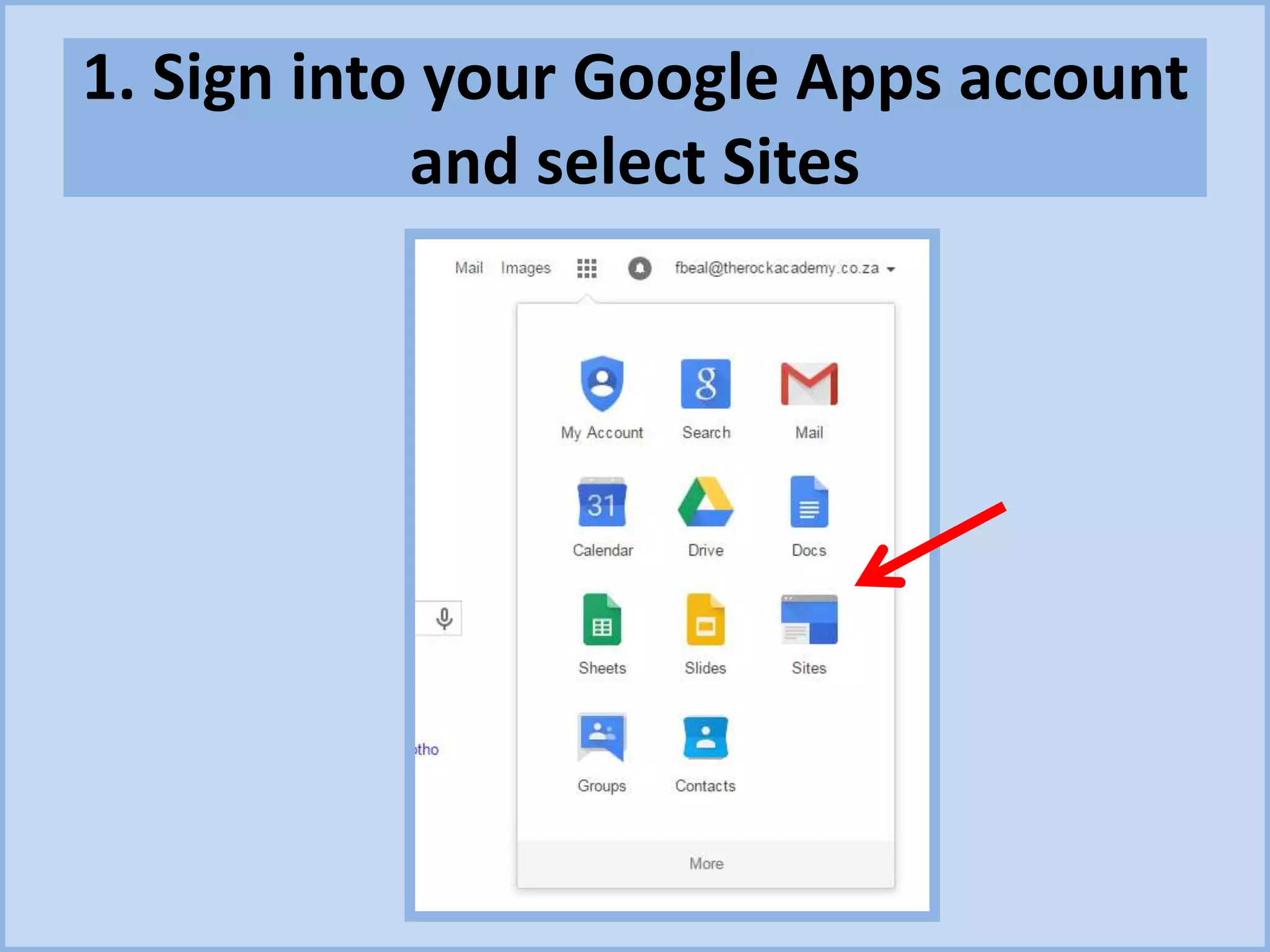
1. Log into your Google account and go
to http://sites.google.com
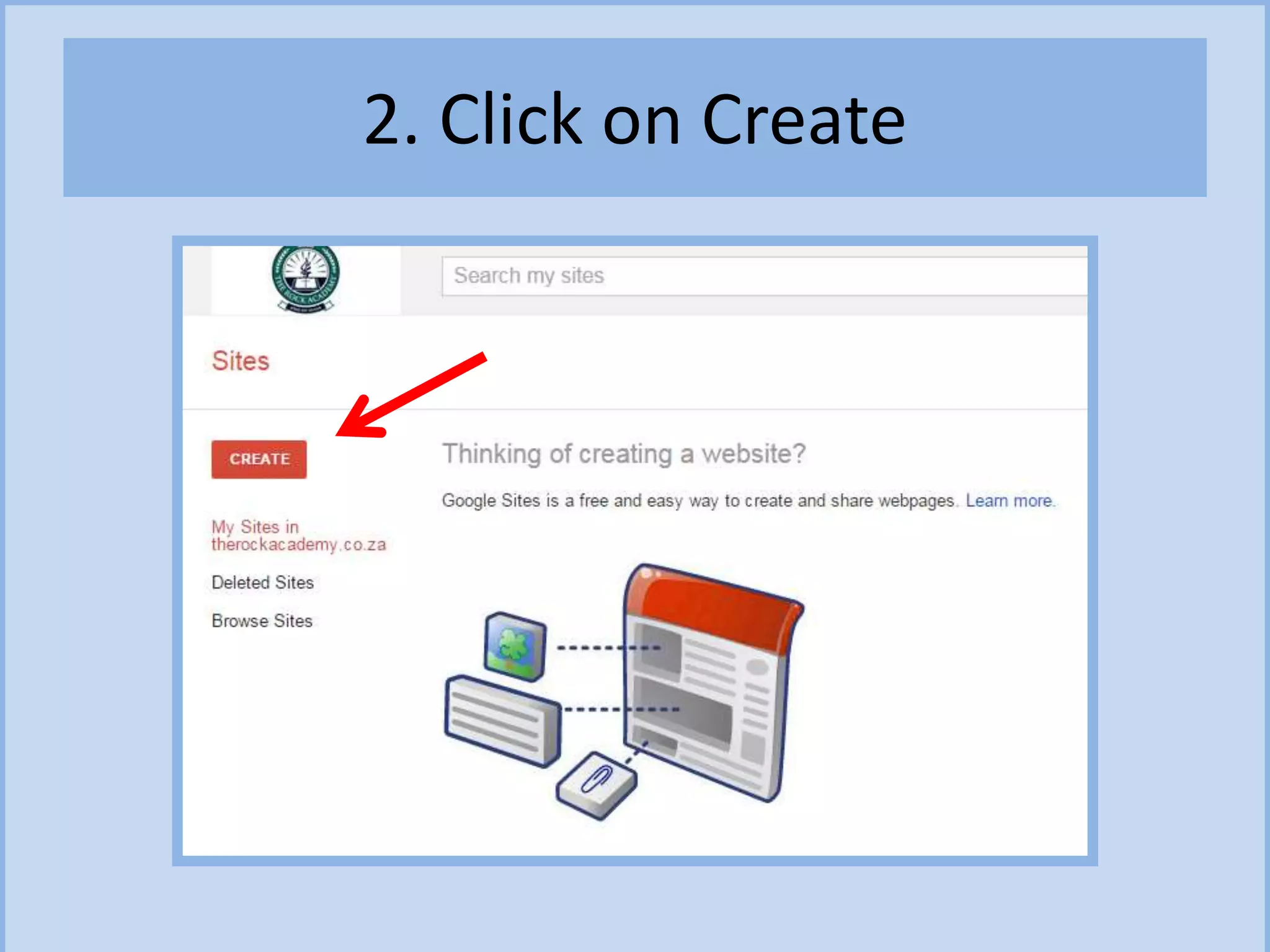
2. Click the Create button
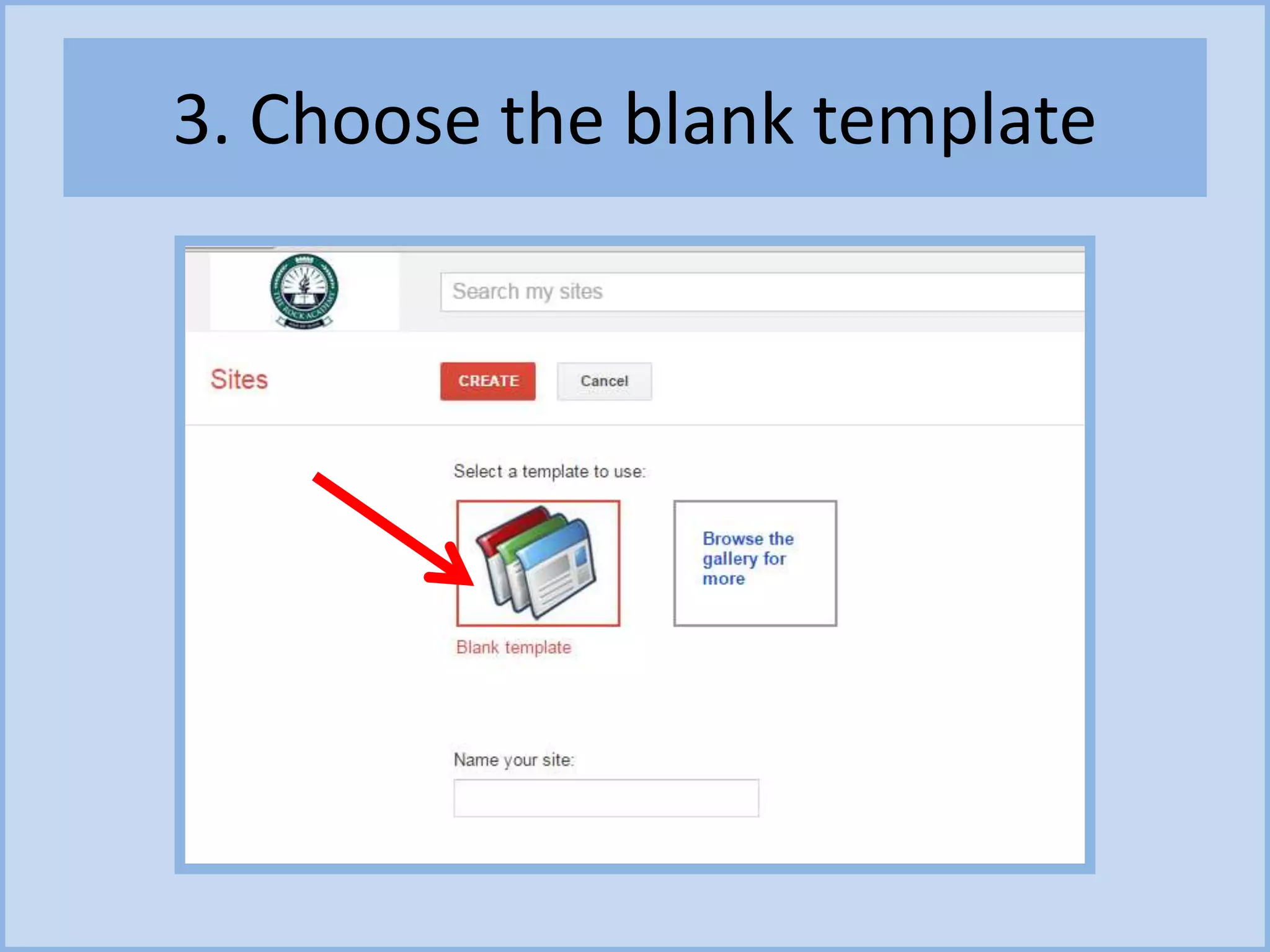
3. Choose the Blank Template
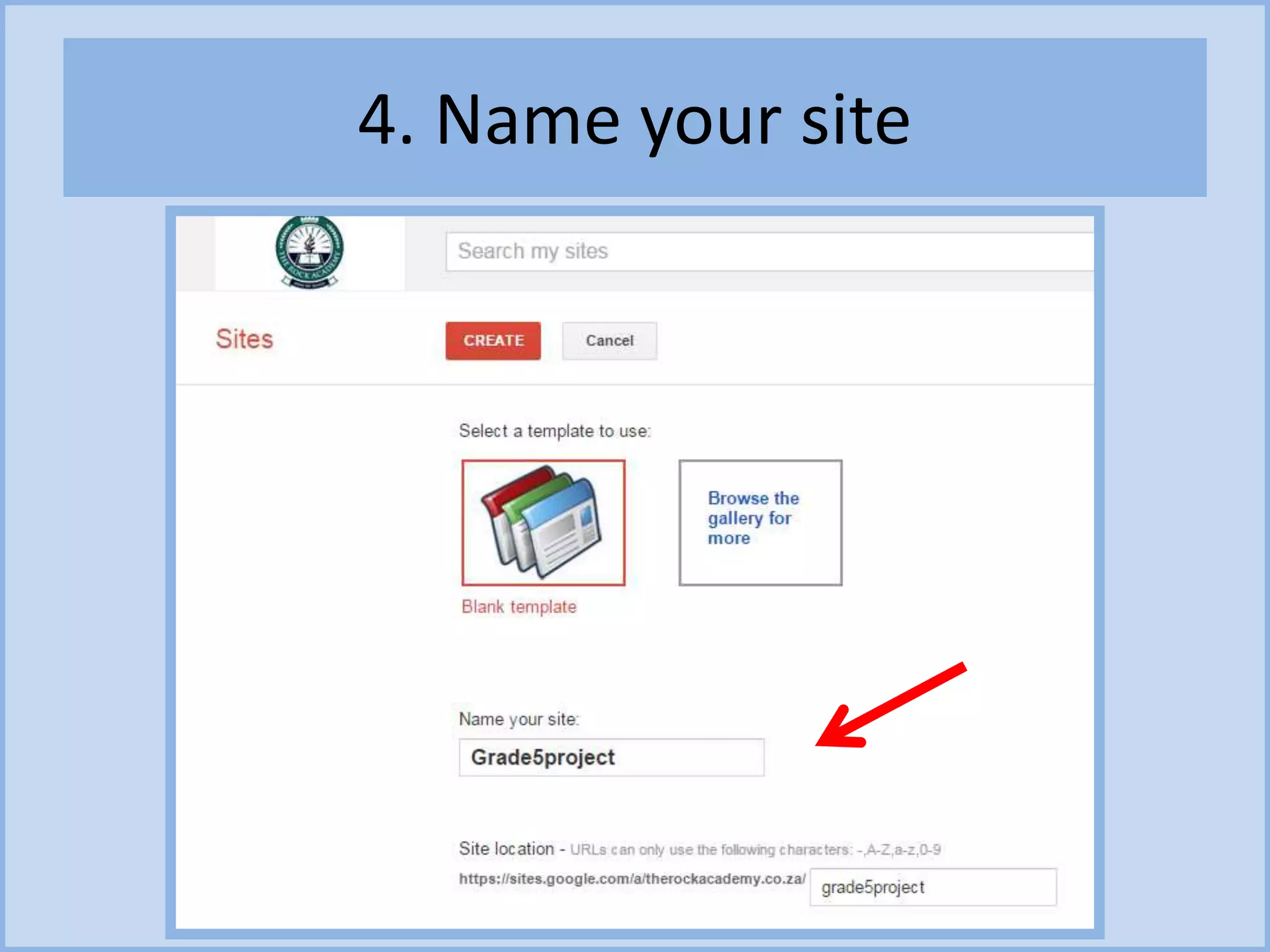
4. Name your site. You'll notice it creates the url based on the
name but you can override that if you wish (Note that the
name must be unique in your domain)
5. Unfold the Themes section, and choose the Iceberg theme (I
like to start with Iceberg, but it's up to you)
6. Unfold the More Options section, and enter a short
description about your Site.
7. Type the captcha code (if you get one)
8. Click the Create button at the top of the page
1. Sign into your Google Apps account
and select Sites
2. Click on Create
3. Choose the blank template
4. Name your site
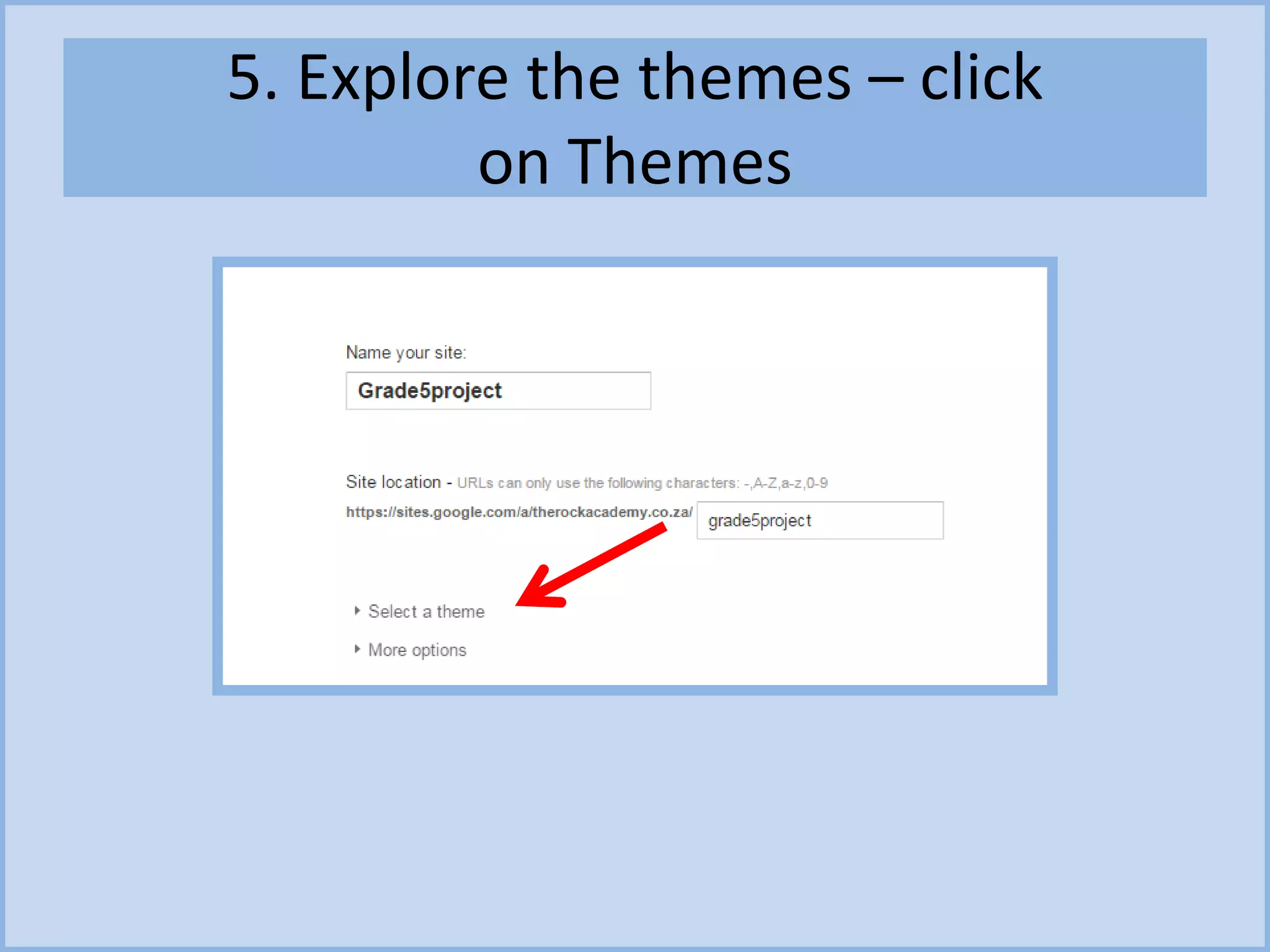
5. Explore the themes – click
on Themes
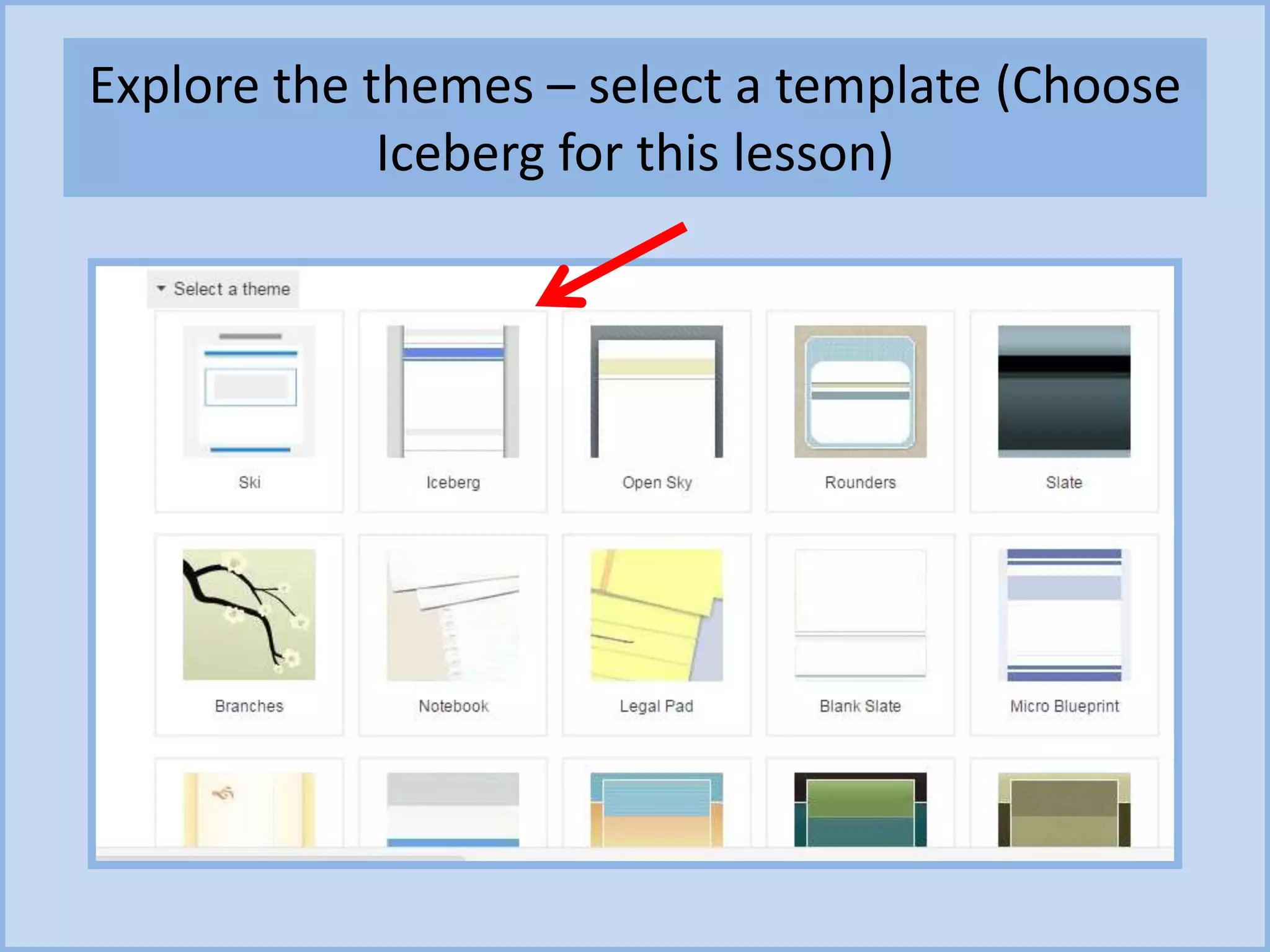
Explore the themes – select a template (Choose
Iceberg for this lesson)
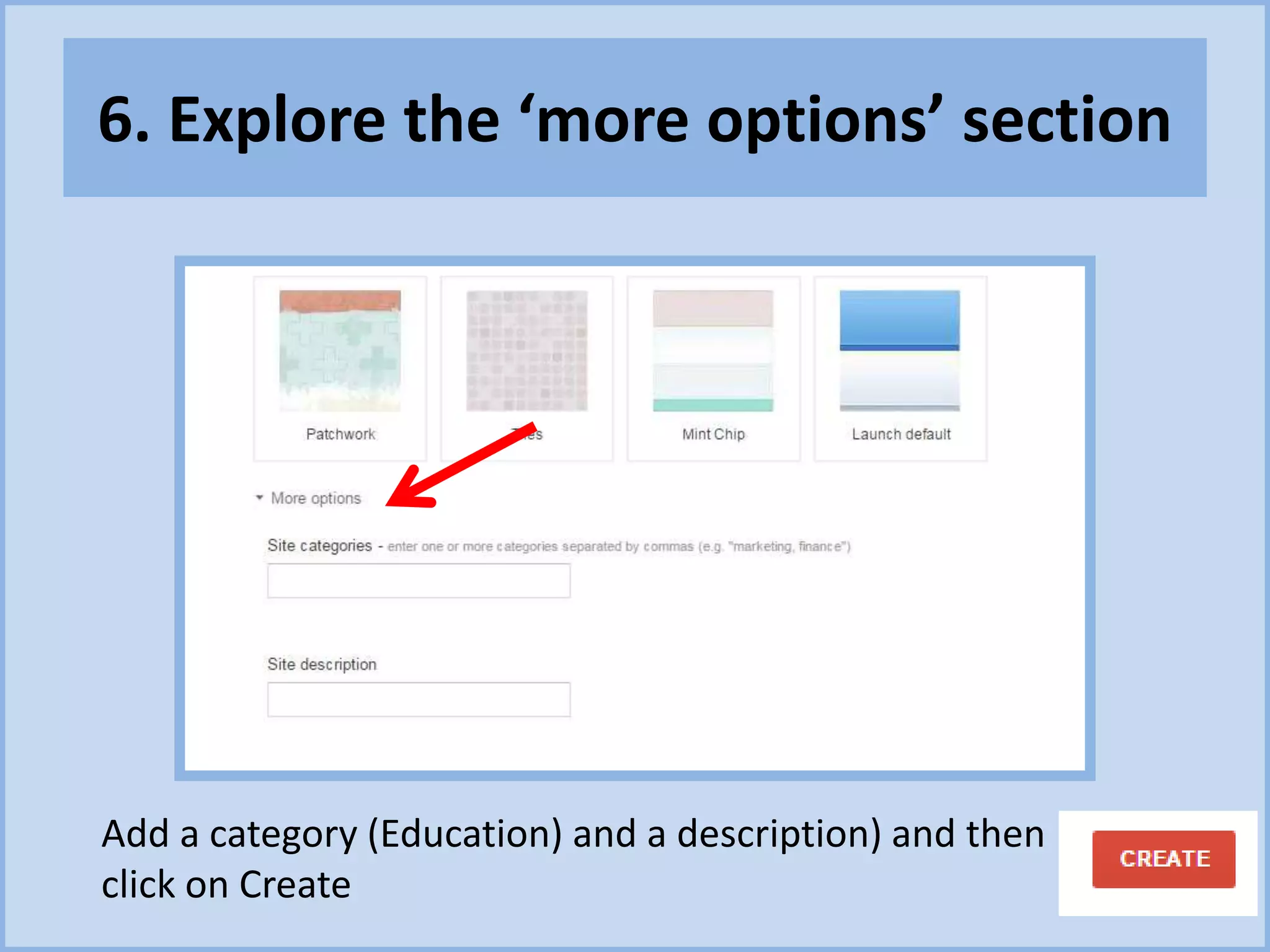
6. Explore the ‘more options’ section
Add a category (Education) and a description) and then
click on Create
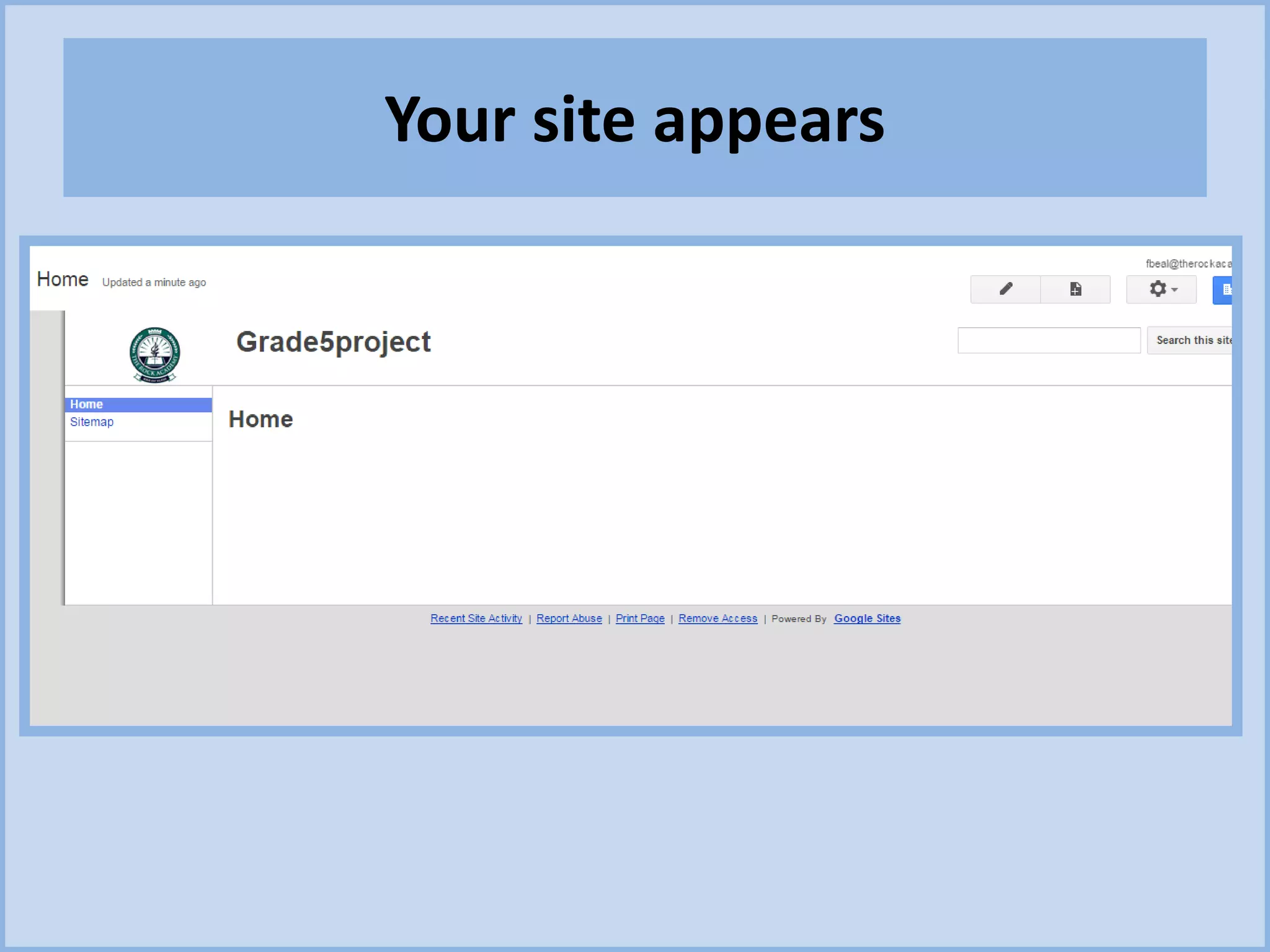
Your site appears
D. Let’s work with your site
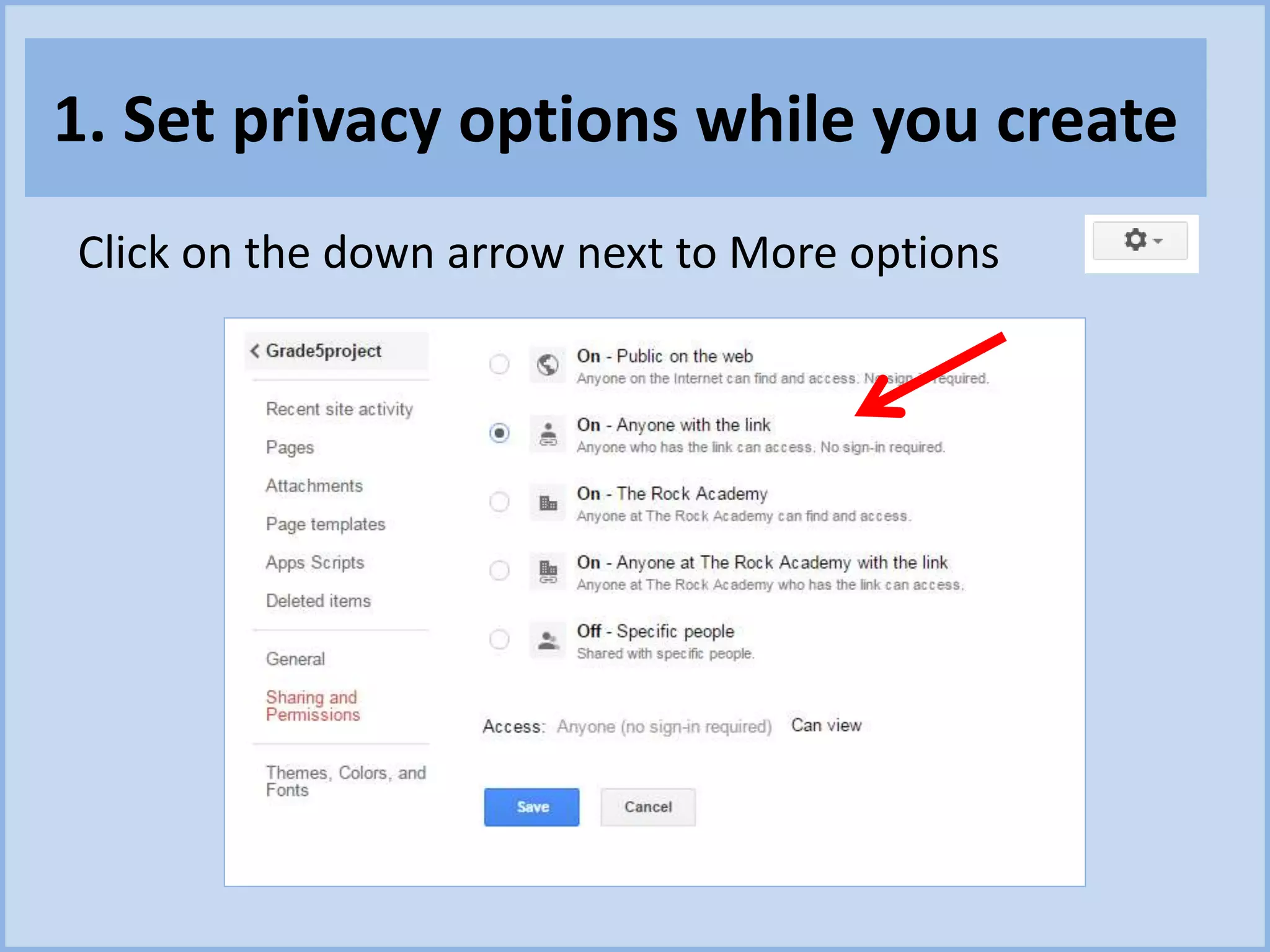
1. Set privacy options while you create
Click on the down arrow next to More options
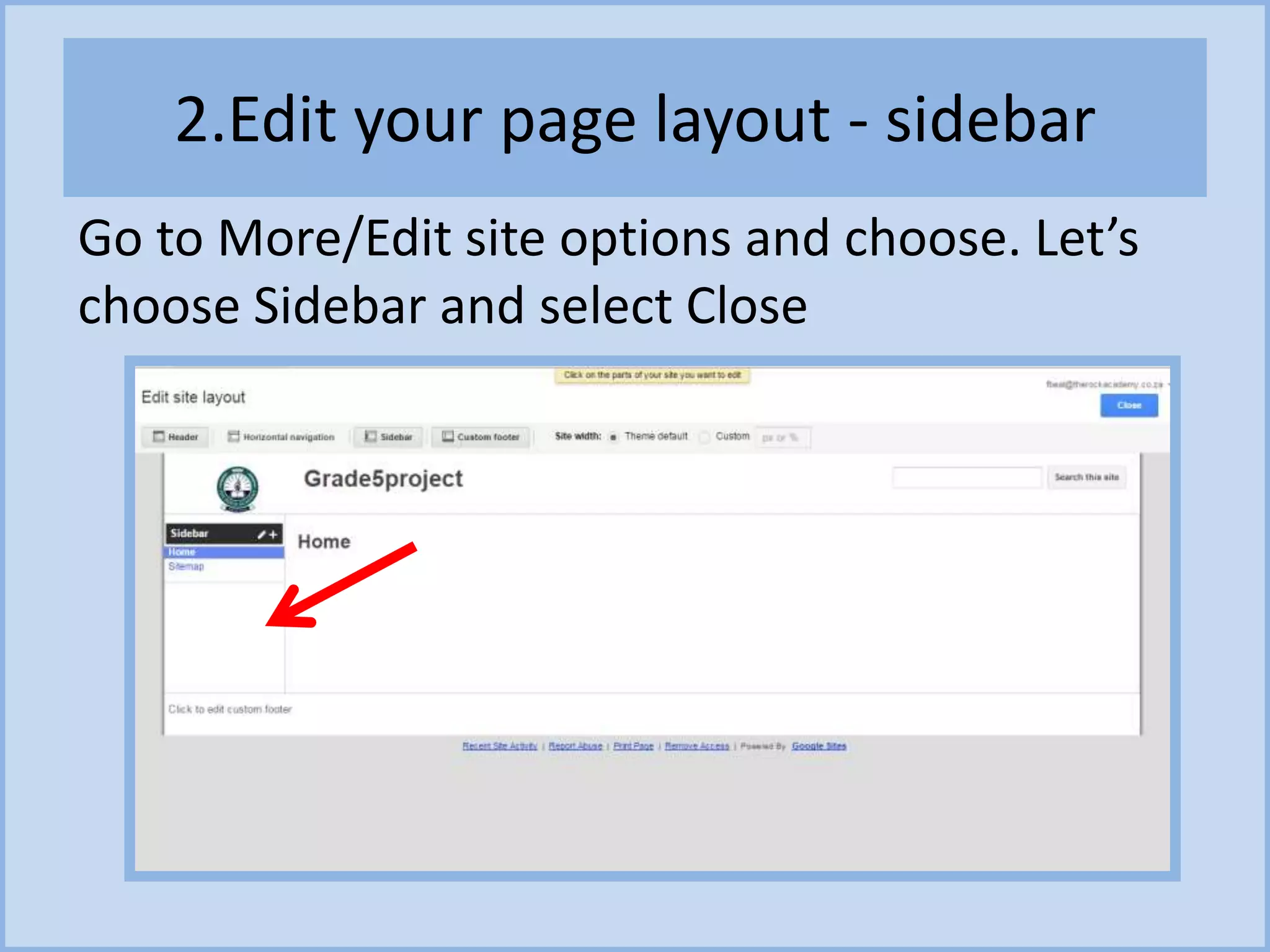
2.Edit your page layout - sidebar
Go to More/Edit site options and choose. Let’s
choose Sidebar and select Close
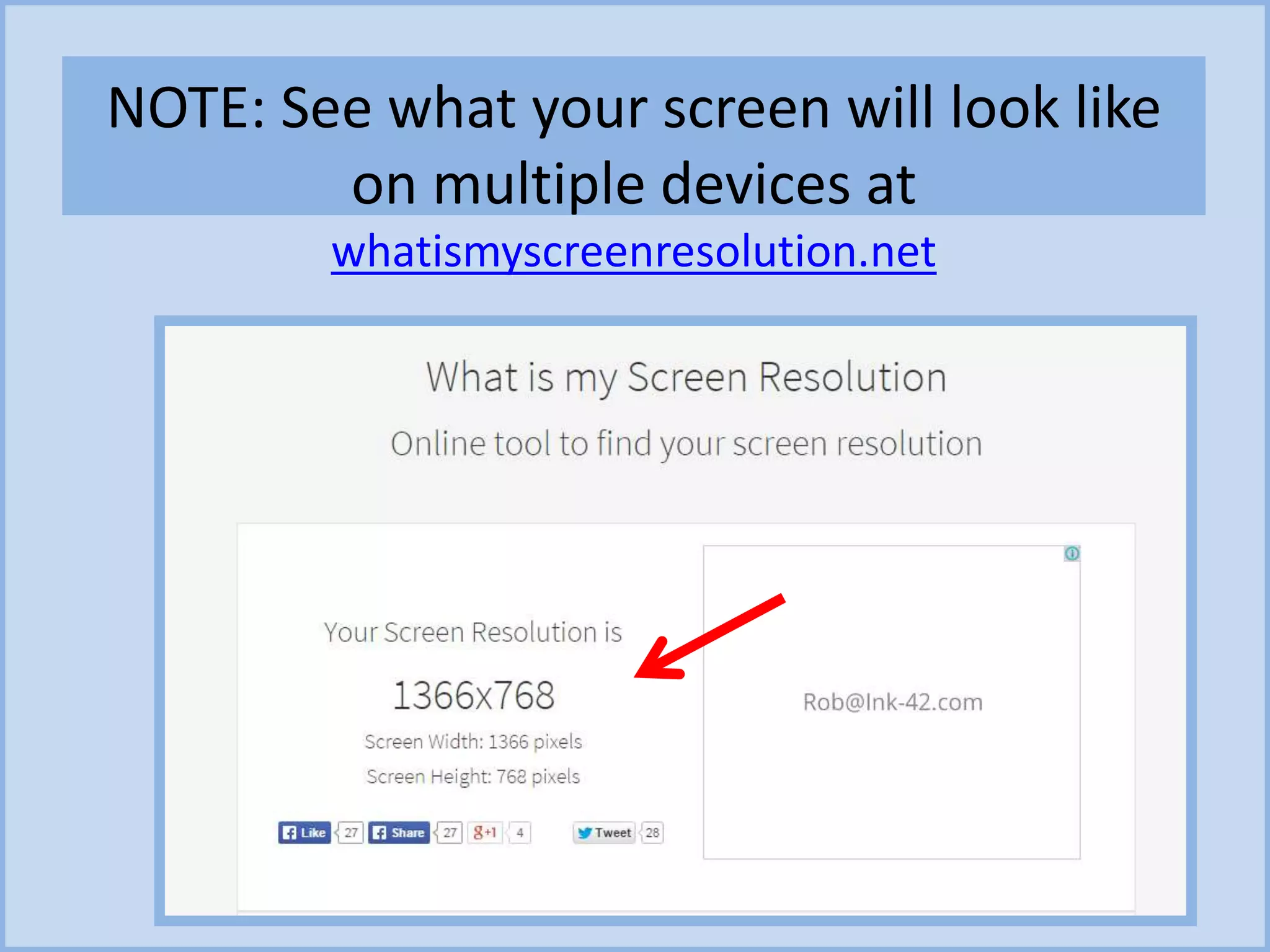
NOTE: See what your screen will look like
on multiple devices at
whatismyscreenresolution.net
E. How to create the Header
https://www.youtube.com/watch?v=5waCQscgGgo
https://www.youtube.com/watch?v=r-XLzxbvziY
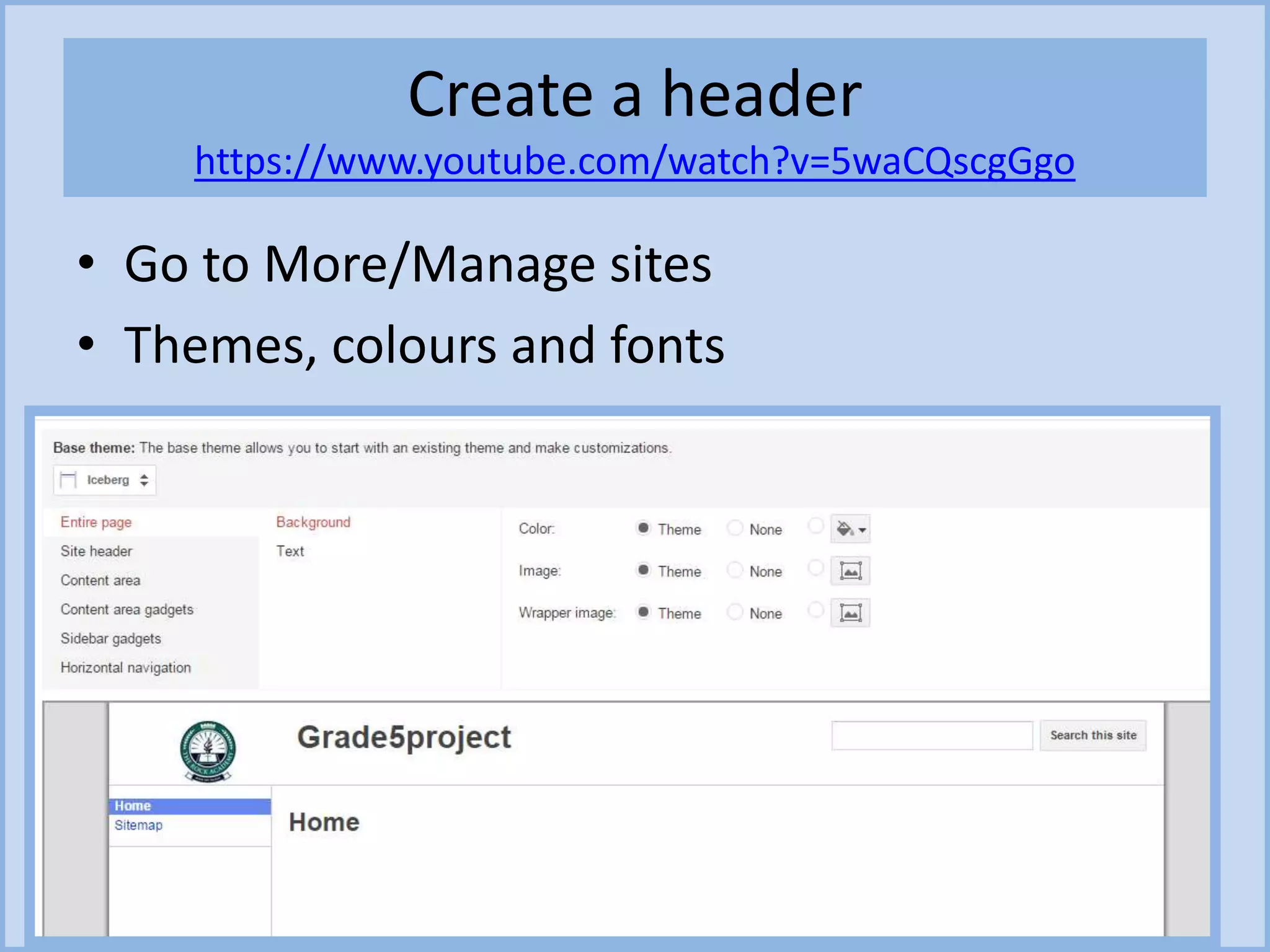
Create a header
https://www.youtube.com/watch?v=5waCQscgGgo
• Go to More/Manage sites
• Themes, colours and fonts
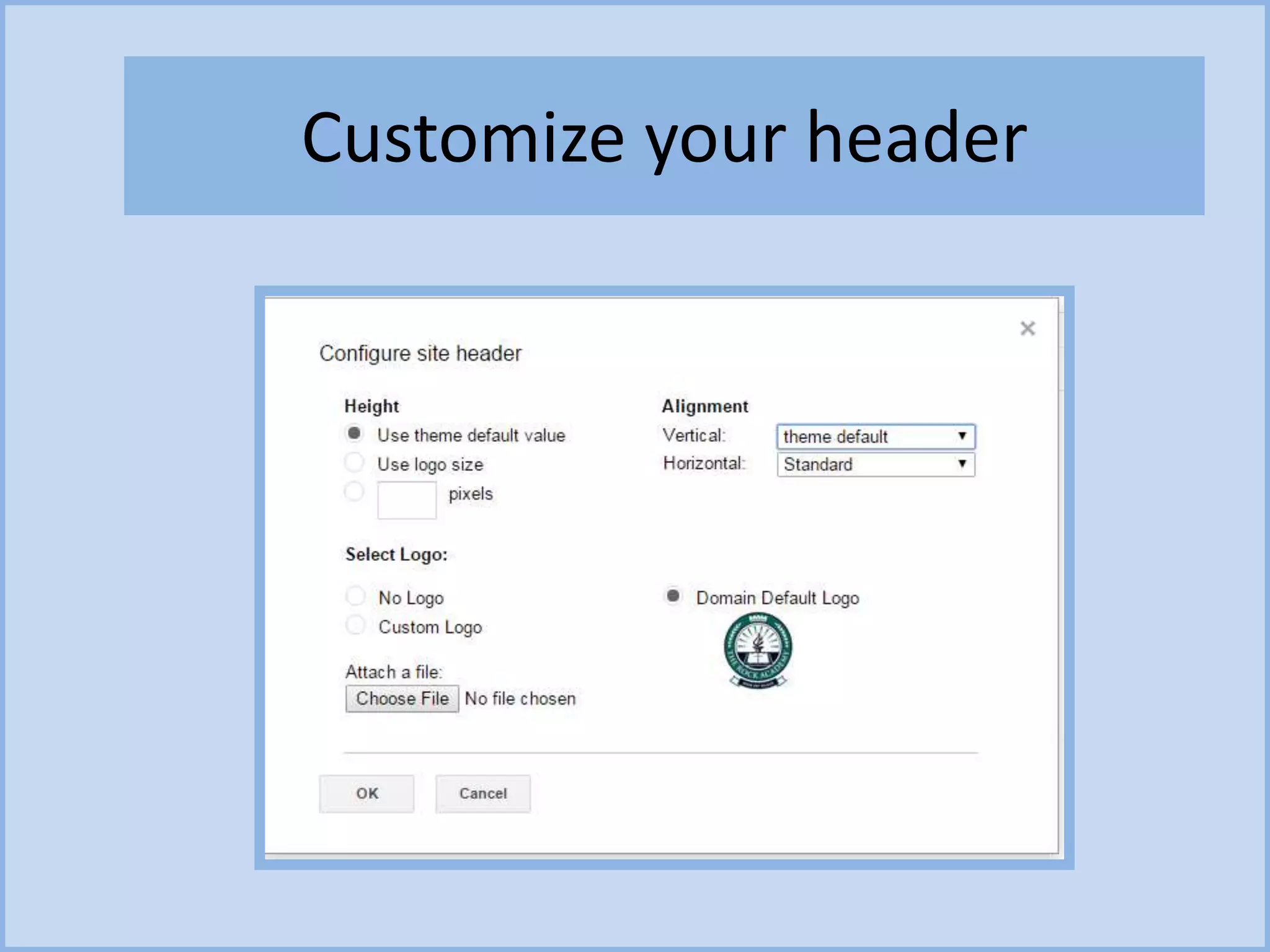
Customize your header
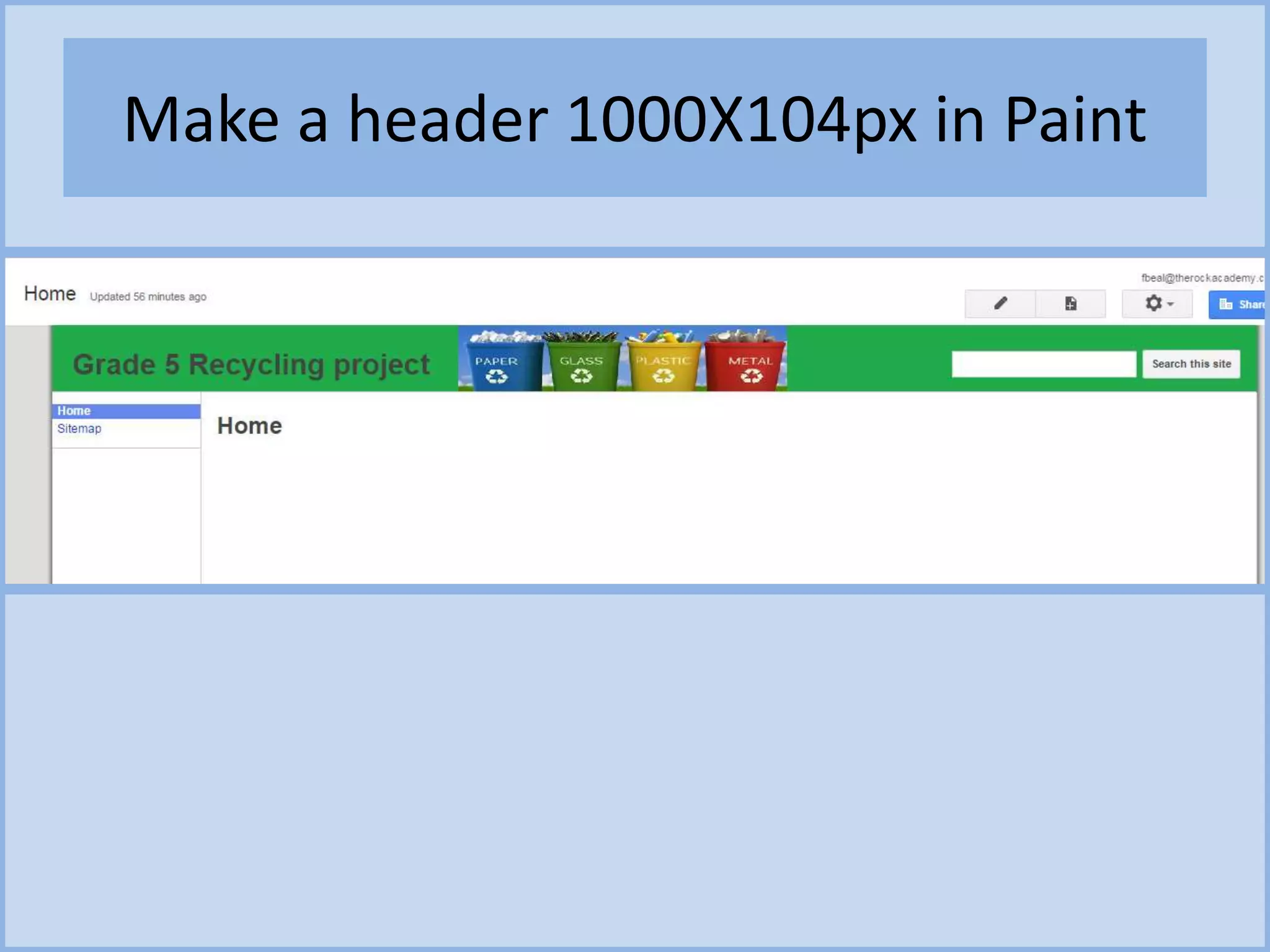
Make a header 1000X104px in Paint
Header fine-tuning
• Before we start adding content, there's just a couple more choices to
make...Actions Menu > Manage Site
• If you've used a Header image that already contains the site name you
may want to turn off the text in the header. Untick the Show site
name at top of pages option
• If you'd like to include a Search box so visitors can search your Site,
configure this using the Configure Search button (You may need to
consider this when you design your header graphic. Bear in mind that
the position of the search box will vary from theme to theme)
• If you think your Site may be viewed on mobile devices, tick
the Automatically adjust site to mobile phones option. (This doesn't
perfect, but it's worth turning on anyway. With the right theme, it can
work quite well.)
• Under Access settings, choose who should be able to see Site
activity and Revision history.
• Click Save.
F. Adding content to a Google site
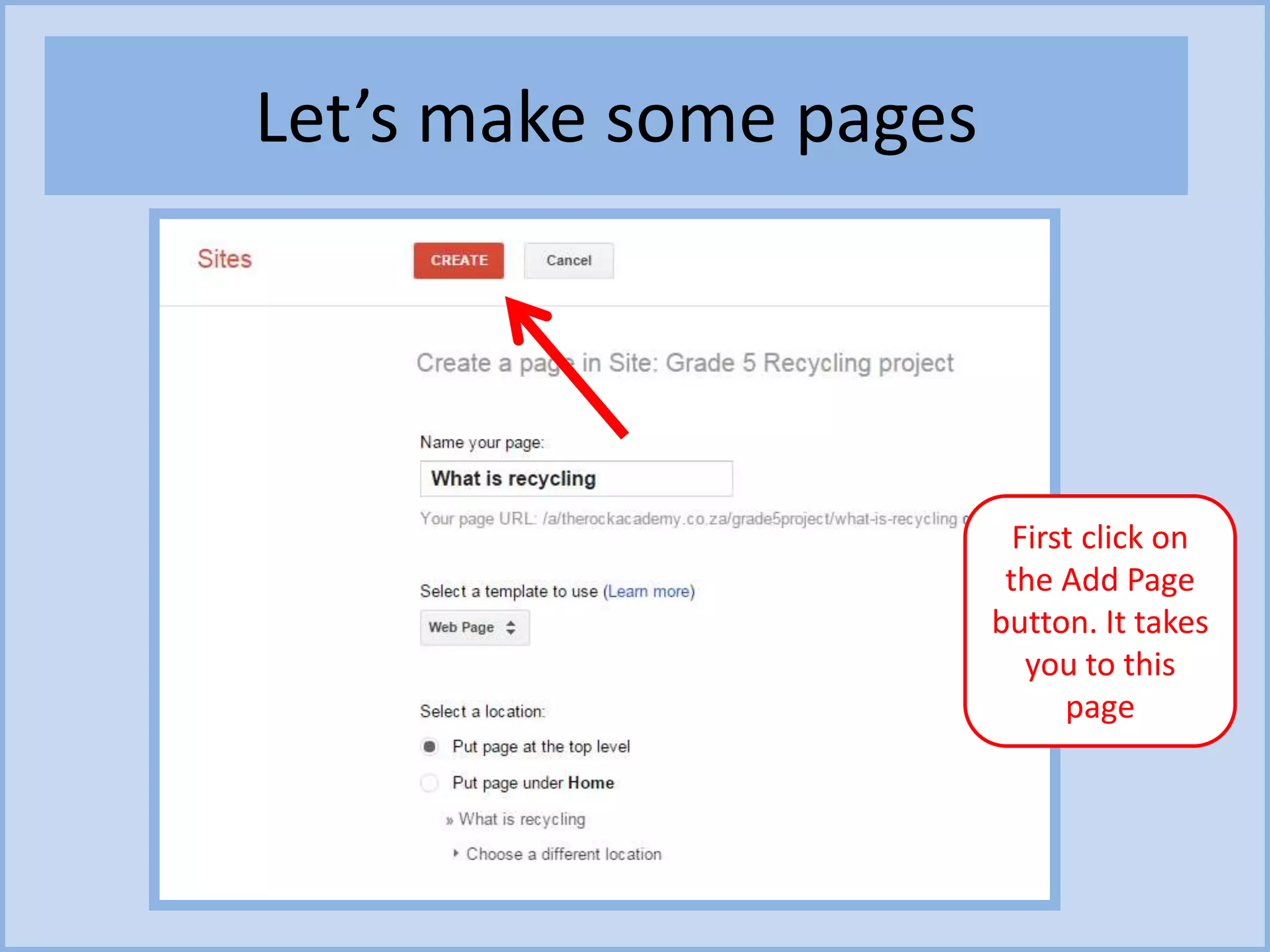
Let’s make some pages
First click on
the Add Page
button. It takes
you to this
page
G. Citing resources on a Google site
Use Photos for Class
http://www.photosforclass.com/
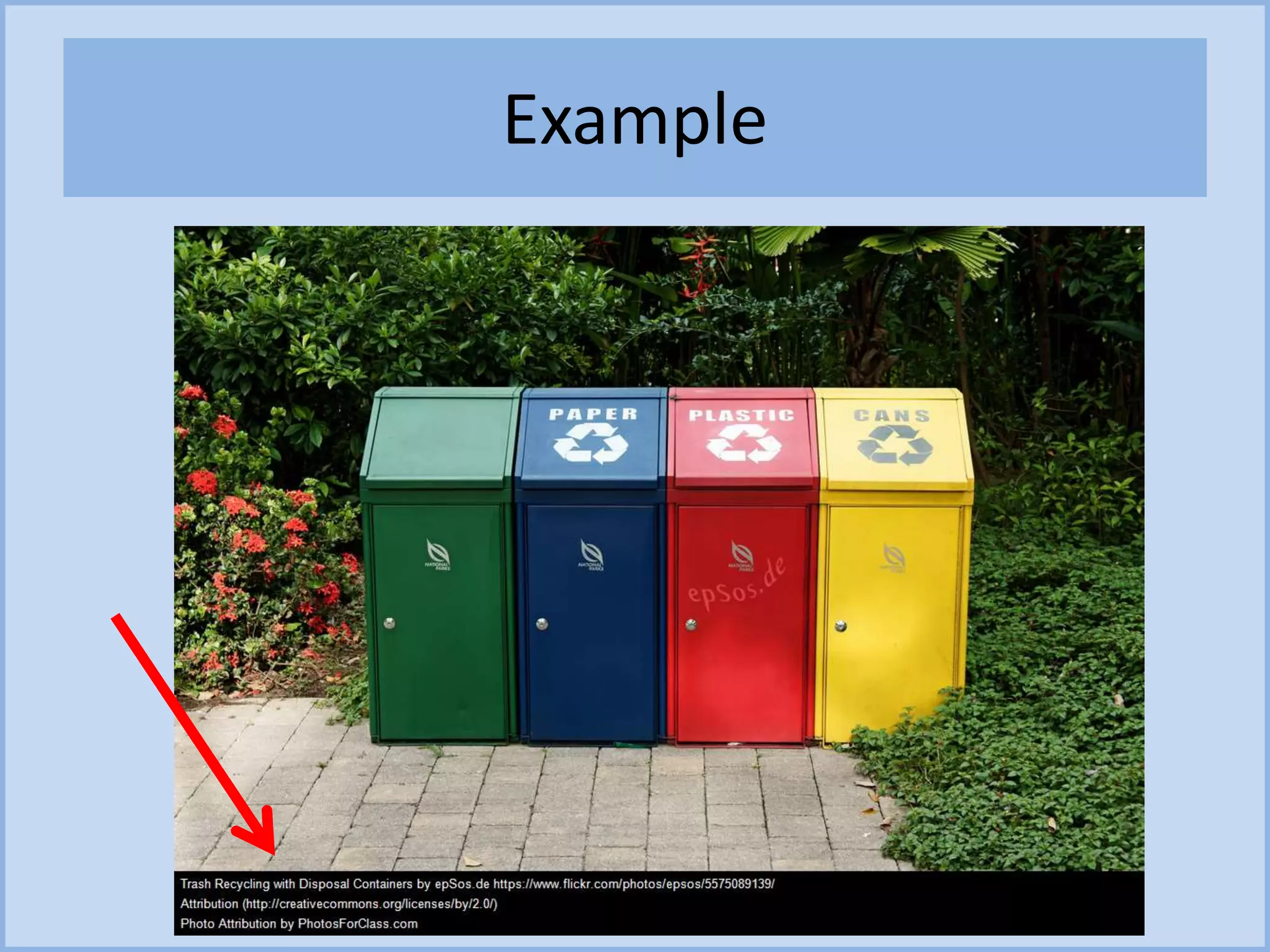
With this application you can search for
Creative Commons photos and download
them – the site will automatically cite them
correctly.
Example
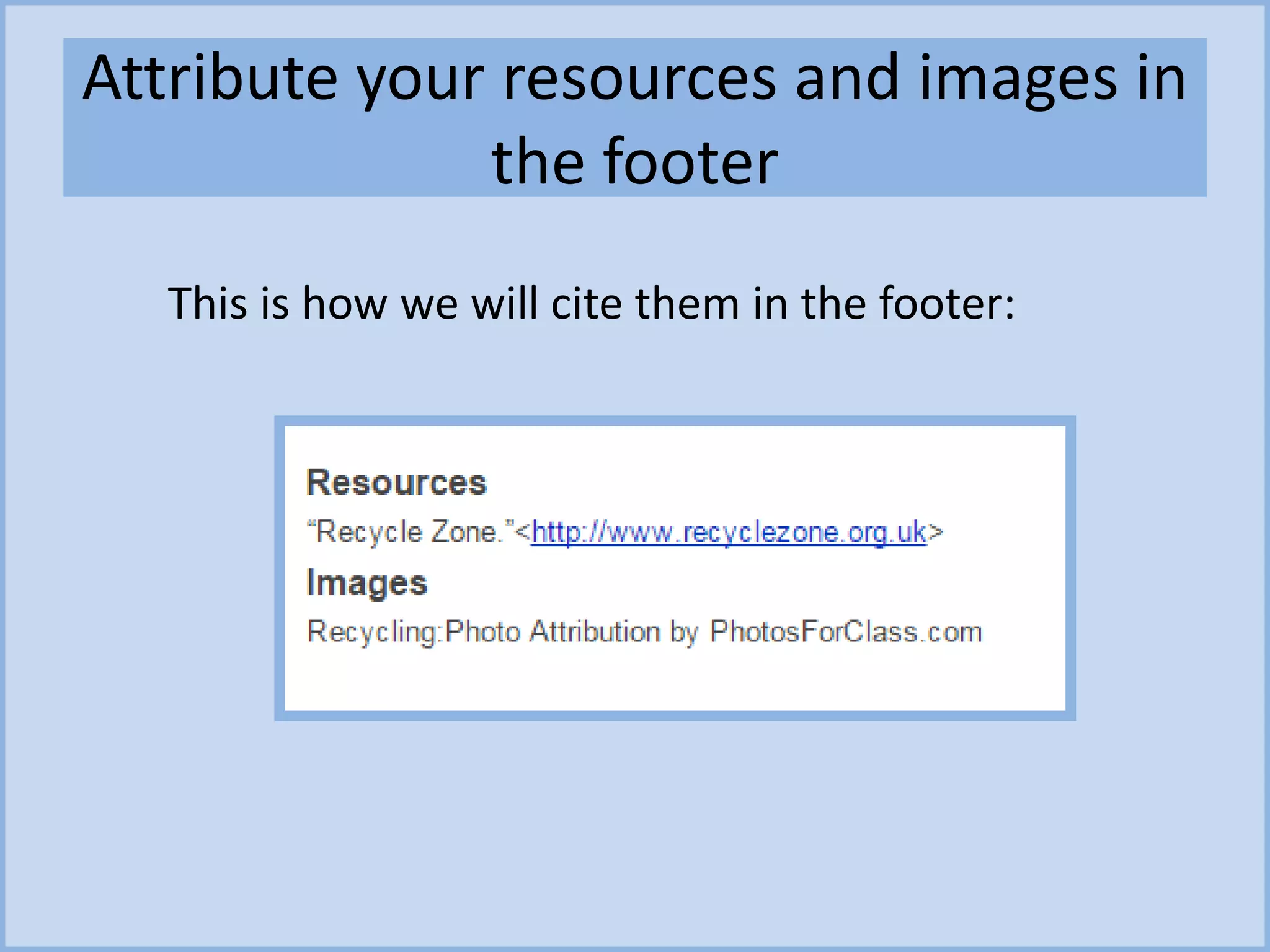
Attribute your resources and images in
the footer
This is how we will cite them in the footer:
H. How to upload to a Google site
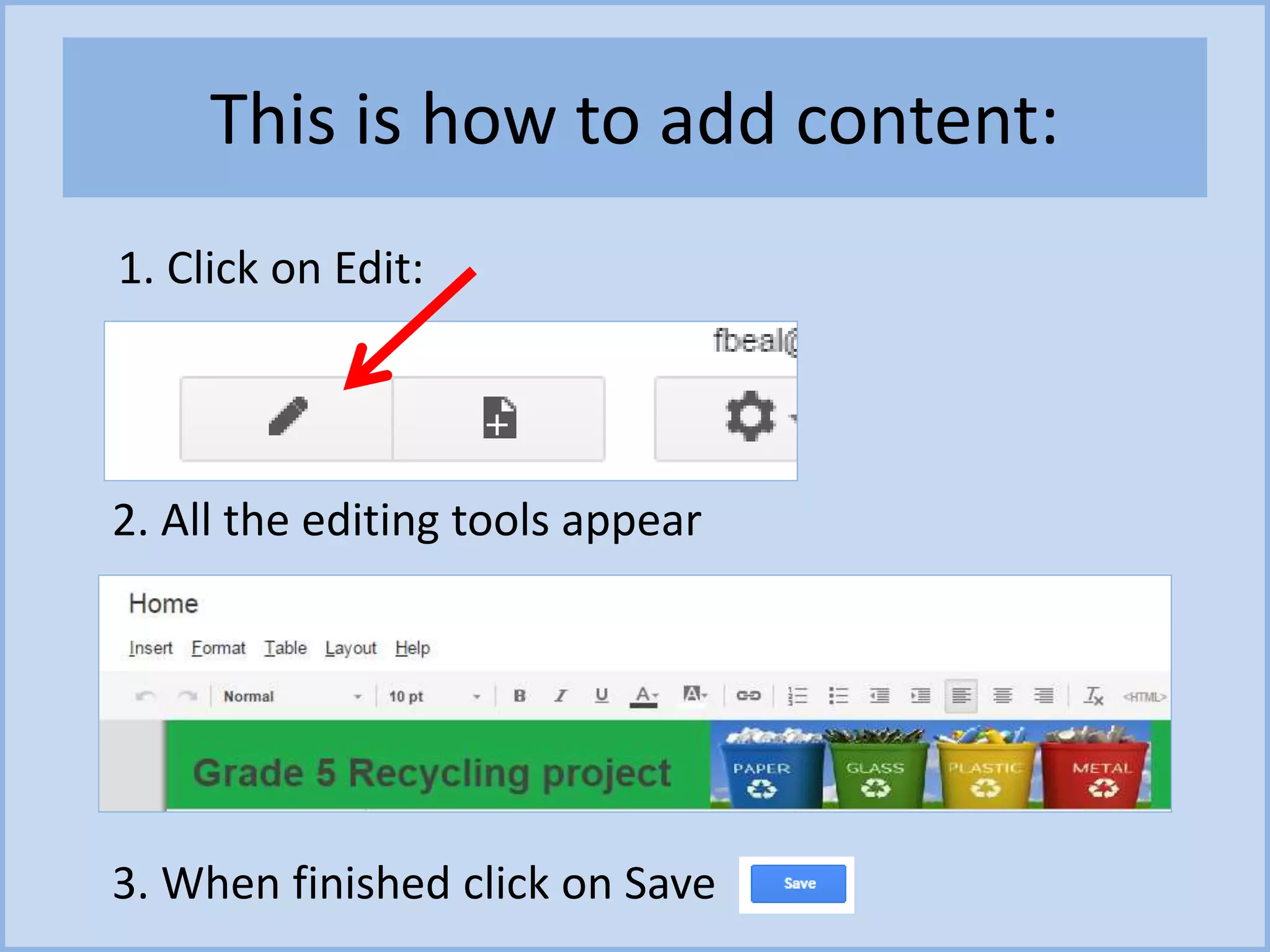
This is how to add content:
1. Click on Edit:
2. All the editing tools appear
3. When finished click on Save
Links for learning about Google Sites
• http://www.summitstuff.com/sites-and-blogs/designing-sites-
part1
• https://docs.google.com/document/d/1QwNyBliPclkMU4p6oI
5ODBNY8vnuEovaC79hD9-_WKU/edit

How to create a Google Site by Fiona Beal

  • 1.
    How to createa Google Site by Fiona Beal
  • 2.
    A. What isa Google site? A Google Sites is a structured wiki- and web page-creation tool offered by Google. Google Sites is one of the best website creation software for teachers. It is an ideal platform to host a class website. It is great for collaborative projects – one can embed videos, audio, presentations, and images that students can use when working on their projects and assignments.
  • 3.
    B. What doesa Google site look like? https://goo.gl/gcPfo1
  • 4.
    Four elements ofa Google site page 1. The Header section appears at the top of each page and can contain text, graphics or both. 2. The Navigation Menu contains links to all the pages in the site, or at least the main sections. Navigation menus can be horizontal across the top of the page, or in a vertical menu on the left or right of the page. 3. The Content area on each page is where you find all the information. The content area stretches from the header to the footer, and can contain text, images, video, links, etc. On a Google Site, the content area can be in a number of layout styles, with columns or other sections. 4. The Footer area is at the bottom of each page and usually contains copyright and contact information.
  • 5.
    A site witha horizontal navigation menu https://goo.gl/gcPfo1 Header Navigation Menu (horizontal) Content area Footer area
  • 6.
    Types of pageson a site Home page A Site usually has a home page that serves as an introduction to the site, and a brief description of what it's all about. It introduces your visitors to your Site. Content pages These will usually be structured around themes or topics. A Site can have an unlimited number of pages, although if there are many pages it is usually better to build subpages, i.e. add more pages grouped below a topic page.
  • 7.
    Home page example https://goo.gl/gcPfo1 Thevideo introduces the site instead of using written words
  • 8.
    Content page example https://goo.gl/gcPfo1 Information intext and images Page topic Citing & copyright information Student collaborative project - contributors
  • 9.
    Terminology Site: a websiteon the Interent Home page: Landing page that introduces the site Navigation menu bar: A bar that organises the links to the information Content page: A page containing information on a topic Footer: Bottom area of a page for citing sources of information Header: appears at the top of each page and can contain text, graphics or both. Layout: the way the page can be designed
  • 10.
    C. Let’s createa Google site
  • 11.
  • 12.
    Let's create aSite – here are the steps: 1. Log into your Google account and go to http://sites.google.com 2. Click the Create button 3. Choose the Blank Template 4. Name your site. You'll notice it creates the url based on the name but you can override that if you wish (Note that the name must be unique in your domain) 5. Unfold the Themes section, and choose the Iceberg theme (I like to start with Iceberg, but it's up to you) 6. Unfold the More Options section, and enter a short description about your Site. 7. Type the captcha code (if you get one) 8. Click the Create button at the top of the page
  • 13.
    1. Sign intoyour Google Apps account and select Sites
  • 14.
  • 15.
    3. Choose theblank template
  • 16.
  • 17.
    5. Explore thethemes – click on Themes
  • 18.
    Explore the themes– select a template (Choose Iceberg for this lesson)
  • 19.
    6. Explore the‘more options’ section Add a category (Education) and a description) and then click on Create
  • 20.
  • 21.
    D. Let’s workwith your site
  • 22.
    1. Set privacyoptions while you create Click on the down arrow next to More options
  • 23.
    2.Edit your pagelayout - sidebar Go to More/Edit site options and choose. Let’s choose Sidebar and select Close
  • 24.
    NOTE: See whatyour screen will look like on multiple devices at whatismyscreenresolution.net
  • 25.
    E. How tocreate the Header https://www.youtube.com/watch?v=5waCQscgGgo https://www.youtube.com/watch?v=r-XLzxbvziY
  • 26.
    Create a header https://www.youtube.com/watch?v=5waCQscgGgo •Go to More/Manage sites • Themes, colours and fonts
  • 27.
  • 28.
    Make a header1000X104px in Paint
  • 29.
    Header fine-tuning • Beforewe start adding content, there's just a couple more choices to make...Actions Menu > Manage Site • If you've used a Header image that already contains the site name you may want to turn off the text in the header. Untick the Show site name at top of pages option • If you'd like to include a Search box so visitors can search your Site, configure this using the Configure Search button (You may need to consider this when you design your header graphic. Bear in mind that the position of the search box will vary from theme to theme) • If you think your Site may be viewed on mobile devices, tick the Automatically adjust site to mobile phones option. (This doesn't perfect, but it's worth turning on anyway. With the right theme, it can work quite well.) • Under Access settings, choose who should be able to see Site activity and Revision history. • Click Save.
  • 30.
    F. Adding contentto a Google site
  • 31.
    Let’s make somepages First click on the Add Page button. It takes you to this page
  • 32.
    G. Citing resourceson a Google site
  • 33.
    Use Photos forClass http://www.photosforclass.com/ With this application you can search for Creative Commons photos and download them – the site will automatically cite them correctly.
  • 34.
  • 35.
    Attribute your resourcesand images in the footer This is how we will cite them in the footer:
  • 36.
    H. How toupload to a Google site
  • 37.
    This is howto add content: 1. Click on Edit: 2. All the editing tools appear 3. When finished click on Save
  • 38.
    Links for learningabout Google Sites • http://www.summitstuff.com/sites-and-blogs/designing-sites- part1 • https://docs.google.com/document/d/1QwNyBliPclkMU4p6oI 5ODBNY8vnuEovaC79hD9-_WKU/edit