Presented to you by Mrs Lily Lee
olevelgeog.blogspot.com
1. Creating Google Sites
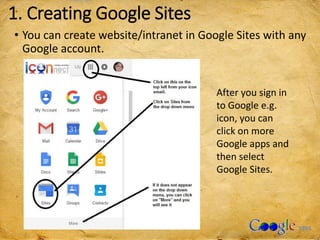
• You can create website/intranet in Google Sites with any
Google account.
After you sign in
to Google e.g.
icon, you can
click on more
Google apps and
then select
Google Sites.
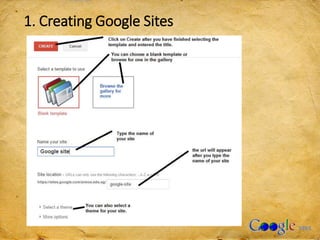
1. Creating Google Sites
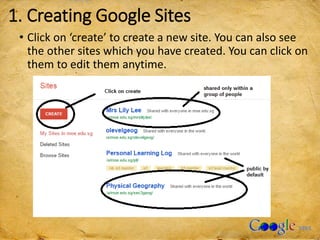
• Click on ‘create’ to create a new site. You can also see
the other sites which you have created. You can click on
them to edit them anytime.
1. Creating Google Sites
2. Working with Google Sites page
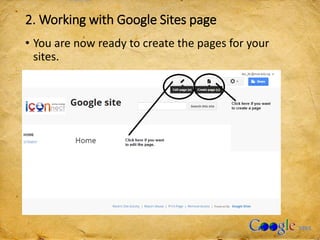
• You are now ready to create the pages for your
sites.
2. Working with Google Sites page
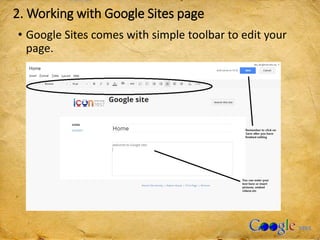
• Google Sites comes with simple toolbar to edit your
page.
2. Working with Google Sites page
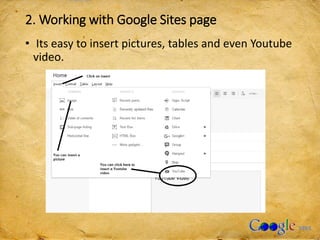
• Its easy to insert pictures, tables and even Youtube
video.
2. Working with Google Sites page
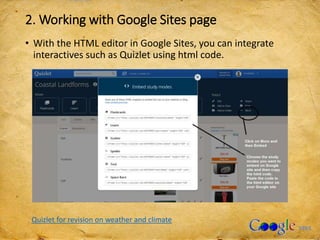
• With the HTML editor in Google Sites, you can integrate
interactives such as Quizlet using html code.
Quizlet for revision on weather and climate
3. Page Templates and Page Options
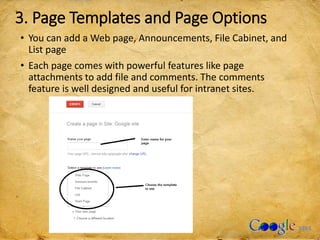
• You can add a Web page, Announcements, File Cabinet, and
List page
• Each page comes with powerful features like page
attachments to add file and comments. The comments
feature is well designed and useful for intranet sites.
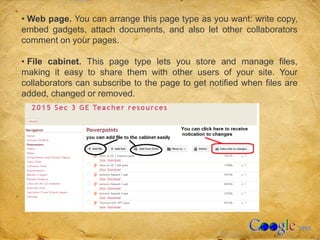
• Web page. You can arrange this page type as you want: write copy,
embed gadgets, attach documents, and also let other collaborators
comment on your pages.
• File cabinet. This page type lets you store and manage files,
making it easy to share them with other users of your site. Your
collaborators can subscribe to the page to get notified when files are
added, changed or removed.
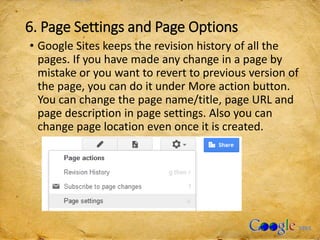
6. Page Settings and Page Options
• Google Sites keeps the revision history of all the
pages. If you have made any change in a page by
mistake or you want to revert to previous version of
the page, you can do it under More action button.
You can change the page name/title, page URL and
page description in page settings. Also you can
change page location even once it is created.
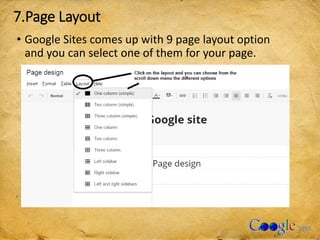
7.Page Layout
• Google Sites comes up with 9 page layout option
and you can select one of them for your page.
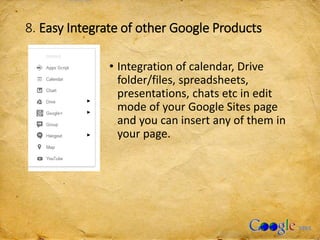
8. Easy Integrate of other Google Products
• Integration of calendar, Drive
folder/files, spreadsheets,
presentations, chats etc in edit
mode of your Google Sites page
and you can insert any of them in
your page.
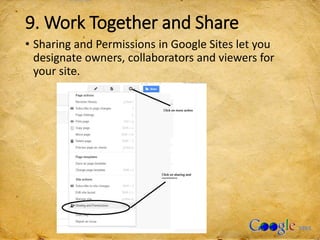
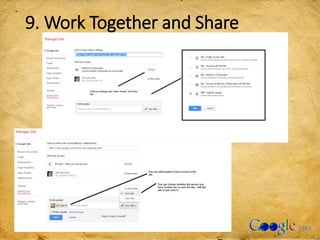
9. Work Together and Share
• Sharing and Permissions in Google Sites let you
designate owners, collaborators and viewers for
your site.
9. Work Together and Share
Pros:
• Encourage student to be self-directed in their learning
as they can select, manage, and assess their own
learning activities any time beyond their curriculum
time.
• Interactive resources such as Quizlet, Videos etc can
be integrated into the google site.
• Helps groups direct their geographical inquiry
collaboratively as well as allowing them to review the
steps needed in the geographical investigation to
encourage self-directed learning.
• Create public website and private intranet more easily
and quickly on a secure platform free.
Cons:
• Limited page layout and design options so
customization is not an easy option.
• Some of the interactives I created from
Classtool could not be embedded using the
html code. I have to put the link on the
webpage instead.
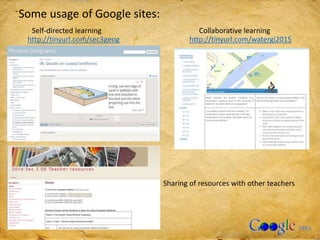
Some usage of Google sites:
http://tinyurl.com/sec3geog http://tinyurl.com/watergi2015
Self-directed learning Collaborative learning
Sharing of resources with other teachers
Google site

Google site

  • 1.
    Presented to youby Mrs Lily Lee olevelgeog.blogspot.com
  • 2.
    1. Creating GoogleSites • You can create website/intranet in Google Sites with any Google account. After you sign in to Google e.g. icon, you can click on more Google apps and then select Google Sites.
  • 3.
    1. Creating GoogleSites • Click on ‘create’ to create a new site. You can also see the other sites which you have created. You can click on them to edit them anytime.
  • 4.
  • 5.
    2. Working withGoogle Sites page • You are now ready to create the pages for your sites.
  • 6.
    2. Working withGoogle Sites page • Google Sites comes with simple toolbar to edit your page.
  • 7.
    2. Working withGoogle Sites page • Its easy to insert pictures, tables and even Youtube video.
  • 8.
    2. Working withGoogle Sites page • With the HTML editor in Google Sites, you can integrate interactives such as Quizlet using html code. Quizlet for revision on weather and climate
  • 9.
    3. Page Templatesand Page Options • You can add a Web page, Announcements, File Cabinet, and List page • Each page comes with powerful features like page attachments to add file and comments. The comments feature is well designed and useful for intranet sites.
  • 10.
    • Web page.You can arrange this page type as you want: write copy, embed gadgets, attach documents, and also let other collaborators comment on your pages. • File cabinet. This page type lets you store and manage files, making it easy to share them with other users of your site. Your collaborators can subscribe to the page to get notified when files are added, changed or removed.
  • 11.
    6. Page Settingsand Page Options • Google Sites keeps the revision history of all the pages. If you have made any change in a page by mistake or you want to revert to previous version of the page, you can do it under More action button. You can change the page name/title, page URL and page description in page settings. Also you can change page location even once it is created.
  • 12.
    7.Page Layout • GoogleSites comes up with 9 page layout option and you can select one of them for your page.
  • 13.
    8. Easy Integrateof other Google Products • Integration of calendar, Drive folder/files, spreadsheets, presentations, chats etc in edit mode of your Google Sites page and you can insert any of them in your page.
  • 14.
    9. Work Togetherand Share • Sharing and Permissions in Google Sites let you designate owners, collaborators and viewers for your site.
  • 15.
  • 16.
    Pros: • Encourage studentto be self-directed in their learning as they can select, manage, and assess their own learning activities any time beyond their curriculum time. • Interactive resources such as Quizlet, Videos etc can be integrated into the google site. • Helps groups direct their geographical inquiry collaboratively as well as allowing them to review the steps needed in the geographical investigation to encourage self-directed learning. • Create public website and private intranet more easily and quickly on a secure platform free.
  • 17.
    Cons: • Limited pagelayout and design options so customization is not an easy option. • Some of the interactives I created from Classtool could not be embedded using the html code. I have to put the link on the webpage instead.
  • 18.
    Some usage ofGoogle sites: http://tinyurl.com/sec3geog http://tinyurl.com/watergi2015 Self-directed learning Collaborative learning Sharing of resources with other teachers