Human Computer Interaction
USER INTERFACE DESIGN
User interface design
Designing effective interfaces
for software systems
The user interface
System users often judge a system by its
interface rather than its functionality
A poorly designed interface can cause a user
to make errors
Poor user interface design is the reason why
so many software systems are never used
Graphical user interfaces
Most users of business systems interact
with these systems through graphical
interfaces although, in some cases,
legacy text-based interfaces are still
used
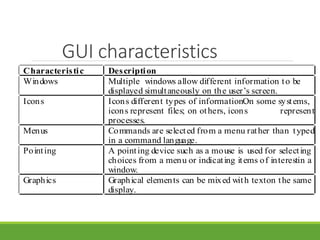
GUI characteristics
Characteristic Description
Windows Multiple windows allow different information to be
displayed simultaneously on the userโ€™s screen.
Icons Icons different types of information.On some systems,
icons represent files; on others, icons represent
processes.
Menus Commands are selected from a menu rather than typed
in a command language.
Pointing A pointing device such as a mouse is used for selecting
choices from a menu or indicating items of interestin a
window.
Graphics Graphical elements can be mixed with texton the same
display.
GUI advantages
They are easy to learn and use.
The user may switch quickly from one task to
another and can interact with several different applications.
Fast, full-screen interaction is possible with immediate
access to anywhere on the screen
User-centred design
The aim is to sensitise software engineers to key issues
underlying the design rather than the implementation of
user interfaces
User-centred design is an approach to UI design where
the needs of the user are paramount and where the user
is involved in the design process
UI design always involves the development of prototype
interfaces
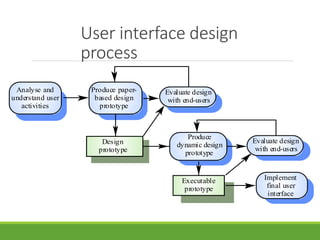
User interface design
process
Executable
prototype
Design
prototype
Produce paper-
based design
prototype
Produce
dynamic design
prototype
Evaluate design
with end-users
Implement
final user
interface
Evaluate design
with end-users
Analyse and
understand user
activities
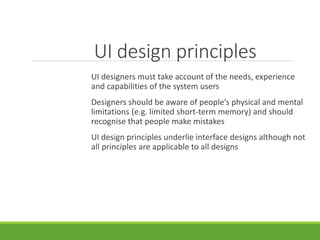
UI design principles
UI designers must take account of the needs, experience
and capabilities of the system users
Designers should be aware of peopleโ€™s physical and mental
limitations (e.g. limited short-term memory) and should
recognise that people make mistakes
UI design principles underlie interface designs although not
all principles are applicable to all designs
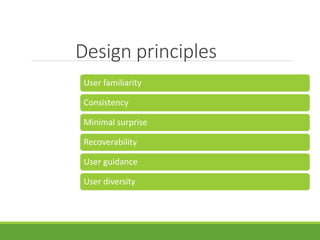
Design principles
User familiarity
Consistency
Minimal surprise
Recoverability
User guidance
User diversity
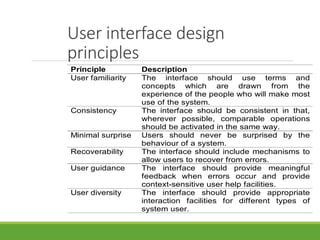
User interface design
principles
Principle Description
User familiarity The interface should use terms and
concepts which are drawn from the
experience of the people who will make most
use of the system.
Consistency The interface should be consistent in that,
wherever possible, comparable operations
should be activated in the same way.
Minimal surprise Users should never be surprised by the
behaviour of a system.
Recoverability The interface should include mechanisms to
allow users to recover from errors.
User guidance The interface should provide meaningful
feedback when errors occur and provide
context-sensitive user help facilities.
User diversity The interface should provide appropriate
interaction facilities for different types of
system user.
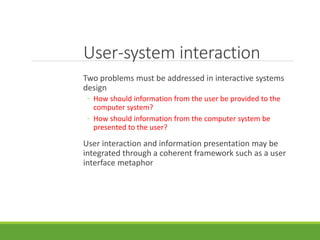
User-system interaction
Two problems must be addressed in interactive systems
design
โ—ฆ How should information from the user be provided to the
computer system?
โ—ฆ How should information from the computer system be
presented to the user?
User interaction and information presentation may be
integrated through a coherent framework such as a user
interface metaphor
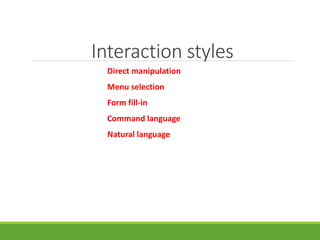
Interaction styles
Direct manipulation
Menu selection
Form fill-in
Command language
Natural language
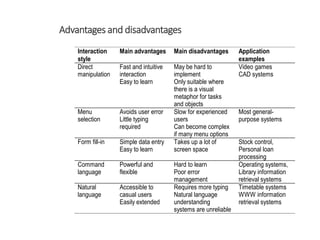
Interaction
style
Main advantages Main disadvantages Application
examples
Direct
manipulation
Fast and intuitive
interaction
Easy to learn
May be hard to
implement
Only suitable where
there is a visual
metaphor for tasks
and objects
Video games
CAD systems
Menu
selection
Avoids user error
Little typing
required
Slow for experienced
users
Can become complex
if many menu options
Most general-
purpose systems
Form fill-in Simple data entry
Easy to learn
Takes up a lot of
screen space
Stock control,
Personal loan
processing
Command
language
Powerful and
flexible
Hard to learn
Poor error
management
Operating systems,
Library information
retrieval systems
Natural
language
Accessible to
casual users
Easily extended
Requires more typing
Natural language
understanding
systems are unreliable
Timetable systems
WWW information
retrieval systems
Advantages and disadvantages
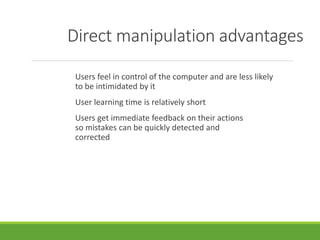
Direct manipulation advantages
Users feel in control of the computer and are less likely
to be intimidated by it
User learning time is relatively short
Users get immediate feedback on their actions
so mistakes can be quickly detected and
corrected
Direct manipulation problems
The derivation of an appropriate information
space model can be very difficult
Given that users have a large information
space, what facilities for navigating around that
space should be provided?
Direct manipulation interfaces can be complex to program and
make heavy demands on the computer system
Menu systems
Users make a selection from a list of
possibilities presented to them by the system
The selection may be made by pointing and
clicking with a mouse, using cursor keys or by
typing the name of the selection
May make use of simple-to-use terminals such as
touchscreens
Advantages of menu systems
Users need not remember command names as they
are always presented with a list of valid commands
Typing effort is minimal
Context-dependent help can be provided. The userโ€™s
context is indicated by the current menu selection
Problems with menu systems
Actions which involve logical conjunction (and)
or disjunction (or) are awkward to represent
Menu systems are best suited to presenting a
small number of choices. If there are many
choices, some menu structuring facility must be
used
Experienced users find menus slower than
command language
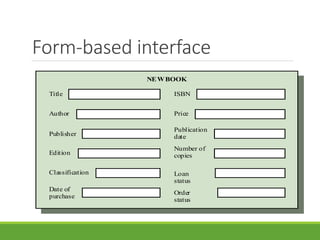
Form-based interface
Title
Author
Publisher
Edition
Classification
Date of
purchase
ISBN
Price
Publication
date
Number of
copies
Loan
status
Order
status
NEWBOOK
Command interfaces
User types commands to give instructions to the system e.g.
UNIX
May be implemented using cheap terminals.
Easy to process using compiler techniques
Commands of arbitrary complexity can be
created by command combination
Concise interfaces requiring minimal typing can
be created
Problems with command interfaces
Users have to learn and remember a command
language. Command interfaces are therefore
unsuitable for occasional users.
Users make errors in command. An error
detection and recovery system is required
System interaction is through a keyboard so
typing ability is required
Command languages
Often preferred by experienced users because they allow for faster
interaction with the system
Not suitable for casual or inexperienced users
May be provided as an alternative to menu commands (keyboard
shortcuts). In some cases, a command language interface and a menu-
based interface are supported at the same time
Natural language interfaces
The user types a command in a natural language. Generally, the
vocabulary is limited and these systems are confined to specific
application domains
NL processing technology is now good enough to make these interfaces
effective for casual users but experienced users find that they require
too much typing
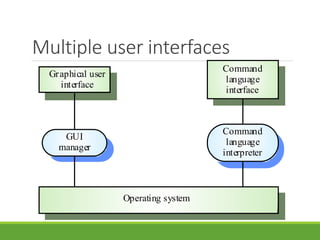
Multiple user interfaces
Operating system
GUI
manager
Graphical user
interface
Command
language
interpreter
Command
language
interface
Information presentation
Information presentation is concerned with presenting system
information to system users
The information may be presented directly (e.g. text in a word
processor) or may be transformed in some way for presentation (e.g. in
some graphical form)
The Model-View-Controller approach is a way of supporting multiple
presentations of data
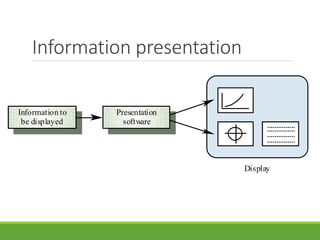
Information presentation
Information to
be displayed
Presentation
software
Display
Information presentation
Static information
โ—ฆ Initialised at the beginning of a session. It does not change
during the session
โ—ฆ May be either numeric or textual
Dynamic information
โ—ฆ Changes during a session and the changes must be
communicated to the system user
โ—ฆ May be either numeric or textual
Information display factors
Is the user interested in precise information or
data relationships?
How quickly do information values change?
Must the change be indicated immediately?
Must the user take some action in response to
a change?
Is there a direct manipulation interface?
Is the information textual or numeric? Are relative values important?
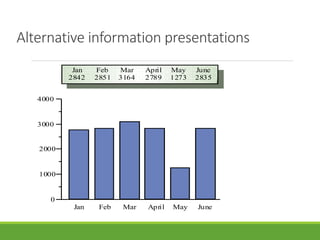
Alternative information presentations
0
1000
2000
3000
4000
Jan Feb Mar April May June
Jan
2842
Feb
2851
Mar
3164
April
2789
May
1273
June
2835
Analogue vs. digital presentation
Digital presentation
โ—ฆ Compact - takes up little screen space
โ—ฆ Precise values can be communicated
Analogue presentation
โ—ฆ Easier to get an 'at a glance' impression of a value
โ—ฆ Possible to show relative values
โ—ฆ Easier to see exceptional data values
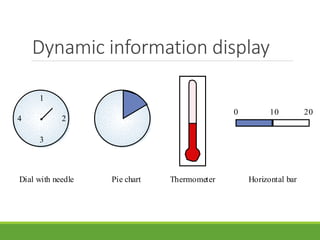
Dynamic information display
1
3
4 2
0 10 20
Dial with needle Pie chart Thermometer Horizontal bar
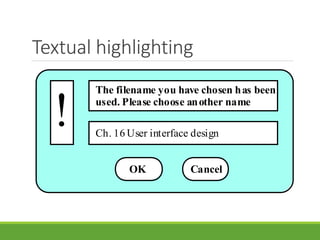
Textual highlighting
The filename you have chosen has been
used. Please choose another name
Ch. 16 User interface design
!
OK Cancel
Data visualisation
Concerned with techniques for displaying large amounts of information
Visualisation can reveal relationships between entities and trends in the
data
Possible data visualisations are:
โ—ฆ Weather information collected from a number of sources
โ—ฆ The state of a telephone network as a linked set of nodes
โ—ฆ Chemical plant visualised by showing pressures and temperatures in a linked
set of tanks and pipes
Colour displays
Colour adds an extra dimension to an interface
and can help the user understand complex
information structures
Can be used to highlight exceptional events
Common mistakes in the use of colour in
interface design include:
โ—ฆ The use of colour to communicate meaning
โ—ฆ Over-use of colour in the display
Colour use guidelines
Don't use too many colours
Use colour coding to support use tasks
Allow users to control colour coding
Design for monochrome then add colour
Use colour coding consistently
Avoid colour pairings which clash
Use colour change to show status change
Be aware that colour displays are usually lower
resolution
User support
User guidance covers all system facilities to support users including on-
line help, error messages, manuals etc.
The user guidance system should be integrated with the user interface
to help users when they need information about the system or when
they make some kind of error
The help and message system should, if possible, be integrated
Error messages
Error message design is critically important.
Poor error messages can mean that a user
rejects rather than accepts a system
Messages should be polite, concise, consistent
and constructive
The background and experience of users
should be the determining factor in message
design
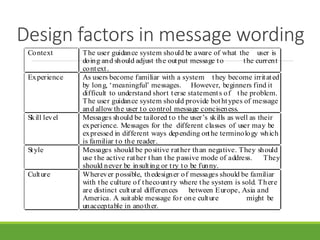
Design factors in message wording
Context The user guidance system should be aware of what the user is
doing and should adjust the output message to the current
context.
Experience As users become familiar with a system they become irritated
by long, โ€˜meaningfulโ€™ messages. However, beginners find it
difficult to understand short terse statements of the problem.
The user guidance system should provide bothtypes of message
and allow the user to control message conciseness.
Skill level Messages should be tailored to the userโ€™s skills as well as their
experience. Messages for the different classes of user may be
expressed in different ways depending onthe terminology which
is familiar to the reader.
Style Messages should be positive rather than negative. They should
use the active rather than the passive mode of address. They
should never be insulting or try to be funny.
Culture Wherever possible, thedesigner of messages should be familiar
with the culture of thecountry where the system is sold. There
are distinct cultural differences between Europe, Asia and
America. A suitable message for one culture might be
unacceptable in another.
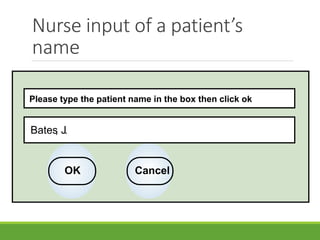
Nurse input of a patientโ€™s
name
Please type the patient name in the box then click ok
Bates, J.
OK Cancel
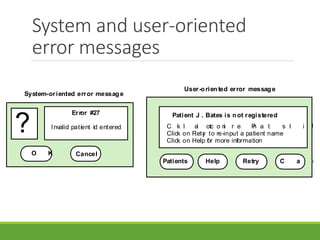
System and user-oriented
error messages
Error #27
Invalid patient id entered?
O K Cancel
Patient J . Bates is not registered
C l i ck o n Pa t i e n t s fo r a l i s
Click on Retry to re-input a patient name
Click on Help for more information
Patients Help Retry C a n
System-oriented error message
User-oriented error message
Help system design
Help? means โ€˜help I want informationโ€
Help! means โ€œHELP. I'm in troubleโ€
Both of these requirements have to be taken
into account in help system design
Different facilities in the help system may be
required
Help information
Should not simply be an on-line manual
Screens or windows don't map well onto paper
pages.
The dynamic characteristics of the display can
improve information presentation.
People are not so good at reading screen as
they are text.
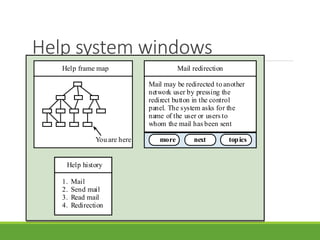
Help system use
Multiple entry points should be provided so that
the user can get into the help system from
different places.
Some indication of where the user is positioned
in the help system is valuable.
Facilities should be provided to allow the user
to navigate and traverse the help system.
Help system windows
Mail redirection
Mail may be redirected to another
network user by pressing the
redirect button in the control
panel. The system asks for the
name of the user or users to
whom the mail has been sent
next topicsmore
Mail redirection
Mail may be redirected to another
network user by pressing the
redirect button in the control
panel. The system asks for the
name of the user or users to
whom the mail has been sent
Help frame map
You are here
Help history
1. Mail
2. Send mail
3. Read mail
4. Redirection
User documentation
As well as on-line information, paper documentation should be supplied
with a system
Documentation should be designed for a range of users from
inexperienced to experienced
As well as manuals, other easy-to-use documentation such as a quick
reference card may be provided
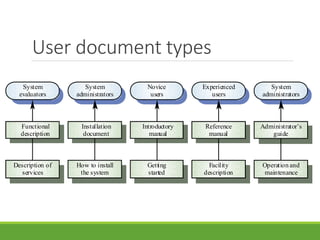
User document types
Description of
services
Functional
description
System
evaluators
How to install
the system
Installation
document
System
administrators
Getting
started
Introductory
manual
Novice
users
Facility
description
Reference
manual
Experienced
users
Operation and
maintenance
Administratorโ€™s
guide
System
administrators
User interface evaluation
Some evaluation of a user interface design
should be carried out to assess its suitability
Full scale evaluation is very expensive and
impractical for most systems
Ideally, an interface should be evaluated against a usability
specification. However, it is rare for such specifications to be produced

Hci user interface-design principals lec 7

  • 1.
  • 2.
    User interface design Designingeffective interfaces for software systems
  • 3.
    The user interface Systemusers often judge a system by its interface rather than its functionality A poorly designed interface can cause a user to make errors Poor user interface design is the reason why so many software systems are never used
  • 4.
    Graphical user interfaces Mostusers of business systems interact with these systems through graphical interfaces although, in some cases, legacy text-based interfaces are still used
  • 5.
    GUI characteristics Characteristic Description WindowsMultiple windows allow different information to be displayed simultaneously on the userโ€™s screen. Icons Icons different types of information.On some systems, icons represent files; on others, icons represent processes. Menus Commands are selected from a menu rather than typed in a command language. Pointing A pointing device such as a mouse is used for selecting choices from a menu or indicating items of interestin a window. Graphics Graphical elements can be mixed with texton the same display.
  • 6.
    GUI advantages They areeasy to learn and use. The user may switch quickly from one task to another and can interact with several different applications. Fast, full-screen interaction is possible with immediate access to anywhere on the screen
  • 7.
    User-centred design The aimis to sensitise software engineers to key issues underlying the design rather than the implementation of user interfaces User-centred design is an approach to UI design where the needs of the user are paramount and where the user is involved in the design process UI design always involves the development of prototype interfaces
  • 8.
    User interface design process Executable prototype Design prototype Producepaper- based design prototype Produce dynamic design prototype Evaluate design with end-users Implement final user interface Evaluate design with end-users Analyse and understand user activities
  • 9.
    UI design principles UIdesigners must take account of the needs, experience and capabilities of the system users Designers should be aware of peopleโ€™s physical and mental limitations (e.g. limited short-term memory) and should recognise that people make mistakes UI design principles underlie interface designs although not all principles are applicable to all designs
  • 10.
    Design principles User familiarity Consistency Minimalsurprise Recoverability User guidance User diversity
  • 11.
    User interface design principles PrincipleDescription User familiarity The interface should use terms and concepts which are drawn from the experience of the people who will make most use of the system. Consistency The interface should be consistent in that, wherever possible, comparable operations should be activated in the same way. Minimal surprise Users should never be surprised by the behaviour of a system. Recoverability The interface should include mechanisms to allow users to recover from errors. User guidance The interface should provide meaningful feedback when errors occur and provide context-sensitive user help facilities. User diversity The interface should provide appropriate interaction facilities for different types of system user.
  • 12.
    User-system interaction Two problemsmust be addressed in interactive systems design โ—ฆ How should information from the user be provided to the computer system? โ—ฆ How should information from the computer system be presented to the user? User interaction and information presentation may be integrated through a coherent framework such as a user interface metaphor
  • 13.
    Interaction styles Direct manipulation Menuselection Form fill-in Command language Natural language
  • 14.
    Interaction style Main advantages Maindisadvantages Application examples Direct manipulation Fast and intuitive interaction Easy to learn May be hard to implement Only suitable where there is a visual metaphor for tasks and objects Video games CAD systems Menu selection Avoids user error Little typing required Slow for experienced users Can become complex if many menu options Most general- purpose systems Form fill-in Simple data entry Easy to learn Takes up a lot of screen space Stock control, Personal loan processing Command language Powerful and flexible Hard to learn Poor error management Operating systems, Library information retrieval systems Natural language Accessible to casual users Easily extended Requires more typing Natural language understanding systems are unreliable Timetable systems WWW information retrieval systems Advantages and disadvantages
  • 15.
    Direct manipulation advantages Usersfeel in control of the computer and are less likely to be intimidated by it User learning time is relatively short Users get immediate feedback on their actions so mistakes can be quickly detected and corrected
  • 16.
    Direct manipulation problems Thederivation of an appropriate information space model can be very difficult Given that users have a large information space, what facilities for navigating around that space should be provided? Direct manipulation interfaces can be complex to program and make heavy demands on the computer system
  • 17.
    Menu systems Users makea selection from a list of possibilities presented to them by the system The selection may be made by pointing and clicking with a mouse, using cursor keys or by typing the name of the selection May make use of simple-to-use terminals such as touchscreens
  • 18.
    Advantages of menusystems Users need not remember command names as they are always presented with a list of valid commands Typing effort is minimal Context-dependent help can be provided. The userโ€™s context is indicated by the current menu selection
  • 19.
    Problems with menusystems Actions which involve logical conjunction (and) or disjunction (or) are awkward to represent Menu systems are best suited to presenting a small number of choices. If there are many choices, some menu structuring facility must be used Experienced users find menus slower than command language
  • 20.
  • 21.
    Command interfaces User typescommands to give instructions to the system e.g. UNIX May be implemented using cheap terminals. Easy to process using compiler techniques Commands of arbitrary complexity can be created by command combination Concise interfaces requiring minimal typing can be created
  • 22.
    Problems with commandinterfaces Users have to learn and remember a command language. Command interfaces are therefore unsuitable for occasional users. Users make errors in command. An error detection and recovery system is required System interaction is through a keyboard so typing ability is required
  • 23.
    Command languages Often preferredby experienced users because they allow for faster interaction with the system Not suitable for casual or inexperienced users May be provided as an alternative to menu commands (keyboard shortcuts). In some cases, a command language interface and a menu- based interface are supported at the same time
  • 24.
    Natural language interfaces Theuser types a command in a natural language. Generally, the vocabulary is limited and these systems are confined to specific application domains NL processing technology is now good enough to make these interfaces effective for casual users but experienced users find that they require too much typing
  • 25.
    Multiple user interfaces Operatingsystem GUI manager Graphical user interface Command language interpreter Command language interface
  • 26.
    Information presentation Information presentationis concerned with presenting system information to system users The information may be presented directly (e.g. text in a word processor) or may be transformed in some way for presentation (e.g. in some graphical form) The Model-View-Controller approach is a way of supporting multiple presentations of data
  • 27.
    Information presentation Information to bedisplayed Presentation software Display
  • 28.
    Information presentation Static information โ—ฆInitialised at the beginning of a session. It does not change during the session โ—ฆ May be either numeric or textual Dynamic information โ—ฆ Changes during a session and the changes must be communicated to the system user โ—ฆ May be either numeric or textual
  • 29.
    Information display factors Isthe user interested in precise information or data relationships? How quickly do information values change? Must the change be indicated immediately? Must the user take some action in response to a change? Is there a direct manipulation interface? Is the information textual or numeric? Are relative values important?
  • 30.
    Alternative information presentations 0 1000 2000 3000 4000 JanFeb Mar April May June Jan 2842 Feb 2851 Mar 3164 April 2789 May 1273 June 2835
  • 31.
    Analogue vs. digitalpresentation Digital presentation โ—ฆ Compact - takes up little screen space โ—ฆ Precise values can be communicated Analogue presentation โ—ฆ Easier to get an 'at a glance' impression of a value โ—ฆ Possible to show relative values โ—ฆ Easier to see exceptional data values
  • 32.
    Dynamic information display 1 3 42 0 10 20 Dial with needle Pie chart Thermometer Horizontal bar
  • 33.
    Textual highlighting The filenameyou have chosen has been used. Please choose another name Ch. 16 User interface design ! OK Cancel
  • 34.
    Data visualisation Concerned withtechniques for displaying large amounts of information Visualisation can reveal relationships between entities and trends in the data Possible data visualisations are: โ—ฆ Weather information collected from a number of sources โ—ฆ The state of a telephone network as a linked set of nodes โ—ฆ Chemical plant visualised by showing pressures and temperatures in a linked set of tanks and pipes
  • 35.
    Colour displays Colour addsan extra dimension to an interface and can help the user understand complex information structures Can be used to highlight exceptional events Common mistakes in the use of colour in interface design include: โ—ฆ The use of colour to communicate meaning โ—ฆ Over-use of colour in the display
  • 36.
    Colour use guidelines Don'tuse too many colours Use colour coding to support use tasks Allow users to control colour coding Design for monochrome then add colour Use colour coding consistently Avoid colour pairings which clash Use colour change to show status change Be aware that colour displays are usually lower resolution
  • 37.
    User support User guidancecovers all system facilities to support users including on- line help, error messages, manuals etc. The user guidance system should be integrated with the user interface to help users when they need information about the system or when they make some kind of error The help and message system should, if possible, be integrated
  • 38.
    Error messages Error messagedesign is critically important. Poor error messages can mean that a user rejects rather than accepts a system Messages should be polite, concise, consistent and constructive The background and experience of users should be the determining factor in message design
  • 39.
    Design factors inmessage wording Context The user guidance system should be aware of what the user is doing and should adjust the output message to the current context. Experience As users become familiar with a system they become irritated by long, โ€˜meaningfulโ€™ messages. However, beginners find it difficult to understand short terse statements of the problem. The user guidance system should provide bothtypes of message and allow the user to control message conciseness. Skill level Messages should be tailored to the userโ€™s skills as well as their experience. Messages for the different classes of user may be expressed in different ways depending onthe terminology which is familiar to the reader. Style Messages should be positive rather than negative. They should use the active rather than the passive mode of address. They should never be insulting or try to be funny. Culture Wherever possible, thedesigner of messages should be familiar with the culture of thecountry where the system is sold. There are distinct cultural differences between Europe, Asia and America. A suitable message for one culture might be unacceptable in another.
  • 40.
    Nurse input ofa patientโ€™s name Please type the patient name in the box then click ok Bates, J. OK Cancel
  • 41.
    System and user-oriented errormessages Error #27 Invalid patient id entered? O K Cancel Patient J . Bates is not registered C l i ck o n Pa t i e n t s fo r a l i s Click on Retry to re-input a patient name Click on Help for more information Patients Help Retry C a n System-oriented error message User-oriented error message
  • 42.
    Help system design Help?means โ€˜help I want informationโ€ Help! means โ€œHELP. I'm in troubleโ€ Both of these requirements have to be taken into account in help system design Different facilities in the help system may be required
  • 43.
    Help information Should notsimply be an on-line manual Screens or windows don't map well onto paper pages. The dynamic characteristics of the display can improve information presentation. People are not so good at reading screen as they are text.
  • 44.
    Help system use Multipleentry points should be provided so that the user can get into the help system from different places. Some indication of where the user is positioned in the help system is valuable. Facilities should be provided to allow the user to navigate and traverse the help system.
  • 45.
    Help system windows Mailredirection Mail may be redirected to another network user by pressing the redirect button in the control panel. The system asks for the name of the user or users to whom the mail has been sent next topicsmore Mail redirection Mail may be redirected to another network user by pressing the redirect button in the control panel. The system asks for the name of the user or users to whom the mail has been sent Help frame map You are here Help history 1. Mail 2. Send mail 3. Read mail 4. Redirection
  • 46.
    User documentation As wellas on-line information, paper documentation should be supplied with a system Documentation should be designed for a range of users from inexperienced to experienced As well as manuals, other easy-to-use documentation such as a quick reference card may be provided
  • 47.
    User document types Descriptionof services Functional description System evaluators How to install the system Installation document System administrators Getting started Introductory manual Novice users Facility description Reference manual Experienced users Operation and maintenance Administratorโ€™s guide System administrators
  • 48.
    User interface evaluation Someevaluation of a user interface design should be carried out to assess its suitability Full scale evaluation is very expensive and impractical for most systems Ideally, an interface should be evaluated against a usability specification. However, it is rare for such specifications to be produced