Google+: A guide for posting
WHAT IS Google+?
Google+ is a social media platform that is meant to be a
networking site along with an authorship tool that
associates web-content directly with its author.
There are currently 540 million monthly active users.
Google+ TERMS TO KNOW
• Badges – Google+ Badges are
widgets you can place on your blog or
website.
• Circle – A way to organize the people
you follow and those who follow you.
When you publish content you can
choose which circles to publish to.
• Stream – Where updates from
Google+ members in your Circles
appear
• Sharing – You can share text,
images, video and links by publishing
• Profile – An individual’s place on
Google+ where you publish content.
• +1 Button – Similar to the Facebook
“like” button. When you click the +1
you are sharing the content.
• Ripples – A tool that helps you
visualize how content is shared and
discussed across the Google+
community. You can click any public
post on Google+ and select “View
Ripples” option to view the activity
related to that update.
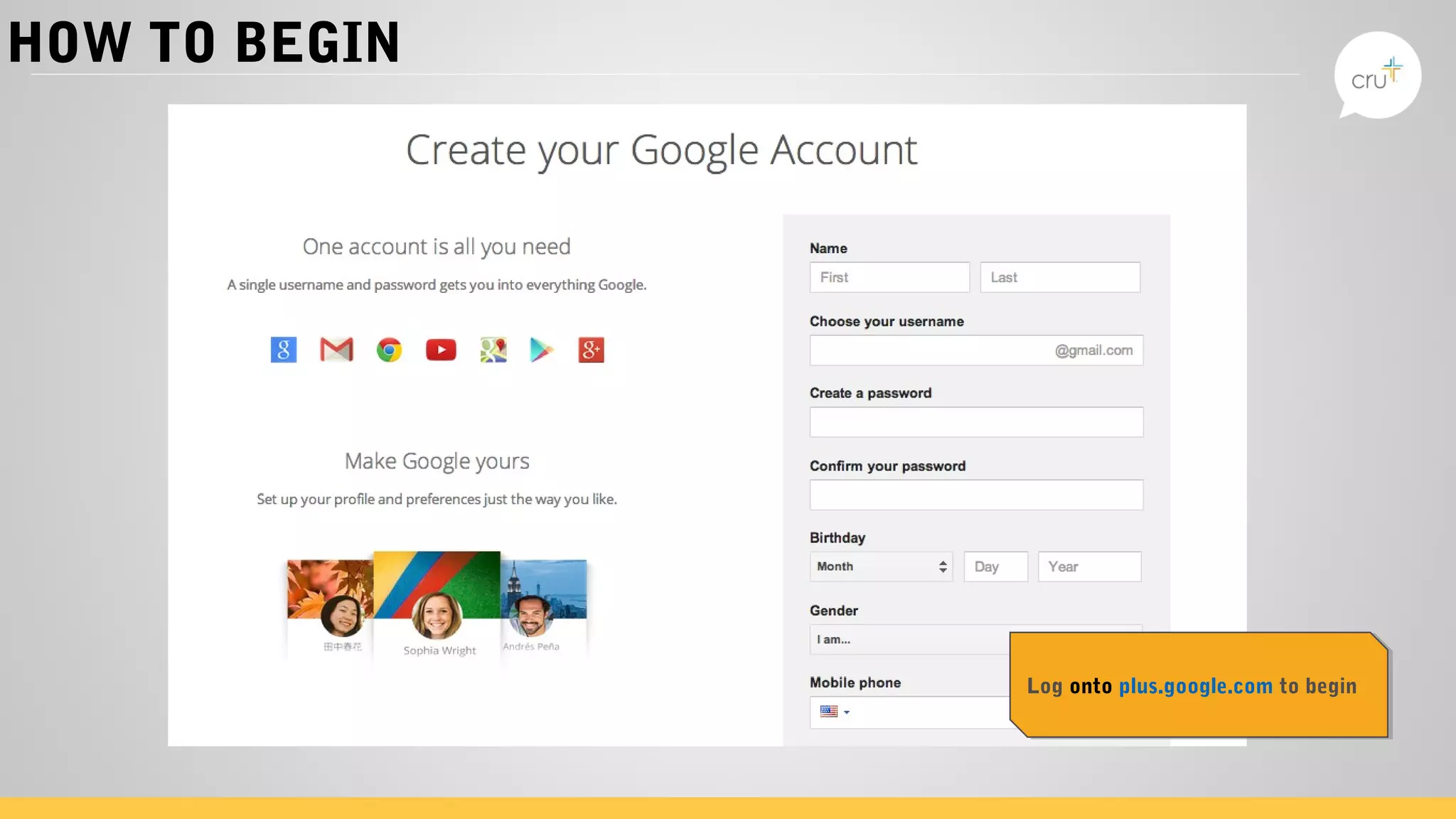
HOW TO BEGIN
Log onto plus.google.com to beginLog onto plus.google.com to begin
HOW TO BEGIN: PROFILE
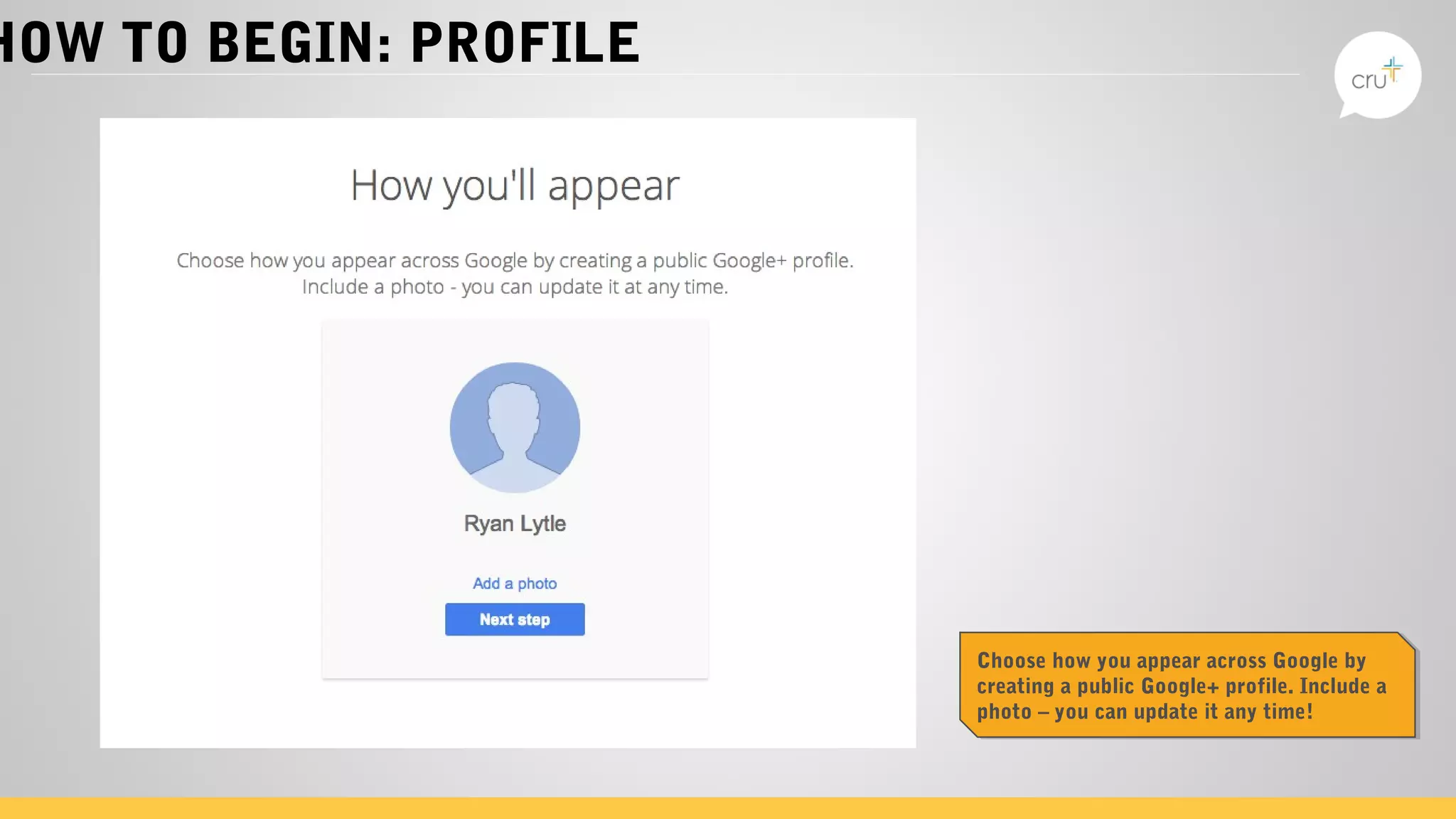
Choose how you appear across Google by
creating a public Google+ profile. Include a
photo – you can update it any time!
Choose how you appear across Google by
creating a public Google+ profile. Include a
photo – you can update it any time!
HOW TO BEGIN: CIRCLES
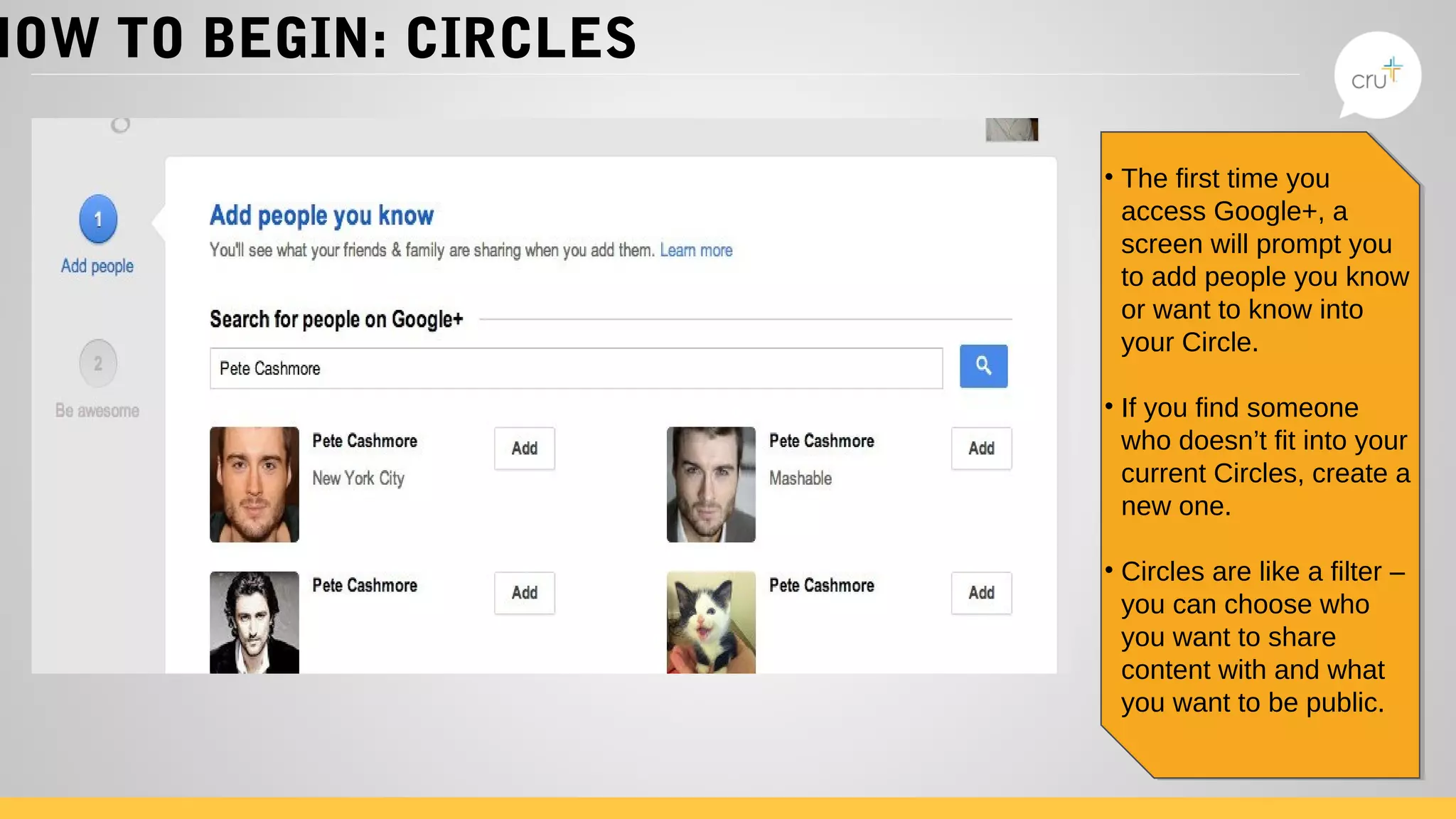
• The first time you
access Google+, a
screen will prompt you
to add people you know
or want to know into
your Circle.
• If you find someone
who doesn’t fit into your
current Circles, create a
new one.
• Circles are like a filter –
you can choose who
you want to share
content with and what
you want to be public.
• The first time you
access Google+, a
screen will prompt you
to add people you know
or want to know into
your Circle.
• If you find someone
who doesn’t fit into your
current Circles, create a
new one.
• Circles are like a filter –
you can choose who
you want to share
content with and what
you want to be public.
HOW TO BEGIN: COVER
PHOTO
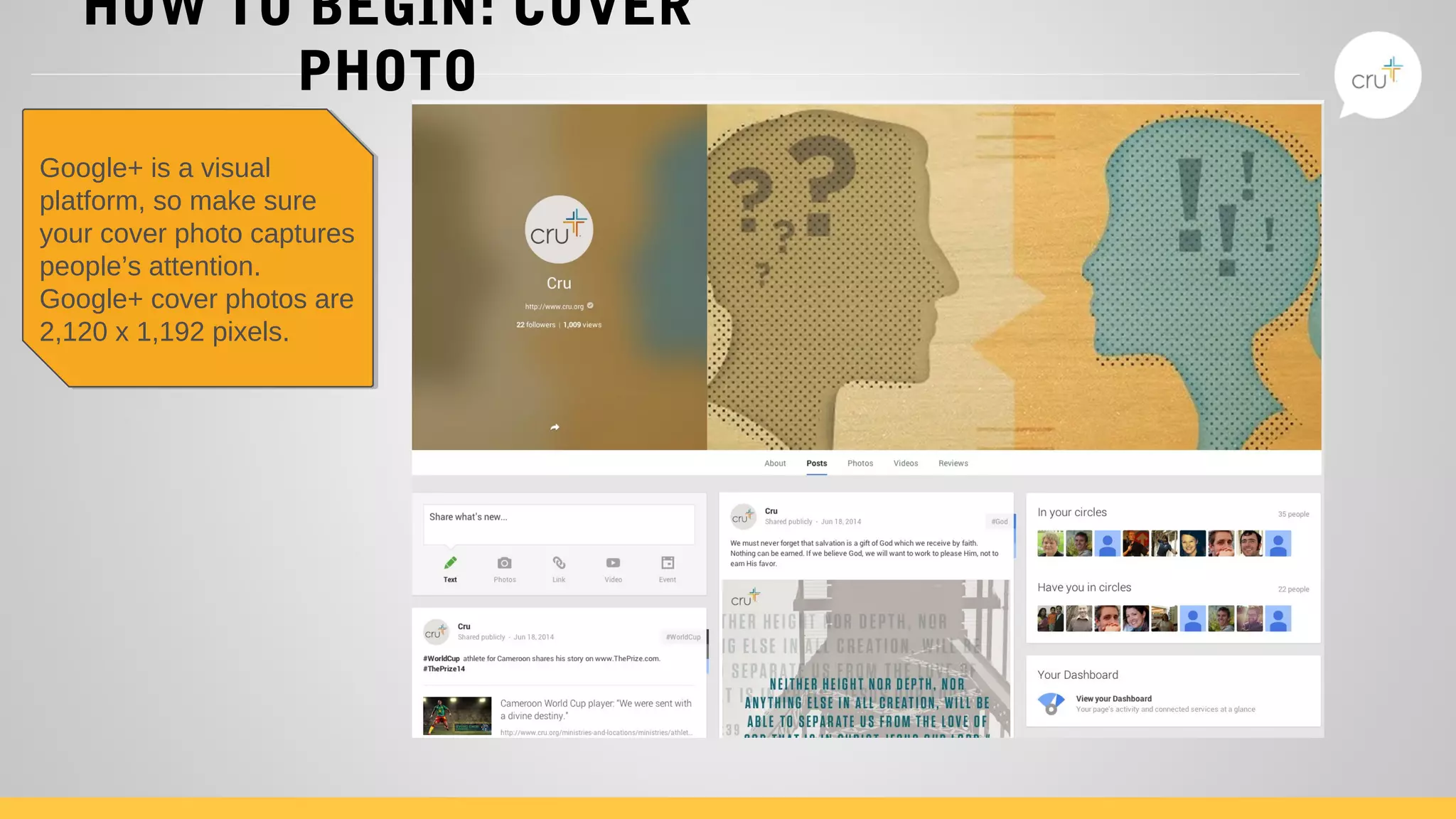
Google+ is a visual
platform, so make sure
your cover photo captures
people’s attention.
Google+ cover photos are
2,120 x 1,192 pixels.
Google+ is a visual
platform, so make sure
your cover photo captures
people’s attention.
Google+ cover photos are
2,120 x 1,192 pixels.
HOW TO BEGIN: STREAM
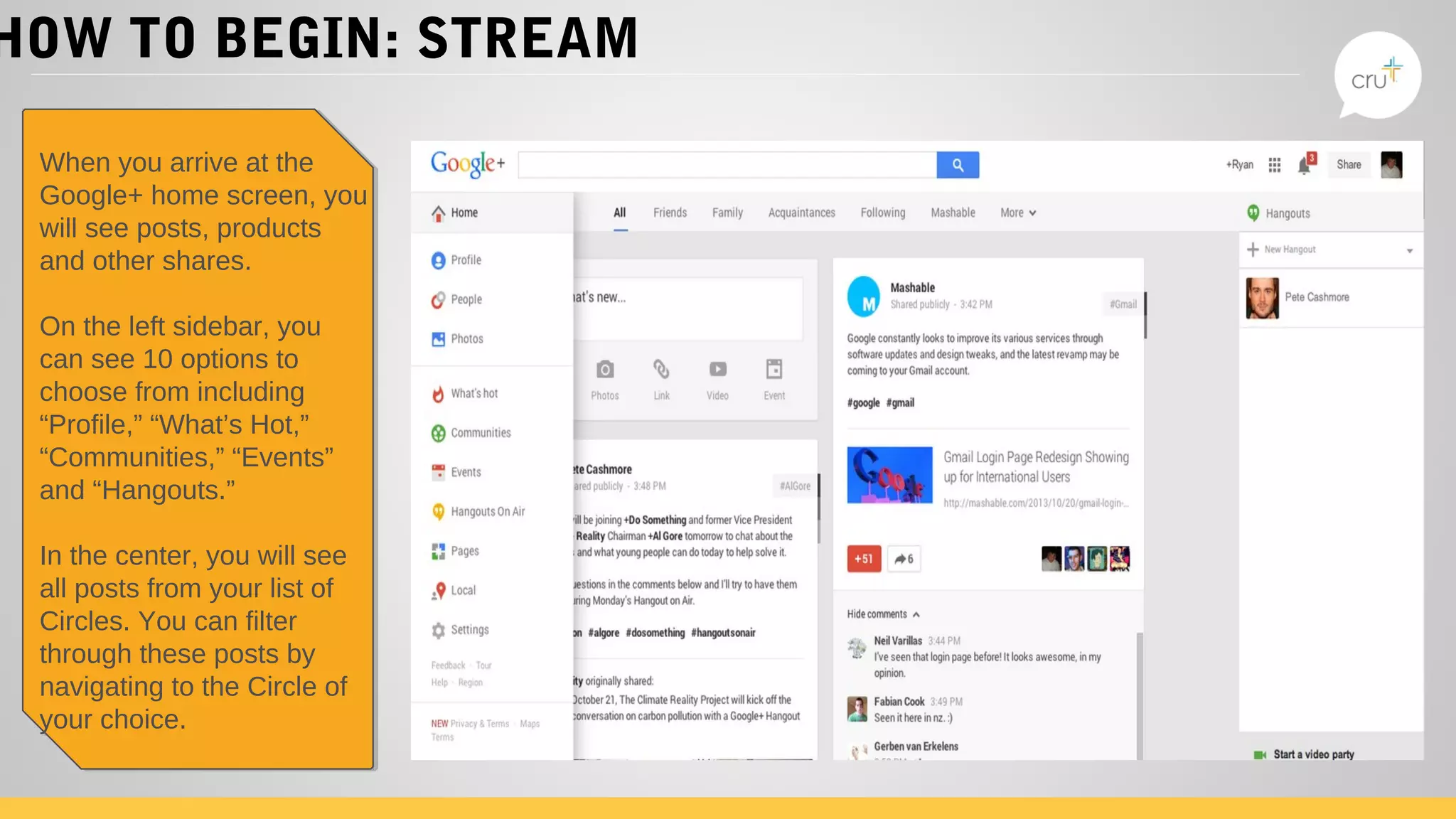
When you arrive at the
Google+ home screen, you
will see posts, products
and other shares.
On the left sidebar, you
can see 10 options to
choose from including
“Profile,” “What’s Hot,”
“Communities,” “Events”
and “Hangouts.”
In the center, you will see
all posts from your list of
Circles. You can filter
through these posts by
navigating to the Circle of
your choice.
When you arrive at the
Google+ home screen, you
will see posts, products
and other shares.
On the left sidebar, you
can see 10 options to
choose from including
“Profile,” “What’s Hot,”
“Communities,” “Events”
and “Hangouts.”
In the center, you will see
all posts from your list of
Circles. You can filter
through these posts by
navigating to the Circle of
your choice.
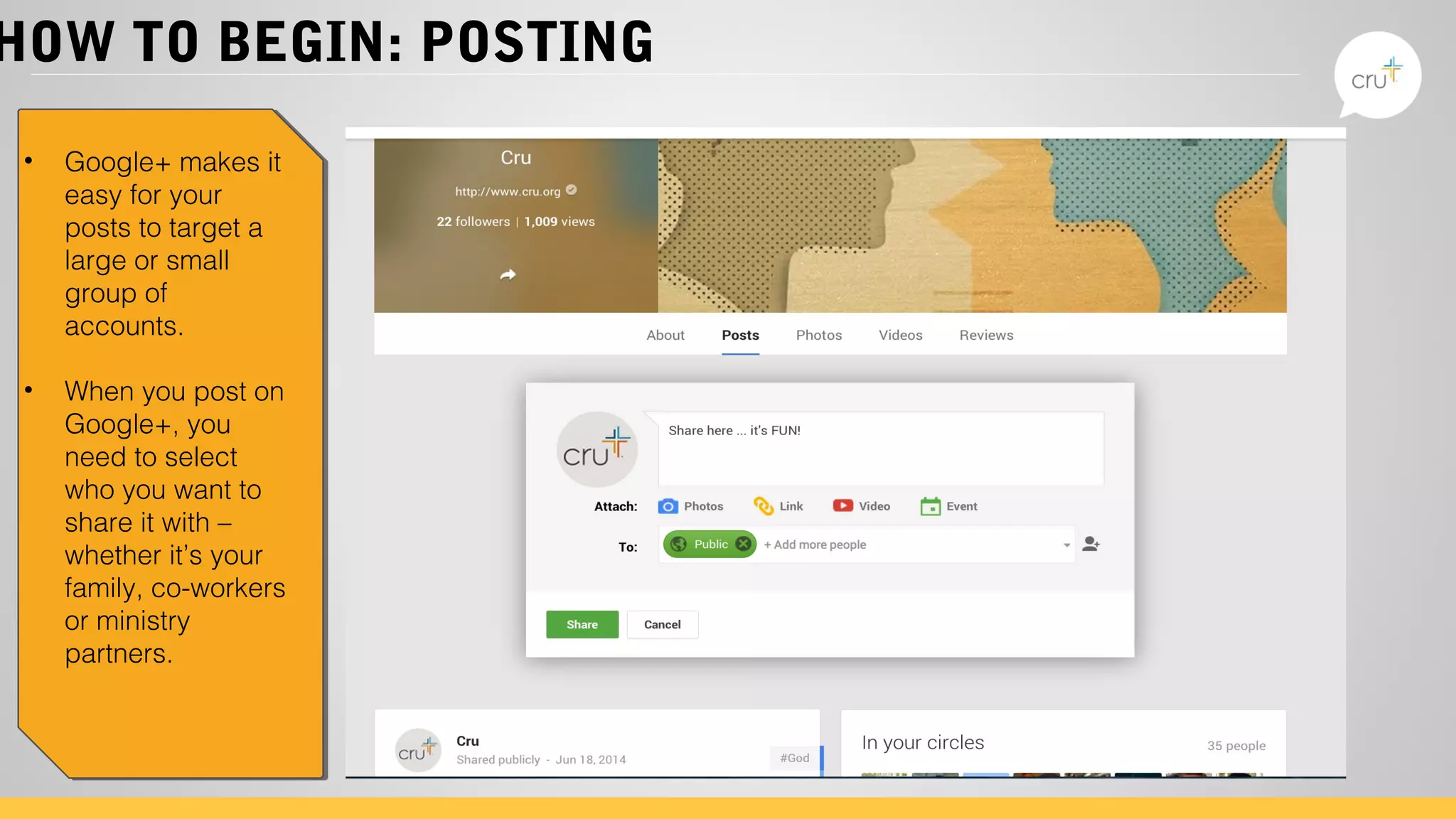
HOW TO BEGIN: POSTING
• Google+ makes it
easy for your
posts to target a
large or small
group of
accounts.
• When you post on
Google+, you
need to select
who you want to
share it with –
whether it’s your
family, co-workers
or ministry
partners.
HOW TO BEGIN:
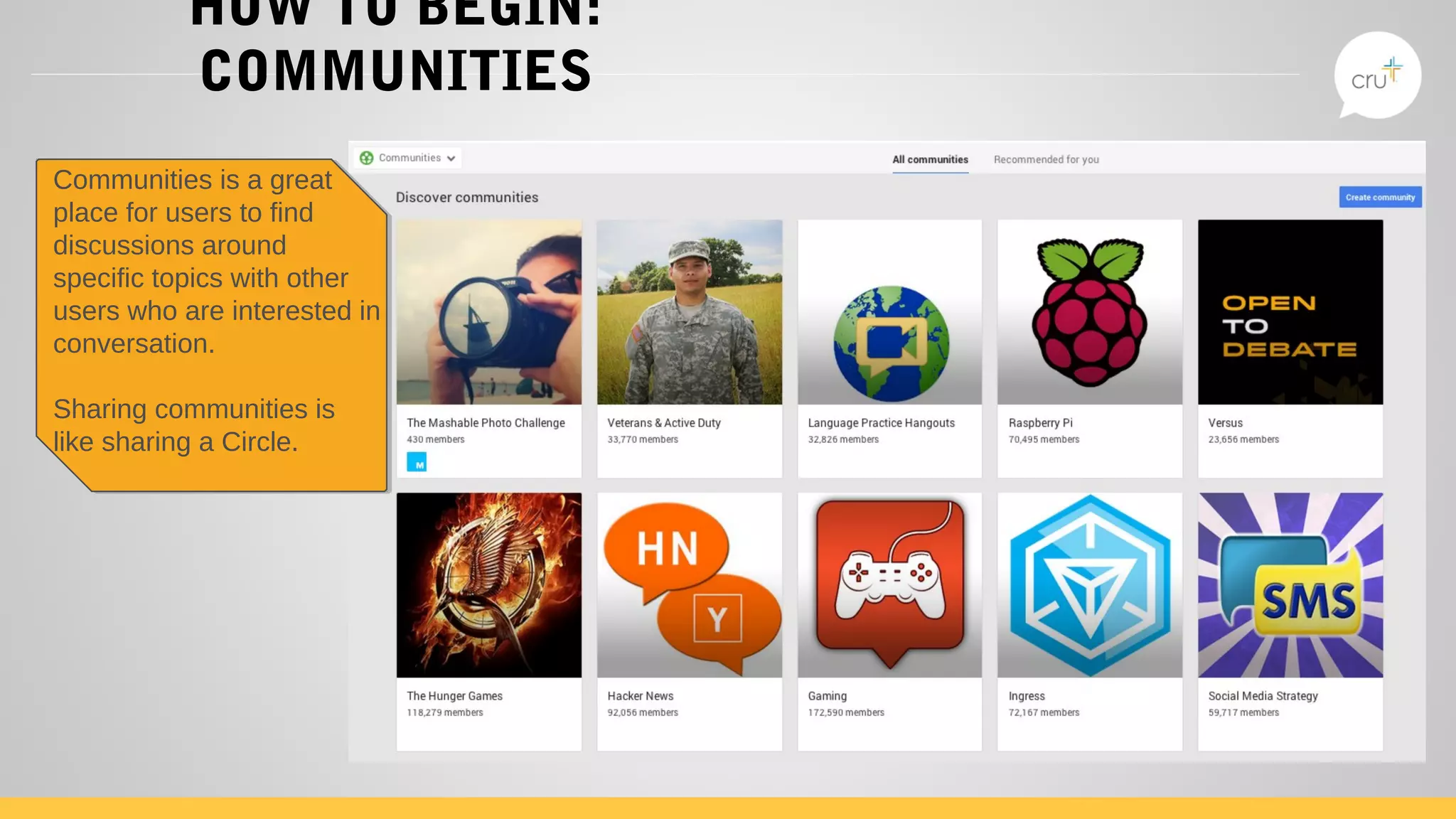
COMMUNITIES
Communities is a great
place for users to find
discussions around
specific topics with other
users who are interested in
conversation.
Sharing communities is
like sharing a Circle.
Communities is a great
place for users to find
discussions around
specific topics with other
users who are interested in
conversation.
Sharing communities is
like sharing a Circle.
TRICKS OF THE TRADE
• Keywords – Include keywords and
relevant links on you About Page.
• Connect – Connect your whole
audience using Google+ events.
• Consistency – Post often and
optimize for best search results.
• Authorship – Set up Google
Authorship for SEO benefits.
• Search – Find relevant
users and conversations to
engage with.
THANK YOU
Have questions? Reach out to Cru Global on any of its social
media sites:
Cru Global
@CruTweet
s
@CruPin
s
Cru Global
@CruInstagram
@Cru
Cru

Google+ posting

  • 1.
    Google+: A guidefor posting
  • 2.
    WHAT IS Google+? Google+is a social media platform that is meant to be a networking site along with an authorship tool that associates web-content directly with its author. There are currently 540 million monthly active users.
  • 3.
    Google+ TERMS TOKNOW • Badges – Google+ Badges are widgets you can place on your blog or website. • Circle – A way to organize the people you follow and those who follow you. When you publish content you can choose which circles to publish to. • Stream – Where updates from Google+ members in your Circles appear • Sharing – You can share text, images, video and links by publishing • Profile – An individual’s place on Google+ where you publish content. • +1 Button – Similar to the Facebook “like” button. When you click the +1 you are sharing the content. • Ripples – A tool that helps you visualize how content is shared and discussed across the Google+ community. You can click any public post on Google+ and select “View Ripples” option to view the activity related to that update.
  • 4.
    HOW TO BEGIN Logonto plus.google.com to beginLog onto plus.google.com to begin
  • 5.
    HOW TO BEGIN:PROFILE Choose how you appear across Google by creating a public Google+ profile. Include a photo – you can update it any time! Choose how you appear across Google by creating a public Google+ profile. Include a photo – you can update it any time!
  • 6.
    HOW TO BEGIN:CIRCLES • The first time you access Google+, a screen will prompt you to add people you know or want to know into your Circle. • If you find someone who doesn’t fit into your current Circles, create a new one. • Circles are like a filter – you can choose who you want to share content with and what you want to be public. • The first time you access Google+, a screen will prompt you to add people you know or want to know into your Circle. • If you find someone who doesn’t fit into your current Circles, create a new one. • Circles are like a filter – you can choose who you want to share content with and what you want to be public.
  • 7.
    HOW TO BEGIN:COVER PHOTO Google+ is a visual platform, so make sure your cover photo captures people’s attention. Google+ cover photos are 2,120 x 1,192 pixels. Google+ is a visual platform, so make sure your cover photo captures people’s attention. Google+ cover photos are 2,120 x 1,192 pixels.
  • 8.
    HOW TO BEGIN:STREAM When you arrive at the Google+ home screen, you will see posts, products and other shares. On the left sidebar, you can see 10 options to choose from including “Profile,” “What’s Hot,” “Communities,” “Events” and “Hangouts.” In the center, you will see all posts from your list of Circles. You can filter through these posts by navigating to the Circle of your choice. When you arrive at the Google+ home screen, you will see posts, products and other shares. On the left sidebar, you can see 10 options to choose from including “Profile,” “What’s Hot,” “Communities,” “Events” and “Hangouts.” In the center, you will see all posts from your list of Circles. You can filter through these posts by navigating to the Circle of your choice.
  • 9.
    HOW TO BEGIN:POSTING • Google+ makes it easy for your posts to target a large or small group of accounts. • When you post on Google+, you need to select who you want to share it with – whether it’s your family, co-workers or ministry partners.
  • 10.
    HOW TO BEGIN: COMMUNITIES Communitiesis a great place for users to find discussions around specific topics with other users who are interested in conversation. Sharing communities is like sharing a Circle. Communities is a great place for users to find discussions around specific topics with other users who are interested in conversation. Sharing communities is like sharing a Circle.
  • 11.
    TRICKS OF THETRADE • Keywords – Include keywords and relevant links on you About Page. • Connect – Connect your whole audience using Google+ events. • Consistency – Post often and optimize for best search results. • Authorship – Set up Google Authorship for SEO benefits. • Search – Find relevant users and conversations to engage with.
  • 12.
    THANK YOU Have questions?Reach out to Cru Global on any of its social media sites: Cru Global @CruTweet s @CruPin s Cru Global @CruInstagram @Cru Cru