Using Google Docs in the
       Classroom


       Adapted by CMS April 2013 from ‘32 Interesting ways to use Google
       Docs in the Classroom’ which is licensed under a Creative
       Commons Attribution Noncommercial Share Alike 3.0 License.
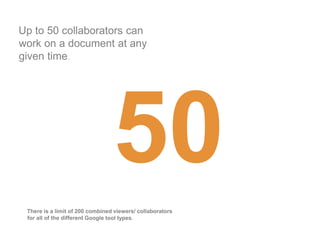
Up to 50 collaborators can
work on a document at any
given time.


 There is a limit of 200 combined viewers/ collaborators
 for all of the different Google tool types.
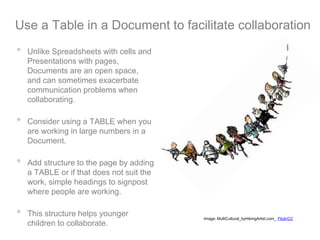
Use a Table in a Document to facilitate collaboration
•   Unlike Spreadsheets with cells and
    Presentations with pages,
    Documents are an open space,
    and can sometimes exacerbate
    communication problems when
    collaborating.

•   Consider using a TABLE when you
    are working in large numbers in a
    Document.

•   Add structure to the page by adding
    a TABLE or if that does not suit the
    work, simple headings to signpost
    where people are working.

•   This structure helps younger           Image: MultiCultural_byHikingArtist.com_ FlickrCC
    children to collaborate.
Chatting while you write...
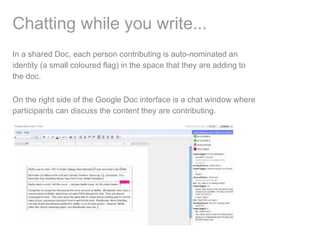
In a shared Doc, each person contributing is auto-nominated an
identity (a small coloured flag) in the space that they are adding to
the doc.

On the right side of the Google Doc interface is a chat window where
participants can discuss the content they are contributing.
I am Unique!
•   This is a good activity to model the use of a
    shared space and live editing, as well as
    learning about a new class.

•   It can be done in any of the Google Apps
    tools – Docs, Forms, Presentations…

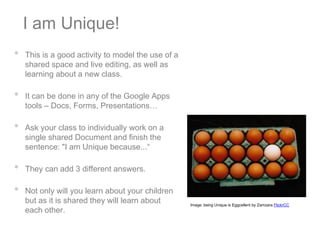
•   Ask your class to individually work on a
    single shared Document and finish the
    sentence: "I am Unique because...“

•   They can add 3 different answers.

•   Not only will you learn about your children
    but as it is shared they will learn about       Image: being Unique is Eggcellent by Zamzara FlickrCC
    each other.
Document Stats
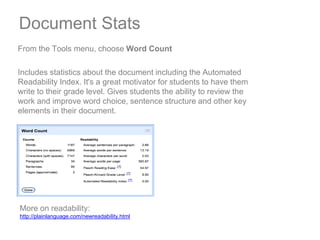
From the Tools menu, choose Word Count

Includes statistics about the document including the Automated
Readability Index. It's a great motivator for students to have them
write to their grade level. Gives students the ability to review the
work and improve word choice, sentence structure and other key
elements in their document.


More on readability:
http://plainlanguage.com/newreadability.html
Add a Footnote
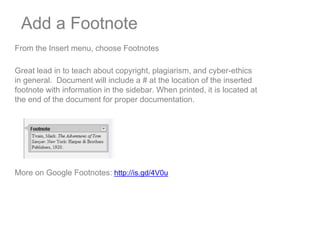
From the Insert menu, choose Footnotes

Great lead in to teach about copyright, plagiarism, and cyber-ethics
in general. Document will include a # at the location of the inserted
footnote with information in the sidebar. When printed, it is located at
the end of the document for proper documentation.


More on Google Footnotes: http://is.gd/4V0u
Use Templates

Google has created templates for students and
teachers.

Teachers can direct students to use a certain
template or they can browse the different categories.

Teachers can also create their own templates and
share them with their students.

Make sure students save the template as a copy.
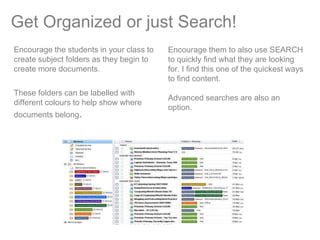
Get Organized or just Search!
Encourage the students in your class to   Encourage them to also use SEARCH
create subject folders as they begin to   to quickly find what they are looking
create more documents.                    for. I find this one of the quickest ways
                                          to find content.
These folders can be labelled with
                                          Advanced searches are also an
different colours to help show where
                                          option.
documents belong.
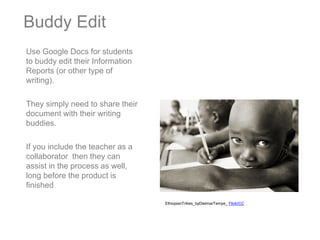
Buddy Edit
Use Google Docs for students
to buddy edit their Information
Reports (or other type of
writing).

They simply need to share their
document with their writing
buddies.

If you include the teacher as a
collaborator then they can
assist in the process as well,
long before the product is
finished.

                                  EthiopianTribes_byDietmarTemps_ FlickrCC
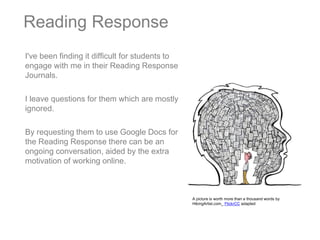
Reading Response
I've been finding it difficult for students to
engage with me in their Reading Response
Journals.

I leave questions for them which are mostly
ignored.

By requesting them to use Google Docs for
the Reading Response there can be an
ongoing conversation, aided by the extra
motivation of working online.


                                                 A picture is worth more than a thousand words by
                                                 HikingArtist.com_ FlickrCC adapted
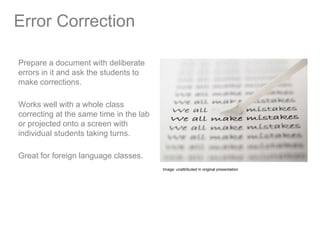
Error Correction

Prepare a document with deliberate
errors in it and ask the students to
make corrections.

Works well with a whole class
correcting at the same time in the lab
or projected onto a screen with
individual students taking turns.

Great for foreign language classes.
                                         Image: unattributed in original presentation
Collaborative writing from notes
Set a writing task for which students   Encourage editing of previous
have to write something from            sentences, both for content and errors.
standard notes (e.g. a formal letter
or a sequence of pictures telling a     Works with several computers or just
story).                                 one projected onto a screen with
                                        students taking turns.
Once this is completed, ask
students/groups one at a time to
contribute a sentence or two to a
shared document to produce a
definitive class version.


.                                       Image: 18.365 by Nico Paix FlickrCC
Shared Professional Writing

Are you working with a student
teacher or co-teacher?

Are you crafting new curriculum?

Writing your school improvement
plan?

Collaboratively write lesson plans
and other documents in Google Docs
in order to share ideas and writing in
real time as well as provide timely
feedback and clarification to
                                         Image: adapted_Brain Damage by Taylor McBride_ FlickrCC
colleagues.
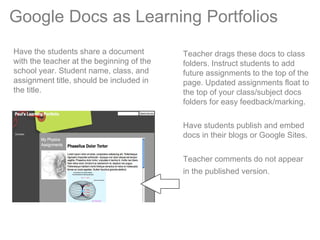
Google Docs as Learning Portfolios
Have the students share a document         Teacher drags these docs to class
with the teacher at the beginning of the   folders. Instruct students to add
school year. Student name, class, and      future assignments to the top of the
assignment title, should be included in    page. Updated assignments float to
the title.                                 the top of your class/subject docs
                                           folders for easy feedback/marking.

                                           Have students publish and embed
                                           docs in their blogs or Google Sites.

                                           Teacher comments do not appear
                                           in the published version.
Acknowledgment
The ideas in this Google Docs presentation
were extracted from a collection curated by
Tom Barrett. It was designated Creative
Commons and therefore many others have
extended or adapted the resource to fit their
particular purpose.


This presentation comprises a specific
selection of ideas for Google Docs from a
version posted to Slide Share by Antoni de la
Torre.


Tom Barret has a comprehensive Google Site
worth visiting if you are interested in exploring
further.

Google docs in the classroom adapted fromtombarrett

  • 1.
    Using Google Docsin the Classroom Adapted by CMS April 2013 from ‘32 Interesting ways to use Google Docs in the Classroom’ which is licensed under a Creative Commons Attribution Noncommercial Share Alike 3.0 License.
  • 2.
    Up to 50collaborators can work on a document at any given time. There is a limit of 200 combined viewers/ collaborators for all of the different Google tool types.
  • 3.
    Use a Tablein a Document to facilitate collaboration • Unlike Spreadsheets with cells and Presentations with pages, Documents are an open space, and can sometimes exacerbate communication problems when collaborating. • Consider using a TABLE when you are working in large numbers in a Document. • Add structure to the page by adding a TABLE or if that does not suit the work, simple headings to signpost where people are working. • This structure helps younger Image: MultiCultural_byHikingArtist.com_ FlickrCC children to collaborate.
  • 4.
    Chatting while youwrite... In a shared Doc, each person contributing is auto-nominated an identity (a small coloured flag) in the space that they are adding to the doc. On the right side of the Google Doc interface is a chat window where participants can discuss the content they are contributing.
  • 5.
    I am Unique! • This is a good activity to model the use of a shared space and live editing, as well as learning about a new class. • It can be done in any of the Google Apps tools – Docs, Forms, Presentations… • Ask your class to individually work on a single shared Document and finish the sentence: "I am Unique because...“ • They can add 3 different answers. • Not only will you learn about your children but as it is shared they will learn about Image: being Unique is Eggcellent by Zamzara FlickrCC each other.
  • 6.
    Document Stats From theTools menu, choose Word Count Includes statistics about the document including the Automated Readability Index. It's a great motivator for students to have them write to their grade level. Gives students the ability to review the work and improve word choice, sentence structure and other key elements in their document. More on readability: http://plainlanguage.com/newreadability.html
  • 7.
    Add a Footnote Fromthe Insert menu, choose Footnotes Great lead in to teach about copyright, plagiarism, and cyber-ethics in general. Document will include a # at the location of the inserted footnote with information in the sidebar. When printed, it is located at the end of the document for proper documentation. More on Google Footnotes: http://is.gd/4V0u
  • 8.
    Use Templates Google hascreated templates for students and teachers. Teachers can direct students to use a certain template or they can browse the different categories. Teachers can also create their own templates and share them with their students. Make sure students save the template as a copy.
  • 9.
    Get Organized orjust Search! Encourage the students in your class to Encourage them to also use SEARCH create subject folders as they begin to to quickly find what they are looking create more documents. for. I find this one of the quickest ways to find content. These folders can be labelled with Advanced searches are also an different colours to help show where option. documents belong.
  • 10.
    Buddy Edit Use GoogleDocs for students to buddy edit their Information Reports (or other type of writing). They simply need to share their document with their writing buddies. If you include the teacher as a collaborator then they can assist in the process as well, long before the product is finished. EthiopianTribes_byDietmarTemps_ FlickrCC
  • 11.
    Reading Response I've beenfinding it difficult for students to engage with me in their Reading Response Journals. I leave questions for them which are mostly ignored. By requesting them to use Google Docs for the Reading Response there can be an ongoing conversation, aided by the extra motivation of working online. A picture is worth more than a thousand words by HikingArtist.com_ FlickrCC adapted
  • 12.
    Error Correction Prepare adocument with deliberate errors in it and ask the students to make corrections. Works well with a whole class correcting at the same time in the lab or projected onto a screen with individual students taking turns. Great for foreign language classes. Image: unattributed in original presentation
  • 13.
    Collaborative writing fromnotes Set a writing task for which students Encourage editing of previous have to write something from sentences, both for content and errors. standard notes (e.g. a formal letter or a sequence of pictures telling a Works with several computers or just story). one projected onto a screen with students taking turns. Once this is completed, ask students/groups one at a time to contribute a sentence or two to a shared document to produce a definitive class version. . Image: 18.365 by Nico Paix FlickrCC
  • 14.
    Shared Professional Writing Areyou working with a student teacher or co-teacher? Are you crafting new curriculum? Writing your school improvement plan? Collaboratively write lesson plans and other documents in Google Docs in order to share ideas and writing in real time as well as provide timely feedback and clarification to Image: adapted_Brain Damage by Taylor McBride_ FlickrCC colleagues.
  • 15.
    Google Docs asLearning Portfolios Have the students share a document Teacher drags these docs to class with the teacher at the beginning of the folders. Instruct students to add school year. Student name, class, and future assignments to the top of the assignment title, should be included in page. Updated assignments float to the title. the top of your class/subject docs folders for easy feedback/marking. Have students publish and embed docs in their blogs or Google Sites. Teacher comments do not appear in the published version.
  • 16.
    Acknowledgment The ideas inthis Google Docs presentation were extracted from a collection curated by Tom Barrett. It was designated Creative Commons and therefore many others have extended or adapted the resource to fit their particular purpose. This presentation comprises a specific selection of ideas for Google Docs from a version posted to Slide Share by Antoni de la Torre. Tom Barret has a comprehensive Google Site worth visiting if you are interested in exploring further.