01   Google Drive   Google Docs
Google
                   What it is?
  Docs


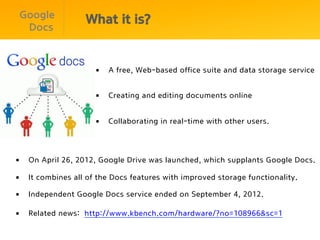
                     §  A free, Web-based office suite and data storage service


                     §  Creating and editing documents online


                     §  Collaborating in real-time with other users.


§  On April 26, 2012, Google Drive was launched, which supplants Google Docs.

§  It combines all of the Docs features with improved storage functionality.

§  Independent Google Docs service ended on September 4, 2012.

§  Related news: http://www.kbench.com/hardware/?no=108966&sc=1
Google
              What it is?
 Drive


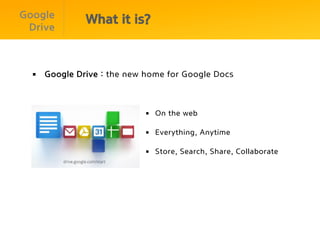
  §  Google Drive : the new home for Google Docs


                            §  On the web

                            §  Everything, Anytime

                            §  Store, Search, Share, Collaborate
Google
                 How to use it?
 Drive

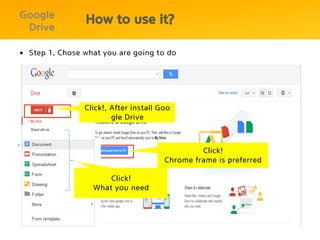
§  Step 1. Chose what you are going to do


                 Click!, After install Goo
                         gle Drive


                                                 Click!
                                        Chrome frame is preferred

                       Click!
                   What you need
Google
                       How to use it?
   Drive

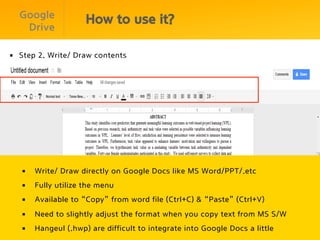
§  Step 2. Write/ Draw contents


   §    Write/ Draw directly on Google Docs like MS Word/PPT/.etc
   §    Fully utilize the menu
   §    Available to “Copy” from word file (Ctrl+C) & “Paste” (Ctrl+V)
   §    Need to slightly adjust the format when you copy text from MS S/W
   §    Hangeul (.hwp) are difficult to integrate into Google Docs a little
Google
                          How to use it?
   Drive

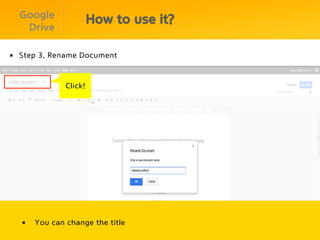
§  Step 3. Rename Document


                 Click!


   §    You can change the title
Google
                      How to use it?
   Drive

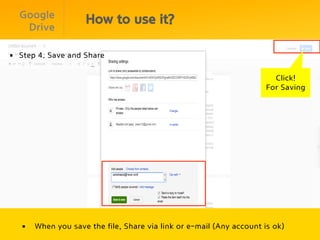
§  Step 4. Save and Share

                                                                          Click!
                                                                        For Saving


   §    When you save the file, Share via link or e-mail (Any account is ok)
Google
                       How to use it?
   Drive

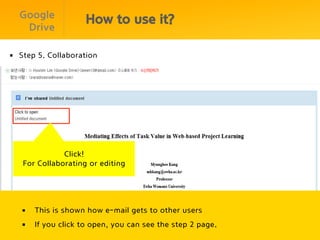
§  Step 5. Collaboration


              Click!
   For Collaborating or editing


   §    This is shown how e-mail gets to other users
   §    If you click to open, you can see the step 2 page.

Communicating with technology.final

  • 1.
    01 Google Drive Google Docs
  • 2.
    Google What it is? Docs §  A free, Web-based office suite and data storage service §  Creating and editing documents online §  Collaborating in real-time with other users. §  On April 26, 2012, Google Drive was launched, which supplants Google Docs. §  It combines all of the Docs features with improved storage functionality. §  Independent Google Docs service ended on September 4, 2012. §  Related news: http://www.kbench.com/hardware/?no=108966&sc=1
  • 3.
    Google What it is? Drive §  Google Drive : the new home for Google Docs §  On the web §  Everything, Anytime §  Store, Search, Share, Collaborate
  • 4.
    Google How to use it? Drive §  Step 1. Chose what you are going to do Click!, After install Goo gle Drive Click! Chrome frame is preferred Click! What you need
  • 5.
    Google How to use it? Drive §  Step 2. Write/ Draw contents §  Write/ Draw directly on Google Docs like MS Word/PPT/.etc §  Fully utilize the menu §  Available to “Copy” from word file (Ctrl+C) & “Paste” (Ctrl+V) §  Need to slightly adjust the format when you copy text from MS S/W §  Hangeul (.hwp) are difficult to integrate into Google Docs a little
  • 6.
    Google How to use it? Drive §  Step 3. Rename Document Click! §  You can change the title
  • 7.
    Google How to use it? Drive §  Step 4. Save and Share Click! For Saving §  When you save the file, Share via link or e-mail (Any account is ok)
  • 8.
    Google How to use it? Drive §  Step 5. Collaboration Click! For Collaborating or editing §  This is shown how e-mail gets to other users §  If you click to open, you can see the step 2 page.