Clint Paris 2D Game Workflow 
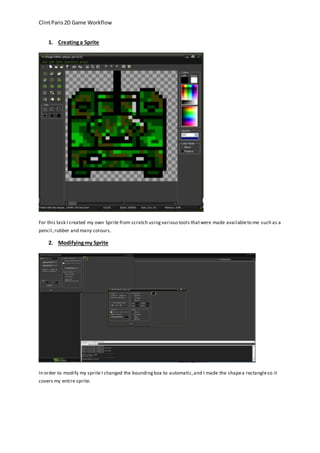
1. Creating a Sprite 
For this task I created my own Sprite from scratch using various tools that were made available to me such as a 
pencil, rubber and many colours. 
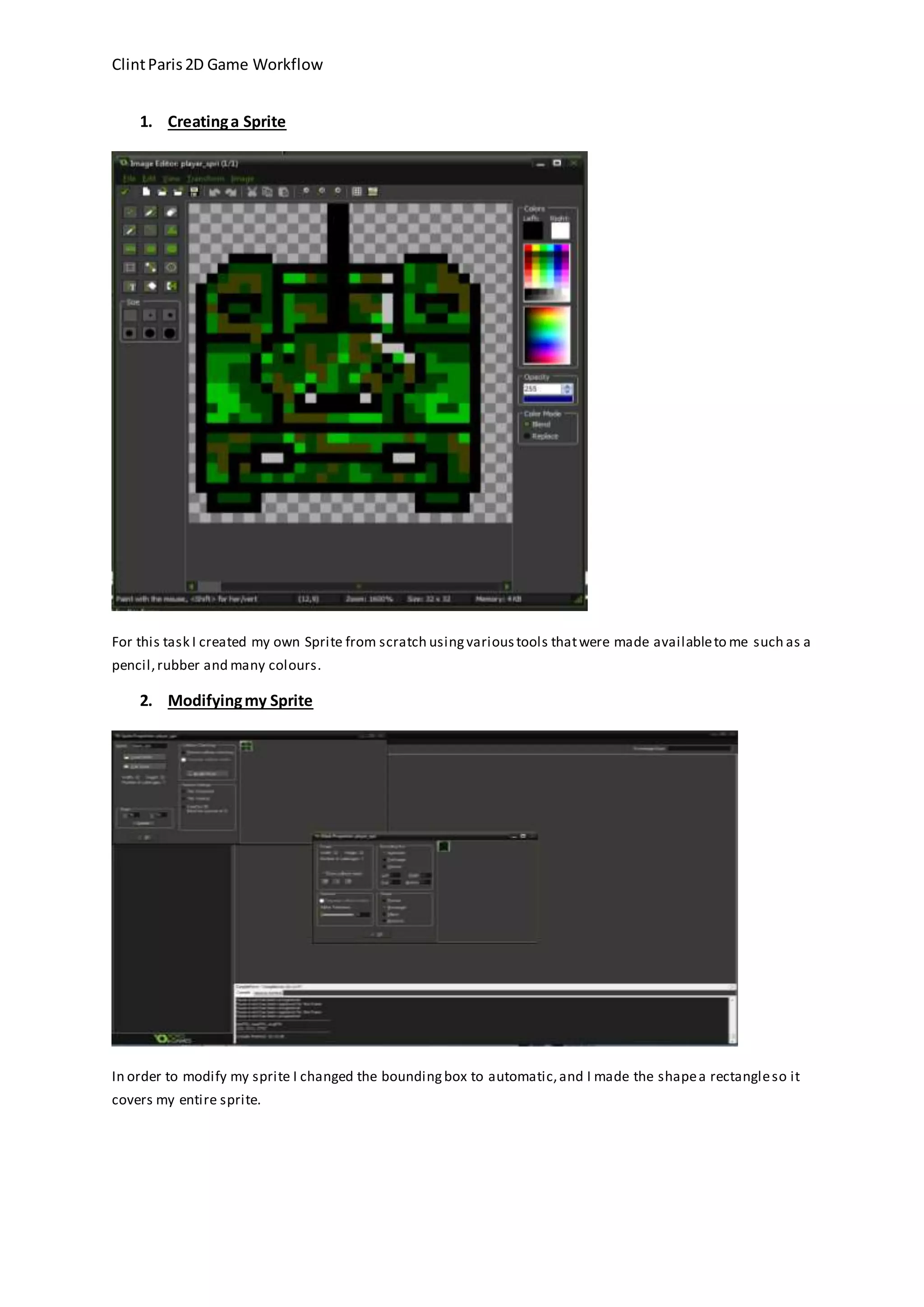
2. Modifying my Sprite 
In order to modify my sprite I changed the bounding box to automatic, and I made the shape a rectangle so it 
covers my entire sprite.
Clint Paris 2D Game Workflow 
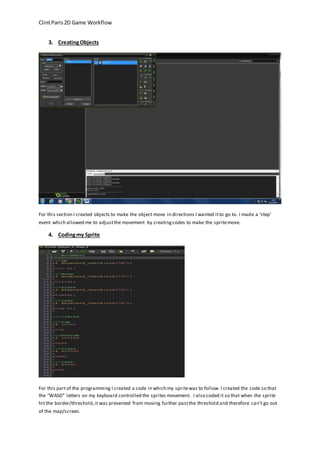
3. Creating Objects 
For this section I created objects to make the object move in directions I wanted it to go to. I made a ‘step’ 
event which allowed me to adjust the movement by creating codes to make the sprite move. 
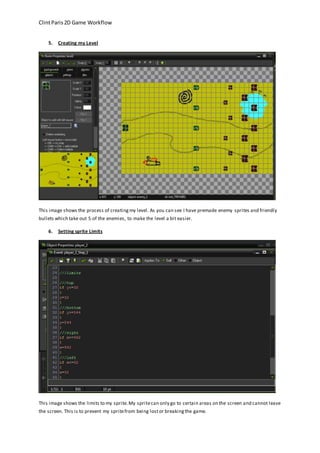
4. Coding my Sprite 
For this part of the programming I created a code in which my sprite was to follow. I created the code so that 
the “WASD” letters on my keyboard controlled the sprites movement. I also coded it so that when the sprite 
hit the border/threshold, it was prevented from moving further past the threshold and therefore can’t go out 
of the map/screen.
Clint Paris 2D Game Workflow 
5. Creating my Level 
This image shows the process of creating my level. As you can see I have premade enemy sprites and friendly 
bullets which take out 5 of the enemies, to make the level a bit easier. 
6. Setting sprite Limits 
This image shows the limits to my sprite. My sprite can only go to certain areas on the screen and cannot leave 
the screen. This is to prevent my sprite from being lost or breaking the game.
Clint Paris 2D Game Workflow 
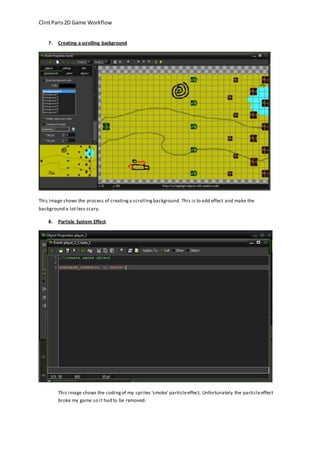
7. Creating a scrolling background 
This image shows the process of creating a scrolling background. This is to add effect and make the 
background a lot less scary. 
8. Particle System Effect 
This image shows the coding of my sprites ‘smoke’ particle effect. Unfortunately the particle effect 
broke my game so it had to be removed.
Clint Paris 2D Game Workflow 
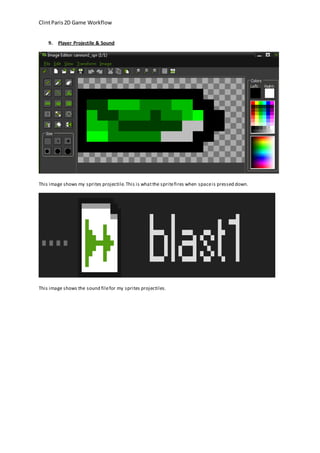
9. Player Projectile & Sound 
This image shows my sprites projectile. This is what the sprite fires when space is pressed down. 
This image shows the sound file for my sprites projectiles.
Clint Paris 2D Game Workflow 
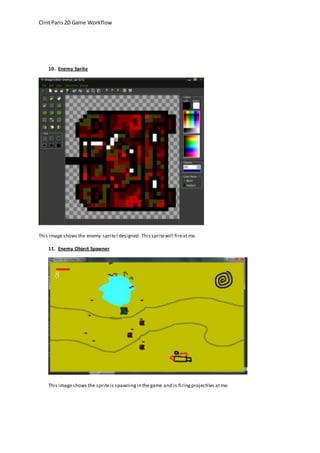
10. Enemy Sprite 
This image shows the enemy sprite I designed. This sprite will fire at me. 
11. Enemy Object Spawner 
This image shows the sprite is spawning in the game and is firing projectiles at me.
Clint Paris 2D Game Workflow 
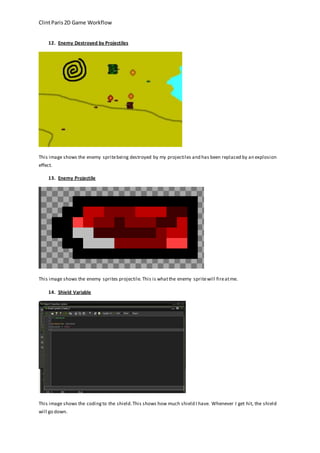
12. Enemy Destroyed by Projectiles 
This image shows the enemy sprite being destroyed by my projectiles and has been replaced by an explosion 
effect. 
13. Enemy Projectile 
This image shows the enemy sprites projectile. This is what the enemy sprite will fire at me. 
14. Shield Variable 
This image shows the coding to the shield. This shows how much shield I have. Whenever I get hit, the shield 
will go down.
Clint Paris 2D Game Workflow 
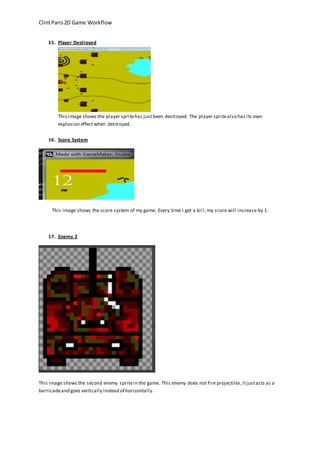
15. Player Destroyed 
This image shows the player sprite has just been destroyed. The player sprite also has its own 
explosion effect when destroyed. 
16. Score System 
This image shows the score system of my game. Every time I get a kil l, my score will increase by 1. 
17. Enemy 2 
This image shows the second enemy sprite in the game. This enemy does not fire projectiles, it just acts as a 
barricade and goes vertically instead of horizontally.

Gamemaker work flow

  • 1.
    Clint Paris 2DGame Workflow 1. Creating a Sprite For this task I created my own Sprite from scratch using various tools that were made available to me such as a pencil, rubber and many colours. 2. Modifying my Sprite In order to modify my sprite I changed the bounding box to automatic, and I made the shape a rectangle so it covers my entire sprite.
  • 2.
    Clint Paris 2DGame Workflow 3. Creating Objects For this section I created objects to make the object move in directions I wanted it to go to. I made a ‘step’ event which allowed me to adjust the movement by creating codes to make the sprite move. 4. Coding my Sprite For this part of the programming I created a code in which my sprite was to follow. I created the code so that the “WASD” letters on my keyboard controlled the sprites movement. I also coded it so that when the sprite hit the border/threshold, it was prevented from moving further past the threshold and therefore can’t go out of the map/screen.
  • 3.
    Clint Paris 2DGame Workflow 5. Creating my Level This image shows the process of creating my level. As you can see I have premade enemy sprites and friendly bullets which take out 5 of the enemies, to make the level a bit easier. 6. Setting sprite Limits This image shows the limits to my sprite. My sprite can only go to certain areas on the screen and cannot leave the screen. This is to prevent my sprite from being lost or breaking the game.
  • 4.
    Clint Paris 2DGame Workflow 7. Creating a scrolling background This image shows the process of creating a scrolling background. This is to add effect and make the background a lot less scary. 8. Particle System Effect This image shows the coding of my sprites ‘smoke’ particle effect. Unfortunately the particle effect broke my game so it had to be removed.
  • 5.
    Clint Paris 2DGame Workflow 9. Player Projectile & Sound This image shows my sprites projectile. This is what the sprite fires when space is pressed down. This image shows the sound file for my sprites projectiles.
  • 6.
    Clint Paris 2DGame Workflow 10. Enemy Sprite This image shows the enemy sprite I designed. This sprite will fire at me. 11. Enemy Object Spawner This image shows the sprite is spawning in the game and is firing projectiles at me.
  • 7.
    Clint Paris 2DGame Workflow 12. Enemy Destroyed by Projectiles This image shows the enemy sprite being destroyed by my projectiles and has been replaced by an explosion effect. 13. Enemy Projectile This image shows the enemy sprites projectile. This is what the enemy sprite will fire at me. 14. Shield Variable This image shows the coding to the shield. This shows how much shield I have. Whenever I get hit, the shield will go down.
  • 8.
    Clint Paris 2DGame Workflow 15. Player Destroyed This image shows the player sprite has just been destroyed. The player sprite also has its own explosion effect when destroyed. 16. Score System This image shows the score system of my game. Every time I get a kil l, my score will increase by 1. 17. Enemy 2 This image shows the second enemy sprite in the game. This enemy does not fire projectiles, it just acts as a barricade and goes vertically instead of horizontally.