Work Flow Arron Coakley 
My idea is a sci-fi space shooter 2D game side scroll side. The background of the game is in space 
since I’m creating a sci-fi game. The player controls a space ship (Player 1) which shoots red lasers. I 
created this my self using game maker. The aim of the game is to destroy enemy ships and see how 
long you can survive and how high you can get the score counter. However it’s not that easy because 
the enemy’s ships shoot lasers at you and if you don’t avoid them your ship will be destroyed and 
you will have to start over again. 
1 
These images are taken from my 2D shooter game: 
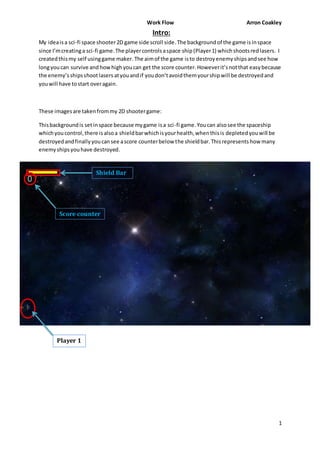
This background is set in space because my game is a sci -fi game. You can also see the spaceship 
which you control, there is also a shield bar which is your health, when this is depleted you will be 
destroyed and finally you can see a score counter below the shield bar. This represents how many 
enemy ships you have destroyed. 
Score counter 
Player 1 
Shield Bar 
Intro:
Work Flow Arron Coakley 
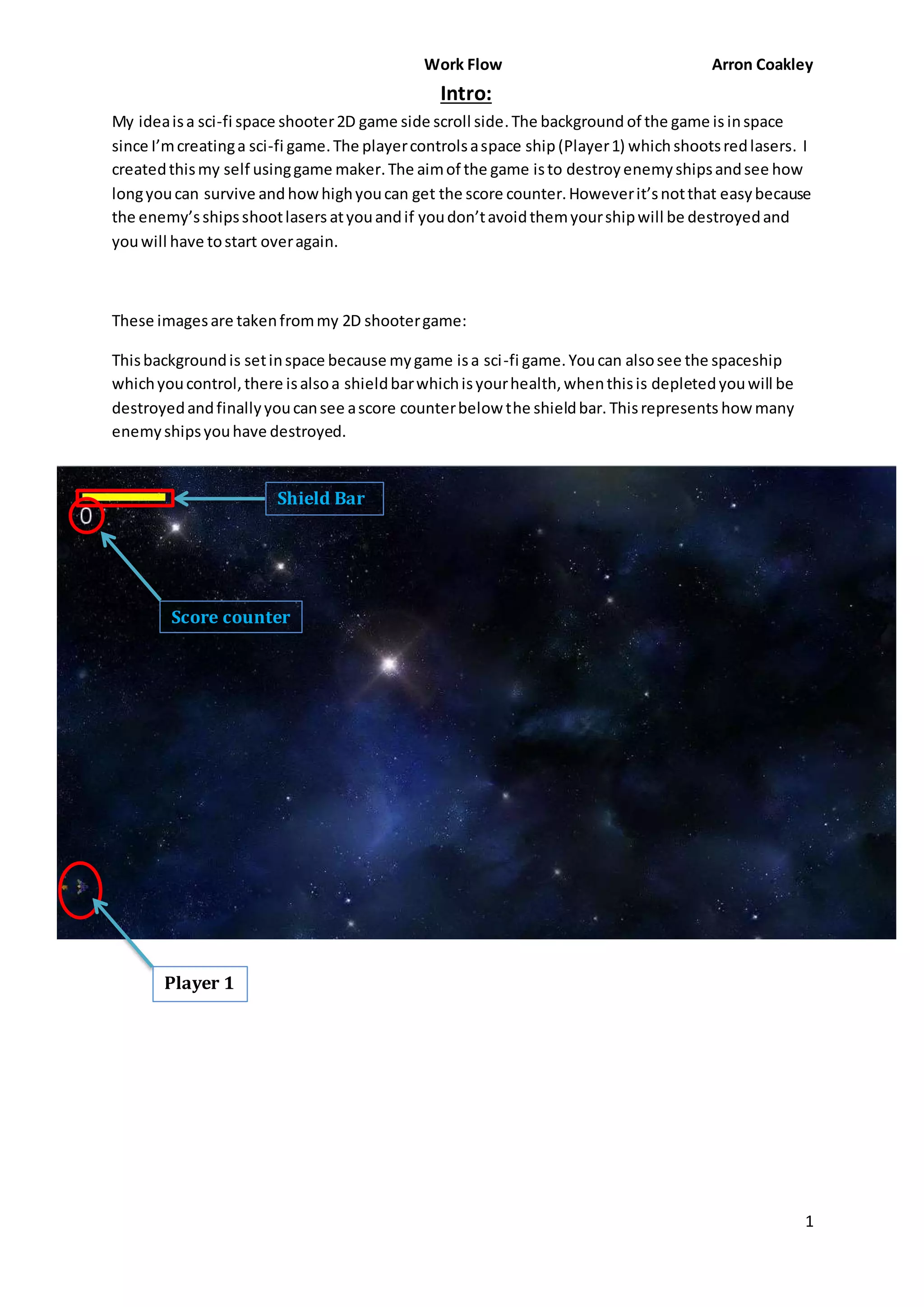
This image below is player 1. I just used the pen tool to create this ship, all you have to do is click and 
a square will appear and that’s how I created this ship. This is what you control when you play the 
game. I created this in game maker; this is also known as a sprite. This is a space ship because the 
theme of this game is sci-fi and it is set in space so that’s why I created a space ship. This space ship 
has a weapon and the weapon shoots red lasers which will destroyed enemy space ships if hit by 
them. 
2 
Player Pen Tool 1 
Weapons 
Sprite Editor
Work Flow Arron Coakley 
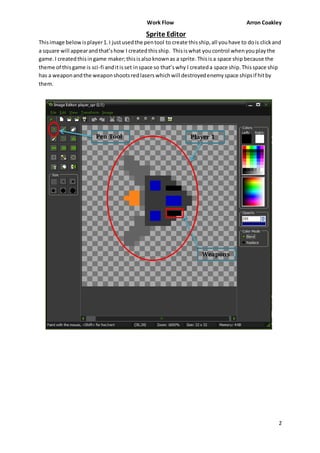
This image below is enemy 1 and I just used the pen tool to create this ship in game maker. This is 1 
out of 2 enemy ships which try to destroy you. They shoot lasers at you and if you get hit by them 
your shield bar will go down and eventually you will be destroyed. This enemy has an animation; the 
animation is a white light in the middle of the ship going around. This enemy ship has low health, if it 
is shot by your lasers once it will be destroyed instantly. 
3 
Animation: 
Pen Tool 
Animation 
Enemy 1 
Glow
Work Flow Arron Coakley 
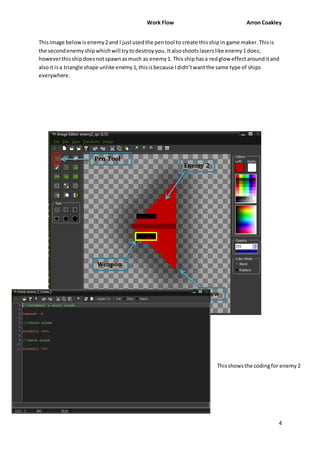
This image below is enemy 2 and I just used the pen tool to create this ship in game maker. This is 
the second enemy ship which will try to destroy you. It also shoots lasers like enemy 1 does; 
however this ship does not spawn as much as enemy 1. This ship has a red glow effect around it and 
also it is a triangle shape unlike enemy 1, this is because I didn’t want the same type of ships 
everywhere. 
4 
Pen Tool 
Weapon 
Enemy 2 
Glow 
This shows the coding for enemy 2
Work Flow Arron Coakley 
5 
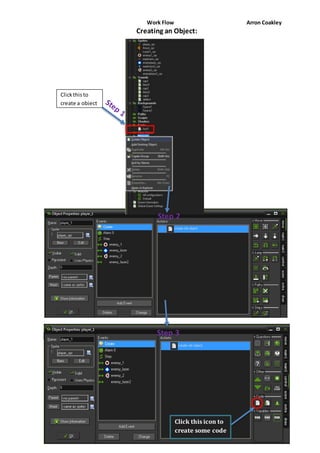
Creating an Object: 
Click this icon to 
create some code 
Click this to 
create a object 
Step 2 
Step 3
Work Flow Arron Coakley 
6 
Step 4 
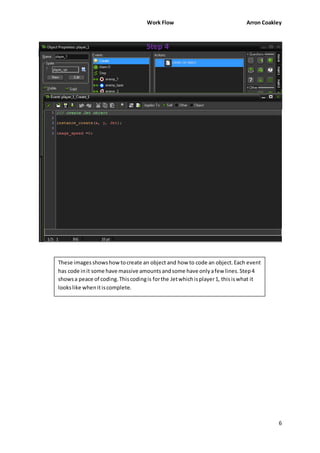
These images shows how to create an object and how to code an object. Each event 
has code in it some have massive amounts and some have only a few lines. Step 4 
shows a peace of coding. This coding is for the Jet which is player 1, this is what it 
looks like when it is complete.
Work Flow Arron Coakley 
7 
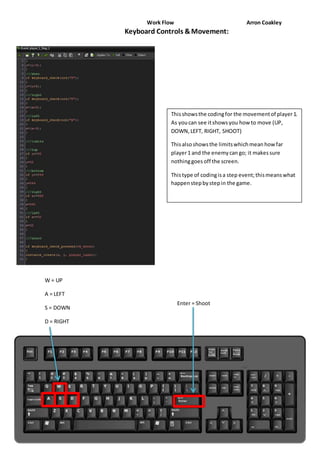
Keyboard Controls & Movement: 
Enter = Shoot 
W = UP 
A = LEFT 
S = DOWN 
D = RIGHT 
This shows the coding for the movement of player 1. 
As you can see it shows you how to move (UP, 
DOWN, LEFT, RIGHT, SHOOT) 
This also shows the limits which mean how far 
player 1 and the enemy can go; it makes sure 
nothing goes off the screen. 
This type of coding is a step event; this means what 
happen step by step in the game.
Work Flow Arron Coakley 
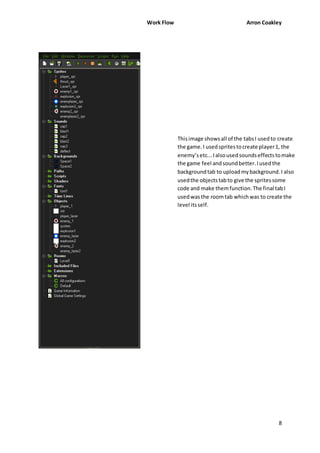
This image shows all of the tabs I used to create 
the game. I used sprites to create player 1, the 
enemy’s etc... I also used sounds effects to make 
the game feel and sound better. I used the 
background tab to upload my background. I also 
used the objects tab to give the sprites some 
code and make them function. The final tab I 
used was the room tab which was to create the 
level its self. 
8
Work Flow Arron Coakley 
9 
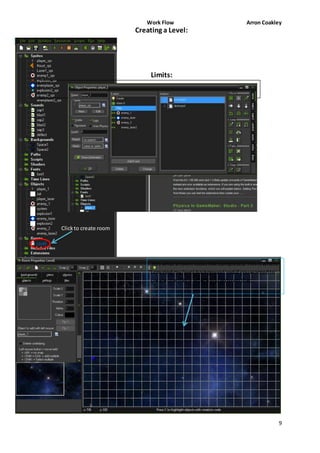
Click to create room 
Creating a Level: 
Limits: 
This what a room looks like completed. This is where 
I created my level background and if you wanted to 
create one this is where you go to do that.
Work Flow Arron Coakley 
10 
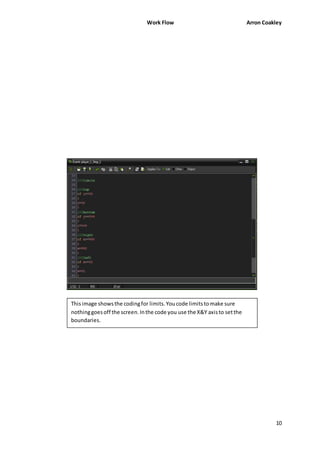
This image shows the coding for limits. You code limits to make sure 
nothing goes off the screen. In the code you use the X&Y axis to set the 
boundaries.
Work Flow Arron Coakley 
11 
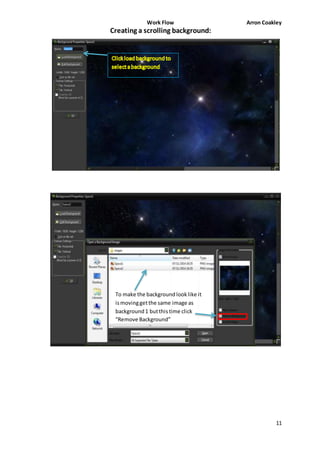
Creating a scrolling background: 
To make the background look like it 
is moving get the same image as 
background 1 but this time click 
“Remove Background”
Work Flow Arron Coakley 
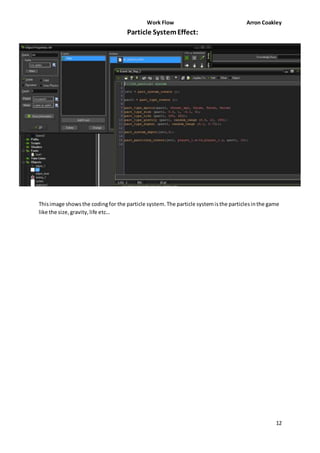
This image shows the coding for the particle system. The particle system is the particles in the game 
like the size, gravity, life etc… 
12 
Particle System Effect:
Work Flow Arron Coakley 
Player Projectile & Sound: 
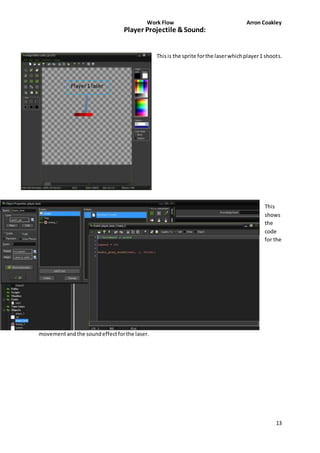
This is the sprite for the laser which player 1 shoots. 
This 
shows 
the 
code 
for the 
13 
Player 1 laser 
movement and the sound effect for the laser.
Work Flow Arron Coakley 
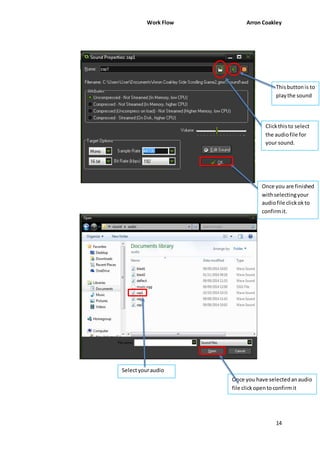
This button is to 
play the sound 
Click this to select 
the audio file for 
your sound. 
Once you are finished 
with selecting your 
audio file click ok to 
confirm it. 
Select your audio 
file Once you have selected an audio 
file click open to confirm it 
14
Work Flow Arron Coakley 
15 
Enemy Spawn & Movement: 
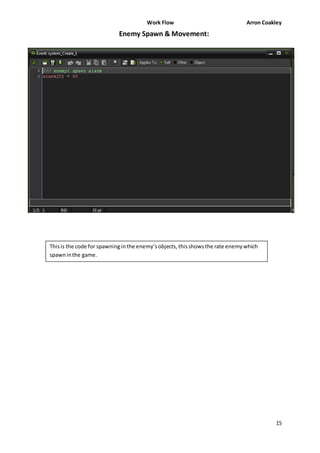
This is the code for spawning in the enemy’s objects, this shows the rate enemy which 
spawn in the game.
Work Flow Arron Coakley 
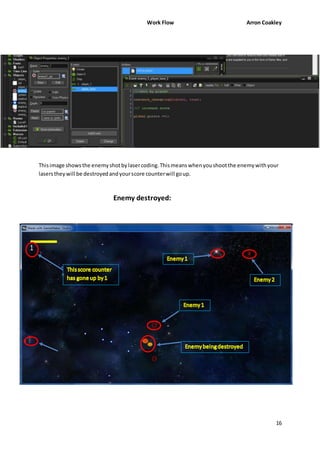
This image shows the enemy shot by laser coding. This means when you shoot the enemy with your 
lasers they will be destroyed and your score counter will go up. 
16 
Enemy destroyed:
Work Flow Arron Coakley 
17 
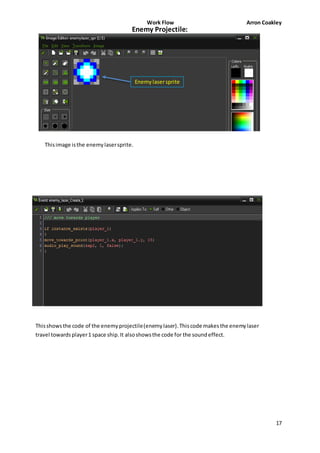
Enemy Projectile: 
Enemy laser sprite 
This image is the enemy laser sprite. 
This shows the code of the enemy projectile (enemy laser). This code makes the enemy laser 
travel towards player 1 space ship. It also shows the code for the sound effect.
Work Flow Arron Coakley 
18 
c c c 
c 
c 
c 
c 
c 
c 
c 
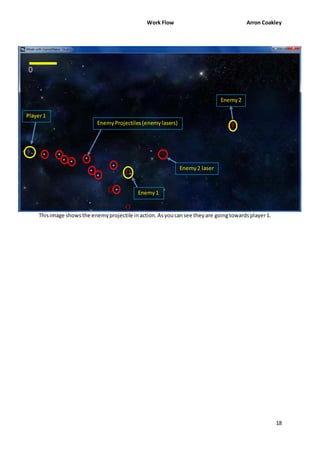
This image shows the enemy projectile in action. As you can see they are going towards player 1. 
c 
Enemy Projectiles (enemy lasers) 
Enemy 2 
Enemy 2 laser 
Enemy 1 
Player 1
Work Flow Arron Coakley 
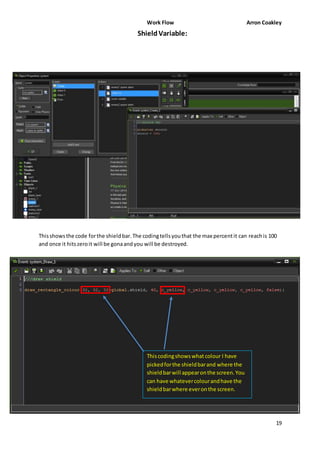
Shield Variable: 
This shows the code for the shield bar. The coding tells you that the max percent it can reach is 100 
and once it hits zero it will be gona and you will be destroyed. 
19 
This coding shows what colour I have 
picked for the shield bar and where the 
shield bar will appear on the screen. You 
can have whatever colour and have the 
shield bar where ever on the screen.
Work Flow Arron Coakley 
20 
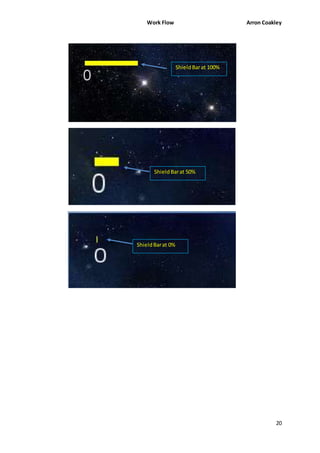
Shield Bar at 100% 
Shield Bar at 50% 
Shield Bar at 0%
Work Flow Arron Coakley 
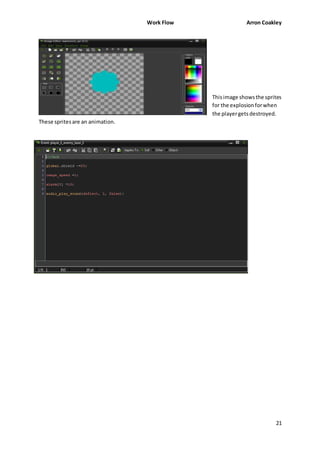
This image shows the sprites 
for the explosion for when 
the player gets destroyed. 
21 
These sprites are an animation.
Work Flow Arron Coakley 
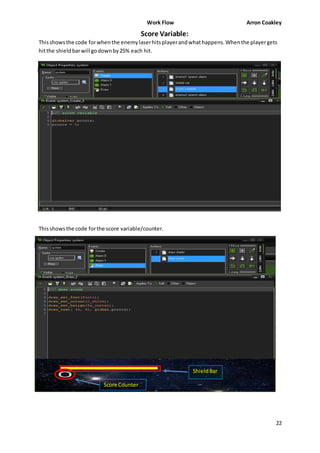
This shows the code for when the enemy laser hits player and what happens. When the player gets 
hit the shield bar will go down by 25% each hit. 
22 
Player being destroyed 
This shows the code for the score variable/counter. 
This is the code for the score 
counter, in this code it shows 
what colour, font and where 
the counter will appear. 
Score Counter 
Shield Bar 
Score Variable:
Work Flow Arron Coakley 
Overall I’m happy with the 2D game I created. There were some problems but not too many like 
misspelling in the code. However I finally solved the problems and I was able to continue making my 
game. It was hard at first but eventually it became easier because I knew what to do and how to do 
it. I have tested the final game and it works like I was hoping it would from the beginning. I enjoyed 
working on the 2D side shooter game and I learned a lot from doing this. 
23 
By Arron Coakley

My Level Design For 2D Scroll Game By Arron Coakley

  • 1.
    Work Flow ArronCoakley My idea is a sci-fi space shooter 2D game side scroll side. The background of the game is in space since I’m creating a sci-fi game. The player controls a space ship (Player 1) which shoots red lasers. I created this my self using game maker. The aim of the game is to destroy enemy ships and see how long you can survive and how high you can get the score counter. However it’s not that easy because the enemy’s ships shoot lasers at you and if you don’t avoid them your ship will be destroyed and you will have to start over again. 1 These images are taken from my 2D shooter game: This background is set in space because my game is a sci -fi game. You can also see the spaceship which you control, there is also a shield bar which is your health, when this is depleted you will be destroyed and finally you can see a score counter below the shield bar. This represents how many enemy ships you have destroyed. Score counter Player 1 Shield Bar Intro:
  • 2.
    Work Flow ArronCoakley This image below is player 1. I just used the pen tool to create this ship, all you have to do is click and a square will appear and that’s how I created this ship. This is what you control when you play the game. I created this in game maker; this is also known as a sprite. This is a space ship because the theme of this game is sci-fi and it is set in space so that’s why I created a space ship. This space ship has a weapon and the weapon shoots red lasers which will destroyed enemy space ships if hit by them. 2 Player Pen Tool 1 Weapons Sprite Editor
  • 3.
    Work Flow ArronCoakley This image below is enemy 1 and I just used the pen tool to create this ship in game maker. This is 1 out of 2 enemy ships which try to destroy you. They shoot lasers at you and if you get hit by them your shield bar will go down and eventually you will be destroyed. This enemy has an animation; the animation is a white light in the middle of the ship going around. This enemy ship has low health, if it is shot by your lasers once it will be destroyed instantly. 3 Animation: Pen Tool Animation Enemy 1 Glow
  • 4.
    Work Flow ArronCoakley This image below is enemy 2 and I just used the pen tool to create this ship in game maker. This is the second enemy ship which will try to destroy you. It also shoots lasers like enemy 1 does; however this ship does not spawn as much as enemy 1. This ship has a red glow effect around it and also it is a triangle shape unlike enemy 1, this is because I didn’t want the same type of ships everywhere. 4 Pen Tool Weapon Enemy 2 Glow This shows the coding for enemy 2
  • 5.
    Work Flow ArronCoakley 5 Creating an Object: Click this icon to create some code Click this to create a object Step 2 Step 3
  • 6.
    Work Flow ArronCoakley 6 Step 4 These images shows how to create an object and how to code an object. Each event has code in it some have massive amounts and some have only a few lines. Step 4 shows a peace of coding. This coding is for the Jet which is player 1, this is what it looks like when it is complete.
  • 7.
    Work Flow ArronCoakley 7 Keyboard Controls & Movement: Enter = Shoot W = UP A = LEFT S = DOWN D = RIGHT This shows the coding for the movement of player 1. As you can see it shows you how to move (UP, DOWN, LEFT, RIGHT, SHOOT) This also shows the limits which mean how far player 1 and the enemy can go; it makes sure nothing goes off the screen. This type of coding is a step event; this means what happen step by step in the game.
  • 8.
    Work Flow ArronCoakley This image shows all of the tabs I used to create the game. I used sprites to create player 1, the enemy’s etc... I also used sounds effects to make the game feel and sound better. I used the background tab to upload my background. I also used the objects tab to give the sprites some code and make them function. The final tab I used was the room tab which was to create the level its self. 8
  • 9.
    Work Flow ArronCoakley 9 Click to create room Creating a Level: Limits: This what a room looks like completed. This is where I created my level background and if you wanted to create one this is where you go to do that.
  • 10.
    Work Flow ArronCoakley 10 This image shows the coding for limits. You code limits to make sure nothing goes off the screen. In the code you use the X&Y axis to set the boundaries.
  • 11.
    Work Flow ArronCoakley 11 Creating a scrolling background: To make the background look like it is moving get the same image as background 1 but this time click “Remove Background”
  • 12.
    Work Flow ArronCoakley This image shows the coding for the particle system. The particle system is the particles in the game like the size, gravity, life etc… 12 Particle System Effect:
  • 13.
    Work Flow ArronCoakley Player Projectile & Sound: This is the sprite for the laser which player 1 shoots. This shows the code for the 13 Player 1 laser movement and the sound effect for the laser.
  • 14.
    Work Flow ArronCoakley This button is to play the sound Click this to select the audio file for your sound. Once you are finished with selecting your audio file click ok to confirm it. Select your audio file Once you have selected an audio file click open to confirm it 14
  • 15.
    Work Flow ArronCoakley 15 Enemy Spawn & Movement: This is the code for spawning in the enemy’s objects, this shows the rate enemy which spawn in the game.
  • 16.
    Work Flow ArronCoakley This image shows the enemy shot by laser coding. This means when you shoot the enemy with your lasers they will be destroyed and your score counter will go up. 16 Enemy destroyed:
  • 17.
    Work Flow ArronCoakley 17 Enemy Projectile: Enemy laser sprite This image is the enemy laser sprite. This shows the code of the enemy projectile (enemy laser). This code makes the enemy laser travel towards player 1 space ship. It also shows the code for the sound effect.
  • 18.
    Work Flow ArronCoakley 18 c c c c c c c c c c This image shows the enemy projectile in action. As you can see they are going towards player 1. c Enemy Projectiles (enemy lasers) Enemy 2 Enemy 2 laser Enemy 1 Player 1
  • 19.
    Work Flow ArronCoakley Shield Variable: This shows the code for the shield bar. The coding tells you that the max percent it can reach is 100 and once it hits zero it will be gona and you will be destroyed. 19 This coding shows what colour I have picked for the shield bar and where the shield bar will appear on the screen. You can have whatever colour and have the shield bar where ever on the screen.
  • 20.
    Work Flow ArronCoakley 20 Shield Bar at 100% Shield Bar at 50% Shield Bar at 0%
  • 21.
    Work Flow ArronCoakley This image shows the sprites for the explosion for when the player gets destroyed. 21 These sprites are an animation.
  • 22.
    Work Flow ArronCoakley This shows the code for when the enemy laser hits player and what happens. When the player gets hit the shield bar will go down by 25% each hit. 22 Player being destroyed This shows the code for the score variable/counter. This is the code for the score counter, in this code it shows what colour, font and where the counter will appear. Score Counter Shield Bar Score Variable:
  • 23.
    Work Flow ArronCoakley Overall I’m happy with the 2D game I created. There were some problems but not too many like misspelling in the code. However I finally solved the problems and I was able to continue making my game. It was hard at first but eventually it became easier because I knew what to do and how to do it. I have tested the final game and it works like I was hoping it would from the beginning. I enjoyed working on the 2D side shooter game and I learned a lot from doing this. 23 By Arron Coakley