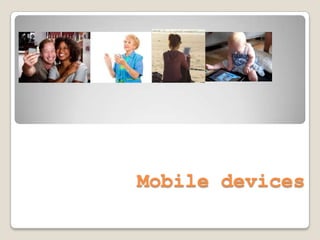
Mobile devices
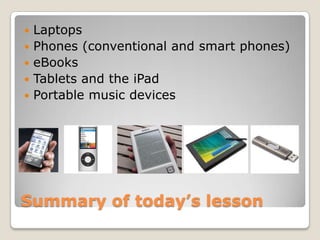
   Laptops
   Phones (conventional and smart phones)
   eBooks
   Tablets and the iPad
   Portable music devices


Summary of today’s lesson
   Laptops, phone, eBooks and tablets all
    involve connections
   Wi-Fi requires a wireless connection
   Always on requires a plan with a provider
   Some providers include Sprint, Verizon,
    AT&T and many others
   A data plan is used if your device will be
    surfing the web


CONCEPT : CONNECTING
 Operating systems determine how your device
  will work, what it will look like, and how it will
  respond
 Some operating systems include Apple, Android
  and Windows 7
 The type of operating system is dictated by the
  device (Apple = Apple OS)
 Difference between them?
    ◦   Supports flash?
    ◦   Allows Facebook chat
    ◦   Where to buy applications & apps available
    ◦   Multi tasking and 3rd party applications
    ◦   Security issues


Concept: Operating systems
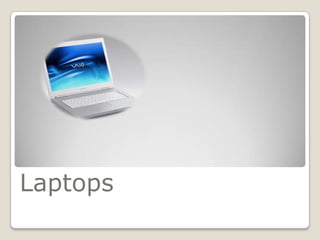
Laptops
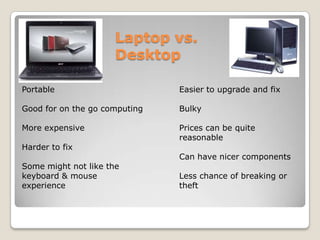
Laptop vs.
                      Desktop

Portable                       Easier to upgrade and fix

Good for on the go computing   Bulky

More expensive                 Prices can be quite
                               reasonable
Harder to fix
                               Can have nicer components
Some might not like the
keyboard & mouse               Less chance of breaking or
experience                     theft
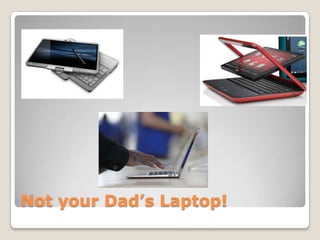
Not your Dad’s Laptop!
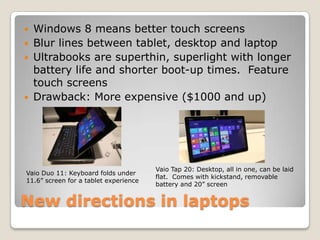
   Windows 8 means better touch screens
   Blur lines between tablet, desktop and laptop
   Ultrabooks are superthin, superlight with longer
    battery life and shorter boot-up times. Feature
    touch screens
   Drawback: More expensive ($1000 and up)


                                       Vaio Tap 20: Desktop, all in one, can be laid
Vaio Duo 11: Keyboard folds under
                                       flat. Comes with kickstand, removable
11.6” screen for a tablet experience
                                       battery and 20” screen


New directions in laptops
Phones
Conventional
               or
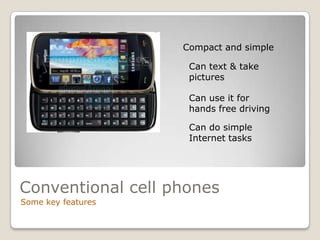
Compact and simple

                     Can text & take
                     pictures

                     Can use it for
                     hands free driving

                     Can do simple
                     Internet tasks


Conventional cell phones
Some key features
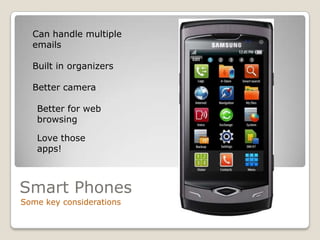
Can handle multiple
  emails

  Built in organizers

  Better camera

   Better for web
   browsing

   Love those
   apps!


Smart Phones
Some key considerations
Service Provider and plan

   Display (large / small screen)

   Input (dedicated keyboard or
   screen

   Operating system (Apple,
   Android, Windows)


Ready to buy a phone?
Consider…
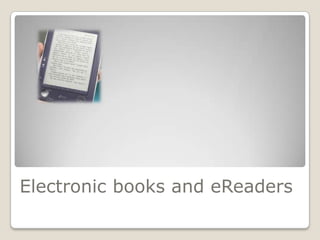
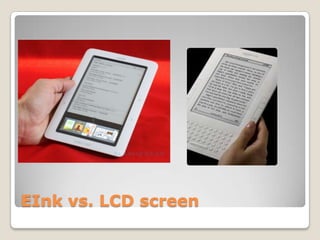
Electronic books and eReaders
 Download books, magazines, blogs from
  Internet
 Contain storage and use software to open
  & read books
 Some books require payment, others free
  (such as Library)
 Can also be used to view webpages &
  portable documents


Features of eBooks
EInk vs. LCD screen
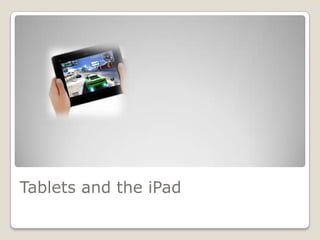
Tablets and the iPad
   Download materials and apps
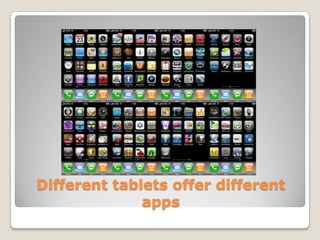
   Different tablets will use different stores
    for apps
   Also useful for e-mail & browsing the web
   Can be used for communicating by video,
    text or voice
   Can also function as eBook and mp3


Features of tablets
Tablet vs. iPad

  iPad uses only Apple
operating system, Tablet
   can use Android or
         others

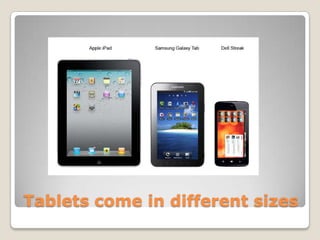
 Tablets come in many
  shapes & sizes, iPad
     basically one

  Purchase apps from
   different sources

iPad much more secure
against viruses (at this
    point at least)
Tablets come in different sizes
Different tablets offer different
              apps
Cellular or Wi-Fi only?
Music Devices
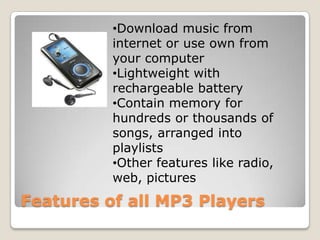
•Download music from
          internet or use own from
          your computer
          •Lightweight with
          rechargeable battery
          •Contain memory for
          hundreds or thousands of
          songs, arranged into
          playlists
          •Other features like radio,
          web, pictures
Features of all MP3 Players
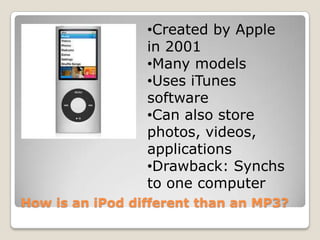
•Created by Apple
                 in 2001
                 •Many models
                 •Uses iTunes
                 software
                 •Can also store
                 photos, videos,
                 applications
                 •Drawback: Synchs
                 to one computer
How is an iPod different than an MP3?
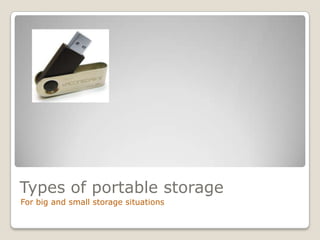
Types of portable storage
For big and small storage situations
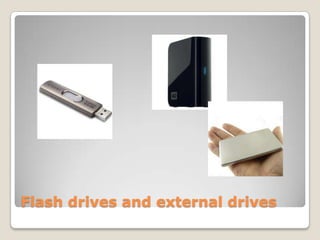
Flash drives and external drives
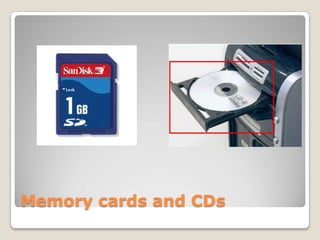
Memory cards and CDs
Online on the cloud
•Buy only if you need it
•Try it before you buy it
•Research your options
•Learn to use it
•Accept that it will become obsolete at
some point


Parting words of advice
Gadgets

Gadgets

  • 1.
  • 3.
    Laptops  Phones (conventional and smart phones)  eBooks  Tablets and the iPad  Portable music devices Summary of today’s lesson
  • 4.
    Laptops, phone, eBooks and tablets all involve connections  Wi-Fi requires a wireless connection  Always on requires a plan with a provider  Some providers include Sprint, Verizon, AT&T and many others  A data plan is used if your device will be surfing the web CONCEPT : CONNECTING
  • 5.
     Operating systemsdetermine how your device will work, what it will look like, and how it will respond  Some operating systems include Apple, Android and Windows 7  The type of operating system is dictated by the device (Apple = Apple OS)  Difference between them? ◦ Supports flash? ◦ Allows Facebook chat ◦ Where to buy applications & apps available ◦ Multi tasking and 3rd party applications ◦ Security issues Concept: Operating systems
  • 6.
  • 7.
    Laptop vs. Desktop Portable Easier to upgrade and fix Good for on the go computing Bulky More expensive Prices can be quite reasonable Harder to fix Can have nicer components Some might not like the keyboard & mouse Less chance of breaking or experience theft
  • 8.
  • 9.
    Windows 8 means better touch screens  Blur lines between tablet, desktop and laptop  Ultrabooks are superthin, superlight with longer battery life and shorter boot-up times. Feature touch screens  Drawback: More expensive ($1000 and up) Vaio Tap 20: Desktop, all in one, can be laid Vaio Duo 11: Keyboard folds under flat. Comes with kickstand, removable 11.6” screen for a tablet experience battery and 20” screen New directions in laptops
  • 10.
  • 11.
  • 12.
    Compact and simple Can text & take pictures Can use it for hands free driving Can do simple Internet tasks Conventional cell phones Some key features
  • 13.
    Can handle multiple emails Built in organizers Better camera Better for web browsing Love those apps! Smart Phones Some key considerations
  • 14.
    Service Provider andplan Display (large / small screen) Input (dedicated keyboard or screen Operating system (Apple, Android, Windows) Ready to buy a phone? Consider…
  • 15.
  • 16.
     Download books,magazines, blogs from Internet  Contain storage and use software to open & read books  Some books require payment, others free (such as Library)  Can also be used to view webpages & portable documents Features of eBooks
  • 17.
  • 18.
  • 19.
    Download materials and apps  Different tablets will use different stores for apps  Also useful for e-mail & browsing the web  Can be used for communicating by video, text or voice  Can also function as eBook and mp3 Features of tablets
  • 20.
    Tablet vs. iPad iPad uses only Apple operating system, Tablet can use Android or others Tablets come in many shapes & sizes, iPad basically one Purchase apps from different sources iPad much more secure against viruses (at this point at least)
  • 21.
    Tablets come indifferent sizes
  • 22.
  • 23.
  • 24.
  • 25.
    •Download music from internet or use own from your computer •Lightweight with rechargeable battery •Contain memory for hundreds or thousands of songs, arranged into playlists •Other features like radio, web, pictures Features of all MP3 Players
  • 26.
    •Created by Apple in 2001 •Many models •Uses iTunes software •Can also store photos, videos, applications •Drawback: Synchs to one computer How is an iPod different than an MP3?
  • 27.
    Types of portablestorage For big and small storage situations
  • 28.
    Flash drives andexternal drives
  • 29.
  • 30.
  • 31.
    •Buy only ifyou need it •Try it before you buy it •Research your options •Learn to use it •Accept that it will become obsolete at some point Parting words of advice