Microsoft®
Word 2010 Core Skills
Lesson 3: Formatting Content
Courseware #: 3240
Microsoft Office Word
2010
1
Microsoft®
Word 2010 Core Skills
Lesson 3 Objectives
•format text using bold, italics and
underline
•change the font, font size and font color of
text
•adjust the character spacing or position
© CCI Learning Solutions Inc. 2
Microsoft®
Word 2010 Core Skills
Formatting Text
•Once you have typed text in a document, you can
format the text to change its appearance and make an
impact on the reader
•When creating a document you should consider what
kind of impression you want the text to make
– Do you want the document to look formal or casual?
•Designs of type are called fonts
•Font formatting is the appearance, size, and
attributes of text. Any feature that changes appearance
of characters on screen or print
© CCI Learning Solutions Inc. 3
Microsoft®
Word 2010 Core Skills
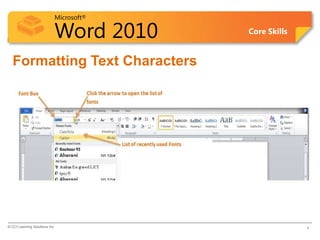
Formatting Text Characters
© CCI Learning Solutions Inc. 4
Microsoft®
Word 2010 Core Skills
Formatting Characters
Font Describes typeface or appearance of
characters on screen and in print.
Font Size Refers to height of characters.
Character
Formatting
Refers to special stylized variations
applied to plain characters to make them
stand out from other text.
Effects Special effects added to text.
© CCI Learning Solutions Inc. 5
Microsoft®
Word 2010 Core Skills
Formatting Characters
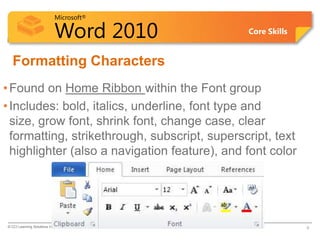
•Found on Home Ribbon within the Font group
•Includes: bold, italics, underline, font type and
size, grow font, shrink font, change case, clear
formatting, strikethrough, subscript, superscript, text
highlighter (also a navigation feature), and font color
© CCI Learning Solutions Inc. 6
Microsoft®
Word 2010 Core Skills
Formatting Characters
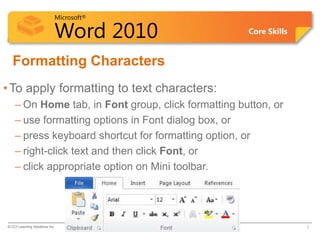
•To apply formatting to text characters:
– On Home tab, in Font group, click formatting button, or
– use formatting options in Font dialog box, or
– press keyboard shortcut for formatting option, or
– right-click text and then click Font, or
– click appropriate option on Mini toolbar.
© CCI Learning Solutions Inc. 7
Microsoft®
Word 2010 Core Skills
Formatting Characters
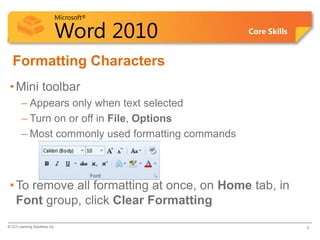
•Mini toolbar
– Appears only when text selected
– Turn on or off in File, Options
– Most commonly used formatting commands
•To remove all formatting at once, on Home tab, in
Font group, click Clear Formatting
© CCI Learning Solutions Inc. 8
Microsoft®
Word 2010 Core Skills
Changing the Font Size
•Font size is determined by measuring the height of
characters in units called points
–Standard font sizes for text are 10, 11, & 12 points
•The higher the point size, the larger the characters
•Font sizes for headings are usually larger than other
font
© CCI Learning Solutions Inc. 9
Microsoft®
Word 2010 Core Skills
Changing the Font Size
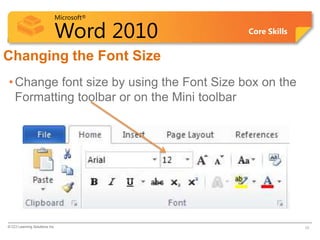
•Change font size by using the Font Size box on the
Formatting toolbar or on the Mini toolbar
© CCI Learning Solutions Inc. 10
Microsoft®
Word 2010 Core Skills
Changing the Font Color
•You can change the color of text to make it stand out
or to add interest to a document
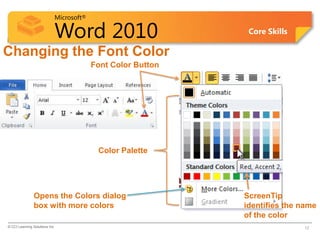
•Click the arrow next to the Font Color button in the
Font group on the Home Tab
–Opens a gallery that includes the Color Palette – a
coordinated set of colors available for use in the
document
© CCI Learning Solutions Inc. 11
Microsoft®
Word 2010 Core Skills
Changing the Font Color
© CCI Learning Solutions Inc. 12
Font Color Button
Color Palette
ScreenTip
identifies the name
of the color
Opens the Colors dialog
box with more colors
Microsoft®
Word 2010 Core Skills
Changing the Font Style
•Font Style is a formatting feature you can apply to a
font to change its appearance
–Common font styles are bold, italic, and underline
© CCI Learning Solutions Inc. 13
Bold
Italics
Underline These font styles are also
available on the Mini toolbar
Microsoft®
Word 2010 Core Skills
Changing the Underline Style & Color
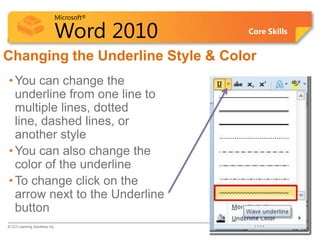
•You can change the
underline from one line to
multiple lines, dotted
line, dashed lines, or
another style
•You can also change the
color of the underline
•To change click on the
arrow next to the Underline
button
© CCI Learning Solutions Inc. 14
Microsoft®
Word 2010 Core Skills
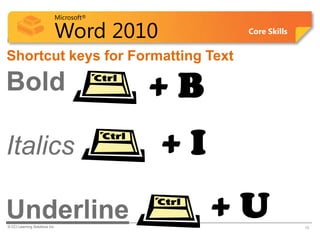
Shortcut keys for Formatting Text
© CCI Learning Solutions Inc. 15
+ I
Bold
Italics
Underline
+ B
+ U
Microsoft®
Word 2010 Core Skills
Learn the Skill (p. 57)
•In this exercise, you will look at both
methods of applying formatting
features, using options from the Font
group as well as the Mini Toolbar
•You will need Tolano Adventures
Employee List to complete the exercise
© CCI Learning Solutions Inc. 16
Microsoft®
Word 2010 Core Skills
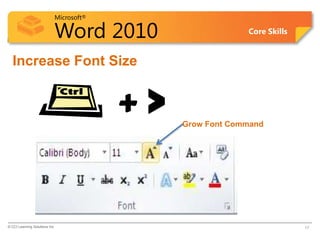
Increase Font Size
© CCI Learning Solutions Inc. 17
+ > Grow Font Command
Microsoft®
Word 2010 Core Skills
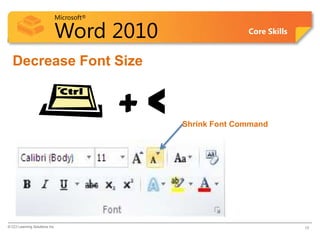
Decrease Font Size
© CCI Learning Solutions Inc. 18
+ < Shrink Font Command
Microsoft®
Word 2010 Core Skills
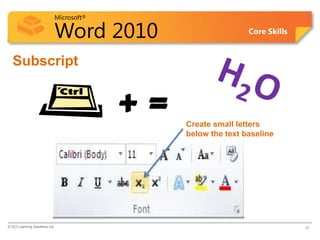
Subscript
© CCI Learning Solutions Inc. 19
+ = Create small letters
below the text baseline
Microsoft®
Word 2010 Core Skills
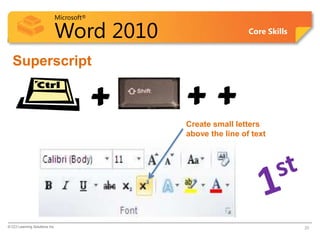
Superscript
© CCI Learning Solutions Inc. 20
+
Create small letters
above the line of text
+ +
Microsoft®
Word 2010 Core Skills
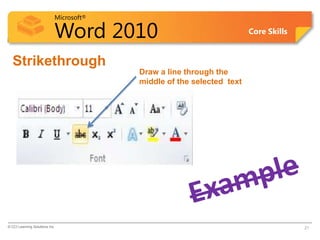
Strikethrough
© CCI Learning Solutions Inc. 21
Draw a line through the
middle of the selected text
Microsoft®
Word 2010 Core Skills
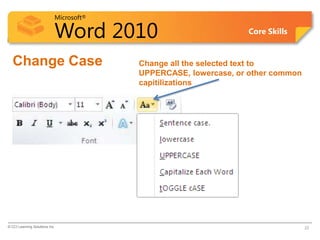
Change Case
© CCI Learning Solutions Inc. 22
Change all the selected text to
UPPERCASE, lowercase, or other common
capitilizations
Microsoft®
Word 2010 Core Skills
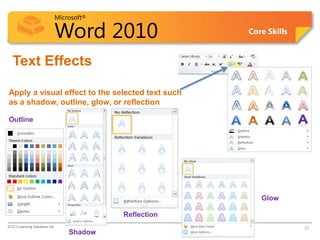
Text Effects
© CCI Learning Solutions Inc. 23
Apply a visual effect to the selected text such
as a shadow, outline, glow, or reflection
Outline
Shadow
Reflection
Glow
Microsoft®
Word 2010 Core Skills
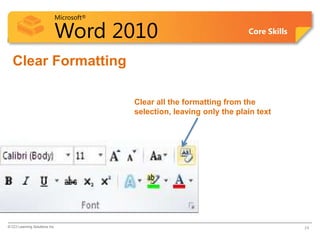
Clear Formatting
© CCI Learning Solutions Inc. 24
Clear all the formatting from the
selection, leaving only the plain text
Microsoft®
Word 2010 Core Skills
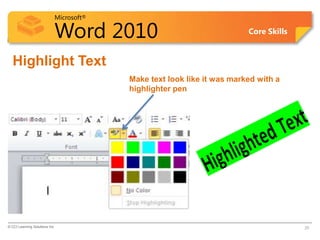
Highlight Text
© CCI Learning Solutions Inc. 25
Make text look like it was marked with a
highlighter pen
Microsoft®
Word 2010 Core Skills
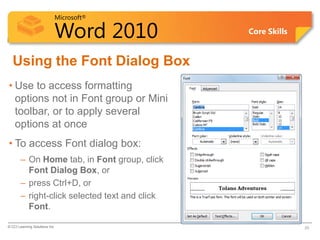
Using the Font Dialog Box
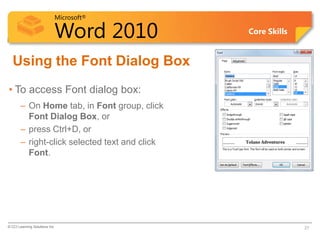
• Use to access formatting
options not in Font group or Mini
toolbar, or to apply several
options at once
• To access Font dialog box:
– On Home tab, in Font group, click
Font Dialog Box, or
– press Ctrl+D, or
– right-click selected text and click
Font.
© CCI Learning Solutions Inc. 26
Microsoft®
Word 2010 Core Skills
Using the Font Dialog Box
• To access Font dialog box:
– On Home tab, in Font group, click
Font Dialog Box, or
– press Ctrl+D, or
– right-click selected text and click
Font.
© CCI Learning Solutions Inc. 27
Microsoft®
Word 2010 Core Skills
Using the Font Dialog
Box
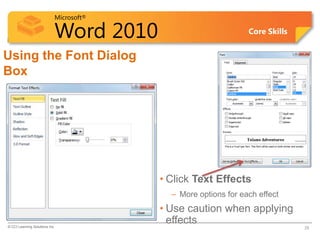
• Click Text Effects
– More options for each effect
• Use caution when applying
effects
© CCI Learning Solutions Inc. 28
Microsoft®
Word 2010 Core Skills
Learn the Skill (p. 59-60)
•In this exercise, you will practice
formatting text using the Font
command in the Tolano Adventures
Employee List document
© CCI Learning Solutions Inc. 29
Microsoft®
Word 2010 Core Skills
Changing the Character Spacing
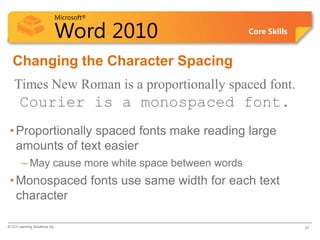
Times New Roman is a proportionally spaced font.
Courier is a monospaced font.
•Proportionally spaced fonts make reading large
amounts of text easier
– May cause more white space between words
•Monospaced fonts use same width for each text
character
© CCI Learning Solutions Inc. 30
Microsoft®
Word 2010 Core Skills
Changing the Character Spacing
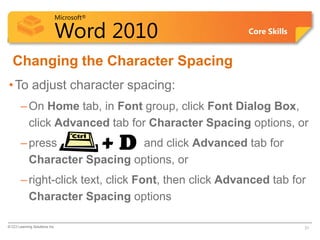
•To adjust character spacing:
–On Home tab, in Font group, click Font Dialog Box,
click Advanced tab for Character Spacing options, or
–press and click Advanced tab for
Character Spacing options, or
–right-click text, click Font, then click Advanced tab for
Character Spacing options
© CCI Learning Solutions Inc. 31
+ D
Microsoft®
Word 2010 Core Skills
Changing the Character Spacing
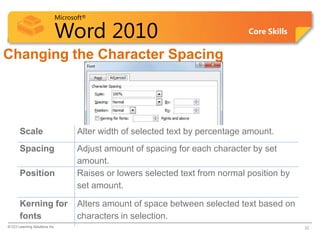
Scale Alter width of selected text by percentage amount.
Spacing Adjust amount of spacing for each character by set
amount.
Position Raises or lowers selected text from normal position by
set amount.
Kerning for
fonts
Alters amount of space between selected text based on
characters in selection.
© CCI Learning Solutions Inc. 32
Microsoft®
Word 2010 Core Skills
Learn the Skill
•In this exercise, you will adjust the
character spacing for the title in the
Tolano Adventures employee list.
© CCI Learning Solutions Inc. 33

font size type colour.pdf

  • 1.
    Microsoft® Word 2010 CoreSkills Lesson 3: Formatting Content Courseware #: 3240 Microsoft Office Word 2010 1
  • 2.
    Microsoft® Word 2010 CoreSkills Lesson 3 Objectives •format text using bold, italics and underline •change the font, font size and font color of text •adjust the character spacing or position © CCI Learning Solutions Inc. 2
  • 3.
    Microsoft® Word 2010 CoreSkills Formatting Text •Once you have typed text in a document, you can format the text to change its appearance and make an impact on the reader •When creating a document you should consider what kind of impression you want the text to make – Do you want the document to look formal or casual? •Designs of type are called fonts •Font formatting is the appearance, size, and attributes of text. Any feature that changes appearance of characters on screen or print © CCI Learning Solutions Inc. 3
  • 4.
    Microsoft® Word 2010 CoreSkills Formatting Text Characters © CCI Learning Solutions Inc. 4
  • 5.
    Microsoft® Word 2010 CoreSkills Formatting Characters Font Describes typeface or appearance of characters on screen and in print. Font Size Refers to height of characters. Character Formatting Refers to special stylized variations applied to plain characters to make them stand out from other text. Effects Special effects added to text. © CCI Learning Solutions Inc. 5
  • 6.
    Microsoft® Word 2010 CoreSkills Formatting Characters •Found on Home Ribbon within the Font group •Includes: bold, italics, underline, font type and size, grow font, shrink font, change case, clear formatting, strikethrough, subscript, superscript, text highlighter (also a navigation feature), and font color © CCI Learning Solutions Inc. 6
  • 7.
    Microsoft® Word 2010 CoreSkills Formatting Characters •To apply formatting to text characters: – On Home tab, in Font group, click formatting button, or – use formatting options in Font dialog box, or – press keyboard shortcut for formatting option, or – right-click text and then click Font, or – click appropriate option on Mini toolbar. © CCI Learning Solutions Inc. 7
  • 8.
    Microsoft® Word 2010 CoreSkills Formatting Characters •Mini toolbar – Appears only when text selected – Turn on or off in File, Options – Most commonly used formatting commands •To remove all formatting at once, on Home tab, in Font group, click Clear Formatting © CCI Learning Solutions Inc. 8
  • 9.
    Microsoft® Word 2010 CoreSkills Changing the Font Size •Font size is determined by measuring the height of characters in units called points –Standard font sizes for text are 10, 11, & 12 points •The higher the point size, the larger the characters •Font sizes for headings are usually larger than other font © CCI Learning Solutions Inc. 9
  • 10.
    Microsoft® Word 2010 CoreSkills Changing the Font Size •Change font size by using the Font Size box on the Formatting toolbar or on the Mini toolbar © CCI Learning Solutions Inc. 10
  • 11.
    Microsoft® Word 2010 CoreSkills Changing the Font Color •You can change the color of text to make it stand out or to add interest to a document •Click the arrow next to the Font Color button in the Font group on the Home Tab –Opens a gallery that includes the Color Palette – a coordinated set of colors available for use in the document © CCI Learning Solutions Inc. 11
  • 12.
    Microsoft® Word 2010 CoreSkills Changing the Font Color © CCI Learning Solutions Inc. 12 Font Color Button Color Palette ScreenTip identifies the name of the color Opens the Colors dialog box with more colors
  • 13.
    Microsoft® Word 2010 CoreSkills Changing the Font Style •Font Style is a formatting feature you can apply to a font to change its appearance –Common font styles are bold, italic, and underline © CCI Learning Solutions Inc. 13 Bold Italics Underline These font styles are also available on the Mini toolbar
  • 14.
    Microsoft® Word 2010 CoreSkills Changing the Underline Style & Color •You can change the underline from one line to multiple lines, dotted line, dashed lines, or another style •You can also change the color of the underline •To change click on the arrow next to the Underline button © CCI Learning Solutions Inc. 14
  • 15.
    Microsoft® Word 2010 CoreSkills Shortcut keys for Formatting Text © CCI Learning Solutions Inc. 15 + I Bold Italics Underline + B + U
  • 16.
    Microsoft® Word 2010 CoreSkills Learn the Skill (p. 57) •In this exercise, you will look at both methods of applying formatting features, using options from the Font group as well as the Mini Toolbar •You will need Tolano Adventures Employee List to complete the exercise © CCI Learning Solutions Inc. 16
  • 17.
    Microsoft® Word 2010 CoreSkills Increase Font Size © CCI Learning Solutions Inc. 17 + > Grow Font Command
  • 18.
    Microsoft® Word 2010 CoreSkills Decrease Font Size © CCI Learning Solutions Inc. 18 + < Shrink Font Command
  • 19.
    Microsoft® Word 2010 CoreSkills Subscript © CCI Learning Solutions Inc. 19 + = Create small letters below the text baseline
  • 20.
    Microsoft® Word 2010 CoreSkills Superscript © CCI Learning Solutions Inc. 20 + Create small letters above the line of text + +
  • 21.
    Microsoft® Word 2010 CoreSkills Strikethrough © CCI Learning Solutions Inc. 21 Draw a line through the middle of the selected text
  • 22.
    Microsoft® Word 2010 CoreSkills Change Case © CCI Learning Solutions Inc. 22 Change all the selected text to UPPERCASE, lowercase, or other common capitilizations
  • 23.
    Microsoft® Word 2010 CoreSkills Text Effects © CCI Learning Solutions Inc. 23 Apply a visual effect to the selected text such as a shadow, outline, glow, or reflection Outline Shadow Reflection Glow
  • 24.
    Microsoft® Word 2010 CoreSkills Clear Formatting © CCI Learning Solutions Inc. 24 Clear all the formatting from the selection, leaving only the plain text
  • 25.
    Microsoft® Word 2010 CoreSkills Highlight Text © CCI Learning Solutions Inc. 25 Make text look like it was marked with a highlighter pen
  • 26.
    Microsoft® Word 2010 CoreSkills Using the Font Dialog Box • Use to access formatting options not in Font group or Mini toolbar, or to apply several options at once • To access Font dialog box: – On Home tab, in Font group, click Font Dialog Box, or – press Ctrl+D, or – right-click selected text and click Font. © CCI Learning Solutions Inc. 26
  • 27.
    Microsoft® Word 2010 CoreSkills Using the Font Dialog Box • To access Font dialog box: – On Home tab, in Font group, click Font Dialog Box, or – press Ctrl+D, or – right-click selected text and click Font. © CCI Learning Solutions Inc. 27
  • 28.
    Microsoft® Word 2010 CoreSkills Using the Font Dialog Box • Click Text Effects – More options for each effect • Use caution when applying effects © CCI Learning Solutions Inc. 28
  • 29.
    Microsoft® Word 2010 CoreSkills Learn the Skill (p. 59-60) •In this exercise, you will practice formatting text using the Font command in the Tolano Adventures Employee List document © CCI Learning Solutions Inc. 29
  • 30.
    Microsoft® Word 2010 CoreSkills Changing the Character Spacing Times New Roman is a proportionally spaced font. Courier is a monospaced font. •Proportionally spaced fonts make reading large amounts of text easier – May cause more white space between words •Monospaced fonts use same width for each text character © CCI Learning Solutions Inc. 30
  • 31.
    Microsoft® Word 2010 CoreSkills Changing the Character Spacing •To adjust character spacing: –On Home tab, in Font group, click Font Dialog Box, click Advanced tab for Character Spacing options, or –press and click Advanced tab for Character Spacing options, or –right-click text, click Font, then click Advanced tab for Character Spacing options © CCI Learning Solutions Inc. 31 + D
  • 32.
    Microsoft® Word 2010 CoreSkills Changing the Character Spacing Scale Alter width of selected text by percentage amount. Spacing Adjust amount of spacing for each character by set amount. Position Raises or lowers selected text from normal position by set amount. Kerning for fonts Alters amount of space between selected text based on characters in selection. © CCI Learning Solutions Inc. 32
  • 33.
    Microsoft® Word 2010 CoreSkills Learn the Skill •In this exercise, you will adjust the character spacing for the title in the Tolano Adventures employee list. © CCI Learning Solutions Inc. 33