OBJECTIVES
At the end of this course, the participants would be able to:
• Work with documents and save them in different file formats.
• Choose built-in options, such as the Help function, to enhance
productivity.
• Recognize good practice in choosing the appropriate formatting
options.
• Insert tables, images, and drawn objects into documents.
• Adjust document page settings.
• Check and correct spelling before finally printing documents.
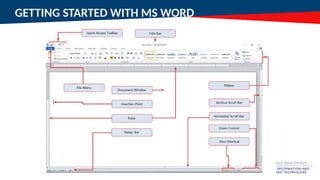
GETTING STARTED WITH MS WORD
•Word processors offer you the
flexibility to format documents
by making changes to the font,
the page layout, the colors and
the page style.
GETTING STARTED WITH MS WORD
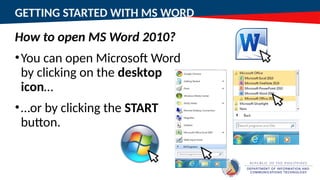
How to open MS Word 2010?
•You can open Microsoft Word
by clicking on the desktop
icon…
•…or by clicking the START
button.
GETTING STARTED WITH MS WORD
THE RIBBON
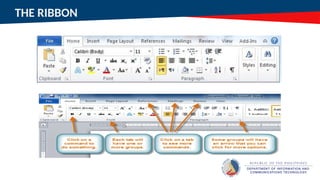
THE RIBBON
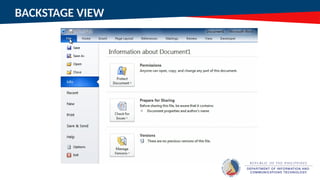
BACKSTAGE VIEW
BACKSTAGE VIEW
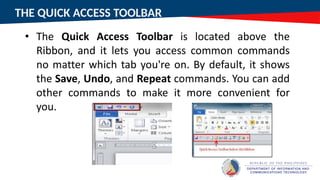
THE QUICK ACCESS TOOLBAR
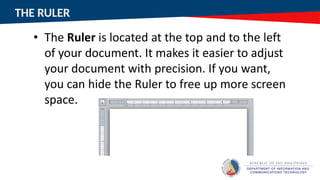
THE RULER
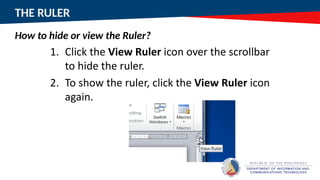
THE RULER
How to hide or view the Ruler?
WHAT IS A DOCUMENT?
CREATING AND OPENING DOCUMENTS
How to create a new, blank document?
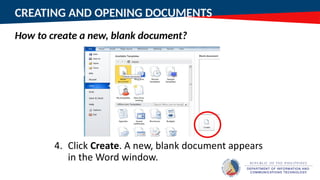
CREATING AND OPENING DOCUMENTS
How to create a new, blank document?
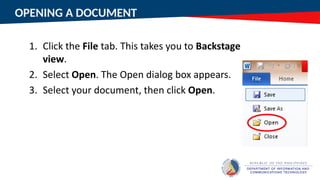
OPENING A DOCUMENT
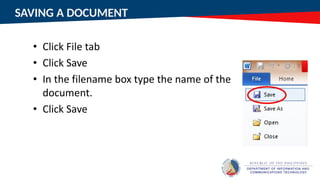
SAVING A DOCUMENT
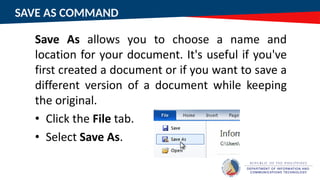
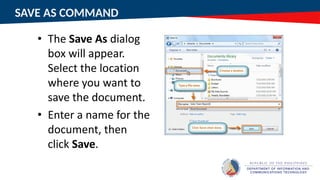
SAVE AS COMMAND
SAVE AS COMMAND
TEXT BASICS
TEXT BASICS
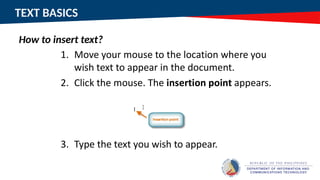
How to insert text?
TEXT BASICS
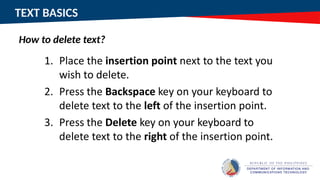
How to delete text?
TEXT BASICS
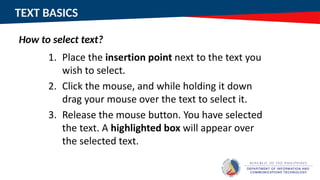
How to select text?
TEXT BASICS
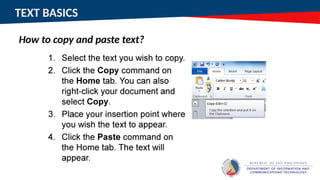
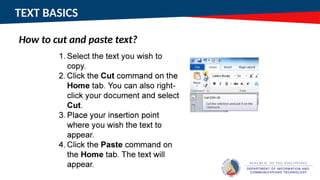
How to copy and paste text?
TEXT BASICS
How to cut and paste text?
FORMATTING TEXT
FORMATTING TEXT
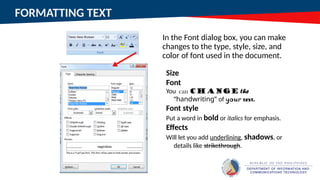
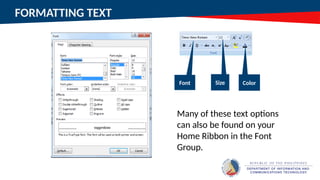
In the Font dialog box, you can make
changes to the type, style, size, and
color of font used in the document.
Size
Font
You can change the
“handwriting” of your text.
Font style
Put a word in bold or italics for emphasis.
Effects
Will let you add underlining, shadows, or
details like strikethrough.
FORMATTING TEXT
FORMATTING TEXT
Many of these text options
can also be found on your
Home Ribbon in the Font
Group.
Font Size Color
FORMATTING TEXT
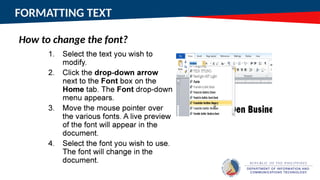
How to change the font?
FORMATTING TEXT
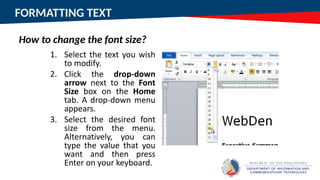
How to change the font size?
FORMATTING TEXT
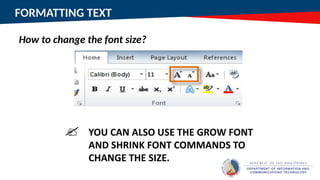
How to change the font size?
FORMATTING TEXT
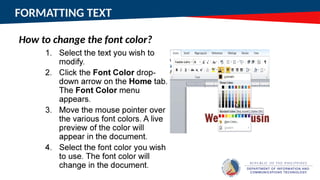
How to change the font color?
FORMATTING TEXT
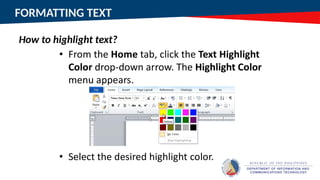
How to highlight text?
FORMATTING TEXT
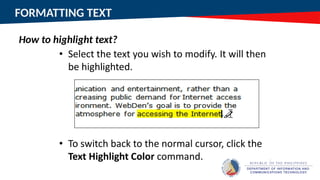
How to highlight text?
FORMATTING TEXT
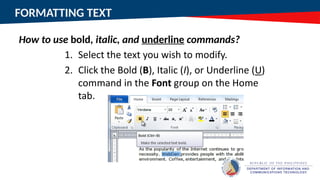
How to use bold, italic, and underline commands?
FORMATTING TEXT
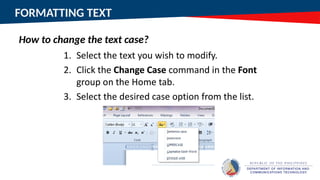
How to change the text case?
FORMATTING TEXT
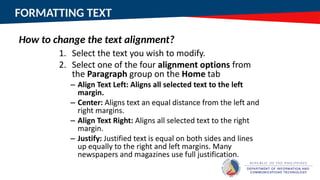
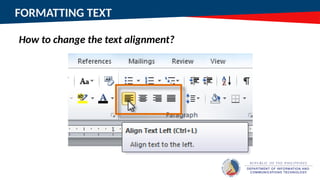
How to change the text alignment?
FORMATTING TEXT
How to change the text alignment?
MODIFYING PAGE LAYOUT
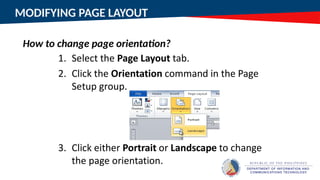
How to change page orientation?
MODIFYING PAGE LAYOUT
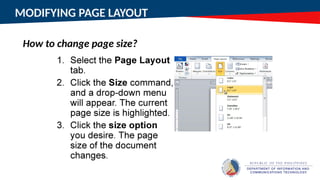
How to change page size?
MODIFYING PAGE LAYOUT
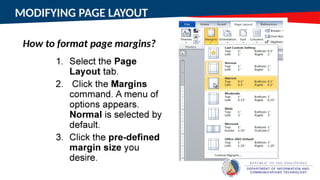
How to format page margins?
MODIFYING PAGE LAYOUT
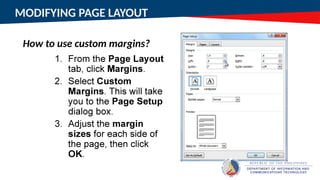
How to use custom margins?
WORKING WITH COLUMNS
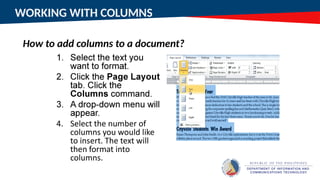
How to add columns to a document?
WORKING WITH COLUMNS
How to add columns breaks?
INSERTING CLIP ART AND PICTURES
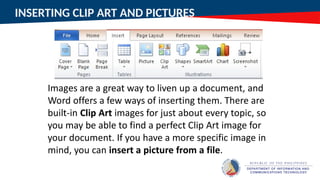
How to insert clip art?
INSERTING CLIP ART AND PICTURES
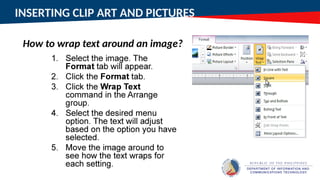
How to wrap text around an image?
WORKING WITH HEADERS AND FOOTERS
How to insert a header or footer?
WORKING WITH HEADERS AND FOOTERS
How to insert a header or footer?
WORKING WITH TABLES
WORKING WITH TABLES
How to insert a blank table?
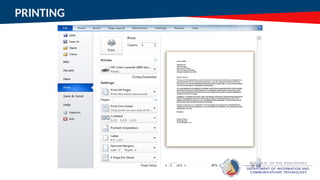
PRINTING
PRINTING
How to view the print pane?
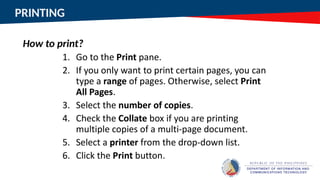
PRINTING
PRINTING
How to print?
INSET 2020
Thank you!
REFERENCE: https://support.office.com/

Module 2 - Microsoft Word Document.pptx

Editor's Notes

  • #1 MS Office Program have a lot of applications, in this time of our session, I will show and discuss to you how to use one of the Microsoft Office programs in work processing.  
  • #2 As an educator of our learners, we must be prepared in using Microsoft Programs and apps for us to deliver high quality education by manipulating some of available ICT equipment we have now like our desktops/laptops.
  • #3 Let’s expand our skills in word processing and I hope active participation from all of you. And now let’s apply the learned commands and skills in Microsoft Word Processor to make a relevant printed output.