MS Word 2010
-
Formatting Text
Lesson 3
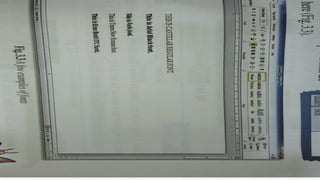
• The process of applying font style, color, size is called as text
formatting.
• In MS Word 2010, default font style is ‘Calibri’ and font size
is ‘11’.
• To apply the formatting follow the steps,
1. Select the desired text.
2. Select any option from Font group of Home tab.
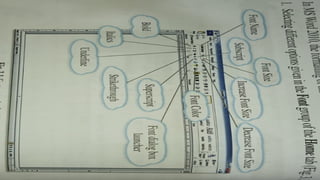
• Different options of Font group are as follows,
• Font name
• Font size
• Strike through
• Increase Font Size
• Decrease Font Size
Formatting Text
• Font color
• Bold
• Italic
• Underline
• Subscript & Superscript
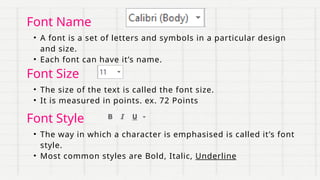
Font Name
• A font is a set of letters and symbols in a particular design
and size.
• Each font can have it’s name.
Font Size
• The size of the text is called the font size.
• It is measured in points. ex. 72 Points
Font Style
• The way in which a character is emphasised is called it’s font
style.
• Most common styles are Bold, Italic, Underline
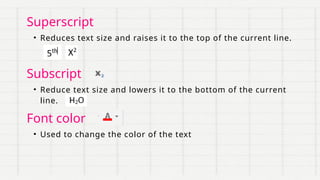
Subscript
Superscript
• Reduces text size and raises it to the top of the current line.
• Reduce text size and lowers it to the bottom of the current
line.
Font color
• Used to change the color of the text
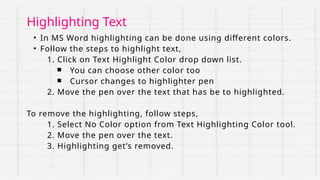
Highlighting Text
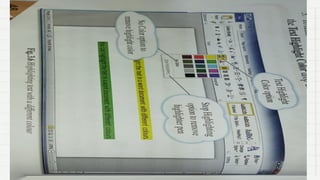
• In MS Word highlighting can be done using different colors.
• Follow the steps to highlight text,
1. Click on Text Highlight Color drop down list.
■ You can choose other color too
■ Cursor changes to highlighter pen
2. Move the pen over the text that has be to highlighted.
To remove the highlighting, follow steps,
1. Select No Color option from Text Highlighting Color tool.
2. Move the pen over the text.
3. Highlighting get’s removed.
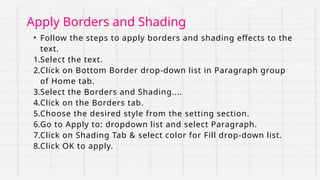
Apply Borders and Shading
• Follow the steps to apply borders and shading effects to the
text.
1.Select the text.
2.Click on Bottom Border drop-down list in Paragraph group
of Home tab.
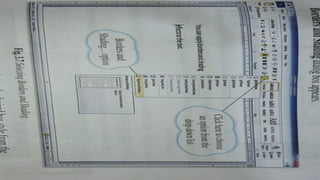
3.Select the Borders and Shading....
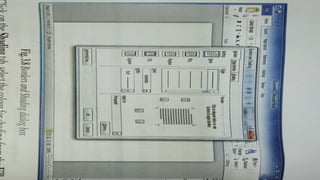
4.Click on the Borders tab.
5.Choose the desired style from the setting section.
6.Go to Apply to: dropdown list and select Paragraph.
7.Click on Shading Tab & select color for Fill drop-down list.
8.Click OK to apply.
Text Alignment
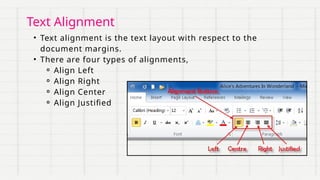
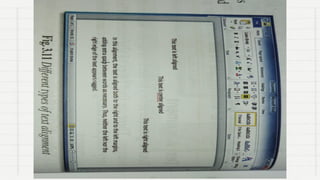
• Text alignment is the text layout with respect to the
document margins.
• There are four types of alignments,
⚬ Align Left
⚬ Align Right
⚬ Align Center
⚬ Align Justified
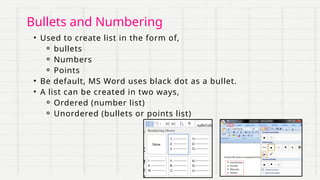
• Used to create list in the form of,
⚬ bullets
⚬ Numbers
⚬ Points
• Be default, MS Word uses black dot as a bullet.
• A list can be created in two ways,
⚬ Ordered (number list)
⚬ Unordered (bullets or points list)
Bullets and Numbering
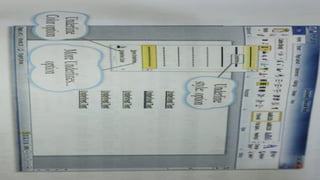
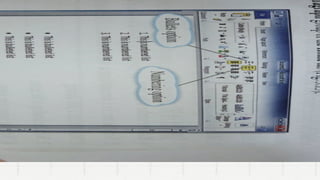
• You can create a list by typing or by using already available
lines of text.
⚬ Create list as you type
⚬ Create list for existing text
(I) Create List as you type
1. To start a numbered list, type ‘1.’ and press the Space bar
or Tab key.
2. To start a bulleted list, type * (asterisk) and press Space
bar or Tab key.
3. Press the Enter key to add new item to the list.
Creating new list (Bulleted or Numbered)
(II) Creating list for existing text
1. Select the text.
2. Select the style of list (bulleted or numbered) from the
Paragraph group of the Home tab.
3. The list will be created.
Creating new list (Bulleted or Numbered)
1.Make text bold - [ Ctrl + B ]
2.Make text italic - [ Ctrl + I ]
3.Make text underline - [ Ctrl + U ]
4.Apply subscript - [ Ctrl + = ]
5.Apply superscript - [ Ctrl + Shift + = ]
6.Clear formatting - [ Ctrl + Space bar ]
7.Align left - [ Ctrl + L ]
8.Align Right - [ Ctrl + R ]
9.Align Center - [ Ctrl + C ]
10.Align Justified - [ Ctrl + J ]
11.Open font dialog box - [ Ctrl + D ]
12.Increase font size - Ctrl + ]
13.Decrease font size - Ctrl + [
QUICK KEYS
Tasks
01 02
Change
fonts style,
size, color
Highlight
text
03
Borders and
shading
04
Text
alignment
Left, Right,
Center,
Justified
04
Bullets and
Numbering
list
Power Point Presentation on MS Word 2010

Power Point Presentation on MS Word 2010

  • 1.
  • 2.
    • The processof applying font style, color, size is called as text formatting. • In MS Word 2010, default font style is ‘Calibri’ and font size is ‘11’. • To apply the formatting follow the steps, 1. Select the desired text. 2. Select any option from Font group of Home tab. • Different options of Font group are as follows, • Font name • Font size • Strike through • Increase Font Size • Decrease Font Size Formatting Text • Font color • Bold • Italic • Underline • Subscript & Superscript
  • 4.
    Font Name • Afont is a set of letters and symbols in a particular design and size. • Each font can have it’s name. Font Size • The size of the text is called the font size. • It is measured in points. ex. 72 Points Font Style • The way in which a character is emphasised is called it’s font style. • Most common styles are Bold, Italic, Underline
  • 7.
    Subscript Superscript • Reduces textsize and raises it to the top of the current line. • Reduce text size and lowers it to the bottom of the current line. Font color • Used to change the color of the text
  • 9.
    Highlighting Text • InMS Word highlighting can be done using different colors. • Follow the steps to highlight text, 1. Click on Text Highlight Color drop down list. ■ You can choose other color too ■ Cursor changes to highlighter pen 2. Move the pen over the text that has be to highlighted. To remove the highlighting, follow steps, 1. Select No Color option from Text Highlighting Color tool. 2. Move the pen over the text. 3. Highlighting get’s removed.
  • 10.
    Apply Borders andShading • Follow the steps to apply borders and shading effects to the text. 1.Select the text. 2.Click on Bottom Border drop-down list in Paragraph group of Home tab. 3.Select the Borders and Shading.... 4.Click on the Borders tab. 5.Choose the desired style from the setting section. 6.Go to Apply to: dropdown list and select Paragraph. 7.Click on Shading Tab & select color for Fill drop-down list. 8.Click OK to apply.
  • 13.
    Text Alignment • Textalignment is the text layout with respect to the document margins. • There are four types of alignments, ⚬ Align Left ⚬ Align Right ⚬ Align Center ⚬ Align Justified
  • 15.
    • Used tocreate list in the form of, ⚬ bullets ⚬ Numbers ⚬ Points • Be default, MS Word uses black dot as a bullet. • A list can be created in two ways, ⚬ Ordered (number list) ⚬ Unordered (bullets or points list) Bullets and Numbering
  • 16.
    • You cancreate a list by typing or by using already available lines of text. ⚬ Create list as you type ⚬ Create list for existing text (I) Create List as you type 1. To start a numbered list, type ‘1.’ and press the Space bar or Tab key. 2. To start a bulleted list, type * (asterisk) and press Space bar or Tab key. 3. Press the Enter key to add new item to the list. Creating new list (Bulleted or Numbered)
  • 17.
    (II) Creating listfor existing text 1. Select the text. 2. Select the style of list (bulleted or numbered) from the Paragraph group of the Home tab. 3. The list will be created. Creating new list (Bulleted or Numbered)
  • 19.
    1.Make text bold- [ Ctrl + B ] 2.Make text italic - [ Ctrl + I ] 3.Make text underline - [ Ctrl + U ] 4.Apply subscript - [ Ctrl + = ] 5.Apply superscript - [ Ctrl + Shift + = ] 6.Clear formatting - [ Ctrl + Space bar ] 7.Align left - [ Ctrl + L ] 8.Align Right - [ Ctrl + R ] 9.Align Center - [ Ctrl + C ] 10.Align Justified - [ Ctrl + J ] 11.Open font dialog box - [ Ctrl + D ] 12.Increase font size - Ctrl + ] 13.Decrease font size - Ctrl + [ QUICK KEYS
  • 20.
    Tasks 01 02 Change fonts style, size,color Highlight text 03 Borders and shading 04 Text alignment Left, Right, Center, Justified 04 Bullets and Numbering list