Final Cut Pro X
The Circus Wagon Project: Be
Functional in Under 40 Slides
Jon Corippo - Apple Distinguished Educator
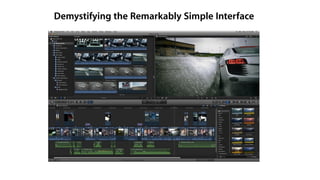
Demystifying the Remarkably Simple Interface
Why the Circus Wagon Project?
This will not be a
pretty video;
You will not likely
ever show it to
ANYONE
For this project:
FORGET STORY
This is straight cutting
Start up Final Cut Pro X
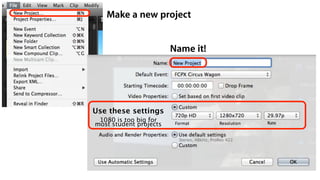
Make a new project
Use these settings
1080 is too big for most
student projects
Click to Import Media
Import some footy with
your iSight camera
(super easy)
Record for about 45 seconds, then hit stop
Find the clip here
Name it
Check these boxes!
Don’t Optimize
It sounds good,
but it’s a bad
idea for school
GIANT FILES
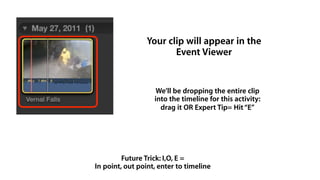
Your clip will appear in the
Event Viewer
We’ll be dropping the entire clip
into the timeline for this activity:
drag it OR Expert Tip= Hit“E”
Future Trick: I,O, E =
In point, out point, enter to timeline
We like 720p for school stuff
One clip in the timeline
Try this outCorrect clip parameters
An iMovie moment
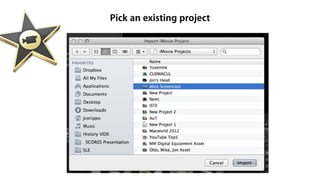
iMovie OPTION: Send an iMovie Project in FCPX
The iMovie project appears in the FCPX Libraries
Your iMovie project opens in the timeline!
Including all the CUTS and LAYERS
Back to Final Cut!
To enter cut mode: B for Blade
To exit cut mode: A for Select
Use“B for Blade”to make about 15 cuts
Make them roughly symmetrical
Effects
Drag on effect on top
of each
clip, one per clip is
enough
Effects Icon
Experiment!
No worries
Final Cut Pro X has 210 base effects
You should see things
like this when you
have applied effects to
various clips
Find the Transition tab
Transitions
Final Cut Pro X has dozens of
customizable Transitions
Simply drag random
Transitions between
each clip!
Make sure each clip has a Transition
Find the Titles tab
Titles
Final Cut Pro X has over 50 default Title options
New skill: Drag the Title ABOVE the clip in
question
Add a Title to each clip
What to type? The Title of the Effect used!
Change the Text
Double click on the Title
in the Viewer
Select the TEXT option,
type in your text
What to type? Add the Title of the Effect used on the clip.
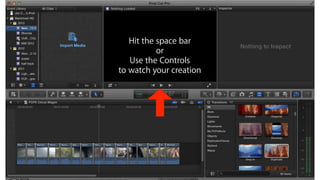
Hit the space bar
or
Use the Controls
to watch your creation
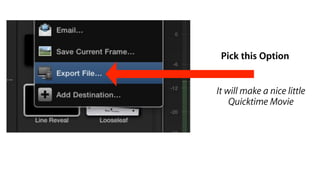
To Export:
Click the swoopy share icon
This will pop up
Pick this Option
It will make a nice little
Quicktime Movie
Yours looks different?:
Click on add Destination!
Quicktime Movie File Size
Click here
Final Cut Pro X
NOW, GO OUT AND CREATE!!
Favorite Plugins:
Free Paid Paid
Prograph
Protimer
Graduated Lens Filters
Advanced Masking Tools
Charter Director - Minarets High School • Minarets Charter HS
Apple Distinguished Educator
Google Certified Teacher
CUE Presenter 2009, 2010, 2011, 2013
Creator, CUEMACUL RoadTrip 2012
Madera Country Teacher of the Year (2010)
Central Valley Computer Educator of the Year (2010)
“Best of CUE” Presenter
Creator of “Rock Star Teacher Camps”
Creator of “CUE” education strand at MacWorld 2010
Credentials:
Jon Corippo
Assistant Superintendent
Mariposa County Office of Ed
Mistercorippo.com
jcorippo@gmail.com @jcorippo
Apple Distinguished Educator

Learn Final Cut Pro X in under 30 slides...Now updated for 10.1.1