OPPORTUNITY MANAGER 
A BRAND NEW SFORCE APP THAT YOU CANNOT MISS 
APP DESCRIPTION GUIDE 
®2014. Algoworks Technologies PVT LTD. Strictly Confidential 
USER GUIDE 
VERSION 1.6
Why this Application? 
• Opportunity Manager plug-in built for Salesforce platform by Algoworks 
has been inspired by the demands, likeability and need of the platform 
users who have been providing us feedback for years. 
• The new plug-in has been designed intuitively and ingeniously to better 
the current implementation and equip the users with powerful features 
with more ease and comfort. 
2
Application Goal 
• Ability to have all the opportunity records in a single page 
• Better interactive records. 
• To minimize the time and record updating / inserting effort. 
• Introduce powerful info-graphics tool- data via charts. 
• Ability to view live deals distributed stage-wise 
The Four C’s objective should not be lost in the meanwhile… 
Concise Comprehensive Consolidated Compact 
3
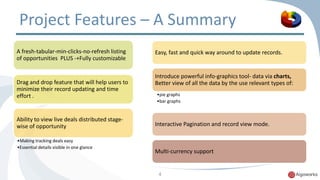
Project Features – A Summary 
A fresh-tabular-min-clicks-no-refresh listing 
of opportunities PLUS -+Fully customizable 
Drag and drop feature that will help users to 
minimize their record updating and time 
effort . 
Ability to view live deals distributed stage-wise 
of opportunity 
•Making tracking deals easy 
•Essential details visible in one glance 
Easy, fast and quick way around to update records. 
Introduce powerful info-graphics tool- data via charts, 
Better view of all the data by the use relevant types of: 
•pie graphs 
•bar graphs 
Interactive Pagination and record view mode. 
Multi-currency support 
4
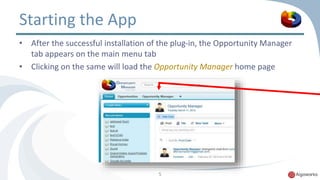
Starting the App 
• After the successful installation of the plug-in, the Opportunity Manager 
tab appears on the main menu tab 
• Clicking on the same will load the Opportunity Manager home page 
5
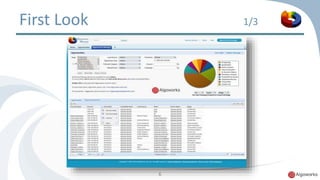
First Look 1/3 
6
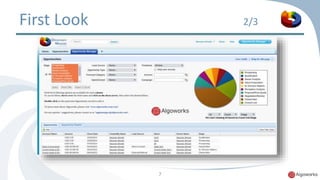
First Look 2/3 
7
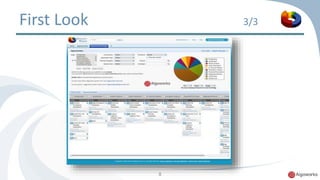
First Look 3/3 
8
Features Description 
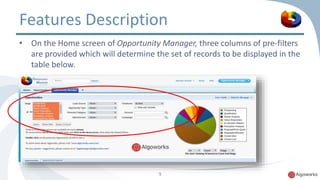
• On the Home screen of Opportunity Manager, three columns of pre-filters 
are provided which will determine the set of records to be displayed in the 
table below. 
9
Features Description 
10 
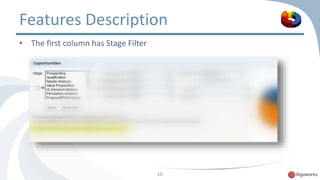
• The first column has Stage Filter
Features Description 
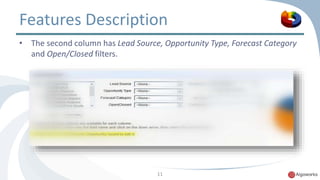
• The second column has Lead Source, Opportunity Type, Forecast Category 
11 
and Open/Closed filters.
Features Description 
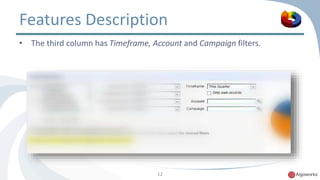
• The third column has Timeframe, Account and Campaign filters. 
12
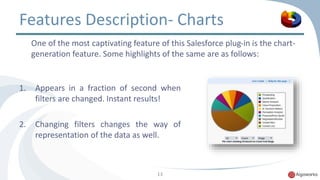
Features Description- Charts 
One of the most captivating feature of this Salesforce plug-in is the chart-generation 
feature. Some highlights of the same are as follows: 
1. Appears in a fraction of second when 
filters are changed. Instant results! 
2. Changing filters changes the way of 
representation of the data as well. 
13
Features Description- Charts 
14 
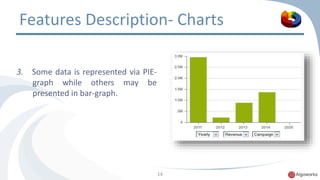
3. Some data is represented via PIE-graph 
while others may be 
presented in bar-graph.
Features Description- Charts 
4. There are three filters provided powering user to see trends in the most 
intuitive and useful manner to get to the right conclusions helping user to 
analysis easier. 
15 
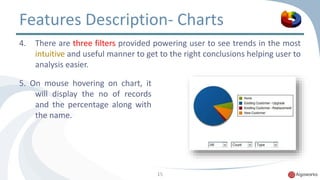
5. On mouse hovering on chart, it 
will display the no of records 
and the percentage along with 
the name.
Features Description- Charts 
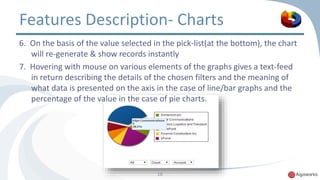
6. On the basis of the value selected in the pick-list(at the bottom), the chart 
will re-generate & show records instantly 
7. Hovering with mouse on various elements of the graphs gives a text-feed 
in return describing the details of the chosen filters and the meaning of 
what data is presented on the axis in the case of line/bar graphs and the 
percentage of the value in the case of pie charts. 
16
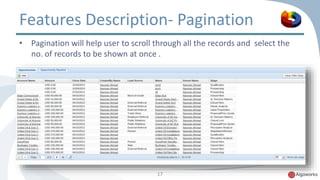
Features Description- Pagination 
• Pagination will help user to scroll through all the records and select the 
no. of records to be shown at once . 
17
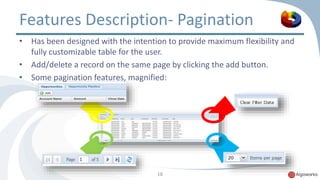
Features Description- Pagination 
• Has been designed with the intention to provide maximum flexibility and 
fully customizable table for the user. 
• Add/delete a record on the same page by clicking the add button. 
• Some pagination features, magnified: 
18
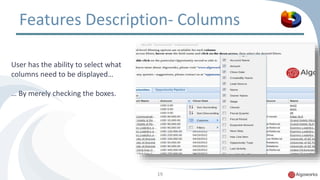
Features Description- Columns 
19 
User has the ability to select what 
columns need to be displayed… 
… By merely checking the boxes.
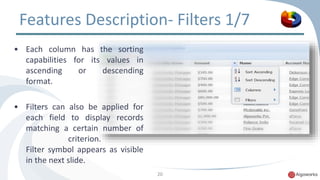
Features Description- Filters 1/7 
20 
• Each column has the sorting 
capabilities for its values in 
ascending or descending 
format. 
• Filters can also be applied for 
each field to display records 
matching a certain number of 
criterion. 
Filter symbol appears as visible 
in the next slide.
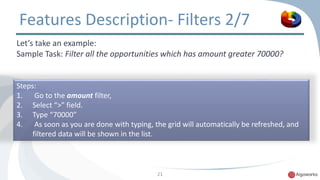
Features Description- Filters 2/7 
Let’s take an example: 
Sample Task: Filter all the opportunities which has amount greater 70000? 
Steps: 
1. Go to the amount filter, 
2. Select “>” field. 
3. Type “70000” 
4. As soon as you are done with typing, the grid will automatically be refreshed, and 
21 
filtered data will be shown in the list.
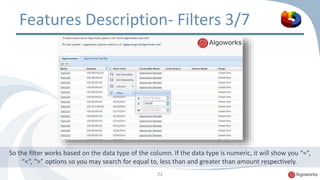
Features Description- Filters 3/7 
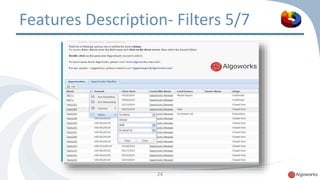
So the filter works based on the data type of the column. If the data type is numeric, it will show you “=“, 
“<“, “>” options so you may search for equal to, less than and greater than amount respectively. 
22
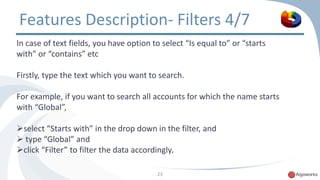
Features Description- Filters 4/7 
In case of text fields, you have option to select “Is equal to” or “starts 
with” or “contains” etc 
Firstly, type the text which you want to search. 
For example, if you want to search all accounts for which the name starts 
with “Global”, 
select “Starts with” in the drop down in the filter, and 
 type “Global” and 
click “Filter” to filter the data accordingly. 
23
Features Description- Filters 5/7 
24
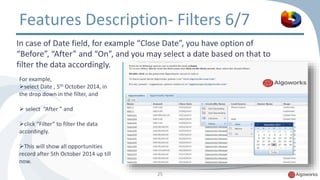
Features Description- Filters 6/7 
In case of Date field, for example “Close Date”, you have option of 
“Before”, “After” and “On”, and you may select a date based on that to 
filter the data accordingly. 
25 
For example, 
select Date , 5th October 2014, in 
the drop down in the filter, and 
 select “After ” and 
click “Filter” to filter the data 
accordingly. 
This will show all opportunities 
record after 5th October 2014 up till 
now.
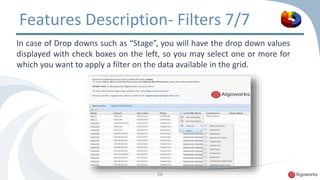
Features Description- Filters 7/7 
In case of Drop downs such as “Stage”, you will have the drop down values 
displayed with check boxes on the left, so you may select one or more for 
which you want to apply a filter on the data available in the grid. 
26
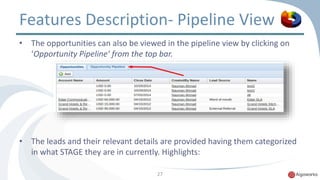
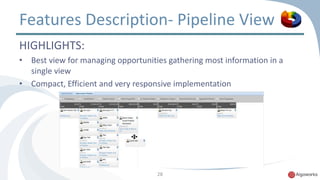
Features Description- Pipeline View 
• The opportunities can also be viewed in the pipeline view by clicking on 
‘Opportunity Pipeline’ from the top bar. 
• The leads and their relevant details are provided having them categorized 
in what STAGE they are in currently. Highlights: 
27
Features Description- Pipeline View 
HIGHLIGHTS: 
• Best view for managing opportunities gathering most information in a 
28 
single view 
• Compact, Efficient and very responsive implementation
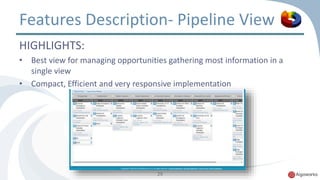
Features Description- Pipeline View 
HIGHLIGHTS: 
• Best view for managing opportunities gathering most information in a 
29 
single view 
• Compact, Efficient and very responsive implementation
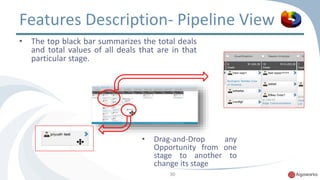
Features Description- Pipeline View 
• The top black bar summarizes the total deals 
and total values of all deals that are in that 
particular stage. 
• Drag-and-Drop any 
Opportunity from one 
stage to another to 
change its stage 
30
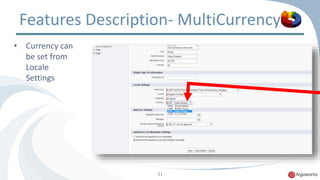
Features Description- MultiCurrency 
31 
• Currency can 
be set from 
Locale 
Settings
Features Description- MultiCurrency 
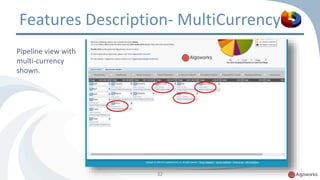
32 
Pipeline view with 
multi-currency 
shown.
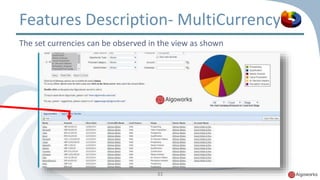
Features Description- MultiCurrency 
The set currencies can be observed in the view as shown 
33
Fall in love with the lovely app! 
For any queries regarding installation, please send a mail to oppmanager@algoworks.com

Feature guide opportunity manager(awom)

  • 1.
    OPPORTUNITY MANAGER ABRAND NEW SFORCE APP THAT YOU CANNOT MISS APP DESCRIPTION GUIDE ®2014. Algoworks Technologies PVT LTD. Strictly Confidential USER GUIDE VERSION 1.6
  • 2.
    Why this Application? • Opportunity Manager plug-in built for Salesforce platform by Algoworks has been inspired by the demands, likeability and need of the platform users who have been providing us feedback for years. • The new plug-in has been designed intuitively and ingeniously to better the current implementation and equip the users with powerful features with more ease and comfort. 2
  • 3.
    Application Goal •Ability to have all the opportunity records in a single page • Better interactive records. • To minimize the time and record updating / inserting effort. • Introduce powerful info-graphics tool- data via charts. • Ability to view live deals distributed stage-wise The Four C’s objective should not be lost in the meanwhile… Concise Comprehensive Consolidated Compact 3
  • 4.
    Project Features –A Summary A fresh-tabular-min-clicks-no-refresh listing of opportunities PLUS -+Fully customizable Drag and drop feature that will help users to minimize their record updating and time effort . Ability to view live deals distributed stage-wise of opportunity •Making tracking deals easy •Essential details visible in one glance Easy, fast and quick way around to update records. Introduce powerful info-graphics tool- data via charts, Better view of all the data by the use relevant types of: •pie graphs •bar graphs Interactive Pagination and record view mode. Multi-currency support 4
  • 5.
    Starting the App • After the successful installation of the plug-in, the Opportunity Manager tab appears on the main menu tab • Clicking on the same will load the Opportunity Manager home page 5
  • 6.
  • 7.
  • 8.
  • 9.
    Features Description •On the Home screen of Opportunity Manager, three columns of pre-filters are provided which will determine the set of records to be displayed in the table below. 9
  • 10.
    Features Description 10 • The first column has Stage Filter
  • 11.
    Features Description •The second column has Lead Source, Opportunity Type, Forecast Category 11 and Open/Closed filters.
  • 12.
    Features Description •The third column has Timeframe, Account and Campaign filters. 12
  • 13.
    Features Description- Charts One of the most captivating feature of this Salesforce plug-in is the chart-generation feature. Some highlights of the same are as follows: 1. Appears in a fraction of second when filters are changed. Instant results! 2. Changing filters changes the way of representation of the data as well. 13
  • 14.
    Features Description- Charts 14 3. Some data is represented via PIE-graph while others may be presented in bar-graph.
  • 15.
    Features Description- Charts 4. There are three filters provided powering user to see trends in the most intuitive and useful manner to get to the right conclusions helping user to analysis easier. 15 5. On mouse hovering on chart, it will display the no of records and the percentage along with the name.
  • 16.
    Features Description- Charts 6. On the basis of the value selected in the pick-list(at the bottom), the chart will re-generate & show records instantly 7. Hovering with mouse on various elements of the graphs gives a text-feed in return describing the details of the chosen filters and the meaning of what data is presented on the axis in the case of line/bar graphs and the percentage of the value in the case of pie charts. 16
  • 17.
    Features Description- Pagination • Pagination will help user to scroll through all the records and select the no. of records to be shown at once . 17
  • 18.
    Features Description- Pagination • Has been designed with the intention to provide maximum flexibility and fully customizable table for the user. • Add/delete a record on the same page by clicking the add button. • Some pagination features, magnified: 18
  • 19.
    Features Description- Columns 19 User has the ability to select what columns need to be displayed… … By merely checking the boxes.
  • 20.
    Features Description- Filters1/7 20 • Each column has the sorting capabilities for its values in ascending or descending format. • Filters can also be applied for each field to display records matching a certain number of criterion. Filter symbol appears as visible in the next slide.
  • 21.
    Features Description- Filters2/7 Let’s take an example: Sample Task: Filter all the opportunities which has amount greater 70000? Steps: 1. Go to the amount filter, 2. Select “>” field. 3. Type “70000” 4. As soon as you are done with typing, the grid will automatically be refreshed, and 21 filtered data will be shown in the list.
  • 22.
    Features Description- Filters3/7 So the filter works based on the data type of the column. If the data type is numeric, it will show you “=“, “<“, “>” options so you may search for equal to, less than and greater than amount respectively. 22
  • 23.
    Features Description- Filters4/7 In case of text fields, you have option to select “Is equal to” or “starts with” or “contains” etc Firstly, type the text which you want to search. For example, if you want to search all accounts for which the name starts with “Global”, select “Starts with” in the drop down in the filter, and  type “Global” and click “Filter” to filter the data accordingly. 23
  • 24.
  • 25.
    Features Description- Filters6/7 In case of Date field, for example “Close Date”, you have option of “Before”, “After” and “On”, and you may select a date based on that to filter the data accordingly. 25 For example, select Date , 5th October 2014, in the drop down in the filter, and  select “After ” and click “Filter” to filter the data accordingly. This will show all opportunities record after 5th October 2014 up till now.
  • 26.
    Features Description- Filters7/7 In case of Drop downs such as “Stage”, you will have the drop down values displayed with check boxes on the left, so you may select one or more for which you want to apply a filter on the data available in the grid. 26
  • 27.
    Features Description- PipelineView • The opportunities can also be viewed in the pipeline view by clicking on ‘Opportunity Pipeline’ from the top bar. • The leads and their relevant details are provided having them categorized in what STAGE they are in currently. Highlights: 27
  • 28.
    Features Description- PipelineView HIGHLIGHTS: • Best view for managing opportunities gathering most information in a 28 single view • Compact, Efficient and very responsive implementation
  • 29.
    Features Description- PipelineView HIGHLIGHTS: • Best view for managing opportunities gathering most information in a 29 single view • Compact, Efficient and very responsive implementation
  • 30.
    Features Description- PipelineView • The top black bar summarizes the total deals and total values of all deals that are in that particular stage. • Drag-and-Drop any Opportunity from one stage to another to change its stage 30
  • 31.
    Features Description- MultiCurrency 31 • Currency can be set from Locale Settings
  • 32.
    Features Description- MultiCurrency 32 Pipeline view with multi-currency shown.
  • 33.
    Features Description- MultiCurrency The set currencies can be observed in the view as shown 33
  • 34.
    Fall in lovewith the lovely app! For any queries regarding installation, please send a mail to oppmanager@algoworks.com