TrackVia Getting Started Guide
Overview This demo is all about using the pre-built order tracking application built by Acme Copiers, Inc.  It’s designed to help you become familiar with TrackVia’s: User interface (UI) Navigation Search Editing records Views This demo doesn’t cover these other topics, which are addressed in separate demos: Creating or editing an application. Adding or editing users and user access levels. Advanced data integration through our API. Other features including email campaigns, alerts, mail merge documents, etc.
Overview Acme's Business Acme Copiers, Inc. is a (fictional) mid-size business that sells copiers from various major brands. Acme’s customers include some of the world’s biggest companies, and Acme’s management pays close attention to the orders that come from these “major accounts.” We use Acme as a context that allows us to provide a sample application that TrackVia users can jump right in to. It's a pre-built application that allows users to try out many of TrackVia's features without needing to first build an application. Acme's scenario is somewhat sophisticated, in that it's comprised of 5 linked table. At the same time, we try to keep the application easy to understand. Acme has built an order management application in TrackVia.  This application was built in a matter of hours, and provides these benefits: Complete start-to-finish order tracking. Event-based email alerts to facilitate workflow. Exception-based alerts to ensure no orders are overdue. Appropriate user access levels. Management reporting. Granular audit trail to see who changed what, when.
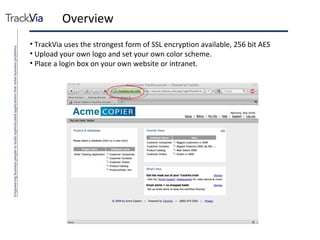
Overview TrackVia uses the strongest form of SSL encryption available, 256 bit AES Upload your own logo and set your own color scheme. Place a login box on your own website or intranet.
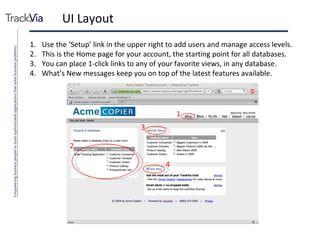
UI Layout Use the ‘Setup’ link in the upper right to add users and manage access levels. This is the Home page for your account, the starting point for all databases. You can place 1-click links to any of your favorite views, in any database. What’s New messages keep you on top of the latest features available. 2 1 3 4
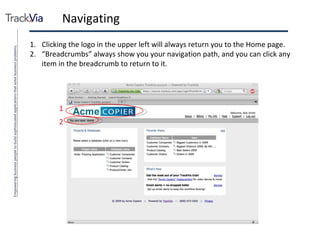
Navigating Clicking the logo in the upper left will always return you to the Home page. “ Breadcrumbs” always show you your navigation path, and you can click any item in the breadcrumb to return to it. 1 2
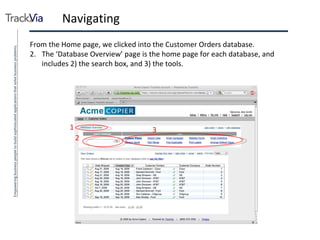
Navigating From the Home page, we clicked into the Customer Orders database. The ‘Database Overview’ page is the home page for each database, and includes 2) the search box, and 3) the tools. 1 2 3
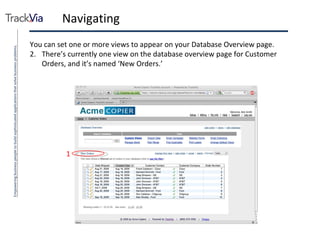
Navigating You can set one or more views to appear on your Database Overview page. There’s currently one view on the database overview page for Customer Orders, and it’s named ‘New Orders.’ 1
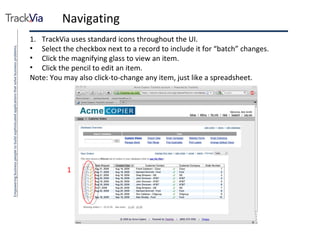
Navigating TrackVia uses standard icons throughout the UI. Select the checkbox next to a record to include it for “batch” changes. Click the magnifying glass to view an item. Click the pencil to edit an item. Note: You may also click-to-change any item, just like a spreadsheet. 1
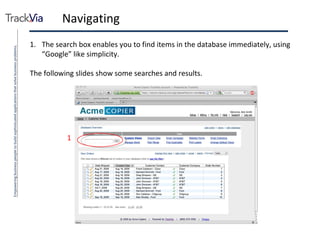
Navigating The search box enables you to find items in the database immediately, using “Google” like simplicity. The following slides show some searches and results. 1
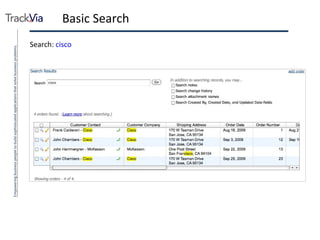
Basic Search Search:  cisco
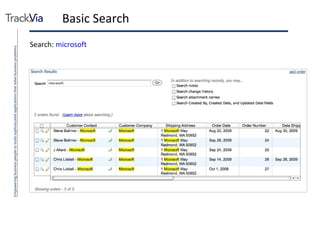
Basic Search Search:  microsoft
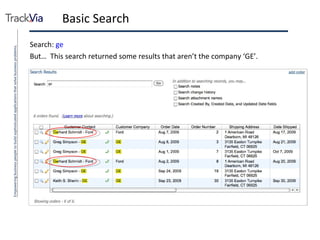
Basic Search Search:  ge But…  This search returned some results that aren’t the company ‘GE’.
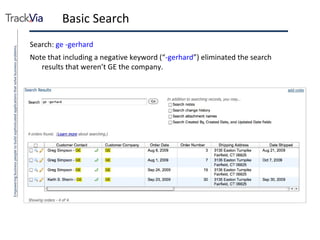
Basic Search Search:  ge -gerhard Note that including a negative keyword (“ -gerhard ”) eliminated the search results that weren’t GE the company.
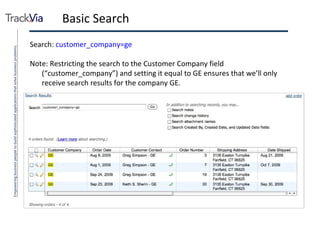
Basic Search Search:  customer_company=ge Note: Restricting the search to the Customer Company field (“customer_company”) and setting it equal to GE ensures that we’ll only receive search results for the company GE.
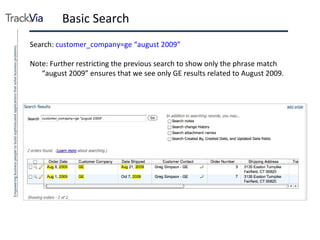
Basic Search Search:  customer_company=ge “august 2009” Note: Further restricting the previous search to show only the phrase match “august 2009” ensures that we see only GE results related to August 2009.
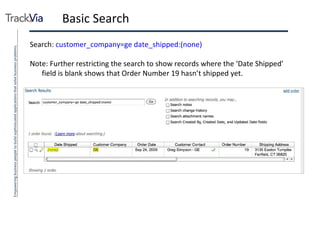
Basic Search Search:  customer_company=ge date_shipped:(none) Note: Further restricting the search to show records where the ‘Date Shipped’ field is blank shows that Order Number 19 hasn’t shipped yet.
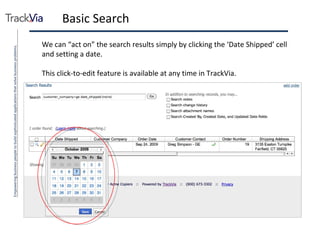
Basic Search We can “act on” the search results simply by clicking the ‘Date Shipped’ cell and setting a date. This click-to-edit feature is available at any time in TrackVia.
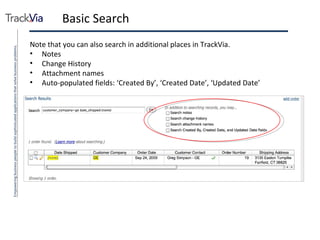
Basic Search Note that you can also search in additional places in TrackVia. Notes Change History Attachment names Auto-populated fields: ‘Created By’, ‘Created Date’, ‘Updated Date’
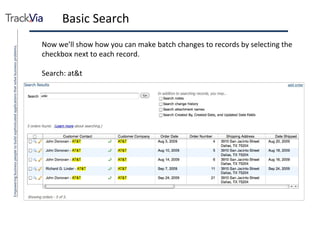
Basic Search Now we’ll show how you can make batch changes to records by selecting the checkbox next to each record. Search: at&t
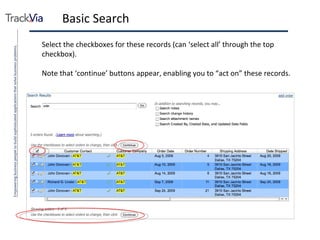
Basic Search Select the checkboxes for these records (can ‘select all’ through the top checkbox). Note that ‘continue’ buttons appear, enabling you to “act on” these records.
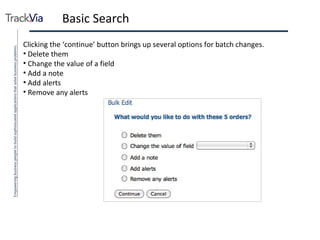
Basic Search Clicking the ‘continue’ button brings up several options for batch changes. Delete them Change the value of a field Add a note Add alerts Remove any alerts
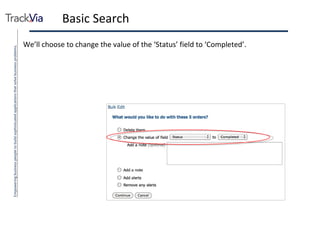
Basic Search We’ll choose to change the value of the ‘Status’ field to ‘Completed’.
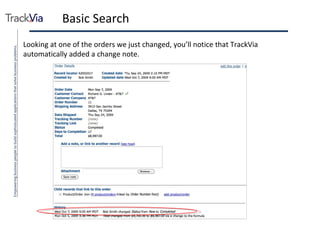
Basic Search Looking at one of the orders we just changed, you’ll notice that TrackVia automatically added a change note.
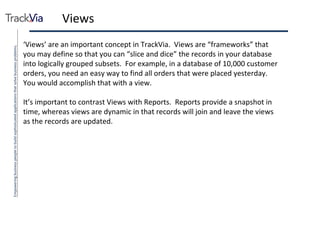
Views ‘ Views’ are an important concept in TrackVia.  Views are “frameworks” that you may define so that you can “slice and dice” the records in your database into logically grouped subsets.  For example, in a database of 10,000 customer orders, you need an easy way to find all orders that were placed yesterday.  You would accomplish that with a view. It’s important to contrast Views with Reports.  Reports provide a snapshot in time, whereas views are dynamic in that records will join and leave the views as the records are updated.
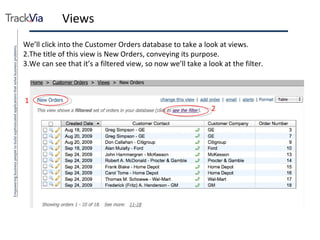
Views We’ll click into the Customer Orders database to take a look at views. The title of this view is New Orders, conveying its purpose. We can see that it’s a filtered view, so now we’ll take a look at the filter. 1 2
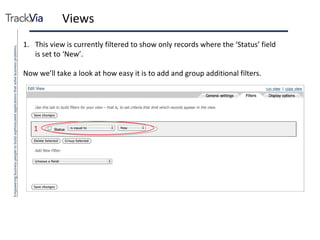
Views This view is currently filtered to show only records where the ‘Status’ field is set to ‘New’. Now we’ll take a look at how easy it is to add and group additional filters. 1
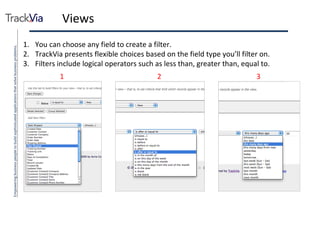
Views You can choose any field to create a filter. TrackVia presents flexible choices based on the field type you’ll filter on. Filters include logical operators such as less than, greater than, equal to. 2 1 3
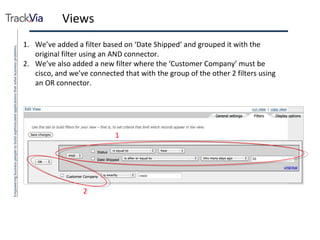
Views We’ve added a filter based on ‘Date Shipped’ and grouped it with the original filter using an AND connector. We’ve also added a new filter where the ‘Customer Company’ must be cisco, and we’ve connected that with the group of the other 2 filters using an OR connector. 1 1 2
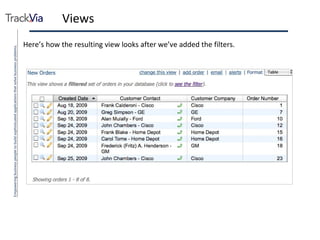
Views Here’s how the resulting view looks after we’ve added the filters.
Views ‘ Views’ are an important concept in TrackVia.  Views are “frameworks” that you may define so that you can “slice and dice” the records in your database into logically grouped subsets.  For example, in a database of 10,000 customer orders, you need an easy way to find all orders that were placed yesterday.  You would accomplish that with a view. It’s important to contrast Views with Reports.  Reports provide a snapshot in time, whereas views are dynamic in that records will join and leave the views as the records are updated.
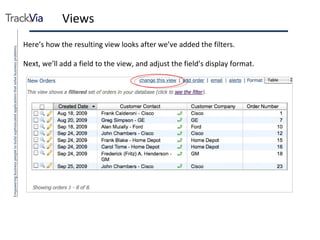
Views Here’s how the resulting view looks after we’ve added the filters. Next, we’ll add a field to the view, and adjust the field’s display format.
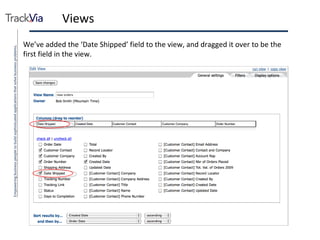
Views We’ve added the ‘Date Shipped’ field to the view, and dragged it over to be the first field in the view.
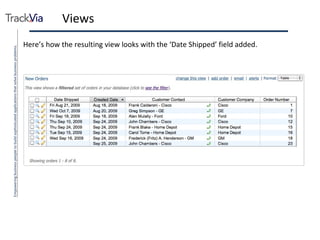
Views Here’s how the resulting view looks with the ‘Date Shipped’ field added.
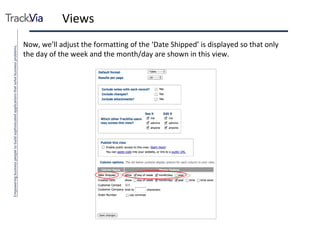
Views Now, we’ll adjust the formatting of the ‘Date Shipped’ is displayed so that only the day of the week and the month/day are shown in this view.
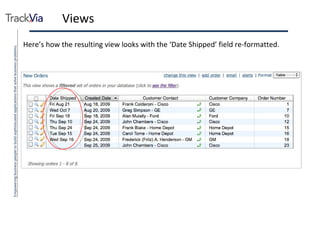
Views Here’s how the resulting view looks with the ‘Date Shipped’ field re-formatted.
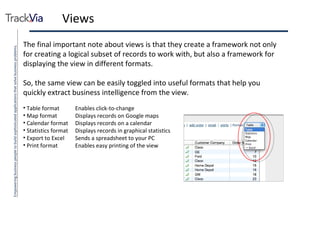
Views The final important note about views is that they create a framework not only for creating a logical subset of records to work with, but also a framework for displaying the view in different formats. So, the same view can be easily toggled into useful formats that help you quickly extract business intelligence from the view. Table format Enables click-to-change Map format Displays records on Google maps Calendar format Displays records on a calendar Statistics format Displays records in graphical statistics Export to Excel Sends a spreadsheet to your PC Print format Enables easy printing of the view
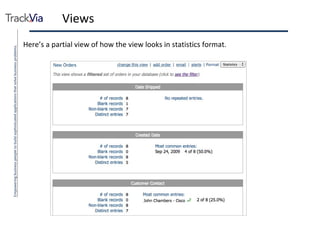
Views Here’s a partial view of how the view looks in statistics format.
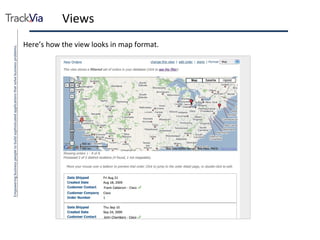
Views Here’s how the view looks in map format.
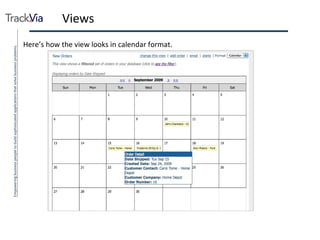
Views Here’s how the view looks in calendar format.
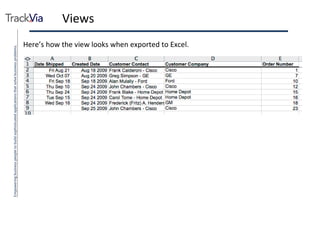
Views Here’s how the view looks when exported to Excel.

Getting Started Guide

  • 1.
  • 2.
    Overview This demois all about using the pre-built order tracking application built by Acme Copiers, Inc. It’s designed to help you become familiar with TrackVia’s: User interface (UI) Navigation Search Editing records Views This demo doesn’t cover these other topics, which are addressed in separate demos: Creating or editing an application. Adding or editing users and user access levels. Advanced data integration through our API. Other features including email campaigns, alerts, mail merge documents, etc.
  • 3.
    Overview Acme's BusinessAcme Copiers, Inc. is a (fictional) mid-size business that sells copiers from various major brands. Acme’s customers include some of the world’s biggest companies, and Acme’s management pays close attention to the orders that come from these “major accounts.” We use Acme as a context that allows us to provide a sample application that TrackVia users can jump right in to. It's a pre-built application that allows users to try out many of TrackVia's features without needing to first build an application. Acme's scenario is somewhat sophisticated, in that it's comprised of 5 linked table. At the same time, we try to keep the application easy to understand. Acme has built an order management application in TrackVia. This application was built in a matter of hours, and provides these benefits: Complete start-to-finish order tracking. Event-based email alerts to facilitate workflow. Exception-based alerts to ensure no orders are overdue. Appropriate user access levels. Management reporting. Granular audit trail to see who changed what, when.
  • 4.
    Overview TrackVia usesthe strongest form of SSL encryption available, 256 bit AES Upload your own logo and set your own color scheme. Place a login box on your own website or intranet.
  • 5.
    UI Layout Usethe ‘Setup’ link in the upper right to add users and manage access levels. This is the Home page for your account, the starting point for all databases. You can place 1-click links to any of your favorite views, in any database. What’s New messages keep you on top of the latest features available. 2 1 3 4
  • 6.
    Navigating Clicking thelogo in the upper left will always return you to the Home page. “ Breadcrumbs” always show you your navigation path, and you can click any item in the breadcrumb to return to it. 1 2
  • 7.
    Navigating From theHome page, we clicked into the Customer Orders database. The ‘Database Overview’ page is the home page for each database, and includes 2) the search box, and 3) the tools. 1 2 3
  • 8.
    Navigating You canset one or more views to appear on your Database Overview page. There’s currently one view on the database overview page for Customer Orders, and it’s named ‘New Orders.’ 1
  • 9.
    Navigating TrackVia usesstandard icons throughout the UI. Select the checkbox next to a record to include it for “batch” changes. Click the magnifying glass to view an item. Click the pencil to edit an item. Note: You may also click-to-change any item, just like a spreadsheet. 1
  • 10.
    Navigating The searchbox enables you to find items in the database immediately, using “Google” like simplicity. The following slides show some searches and results. 1
  • 11.
  • 12.
  • 13.
    Basic Search Search: ge But… This search returned some results that aren’t the company ‘GE’.
  • 14.
    Basic Search Search: ge -gerhard Note that including a negative keyword (“ -gerhard ”) eliminated the search results that weren’t GE the company.
  • 15.
    Basic Search Search: customer_company=ge Note: Restricting the search to the Customer Company field (“customer_company”) and setting it equal to GE ensures that we’ll only receive search results for the company GE.
  • 16.
    Basic Search Search: customer_company=ge “august 2009” Note: Further restricting the previous search to show only the phrase match “august 2009” ensures that we see only GE results related to August 2009.
  • 17.
    Basic Search Search: customer_company=ge date_shipped:(none) Note: Further restricting the search to show records where the ‘Date Shipped’ field is blank shows that Order Number 19 hasn’t shipped yet.
  • 18.
    Basic Search Wecan “act on” the search results simply by clicking the ‘Date Shipped’ cell and setting a date. This click-to-edit feature is available at any time in TrackVia.
  • 19.
    Basic Search Notethat you can also search in additional places in TrackVia. Notes Change History Attachment names Auto-populated fields: ‘Created By’, ‘Created Date’, ‘Updated Date’
  • 20.
    Basic Search Nowwe’ll show how you can make batch changes to records by selecting the checkbox next to each record. Search: at&t
  • 21.
    Basic Search Selectthe checkboxes for these records (can ‘select all’ through the top checkbox). Note that ‘continue’ buttons appear, enabling you to “act on” these records.
  • 22.
    Basic Search Clickingthe ‘continue’ button brings up several options for batch changes. Delete them Change the value of a field Add a note Add alerts Remove any alerts
  • 23.
    Basic Search We’llchoose to change the value of the ‘Status’ field to ‘Completed’.
  • 24.
    Basic Search Lookingat one of the orders we just changed, you’ll notice that TrackVia automatically added a change note.
  • 25.
    Views ‘ Views’are an important concept in TrackVia. Views are “frameworks” that you may define so that you can “slice and dice” the records in your database into logically grouped subsets. For example, in a database of 10,000 customer orders, you need an easy way to find all orders that were placed yesterday. You would accomplish that with a view. It’s important to contrast Views with Reports. Reports provide a snapshot in time, whereas views are dynamic in that records will join and leave the views as the records are updated.
  • 26.
    Views We’ll clickinto the Customer Orders database to take a look at views. The title of this view is New Orders, conveying its purpose. We can see that it’s a filtered view, so now we’ll take a look at the filter. 1 2
  • 27.
    Views This viewis currently filtered to show only records where the ‘Status’ field is set to ‘New’. Now we’ll take a look at how easy it is to add and group additional filters. 1
  • 28.
    Views You canchoose any field to create a filter. TrackVia presents flexible choices based on the field type you’ll filter on. Filters include logical operators such as less than, greater than, equal to. 2 1 3
  • 29.
    Views We’ve addeda filter based on ‘Date Shipped’ and grouped it with the original filter using an AND connector. We’ve also added a new filter where the ‘Customer Company’ must be cisco, and we’ve connected that with the group of the other 2 filters using an OR connector. 1 1 2
  • 30.
    Views Here’s howthe resulting view looks after we’ve added the filters.
  • 31.
    Views ‘ Views’are an important concept in TrackVia. Views are “frameworks” that you may define so that you can “slice and dice” the records in your database into logically grouped subsets. For example, in a database of 10,000 customer orders, you need an easy way to find all orders that were placed yesterday. You would accomplish that with a view. It’s important to contrast Views with Reports. Reports provide a snapshot in time, whereas views are dynamic in that records will join and leave the views as the records are updated.
  • 32.
    Views Here’s howthe resulting view looks after we’ve added the filters. Next, we’ll add a field to the view, and adjust the field’s display format.
  • 33.
    Views We’ve addedthe ‘Date Shipped’ field to the view, and dragged it over to be the first field in the view.
  • 34.
    Views Here’s howthe resulting view looks with the ‘Date Shipped’ field added.
  • 35.
    Views Now, we’lladjust the formatting of the ‘Date Shipped’ is displayed so that only the day of the week and the month/day are shown in this view.
  • 36.
    Views Here’s howthe resulting view looks with the ‘Date Shipped’ field re-formatted.
  • 37.
    Views The finalimportant note about views is that they create a framework not only for creating a logical subset of records to work with, but also a framework for displaying the view in different formats. So, the same view can be easily toggled into useful formats that help you quickly extract business intelligence from the view. Table format Enables click-to-change Map format Displays records on Google maps Calendar format Displays records on a calendar Statistics format Displays records in graphical statistics Export to Excel Sends a spreadsheet to your PC Print format Enables easy printing of the view
  • 38.
    Views Here’s apartial view of how the view looks in statistics format.
  • 39.
    Views Here’s howthe view looks in map format.
  • 40.
    Views Here’s howthe view looks in calendar format.
  • 41.
    Views Here’s howthe view looks when exported to Excel.