sales@algoworks.com Toll Free : +1-877-284-1028
Why?
sales@algoworks.com Toll Free : +1-877-284-1028
Why Flow With Salesforce Flow
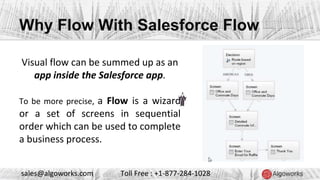
Visual flow can be summed up as an
app inside the Salesforce app.
To be more precise, a Flow is a wizard
or a set of screens in sequential
order which can be used to complete
a business process.
sales@algoworks.com Toll Free : +1-877-284-1028
Why Flow With Salesforce Flow
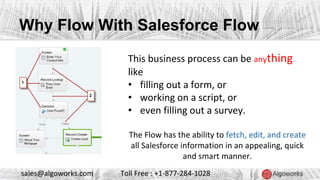
This business process can be anything
like
• filling out a form, or
• working on a script, or
• even filling out a survey.
The Flow has the ability to fetch, edit, and create
all Salesforce information in an appealing, quick
and smart manner.
sales@algoworks.com Toll Free : +1-877-284-1028
Difference between Salesforce.com Flow
and Workflow
sales@algoworks.com Toll Free : +1-877-284-1028
Salesforce.com Flow vs Workflow
Salesforce Flow or Visual Workflow is often confused with a
feature named Workflow in Salesforce.
They may be similar in certain fashion such as assisting in
automating a business process, but in essence they both are
different
sales@algoworks.com Toll Free : +1-877-284-1028
Visual Workflow is more of a
front-end based tool.
It is mainly used when you
have to display or collect
information through screens
making it more visible to the
users.
Workflow on the other
hand execute pre-defined
rules behind the scenes.
They are used to process
information rather than
collecting it.
Salesforce.com Flow vs Workflow
sales@algoworks.com Toll Free : +1-877-284-1028
Visual Workflows are
triggered by user actions.
You can also Autolaunch
Flows i.e. start a Flow without
user interaction.
Workflows are mainly
triggered by events
Salesforce.com Flow vs Workflow
sales@algoworks.com Toll Free : +1-877-284-1028
Flows can fetch, delete,
update or even create records
on multiple objects.
Workflows are defined to
affect only a single specified
object. The exception to this
is the case of Workflows
having to update fields on
specified object and its
related master records.
Salesforce.com Flow vs Workflow
sales@algoworks.com Toll Free : +1-877-284-1028
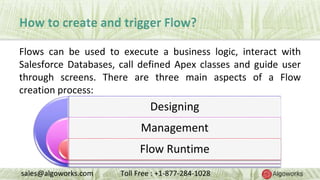
Flows can be used to execute a business logic, interact with
Salesforce Databases, call defined Apex classes and guide user
through screens. There are three main aspects of a Flow
creation process:
Designing
Management
Flow Runtime
sales@algoworks.com Toll Free : +1-877-284-1028
➔ D e s i g n i n g
The main reason they are called Visual Workflows is because
Flows come with a drag-and-drop interface Flow designer called
Cloud Flow Designer.
It can be used to diagram a Flow, configure how the Flow
executes, and define what it affects…
… all this without writing a single line of code.
sales@algoworks.com Toll Free : +1-877-284-1028
➔ M a n a g e m e n t
You can manage your created Flow through the setup area.
Through this you can edit your Flow’s properties, activate it,
deactivate it, delete your Flow or even trigger it at your will.
sales@algoworks.com Toll Free : +1-877-284-1028
➔ F l o w R u n t i m e
• Once Flows are defined, users can run the Flow through any
user call-to-action like a button, tab, link,
• or even directly from the Flow URL.
You can also trigger Flows through an Apex class or a Flow
trigger workflow action.
sales@algoworks.com Toll Free : +1-877-284-1028
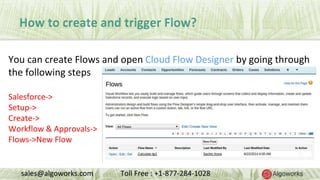
You can create Flows and open Cloud Flow Designer by going through
the following steps
Salesforce->
Setup->
Create->
Workflow & Approvals->
Flows->New Flow
sales@algoworks.com Toll Free : +1-877-284-1028
Using Flows to send an Email
One of the most useful application of
Flows is to send template-less emails
without even configuring other parts
of Salesforce.
You can use an email element to
send emails via Flow.
sales@algoworks.com Toll Free : +1-877-284-1028
Using Flows to send an Email
STEP 1: First create a Flow by going through the steps mentioned
above
App Setup-> Create-> Workflow & Approvals-> Flows-> New Flow.
STEP 2: Define a button in the pallet and then drag an email element
to the canvas.
sales@algoworks.com Toll Free : +1-877-284-1028
Using Flows to send an Email
STEP 3: If you are using
multiple email elements then
it’s best to enter unique
general settings to each
element to help differentiate
between each.
STEP 4: The next step is to specify the recipients for the email. The
email element allows you to send emails to five different addresses.
sales@algoworks.com Toll Free : +1-877-284-1028
Using Flows to send an Email
STEP 5: You can configure the Flow to
• enter literal values,
• enter merge field values,
• select and
• use an existing Flow resource, or
• even create a new Flow resource.
You can use these settings to configure the Body of the mail, Subject of the mail,
recipient email addresses, sender email addresses, and sender type.
sales@algoworks.com Toll Free : +1-877-284-1028
Surveys using Flow
Flow are also quite useful for
creating, recording, and analyzing
surveys.
So I would be writing another post
focusing solely on creating and
analyzing a survey using Flow.
… So stay tuned!
sales@algoworks.com Toll Free : +1-877-284-1028
Consult Coding Experts
Algoworks technologies has been working with Salesforce Flow since the
launch of the feature itself.
We are one of the best experienced Salesforce Developers and Consultants
Groups
sales@algoworks.com Toll Free : +1-877-284-1028
Author
Co-Founder & Director
Open-Source | Salesforce | ECM
Pratyush is Co-Founder and Director at
Algoworks. He is responsible for managing,
growing open source technologies and
Salesforce CRM team .
He provides consulting and advisory to clients
looking for services relating to CRM(Customer
Relationship Management) and ECM(Enterprise
Content Management).
Pratyush Kumar
Write to me @ pratyush@algoworks.com
sales@algoworks.com Toll Free : +1-877-284-1028
Learn about how Algoworks can help your
business!
Call us at : +1-877-284-1028
Mail us at: sales@algoworks.com
support@algoworks.com
Official : Blog Link

Why Flow with Salesforce Flow

  • 1.
    sales@algoworks.com Toll Free: +1-877-284-1028 Why?
  • 2.
    sales@algoworks.com Toll Free: +1-877-284-1028 Why Flow With Salesforce Flow Visual flow can be summed up as an app inside the Salesforce app. To be more precise, a Flow is a wizard or a set of screens in sequential order which can be used to complete a business process.
  • 3.
    sales@algoworks.com Toll Free: +1-877-284-1028 Why Flow With Salesforce Flow This business process can be anything like • filling out a form, or • working on a script, or • even filling out a survey. The Flow has the ability to fetch, edit, and create all Salesforce information in an appealing, quick and smart manner.
  • 4.
    sales@algoworks.com Toll Free: +1-877-284-1028 Difference between Salesforce.com Flow and Workflow
  • 5.
    sales@algoworks.com Toll Free: +1-877-284-1028 Salesforce.com Flow vs Workflow Salesforce Flow or Visual Workflow is often confused with a feature named Workflow in Salesforce. They may be similar in certain fashion such as assisting in automating a business process, but in essence they both are different
  • 6.
    sales@algoworks.com Toll Free: +1-877-284-1028 Visual Workflow is more of a front-end based tool. It is mainly used when you have to display or collect information through screens making it more visible to the users. Workflow on the other hand execute pre-defined rules behind the scenes. They are used to process information rather than collecting it. Salesforce.com Flow vs Workflow
  • 7.
    sales@algoworks.com Toll Free: +1-877-284-1028 Visual Workflows are triggered by user actions. You can also Autolaunch Flows i.e. start a Flow without user interaction. Workflows are mainly triggered by events Salesforce.com Flow vs Workflow
  • 8.
    sales@algoworks.com Toll Free: +1-877-284-1028 Flows can fetch, delete, update or even create records on multiple objects. Workflows are defined to affect only a single specified object. The exception to this is the case of Workflows having to update fields on specified object and its related master records. Salesforce.com Flow vs Workflow
  • 9.
  • 10.
    sales@algoworks.com Toll Free: +1-877-284-1028 Flows can be used to execute a business logic, interact with Salesforce Databases, call defined Apex classes and guide user through screens. There are three main aspects of a Flow creation process: Designing Management Flow Runtime
  • 11.
    sales@algoworks.com Toll Free: +1-877-284-1028 ➔ D e s i g n i n g The main reason they are called Visual Workflows is because Flows come with a drag-and-drop interface Flow designer called Cloud Flow Designer. It can be used to diagram a Flow, configure how the Flow executes, and define what it affects… … all this without writing a single line of code.
  • 12.
    sales@algoworks.com Toll Free: +1-877-284-1028 ➔ M a n a g e m e n t You can manage your created Flow through the setup area. Through this you can edit your Flow’s properties, activate it, deactivate it, delete your Flow or even trigger it at your will.
  • 13.
    sales@algoworks.com Toll Free: +1-877-284-1028 ➔ F l o w R u n t i m e • Once Flows are defined, users can run the Flow through any user call-to-action like a button, tab, link, • or even directly from the Flow URL. You can also trigger Flows through an Apex class or a Flow trigger workflow action.
  • 14.
    sales@algoworks.com Toll Free: +1-877-284-1028 You can create Flows and open Cloud Flow Designer by going through the following steps Salesforce-> Setup-> Create-> Workflow & Approvals-> Flows->New Flow
  • 15.
  • 16.
    sales@algoworks.com Toll Free: +1-877-284-1028 Using Flows to send an Email One of the most useful application of Flows is to send template-less emails without even configuring other parts of Salesforce. You can use an email element to send emails via Flow.
  • 17.
    sales@algoworks.com Toll Free: +1-877-284-1028 Using Flows to send an Email STEP 1: First create a Flow by going through the steps mentioned above App Setup-> Create-> Workflow & Approvals-> Flows-> New Flow. STEP 2: Define a button in the pallet and then drag an email element to the canvas.
  • 18.
    sales@algoworks.com Toll Free: +1-877-284-1028 Using Flows to send an Email STEP 3: If you are using multiple email elements then it’s best to enter unique general settings to each element to help differentiate between each. STEP 4: The next step is to specify the recipients for the email. The email element allows you to send emails to five different addresses.
  • 19.
    sales@algoworks.com Toll Free: +1-877-284-1028 Using Flows to send an Email STEP 5: You can configure the Flow to • enter literal values, • enter merge field values, • select and • use an existing Flow resource, or • even create a new Flow resource. You can use these settings to configure the Body of the mail, Subject of the mail, recipient email addresses, sender email addresses, and sender type.
  • 20.
    sales@algoworks.com Toll Free: +1-877-284-1028 Surveys using Flow Flow are also quite useful for creating, recording, and analyzing surveys. So I would be writing another post focusing solely on creating and analyzing a survey using Flow. … So stay tuned!
  • 21.
    sales@algoworks.com Toll Free: +1-877-284-1028 Consult Coding Experts Algoworks technologies has been working with Salesforce Flow since the launch of the feature itself. We are one of the best experienced Salesforce Developers and Consultants Groups
  • 22.
    sales@algoworks.com Toll Free: +1-877-284-1028 Author Co-Founder & Director Open-Source | Salesforce | ECM Pratyush is Co-Founder and Director at Algoworks. He is responsible for managing, growing open source technologies and Salesforce CRM team . He provides consulting and advisory to clients looking for services relating to CRM(Customer Relationship Management) and ECM(Enterprise Content Management). Pratyush Kumar Write to me @ pratyush@algoworks.com
  • 23.
    sales@algoworks.com Toll Free: +1-877-284-1028 Learn about how Algoworks can help your business! Call us at : +1-877-284-1028 Mail us at: sales@algoworks.com support@algoworks.com Official : Blog Link