Organizing Data for Effective Analysis Chapter 7“There is no such thing as too much planning and tracking.”- Indra Nooyi
Chapter IntroductionWays to manage and analyze large amounts of nonnumeric data using lists, a PivotTable report, and XMLFunctions covered in this chapter: CONCATENATE, FIND, LEFT, RIGHT, SEARCH, TODAY, TRIM, YEARFRAC
Functions Covered in this ChapterCONCATENATEFINDLEFTRIGHTSEARCHTODAYTRIMYEARFRAC
Level 1 Objectives:Importing and Structuring Text Data in Excel WorksheetsImport text data into a worksheetConcatenate values and extract characters from a text stringParse text using the Convert Text to Columns WizardAnalyze data by creating subtotalsCreate, sort, and filter an Excel list
Working with Text Data:Comma-Delimited FilesSeparate values in each record with commasAlso called comma-separated values (CSV)Once imported into a worksheet, each value in a record appears in a separate cellParagraph mark identifies the end of each record
Working with Text Data: GoalsDetermine the format you need, so you can find the best way to change unstructured data into structured dataChange format of unstructured data
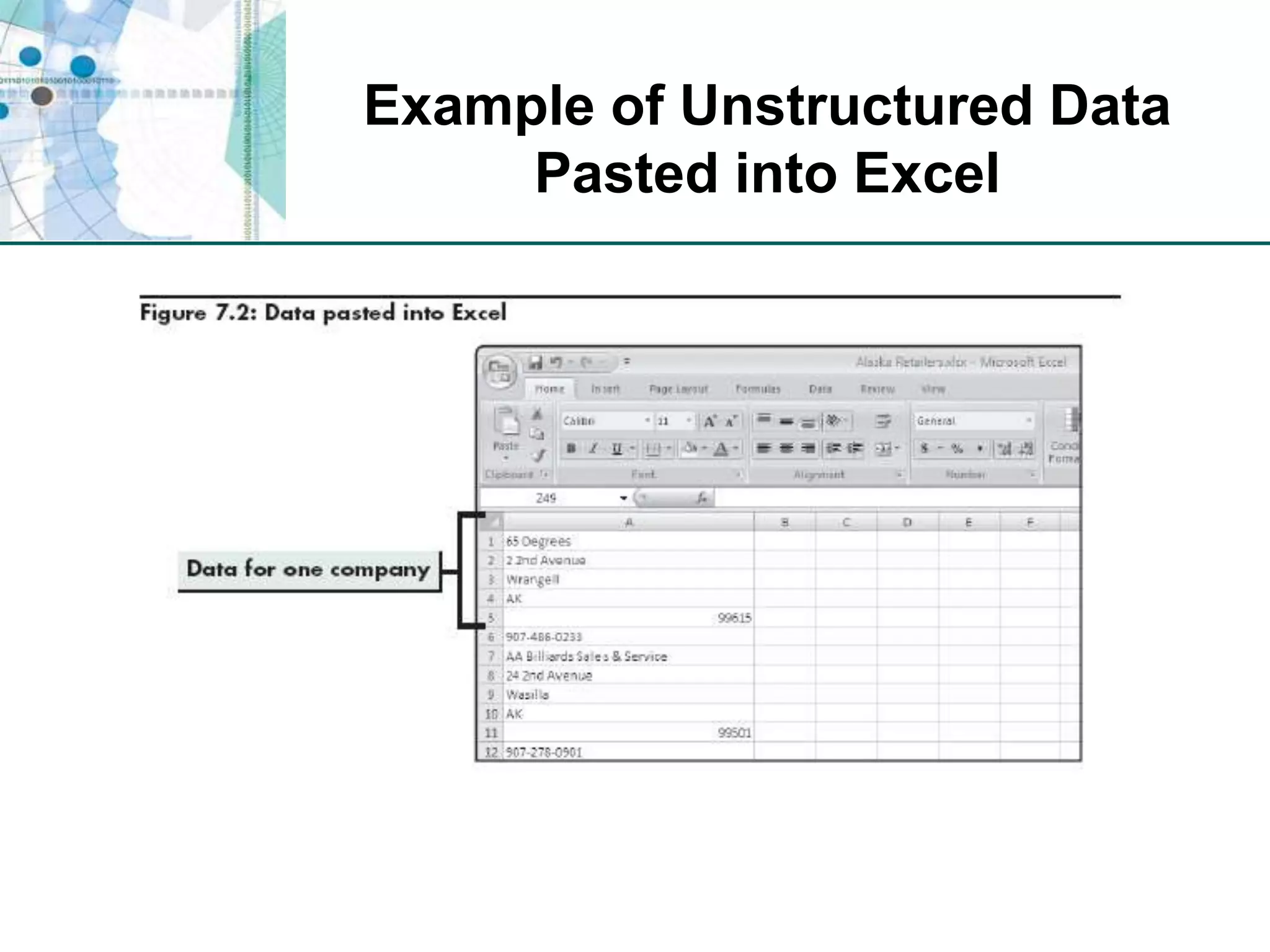
Example of Unstructured Data Pasted into Excel
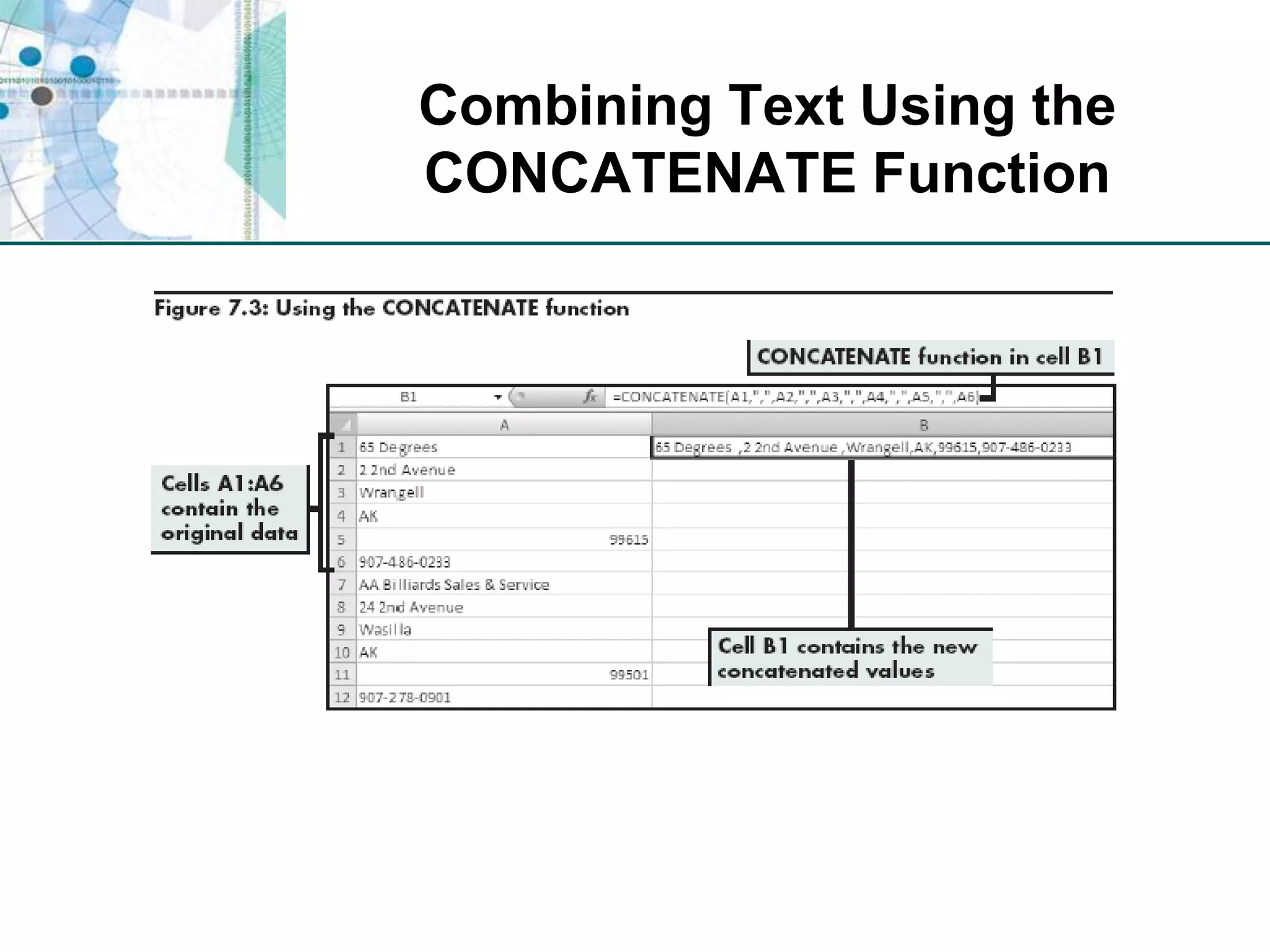
Combining Text Using the CONCATENATE FunctionCombines values in a range of cells into one text item in a new cell=CONCATENATE(text1,text2,…)
Combining Text Using the CONCATENATE Function
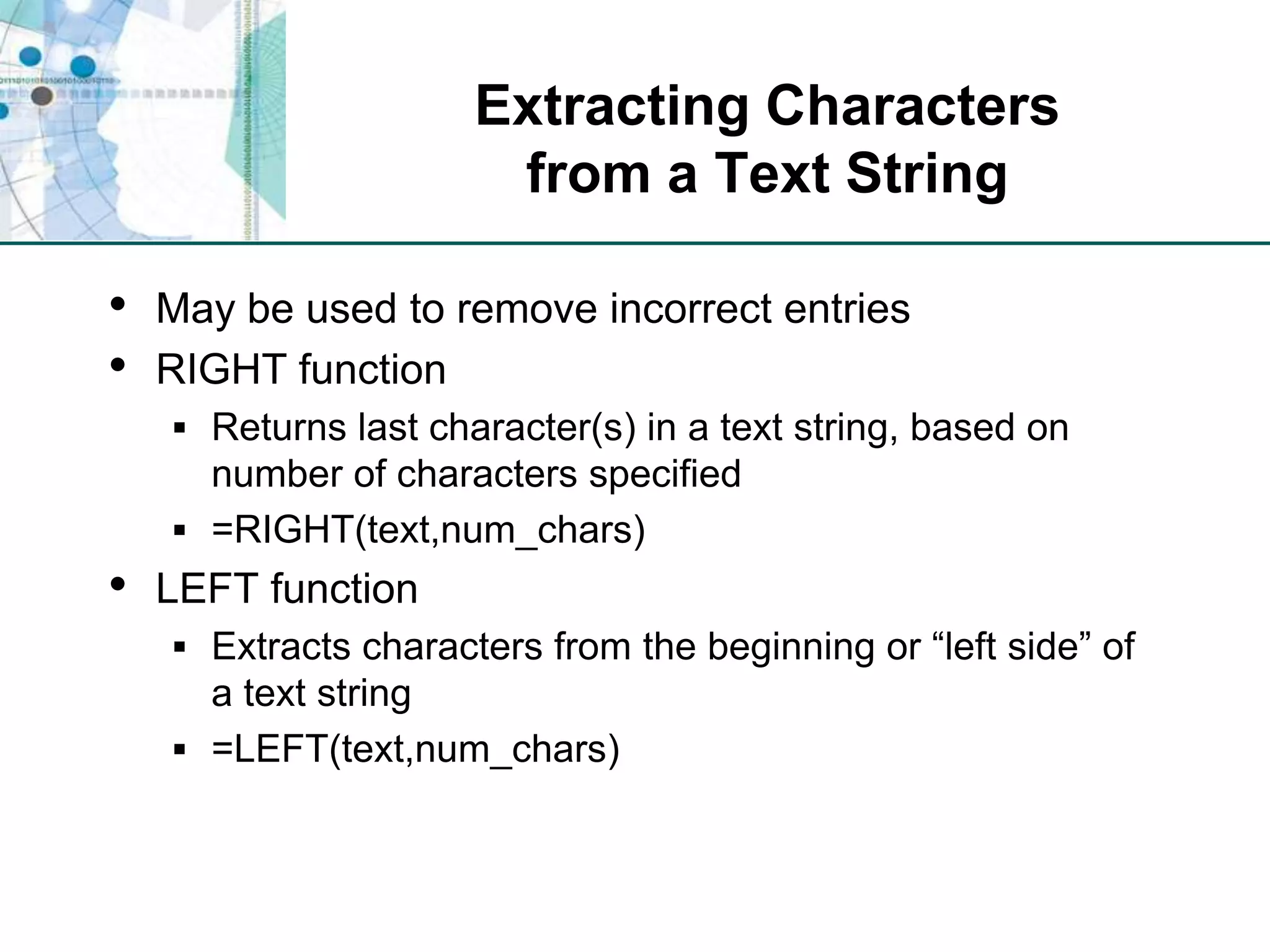
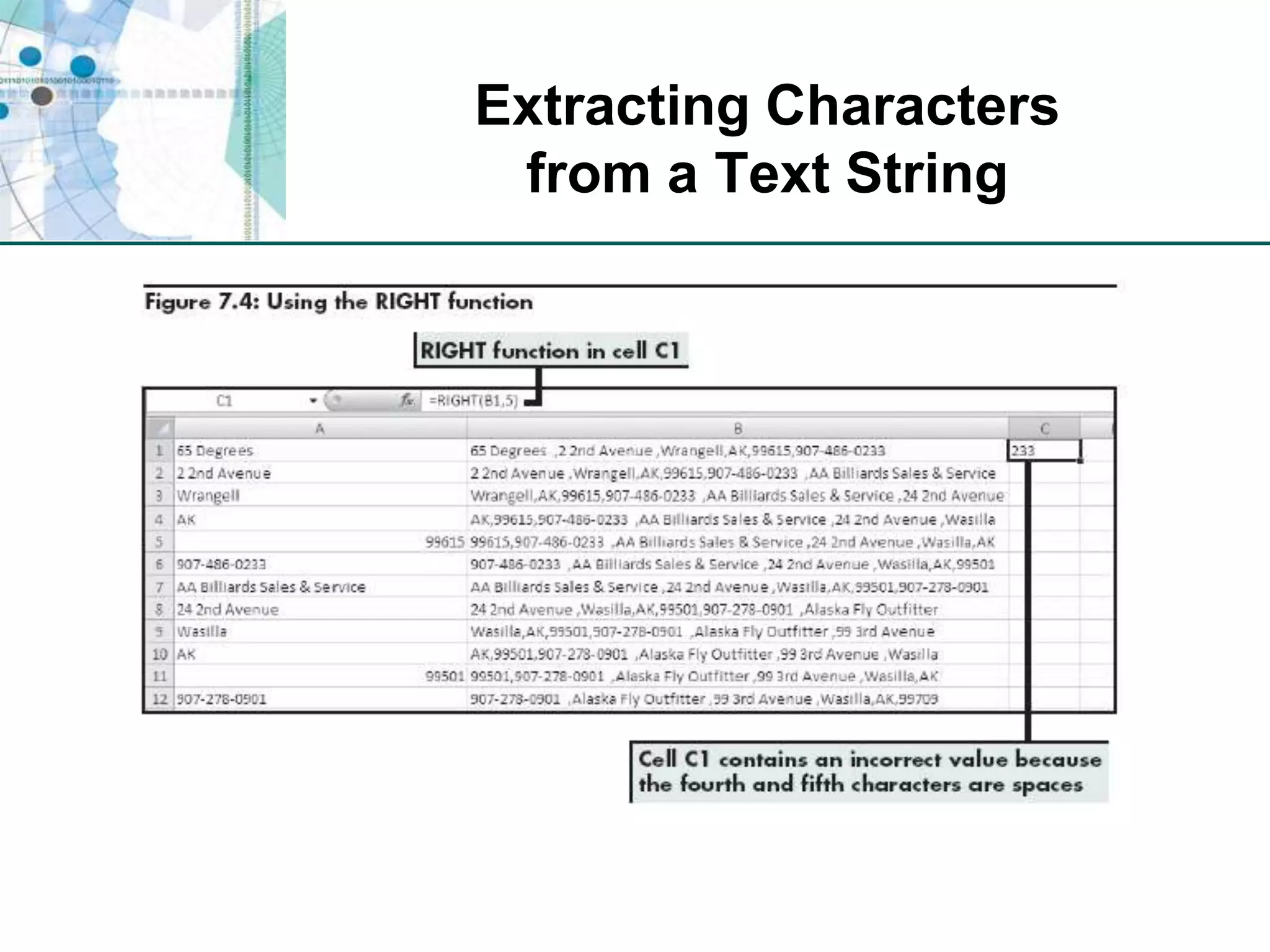
Extracting Characters from a Text StringMay be used to remove incorrect entriesRIGHT functionReturns last character(s) in a text string, based on number of characters specified=RIGHT(text,num_chars)LEFT functionExtracts characters from the beginning or “left side” of a text string=LEFT(text,num_chars)
Extracting Charactersfrom a Text String
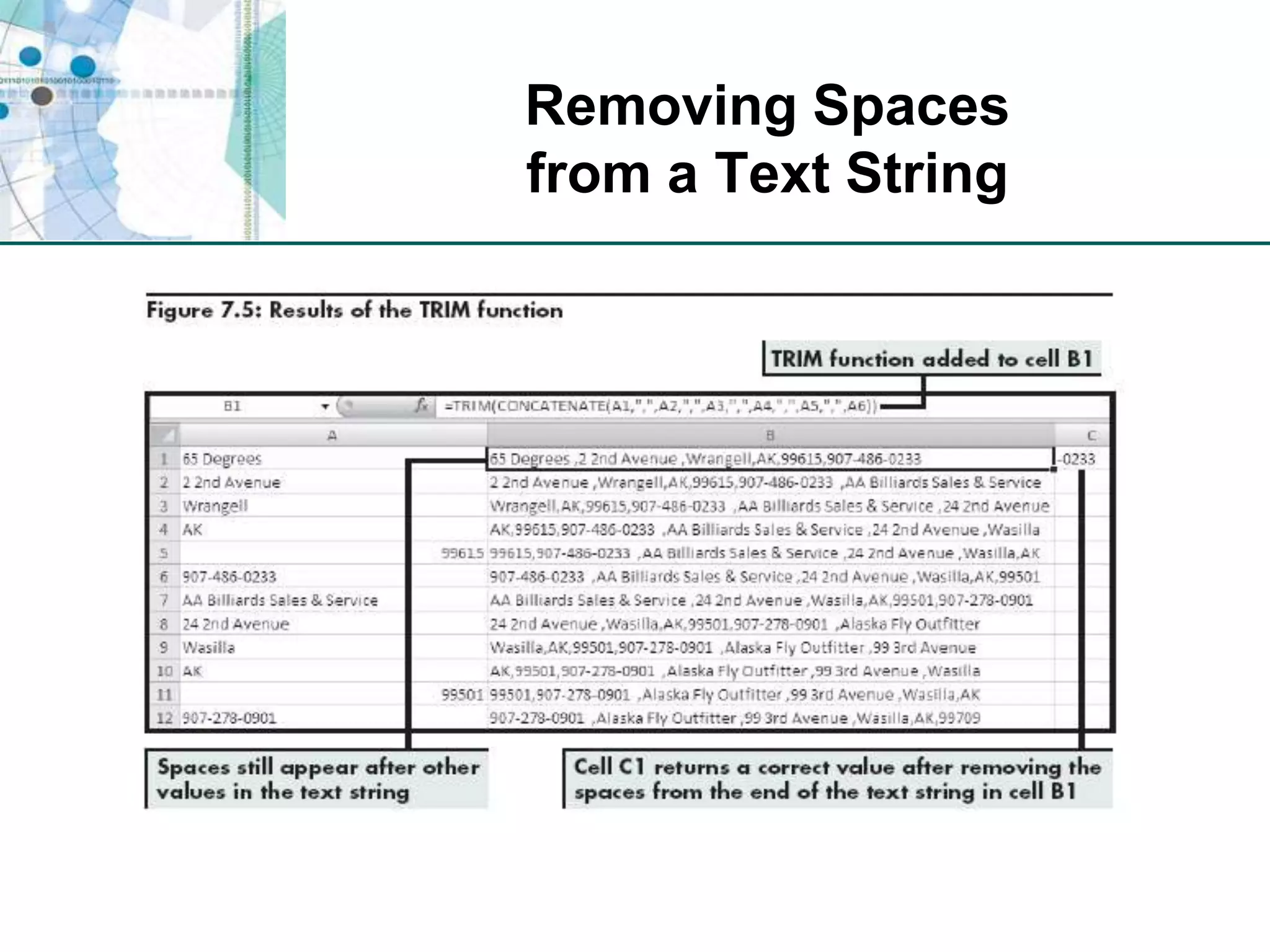
Removing Spacesfrom a Text StringTRIM functionRemoves all spaces in a text string except for the single spaces between words=TRIM(text)
Removing Spacesfrom a Text String
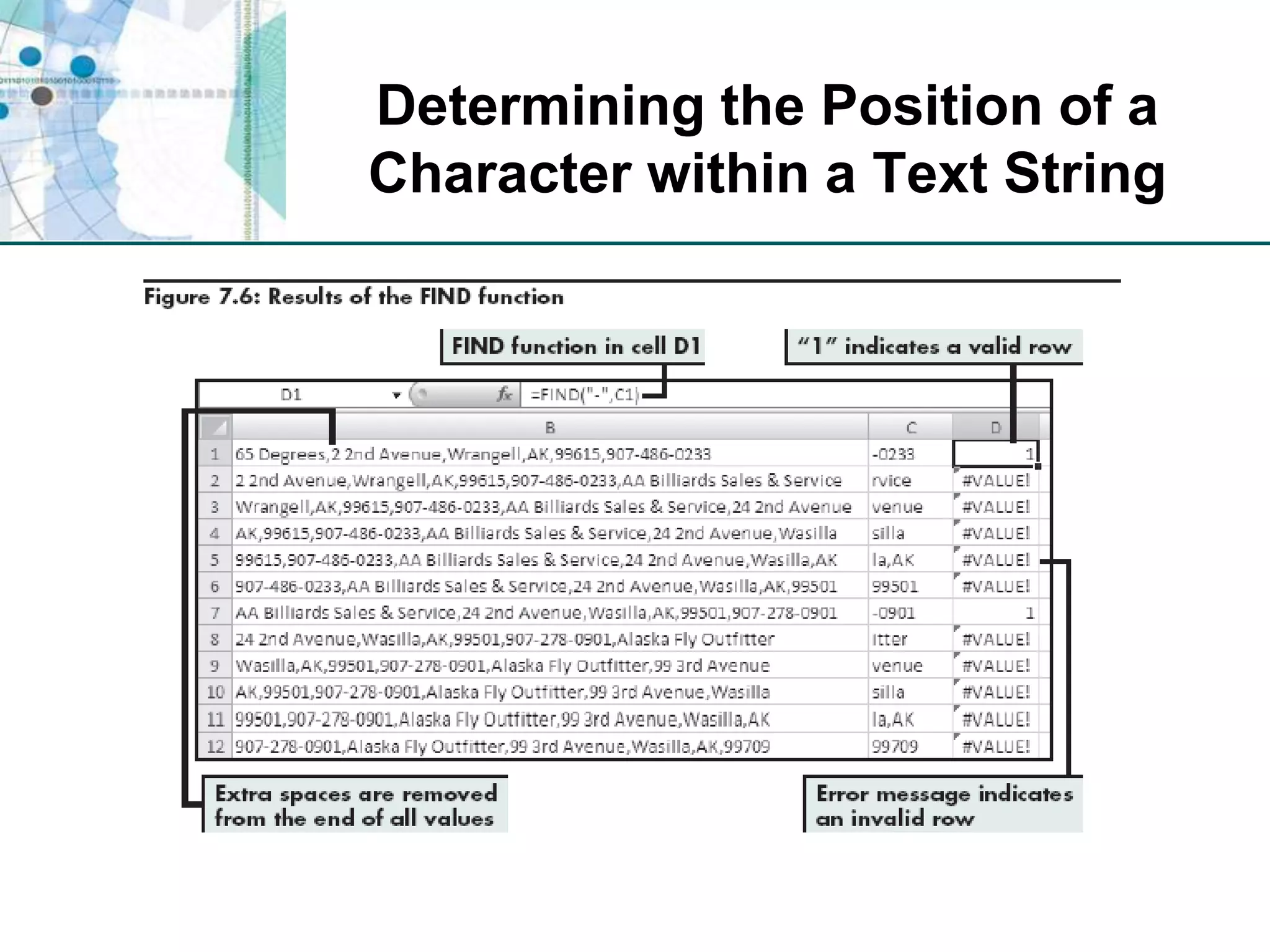
Determining the Position of a Character within a Text StringFIND functionReturns the starting position of one text value within another text valueCase sensitive=FIND(find_text,within_text,start_num)SEARCH functionDoes same thing as FIND function, but is not case sensitive
Determining the Position of a Character within a Text String
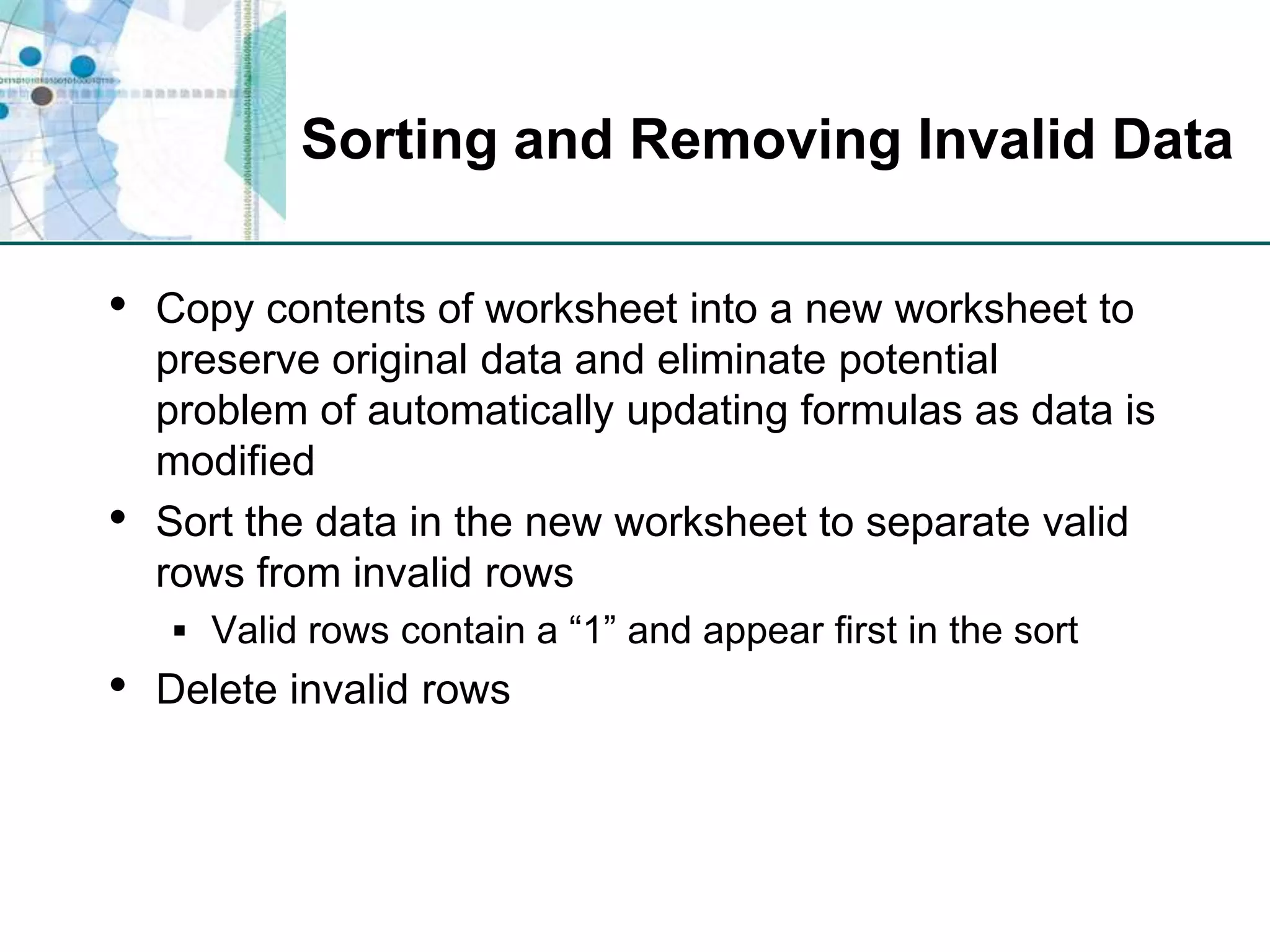
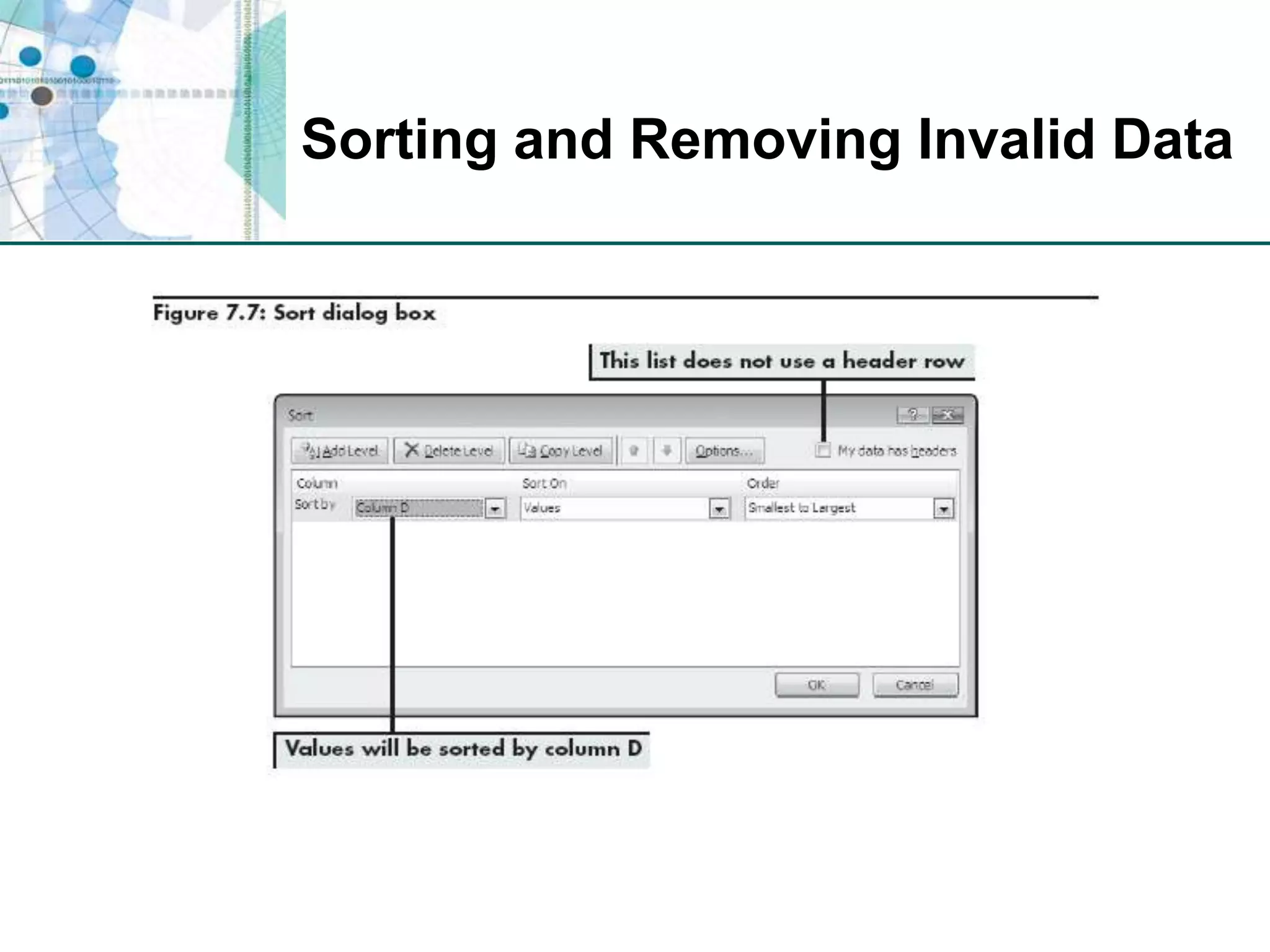
Sorting and Removing Invalid DataCopy contents of worksheet into a new worksheet to preserve original data and eliminate potential problem of automatically updating formulas as data is modifiedSort the data in the new worksheet to separate valid rows from invalid rowsValid rows contain a “1” and appear first in the sortDelete invalid rows
Sorting and Removing Invalid Data
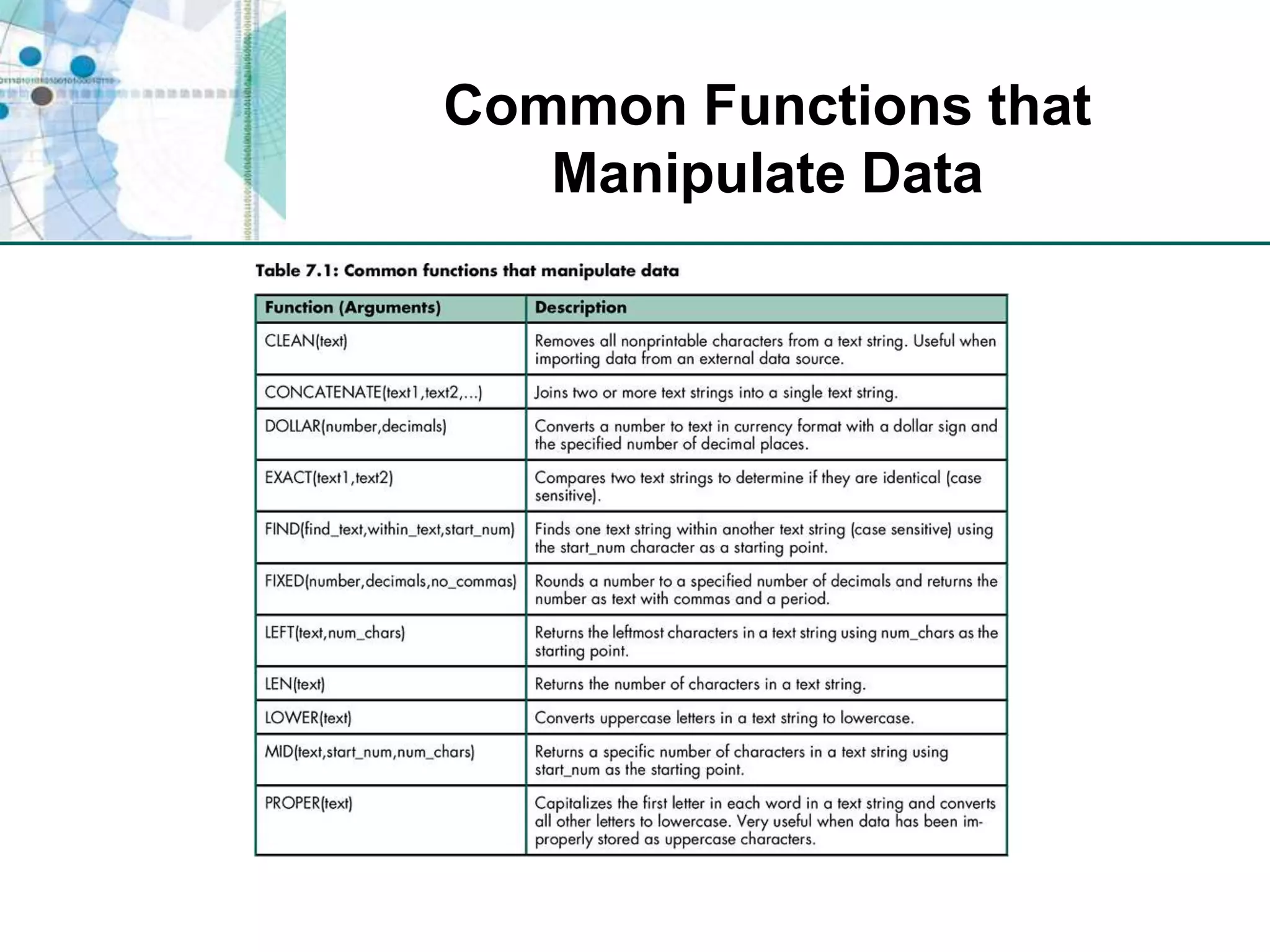
Common Functions that Manipulate Data
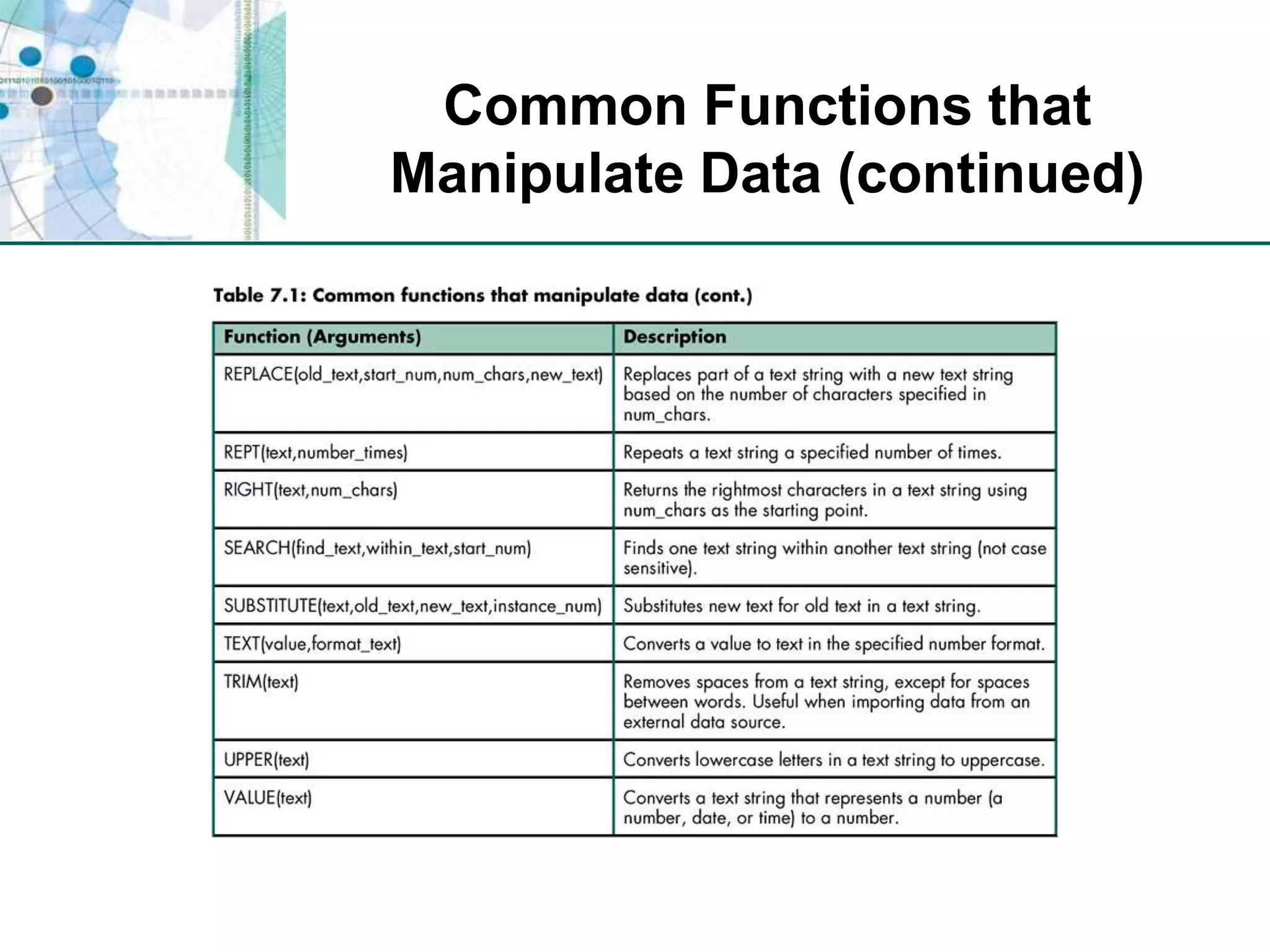
Common Functions that Manipulate Data (continued)
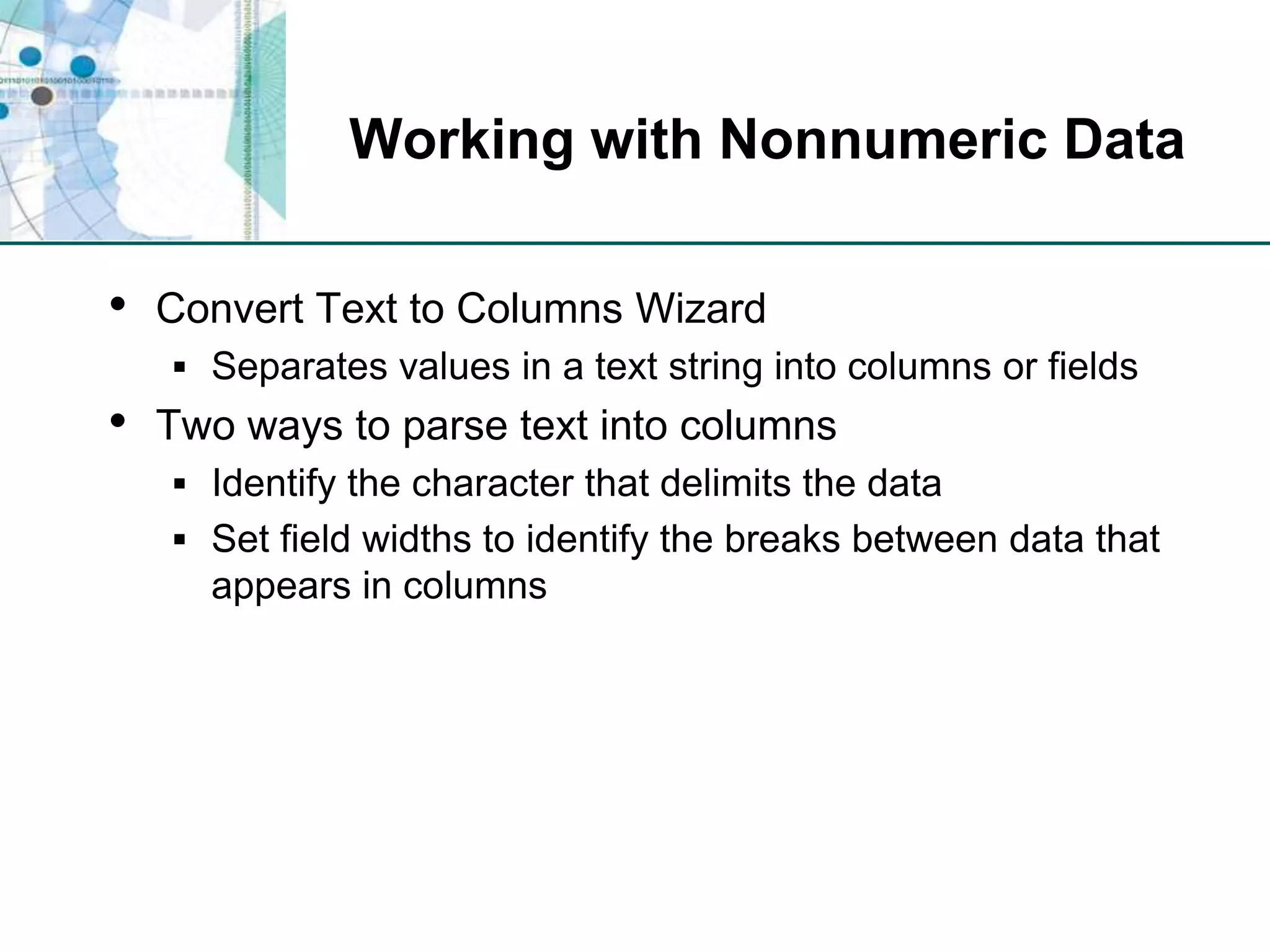
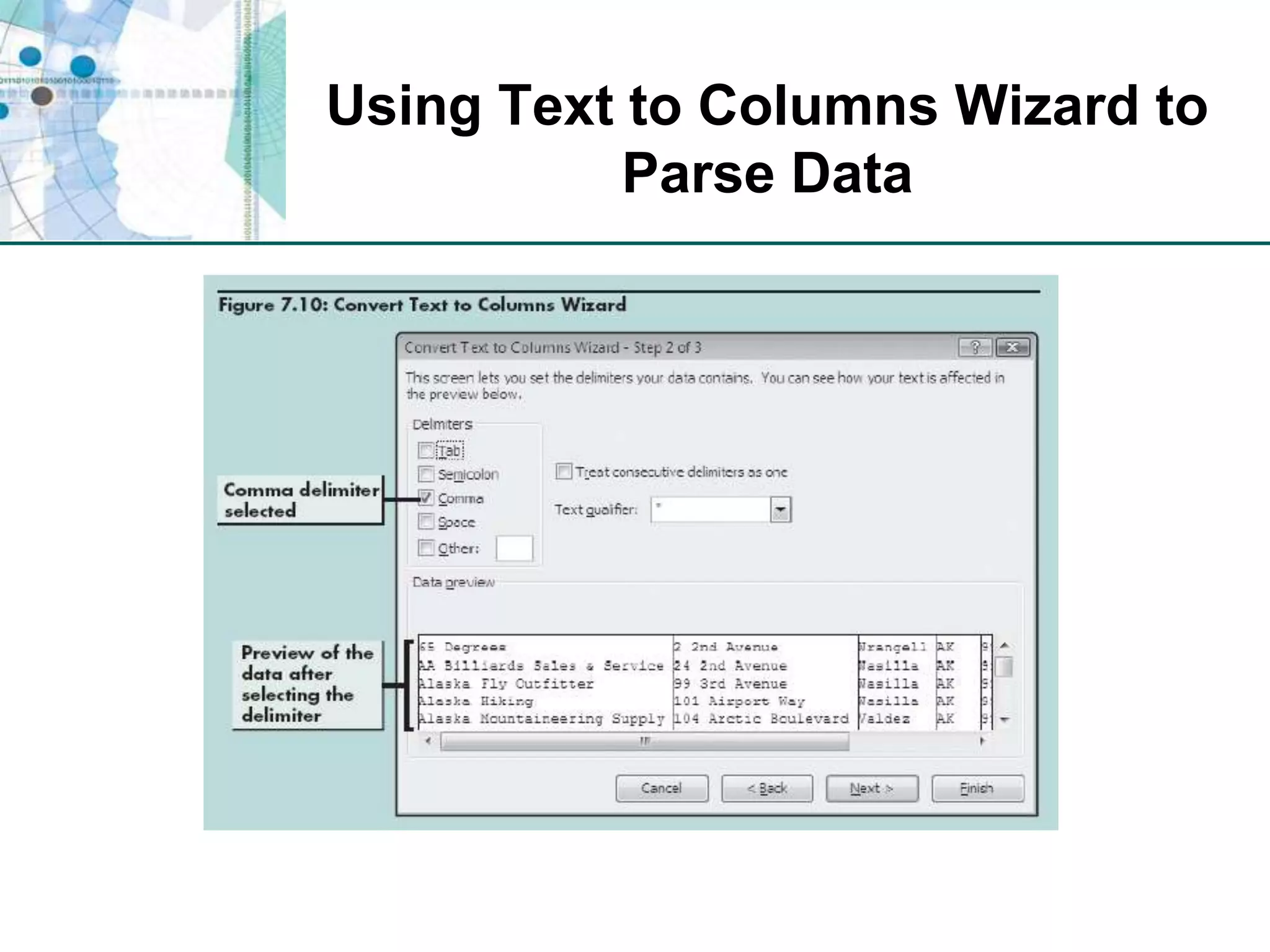
Working with Nonnumeric DataConvert Text to Columns WizardSeparates values in a text string into columns or fieldsTwo ways to parse text into columnsIdentify the character that delimits the dataSet field widths to identify the breaks between data that appears in columns
Using Text to Columns Wizard to Parse Data
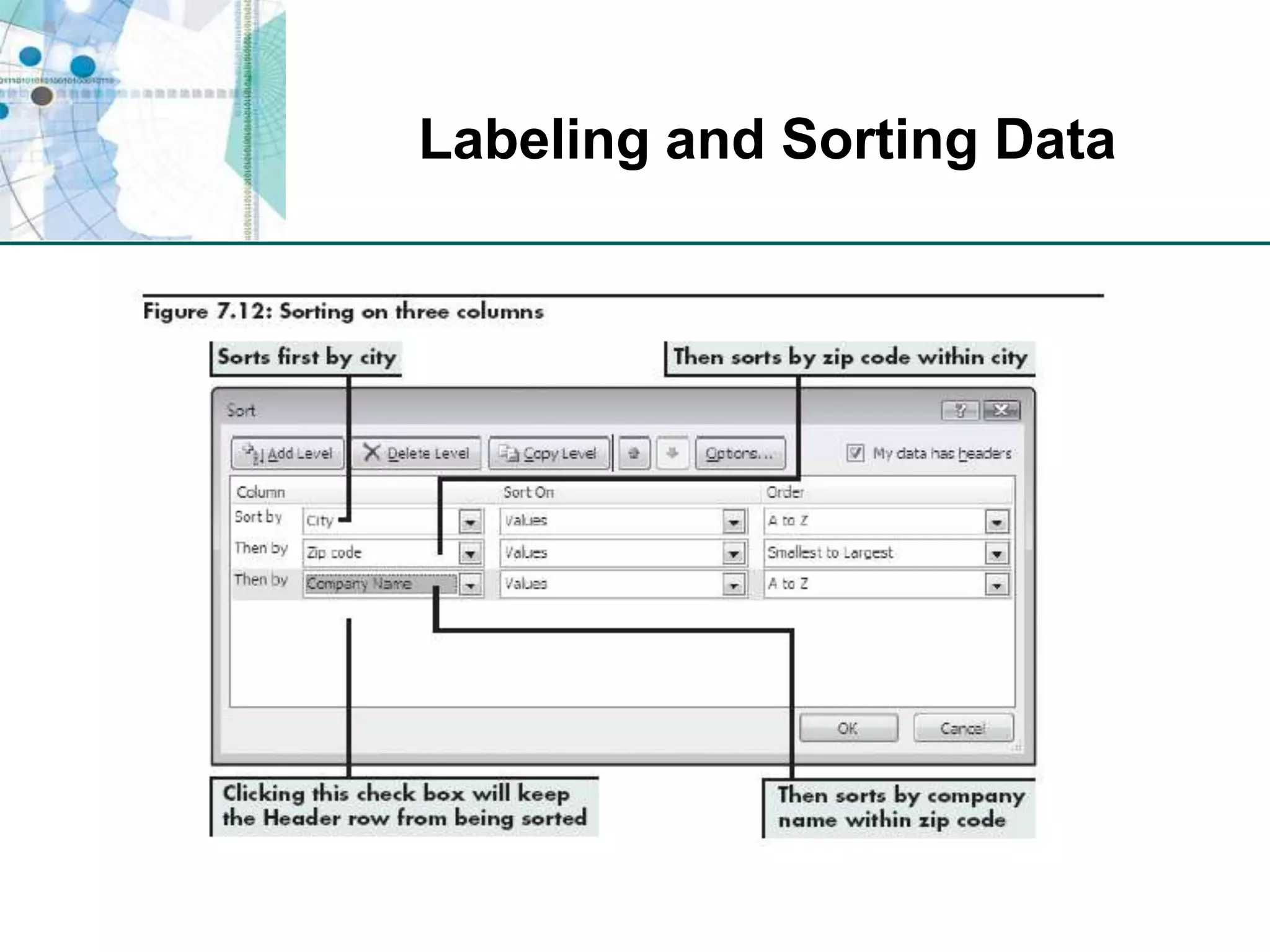
Labeling and Sorting Data
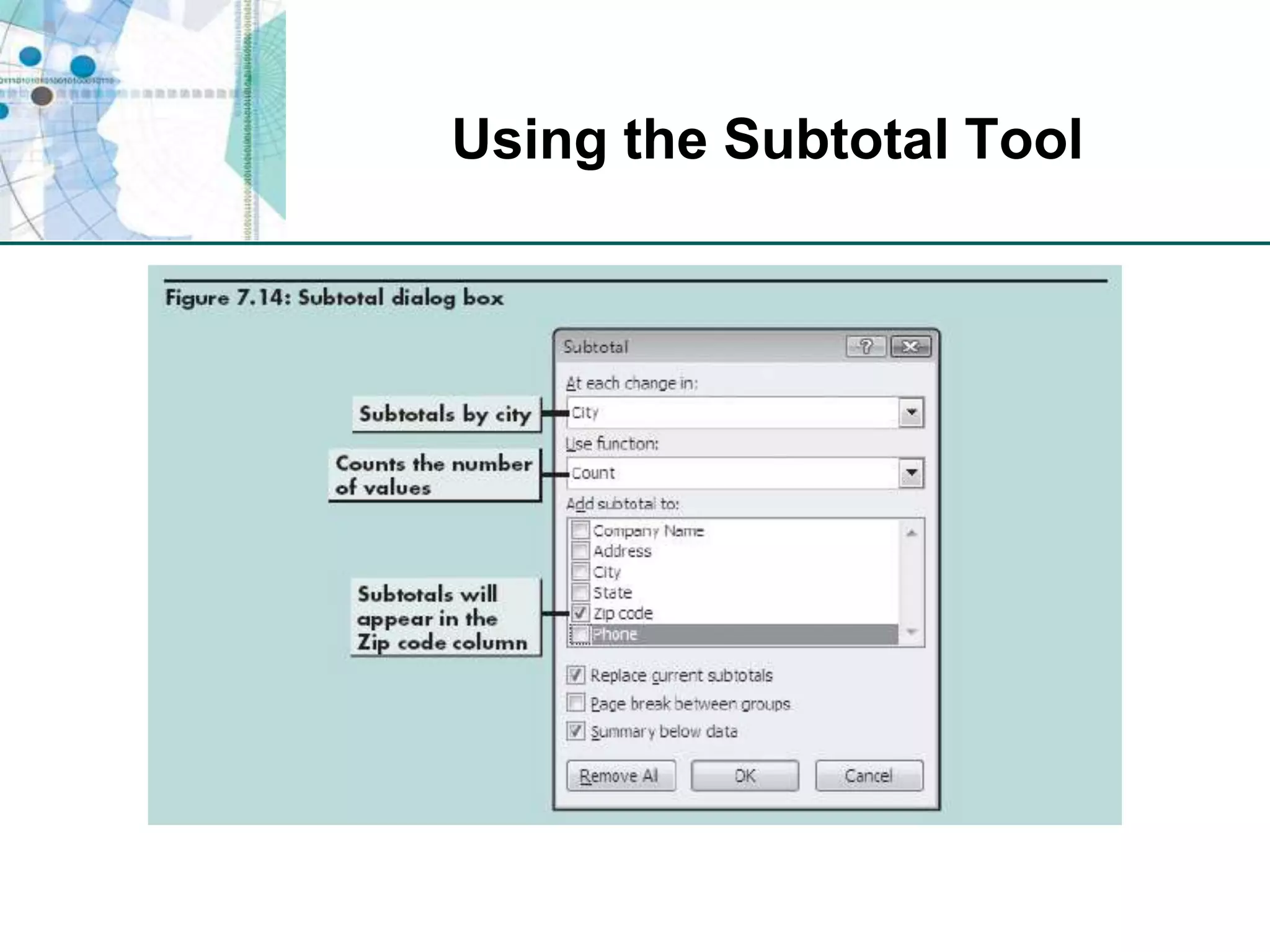
Analyzing Data by Creating SubtotalsSubtotal toolCreates summary reports that quickly organize data into categories with subtotal calculationsCan collapse and expand level of detail in the report
Using the Subtotal Tool
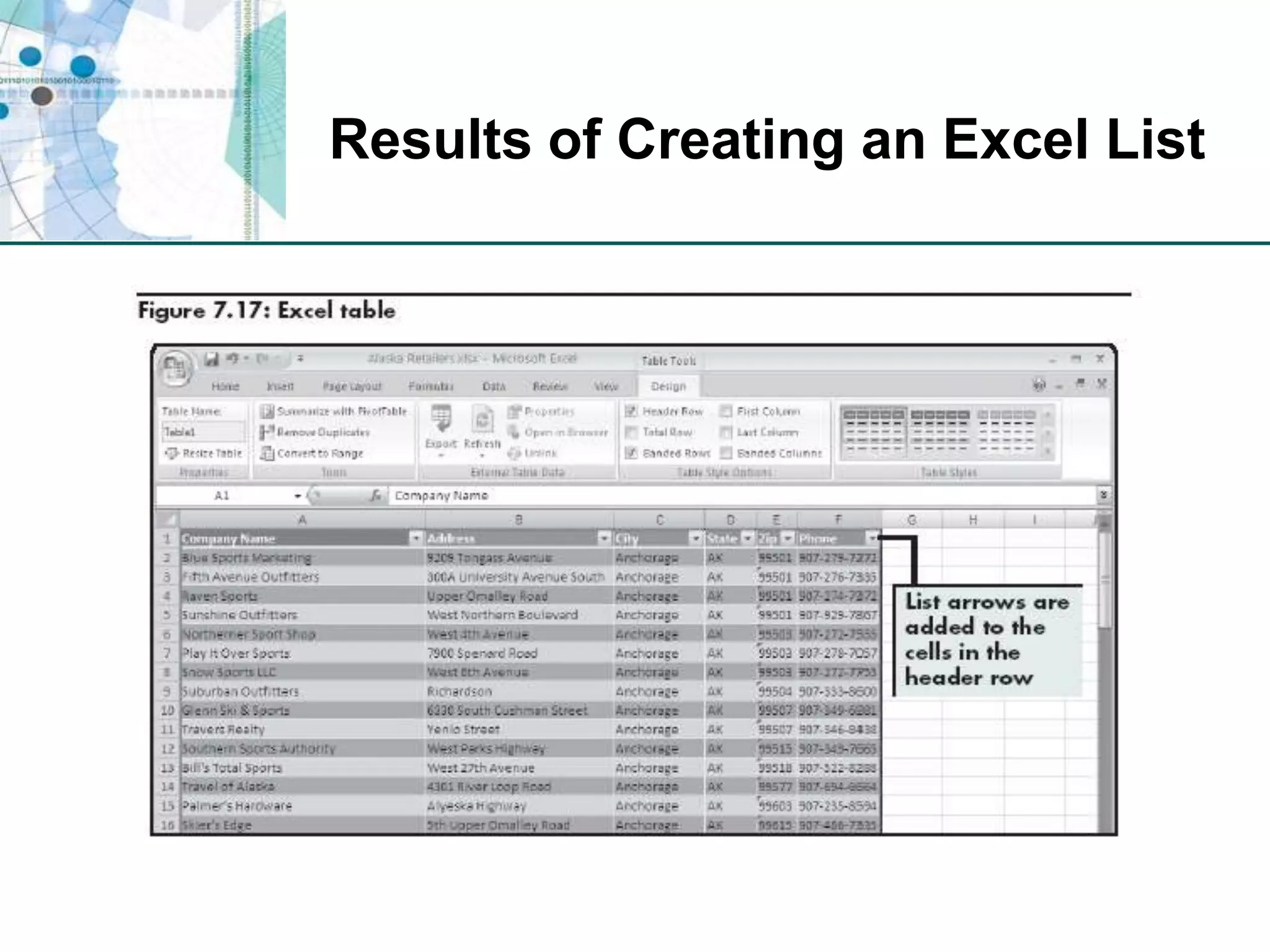
Creating and Working with an Excel ListA range of cells that are formalized as a single unitAdds many features that aren’t available in an unstructured list (validation, sorting, filtering)Protects integrity of dataData in the columns of each row automatically remains intact when data is filtered or sortedLimitationsLimit of 65,536 rows and 256 columnsEntire workbook must be loaded into memory
Results of Creating an Excel List
Working with an Excel ListSorting an Excel listAutomatic, once you select one cell in the columnFiltering an Excel listLets you display data based on criteria you specifyAdding data to an Excel listType data into blank row at bottom of listUse a form
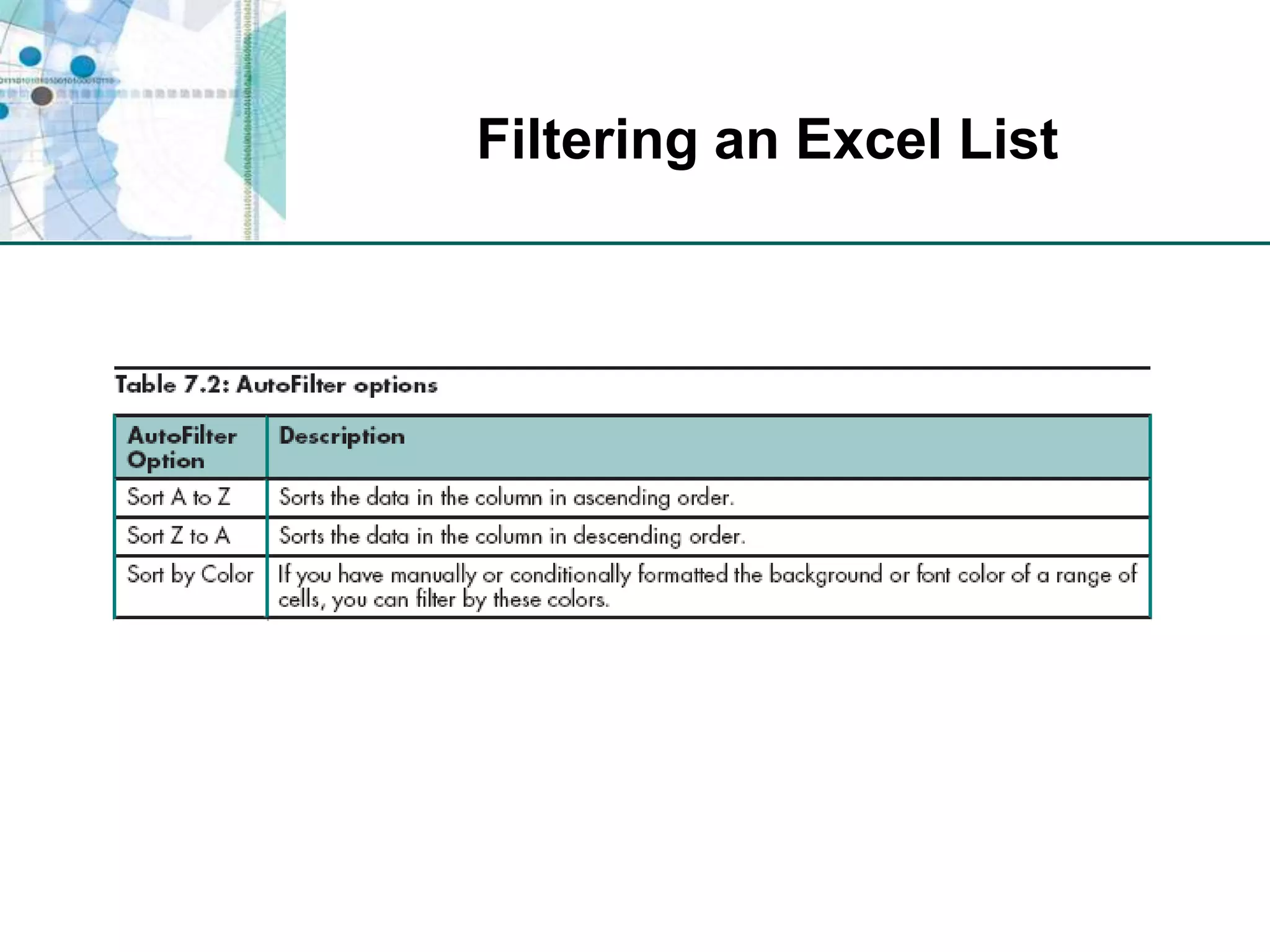
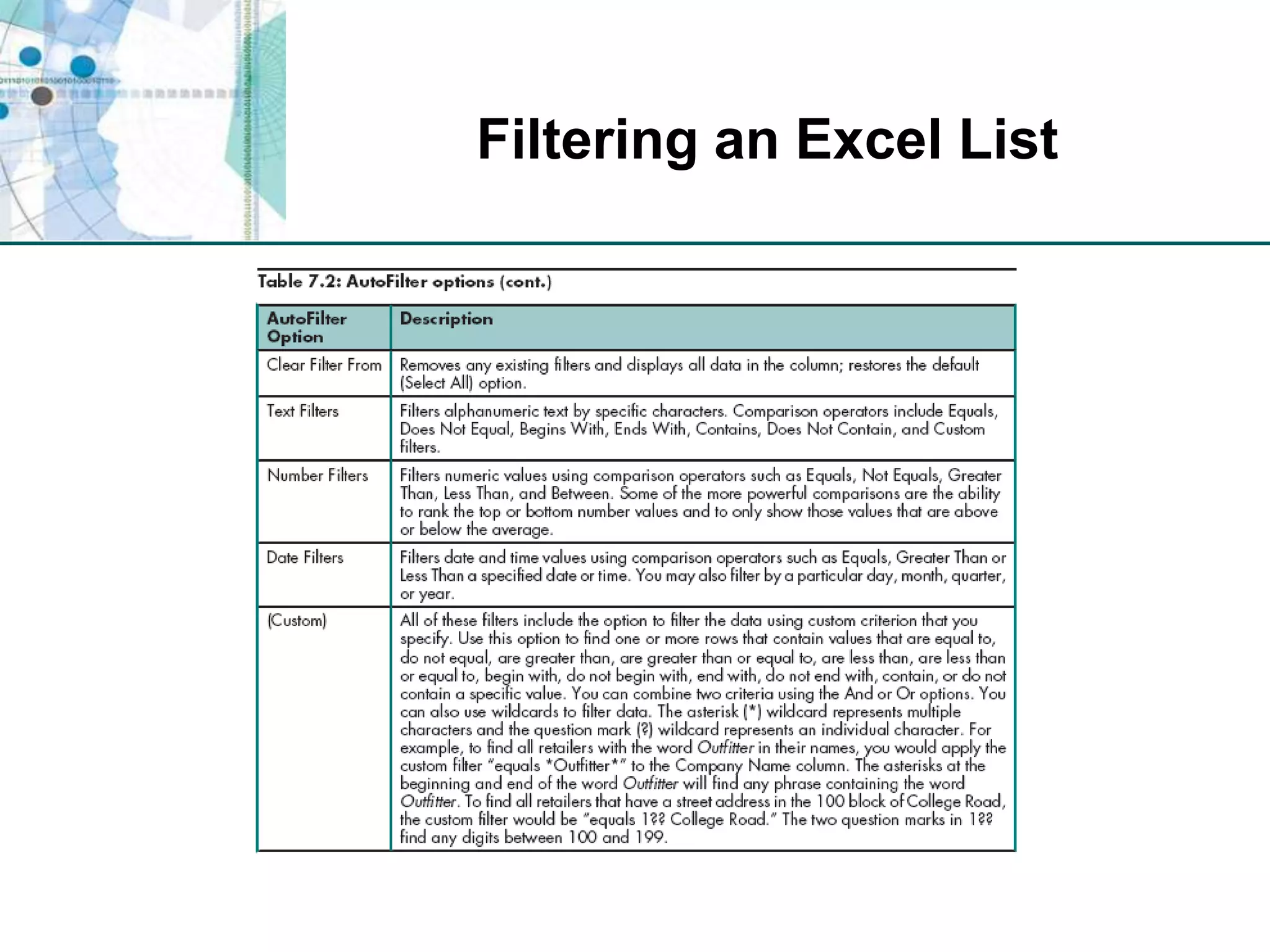
Filtering an Excel List
Level 1 SummaryImporting data stored in a text file into ExcelUsing Excel functionsCONCATENATE to combine multiple text strings into a single text stringTRIM to trim unnecessary spaces from a text stringRIGHT to find and extract characters from a text stringFIND to find specific characters in a text string
Level 1 Summary (continued)Transforming delimited data into rows and columns of data that can be sorted and filtered using Excel toolsCreating subtotals to analyze dataCreating and working with data stored in an Excel list
Level 2 Objectives: Analyzing Data Imported from a Database & Organizing Data with a PivotTable ReportImport data stored in a database into ExcelUse dates and times in calculationsAnalyze data using a PivotTable reportCreate a PivotChart reportImport information from the Web into Excel using a Web query
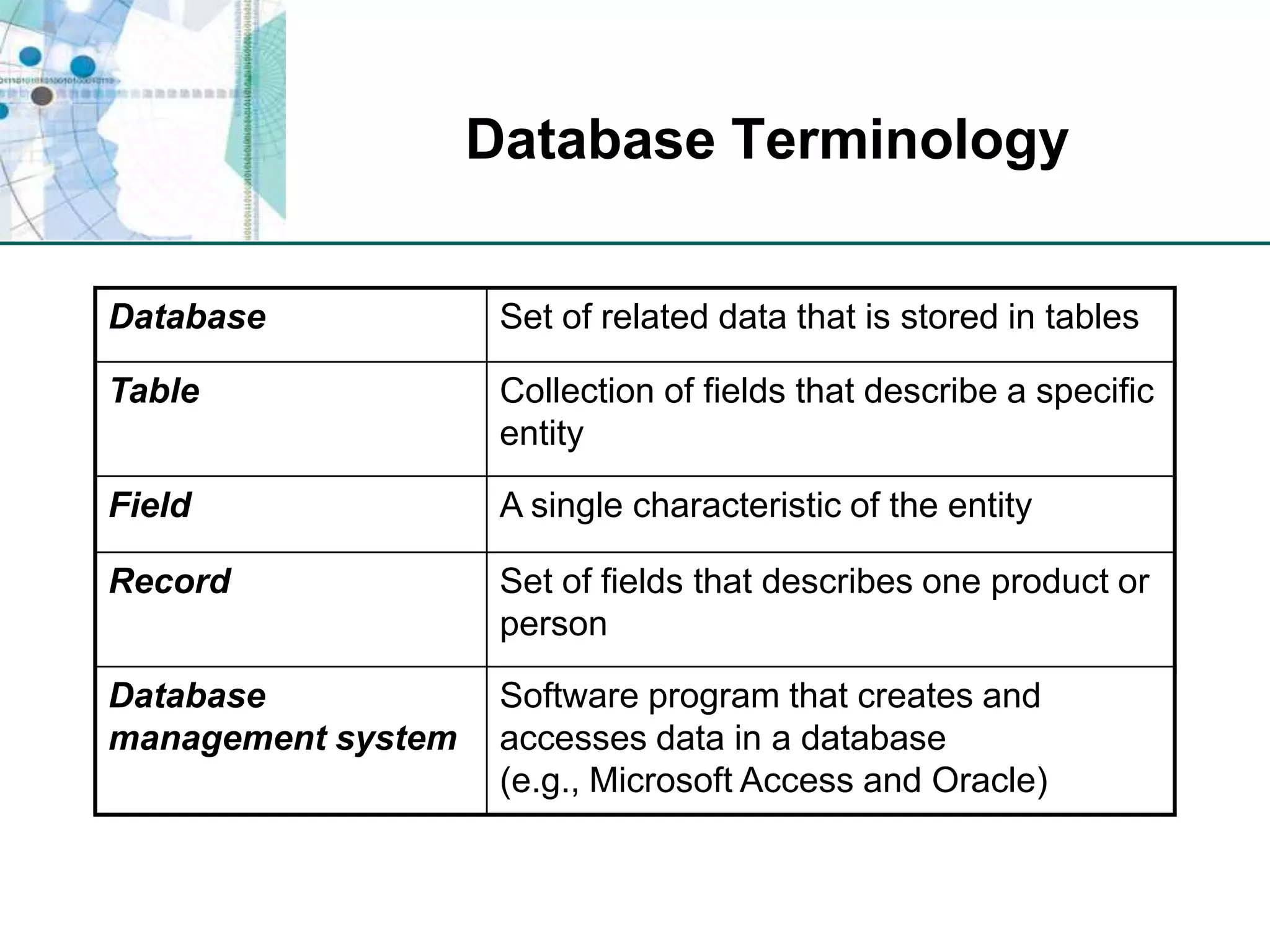
Database Terminology
Importing Data from a Database into ExcelDatabase provides the structure to ensure that the right data is available and protectedSpreadsheet provides analytical power and flexibilityReduce data redundancy by storing data in related tables in a normalized database
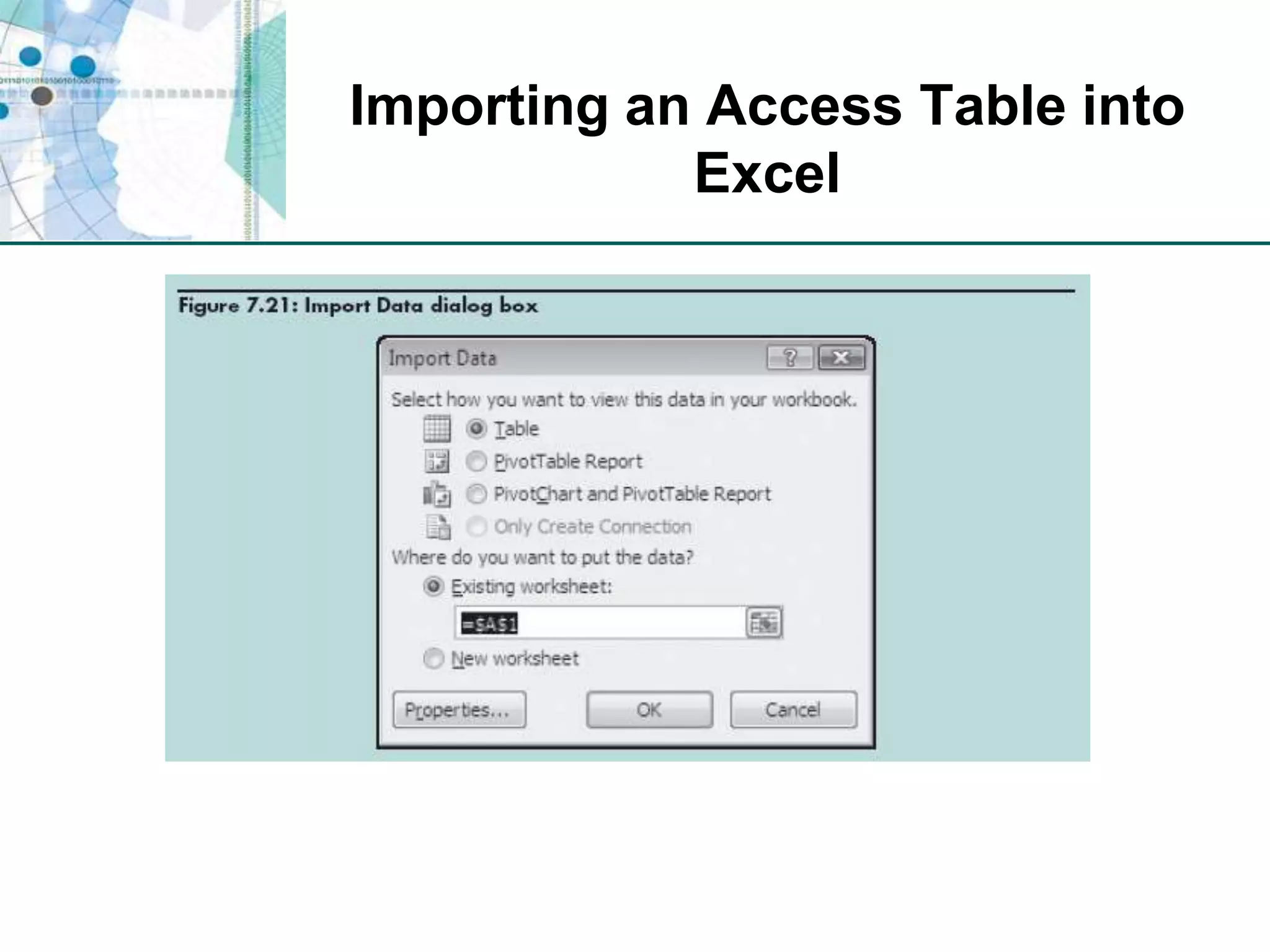
Importing an Access Table into Excel
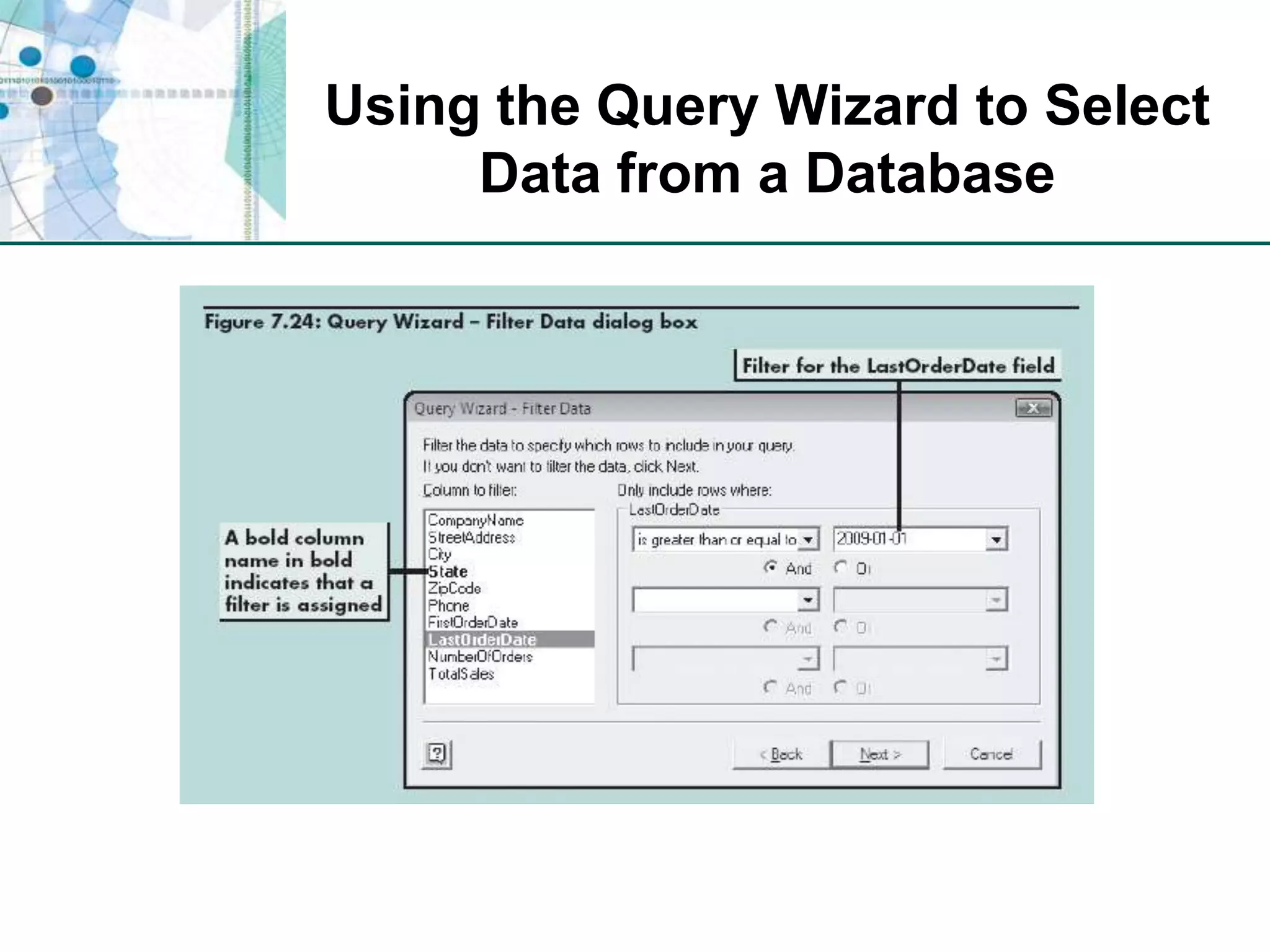
Using the Query Wizard to Select Data from a DatabaseLets you choose the data source and select the database table and fields to import into the workbookPrompts you to define criteria for the data you want to import by selecting only rows that meet criteria you specify
Using the Query Wizard to Select Data from a Database
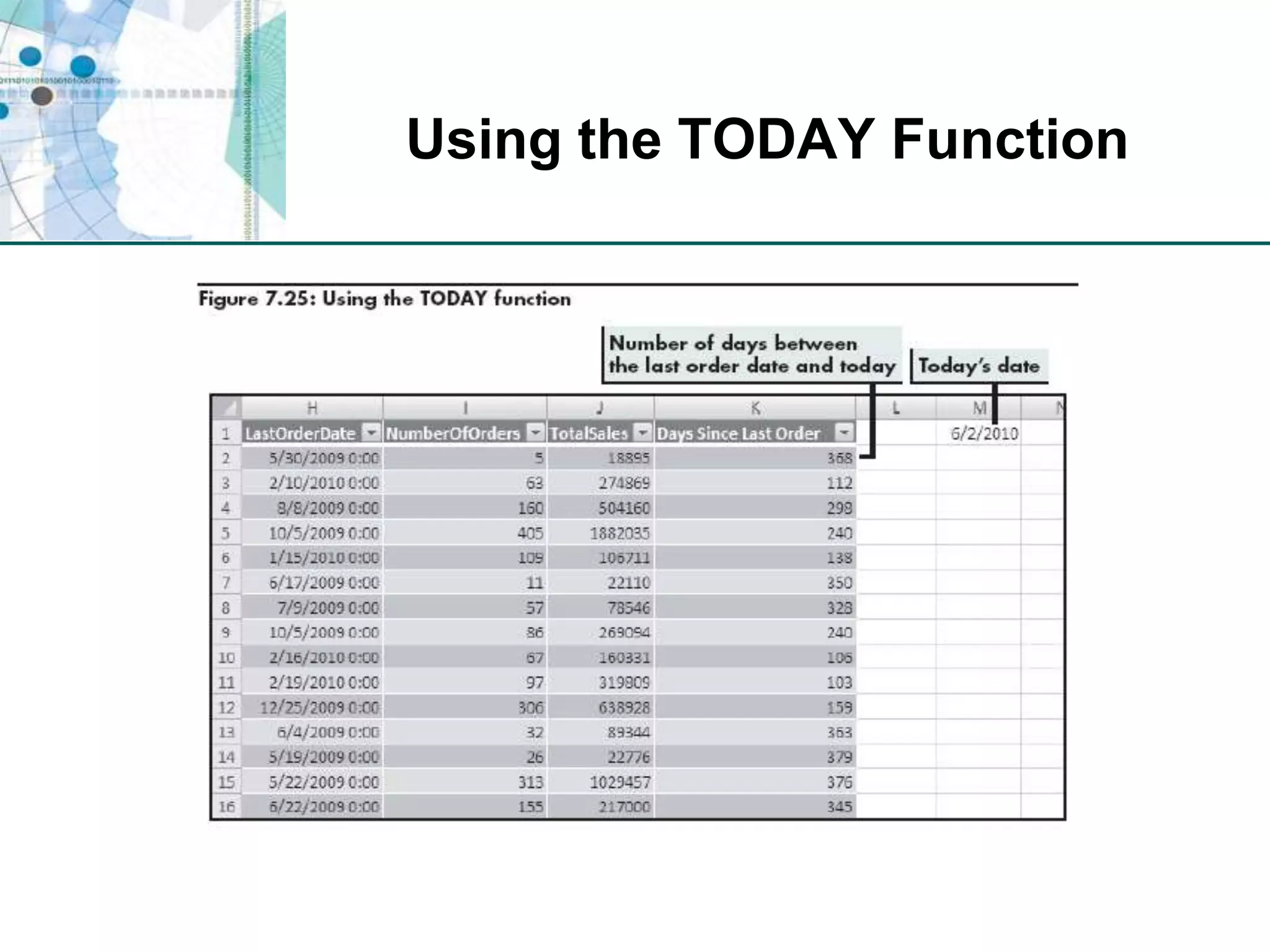
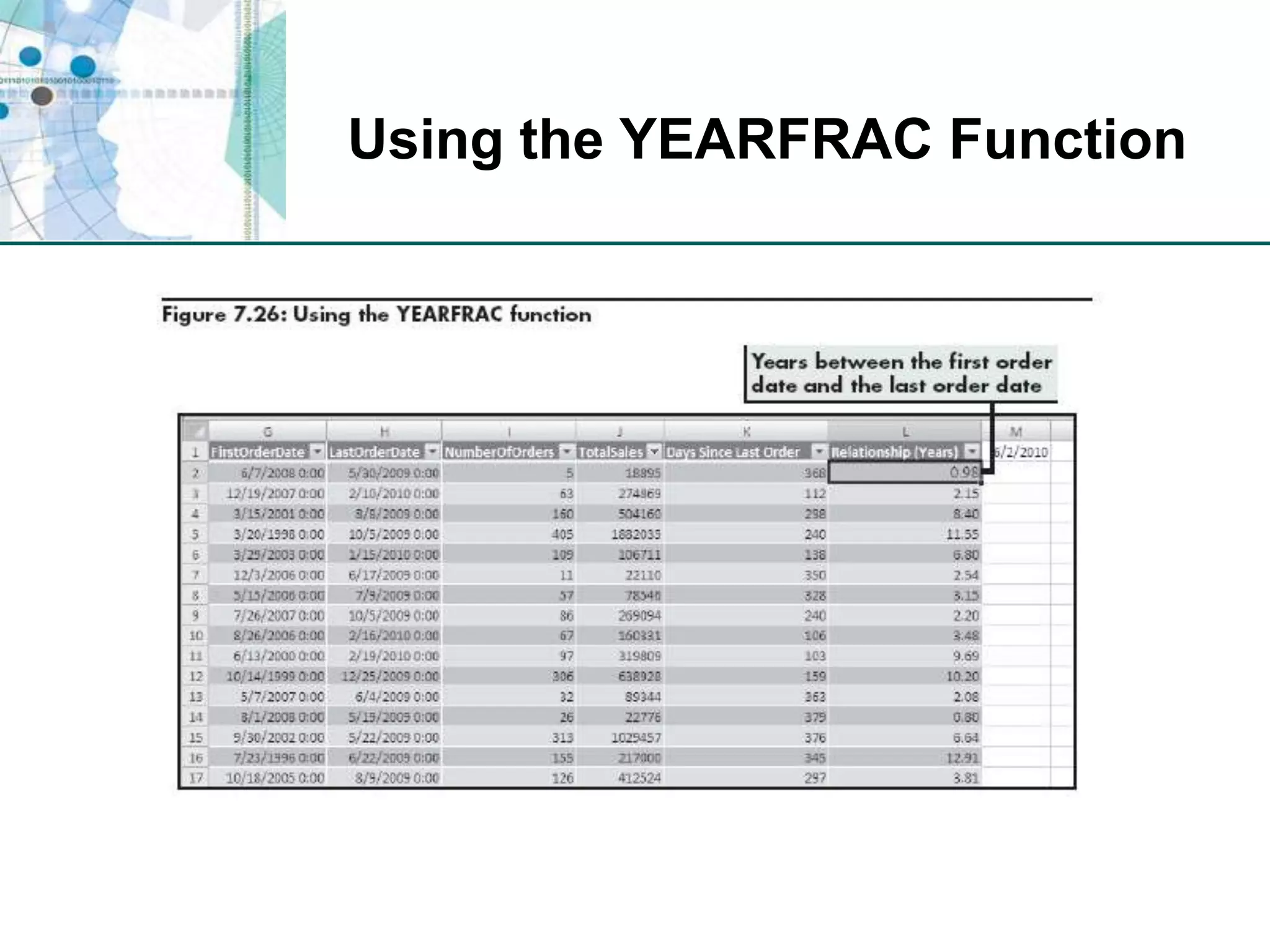
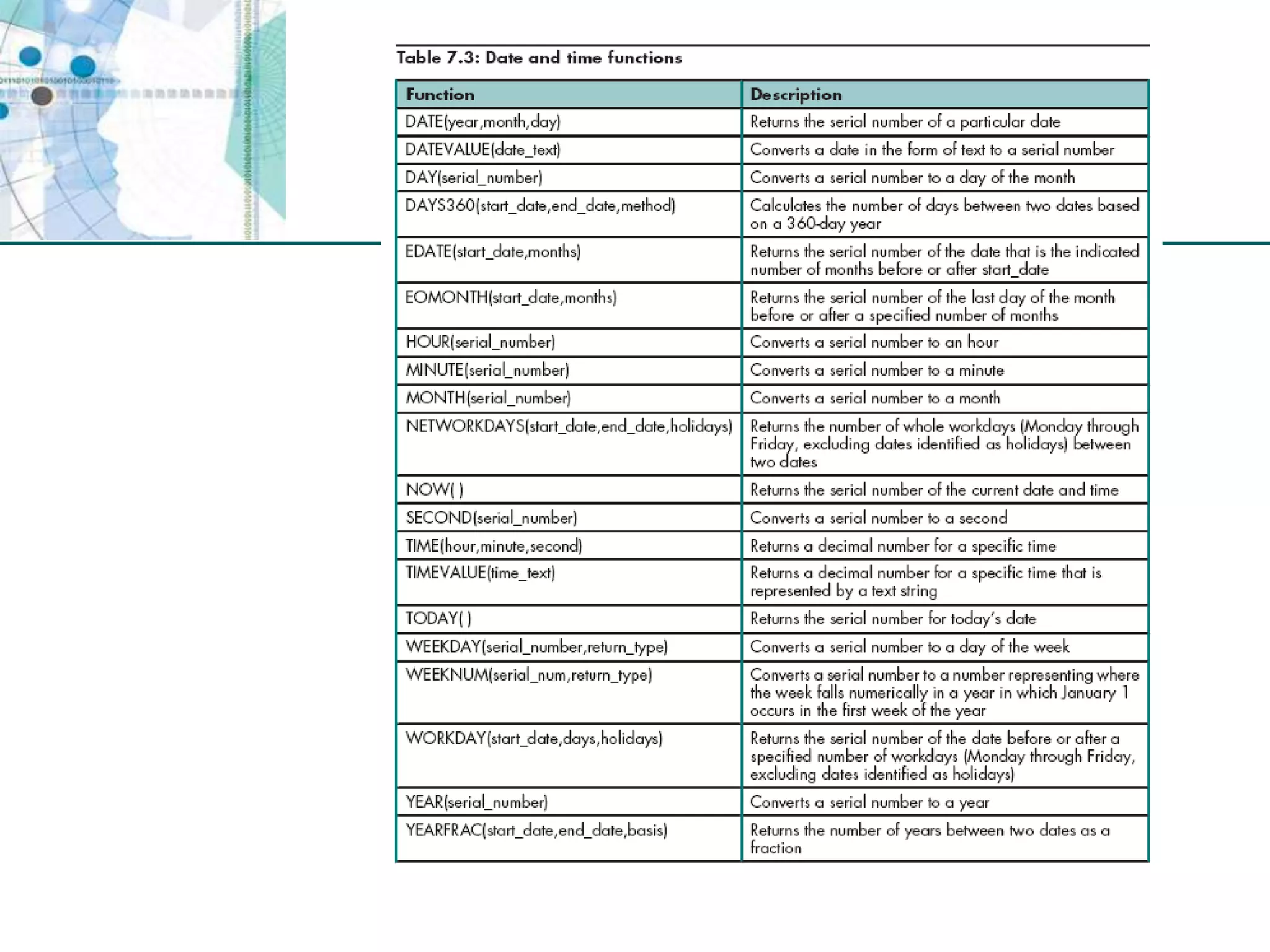
Making Calculations with Date and Time DataTODAY functionReturns current date’s serial number (based on computer’s internal clock)=TODAY()Requires no additional argumentsYEARFRAC functionCalculates the number of years between the two days=YEARFRAC(start_date,end_date,basis)
Using the TODAY Function
Using the YEARFRAC Function
Analyzing Data Usinga PivotTable ReportInteractive report that lets you summarize and analyze a data setDynamic organization; can be “pivoted” to examine data from various perspectives by rearranging its structureBest used to analyze data that can be summarized in multiple ways
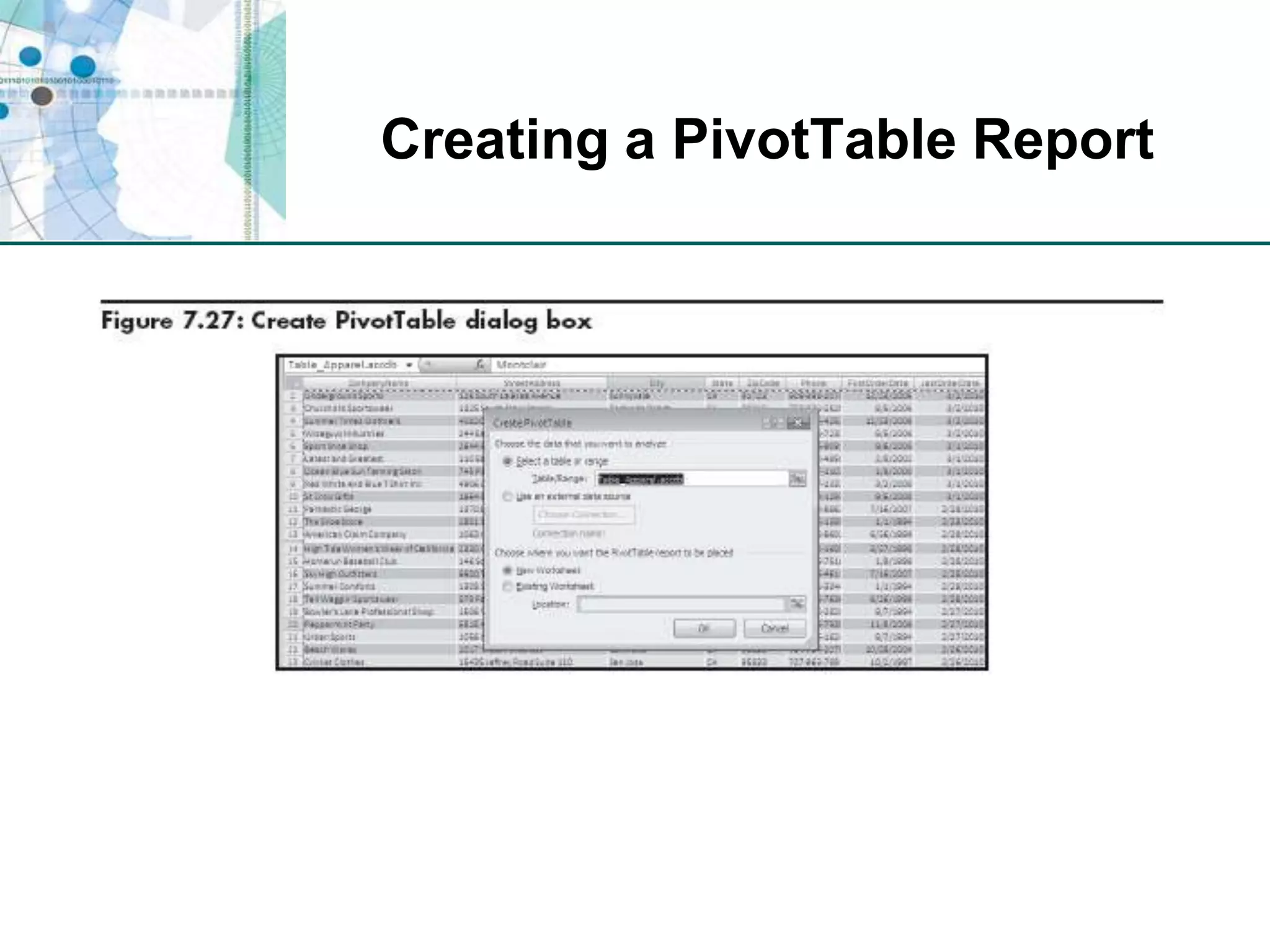
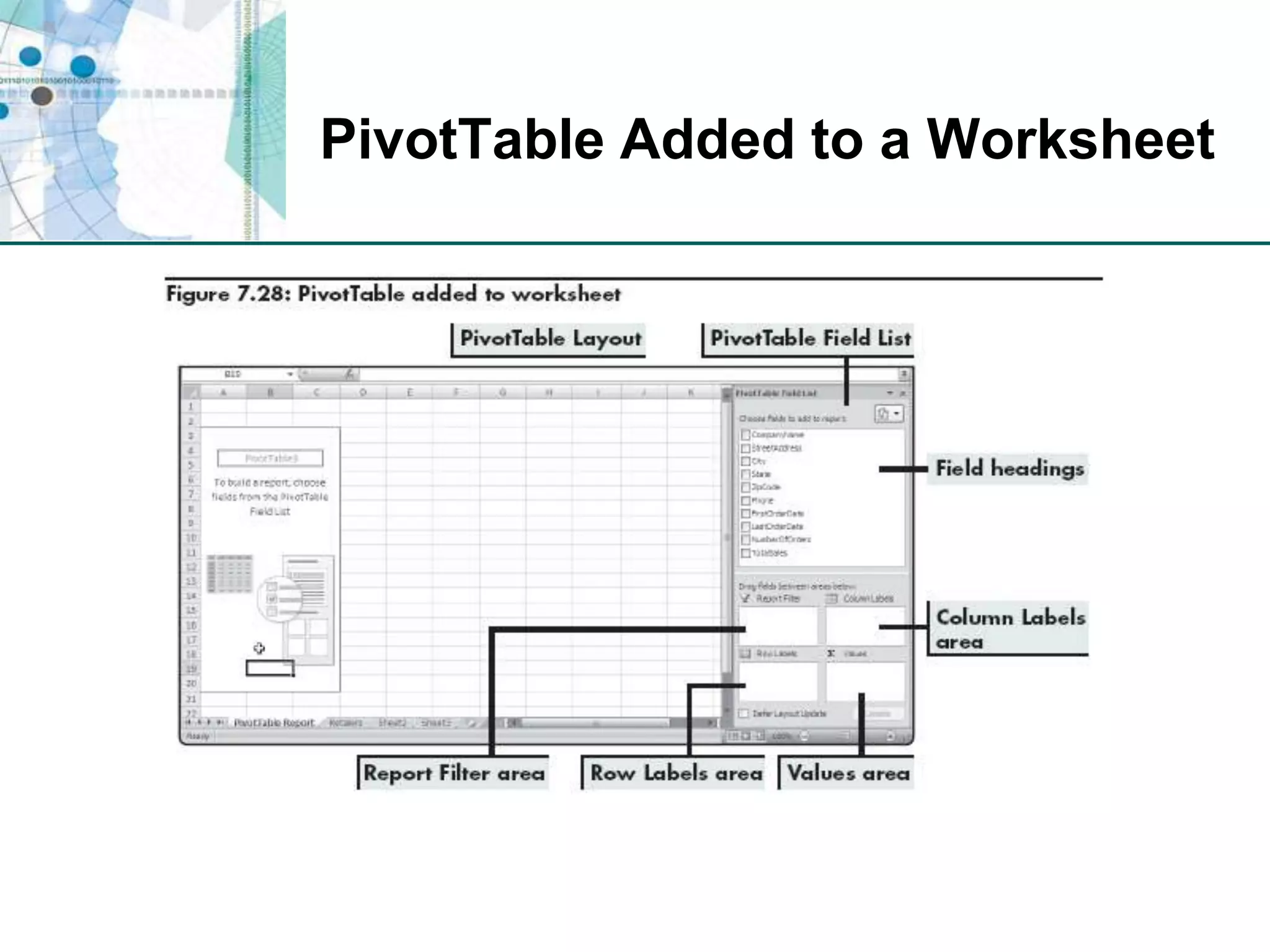
Creating a PivotTable Report
PivotTable Added to a Worksheet
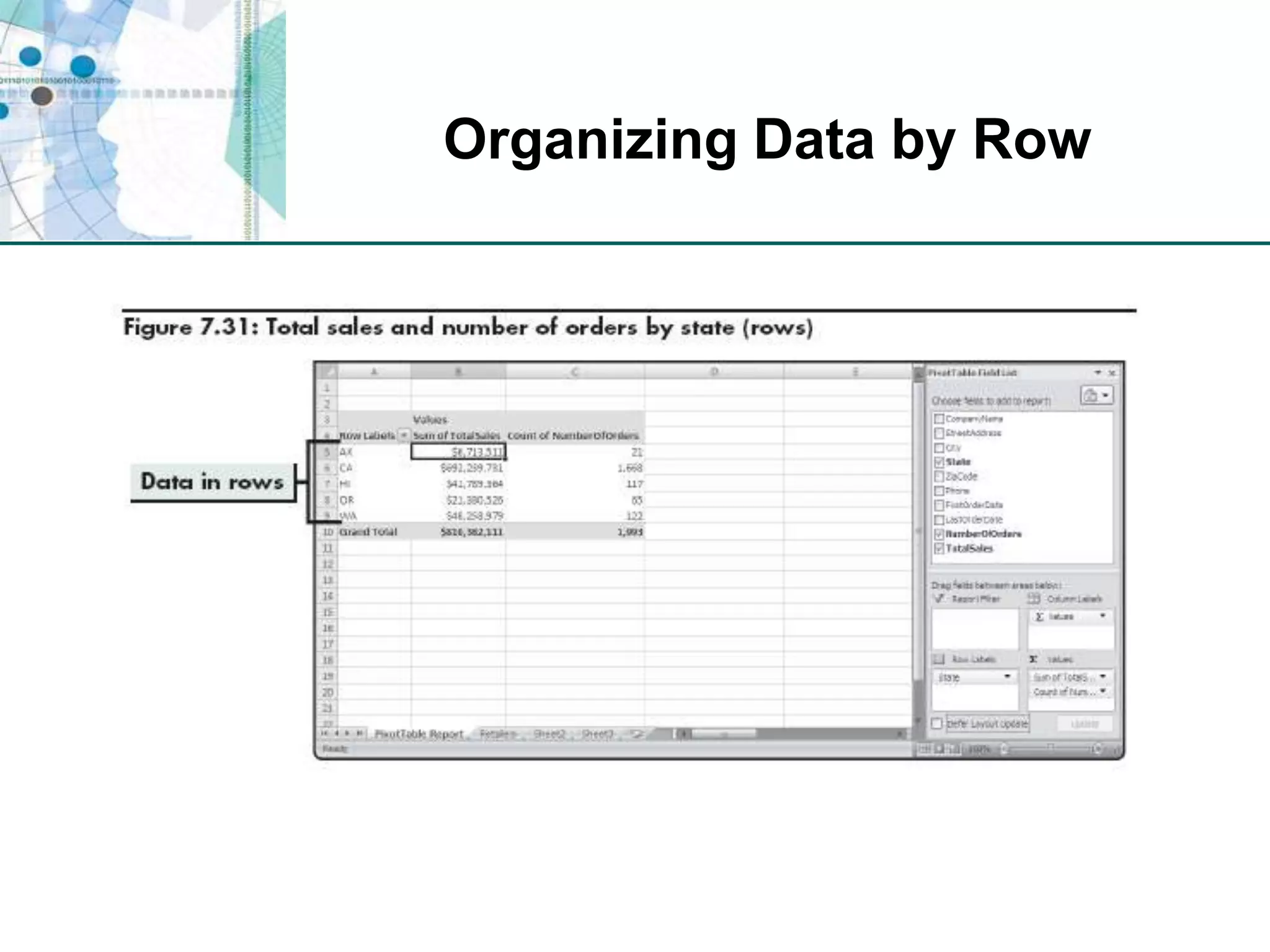
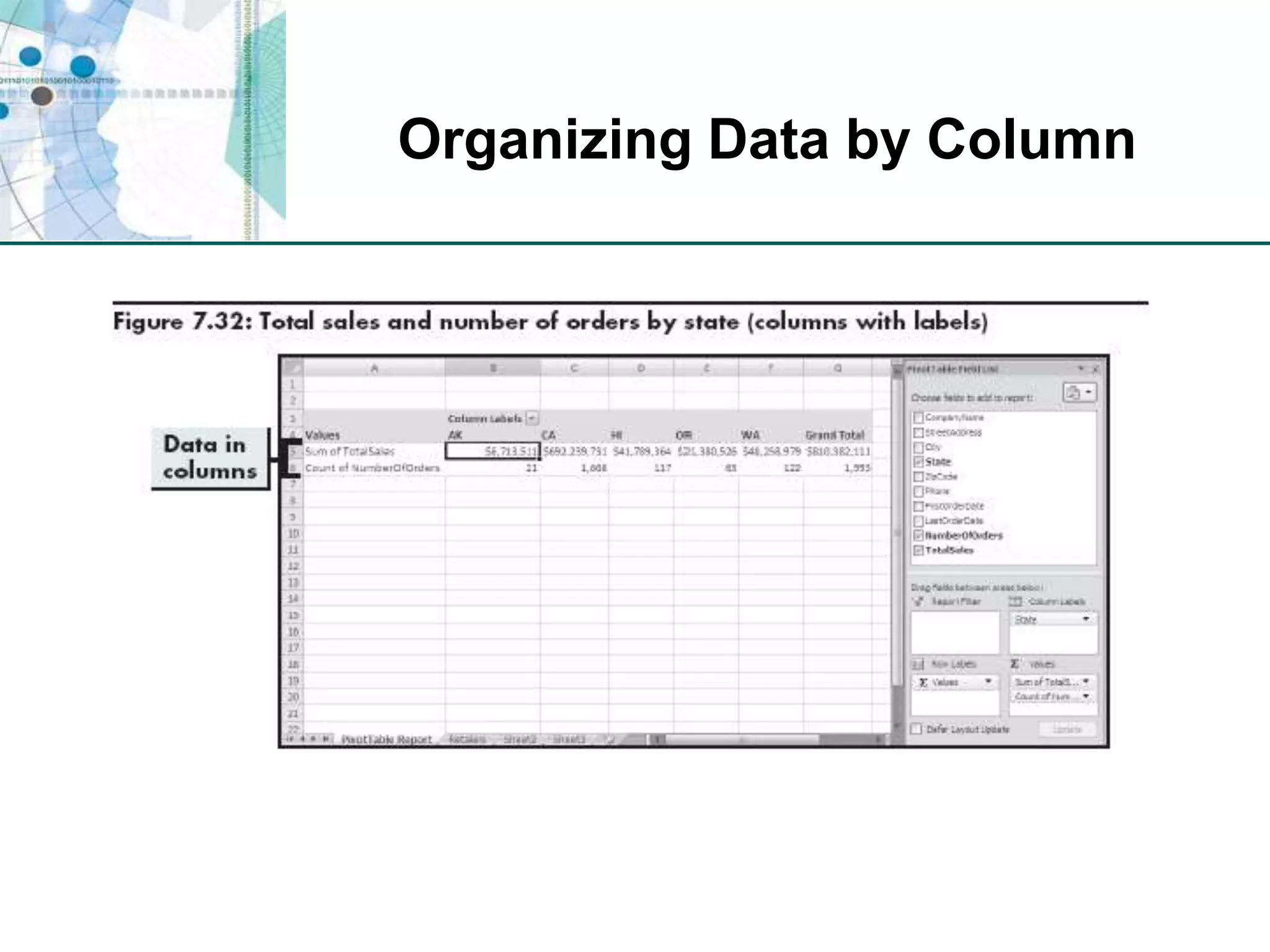
Analyzing Data Using the Row, Column, and Data AreasTo add data to a PivotTable report, drag the field you want to summarize to a drop area on the reportRow Area displays data from that field in rowsColumn Area displays data from that field in rowsData Area summarizes data from that field
Organizing Data by Row
Organizing Data by Column
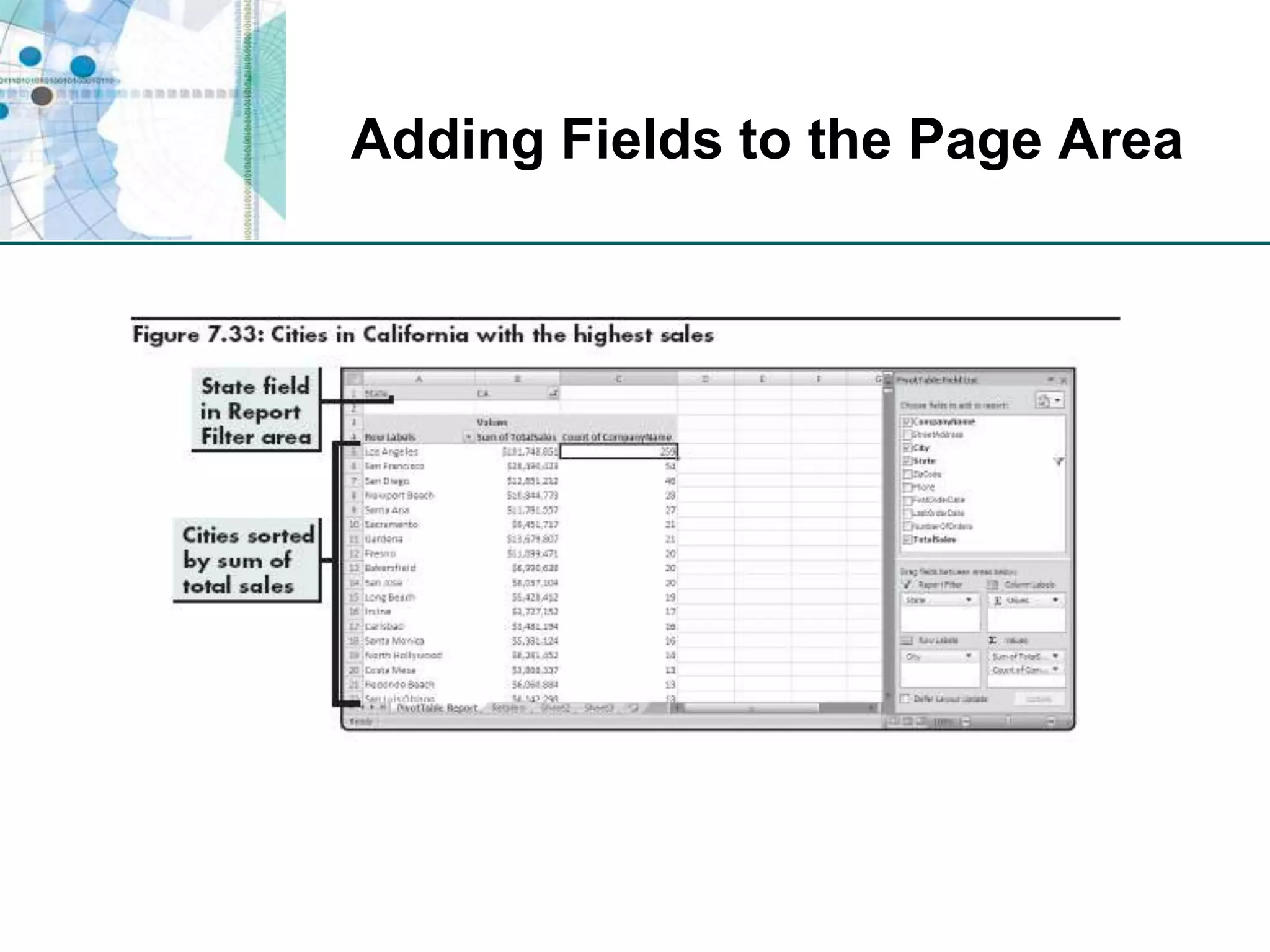
Adding Fields to the Page Area
Evaluating Data Using a PivotChart ReportRepresents source data (usually from PivotTable report) as a graphicUse Chart Wizard button on PivotTable toolbarCan change layout, data displayed, and chart type
Importing Information from the Web into ExcelWeb queryAutomated method for retrieving information from a Web page without having to copy and past
Level 2 SummaryAdvantages of using a database to store data that can be exported to Excel for analysisUsing the Query Wizard to select specific records in a database and import them into ExcelHow Excel stores and works with dates and times Using dates in calculations to determine the number of days and years between two datesCreating and using a PivotTable reportUsing a Web query to import information from the Web into an Excel worksheet to use in calculations
Level 3 Objectives: Importing and Exporting XML DataUnderstand markup languages and XMLImport XML data into Excel as an XML listAdd an XML map to a workbookExport XML data from Excel into an XML documentMap elements in an XML document to a workbook
Understanding Markup Languages and XMLMarkup languageLink between content and instructions for formatting that contentUses a set of tags to distinguish different elements in a documentExamplesHTML (Hypertext Markup Language)SGML (Standardized General Markup Language)XML (Extensible Markup Language)
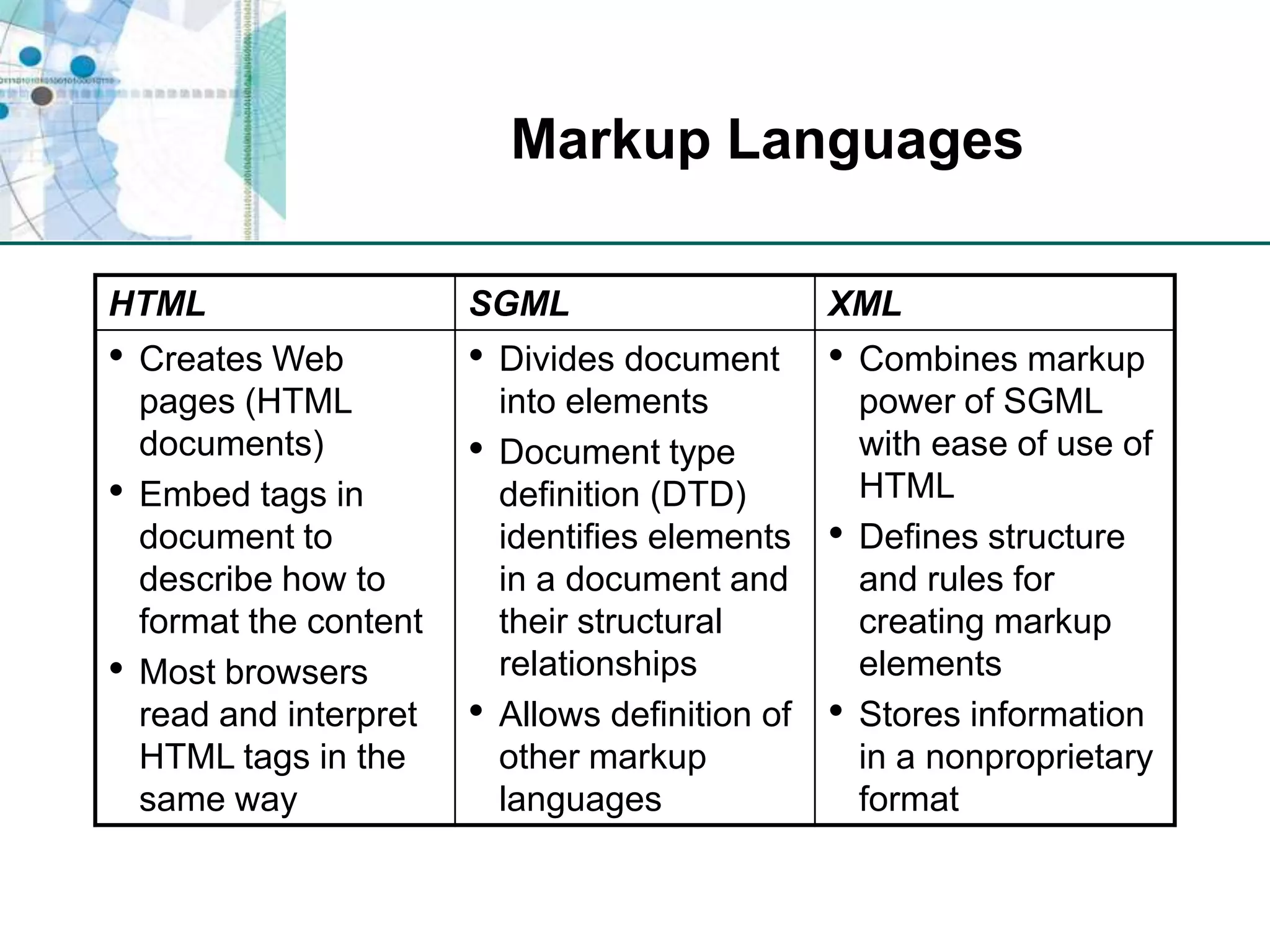
Markup Languages
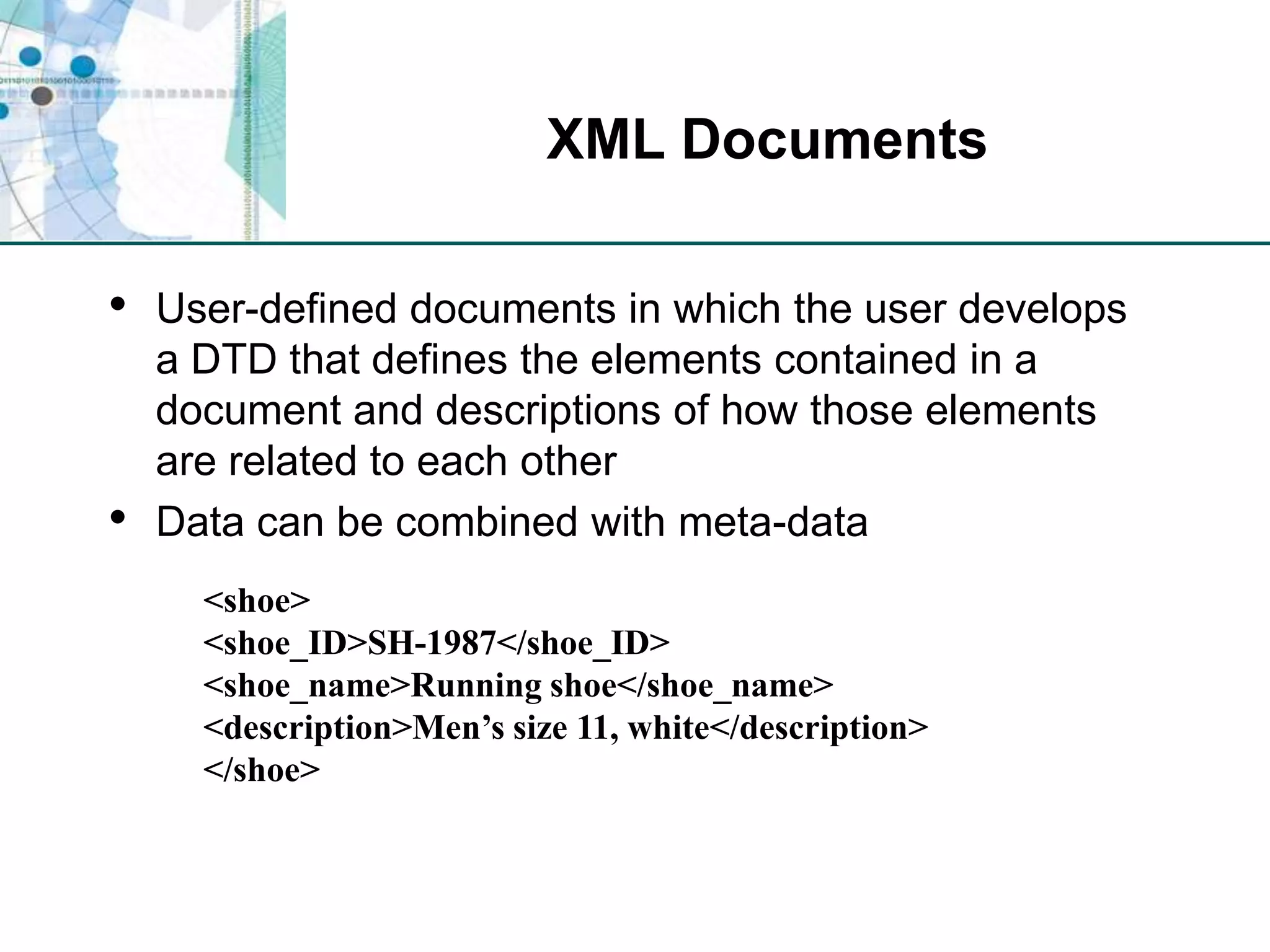
XML DocumentsUser-defined documents in which the user develops a DTD that defines the elements contained in a document and descriptions of how those elements are related to each otherData can be combined with meta-data<shoe><shoe_ID>SH-1987</shoe_ID><shoe_name>Running shoe</shoe_name><description>Men’s size 11, white</description></shoe>
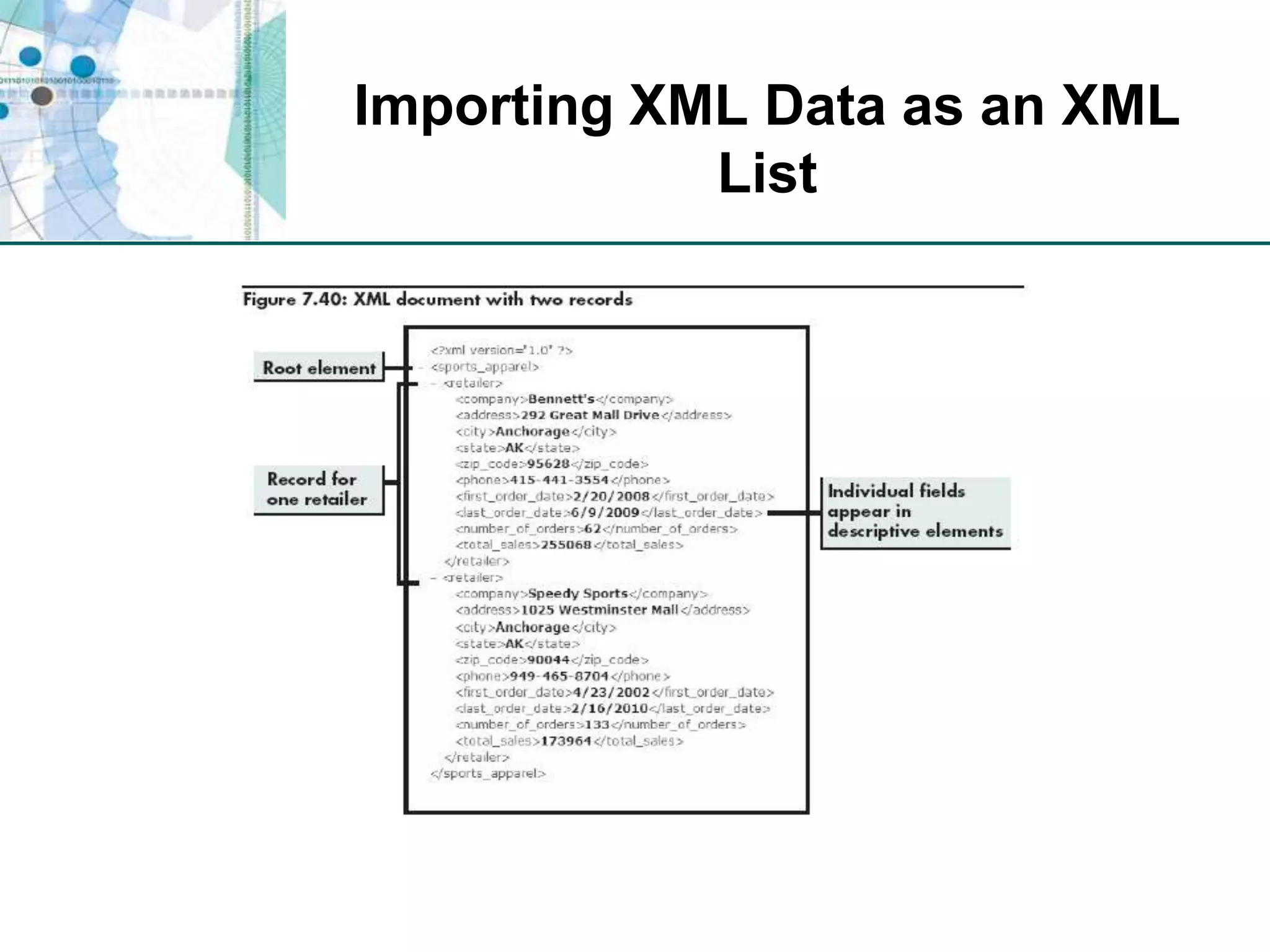
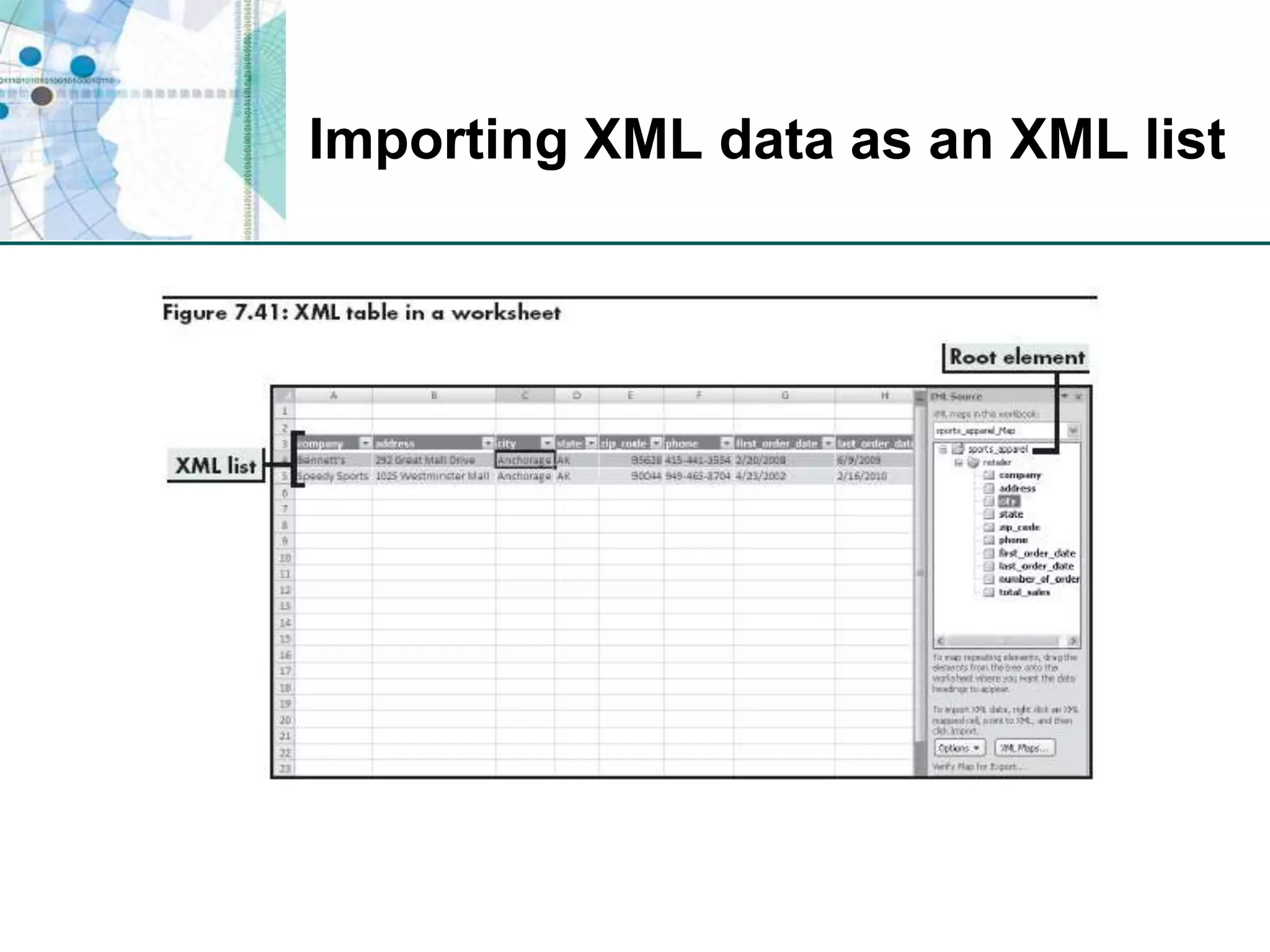
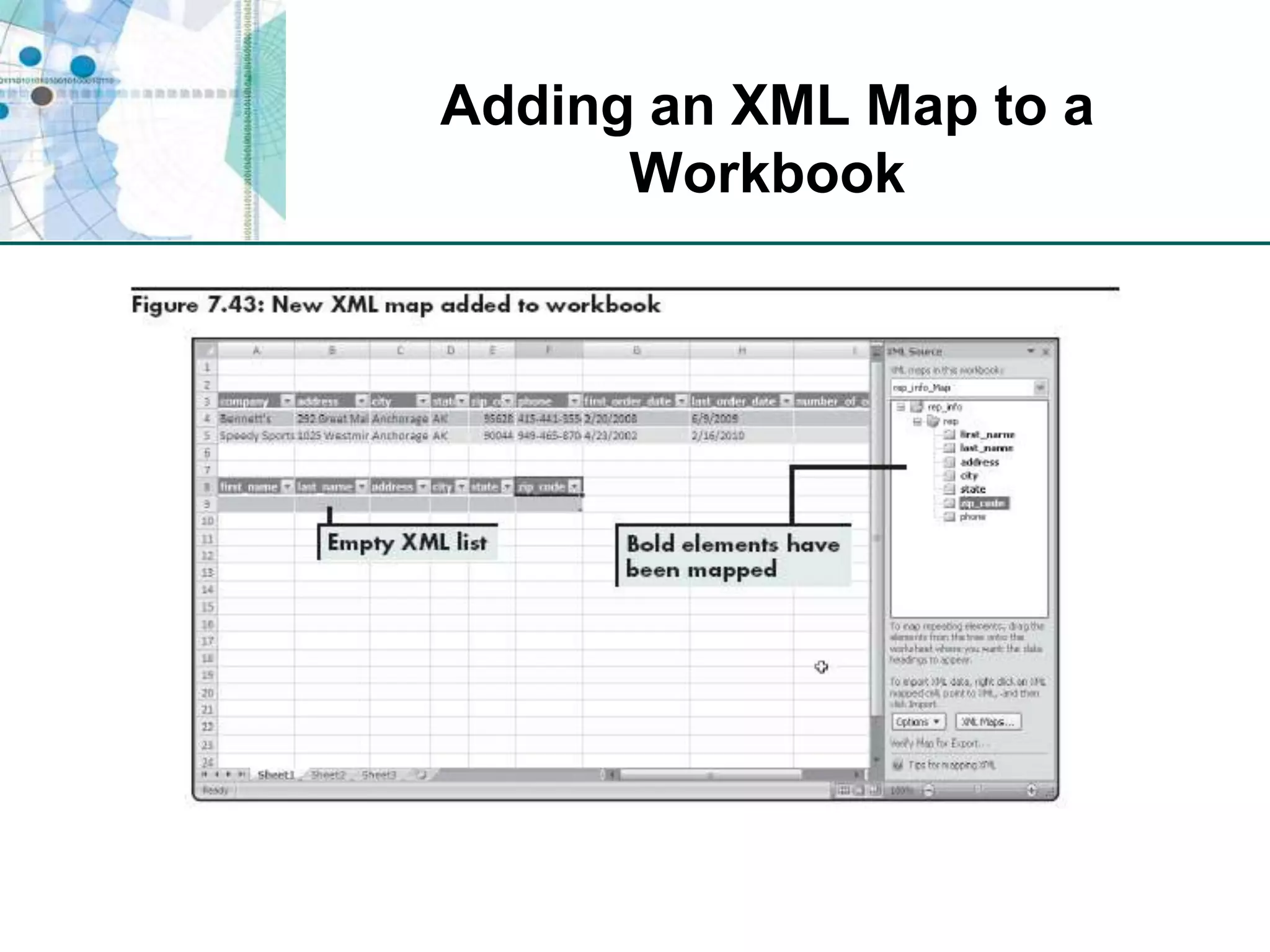
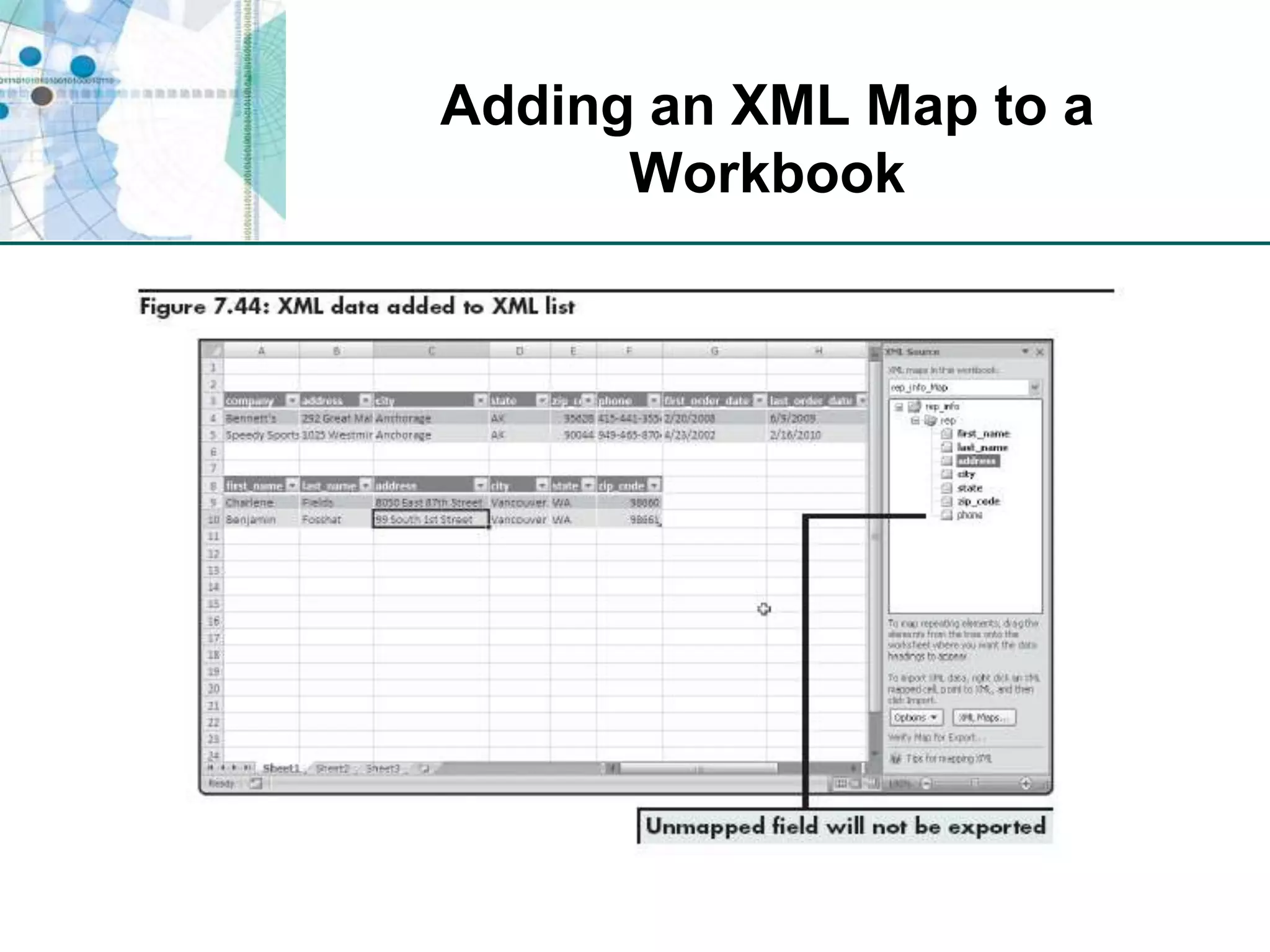
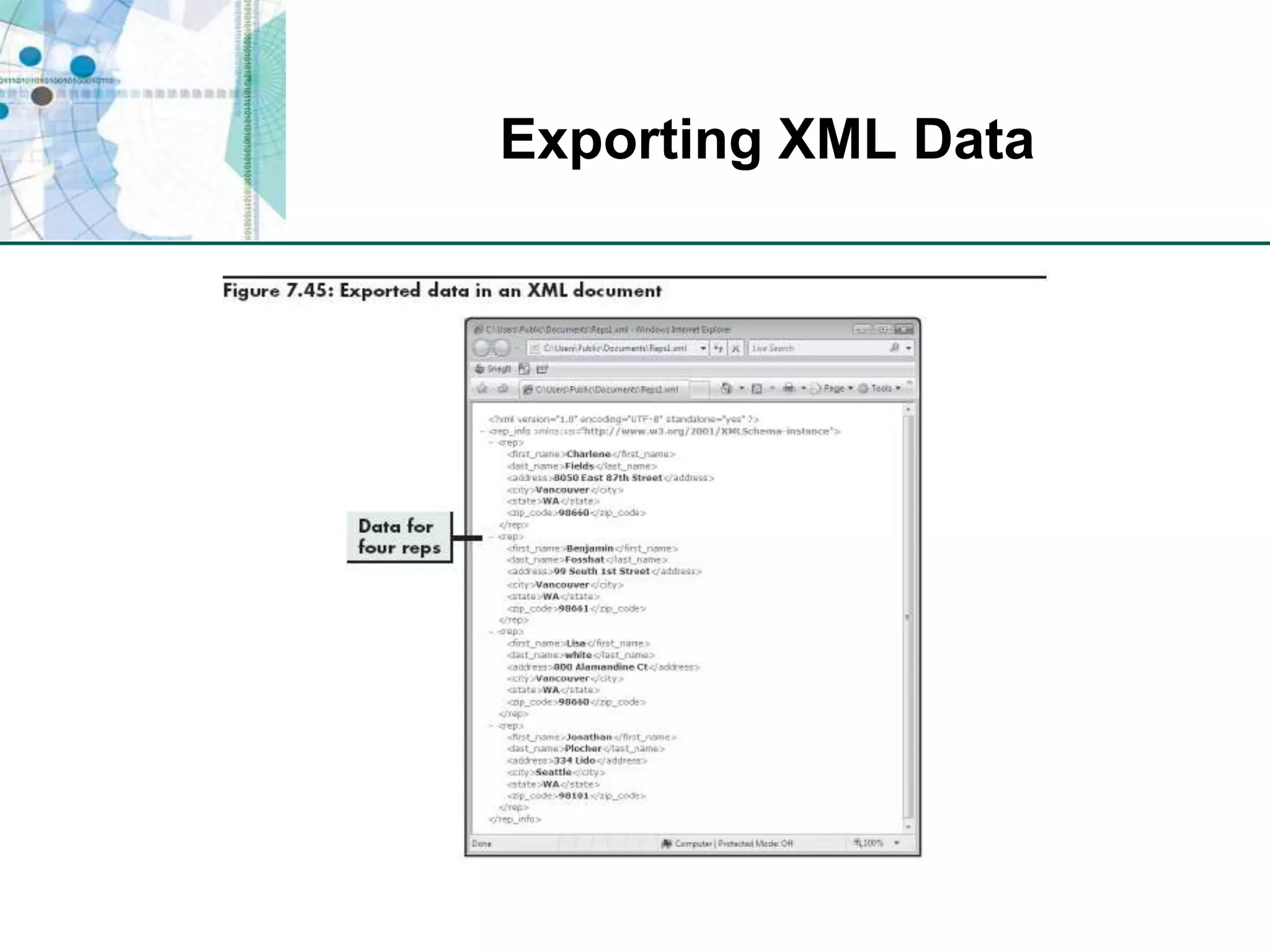
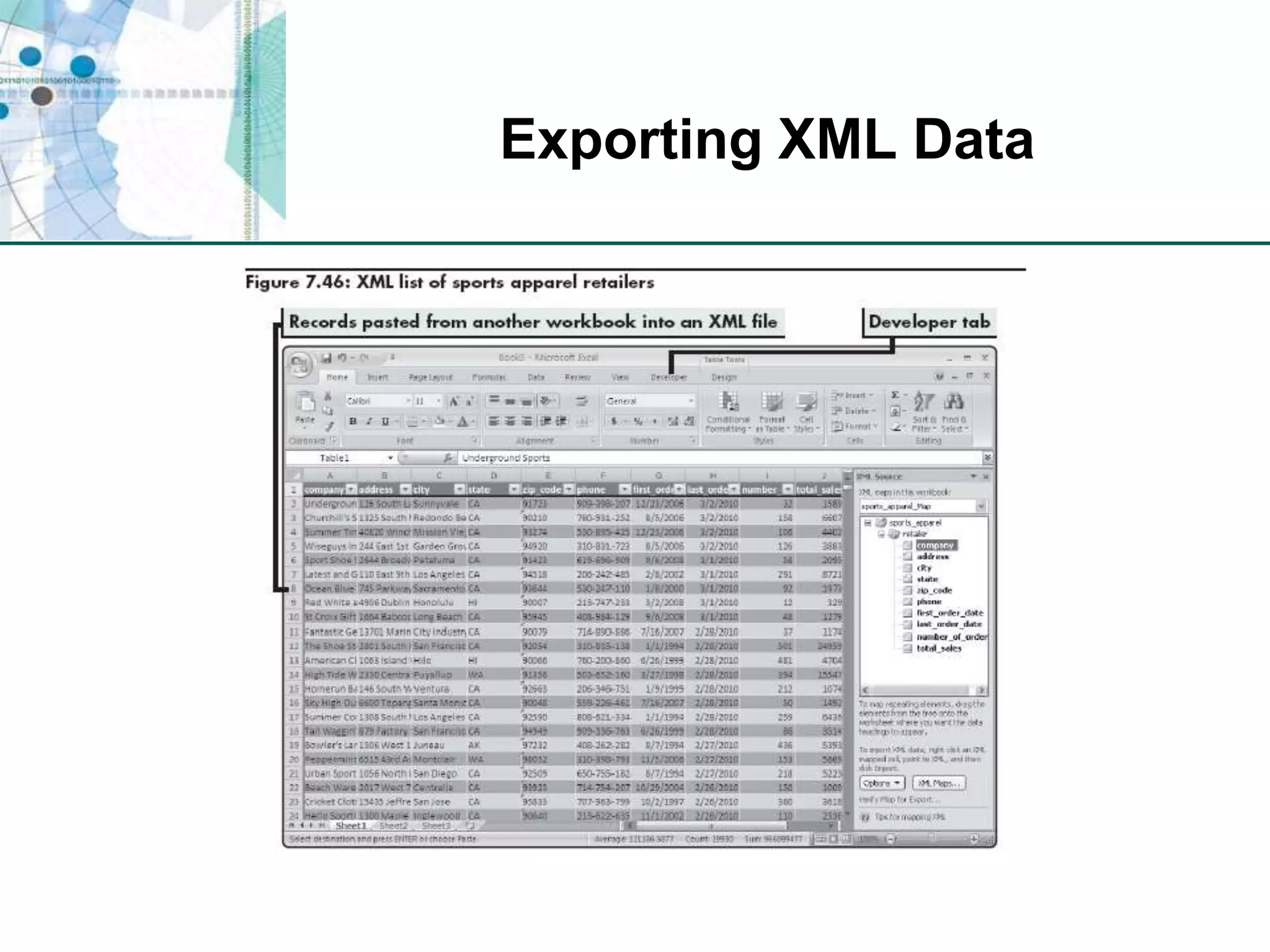
Analyzing XML Data with ExcelImport data into worksheet; method depends on the dataImport entire XML document as a list (root element, schema)Use XML Source task pane to map elements you need to columns in a listExport XML data as a “well-formed” XML document
Importing XML Data as an XML List
Importing XML data as an XML list
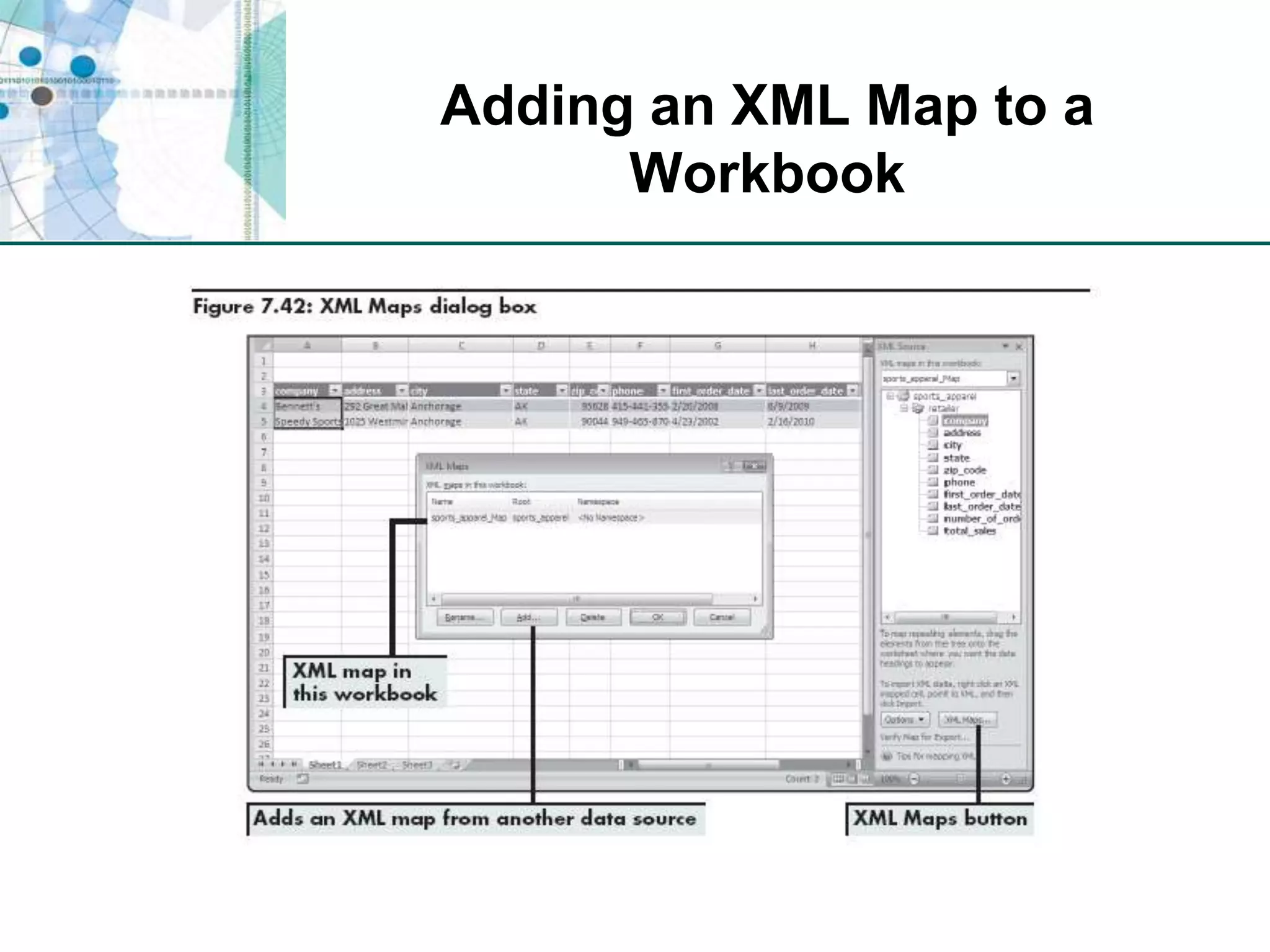
Adding an XML Map to a Workbook
Exporting XML Data
Exporting XML Data
Level 3 SummaryDifferent markup languages, including XMLUsing an existing XML document to import and XML map in a workbookMapping XML elements into a worksheetImporting data into an XML list and exporting data to an XML document
Chapter SummaryImporting and structuring text data in Excel worksheetsAnalyzing data imported from a database and organizing data with a PivotTable reportImporting and exporting XML data

Chapter.07

  • 1.
    Organizing Data forEffective Analysis Chapter 7“There is no such thing as too much planning and tracking.”- Indra Nooyi
  • 2.
    Chapter IntroductionWays tomanage and analyze large amounts of nonnumeric data using lists, a PivotTable report, and XMLFunctions covered in this chapter: CONCATENATE, FIND, LEFT, RIGHT, SEARCH, TODAY, TRIM, YEARFRAC
  • 3.
    Functions Covered inthis ChapterCONCATENATEFINDLEFTRIGHTSEARCHTODAYTRIMYEARFRAC
  • 4.
    Level 1 Objectives:Importingand Structuring Text Data in Excel WorksheetsImport text data into a worksheetConcatenate values and extract characters from a text stringParse text using the Convert Text to Columns WizardAnalyze data by creating subtotalsCreate, sort, and filter an Excel list
  • 5.
    Working with TextData:Comma-Delimited FilesSeparate values in each record with commasAlso called comma-separated values (CSV)Once imported into a worksheet, each value in a record appears in a separate cellParagraph mark identifies the end of each record
  • 6.
    Working with TextData: GoalsDetermine the format you need, so you can find the best way to change unstructured data into structured dataChange format of unstructured data
  • 7.
    Example of UnstructuredData Pasted into Excel
  • 8.
    Combining Text Usingthe CONCATENATE FunctionCombines values in a range of cells into one text item in a new cell=CONCATENATE(text1,text2,…)
  • 9.
    Combining Text Usingthe CONCATENATE Function
  • 10.
    Extracting Characters froma Text StringMay be used to remove incorrect entriesRIGHT functionReturns last character(s) in a text string, based on number of characters specified=RIGHT(text,num_chars)LEFT functionExtracts characters from the beginning or “left side” of a text string=LEFT(text,num_chars)
  • 11.
  • 12.
    Removing Spacesfrom aText StringTRIM functionRemoves all spaces in a text string except for the single spaces between words=TRIM(text)
  • 13.
  • 14.
    Determining the Positionof a Character within a Text StringFIND functionReturns the starting position of one text value within another text valueCase sensitive=FIND(find_text,within_text,start_num)SEARCH functionDoes same thing as FIND function, but is not case sensitive
  • 15.
    Determining the Positionof a Character within a Text String
  • 16.
    Sorting and RemovingInvalid DataCopy contents of worksheet into a new worksheet to preserve original data and eliminate potential problem of automatically updating formulas as data is modifiedSort the data in the new worksheet to separate valid rows from invalid rowsValid rows contain a “1” and appear first in the sortDelete invalid rows
  • 17.
  • 18.
    Common Functions thatManipulate Data
  • 19.
    Common Functions thatManipulate Data (continued)
  • 20.
    Working with NonnumericDataConvert Text to Columns WizardSeparates values in a text string into columns or fieldsTwo ways to parse text into columnsIdentify the character that delimits the dataSet field widths to identify the breaks between data that appears in columns
  • 21.
    Using Text toColumns Wizard to Parse Data
  • 22.
    Using Text toColumns Wizard to Parse Data
  • 23.
  • 24.
    Analyzing Data byCreating SubtotalsSubtotal toolCreates summary reports that quickly organize data into categories with subtotal calculationsCan collapse and expand level of detail in the report
  • 25.
  • 26.
    Creating and Workingwith an Excel ListA range of cells that are formalized as a single unitAdds many features that aren’t available in an unstructured list (validation, sorting, filtering)Protects integrity of dataData in the columns of each row automatically remains intact when data is filtered or sortedLimitationsLimit of 65,536 rows and 256 columnsEntire workbook must be loaded into memory
  • 27.
    Results of Creatingan Excel List
  • 28.
    Working with anExcel ListSorting an Excel listAutomatic, once you select one cell in the columnFiltering an Excel listLets you display data based on criteria you specifyAdding data to an Excel listType data into blank row at bottom of listUse a form
  • 29.
  • 30.
  • 31.
    Level 1 SummaryImportingdata stored in a text file into ExcelUsing Excel functionsCONCATENATE to combine multiple text strings into a single text stringTRIM to trim unnecessary spaces from a text stringRIGHT to find and extract characters from a text stringFIND to find specific characters in a text string
  • 32.
    Level 1 Summary(continued)Transforming delimited data into rows and columns of data that can be sorted and filtered using Excel toolsCreating subtotals to analyze dataCreating and working with data stored in an Excel list
  • 33.
    Level 2 Objectives:Analyzing Data Imported from a Database & Organizing Data with a PivotTable ReportImport data stored in a database into ExcelUse dates and times in calculationsAnalyze data using a PivotTable reportCreate a PivotChart reportImport information from the Web into Excel using a Web query
  • 34.
  • 35.
    Importing Data froma Database into ExcelDatabase provides the structure to ensure that the right data is available and protectedSpreadsheet provides analytical power and flexibilityReduce data redundancy by storing data in related tables in a normalized database
  • 36.
    Importing an AccessTable into Excel
  • 37.
    Using the QueryWizard to Select Data from a DatabaseLets you choose the data source and select the database table and fields to import into the workbookPrompts you to define criteria for the data you want to import by selecting only rows that meet criteria you specify
  • 38.
    Using the QueryWizard to Select Data from a Database
  • 39.
    Making Calculations withDate and Time DataTODAY functionReturns current date’s serial number (based on computer’s internal clock)=TODAY()Requires no additional argumentsYEARFRAC functionCalculates the number of years between the two days=YEARFRAC(start_date,end_date,basis)
  • 40.
  • 41.
  • 43.
    Analyzing Data UsingaPivotTable ReportInteractive report that lets you summarize and analyze a data setDynamic organization; can be “pivoted” to examine data from various perspectives by rearranging its structureBest used to analyze data that can be summarized in multiple ways
  • 44.
  • 45.
  • 46.
    Analyzing Data Usingthe Row, Column, and Data AreasTo add data to a PivotTable report, drag the field you want to summarize to a drop area on the reportRow Area displays data from that field in rowsColumn Area displays data from that field in rowsData Area summarizes data from that field
  • 47.
  • 48.
  • 49.
    Adding Fields tothe Page Area
  • 50.
    Evaluating Data Usinga PivotChart ReportRepresents source data (usually from PivotTable report) as a graphicUse Chart Wizard button on PivotTable toolbarCan change layout, data displayed, and chart type
  • 51.
    Importing Information fromthe Web into ExcelWeb queryAutomated method for retrieving information from a Web page without having to copy and past
  • 52.
    Level 2 SummaryAdvantagesof using a database to store data that can be exported to Excel for analysisUsing the Query Wizard to select specific records in a database and import them into ExcelHow Excel stores and works with dates and times Using dates in calculations to determine the number of days and years between two datesCreating and using a PivotTable reportUsing a Web query to import information from the Web into an Excel worksheet to use in calculations
  • 53.
    Level 3 Objectives:Importing and Exporting XML DataUnderstand markup languages and XMLImport XML data into Excel as an XML listAdd an XML map to a workbookExport XML data from Excel into an XML documentMap elements in an XML document to a workbook
  • 54.
    Understanding Markup Languagesand XMLMarkup languageLink between content and instructions for formatting that contentUses a set of tags to distinguish different elements in a documentExamplesHTML (Hypertext Markup Language)SGML (Standardized General Markup Language)XML (Extensible Markup Language)
  • 55.
  • 56.
    XML DocumentsUser-defined documentsin which the user develops a DTD that defines the elements contained in a document and descriptions of how those elements are related to each otherData can be combined with meta-data<shoe><shoe_ID>SH-1987</shoe_ID><shoe_name>Running shoe</shoe_name><description>Men’s size 11, white</description></shoe>
  • 57.
    Analyzing XML Datawith ExcelImport data into worksheet; method depends on the dataImport entire XML document as a list (root element, schema)Use XML Source task pane to map elements you need to columns in a listExport XML data as a “well-formed” XML document
  • 58.
    Importing XML Dataas an XML List
  • 59.
    Importing XML dataas an XML list
  • 60.
    Adding an XMLMap to a Workbook
  • 61.
    Adding an XMLMap to a Workbook
  • 62.
    Adding an XMLMap to a Workbook
  • 63.
  • 64.
  • 65.
    Level 3 SummaryDifferentmarkup languages, including XMLUsing an existing XML document to import and XML map in a workbookMapping XML elements into a worksheetImporting data into an XML list and exporting data to an XML document
  • 66.
    Chapter SummaryImporting andstructuring text data in Excel worksheetsAnalyzing data imported from a database and organizing data with a PivotTable reportImporting and exporting XML data