12 March
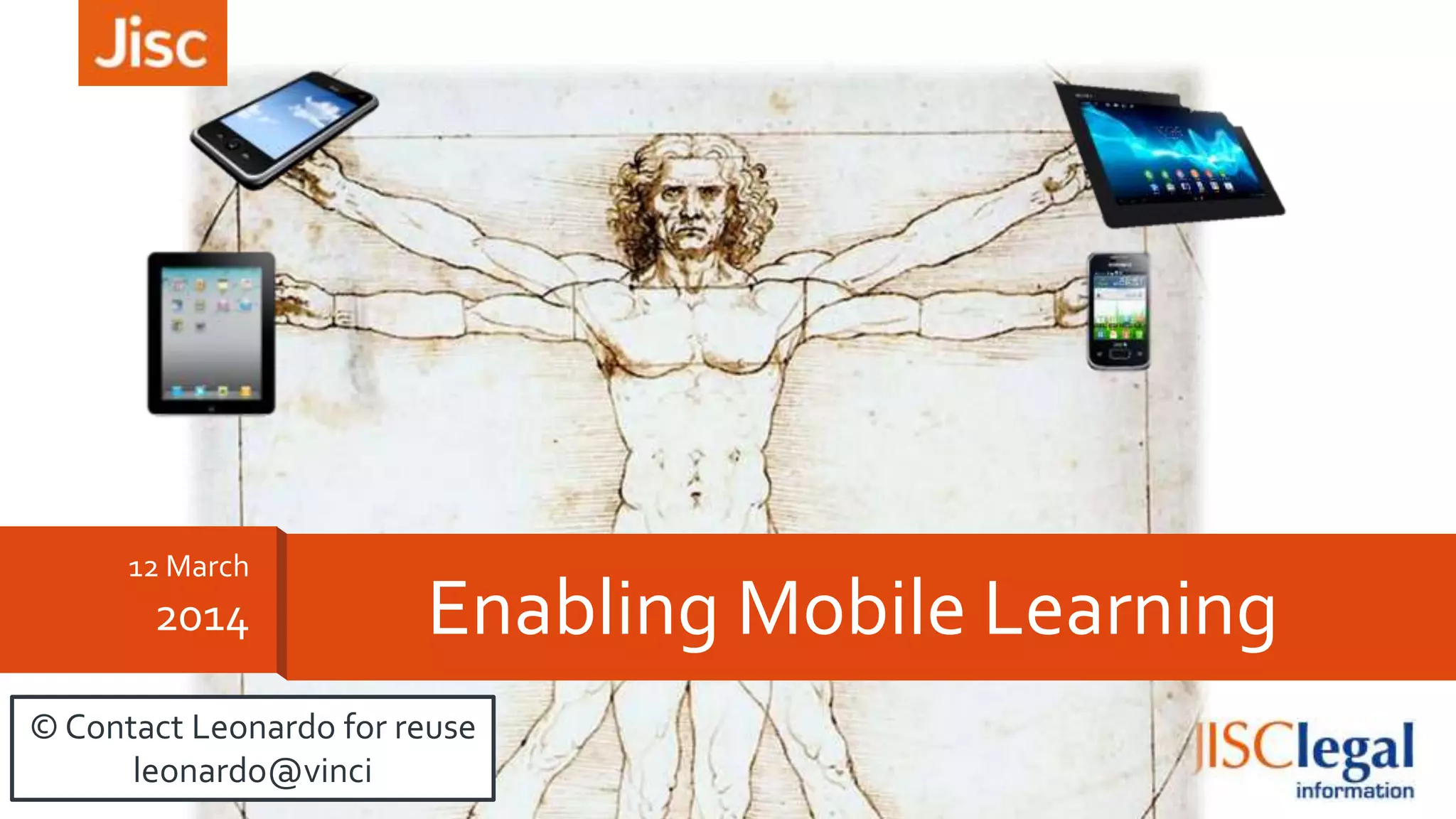
2014 Enabling Mobile Learning
© Contact Leonardo for reuse
leonardo@vinci
Jisc Digital Festival – Enabling Mobile Learning 12/03/2014
This workshop’s mission
»To introduce you to the range of Jisc
resources, tools, advice and guidance to enable
best practice in enabling mobile learning
» Not a technical presentation
2
Jisc Digital Festival – Enabling Mobile Learning 12/03/2014
The Programme
» Poll
»Video
» Presentation of resources
»Quiz
»Questions
3
Jisc Digital Festival – Enabling Mobile Learning 12/03/2014
The Poll
»Crank up a browser…
» kahoot.it
4
Jisc Digital Festival – Enabling Mobile Learning 12/03/2014
TheVideos
»Jisc “How’s BYODWorking forYour College”
› http://youtu.be/DSuknTH-jCY
» ForeScoutTechnologies “BYOD”
› http://youtu.be/th98PoPZ0b8
5
Jisc Digital Festival – Enabling Mobile Learning 12/03/2014
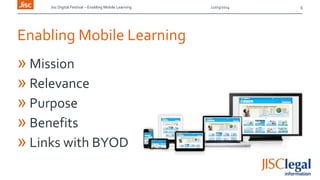
Enabling Mobile Learning
» Mission
» Relevance
» Purpose
» Benefits
» Links with BYOD
6
Jisc Digital Festival – Enabling Mobile Learning 12/03/2014
Enabling Mobile Learning
» Incorporate mobile learning into your organisation’s strategy
»Work out the cost benefits
» Embrace open tech’s to support a growing range of devices
»Understand the security, privacy and legal issues
»Opportunities for accessible learning
» Help students to apply mobile technologies to learning
» Be inspired by current progress
» Look Forward
7
Jisc Digital Festival – Enabling Mobile Learning 12/03/2014 8
www.jisc.ac.uk/guides/engage-students-with-mobile-learning
Jisc Digital Festival – Enabling Mobile Learning 12/03/2014 9
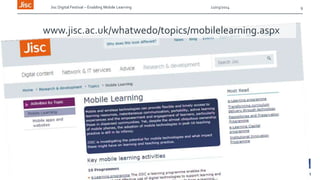
www.jisc.ac.uk/whatwedo/topics/mobilelearning.aspx
Jisc Digital Festival – Enabling Mobile Learning 12/03/2014
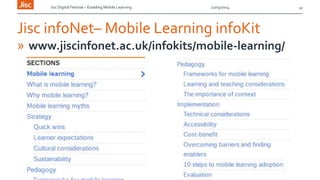
Jisc infoNet– Mobile Learning infoKit
» www.jiscinfonet.ac.uk/infokits/mobile-learning/
10
Jisc Digital Festival – Enabling Mobile Learning 12/03/2014
JiscTechdis – Mobile Learning
11
www.jisctechdis.ac.uk/technologymatters/mobilelearning
Jisc Digital Festival – Enabling Mobile Learning 12/03/2014
Advice Documents (a brief selection)
» PlanningYourVideo Production (parts 1-5)
»UsingVideo inTeaching and Learning
»Online Delivery Options for DigitalVideo
» Basic Guide to FieldVideo Recording
» Basic Guide toVideoing Interviews
» Basic Guide toVideoing Audiovisual Materials
12
Jisc Digital Festival – Enabling Mobile Learning 12/03/2014
Workshops
»Video Production –
2 day introductory workshop
»Coming later this year:
BTEC Level 4 Professional Certificate
inVideo Production
13
Jisc Digital Festival – Enabling Mobile Learning 12/03/2014
InfoKits
»Coming soon:
Video Creation Infokit
»(follow us on Facebook orTwitter
or subscribe to our blog
for the latest news)
14
Jisc Digital Festival – Enabling Mobile Learning 12/03/2014
Legal Issues
» jiscleg.al/mobiletech
› MobileTechnologies and the Law Overview
› MobileTechnologies and the LawWebcast
› MobileTechnologies and the LawTopTips
› Legal Use of MobileTechnologies:
A Checklist for Colleges and Universities
› Security, Mobile Devices and Data Protection
15
Jisc Digital Festival – Enabling Mobile Learning 12/03/2014
Legal Issues
» jiscleg.al/mobiletech
› Copyright
› Data protection
› e-Safety
› Liability
› Acceptable Use Policy
16
Jisc Digital Festival – Enabling Mobile Learning 12/03/2014
Other Jisc Assistance
» Jisc Regional Support Centres
› A feast of support!
» Jisc Netskills
› High quality training and consultancy
17
Jisc Digital Festival – Enabling Mobile Learning 12/03/2014
The Quiz
»Crank up a browser…
» kahoot.it
18
Jisc Digital Festival – Enabling Mobile Learning 12/03/2014 19
Jisc Digital Festival – Enabling Mobile Learning 12/03/2014 20

Enabling mobile learning - Jisc Digital Festival 2014

  • 1.
    12 March 2014 EnablingMobile Learning © Contact Leonardo for reuse leonardo@vinci
  • 2.
    Jisc Digital Festival– Enabling Mobile Learning 12/03/2014 This workshop’s mission »To introduce you to the range of Jisc resources, tools, advice and guidance to enable best practice in enabling mobile learning » Not a technical presentation 2
  • 3.
    Jisc Digital Festival– Enabling Mobile Learning 12/03/2014 The Programme » Poll »Video » Presentation of resources »Quiz »Questions 3
  • 4.
    Jisc Digital Festival– Enabling Mobile Learning 12/03/2014 The Poll »Crank up a browser… » kahoot.it 4
  • 5.
    Jisc Digital Festival– Enabling Mobile Learning 12/03/2014 TheVideos »Jisc “How’s BYODWorking forYour College” › http://youtu.be/DSuknTH-jCY » ForeScoutTechnologies “BYOD” › http://youtu.be/th98PoPZ0b8 5
  • 6.
    Jisc Digital Festival– Enabling Mobile Learning 12/03/2014 Enabling Mobile Learning » Mission » Relevance » Purpose » Benefits » Links with BYOD 6
  • 7.
    Jisc Digital Festival– Enabling Mobile Learning 12/03/2014 Enabling Mobile Learning » Incorporate mobile learning into your organisation’s strategy »Work out the cost benefits » Embrace open tech’s to support a growing range of devices »Understand the security, privacy and legal issues »Opportunities for accessible learning » Help students to apply mobile technologies to learning » Be inspired by current progress » Look Forward 7
  • 8.
    Jisc Digital Festival– Enabling Mobile Learning 12/03/2014 8 www.jisc.ac.uk/guides/engage-students-with-mobile-learning
  • 9.
    Jisc Digital Festival– Enabling Mobile Learning 12/03/2014 9 www.jisc.ac.uk/whatwedo/topics/mobilelearning.aspx
  • 10.
    Jisc Digital Festival– Enabling Mobile Learning 12/03/2014 Jisc infoNet– Mobile Learning infoKit » www.jiscinfonet.ac.uk/infokits/mobile-learning/ 10
  • 11.
    Jisc Digital Festival– Enabling Mobile Learning 12/03/2014 JiscTechdis – Mobile Learning 11 www.jisctechdis.ac.uk/technologymatters/mobilelearning
  • 12.
    Jisc Digital Festival– Enabling Mobile Learning 12/03/2014 Advice Documents (a brief selection) » PlanningYourVideo Production (parts 1-5) »UsingVideo inTeaching and Learning »Online Delivery Options for DigitalVideo » Basic Guide to FieldVideo Recording » Basic Guide toVideoing Interviews » Basic Guide toVideoing Audiovisual Materials 12
  • 13.
    Jisc Digital Festival– Enabling Mobile Learning 12/03/2014 Workshops »Video Production – 2 day introductory workshop »Coming later this year: BTEC Level 4 Professional Certificate inVideo Production 13
  • 14.
    Jisc Digital Festival– Enabling Mobile Learning 12/03/2014 InfoKits »Coming soon: Video Creation Infokit »(follow us on Facebook orTwitter or subscribe to our blog for the latest news) 14
  • 15.
    Jisc Digital Festival– Enabling Mobile Learning 12/03/2014 Legal Issues » jiscleg.al/mobiletech › MobileTechnologies and the Law Overview › MobileTechnologies and the LawWebcast › MobileTechnologies and the LawTopTips › Legal Use of MobileTechnologies: A Checklist for Colleges and Universities › Security, Mobile Devices and Data Protection 15
  • 16.
    Jisc Digital Festival– Enabling Mobile Learning 12/03/2014 Legal Issues » jiscleg.al/mobiletech › Copyright › Data protection › e-Safety › Liability › Acceptable Use Policy 16
  • 17.
    Jisc Digital Festival– Enabling Mobile Learning 12/03/2014 Other Jisc Assistance » Jisc Regional Support Centres › A feast of support! » Jisc Netskills › High quality training and consultancy 17
  • 18.
    Jisc Digital Festival– Enabling Mobile Learning 12/03/2014 The Quiz »Crank up a browser… » kahoot.it 18
  • 19.
    Jisc Digital Festival– Enabling Mobile Learning 12/03/2014 19
  • 20.
    Jisc Digital Festival– Enabling Mobile Learning 12/03/2014 20

Editor's Notes

  • #2 Go to ‘View’ menu > ‘Header and Footer…’ to edit the footers on this slide (click ‘Apply’ to change only the currently selected slide, or ‘Apply to All’ to change the footers on all slides).To change the image on this slide:Click once on the image to select it, and then delete itDrag a replacement picture to the placeholder or click the icon in the centre of the placeholder to browse for & add another imageOnce you have added your replacement image, you may need to put it into the background so that it doesn’t cover other items on the slide. Do this by right-clicking on the new image and choosing ‘Arrange’ > ‘Send to Back’ from the contextual menu
  • #3 Go to ‘View’ menu > ‘Header and Footer…’ to edit the footers on this slide (click ‘Apply’ to change only the currently selected slide, or ‘Apply to All’ to change the footers on all slides).
  • #4 Go to ‘View’ menu > ‘Header and Footer…’ to edit the footers on this slide (click ‘Apply’ to change only the currently selected slide, or ‘Apply to All’ to change the footers on all slides).
  • #5 Go to ‘View’ menu > ‘Header and Footer…’ to edit the footers on this slide (click ‘Apply’ to change only the currently selected slide, or ‘Apply to All’ to change the footers on all slides).
  • #6 Go to ‘View’ menu > ‘Header and Footer…’ to edit the footers on this slide (click ‘Apply’ to change only the currently selected slide, or ‘Apply to All’ to change the footers on all slides).
  • #7 Go to ‘View’ menu > ‘Header and Footer…’ to edit the footers on this slide (click ‘Apply’ to change only the currently selected slide, or ‘Apply to All’ to change the footers on all slides).
  • #8 Go to ‘View’ menu > ‘Header and Footer…’ to edit the footers on this slide (click ‘Apply’ to change only the currently selected slide, or ‘Apply to All’ to change the footers on all slides).
  • #9 Go to ‘View’ menu > ‘Header and Footer…’ to edit the footers on this slide (click ‘Apply’ to change only the currently selected slide, or ‘Apply to All’ to change the footers on all slides).
  • #10 Go to ‘View’ menu > ‘Header and Footer…’ to edit the footers on this slide (click ‘Apply’ to change only the currently selected slide, or ‘Apply to All’ to change the footers on all slides).
  • #11 Go to ‘View’ menu > ‘Header and Footer…’ to edit the footers on this slide (click ‘Apply’ to change only the currently selected slide, or ‘Apply to All’ to change the footers on all slides).
  • #12 Go to ‘View’ menu > ‘Header and Footer…’ to edit the footers on this slide (click ‘Apply’ to change only the currently selected slide, or ‘Apply to All’ to change the footers on all slides).
  • #13 Go to ‘View’ menu > ‘Header and Footer…’ to edit the footers on this slide (click ‘Apply’ to change only the currently selected slide, or ‘Apply to All’ to change the footers on all slides).
  • #14 Go to ‘View’ menu > ‘Header and Footer…’ to edit the footers on this slide (click ‘Apply’ to change only the currently selected slide, or ‘Apply to All’ to change the footers on all slides).
  • #15 Go to ‘View’ menu > ‘Header and Footer…’ to edit the footers on this slide (click ‘Apply’ to change only the currently selected slide, or ‘Apply to All’ to change the footers on all slides).
  • #16 Go to ‘View’ menu > ‘Header and Footer…’ to edit the footers on this slide (click ‘Apply’ to change only the currently selected slide, or ‘Apply to All’ to change the footers on all slides).
  • #17 Go to ‘View’ menu > ‘Header and Footer…’ to edit the footers on this slide (click ‘Apply’ to change only the currently selected slide, or ‘Apply to All’ to change the footers on all slides).
  • #18 Go to ‘View’ menu > ‘Header and Footer…’ to edit the footers on this slide (click ‘Apply’ to change only the currently selected slide, or ‘Apply to All’ to change the footers on all slides).
  • #19 Go to ‘View’ menu > ‘Header and Footer…’ to edit the footers on this slide (click ‘Apply’ to change only the currently selected slide, or ‘Apply to All’ to change the footers on all slides).
  • #20 Go to ‘View’ menu > ‘Header and Footer…’ to edit the footers on this slide (click ‘Apply’ to change only the currently selected slide, or ‘Apply to All’ to change the footers on all slides).
  • #21 Go to ‘View’ menu > ‘Header and Footer…’ to edit the footers on this slide (click ‘Apply’ to change only the currently selected slide, or ‘Apply to All’ to change the footers on all slides).