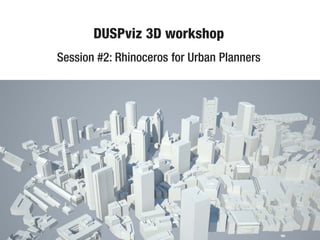
DUSPviz 3D workshop
Session #2: Rhinoceros for Urban Planners
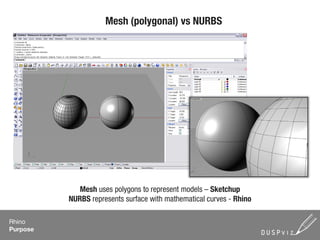
Mesh (polygonal) vs NURBS


             Mesh uses polygons to represent models – Sketchup
          NURBS represents surface with mathematical curves - Rhino

Rhino
Purpose
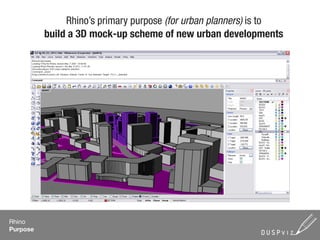
Rhino’s primary purpose (for urban planners) is to
          build a 3D mock-up scheme of new urban developments


Rhino
Purpose
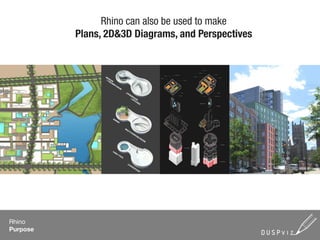
Rhino can also be used to make
          Plans, 2D&3D Diagrams, and Perspectives


Rhino
Purpose
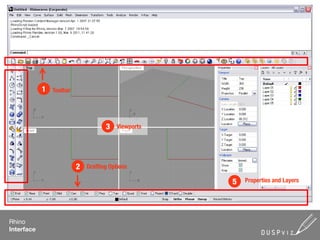
1   Toolbar


                                     3   Viewports


                          2   Drafting Options

                                                     5   Properties and Layers


Rhino
Interface
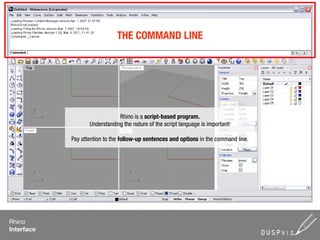
THE COMMAND LINE


                               Rhino is a script-based program.
                   Understanding the nature of the script language is important!

            Pay attention to the follow-up sentences and options in the command line.


Rhino
Interface
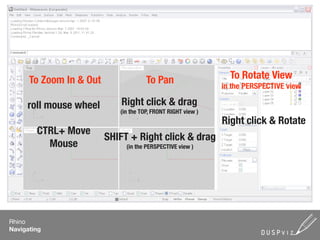
To Zoom In & Out                To Pan                    To Rotate View
                                                              in the PERSPECTIVE view

     roll mouse wheel        Right click & drag
                            (in the TOP, FRONT RIGHT view )
                                                              Right click & Rotate
        CTRL+ Move
                         SHIFT + Right click & drag
          Mouse               (in the PERSPECTIVE view )


Rhino
Navigating
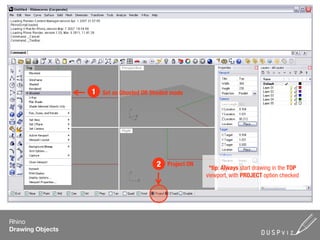
1   Set as Ghosted OR Shaded mode


                                         2   Project ON
                                                           *tip: Always start drawing in the TOP
                                                          viewport, with PROJECT option checked


Rhino
Drawing Objects
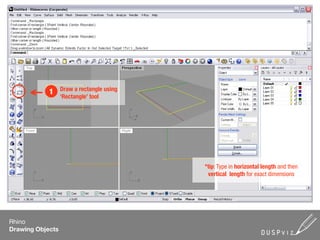
Draw a rectangle using
            1
                  ‘Rectangle’ tool


                                           *tip: Type in horizontal length and then
                                            vertical length for exact dimensions


Rhino
Drawing Objects
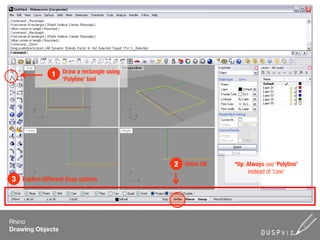
Draw a rectangle using
               1
                    ‘Polyline’ tool


                                             2   Ortho ON   *tip: Always use ‘Polyline’
                                                                  instead of ‘Line’
3   Explore different Snap options


Rhino
Drawing Objects
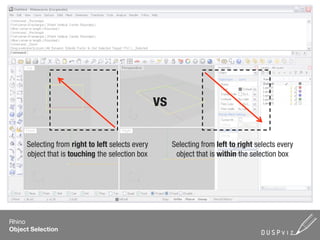
vs

     Selecting from right to left selects every        Selecting from left to right selects every
     object that is touching the selection box          object that is within the selection box


Rhino
Object Selection
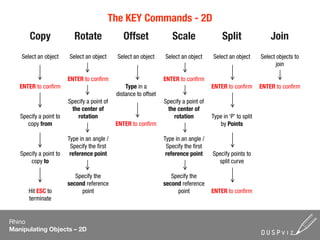
The KEY Commands - 2D
       Copy               Rotate                Offset               Scale                  Split                 Join
    Select an object    Select an object     Select an object     Select an object     Select an object       Select objects to
                                                                                                                     join

                        ENTER to confirm                          ENTER to confirm
   ENTER to confirm                              Type in a                             ENTER to confirm       ENTER to confirm
                                             distance to offset
                        Specify a point of                        Specify a point of
                         the center of                             the center of
   Specify a point to       rotation                                  rotation         Type in ‘P’ to split
      copy from                              ENTER to confirm                             by Points

                        Type in an angle /                        Type in an angle /
                         Specify the first                         Specify the first
   Specify a point to    reference point                           reference point     Specify points to
       copy to                                                                           split curve

                           Specify the                               Specify the
                        second reference                          second reference
      Hit ESC to             point                                     point           ENTER to confirm
      terminate


Rhino
Manipulating Objects – 2D
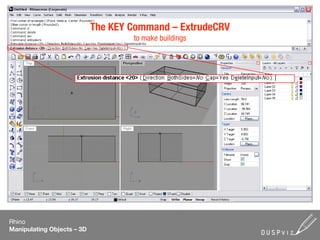
The KEY Command – ExtrudeCRV
                                    to make buildings


Rhino
Manipulating Objects – 3D
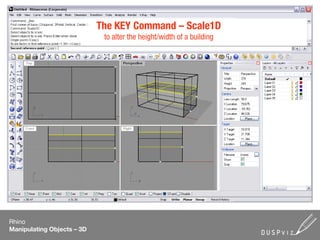
The KEY Command – Scale1D
                             to alter the height/width of a building


Rhino
Manipulating Objects – 3D
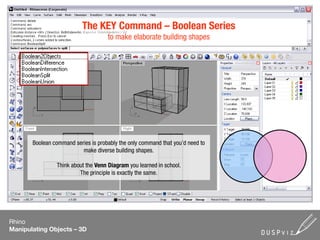
The KEY Command – Boolean Series
                                     to make elaborate building shapes


       Boolean command series is probably the only command that you’d need to
                          make diverse building shapes.

                Think about the Venn Diagram you learned in school.
                         The principle is exactly the same.


Rhino
Manipulating Objects – 3D
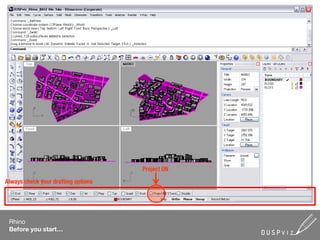
Project ON

Always check your drafting options


 Rhino
 Before you start…
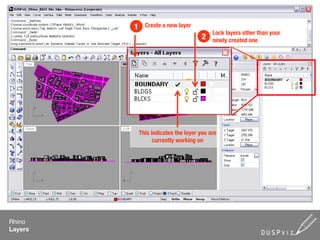
1     Create a new layer
                                           Lock layers other than your
                                      2    newly created one


             This indicates the layer you are
                   currently working on


Rhino
Layers
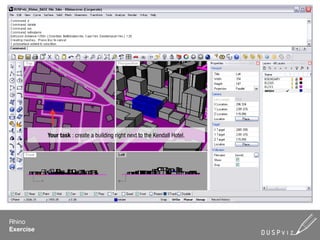
Your task : create a building right next to the Kendall Hotel.


Rhino
Exercise
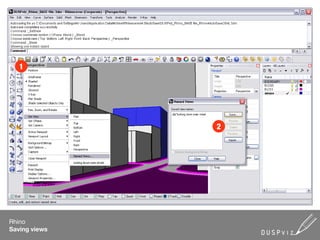
1


               2


Rhino
Saving views
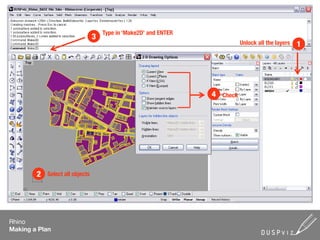
Type in ‘Make2D’ and ENTER
                                 3
                                                                              Unlock all the layers   1


                                                                  4   Check


        2   Select all objects


Rhino
Making a Plan
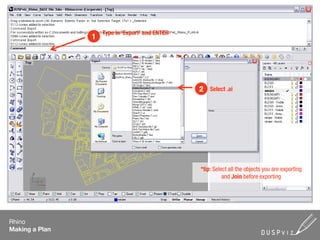
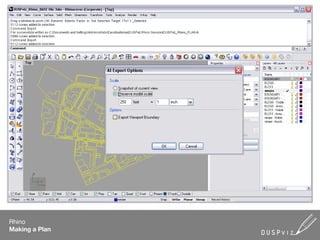
Type in ‘Export’ and ENTER
                1


                                                 2   Select .ai


                                                 *tip: Select all the objects you are exporting
                                                           and Join before exporting


Rhino
Making a Plan
Rhino
Making a Plan
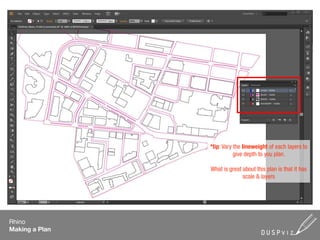
*tip: Vary the lineweight of each layers to
                           give depth to you plan.

                What is great about this plan is that it has
                              scale & layers


Rhino
Making a Plan
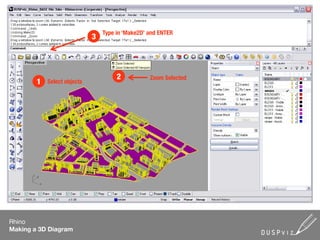
Type in ‘Make2D’ and ENTER
                             3


                                      2           Zoom Selected
        1   Select objects


Rhino
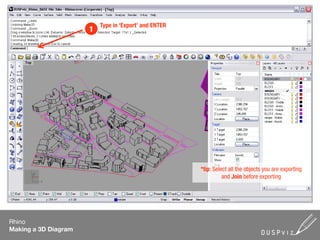
Making a 3D Diagram
Type in ‘Export’ and ENTER
                      1


                                                       *tip: Select all the objects you are exporting
                                                                 and Join before exporting


Rhino
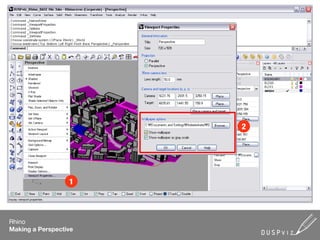
Making a 3D Diagram
2


                  1


Rhino
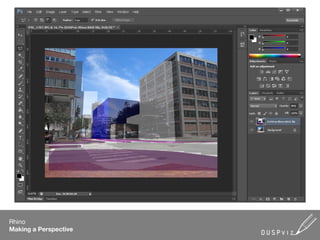
Making a Perspective
Rhino
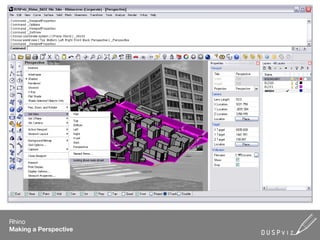
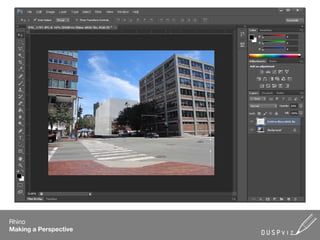
Making a Perspective
Rhino
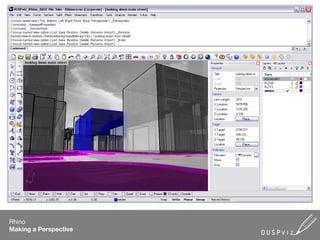
Making a Perspective
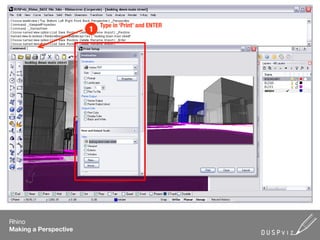
Type in ‘Print’ and ENTER
                       1


Rhino
Making a Perspective
Rhino
Making a Perspective
Rhino
Making a Perspective
Rhino
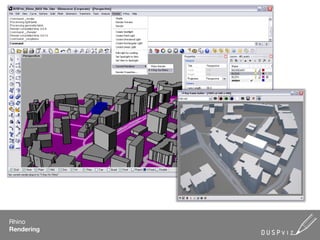
Rendering
Rhino
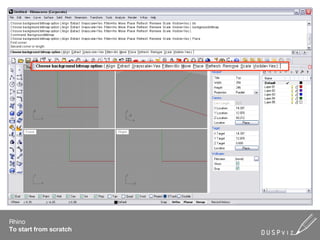
To start from scratch

Duspviz Rhino Tutorial

  • 1.
    DUSPviz 3D workshop Session#2: Rhinoceros for Urban Planners
  • 2.
    Mesh (polygonal) vsNURBS Mesh uses polygons to represent models – Sketchup NURBS represents surface with mathematical curves - Rhino Rhino Purpose
  • 3.
    Rhino’s primary purpose(for urban planners) is to build a 3D mock-up scheme of new urban developments Rhino Purpose
  • 4.
    Rhino can alsobe used to make Plans, 2D&3D Diagrams, and Perspectives Rhino Purpose
  • 5.
    1 Toolbar 3 Viewports 2 Drafting Options 5 Properties and Layers Rhino Interface
  • 6.
    THE COMMAND LINE Rhino is a script-based program. Understanding the nature of the script language is important! Pay attention to the follow-up sentences and options in the command line. Rhino Interface
  • 7.
    To Zoom In& Out To Pan To Rotate View in the PERSPECTIVE view roll mouse wheel Right click & drag (in the TOP, FRONT RIGHT view ) Right click & Rotate CTRL+ Move SHIFT + Right click & drag Mouse (in the PERSPECTIVE view ) Rhino Navigating
  • 8.
    1 Set as Ghosted OR Shaded mode 2 Project ON *tip: Always start drawing in the TOP viewport, with PROJECT option checked Rhino Drawing Objects
  • 9.
    Draw a rectangleusing 1 ‘Rectangle’ tool *tip: Type in horizontal length and then vertical length for exact dimensions Rhino Drawing Objects
  • 10.
    Draw a rectangleusing 1 ‘Polyline’ tool 2 Ortho ON *tip: Always use ‘Polyline’ instead of ‘Line’ 3 Explore different Snap options Rhino Drawing Objects
  • 11.
    vs Selecting from right to left selects every Selecting from left to right selects every object that is touching the selection box object that is within the selection box Rhino Object Selection
  • 12.
    The KEY Commands- 2D Copy Rotate Offset Scale Split Join Select an object Select an object Select an object Select an object Select an object Select objects to join ENTER to confirm ENTER to confirm ENTER to confirm Type in a ENTER to confirm ENTER to confirm distance to offset Specify a point of Specify a point of the center of the center of Specify a point to rotation rotation Type in ‘P’ to split copy from ENTER to confirm by Points Type in an angle / Type in an angle / Specify the first Specify the first Specify a point to reference point reference point Specify points to copy to split curve Specify the Specify the second reference second reference Hit ESC to point point ENTER to confirm terminate Rhino Manipulating Objects – 2D
  • 13.
    The KEY Command– ExtrudeCRV to make buildings Rhino Manipulating Objects – 3D
  • 14.
    The KEY Command– Scale1D to alter the height/width of a building Rhino Manipulating Objects – 3D
  • 15.
    The KEY Command– Boolean Series to make elaborate building shapes Boolean command series is probably the only command that you’d need to make diverse building shapes. Think about the Venn Diagram you learned in school. The principle is exactly the same. Rhino Manipulating Objects – 3D
  • 16.
    Project ON Always checkyour drafting options Rhino Before you start…
  • 17.
    1 Create a new layer Lock layers other than your 2 newly created one This indicates the layer you are currently working on Rhino Layers
  • 18.
    Your task :create a building right next to the Kendall Hotel. Rhino Exercise
  • 19.
    1 2 Rhino Saving views
  • 20.
    Type in ‘Make2D’and ENTER 3 Unlock all the layers 1 4 Check 2 Select all objects Rhino Making a Plan
  • 21.
    Type in ‘Export’and ENTER 1 2 Select .ai *tip: Select all the objects you are exporting and Join before exporting Rhino Making a Plan
  • 22.
  • 23.
    *tip: Vary thelineweight of each layers to give depth to you plan. What is great about this plan is that it has scale & layers Rhino Making a Plan
  • 24.
    Type in ‘Make2D’and ENTER 3 2 Zoom Selected 1 Select objects Rhino Making a 3D Diagram
  • 25.
    Type in ‘Export’and ENTER 1 *tip: Select all the objects you are exporting and Join before exporting Rhino Making a 3D Diagram
  • 26.
    2 1 Rhino Making a Perspective
  • 27.
  • 28.
  • 29.
    Type in ‘Print’and ENTER 1 Rhino Making a Perspective
  • 30.
  • 31.
  • 32.
  • 33.