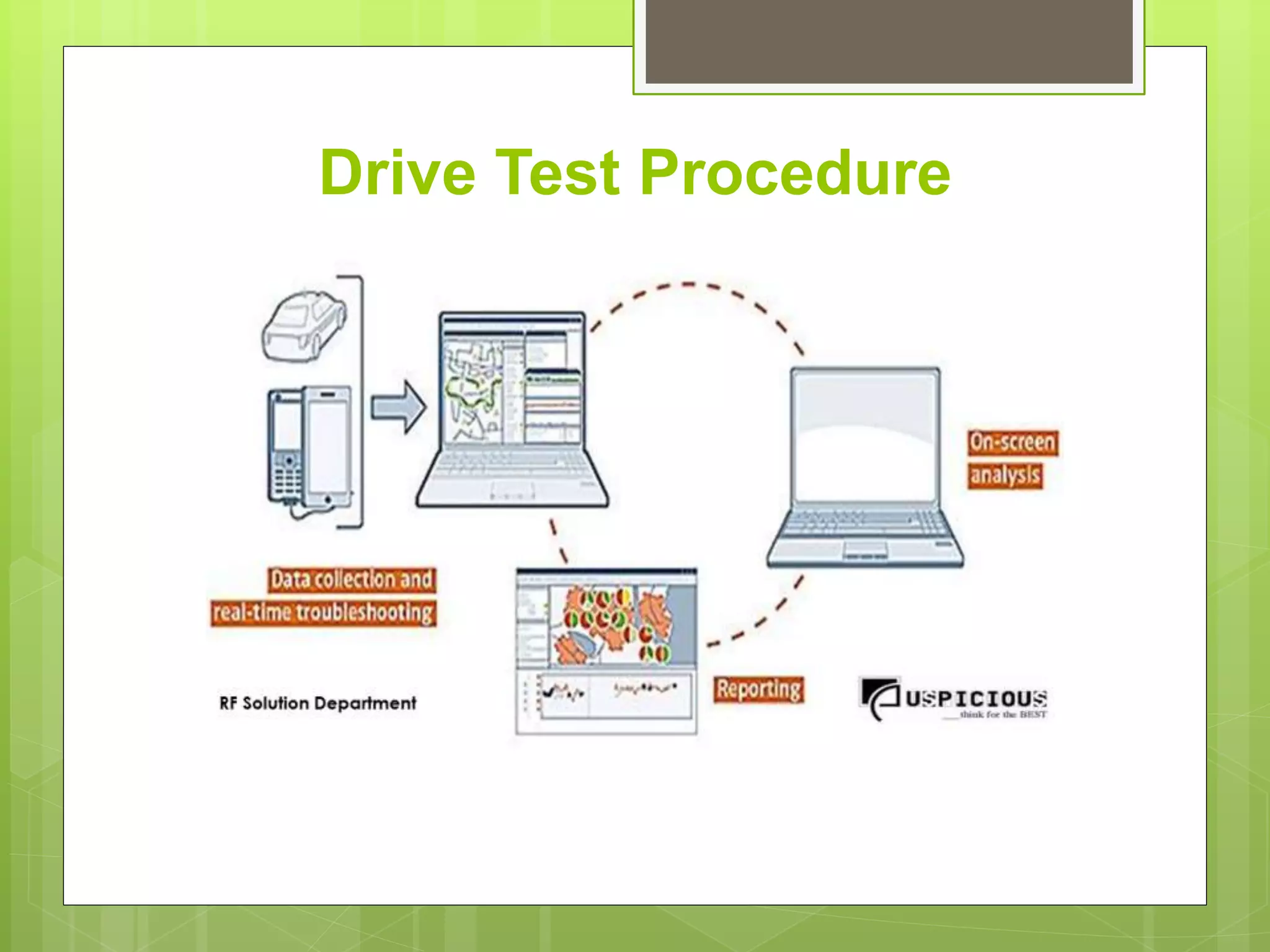
The document discusses drive testing using TEMS Investigation software. It provides an overview of the tools needed for drive testing including a laptop, dongle, mobile set, modem, GPS, and more. It outlines the steps to setup the software and ensure all tools are connected and functioning properly. These include attaching the required devices, loading cell files, and selecting the log collection location. The document also describes some key parameters that can be analyzed during drive testing like signal strength, interference, and throughput.
TEMS Investigation
Usedin more than 180 countries worldwide Data
Collection
TEMS Investigation is the industry standard tool for
troubleshooting, verification, optimization and
maintenance of wireless networks.
TEMS Investigation supports all major technologies,
making it the ideal testing tool at every stage of the
network’s life cycle.
TEMS Investigation has been the leading originator of
drive-testing features and functions for two decades.
TEMS Investigation is a complete, cost-effective and
conveniently compact solution for the active field
engineer.
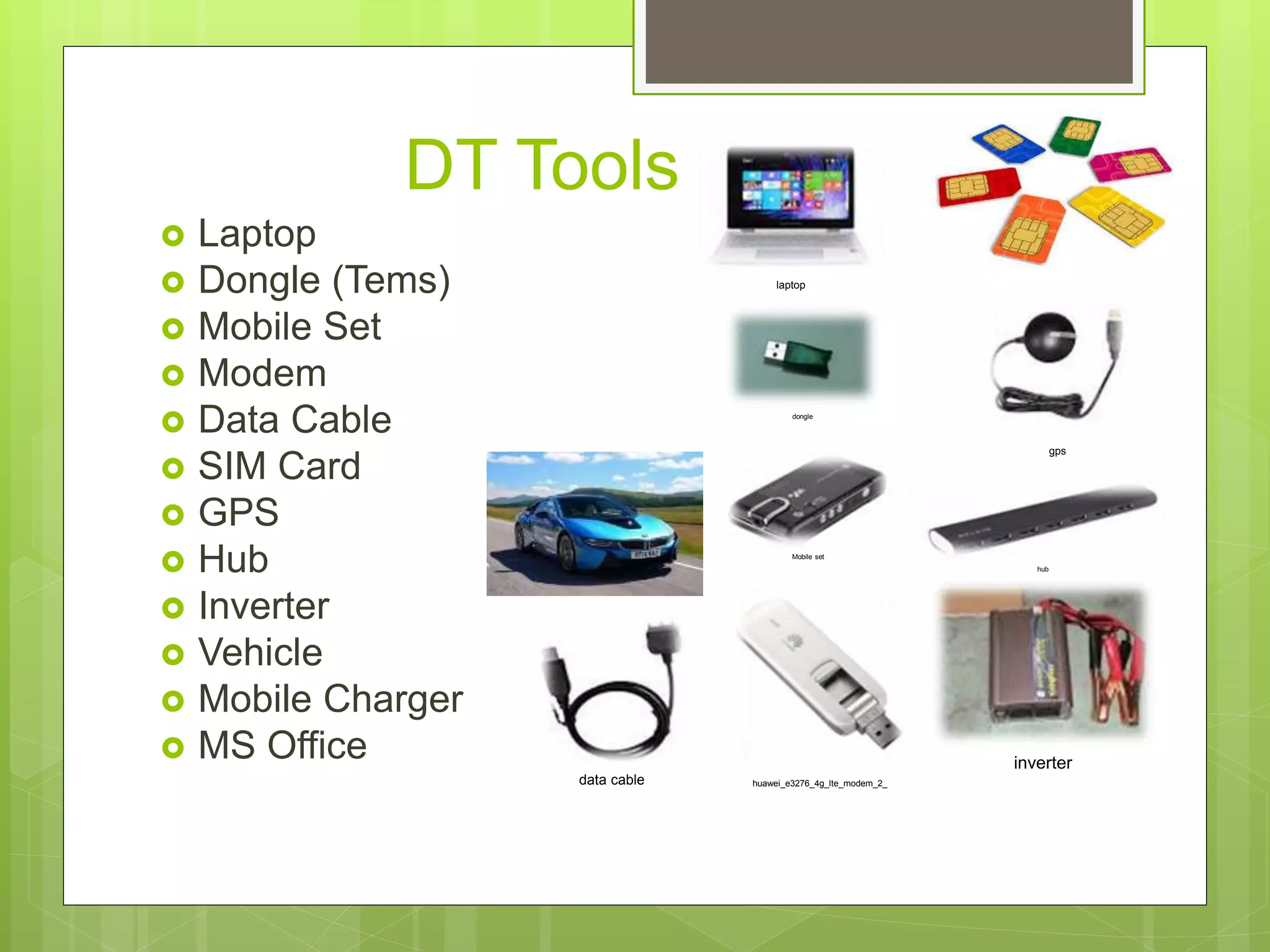
DT Tools
Laptop
Dongle (Tems)
Mobile Set
Modem
Data Cable
SIM Card
GPS
Hub
Inverter
Vehicle
Mobile Charger
MS Office
laptop
dongle
Mobile set
huawei_e3276_4g_lte_modem_2_
gps
hub
inverter
data cable
5.
Careful Before goDrive Test
Check Ur DT Tools (All Functionality )
Check SIM Card ( Have Valance, Data
Connectivity)
DT Route & other Necessary Map
Update Cell File
For Swap (Collect Parameter & Other
Information )
Check Inverter Before leave the office
6.
Careful to Tems
First Connect Dongle ( Tems License)
Open Tems 16.1 from ur workspaces
Attached Mobile Set ( MS )
Attached Modem (DC)
Attached GPS
go layer control remove unnecessary Item &
Add DT Route, other if necessary.
Update Cell File
7.
Connectivity
Make SureThat u Have Right Dongle
Attached Dongle
Open Tems Investigation Workspace
First Attached Required MS ( Mobile Set) if
more then one then attached one by one
Attached Modem (If Required)
At least Attached GPS
8.
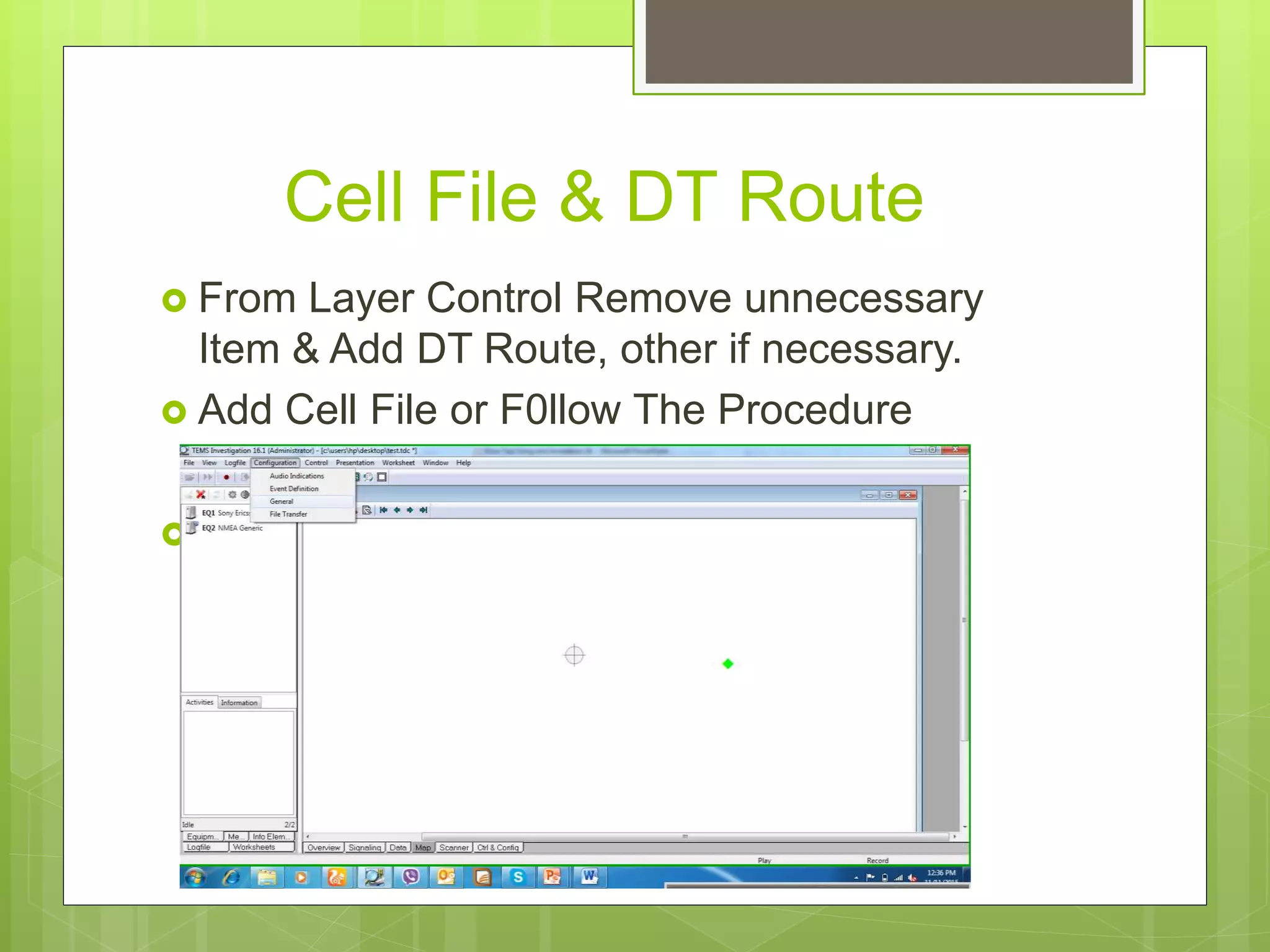
Cell File &DT Route
From Layer Control Remove unnecessary
Item & Add DT Route, other if necessary.
Add Cell File or F0llow The Procedure
Update Cell File
9.
Step 1 Gofile Menu Select
Configuration Menu Then General
Submenu
10.
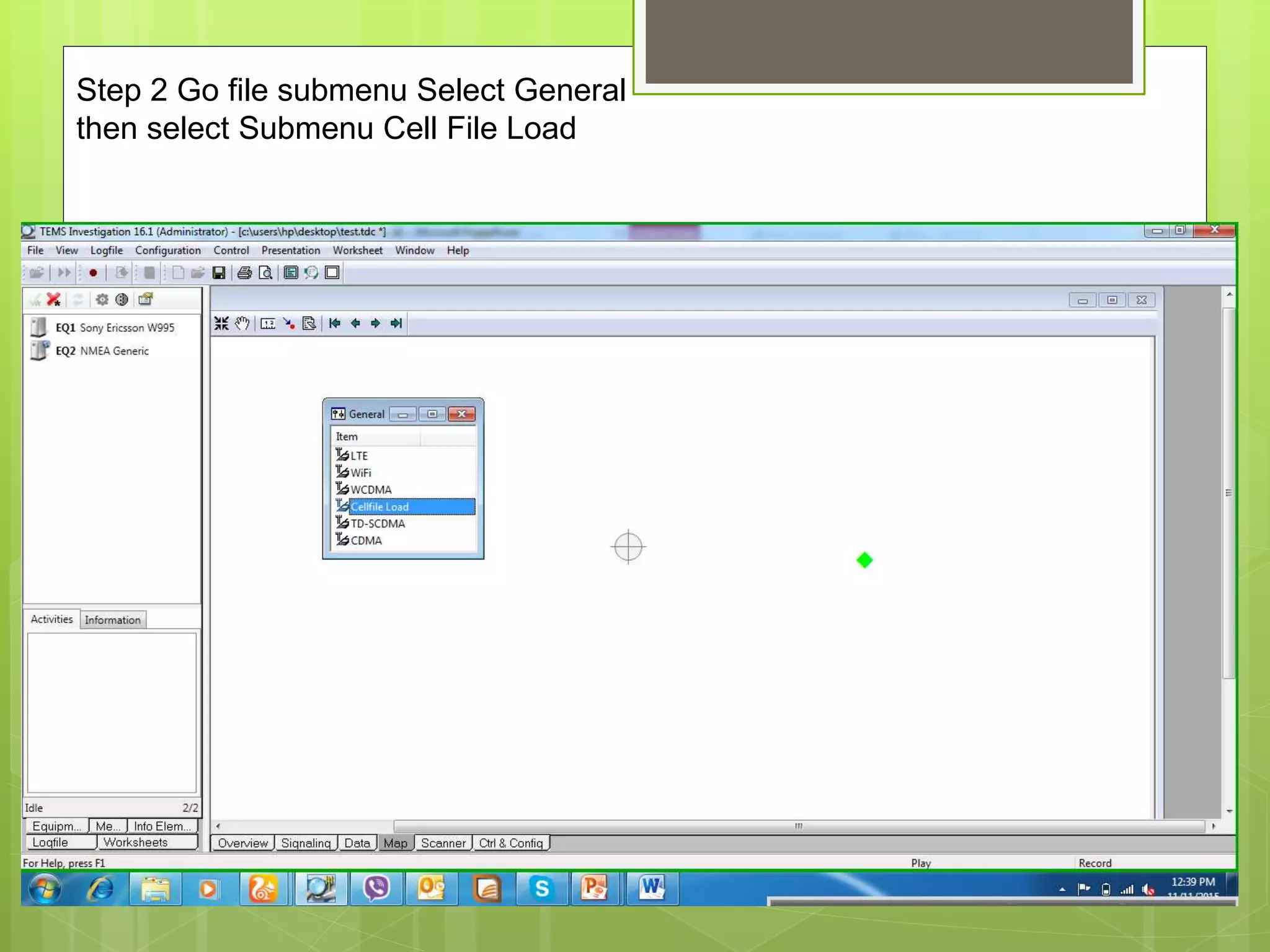
Step 2 Gofile submenu Select General
then select Submenu Cell File Load
11.
Step 3 Gofile submenu Select Cell File
Load After Click There Open A new
Window
12.
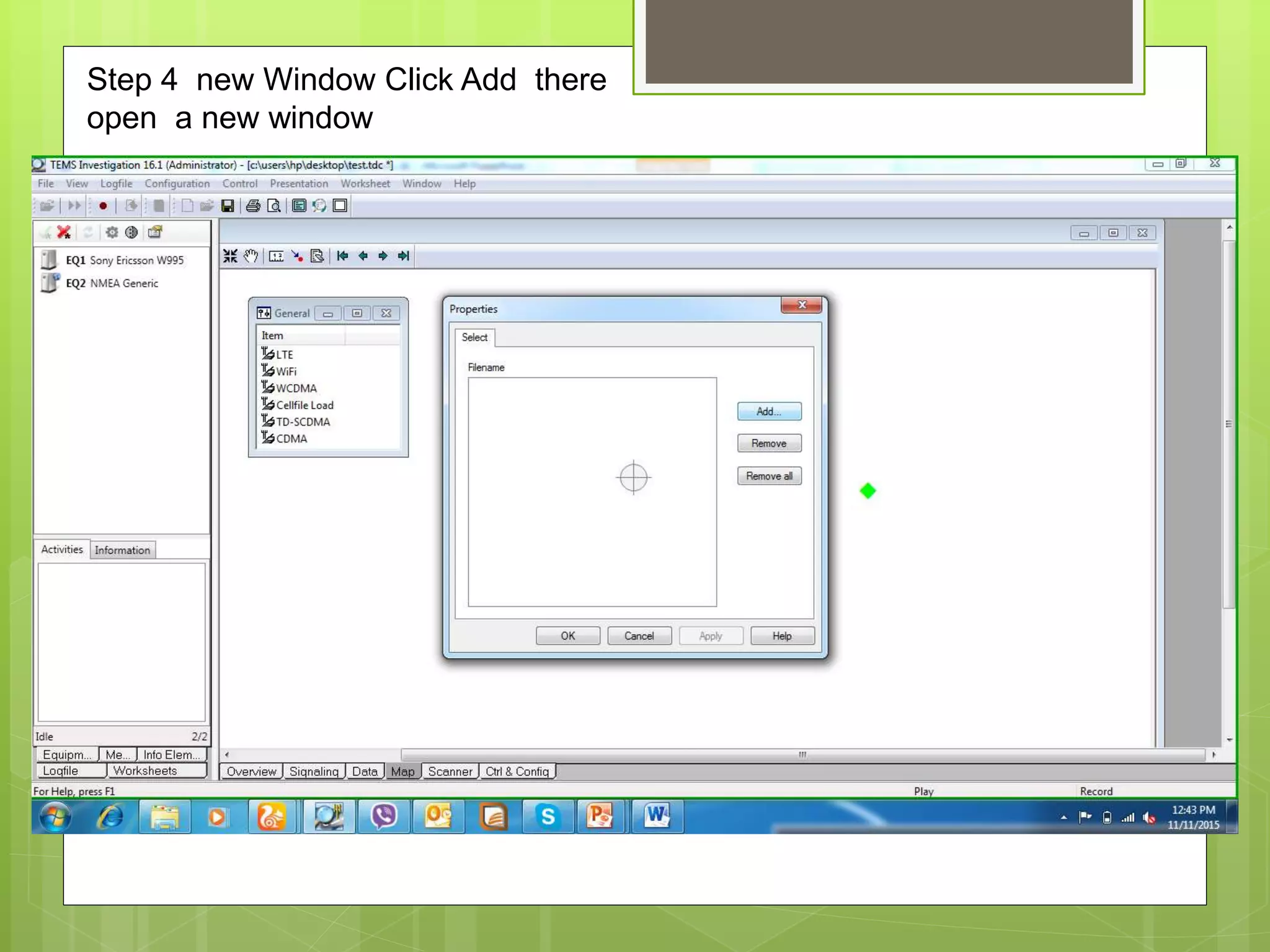
Step 4 newWindow Click Add there
open a new window
Log Collection
SelectDriver With out C Drive, Another Drive
Select location Prefer to with Site or Cluster or
Given Task name
Start Recording then Start Command
Sequence.
17.
Log Collection
SelectDriver With out C Drive, Another Drive
Select location Prefer to with Site or Cluster or
Given Task name
Start Recording then Start Command
Sequence.
Backup
Windows
Dotnetframework 4.5
Tems Investation 16.1
Mobile & GPS Driver
Office
Other Necessary Document
20.
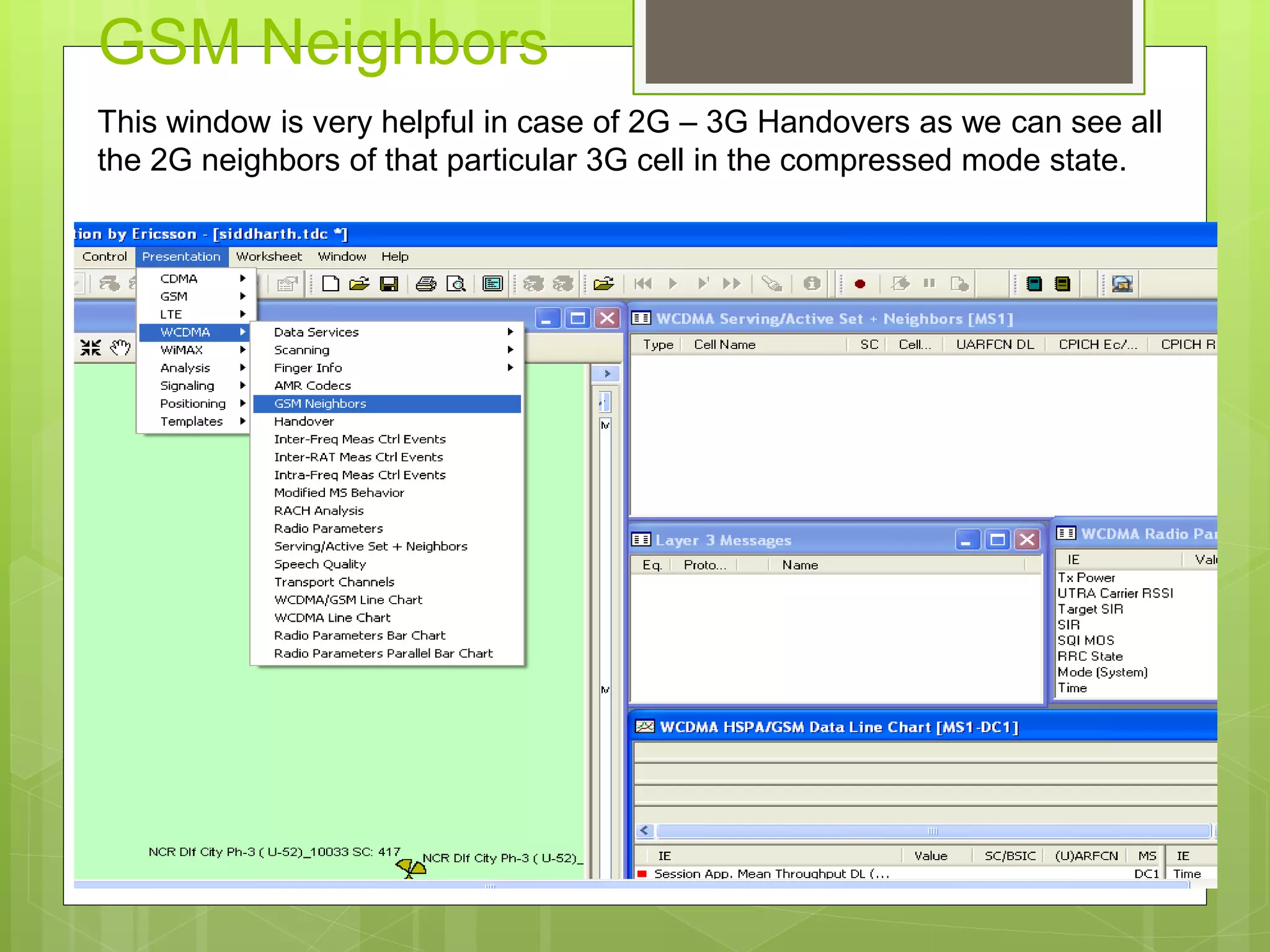
GSM Neighbors
This windowis very helpful in case of 2G – 3G Handovers as we can see all
the 2G neighbors of that particular 3G cell in the compressed mode state.
21.
Serving/Active Set +Neighbors
Cell I.D – This is the identity or name given to
a particular Node B and its cell by the
operator.
UARFCN – It is the frequency band allotted to
the operator. One spectrum bandwidth is of
5MHz in WCDMA or 3G.This window shows
us the centre frequency of the bandwidth
allotted to the operator.
22.
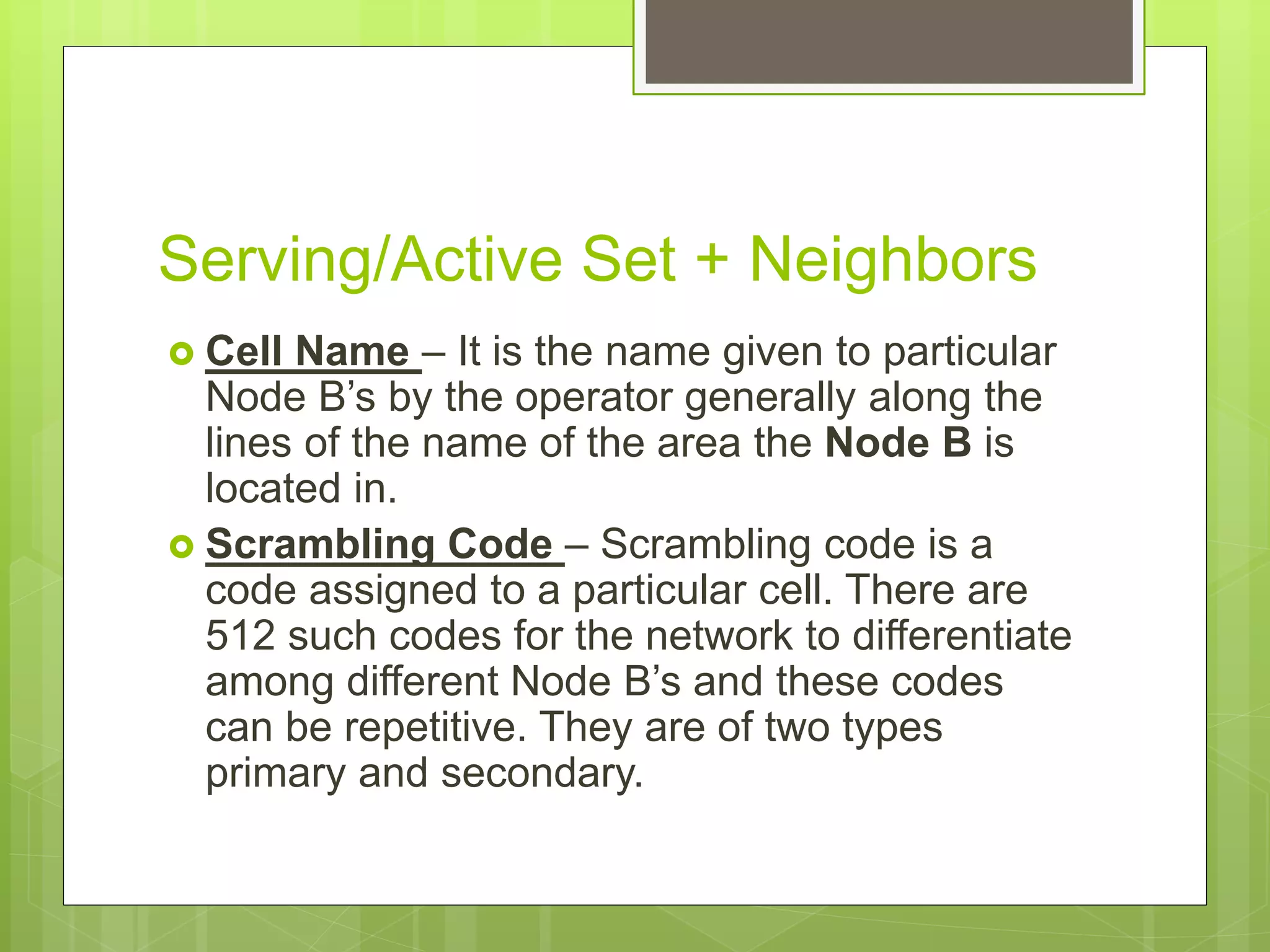
Serving/Active Set +Neighbors
Cell Name – It is the name given to particular
Node B’s by the operator generally along the
lines of the name of the area the Node B is
located in.
Scrambling Code – Scrambling code is a
code assigned to a particular cell. There are
512 such codes for the network to differentiate
among different Node B’s and these codes
can be repetitive. They are of two types
primary and secondary.
23.
Serving/Active Set +Neighbors
AS – This stands for Active Set. Active Set is the
set of Scrambling Code which the U.E is currently
latched on and there can be a maximum of 3
Scrambling codes in Active Set.
MN – MN Stands for monitored neighbor i.e. the
neighbor cell that is detected by the U.E as a
neighbor and is also defined as a neighbor in the
network. U.E will initiate a Handover onto the
monitored neighbor in case the monitored
neighbor has a stronger RSCP or EcNo than the
AS.
24.
Serving/Active Set +Neighbors
DN - DN stands for Detected Neighbor and as the
name suggests it is the neighbor detected by the
UE but, is not defined in our network . Hence, the
U.E does not handover to the detected neighbor.
It can be because of Overshooting of a site,
incomplete neighbor list or in case of a new site. It
is very important to optimize and have no DN’s as
they are one of the major reasons of Call drops in
3G.
25.
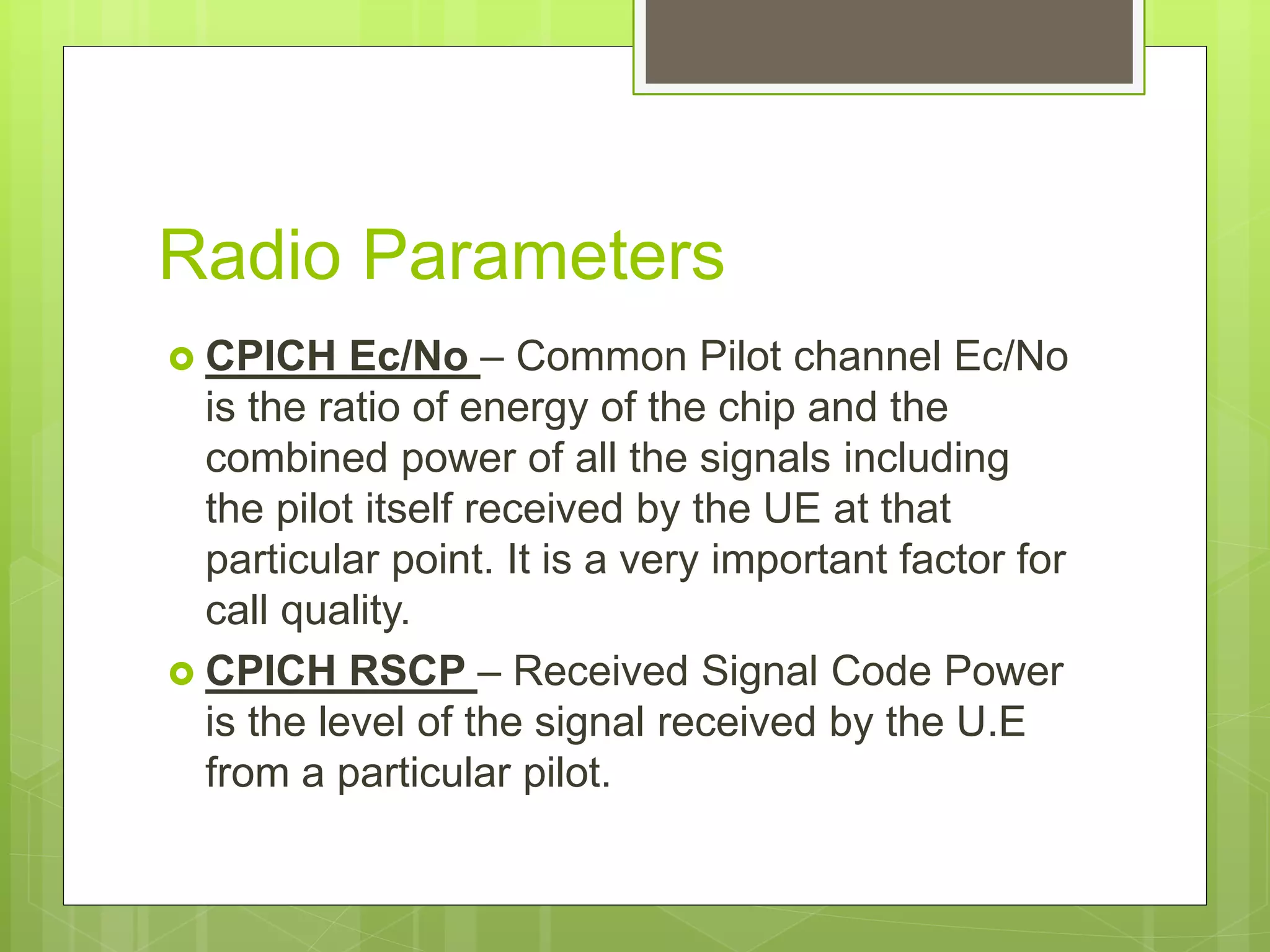
Radio Parameters
CPICHEc/No – Common Pilot channel Ec/No
is the ratio of energy of the chip and the
combined power of all the signals including
the pilot itself received by the UE at that
particular point. It is a very important factor for
call quality.
CPICH RSCP – Received Signal Code Power
is the level of the signal received by the U.E
from a particular pilot.
26.
Radio Parameters
Radio parametersare the parameters of a Mobile
equipment –
Tx Power – As the name suggests it is the transmitting
power of a Mobile Station. Its value can vary from
-50 to 50. The minimum the Tx power of the Mobile
station the better it is for call quality.
UTRA Carrier RSSI - It is the Received Signal Strength
Indicator of the Mobile Station or the U.E. It tells us the
total Power Received by the Mobile Station from all the
Pilots including itself at that particular location.
27.
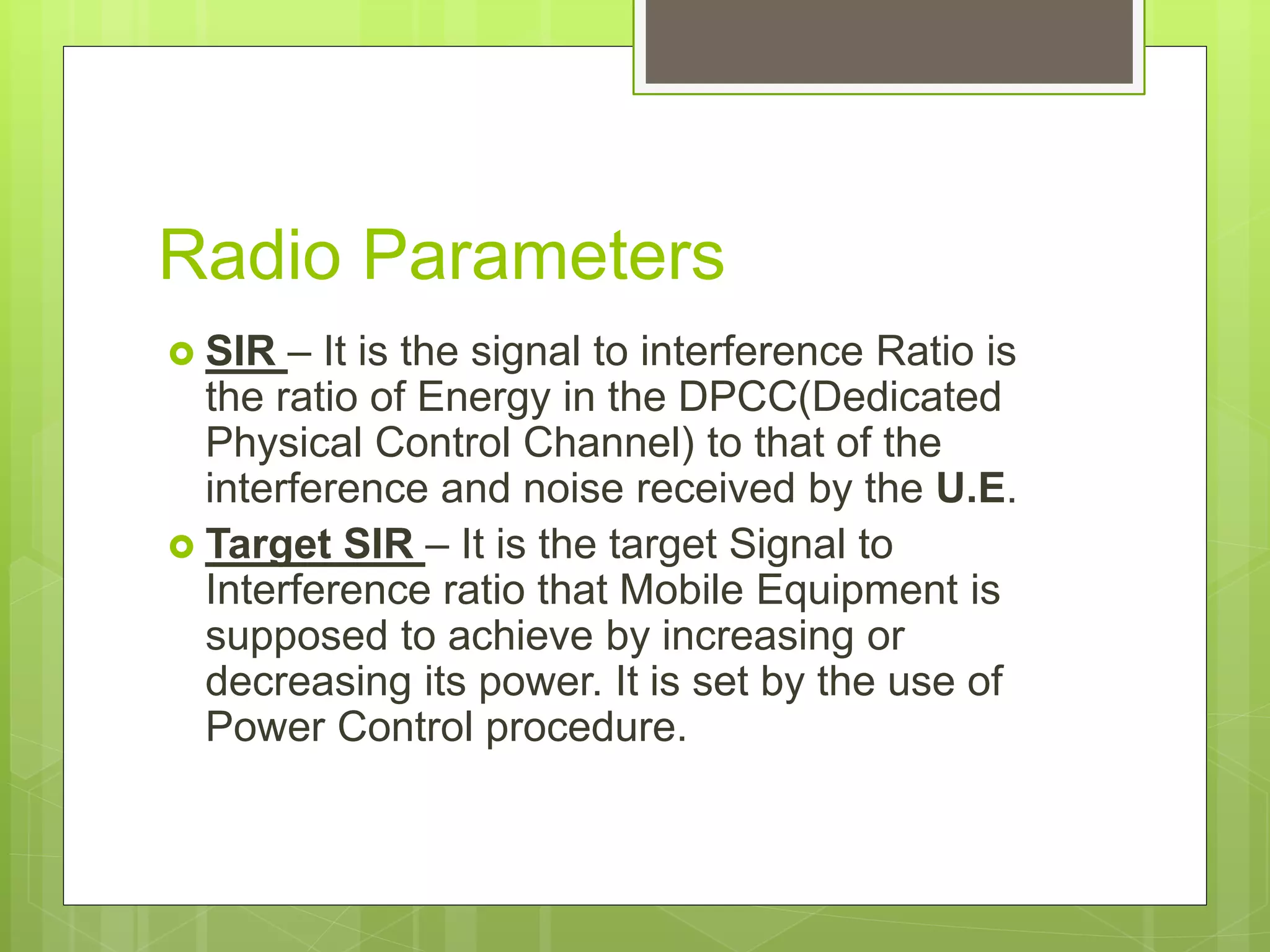
Radio Parameters
SIR– It is the signal to interference Ratio is
the ratio of Energy in the DPCC(Dedicated
Physical Control Channel) to that of the
interference and noise received by the U.E.
Target SIR – It is the target Signal to
Interference ratio that Mobile Equipment is
supposed to achieve by increasing or
decreasing its power. It is set by the use of
Power Control procedure.
28.
Radio Parameters
SQI- It is the speech Quality Index which is a
parameter to rate the voice Quality on that
particular call. It ranges from 0 – 30 with 30
being the best quality.
RRC State – It tells the current state and
channel as in Idle or dedicated.
Mode – It is the mode that we are using GSM
or WCDMA.
29.
HSPA/GSM Line Chart
This window gives us the data speed for both
3G and 2G modes depending on which mode
the mobile equipment is.
RLC DL Throughput – This is the total
throughput on the downlink at that particular
point.
The speed shown in this window as
throughput is in Kilobits/sec.