Chapter 7. Preparations for AQM with ACU TerraTec
NT14-29840 ver 1.0 DCG-53
7. Preparations for AQM with
ACU TerraTec
This chapter describes necessary preparations for conducting audio quality
measurement using an Audio Capturing Unit (ACU) in the form of a TerraTec
DMX 6Fire USB box.
Regarding this AQM configuration in general, refer to the User’s Manual,
chapter 40.
7.1. Installing Drivers for ACU
See section 3.9 of this document.
7.2. Adjusting ACU Physical Controls
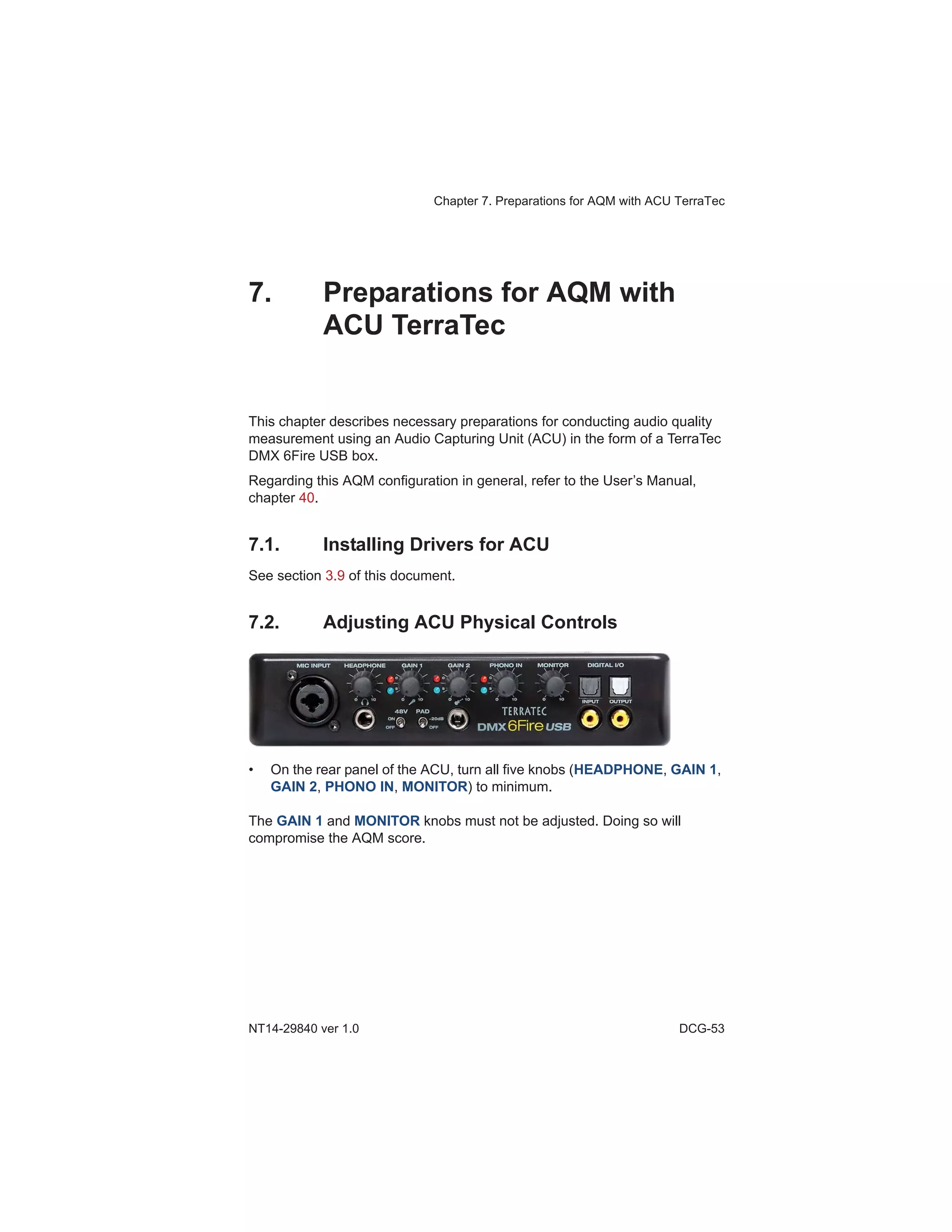
• On the rear panel of the ACU, turn all five knobs (HEADPHONE, GAIN 1,
GAIN 2, PHONO IN, MONITOR) to minimum.
The GAIN 1 and MONITOR knobs must not be adjusted. Doing so will
compromise the AQM score.
TEMS Investigation 16.0 Device Configuration Guide
DCG-54
7.3. Connecting Equipment to the ACU
1 To each phone, connect the proper audio cable. These are phone
model specific.
2 Connect an audio adaptor (generic for all phone models) to the other
end of each audio cable.
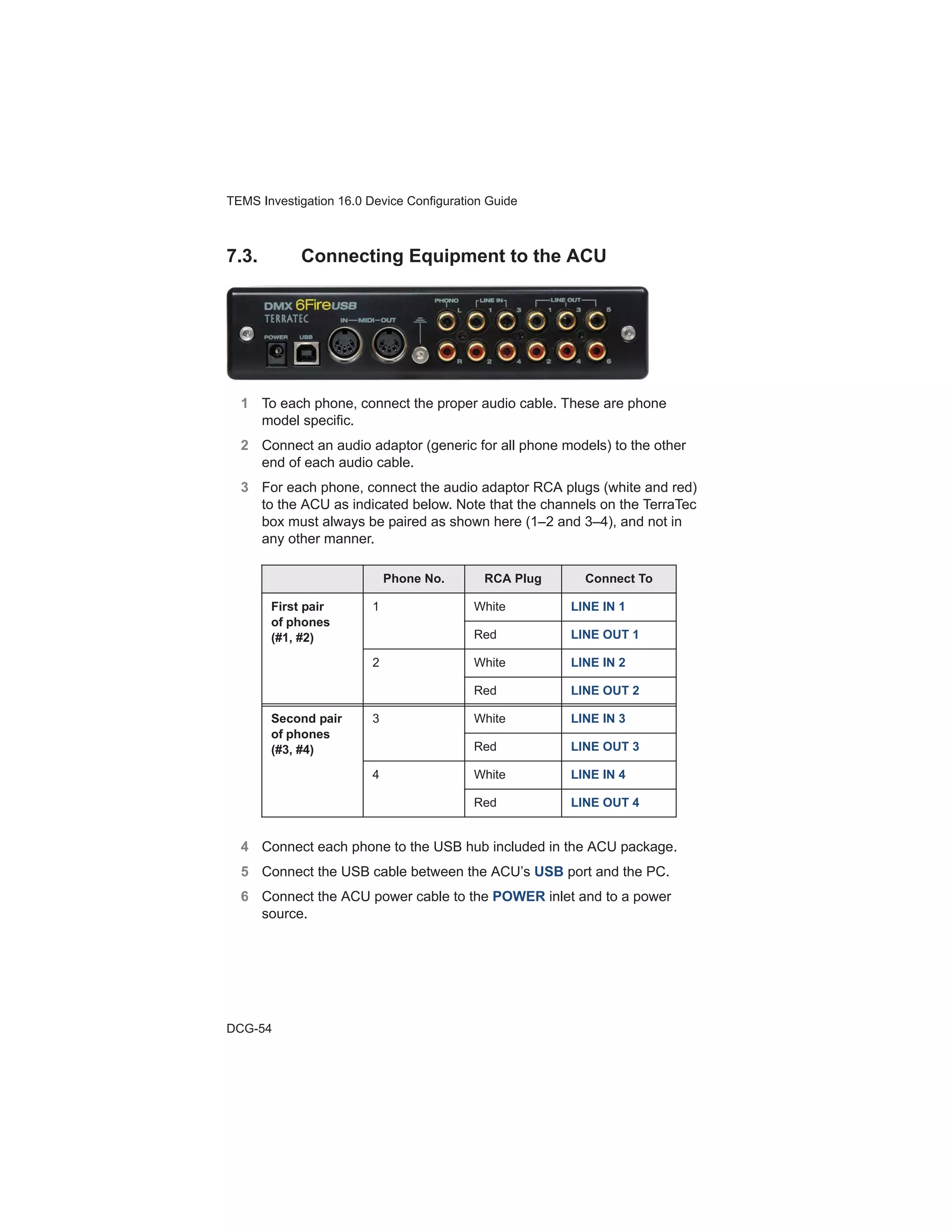
3 For each phone, connect the audio adaptor RCA plugs (white and red)
to the ACU as indicated below. Note that the channels on the TerraTec
box must always be paired as shown here (1–2 and 3–4), and not in
any other manner.
4 Connect each phone to the USB hub included in the ACU package.
5 Connect the USB cable between the ACU’s USB port and the PC.
6 Connect the ACU power cable to the POWER inlet and to a power
source.
Phone No. RCA Plug Connect To
First pair
of phones
(#1, #2)
1 White LINE IN 1
Red LINE OUT 1
2 White LINE IN 2
Red LINE OUT 2
Second pair
of phones
(#3, #4)
3 White LINE IN 3
Red LINE OUT 3
4 White LINE IN 4
Red LINE OUT 4
Chapter 7. Preparations for AQM with ACU TerraTec
NT14-29840 ver 1.0 DCG-55
7.4. Settings in the TerraTec PC User Interface
A user interface, mimicking a panel of physical controls, is installed along with
the TerraTec driver. It is loaded into the Windows system tray by default and
represented by this icon:
The user interface has three tabs. The tabs you need to edit are MIXER and
OUTPUT & SETTINGS.
Throughout the user interface, text labels on buttons are color-coded thus:
• Yellow color means “enabled”.
• White color means “disabled”.
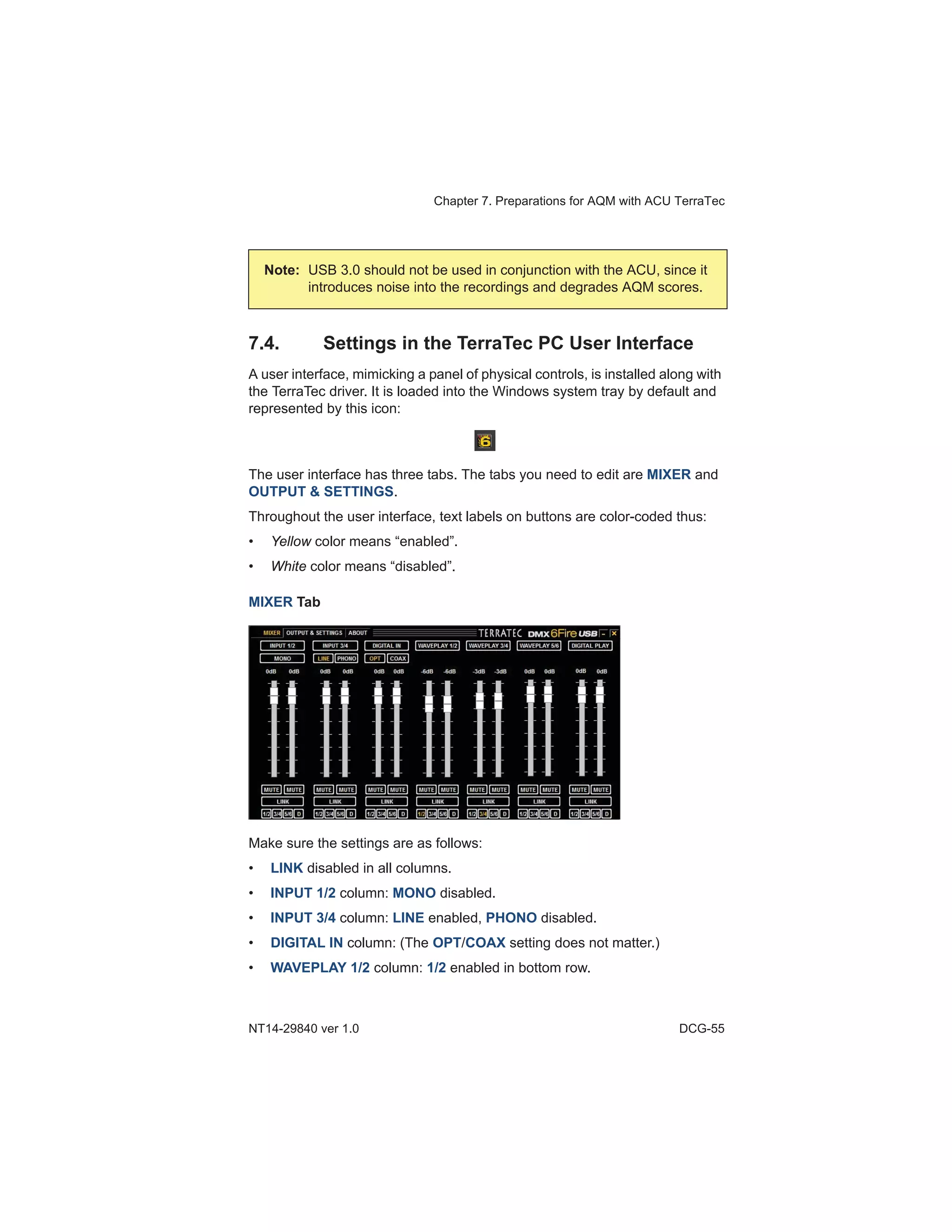
MIXER Tab
Make sure the settings are as follows:
• LINK disabled in all columns.
• INPUT 1/2 column: MONO disabled.
• INPUT 3/4 column: LINE enabled, PHONO disabled.
• DIGITAL IN column: (The OPT/COAX setting does not matter.)
• WAVEPLAY 1/2 column: 1/2 enabled in bottom row.
Note: USB 3.0 should not be used in conjunction with the ACU, since it
introduces noise into the recordings and degrades AQM scores.
TEMS Investigation 16.0 Device Configuration Guide
DCG-56
• WAVEPLAY 3/4 column: 3/4 enabled in bottom row.
• WAVEPLAY 5/6 column: All buttons disabled in bottom row (these outputs
are not used).
• DIGITAL PLAY column: All buttons disabled in bottom row.
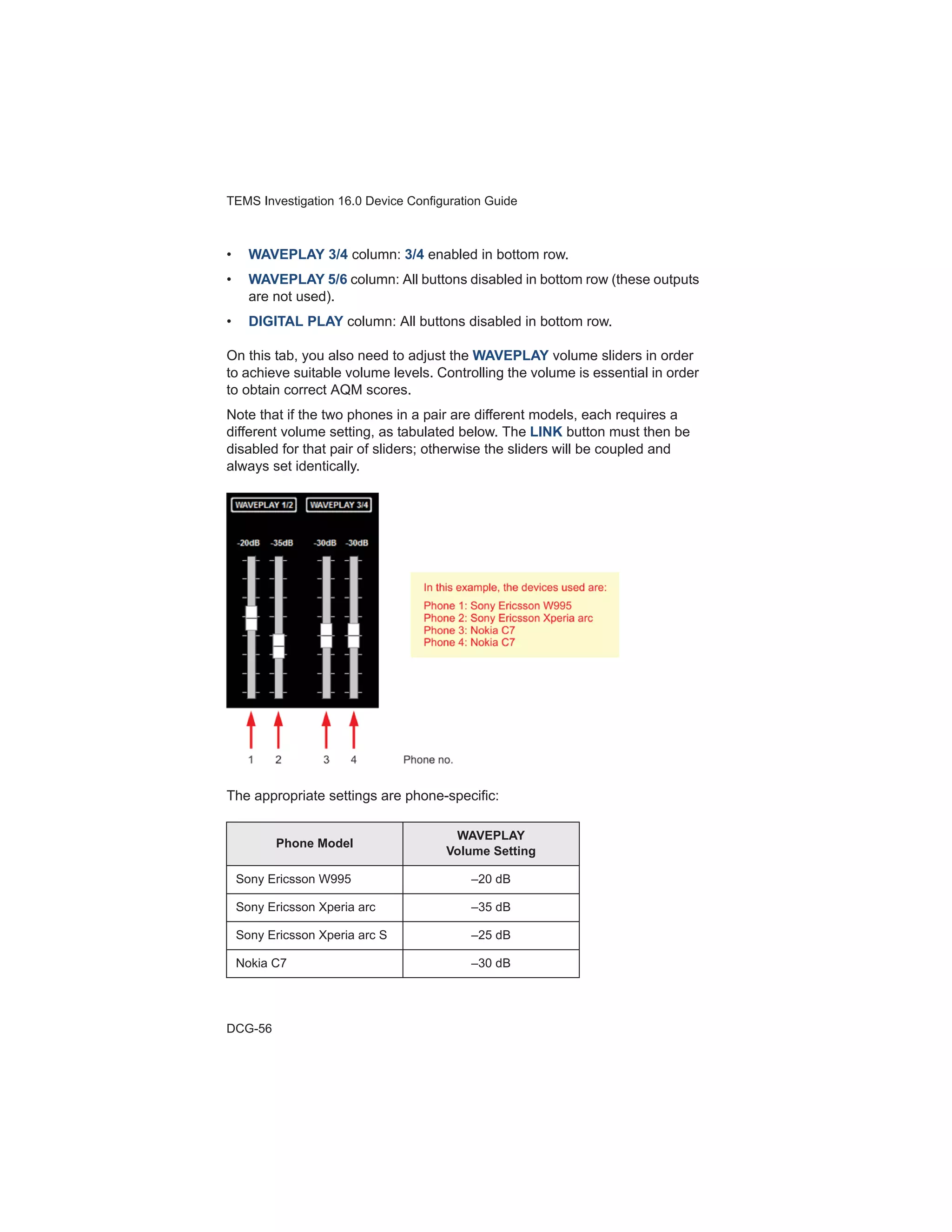
On this tab, you also need to adjust the WAVEPLAY volume sliders in order
to achieve suitable volume levels. Controlling the volume is essential in order
to obtain correct AQM scores.
Note that if the two phones in a pair are different models, each requires a
different volume setting, as tabulated below. The LINK button must then be
disabled for that pair of sliders; otherwise the sliders will be coupled and
always set identically.
The appropriate settings are phone-specific:
Phone Model
WAVEPLAY
Volume Setting
Sony Ericsson W995 –20 dB
Sony Ericsson Xperia arc –35 dB
Sony Ericsson Xperia arc S –25 dB
Nokia C7 –30 dB
Chapter 7. Preparations for AQM with ACU TerraTec
NT14-29840 ver 1.0 DCG-57
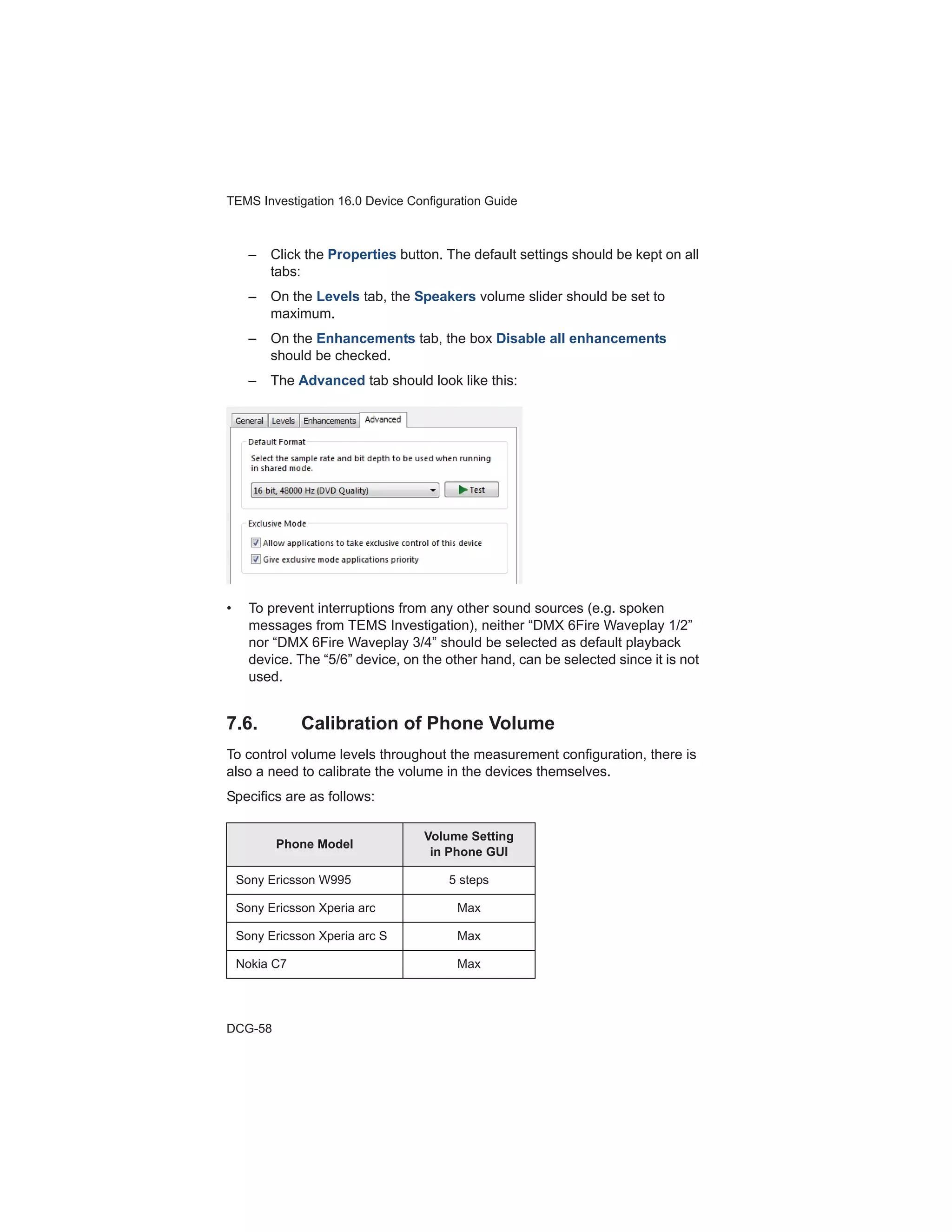
OUTPUT & SETTINGS Tab
On this tab, required settings are as follows:
• All volume sliders set to 0 dB.
• LINK disabled in all columns.
• MASTER column: MUTE disabled.
• DEVICE SETTINGS section: MULTIDEVICE enabled.
7.5. Configuration of Windows Settings
Volume settings must also be kept fixed in Windows for each of the devices
representing the TerraTec box there. (The instructions below refer to
Windows 7 user interface designations.)
• Open the Control Panel and select Sound.
• On the Playback tab, under Select a playback device ..., three “DMX
6Fire Waveplay” devices appear (with channel suffixes “1/2”, “3/4”, “5/6”).
• For devices “DMX 6Fire Waveplay 1/2” and “DMX 6Fire Waveplay 3/4”,
do as follows:
– Select the device.
Huawei C8600 –27 dB
Phone Model
WAVEPLAY
Volume Setting
TEMS Investigation 16.0 Device Configuration Guide
DCG-58
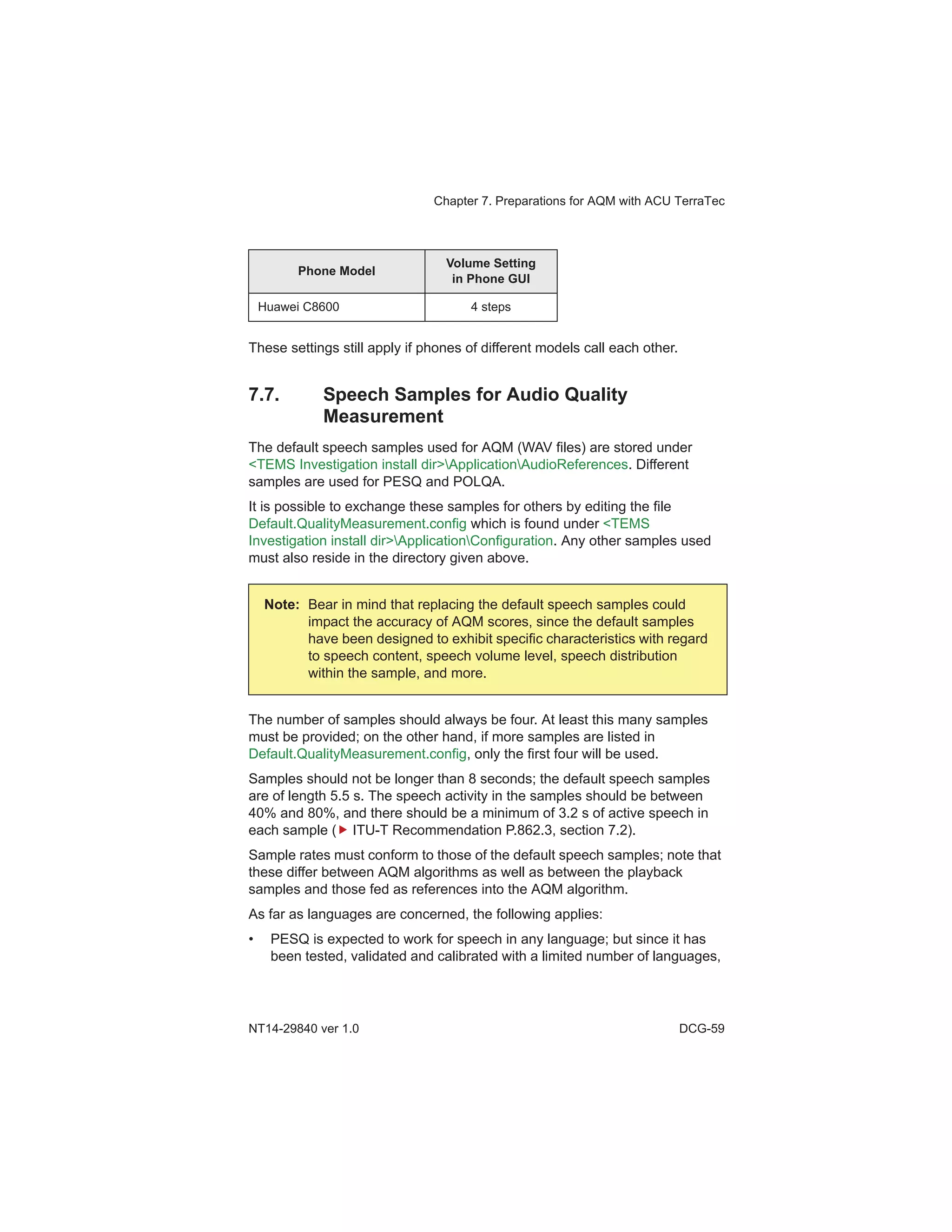
– Click the Properties button. The default settings should be kept on all
tabs:
– On the Levels tab, the Speakers volume slider should be set to
maximum.
– On the Enhancements tab, the box Disable all enhancements
should be checked.
– The Advanced tab should look like this:
• To prevent interruptions from any other sound sources (e.g. spoken
messages from TEMS Investigation), neither “DMX 6Fire Waveplay 1/2”
nor “DMX 6Fire Waveplay 3/4” should be selected as default playback
device. The “5/6” device, on the other hand, can be selected since it is not
used.
7.6. Calibration of Phone Volume
To control volume levels throughout the measurement configuration, there is
also a need to calibrate the volume in the devices themselves.
Specifics are as follows:
Phone Model
Volume Setting
in Phone GUI
Sony Ericsson W995 5 steps
Sony Ericsson Xperia arc Max
Sony Ericsson Xperia arc S Max
Nokia C7 Max
Chapter 7. Preparations for AQM with ACU TerraTec
NT14-29840 ver 1.0 DCG-59
These settings still apply if phones of different models call each other.
7.7. Speech Samples for Audio Quality
Measurement
The default speech samples used for AQM (WAV files) are stored under
<TEMS Investigation install dir>ApplicationAudioReferences. Different
samples are used for PESQ and POLQA.
It is possible to exchange these samples for others by editing the file
Default.QualityMeasurement.config which is found under <TEMS
Investigation install dir>ApplicationConfiguration. Any other samples used
must also reside in the directory given above.
The number of samples should always be four. At least this many samples
must be provided; on the other hand, if more samples are listed in
Default.QualityMeasurement.config, only the first four will be used.
Samples should not be longer than 8 seconds; the default speech samples
are of length 5.5 s. The speech activity in the samples should be between
40% and 80%, and there should be a minimum of 3.2 s of active speech in
each sample ( ITU-T Recommendation P.862.3, section 7.2).
Sample rates must conform to those of the default speech samples; note that
these differ between AQM algorithms as well as between the playback
samples and those fed as references into the AQM algorithm.
As far as languages are concerned, the following applies:
• PESQ is expected to work for speech in any language; but since it has
been tested, validated and calibrated with a limited number of languages,
Huawei C8600 4 steps
Note: Bear in mind that replacing the default speech samples could
impact the accuracy of AQM scores, since the default samples
have been designed to exhibit specific characteristics with regard
to speech content, speech volume level, speech distribution
within the sample, and more.
Phone Model
Volume Setting
in Phone GUI
TEMS Investigation 16.0 Device Configuration Guide
DCG-60
the accuracy of PESQ for other languages is poorly known. In practice,
this means that using samples in languages other than Western
European ones (e.g. British or American English, German, Dutch,
Swedish, French) cannot be recommended.
• POLQA has been validated with a wider range of languages: American
English and British English, Chinese (Mandarin), Czech, Dutch, French,
German, Swiss German, Italian, Japanese, and Swedish.
7.8. Configuration of Huawei C8600
• For the Huawei C8600 to be able to perform data calls governed by TEMS
Investigation, the Data Service option in the NetManager application must
be turned off. To accomplish this, turn off the “up-arrow/down-arrow”
button on the phone’s top-level menu. Alternatively, go to Applications
NetManager and deselect the Data Service option. Note that by
default, the Data Service option is turned on.
• This instruction applies to prototype Huawei C8600 devices sharing the
same IMEI. If you connect two such devices to the PC, and the detect in
TEMS Investigation fails, do as follows:
1 Inspect the phone IMEI in TEMS Investigation (Navigator bottom
pane Information tab Identity).
2 In the configuration file <TEMS Investigation install dir>Application
ConfigurationInvestigation.RecurringImei.config, replace the
default IMEI with the phone IMEI. Save the file.

Tems investigation 16.0 user's manual

  • 1.
    Chapter 7. Preparationsfor AQM with ACU TerraTec NT14-29840 ver 1.0 DCG-53 7. Preparations for AQM with ACU TerraTec This chapter describes necessary preparations for conducting audio quality measurement using an Audio Capturing Unit (ACU) in the form of a TerraTec DMX 6Fire USB box. Regarding this AQM configuration in general, refer to the User’s Manual, chapter 40. 7.1. Installing Drivers for ACU See section 3.9 of this document. 7.2. Adjusting ACU Physical Controls • On the rear panel of the ACU, turn all five knobs (HEADPHONE, GAIN 1, GAIN 2, PHONO IN, MONITOR) to minimum. The GAIN 1 and MONITOR knobs must not be adjusted. Doing so will compromise the AQM score.
  • 2.
    TEMS Investigation 16.0Device Configuration Guide DCG-54 7.3. Connecting Equipment to the ACU 1 To each phone, connect the proper audio cable. These are phone model specific. 2 Connect an audio adaptor (generic for all phone models) to the other end of each audio cable. 3 For each phone, connect the audio adaptor RCA plugs (white and red) to the ACU as indicated below. Note that the channels on the TerraTec box must always be paired as shown here (1–2 and 3–4), and not in any other manner. 4 Connect each phone to the USB hub included in the ACU package. 5 Connect the USB cable between the ACU’s USB port and the PC. 6 Connect the ACU power cable to the POWER inlet and to a power source. Phone No. RCA Plug Connect To First pair of phones (#1, #2) 1 White LINE IN 1 Red LINE OUT 1 2 White LINE IN 2 Red LINE OUT 2 Second pair of phones (#3, #4) 3 White LINE IN 3 Red LINE OUT 3 4 White LINE IN 4 Red LINE OUT 4
  • 3.
    Chapter 7. Preparationsfor AQM with ACU TerraTec NT14-29840 ver 1.0 DCG-55 7.4. Settings in the TerraTec PC User Interface A user interface, mimicking a panel of physical controls, is installed along with the TerraTec driver. It is loaded into the Windows system tray by default and represented by this icon: The user interface has three tabs. The tabs you need to edit are MIXER and OUTPUT & SETTINGS. Throughout the user interface, text labels on buttons are color-coded thus: • Yellow color means “enabled”. • White color means “disabled”. MIXER Tab Make sure the settings are as follows: • LINK disabled in all columns. • INPUT 1/2 column: MONO disabled. • INPUT 3/4 column: LINE enabled, PHONO disabled. • DIGITAL IN column: (The OPT/COAX setting does not matter.) • WAVEPLAY 1/2 column: 1/2 enabled in bottom row. Note: USB 3.0 should not be used in conjunction with the ACU, since it introduces noise into the recordings and degrades AQM scores.
  • 4.
    TEMS Investigation 16.0Device Configuration Guide DCG-56 • WAVEPLAY 3/4 column: 3/4 enabled in bottom row. • WAVEPLAY 5/6 column: All buttons disabled in bottom row (these outputs are not used). • DIGITAL PLAY column: All buttons disabled in bottom row. On this tab, you also need to adjust the WAVEPLAY volume sliders in order to achieve suitable volume levels. Controlling the volume is essential in order to obtain correct AQM scores. Note that if the two phones in a pair are different models, each requires a different volume setting, as tabulated below. The LINK button must then be disabled for that pair of sliders; otherwise the sliders will be coupled and always set identically. The appropriate settings are phone-specific: Phone Model WAVEPLAY Volume Setting Sony Ericsson W995 –20 dB Sony Ericsson Xperia arc –35 dB Sony Ericsson Xperia arc S –25 dB Nokia C7 –30 dB
  • 5.
    Chapter 7. Preparationsfor AQM with ACU TerraTec NT14-29840 ver 1.0 DCG-57 OUTPUT & SETTINGS Tab On this tab, required settings are as follows: • All volume sliders set to 0 dB. • LINK disabled in all columns. • MASTER column: MUTE disabled. • DEVICE SETTINGS section: MULTIDEVICE enabled. 7.5. Configuration of Windows Settings Volume settings must also be kept fixed in Windows for each of the devices representing the TerraTec box there. (The instructions below refer to Windows 7 user interface designations.) • Open the Control Panel and select Sound. • On the Playback tab, under Select a playback device ..., three “DMX 6Fire Waveplay” devices appear (with channel suffixes “1/2”, “3/4”, “5/6”). • For devices “DMX 6Fire Waveplay 1/2” and “DMX 6Fire Waveplay 3/4”, do as follows: – Select the device. Huawei C8600 –27 dB Phone Model WAVEPLAY Volume Setting
  • 6.
    TEMS Investigation 16.0Device Configuration Guide DCG-58 – Click the Properties button. The default settings should be kept on all tabs: – On the Levels tab, the Speakers volume slider should be set to maximum. – On the Enhancements tab, the box Disable all enhancements should be checked. – The Advanced tab should look like this: • To prevent interruptions from any other sound sources (e.g. spoken messages from TEMS Investigation), neither “DMX 6Fire Waveplay 1/2” nor “DMX 6Fire Waveplay 3/4” should be selected as default playback device. The “5/6” device, on the other hand, can be selected since it is not used. 7.6. Calibration of Phone Volume To control volume levels throughout the measurement configuration, there is also a need to calibrate the volume in the devices themselves. Specifics are as follows: Phone Model Volume Setting in Phone GUI Sony Ericsson W995 5 steps Sony Ericsson Xperia arc Max Sony Ericsson Xperia arc S Max Nokia C7 Max
  • 7.
    Chapter 7. Preparationsfor AQM with ACU TerraTec NT14-29840 ver 1.0 DCG-59 These settings still apply if phones of different models call each other. 7.7. Speech Samples for Audio Quality Measurement The default speech samples used for AQM (WAV files) are stored under <TEMS Investigation install dir>ApplicationAudioReferences. Different samples are used for PESQ and POLQA. It is possible to exchange these samples for others by editing the file Default.QualityMeasurement.config which is found under <TEMS Investigation install dir>ApplicationConfiguration. Any other samples used must also reside in the directory given above. The number of samples should always be four. At least this many samples must be provided; on the other hand, if more samples are listed in Default.QualityMeasurement.config, only the first four will be used. Samples should not be longer than 8 seconds; the default speech samples are of length 5.5 s. The speech activity in the samples should be between 40% and 80%, and there should be a minimum of 3.2 s of active speech in each sample ( ITU-T Recommendation P.862.3, section 7.2). Sample rates must conform to those of the default speech samples; note that these differ between AQM algorithms as well as between the playback samples and those fed as references into the AQM algorithm. As far as languages are concerned, the following applies: • PESQ is expected to work for speech in any language; but since it has been tested, validated and calibrated with a limited number of languages, Huawei C8600 4 steps Note: Bear in mind that replacing the default speech samples could impact the accuracy of AQM scores, since the default samples have been designed to exhibit specific characteristics with regard to speech content, speech volume level, speech distribution within the sample, and more. Phone Model Volume Setting in Phone GUI
  • 8.
    TEMS Investigation 16.0Device Configuration Guide DCG-60 the accuracy of PESQ for other languages is poorly known. In practice, this means that using samples in languages other than Western European ones (e.g. British or American English, German, Dutch, Swedish, French) cannot be recommended. • POLQA has been validated with a wider range of languages: American English and British English, Chinese (Mandarin), Czech, Dutch, French, German, Swiss German, Italian, Japanese, and Swedish. 7.8. Configuration of Huawei C8600 • For the Huawei C8600 to be able to perform data calls governed by TEMS Investigation, the Data Service option in the NetManager application must be turned off. To accomplish this, turn off the “up-arrow/down-arrow” button on the phone’s top-level menu. Alternatively, go to Applications NetManager and deselect the Data Service option. Note that by default, the Data Service option is turned on. • This instruction applies to prototype Huawei C8600 devices sharing the same IMEI. If you connect two such devices to the PC, and the detect in TEMS Investigation fails, do as follows: 1 Inspect the phone IMEI in TEMS Investigation (Navigator bottom pane Information tab Identity). 2 In the configuration file <TEMS Investigation install dir>Application ConfigurationInvestigation.RecurringImei.config, replace the default IMEI with the phone IMEI. Save the file.