Do you git your code?
Follow simplified Gitflow branching
model to improve productivity
By: Geshan Manandhar
HELLO!I am Geshan Manandhar
Senior software Engineer | QM Lead at Namshi.com
Tech Solution Provider
Agile follower and conditional microservices believer
@geshan - Geshan.com.np
What is this talk about
◉ Why Git and simplified git flow a.k.a github flow
◉ Prerequisites and assumptions
◉ The simplified gitflow/github flow steps
◉ Demo
◉ Things to consider
◉ Recap and Conclusion
Not using Git in
2016, Why?
Wrong tool for the job
Git is super popular
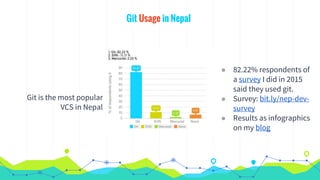
Git Usage in Nepal
Git is the most popular
VCS in Nepal
◉ 82.22% respondents of
a survey I did in 2015
said they used git.
◉ Survey: bit.ly/nep-dev-
survey
◉ Results as infographics
on my blog
Everyone in the team is
pushing to master,
Why?
When everyone pushes to master, someone will fall in a hole
Tell a story with your
commit/branch history.
Prerequisites
◉ You are aware of
◉ what git is
◉ what it is used for
◉ benefits of git
◉ You know about basic git commands like add, commit,
checkout etc
◉ Master is the stable branch which can be deployed anytime
Step 1: Start working in feature or bug fix - get a new branch
◉ Always follow a naming convention when you create a new
branch
◉ Like: HK-16 (where HK is short for project Hookah and 16 is the
ticket id from redmine/trello/Jira/Github Issue)
◉ Always get the latest master branch before you start any issue
◉ By typing: git checkout master && git fetch && git pull --
rebase origin master
◉ Then get a branch out of the latest master
◉ The command will be: git checkout -b HK-16
◉ Now you can start working on HK-16 - change readme
Step 2: Finished coding, let’s push now
◉ So you finished working on HK-16
◉ Then you do the following to commit the changes:
◉ git add . (explore git add -p)
◉ git add -u - if files have been deleted
◉ git commit - then write a commit message
◉ Keep in mind commit messages need to be meaningful
◉ You can do multiple logical commits.
◉ git push origin HK-16
Step 3: Pushed Code, now open a pull/merge request
◉ It is recommended that you squash your commits to one
◉ To open a merge/pull request, always get latest master then
rebase your current working branch
◉ Be in your branch git checkout HK-16, then execute: git
rebase master.
◉ As you just rebased with master, you may need to force push :
git push -f origin HK-16
◉ Browse to github/gitlab open a pull/merge request
◉ Move issue to right status in your project management
software if needed
Step 4: Team Lead/member reviews code and adds comments if needed
◉ Project Lead/Member should always check and review code
for each pull/merge request
◉ Code review is done to
◉ ensure coding standards
◉ coding and naming conventions
◉ any obvious bugs
◉ the solution quality is up to the standards
◉ code is maintainable on the long run.
◉ If there are comments, software engineer needs to fix them
◉ If the code matches standards, works and tests are passing :
deploy
Step 5: Code review ok, deploy to staging/production
◉ Always deploy to staging first and test it
◉ For staging, its ok to deploy the branch with your deployment
process
◉ If all (manual) tests are fine, then code is deployed to live.
◉ For live/productions, always create a tag and deploy the tag
◉ Given you are on HK-16 branch, execute git tag 1.6.25
◉ Then push the tag: git push origin 1.6.25 and deploy it live
Why is the tag named 1.6.25?
◉ Tags are basically pointers to a particular commit
◉ Naming depends on the version conventions.
◉ 1.6.25-p0 can mean 1st Year of operation, month of June, date
is 25 - p0 for second release of the day
◉ 1.44.3 can mean 1st Year of operation, week no. 44 and
release no 3, if you follow weekly sprints.
◉ If you use tags for staging you could suffix it with rc-1, rc for
release candidate
◉ Naming tags depends on how you want to do it
Step 6: Merge the tag to master when production/live is stable
◉ After testing and monitoring the live deployment, tag can be
merged to master
◉ To merge the tag to master, get the latest master
◉ On master branch run: git merge --no-ff 1.6.25
◉ All the changes that were deployed are in master right now
◉ This will automatically close the pull/merge request of the
branch
◉ You can deploy another branch after rebase and tagging it
◉ Next tag for the same day will be 1.6.25-p0
◉ Here p0 means patch 0 or 2nd deployment of the day
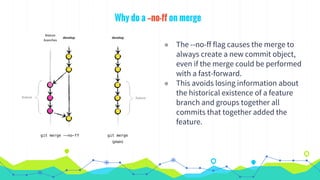
Why do a --no-ff on merge
◉ The --no-ff flag causes the merge to
always create a new commit object,
even if the merge could be performed
with a fast-forward.
◉ This avoids losing information about
the historical existence of a feature
branch and groups together all
commits that together added the
feature.
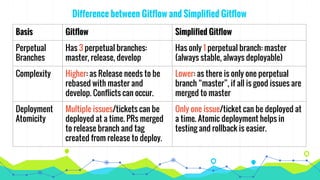
Difference between Gitflow and Simplified Gitflow
Basis Gitflow Simplified Gitflow
Perpetual
Branches
Has 3 perpetual branches:
master, release, develop
Has only 1 perpetual branch: master
(always stable, always deployable)
Complexity Higher: as Release needs to be
rebased with master and
develop. Conflicts can occur.
Lower: as there is only one perpetual
branch “master”, if all is good issues are
merged to master
Deployment
Atomicity
Multiple issues/tickets can be
deployed at a time. PRs merged
to release branch and tag
created from release to deploy.
Only one issue/ticket can be deployed at
a time. Atomic deployment helps in
testing and rollback is easier.
DEMOLet’s see how to do it
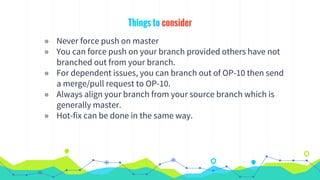
Things to consider
◉ Never force push on master
◉ You can force push on your branch provided others have not
branched out from your branch.
◉ For dependent issues, you can branch out of OP-10 then send
a merge/pull request to OP-10.
◉ Always align your branch from your source branch which is
generally master.
◉ Hot-fix can be done in the same way.
Simplified Gitflow/Github flow Recap
1. Start working in feature or bug fix - get a new branch
2. Finished coding, let’s push now
3. Pushed Code, now open a pull/merge request
4. Team Lead/member reviews code and adds comments if
needed
5. Code review ok, deploy to staging/production
6. Merge the tag to master when production/live is stable
7. You are a workhorse, work on the next issue
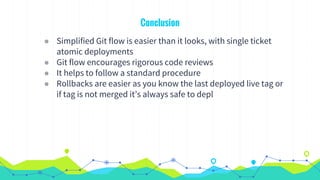
Conclusion
◉ Simplified Git flow is easier than it looks, with single ticket
atomic deployments
◉ Git flow encourages rigorous code reviews
◉ It helps to follow a standard procedure
◉ Rollbacks are easier as you know the last deployed live tag or
if tag is not merged it’s always safe to depl
THANKS!
Any questions?
You can find me at
@geshan - Geshan.com.np
◉ Looking for a job change? http://bit.ly/it-job-change-np
◉ This slide available at: http://bit.ly/s-gitflow
References
◉ http://vimeo.com/46010208 - Git Happens Video
◉ http://nvie.com/posts/a-successful-git-branching-model/ - Gitflow Brancing Model
◉ http://chris.beams.io/posts/git-commit/ - writing good commit message
◉ http://geshan.com.np/blog/2014/07/4-git-tips-beyond-basics/ - 4th Tip on Squashing git
commits
◉ http://geshan.com.np/blog/2016/04/3-simple-rules-for-less-or-no-git-conflicts/ - Be less
prone to git conflicts
◉ Images below:
◉ http://devopsreactions.tumblr.com/post/134848252538/when-the-backend-team-gets-
stuck-behind-schedule
◉ http://devopsreactions.tumblr.com/post/129836686205/wrong-tool-for-the-job
◉ https://unsplash.com/photos/G6G93jtU1vE
◉ https://www.flickr.com/photos/62244271@N03/8553590682/sizes/l
◉ https://pixabay.com/en/primate-ape-thinking-mimic-view-1019101/

Do You Git Your Code? Follow Simplified Gitflow Branching Model to Improve Productivity

  • 1.
    Do you gityour code? Follow simplified Gitflow branching model to improve productivity By: Geshan Manandhar
  • 2.
    HELLO!I am GeshanManandhar Senior software Engineer | QM Lead at Namshi.com Tech Solution Provider Agile follower and conditional microservices believer @geshan - Geshan.com.np
  • 3.
    What is thistalk about ◉ Why Git and simplified git flow a.k.a github flow ◉ Prerequisites and assumptions ◉ The simplified gitflow/github flow steps ◉ Demo ◉ Things to consider ◉ Recap and Conclusion
  • 4.
    Not using Gitin 2016, Why?
  • 5.
  • 6.
    Git is superpopular
  • 7.
    Git Usage inNepal Git is the most popular VCS in Nepal ◉ 82.22% respondents of a survey I did in 2015 said they used git. ◉ Survey: bit.ly/nep-dev- survey ◉ Results as infographics on my blog
  • 8.
    Everyone in theteam is pushing to master, Why?
  • 9.
    When everyone pushesto master, someone will fall in a hole
  • 10.
    Tell a storywith your commit/branch history.
  • 11.
    Prerequisites ◉ You areaware of ◉ what git is ◉ what it is used for ◉ benefits of git ◉ You know about basic git commands like add, commit, checkout etc ◉ Master is the stable branch which can be deployed anytime
  • 12.
    Step 1: Startworking in feature or bug fix - get a new branch ◉ Always follow a naming convention when you create a new branch ◉ Like: HK-16 (where HK is short for project Hookah and 16 is the ticket id from redmine/trello/Jira/Github Issue) ◉ Always get the latest master branch before you start any issue ◉ By typing: git checkout master && git fetch && git pull -- rebase origin master ◉ Then get a branch out of the latest master ◉ The command will be: git checkout -b HK-16 ◉ Now you can start working on HK-16 - change readme
  • 13.
    Step 2: Finishedcoding, let’s push now ◉ So you finished working on HK-16 ◉ Then you do the following to commit the changes: ◉ git add . (explore git add -p) ◉ git add -u - if files have been deleted ◉ git commit - then write a commit message ◉ Keep in mind commit messages need to be meaningful ◉ You can do multiple logical commits. ◉ git push origin HK-16
  • 14.
    Step 3: PushedCode, now open a pull/merge request ◉ It is recommended that you squash your commits to one ◉ To open a merge/pull request, always get latest master then rebase your current working branch ◉ Be in your branch git checkout HK-16, then execute: git rebase master. ◉ As you just rebased with master, you may need to force push : git push -f origin HK-16 ◉ Browse to github/gitlab open a pull/merge request ◉ Move issue to right status in your project management software if needed
  • 15.
    Step 4: TeamLead/member reviews code and adds comments if needed ◉ Project Lead/Member should always check and review code for each pull/merge request ◉ Code review is done to ◉ ensure coding standards ◉ coding and naming conventions ◉ any obvious bugs ◉ the solution quality is up to the standards ◉ code is maintainable on the long run. ◉ If there are comments, software engineer needs to fix them ◉ If the code matches standards, works and tests are passing : deploy
  • 16.
    Step 5: Codereview ok, deploy to staging/production ◉ Always deploy to staging first and test it ◉ For staging, its ok to deploy the branch with your deployment process ◉ If all (manual) tests are fine, then code is deployed to live. ◉ For live/productions, always create a tag and deploy the tag ◉ Given you are on HK-16 branch, execute git tag 1.6.25 ◉ Then push the tag: git push origin 1.6.25 and deploy it live
  • 17.
    Why is thetag named 1.6.25? ◉ Tags are basically pointers to a particular commit ◉ Naming depends on the version conventions. ◉ 1.6.25-p0 can mean 1st Year of operation, month of June, date is 25 - p0 for second release of the day ◉ 1.44.3 can mean 1st Year of operation, week no. 44 and release no 3, if you follow weekly sprints. ◉ If you use tags for staging you could suffix it with rc-1, rc for release candidate ◉ Naming tags depends on how you want to do it
  • 18.
    Step 6: Mergethe tag to master when production/live is stable ◉ After testing and monitoring the live deployment, tag can be merged to master ◉ To merge the tag to master, get the latest master ◉ On master branch run: git merge --no-ff 1.6.25 ◉ All the changes that were deployed are in master right now ◉ This will automatically close the pull/merge request of the branch ◉ You can deploy another branch after rebase and tagging it ◉ Next tag for the same day will be 1.6.25-p0 ◉ Here p0 means patch 0 or 2nd deployment of the day
  • 19.
    Why do a--no-ff on merge ◉ The --no-ff flag causes the merge to always create a new commit object, even if the merge could be performed with a fast-forward. ◉ This avoids losing information about the historical existence of a feature branch and groups together all commits that together added the feature.
  • 20.
    Difference between Gitflowand Simplified Gitflow Basis Gitflow Simplified Gitflow Perpetual Branches Has 3 perpetual branches: master, release, develop Has only 1 perpetual branch: master (always stable, always deployable) Complexity Higher: as Release needs to be rebased with master and develop. Conflicts can occur. Lower: as there is only one perpetual branch “master”, if all is good issues are merged to master Deployment Atomicity Multiple issues/tickets can be deployed at a time. PRs merged to release branch and tag created from release to deploy. Only one issue/ticket can be deployed at a time. Atomic deployment helps in testing and rollback is easier.
  • 21.
  • 22.
    Things to consider ◉Never force push on master ◉ You can force push on your branch provided others have not branched out from your branch. ◉ For dependent issues, you can branch out of OP-10 then send a merge/pull request to OP-10. ◉ Always align your branch from your source branch which is generally master. ◉ Hot-fix can be done in the same way.
  • 23.
    Simplified Gitflow/Github flowRecap 1. Start working in feature or bug fix - get a new branch 2. Finished coding, let’s push now 3. Pushed Code, now open a pull/merge request 4. Team Lead/member reviews code and adds comments if needed 5. Code review ok, deploy to staging/production 6. Merge the tag to master when production/live is stable 7. You are a workhorse, work on the next issue
  • 24.
    Conclusion ◉ Simplified Gitflow is easier than it looks, with single ticket atomic deployments ◉ Git flow encourages rigorous code reviews ◉ It helps to follow a standard procedure ◉ Rollbacks are easier as you know the last deployed live tag or if tag is not merged it’s always safe to depl
  • 25.
    THANKS! Any questions? You canfind me at @geshan - Geshan.com.np ◉ Looking for a job change? http://bit.ly/it-job-change-np ◉ This slide available at: http://bit.ly/s-gitflow
  • 26.
    References ◉ http://vimeo.com/46010208 -Git Happens Video ◉ http://nvie.com/posts/a-successful-git-branching-model/ - Gitflow Brancing Model ◉ http://chris.beams.io/posts/git-commit/ - writing good commit message ◉ http://geshan.com.np/blog/2014/07/4-git-tips-beyond-basics/ - 4th Tip on Squashing git commits ◉ http://geshan.com.np/blog/2016/04/3-simple-rules-for-less-or-no-git-conflicts/ - Be less prone to git conflicts ◉ Images below: ◉ http://devopsreactions.tumblr.com/post/134848252538/when-the-backend-team-gets- stuck-behind-schedule ◉ http://devopsreactions.tumblr.com/post/129836686205/wrong-tool-for-the-job ◉ https://unsplash.com/photos/G6G93jtU1vE ◉ https://www.flickr.com/photos/62244271@N03/8553590682/sizes/l ◉ https://pixabay.com/en/primate-ape-thinking-mimic-view-1019101/