Displaying information within a window


                     http://improvejava.blogspot.in/
                                                       1
Objectives

On completion of this period, you would be
able to know

• Displaying information within a window
• Working with Graphics


              http://improvejava.blogspot.in/
                                                2
Recap

In the previous class, you have leant
• create a windowed program


                http://improvejava.blogspot.in/
                                                  3
Displaying Information Within a Window

• A window is a container for information
• AWT has ability to present high-quality
  graphics and text
• Displaying Information Within a Window
  comprises of
  – Java’s graphics, and font-handling
     capabilities
• In this lesson we look at Java’s graphics


                 http://improvejava.blogspot.in/   4
Working with Graphics

• The AWT supports a rich set of graphics
  methods
• Graphics call contains these methods
• All graphics are drawn relative to a window
• The origin of each window is at the top-left
  corner and is 0,0
• Coordinates are specified in pixels


                  http://improvejava.blogspot.in/   5
Working with Graphics                        contd..

• With Graphics object, we
  can draw several regular
  shapes like
   – Lines
   – Rectangles
   – Ellipses
   – Circles
   – Ovals
   – Arcs
• Any irregular shapes by
  drawing polygons

                   http://improvejava.blogspot.in/             6
Drawing Lines

• Lines are drawn by means of the drawLine( )
  method
• The syntax is
   – void drawLine(int startX, int startY, int endX,
     int endY)
• drawLine( ) displays a line in the current drawing
  color that
  – begins at startX,startY
  – ends at endX,endY
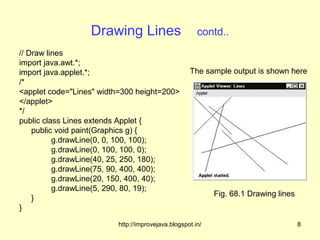
• The following applet draws several lines
                    http://improvejava.blogspot.in/   7
Drawing Lines                       contd..
// Draw lines
import java.awt.*;
import java.applet.*;                              The sample output is shown here
/*
<applet code="Lines" width=300 height=200>
</applet>
*/
public class Lines extends Applet {
    public void paint(Graphics g) {
          g.drawLine(0, 0, 100, 100);
          g.drawLine(0, 100, 100, 0);
          g.drawLine(40, 25, 250, 180);
          g.drawLine(75, 90, 400, 400);
          g.drawLine(20, 150, 400, 40);
          g.drawLine(5, 290, 80, 19);
                                                           Fig. 68.1 Drawing lines
    }
}

                         http://improvejava.blogspot.in/                             8
Drawing Rectangles

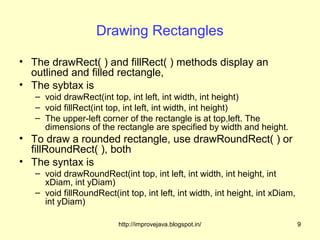
• The drawRect( ) and fillRect( ) methods display an
  outlined and filled rectangle,
• The sybtax is
   – void drawRect(int top, int left, int width, int height)
   – void fillRect(int top, int left, int width, int height)
   – The upper-left corner of the rectangle is at top,left. The
     dimensions of the rectangle are specified by width and height.
• To draw a rounded rectangle, use drawRoundRect( ) or
  fillRoundRect( ), both
• The syntax is
   – void drawRoundRect(int top, int left, int width, int height, int
     xDiam, int yDiam)
   – void fillRoundRect(int top, int left, int width, int height, int xDiam,
     int yDiam)

                          http://improvejava.blogspot.in/                      9
Drawing Rectangles                            contd..
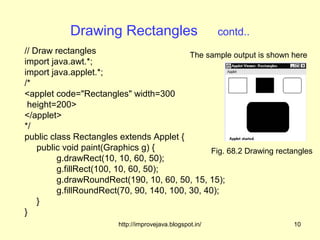
// Draw rectangles                         The sample output is shown here
import java.awt.*;
import java.applet.*;
/*
<applet code="Rectangles" width=300
 height=200>
</applet>
*/
public class Rectangles extends Applet {
    public void paint(Graphics g) {             Fig. 68.2 Drawing rectangles
         g.drawRect(10, 10, 60, 50);
         g.fillRect(100, 10, 60, 50);
         g.drawRoundRect(190, 10, 60, 50, 15, 15);
         g.fillRoundRect(70, 90, 140, 100, 30, 40);
    }
}
                        http://improvejava.blogspot.in/                10
Drawing Ellipses and Circles

• To draw an ellipse, use drawOval( ). To fill an
  ellipse, use fillOval( )
• These methods are shown here
   – void drawOval(int top, int left, int width, int
      height)
   – void fillOval(int top, int left, int width, int
      height)


                   http://improvejava.blogspot.in/     11
Drawing Ellipses and Circles                             contd..

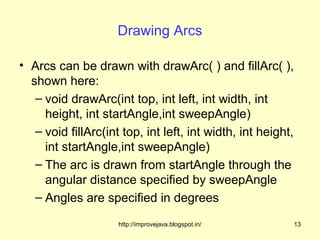
// Draw Ellipses
import java.awt.*;                                    The sample output is shown here
import java.applet.*;
/*
<applet code="Ellipses" width=300
   height=200>
</applet>
*/
public class Ellipses extends Applet {
    public void paint(Graphics g) {
         g.drawOval(10, 10, 50, 50);                        Fig. 68.3 Drawing
         g.fillOval(100, 10, 75, 50);                       ellipses and circles
         g.drawOval(190, 10, 90, 30);
         g.fillOval(70, 90, 140, 100 );
    }
}                           http://improvejava.blogspot.in/                       12
Drawing Arcs

• Arcs can be drawn with drawArc( ) and fillArc( ),
  shown here:
   – void drawArc(int top, int left, int width, int
     height, int startAngle,int sweepAngle)
   – void fillArc(int top, int left, int width, int height,
     int startAngle,int sweepAngle)
   – The arc is drawn from startAngle through the
     angular distance specified by sweepAngle
   – Angles are specified in degrees

                     http://improvejava.blogspot.in/          13
Drawing Arcs                   contd..
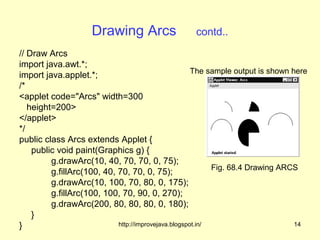
// Draw Arcs
import java.awt.*;
                                                      The sample output is shown here
import java.applet.*;
/*
<applet code="Arcs" width=300
   height=200>
</applet>
*/
public class Arcs extends Applet {
    public void paint(Graphics g) {
         g.drawArc(10, 40, 70, 70, 0, 75);
                                                            Fig. 68.4 Drawing ARCS
         g.fillArc(100, 40, 70, 70, 0, 75);
         g.drawArc(10, 100, 70, 80, 0, 175);
         g.fillArc(100, 100, 70, 90, 0, 270);
         g.drawArc(200, 80, 80, 80, 0, 180);
    }
}                           http://improvejava.blogspot.in/                       14
Drawing Polygons

• It is possible to draw arbitrarily shaped figures
  using drawPolygon( ) and fillPolygon( ),
• shown here:
   – void drawPolygon(int x[ ], int y[ ], int numPoints)
   – void fillPolygon(int x[ ], int y[ ], int numPoints)
• The polygon’s endpoints are specified by the
  coordinate pairs contained within the x and y
  arrays
• The number of points defined by x and y is
  specified by numPoints

                     http://improvejava.blogspot.in/       15
Drawing Polygons                            contd..

// Draw Polygon
import java.awt.*;                             The sample output is shown here
import java.applet.*;
/*
<applet code="HourGlass" width=230
   height=210>
</applet>
*/
public class HourGlass extends Applet {
    public void paint(Graphics g) {
         int xpoints[] = {30, 200, 30, 200, 30};
                                                    Fig. 68.5 Drawing polygons
         int ypoints[] = {30, 30, 200, 200, 30};
         int num = 5;
         g.drawPolygon(xpoints, ypoints, num);
    }
}
                          http://improvejava.blogspot.in/                 16
Summary

• In this class we have discussed
   – Displaying information within a window
   – Working with Graphics


                 http://improvejava.blogspot.in/   17
Quiz

1. The origin of each window is at
  a)   Top-right
  b)   Top-left
  c)   Bottom-left
  d)   Bottom-right


                      http://improvejava.blogspot.in/   18
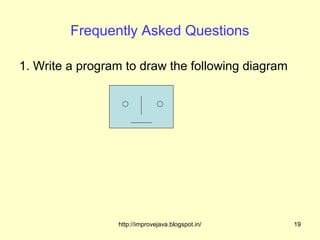
Frequently Asked Questions

1. Write a program to draw the following diagram


                 http://improvejava.blogspot.in/   19

Displaying information within a window.68

  • 1.
    Displaying information withina window http://improvejava.blogspot.in/ 1
  • 2.
    Objectives On completion ofthis period, you would be able to know • Displaying information within a window • Working with Graphics http://improvejava.blogspot.in/ 2
  • 3.
    Recap In the previousclass, you have leant • create a windowed program http://improvejava.blogspot.in/ 3
  • 4.
    Displaying Information Withina Window • A window is a container for information • AWT has ability to present high-quality graphics and text • Displaying Information Within a Window comprises of – Java’s graphics, and font-handling capabilities • In this lesson we look at Java’s graphics http://improvejava.blogspot.in/ 4
  • 5.
    Working with Graphics •The AWT supports a rich set of graphics methods • Graphics call contains these methods • All graphics are drawn relative to a window • The origin of each window is at the top-left corner and is 0,0 • Coordinates are specified in pixels http://improvejava.blogspot.in/ 5
  • 6.
    Working with Graphics contd.. • With Graphics object, we can draw several regular shapes like – Lines – Rectangles – Ellipses – Circles – Ovals – Arcs • Any irregular shapes by drawing polygons http://improvejava.blogspot.in/ 6
  • 7.
    Drawing Lines • Linesare drawn by means of the drawLine( ) method • The syntax is – void drawLine(int startX, int startY, int endX, int endY) • drawLine( ) displays a line in the current drawing color that – begins at startX,startY – ends at endX,endY • The following applet draws several lines http://improvejava.blogspot.in/ 7
  • 8.
    Drawing Lines contd.. // Draw lines import java.awt.*; import java.applet.*; The sample output is shown here /* <applet code="Lines" width=300 height=200> </applet> */ public class Lines extends Applet { public void paint(Graphics g) { g.drawLine(0, 0, 100, 100); g.drawLine(0, 100, 100, 0); g.drawLine(40, 25, 250, 180); g.drawLine(75, 90, 400, 400); g.drawLine(20, 150, 400, 40); g.drawLine(5, 290, 80, 19); Fig. 68.1 Drawing lines } } http://improvejava.blogspot.in/ 8
  • 9.
    Drawing Rectangles • ThedrawRect( ) and fillRect( ) methods display an outlined and filled rectangle, • The sybtax is – void drawRect(int top, int left, int width, int height) – void fillRect(int top, int left, int width, int height) – The upper-left corner of the rectangle is at top,left. The dimensions of the rectangle are specified by width and height. • To draw a rounded rectangle, use drawRoundRect( ) or fillRoundRect( ), both • The syntax is – void drawRoundRect(int top, int left, int width, int height, int xDiam, int yDiam) – void fillRoundRect(int top, int left, int width, int height, int xDiam, int yDiam) http://improvejava.blogspot.in/ 9
  • 10.
    Drawing Rectangles contd.. // Draw rectangles The sample output is shown here import java.awt.*; import java.applet.*; /* <applet code="Rectangles" width=300 height=200> </applet> */ public class Rectangles extends Applet { public void paint(Graphics g) { Fig. 68.2 Drawing rectangles g.drawRect(10, 10, 60, 50); g.fillRect(100, 10, 60, 50); g.drawRoundRect(190, 10, 60, 50, 15, 15); g.fillRoundRect(70, 90, 140, 100, 30, 40); } } http://improvejava.blogspot.in/ 10
  • 11.
    Drawing Ellipses andCircles • To draw an ellipse, use drawOval( ). To fill an ellipse, use fillOval( ) • These methods are shown here – void drawOval(int top, int left, int width, int height) – void fillOval(int top, int left, int width, int height) http://improvejava.blogspot.in/ 11
  • 12.
    Drawing Ellipses andCircles contd.. // Draw Ellipses import java.awt.*; The sample output is shown here import java.applet.*; /* <applet code="Ellipses" width=300 height=200> </applet> */ public class Ellipses extends Applet { public void paint(Graphics g) { g.drawOval(10, 10, 50, 50); Fig. 68.3 Drawing g.fillOval(100, 10, 75, 50); ellipses and circles g.drawOval(190, 10, 90, 30); g.fillOval(70, 90, 140, 100 ); } } http://improvejava.blogspot.in/ 12
  • 13.
    Drawing Arcs • Arcscan be drawn with drawArc( ) and fillArc( ), shown here: – void drawArc(int top, int left, int width, int height, int startAngle,int sweepAngle) – void fillArc(int top, int left, int width, int height, int startAngle,int sweepAngle) – The arc is drawn from startAngle through the angular distance specified by sweepAngle – Angles are specified in degrees http://improvejava.blogspot.in/ 13
  • 14.
    Drawing Arcs contd.. // Draw Arcs import java.awt.*; The sample output is shown here import java.applet.*; /* <applet code="Arcs" width=300 height=200> </applet> */ public class Arcs extends Applet { public void paint(Graphics g) { g.drawArc(10, 40, 70, 70, 0, 75); Fig. 68.4 Drawing ARCS g.fillArc(100, 40, 70, 70, 0, 75); g.drawArc(10, 100, 70, 80, 0, 175); g.fillArc(100, 100, 70, 90, 0, 270); g.drawArc(200, 80, 80, 80, 0, 180); } } http://improvejava.blogspot.in/ 14
  • 15.
    Drawing Polygons • Itis possible to draw arbitrarily shaped figures using drawPolygon( ) and fillPolygon( ), • shown here: – void drawPolygon(int x[ ], int y[ ], int numPoints) – void fillPolygon(int x[ ], int y[ ], int numPoints) • The polygon’s endpoints are specified by the coordinate pairs contained within the x and y arrays • The number of points defined by x and y is specified by numPoints http://improvejava.blogspot.in/ 15
  • 16.
    Drawing Polygons contd.. // Draw Polygon import java.awt.*; The sample output is shown here import java.applet.*; /* <applet code="HourGlass" width=230 height=210> </applet> */ public class HourGlass extends Applet { public void paint(Graphics g) { int xpoints[] = {30, 200, 30, 200, 30}; Fig. 68.5 Drawing polygons int ypoints[] = {30, 30, 200, 200, 30}; int num = 5; g.drawPolygon(xpoints, ypoints, num); } } http://improvejava.blogspot.in/ 16
  • 17.
    Summary • In thisclass we have discussed – Displaying information within a window – Working with Graphics http://improvejava.blogspot.in/ 17
  • 18.
    Quiz 1. The originof each window is at a) Top-right b) Top-left c) Bottom-left d) Bottom-right http://improvejava.blogspot.in/ 18
  • 19.
    Frequently Asked Questions 1.Write a program to draw the following diagram http://improvejava.blogspot.in/ 19