Building Java Programs
                                      Graphics

                             reading: Supplement 3G
                                videos: Ch. 3G #1-2


Copyright 2010 by Pearson Education
Objects (briefly)
object: An entity that contains data and behavior.
   data:     variables inside the object
   behavior: methods inside the object

          You interact with the methods;
           the data is hidden in the object.
          A class is a type of objects.


Constructing (creating) an object:
  Type objectName = new Type(parameters);

Calling an object's method:
  objectName.methodName(parameters);


                                                      2
  Copyright 2010 by Pearson Education
Graphical objects
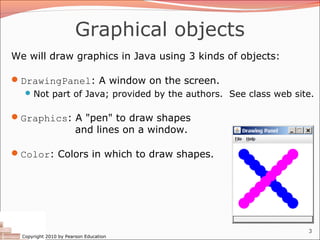
We will draw graphics in Java using 3 kinds of objects:

DrawingPanel: A window on the screen.
   Not part of Java; provided by the authors. See class web site.


Graphics: A "pen" to draw shapes
                        and lines on a window.

Color: Colors in which to draw shapes.


                                                                3
  Copyright 2010 by Pearson Education
DrawingPanel
 "Canvas" objects that represents windows/drawing surfaces

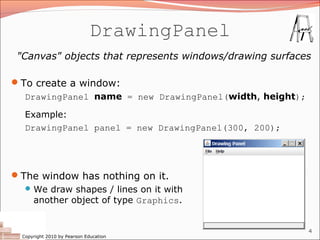
To create a window:
  DrawingPanel name = new DrawingPanel(width, height);

   Example:
   DrawingPanel panel = new DrawingPanel(300, 200);


The window has nothing on it.
   We draw shapes / lines on it with
    another object of type Graphics.


                                                         4
  Copyright 2010 by Pearson Education
Graphics
    "Pen" or "paint brush" objects to draw lines and shapes

    Access it by calling getGraphics on your DrawingPanel.
      Graphics g = panel.getGraphics();

Draw shapes by calling methods
 on the Graphics object.
      g.fillRect(10, 30, 60, 35);
      g.fillOval(80, 40, 50, 70);


                                                              5
  Copyright 2010 by Pearson Education
Java class libraries, import
Java class libraries: Classes included with Java's JDK.
   organized into groups named packages
   To use a package, put an import declaration in your program:


      // put this at the very top of your program
      import packageName.*;


Graphics belongs to a package named java.awt

      import java.awt.*;

    To use Graphics, you must place the above line at the very
      top of your program, before the public class header.

                                                                  6
  Copyright 2010 by Pearson Education
Coordinate system
Each (x, y) position is a pixel ("picture element").

Position (0, 0) is at the window's top-left corner.
   x increases rightward and the y increases downward.


The rectangle from (0, 0) to (200, 100) looks like this:

   (0, 0)                          x+


                                   (200, 100)
         y+


                                                            7
  Copyright 2010 by Pearson Education
Graphics methods
              Method name                               Description
g.drawLine(x1, y1, x2, y2);               line between points (x1, y1), (x2, y2)
g.drawOval(x, y, width, height); outline largest oval that fits in a box of
                                          size width * height with top-left at (x, y)
g.drawRect(x, y, width, height); outline of rectangle of size
                                 width * height with top-left at (x, y)
g.drawString(text, x, y);                 text with bottom-left at (x, y)
g.fillOval(x, y, width, height); fill largest oval that fits in a box of size
                                 width * height with top-left at (x, y)
g.fillRect(x, y, width, height); fill rectangle of size width * height
                                 with top-left at (x, y)
g.setColor(Color);                        set Graphics to paint any following
                                          shapes in the given color

                                                                                   8
    Copyright 2010 by Pearson Education
Color
Specified as predefined Color class constants:
      Color.CONSTANT_NAME

      where CONSTANT_NAME is one of:
          BLACK,             BLUE,         CYAN,      DARK_GRAY,   GRAY,
          GREEN,             LIGHT_GRAY,   MAGENTA,   ORANGE,
          PINK,              RED,          WHITE,     YELLOW

Or create one using Red-Green-Blue (RGB) values of 0-255
      Color name = new Color(red, green, blue);
    Example:
      Color brown = new Color(192, 128, 64);

                                                                           9
  Copyright 2010 by Pearson Education
Using colors
Pass a Color to Graphics object's setColor method
   Subsequent shapes will be drawn in the new color.

      g.setColor(Color.BLACK);
      g.fillRect(10, 30, 100, 50);
      g.drawLine(20, 0, 10, 30);
      g.setColor(Color.RED);
      g.fillOval(60, 40, 40, 70);


Pass a color to DrawingPanel's setBackground method
   The overall window background color will change.

      Color brown = new Color(192, 128, 64);
      panel.setBackground(brown);

                                                        10
  Copyright 2010 by Pearson Education
Outlined shapes
To draw a colored shape with an outline, first fill it,
    then draw the same shape in the outline color.

import java.awt.*;                        // so I can use Graphics
public class OutlineExample {
    public static void main(String[] args) {
        DrawingPanel panel = new DrawingPanel(150, 70);
        Graphics g = panel.getGraphics();
                 // inner red fill
                 g.setColor(Color.RED);
                 g.fillRect(20, 10, 100, 50);
                 // black outline
                 g.setColor(Color.BLACK);
                 g.drawRect(20, 10, 100, 50);
        }
}
                                                                     11
    Copyright 2010 by Pearson Education
Superimposing shapes
 When ≥ 2 shapes occupy the same pixels, the last drawn "wins."
import java.awt.*;

public class Car {
    public static void main(String[] args) {
        DrawingPanel panel = new DrawingPanel(200, 100);
        panel.setBackground(Color.LIGHT_GRAY);
        Graphics g = panel.getGraphics();
             g.setColor(Color.BLACK);
             g.fillRect(10, 30, 100, 50);
             g.setColor(Color.RED);
             g.fillOval(20, 70, 20, 20);
             g.fillOval(80, 70, 20, 20);
             g.setColor(Color.CYAN);
             g.fillRect(80, 40, 30, 20);
      }
}


                                                              12
    Copyright 2010 by Pearson Education
Drawing with loops
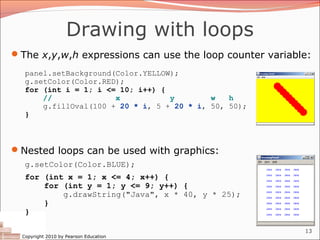
The x,y,w,h expressions can use the loop counter variable:
   panel.setBackground(Color.YELLOW);
   g.setColor(Color.RED);
   for (int i = 1; i <= 10; i++) {
       //              x           y        w   h
       g.fillOval(100 + 20 * i, 5 + 20 * i, 50, 50);
   }


Nested loops can be used with graphics:
   g.setColor(Color.BLUE);
   for (int x = 1; x <= 4; x++) {
       for (int y = 1; y <= 9; y++) {
           g.drawString("Java", x * 40, y * 25);
       }
   }

                                                         13
  Copyright 2010 by Pearson Education
Zero-based loops
Beginning at 0 and using < can make coordinates easier.
   DrawingPanel panel = new DrawingPanel(150, 140);
   Graphics g = panel.getGraphics();

   // horizontal line of 5 20x20 rectangles starting
   // at (11, 18); x increases by 20 each time
   for (int i = 0; i < 5; i++) {
       g.drawRect(11 + 20 * i, 18, 20, 20);
   }

Exercise: Write a variation of the above
 program that draws the output at right.
    The bottom-left rectangle is at (11, 98).

   for (int i = 0; i < 5; i++) {
       g.drawRect(11 + 20 * i, 98 - 20 * i, 20, 20);
   }

                                                           14
  Copyright 2010 by Pearson Education
Java book figure
Write a program that draws the following figure:
  drawing panel is size 200x150
  book is at (20, 35), size 100x100
  cyan background
  white "BJP" text at position (70, 55)

    stairs are in color (red=191, green=118, blue=73)
    each stair is 9px tall
          1st stair is 10px wide
          2nd stair is 20px wide ...
    stairs are 10px apart (1 blank pixel between)


                                                         15
  Copyright 2010 by Pearson Education
Java book solution
// Draws a Building Java Programs textbook with DrawingPanel.
import java.awt.*;

public class Book {
    public static void main(String[] args) {
        DrawingPanel panel = new DrawingPanel(200, 150);
        panel.setBackground(Color.WHITE);
        Graphics g = panel.getGraphics();
               g.setColor(Color.CYAN);            // cyan background
               g.fillRect(20, 35, 100, 100);
               g.setColor(Color.WHITE);           // white "bjp" text
               g.drawString("BJP", 70, 55);
               g.setColor(new Color(191, 118, 73));
               for (int i = 0; i < 10; i++) {     // orange "bricks"
                   g.fillRect(20, 35 + 10 * i, 10 + 10 * i, 9);
               }
       }
}
                                                                       16
    Copyright 2010 by Pearson Education
Multiple Java books
Modify the Java book program so that it can draw books at
 different positions as shown below.
    book top/left positions: (20, 35), (150, 70), (300, 10)
    drawing panel's new size: 450x180


                                                               17
  Copyright 2010 by Pearson Education
Multiple books solution
To draw in a method, you must pass Graphics g to it.

// Draws many BJP textbooks using parameters.
import java.awt.*;

public class Book2 {
    public static void main(String[] args) {
        DrawingPanel panel = new DrawingPanel(450, 180);
        panel.setBackground(Color.WHITE);
        Graphics g = panel.getGraphics();

             // draw three books at different locations
             drawBook(g, 20, 35);
             drawBook(g, 150, 70);
             drawBook(g, 300, 10);
     }

     ...
                                                           18
  Copyright 2010 by Pearson Education
Multiple books, cont'd.
       ...

       // Draws a BJP textbook at the given x/y position.
       public static void drawBook(Graphics g, int x, int y) {
           g.setColor(Color.CYAN);            // cyan background
           g.fillRect(x, y, 100, 100);

               g.setColor(Color.WHITE);           // white "bjp" text
               g.drawString("BJP", x + 50, y + 20);

               g.setColor(new Color(191, 118, 73));
               for (int i = 0; i < 10; i++) {     // orange "bricks"
                   g.fillRect(x, y + 10 * i, 10 * (i + 1), 9);
               }
       }
}


                                                                       19
    Copyright 2010 by Pearson Education
Resizable Java books
Modify the Java book program so that it can draw books at
 different sizes as shown below.
    book sizes: 100x100, 60x60, 200x200
    drawing panel's new size: 520x240


                                                        20
  Copyright 2010 by Pearson Education
Resizable books solution
// Draws many sized BJP textbooks using parameters.
import java.awt.*;

public class Book3 {
    public static void main(String[] args) {
        DrawingPanel panel = new DrawingPanel(520, 240);
        panel.setBackground(Color.WHITE);
        Graphics g = panel.getGraphics();

             // draw three books at different locations/sizes
             drawBook(g, 20, 35, 100);
             drawBook(g, 150, 70, 60);
             drawBook(g, 300, 10, 200);
     }

     ...


                                                                21
  Copyright 2010 by Pearson Education
Resizable solution, cont'd.
       ...

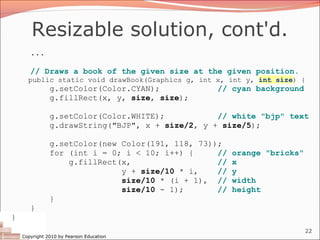
       // Draws a book of the given size at the given position.
      public static void drawBook(Graphics g, int x, int y, int size) {
               g.setColor(Color.CYAN);            // cyan background
               g.fillRect(x, y, size, size);

               g.setColor(Color.WHITE);           // white "bjp" text
               g.drawString("BJP", x + size/2, y + size/5);

               g.setColor(new Color(191, 118, 73));
               for (int i = 0; i < 10; i++) {     //   orange "bricks"
                   g.fillRect(x,                  //   x
                              y + size/10 * i,    //   y
                              size/10 * (i + 1), //    width
                              size/10 - 1);       //   height
               }
       }
}
                                                                         22
    Copyright 2010 by Pearson Education
Polygon
                    Objects that represent arbitrary shapes

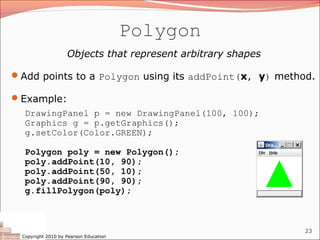
Add points to a Polygon using its addPoint(x, y) method.

Example:
   DrawingPanel p = new DrawingPanel(100, 100);
   Graphics g = p.getGraphics();
   g.setColor(Color.GREEN);

   Polygon poly = new Polygon();
   poly.addPoint(10, 90);
   poly.addPoint(50, 10);
   poly.addPoint(90, 90);
   g.fillPolygon(poly);


                                                              23
  Copyright 2010 by Pearson Education
DrawingPanel methods
panel.clear();
 Erases any shapes that are drawn on the drawing panel.

panel.setWidth(width);
 panel.setHeight(height);
 panel.setSize(width, height);
 Changes the drawing panel's size to the given value(s).

panel.save(filename);
 Saves the image on the panel to the given file (String).

panel.sleep(ms);
 Pauses the drawing for the given number of milliseconds.

                                                            24
 Copyright 2010 by Pearson Education
Animation with sleep
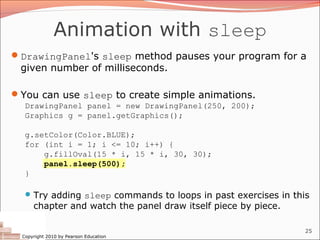
DrawingPanel's sleep method pauses your program for a
 given number of milliseconds.

You can use sleep to create simple animations.
   DrawingPanel panel = new DrawingPanel(250, 200);
   Graphics g = panel.getGraphics();

   g.setColor(Color.BLUE);
   for (int i = 1; i <= 10; i++) {
       g.fillOval(15 * i, 15 * i, 30, 30);
       panel.sleep(500);
   }

    Try adding sleep commands to loops in past exercises in this
      chapter and watch the panel draw itself piece by piece.

                                                                25
  Copyright 2010 by Pearson Education

java graphics

  • 1.
    Building Java Programs Graphics reading: Supplement 3G videos: Ch. 3G #1-2 Copyright 2010 by Pearson Education
  • 2.
    Objects (briefly) object: Anentity that contains data and behavior.  data: variables inside the object  behavior: methods inside the object  You interact with the methods; the data is hidden in the object.  A class is a type of objects. Constructing (creating) an object: Type objectName = new Type(parameters); Calling an object's method: objectName.methodName(parameters); 2 Copyright 2010 by Pearson Education
  • 3.
    Graphical objects We willdraw graphics in Java using 3 kinds of objects: DrawingPanel: A window on the screen.  Not part of Java; provided by the authors. See class web site. Graphics: A "pen" to draw shapes and lines on a window. Color: Colors in which to draw shapes. 3 Copyright 2010 by Pearson Education
  • 4.
    DrawingPanel "Canvas" objectsthat represents windows/drawing surfaces To create a window: DrawingPanel name = new DrawingPanel(width, height); Example: DrawingPanel panel = new DrawingPanel(300, 200); The window has nothing on it.  We draw shapes / lines on it with another object of type Graphics. 4 Copyright 2010 by Pearson Education
  • 5.
    Graphics "Pen" or "paint brush" objects to draw lines and shapes  Access it by calling getGraphics on your DrawingPanel. Graphics g = panel.getGraphics(); Draw shapes by calling methods on the Graphics object. g.fillRect(10, 30, 60, 35); g.fillOval(80, 40, 50, 70); 5 Copyright 2010 by Pearson Education
  • 6.
    Java class libraries,import Java class libraries: Classes included with Java's JDK.  organized into groups named packages  To use a package, put an import declaration in your program: // put this at the very top of your program import packageName.*; Graphics belongs to a package named java.awt import java.awt.*;  To use Graphics, you must place the above line at the very top of your program, before the public class header. 6 Copyright 2010 by Pearson Education
  • 7.
    Coordinate system Each (x,y) position is a pixel ("picture element"). Position (0, 0) is at the window's top-left corner.  x increases rightward and the y increases downward. The rectangle from (0, 0) to (200, 100) looks like this: (0, 0) x+ (200, 100) y+ 7 Copyright 2010 by Pearson Education
  • 8.
    Graphics methods Method name Description g.drawLine(x1, y1, x2, y2); line between points (x1, y1), (x2, y2) g.drawOval(x, y, width, height); outline largest oval that fits in a box of size width * height with top-left at (x, y) g.drawRect(x, y, width, height); outline of rectangle of size width * height with top-left at (x, y) g.drawString(text, x, y); text with bottom-left at (x, y) g.fillOval(x, y, width, height); fill largest oval that fits in a box of size width * height with top-left at (x, y) g.fillRect(x, y, width, height); fill rectangle of size width * height with top-left at (x, y) g.setColor(Color); set Graphics to paint any following shapes in the given color 8 Copyright 2010 by Pearson Education
  • 9.
    Color Specified as predefinedColor class constants: Color.CONSTANT_NAME where CONSTANT_NAME is one of: BLACK, BLUE, CYAN, DARK_GRAY, GRAY, GREEN, LIGHT_GRAY, MAGENTA, ORANGE, PINK, RED, WHITE, YELLOW Or create one using Red-Green-Blue (RGB) values of 0-255 Color name = new Color(red, green, blue);  Example: Color brown = new Color(192, 128, 64); 9 Copyright 2010 by Pearson Education
  • 10.
    Using colors Pass aColor to Graphics object's setColor method  Subsequent shapes will be drawn in the new color. g.setColor(Color.BLACK); g.fillRect(10, 30, 100, 50); g.drawLine(20, 0, 10, 30); g.setColor(Color.RED); g.fillOval(60, 40, 40, 70); Pass a color to DrawingPanel's setBackground method  The overall window background color will change. Color brown = new Color(192, 128, 64); panel.setBackground(brown); 10 Copyright 2010 by Pearson Education
  • 11.
    Outlined shapes To drawa colored shape with an outline, first fill it, then draw the same shape in the outline color. import java.awt.*; // so I can use Graphics public class OutlineExample { public static void main(String[] args) { DrawingPanel panel = new DrawingPanel(150, 70); Graphics g = panel.getGraphics(); // inner red fill g.setColor(Color.RED); g.fillRect(20, 10, 100, 50); // black outline g.setColor(Color.BLACK); g.drawRect(20, 10, 100, 50); } } 11 Copyright 2010 by Pearson Education
  • 12.
    Superimposing shapes  When≥ 2 shapes occupy the same pixels, the last drawn "wins." import java.awt.*; public class Car { public static void main(String[] args) { DrawingPanel panel = new DrawingPanel(200, 100); panel.setBackground(Color.LIGHT_GRAY); Graphics g = panel.getGraphics(); g.setColor(Color.BLACK); g.fillRect(10, 30, 100, 50); g.setColor(Color.RED); g.fillOval(20, 70, 20, 20); g.fillOval(80, 70, 20, 20); g.setColor(Color.CYAN); g.fillRect(80, 40, 30, 20); } } 12 Copyright 2010 by Pearson Education
  • 13.
    Drawing with loops Thex,y,w,h expressions can use the loop counter variable: panel.setBackground(Color.YELLOW); g.setColor(Color.RED); for (int i = 1; i <= 10; i++) { // x y w h g.fillOval(100 + 20 * i, 5 + 20 * i, 50, 50); } Nested loops can be used with graphics: g.setColor(Color.BLUE); for (int x = 1; x <= 4; x++) { for (int y = 1; y <= 9; y++) { g.drawString("Java", x * 40, y * 25); } } 13 Copyright 2010 by Pearson Education
  • 14.
    Zero-based loops Beginning at0 and using < can make coordinates easier. DrawingPanel panel = new DrawingPanel(150, 140); Graphics g = panel.getGraphics(); // horizontal line of 5 20x20 rectangles starting // at (11, 18); x increases by 20 each time for (int i = 0; i < 5; i++) { g.drawRect(11 + 20 * i, 18, 20, 20); } Exercise: Write a variation of the above program that draws the output at right.  The bottom-left rectangle is at (11, 98). for (int i = 0; i < 5; i++) { g.drawRect(11 + 20 * i, 98 - 20 * i, 20, 20); } 14 Copyright 2010 by Pearson Education
  • 15.
    Java book figure Writea program that draws the following figure:  drawing panel is size 200x150  book is at (20, 35), size 100x100  cyan background  white "BJP" text at position (70, 55)  stairs are in color (red=191, green=118, blue=73)  each stair is 9px tall  1st stair is 10px wide  2nd stair is 20px wide ...  stairs are 10px apart (1 blank pixel between) 15 Copyright 2010 by Pearson Education
  • 16.
    Java book solution //Draws a Building Java Programs textbook with DrawingPanel. import java.awt.*; public class Book { public static void main(String[] args) { DrawingPanel panel = new DrawingPanel(200, 150); panel.setBackground(Color.WHITE); Graphics g = panel.getGraphics(); g.setColor(Color.CYAN); // cyan background g.fillRect(20, 35, 100, 100); g.setColor(Color.WHITE); // white "bjp" text g.drawString("BJP", 70, 55); g.setColor(new Color(191, 118, 73)); for (int i = 0; i < 10; i++) { // orange "bricks" g.fillRect(20, 35 + 10 * i, 10 + 10 * i, 9); } } } 16 Copyright 2010 by Pearson Education
  • 17.
    Multiple Java books Modifythe Java book program so that it can draw books at different positions as shown below.  book top/left positions: (20, 35), (150, 70), (300, 10)  drawing panel's new size: 450x180 17 Copyright 2010 by Pearson Education
  • 18.
    Multiple books solution Todraw in a method, you must pass Graphics g to it. // Draws many BJP textbooks using parameters. import java.awt.*; public class Book2 { public static void main(String[] args) { DrawingPanel panel = new DrawingPanel(450, 180); panel.setBackground(Color.WHITE); Graphics g = panel.getGraphics(); // draw three books at different locations drawBook(g, 20, 35); drawBook(g, 150, 70); drawBook(g, 300, 10); } ... 18 Copyright 2010 by Pearson Education
  • 19.
    Multiple books, cont'd. ... // Draws a BJP textbook at the given x/y position. public static void drawBook(Graphics g, int x, int y) { g.setColor(Color.CYAN); // cyan background g.fillRect(x, y, 100, 100); g.setColor(Color.WHITE); // white "bjp" text g.drawString("BJP", x + 50, y + 20); g.setColor(new Color(191, 118, 73)); for (int i = 0; i < 10; i++) { // orange "bricks" g.fillRect(x, y + 10 * i, 10 * (i + 1), 9); } } } 19 Copyright 2010 by Pearson Education
  • 20.
    Resizable Java books Modifythe Java book program so that it can draw books at different sizes as shown below.  book sizes: 100x100, 60x60, 200x200  drawing panel's new size: 520x240 20 Copyright 2010 by Pearson Education
  • 21.
    Resizable books solution //Draws many sized BJP textbooks using parameters. import java.awt.*; public class Book3 { public static void main(String[] args) { DrawingPanel panel = new DrawingPanel(520, 240); panel.setBackground(Color.WHITE); Graphics g = panel.getGraphics(); // draw three books at different locations/sizes drawBook(g, 20, 35, 100); drawBook(g, 150, 70, 60); drawBook(g, 300, 10, 200); } ... 21 Copyright 2010 by Pearson Education
  • 22.
    Resizable solution, cont'd. ... // Draws a book of the given size at the given position. public static void drawBook(Graphics g, int x, int y, int size) { g.setColor(Color.CYAN); // cyan background g.fillRect(x, y, size, size); g.setColor(Color.WHITE); // white "bjp" text g.drawString("BJP", x + size/2, y + size/5); g.setColor(new Color(191, 118, 73)); for (int i = 0; i < 10; i++) { // orange "bricks" g.fillRect(x, // x y + size/10 * i, // y size/10 * (i + 1), // width size/10 - 1); // height } } } 22 Copyright 2010 by Pearson Education
  • 23.
    Polygon Objects that represent arbitrary shapes Add points to a Polygon using its addPoint(x, y) method. Example: DrawingPanel p = new DrawingPanel(100, 100); Graphics g = p.getGraphics(); g.setColor(Color.GREEN); Polygon poly = new Polygon(); poly.addPoint(10, 90); poly.addPoint(50, 10); poly.addPoint(90, 90); g.fillPolygon(poly); 23 Copyright 2010 by Pearson Education
  • 24.
    DrawingPanel methods panel.clear(); Erasesany shapes that are drawn on the drawing panel. panel.setWidth(width); panel.setHeight(height); panel.setSize(width, height); Changes the drawing panel's size to the given value(s). panel.save(filename); Saves the image on the panel to the given file (String). panel.sleep(ms); Pauses the drawing for the given number of milliseconds. 24 Copyright 2010 by Pearson Education
  • 25.
    Animation with sleep DrawingPanel'ssleep method pauses your program for a given number of milliseconds. You can use sleep to create simple animations. DrawingPanel panel = new DrawingPanel(250, 200); Graphics g = panel.getGraphics(); g.setColor(Color.BLUE); for (int i = 1; i <= 10; i++) { g.fillOval(15 * i, 15 * i, 30, 30); panel.sleep(500); }  Try adding sleep commands to loops in past exercises in this chapter and watch the panel draw itself piece by piece. 25 Copyright 2010 by Pearson Education